

Get free scan and check if your device is infected.
Remove it nowTo use full-featured product, you have to purchase a license for Combo Cleaner. Seven days free trial available. Combo Cleaner is owned and operated by RCS LT, the parent company of PCRisk.com.
What is Win32/FakeSysDef family?
The Win32/FakeSysDef family of rogue system optimizers are created by cyber criminals. Fake programs from this family infiltrate users' computers via security vulnerabilities and then perform fake system scans, resulting in the 'detection' of serious hardware (commonly, Hard Disk Drive HDD) issues.
These programs display fake hard disk drive errors with the intention of scaring PC users into purchasing the 'full version' of the program.
After successful infiltration, rogue programs from this family modify the operating system settings and registry entries, and configure themselves to start automatically on each system start-up. To make the fake hardware errors appear authentic, bogus system scanners hide users' desktop icons and Start menu entries.
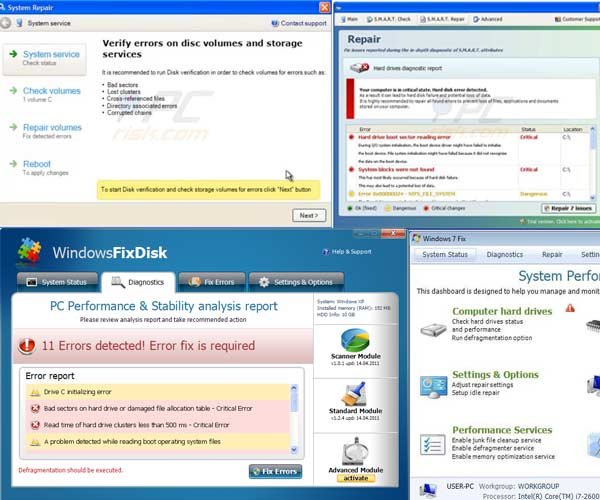
This trickery is applied to give the appearance that the computer has acquired serious HDD-related issues. Note that bogus programs from this family do not actually delete any files - they merely hide them.
Further research of the FakeSysDef family reveals that these programs are similar to fake antivirus programs, however, they employ slightly different tactics to coerce users into paying for the 'full version'. Whilst fake antivirus software mimics the detection of various viruses and Trojans, fake system hardware scanners 'identify' various hardware issues.
Both types of rogue software are designed to encourage computer users to believe the alerts and pay for the 'full versions' - supposedly to fix the issues.
If you observe a program, which generates various hardware-related warning messages (statements regarding potential data loss), and you have not willingly installed it, your PC is infected with a rogue program from the FakeSysDef family. The correct way to deal with this bogus software is to eliminate it from your system.
To protect your PC from rogue software, use legitimate antivirus and anti-spyware programs and keep your operating system and installed software up-to-date - this drastically reduces the possibility of security problems.
Fake error messages generated by rogue programs from the Win32/FakeSysDef family:
Windows detected a hard disk problem.
A potential disk failure may cause loss of files, applications and documents stored on the hard disk. Please try not to use this computer until the hard disk is fixed or replaced. Scan and fix (recommended) Cancel and reboot.Hard Drive Failure - The system has detected a problem with one or more installed IDE/SATA hard disks. It is recommended that you restart the system.
Your computer is in critical state. Hard disk error detected. As a result it can lead to hard disk failure and potential loss of data. It is highly recommended to repair all found errors to prevent loss of lives, applications and documents stored on your computer.
Hard drive boot sector reading error - During I/O system initialization, the boot device driver might have failed to initialize the boot device. File system initialization might have failed because it did not recognize the data on the boot device.
System block were not found - This has most likely occurred because of hard disk failure. This may also lead to a potential loss of data.
List of known name variations used by rogue programs from the FakeSysDef family:
| Windows Repair WindowsRecovery Windows 7 Recovery Windows XP Recovery Data Restore Disk Optimizer Disk Recovery Disk Repair Disk Tool Easy Scan Fast Disk File Recovery Good Memory |
Quick Defrag Quick Defragmenter Smart Defragmenter Smart Hdd System Defragmenter System Diagnostic System Fix Ultra Defragger Win Defrag Win Defragmenter Win Disk Windows XP Restore Windows 7 Restore |
Hard Drive Diagnostic HDD Control HDD Diagnostic HDD Fix Memory Optimizer Memory Scan Data_Recovery Data Recovery SMART Repair S.M.A.R.T. Repair SMART Check S.M.A.R.T. Check |
Instant automatic malware removal:
Manual threat removal might be a lengthy and complicated process that requires advanced IT skills. Combo Cleaner is a professional automatic malware removal tool that is recommended to get rid of malware. Download it by clicking the button below:
DOWNLOAD Combo CleanerBy downloading any software listed on this website you agree to our Privacy Policy and Terms of Use. To use full-featured product, you have to purchase a license for Combo Cleaner. 7 days free trial available. Combo Cleaner is owned and operated by RCS LT, the parent company of PCRisk.com.
Quick menu:
- What is Win32/FakeSysDef family?
- STEP 1. Disable Win32/FakeSysDef family using a activation key.
- STEP 2. Remove Win32/FakeSysDef family using Safe Mode with Networking.
- STEP 3. Restore Desktop icons or files.
Rogue programs from Win32/FakeSysDef family removal:
Cyber criminals responsible for creating rogue programs from this family use identical license keys, which can be used to 'fake register' their bogus software.
Fake registration makes the removal process of fake system scanners less complicated since, after successful registration, fake programs from this family allow execution on installed software and cease generating fake hardware malfunction error messages.
Wait until rogue program completes the fake hard disk drive scan, click "Repair 7 Issues" button, in the opened window choose "I already have an activation code. Click here to activate" and enter this information (use one of the provided registry keys):
Registration E-mail: mail@email.com
Activation Key:
56723489134092874867245789235982
08869246386344953972969146034087
08467206738602987934024759008355
By entering this information you will make the removal process of any program from the FakeSysDef family less complicated.
Note that entering the retrieved registry keys does not remove the rogue program from your computer - use the button below to download the recommended malware removal software, install it and run a full system scan to completely remove the fake system scanner from your PC.
DOWNLOAD remover for malware infections
Combo Cleaner checks if your computer is infected with malware. To use full-featured product, you have to purchase a license for Combo Cleaner. 7 days free trial available. Combo Cleaner is owned and operated by RCS LT, the parent company of PCRisk.com.
If you are unable to download or run the spyware remover, try running the registry fix (link below). Download registryfix.reg file, double click it, click YES and then OK.
Note that System Repair hides some of your files (desktop shortcuts, Start Menu items, etc.) - if after removal of the rogue program you are unable to find your files, use the following instructions.
If you were unable to remove fake system scanners using the provided instructions, follow these steps:
FakeSysDef rogue removal using Safe Mode with Networking:
1. Start your computer in Safe Mode. Click Start, click Shut Down, click Restart, click OK. During your computer starting process press the F8 key on your keyboard multiple times until you see the Windows Advanced Option menu, then select Safe Mode with Networking from the list.
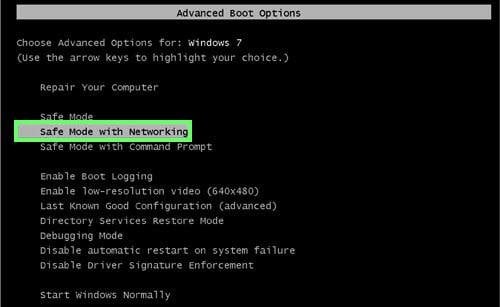
Video showing how to start Windows 7 in "Safe Mode with Networking":
2. Click Start then click Run. (Click Windows logo in Windows 7 and Windows Vista)
In Windows XP, when the Run dialogue appears, enter this text: www.pcrisk.com/download-spyware-remover and then press ENTER. In Windows 7 and Windows Vista you can type this line directly into the search field and then press ENTER.
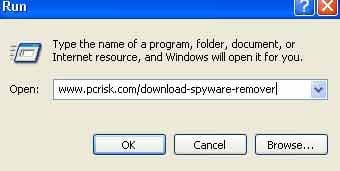
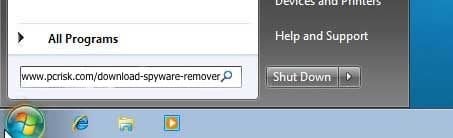
After clicking enter, the File download dialogue of recommended malware removal software will appear. Click Run and follow the on-screen instructions.
3. After removing System Repair, reset your Hosts files:
The Hosts file is used to resolve canonical names of websites to IP addresses. When it is changed, the user may be redirected to malicious sites, despite seeing legitimate URLs in address bar. It is difficult to determine sites are genuine when the Hosts file is modified.
To fix this, please download the Microsoft Fix It tool, that restores your Hosts file to the Windows default. Run this tool when downloaded and follow the on-screen instructions. Download link below:
Complete these steps if after removal of FakeSysDef rogue your Desktop icons or files are hidden:
Step 1
Rogue programs from this family hide most user files. If you cannot see your files, do not panic - your files are not removed, they are simply hidden. After removing this rogue program, download and run this tool to unhide your files (download link below).
It is important to run this tool only when System Repair has been removed from your computer. This unhide files tool will be useless if run on an infected computer.
When the unhide files tool completes, your Windows desktop icons may still be missing. To fix missing desktop items, download this .REG file. Double click it, click "Yes" and then click "OK". Reboot your computer, your desktop should now be visible.
Step 2
Reboot your computer and check if everything is OK. Check if you can locate all files. If some remain missing, open My Computer, Click Tools, then select Folder Options... and under View tab select the radio button "Show hidden files and folders", press OK.
Now you should see all hidden files and folders. To unhide them, Right click on the file or folder, select Properties and uncheck the "Hidden" Check box.
That's it! You're done.
Summary:
The fake antivirus programs (also known as "rogue antivirus programs" or "scareware") are applications that tries to lure computer users into paying for their non-existent full versions to remove the supposedly detected security infections (although the computer is actually clean). These bogus programs are created by cyber criminals who design them to look as legitimate antivirus software. Most commonly rogue antivirus programs infiltrate user's computer using poop-up windows or alerts which appear when users surf the Internet. These deceptive messages trick users into downloading a rogue antivirus program on their computers. Other known tactics used to spread scareware include exploit kits, infected email messages, online ad networks, drive-by downloads, or even direct calls to user's offering free support.
A computer that is infected with a fake antivirus program might also have other malware installed on it as rogue antivirus programs often are bundled with Trojans and exploit kits. Noteworthy that additional malware that infiltrates user's operating system remains on victim's computer regardless of whether a payment for a non-existent full version of a fake antivirus program is made. Here are some examples of fake security warning messages that are used in fake antivirus distribution:
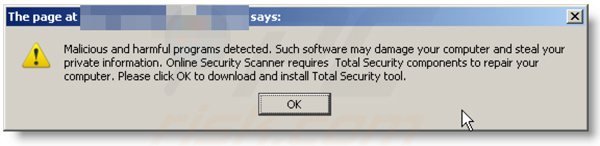
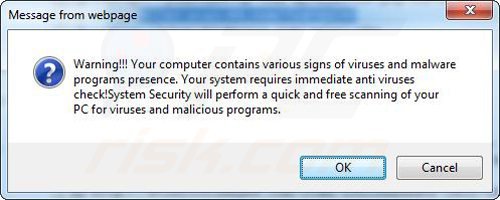
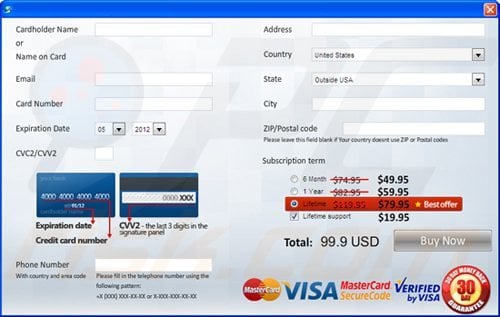
Computer users who are dealing with a rogue security software shouldn't buy it's full version. By paying for a license key of a fake antivirus program users would send their money and banking information to cyber criminals. Users who have already entered their credit card number (or other sensitive information) when asked by such bogus software should inform their credit card company that they have been tricked into buying a rogue security software. Screenshot of a web page used to lure computer users into paying for a non-existent full version of fake hdd and other rogue antivirus programs:
To protect your computer from fake hdd and other rogue antivirus programs users should:
- Keep their operating system and all of the installed programs up-to-date.
- Use legitimate antivirus and anti-spyware programs.
- Use caution when clicking on links in social networking websites and email messages.
- Don't trust online pop-up messages which state that your computer is infected and offers you to download security software.
Symptoms indicating that your operating system is infected with a fake antivirus program:
- Intrusive security warning pop-up messages.
- Alerts asking to upgrade to a paid version of a program to remove the supposedly detected malware.
- Slow computer performance.
- Disabled Windows updates.
- Blocked Task Manager.
- Blocked Internet browsers or inability to visit legitimate antivirus vendor websites.
If you have additional information on fake hdd or it's removal please share your knowledge in the comments section below.
Share:
 Facebook
 X.com
X.com
 LinkedIn
 Copy Link

Tomas Meskauskas
Expert security researcher, professional malware analyst
I am passionate about computer security and technology. I have an experience of over 10 years working in various companies related to computer technical issue solving and Internet security. I have been working as an author and editor for pcrisk.com since 2010. Follow me on Twitter and LinkedIn to stay informed about the latest online security threats.
PCrisk security portal is brought by a company RCS LT.
Joined forces of security researchers help educate computer users about the latest online security threats. More information about the company RCS LT.
Our malware removal guides are free. However, if you want to support us you can send us a donation.
DonatePCrisk security portal is brought by a company RCS LT.
Joined forces of security researchers help educate computer users about the latest online security threats. More information about the company RCS LT.
Our malware removal guides are free. However, if you want to support us you can send us a donation.
Donate
▼ Show Discussion