Data Recovery
 Written by Tomas Meskauskas on (updated)
What is Data Recovery?
Data Recovery is a rogue program, which attempts to scare PC users into believing that their computer hardware has malfunctioned and the situation could lead to potential data loss. This is an updated version of previously discovered bogus software of the same name - Data Recovery.
Do not mistake this rogue program for a legitimate computer optimizer - it is a scam developed by Internet criminals. The creators of this fake program hope you will fall for the trickery employed by Data Recovery, and that you will purchase a license key in order to repair computer hardware errors that do not actually exist.
This fake computer optimizer is distributed using misleading websites and fake program updates. When installed on your computer, this bogus program starts imitating a computer check-up and reports that your PC has serious hard disk drive issues.
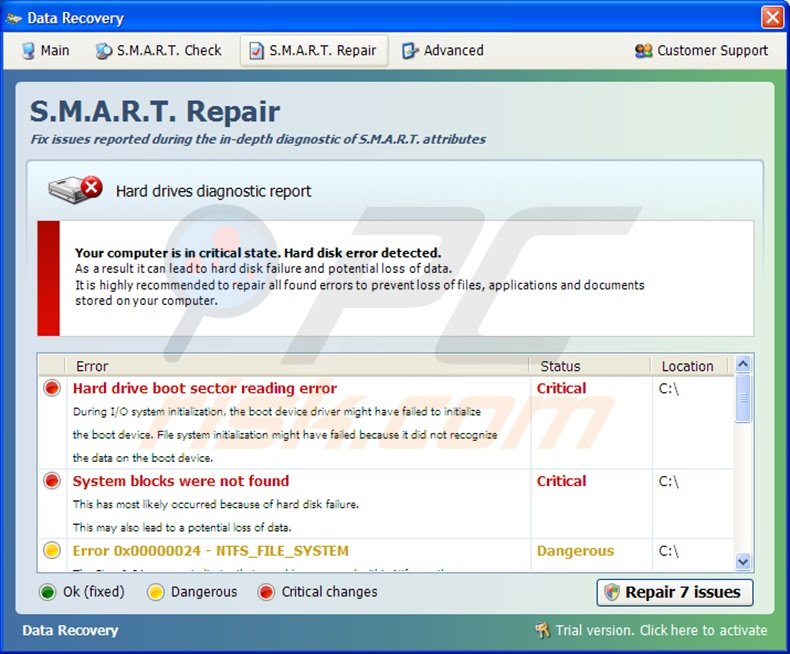
The scan process is named Smart Check and the results window, Smart Repair. Do not be impressed by the professional appearance of this software - it is merely an imitation of a genuine computer scanner and does not have the required functionality to perform an effective security scan.
Data Recovery uses falsely-generated scans and warning messages in order to scare you into believing that you could lose your stored data.
Examples of fake messages generated by Data Recovery:
Hard drive boot sector reading error. During I/O system initialization, the boot device driver might have failed to initialize the boot device. File system initialization might have failed because it did not recognize the data on the boot device.
Your computer is in a critical state. Hard disk error detected. This can lead to hard disk failure and potential loss of data. It is highly recommended that you repair all found errors to prevent loss of files, applications and documents stored on your computer.
To further intimidate you into believing that your computer hard drive has malfunctioned, Data Recovery hides your desktop icons and other information. It moves your shortcuts, and you will be unable to launch any programs from your Start Menu.
This process of hiding your information, combined with fake computer scans and warning messages, is performed with the intention selling you a license for Data Recovery - a license that will supposedly eliminate the 'detected' hardware errors.
Do not buy this program - in reality none of the hardware errors found by this rogue software actually exist on your PC; this program 'detects' identical errors on every computer it infects.
Do not panic about your missing data, as this fake program does not actually remove anything - it merely hides some of the information in order to make its fake warning messages appear authentic. Previous variants of this malicious software were called Smart HDD.
Do not trust this program or any variants and ignore any warning messages reporting that your hard drive has errors.
Eliminate this fake computer optimizer from your PC immediately.
Screenshot of a rogue system optimizer "Data Recovery":
Instant automatic malware removal:
Manual threat removal might be a lengthy and complicated process that requires advanced IT skills. Combo Cleaner is a professional automatic malware removal tool that is recommended to get rid of malware. Download it by clicking the button below:
▼ DOWNLOAD Combo Cleaner
By downloading any software listed on this website you agree to our Privacy Policy and Terms of Use. To use full-featured product, you have to purchase a license for Combo Cleaner. 7 days free trial available. Combo Cleaner is owned and operated by Rcs Lt, the parent company of PCRisk.com read more.
Quick menu:
- What is Data Recovery?
- STEP 1. Remove Data Recovery using a registration key.
- STEP 2. Remove Data Recovery using Safe Mode with Networking.
- STEP 3. Restore hidden desktop files and icons.
Data Recovery virus removal:
After the fake system check performed by Data Recovery, click 'Repair 7 Issues', and in the opened window, choose 'I already have an activation code. Click here to activate', and then enter this information:
Registration E-mail: mail (at) email.com
Activation Key: 08869246386344953972969146034087
You can now download and install the spyware remover, which will completely remove this fake system optimizer from your computer.
If you cannot download or run the spyware remover, try running the registry fix (link below). It enables execution of programs. Download the registryfix.reg file, double click it, click YES, and then OK.
Data Recovery virus removal instructions (on infected computer):
If you were unable to remove Data Recovery using the removal tools, you can follow these removal instructions to perform some steps manually and help the removal process.
1. Start your computer in Safe Mode. Click Start, click Shut Down, click Restart, click OK.
During your computer starting process press the F8 key on your keyboard multiple times until you see the Windows Advanced Option menu, then select Safe Mode with Networking from the list.
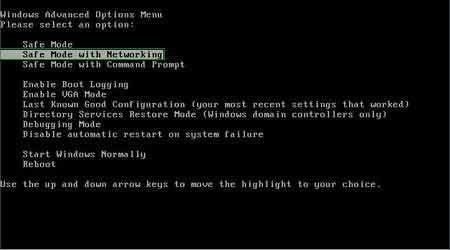
Here is a video demonstrating how to start Windows in "Safe Mode with Networking":
Windows XP users:
Windows Vista / 7 users:
Windows 8 users:
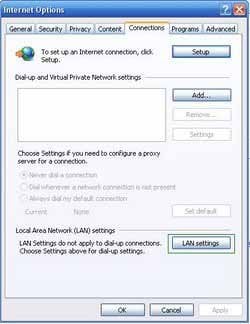
2. Open Internet Explorer, click Tools and select Internet Options. Select "Connections".
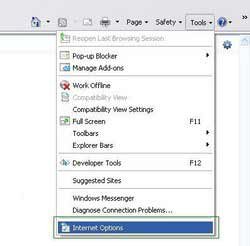
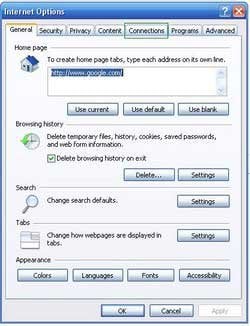
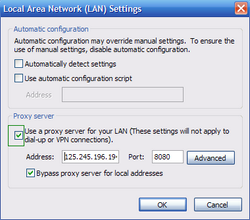
3.Click LAN settings, if 'Use a proxy server for your LAN' is checked, uncheck it and press OK.
4. Download legitimate anti-spyware software to fully remove Data Recovery from your computer.
6. After removing Data Recovery, reset your Hosts file. Do not skip this step, since this fake program modifies your Hosts file and you will encounter browser redirect problems.
The Hosts file is used to resolve canonical names of websites to IP addresses. When it is changed, the user may be redirected to malicious websites, despite observing legitimate URLs in the address bar. It is difficult to determine if a website is genuine when the Hosts file is modified. To fix this, please download the Microsoft FixIt tool that restores your Hosts file to the Windows default.
Run this tool when downloaded and follow the on-screen instructions. Download link below:
Complete these steps if after removal of Data Recovery virus your Desktop icons or files are hidden:
Step 1
This Infection Hides most user files. If you cannot see your files, do not panic - the files are simply hidden. When the downloaded spyware remover removes the infection, please download and run this tool to 'unhide' your files (Link below).
It is important to run this tool only when the infection has already been removed from your computer. This 'unhide files' tool is useless if run on an infected computer.
When the 'unhide files' tool finishes, your Windows desktop icons may still be missing. To fix this, download this .REG file. Double click when downloaded, click Yes, and then click OK.
Reboot your computer, and your desktop items should now be visible.
Step 2
Reboot your computer to check if everything is OK and that the Data Recovery rogue spyware is gone. Check if you can find your files. If some files remain missing, open My Computer, Click Tools, then select Folder Options... and under View tab, select the radio button "Show hidden files and folders", press OK.
Now you should see your hidden files and folders. To unhide them, Right click on the file or folder, then select Properties and uncheck the "Hidden" Check box.
That's it! You're done.
Other tools known to remove Data Recovery:
Summary:
The fake antivirus programs (also known as "rogue antivirus programs" or "scareware") are applications that tries to lure computer users into paying for their non-existent full versions to remove the supposedly detected security infections (although the computer is actually clean). These bogus programs are created by cyber criminals who design them to look as legitimate antivirus software. Most commonly rogue antivirus programs infiltrate user's computer using poop-up windows or alerts which appear when users surf the Internet. These deceptive messages trick users into downloading a rogue antivirus program on their computers. Other known tactics used to spread scareware include exploit kits, infected email messages, online ad networks, drive-by downloads, or even direct calls to user's offering free support.
A computer that is infected with a fake antivirus program might also have other malware installed on it as rogue antivirus programs often are bundled with Trojans and exploit kits. Noteworthy that additional malware that infiltrates user's operating system remains on victim's computer regardless of whether a payment for a non-existent full version of a fake antivirus program is made. Here are some examples of fake security warning messages that are used in fake antivirus distribution:
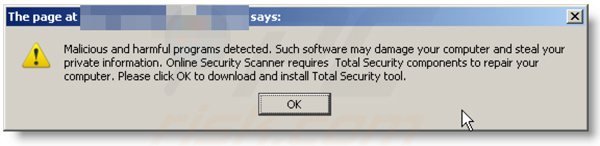
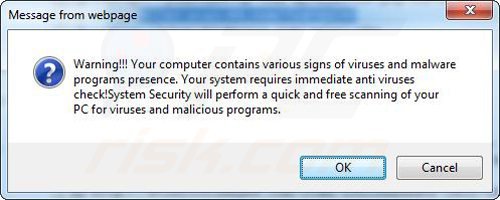
Computer users who are dealing with a rogue security software shouldn't buy it's full version. By paying for a license key of a fake antivirus program users would send their money and banking information to cyber criminals. Users who have already entered their credit card number (or other sensitive information) when asked by such bogus software should inform their credit card company that they have been tricked into buying a rogue security software. Screenshot of a web page used to lure computer users into paying for a non-existent full version of smart repair rogue and other rogue antivirus programs:
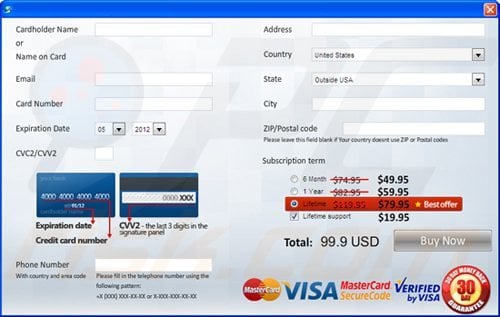
To protect your computer from smart repair rogue and other rogue antivirus programs users should:
- Keep their operating system and all of the installed programs up-to-date.
- Use legitimate antivirus and anti-spyware programs.
- Use caution when clicking on links in social networking websites and email messages.
- Don't trust online pop-up messages which state that your computer is infected and offers you to download security software.
Symptoms indicating that your operating system is infected with a fake antivirus program:
- Intrusive security warning pop-up messages.
- Alerts asking to upgrade to a paid version of a program to remove the supposedly detected malware.
- Slow computer performance.
- Disabled Windows updates.
- Blocked Task Manager.
- Blocked Internet browsers or inability to visit legitimate antivirus vendor websites.
If you have additional information on smart repair rogue or it's removal please share your knowledge in the comments section below.

 Outstanding!
▼ Show Discussion