

Get free scan and check if your device is infected.
Remove it nowTo use full-featured product, you have to purchase a license for Combo Cleaner. Seven days free trial available. Combo Cleaner is owned and operated by RCS LT, the parent company of PCRisk.com.
What is Win32/FakeVimes?
FakeVimes is the name of a family of fake antivirus programs, which report non-existent security threats in order to trick computer users into purchasing their useless license keys. Rogue programs from this family are distributed by cyber criminals who use 'exploit kits' to infiltrate users' operating systems.
Common sources of these bogus programs are malicious websites, infected email messages, and drive-by downloads. Exploit kits rely on outdated software to exploit any security vulnerabilities detected within users' systems prior to infiltration.
Thus, keeping installed software up-to-date drastically reduces the risk of infection with malware and fake antivirus programs. Cyber criminals responsible for creating fake antivirus programs from the FakeVimes family have released over 200 rogue antivirus programs.
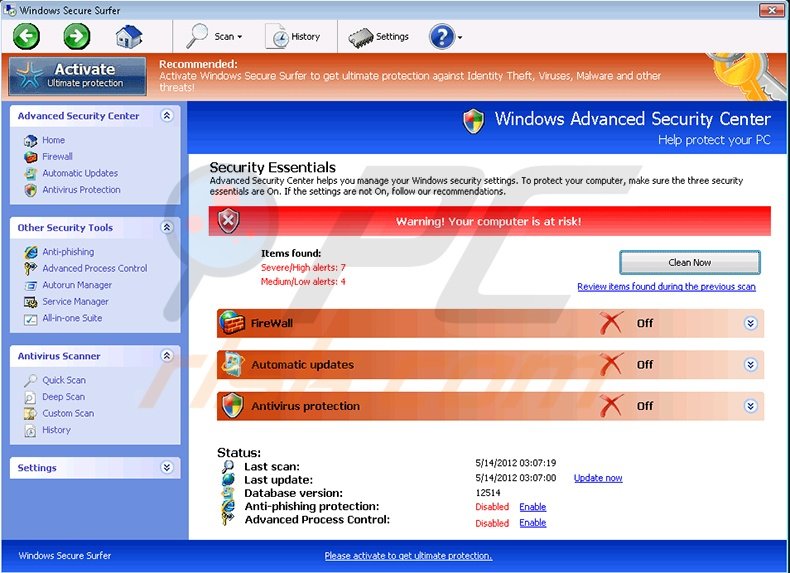
In most cases, these bogus programs are identical other than the use of different names. Some of the most recent variants use the following names:
- Windows Maintenance Guard
- Windows Secure Web Patch
- Windows Active Defender
- Windows Privacy Counsel
- Windows Privacy Module
- Windows PC Aid
- Windows Safety Wizard
- Windows Antivirus Rampart
- Windows Guard Tools
After successful infiltration, rogue programs from the FakeVimes family modify registry entries of the infected operating system and configure themselves to start automatically on each system start-up. Moreover, these rogue programs disable execution of installed programs (including legitimate antivirus and anti-spyware programs) and disable the Task Manager.
Cyber criminals also use two types of user interface within their rogue programs. Bogus programs from the FakeVimes family are designed to appear as if they are genuine Windows applications.
FakeVimes user interface (type 2):
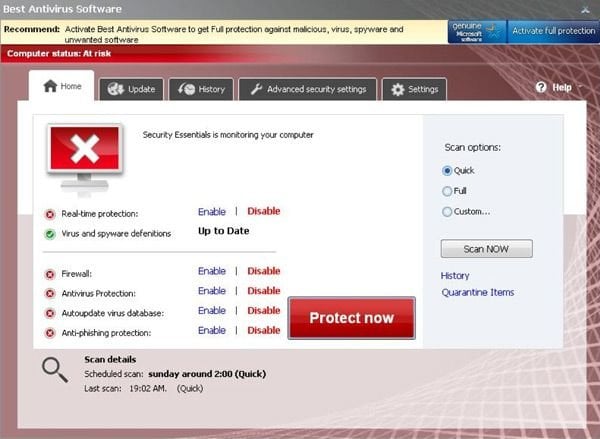
Do not trust any of these programs, since they use fake security scans and fake security warning messages in order to trick PC users into buying their 'full versions'. Note that Microsoft does not sell any antivirus programs. The only antivirus program developed by Microsoft is Microsoft Security Essentials and is provided free of charge.
Computer users should be aware that buying a fake antivirus program is equivalent to sending their money to cyber criminals, and furthermore, could lead to additional money thefts from their accounts.
If you have already paid for any bogus antivirus program, contact your credit card company and dispute the charges, explaining that you have been tricked into purchasing fake antivirus software.
If you observe a program (as in the provided screenshots) purportedly 'scanning' your computer for security infections, and demanding that you purchase the 'full version' in order to remove them, you are dealing with fake antivirus software. Do not trust this scam - use the removal guide provided to eliminate it.
Fake security warning messages displayed by rogue programs from the FakeVimes family to scare PC users into buying their license keys:
"Warning! Virus Detected Threat detected: FTP Server Infected file: C:\Windows\System32\dllcache\wmploc.dll"
"Warning! Identity theft attempt Detected Hidden connection IP: 58.82.12.124 Target: Your passwords for sites"
"Error Key-logger activity detected. System information security is at risk. It is recommended to activate protection and run a full system scan"
"Microsoft Security Essentials detected potential threats that might compromise your privacy or damage your computer. You need to clean your computer immediately to prevent the system crash"
"Trojan-PSW.Win32.launch Hack Tool:Win32/Welevate.A Adware.Win32.Fraud"
Instant automatic malware removal:
Manual threat removal might be a lengthy and complicated process that requires advanced IT skills. Combo Cleaner is a professional automatic malware removal tool that is recommended to get rid of malware. Download it by clicking the button below:
DOWNLOAD Combo CleanerBy downloading any software listed on this website you agree to our Privacy Policy and Terms of Use. To use full-featured product, you have to purchase a license for Combo Cleaner. 7 days free trial available. Combo Cleaner is owned and operated by RCS LT, the parent company of PCRisk.com.
Quick menu:
- What is Win32/FakeVimes?
- STEP 1. Remove Win32/FakeVimes using a registration key.
- STEP 2. Remove Win32/FakeVimes using Safe Mode with Networking.
- STEP 3. Remove Win32/FakeVimes manually deleting files and registry codes.
Win32/FakeVimes removal:
Before downloading the remover for any fake antivirus program from Win32/FakeVimes family, use a retrieved license key to 'fake register' the rogue programs.
Click the question mark icon at the top of the main window of this fake program, choose "Activate Now" and enter this registration code:
0W000-000B0-00T00-E0020
Entering this key will not remove the fake antivirus program, however, it will make the removal process less complicated. Activated programs from the FakeVimes family do not block execution of installed programs, thus making their removal a relatively easy task.
DOWNLOAD remover for malware infections
Combo Cleaner checks if your computer is infected with malware. To use full-featured product, you have to purchase a license for Combo Cleaner. 7 days free trial available. Combo Cleaner is owned and operated by RCS LT, the parent company of PCRisk.com.
If you cannot download or run the spyware remover, try running the registry fix (link below). It enables execution of programs. Download the registryfix.reg file, double click it, click YES and then OK.
Manual Win32/FakeVimes removal instructions:
Step 1
Start your computer in Safe Mode. Click Start, click Shut Down, click Restart, click OK. During your computer starting process press the F8 key on your keyboard multiple times until you see the Windows Advanced Option menu, then select Safe Mode with Networking from the list.
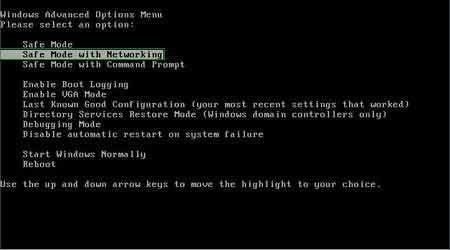
Video showing how to start Windows 7 in "Safe Mode with Networking":
Video showing how to start Windows XP in "Safe Mode with Networking":
Step 2
We now need to remove the proxy settings. Fake antivirus programs from this family add a 'proxy' to your Internet connection settings in order to display various errors when you attempt to access the Internet. Open Internet Explorer, click Tools, and select Internet Options. Then select the "Connections" tab.
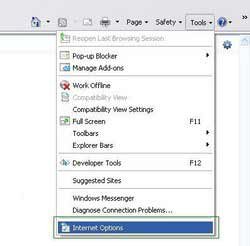
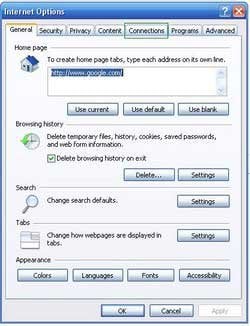
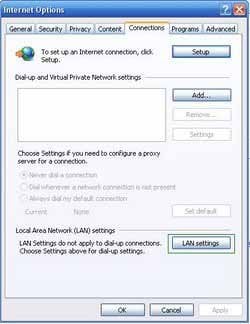
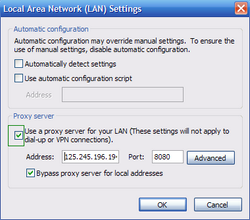
In the "Connections" tab, click LAN settings, if a "Use a proxy server for your LAN" is checked, uncheck it and press OK.
Step 3
Download HijackThis and save it to your desktop. Some malicious programs are able to block HijackThis, so when you click the download link, in the Save dialog, rename HijackThis.exe to iexplore.exe and only then click the Save button. After saving the file to your desktop, double click it.
In the main HijackThis window click the “Do a system scan only” button. Select the following entry (place a tick at the left of the entry):
O4 - HKCU\..\Run: [Inspector] %AppData%\Protector.exe (Protector.exe file may have 3 or more random characters at the end of it's file name like ProtectionGQY.exe)
After selecting the required entries, click "Fix Checked" and these entries will be removed. After this procedure, close HijackThis and proceed to the next removal step.
Step 4
Download legitimate anti-spyware software to completely remove fake antivirus program (FakeVimes family) from your computer.
Step 5
After removing any fake antivirus program from FakeVimes family, you will need to reset your Hosts file. Do not skip this step, since this malware modifies your Hosts file and you will encounter browser redirect problems if malicious entries are not removed.
The Hosts file is used to resolve canonical names of websites to IP addresses. When it is changed, the user may be redirected to malicious sites, despite seeing legitimate URLs in address bar.
It is difficult to determine sites are genuine when the Hosts file is modified. To fix this, please download the Microsoft Fix It tool, that restores your Hosts file to the Windows default. Run this tool when downloaded and follow the on-screen instructions. Download link below:
Finish
After completing these steps, your computer should be clean.
Manual Win32/FakeVimes removal:
If you were unable to remove Win32/FakeVimes using the steps above, use this manual removal instruction. Use it at your own risk, since if you do not have strong computer knowledge you could harm your operating system. Be careful and use it only if you are an experienced computer user. (Instructions on how to end processes, remove registry entries...)
End these Win32/FakeVimes processes:
random.exe
Protector.exe (Protector.exe file may have 3 or more random characters at the end of the file name such as ProtectionGQY.exe)
Remove these Win32/FakeVimes registry entries:
HKEY_LOCAL_MACHINE\SOFTWARE\Microsoft\Windows NT\CurrentVersion\Image File Execution Options\_avp32.exe
HKEY_LOCAL_MACHINE\SOFTWARE\Microsoft\Windows NT\CurrentVersion\Image File Execution Options\ashLogV.exe
HKEY_LOCAL_MACHINE\SOFTWARE\Microsoft\Windows NT\CurrentVersion\Image File Execution Options\beagle.exe
HKEY_LOCAL_MACHINE\SOFTWARE\Microsoft\Windows NT\CurrentVersion\Image File Execution Options\jedi.exe
HKEY_LOCAL_MACHINE\SOFTWARE\Microsoft\Windows NT\CurrentVersion\Image File Execution Options\msa.exe
HKEY_LOCAL_MACHINE\SOFTWARE\Microsoft\Windows NT\CurrentVersion\Image File Execution Options\ntvdm.exe
HKEY_LOCAL_MACHINE\SOFTWARE\Microsoft\Windows NT\CurrentVersion\Image File Execution Options\rav7.exe
HKEY_LOCAL_MACHINE\SOFTWARE\Microsoft\Windows NT\CurrentVersion\Image File Execution Options\spoler.exe
HKEY_LOCAL_MACHINE\SOFTWARE\Microsoft\Windows NT\CurrentVersion\Image File Execution Options\vir-help.exe
HKEY_LOCAL_MACHINE\SOFTWARE\Microsoft\Windows NT\CurrentVersion\Image File Execution Options\wupdt.exe
HKEY_CURRENT_USER\Software\Microsoft\Windows\CurrentVersion\Internet Settings "WarnOnHTTPSToHTTPRedirect" = 0
HKEY_CURRENT_USER\Software\Microsoft\Windows\CurrentVersion\Policies\System "DisableRegedit" = 0
HKEY_CURRENT_USER\Software\Microsoft\Windows\CurrentVersion\Policies\System "DisableRegistryTools" = 0
HKEY_CURRENT_USER\Software\Microsoft\Windows\CurrentVersion\Policies\System "DisableTaskMgr" = 0
HKEY_CURRENT_USER\Software\Microsoft\Windows\CurrentVersion\Run "Inspector"
HKEY_CURRENT_USER\Software\Microsoft\Windows\CurrentVersion\Settings "net
Delete these Win32/FakeVimes files:
%StartMenu%\Programs\random.lnk
%AppData%\Protector.exe (NOTE: this file may have various symbols at the end of the name. Look for a similar filename pattern and remove it)
%AppData%\result.db
%Desktop%\random.lnk
Summary:
The fake antivirus programs (also known as "rogue antivirus programs" or "scareware") are applications that tries to lure computer users into paying for their non-existent full versions to remove the supposedly detected security infections (although the computer is actually clean). These bogus programs are created by cyber criminals who design them to look as legitimate antivirus software. Most commonly rogue antivirus programs infiltrate user's computer using poop-up windows or alerts which appear when users surf the Internet. These deceptive messages trick users into downloading a rogue antivirus program on their computers. Other known tactics used to spread scareware include exploit kits, infected email messages, online ad networks, drive-by downloads, or even direct calls to user's offering free support.
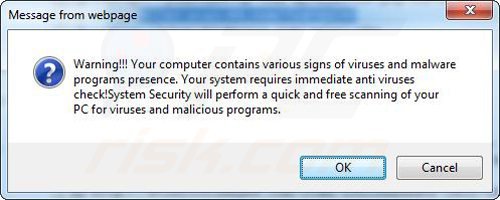
A computer that is infected with a fake antivirus program might also have other malware installed on it as rogue antivirus programs often are bundled with Trojans and exploit kits. Noteworthy that additional malware that infiltrates user's operating system remains on victim's computer regardless of whether a payment for a non-existent full version of a fake antivirus program is made. Here are some examples of fake security warning messages that are used in fake antivirus distribution:
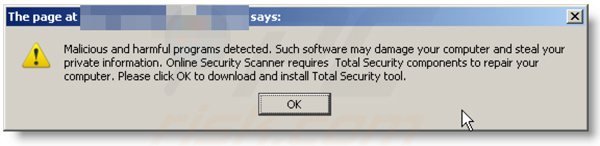
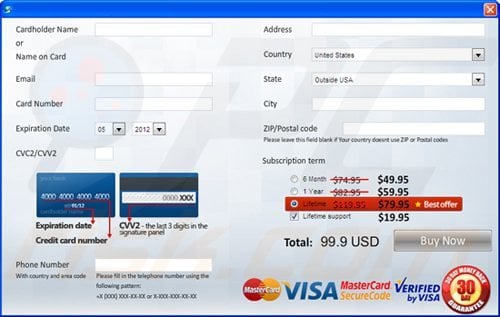
Computer users who are dealing with a rogue security software shouldn't buy it's full version. By paying for a license key of a fake antivirus program users would send their money and banking information to cyber criminals. Users who have already entered their credit card number (or other sensitive information) when asked by such bogus software should inform their credit card company that they have been tricked into buying a rogue security software. Screenshot of a web page used to lure computer users into paying for a non-existent full version of fakevimes and other rogue antivirus programs:
To protect your computer from fakevimes and other rogue antivirus programs users should:
- Keep their operating system and all of the installed programs up-to-date.
- Use legitimate antivirus and anti-spyware programs.
- Use caution when clicking on links in social networking websites and email messages.
- Don't trust online pop-up messages which state that your computer is infected and offers you to download security software.
Symptoms indicating that your operating system is infected with a fake antivirus program:
- Intrusive security warning pop-up messages.
- Alerts asking to upgrade to a paid version of a program to remove the supposedly detected malware.
- Slow computer performance.
- Disabled Windows updates.
- Blocked Task Manager.
- Blocked Internet browsers or inability to visit legitimate antivirus vendor websites.
If you have additional information on fakevimes or it's removal please share your knowledge in the comments section below.
Share:
 Facebook
 X.com
X.com
 LinkedIn
 Copy Link

Tomas Meskauskas
Expert security researcher, professional malware analyst
I am passionate about computer security and technology. I have an experience of over 10 years working in various companies related to computer technical issue solving and Internet security. I have been working as an author and editor for pcrisk.com since 2010. Follow me on Twitter and LinkedIn to stay informed about the latest online security threats.
PCrisk security portal is brought by a company RCS LT.
Joined forces of security researchers help educate computer users about the latest online security threats. More information about the company RCS LT.
Our malware removal guides are free. However, if you want to support us you can send us a donation.
DonatePCrisk security portal is brought by a company RCS LT.
Joined forces of security researchers help educate computer users about the latest online security threats. More information about the company RCS LT.
Our malware removal guides are free. However, if you want to support us you can send us a donation.
Donate
▼ Show Discussion