PCeU Virus
 Written by Tomas Meskauskas on (updated)
What is PCeU?
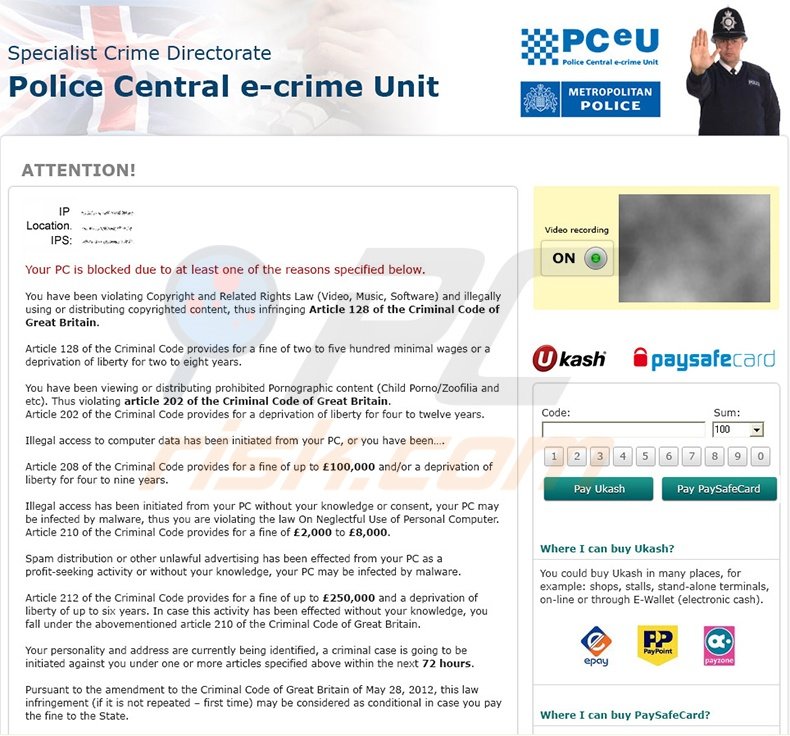
Police Central e-crime Unit is ransomware that locks computer users' desktops, demanding payment of £100 fines. This malicious program is targeted at computer users who live in Great Britain.
The message presented to users whose systems are infected with this scam states that their computer has been locked due to a violation of copyright laws. Internet criminals who designed and released this screen locker, hope that you will fall for their trickery and pay the fine to unlock your PC.
To further scare you into believing that this message is authentic, and originating from the Police Central e-crime Unit, the screen locker accesses your web cam and displays a video of you or whatever your web cam is pointing at. Bearing in mind that most PC users make use of web cams for live chat purposes (for example, using Skype, etc.), they are likely to see an image of themselves within this ransomware.
When creating this scam, Cyber criminals were aware that many computer users access P2P networks to download copyrighted music, videos, etc. and thus, this ransomware can appear to be authentic. Until recently, no authorities employed these methods to fight Internet piracy issues, and therefore, you should ignore this message and remove the Police Central e-crime Unit scam from your computer.
Do not pay for this fake screen locker - you will be sending your money to Internet criminals.
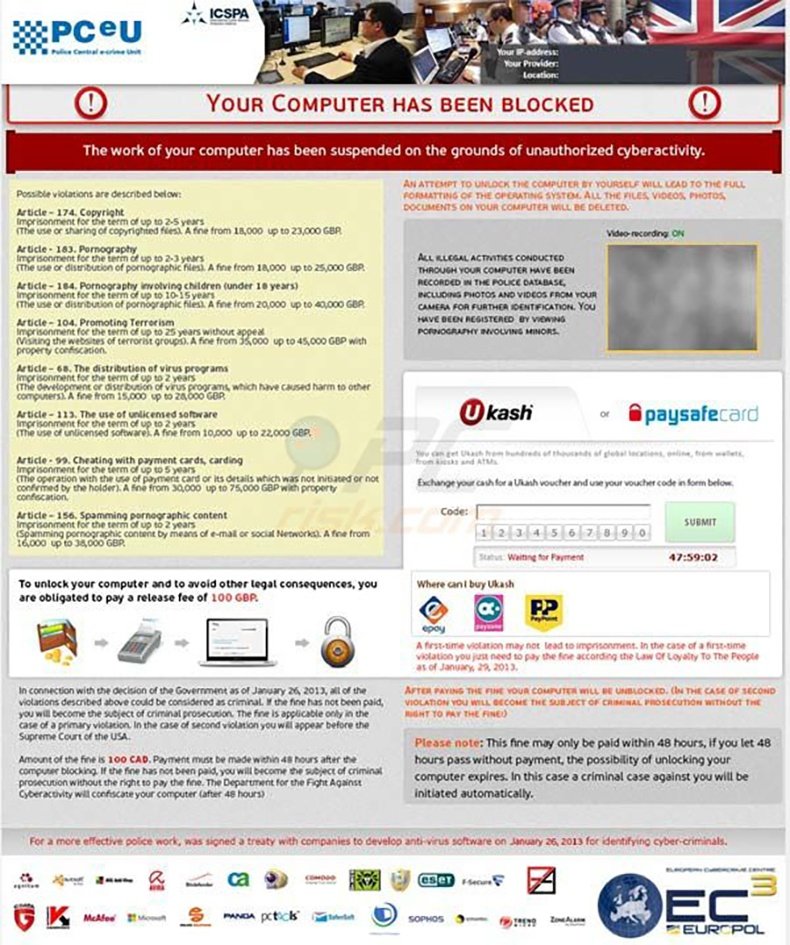
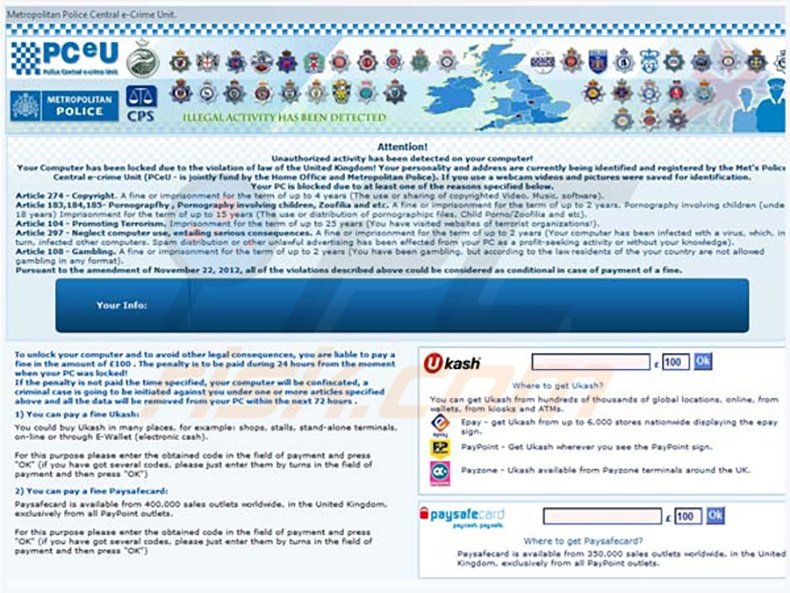
Another variant of this ransomware virus, PCeU (Police Central e-crime Unit) "Your Internet service provider is blocked", originates from a family of similar rogue programs called Revoyem (DirtyDecrypt). At time of writing, no known tools are available to decrypt the files encrypted by this ransomware virus.
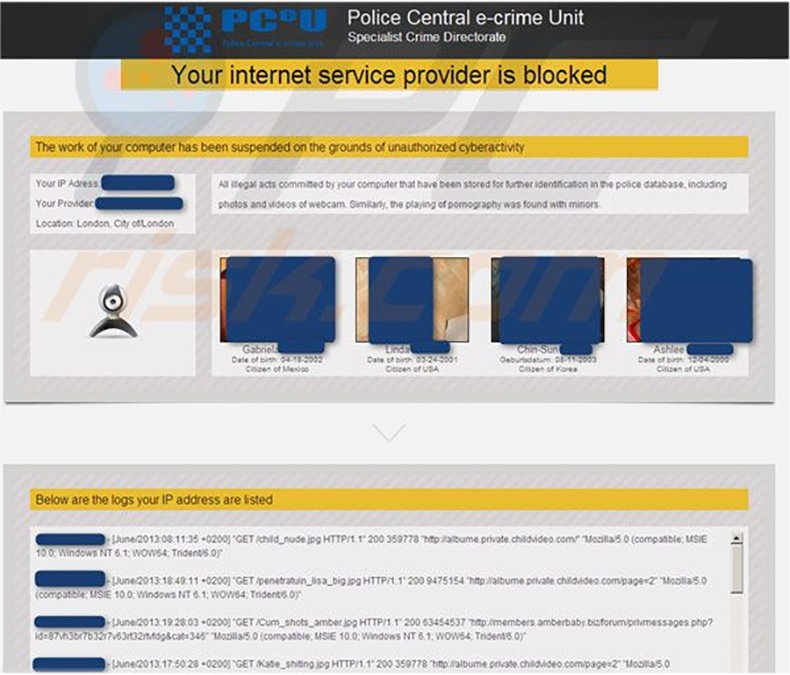
Ransomware virus from the Kovter family:
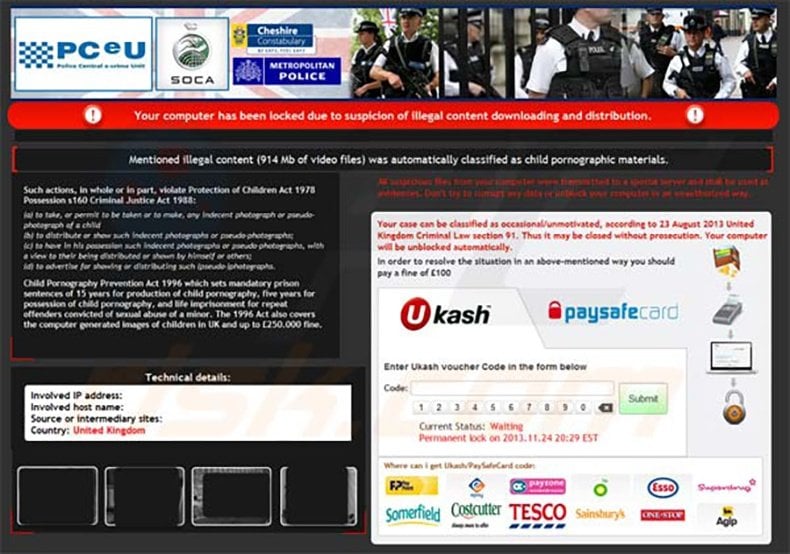
The Police Central e-crime Unit screen locker is commonly distributed through malicious websites, which exploit security vulnerabilities in users' PCs and execute this ransomware on their computers. These misleading websites are created daily, and Internet criminals are also able to hijack legitimate websites, making them another distribution point for bogus software and screen lockers.
To avoid the Police Central e-crime Unit from infiltrating your PC, update your operating system and installed programs regularly and use legitimate antivirus and anti-spyware programs. Do not fall for this deceptive message and remove this scam from your PC immediately.
Ukash (Smart Voucher Limited) is a legitimate company and it is not related to ransomware viruses - Cyber criminals use this service to extort money from unsuspecting PC users.
A fake message displayed in PCeU virus:
Your PC is blocked due to at least one of the reasons specified below. You have been violating Copyright and Related Rights Law (Video, Music, Software) and illegally using or distributing copyrighted content, thus infringing Article 128 of the Criminal Code of Great Britain. Article 128 of the Criminal Code provides for a fine of two to five hundred minimal wages or a deprivation of liberty for two to eight years. You have been viewing or distributing prohibited Pornographic content (Child Porno, Zoofilia, etc). Thus violating article 202 of the Criminal Code of Great Britain. Article 202 of the Criminal Code provides for a deprivation of liberty for four to twelve years.
Instant automatic malware removal:
Manual threat removal might be a lengthy and complicated process that requires advanced IT skills. Combo Cleaner is a professional automatic malware removal tool that is recommended to get rid of malware. Download it by clicking the button below:
▼ DOWNLOAD Combo Cleaner
By downloading any software listed on this website you agree to our Privacy Policy and Terms of Use. To use full-featured product, you have to purchase a license for Combo Cleaner. 7 days free trial available. Combo Cleaner is owned and operated by Rcs Lt, the parent company of PCRisk.com read more.
Quick menu:
- What is PCeU?
- STEP 1. "PCeU" virus removal using safe mode with networking.
- STEP 2. "PCeU" ransomware removal using System Restore.
PCeU virus removal:
Step 1
Start your computer in Safe Mode. Click Start, click Shut Down, click Restart, click OK.
During your computer starting process press the F8 key on your keyboard multiple times until you see the Windows Advanced Option menu, then select Safe Mode with Networking from the list.
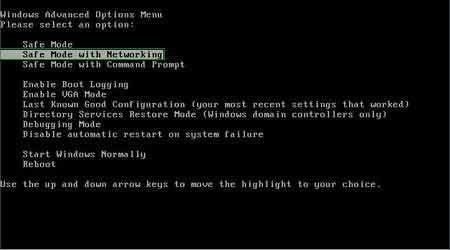
Video showing how to start Windows 7 in "Safe Mode with Networking":
Step 2
Log in to the account that is infected with the Police Central e-crime Unit scam. Start your Internet browser and download a legitimate anti-spyware program.
Update the anti-spyware software and start a full system scan. Remove all entries detected.
After completing these steps, your computer should be clean. Reboot your computer in normal mode.
Alternative Police Central e-crime Unit scam removal guide:
If this ransomware blocks your screen when you start your computer in Safe Mode with networking, try starting your PC in Safe Mode with Command Prompt.
Video showing how to remove ransomware virus using "Safe Mode with Command Prompt" and "System Restore":
1. Start your computer in Safe Mode with Command Prompt. During the computer starting process, press the F8 key on your keyboard multiple times until Windows Advanced Options menu appears, then select Safe Mode with Command Prompt from the list and press ENTER.
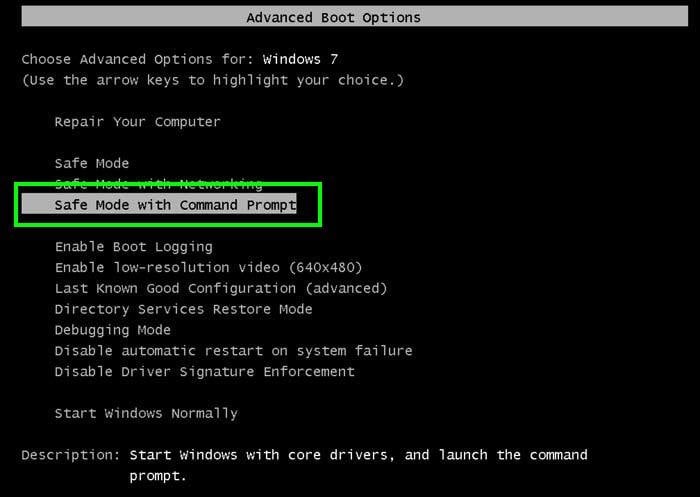
2. When Command Prompt mode loads, enter the following line: cd restore and press ENTER.

3. Next, type this line: rstrui.exe and press ENTER.

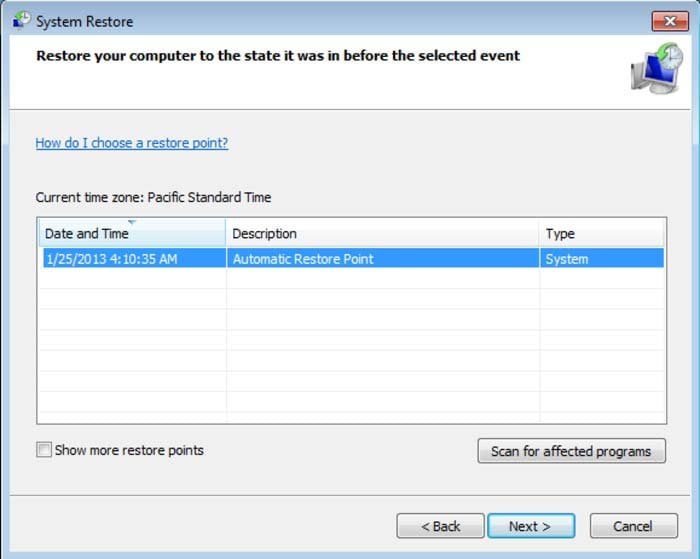
4. In the open window, click "Next".
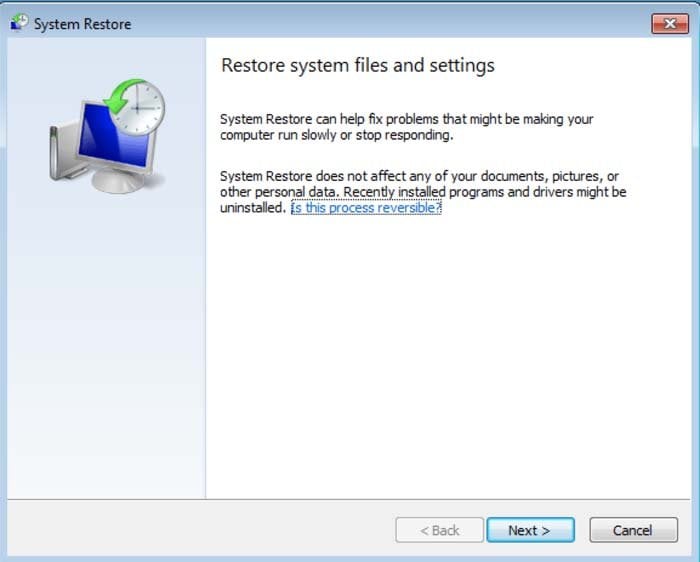
5. Select one of the available restore points and click "Next" (this will restore your computer's system to an earlier time and date - prior to when the ransomware infiltrated your PC).
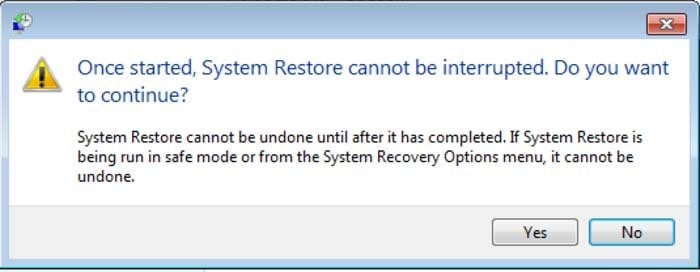
6. In the opened window, click "Yes".
7. After restoring your computer to a previous date, download and scan your PC with recommended malware removal software to eliminate any remaining remnants of Police Central e-crime Unit virus.
If you can't start your computer in safe mode with networking (or with command prompt) you should boot your computer using a rescue disk. Some variants of ransomware disable Safe Mode, making its removal more complicated.
For this step, you need access to another computer. After removing Police Central e-crime Unit scam from your PC, restart your computer and scan it with legitimate antispyware software to remove any possible remnants of this security infection.
Other tools known to remove Police Central e-crime Unit scam:
Other methods that can be used to eliminate this ransomware infection from your PC:
Remove Police Central e-crime Unit virus using a Rescue Disk.


 Outstanding!
▼ Show Discussion