Australian Federal Police (AFP) Virus
 Written by Tomas Meskauskas on (updated)
What is Australian Federal Police (AFP)?
The Australian Federal Police scam is one of many ransomware infections (screen lockers) targeting unsuspecting PC users worldwide. This method of extorting money from PC users is popular amongst cyber criminals who continue to create and distribute new ransomware infections on a daily basis.
This particular ransomware targets computer users from Australia, however, these screen lockers are able to detect computer IP addresses and thus present localized versions of the deceptive screen-blocking messages.
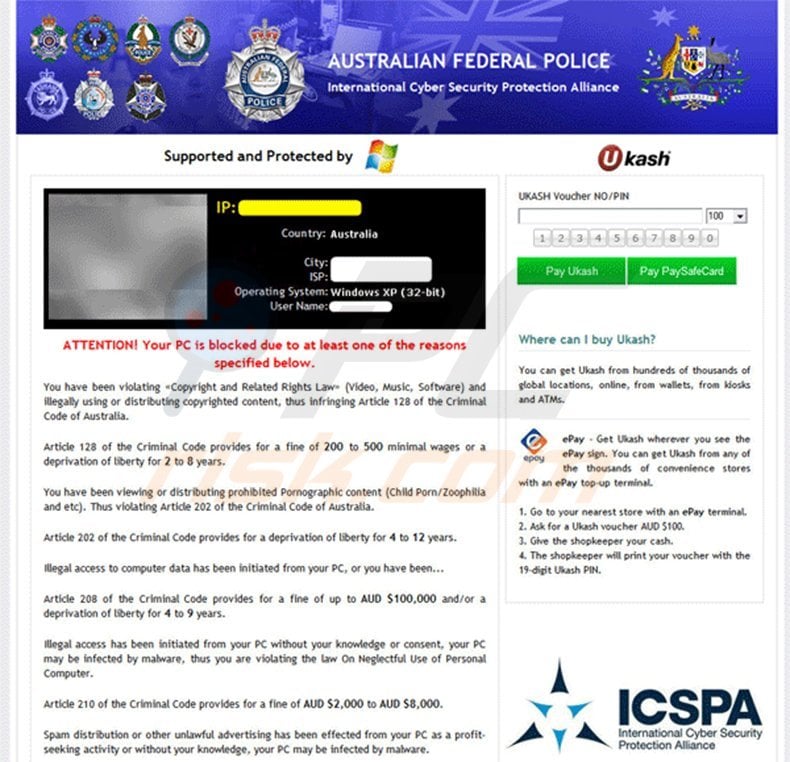
For example, citizens of Sweden observe a message supposedly delivered by Den Svenska Polisen IT-Sakerhet. Cyber criminals translate their ransomware infections into most European languages. The deceptive message displayed by the Australian Federal Police ransomware states that the PC was blocked due to alleged distribution of copyrighted content.
This statement is false; neither the Australian Federal Police nor any other authority use screen lockers to collect any fines.
In fact, this scam is designed by cyber criminals who hope that you will fall for the deceptive message displayed by this ransomware and pay the bogus fine. Note that there are several different ransomware families targeting PC users from Australia including Urausy, Reveton, etc. and this removal guide deals with them all.
A screenshot of a variant of the AFP ransomware virus:
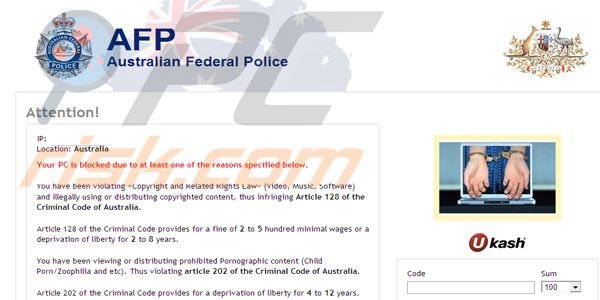
Update: 2013/07/17 - A new variant of this ransomware virus has been released - Australian Communications and Media Authority (ACMA) "Computer Blocked" Virus
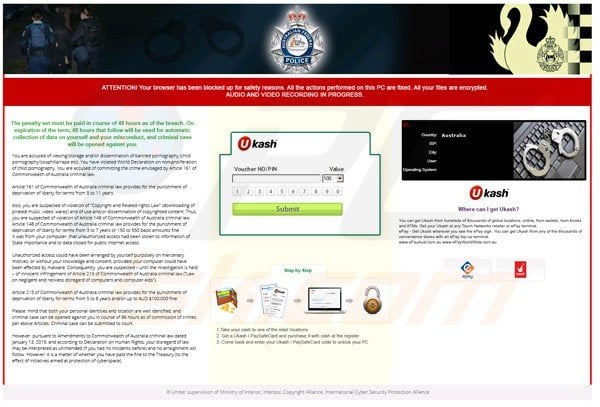
Update 2015/02/05 - Cyber criminals have updated the design of Australian Federal Police ransomware virus:
As with its previous versions, the Australian Federal Police ransomware is distributed using Trojans and exploit kits. Cyber criminals create malicious websites and use other misleading methods to infect as many computers as possible.
This particular ransomware infection originates from a family of screen lockers named Urausy, a rogue family that targets computer users from Australia, the United States, Poland, and many other countries. If your PC is blocked by the Australian Federal Police ransomware, use the removal guide provided to eliminate it from your computer.
Ukash (Smart Voucher Limited) is a legitimate company and not related to ransomware viruses - cyber criminals use this service to extort money from unsuspecting PC users.
A fake message displayed by the Australian Federal Police ransomware:
ATTENTION! Your PC is blocked due to at least one of the reasons specified below. You have been violating "Copyright and Related Rights Law o (Video, Music, Software) and illegally using or distributing copyrighted content, thus infringing Article 128 of the Criminal Code of Australia.
Article 128 of the Criminal Code provides for a fine of 200 to 500 minimal wages or a deprivation of liberty for 2 to 8 years.
You have been viewing or distributing prohibited Pornographic content (Child Porn/Zoophilia and etc). Thus violating Article 202 of the Criminal Code of Australia. Article 202 of the Criminal Code provides for a deprivation of liberty for 4 to 12 years. Illegal access to computer data has been initiated from your PC, or you have been... Article 208 of the Criminal Code provides for a fine of up to AUD $100,000 and/or a deprivation of liberty for 4 to 9 years.
Illegal access has been initiated from your PC without your knowledge or consent, your PC may be infected by malware, thus you are violating the law On Neglectful Use of Personal Computer.
Article 210 of the Criminal Code provides for a fine of AUD $2,000 to AUD $8,000.
Spam distribution or other unlawful advertising has been effected from your PC as a profit. seeking activity or without your knowledge, your PC may be infected by malware.
Article 212 of the Criminal Code provides for a fine of up to AUD 0250,000 and a deprivation of liberty of up to 6 years. In case this activity has been effected without your knowledge, you fall under the above mentioned article 210 of the Criminal Code of Australia.
Your personality and address are currently being identified, a criminal case is going to be initiated against you under one or more articles specified above within the next 72 hours.
Pursuant to the amendment to the Criminal Code of Australia of February 04, 2013, this law infringement (if it is not repeated. first time) may be considered as conditional in case you pay the fine to the State.
Fines may only be paid within 72 hours after the infringement. As soon as 72 hours elapse, the possibility to pay the fine expires, and a criminal case is initiated against you automatically within the next 72 hours!
The amount of fine is AUD $100. You can pay a fine Ukash. When you pay the fine, your PC will get unlocked in 1 to 72 hours after the money is put into the State's account.
Since your PC is unlocked, you will be given 7 days to correct all violations.
In case all violations are not corrected after 7 working days, your PC will be blocked again, and a criminal case will be initiated against you automatically under one or more articles specified above.
Instant automatic malware removal:
Manual threat removal might be a lengthy and complicated process that requires advanced IT skills. Combo Cleaner is a professional automatic malware removal tool that is recommended to get rid of malware. Download it by clicking the button below:
▼ DOWNLOAD Combo Cleaner
By downloading any software listed on this website you agree to our Privacy Policy and Terms of Use. To use full-featured product, you have to purchase a license for Combo Cleaner. 7 days free trial available. Combo Cleaner is owned and operated by Rcs Lt, the parent company of PCRisk.com read more.
Quick menu:
- What is Australian Federal Police (AFP)?
- STEP 1. "Australian Federal Police (AFP)" virus removal using safe mode with networking.
- STEP 2. "Australian Federal Police (AFP)" virus removal using safe mode with command prompt.
- STEP 3. "Australian Federal Police (AFP)" ransomware removal using System Restore.
- STEP 4. Remove "Australian Federal Police (AFP)" manually by deleting files .
Australian Federal Police ransomware virus removal:
Step 1
Windows XP, Vista and Windows 7 users:
Start your computer in Safe Mode. Click Start, click Shut Down, click Restart, click OK. During your computer starting process press the F8 key on your keyboard multiple times until you see the Windows Advanced Option menu, then select Safe Mode with Networking from the list.
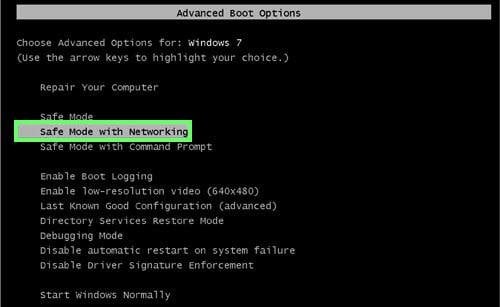
Video showing how to start Windows 7 in "Safe Mode with Networking":
Windows 8 users:
Go to the Windows 8 Start Screen, type Advanced, in the search results select Settings. Click on Advanced startup options, in the opened "General PC Settings" window select Advanced startup. Click on "Restart now" button. Your computer will now restart into "Advanced Startup options menu".
Click on the "Troubleshoot" button, then click on the "Advanced options" button. In the advanced option screen click on "Startup settings". Click on the "Restart" button. Your PC will restart into Startup Settings screen. Press "5" to boot in Safe Mode with Networking.
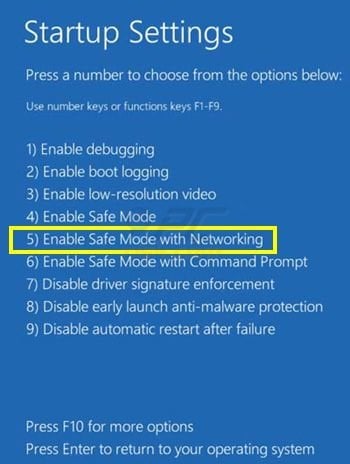
Video showing how to start Windows 8 in "Safe Mode with Networking":
Step 2
Log in to the account infected with the Australian Federal Police ransomware. Start your Internet browser and download a legitimate anti-spyware program. Update the anti-spyware software and start a full system scan. Remove all entries detected.
Cannot boot in Safe Mode with Networking? (Australian Federal Police virus blocks Safe Mode with Networking)
If you have more than one user account in your operating system, log-in to the clean account and download the recommended malware removal software, install it and run a full system scan, remove all the security infections detected.
If, however, you have only one user account, follow this guide (the guide describes how to create a new user account using Safe Mode with Command Prompt and using this newly created user account, you will be able to remove the Australian Federal Police virus).
If the Australian Federal Police virus also blocks your operating system's Safe Mode with Networking, follow these removal instructions:
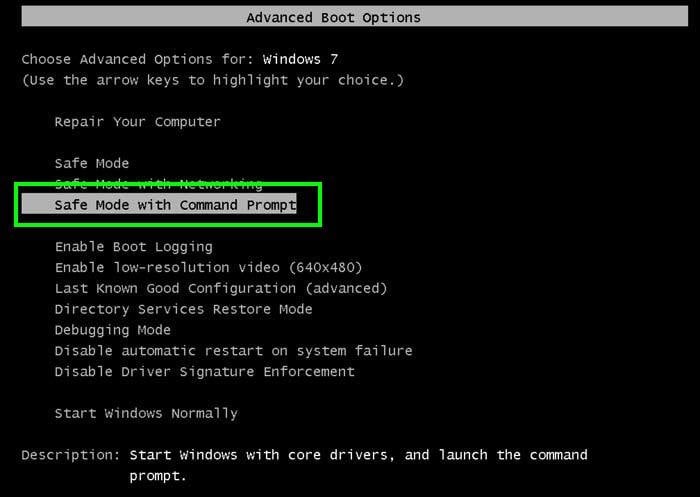
1. During your computer starting process, press the F8 key on your keyboard multiple times until the Windows Advanced Options menu appears, and then select Safe Mode with Command Prompt from the list and press ENTER.
WIndows 8 users: Go to Windows 8 Start Screen, type Advanced, in the search results select Settings. Click on Advanced startup options, in the opened "General PC Settings" window select Advanced startup. Click on "Restart now" button. Your computer will now restart into "Advanced Startup options menu".
Click on the "Troubleshoot" button, then click on "Advanced options" button. In the advanced option screen click on "Startup settings". Click on the "Restart" button. Your PC will restart into Startup Settings screen. Press "6" to boot in Safe Mode with Command Prompt.
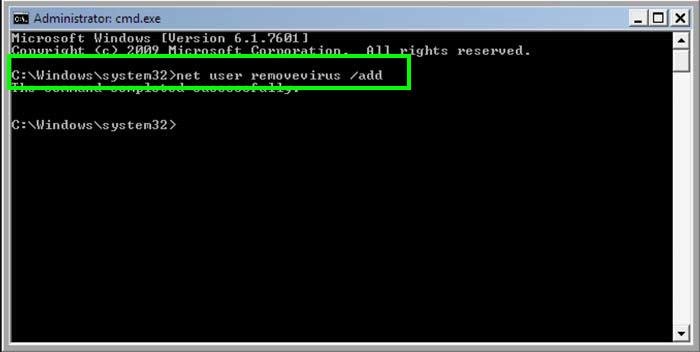
2. When Command Prompt Mode loads, enter the following line: net user removevirus /add and press ENTER.
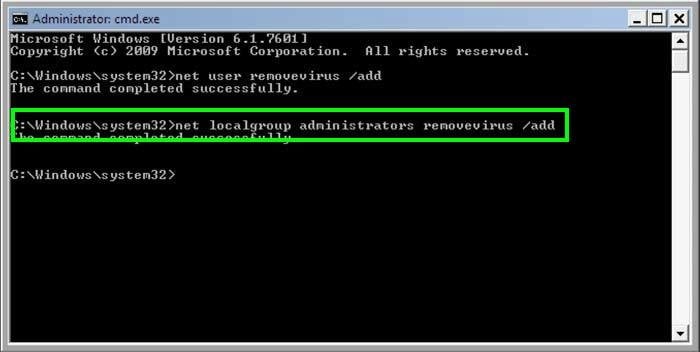
3. Next, enter this line: net localgroup administrators removevirus /add and press ENTER.
4. Finally, enter this line: shutdown -r and press ENTER.
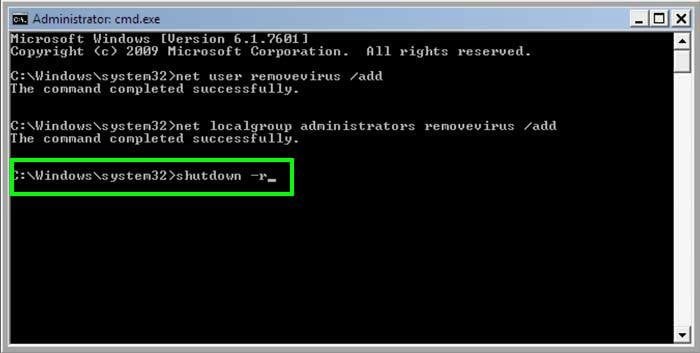
5. Wait for your computer to restart, then boot your PC in Normal Mode and login to the newly-created user account ("removevirus"). This account will be unaffected by the ransomware infection and you will be able to download and install recommended malware removal software to eliminate this virus from your computer.
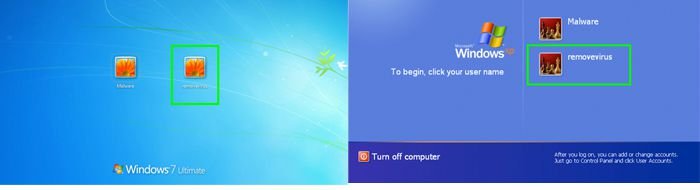
6. Download and install recommended malware removal software to eliminate this ransomware infection from your computer:
If the newly-created user account is also affected by the ransomware infection, try performing a System Restore (this function helps to restore the operating system files to an earlier point in time). If successful, you will be able to restore your operating system to a point prior to this ransomware infection taking effect.
Video showing how to remove ransomware virus using "Safe Mode with Command Prompt" and "System Restore":
1. During your computer starting process, press the F8 key on your keyboard multiple times until the Windows Advanced Options menu appears, and then select Safe Mode with Command Prompt from the list and press ENTER.
2. When Command Prompt Mode loads, enter the following line: cd restore and press ENTER.

3. Next, type this line: rstrui.exe and press ENTER.

4. In the opened window click "Next".
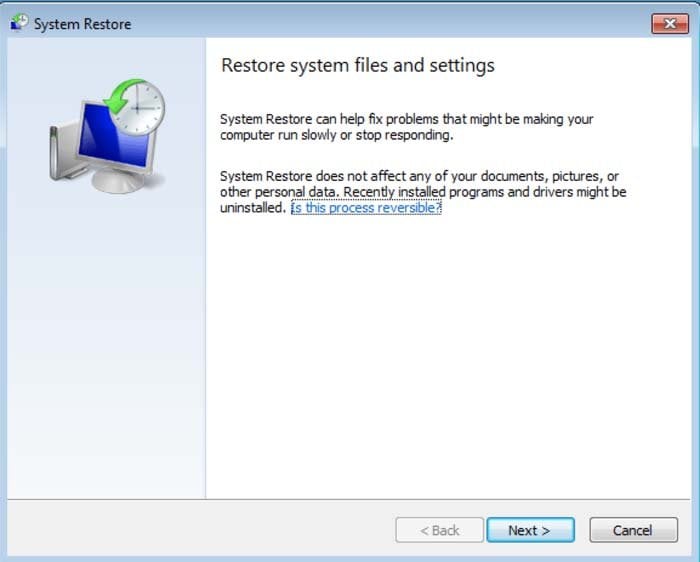
5. Select one of the available Restore Points and click "Next" (this will restore your computer system to an earlier time and date, prior to the ransomware infiltrating your PC).
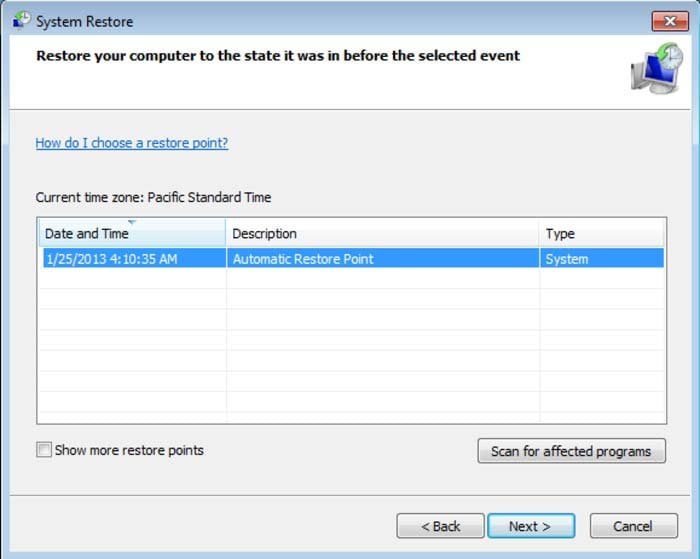
6. In the opened window click "Yes".
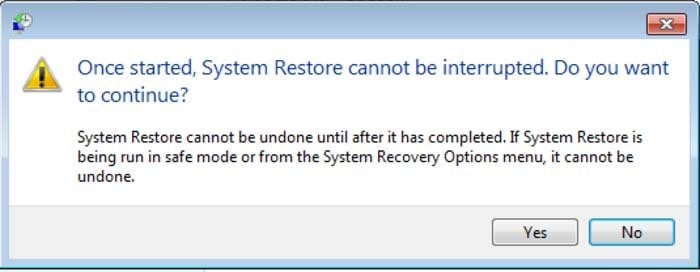
7. After restoring your computer to a previous date, download and scan your PC with recommended malware removal software to eliminate an remnants of the Australian Federal Police virus.
Alternative Australian Federal Police ransomware removal guide:
If this ransomware blocks your screen when you start your computer in Safe Mode with Networking, try starting your PC in Safe Mode with Command Prompt.
1. During your computer starting process, press the F8 key on your keyboard multiple times until the Windows Advanced Options menu appears, and then select Safe Mode with Command Prompt from the list and press ENTER.
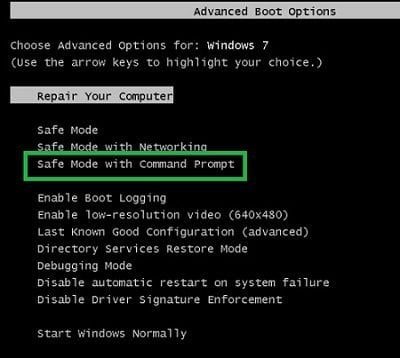
2. In the opened Command Prompt, type explorer and press Enter. This command will open the Explorer window - do not close it and continue to the next step.
3. In the Command Prompt, type regedit and press Enter. This will open the Registry Editor window.
4. In the Registry Editor window, navigate to HKEY_LOCAL_MACHINE\SOFTWARE\Microsoft\Windows NT\CurrentVersion\Winlogon\
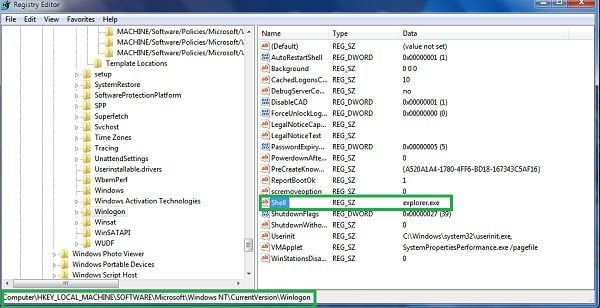
5. In the right side of the window, locate "Shell" and right click on it. Click on Modify. The default value data is Explorer.exe If you see something else displayed in this window, remove it and type Explorer.exe (make a note of whatever else was displayed in the value data section - this is the path of the rogue execution file). Use this information to navigate to the rogue executable and remove it.
6. Restart your computer, download and install legitimate anti-spyware software and perform a full system scan to eliminate any remnants of the Australian Federal Police ransomware.
If you cannot start your computer in Safe Mode with Networking (or with Command Prompt), boot your computer using a rescue disk. Some variants of ransomware disable Safe Mode making its removal complicated. For this step, you require access to another computer.
After removing the Australian Federal Police ransomware from your PC, restart your computer and scan it with legitimate antispyware software to remove any possible remnants of this security infection.
Anti-spyware programs known to detect and remove the Australian Federal Police ransomware scam:


 Outstanding!
▼ Show Discussion