Ginyas Browser Companion
 Written by Tomas Meskauskas on (updated)
What is Ginyas Browser Companion?
Ginyas Browser Companion is a browser add-on created by Blabbers Communications LTD., promising to save people time and money when shopping online. Essentially, this is a coupon plug-in that displays coupon ads when users visit eBay, Expedia, and other websites.
This browser add-on is similar to other unwanted coupon-related extensions such as Drop Down Deals, Browse to Save, DealPly, and many others.
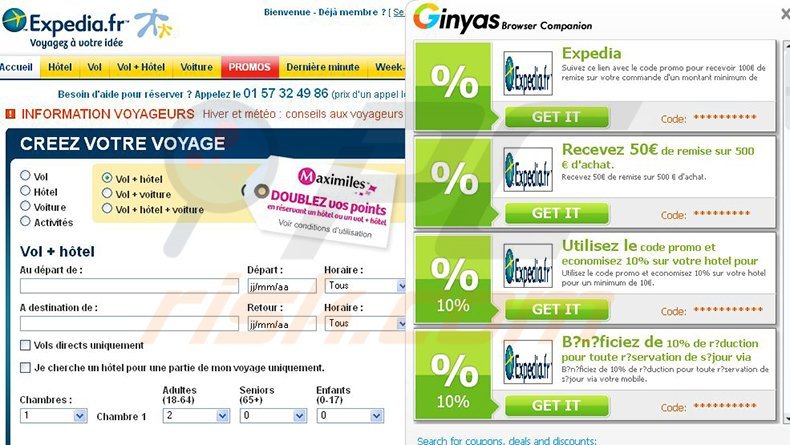
Ginyas browser Companion is categorized as an unwanted application due its devious promotion methods. In most cases, this browser add-on is bundled with free software downloaded from the Internet and computer users install it without their consent. Note that Ginyas is not directly related to malware, however, many computer users install this extension inadvertently.
Be aware that Ginyas Browser Companion is often bundled with freeware and download clients from popular websites such as download.com, filewin.com, and eazel.com. Ensure that you pay close attention to each installation step of any free software downloaded from the Internet, or you may inadvertently install many unwanted software and browser add-ons.
Ginyas Browser Companion can be downloaded from its homepage, however, it often installs together with freeware. If you have installed this browser extension unwillingly, use the removal guide provided to eliminate unwanted coupon ads from your Internet browsers.
To avoid installation of unwanted add-ons such as these, opt-out of additional software installation and disallow any suggested modifications to your browser settings during the installation phase of any free software.
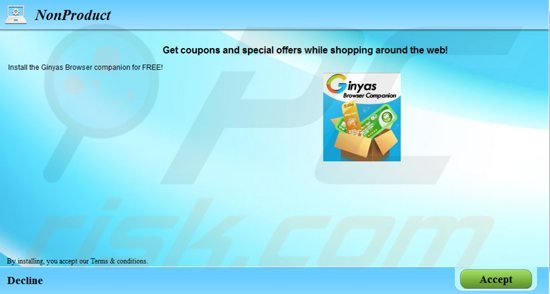
Deceptive free software installer used in Ginyas adware distribution:
Instant automatic malware removal:
Manual threat removal might be a lengthy and complicated process that requires advanced IT skills. Combo Cleaner is a professional automatic malware removal tool that is recommended to get rid of malware. Download it by clicking the button below:
▼ DOWNLOAD Combo Cleaner
By downloading any software listed on this website you agree to our Privacy Policy and Terms of Use. To use full-featured product, you have to purchase a license for Combo Cleaner. 7 days free trial available. Combo Cleaner is owned and operated by Rcs Lt, the parent company of PCRisk.com read more.
Quick menu:
- What is Ginyas Browser Companion?
- STEP 1. Uninstall Browser Companion Helper application using Control Panel.
- STEP 2. Remove Browser Companion Helper add-on from Internet Explorer.
- STEP 3. Remove Browser Companion Helper plugin from Google Chrome.
- STEP 4. Remove Browser Companion Helper extension from Mozilla Firefox.
- STEP 5. Remove Browser Companion extension from Safari.
- STEP 6. Remove rogue plug-ins from Microsoft Edge.
Ginyas Browser Companion removal:
Windows 11 users:
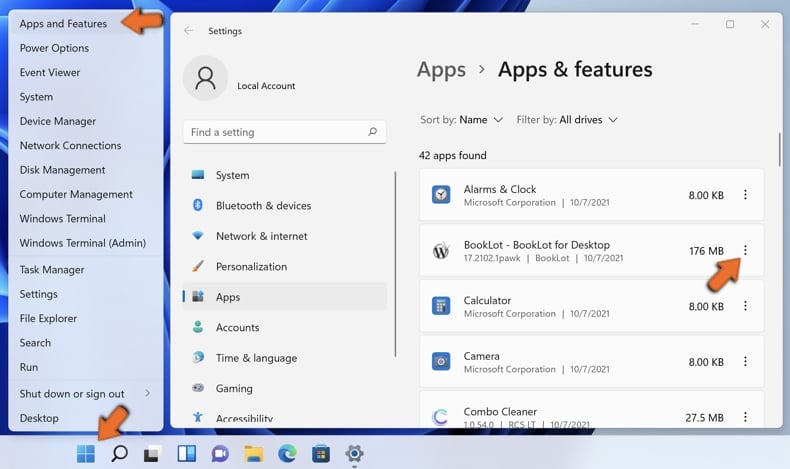
Right-click on the Start icon, select Apps and Features. In the opened window search for the application you want to uninstall, after locating it, click on the three vertical dots and select Uninstall.
Windows 10 users:
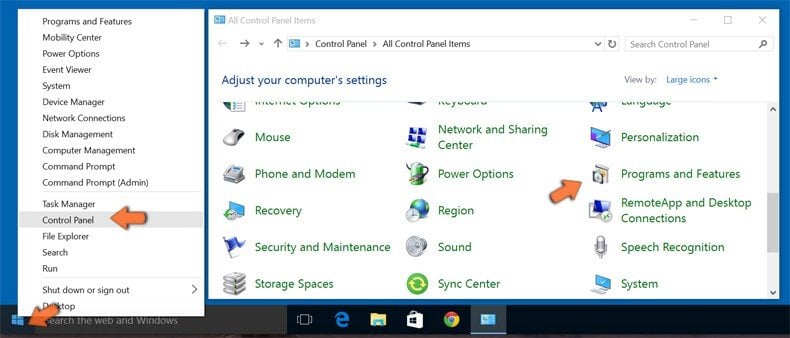
Right-click in the lower left corner of the screen, in the Quick Access Menu select Control Panel. In the opened window choose Programs and Features.
Windows 7 users:
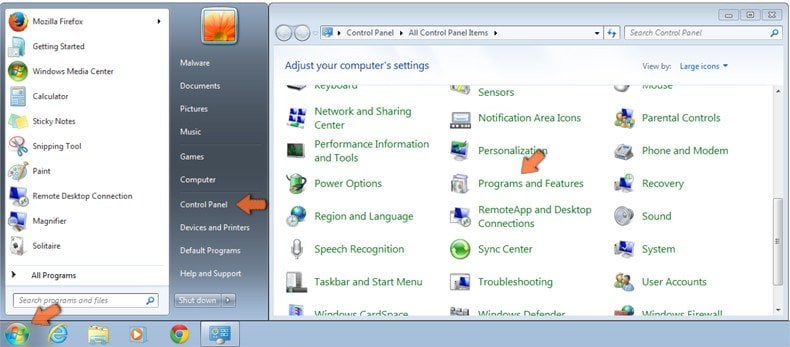
Click Start (Windows Logo at the bottom left corner of your desktop), choose Control Panel. Locate Programs and click Uninstall a program.
macOS (OSX) users:
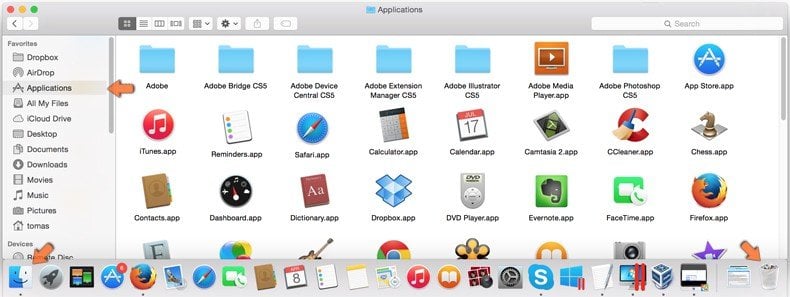
Click Finder, in the opened screen select Applications. Drag the app from the Applications folder to the Trash (located in your Dock), then right click the Trash icon and select Empty Trash.
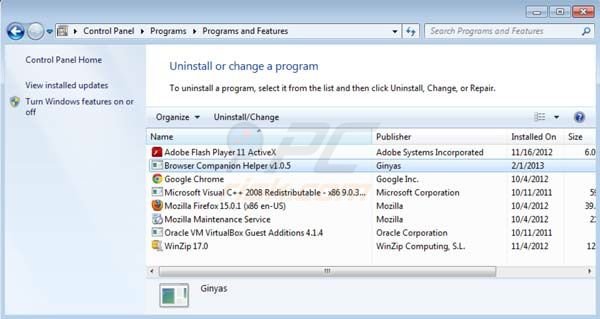
In the uninstall programs window, look for "Browser Companion Helper", select this entry and click " Uninstall" or "Remove"
After uninstalling Ginyas Browser Companion, scan your computer for any remaining unwanted components or possible malware infections. Recommended malware removal software.
Ginyas Browser Companion removal from browsers:
Video showing how to remove potentially unwanted browser add-ons:
 Remove malicious add-ons from Internet Explorer:
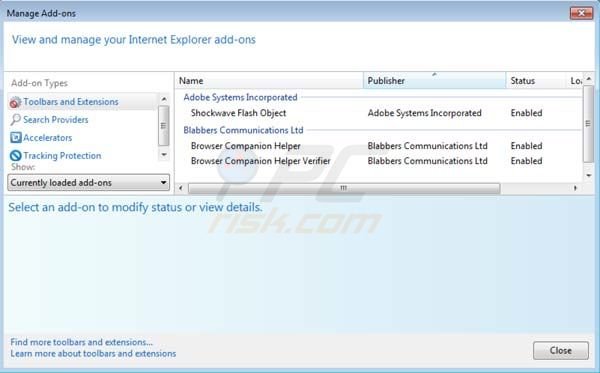
Click on the "gear" icon  (at the top right corner of Internet Explorer) select "Manage Add-ons". Look for these entries "Browser Companion Helper", "Browser Comapnion Helper Verifier" and disable them.
Optional method:
If you continue to have problems with removal of the ginyas browser companion virus, reset your Internet Explorer settings to default.
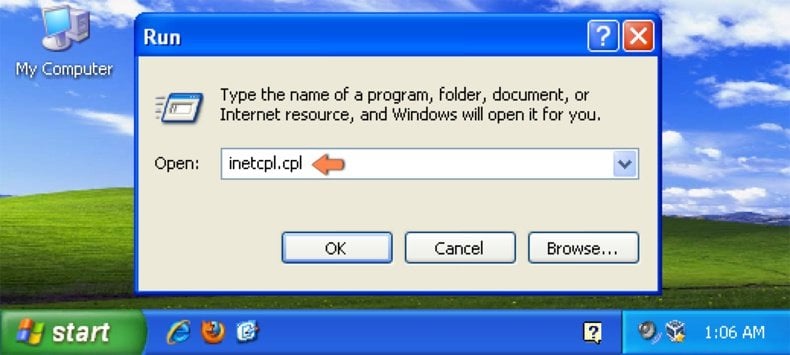
Windows XP users: Click Start, click Run, in the opened window type inetcpl.cpl In the opened window click the Advanced tab, then click Reset.
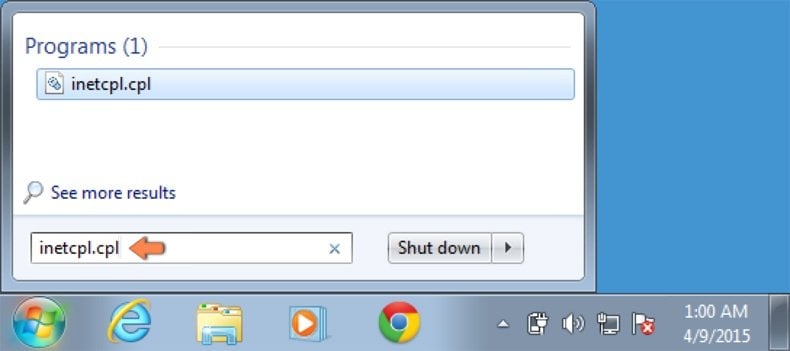
Windows Vista and Windows 7 users: Click the Windows logo, in the start search box type inetcpl.cpl and click enter. In the opened window click the Advanced tab, then click Reset.
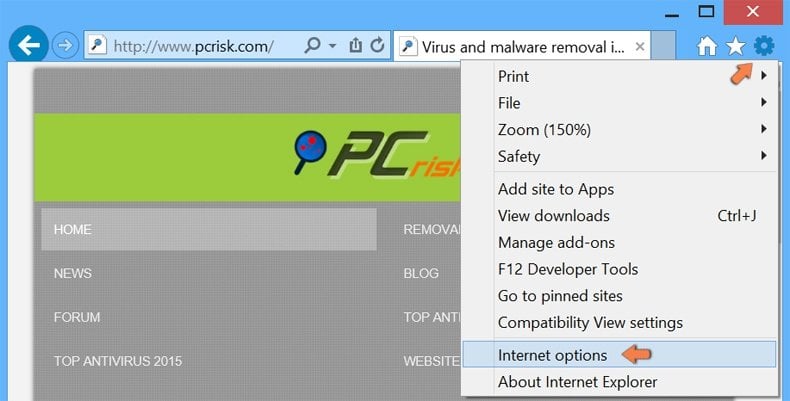
Windows 8 users: Open Internet Explorer and click the gear icon. Select Internet Options.
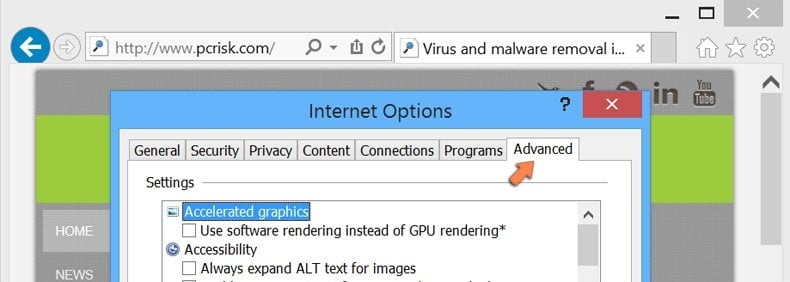
In the opened window, select the Advanced tab.
Click the Reset button.
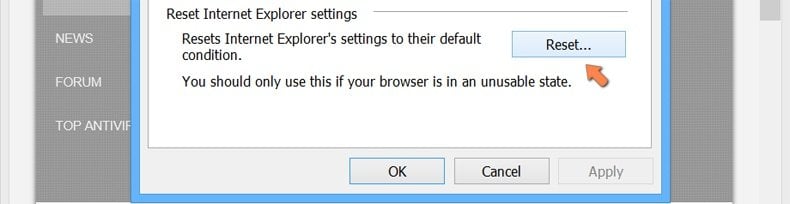
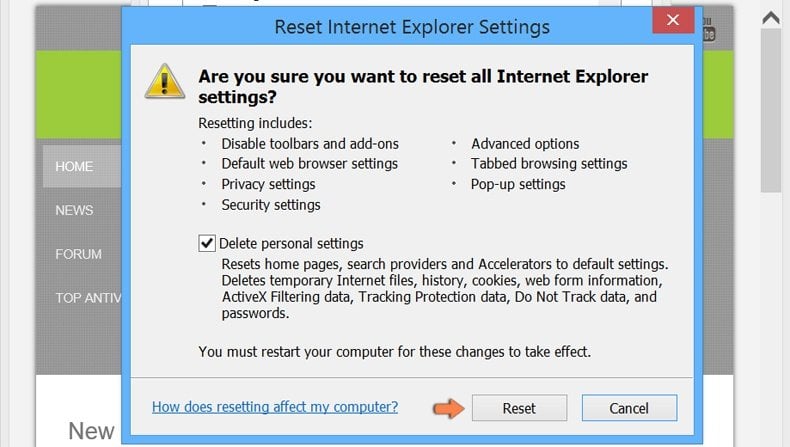
Confirm that you wish to reset Internet Explorer settings to default by clicking the Reset button.
 Remove malicious extensions from Google Chrome:
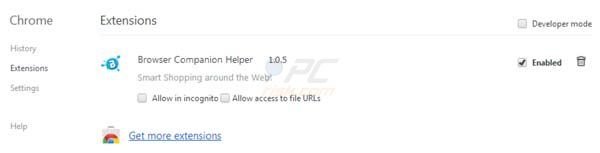
Click the Chrome menu icon  (at the top right corner of Google Chrome) select "Tools" and click on "Extensions". Locate this entry: "Browser Companion Helper", select it and click on the trash can icon.
Optional method:
If you continue to have problems with removal of the ginyas browser companion virus, reset your Google Chrome browser settings. Click the Chrome menu icon  (at the top right corner of Google Chrome) and select Settings. Scroll down to the bottom of the screen. Click the Advanced… link.
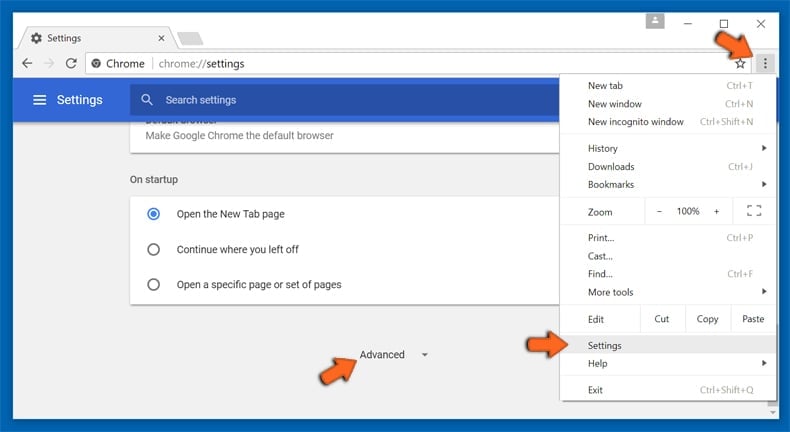
After scrolling to the bottom of the screen, click the Reset (Restore settings to their original defaults) button.
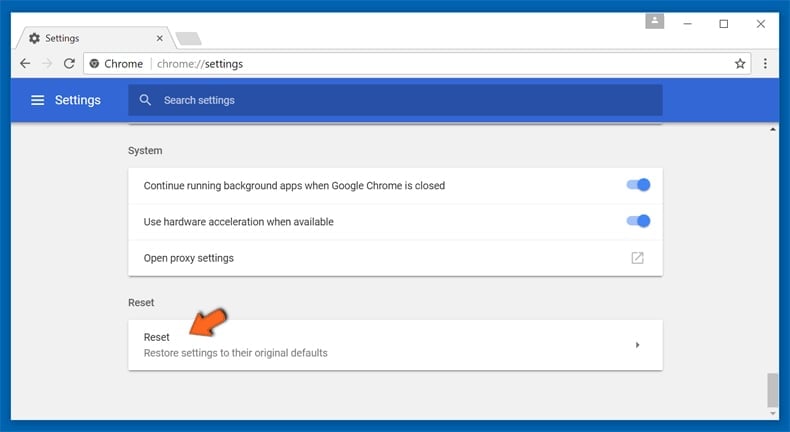
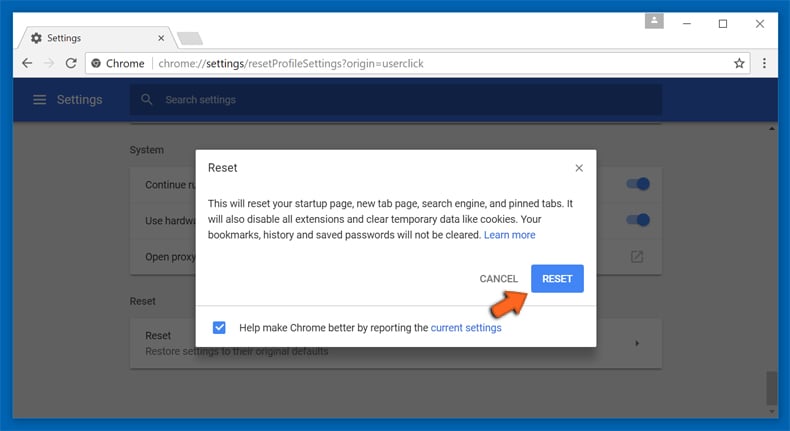
In the opened window, confirm that you wish to reset Google Chrome settings to default by clicking the Reset button.
 Remove malicious plugins from Mozilla Firefox:

Click on the Firefox menu  (at the top right corner of the main window) select "Add-ons". Click on "Extensions" and disable this add-on: "Browser Companion Helper".
Optional method:
Computer users who have problems with ginyas browser companion virus removal can reset their Mozilla Firefox settings.
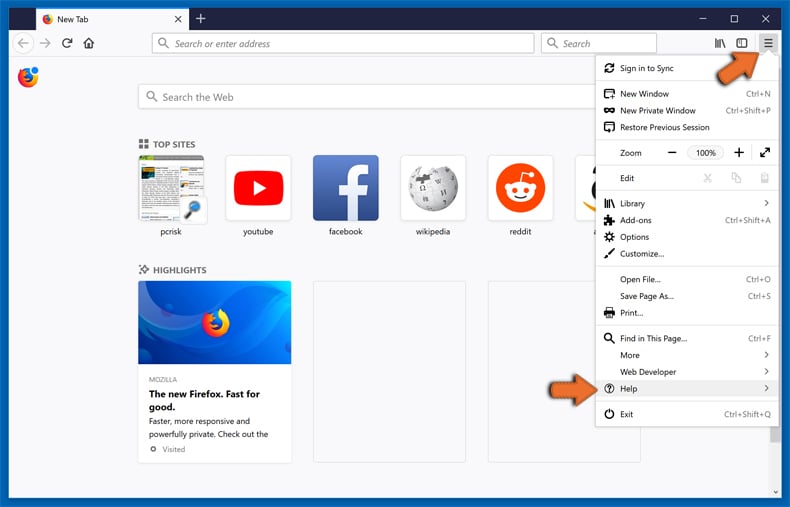
Open Mozilla Firefox, at the top right corner of the main window, click the Firefox menu, in the opened menu, click Help.
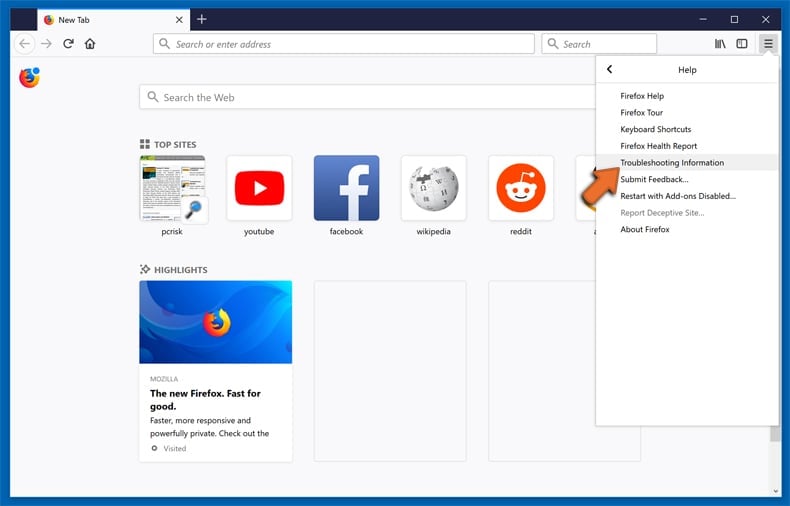
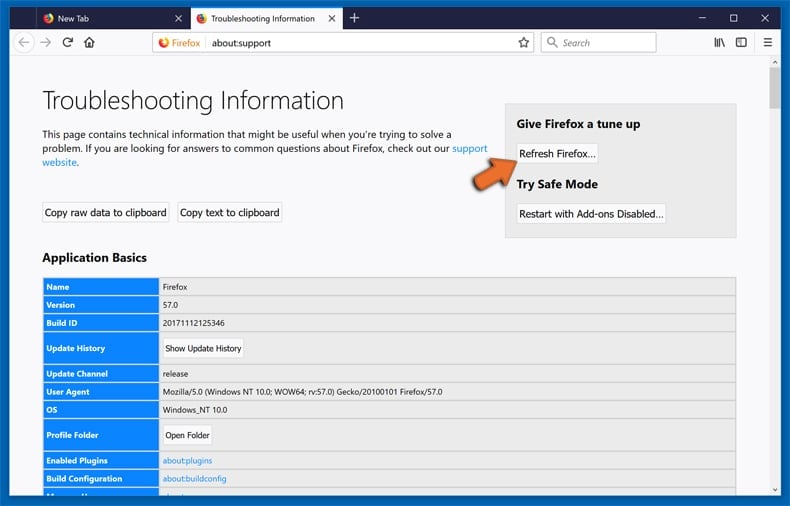
Select Troubleshooting Information.
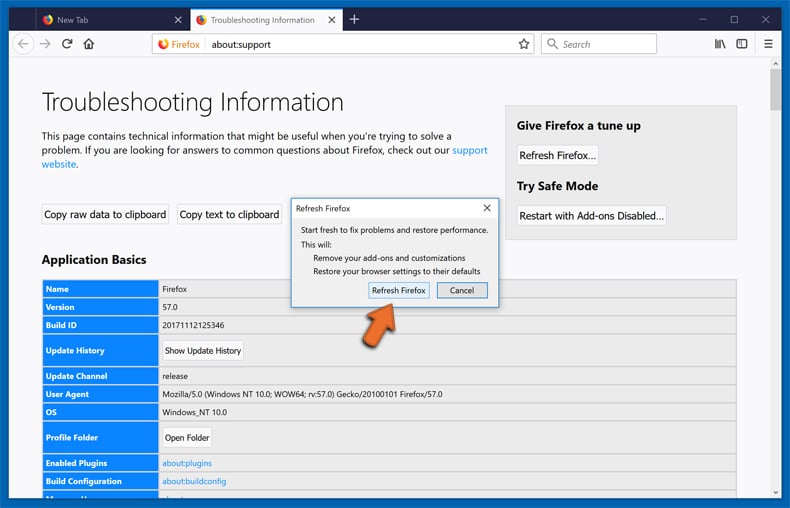
In the opened window, click the Refresh Firefox button.
In the opened window, confirm that you wish to reset Mozilla Firefox settings to default by clicking the Refresh Firefox button.
 Remove malicious extensions from Safari:
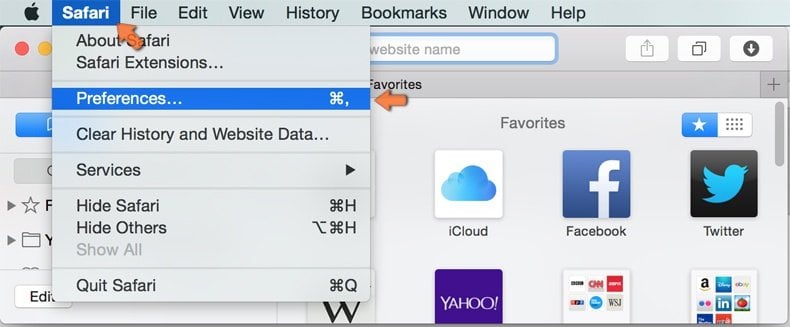
Make sure your Safari browser is active, click Safari menu, and select Preferences....
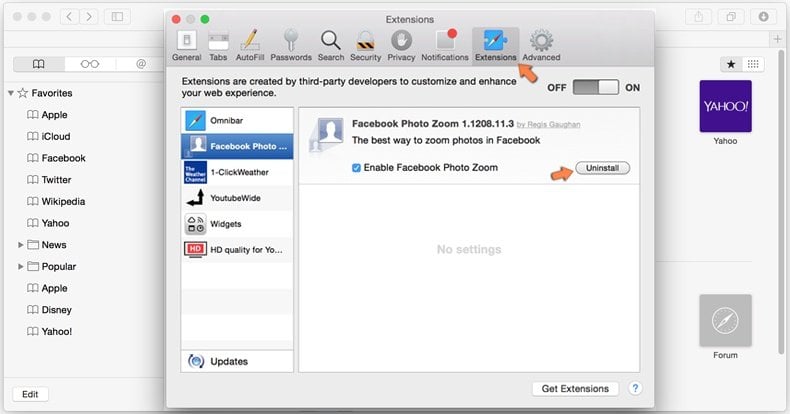
In the opened window click Extensions, locate any recently installed suspicious extension, select it and click Uninstall.
Optional method:
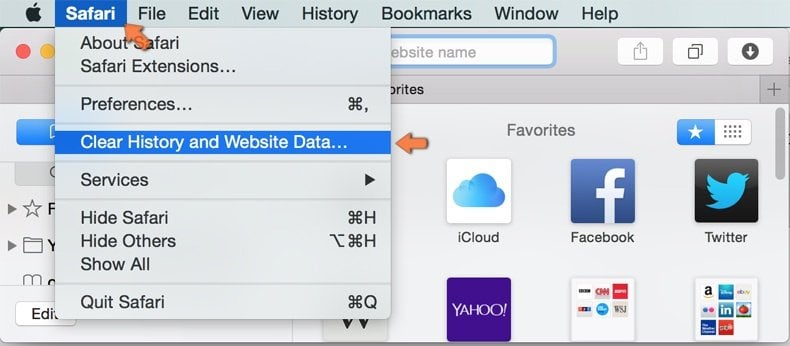
Make sure your Safari browser is active and click on Safari menu. From the drop down menu select Clear History and Website Data...
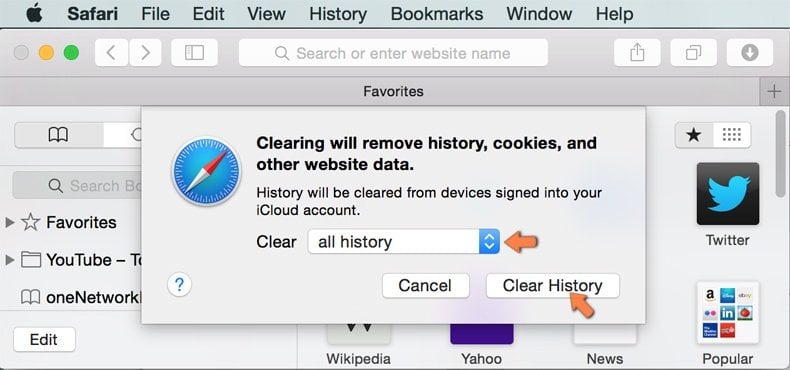
In the opened window select all history and click the Clear History button.
 Remove malicious extensions from Microsoft Edge:
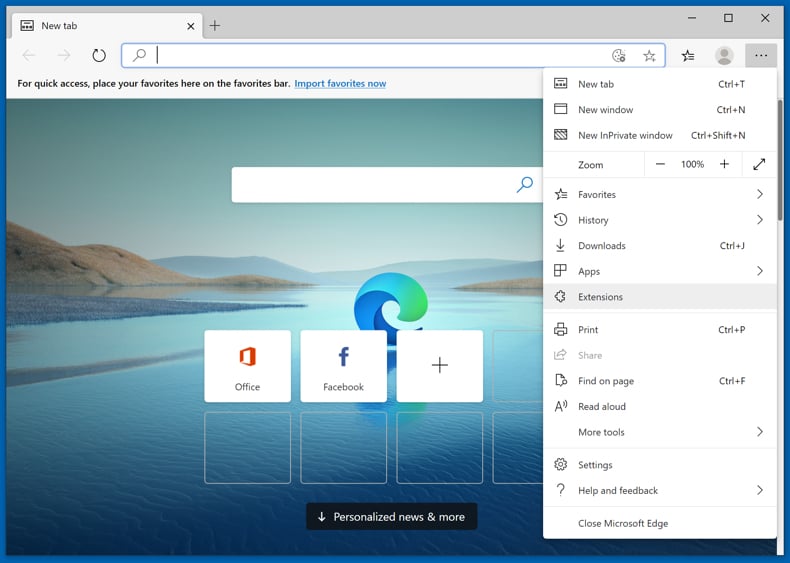
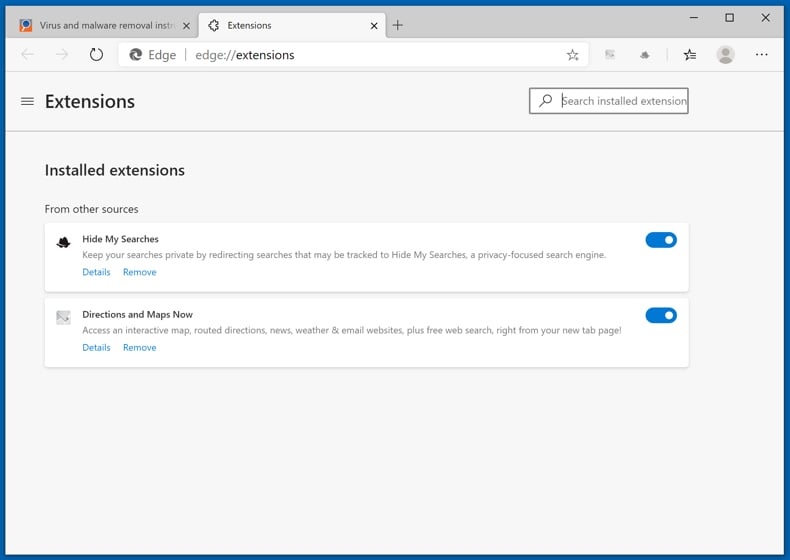
Click the Edge menu icon  (at the upper-right corner of Microsoft Edge), select "Extensions". Locate all recently-installed suspicious browser add-ons and click "Remove" below their names.
Optional method:
If you continue to have problems with removal of the ginyas browser companion virus, reset your Microsoft Edge browser settings. Click the Edge menu icon (at the top right corner of Microsoft Edge) and select Settings.
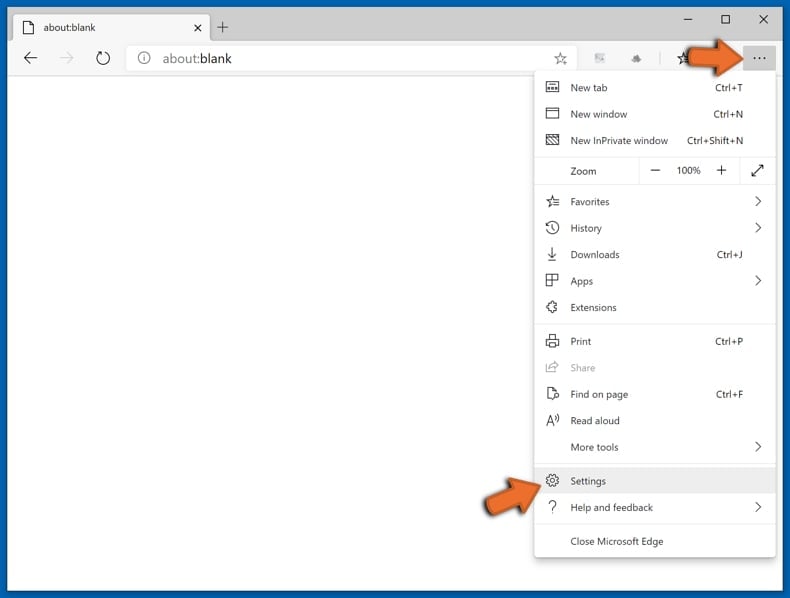
In the opened settings menu select Reset settings.
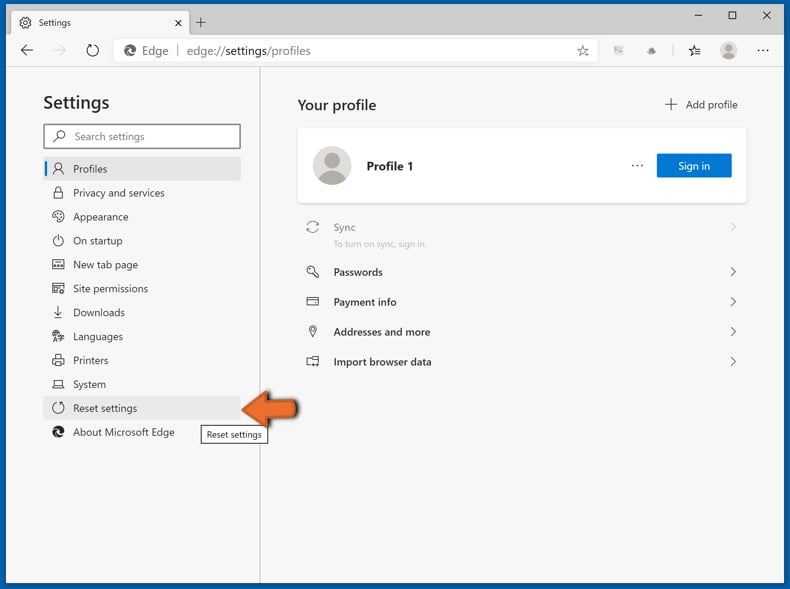
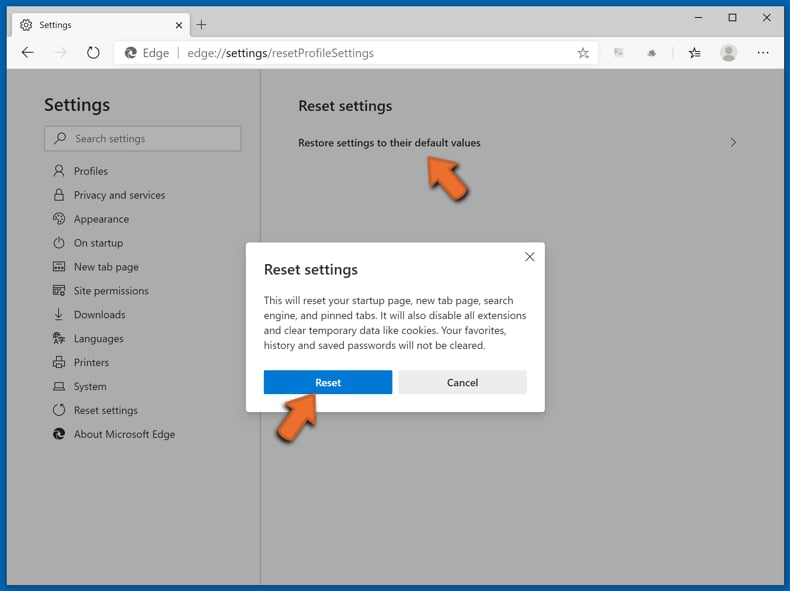
Select Restore settings to their default values. In the opened window, confirm that you wish to reset Microsoft Edge settings to default by clicking the Reset button.
- If this did not help, follow these alternative instructions explaining how to reset the Microsoft Edge browser.
Summary:
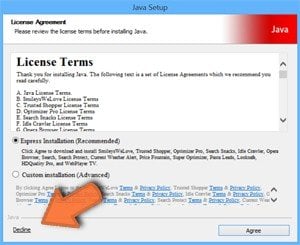 Commonly, adware or potentially unwanted applications infiltrate Internet browsers through free software downloads. Note that the safest source for downloading free software is via developers' websites only. To avoid installation of adware, be very attentive when downloading and installing free software. When installing previously-downloaded free programs, choose the custom or advanced installation options – this step will reveal any potentially unwanted applications listed for installation together with your chosen free program.
Post a comment:
If you have additional information on ginyas browser companion virus or it's removal please share your knowledge in the comments section below.


 Outstanding!
▼ Show Discussion