Win32/FakeRean
 Written by Tomas Meskauskas on (updated)
What is Win32/FakeRean family?
The FakeRean/Braviax family of fake antivirus programs is developed and distributed by cyber criminals. The main purpose of these rogue programs is to infiltrate users' operating systems and display fake security scans to trick users into purchasing a fake license key.
Cyber criminals responsible for creating these bogus programs use 'exploit kits' to infiltrate users' systems. Exploit kits rely on outdated software to infect users' operating systems, and therefore, keeping your installed software up-to-date can drastically reduce the risk of computer virus infection.
The Braviax/FakeRean family of rogues is well known for the name-changing capability of its fake antivirus programs. The bogus programs from this family detect the operating system of the computers targeted for infiltration and modify their names accordingly.
For example, when infecting a computers running the Windows 7 operating system, rogue programs from this family appear as Windows 7 Antivirus, Windows 7 Internet Security, Windows 7 Home Security, or Win 7 Security. Windows XP users observe these bogus programs appearing as Windows XP Antivirus, Windows XP Internet Security, etc.
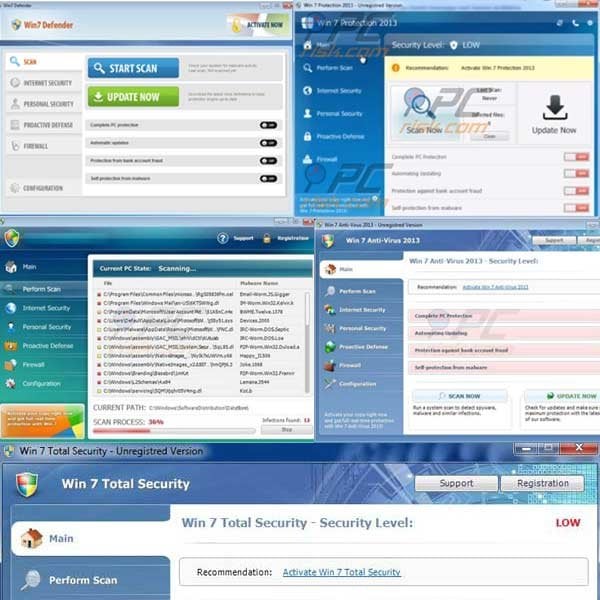
The main reason for distribution of these rogue programs is to convince PC users into believing that their computers are at risk, and then to sell the useless license keys.
In fact, paying for any program from the FakeRean/Braviax family is equivalent to sending your money to cyber criminals - you will lose your money and divulge your banking information, potentially leading to further thefts from your account. PC users should express caution when purchasing security software to protect their computers since the Internet is rife with fake versions.
Always research these products before purchasing any antivirus program. Furthermore, no legitimate antivirus programs start security scans each time the user loads their operating system.
Common sources of fake antivirus programs from this family are infected email messages, malicious websites, and drive-by downloads. To protect your computer from security infections such as this, keep your operating system and all installed software up-to-date and use legitimate antivirus and anti-spyware software.
The following are the names of some variations used by fake antivirus programs from this family:
Win 7/XP/Vista Antivirus 2012/2013
Win 7/XP/Vista Anti-spyware 2012/2013
Win 7/XP/Vista Internet Security 2012/2013
Win 7/XP/Vista Security 2012/2013
Win 7/XP/Vista Home Security 2012/2013
Win 7/XP/Vista Total Security
Win 7/XP/Vista Security Cleaner
Win 7/XP/Vista Defender
Fake security warning messages used to trick computer users into purchasing bogus antivirus programs:
Activate your copy right now and get full real-time protection with [Fake Antivirus Name]!
Attention: Danger!
ALERT! System scan for spyware, adware, Trojans and viruses is complete. [Fake Antivirus Name]! detected 30 critical system objects. These security breaches may be exploited and lead to the following:Your system becomes a target for spam and bulky, intruding ads
Browser crashes frequently and web access speed decreases
Your personal files, photos, documents and passwords get stolen
Your computer is used for criminal activity behind your back
Bank details and credit card information gets disclosedClick REGISTER to register your copy of Fake Antivirus Name]! and perform threat removal on your system. The list of infections and vulnerabilities detected will become available after registration.
Fake Antivirus Name]! Alert - [Fake Antivirus Name]! has blocked a program from accessing the Internet
This program is infected with Trojan-BNK.Win32.Keylogger.gen
Private data can be stolen by third parties, including credit card details and passwords.
Name: Microsoft Windows Operating System
Location: C:\Windows\System32\Taskmgr.exe
Company: Microsoft Corporation
Version: 6.2.9200.16384
Windows recommend Activate [Fake Antivirus Name]!
Click "Yes, Activate…" to register your copy of [Fake Antivirus Name]! and perform threat removal on your system.
Yes, activate [Fake Antivirus Name]! (Recommended)
No, Continue unprotected (Dangerous)
Instant automatic malware removal:
Manual threat removal might be a lengthy and complicated process that requires advanced IT skills. Combo Cleaner is a professional automatic malware removal tool that is recommended to get rid of malware. Download it by clicking the button below:
▼ DOWNLOAD Combo Cleaner
By downloading any software listed on this website you agree to our Privacy Policy and Terms of Use. To use full-featured product, you have to purchase a license for Combo Cleaner. 7 days free trial available. Combo Cleaner is owned and operated by Rcs Lt, the parent company of PCRisk.com read more.
Quick menu:
- What is Win32/FakeRean?
- STEP 1. Disable Win32/FakeRean using a registration key.
- STEP 2. Remove Win32/FakeRean using spyware-removing software.
Rogue antivirus programs from FakeRean/Braviax family removal:
Cyber criminals who create these fake antivirus programs use an identical license key for most of them. Entering one of these keys makes removal of the fake antivirus program less complicated.
Entering these keys forces the fake antivirus program into behaving as if you have purchased the license key and allows execution of installed programs (including legitimate antivirus and anti-spyware software).
IMPORTANT! Before downloading: Click the "Registration" button located at the top right corner of the fake antivirus main window, and when the registration window opens, enter this registry key in the "Reg key" field and click "Activate":
9443-077673-5028
1089-903874-1875
3425-814615-3990
When the registration key is entered, the fake antivirus program will behave as if you have purchased the full version and will cease generating fake security warning messages. It will also allow you to run programs and anti-spyware software.
Note that registering this program will not remove it from your PC, it will simply disable the fake pop-up windows and allow to access the Internet. After you enter this key, you can download the recommended spyware remover (use the button below) and remove this bogus antivirus software.
NOTE: If you cannot run remover, right-click on it and select "Run as administrator". If installation of spyware remover fails, or you cannot open .exe files, try the Customized installer built by our technicians to bypass spyware infections and install removers regardless. It is a DOS program, that most spyware does not block.
If, after or before, removal of this scam you are unable to run your installed programs, the fake antivirus program has modified your operating system's .exe file associations.
When you try to run any executable, Windows will open the "select program" dialogue and will not execute the program. To fix this, download a registry fix (link below). Save it to your computer, double click it, click yes and then ok. After rebooting your PC, file associations should function normally.
If you cannot open your browser (Internet explorer, Firefox, Google Chrome, or Opera):
Fake antivirus programs from this family hijacks Internet browsers, modify registry settings and disable execution of programs. For such cases, our developers have developed a custom installer.
It is useful when you are unable to browse the Internet or run .exe files. It starts like MS-Dos program, runs some registry fixes, and then initiates execution of a installer. When tested, this installer worked on the Windows 7, Windows Vista and XP operating systems infected with most common spyware infections.
To use this installer, click Windows logo button (Start)
In the search field, enter this link: www.pcrisk.com/installer.com and then press ENTER.
The fake antivirus program will generate a fake warning after pressing ENTER. Ignore it and click "No, stay unprotected..." on this message.
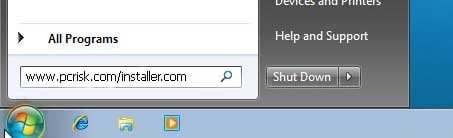
File download dialogue will appear, reporting that you are downloading file installer.com. Click Run, wait for download to finish, and then follow the on-screen instructions. Windows may warn you that opening unknown files may be unsafe. Ignore these warnings.
If your Internet browsers work, use this button to download customized installer.
Manual removal of fake antivirus programs from the FakeRean/Braviax family:
Some spyware block the download of spyware removers. If you are unable to download it using the default location, try one of the alternative download locations below:
- Location 1 (the file is renamed to "iexplore.exe", since most spyware does not block this file)
- Location 2
If installation of the remover fails, try downloading the customized installer, which was built by our technicians to bypass spyware infections. Download customized installer
If you are still unable to download or run spyware-removing software, please perform these steps:
Step 1
Download the registry fix. This fix removes registry entries that disallow execution of programs in some variants of this spyware. To download it, click the link below. After downloading, double click win7_av_fix.reg file, click Yes when requested and then click OK.
Step 2
Some variants of this spyware modify the system proxy settings to prevent access to the Internet, or website addresses are redirected to malicious or phishing websites. To reset proxy settings to default, download and run this tool:
Step 3
Fake antivirus programs from this family modify the system Hosts file. The Hosts file is used to resolve canonical names of websites to IP addresses. When it is changed, the user may be redirected to malicious sites, despite seeing legitimate URLs in address bar.
It is difficult to determine sites are genuine when the Hosts file is modified. To fix this, please download the Microsoft Fix It tool, that restores your Hosts file to the Windows default. Run this tool when downloaded and follow the on-screen instructions. Download link below:
Step 4
That's It! You can now try to download Spyware remover or install and run it if already downloaded.
Other tools known to remove fake antivirus programs from the FakeRean/Braviax family:
Summary:
The fake antivirus programs (also known as "rogue antivirus programs" or "scareware") are applications that tries to lure computer users into paying for their non-existent full versions to remove the supposedly detected security infections (although the computer is actually clean). These bogus programs are created by cyber criminals who design them to look as legitimate antivirus software. Most commonly rogue antivirus programs infiltrate user's computer using poop-up windows or alerts which appear when users surf the Internet. These deceptive messages trick users into downloading a rogue antivirus program on their computers. Other known tactics used to spread scareware include exploit kits, infected email messages, online ad networks, drive-by downloads, or even direct calls to user's offering free support.
A computer that is infected with a fake antivirus program might also have other malware installed on it as rogue antivirus programs often are bundled with Trojans and exploit kits. Noteworthy that additional malware that infiltrates user's operating system remains on victim's computer regardless of whether a payment for a non-existent full version of a fake antivirus program is made. Here are some examples of fake security warning messages that are used in fake antivirus distribution:
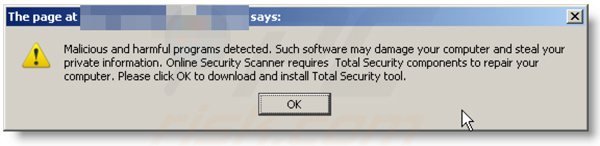
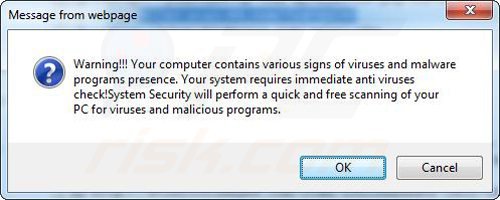
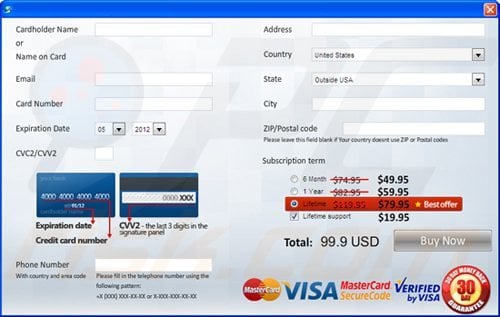
Computer users who are dealing with a rogue security software shouldn't buy it's full version. By paying for a license key of a fake antivirus program users would send their money and banking information to cyber criminals. Users who have already entered their credit card number (or other sensitive information) when asked by such bogus software should inform their credit card company that they have been tricked into buying a rogue security software. Screenshot of a web page used to lure computer users into paying for a non-existent full version of braviax and other rogue antivirus programs:
To protect your computer from braviax and other rogue antivirus programs users should:
- Keep their operating system and all of the installed programs up-to-date.
- Use legitimate antivirus and anti-spyware programs.
- Use caution when clicking on links in social networking websites and email messages.
- Don't trust online pop-up messages which state that your computer is infected and offers you to download security software.
Symptoms indicating that your operating system is infected with a fake antivirus program:
- Intrusive security warning pop-up messages.
- Alerts asking to upgrade to a paid version of a program to remove the supposedly detected malware.
- Slow computer performance.
- Disabled Windows updates.
- Blocked Task Manager.
- Blocked Internet browsers or inability to visit legitimate antivirus vendor websites.
If you have additional information on braviax or it's removal please share your knowledge in the comments section below.

 Outstanding!
▼ Show Discussion