
How to use system restore in Windows Vista and Windows 7?

 How to use Windows 7 and Windows Vista System Restore?
During normal operation, the System Restore feature automatically makes copies of system files and registry entries, thus allowing you to restore your operating system to a previous state. This feature is useful in many situations. For example, Windows Restore is useful if you have installed a program that considerably reduces computer performance and you are unable to uninstall it. In another example, malware, that may perhaps have infected your computer, could damage system files, and in this situation Windows System restore might be invaluable. This feature may also be used if you update/install hardware drivers and your computer subsequently becomes unstable. In summary, Windows System Restore is a useful feature that enables you to roll back to a state prior to experiencing system problems.
Where do you find windows system restore feature?
Windows System Restore is reached in several ways:
Click Windows Logo ('Start') button and in the Start menu search box, enter 'restore' (or 'rstrui'). You will then see the 'System Restore' entry at the top of your Start Menu.


You can also perform the following steps to reach Windows System Restore:
Click Windows Logo ('Start') button -> Click Accessories -> System Tools -> select System Restore

The Windows System Restore screen appears, and here you can choose from several options:
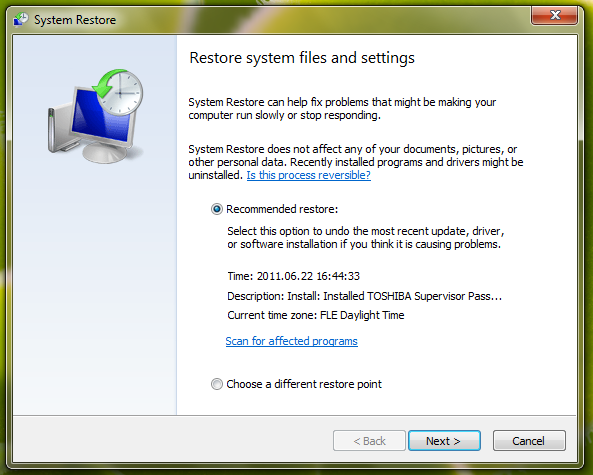
You can either restore your operating system by clicking 'Recommended restore' or 'Choose a different restore point'. If you click the second option, you are provided with a list of recently-updated drivers, etc. Choose which change you wish to roll back to, then confirm, and then restart your computer.

Note: I recommend using Windows System Restore when your operating system is running in Safe Mode.
How to enter safe mode?
Click Start, click Shut Down, click Restart, click OK. During your computer start process, press the F8 key on your keyboard multiple times until you see the Windows Advanced Option menu, then select Safe Mode from the list.
Share:
 Facebook
 X.com
X.com
 LinkedIn
 Copy Link

Tomas Meskauskas
Expert security researcher, professional malware analyst
I am passionate about computer security and technology. I have an experience of over 10 years working in various companies related to computer technical issue solving and Internet security. I have been working as an author and editor for pcrisk.com since 2010. Follow me on Twitter and LinkedIn to stay informed about the latest online security threats.
▼ Show Discussion