FBI Virus - Your Computer Has Been Locked
 Written by Tomas Meskauskas on (updated)
What is FBI Virus?
FBI "Your Computer Has Been Locked" is a ransomware virus created by Internet criminals with the intention of tricking unsuspecting PC users into paying a fine for supposedly using copyrighted material or watching pornography. This scam exploits the name of the Federal Bureau of Investigation to make it appear authentic.
To date, the FBI has never employed screen blocking messages to fight Internet piracy, or to collect fines for any law violations. This screen blocking message was created by Cyber criminals in the hope that computer users will fall for their trickery and pay the bogus fine to unlock their PCs. The fines vary from $100 to $400.
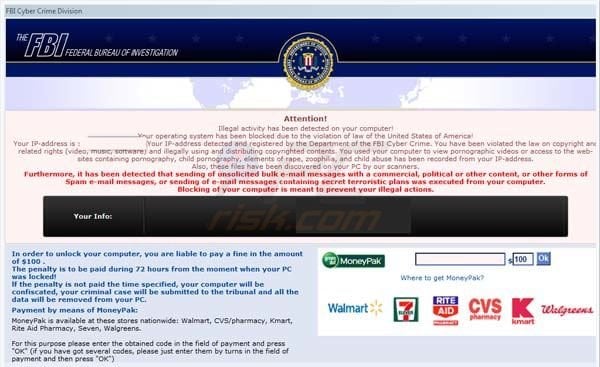
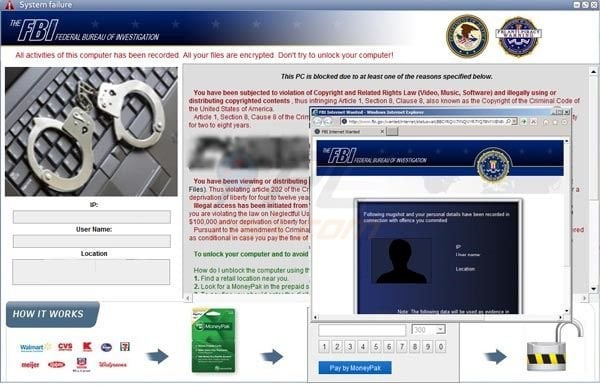
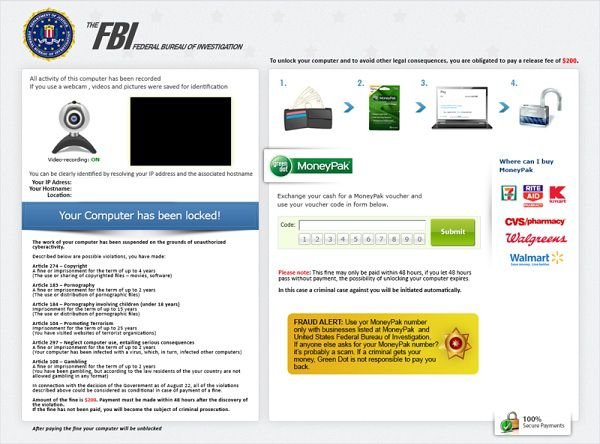
FBI is just one of many authorities whose name has been exploited by Cyber criminals in order to extort money from unsuspecting PC users. Another screen locker that exploited the name of the FBI and used MoneyPak for payment was called The FBI Federal Bureau of Investigation.
There are several different ransomware virus families using the name of the FBI to scam PC users including Reveton, Urausy, Epubb, Gimemo, and many others.
Within some fake messages, Internet criminals uses the name of antivirus companies and security related badges/logos to further trick PC users into believing that the screen blocking message is legitimate. Do not trust this or any other message which blocks the desktop and demands payment of a fine in order to unlock it.
No authorities use such methods to collect fines for copyright-related or other law infringements. To collect the fake fines, Cyber criminals use MoneyPak, Ukash, CashU, and other pre-paid card services. Use of these services differs from credit card payments, and thus makes tracking of Internet criminals almost impossible.
If you see a message on your computer supposedly originating from the FBI, and it demands payment of a fine in order to unlock your PC, you can be certain that you are dealing with a ransomware virus. Do not trust this message, it is a scam.
If the fake message is only active within your Internet browsers (For example, Internet Explorer, Google Chrome, Mozilla FireFox, or Safari), use this removal guide - YOUR BROWSER HAS BEEN LOCKED - how to remove this ransomware virus?
The FBI "Your computer has been locked" ransomware virus is distributed using exploit kits, which infiltrate users' computers via known security vulnerabilities. The most common source of these infections are email messages, malicious websites, and drive-by downloads.
As exploit kits use security vulnerabilities to proliferate ransomware viruses, Internet users are advised to keep their operating system and installed software up-to-date. Other safe computing practices include using legitimate antivirus and anti-spyware programs.
If your computer is already infected with the FBI "Your computer has been locked" ransomware virus, use the removal guide provided to eliminate this scam from your PC.
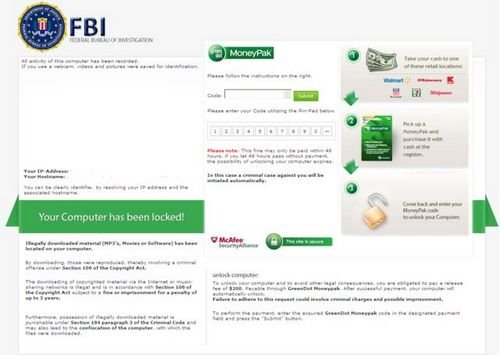
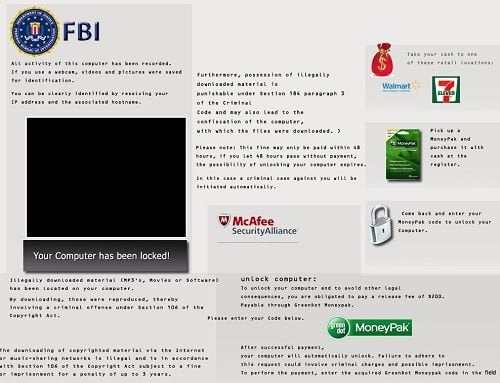
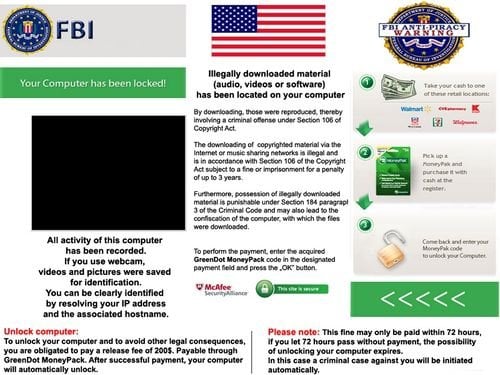
Example of a fake message shown by FBI virus "Your computer has been locked":
All activity of this computer has been recorded. If you use a webcam, videos and pictures were saved for identification. You can be clearly identified by resolving your IP address and the associated host name. Illegally downloaded material (MP3's, Movies or Software) has been located on your computer. By downloading, those were reproduced, thereby involving a criminal offense under Section 100 of the Copyright Act. The downloading of copyrighted material via the Internet or music sharing networks is illegal and is in accordance with Section 100 of the Copyright Act subject to a fine or imprisonment for a penalty of up to 3 years.
Furthermore, possession of illegally downloaded material is punishable under Section 184 paragraph 3 of the Criminal Code and may also lead to the confiscation of the computer, with which the files were downloaded.
To unblock your computer and to avoid other legal consequences, you are obligated to pay a release fee of $200 payable through GreenDot MoneyPak. After successful payment, your computer will automatically unlock. Failure to adhere to this request could involve criminal charges and possible imprisonment.
Instant automatic malware removal:
Manual threat removal might be a lengthy and complicated process that requires advanced IT skills. Combo Cleaner is a professional automatic malware removal tool that is recommended to get rid of malware. Download it by clicking the button below:
▼ DOWNLOAD Combo Cleaner
By downloading any software listed on this website you agree to our Privacy Policy and Terms of Use. To use full-featured product, you have to purchase a license for Combo Cleaner. 7 days free trial available. Combo Cleaner is owned and operated by Rcs Lt, the parent company of PCRisk.com read more.
Quick menu:
- What is FBI Virus?
- STEP 1. "FBI Virus" virus removal using safe mode with networking.
- STEP 2. "FBI Virus" virus removal using safe mode with command prompt.
- STEP 3. "FBI Virus" ransomware removal using System Restore.
FBI virus "Your computer has been locked" removal:
Step 1
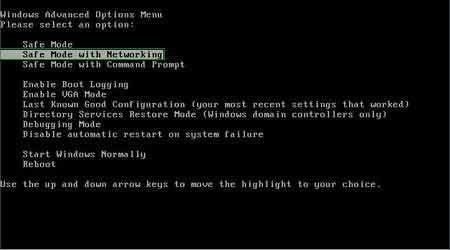
Start your computer in Safe Mode. Click Start, click Shut Down, click Restart, click OK. During your computer starting process press the F8 key on your keyboard multiple times until you see the Windows Advanced Option menu, then select Safe Mode with Networking from the list.
Video showing how to start Windows 7 in "Safe Mode with Networking":
Video showing how to start Windows 8 in "Safe Mode with Networking":
Step 2
Log in to the account infected with the FBI "Your computer has been locked" virus. Start your Internet browser and download a legitimate anti-spyware program. Update the anti-spyware software and start a full system scan. Remove all the entries detected.
Cannot boot in Safe Mode with Networking? (FBI virus "Your computer has been locked" blocks Safe Mode with Networking)
If you have more than one user account on your operating system, please log-in to the clean account and download the recommended malware removal software, install it, and run a full system scan.
Remove all security infections detected. If, however, you have only one user account, please follow the following guide (the guide will show you how to create a new user account using Safe Mode with Command Prompt, and using this newly created user account, you will be able to remove FBI "Your computer has been locked" ransomware).
If FBI "Your computer has been locked" also blocks your operating system's Safe Mode with Networking, follow these removal instructions:
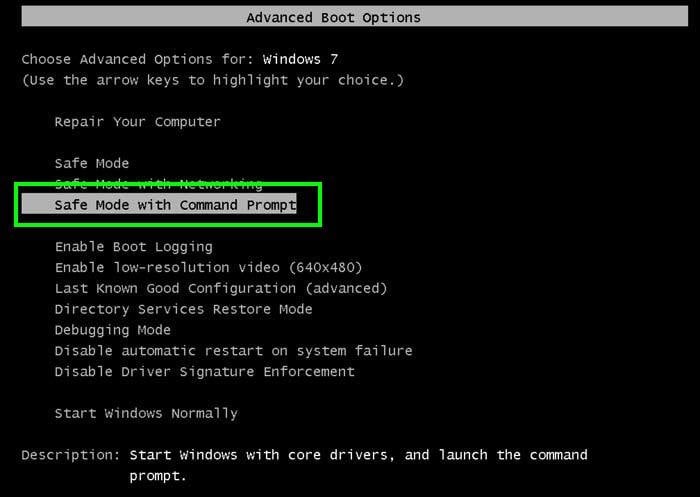
1. Start your computer in Safe Mode with Command Prompt. During your computer starting process press F8 key on your keyboard multiple times until the Windows Advanced Options menu appears, then select Safe mode with Command Prompt from the list and press ENTER.
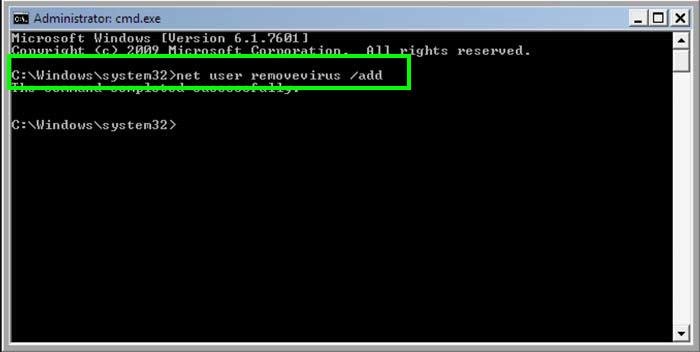
2. When Command Prompt mode loads, enter the following line: net user removevirus /add and press ENTER.
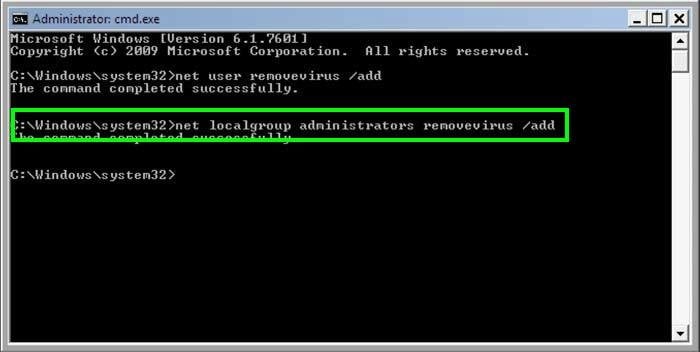
3. Next, enter this line: net localgroup administrators removevirus /add and press ENTER.
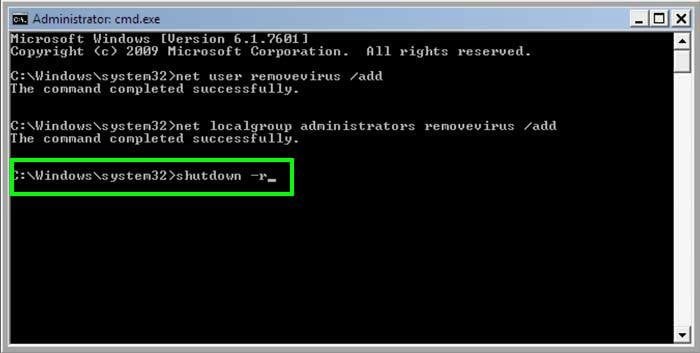
4. Finally, enter this line: shutdown -r and press ENTER.
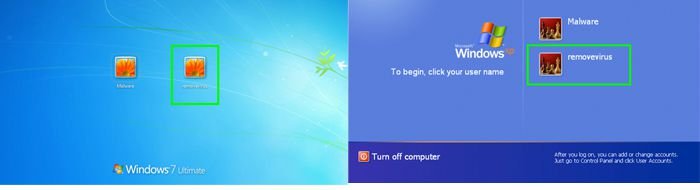
5. Wait for your computer to restart, boot your PC in Normal Mode, and the login to the newly created user account ("removevirus"). This account will not be affected by the ransomware infection and you will be able to download and install recommended malware removal software to eliminate this virus from your computer.
6. Download and install recommended malware removal software to eliminate this ransomware infection from your computer:
If the newly-created user account is also affected by the ransomware virus, try performing a System Restore:
Video showing how to remove ransomware virus using "Safe Mode with Command Prompt" and "System Restore":
1. Start your computer in Safe Mode with Command Prompt. During your computer starting process, press the F8 key on your keyboard multiple times until the Windows Advanced Options menu shows up, and then select Safe mode with Command Prompt from the list and press ENTER.
2. When Command Prompt mode loads, enter the following line: cd restore and press ENTER.

3. Next, type this line: rstrui.exe and press ENTER.

4. In the open window, click "Next".
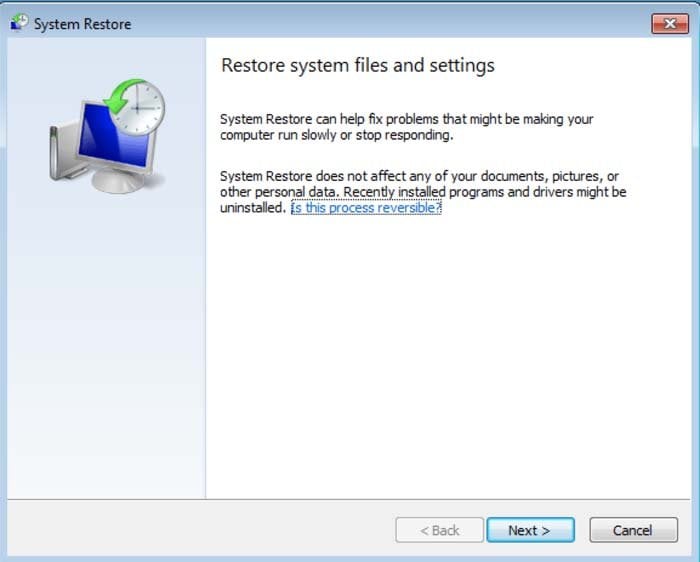
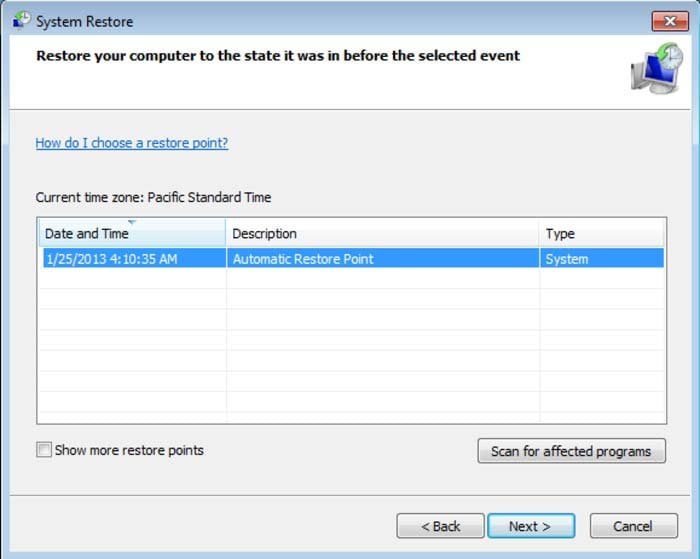
5. Select one of the available restore points and click "Next" (this will restore your computer's system to an earlier time and date, prior to the ransomware infiltrating your PC).
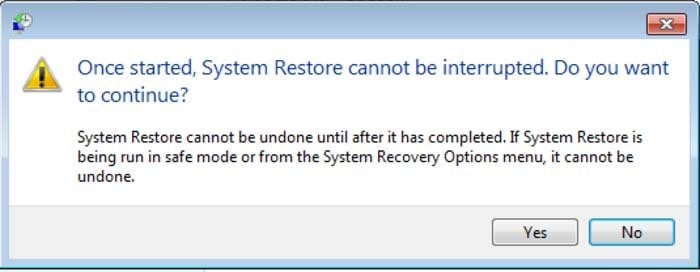
6. In the open window, click "Yes".
7. After restoring your computer to a previous date, download and scan your PC with a recommended malware removal software to eliminate any remnants of the "FBI - Your computer has been locked" ransomware virus.
Alternative FBI virus "Your computer has been locked" removal guide:
If this ransomware blocks your screen when you start your computer in Safe Mode with Networking, try starting your PC in Safe Mode with Command Prompt.
1. During your computer starting process, press the F8 key on your keyboard multiple times until the Windows Advanced Options menu appears, then select Safe mode with Command Prompt from the list and press ENTER.
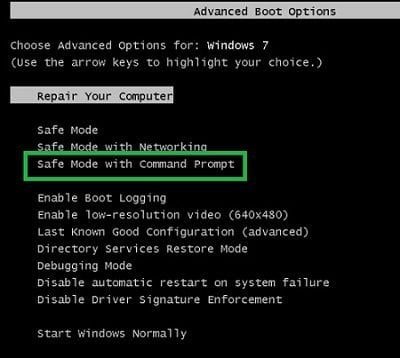
2. In the open Command Prompt, type explorer and press Enter. This command will open the Explorer window. Do not close it and continue to the next step.
3. In the command prompt, type regedit and press Enter. This will open the Registry Editor window.
4. In the Registry Editor window, navigate to HKEY_LOCAL_MACHINE\SOFTWARE\Microsoft\Windows NT\CurrentVersion\Winlogon\
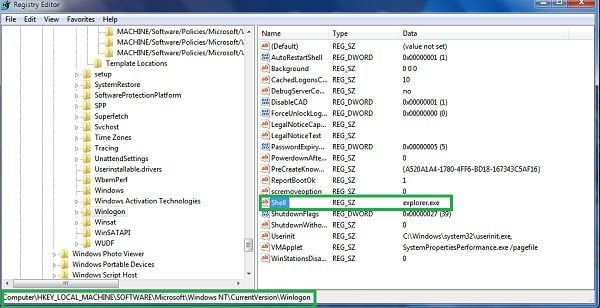
5. On the right side of the window, locate "Shell" and right click on it. Click on Modify. The default value data is Explorer.exe if you see anything else displayed in this window, remove it and type in Explorer.exe (make a note of any alternate entry in data section, since this is the path of the rogue execution file). Use this information to navigate to the rogue executable and remove it.
6. Restart your computer, download and install legitimate anti-spyware software, and perform a full system scan to eliminate any remnants of FBI virus "Your computer has been locked".
If you cannot start your computer in Safe Mode with Networking (or with Command Prompt), boot your computer using a rescue disk. Some variants of ransomware disable Safe Mode, making its removal more complicated. For this step, you need access to another computer.
After removing FBI virus "Your computer has been locked" from your PC, restart your computer and scan it with legitimate antispyware software to remove any possible remnants of this security infection.
Other tools known to remove FBI virus "Your computer has been locked":

 Outstanding!
▼ Show Discussion