
How to remove SantaStealer from infected systems
TrojanAlso Known As: SantaStealer information stealer

Get free scan and check if your device is infected.
Remove it nowTo use full-featured product, you have to purchase a license for Combo Cleaner. Seven days free trial available. Combo Cleaner is owned and operated by RCS LT, the parent company of PCRisk.com.
What kind of malware is SantaStealer?
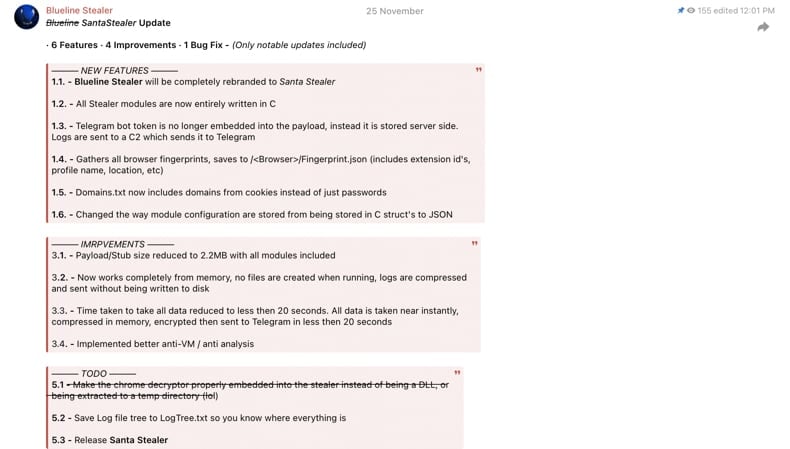
SantaStealer is malicious software used to collect sensitive data from compromised systems. It is sold as a Malware-as-a-Service through Telegram channels and underground forums. Research suggests it was previously known as BluelineStealer. The malware avoids detection by running in memory and transmits stolen data to its command server over unencrypted HTTP.
More about SantaStealer
SantaStealer is offered through two monthly subscription plans priced at $175 and $300. The higher-priced plan includes more advanced features and capabilities. It is known that SantaStealer is capable of gathering various information from compromised devices, including system and app data.
The stealer can collect session and configuration data from Google Chrome, Mozilla Firefox, Steam, FileZilla, Microsoft Outlook, Telegram, Discord, and possibly other browsers, FTP and VPN clients, password managers, messaging, and gaming apps. Targeted information includes login data, cookies, web data, configuration files, credit card details, and other data.
Moreover, SantaStealer searches for cryptocurrency wallet information and sensitive documents and files (including crypto-related files) stored on the system and retrieves them. Additionally, it gathers system information (such as OS and environmental data). It also utilizes anti-virtual machine (anti-VM) checks to prevent running in analysis environments.
These checks include looking for known analysis processes, suspicious system names, VirtualBox services, or debugger activity. If a virtual machine or debugger is detected, the malware immediately stops running.
Cybercriminals can utilize SantaStealer to conduct a range of malicious activities. This includes hijacking online accounts, stealing money from cryptocurrency wallets, committing identity theft, exfiltrating sensitive documents, capturing login credentials, and gaining access to private communications.
| Name | SantaStealer information stealer |
| Threat Type | Stealer |
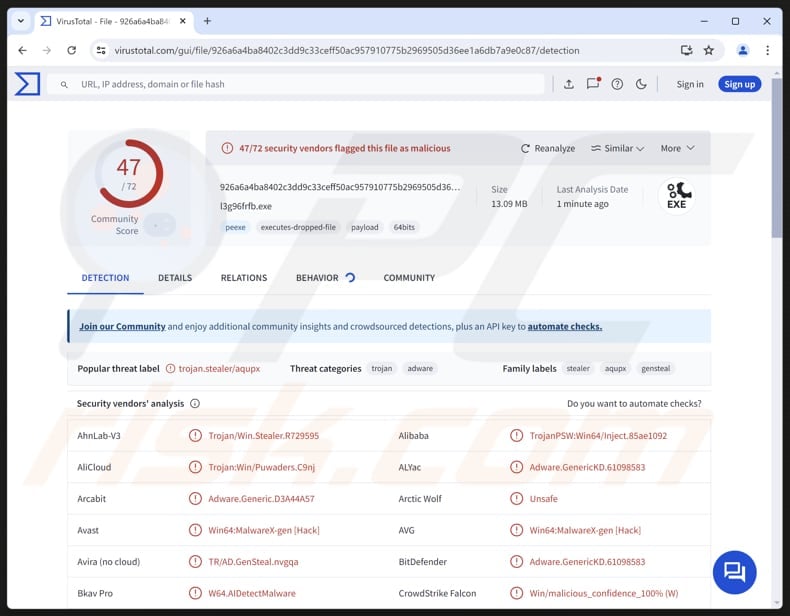
| Detection Names | Avast (Win64:MalwareX-gen [Hack]), Combo Cleaner (Adware.GenericKD.61098583), ESET-NOD32 (Win64/PSW.Agent.QR Trojan), Kaspersky (Trojan.Win32.Inject.aqupx), Microsoft (Trojan:Win32/Wacatac.B!ml), Full List (VirusTotal) |
| Symptoms | Most stealers are designed to stealthily infiltrate the victim's computer and remain silent, and thus no particular symptoms are clearly visible on an infected machine. |
| Possible distribution methods | Infected email attachments, malicious online advertisements, social engineering, software vulnerabilities, pirated software, tech support scams. |
| Damage | Stolen passwords and banking information, identity theft, account hijacking, financial loss. |
| Malware Removal (Windows) |
To eliminate possible malware infections, scan your computer with legitimate antivirus software. Our security researchers recommend using Combo Cleaner. Download Combo CleanerTo use full-featured product, you have to purchase a license for Combo Cleaner. 7 days free trial available. Combo Cleaner is owned and operated by RCS LT, the parent company of PCRisk.com. |
Conclusion
Overall, SantaStealer is a serious threat due to its broad data‑stealing capabilities and modular design. The stealer can be used in malicious campaigns, resulting in financial loss and privacy breaches. Thus, if detected on a device, SantaStealer should be eliminated as soon as possible.
Some examples of other stealers are Eternidade, PhantomStealer, and Arkanix.
How did SantaStealer infiltrate my computer?
Typically, cybercriminals aim to trick users into executing malware through malicious documents (e.g., Word, Excel, or PDF files), script files, archives (e.g., ZIP or RAR files), executable files, or other types of files. They often deliver malware using pirated software, keygens, cracking tools, and emails containing malicious attachments or links.
Additionally, threat actors can exploit software vulnerabilities or use technical support scams, malicious advertisements, peer-to-peer (P2P) networks, infected USB drives, third-party downloaders, fake or compromised websites, and similar channels to distribute malware.
How to avoid installation of malware?
Be careful with emails or messages from unknown senders, and never click on suspicious links or open attachments in irrelevant, unexpected, or similar emails (or other communications). Avoid interacting with pop‑ups, ads, or buttons on untrusted websites, and do not allow such sites to send notifications.
Download software from official websites or trusted app stores, and stay away from pirated software, cracks, or keygens. Ensure your operating system and applications are regularly updated, and utilize reputable security software to protect your device.
If you believe that your computer is already infected, we recommend running a scan with Combo Cleaner Antivirus for Windows to automatically eliminate infiltrated malware.
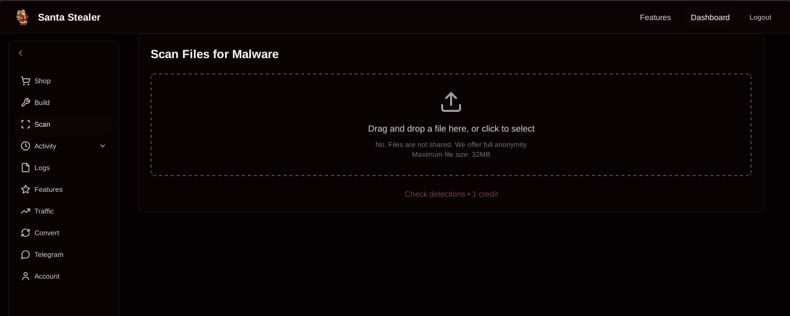
SantaStealer's administration panel login screen:

SantaStealer's administration panel (source: rapid7.com):
SantaStealer promoted through Telegram (source: rapid7.com):
Instant automatic malware removal:
Manual threat removal might be a lengthy and complicated process that requires advanced IT skills. Combo Cleaner is a professional automatic malware removal tool that is recommended to get rid of malware. Download it by clicking the button below:
DOWNLOAD Combo CleanerBy downloading any software listed on this website you agree to our Privacy Policy and Terms of Use. To use full-featured product, you have to purchase a license for Combo Cleaner. 7 days free trial available. Combo Cleaner is owned and operated by RCS LT, the parent company of PCRisk.com.
Quick menu:
- What is SantaStealer?
- STEP 1. Manual removal of SantaStealer malware.
- STEP 2. Check if your computer is clean.
How to remove malware manually?
Manual malware removal is a complicated task - usually it is best to allow antivirus or anti-malware programs to do this automatically. To remove this malware we recommend using Combo Cleaner Antivirus for Windows.
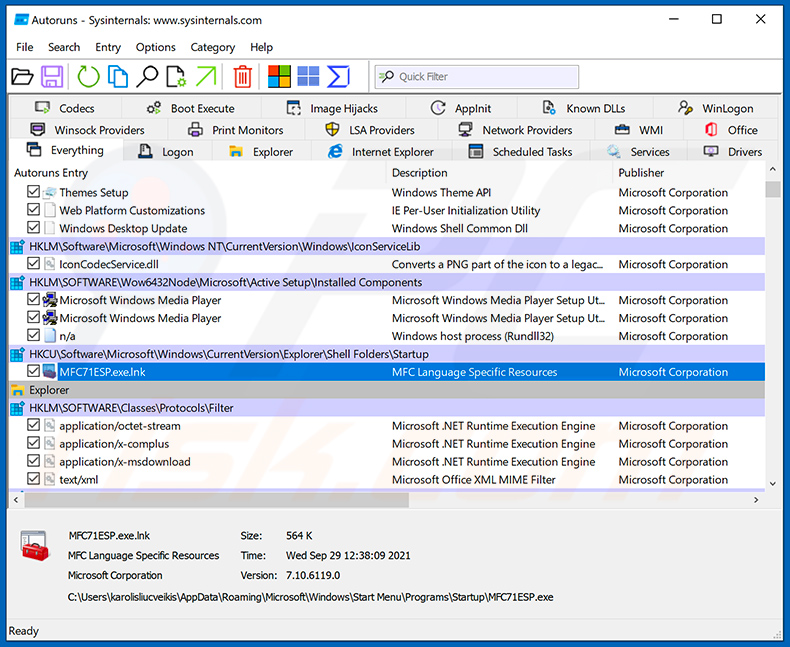
If you wish to remove malware manually, the first step is to identify the name of the malware that you are trying to remove. Here is an example of a suspicious program running on a user's computer:
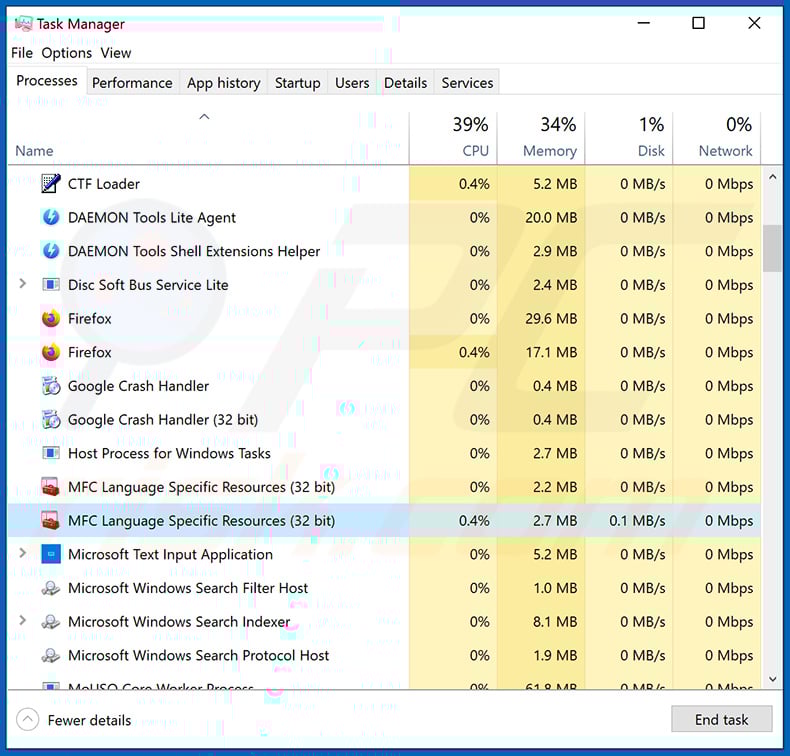
If you checked the list of programs running on your computer, for example, using task manager, and identified a program that looks suspicious, you should continue with these steps:
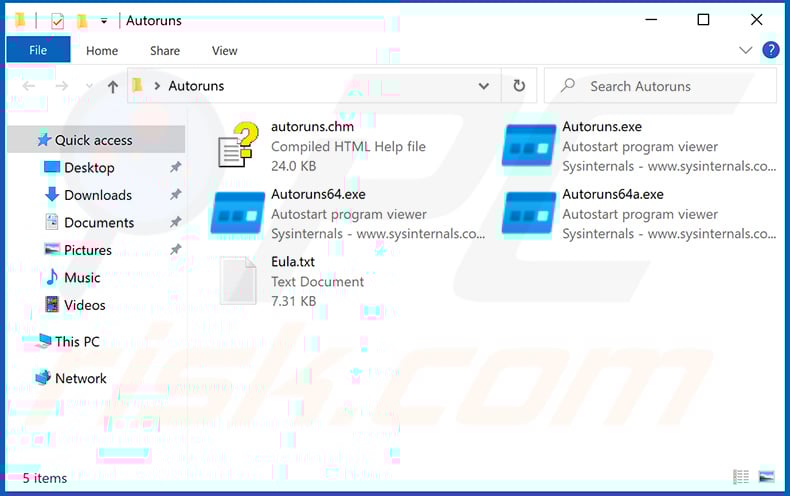
 Download a program called Autoruns. This program shows auto-start applications, Registry, and file system locations:
 Restart your computer into Safe Mode:
Windows XP and Windows 7 users: Start your computer in Safe Mode. Click Start, click Shut Down, click Restart, click OK. During your computer start process, press the F8 key on your keyboard multiple times until you see the Windows Advanced Option menu, and then select Safe Mode with Networking from the list.
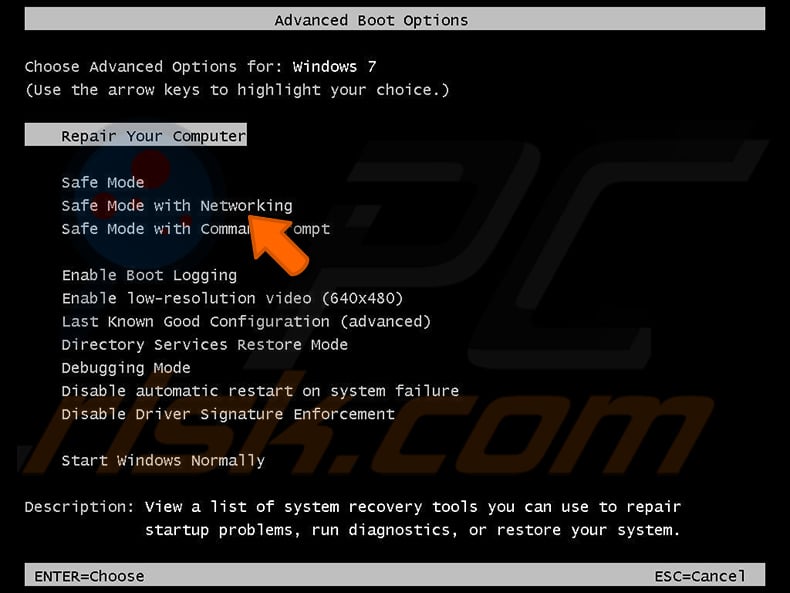
Video showing how to start Windows 7 in "Safe Mode with Networking":
Windows 8 users: Start Windows 8 is Safe Mode with Networking - Go to Windows 8 Start Screen, type Advanced, in the search results select Settings. Click Advanced startup options, in the opened "General PC Settings" window, select Advanced startup.
Click the "Restart now" button. Your computer will now restart into the "Advanced Startup options menu". Click the "Troubleshoot" button, and then click the "Advanced options" button. In the advanced option screen, click "Startup settings".
Click the "Restart" button. Your PC will restart into the Startup Settings screen. Press F5 to boot in Safe Mode with Networking.
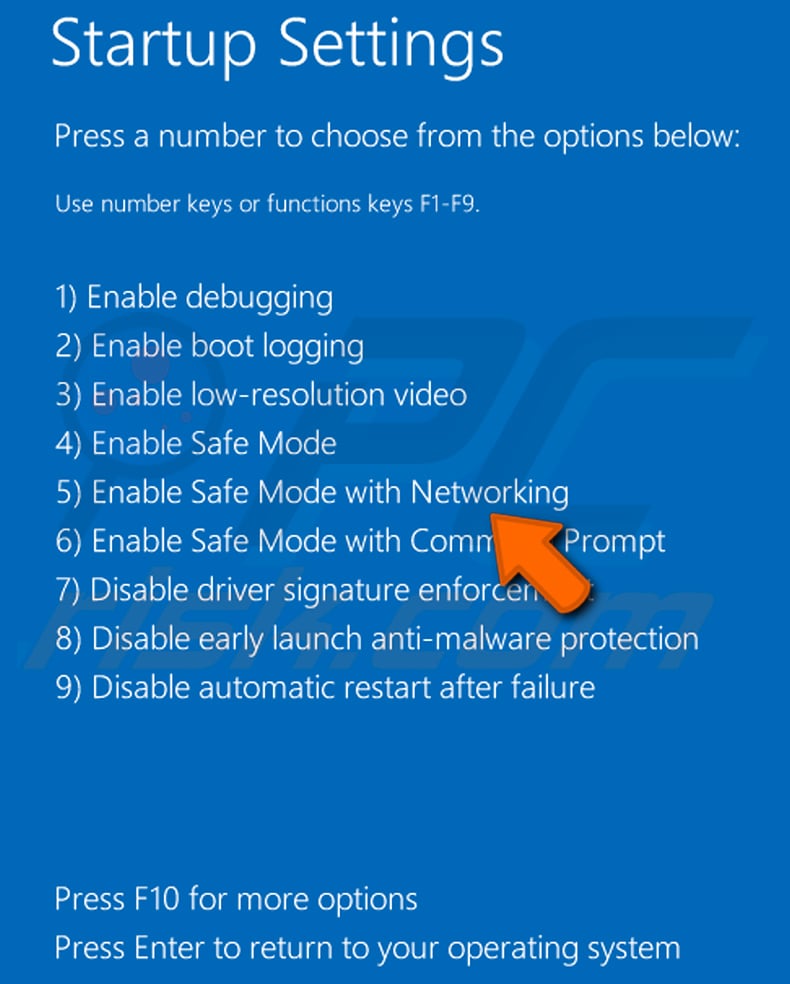
Video showing how to start Windows 8 in "Safe Mode with Networking":
Windows 10 users: Click the Windows logo and select the Power icon. In the opened menu click "Restart" while holding "Shift" button on your keyboard. In the "choose an option" window click on the "Troubleshoot", next select "Advanced options".
In the advanced options menu select "Startup Settings" and click on the "Restart" button. In the following window you should click the "F5" button on your keyboard. This will restart your operating system in safe mode with networking.
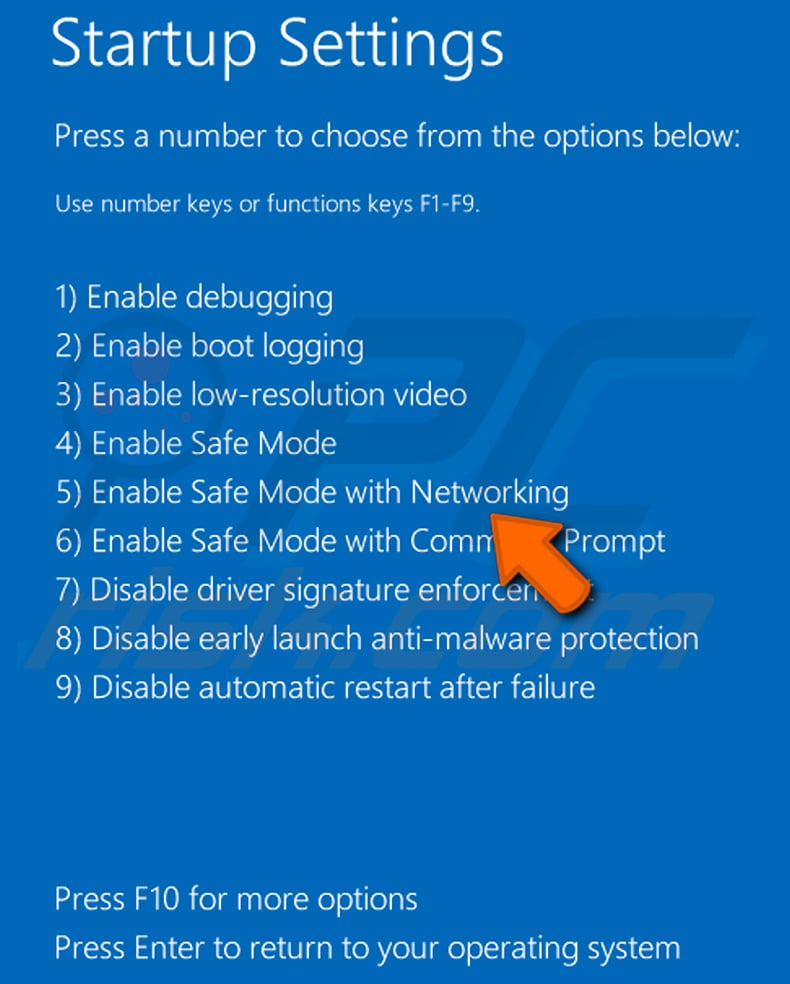
Video showing how to start Windows 10 in "Safe Mode with Networking":
 Extract the downloaded archive and run the Autoruns.exe file.
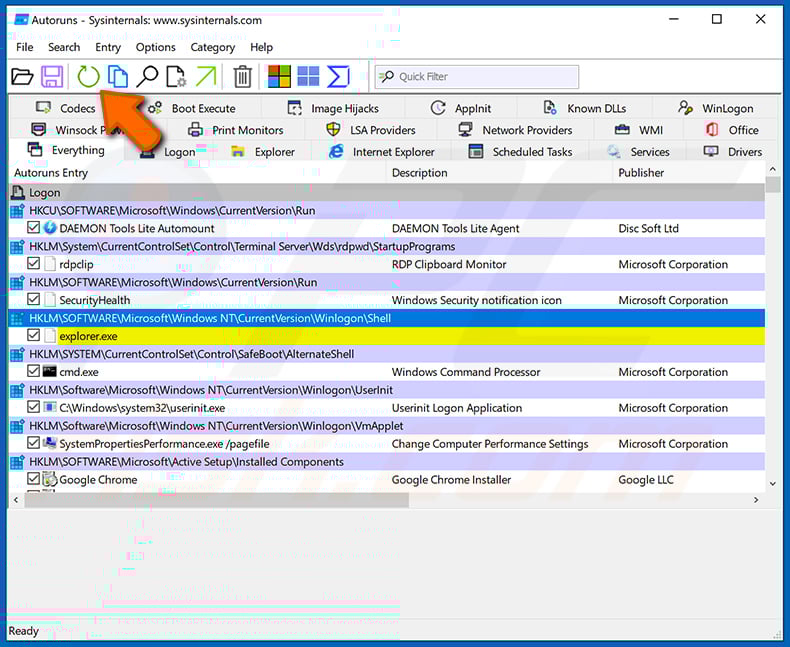
 In the Autoruns application, click "Options" at the top and uncheck "Hide Empty Locations" and "Hide Windows Entries" options. After this procedure, click the "Refresh" icon.
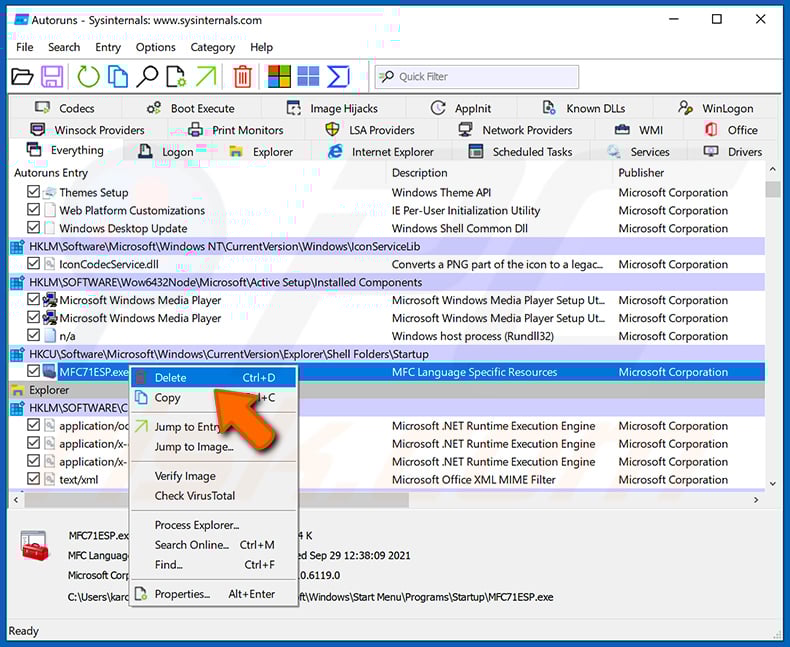
 Check the list provided by the Autoruns application and locate the malware file that you want to eliminate.
You should write down its full path and name. Note that some malware hides process names under legitimate Windows process names. At this stage, it is very important to avoid removing system files. After you locate the suspicious program you wish to remove, right click your mouse over its name and choose "Delete".
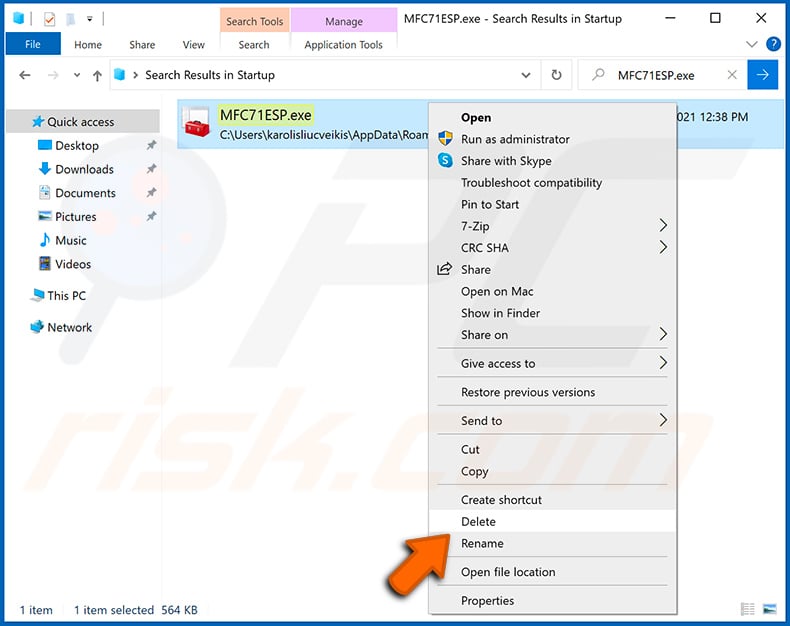
After removing the malware through the Autoruns application (this ensures that the malware will not run automatically on the next system startup), you should search for the malware name on your computer. Be sure to enable hidden files and folders before proceeding. If you find the filename of the malware, be sure to remove it.
Reboot your computer in normal mode. Following these steps should remove any malware from your computer. Note that manual threat removal requires advanced computer skills. If you do not have these skills, leave malware removal to antivirus and anti-malware programs.
These steps might not work with advanced malware infections. As always it is best to prevent infection than try to remove malware later. To keep your computer safe, install the latest operating system updates and use antivirus software. To be sure your computer is free of malware infections, we recommend scanning it with Combo Cleaner Antivirus for Windows.
Frequently Asked Questions (FAQ)
My computer is infected with SantaStealer malware, should I format my storage device to get rid of it?
In most situations, users do not have to wipe their devices to remove malware. Threats such as SantaStealer can usually be eliminated with trusted security tools, like Combo Cleaner, without affecting personal files.
What are the biggest issues that malware can cause?
Malware can steal personal data, hijack accounts, drain bank or crypto funds, encrypt files for ransom, spy on communications, slow down or crash devices, and spread to other systems.
What is the purpose of SantaStealer?
The purpose of SantaStealer is to steal sensitive information from infected systems, including credentials, financial data, application data, and cryptocurrency wallets, and send it to cybercriminals for misuse.
How did a malware infiltrate my computer?
Cybercriminals usually trick users into running malware through malicious files like documents, scripts, archives, or executables. They often use pirated software, keygens, cracking tools, or emails with harmful attachments or links. Malware can also be spread via software vulnerabilities, fake websites, malicious ads, P2P networks, infected USB drives, and other channels.
Will Combo Cleaner protect me from malware?
Yes, Combo Cleaner can detect and remove nearly all known malware. Because sophisticated malware often hides deep within the system, it is important to perform a full system scan to ensure complete removal.
Share:
 Facebook
 X.com
X.com
 LinkedIn
 Copy Link

Tomas Meskauskas
Expert security researcher, professional malware analyst
I am passionate about computer security and technology. I have an experience of over 10 years working in various companies related to computer technical issue solving and Internet security. I have been working as an author and editor for pcrisk.com since 2010. Follow me on Twitter and LinkedIn to stay informed about the latest online security threats.
PCrisk security portal is brought by a company RCS LT.
Joined forces of security researchers help educate computer users about the latest online security threats. More information about the company RCS LT.
Our malware removal guides are free. However, if you want to support us you can send us a donation.
DonatePCrisk security portal is brought by a company RCS LT.
Joined forces of security researchers help educate computer users about the latest online security threats. More information about the company RCS LT.
Our malware removal guides are free. However, if you want to support us you can send us a donation.
Donate
▼ Show Discussion