

Get free scan and check if your device is infected.
Remove it nowTo use full-featured product, you have to purchase a license for Combo Cleaner. Seven days free trial available. Combo Cleaner is owned and operated by RCS LT, the parent company of PCRisk.com.
What kind of malware is Cellik RAT?
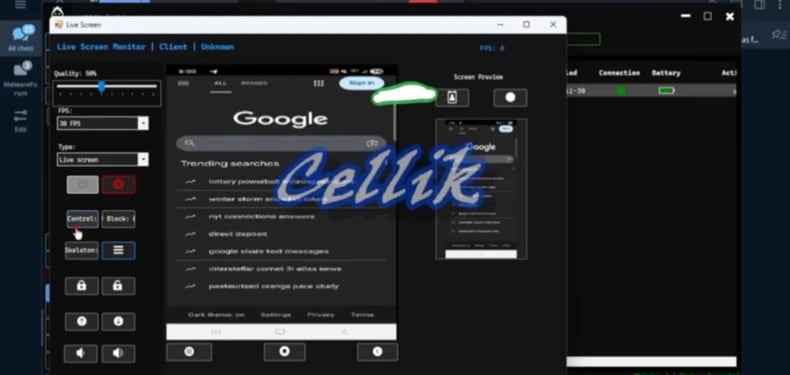
Cellik is an Android remote access Trojan (RAT) that has features typically found in high-end spyware. It can stream the screen live, record keystrokes, access the camera and microphone, browse the web, read notifications, and inject itself into other apps to steal information. Notably, it can be bundled with apps from the Google Play Store.
Cellik RAT in detail
After it is installed, Cellik lets the attackers control the phone. They can watch the screen live and remotely use the phone, just like a hidden remote-control app. Cybercriminals can see what the victim sees and remotely tap or swipe the screen.
Cellik can also spy on notifications. It can read all notifications, including those received earlier, from all apps. This allows threat actors to extract sensitive information, such as one-time passcodes that the victim receives on the infected phone.
Furthermore, the RAT can access the infected device's storage. It means that threat actors behind the malware can access folders, copy files from the device, add new files, or erase data, including files synced from cloud services. Any data moved to or from the phone is protected with encryption, making the activity more difficult to detect.
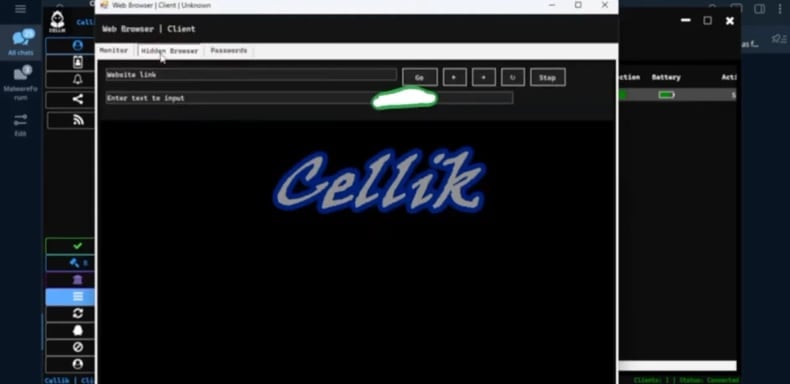
Cellik also allows cybercriminals to use a hidden web browser (which runs in the background) on the infected phone. Through this browser, threat actors can open websites (and click links) and fill in forms while receiving live screenshots of each page. This lets them access accounts using saved login sessions or silently load fake pages that steal information.
Any details entered into these pages, such as passwords or payment data, are captured by the malware and sent to cybercriminals. Cellik also has an app-injection feature. This allows attackers to insert fake screens or malicious code into other apps, such as displaying a fake login page over a banking or email app to steal login credentials.
The attacker can manage and run multiple fake screens simultaneously, allowing them to collect login details from several apps at once without raising suspicion.
Additionally, Cellik has a tool that enables cybercriminals to spread it with minimal effort. It can be used to select genuine apps from the Google Play Store and secretly insert Cellik into them. The RAT can create a new infected app that looks legitimate. Because the malicious code is hidden inside trusted apps, it may avoid Google Play security checks and detection by Play Protect.
| Name | Cellik remote access trojan |
| Threat Type | Android malware, Remote administration Trojan (RAT) |
| Symptoms | The device is running slow, system settings are modified without user's permission, questionable applications appear, data and battery usage is increased significantly, browsers redirect to questionable websites, intrusive advertisements are delivered. |
| Distribution methods | Links or files in deceptive emails or SMS , malicious online advertisements, social engineering, deceptive applications, scam websites. |
| Damage | Stolen personal information (private messages, logins/passwords, etc.), decreased device performance, battery is drained quickly, decreased Internet speed, huge data losses, monetary losses, stolen identity. |
| Malware Removal (Windows) |
To eliminate possible malware infections, scan your computer with legitimate antivirus software. Our security researchers recommend using Combo Cleaner. Download Combo CleanerTo use full-featured product, you have to purchase a license for Combo Cleaner. 7 days free trial available. Combo Cleaner is owned and operated by RCS LT, the parent company of PCRisk.com. |
Conclusion
Overall, Cellik is a dangerous Android RAT that gives attackers control over infected devices. It can steal sensitive data, spy on user activity, and manipulate apps and websites without the victim noticing. Its ability to hide inside legitimate Google Play apps makes it especially hard to detect and easy to spread.
More examples of malware targeting Android systems are DroidLock, FvncBot, and SeedSnatcher.
How did Cellik RAT infiltrate my device?
Android malware commonly infects devices through malicious apps disguised as legitimate games, tools, or updates, often hosted on third-party app stores. Also, malware can infiltrate systems via fake download links shared through advertisements, bogus system warnings, pop-ups, or suspicious websites.
Phishing messages sent via SMS, email, or social media can also be used to trick users into installing malicious applications. Additionally, infections can occur via drive-by downloads triggered by compromised or untrustworthy websites.
How to avoid installation of malware?
Only install apps from the Google Play Store or official developer websites, and check user reviews to make sure the app is trustworthy. Avoid clicking on unexpected links, ads, or pop-ups on suspicious websites, as they may trigger malicious downloads.
Keep your phone and apps up to date, use a trusted mobile security solution, and do not open files or links in messages or emails that seem irrelevant, unexpected, or received from unknown senders.
Cellik's Hidden browser (source: iverify.io):
Quick menu:
- Introduction
- How to delete browsing history from the Chrome web browser?
- How to disable browser notifications in the Chrome web browser?
- How to reset the Chrome web browser?
- How to delete browsing history from the Firefox web browser?
- How to disable browser notifications in the Firefox web browser?
- How to reset the Firefox web browser?
- How to uninstall potentially unwanted and/or malicious applications?
- How to boot the Android device in "Safe Mode"?
- How to check the battery usage of various applications?
- How to check the data usage of various applications?
- How to install the latest software updates?
- How to reset the system to its default state?
- How to disable applications that have administrator privileges?
Delete browsing history from the Chrome web browser:
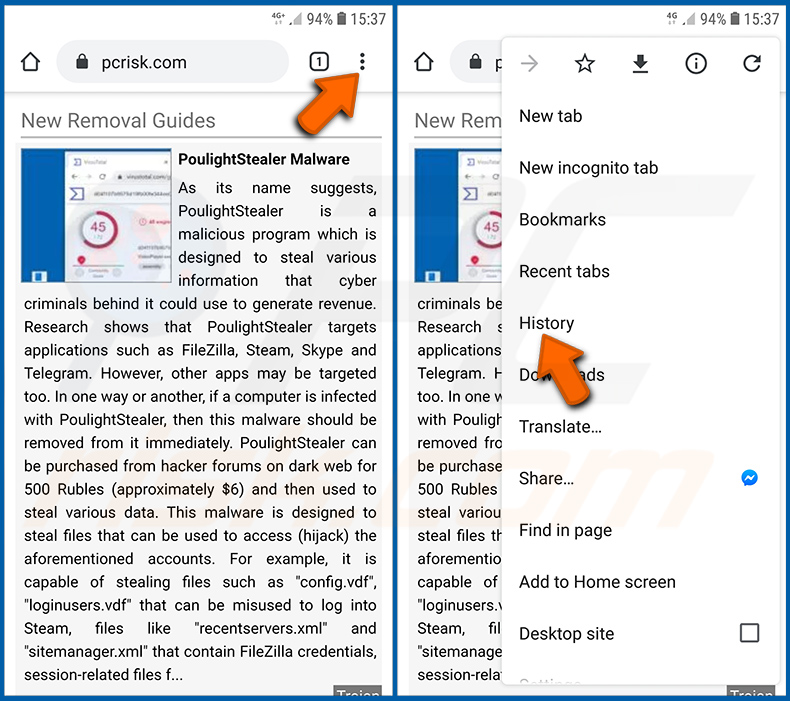
Tap the "Menu" button (three dots on the right-upper corner of the screen) and select "History" in the opened dropdown menu.
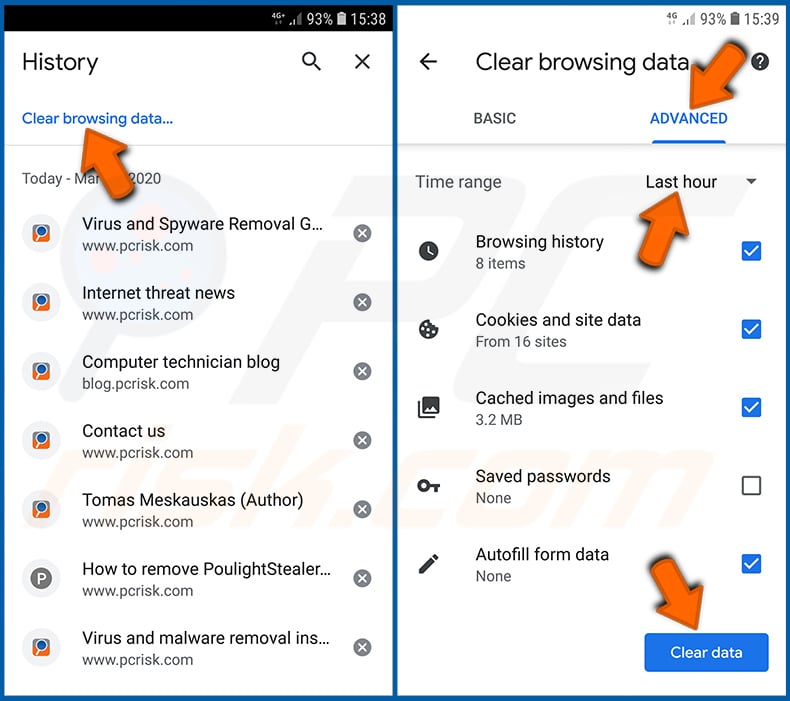
Tap "Clear browsing data", select "ADVANCED" tab, choose the time range and data types you want to delete and tap "Clear data".
Disable browser notifications in the Chrome web browser:
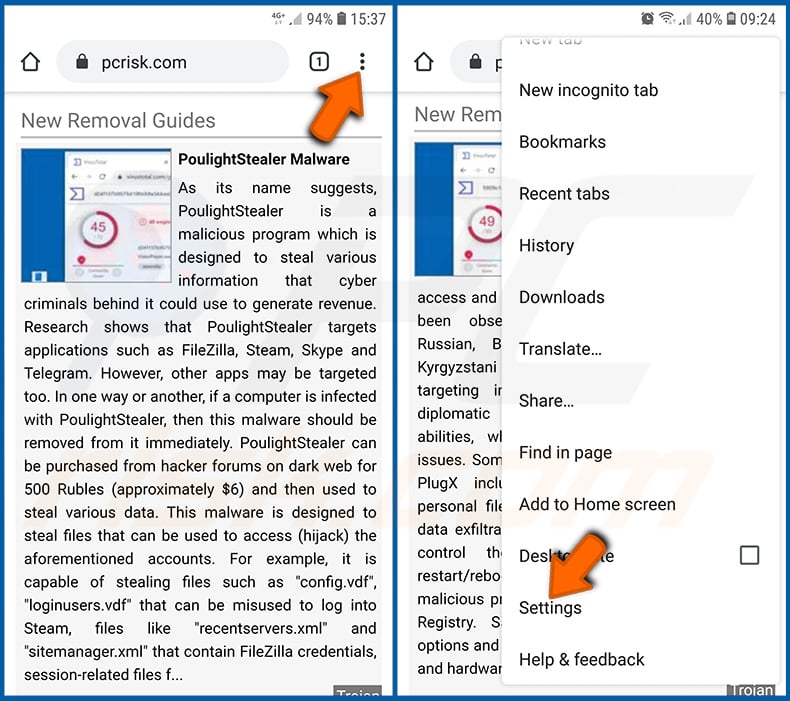
Tap the "Menu" button (three dots on the right-upper corner of the screen) and select "Settings" in the opened dropdown menu.
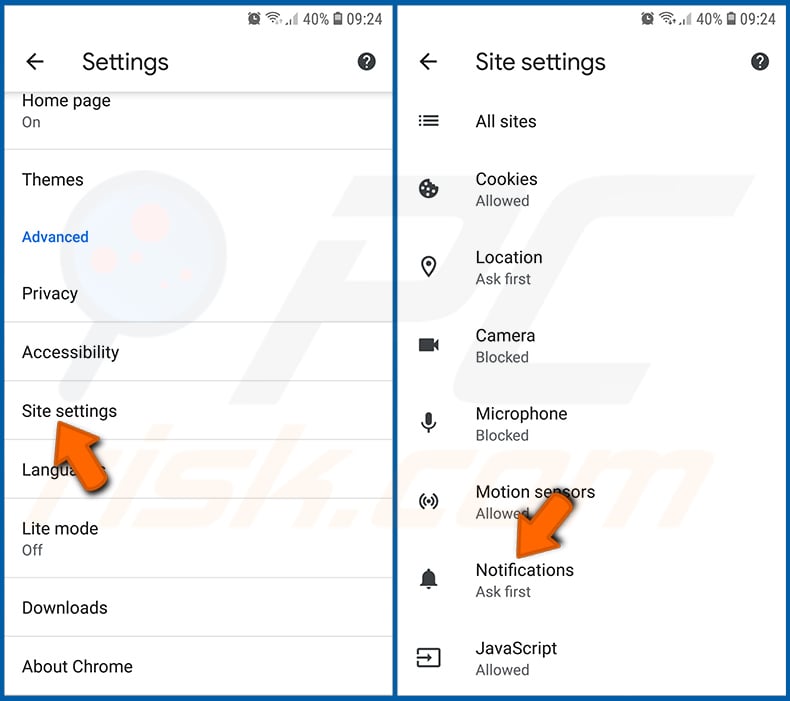
Scroll down until you see "Site settings" option and tap it. Scroll down until you see "Notifications" option and tap it.
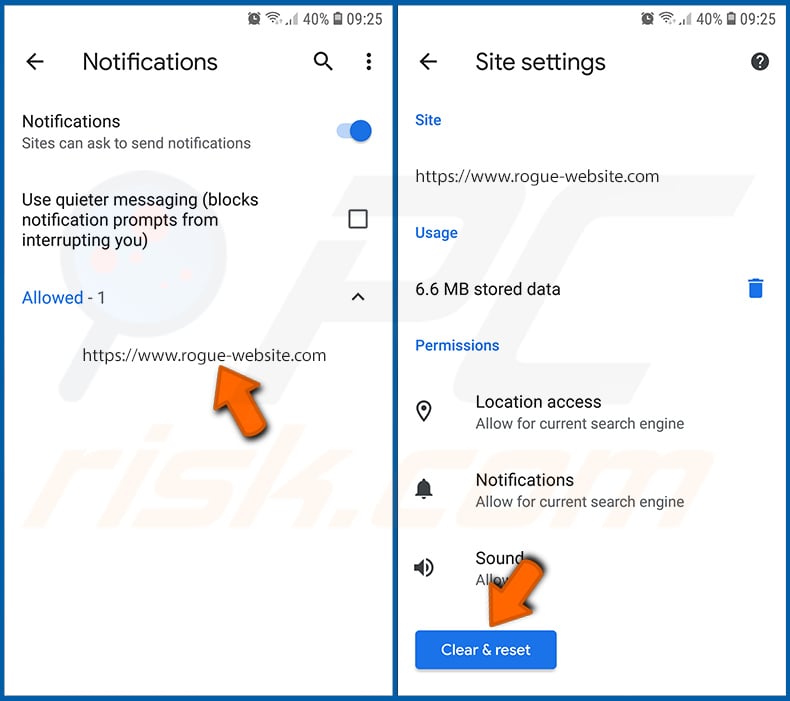
Find the websites that deliver browser notifications, tap on them and click "Clear & reset". This will remove permissions granted for these websites to deliver notifications. However, once you visit the same site again, it may ask for a permission again. You can choose whether to give these permissions or not (if you choose to decline the website will go to "Blocked" section and will no longer ask you for the permission).
Reset the Chrome web browser:
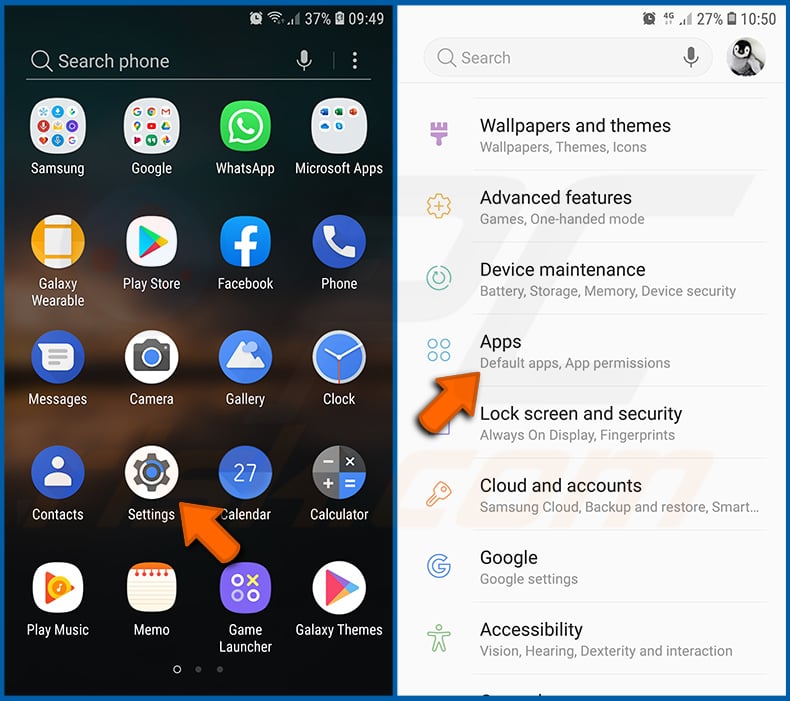
Go to "Settings", scroll down until you see "Apps" and tap it.
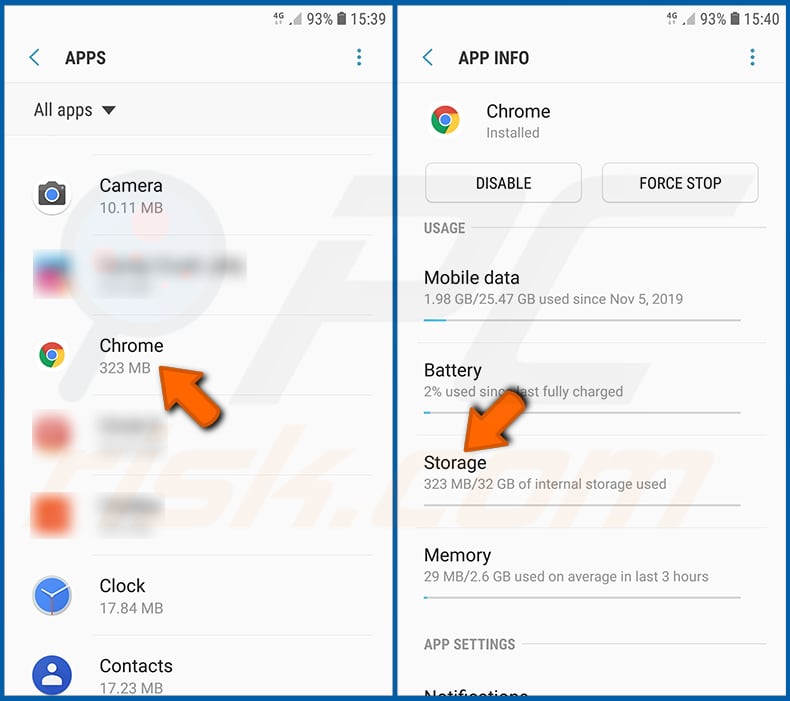
Scroll down until you find "Chrome" application, select it and tap "Storage" option.
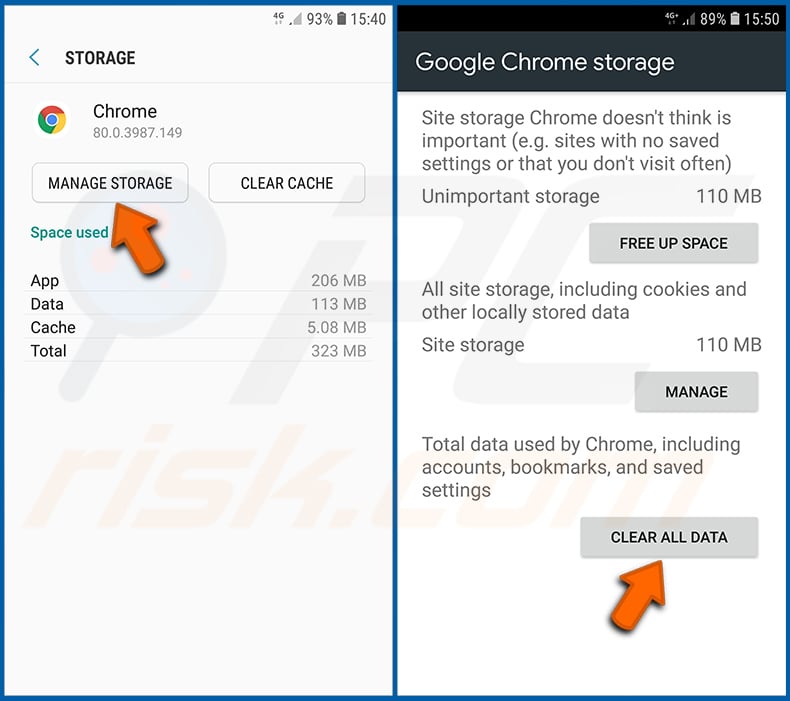
Tap "MANAGE STORAGE", then "CLEAR ALL DATA" and confirm the action by taping "OK". Note that resetting the browser will eliminate all data stored within. This means that all saved logins/passwords, browsing history, non-default settings and other data will be deleted. You will also have to re-login into all websites as well.
Delete browsing history from the Firefox web browser:
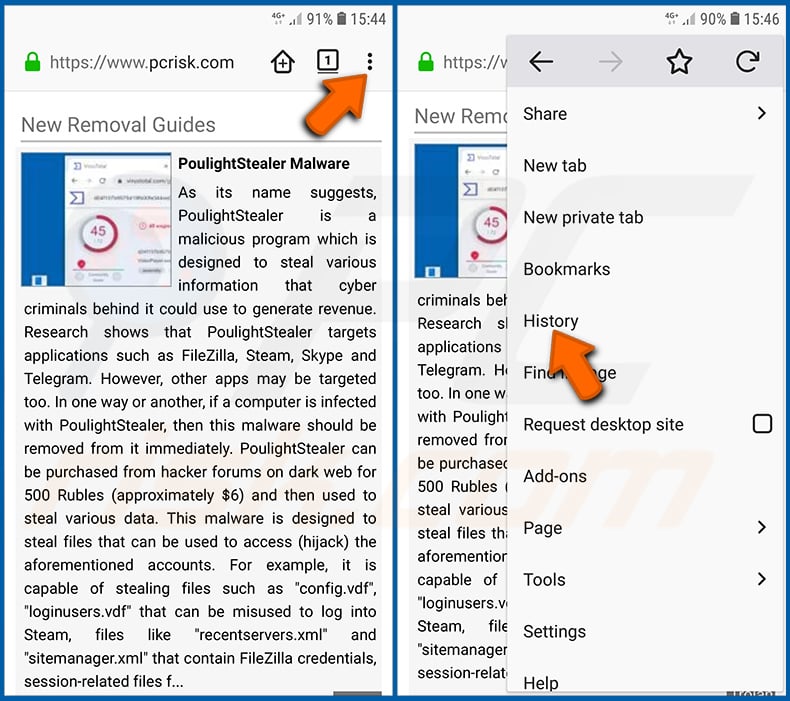
Tap the "Menu" button (three dots on the right-upper corner of the screen) and select "History" in the opened dropdown menu.
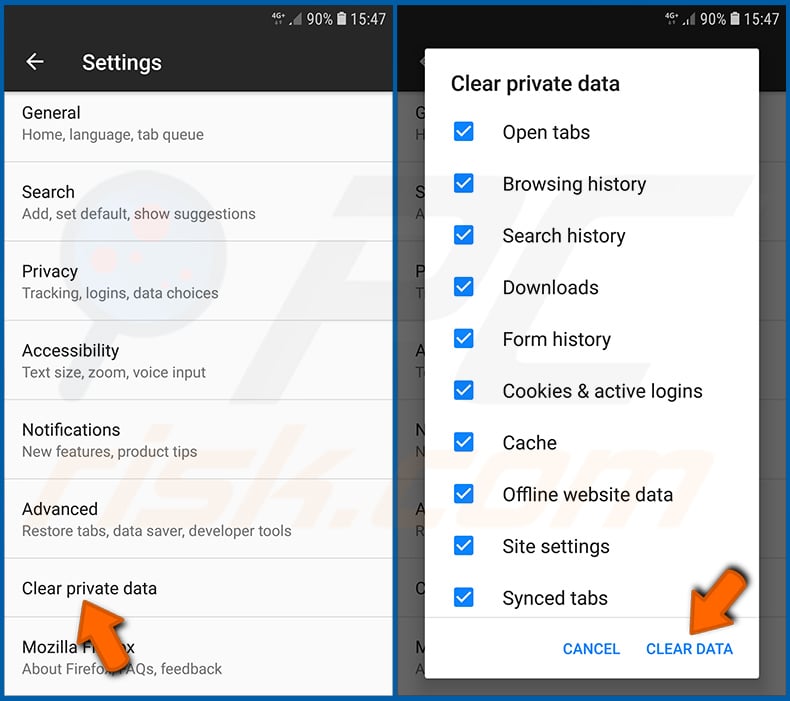
Scroll down until you see "Clear private data" and tap it. Select data types you want to remove and tap "CLEAR DATA".
Disable browser notifications in the Firefox web browser:
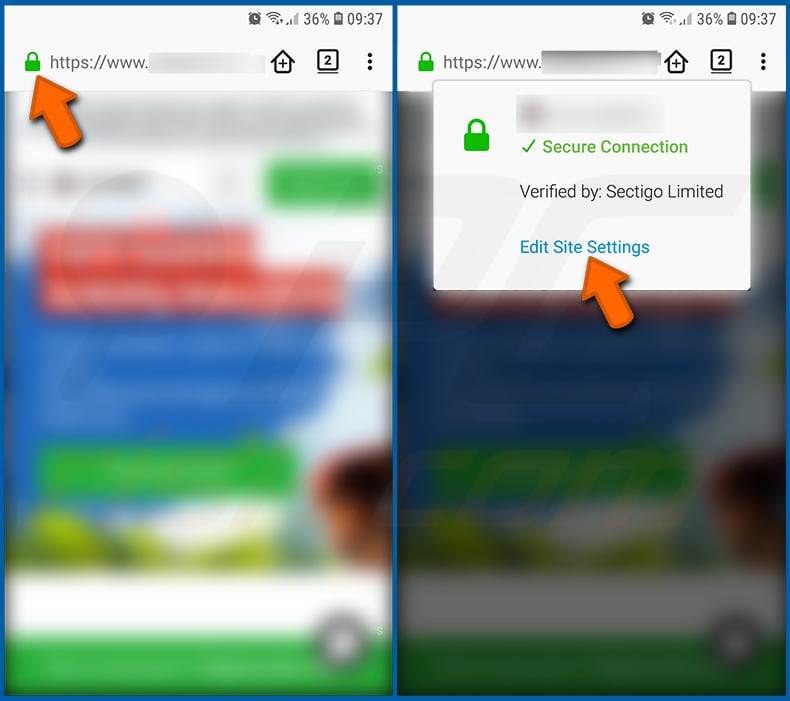
Visit the website that is delivering browser notifications, tap the icon displayed on the left of URL bar (the icon will not necessarily be a "Lock") and select "Edit Site Settings".
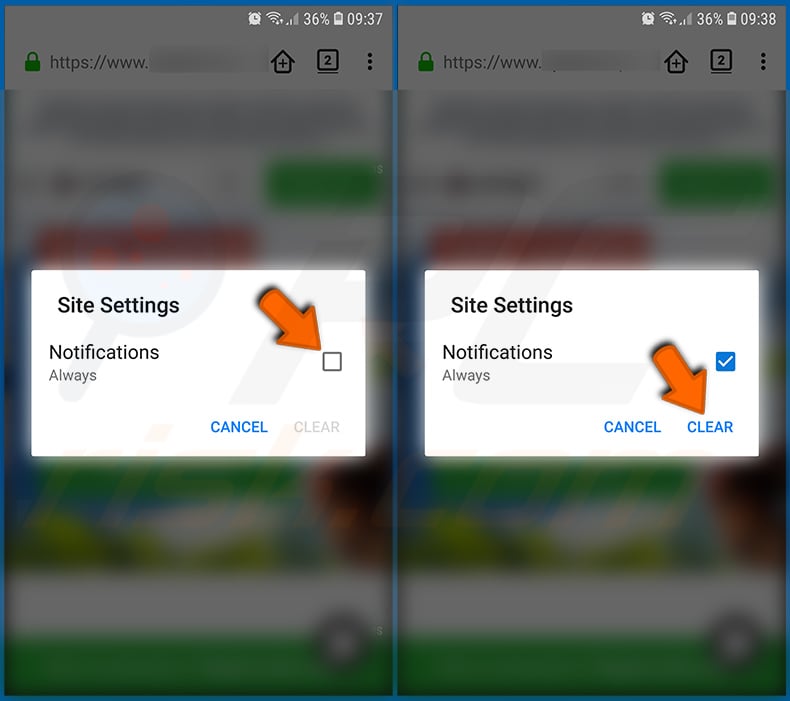
In the opened pop-up opt-in the "Notifications" option and tap "CLEAR".
Reset the Firefox web browser:
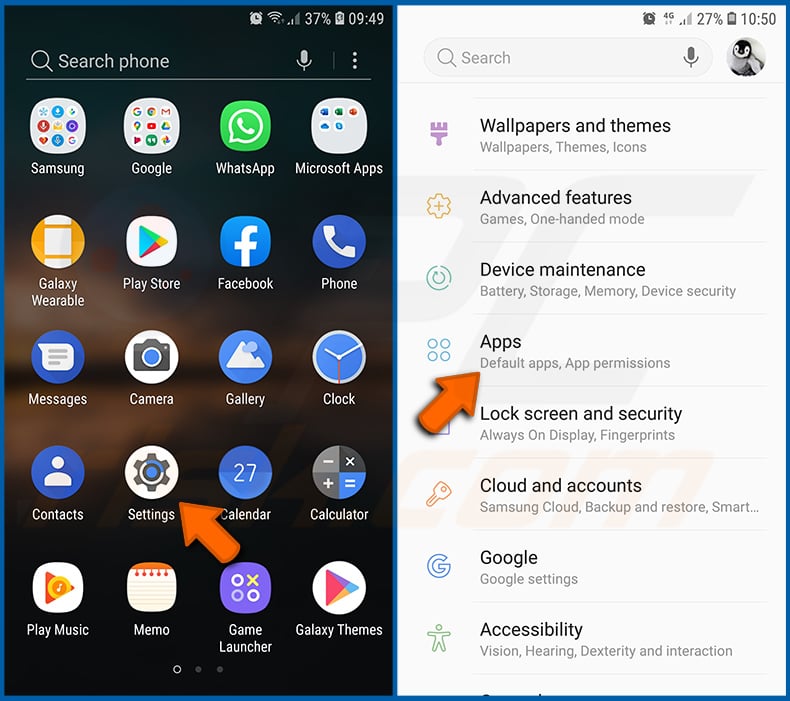
Go to "Settings", scroll down until you see "Apps" and tap it.
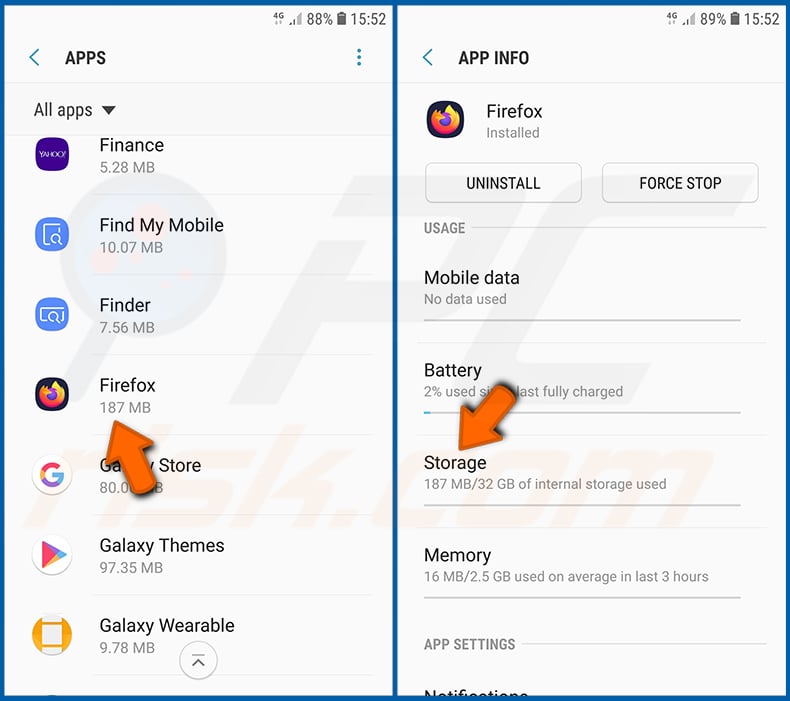
Scroll down until you find "Firefox" application, select it and tap "Storage" option.
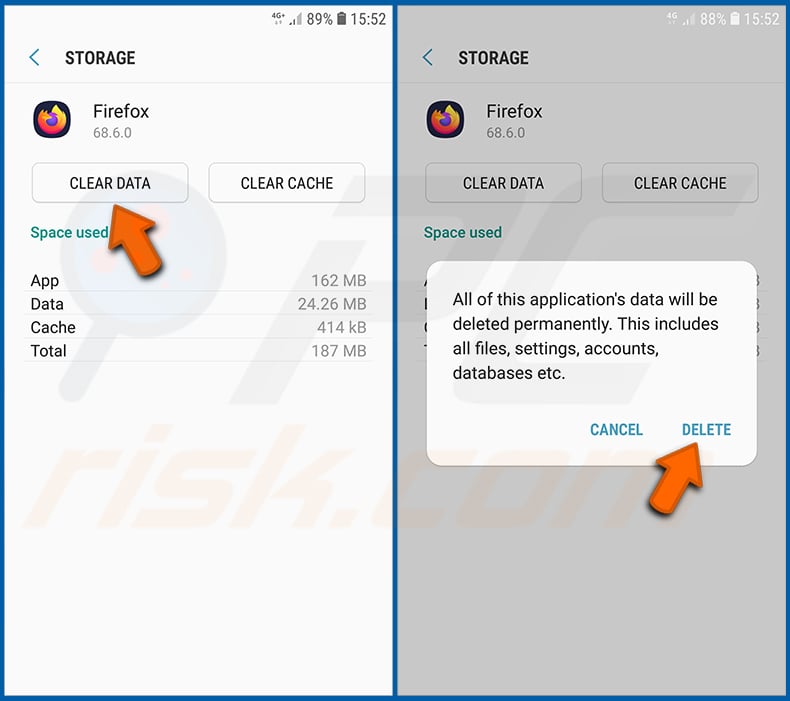
Tap "CLEAR DATA" and confirm the action by taping "DELETE". Note that resetting the browser will eliminate all data stored within. This means that all saved logins/passwords, browsing history, non-default settings and other data will be deleted. You will also have to re-login into all websites as well.
Uninstall potentially unwanted and/or malicious applications:
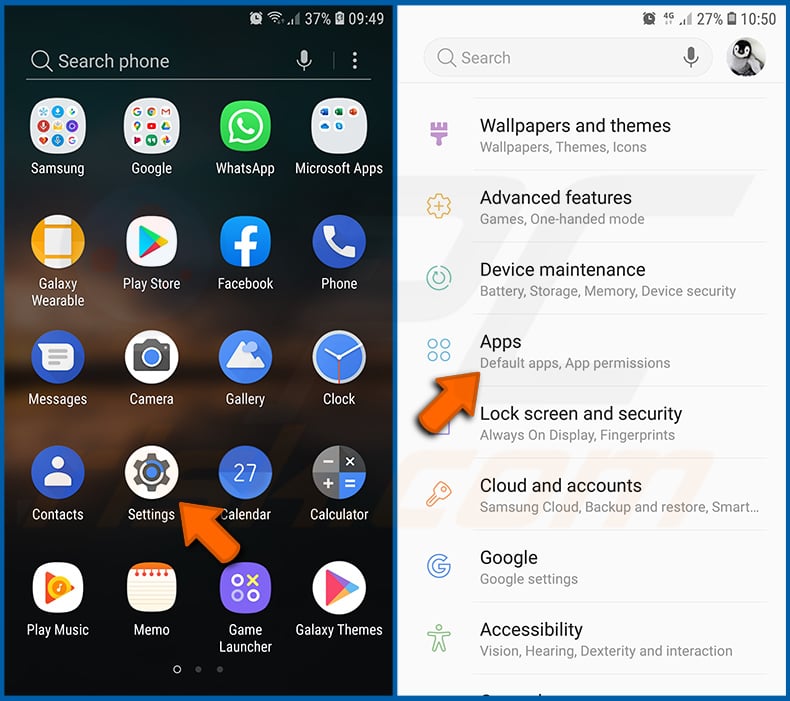
Go to "Settings", scroll down until you see "Apps" and tap it.
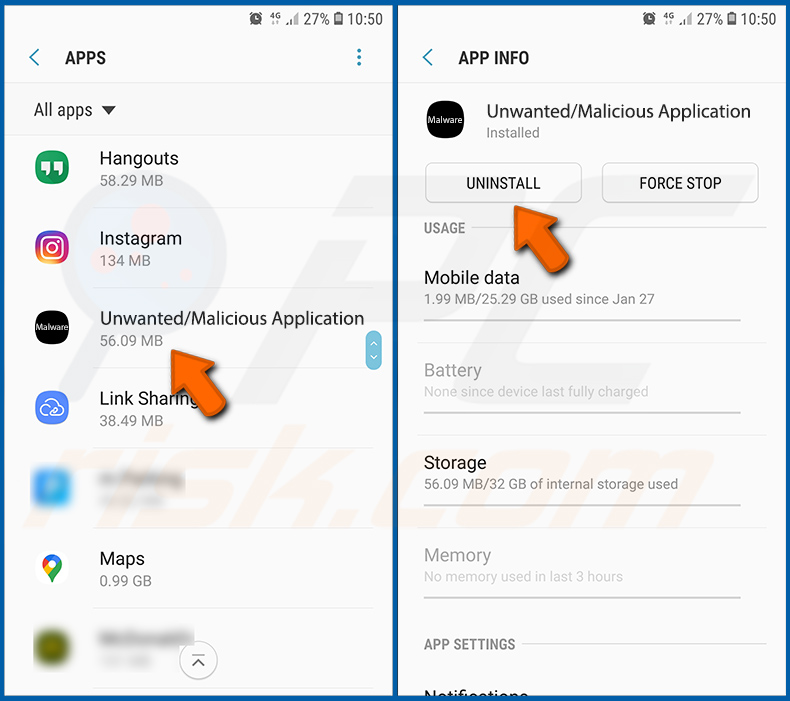
Scroll down until you see a potentially unwanted and/or malicious application, select it and tap "Uninstall". If, for some reason, you are unable to remove the selected app (e.g., you are prompted with an error message), you should try using the "Safe Mode".
Boot the Android device in "Safe Mode":
The "Safe Mode" in Android operating system temporarily disables all third-party applications from running. Using this mode is a good way to diagnose and solve various issues (e.g., remove malicious applications that prevent users you from doing so when the device is running "normally").
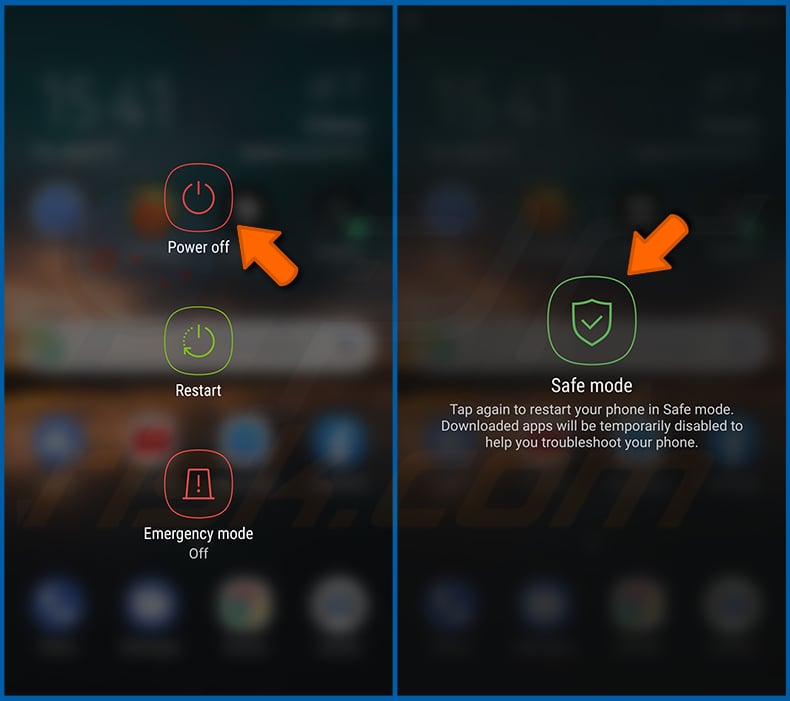
Push the "Power" button and hold it until you see the "Power off" screen. Tap the "Power off" icon and hold it. After a few seconds the "Safe Mode" option will appear and you'll be able run it by restarting the device.
Check the battery usage of various applications:
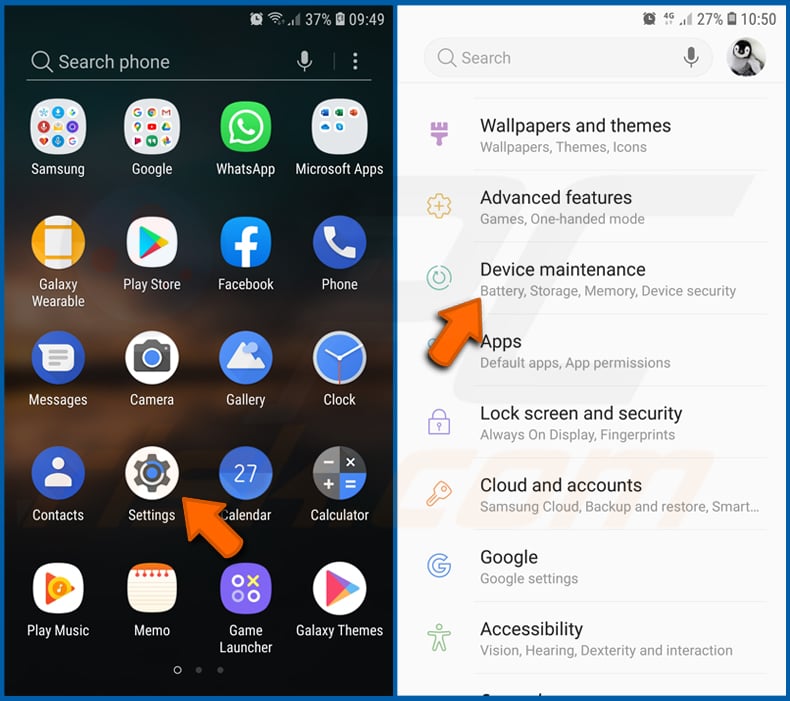
Go to "Settings", scroll down until you see "Device maintenance" and tap it.
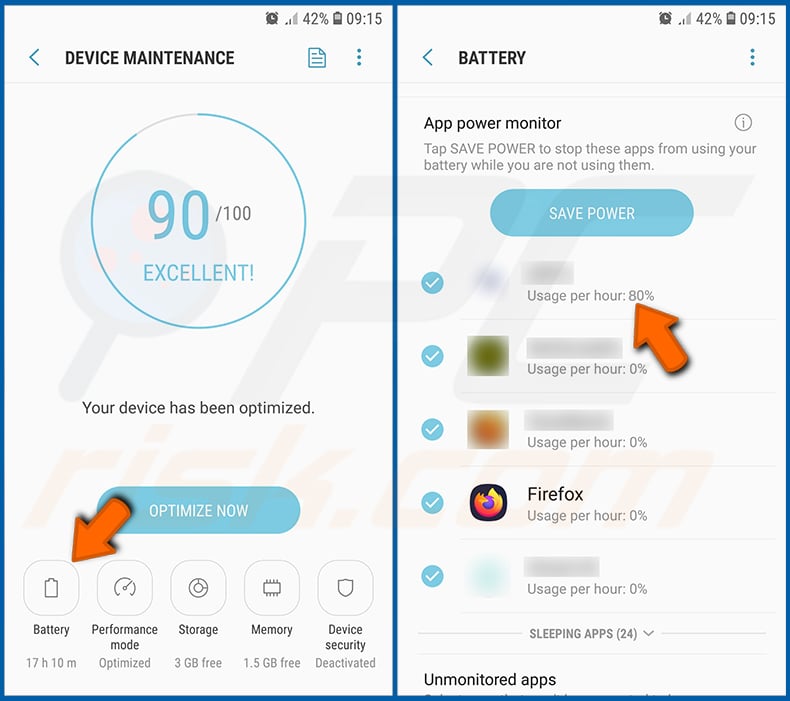
Tap "Battery" and check the usage of each application. Legitimate/genuine applications are designed to use as low energy as possible in order to provide the best user experience and to save power. Therefore, high battery usage may indicate that the application is malicious.
Check the data usage of various applications:
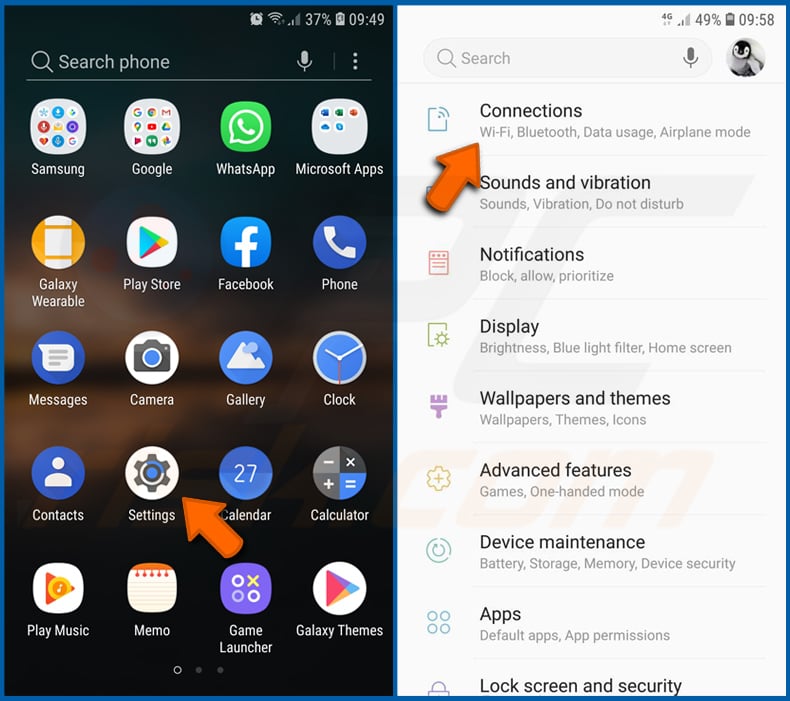
Go to "Settings", scroll down until you see "Connections" and tap it.
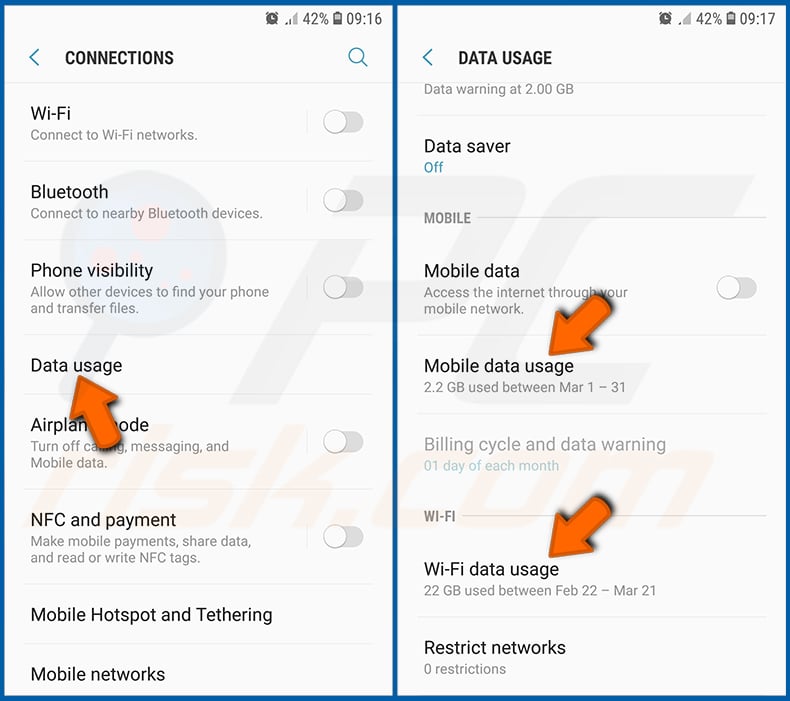
Scroll down until you see "Data usage" and select this option. As with battery, legitimate/genuine applications are designed to minimize data usage as much as possible. This means that huge data usage may indicate presence of malicious application. Note that some malicious applications might be designed to operate when the device is connected to wireless network only. For this reason, you should check both Mobile and Wi-Fi data usage.
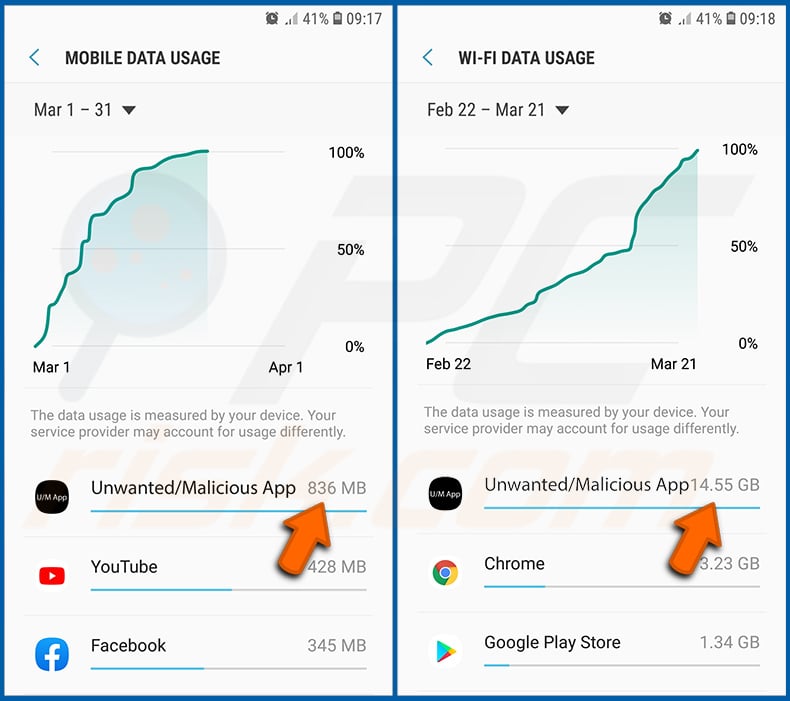
If you find an application that uses a lot of data even though you never use it, then we strongly advise you to uninstall it as soon as possible.
Install the latest software updates:
Keeping the software up-to-date is a good practice when it comes to device safety. The device manufacturers are continually releasing various security patches and Android updates in order to fix errors and bugs that can be abused by cyber criminals. An outdated system is way more vulnerable, which is why you should always be sure that your device's software is up-to-date.
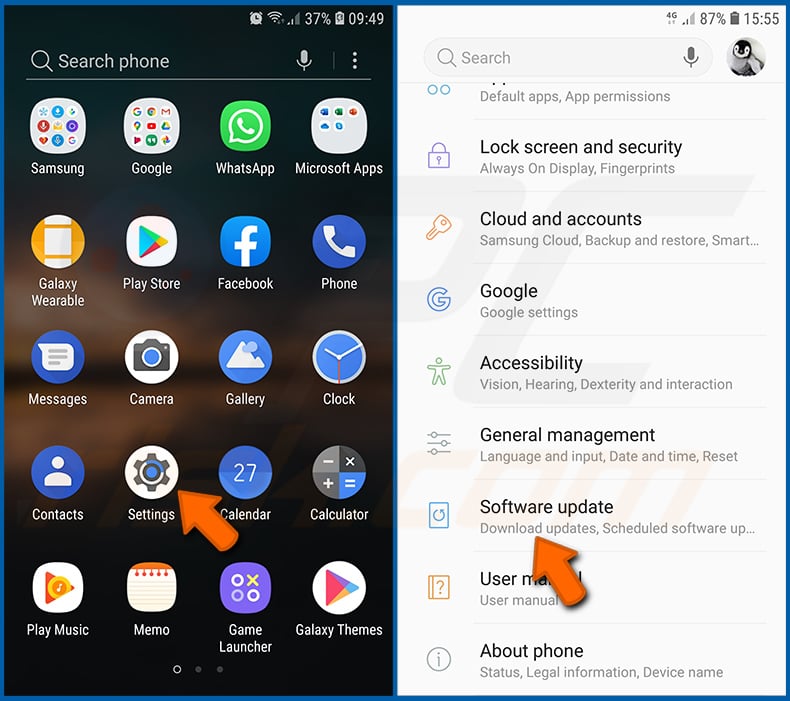
Go to "Settings", scroll down until you see "Software update" and tap it.
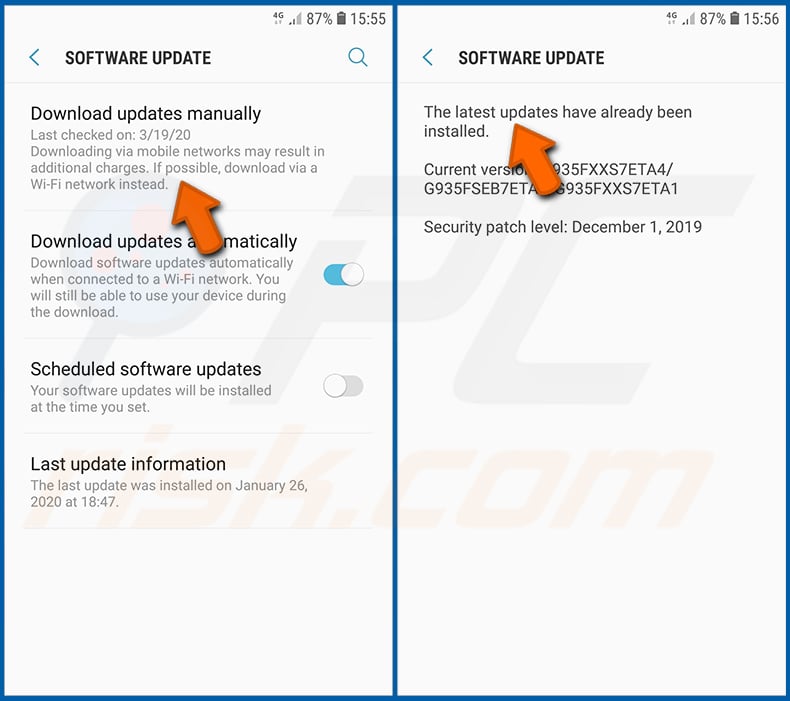
Tap "Download updates manually" and check if there are any updates available. If so, install them immediately. We also recommend to enable the "Download updates automatically" option - it will enable the system to notify you once an update is released and/or install it automatically.
Reset the system to its default state:
Performing a "Factory Reset" is a good way to remove all unwanted applications, restore system's settings to default and clean the device in general. However, you must keep in mind that all data within the device will be deleted, including photos, video/audio files, phone numbers (stored within the device, not the SIM card), SMS messages, and so forth. In other words, the device will be restored to its primal state.
You can also restore the basic system settings and/or simply network settings as well.
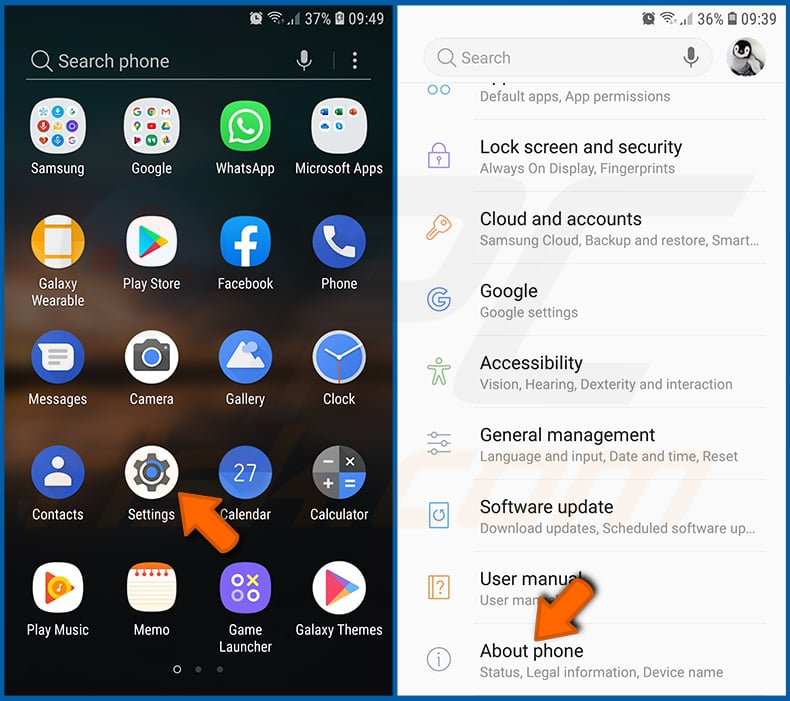
Go to "Settings", scroll down until you see "About phone" and tap it.
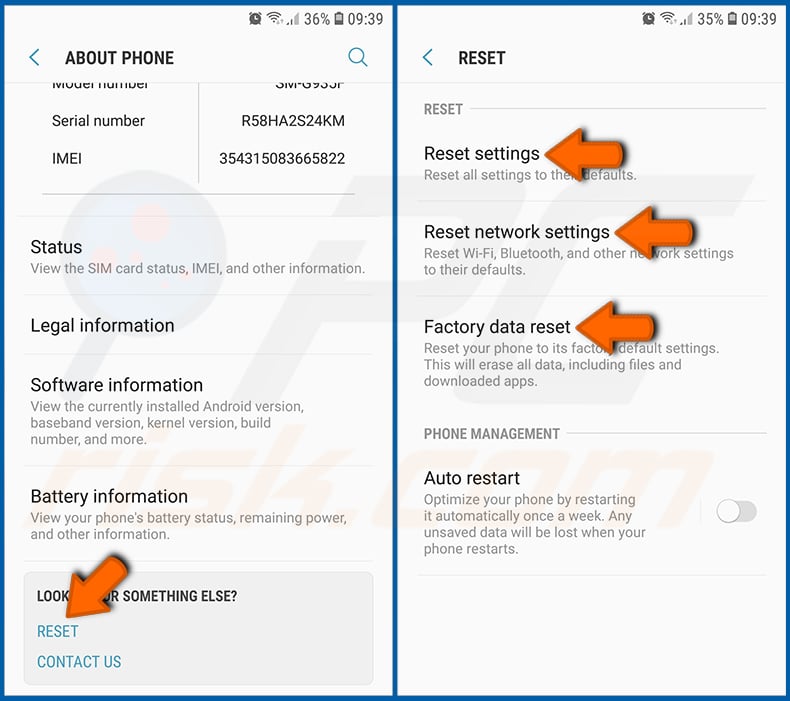
Scroll down until you see "Reset" and tap it. Now choose the action you want to perform:
"Reset settings" - restore all system settings to default;
"Reset network settings" - restore all network-related settings to default;
"Factory data reset" - reset the entire system and completely delete all stored data;
Disable applications that have administrator privileges:
If a malicious application gets administrator-level privileges it can seriously damage the system. To keep the device as safe as possible you should always check what apps have such privileges and disable the ones that shouldn't.
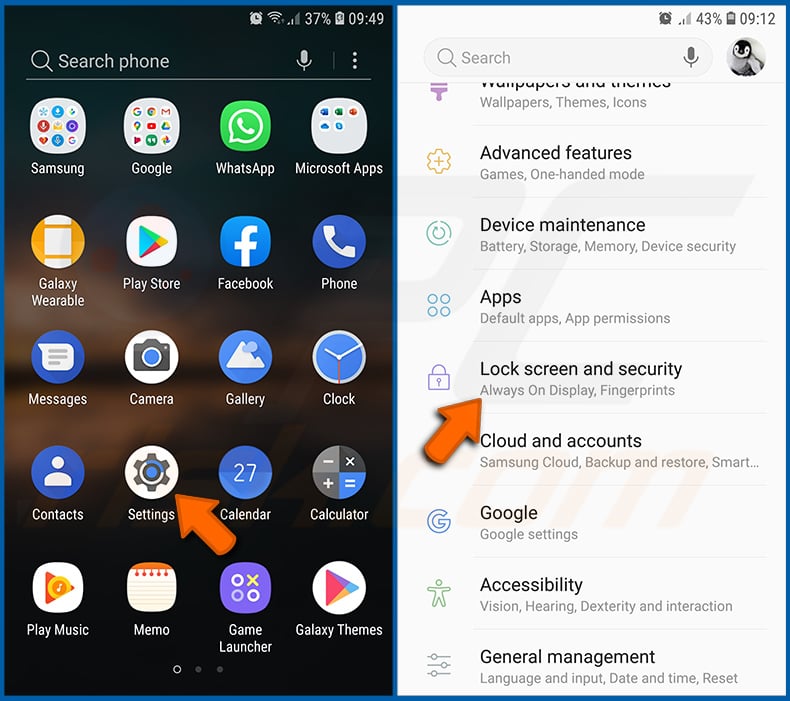
Go to "Settings", scroll down until you see "Lock screen and security" and tap it.

Scroll down until you see "Other security settings", tap it and then tap "Device admin apps".
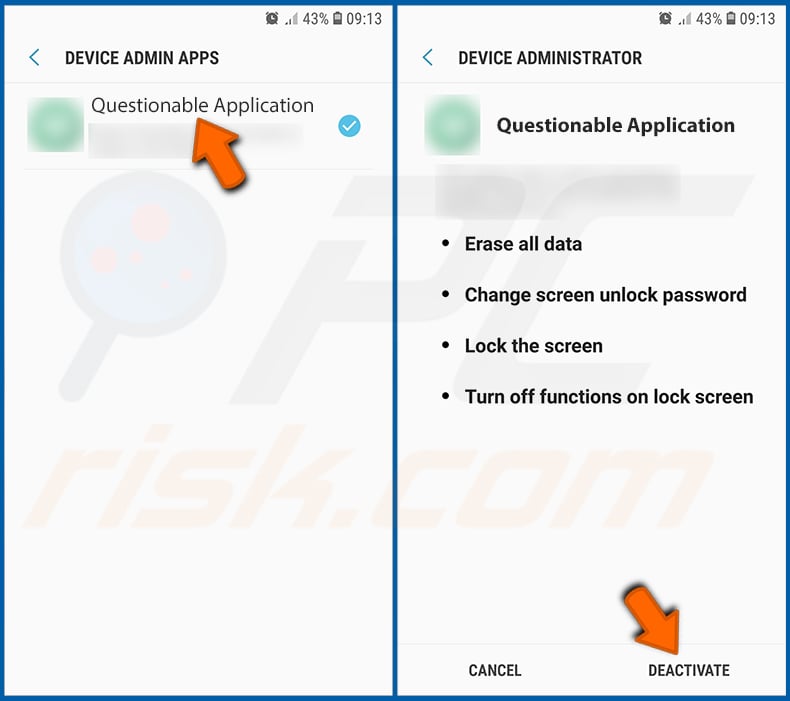
Identify applications that should not have administrator privileges, tap them and then tap "DEACTIVATE".
Frequently Asked Questions (FAQ)
My device is infected with Cellik RAT malware, should I format my storage device to get rid of it?
Usually, wiping the device is not necessary to remove malware. Infections such as Cellik can be eliminated with trusted security software, such as Combo Cleaner.
What are the biggest issues that malware can cause?
Malware can cause damage in different ways. Depending on how designed it is, it can let attackers take over a device, collect private information, lock files for ransom, or install more harmful components.
What is the purpose of Cellik RAT?
The purpose of Cellik RAT is to give attackers remote control over Android devices, enabling them to spy on users, steal sensitive data, and exploit apps and accounts. It also features a tool that allows cybercriminals to inject it into other apps on the Google Play Store.
How did malware infiltrate my device?
Android malware often spreads through fake or repackaged apps, malicious download links, and deceptive ads or pop-ups. It can also infect devices via phishing messages, bogus system alerts, or drive-by downloads from compromised websites.
Will Combo Cleaner protect me from malware?
Yes, Combo Cleaner can detect and remove most known malware. Since advanced threats may hide deep within the system, running a full system scan is important to guarantee complete removal.
Share:
 Facebook
 X.com
X.com
 LinkedIn
 Copy Link

Tomas Meskauskas
Expert security researcher, professional malware analyst
I am passionate about computer security and technology. I have an experience of over 10 years working in various companies related to computer technical issue solving and Internet security. I have been working as an author and editor for pcrisk.com since 2010. Follow me on Twitter and LinkedIn to stay informed about the latest online security threats.
PCrisk security portal is brought by a company RCS LT.
Joined forces of security researchers help educate computer users about the latest online security threats. More information about the company RCS LT.
Our malware removal guides are free. However, if you want to support us you can send us a donation.
DonatePCrisk security portal is brought by a company RCS LT.
Joined forces of security researchers help educate computer users about the latest online security threats. More information about the company RCS LT.
Our malware removal guides are free. However, if you want to support us you can send us a donation.
Donate
▼ Show Discussion