
AdGuard Review

✓
Fact-checked by:
Tomas Meskauskas
Last updated:
November 15, 2025
Our reviews are written by Internet security experts.
Learn more.
PCRisk score:
4.5
When searching for a comprehensive ad-blocking tool, we recommend shortlisting AdGuard.
What we liked:
✓ Excellent ad-blocking: Blocks nearly all ads, including YouTube and in-app ads, for a much cleaner browsing experience.
✓ Cross-platform support: One subscription covers all major platforms (Windows, macOS, Android, iOS) with dedicated apps.
✓ Feature-rich: Includes parental controls, Stealth Mode privacy tools, and browsing security.
What we disliked:
✗ Needs tweaking: Extra filters or settings may be needed for best results.
✗ Premium cost for full features: Full system-wide blocking and advanced tools require a premium license.
✗ iOS limitations: Can't block ads in all apps due to Apple restrictions; mainly limited to Safari or DNS filtering.
AdGuard is an ad-blocking solution that not only gets rid of annoying ads but also takes down trackers on websites and apps, all of which is made possible because it works at the network level. Unlike the competition, AdGuard is available for Windows, macOS, Android, and iOS.
Pricing and Plans
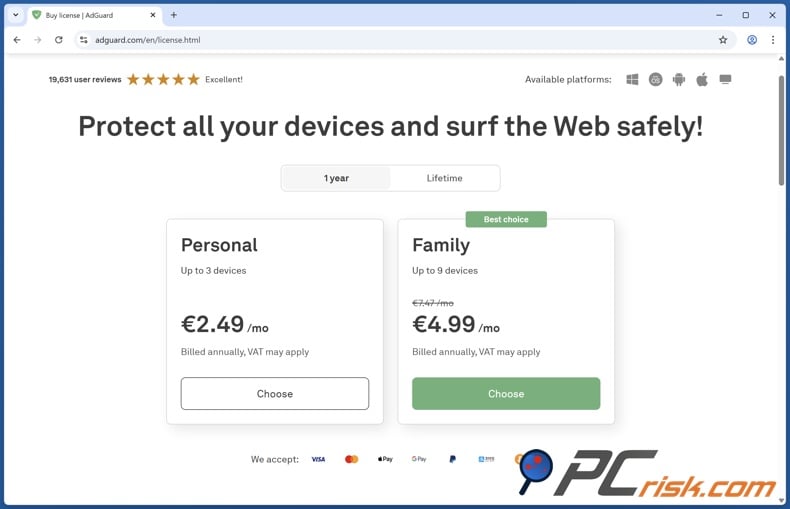
• Free Version: When looking for a free ad blocker, AdGuard's browser extension is a good option. However, it's limited to blocking ads within a single browser and can't extend that protection to other programs or devices. Moreover, it doesn't unlock the full set of features available in the paid editions.
• Personal Plan: Priced at roughly $29.88 a year, it works out to $2.49 a month if you sign up annually, and lets you cover up to three devices, turning on ad blocking for Windows, Mac, Android, or iOS, and throwing in system-wide ad blocking, and all the premium features. You can buy a one-time Personal licence for $79.99 to cover your three devices for life without having to worry about yearly payments.
• Family Plan: This is the most expensive option, at around $65.88 a year or about $5.49 a month if you go annual. It lets you cover up to nine devices, which is great if you have lots of family members with computers and smartphones. A lifetime Family license is available for roughly $169.99 as a one-time purchase. The Family plan is basically the same as the Personal plan, except it can cover more devices.
AdGuard offers a 14-day trial of its premium features so you can test out the full product. It also comes with a massive 60-day money-back guarantee, giving you two months to change your mind and get a refund.
Available Versions and Compatibility
When it comes to online security, AdGuard has got you covered, and its variety of versions lets you shield almost any device you're using:
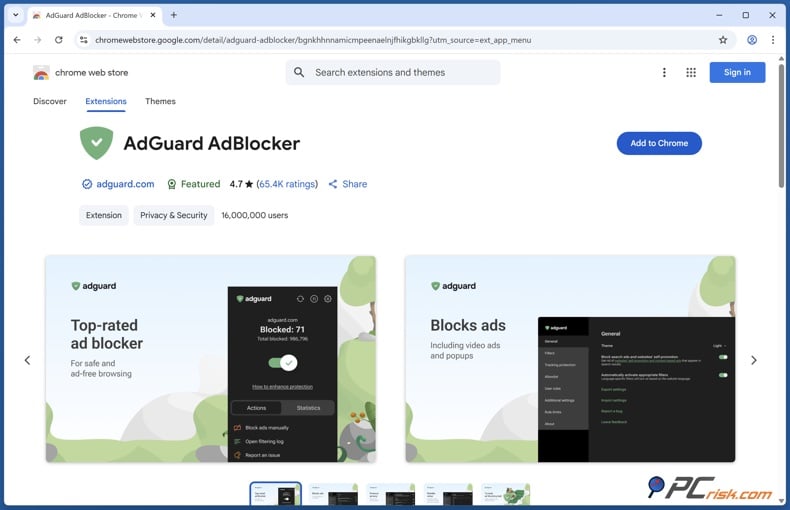
• AdGuard Free Browser Extensions: This is the free version of AdGuard, limited to browser use. This Extension is currently supported by Chrome, Firefox, Edge, Safari, Opera, and many others. It zeroes in on blocking ads and trackers within the browser you're running it on.
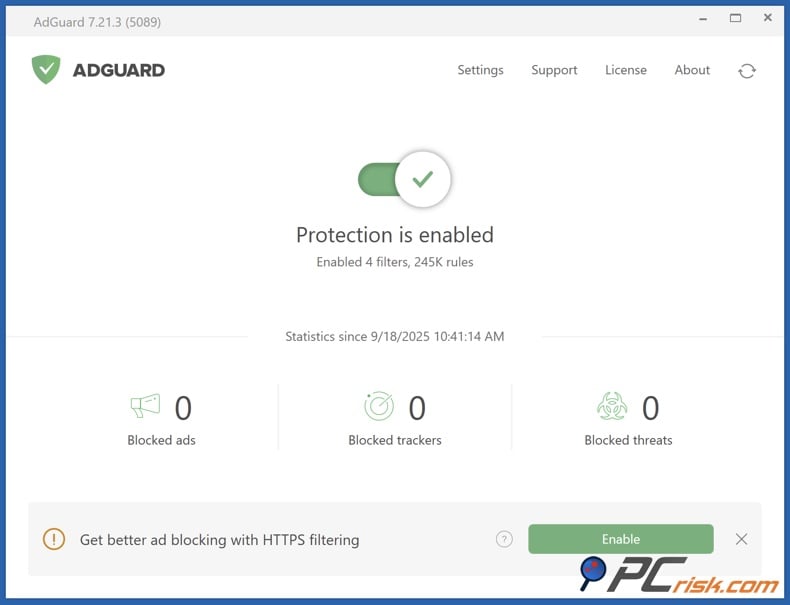
• AdGuard for Windows and Mac (Premium): When running on Windows and macOS, these full-featured desktop applications can monitor the entire system in the background. They will block ads in every web browser, not just the ones you use, and also have the ability to block ads in other applications. It comes with a range of advanced features including filter lists, HTTPS filtering and Stealth Mode.
• AdGuard for Android: On Android, AdGuard is a standalone APK that you can download from their website. Unfortunately, it's not listed on the Google Play Store because of Google's stance on system-wide ad blockers. Coming in as a regular app, AdGuard uses a local VPN setup that can block ads across browsers and even inside applications on your phone or tablet, and doesn't require root access.
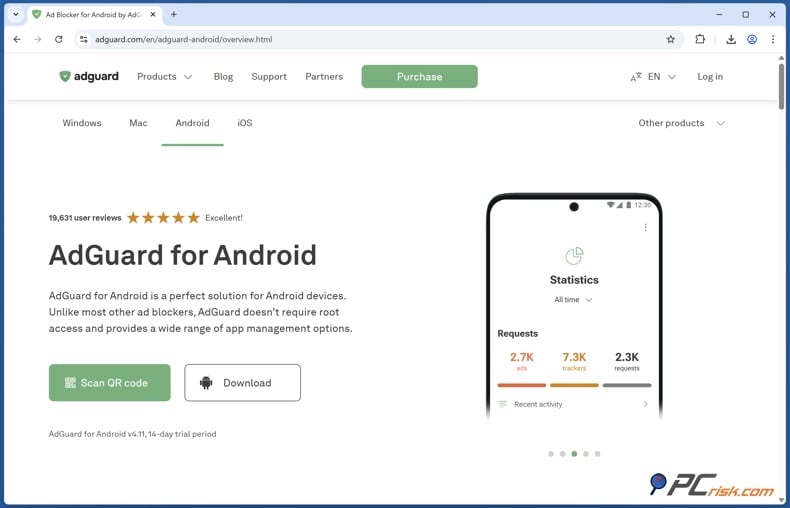
AdGuard also has various additional features, such as privacy protection and app management. Perhaps one of its standout features is the ability to block YouTube ads within the YouTube app itself and ads in other apps, which is due to its capability of filtering HTTPS traffic, requiring you to install a local certificate for it to function.
• AdGuard for iOS: Ad blocking is a bit more difficult on an Apple device. However, AdGuard still has an iOS app that functions as a Safari content blocker. Following iOS's acceptance of content blockers in Safari, AdGuard's iOS app lets you tap into several of its filter lists to completely wipe out ads and trackers in your browser.
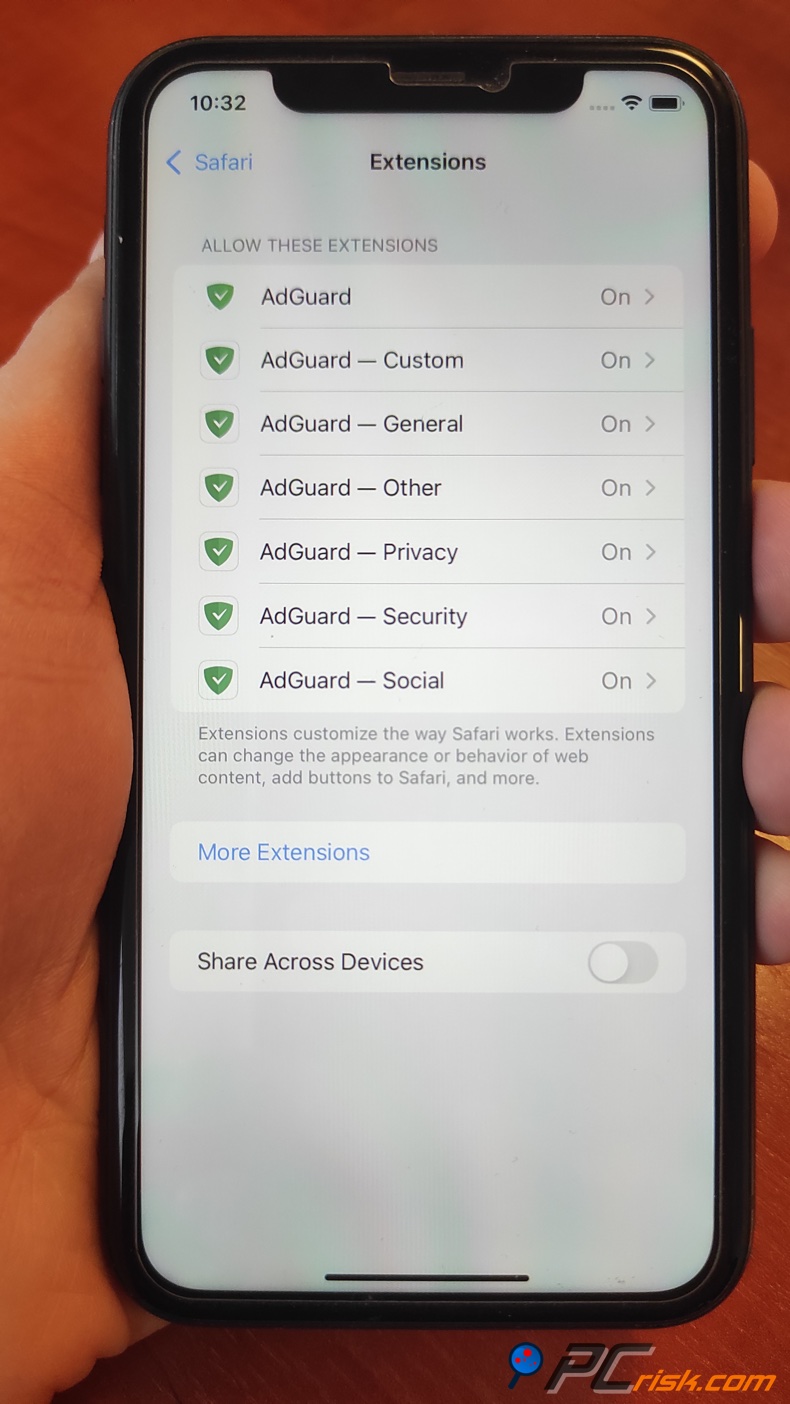
AdGuard for iOS also has a local DNS proxy feature that's perfect for blocking ads and analytics at the system level. However, it can't quite match the deep-rooted filtering that the Android version can do.
• AdGuard Home: When it comes to ad blocking, AdGuard Home is a DNS-based solution that's free and open-source and can be run on any device to block ads for your entire network. Bursting onto the scene as a serious contender to Pi-hole, this is more of a power-user option but showcases AdGuard's abilities to people who don't know what they're doing.
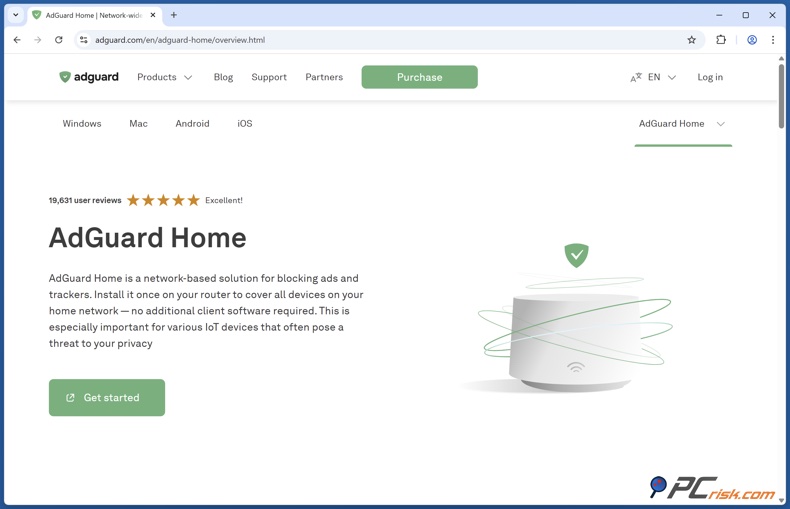
AdGuard apps can cover all the bases for regular users though, so they don't need to worry about AdGuard Home. In terms of compatibility, AdGuard is available on Windows, macOS, Android, and iOS, with browser-specific add-ons for those who only want a quick fix.
AdGuard has a separate lineup for VPNs, along with AdGuard VPN and a dedicated DNS service. These can be used in conjunction with the ad blocker, but aren't necessary.
Our In-House Ad Block Test Results
When testing AdGuard, we wanted to see how well it could cut down on different types of ads, including banner ads, pop-ups, video ads, and so on. We also wanted to see how it manages tracking and other web annoyances right out of the box and when customised.
Test Methodology: We installed AdGuard on a Windows 11 PC, a MacBook, and an Android phone, ensuring each was updated to the latest version. We enabled the default filters initially. For testing, we went to established ad-block testing sites such as AdBlock Tester, EFF's Cover Your Tracks, and Can You Block It, each of which look at different aspects of ad and tracker blocking:
• AdBlock Tester sends a mix of ads and tracking scripts our way and gives us a score out of 100 on how many it could block.
• Cover Your Tracks (by the Electronic Frontier Foundation) looks at how well we're blocking trackers and exposing our browser fingerprints (scoring components out of 3).
• Can You Block It? tests the blocker's ability to eliminate common ad formats like banner ads, pop-ups, and interstitial ads (often scoring as X out of 3 types blocked, plus qualitative observation like whether any ad placeholders appear).
We also put AdGuard to the real-world test by checking several of the ad-heavy news sites, video streaming sites, including YouTube, so that we could check video ad blocking, and some popular websites that normally bombard us with ads or pop-ups. On our mobile phones, we tested within both browsers and popular apps on Android.
Test Results
• Out-of-the-box: with default settings, AdGuard already blocks the vast majority of ads on web pages. When using AdBlock Tester, we removed the standard ad banners and basically ceased all tracking scripts. Coming out of the gate, the default configuration in AdBlock Tester scored well, but it wasn't a 100% success rate. Our initial score was a respectable 80 out of 100 on the first run, but showed that a few tracking or ad scripts managed to get past the default filter set.
• After we enabled additional filters: (AdGuard comes with a large list of optional filter subscriptions, such as Fanboy's Annoyances, Social Media filters, and others.) When AdGuard's filters are all enabled, it can block ads with perfect or near-perfect efficiency, so much so that on AdBlock Tester, it scored 100 out of 100 on multiple runs.
• In the Cover Your Tracks test: AdGuard managed to block trackers effectively, scoring a high 2.5 out of 3 (blocking both tracking ads and invisible trackers, with only a minor fingerprinting detail remaining identifiable). Coming so close to a perfect score shows that AdGuard doesn't just eliminate the ads we can see and those pesky invisible tracking scripts.
• On Can You Block It: When testing AdGuard, we found that it completely blocked all the ads we threw at it, hitting 3 out of 3, including the pesky pop-ups and overlays. We didn't get any adblock warning messages on those test sites, which is a pretty good sign that AdGuard has also neutralized anti-adblock scripts in those cases.
• YouTube Ads: Perhaps one of the biggest perks for users is that AdGuard blocks YouTube video ads. In our tests, when using a web browser (desktop or mobile browser), AdGuard completely eliminated YouTube ads.
You'll be able to watch it without interruptions, and the dreaded "Skip Ad" button won't even appear, because the ads are entirely gone. On Android, using the YouTube app itself, AdGuard could also block ads within the app (this required enabling HTTPS filtering in AdGuard and using the Android app's ability to filter other app traffic).
On iOS, AdGuard can't directly block the YouTube app, but if you watch YouTube via Safari with AdGuard's content blocker, it still provides an ad-free experience.
Additionally, AdGuard's Safari extension, for example, has a "block YouTube ads" action in the Share menu that we've tested and confirmed works: you can share a video to AdGuard and get an ad-free playback window for that video.
• General Browsing: When browsing the internet, AdGuard has made a massive difference to our experience. Jumping from one site to the next, we're no longer hit with the usual barrage of banners and video ads. We found that web pages load in a flash, feeling much lighter and faster. According to AdGuard, the amount of data being saved by blocking these ads is counted, and we're really impressed.
• Anti-Adblock Messages: When ad blockers are detected by a website, a warning message or restricted access is the usual response, but AdGuard's built-in anti-adblock killer rules help combat this. In our test of Forbes, a website that normally shows a plea to turn off the ad blocker, we found that the site was fully accessible without any messages, and AdGuard's filters must have cancelled out the "turn off your ad blocker" message.
In summary, AdGuard effectively blocked all the ads we threw at it, and when we tweaked the settings, it really started to show its full capabilities. It handles everything from simple banner ads to complex video ads and tracker networks.
Main Ad-Blocking Features
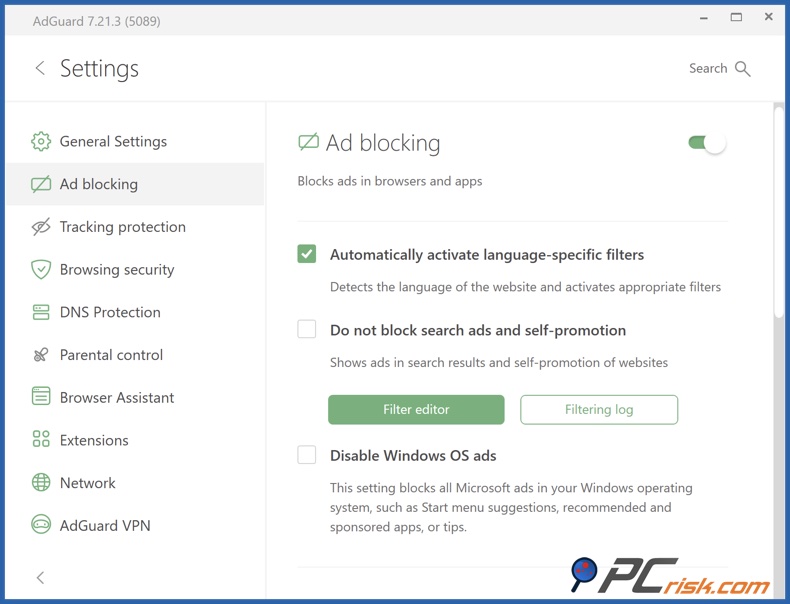
• Extensive Filter Lists: When using AdGuard, you're getting a one-two punch against ads and trackers, thanks to a combination of AdGuard's in-house filters and community-driven lists. AdGuard brings its own "Base filter" (similar to EasyList, but updated by the AdGuard team), a Tracking Protection filter, and a Social Media filter to strip out those annoying social media widgets and buttons.
You can also add filters for specific languages and regions and annoyance filters to zap cookie notices, pop-ups, and more.
• Cosmetic Page Processing: In addition to blocking network requests for ads, it can remove empty spaces and frames left behind after an ad has been blocked and conceal page elements that are just plain annoying. This results in a cleaner page layout.
• Blocking Ads in Apps and Games: AdGuard's ability to block ads system-wide sets it apart from browser-based ad blockers. It can also sort out ads in apps, not just on the web.
Well-known examples of this feature are blocking in-app advertisements on Android and, to a degree, on Windows/Mac applications. If you're playing a free mobile game plastered with banner ads or pop-ups, AdGuard on your Android phone can usually block them out by filtering the ad servers those games call.
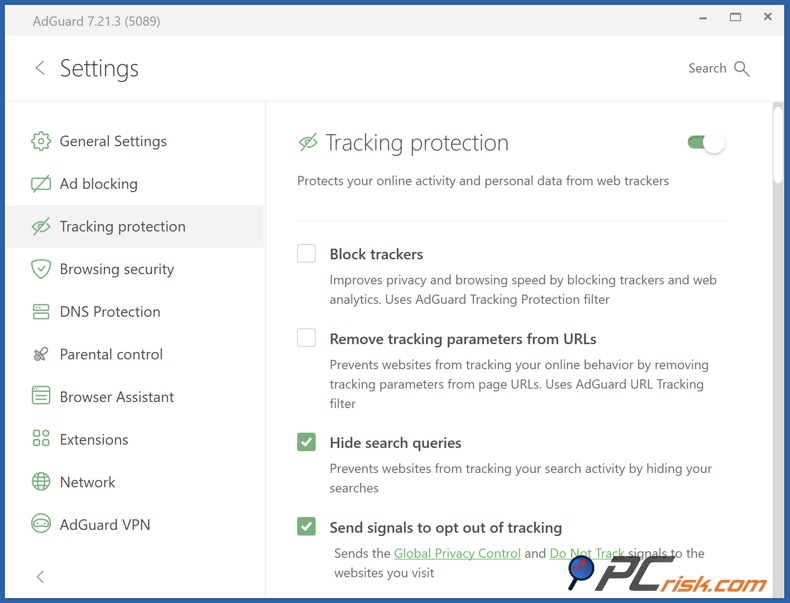
• Privacy Protection: AdGuard doesn't just stop visual ads. It also blocks various trackers and analytics that try to profile your browsing. AdGuard's Tracking Protection filter list is specifically designed to cut off analytics scripts, third-party tracking cookies, beacons and even cryptomining scripts to keep your information private.
• HTTPS Filtering: Nearly all modern web traffic, including ads, is encrypted, and AdGuard's desktop and Android apps can bypass this encryption by essentially acting as a go-between for the websites you visit.
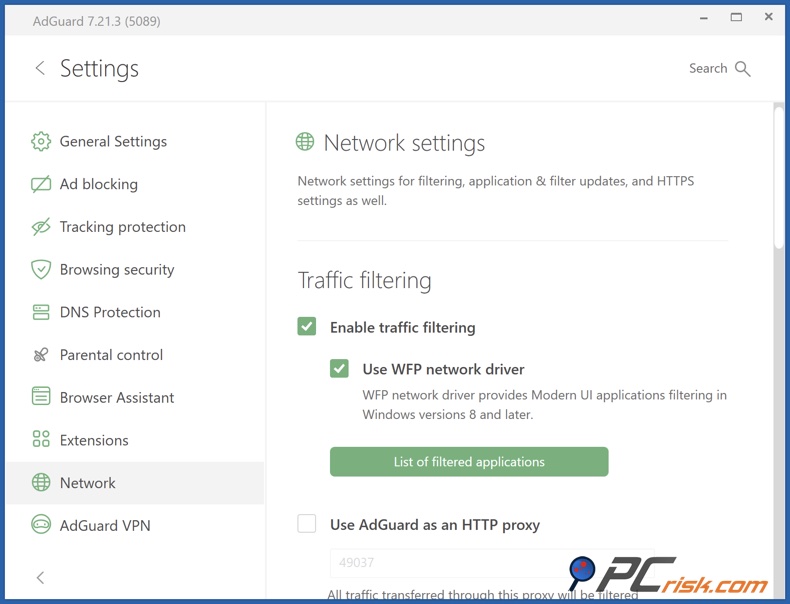
The app will walk you through the process. On its first run, it'll ask you to install the AdGuard certificate. Once that's done, AdGuard can see and block ads even when websites use HTTPS, which is basically the norm these days, as most websites, including YouTube, use HTTPS.
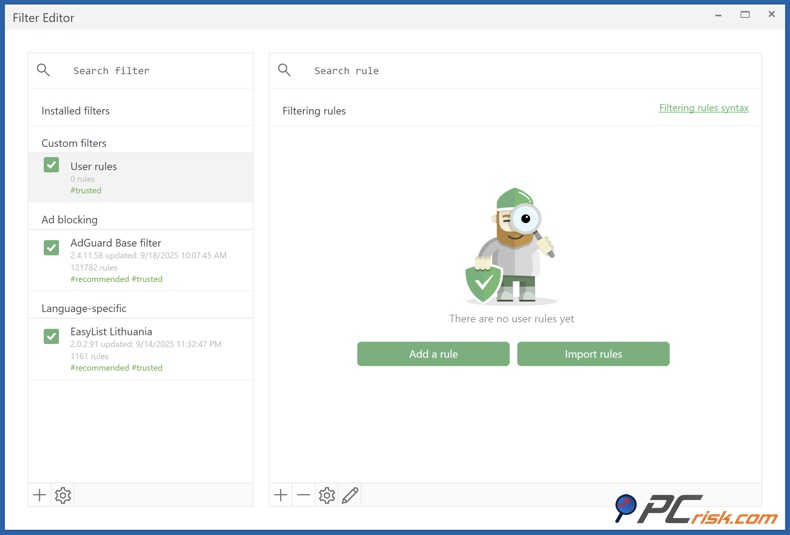
• Custom Rules and Filters: For advanced users, it becomes possible to create your own custom filtering rules. If an ad isn't being blocked, or if you want to block something on a webpage, you can do so by using the filtering rule syntax, similar to Adblock Plus filter syntax. Furthermore, the "Assistant" or browser integration feature lets you point to an element on the page and mark it for blocking, which generates a custom rule for you.
• Whitelist (Allowlist): AdGuard includes a handy whitelisting feature that allows you to exempt certain websites from filtering. From the perspective of content creators, this feature is basically a necessity. It can also be helpful when dealing with sites that require ads to function and may have a problem if they don't receive them. Adding a domain to the whitelist through AdGuard's interface is relatively simple. You just add the domain, and AdGuard will then block nothing on that site.
Additional Features and Tools
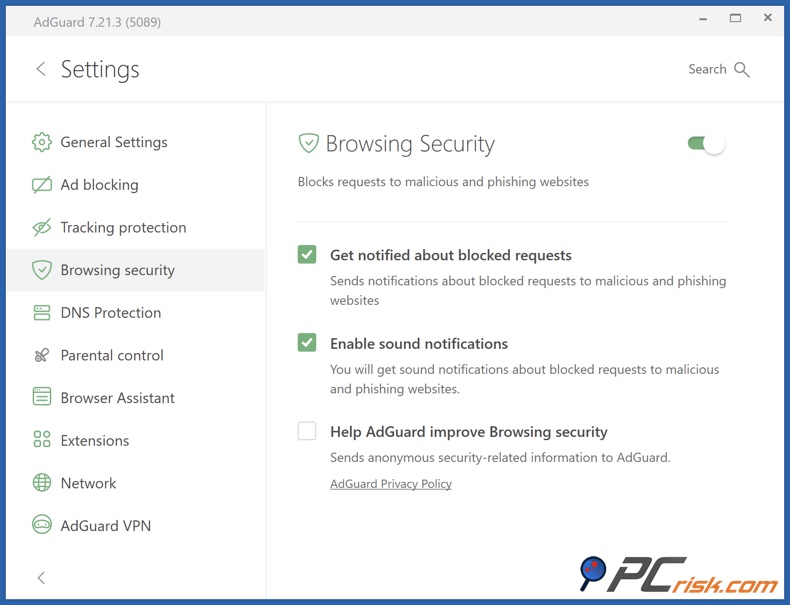
• Browsing security (Malware/Phishing Protection): When you enable the optional browsing module in AdGuard, the app will monitor your browsing and cut you off from known malicious or deceitful websites. This is achieved by pitting the URL of the website you're trying to visit against a database of phishing sites, malware-spreading domains, and other types of threats. If the URL is recognized as a scam, AdGuard will intervene with a warning or a complete block.
• Parental control: When parental control is enabled in AdGuard, the software can effectively block access to mature content, including pornography, gambling, violence, and so on, through its use of customised filter lists and DNS filtering.
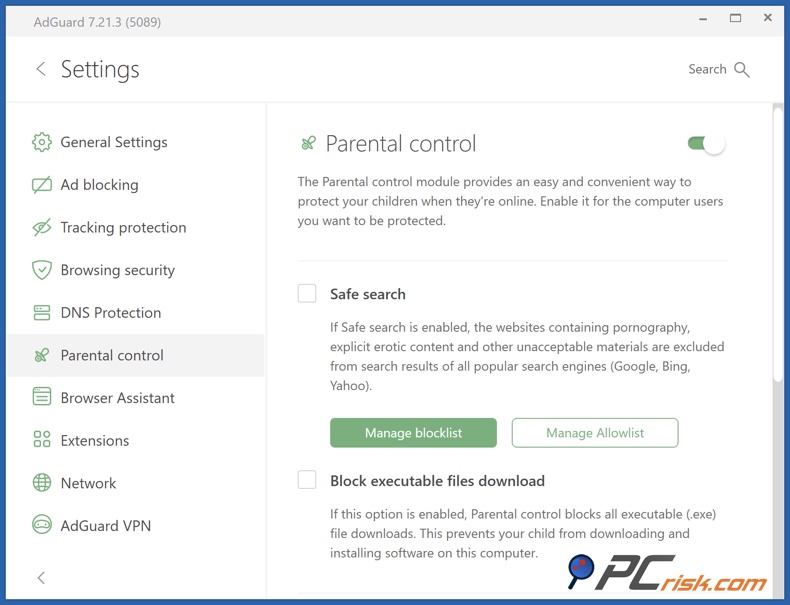
AdGuard can be set to force Safe Search on web browsers, ensuring that any search results contain clean content. This is a fantastic feature if kids are using the device. AdGuard also provides a function to lock down the settings so that kids or other users can't accidentally or maliciously disable the protections.
• Tracking Protection (Advanced Privacy): AdGuard's desktop apps include a feature called Tracking Protection — formerly known as Stealth Mode — which bundles a wide set of privacy-oriented options. It lets you choose exactly what information to hide from trackers: you can block or limit the lifetime of third-party cookies, strip tracking parameters from URLs, conceal your User Agent and OS details, prevent WebRTC IP leaks, and even randomize certain browser data to make profiling harder.
AdGuard can also disable or spoof location services and send privacy signals like Do Not Track and Global Privacy Control (GPC). Some legacy options (like disabling Flash or Java) are now largely obsolete, while newer additions such as domain whitelisting and self-destructing cookies make the module more flexible and site-friendly.
To sum up, AdGuard goes well beyond simple ad blocking. It's basically a mini-security suite that adds phishing protection, a parental control feature, and stealthy capabilities to elevate your internet activity to a higher level of privacy.
Ease of Use
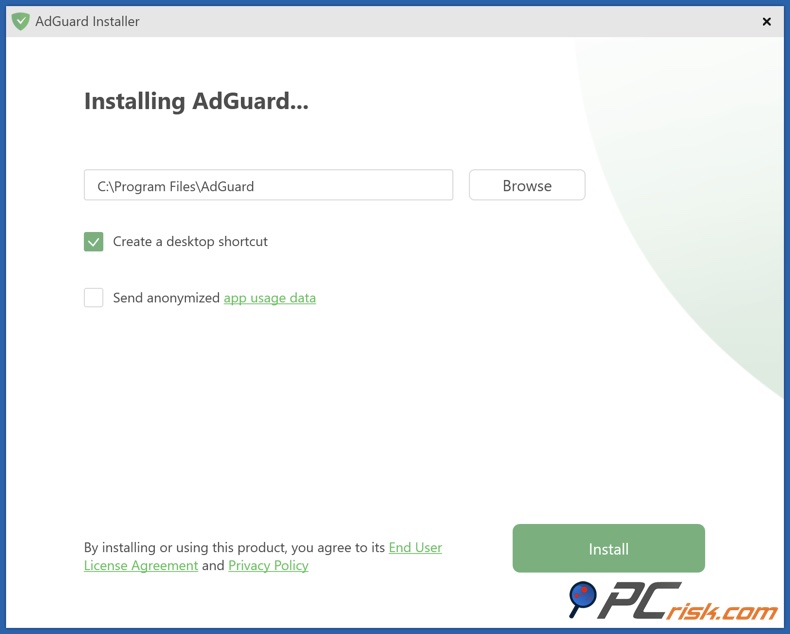
• Installation and Setup: To install AdGuard, desktop users on Windows and Mac need to go to the official website, download the installer, and run it through the standard installation process. Since the full AdGuard Android app isn't in the Play Store, you'll need to download the APK from the AdGuard site and, following the website's instructions, allow the installation of the app from an unknown source.
AdGuard's website walks you through the steps to install on iOS by asking you to grab the app from the App Store. When you first run AdGuard, it will send you to the Safari settings, where you'll enable the AdGuard content blocker. That's a one-time job.
• User Interface: AdGuard's UI is clean and modern. On Windows and Mac, you'll see a prominent toggle to turn on/off the protection, the number of items blocked, and so on. The side menu, or tabs, allow you to access Settings, Filters, Statistics, Support, and more.
Despite AdGuard's powerful capabilities, its user-friendly design won't overwhelm anyone. It's simple enough for casual users. They can just check the main screen to see that their protection is turned on, and they can basically trust that it's doing its job. Advanced users can delve deeper into the menus to refine their settings.
• Daily Usage Experience: When AdGuard is active, it's pretty much hands-free. It silently blocks ads in the background. However, if a website is not functioning properly because of AdGuard's filtering, you can easily disable protection for that site by clicking the browser extension icon or checking the app menu.
AdGuard Mobile Apps Overview
AdGuard for Android
• Comprehensive Ad Blocking: AdGuard can block ads universally, which includes your web browsers like Chrome and Firefox, and also inside other applications and games. Free game apps are notorious for their banner ads and video ads, and AdGuard puts an end to all of them, sending mobile browsing back to its pre-advertising glory days.
We put it to the test with Chrome on Android and, just like on desktop, we didn't see any pop-ups or banners. Even in the most ad-ridden apps, AdGuard basically killed off most of them.
• User Interface on Android: The app's home screen shows a big toggle for protection, and statistics like "Ads blocked today" and "Trackers blocked." You can access the filters list, DNS settings, etc., through the menu.
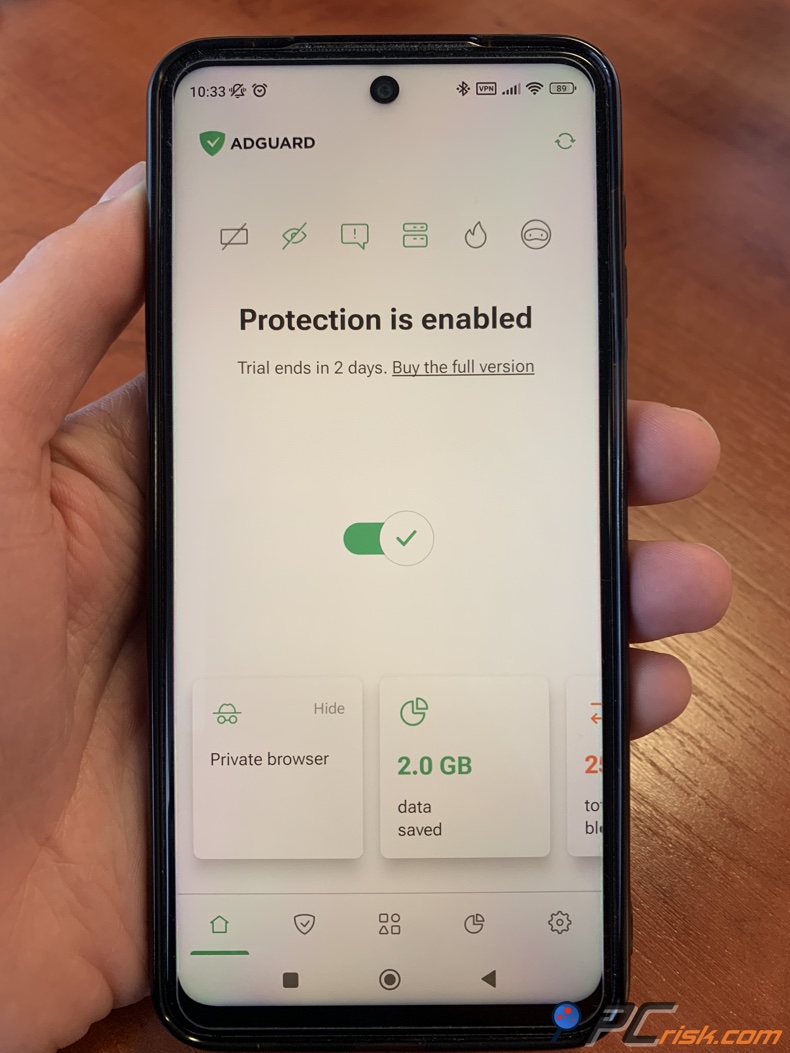
• Google Play Restrictions: When you're looking to get the full version of AdGuard, you'll have to go to the official AdGuard website to download it, not from Google Play. The website version is perfectly fine, and since it's mobile-friendly, the installation is straightforward. Since you won't receive updates from Google Play, AdGuard will either auto-update itself or send you notifications so you'll know when a new version is available.
AdGuard for Android may bring desktop‑level ad blocking to your phone, even apps. It could seem essential for many daily, annoyingly ad‑filled experiences.
AdGuard for iOS
• Safari Content Blocking: When you download AdGuard for iOS, it will primarily use the Safari content blocker API to work its magic. To get started, you need to go into your Safari settings and enable the AdGuard content blocker. From then on, when you browse in Safari, the filters will kick in and remove ads and trackers from the web pages you visit.
• DNS Protection Mode: When using the AdGuard iOS app, you can also turn on a feature called "DNS protection" that lets AdGuard act as a local DNS proxy on the device. In this case, it'll use AdGuard DNS or a custom DNS to block known ad/tracker domains for all your devices' connections.
When compared to Android, DNS protection on iOS won't be quite as comprehensive here. You won't be able to block ads in every single app, but it will effectively stop ads in free apps that load ads from known ad servers, which is basically because the DNS will send back a blank result, and the request to the ad server will fail.
We tested DNS mode and found it wasn't completely perfect; some apps that serve ads from their own domain or load ads in ways that the DNS can't filter would still show placeholders. So, the main benefit of AdGuard on iOS still lies in Safari.
• Limitations on iOS: We must reiterate that AdGuard cannot directly block ads inside other iOS apps the way it can on Android. This limitation isn't due to AdGuard itself, but to how iOS is designed. Since it can't interfere with third-party apps like free games or the YouTube app on iPhone, AdGuard can't remove the ads there.
Although AdGuard's DNS filtering will kill off some known ad hosts, this won't eliminate the placeholders or pre-roll video ads in apps that stream from their own servers.
Overall, when it comes to mobile solutions, AdGuard has Android covered, with a premium ad blocker that works seamlessly across the entire device. For iOS users, there's the best-in-class Safari ad blocker that throws in a system-wide DNS filtering system.
User Reviews and Reputation
• Trustpilot: When checking out AdGuard's performance on the popular user review site Trustpilot, it's clear that AdGuard has a well-deserved excellent reputation. Its average rating of 4.4 out of 5 stars is built on a massive number of user reviews, over 9,000. The rate of top-rated 5-star reviews is an astonishing 86%, implying that almost all users are overjoyed with AdGuard.
Many reviewers on Trustpilot have said that AdGuard has made their web browsing experience bearable again, by ruthlessly eliminating annoying ads and pop-ups, and they praise the efficiency, stability of the software, and its ability to do its job without slowing down their browsers.
Coming in as a pleasant surprise is the help desk, which many people have commended for being super helpful, responsive, and solving their problems, and even assisting with license problems and technical hitches.
There were some negative comments from a very small number of users. Some found the uninstallation procedure complicated or couldn't entirely eliminate the app (it's possible that they didn't follow the guidelines to remove the VPN profile on their mobile phones). Others felt uneasy about the app's demanding quite a lot of permissions, and this has led to a couple of alarmist comments.
There were also a few gripes about access issues to the user account, and the app wanting control over some things that they didn't expect. However, these gripes are the exception rather than the rule, and the summary of the reviews is that virtually all users have had an excellent experience.
• Reddit and Tech Forums: When looking for a reliable ad blocker, the Reddit communities such as r/AdGuard and r/privacy often recommend AdGuard as one of the top options, and with good reason. Coming from a tech-savvy crowd, the general consensus is that AdGuard is "worth every penny" for those who have taken out a lifetime or annual subscription.
Those who have moved from free browser extensions to AdGuard say they immediately noticed significant improvements and now get rid of ads on their entire device. For example, they can block ads on YouTube. Several people say AdGuard is "one of the few software purchases they don't regret," and initially being hesitant to pay didn't dampen the high value they place in it.
While threads sometimes mention and free browser extensions such as uBlock Origin are referred to as "great", AdGuard's feature-packed price justification is commonly understood and respected. To AdGuard's credit, the community also appreciates the company's commitment to transparency. Their CEO, developers, or representatives often join the conversation, and AdGuard has been clear about how much personal data it collects and sells, which, reassuringly, is virtually nothing.
Some may argue that if you're running just one desktop browser, a free blocker is all you need. However, for individuals who require its expanded gadget coverage or the added convenience, AdGuard is hands-down the better option.
• App Stores: When checking out the Google Play Store and Apple App Store, AdGuard gets top marks. With a 3.7 out of 5 rating on the Google Play Store, the limited version of AdGuard is a well-known quantity. Even more impressive reviews of the full version are found on forums since the full app isn't listed on the Play Store.
On the Apple App Store, AdGuard for Safari consistently scores around 4.5 stars. iPhone users' reviews sing the praises of the service, mentioning that it blocks ads even on YouTube.
Some reviewers are initially confused by the difference between free and paid features and can get frustrated when AdGuard can't block ads in other apps, but overall, mobile users are very happy with what AdGuard provides.
In summary, user reviews across platforms are largely positive, because the software does what it's supposed to do Kill ads and does so consistently. Coming from a few users, the criticisms are often about unusual cases or not understanding that AdGuard won't block ads on all platforms.
Is It Worth Buying AdGuard?
For many users, AdGuard is indeed worth buying, and here's why:
• Ad Blocking: When browsing on a single desktop computer, a free ad blocker can do the trick, but for most of us who use many devices, ad blockers that don't require a subscription are unlikely to be effective. Coming up against ads in mobile apps, Smart TVs, and other applications isn't something a desktop-based ad blocker can easily handle. Still, AdGuard's system-wide ad blocking is basically unrivalled in the free market.
• Enhanced Browsing Experience: AdGuard not only removes ads but also often speeds up page loading and reduces data usage. The difference is substantial, especially if you're on mobile and blocking many video ads and heavy scripts.
• Cost Consideration: The price may be a bit steep at around $30 a year for the personal plan and $66 for the family plan, especially if you're comparing it to the numerous free browser plugins.
However, if you spend a lot of time on the internet for either work or personal use, the tiny monthly cost, broken down, is roughly a few dollars. The benefits in terms of pages loading faster, less time spent troubleshooting ad-related issues, and the end of ads hitting you in the face every five seconds can make that monthly price a very fair investment.
• When might it not be worth it?: When working with a single desktop computer, if you're comfortable managing a couple of free browser extensions, you can replicate the functionality of a VPN in the browser by using uBlock Origin to block ads and Privacy Badger to block trackers.
Our verdict: When you're fed up with ads and trackers and using more than one desktop browser, AdGuard is definitely worth the investment. It gives you a very tangible improvement in your web and app browsing experience, and switching between browsers is a breeze with AdGuard's seamless synchronisation feature. The software is mature, continuously updated, and supported by a company with a solid track record in the privacy space. All of this gives peace of mind and justifies the purchase.
Frequently Asked Questions (FAQ):
Is AdGuard safe to use?
Yes. When considering AdGuard, you'll be happy to know it's a legitimate, well-known ad blocker developed by a trustworthy company. It operates entirely on your device, never sending your browsing history to a remote server. According to its privacy policy, AdGuard won't collect any personal data from you nor sell your information. What it does collect are anonymous stats and checks license statuses.
What is the difference between the free AdGuard browser extension and the paid AdGuard app?
The free extensions, available for most browsers, are limited to ad-blocking in those specific browsers, and have fewer features: no parental control and no system-wide privacy features.
The paid AdGuard app, available for Windows, Mac, Android, and iOS, competes with network-level ad blocking that affects any browser or app across the whole device.
Can AdGuard block YouTube ads and other video ads?
AdGuard has no problem with YouTube ads, knocking them out on desktop browsers and even in the YouTube app on Android if you enable HTTPS filtering. On iOS, AdGuard blocks YouTube ads when watching through Safari and works with the share-to-AdGuard workaround for the YouTube app.
How do I install AdGuard on mobile if it's not on the app store?
As for installing the full version of AdGuard on your Android device, if it's not listed on the app store, you'll need to go to the official AdGuard website and download it through your Android browser.
When you download AdGuard from the official site, you'll receive the APK file, but you may need to allow your phone to install it, as it's not a Play Store app; your phone will ask you to do so.
What if a website detects AdGuard and asks me to disable it?
Notable websites often implement anti-adblock measures and might show a message saying "Please disable your ad blocker to view this content". AdGuard contains a large library of filters that can effectively neutralise these anti-adblock scripts.
If you need to view a particular site, you can quickly whitelist it in AdGuard by allowing ads on that site, which can be done via the browser assistant or app interface.
Can I use AdGuard alongside my antivirus and VPN?
Generally, yes. AdGuard can be used alongside your antivirus and VPN as it's designed to coexist with other security software. It's not a traditional antivirus, so it won't clash with virus scanners. On a desktop, you can run AdGuard and a VPN side by side without issues. The VPN will encrypt your traffic, and then AdGuard will filter the ads.
The situation is a bit different on mobiles (Android and iOS). The OS usually only allows one VPN at a time. Since AdGuard's Android app uses a local VPN interface for filtering, it can't be run simultaneously with another VPN app, except in the standard mode. AdGuard gets around this by providing a "proxy mode" or integration mode, such as routing your traffic through a different VPN, but it does need a bit of technical know-how. However, AdGuard does have guides for teaming up with popular VPNs.
Share:
 Facebook
 X.com
X.com
 LinkedIn
 Copy Link

Karolis Liucveikis
Experienced software engineer, passionate about behavioral analysis of malicious apps
Author and general operator of PCrisk's News and Removal Guides section. Co-researcher working alongside Tomas to discover the latest threats and global trends in the cyber security world. Karolis has experience of over 8 years working in this branch. He attended Kaunas University of Technology and graduated with a degree in Software Development in 2017. Extremely passionate about technical aspects and behavior of various malicious applications.
▼ Show Discussion