

Get free scan and check if your device is infected.
Remove it nowTo use full-featured product, you have to purchase a license for Combo Cleaner. Seven days free trial available. Combo Cleaner is owned and operated by RCS LT, the parent company of PCRisk.com.
What kind of application is ProcessOffers?
While testing ProcessOffers, we uncovered that this is an unwanted application designed to deliver unwanted and annoying advertisements. Apps of this type are classified as adware. Moreover, our analysis shows that multiple security vendors flag ProcessOffers as malicious. Thus, users should avoid installing this app.
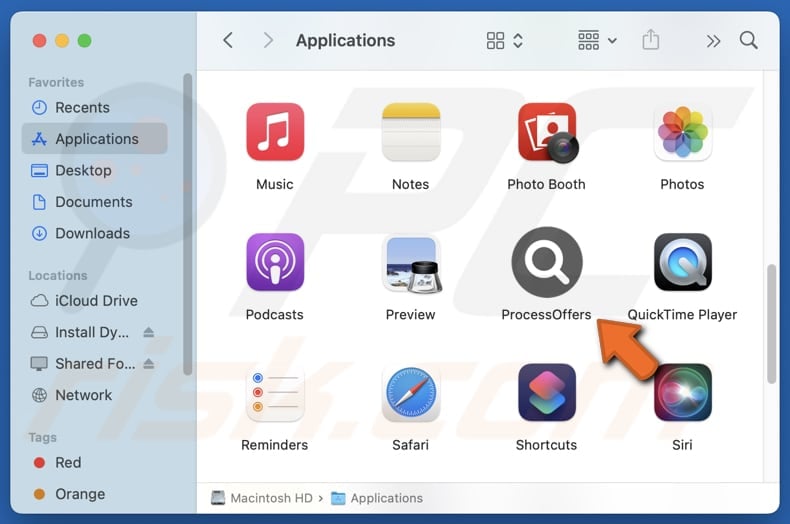
ProcessOffers adware in detail
ProcessOffers is an app designed to display unwanted advertisements on a user's device. These ads can appear as pop-ups, banners, coupons, or full-page ads, and may be intrusive. Interacting with these ads may lead to phishing sites, malicious downloads, fake offers designed to steal personal information or money, or other threats.
Beyond annoyance, ProcessOffers can also compromise user privacy. Many apps of this type collect browsing habits, search history, IP addresses, and other details. This information can be collected without the user's knowledge and sometimes shared with third parties. In more harmful cases, sensitive data, such as login credentials or credit card details, could be exposed.
Moreover, ProcessOffers can significantly slow down a device by using system resources to display constant ads. It can make computers lag, freeze, or crash more frequently. It is also important to note that removing adware is often difficult. Many adware-type apps do not uninstall completely, leaving behind residual files or registry entries.
In such cases, users may need to rely on specialized security tools like Combo Cleaner to fully remove adware. If ProcessOffers or a similar app is already present (installed), it should be eliminated as soon as possible.
| Name | Ads by ProcessOffers |
| Threat Type | Adware, Mac malware, Mac virus |
| Detection Names | Avast (MacOS:Adload-AB [Trj]), Combo Cleaner (), DrWeb (Adware.Mac.Siggen.9964), ESET-NOD32 (OSX/Adware.Synataeb.C Application), Kaspersky (Not-a-virus:HEUR:AdWare.OSX.Adload.g), Full List (VirusTotal) |
| Symptoms | Your Mac becomes slower than normal, you see unwanted pop-up ads, you are redirected to dubious websites. |
| Distribution methods | Deceptive pop-up ads, free software installers (bundling), torrent file downloads. |
| Damage | Internet browser tracking (potential privacy issues), display of unwanted ads, redirects to dubious websites, loss of private information. |
| Malware Removal (Windows) |
To eliminate possible malware infections, scan your computer with legitimate antivirus software. Our security researchers recommend using Combo Cleaner. Download Combo CleanerTo use full-featured product, you have to purchase a license for Combo Cleaner. 7 days free trial available. Combo Cleaner is owned and operated by RCS LT, the parent company of PCRisk.com. |
More about adware
Adware poses risks to device performance, privacy, and security. It slows down systems, disrupts normal usage with constant ads, and can collect personal information without consent. Avoiding adware by downloading software only from trusted sources helps keep devices running smoothly and protects users from potential threats.
Additional examples of adware are PanelMotion, Marmose.app, and NetworkFormat.
How did ProcessOffers install on my computer?
Adware often infiltrates devices when users install free or unverified software and accept the default installation settings. Skipping steps like "Custom" or "Advanced" can unintentionally allow additional programs, including adware, to be installed. Deceptive advertisements, pop-ups, and similar content on shady sites, as well as notifications from websites of this kind, can also be used to deliver adware.
Additionally, users may unknowingly download adware from unofficial app stores, peer-to-peer networks, third-party download managers, dubious websites, and similar sources.
How to avoid installation of unwanted applications?
Get applications only from reputable sources, such as official websites or recognized app stores, and pay close attention during installation to decline any optional or unwanted offers. Keep your operating system and software up to date, and perform regular scans with trusted security programs to identify and remove potential threats.
Be cautious with links, pop-ups, and online ads, and do not consent to receive notifications from untrusted websites to lower the chance of adware or malware infections. If your computer is already infected with ProcessOffers, we recommend running a scan with Combo Cleaner Antivirus for Windows to automatically eliminate this adware.
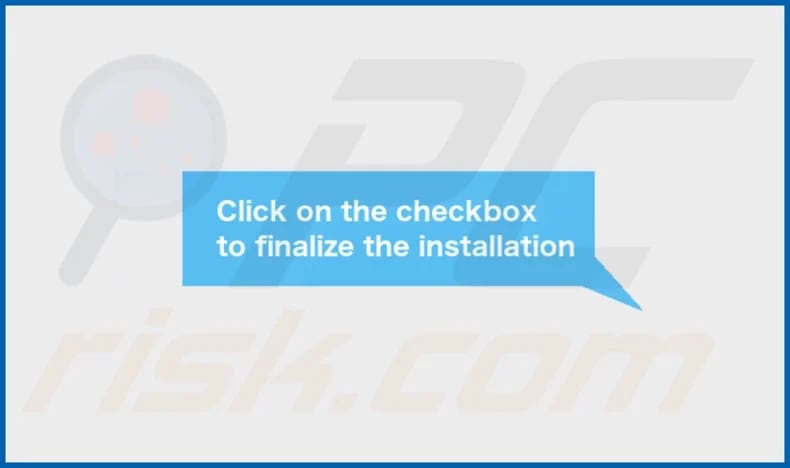
A pop-up that appears after the installation of ProcessOffers:
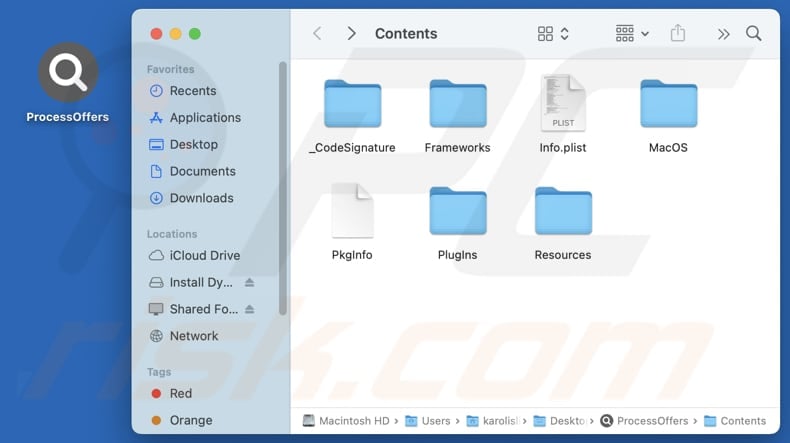
ProcessOffers installation folder:
Instant automatic malware removal:
Manual threat removal might be a lengthy and complicated process that requires advanced IT skills. Combo Cleaner is a professional automatic malware removal tool that is recommended to get rid of malware. Download it by clicking the button below:
DOWNLOAD Combo CleanerBy downloading any software listed on this website you agree to our Privacy Policy and Terms of Use. To use full-featured product, you have to purchase a license for Combo Cleaner. 7 days free trial available. Combo Cleaner is owned and operated by RCS LT, the parent company of PCRisk.com.
Quick menu:
- What is ProcessOffers?
- STEP 1. Remove ProcessOffers related files and folders from OSX.
- STEP 2. Remove ProcessOffers ads from Safari.
- STEP 3. Remove ProcessOffers adware from Google Chrome.
- STEP 4. Remove ProcessOffers ads from Mozilla Firefox.
Video showing how to remove adware and browser hijackers from a Mac computer:
ProcessOffers adware removal:
Remove ProcessOffers-related potentially unwanted applications from your "Applications" folder:
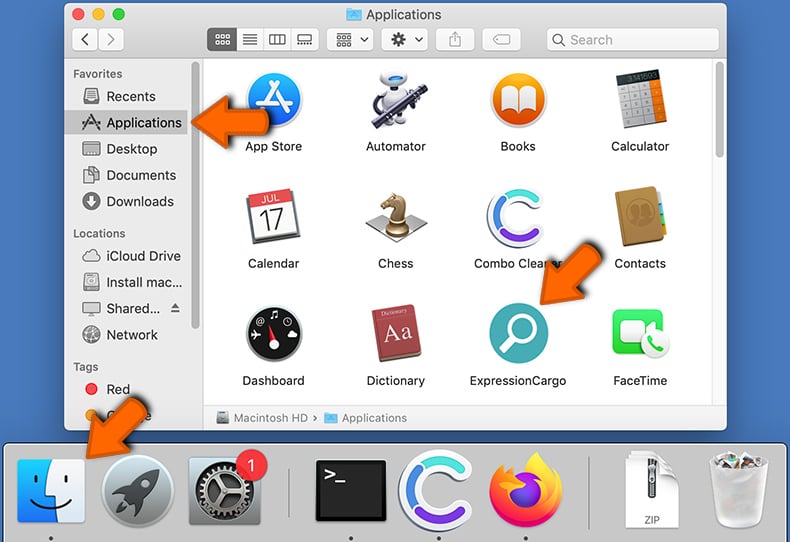
Click the Finder icon. In the Finder window, select "Applications". In the applications folder, look for "MPlayerX", "NicePlayer", or other suspicious applications and drag them to the Trash. After removing the potentially unwanted application(s) that cause online ads, scan your Mac for any remaining unwanted components.
DOWNLOAD remover for malware infections
Combo Cleaner checks if your computer is infected with malware. To use full-featured product, you have to purchase a license for Combo Cleaner. 7 days free trial available. Combo Cleaner is owned and operated by RCS LT, the parent company of PCRisk.com.
Mac malware removal and recovery procedure
Common Mac malware behaviors
VisibleAdware injection - browser hijackers and fake search engines
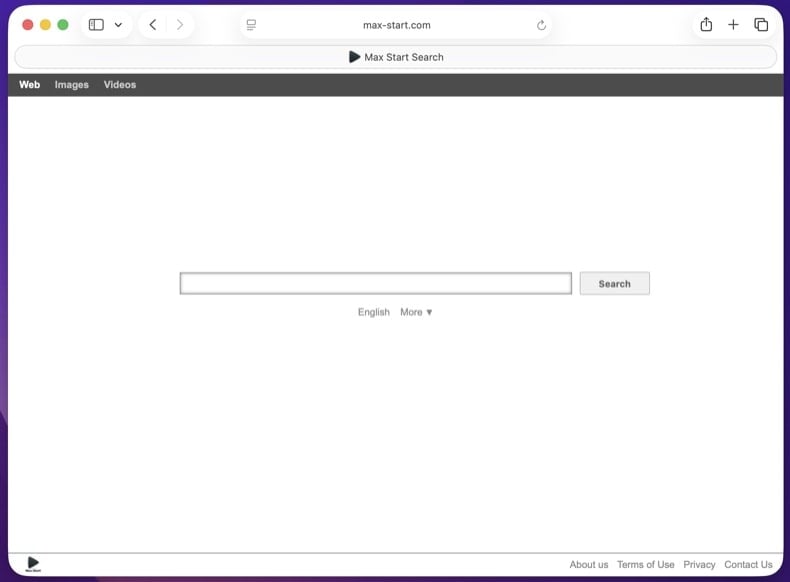
The most common Mac malware. Replaces your default search engine, homepage, or new-tab page with a lookalike domain that funnels every query through ad networks before passing it to a real provider. Often arrives bundled with cracked apps, fake Flash Player updates, or "free media player" downloads (MPlayerX, NicePlayer).
HiddenLaunchAgent / LaunchDaemon persistence
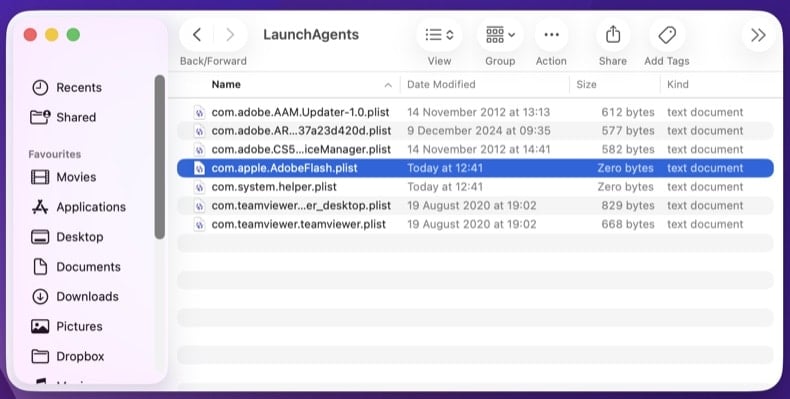
The standard way Mac malware survives reboots. A small .plist file in /Library/LaunchAgents/, /Library/LaunchDaemons/, or ~/Library/LaunchAgents/ tells launchd to run the malware at every login or boot. The .plist often picks a generic-looking name like com.apple.AdobeFlash.plist or com.system.helper.plist to blend in among legitimate Apple files.
HiddenConfiguration Profile abuse
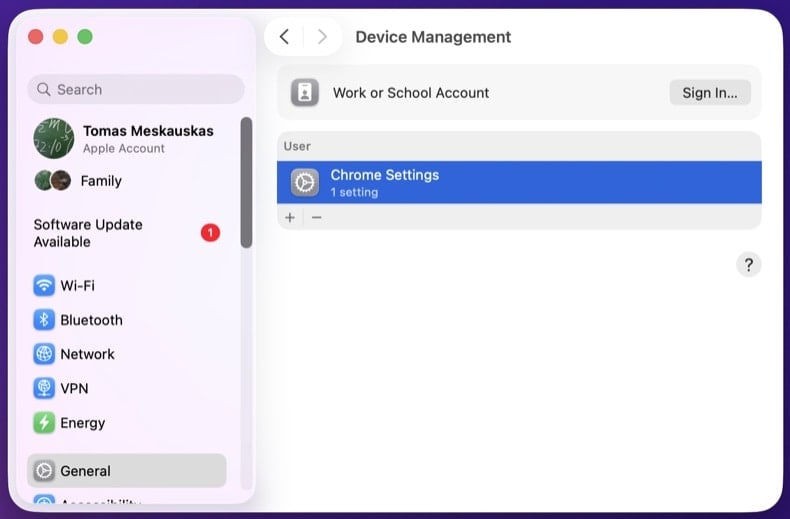
Configuration Profiles are an enterprise feature - they let an IT department enforce policy on managed Macs (homepage, DNS, certificates, password rules). Adware abuses this by silently installing a Profile that locks the browser homepage, default search, or DNS server at the OS level. Manual browser reset doesn't help - the Profile reapplies the hijack. Check System Settings → General → Device Management (or "Profiles" on older macOS).
VisibleFake update prompts (FlashPlayer.dmg variants)
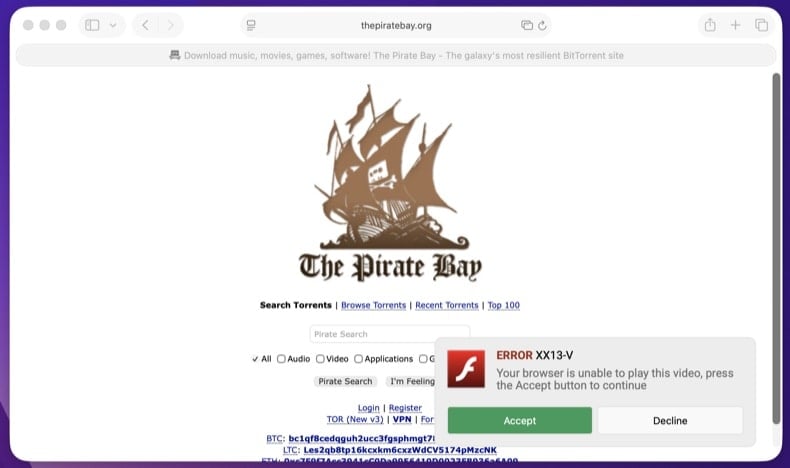
"Your Flash Player is out of date" or "Update your browser to view this content." Adobe killed Flash in 2020 - any current "Flash update" prompt is malware. The Atomic macOS Stealer (AMOS) family heavily uses this trick to deliver info-stealers that grab browser passwords, keychain items, and crypto wallet seed phrases. Apple's Software Update never appears as a browser pop-up.
SymptomCryptominer CPU usage
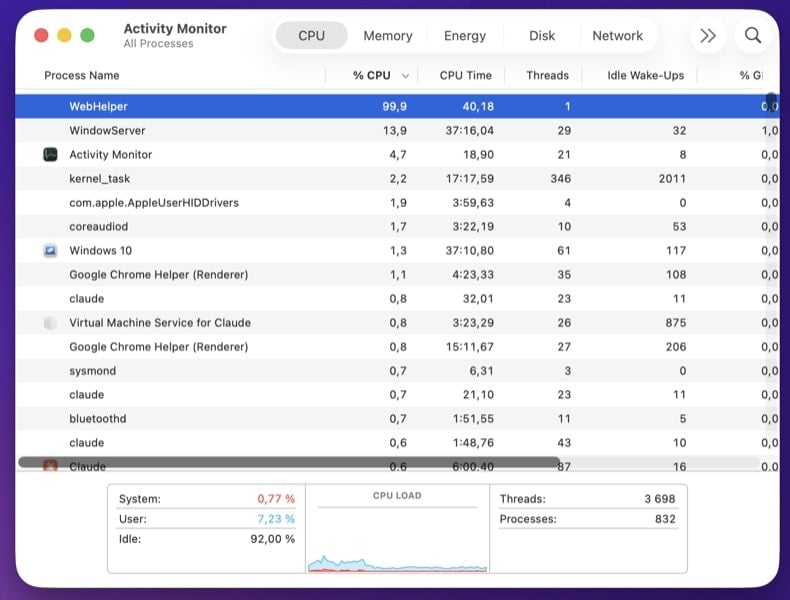
Fans spin loudly, the Mac runs hot, battery drains fast, Activity Monitor shows a process near 100% CPU. Cryptominers run silently in the background to mint cryptocurrency for the attacker. Often delivered via cracked apps from torrent sites, browser extensions, or supply-chain compromises in legitimate Mac software.
HiddenInfo stealing - AMOS, Banshee, Cthulhu, RustDoor
Modern Mac stealer families - AMOS (Atomic macOS Stealer), Banshee, Cthulhu, and RustDoor are the most active - read browser-saved passwords, cookies, autofill data, the macOS Keychain, crypto wallet seed phrases (Exodus, Electrum, Trezor Suite, MetaMask, etc.), and Apple Notes. AMOS is the most prolific overall, distributed via fake software installers, cracked apps, and fake "Spotlight" or "ChatGPT" sites. Once data is exfiltrated, the malware often deletes itself, leaving little trace - which is why credential rotation in Step 10 is critical even after the infection appears gone.
Click the Wi-Fi icon in the menu bar (or open Control Center) and turn Wi-Fi off. If you're on Ethernet, unplug the cable. This stops any active info-stealer or backdoor from sending data out or accepting commands. Keep the network off until you've booted into Safe Mode (next step) - you'll reconnect there briefly to download the scanner.
macOS Safe Mode loads only Apple-trusted kernel extensions and skips most third-party LaunchAgents and user login items, so persistent Mac malware doesn't auto-run while you set up the scanner. Network access works normally in Safe Mode.
- Choose
- Wait until the Mac is fully off
- Press and hold the Power button until "Loading startup options" appears
- Select your startup disk (usually "Macintosh HD")
- Hold Shift, then click Continue in Safe Mode
- Log in - the menu bar will show "Safe Boot" in red
Intel-based Mac
- Choose
- Immediately press and hold the Shift key as the Mac begins to boot
- Release Shift when the login window appears
- Log in - the menu bar will show "Safe Boot" in red
Once Safe Mode has loaded, turn Wi-Fi back on and download Combo Cleaner for Mac. Save the .dmg to your Desktop. You can disconnect Wi-Fi again before scanning if you want extra caution.
Open Activity Monitor (, or Cmd+Space and type "Activity Monitor"). Sort by CPU usage to spot cryptominers and runaway processes.
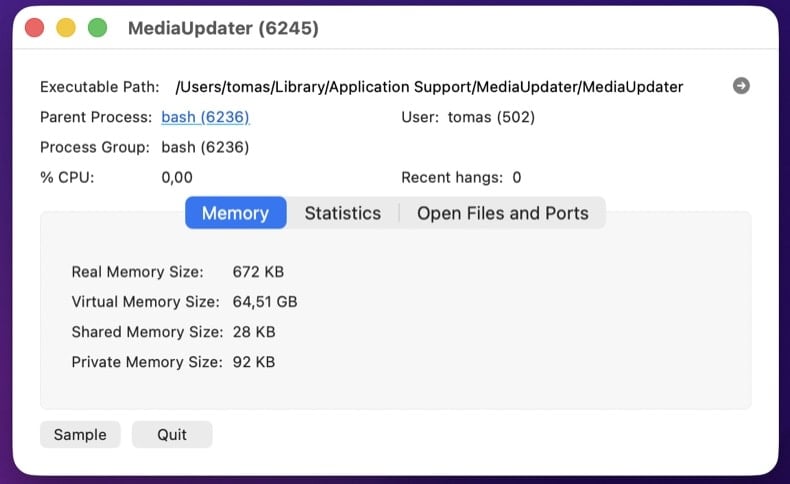
Click each unfamiliar process and choose (Cmd+I) to see:
- Path - anything in
/private/tmp/,~/Library/Application Support/<random-name>/, or with a generic-looking bundle ID is suspicious - Code signing - Apple's processes are signed by "Apple" or "Software Signing." Adhoc-signed or unsigned binaries from third parties warrant investigation
- Open Files and Ports - shows what the process is touching on disk and network
Download KnockKnock by Objective-See (Patrick Wardle's free tool, the Mac equivalent of Sysinternals Autoruns). It lists every place macOS malware can persist in a single window: LaunchAgents, LaunchDaemons, Login Items, Cron Jobs, Browser Extensions, Kernel Extensions, Authorization Plug-ins, Mail Plug-ins, Quicklook, Spotlight, and more.
Run KnockKnock and toggle "Filter Signed Items" to focus on unsigned or non-Apple-signed entries. Click any suspicious item to see its file path and code-signing status.
If you'd rather check manually, open Finder → (Shift+Cmd+G) and visit each path:
/Library/LaunchAgents/- system-wide, runs at login for any user/Library/LaunchDaemons/- system-wide, runs at boot before login~/Library/LaunchAgents/- user-level, runs at this user's login~/Library/Application Support/- where adware drops its data folder, often with a random or app-mimicking name
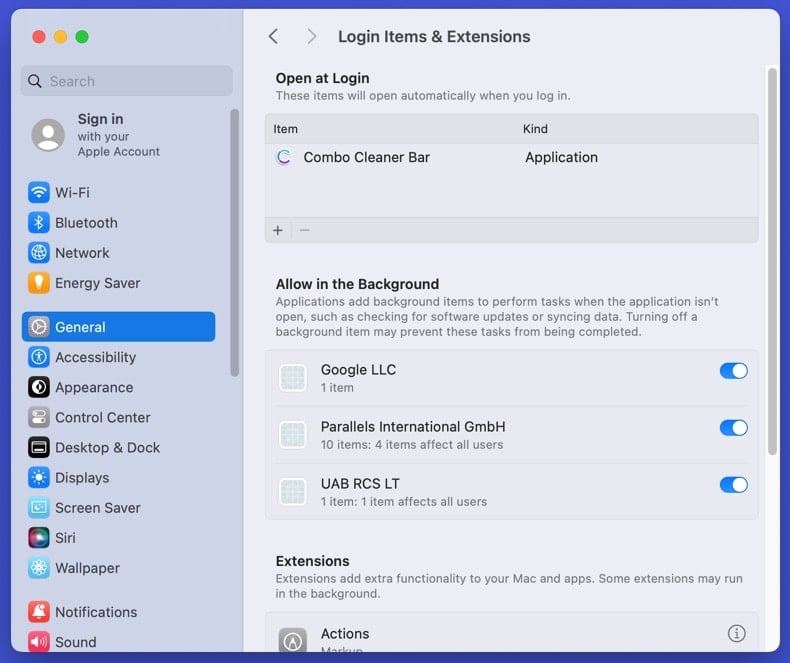
Then check additional persistence locations in System Settings:
- Login Items & Extensions - . Click anything you don't recognize and remove it
- Background Items - same panel, "Allow in the Background" section. Mac malware often shows up as a background item with an obscure name
- Configuration Profiles - (or "Profiles" on older macOS). Remove any Profile you didn't install yourself
<key>Program</key> and <key>ProgramArguments</key> values tell you exactly what executable runs and from where. Don't delete yet - write down the file paths and entry names. We'll remove them after the Combo Cleaner scan in Step 7.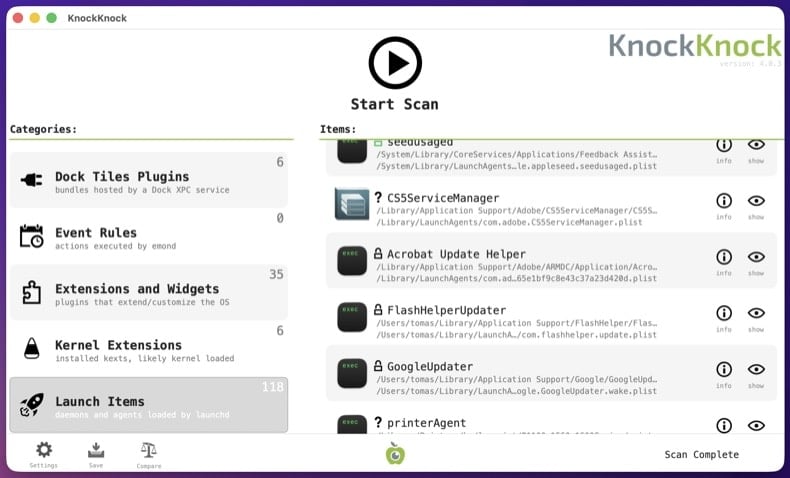
Mac malware sometimes redirects bank, Apple, antivirus, and update domains to attacker-controlled servers via the hosts file or DNS settings.
Hosts file: Open Terminal () and run:
sudo nano /etc/hosts
Legitimate entries are commented with #. Any uncommented IP-to-domain mapping is suspicious - especially redirects for apple.com, icloud.com, your bank, or your password manager. Press Ctrl+X to exit nano without saving.
DNS settings: → click your active connection (Wi-Fi or Ethernet) → Details → DNS. Confirm DNS servers point to your ISP, your router, or a known public resolver (Cloudflare 1.1.1.1, Google 8.8.8.8). Anything else has been hijacked.
chase.com and you'll be at the attacker's clone.Open the .dmg you downloaded in Step 2. Drag the Combo Cleaner icon to the Applications folder. Open it from Launchpad (or Applications), allow it to update its threat database, then click Start Combo Scan and let it complete fully. Review what it found and apply the recommended actions.
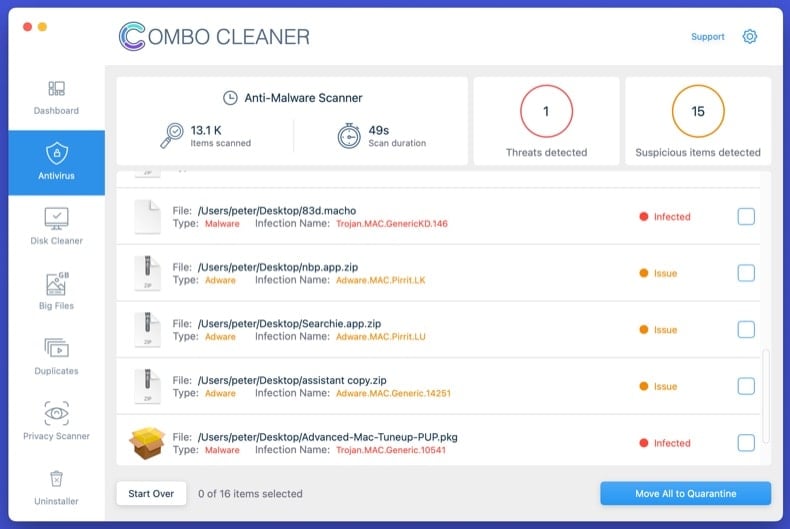
Reopen KnockKnock (or revisit the Finder paths from Step 4). Anything you flagged that's still present hasn't been caught by the automated scan. For each remaining suspicious entry:
- Note the executable path the .plist references (right-click the .plist → Open With → TextEdit, look at
<key>Program</key>) - Move the .plist to Trash
- Move the executable file at the referenced path to Trash
- Empty the Trash
Then go to /Applications and remove any unwanted apps the malware installed. Common adware-installed app names: MPlayerX, NicePlayer, MyShopcoupon, Advanced Mac Cleaner, Mac Cleanup Pro. Drag them to Trash, then check ~/Library/Application Support/ for any folder with the same name and delete it too.
Mac adware persists in browser extensions, search engine settings, homepage, and notification permissions. Reset each browser you use:
- Safari: - uninstall anything you don't recognize. Then - restore your preferred default search engine. Then - remove all unfamiliar sites. For a deep reset: → "all history."
- Chrome: visit
chrome://settings/reset→ "Restore settings to their original defaults." Thenchrome://settings/content/notificationsand remove unfamiliar sites. - Firefox: open
about:support→ Refresh Firefox. Then check .
Review installed extensions in each browser and remove anything you don't recognize, especially extensions you didn't install yourself.
Some Mac malware tries to weaken built-in security to make persistence easier. Verify each is on:
- Gatekeeper (blocks unsigned apps): → scroll to Allow applications downloaded from → confirm "App Store and identified developers" is selected (not "Anywhere"). If the malware added itself to the allow-list, the entry appears in the same panel - remove it.
- FileVault (full-disk encryption): → confirm "FileVault is on for this disk." If it was disabled by malware, turn it back on.
- System Integrity Protection (SIP): open Terminal and run
csrutil status. Output should be "System Integrity Protection status: enabled." If disabled, you'll need to reboot into Recovery Mode and runcsrutil enablefrom there.
Then run macOS Software Update () to apply the latest security patches.
If the malware was an info-stealer (AMOS, Banshee, Cthulhu, or RustDoor families are extremely common on Mac), assume every password saved in your browser is compromised. So is your iCloud Keychain if it was unlocked while the malware ran. Change passwords from a different, known-clean device - your iPhone is fine if it's not infected.
Recommended order:
- Apple ID first - it controls iCloud, Find My, Apple Pay, and the App Store
- Primary email - the recovery hub for everything else
- Banking and financial accounts
- Password manager master password (if you use one)
- Crypto wallet seed phrases - if you store any seed phrase or private key on the Mac, AMOS specifically targets these. Move funds to a fresh wallet from a clean device immediately, before changing other passwords
- Social media, shopping, and remaining accounts
Where available, enable phishing-resistant multi-factor authentication (passkeys / hardware keys / authenticator apps) - SMS-based MFA is bypassable.
Reconnect to the network and run one final full scan with Combo Cleaner. Open and confirm nothing suspicious has reappeared. Open Activity Monitor and verify no unfamiliar process is using significant CPU.
Over the next 7 days, watch for symptom recurrence: high CPU when the Mac is idle, browser redirects returning, fake update prompts, or unfamiliar Login Items reappearing. If anything returns, you missed a persistence point and the procedure needs to be repeated - or you may have a deeper compromise that requires a clean macOS reinstall.
When to reinstall macOS instead
Manual removal isn't always the right answer. Reinstalling macOS from scratch is the only way to be 100% certain when:
- The malware reappears after every removal attempt
- A kernel extension or system-level component was modified
- Confirmed credential-theft malware ran with admin rights - the system likely has multiple unknown payloads
- The Mac is used for online banking, crypto wallets, business email, or anything where partial doubt isn't acceptable
macOS reinstall is straightforward: shut down → boot to Recovery (Apple Silicon: hold the Power button → Options; Intel: Cmd+R during boot) → Erase Mac → Reinstall macOS. Back up documents to external storage first, scan the backup with Combo Cleaner before restoring it, and reinstall apps fresh - never restore them from a backup of the infected system.
Important: Manual removal of Mac malware requires care - deleting the wrong .plist or system app can prevent macOS from booting normally. If you're not confident identifying system files from malicious files, run an automated scan with Combo Cleaner for Mac and stop there - that path catches the vast majority of consumer Mac malware without the risk of breaking macOS.
Frequently Asked Questions (FAQ)
What harm can adware cause?
Adware installed on your computer may negatively affect user experience, reduce system performance, and cause privacy or security issues.
What does adware do?
Apps classified as adware display advertisements (often unwanted ones). Also, they can collect informtion.
How do adware developers generate revenue?
Most of their money is generated via affiliate programs. They earn commissions when someone downloads (or purchases) some software or other product, clicks an ad, or performs other actions.
Will Combo Cleaner remove ProcessOffers adware?
Yes, Combo Cleaner can scan your computer and remove all adware-type applications. Manual removal is not always reliable because leftover files may stay hidden and continue running.
Share:
 Facebook
 X.com
X.com
 LinkedIn
 Copy Link

Tomas Meskauskas
Expert security researcher, professional malware analyst
I am passionate about computer security and technology. I have an experience of over 10 years working in various companies related to computer technical issue solving and Internet security. I have been working as an author and editor for pcrisk.com since 2010. Follow me on Twitter and LinkedIn to stay informed about the latest online security threats.
PCrisk security portal is brought by a company RCS LT.
Joined forces of security researchers help educate computer users about the latest online security threats. More information about the company RCS LT.
Our malware removal guides are free. However, if you want to support us you can send us a donation.
DonatePCrisk security portal is brought by a company RCS LT.
Joined forces of security researchers help educate computer users about the latest online security threats. More information about the company RCS LT.
Our malware removal guides are free. However, if you want to support us you can send us a donation.
Donate
▼ Show Discussion