

Get free scan and check if your device is infected.
Remove it nowTo use full-featured product, you have to purchase a license for Combo Cleaner. Seven days free trial available. Combo Cleaner is owned and operated by RCS LT, the parent company of PCRisk.com.
What kind of malware is Phantom?
Phantom is malware that, once installed, can run hidden web content and engage in automated click fraud. The malware communicates with a remote server for commands and may download additional modules to enhance its capabilities. Victims often get infected through third-party app stores or modified apps.
Phantom in detail
Phantom malware has two modes: "signalling mode", which is used to communicate with the attackers' server, receive commands, and report information, and "phantom mode", which is the malware's main malicious mode, where it runs hidden web content and performs click-fraud in the background.
In "signalling mode", Phantom uses a built-in WebRTC feature to connect to other systems online. WebRTC normally lets apps and browsers share data, audio, or video directly. A control server helps the infected device connect to the attackers and decides which mode the malware should use.
Another server sends instructions about which websites to interact with. The malware sends a live video of a fake on-screen browser to the attackers, who can remotely tap, scroll, and type on it as if they were using the phone themselves.
In "phantom mode", Phantom opens websites in a hidden browser. When the server instructs it to, it loads a target site and downloads a special script that is made to interact with ads. The malware also downloads a machine-learning model, which helps it recognize ad elements on the page.
For some ads, Phantom shows the page on a fake screen, takes screenshots, and analyzes them. It then automatically taps on the ads it identifies, making the clicks look more realistic.
In October 2025, the infected games used to deliver the malware were updated to include new "phantom modules". One of them acted as a dropper that downloads more click-fraud malware from other servers to target different websites. These newer modules are simpler and use basic scripts.
It is important to note that at first, the malware mostly used "phantom mode" because Android does not normally include WebRTC tools. After the update, a new dropper was added to download those missing tools, allowing the malware to fully use its WebRTC-based features. Additionally, some versions of the Phantom malware can be used to execute DDoS attacks and collect information about the device and the victim.
| Name | Phantom click fraud malware |
| Threat Type | Android malware, malicious application |
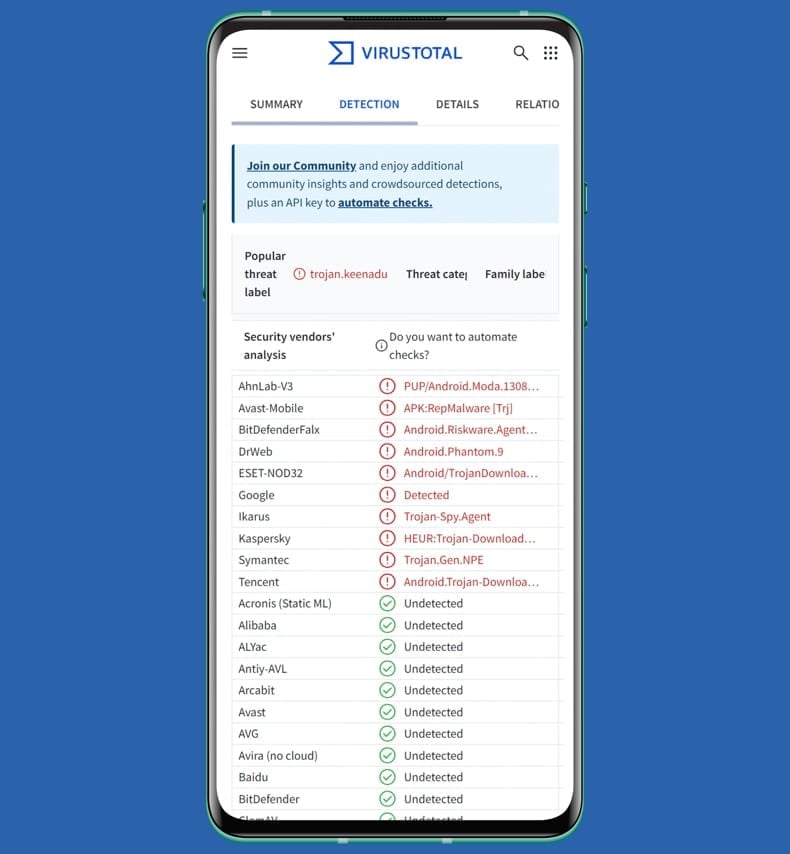
| Detection Names | Avast-Mobile (APK:RepMalware [Trj]), Combo Cleaner ( Android.Riskware.Agent.gHXHF), ESET-NOD32 (Android/TrojanDownloader.Agent.BDM Trojan), Kaspersky (HEUR:Trojan-Downloader.AndroidOS.Keenadu.a), Full List (VirusTotal) |
| Symptoms | The device is running slow, system settings are modified without user's permission, questionable applications appear, data and battery usage is increased significantly, browsers redirect to questionable websites, intrusive advertisements are delivered. |
| Distribution methods | Modified (cracked) apps and games, third-party app stores, Telegram channels, Discord servers. |
| Damage | Stolen personal information, decreased device performance, battery is drained quickly, decreased Internet speed, huge data losses, monetary losses, stolen identity. |
| Malware Removal (Windows) |
To eliminate possible malware infections, scan your computer with legitimate antivirus software. Our security researchers recommend using Combo Cleaner. Download Combo CleanerTo use full-featured product, you have to purchase a license for Combo Cleaner. 7 days free trial available. Combo Cleaner is owned and operated by RCS LT, the parent company of PCRisk.com. |
Conclusion
Overall, Phantom is a click-fraud malware that hides inside modified apps and operates without the user's knowledge. It uses multiple modules and servers to automate ad interactions and make them look legitimate. If detected on the device, Phantom should be removed as soon as possible.
More examples of Android malware are DeVixor, ResidentBat, and Cellik RAT.
How did Phantom infiltrate my device?
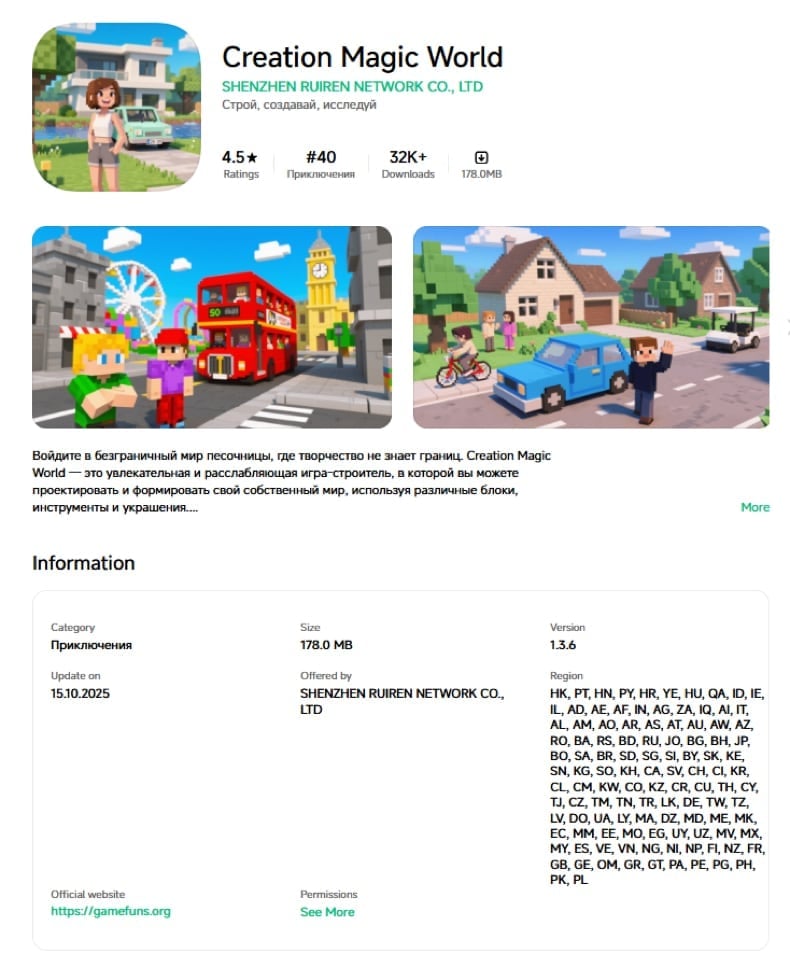
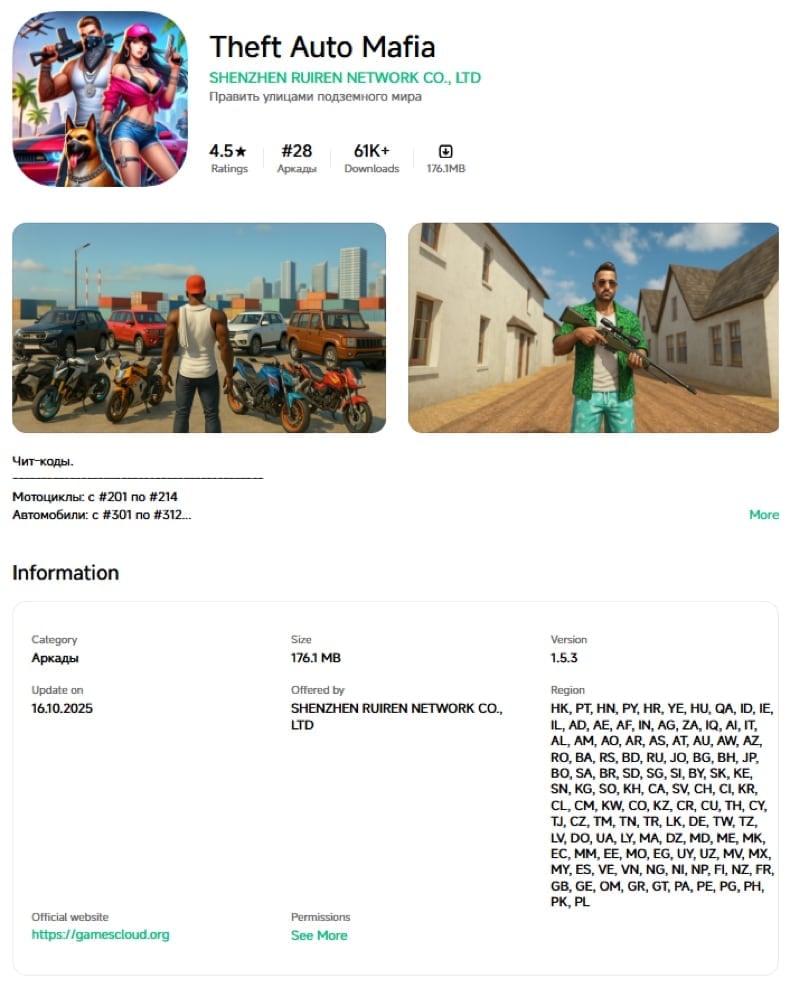
Phantom has been observed bundled in modified games uploaded by a single developer to the Xiaomi GetApps software catalogue. Examples of these infected games include Creation Magic World, Cute Pet House, Amazing Unicorn Party, Sakura Dream Academy, Theft Auto Mafia, and Open World Gangsters.
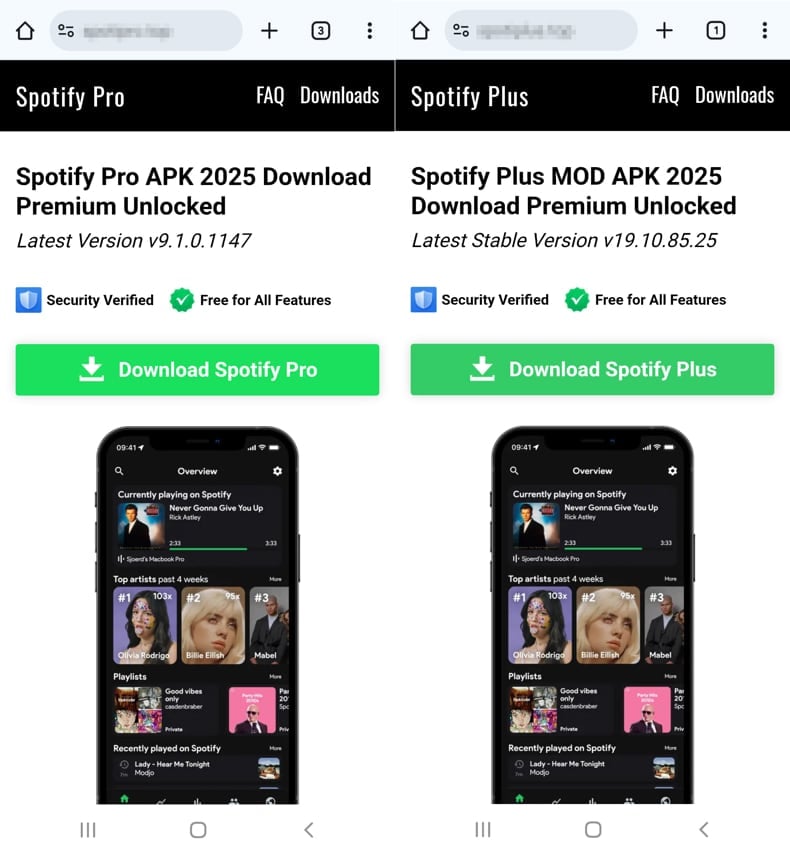
Cybercriminals also spread modded versions of popular apps such as Spotify Plus and Spotify Pro via websites and Telegram channels, where the modified APKs include the malware. Similar infected app mods for other streaming services, such as YouTube, Deezer, and Netflix, are also created and hosted on third-party APK portals (e.g., Apkmody, Moddroid) and their associated Telegram groups.
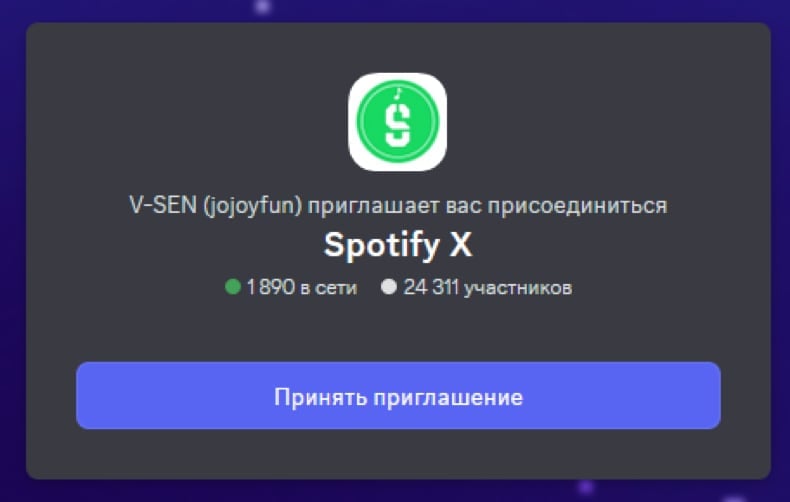
The same infected APK files are also promoted via a Discord server (e.g., "Spotify X"), where users are offered trojan-bundled downloads disguised as working versions of those streaming apps.
How to avoid installation of malware?
Download apps from official app stores like Google Play and avoid modded or cracked apps. Do not install APK files from third-party websites, Telegram channels, or Discord servers, even if the apps promise paid features for free. Always keep Android and your apps up to date, and check app permissions before installing.
Also, do not trust ads, pop-ups, and links on shady websites, and never agree to get notifications from such sites. Using a reputable mobile security app can also help detect and block malicious software.
Phantom delivered via "Spotify X" channel on Discord (source: drweb.com):
Phantom promoted through "Spotify Pro" and "Spotify Plus" channels on Telegram (source: drweb.com):

Phantom distributed through fake Spotify websites (source: drweb.com):
Phantom distributed via infected "Creationg Magic World" app on Xiaomi GetApps software catalogue (source: drweb.com):
Phantom distributed via infected "Theft Auto Mafia" app on Xiaomi GetApps software catalogue (source: drweb.com):
Quick menu:
- Introduction
- How to delete browsing history from the Chrome web browser?
- How to disable browser notifications in the Chrome web browser?
- How to reset the Chrome web browser?
- How to delete browsing history from the Firefox web browser?
- How to disable browser notifications in the Firefox web browser?
- How to reset the Firefox web browser?
- How to uninstall potentially unwanted and/or malicious applications?
- How to boot the Android device in "Safe Mode"?
- How to check the battery usage of various applications?
- How to check the data usage of various applications?
- How to install the latest software updates?
- How to reset the system to its default state?
- How to disable applications that have administrator privileges?
Delete browsing history from the Chrome web browser:
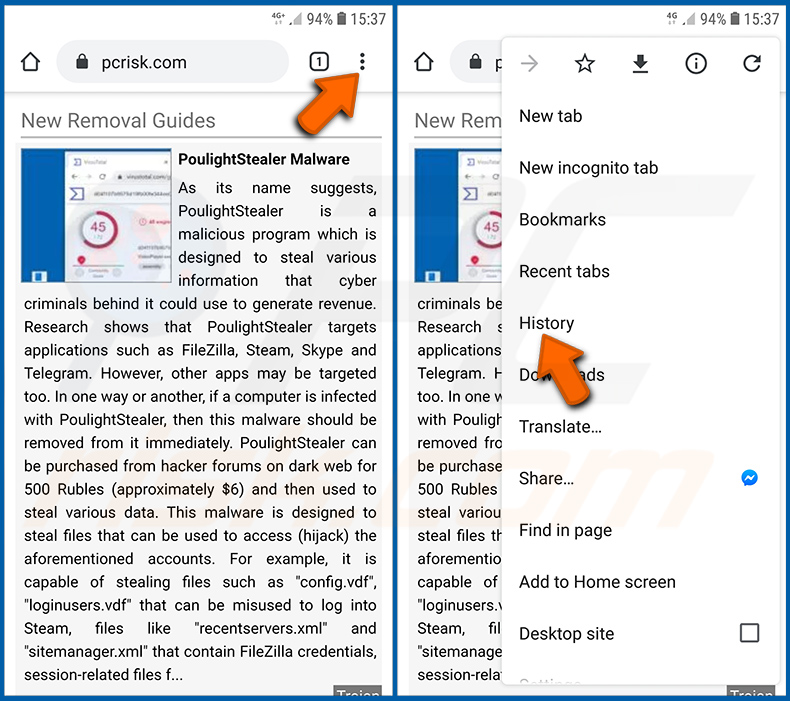
Tap the "Menu" button (three dots on the right-upper corner of the screen) and select "History" in the opened dropdown menu.
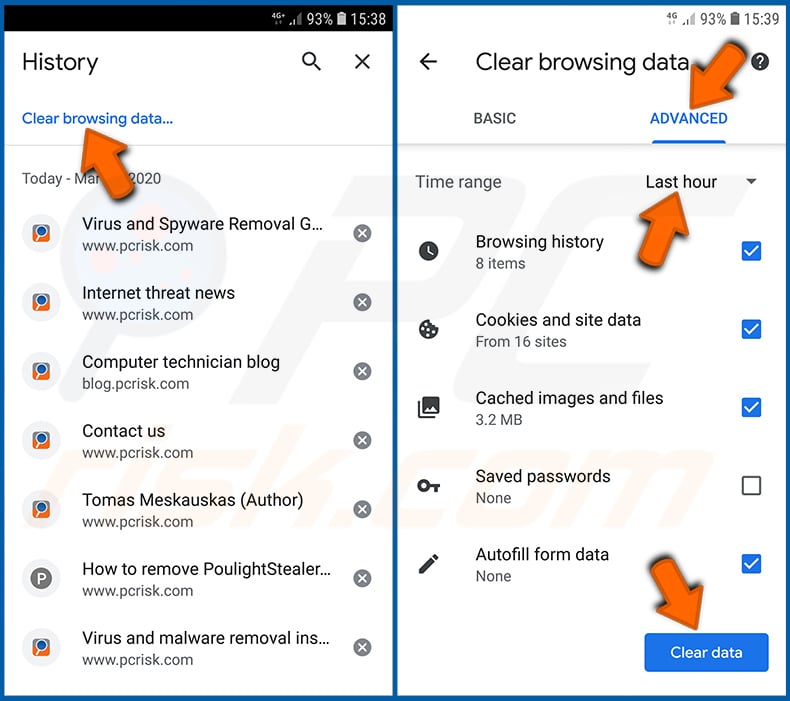
Tap "Clear browsing data", select "ADVANCED" tab, choose the time range and data types you want to delete and tap "Clear data".
Disable browser notifications in the Chrome web browser:
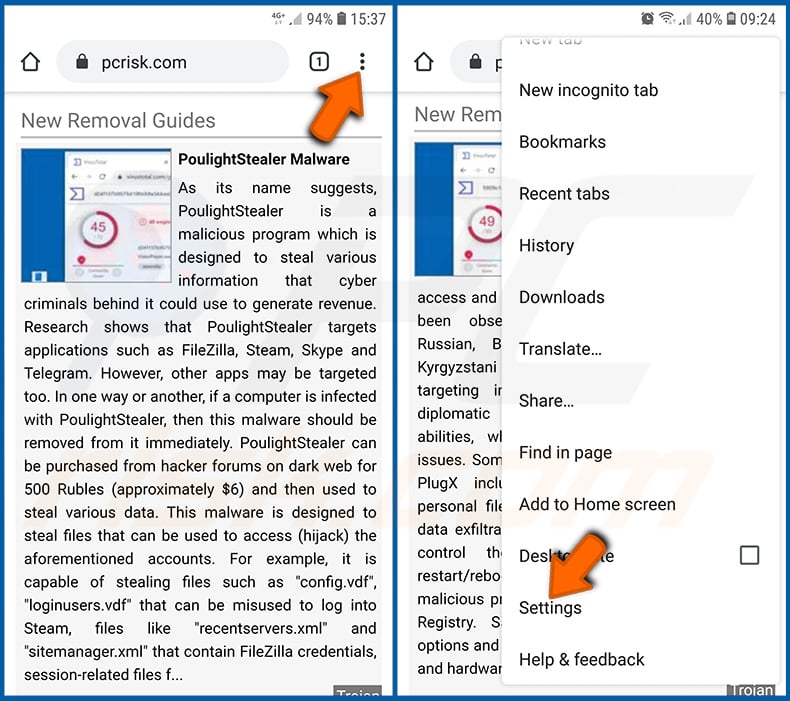
Tap the "Menu" button (three dots on the right-upper corner of the screen) and select "Settings" in the opened dropdown menu.
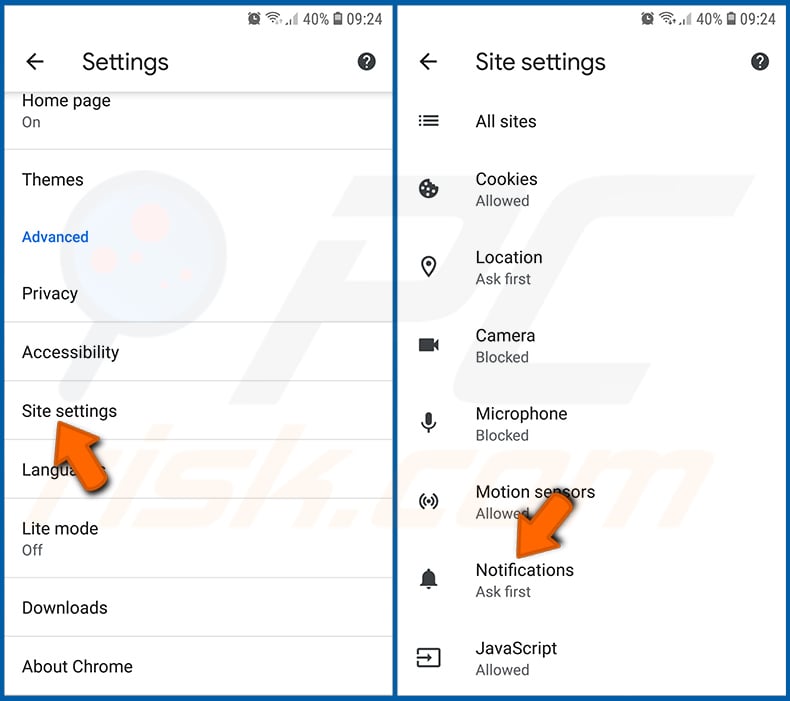
Scroll down until you see "Site settings" option and tap it. Scroll down until you see "Notifications" option and tap it.
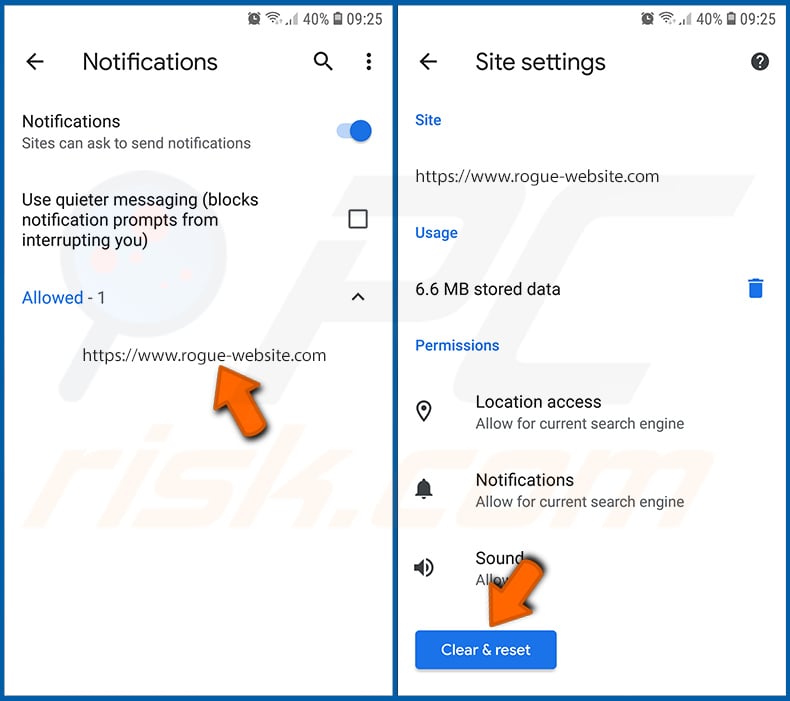
Find the websites that deliver browser notifications, tap on them and click "Clear & reset". This will remove permissions granted for these websites to deliver notifications. However, once you visit the same site again, it may ask for a permission again. You can choose whether to give these permissions or not (if you choose to decline the website will go to "Blocked" section and will no longer ask you for the permission).
Reset the Chrome web browser:
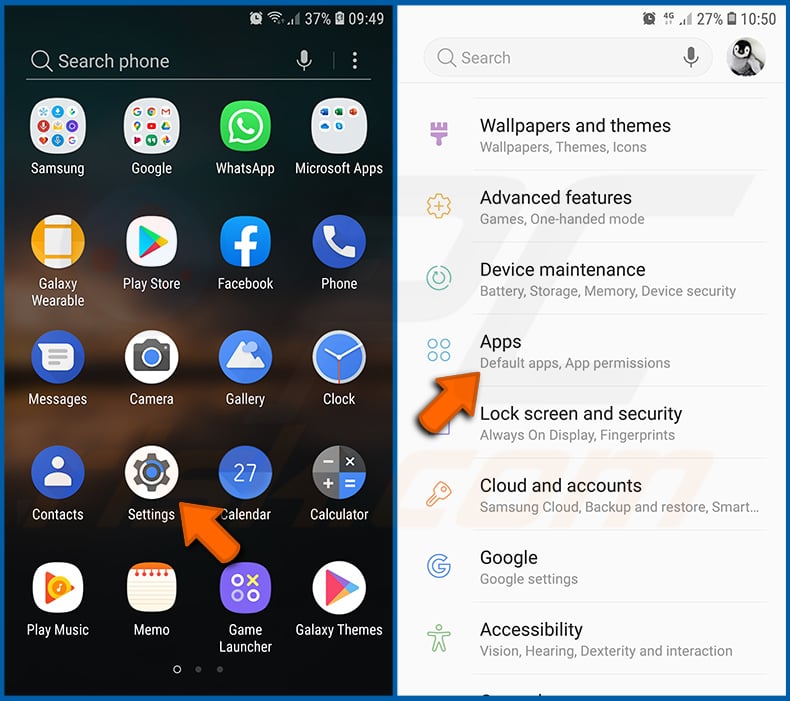
Go to "Settings", scroll down until you see "Apps" and tap it.
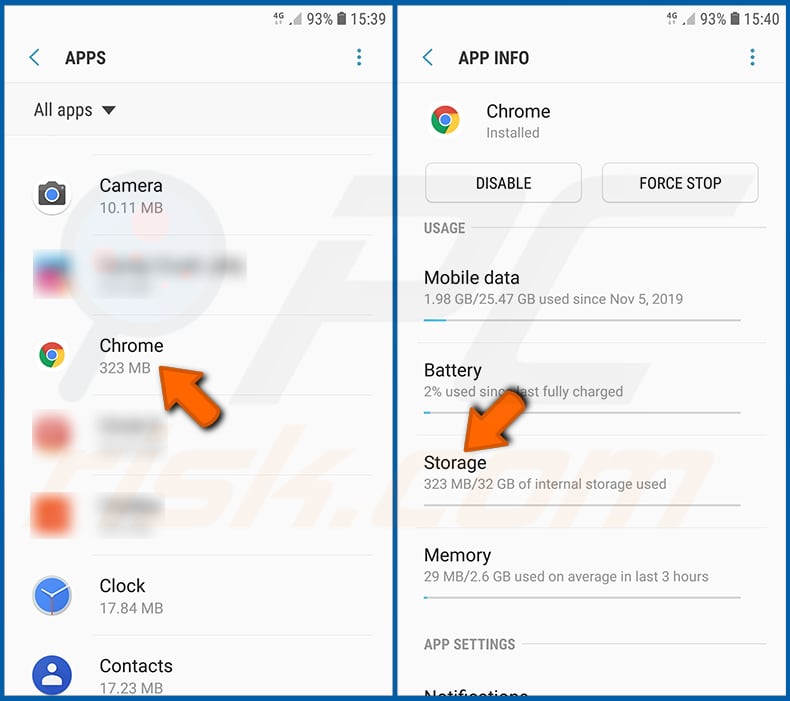
Scroll down until you find "Chrome" application, select it and tap "Storage" option.
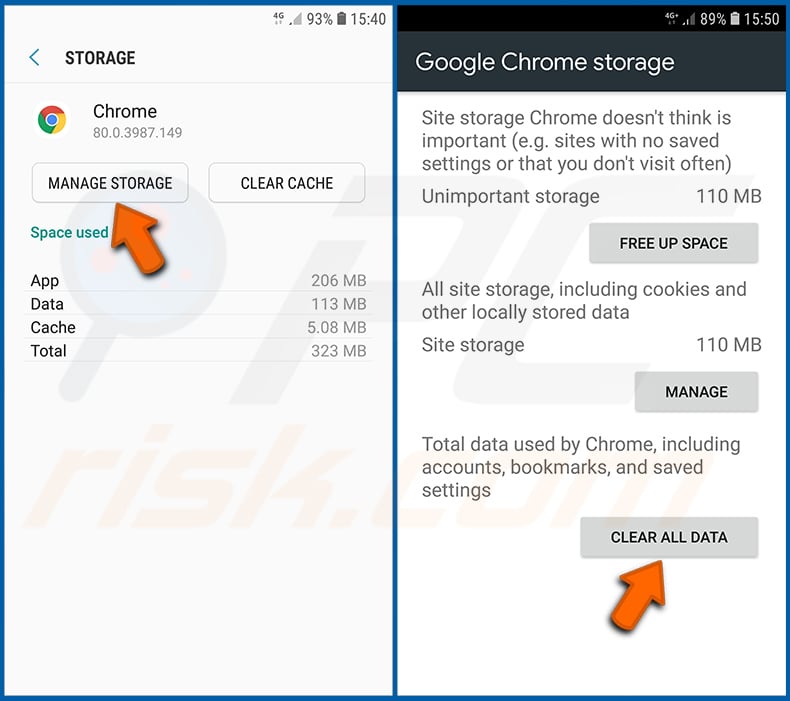
Tap "MANAGE STORAGE", then "CLEAR ALL DATA" and confirm the action by taping "OK". Note that resetting the browser will eliminate all data stored within. This means that all saved logins/passwords, browsing history, non-default settings and other data will be deleted. You will also have to re-login into all websites as well.
Delete browsing history from the Firefox web browser:
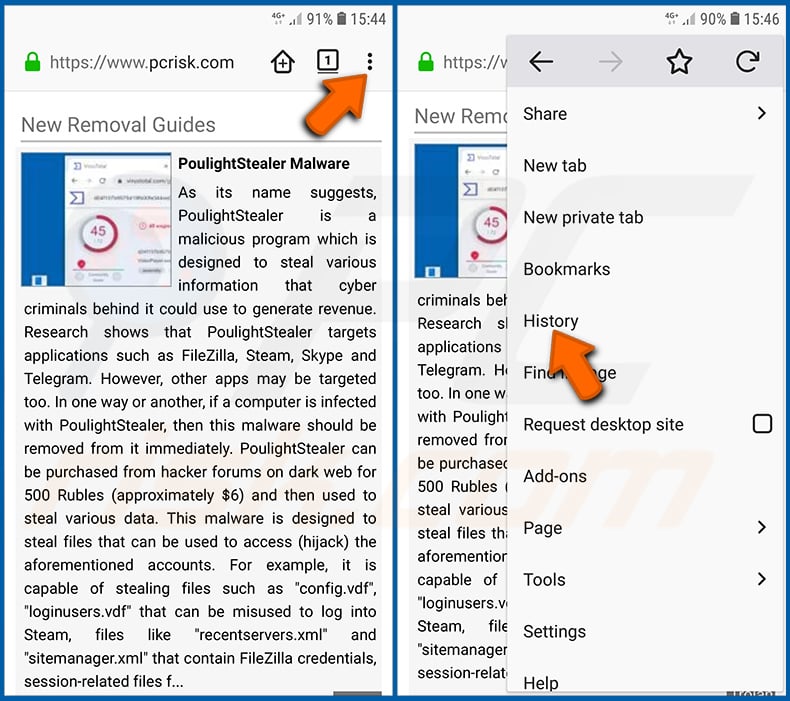
Tap the "Menu" button (three dots on the right-upper corner of the screen) and select "History" in the opened dropdown menu.
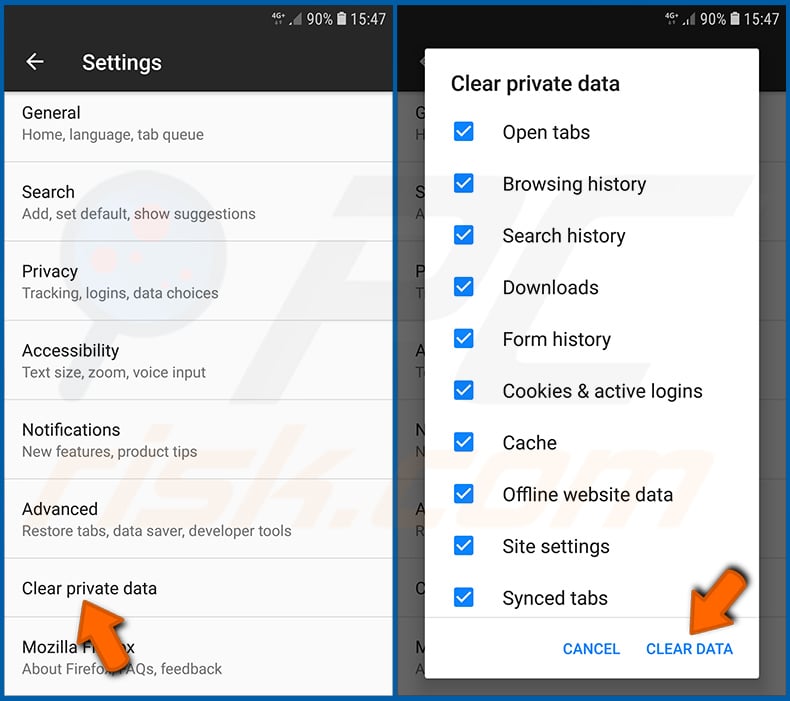
Scroll down until you see "Clear private data" and tap it. Select data types you want to remove and tap "CLEAR DATA".
Disable browser notifications in the Firefox web browser:
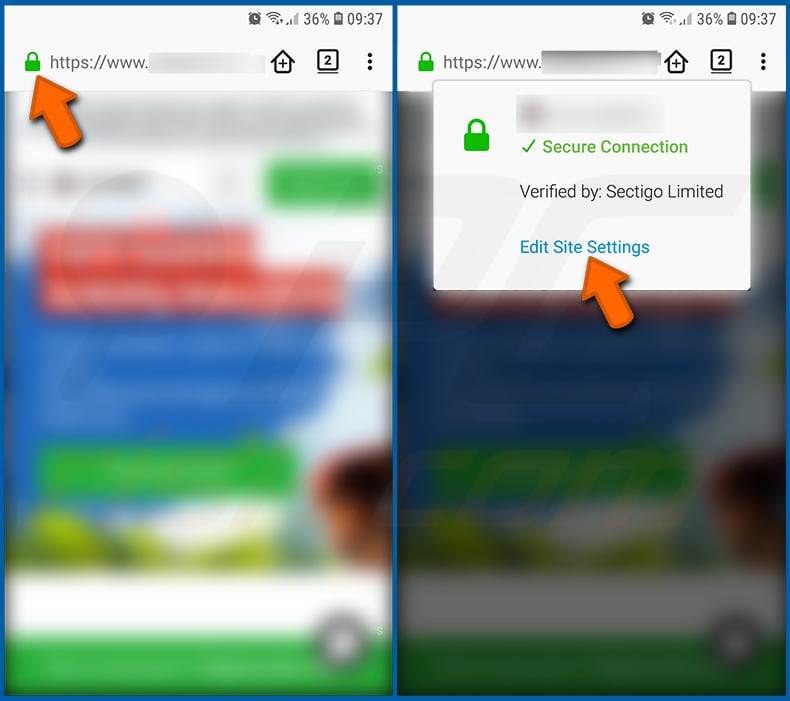
Visit the website that is delivering browser notifications, tap the icon displayed on the left of URL bar (the icon will not necessarily be a "Lock") and select "Edit Site Settings".
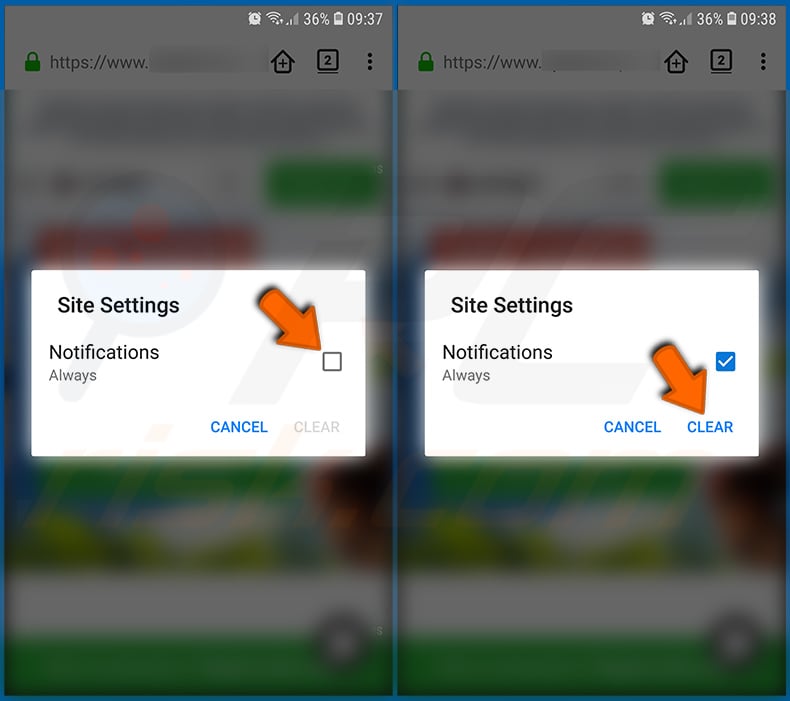
In the opened pop-up opt-in the "Notifications" option and tap "CLEAR".
Reset the Firefox web browser:
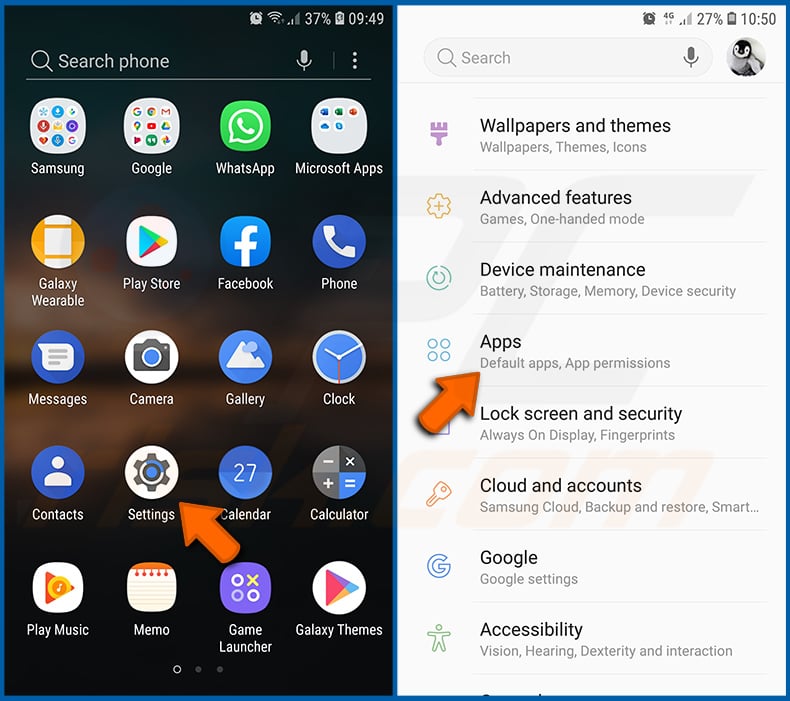
Go to "Settings", scroll down until you see "Apps" and tap it.
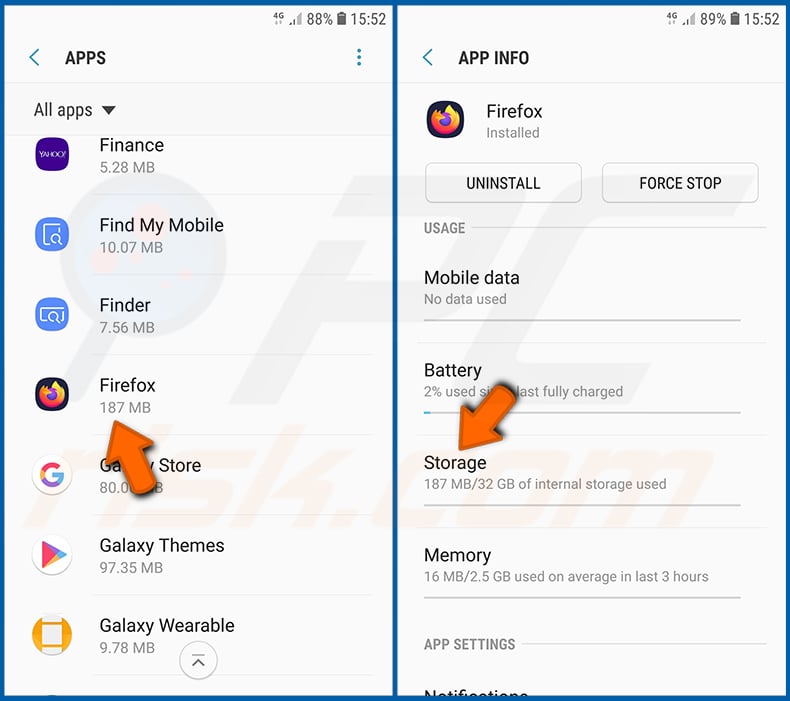
Scroll down until you find "Firefox" application, select it and tap "Storage" option.
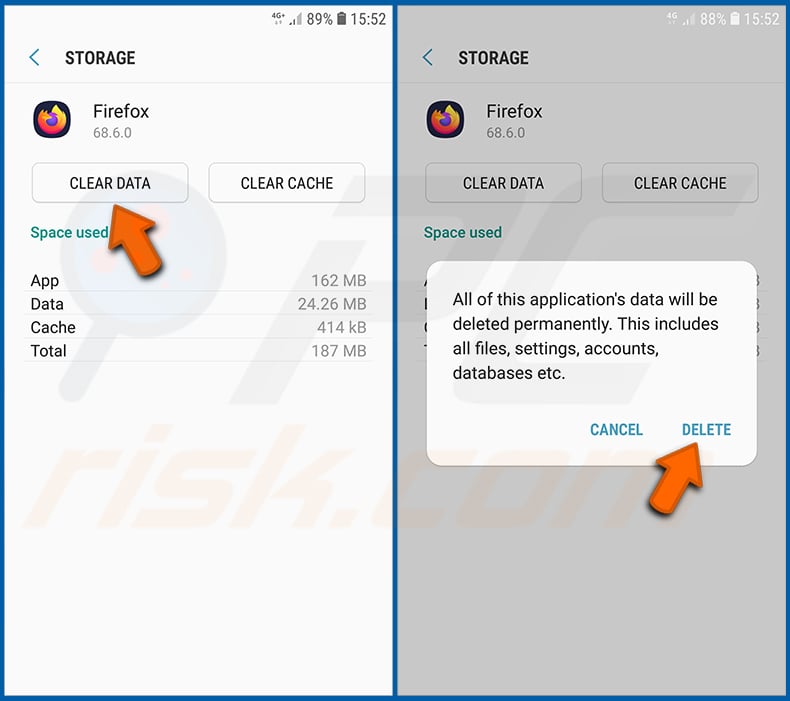
Tap "CLEAR DATA" and confirm the action by taping "DELETE". Note that resetting the browser will eliminate all data stored within. This means that all saved logins/passwords, browsing history, non-default settings and other data will be deleted. You will also have to re-login into all websites as well.
Uninstall potentially unwanted and/or malicious applications:
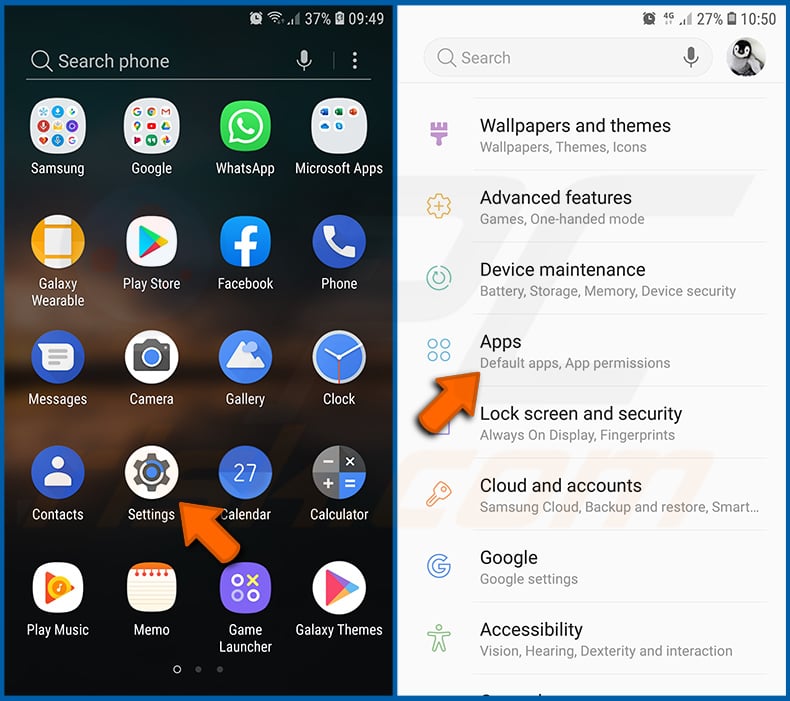
Go to "Settings", scroll down until you see "Apps" and tap it.
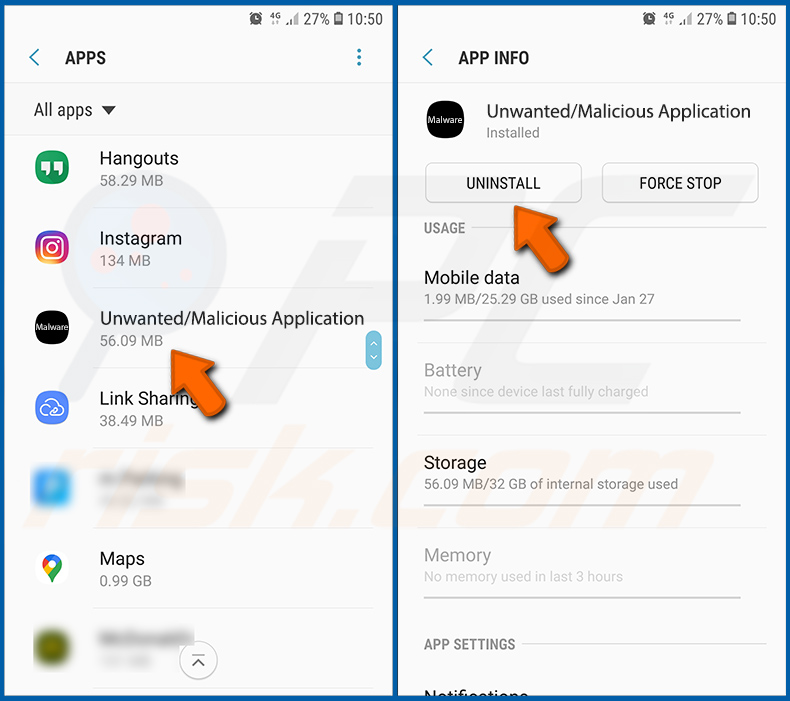
Scroll down until you see a potentially unwanted and/or malicious application, select it and tap "Uninstall". If, for some reason, you are unable to remove the selected app (e.g., you are prompted with an error message), you should try using the "Safe Mode".
Boot the Android device in "Safe Mode":
The "Safe Mode" in Android operating system temporarily disables all third-party applications from running. Using this mode is a good way to diagnose and solve various issues (e.g., remove malicious applications that prevent users you from doing so when the device is running "normally").
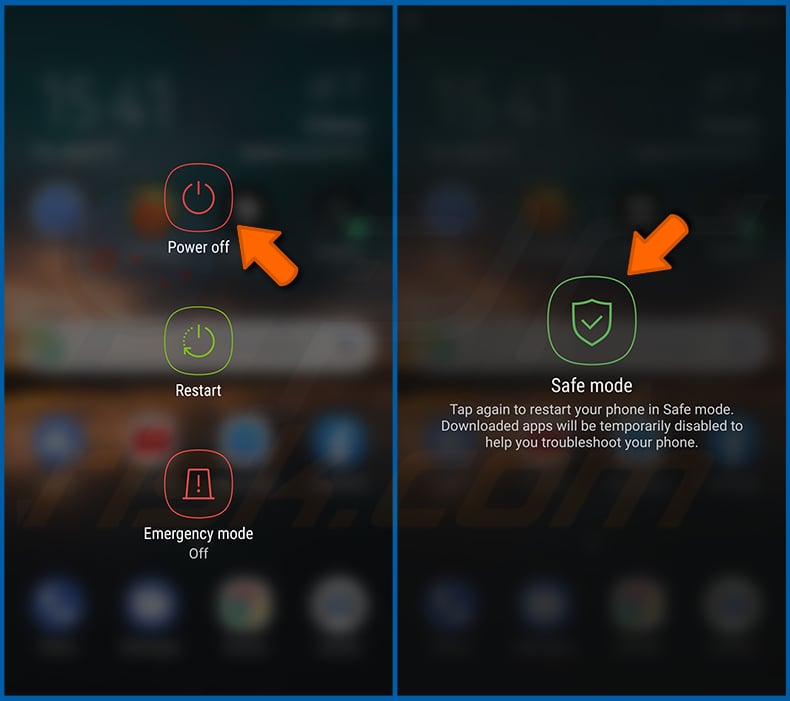
Push the "Power" button and hold it until you see the "Power off" screen. Tap the "Power off" icon and hold it. After a few seconds the "Safe Mode" option will appear and you'll be able run it by restarting the device.
Check the battery usage of various applications:
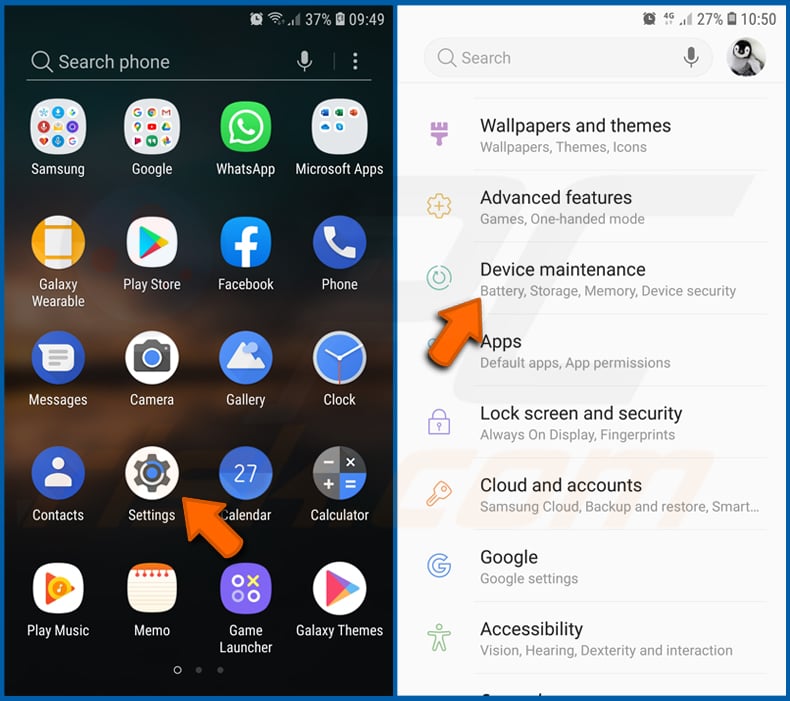
Go to "Settings", scroll down until you see "Device maintenance" and tap it.
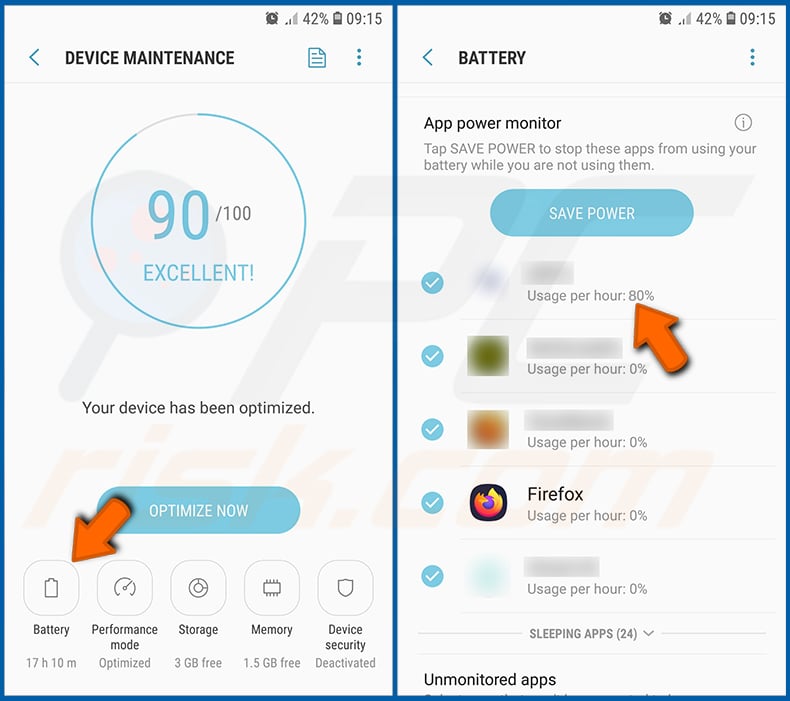
Tap "Battery" and check the usage of each application. Legitimate/genuine applications are designed to use as low energy as possible in order to provide the best user experience and to save power. Therefore, high battery usage may indicate that the application is malicious.
Check the data usage of various applications:
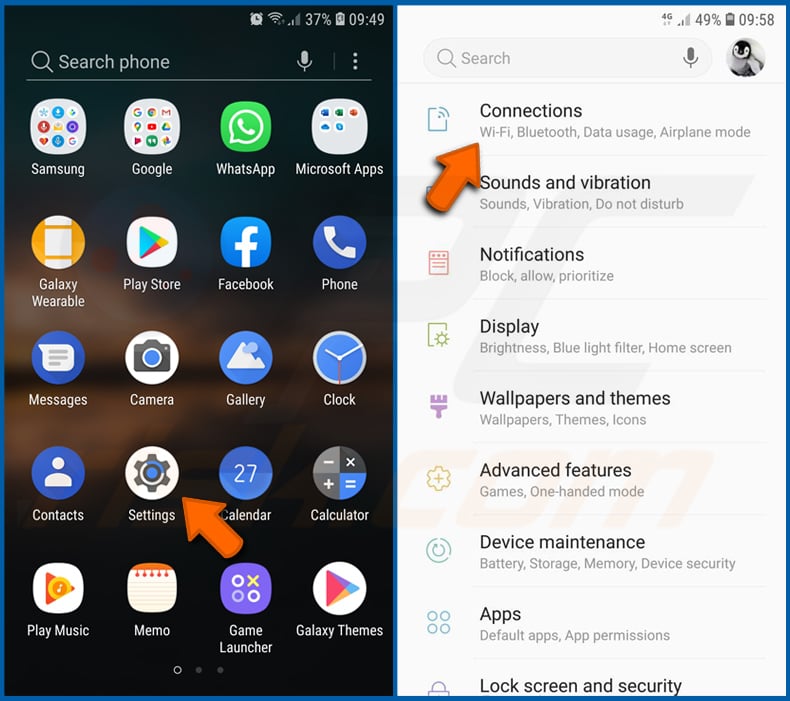
Go to "Settings", scroll down until you see "Connections" and tap it.
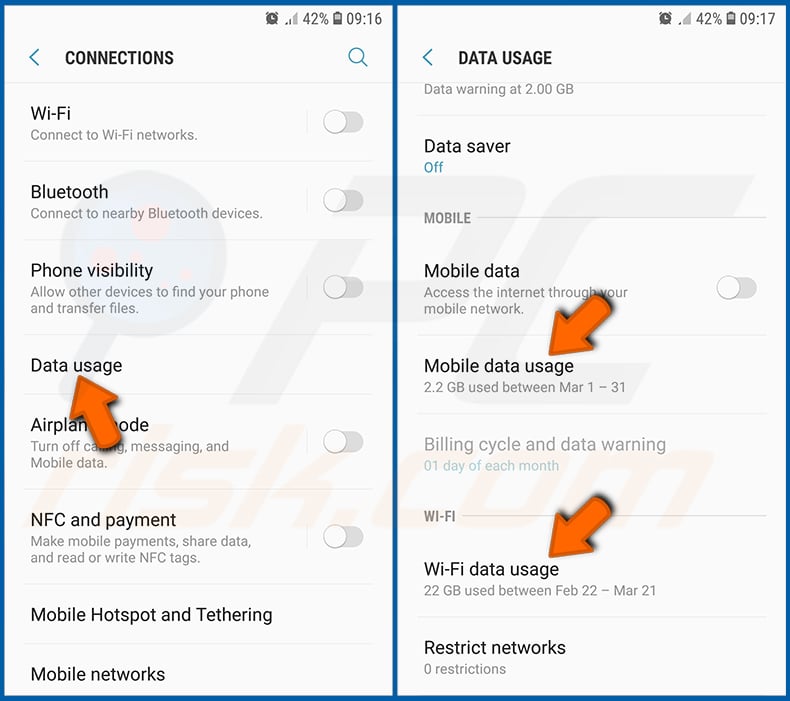
Scroll down until you see "Data usage" and select this option. As with battery, legitimate/genuine applications are designed to minimize data usage as much as possible. This means that huge data usage may indicate presence of malicious application. Note that some malicious applications might be designed to operate when the device is connected to wireless network only. For this reason, you should check both Mobile and Wi-Fi data usage.
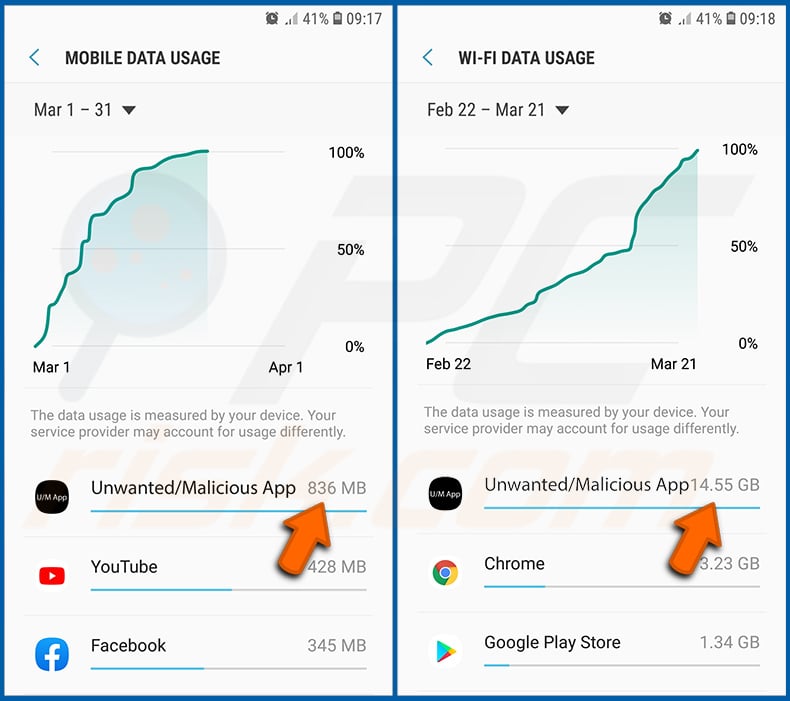
If you find an application that uses a lot of data even though you never use it, then we strongly advise you to uninstall it as soon as possible.
Install the latest software updates:
Keeping the software up-to-date is a good practice when it comes to device safety. The device manufacturers are continually releasing various security patches and Android updates in order to fix errors and bugs that can be abused by cyber criminals. An outdated system is way more vulnerable, which is why you should always be sure that your device's software is up-to-date.
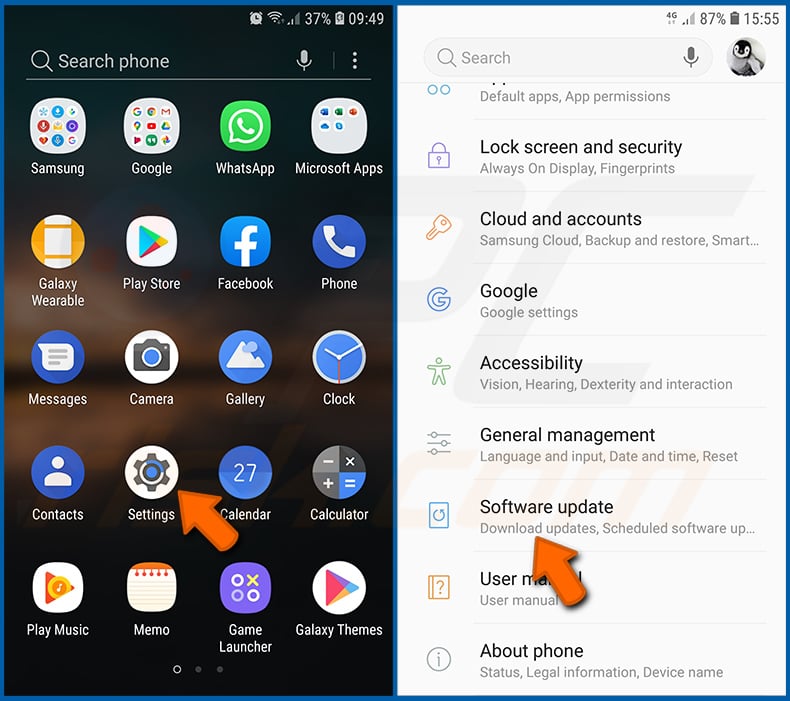
Go to "Settings", scroll down until you see "Software update" and tap it.
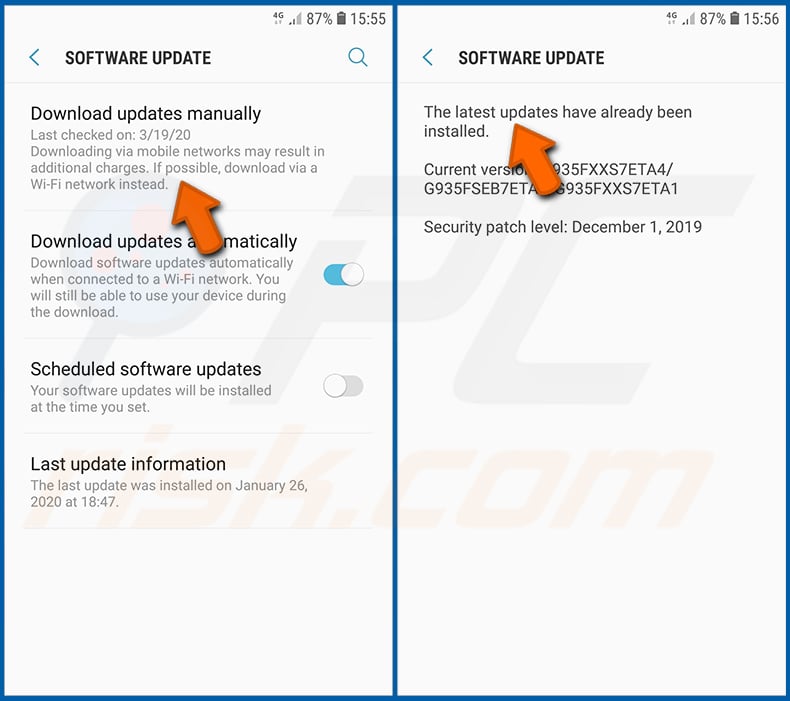
Tap "Download updates manually" and check if there are any updates available. If so, install them immediately. We also recommend to enable the "Download updates automatically" option - it will enable the system to notify you once an update is released and/or install it automatically.
Reset the system to its default state:
Performing a "Factory Reset" is a good way to remove all unwanted applications, restore system's settings to default and clean the device in general. However, you must keep in mind that all data within the device will be deleted, including photos, video/audio files, phone numbers (stored within the device, not the SIM card), SMS messages, and so forth. In other words, the device will be restored to its primal state.
You can also restore the basic system settings and/or simply network settings as well.
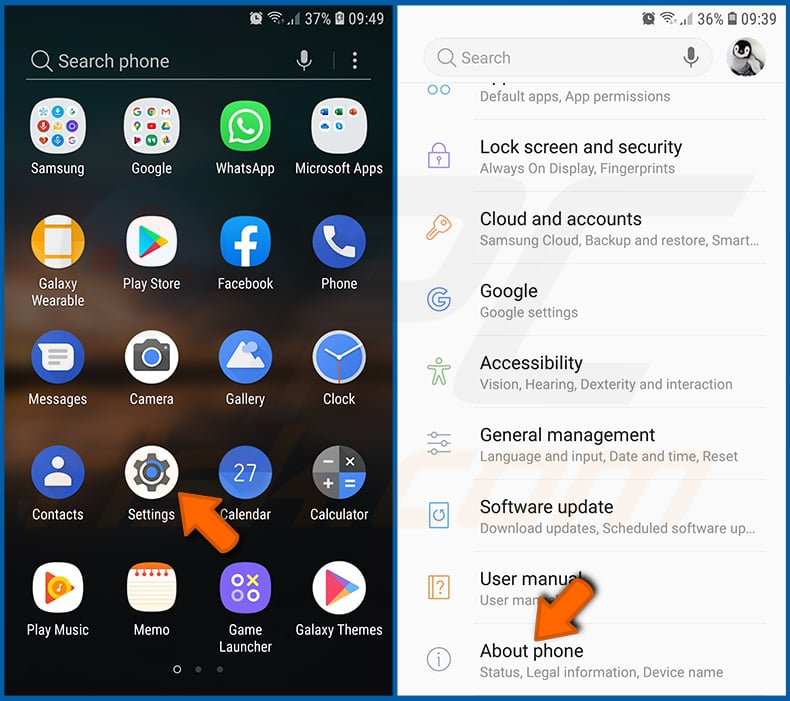
Go to "Settings", scroll down until you see "About phone" and tap it.
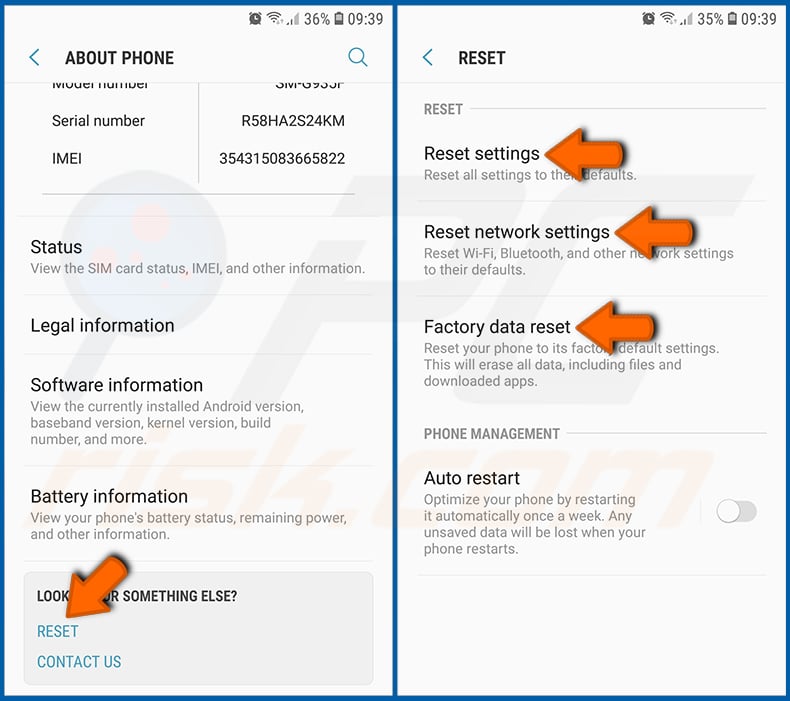
Scroll down until you see "Reset" and tap it. Now choose the action you want to perform:
"Reset settings" - restore all system settings to default;
"Reset network settings" - restore all network-related settings to default;
"Factory data reset" - reset the entire system and completely delete all stored data;
Disable applications that have administrator privileges:
If a malicious application gets administrator-level privileges it can seriously damage the system. To keep the device as safe as possible you should always check what apps have such privileges and disable the ones that shouldn't.
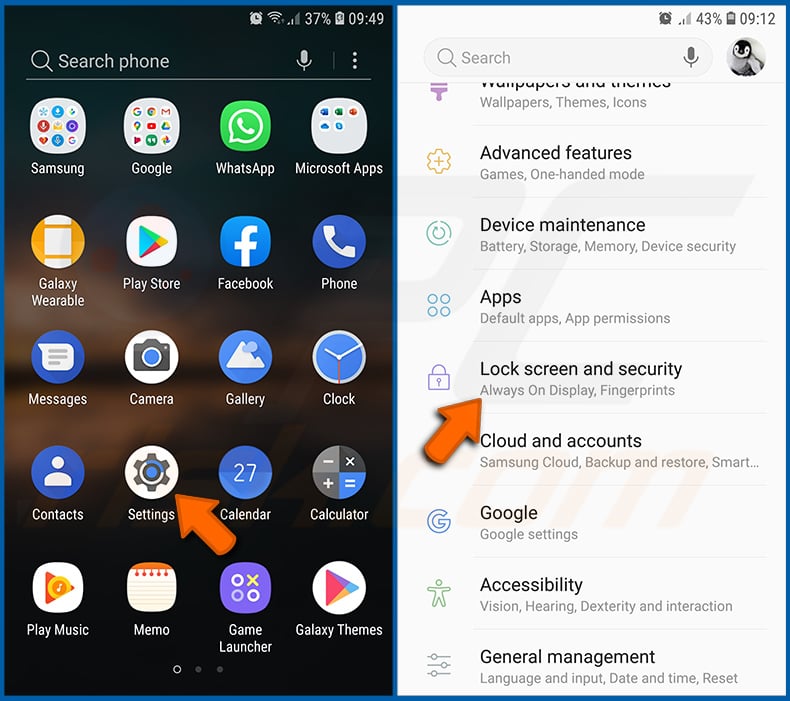
Go to "Settings", scroll down until you see "Lock screen and security" and tap it.

Scroll down until you see "Other security settings", tap it and then tap "Device admin apps".
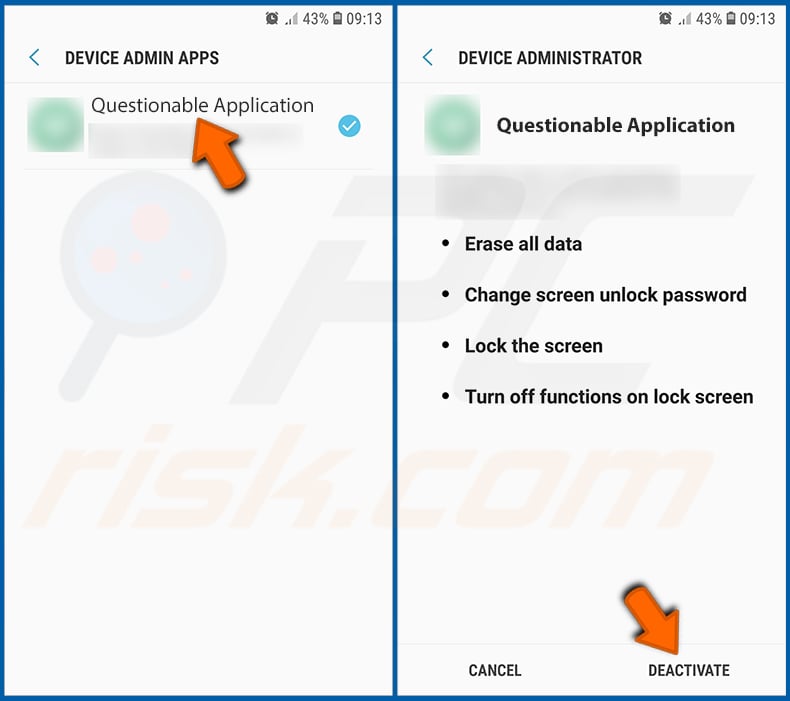
Identify applications that should not have administrator privileges, tap them and then tap "DEACTIVATE".
Frequently Asked Questions (FAQ)
My device is infected with Phantom malware, should I format my storage device to get rid of it?
Formatting your storage device will get rid of Phantom, but it will also delete all your data. A safer option is to use security software such as Combo Cleaner, which can remove the malware without erasing your files.
What are the biggest issues that malware can cause?
Malware can give attackers control over a device, secretly deploy other harmful programs, lock or encrypt files, steal login details and banking information, mine cryptocurrency, and perform other malicious actions.
What is the purpose of Phantom malware?
The main purpose of Phantom is to perform click fraud. It secretly loads websites and interacts with online ads to generate fake clicks, allowing attackers to make money while the activity appears to come from real users.
How did Phantom infiltrate my device?
Phantom is mainly spread through modified (cracked) apps and games that contain hidden malware. These apps are shared via third-party app stores, APK websites, Telegram channels, and Discord servers, and in some cases even appeared in alternative official stores. Users get infected when they download and install these apps.
Will Combo Cleaner protect me from malware?
Yes, Combo Cleaner can detect and remove nearly all known malware. However, advanced malware often hides deep within the system, so it is important to run a full system scan to ensure complete removal.
Share:
 Facebook
 X.com
X.com
 LinkedIn
 Copy Link

Tomas Meskauskas
Expert security researcher, professional malware analyst
I am passionate about computer security and technology. I have an experience of over 10 years working in various companies related to computer technical issue solving and Internet security. I have been working as an author and editor for pcrisk.com since 2010. Follow me on Twitter and LinkedIn to stay informed about the latest online security threats.
PCrisk security portal is brought by a company RCS LT.
Joined forces of security researchers help educate computer users about the latest online security threats. More information about the company RCS LT.
Our malware removal guides are free. However, if you want to support us you can send us a donation.
DonatePCrisk security portal is brought by a company RCS LT.
Joined forces of security researchers help educate computer users about the latest online security threats. More information about the company RCS LT.
Our malware removal guides are free. However, if you want to support us you can send us a donation.
Donate
▼ Show Discussion