

Get free scan and check if your device is infected.
Remove it nowTo use full-featured product, you have to purchase a license for Combo Cleaner. Seven days free trial available. Combo Cleaner is owned and operated by RCS LT, the parent company of PCRisk.com.
What kind of malware is KarstoRAT?
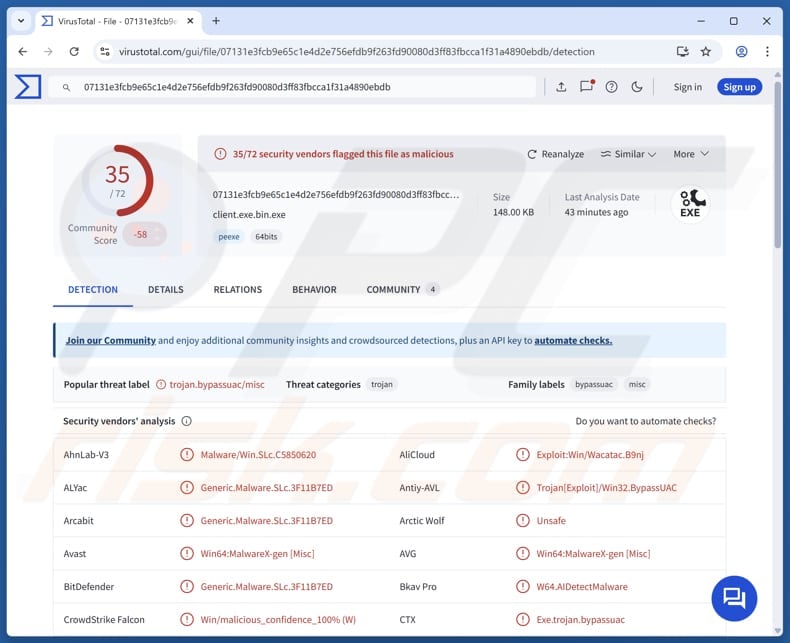
KarstoRAT is a remote access Trojan (RAT) that enables threat actors to steal information, execute commands, and perform other malicious actions on the infected device. The RAT disguises its command-and-control traffic as legitimate security software to avoid suspicion and uses persistence techniques to provide long-term access.
More about KarstoRAT
KarstoRAT identifies the infected device's public IP address and communicates regularly with its command-and-control (C2) server to report status and activity. This indicates that cybercriminals can choose which functions or modules to activate depending on the victim's location, network, or IP, rather than running all features on every system.
The malware's command-and-control (C2) system is modular, meaning each function operates separately and can be controlled individually. This allows attackers to deploy only the specific features they need, making their malicious activities harder for security teams to detect and stop quickly.
KarstoRAT ensures it stays active on the infected system by adding itself to the Windows Run keys. It copies its files to the Startup folder and creates a scheduled task named SystemCheck. It also gets higher system privileges by exploiting the built-in tool and modifying a specific registry key.
Moreover, KarstoRAT can detect debugging tools and security analysis environments before executing its malicious functions. If such tools are detected, the malware may limit or change its behavior to avoid analysis. The RAT can steal various information from the infected system, including passwords, authentication tokens, and other login information.
It can also pilfer clipboard data, take screenshots, and record keystrokes (capture data entered using the infected device's keyboard). Furthermore, KarstoRAT can upload files to the infected system, access the webcam, and execute various commands. Command execution and file upload capabilities are often used to deploy additional payloads (infect systems with additional malware).
| Name | KarstoRAT remote access trojan |
| Threat Type | Remote Access Trojan (RAT) |
| Detection Names | Avast (Win64:MalwareX-gen [Misc]), Combo Cleaner (Generic.Malware.SLc.3F11B7ED), ESET-NOD32 (Win64/Agent.AZG Trojan), Kaspersky (UDS:DangerousObject.Multi.Generic), Microsoft (Trojan:Win32/Wacatac.B!ml), Full List (VirusTotal) |
| Symptoms | RATs are designed to stealthily infiltrate the victim's computer and remain silent, and thus no particular symptoms are clearly visible on an infected machine. |
| Possible distribution methods | Infected email attachments, malicious online advertisements, social engineering, tech support scams, software vulnerabilities, software 'cracks'. |
| Damage | Stolen passwords and banking information, identity theft, the victim's computer added to a botnet, monetary loss, additional infections. |
| Malware Removal (Windows) |
To eliminate possible malware infections, scan your computer with legitimate antivirus software. Our security researchers recommend using Combo Cleaner. Download Combo CleanerTo use full-featured product, you have to purchase a license for Combo Cleaner. 7 days free trial available. Combo Cleaner is owned and operated by RCS LT, the parent company of PCRisk.com. |
Conclusion
In conclusion, KarstoRAT's persistence and evasion techniques make it a serious threat capable of stealing sensitive data, executing commands, and monitoring user activity. Possible harm includes monetary loss, additional infections, account hijacking, and identity theft. If detected, KarstoRAT should be removed immediately.
More examples of RATs are Moonrise, DesckVB, and GopherRAT.
How did malware infiltrate my computer?
Malware often infects a device when users download and run files that appear harmless but are malicious. This can happen through attachments (or links) in deceptive emails, fake technical support instructions, or pirated software, cracks, or key generators.
The malicious files used to deliver malware can be executables, scripts, archives (such as ZIP or RAR), or common documents (such as Word, Excel, or PDF). Infection can also spread via compromised websites, unofficial download sites, infected USB drives, misleading online ads, or unpatched vulnerabilities in outdated software and systems.
How to avoid installation of malware?
Always be cautious with irrelevant or unexpected emails and messages - make sure they are trustworthy before opening attachments or clicking links. Avoid visiting dubious websites and interacting with ads, pop-ups, or links on them, and never allow untrusted sites to send notifications.
Get software from official websites or trusted app stores, and avoid pirated programs, cracks, or unauthorized activation tools. Keep your operating system, browser, and all applications up to date and run regular scans with a reliable security program to detect and remove threats.
If you believe that your computer is already infected, we recommend running a scan with Combo Cleaner Antivirus for Windows to automatically eliminate infiltrated malware.
Instant automatic malware removal:
Manual threat removal might be a lengthy and complicated process that requires advanced IT skills. Combo Cleaner is a professional automatic malware removal tool that is recommended to get rid of malware. Download it by clicking the button below:
DOWNLOAD Combo CleanerBy downloading any software listed on this website you agree to our Privacy Policy and Terms of Use. To use full-featured product, you have to purchase a license for Combo Cleaner. 7 days free trial available. Combo Cleaner is owned and operated by RCS LT, the parent company of PCRisk.com.
Quick menu:
- What is KarstoRAT?
- STEP 1. Manual removal of KarstoRAT malware.
- STEP 2. Check if your computer is clean.
How to remove malware manually?
Manual malware removal is a complicated task - usually it is best to allow antivirus or anti-malware programs to do this automatically. To remove this malware we recommend using Combo Cleaner Antivirus for Windows.
If you wish to remove malware manually, the first step is to identify the name of the malware that you are trying to remove. Here is an example of a suspicious program running on a user's computer:
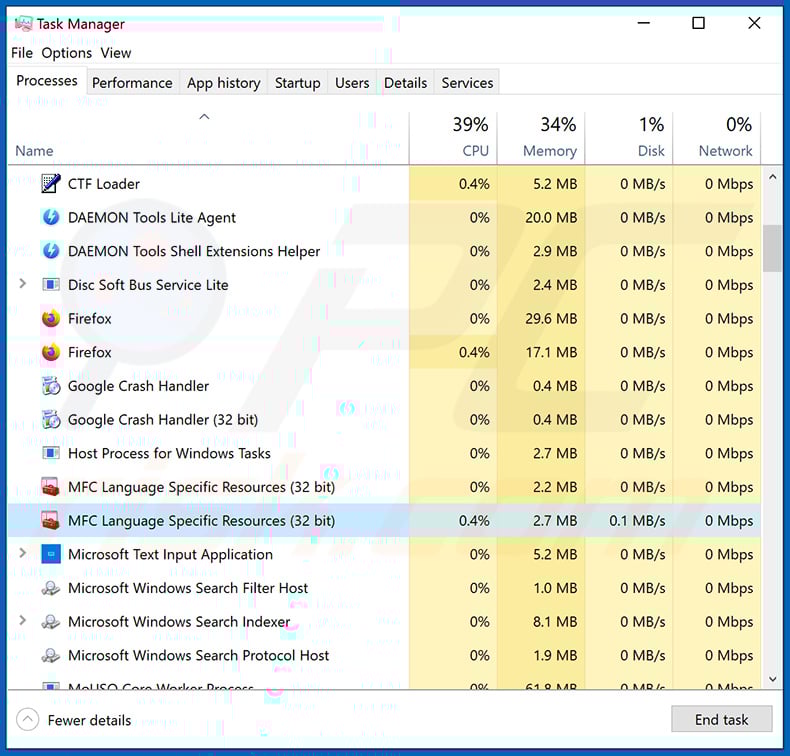
If you checked the list of programs running on your computer, for example, using task manager, and identified a program that looks suspicious, you should continue with these steps:
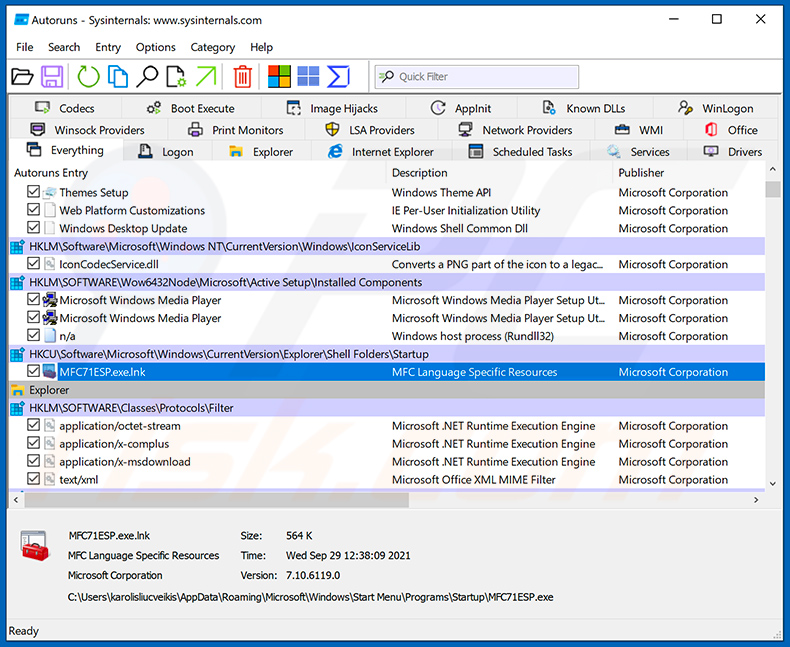
 Download a program called Autoruns. This program shows auto-start applications, Registry, and file system locations:
 Restart your computer into Safe Mode:
Windows XP and Windows 7 users: Start your computer in Safe Mode. Click Start, click Shut Down, click Restart, click OK. During your computer start process, press the F8 key on your keyboard multiple times until you see the Windows Advanced Option menu, and then select Safe Mode with Networking from the list.
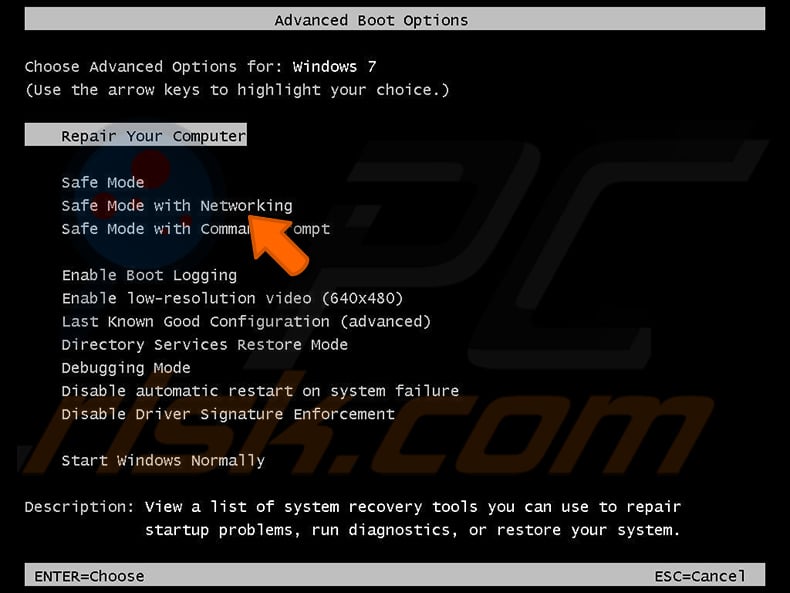
Video showing how to start Windows 7 in "Safe Mode with Networking":
Windows 8 users: Start Windows 8 is Safe Mode with Networking - Go to Windows 8 Start Screen, type Advanced, in the search results select Settings. Click Advanced startup options, in the opened "General PC Settings" window, select Advanced startup.
Click the "Restart now" button. Your computer will now restart into the "Advanced Startup options menu". Click the "Troubleshoot" button, and then click the "Advanced options" button. In the advanced option screen, click "Startup settings".
Click the "Restart" button. Your PC will restart into the Startup Settings screen. Press F5 to boot in Safe Mode with Networking.
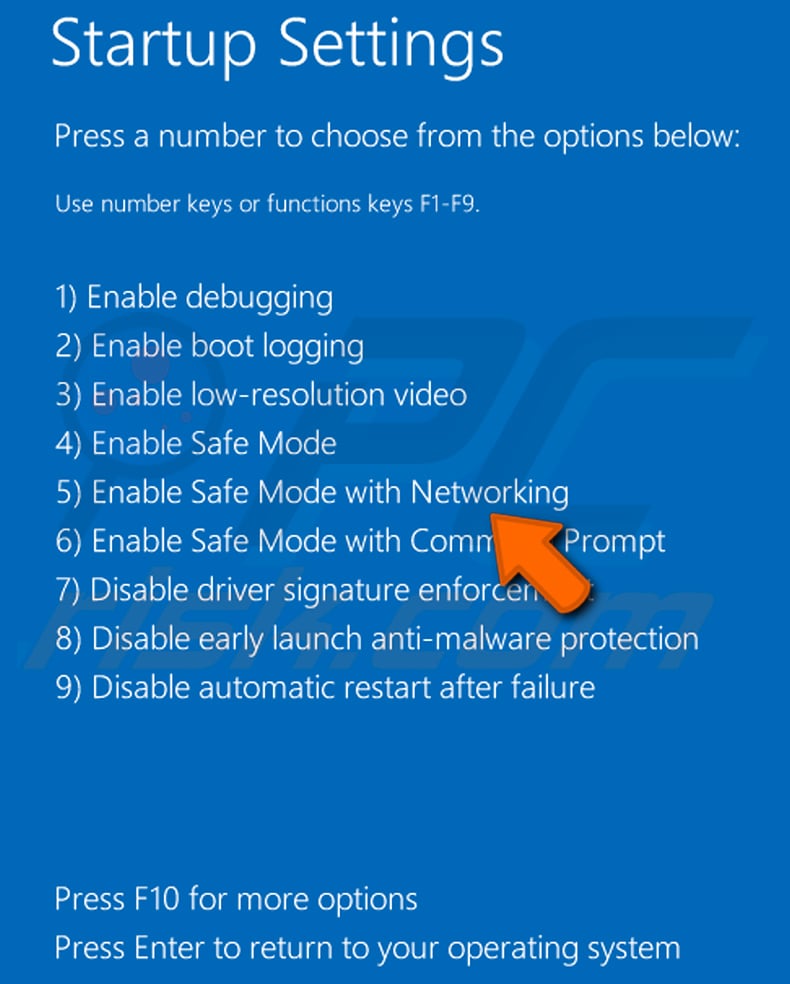
Video showing how to start Windows 8 in "Safe Mode with Networking":
Windows 10 users: Click the Windows logo and select the Power icon. In the opened menu click "Restart" while holding "Shift" button on your keyboard. In the "choose an option" window click on the "Troubleshoot", next select "Advanced options".
In the advanced options menu select "Startup Settings" and click on the "Restart" button. In the following window you should click the "F5" button on your keyboard. This will restart your operating system in safe mode with networking.
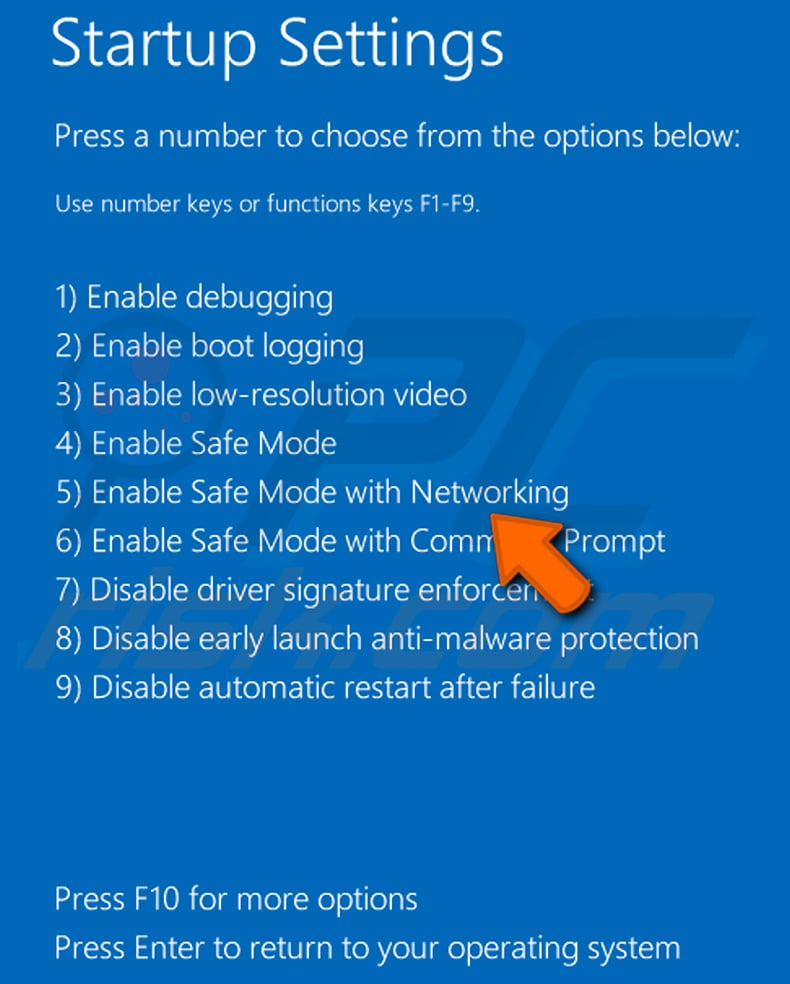
Video showing how to start Windows 10 in "Safe Mode with Networking":
 Extract the downloaded archive and run the Autoruns.exe file.
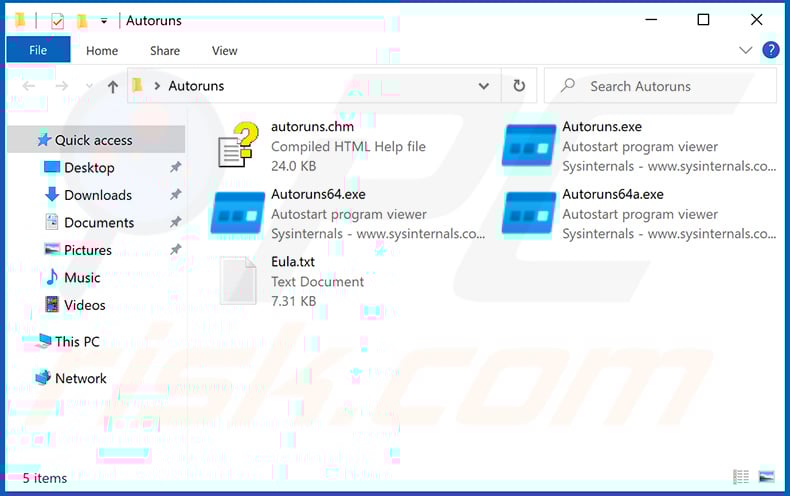
 In the Autoruns application, click "Options" at the top and uncheck "Hide Empty Locations" and "Hide Windows Entries" options. After this procedure, click the "Refresh" icon.
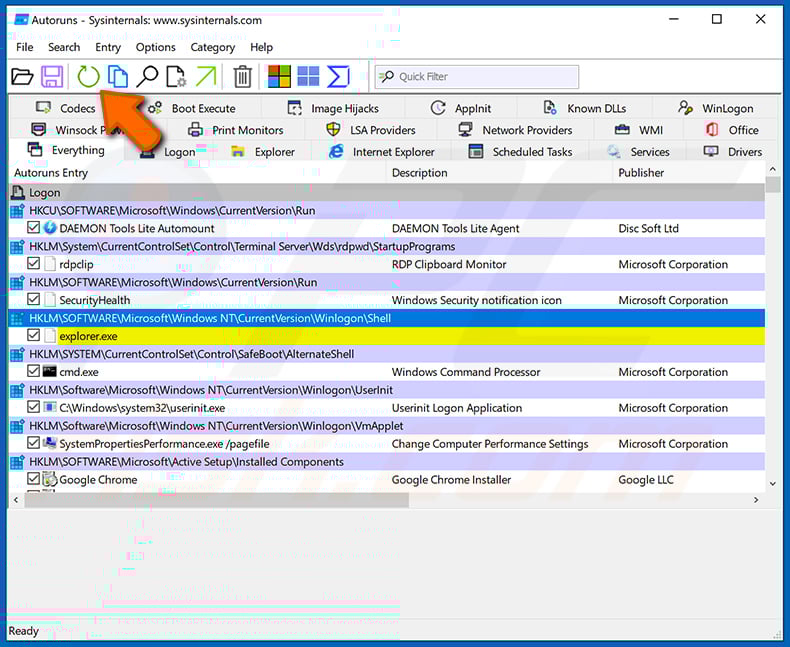
 Check the list provided by the Autoruns application and locate the malware file that you want to eliminate.
You should write down its full path and name. Note that some malware hides process names under legitimate Windows process names. At this stage, it is very important to avoid removing system files. After you locate the suspicious program you wish to remove, right click your mouse over its name and choose "Delete".
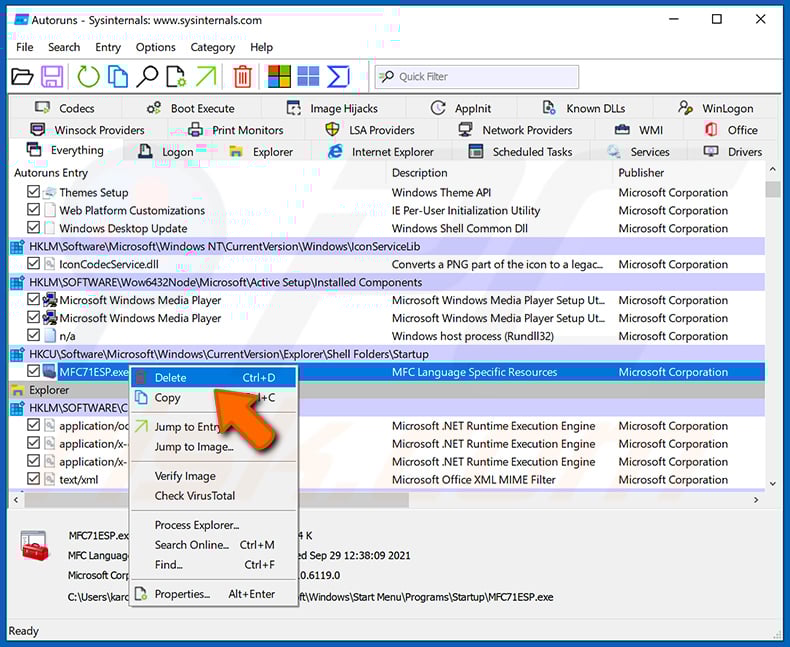
After removing the malware through the Autoruns application (this ensures that the malware will not run automatically on the next system startup), you should search for the malware name on your computer. Be sure to enable hidden files and folders before proceeding. If you find the filename of the malware, be sure to remove it.
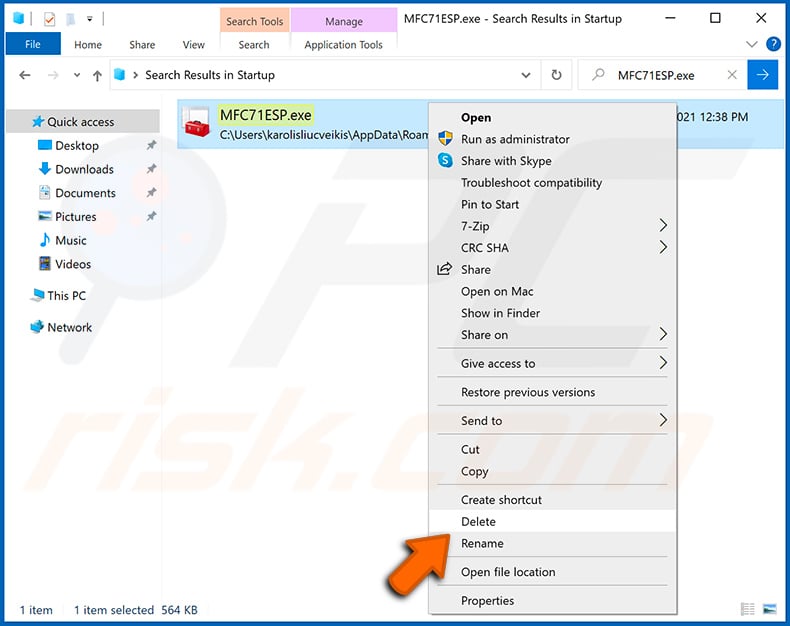
Reboot your computer in normal mode. Following these steps should remove any malware from your computer. Note that manual threat removal requires advanced computer skills. If you do not have these skills, leave malware removal to antivirus and anti-malware programs.
These steps might not work with advanced malware infections. As always it is best to prevent infection than try to remove malware later. To keep your computer safe, install the latest operating system updates and use antivirus software. To be sure your computer is free of malware infections, we recommend scanning it with Combo Cleaner Antivirus for Windows.
Frequently Asked Questions (FAQ)
My device is infected with KarstoRAT, should I format my storage device to get rid of it?
Formatting your device will remove KarstoRAT, but this is drastic and should only be done if necessary. Initially, it is recommended to scan the system with a reputable tool like Combo Cleaner to detect and eliminate the malware.
What are the biggest issues that malware can cause?
Malware can harm a system in multiple ways: it may capture personal data, give attackers remote control over the device, or drop additional malicious programs. It can also delete or corrupt files, reduce system performance, and create various other issues.
What is the purpose of KarstoRAT?
KarstoRAT can steal credentials, capture keystrokes and clipboard data, exfiltrate files, execute remote commands, and monitor activity through screenshots, webcam, and audio.
How did malware infiltrate my device?
Malware typically infects devices through seemingly harmless files, email attachments or links, fake support instructions, and pirated software or cracks. These malicious files can be executables, scripts, archives, or documents, and infections can also spread via compromised websites, USB drives, misleading ads, or unpatched software vulnerabilities.
Will Combo Cleaner protect me from malware?
Combo Cleaner can identify and eliminate most known malware. Since some sophisticated threats may be hidden deep in the system, performing a complete system scan is recommended to ensure every infection is detected and removed.
Share:
 Facebook
 X.com
X.com
 LinkedIn
 Copy Link

Tomas Meskauskas
Expert security researcher, professional malware analyst
I am passionate about computer security and technology. I have an experience of over 10 years working in various companies related to computer technical issue solving and Internet security. I have been working as an author and editor for pcrisk.com since 2010. Follow me on Twitter and LinkedIn to stay informed about the latest online security threats.
PCrisk security portal is brought by a company RCS LT.
Joined forces of security researchers help educate computer users about the latest online security threats. More information about the company RCS LT.
Our malware removal guides are free. However, if you want to support us you can send us a donation.
DonatePCrisk security portal is brought by a company RCS LT.
Joined forces of security researchers help educate computer users about the latest online security threats. More information about the company RCS LT.
Our malware removal guides are free. However, if you want to support us you can send us a donation.
Donate
▼ Show Discussion