

Get free scan and check if your device is infected.
Remove it nowTo use full-featured product, you have to purchase a license for Combo Cleaner. Seven days free trial available. Combo Cleaner is owned and operated by RCS LT, the parent company of PCRisk.com.
What kind of malware is Marco?
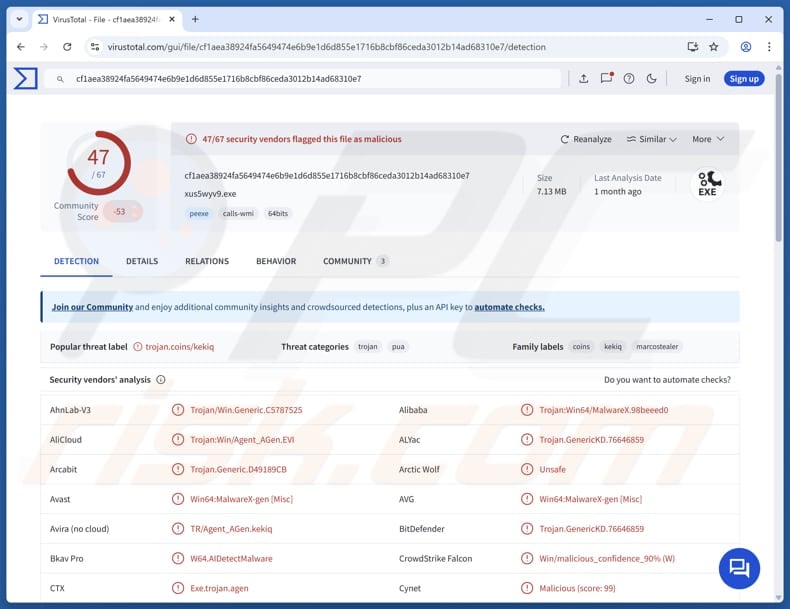
Marco is an information stealer that targets browser data, cryptocurrency wallets, and sensitive files stored on infected devices or in cloud services. The malware also gathers system details and uses techniques such as encryption and disabling security tools to avoid detection. It sends stolen data to its servers using encrypted HTTP communication.
More about Marco
Marco ensures that only one copy runs on a system and uses encrypted code to hide its activity. It checks running programs and shuts down security or analysis tools like Process Hacker, OllyDbg, Wireshark or x64dbg to avoid detection. If there is no internet connection, it deletes itself and stops running.
If connected, it collects details like the IP address, hardware ID, installed antivirus software, running processes, and location, and sends this data to its server. Next, Marco steals browser data using two built-in tools. It drops hidden files onto the system, then uses them to access and decrypt sensitive browser information.
This includes saved passwords, cookies, browsing history, and autofill data. It also retrieves encryption keys used by browsers to protect this data. Additionally, it gathers data stored in browser profiles, including information from browsers like Chrome, Firefox, and Pale Moon.
Furthermore, Marco looks for cryptocurrency wallet browser extensions, primarily in Chromium-based browsers such as Chrome. It scans common folders where browser data is saved and gathers wallet files. Also, the stealer collects data from various apps, programs, and online services on the infected device (including files, settings, and other sensitive information).
Additionally, Marco can steal data copied to the clipboard and take screenshots of the victim's screen. The stealer can also access folders and cloud storage locations such as Desktop, Documents, Pictures, Videos, OneDrive, Dropbox, and Google Drive.
| Name | Marco information stealer |
| Threat Type | Stealer |
| Detection Names | Avast (Win64:MalwareX-gen [Misc]), Combo Cleaner (Trojan.GenericKD.76646859), ESET-NOD32 (Win64/Agent_AGen.ERC Trojan), Kaspersky (Trojan-PSW.Win64.Coins.bsy), Microsoft (Trojan:Win32/Malgent!MSR), Full List (VirusTotal) |
| Symptoms | Stealers are designed to stealthily infiltrate the victim's computer and remain silent, and thus no particular symptoms are clearly visible on an infected machine. |
| Possible distribution methods | Infected email attachments, malicious online advertisements, social engineering, software vulnerabilities, software 'cracks'. |
| Damage | Stolen passwords and banking information, identity theft, account hijacking, monetary loss. |
| Malware Removal (Windows) |
To eliminate possible malware infections, scan your computer with legitimate antivirus software. Our security researchers recommend using Combo Cleaner. Download Combo CleanerTo use full-featured product, you have to purchase a license for Combo Cleaner. 7 days free trial available. Combo Cleaner is owned and operated by RCS LT, the parent company of PCRisk.com. |
Conclusion
Overall, Marco is a stealer designed to collect sensitive information from an infected device. It targets both system data and user activity, including browsers, files, and cryptocurrency wallets. Victims may experience identity theft, financial loss, account hijacking, and other issues. If detected on a device, Marco should be removed immediately.
More examples of information stealers are Torg, VoidStealer, and BoryptGrab.
How did Marco infiltrate my computer?
The infection starts when the victim downloads a ZIP file containing a malicious downloader. When opened, this downloader runs hidden code that decrypts its instructions. It then executes a PowerShell command to download the main malware from an external server.
The ZIP file used to deliver Marco is likely distributed via scam email containing malicious attachments or links, malicious advertisements, cracking tools (or pirated software), deceptive websites, P2P networks, or technical support scams.
How to avoid installation of malware?
Download software and files only from reliable sources, such as official websites or trusted app stores, and avoid using cracked programs, pirated software, or key generators. Keep your operating system and all applications up to date. Be cautious with unexpected emails or messages from unknown senders, especially if they include links or attachments.
Avoid interacting with pop-ups, ads, or prompts on untrusted websites, including allowing notifications from questionable pages. If you believe that your computer is already infected, we recommend running a scan with Combo Cleaner Antivirus for Windows to automatically eliminate infiltrated malware.
How to remove malware manually?
Most trojan infections can be removed by running a full system scan with Combo Cleaner. The full manual procedure below is for cases where automatic removal failed, where you want to verify a scan caught everything, or where the threat has multiple persistence points.
Disconnect from the network
Unplug your Ethernet cable and turn off Wi-Fi. If you're on a laptop, the airplane-mode key works fastest.
Many trojans exfiltrate data - saved browser passwords, banking sessions, screenshots - and accept remote commands. Cutting the network stops both immediately. Keep it disconnected until Phase 4.
Boot into Safe Mode with Networking
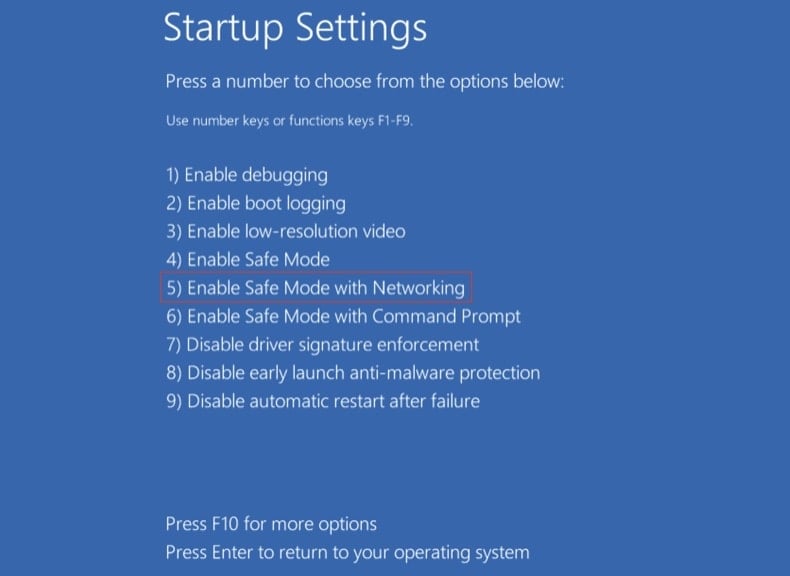
Safe Mode loads a minimal set of drivers and stops most malware from auto-running. "With Networking" lets you download tools - re-enable Wi-Fi only after you've booted in.
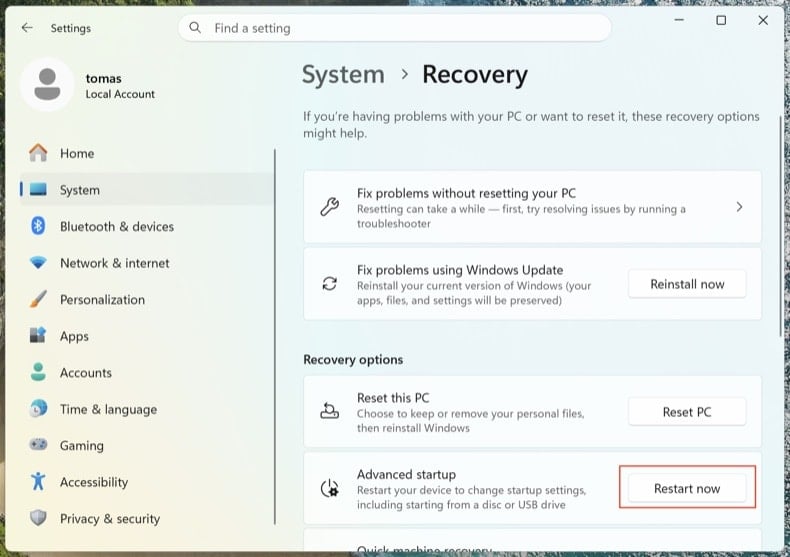
Open . Click Restart now next to Advanced startup.
Your computer will restart into the "Choose an option" menu. Click . After the second reboot, press 5 or F5.
Click the Windows logo, hold Shift, click the Power icon and choose Restart. In the Choose an option screen, click . Press F5.
Windows 8
Go to the Start Screen, type Advanced, select Settings → Advanced startup options → Restart now → Troubleshoot → Advanced options → Startup settings → Restart → F5.
Note: Windows 8 reached end-of-life in January 2023 - running on it puts you at much higher risk of reinfection.
Windows 7
Click Start → Shut Down → Restart → OK. As the system boots, press F8 repeatedly until the Windows Advanced Options menu appears, then choose Safe Mode with Networking.
Note: Windows 7 reached end-of-life in January 2020 - running on it puts you at much higher risk of reinfection.
Inspect running processes with Process Explorer
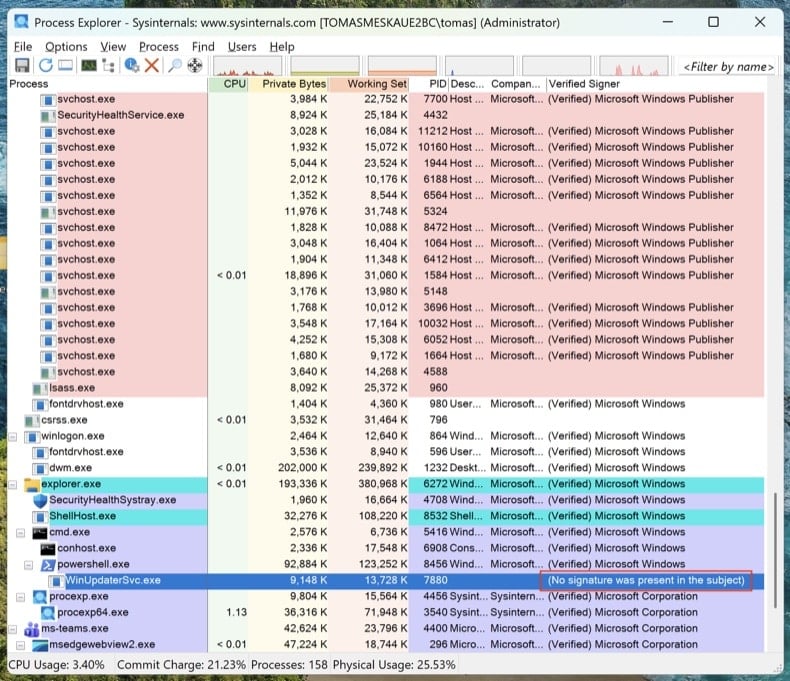
Download Process Explorer from Microsoft Sysinternals. Run it as Administrator. Click and .
Sort by "Verified Signer." Anything unsigned running from %AppData%, %LocalAppData%, %Temp%, or %ProgramData% is suspicious. Right-click → Properties to see the full image path. Right-click → "Search Online" to look up unfamiliar process names.
Task Manager hides full file paths, doesn't show digital signatures, and groups processes in ways that make malware easy to miss. Process Explorer is the same tool Microsoft engineers use.
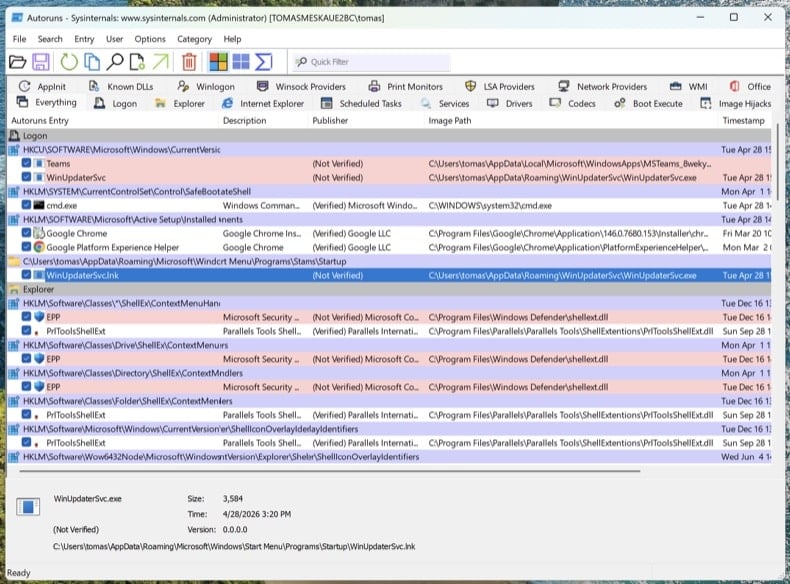
Map every persistence point with Autoruns
Download Autoruns. Right-click Autoruns.exe and choose Run as administrator - without elevation, Autoruns can't inspect protected registry hives.
In the menu, open and , then click Refresh.
Modern trojans don't just live in startup. Walk through these tabs and look for unsigned or unfamiliar entries:
- Logon - classic Run/RunOnce keys
- Scheduled Tasks - frequent hiding spot, especially tasks with PowerShell, MSHTA, or rundll32 actions
- Services - unsigned services in non-Microsoft folders
- WMI - Event Subscriptions are a stealthy persistence mechanism (MITRE T1546.003)
- Image Hijacks - Image File Execution Options "Debugger" abuse
- AppInit - DLLs loaded into every GUI process
- Browser plug-ins - unsigned add-ons across all installed browsers
Right-click any suspicious entry → "Jump to Image" to see the actual file. Right-click → "Search Online" opens VirusTotal for the file hash. Don't delete yet - just write down the file paths and entry names. We'll remove them after the scans.
Check the hosts file and DNS settings
Trojans often redirect bank, antivirus, and update domains to attacker-controlled servers by editing the hosts file or DNS settings.
Hosts file: Open Notepad as Administrator and open C:\Windows\System32\drivers\etc\hosts. Legitimate entries are commented with #. Any uncommented IP-to-domain mapping is suspicious - especially redirects for microsoft.com, windowsupdate, or your bank.
DNS settings: Open Command Prompt as Administrator and run ipconfig /all. Confirm your DNS servers point to your ISP, your router, or a known public resolver (Cloudflare 1.1.1.1, Google 8.8.8.8). Then open and verify both DNS and DNS over HTTPS (DoH) settings haven't been hijacked.
A clean PC with hijacked DNS is still a compromised PC. You'll think you're at chase.com and you'll be at the attacker's clone.
No single antivirus catches everything. The order below is intentional: offline scan first (catches rootkits before Windows fully loads), then on-demand scanners on the running system, then manual cleanup of anything they missed.
Run Microsoft Defender Offline
Reboot to normal Windows. Open . Select Microsoft Defender Antivirus (offline scan) and click Scan now. Your computer will restart into a stripped-down environment and scan before the full operating system loads.
Rootkits and bootkits hide from any scanner running on the same Windows session that's already infected. A pre-boot offline scan sees the disk before the malware can hide itself.
VB100 certified. Includes anti-trojan, registry/persistence scanning, anti-spyware in one pass. The 7-day free trial is available.
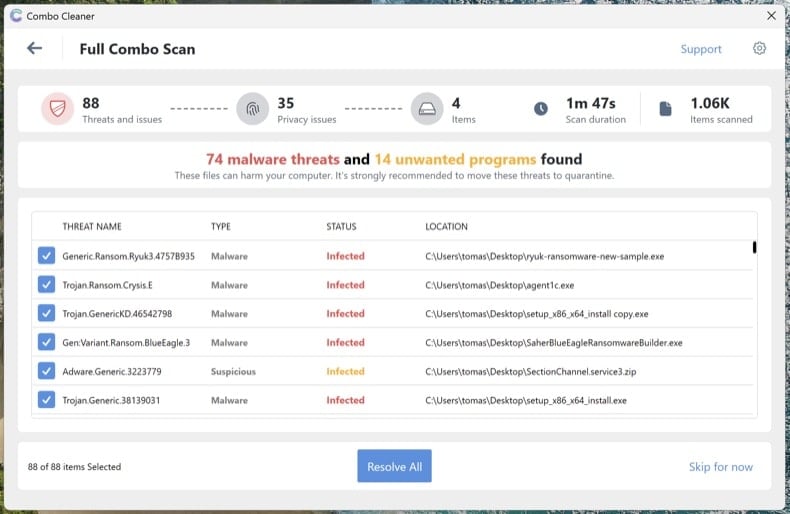
Download Combo CleanerRun Combo Cleaner full system scan
Install Combo Cleaner and run a full system scan (not the quick scan). Let it complete fully, review the detected threats, and apply the recommended actions. Combo Cleaner will quarantine known trojans and registry persistence.
Run Microsoft Safety Scanner as a second-opinion scan
Download Microsoft Safety Scanner (MSERT.exe), Microsoft's free on-demand tool. The binary expires every 10 days, which means every download has the latest signatures. Run a full scan after Combo Cleaner to catch anything one engine alone might miss.
Different scanning engines catch different threats. Running an additional Microsoft scan after Combo Cleaner is the single most underused verification step in malware removal.
Manually remove anything still listed in Autoruns
Reopen Autoruns. Anything you flagged in Step 4 that's still present hasn't been caught by the automated scans. For each remaining suspicious entry: right-click → Delete in Autoruns (this removes the persistence registration), then navigate to the file path and delete the actual file. Empty the Recycle Bin.
Some malware files reappear after deletion because something else on the system recreates them. If you delete a file and it returns within minutes, you have a remaining persistence point that Autoruns didn't show - usually a service or scheduled task running under SYSTEM. Re-run the scans from Steps 6-8 or proceed to a clean install (see end of guide).
Reset browsers and clear notification permissions
Trojans and adware frequently hijack browsers - change the default search engine, install rogue extensions, or grant themselves notification permissions to keep displaying scam pop-ups even after the malware is gone.
- Chrome: visit
chrome://settings/resetand click "Restore settings to their original defaults." Then visitchrome://settings/content/notificationsand remove any unfamiliar sites. - Edge: visit
edge://settings/reset. Then checkedge://settings/content/notifications. - Firefox: open
about:supportand click Refresh Firefox (Firefox uses "Refresh," not "Reset"). Then check Settings → Privacy & Security → Permissions → Notifications.
Review installed extensions in each browser and remove anything you don't recognize, especially extensions you didn't install yourself.
Re-enable Defender, Tamper Protection, and update everything
Many trojans disable security software. Open and confirm Real-time protection, Cloud-delivered protection, and Tamper Protection are all turned on. Tamper Protection prevents malware from disabling Defender silently.
Then run Windows Update () and update your browsers and applications. The infection vector that let the trojan in originally usually involves outdated software.
Change passwords from a clean device
If the trojan was an info-stealer (Lumma, RedLine, Vidar, and similar are extremely common), assume every password saved in your browser is compromised. Change them from a different, known-clean device - your phone is fine if it's not infected.
Recommended order:
- Primary email first - it's the recovery hub for everything else
- Banking and financial accounts
- Password manager master password (if you use one)
- Social media, shopping, and remaining accounts
Where available, enable phishing-resistant multi-factor authentication (passkeys / FIDO2 hardware keys / authenticator apps) - SMS-based MFA is bypassable by sophisticated attackers.
Verify the clean and monitor for 7 days
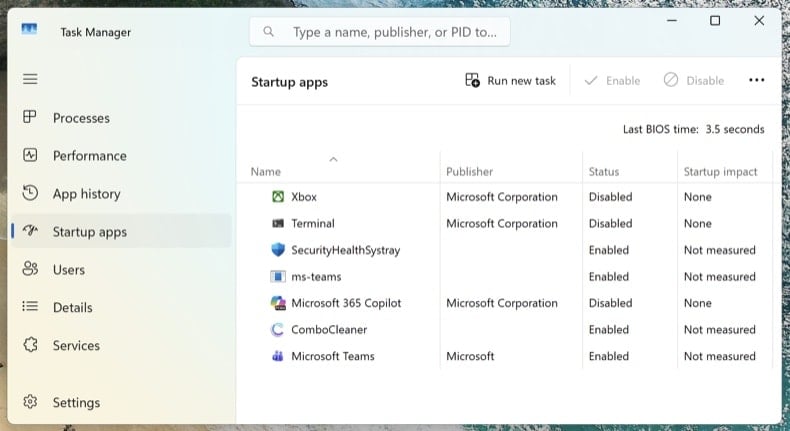
Reconnect to the network and run one final full scan with Combo Cleaner. Open Task Manager (Ctrl + Shift + Esc) and switch to the Startup apps tab - confirm nothing suspicious has reappeared.
Over the next 7 days, watch for symptom recurrence: unexpected high CPU usage, unknown processes returning, browser redirects, or pop-ups. If anything returns, you missed a persistence point and the procedure needs to be repeated - or you may have a deeper compromise that requires a clean install.
When to clean install Windows instead
Manual removal isn't always the right answer. Reinstalling Windows from scratch is the only way to be 100% certain when:
- The malware reappears after every removal attempt
- A bootkit or UEFI rootkit was detected (this class of threat sits below the operating system and survives a normal Windows reinstall)
- A confirmed credential-theft trojan ran with administrator privileges (Lumma, RedLine, Vidar) - the system likely has multiple unknown payloads
- The PC is used for online banking, business email, or anything where partial doubt isn't acceptable
A clean install is a 30-60 minute process: Windows 11 reinstall via . Back up documents to external storage first, scan the backup with Combo Cleaner before restoring it, and reinstall applications fresh - never restore them from a backup of the infected system.
Important: Manual removal requires advanced computer skills. If you're not confident identifying system files from malicious files, run an automated scan with Combo Cleaner and Windows Defender and stop there - that path catches the vast majority of consumer trojans without the risk of breaking Windows by deleting the wrong file.
Frequently Asked Questions (FAQ)
My computer is infected with Marco stealer, should I format my storage device to get rid of it?
This method can remove Marco completely, but it will also erase all files and data on the device. It is usually better to try a trusted security tool like Combo Cleaner first before formatting the system.
What are the biggest issues that malware can cause?
Malware can steal sensitive information, inject additional malware, damage or delete important files, and perform other malicious actions. It can lead to data loss and unauthorized access to accounts, financial losses, identity theft, and other consequences.
What is the purpose of Marco?
The purpose of Marco is to steal sensitive information from infected systems. It can collect data such as browser information, saved passwords, cryptocurrency wallet details, files, screenshots, and system information.
How did Marco infiltrate my computer?
Infection begins when a victim opens a malicious ZIP file containing a downloader. The ZIP file can be spread through scam emails, fake ads, pirated software, malicious websites, P2P networks, tech support scams, and similar channels.
Will Combo Cleaner protect me from malware?
Yes, Combo Cleaner can detect and remove most known malware infections. However, some advanced threats can hide deep within the system, so running a full system scan is necessary to make sure threats are removed.
Share:
 Facebook
 X.com
X.com
 LinkedIn
 Copy Link

Tomas Meskauskas
Expert security researcher, professional malware analyst
I am passionate about computer security and technology. I have an experience of over 10 years working in various companies related to computer technical issue solving and Internet security. I have been working as an author and editor for pcrisk.com since 2010. Follow me on Twitter and LinkedIn to stay informed about the latest online security threats.
PCrisk security portal is brought by a company RCS LT.
Joined forces of security researchers help educate computer users about the latest online security threats. More information about the company RCS LT.
Our malware removal guides are free. However, if you want to support us you can send us a donation.
DonatePCrisk security portal is brought by a company RCS LT.
Joined forces of security researchers help educate computer users about the latest online security threats. More information about the company RCS LT.
Our malware removal guides are free. However, if you want to support us you can send us a donation.
Donate
▼ Show Discussion