
How to block ads from sessionverify.co.in
Notification SpamAlso Known As: Ads by sessionverify.co.in

Get free scan and check if your device is infected.
Remove it nowTo use full-featured product, you have to purchase a license for Combo Cleaner. Seven days free trial available. Combo Cleaner is owned and operated by RCS LT, the parent company of PCRisk.com.
What kind of page is sessionverify.co[.]in?
Our analysis shows that sessionverify.co[.]in uses misleading messages to trick users into allowing notifications. Once permission is granted, it abuses this access to push deceptive alerts and other misleading messages. These notifications can lead users to fraudulent pages. For these reasons, the site is considered unreliable.
![sessionverify.co[.]in ads](/images/stories/screenshots202605/sessionverify-co-in-ads-main.jpg)
Sessionverify.co[.]in in detail
There are two versions of sessionverify.co[.]in. In the first case, the site instructs visitors to tick the checkbox if they are not robots and displays a reCAPTCHA logo to appear legitimate. It then says that visitors have to click "Allow" to confirm that they are not robots.
In the second case, sessionverify.co[.]in claims that the system has detected unusual traffic coming from the user's network. It states that a verification step is required to confirm that the requests are being made by a human rather than an automated bot. The message also provides the IP address and timestamp.
In both scenarios, the goal is to trick visitors into clicking "Allow", which grants the site permission to send notifications. We found that notifications from sessionverify.co[.]in often involve fake critical virus alerts claiming that a computer is infected and urging users to click the provided option to "secure" the device.
Clicking these notifications may direct users to fraudulent websites that aim to collect sensitive data such as account credentials or payment details. In some cases, they may also lead to pages that distribute unwanted or harmful software. For this reason, allowing notifications from sessionverify.co[.]in is considered unsafe.
If permission has already been granted to sessionverify.co[.]in or any similar untrustworthy site, it is recommended that the notification access be revoked immediately.
| Name | Ads by sessionverify.co.in |
| Threat Type | Push notifications ads, Unwanted ads, Pop-up ads |
| Detection Names | ADMINUSLabs (Malicious), Kaspersky (Malware), Full List Of Detections (VirusTotal) |
| Serving IP Address | 104.21.39.33 |
| Symptoms | Seeing advertisements not originating from the sites you are browsing. Intrusive pop-up ads. Decreased Internet browsing speed. |
| Distribution Methods | Deceptive pop-up ads, false claims within visited websites, unwanted applications (adware) |
| Damage | Decreased computer performance, browser tracking - privacy issues, possible additional malware infections. |
| Malware Removal (Windows) |
To eliminate possible malware infections, scan your computer with legitimate antivirus software. Our security researchers recommend using Combo Cleaner. Download Combo CleanerTo use full-featured product, you have to purchase a license for Combo Cleaner. 7 days free trial available. Combo Cleaner is owned and operated by RCS LT, the parent company of PCRisk.com. |
More on similar pages
Sites like sessionverify.co[.]in are usually not accessed intentionally by users. More often, visitors end up on them through advertising networks used by sites offering torrents, illegal streaming services, adult content, and similar platforms. Misleading advertisements and similar content on shady pages can also redirect users to websites like sessionverify.co[.]in.
In other situations, adware and links in spam emails or deceptive posts on social media platforms can be used to promote pages like sessionverify.co[.]in. Some examples of similar sites are inetrangles[.]com, summitlabsaccelerate[.]com, and news-tiwigo[.]cc.
How did sessionverify.co[.]in gain permission to deliver spam notifications?
Notifications are only delivered when a user has previously given permission. If notifications from sessionverify.co[.]in are appearing, it indicates that the site was accessed and the "Allow" button/option was clicked while visiting the page.
How to prevent deceptive sites from delivering spam notifications?
Pages that ask users to click "Allow" in order to confirm they are human, view content, or complete a CAPTCHA cannot be trusted. These requests are often used to gain permission to deliver notifications. Users should close such pages or click "Block", or a similar option.
If you are receiving unwanted notifications, we recommend running a scan with Combo Cleaner Antivirus for Windows to automatically eliminate them.
Appearance of sessionverify.co[.]in website (GIF):
![sessionverify.co[.]in website appearance (GIF)](/images/stories/screenshots202605/sessionverify-co-in-ads-appearance.gif)
Notification from sessionverify.co[.]in:
![sessionverify.co[.]in notification](/images/stories/screenshots202605/sessionverify-co-in-ads-notification.jpg)
Instant automatic malware removal:
Manual threat removal might be a lengthy and complicated process that requires advanced IT skills. Combo Cleaner is a professional automatic malware removal tool that is recommended to get rid of malware. Download it by clicking the button below:
DOWNLOAD Combo CleanerBy downloading any software listed on this website you agree to our Privacy Policy and Terms of Use. To use full-featured product, you have to purchase a license for Combo Cleaner. 7 days free trial available. Combo Cleaner is owned and operated by RCS LT, the parent company of PCRisk.com.
Quick menu:
- What is Ads by sessionverify.co.in?
- STEP 1. Remove spam notifications from Google Chrome
- STEP 2. Remove spam notifications from Google Chrome (Android)
- STEP 3. Remove spam notifications from Mozilla Firefox
- STEP 4. Remove spam notifications from Microsoft Edge
- STEP 5. Remove spam notifications from Safari (macOS)
Disable unwanted browser notifications:
Video showing how to disable web browser notifications:
 Remove spam notifications from Google Chrome:
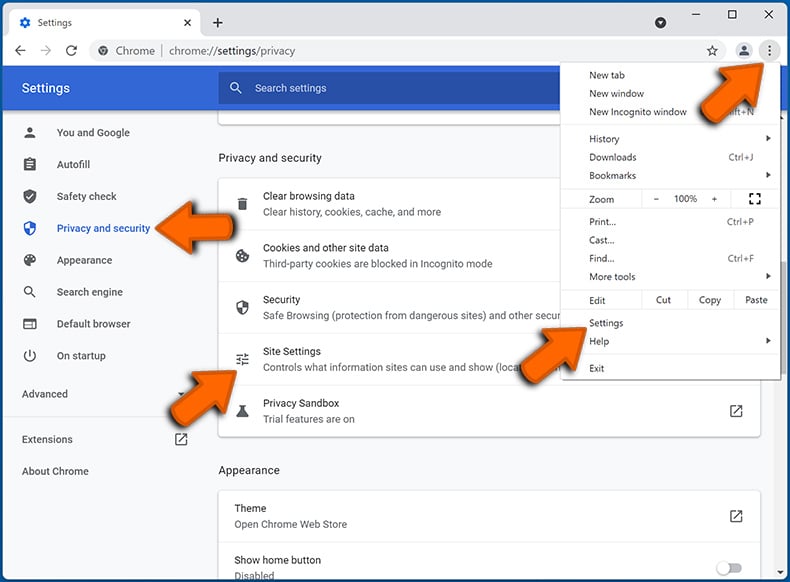
Click the Menu button (three dots) on the right upper corner of the screen and select "Settings". In the opened window select "Privacy and security", then click on "Site Settings" and choose "Notifications".
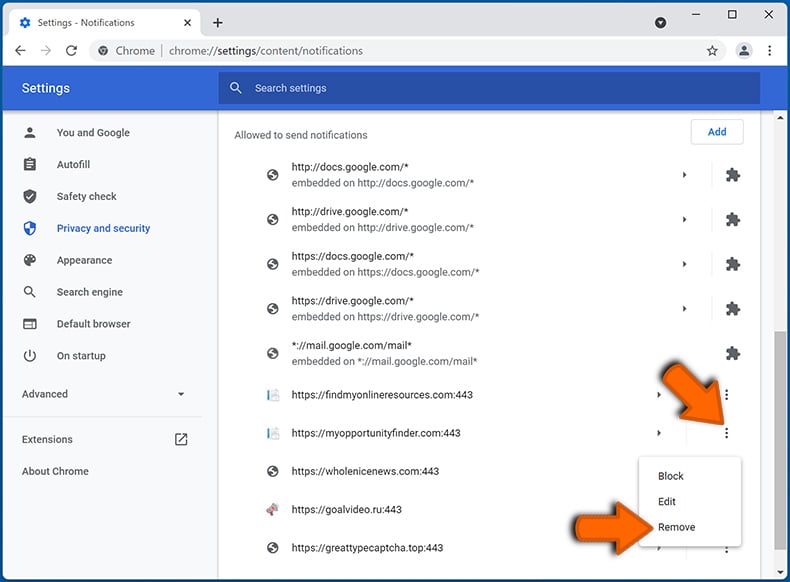
In the "Allowed to send notifications" list search for websites that you want to stop receiving notifications from. Click on the three dots icon near the website URL and click "Block" or "Remove" (if you click "Remove" and visit the malicious site once more, it will ask to enable notifications again).
 Remove spam notifications from Google Chrome (Android):
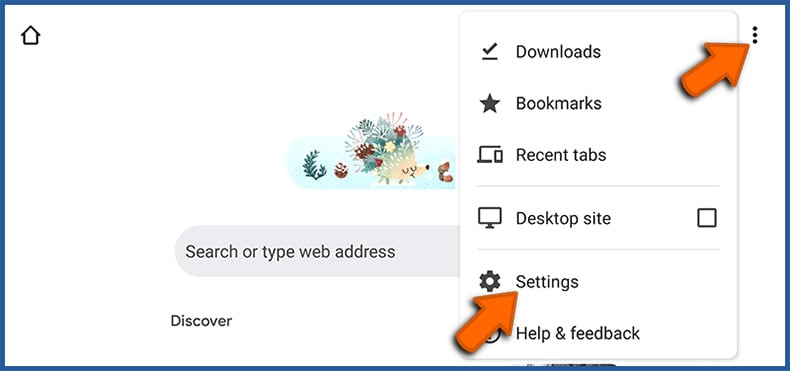
Tap the Menu button (three dots) on the right upper corner of the screen and select "Settings". Scroll down, tap on "Site settings" and then "Notifications".
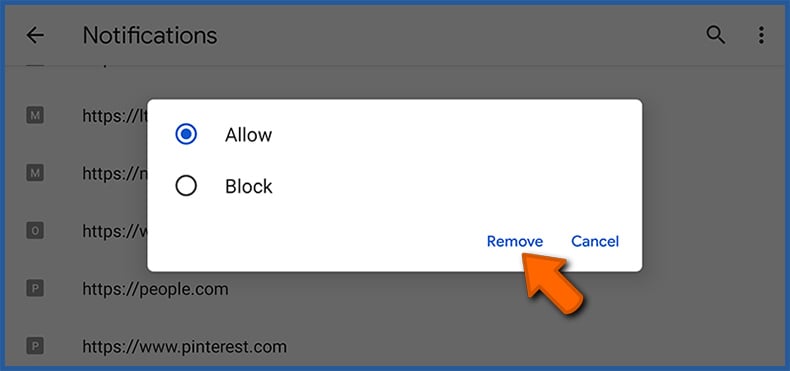
In the opened window, locate all suspicious URLs and tap on them one-by-one. Once the pop-up shows up, select either "Block" or "Remove" (if you tap "Remove" and visit the malicious site once more, it will ask to enable notifications again).
 Remove spam notifications from Mozilla Firefox:
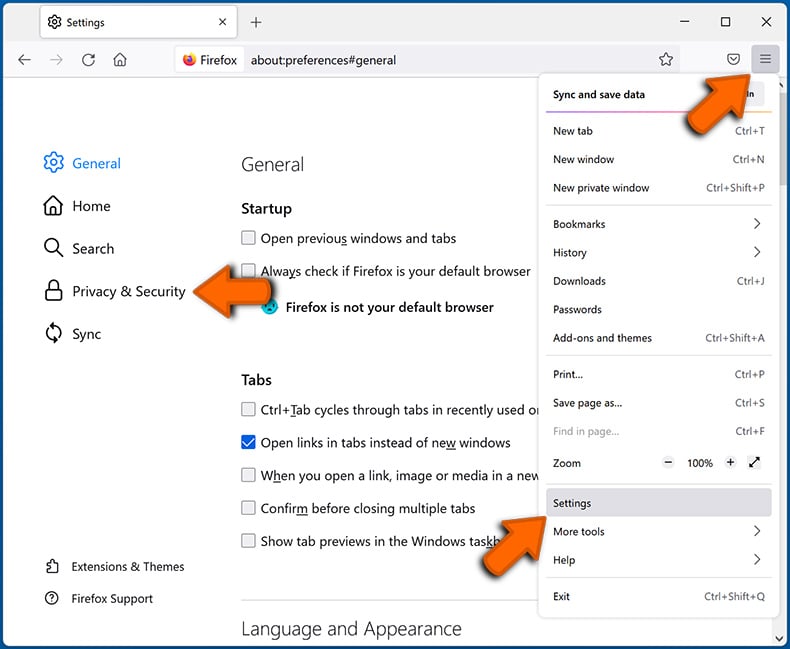
Click the Menu button (three bars) on the right upper corner of the screen. Select "Settings" and click on "Privacy & Security" in the toolbar on the left hand side of the screen. Scroll down to the "Permissions" section and click the "Settings" button next to "Notifications".
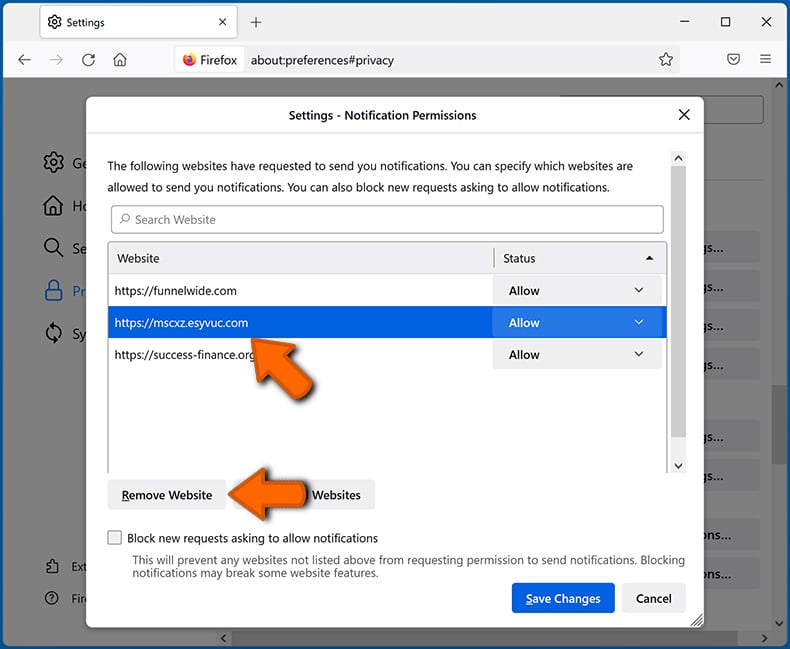
In the opened window, locate all suspicious URLs and block them using the drop-down menu or either remove them by clicking "Remove Website" at the bottom of the window (if you click "Remove Website" and visit the malicious site once more, it will ask to enable notifications again).
 Remove spam notifications from Microsoft Edge:
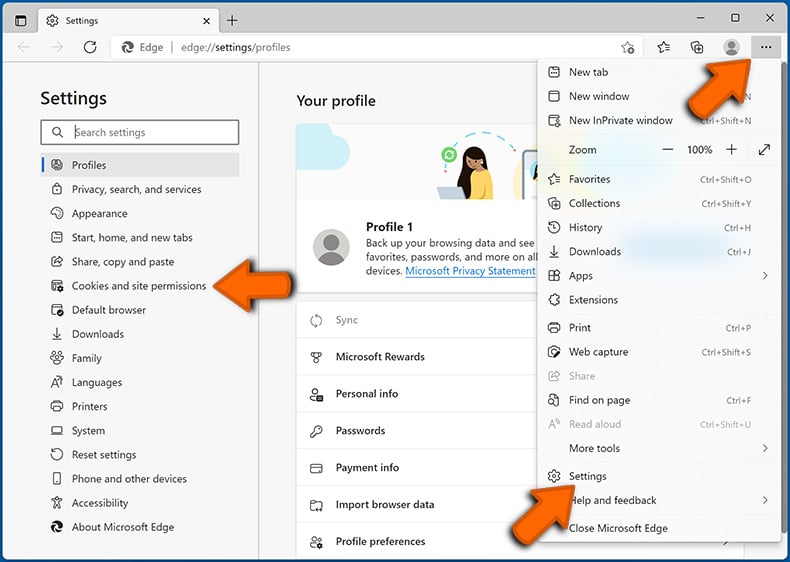
Click the menu button (three dots) on the right upper corner of the Edge window and select "Settings". Click on "Cookies and site permissions" in the toolbar on the left hand side of the screen and select "Notifications".
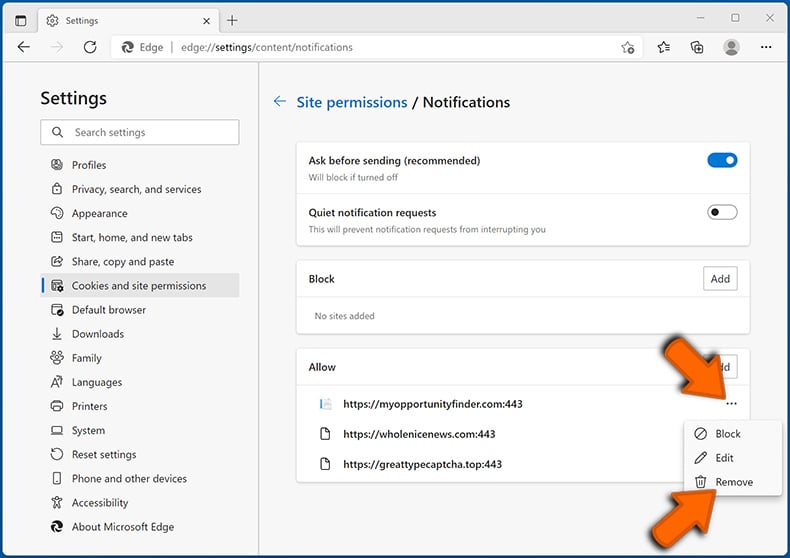
Click three dots on the right hand side of each suspicious URL under "Allow" section and click "Block" or "Remove" (if you click "Remove" and visit the malicious site once more, it will ask to enable notifications again).
 Remove spam notifications from Safari (macOS):
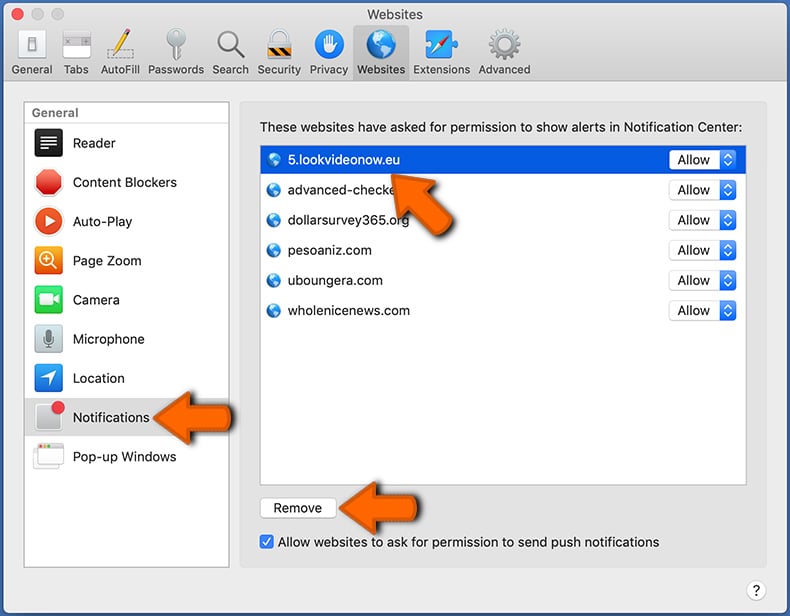
Click "Safari" button on the left upper corner of the screen and select "Preferences...". Select the "Websites" tab and then select "Notifications" section on the left pane.
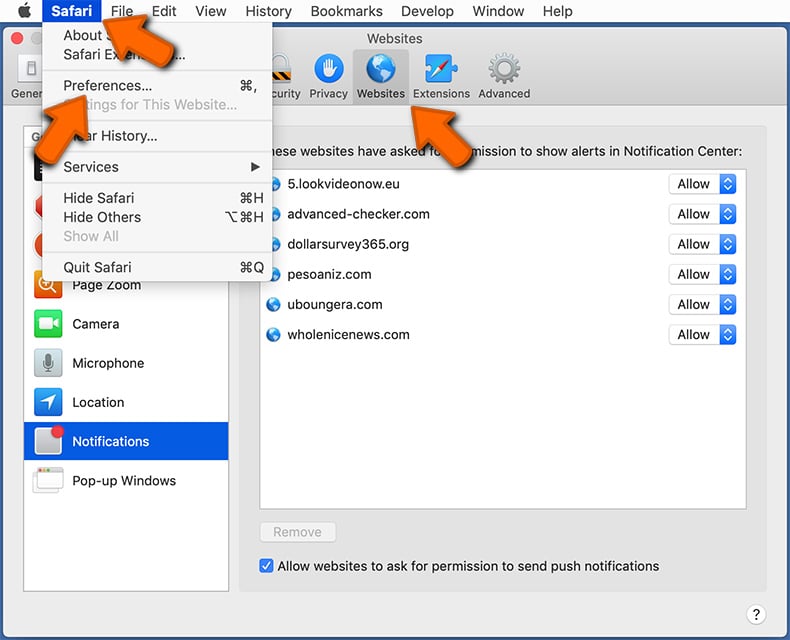
Check for suspicious URLs and apply the "Deny" option using the drop-down menu or either remove them by clicking "Remove" at the bottom of the window (if you click "Remove" and visit the malicious site once more, it will ask to enable notifications again)
How to avoid browser notification spam?
Internet users should be very skeptical when being asked to allow notifications. While this is a useful feature that allows you to receive timely news from websites you like, deceptive marketers frequently abuse it.
Only allow notifications from websites that you fully trust. For added security - use an anti-malware application with a real-time web browsing monitor to block shady websites that tries to trick you into allowing spam notifications. We recommend using Combo Cleaner Antivirus for Windows.
Frequently Asked Questions (FAQ)
Why am I seeing ads (browser notifications) delivered by sessionverify.co[.]in in the right lower corner of my desktop?
A site must first be authorized by the user before it can send notifications, which indicates that sessionverify.co[.]in was probably visited and permission to deliver notifications has been given.
I have clicked on notification ads, is my computer infected?
Deceptive notifications cannot infect systems, but they can lead users to untrustworthy pages.
Is sessionverify.co[.]in a virus?
Websites like sessionverify.co[.]in are not classified as viruses. Most of them promote other shady pages, scams, unwanted apps, etc.
Will Combo Cleaner remove sessionverify.co[.]in ads automatically or manual steps are still required?
Combo Cleaner can scan the system and remove unwanted browser permissions associated with sessionverify.co[.]in. It can also assist in blocking access to sessionverify.co[.]in. No additional actions will be required.
Share:
 Facebook
 X.com
X.com
 LinkedIn
 Copy Link

Tomas Meskauskas
Expert security researcher, professional malware analyst
I am passionate about computer security and technology. I have an experience of over 10 years working in various companies related to computer technical issue solving and Internet security. I have been working as an author and editor for pcrisk.com since 2010. Follow me on Twitter and LinkedIn to stay informed about the latest online security threats.
PCrisk security portal is brought by a company RCS LT.
Joined forces of security researchers help educate computer users about the latest online security threats. More information about the company RCS LT.
Our malware removal guides are free. However, if you want to support us you can send us a donation.
DonatePCrisk security portal is brought by a company RCS LT.
Joined forces of security researchers help educate computer users about the latest online security threats. More information about the company RCS LT.
Our malware removal guides are free. However, if you want to support us you can send us a donation.
Donate
▼ Show Discussion