

Get free scan and check if your device is infected.
Remove it nowTo use full-featured product, you have to purchase a license for Combo Cleaner. Seven days free trial available. Combo Cleaner is owned and operated by RCS LT, the parent company of PCRisk.com.
What kind of malware is SynkLoader Malware?
SynkLoader is a malware loader that uses a modular design to deploy a chain of attack tools against infected Windows systems. According to research published by Expel, the threat was first observed in August 2026 while investigating an incident on a client network.
The infection begins with a phishing attack carried out via Microsoft Teams, where the attacker poses as an IT helpdesk employee and convinces the target to install a malicious MSI file disguised as a "PowerShell Cleaner" utility.
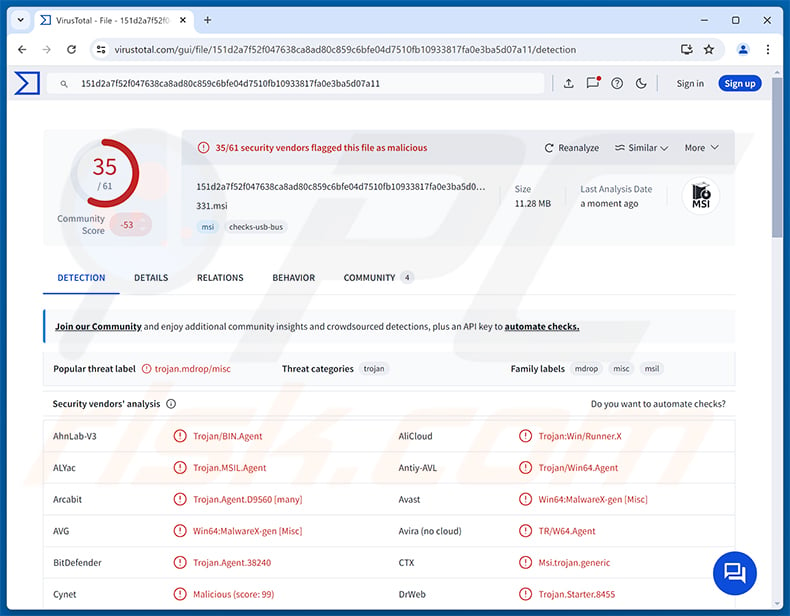
SynkLoader Malware overview
SynkLoader ships its own Python environment and operates almost entirely in-memory after the initial installer stage. Its core component is a Python-based loader that contacts one of several hardcoded command-and-control (C2) servers at randomized intervals, then decrypts and executes whatever code the server returns.
Communications with the C2 are protected by a modified ChaCha20 cipher where the standard encryption constants have been replaced with different values to complicate detection. Each module is received as Python code and run in-memory, leaving minimal traces on disk.
On first contact, the loader collects information about the infected machine, including its hostname, the logged-on username, privilege level, running processes, installed services, and Active Directory details. This profile is sent back to the C2 and used by operators to decide whether the target merits further attention.
SynkLoader's modules
SynkLoader's attack chain spans multiple programming languages. The main Python loader uses CPython to load malicious DLL files disguised as Microsoft Visual C++ runtime libraries. These DLLs contain hidden C# and C++ components that carry out the loader's more advanced capabilities.
One fake runtime DLL holds a C# component that runs PowerShell commands entirely in-memory. Another acts as an in-memory DLL loader, so that every subsequent payload avoids being written to disk, bypassing signature-based security tools in the process.
A reverse shell module lets attackers send arbitrary PowerShell commands to the infected machine in real time and receive the results. A VNC component also streams screenshots from the victim's desktop and relays mouse and keyboard input, giving operators a live view of the user's activity.
Fake login screen and network tunneling
One of SynkLoader's modules creates a full-screen fake Windows lock screen intended to trick the user into entering their system password. The application retrieves the victim's actual username and lock screen wallpaper from the system to make the imitation look convincing.
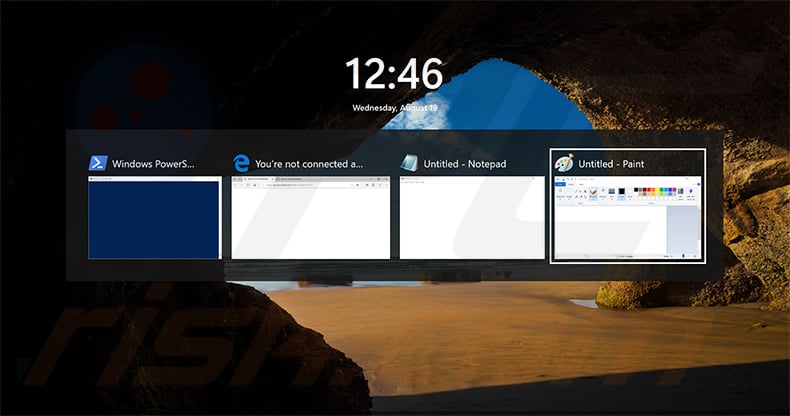
Because the fake screen is a regular borderless application rather than a true system lock, pressing Alt+Tab reveals the running programs beneath it. The module automatically re-focuses itself to prevent the user from switching away. No password verification takes place, so any input is accepted and the captured credentials are forwarded to the attacker.
SynkLoader also deploys a network tunneling module called TrafficRedirector, which functions as a backconnect proxy. It connects outbound to the attacker's server and lets operators route traffic through the infected machine, bypassing corporate firewalls and IP-based access controls without triggering location-based alerts.
Persistence and defense evasion
For persistence, SynkLoader installs a scheduled task using Windows COM interfaces rather than the standard task-scheduling command. This technique sidesteps behavioral detections that look for processes invoking scheduling tools via the command line.
The task carries a randomly generated 12-character alphanumeric name and fires on two triggers: once at every user logon and once daily at 10 a.m. local time. It relaunches the main Python loader through the bundled Python runtime that the malware ships alongside its other components.
The multi-language execution chain, spanning Python, C#, and C++ DLLs, combined with almost entirely in-memory operation, makes it significantly harder for security tools to track or block the full infection chain.
| Name | SynkLoader virus |
| Threat Type | Trojan, Malware Loader |
| Detection Names | Avast (Win64:MalwareX-gen [Misc]), Combo Cleaner (Trojan.Agent.38240), ESET-NOD32 (Python/Agent.CWH Trojan), Kaspersky (Trojan.Win64.Agent.smhbeh), Microsoft (Trojan:Win32/Kepavll!rfn), Full List (VirusTotal) |
| Symptoms | Trojans are designed to stealthily infiltrate the victim's computer and remain silent, and thus no particular symptoms are clearly visible on an infected machine. |
| Distribution methods | Deceptive messages (Microsoft Teams), malicious software installers (MSI), social engineering. |
| Damage | Multiple additional infections, stolen passwords and banking information, identity theft, the victim's computer added to a botnet. |
| Malware Removal (Windows) |
To eliminate possible malware infections, scan your computer with legitimate antivirus software. Our security researchers recommend using Combo Cleaner. Download Combo CleanerTo use full-featured product, you have to purchase a license for Combo Cleaner. 7 days free trial available. Combo Cleaner is owned and operated by RCS LT, the parent company of PCRisk.com. |
Conclusion
SynkLoader is a capable, multi-layered threat that can steal system login credentials, execute remote commands, tunnel network traffic through the infected machine, and monitor the victim's desktop in real time. Its almost entirely in-memory execution chain and multi-language architecture make detection and removal genuinely difficult.
Expel's analysis suggests the toolkit may belong to a ransomware group or an initial access broker selling network access to such groups. Any system suspected of being infected should be scanned and cleaned immediately.
More examples of loaders are GachiLoader, CastleLoader, and Olymp.
How did SynkLoader Malware infiltrate my computer?
Expel's investigation traced SynkLoader's distribution to a Microsoft Teams phishing campaign. The attacker contacted the target while impersonating a member of the company's IT helpdesk, using a Microsoft 365 account with a plausible display name. The victim was told to download an MSI installer from a Microsoft Azure file storage link, lending the request a false sense of legitimacy.
The installer presented itself as a legitimate tool called "PowerShell Cleaner." Once run, it extracted a Python-based malware loader and launched it automatically. From that point, the infection operated almost entirely in-memory, making it hard to spot without dedicated security software.
More broadly, loaders and similar threats are distributed through phishing emails with malicious attachments, fake software download sites, pirated content, and software cracks. Any unsolicited request to install software, especially one arriving via a chat or messaging platform, should be treated with suspicion.
How to avoid installation of malware?
Be cautious of any unsolicited contact through email, messaging platforms, or social media, even when the sender claims to be from your company's IT department. Only download and install software from official vendor websites, and never run an installer received through a chat application without independent verification.
Keep your operating system and all applications up to date, and use a reputable security program that runs in the background. Avoid pirated software, key generators, and unofficial download sites. If you believe that your computer is already infected, we recommend running a scan with Combo Cleaner Antivirus for Windows to automatically eliminate infiltrated malware.
SynkLoader's fake Windows lock screen with the Alt+Tab application switcher visible (source: expel.com):
Instant automatic malware removal:
Manual threat removal might be a lengthy and complicated process that requires advanced IT skills. Combo Cleaner is a professional automatic malware removal tool that is recommended to get rid of malware. Download it by clicking the button below:
DOWNLOAD Combo CleanerBy downloading any software listed on this website you agree to our Privacy Policy and Terms of Use. To use full-featured product, you have to purchase a license for Combo Cleaner. 7 days free trial available. Combo Cleaner is owned and operated by RCS LT, the parent company of PCRisk.com.
Quick menu:
- What is SynkLoader Malware?
- STEP 1. Manual removal of SynkLoader Malware.
- STEP 2. Check if your computer is clean.
How to remove malware manually?
Manual malware removal is a complicated task - usually it is best to allow antivirus or anti-malware programs to do this automatically. To remove this malware we recommend using Combo Cleaner Antivirus for Windows.
If you wish to remove malware manually, the first step is to identify the name of the malware that you are trying to remove. Here is an example of a suspicious program running on a user's computer:
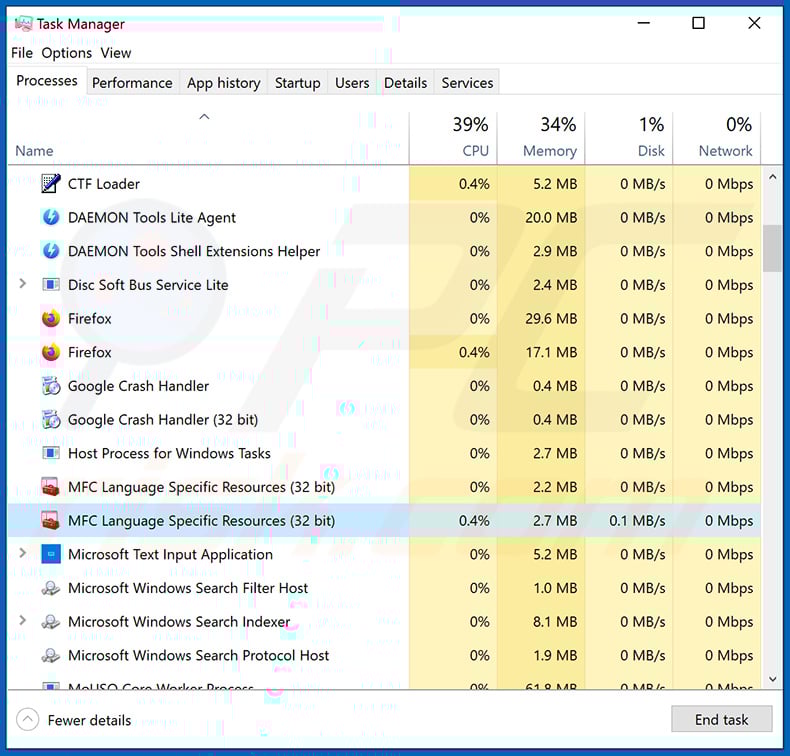
If you checked the list of programs running on your computer, for example, using task manager, and identified a program that looks suspicious, you should continue with these steps:
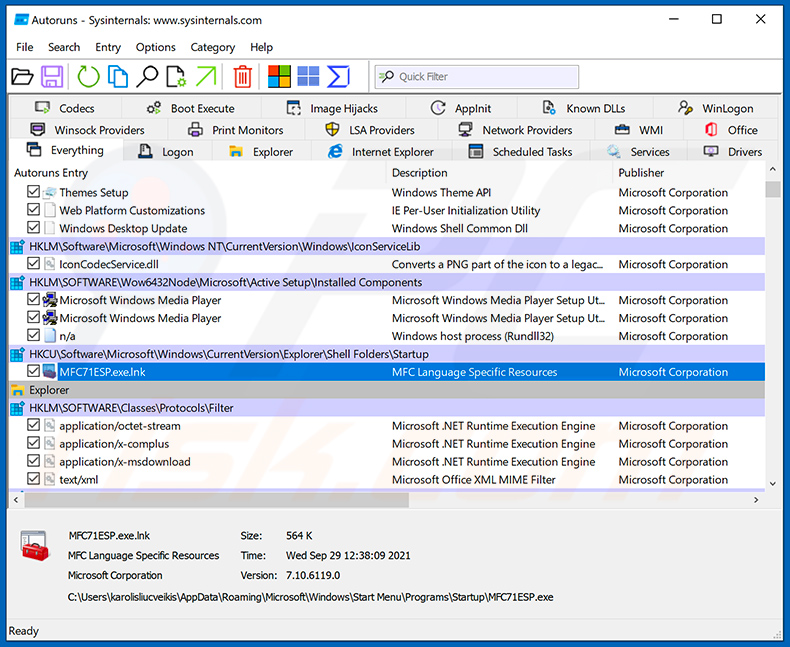
 Download a program called Autoruns. This program shows auto-start applications, Registry, and file system locations:
 Restart your computer into Safe Mode:
Windows XP and Windows 7 users: Start your computer in Safe Mode. Click Start, click Shut Down, click Restart, click OK. During your computer start process, press the F8 key on your keyboard multiple times until you see the Windows Advanced Option menu, and then select Safe Mode with Networking from the list.
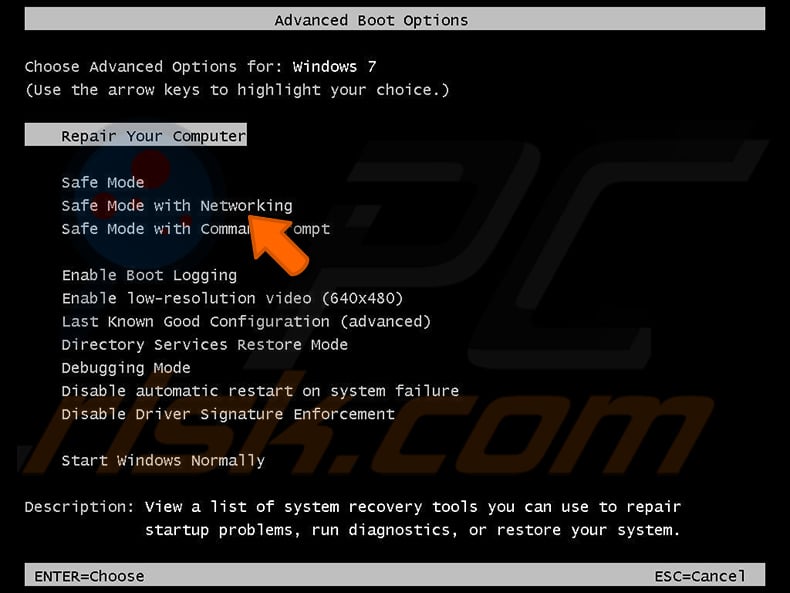
Video showing how to start Windows 7 in "Safe Mode with Networking":
Windows 8 users: Start Windows 8 is Safe Mode with Networking - Go to Windows 8 Start Screen, type Advanced, in the search results select Settings. Click Advanced startup options, in the opened "General PC Settings" window, select Advanced startup.
Click the "Restart now" button. Your computer will now restart into the "Advanced Startup options menu". Click the "Troubleshoot" button, and then click the "Advanced options" button. In the advanced option screen, click "Startup settings".
Click the "Restart" button. Your PC will restart into the Startup Settings screen. Press F5 to boot in Safe Mode with Networking.
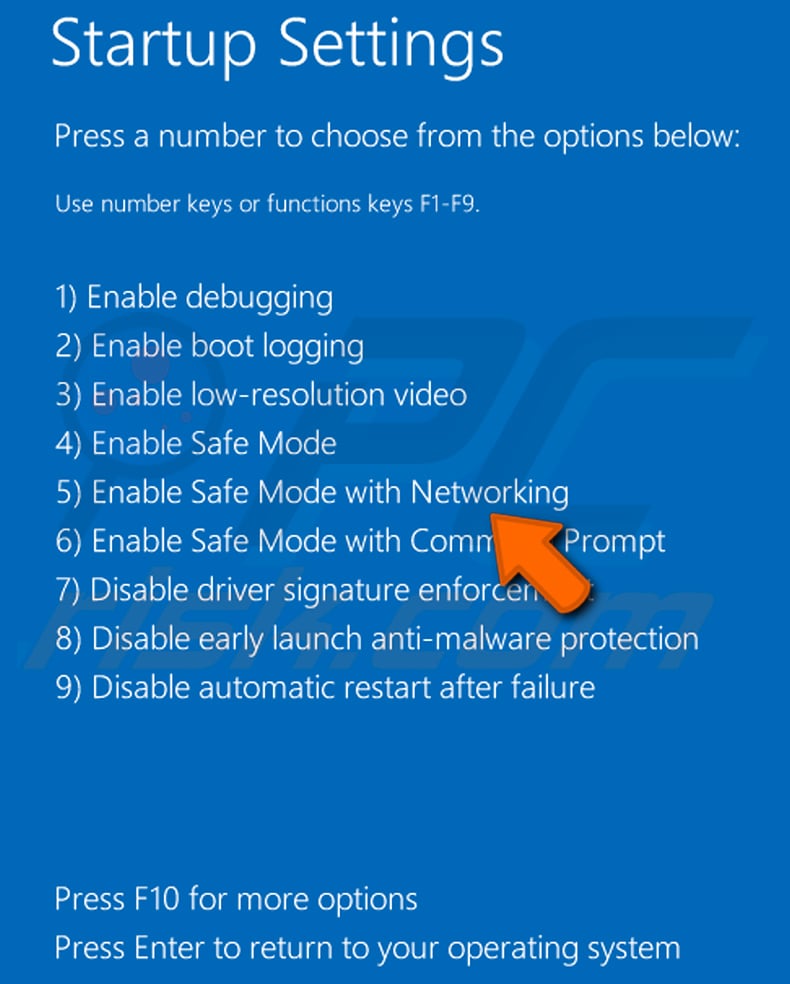
Video showing how to start Windows 8 in "Safe Mode with Networking":
Windows 10 users: Click the Windows logo and select the Power icon. In the opened menu click "Restart" while holding "Shift" button on your keyboard. In the "choose an option" window click on the "Troubleshoot", next select "Advanced options".
In the advanced options menu select "Startup Settings" and click on the "Restart" button. In the following window you should click the "F5" button on your keyboard. This will restart your operating system in safe mode with networking.
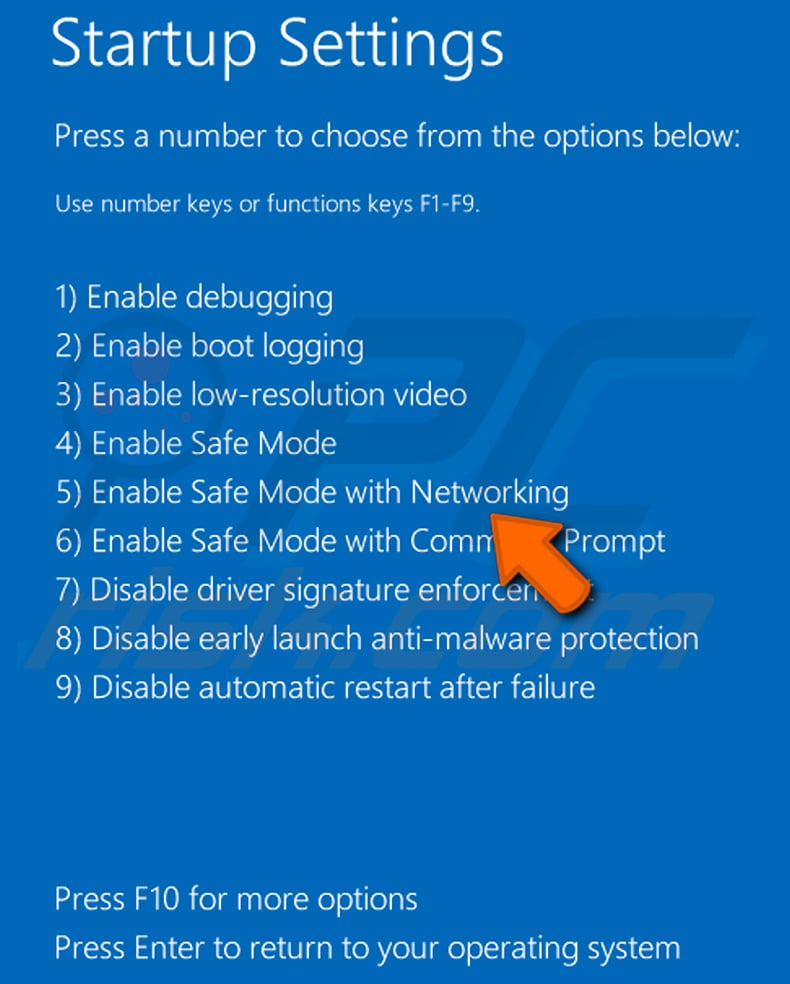
Video showing how to start Windows 10 in "Safe Mode with Networking":
 Extract the downloaded archive and run the Autoruns.exe file.
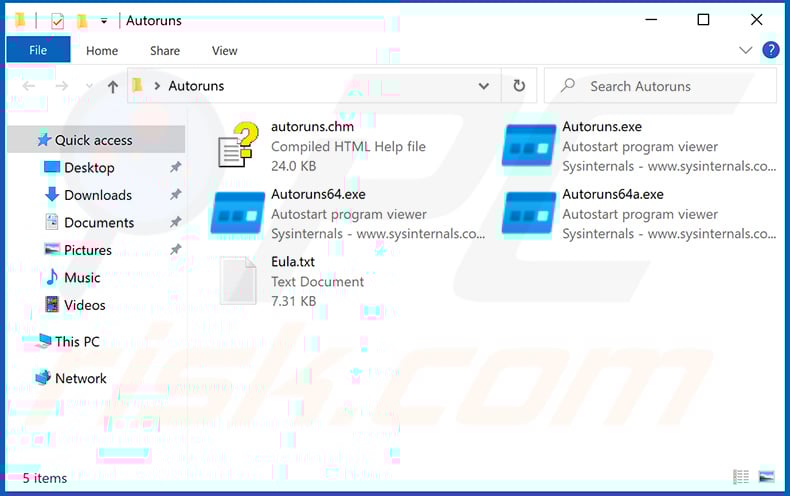
 In the Autoruns application, click "Options" at the top and uncheck "Hide Empty Locations" and "Hide Windows Entries" options. After this procedure, click the "Refresh" icon.
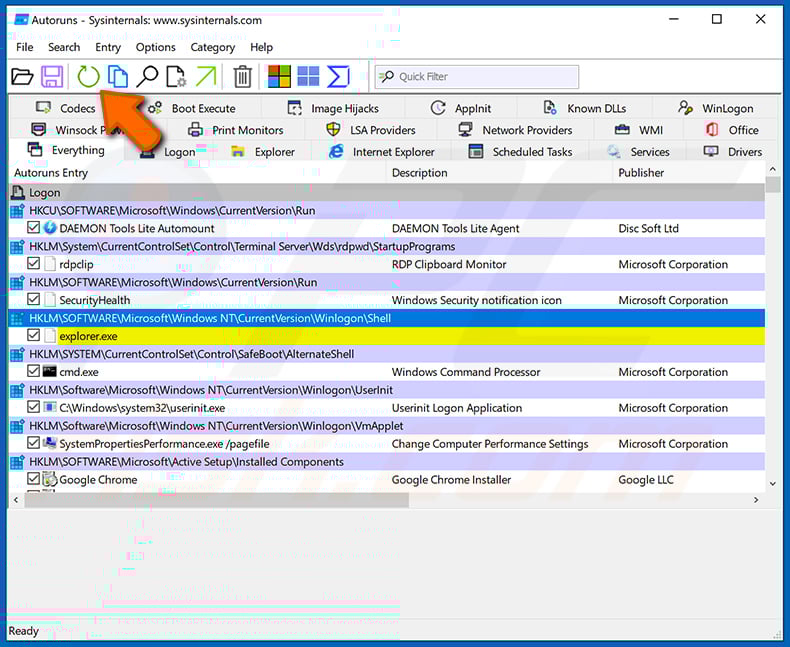
 Check the list provided by the Autoruns application and locate the malware file that you want to eliminate.
You should write down its full path and name. Note that some malware hides process names under legitimate Windows process names. At this stage, it is very important to avoid removing system files. After you locate the suspicious program you wish to remove, right click your mouse over its name and choose "Delete".
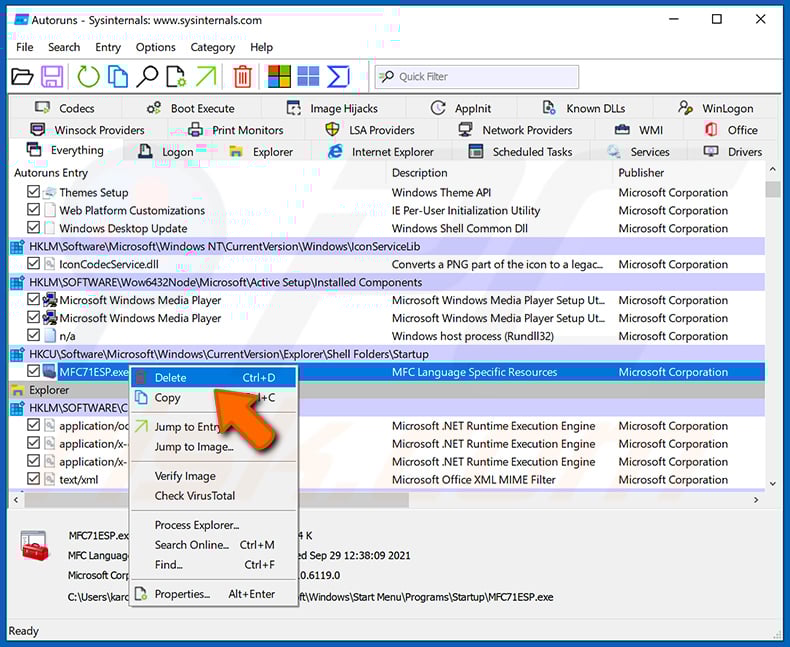
After removing the malware through the Autoruns application (this ensures that the malware will not run automatically on the next system startup), you should search for the malware name on your computer. Be sure to enable hidden files and folders before proceeding. If you find the filename of the malware, be sure to remove it.
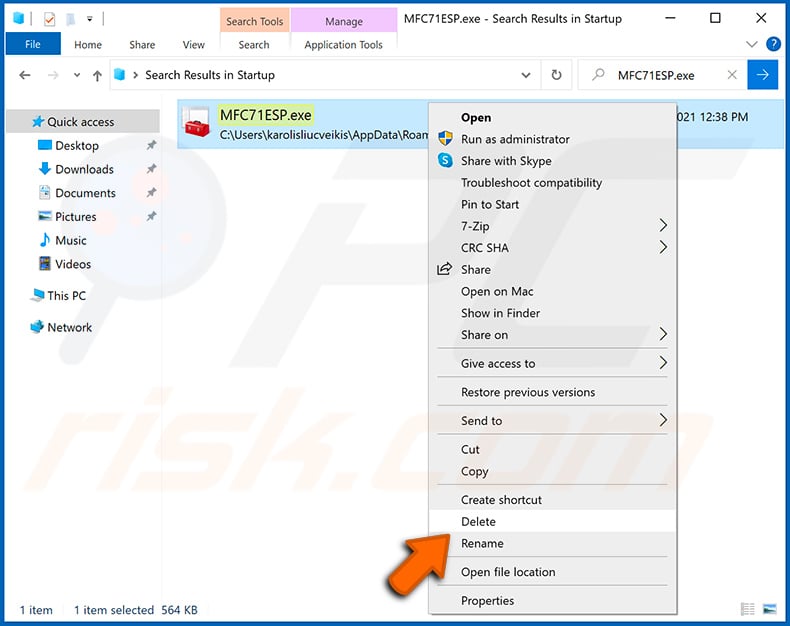
Reboot your computer in normal mode. Following these steps should remove any malware from your computer. Note that manual threat removal requires advanced computer skills. If you do not have these skills, leave malware removal to antivirus and anti-malware programs.
These steps might not work with advanced malware infections. As always it is best to prevent infection than try to remove malware later. To keep your computer safe, install the latest operating system updates and use antivirus software. To be sure your computer is free of malware infections, we recommend scanning it with Combo Cleaner Antivirus for Windows.
Frequently Asked Questions (FAQ)
My computer is infected with SynkLoader Malware, should I format my storage device to get rid of it?
Formatting your drive will eliminate SynkLoader, but it also permanently erases all stored files. Trying a trusted security solution like Combo Cleaner first is the better approach, since it can remove the infection without destroying your data.
What are the biggest issues that SynkLoader Malware can cause?
SynkLoader can steal system login credentials, allow attackers to execute commands remotely, tunnel network traffic through the infected machine, and deploy additional malware. This can lead to account hijacking, unauthorized access to company systems, identity theft, and further infections.
What is the purpose of SynkLoader Malware?
SynkLoader is a modular loader that profiles infected systems and delivers follow-on attack tools. Its components include a credential-stealing fake lock screen, a network tunneling proxy, a reverse shell for remote command execution, and a screen-streaming module.
How did SynkLoader Malware infiltrate my computer?
SynkLoader was distributed via Microsoft Teams phishing, where attackers impersonated IT helpdesk staff and persuaded victims to install a malicious MSI file disguised as a "PowerShell Cleaner" application.
More broadly, loaders of this kind also spread through phishing emails, fake software download sites, and pirated content.
Will Combo Cleaner protect me from malware?
Yes. Combo Cleaner can detect and remove most malware, including modular loaders and their associated components. A full system scan is recommended to ensure the complete infection chain is identified and eliminated.
Share:
 Facebook
 X.com
X.com
 LinkedIn
 Copy Link

Tomas Meskauskas
Expert security researcher, professional malware analyst
I am passionate about computer security and technology. I have an experience of over 10 years working in various companies related to computer technical issue solving and Internet security. I have been working as an author and editor for pcrisk.com since 2010. Follow me on Twitter and LinkedIn to stay informed about the latest online security threats.
PCrisk security portal is brought by a company RCS LT.
Joined forces of security researchers help educate computer users about the latest online security threats. More information about the company RCS LT.
Our malware removal guides are free. However, if you want to support us you can send us a donation.
DonatePCrisk security portal is brought by a company RCS LT.
Joined forces of security researchers help educate computer users about the latest online security threats. More information about the company RCS LT.
Our malware removal guides are free. However, if you want to support us you can send us a donation.
Donate
▼ Show Discussion