

Get free scan and check if your device is infected.
Remove it nowTo use full-featured product, you have to purchase a license for Combo Cleaner. Seven days free trial available. Combo Cleaner is owned and operated by RCS LT, the parent company of PCRisk.com.
What kind of malware is Sams?
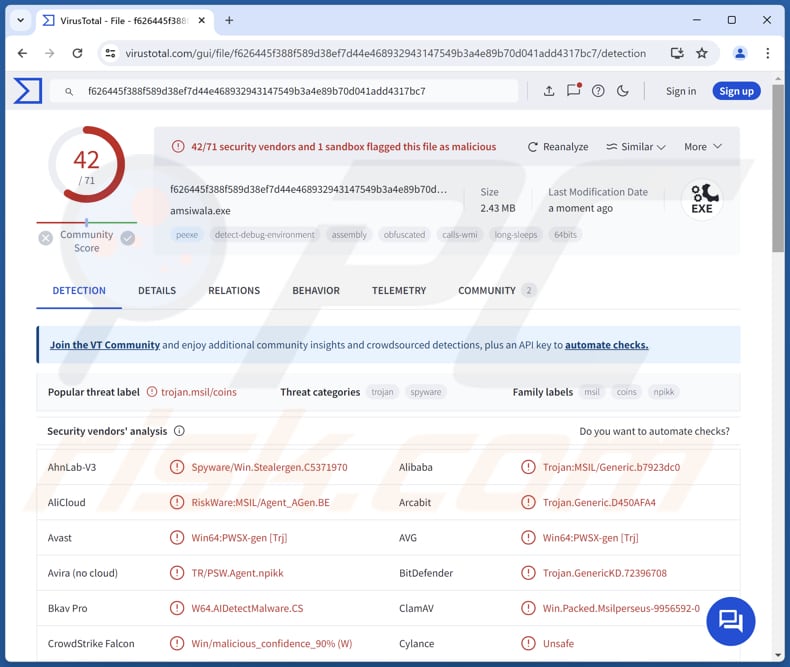
Sams is a type of malware designed to function as an information stealer, meaning it is programmed to collect sensitive data from infected systems. It targets web browsers, specific applications, cryptocurrency wallets, and system-related data. This stealer poses a significant threat to the privacy and security of affected users.
More about Sams
Sams infiltrates systems with the primary objective of surreptitiously harvesting sensitive data from a variety of sources. Among its primary targets are web browsers, where it meticulously extracts stored passwords and cookies from a wide range of browsers, potentially compromising users' accounts across multiple platforms.
By accessing this critical information, Sams can facilitate unauthorized access to personal and financial accounts, leading to severe consequences for victims. In addition to targeting web browsers, Sams extends its reach to specific applications widely used for communication and collaboration purposes.
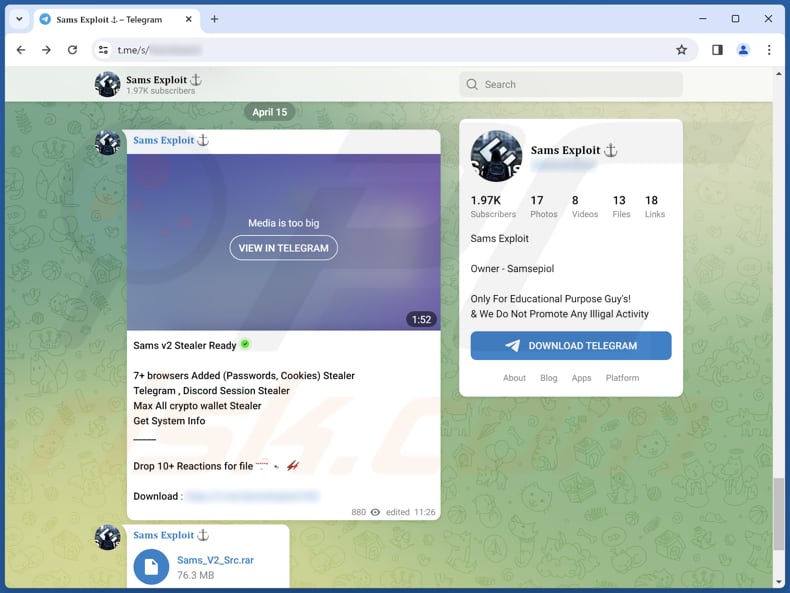
It has the capability to pilfer session data from popular platforms like Telegram and Discord, potentially granting cybercriminals access to private conversations, sensitive documents, and other confidential information exchanged by users.
Moreover, Sams exhibits a particularly concerning ability to target cryptocurrency wallets. By infiltrating these wallets, Sams can exfiltrate valuable cryptocurrency holdings, depriving victims of their assets and causing significant financial losses. It is important to note that cryptocurrency transactions are virtually irreversible.
Additionally, Sams stealer extends its reach to gather system information. By accessing and exfiltrating system-related data, Sams can provide cybercriminals with insights into the configuration, vulnerabilities, and defenses of infected systems. This information can be leveraged to launch targeted attacks, evade detection by security measures, and perpetrate further malicious activities.
| Name | Sams information stealer |
| Threat Type | Information stealer |
| Detection Names | Avast (Win64:PWSX-gen [Trj]), Combo Cleaner (Trojan.GenericKD.72396708), ESET-NOD32 (A Variant Of MSIL/PSW.Agent_AGen.BE), Kaspersky (HEUR:Trojan-PSW.MSIL.Coins.gen), Microsoft (Trojan:Win32/Formbook!ml), Full List (VirusTotal) |
| Symptoms | Information stalers are designed to stealthily infiltrate the victim's computer and remain silent, and thus no particular symptoms are clearly visible on an infected machine. |
| Distribution methods | Infected email attachments, malicious online advertisements, social engineering, software 'cracks'. |
| Damage | Stolen passwords and banking information, identity theft, the victim's computer added to a botnet. |
| Malware Removal (Windows) |
To eliminate possible malware infections, scan your computer with legitimate antivirus software. Our security researchers recommend using Combo Cleaner. Download Combo CleanerTo use full-featured product, you have to purchase a license for Combo Cleaner. 7 days free trial available. Combo Cleaner is owned and operated by RCS LT, the parent company of PCRisk.com. |
Conclusion
Overall, Sams represents a formidable and multifaceted threat to users' digital security and privacy, leveraging its capabilities as an information stealer to harvest sensitive data from browsers, communication platforms, cryptocurrency wallets, and system configurations.
Its sophisticated techniques and wide-ranging targets underscore the need for robust cybersecurity measures, including regular software updates, endpoint protection solutions, and user education initiatives, to mitigate the risks posed by such advanced malware threats.
More examples of information stealers are Nova Stealer, Glorysprout Stealer, and Tweaks Stealer.
How did Sams infiltrate my computer?
Users can inadvertently infect their computers through emails that appear to be legitimate but are designed to trick them into clicking on malicious links or downloading infected attachments. Also, Users may unknowingly download malware-infected software (e.g., pirated software) from untrustworthy sources like P2P networks, unofficial sites, third-party downloaders, etc.
Simply clicking on deceptive ads or pop-ups can also lead to the automatic download and installation of malware onto the user's computer. In other cases, computer infections occur when users fail to update their software or connect infected USB drives.
How to avoid installation of malware?
Exercise caution when interacting with emails, especially those from unknown or suspicious senders. Avoid clicking on links or downloading attachments from such sources. Ensure that your computer's operating system, software applications, and antivirus software are regularly updated. Only download software from reputable sources (official pages or app stores).
Do not trust pop-ups (e.g., warnings) and ads on suspicious web pages. Scan your computer for threats regularly. If you believe that your computer is already infected, we recommend running a scan with Combo Cleaner Antivirus for Windows to automatically eliminate infiltrated malware.
Sams promoted via Telegram:
Instant automatic malware removal:
Manual threat removal might be a lengthy and complicated process that requires advanced IT skills. Combo Cleaner is a professional automatic malware removal tool that is recommended to get rid of malware. Download it by clicking the button below:
DOWNLOAD Combo CleanerBy downloading any software listed on this website you agree to our Privacy Policy and Terms of Use. To use full-featured product, you have to purchase a license for Combo Cleaner. 7 days free trial available. Combo Cleaner is owned and operated by RCS LT, the parent company of PCRisk.com.
Quick menu:
How to remove malware manually?
Manual malware removal is a complicated task - usually it is best to allow antivirus or anti-malware programs to do this automatically. To remove this malware we recommend using Combo Cleaner Antivirus for Windows.
If you wish to remove malware manually, the first step is to identify the name of the malware that you are trying to remove. Here is an example of a suspicious program running on a user's computer:
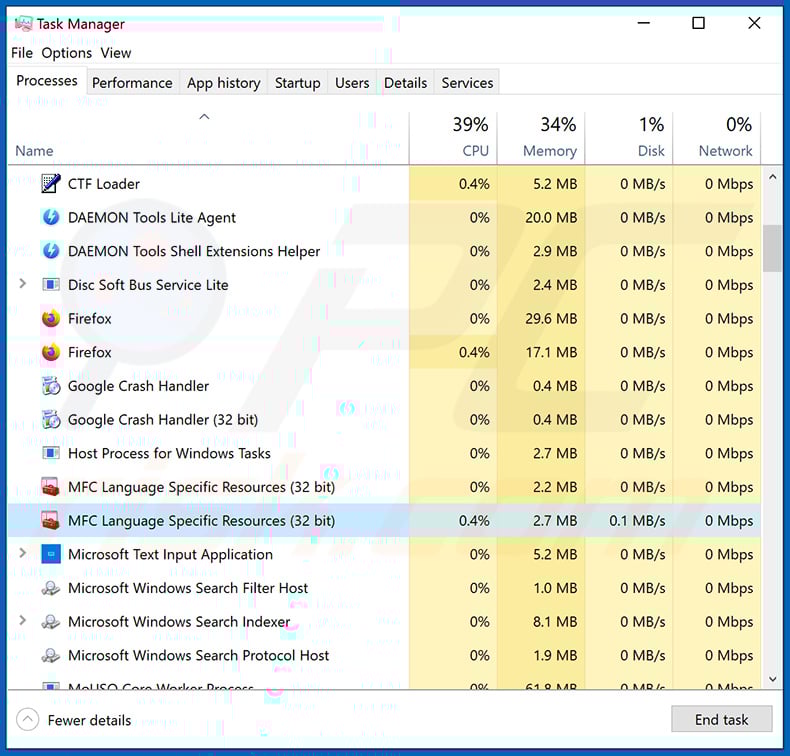
If you checked the list of programs running on your computer, for example, using task manager, and identified a program that looks suspicious, you should continue with these steps:
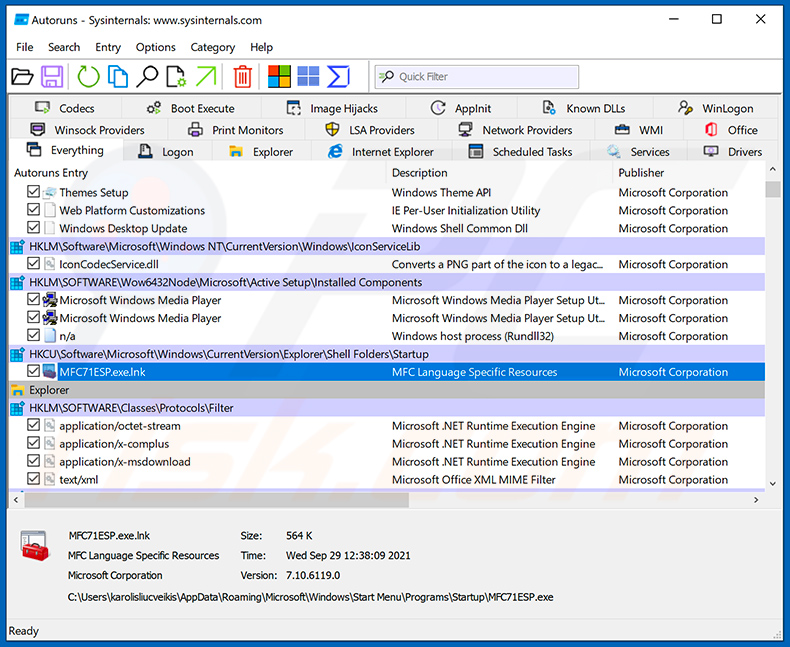
 Download a program called Autoruns. This program shows auto-start applications, Registry, and file system locations:
 Restart your computer into Safe Mode:
Windows XP and Windows 7 users: Start your computer in Safe Mode. Click Start, click Shut Down, click Restart, click OK. During your computer start process, press the F8 key on your keyboard multiple times until you see the Windows Advanced Option menu, and then select Safe Mode with Networking from the list.
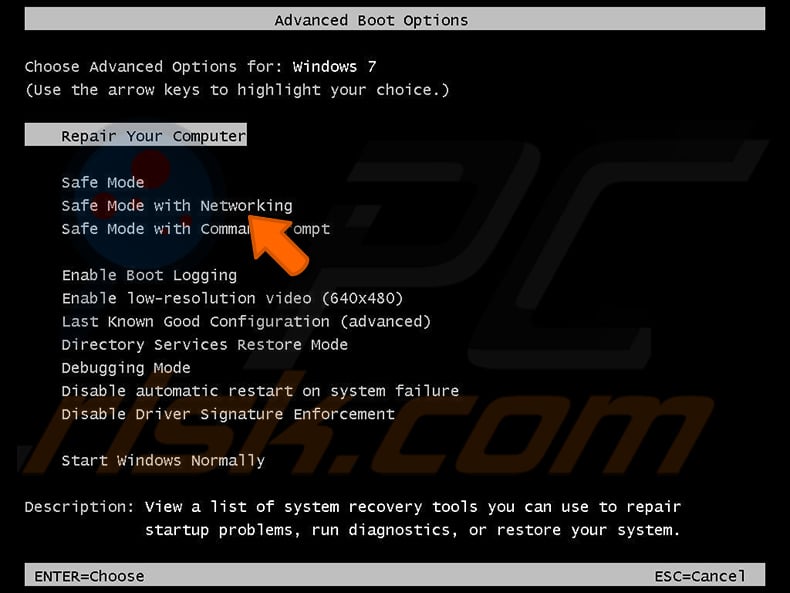
Video showing how to start Windows 7 in "Safe Mode with Networking":
Windows 8 users: Start Windows 8 is Safe Mode with Networking - Go to Windows 8 Start Screen, type Advanced, in the search results select Settings. Click Advanced startup options, in the opened "General PC Settings" window, select Advanced startup.
Click the "Restart now" button. Your computer will now restart into the "Advanced Startup options menu". Click the "Troubleshoot" button, and then click the "Advanced options" button. In the advanced option screen, click "Startup settings".
Click the "Restart" button. Your PC will restart into the Startup Settings screen. Press F5 to boot in Safe Mode with Networking.
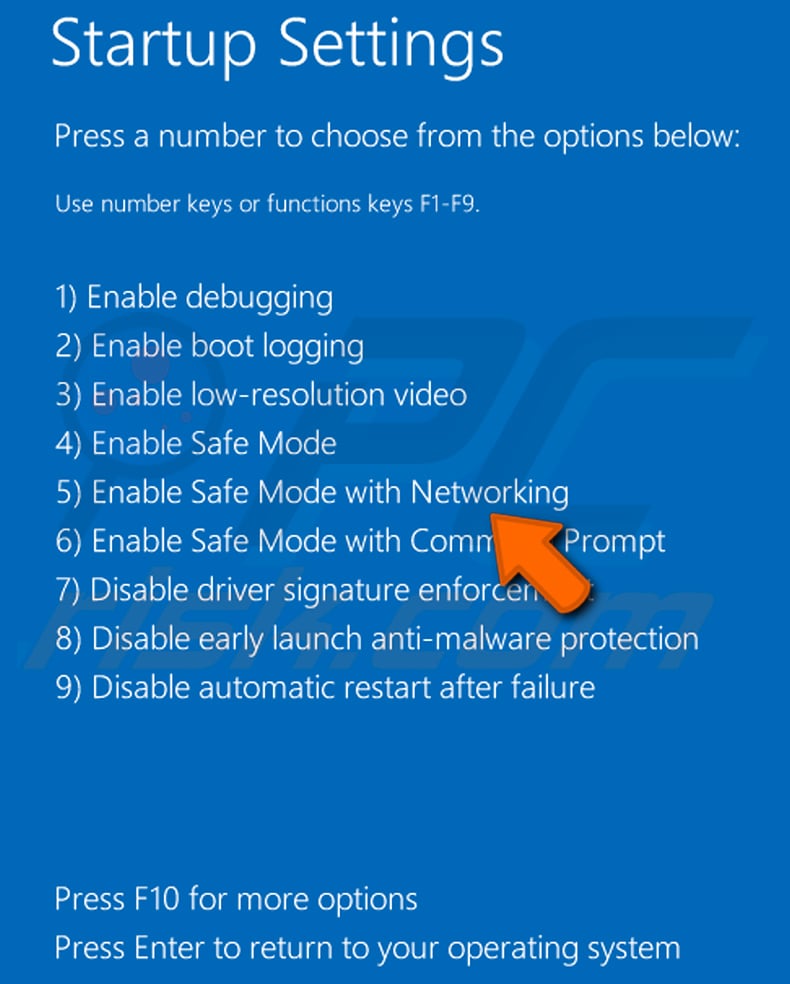
Video showing how to start Windows 8 in "Safe Mode with Networking":
Windows 10 users: Click the Windows logo and select the Power icon. In the opened menu click "Restart" while holding "Shift" button on your keyboard. In the "choose an option" window click on the "Troubleshoot", next select "Advanced options".
In the advanced options menu select "Startup Settings" and click on the "Restart" button. In the following window you should click the "F5" button on your keyboard. This will restart your operating system in safe mode with networking.
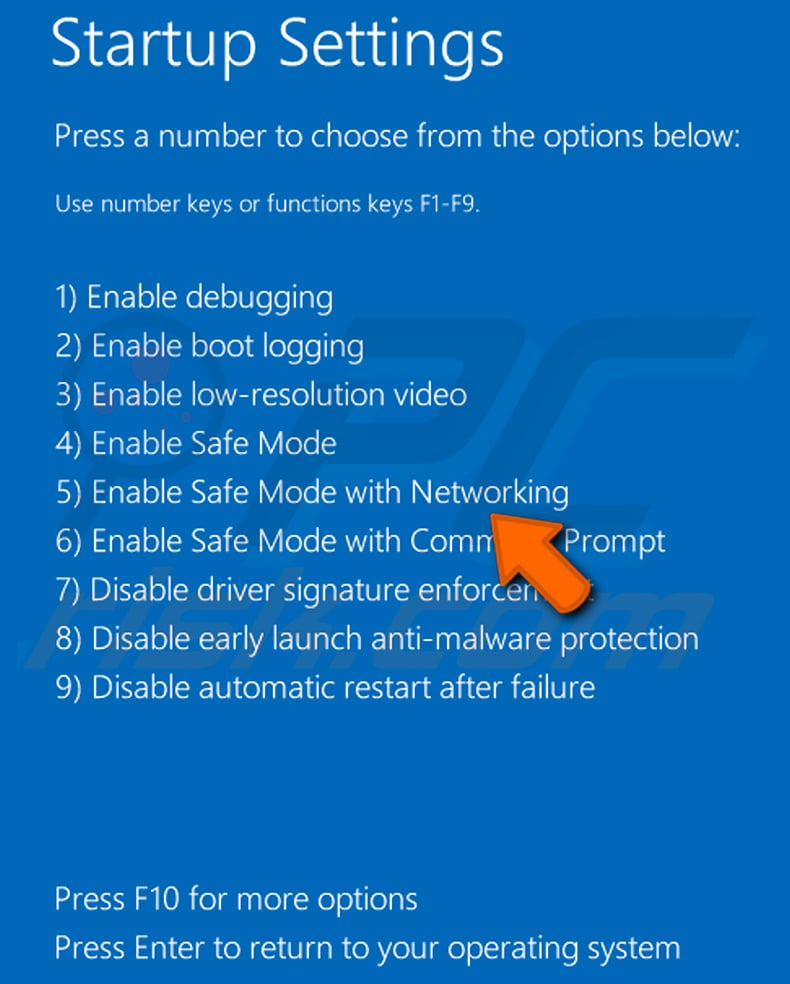
Video showing how to start Windows 10 in "Safe Mode with Networking":
 Extract the downloaded archive and run the Autoruns.exe file.
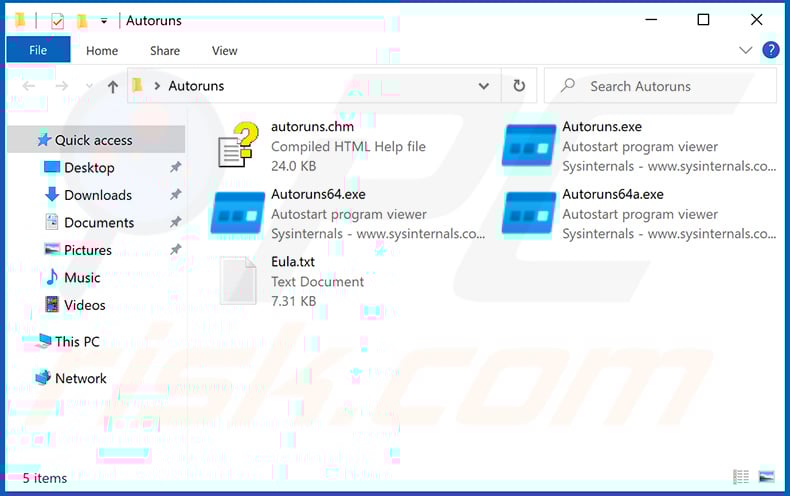
 In the Autoruns application, click "Options" at the top and uncheck "Hide Empty Locations" and "Hide Windows Entries" options. After this procedure, click the "Refresh" icon.
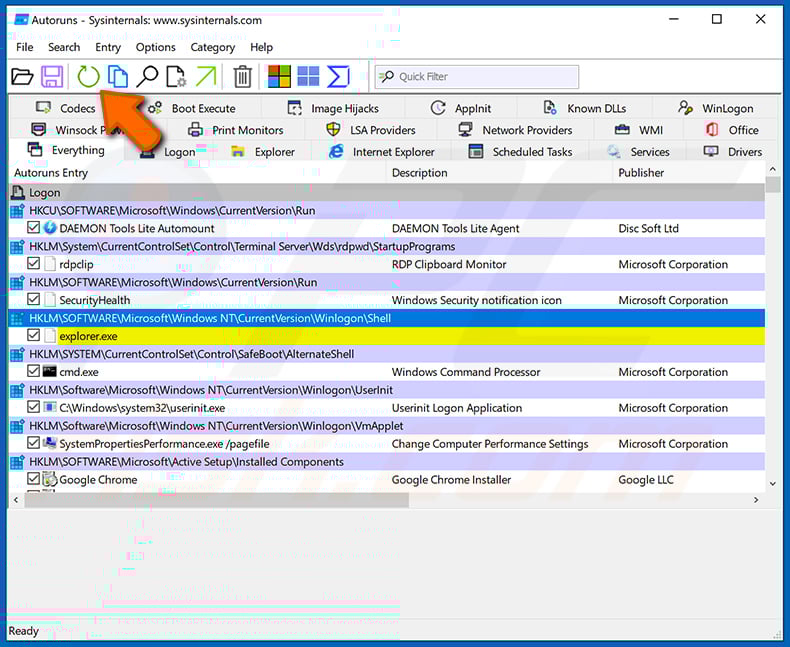
 Check the list provided by the Autoruns application and locate the malware file that you want to eliminate.
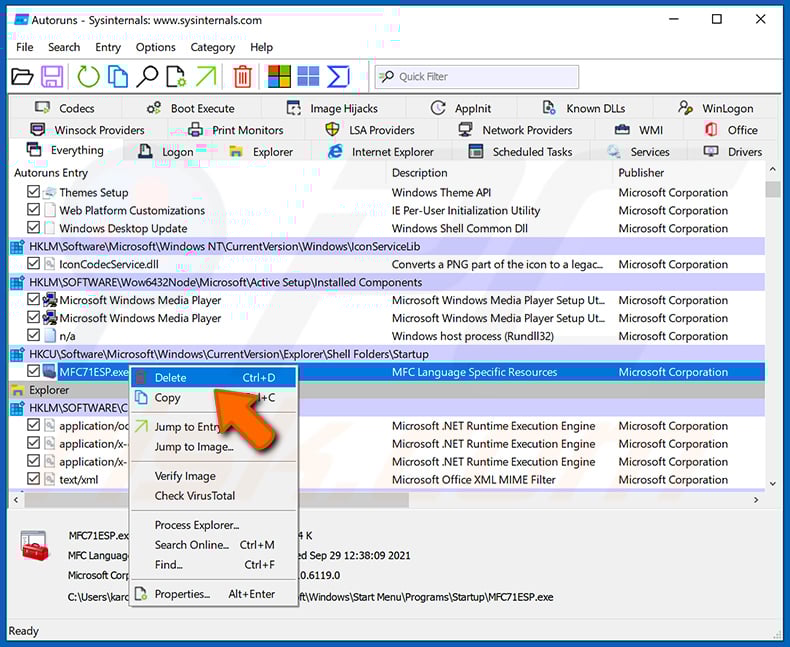
You should write down its full path and name. Note that some malware hides process names under legitimate Windows process names. At this stage, it is very important to avoid removing system files. After you locate the suspicious program you wish to remove, right click your mouse over its name and choose "Delete".
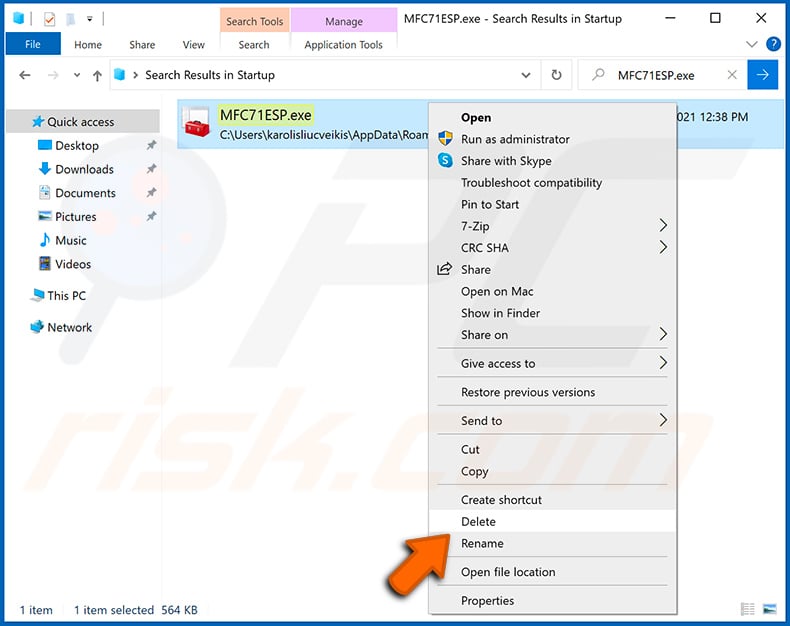
After removing the malware through the Autoruns application (this ensures that the malware will not run automatically on the next system startup), you should search for the malware name on your computer. Be sure to enable hidden files and folders before proceeding. If you find the filename of the malware, be sure to remove it.
Reboot your computer in normal mode. Following these steps should remove any malware from your computer. Note that manual threat removal requires advanced computer skills. If you do not have these skills, leave malware removal to antivirus and anti-malware programs.
These steps might not work with advanced malware infections. As always it is best to prevent infection than try to remove malware later. To keep your computer safe, install the latest operating system updates and use antivirus software. To be sure your computer is free of malware infections, we recommend scanning it with Combo Cleaner Antivirus for Windows.
Frequently Asked Questions (FAQ)
My computer is infected with Sams malware, should I format my storage device to get rid of it?
Formatting your storage device may indeed remove the Sams malware, but it's a drastic measure that should be considered carefully. Formatting will erase all data on the storage device. Before proceeding with formatting, attempt to remove the malware using reputable antivirus software.
What are the biggest issues that malware can cause?
Malware can steal sensitive information, corrupt files, compromise privacy, facilitate fraudulent activities such as unauthorized transactions, inject additional malware, and cause other issues.
What is the purpose of Sams malware?
Sams targets a wide range of valuable information, including passwords, cookies, session data from communication platforms like Telegram and Discord, cryptocurrency wallet information, and system-related data.
How did a malware infiltrate my computer?
Malware could have infiltrated your computer through various means, including malicious links or attachments in emails, infected files downloaded from unreliable sources, pirated software, compromised websites, or vulnerabilities in outdated software or operating systems.
Will Combo Cleaner protect me from malware?
Combo Cleaner can identify and eradicate nearly all recognized malware infections. However, sophisticated malware often conceals itself deep within the system. Consequently, conducting a comprehensive system scan is imperative to ensure thorough detection and removal of any hidden threats.
Share:
 Facebook
 X.com
X.com
 LinkedIn
 Copy Link

Tomas Meskauskas
Expert security researcher, professional malware analyst
I am passionate about computer security and technology. I have an experience of over 10 years working in various companies related to computer technical issue solving and Internet security. I have been working as an author and editor for pcrisk.com since 2010. Follow me on Twitter and LinkedIn to stay informed about the latest online security threats.
PCrisk security portal is brought by a company RCS LT.
Joined forces of security researchers help educate computer users about the latest online security threats. More information about the company RCS LT.
Our malware removal guides are free. However, if you want to support us you can send us a donation.
DonatePCrisk security portal is brought by a company RCS LT.
Joined forces of security researchers help educate computer users about the latest online security threats. More information about the company RCS LT.
Our malware removal guides are free. However, if you want to support us you can send us a donation.
Donate
▼ Show Discussion