
How to remove Albiriox malware from your Android device
TrojanAlso Known As: Albiriox RAT (Remote Access Trojan)

Get free scan and check if your device is infected.
Remove it nowTo use full-featured product, you have to purchase a license for Combo Cleaner. Seven days free trial available. Combo Cleaner is owned and operated by RCS LT, the parent company of PCRisk.com.
What kind of malware is Albiriox?
Albiriox is a sophisticated Android-specific RAT (Remote Access Trojan) with extensive banking trojan capabilities. Its target list covers over 400 banks and financial services.
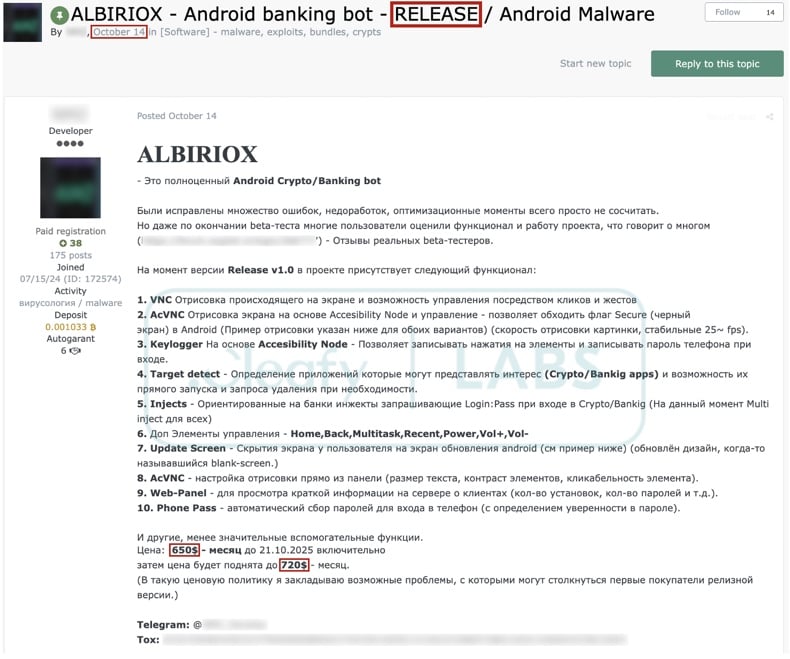
This malware first emerged in September 2025 and was subsequently offered as MaaS (Malware-as-a-Service) a month later. As of the time of writing, Albiriox is under active development. Evidence shows that the RAT's operators are Russian-language speakers.
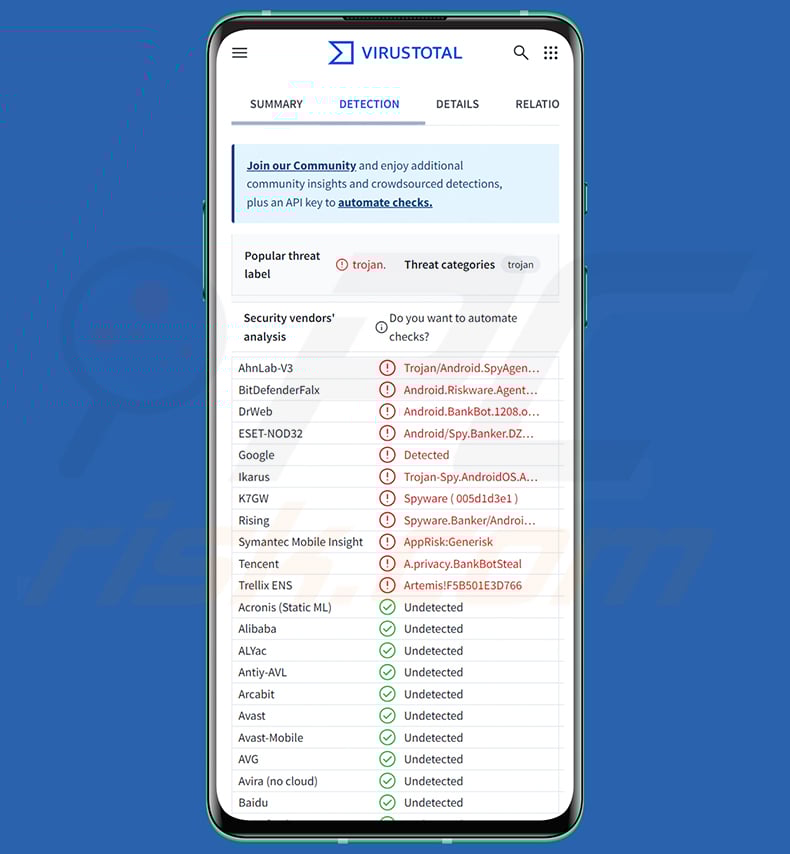
Albiriox malware overview
The known Albiriox infections relied on a dropper. It presented the victim with a fake "System Update" interface that requested various permissions. Critically, it needed to gain permissions to use the Android Accessibility Services and to install applications from third-parties ("Install Unknown Apps"). Once granted, the dropper infiltrated Albiriox.
The reliance on a dropper is not the only anti-detection technique utilized by this infection. The payload (Albiriox) is dynamically unpacked, and it boasts obfuscated code. The malware's operators are also offering an additional anti-detection tool from another developer.
Upon successful infiltration, it establishes communication with its C&C (Command and Control) server via an unencrypted TCP Socket connection. The first action is to gather relevant device data and send it to the C&C server (i.e., hardware ID, smartphone model, Android OS version, etc.).
As a Remote Access Trojan (RAT), Albiriox enables remote access and control over infected machines. Albiriox allows a level of control close to user-lever. It introduces a VNC (Virtual Network Computing) based remote access module. The trojan enables real-time interaction with the infected device. It can live-stream the screen, interact with the interface, simulate gestures (e.g., clicks, presses, swipes, etc.), and execute various commands. Thus, Albiriox is capable of performing malicious activities in real time.
The RAT can display three types of overlays: screens impersonating legitimate system updates, blackout screens to hide all activity, and phishing screens mimicking genuine applications.
Accessibility Services are designed to assist with device interaction for users who need it. By abusing these services, malicious programs gain all their capabilities (e.g., reading the screen, simulating the touchscreen, interacting with the keyboard, etc.). The Android Accessibility Services are crucial for Albiriox when performing fraudulent transactions and other financial operations, as many related applications block or warn about screenshotting and screen-recording attempts.
At the time of research, Albiriox included over 400 hardcoded targets, including banking, payment processing, cryptocurrency exchange, cryptowallet, and other finance-related apps. Over half of the applications relate to cryptocurrency, and over a hundred are banking apps. The net cast by this malware is worldwide; the targeted services are not limited to any single region.
Albiriox collects a list of installed software. It tracks open applications and can launch them itself. While interacting with the device in real-time, the trojan can use the black overlay and hide activities, such as fraudulent transactions and transfers.
Once an app of interest is launched, Albiriox can perform an overlay attack. This entails covering the software with a phishing screen that perfectly imitates the original and records entered information (e.g., IDs, passwords, passphrases, 2FA/MFA codes, personally identifiable information, credit/debit card numbers, etc.).
Some of the other commands that Albiriox can execute on devices include: obtain/reset/remove device locking data (e.g., pattern, password, or PIN), open "Recent Apps", select "Back" and "Home" button/option, put the device to sleep, wake the device, increases/decreases volume, uninstall app, input text into selected fields, and so on.
It is worth reiterating that, as of writing, Albiriox is still in development. Hence, future variants of this RAT can have additional/different abilities and features.
To summarize, the presence of malicious software like Albiriox on devices can lead to severe privacy issues, significant financial losses, and identity theft.
| Name | Albiriox RAT (Remote Access Trojan) |
| Threat Type | Android malware, malicious application, trojan, remote access trojan, remote administration tool, RAT. |
| Detection Names | AhnLab-V3 (Trojan/Android.SpyAgent.1313398), Combo Cleaner (Android.Riskware.Agent.aARLK), ESET-NOD32 (Android/Spy.Banker.DZC Trojan), Symantec Mobile Insight (AppRisk:Generisk), Full List (VirusTotal) |
| Symptoms | The device is running slow, system settings are modified without user's permission, questionable applications appear, data and battery usage is increased significantly. |
| Distribution methods | Infected email attachments, malicious online advertisements, social engineering, deceptive applications, scam websites. |
| Damage | Stolen personal information (private messages, logins/passwords, etc.), decreased device performance, battery is drained quickly, decreased Internet speed, huge data losses, monetary losses, stolen identity (malicious apps might abuse communication apps). |
| Malware Removal (Windows) |
To eliminate possible malware infections, scan your computer with legitimate antivirus software. Our security researchers recommend using Combo Cleaner. Download Combo CleanerTo use full-featured product, you have to purchase a license for Combo Cleaner. 7 days free trial available. Combo Cleaner is owned and operated by RCS LT, the parent company of PCRisk.com. |
Examples of Android-specific remote access trojans
We have written about numerous malicious programs; Fantasy Hub, BankBot, Asur, G700, and BingoMod are just some of our articles on RATs targeting Android devices.
Remote access trojans can be incredibly versatile and allow attackers to assume full control of devices. However, regardless of how malware operates – its presence on the system endangers device integrity and user privacy. Therefore, all threats must be removed immediately upon detection.
How did Albiriox infiltrate my device?
As previously mentioned, Albiriox is offered as MaaS on hacker forums. Hence, how it is distributed may depend on the cyber criminals using it (i.e., methods can differ between attacks).
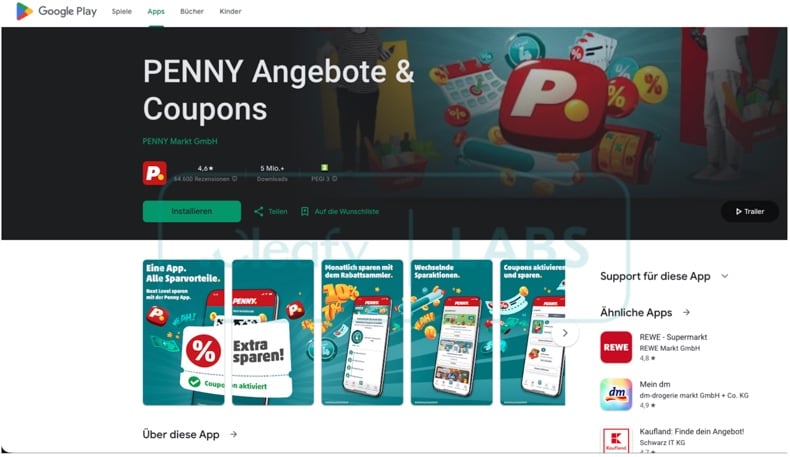
The first known campaign took place before the trojan's MaaS release in October 2025. It was a small and limited campaign, targeting Austrian users. It began with SMS spam containing a shortened URL leading recipients to a website imitating a German-language Google Play Store page. It promoted a fake application for the Penny discount supermarket chain. Albiriox's dropper was downloaded straight from this fraudulent webpage.
In another iteration of the Penny campaign, the dropper download was indirect. The page stated that the download link would be sent via WhatsApp Messenger and requested users to provide their phone numbers.
To elaborate, users were instructed to select the petrol station for which they would like to receive discounts, "spin a wheel" for the discount amount, and were asked to enter their phone number with the promise of swift contact from a representative. The campaign was geo-locked and collected only Austrian numbers, which were then sent to the cyber criminals' Telegram bot.
Other disguises and proliferation techniques are highly likely. Social engineering and phishing tactics are standard. Usually, malicious programs are presented as or bundled with regular content.
The most prevalent malware distribution methods include: untrustworthy download channels (e.g., freeware and free file-hosting sites, P2P sharing networks, third-party app stores, etc.), drive-by (stealthy deceptive) downloads, online scams, malicious attachments or links in spam (e.g., emails, PMs/DMs, SMSes, social media posts, etc.), malvertising, pirated content, illegal software activation tools ("cracks"), and fake updates.
Some malicious programs can self-spread through local networks and removable storage devices (e.g., external hard drives, USB flash drives, etc.).
How to avoid installation of malware?
Caution is paramount to ensuring device and user safety. Therefore, always research software by reading terms and expert/user reviews, inspecting the required permissions, and verifying developer legitimacy. Download only from official and verified sources. Activate and update programs using genuine functions/tools, as those obtained from third-parties can contain malware.
Be cautious when browsing, as the Internet is rife with fake and malicious content. Do not open attachments or links found in suspicious/irrelevant communications (e.g., emails, PMs/DMs, SMSes, etc.).
It is paramount to have a reputable antivirus installed and kept up-to-date. Security software must be used to perform regular system scans and to remove active and potential threats.
Screenshot of a fake Google Play Store page spreading Albiriox (image source – Cleafy LABS):
Screenshot of Albiriox promoted on a hacker forum (image source – Cleafy LABS):
Quick menu:
- Introduction
- How to delete browsing history from the Chrome web browser?
- How to disable browser notifications in the Chrome web browser?
- How to reset the Chrome web browser?
- How to delete browsing history from the Firefox web browser?
- How to disable browser notifications in the Firefox web browser?
- How to reset the Firefox web browser?
- How to uninstall potentially unwanted and/or malicious applications?
- How to boot the Android device in "Safe Mode"?
- How to check the battery usage of various applications?
- How to check the data usage of various applications?
- How to install the latest software updates?
- How to reset the system to its default state?
- How to disable applications that have administrator privileges?
Delete browsing history from the Chrome web browser:
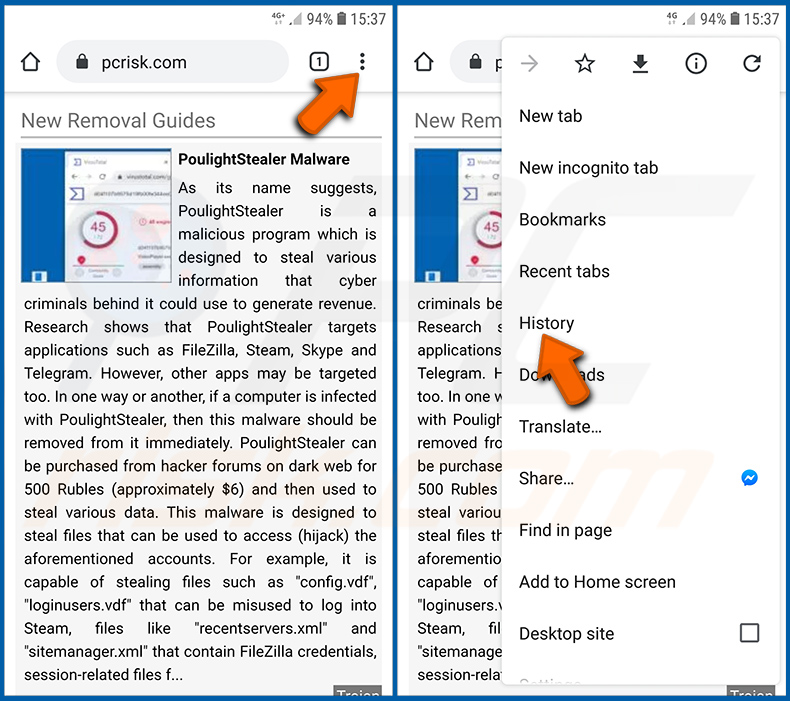
Tap the "Menu" button (three dots on the right-upper corner of the screen) and select "History" in the opened dropdown menu.
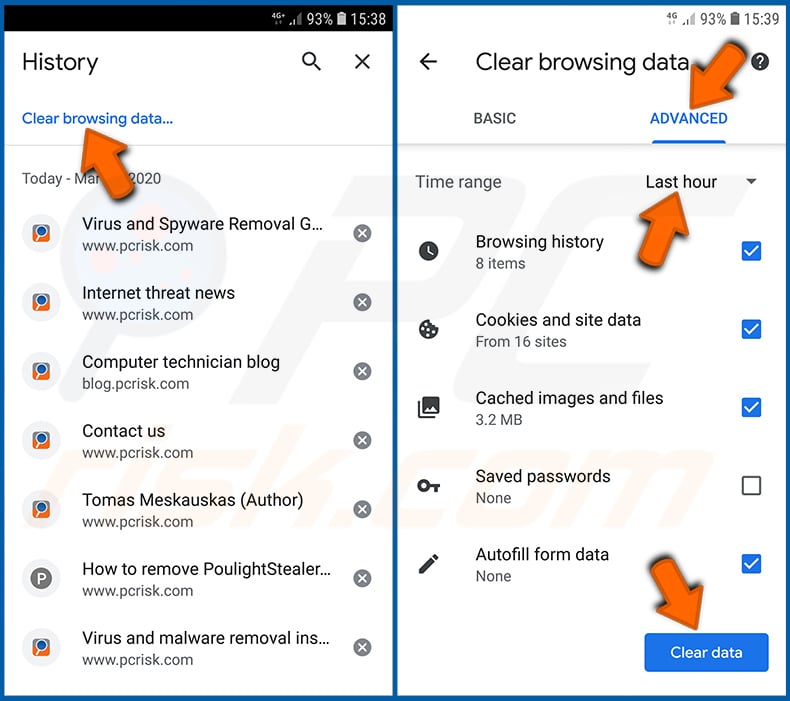
Tap "Clear browsing data", select "ADVANCED" tab, choose the time range and data types you want to delete and tap "Clear data".
Disable browser notifications in the Chrome web browser:
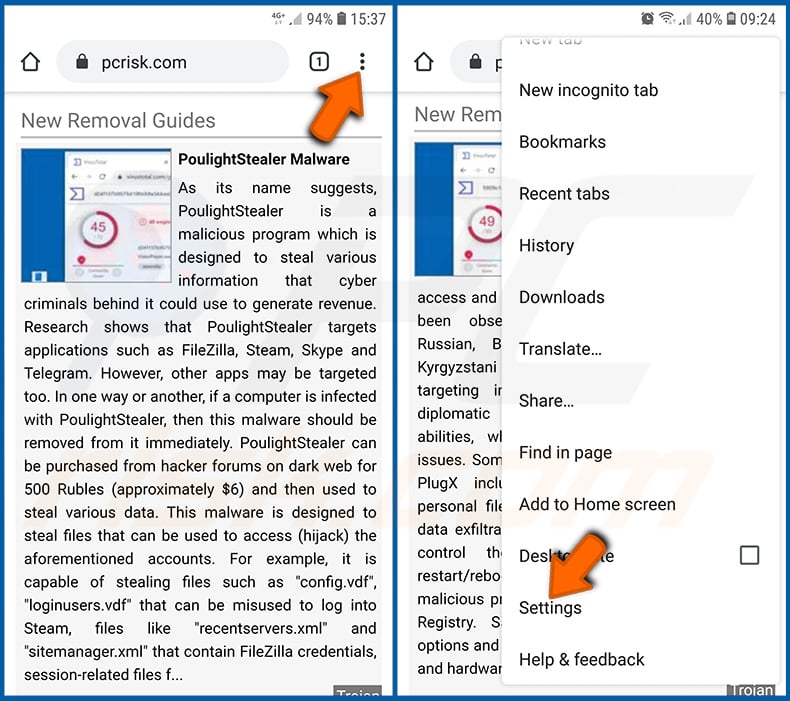
Tap the "Menu" button (three dots on the right-upper corner of the screen) and select "Settings" in the opened dropdown menu.
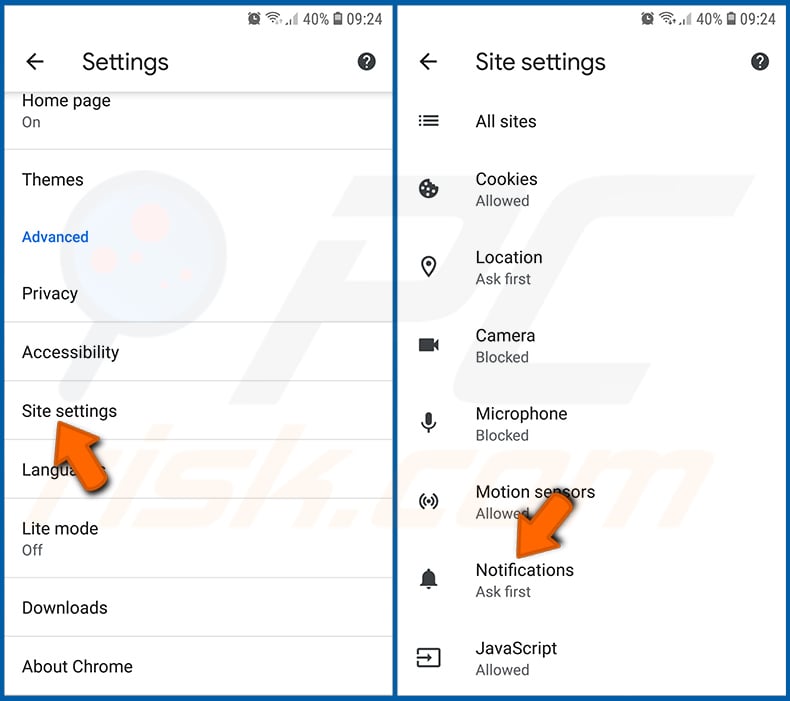
Scroll down until you see "Site settings" option and tap it. Scroll down until you see "Notifications" option and tap it.
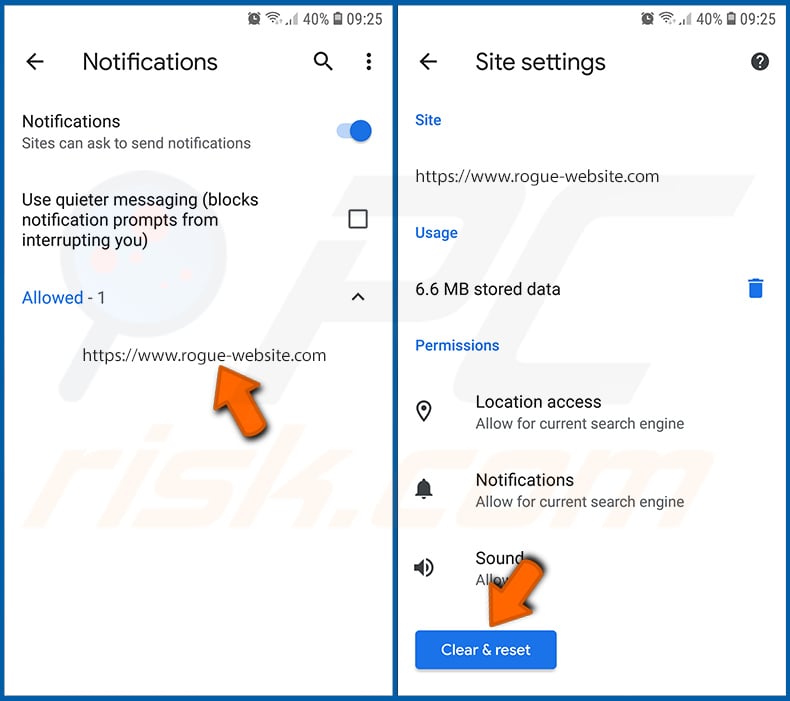
Find the websites that deliver browser notifications, tap on them and click "Clear & reset". This will remove permissions granted for these websites to deliver notifications. However, once you visit the same site again, it may ask for a permission again. You can choose whether to give these permissions or not (if you choose to decline the website will go to "Blocked" section and will no longer ask you for the permission).
Reset the Chrome web browser:
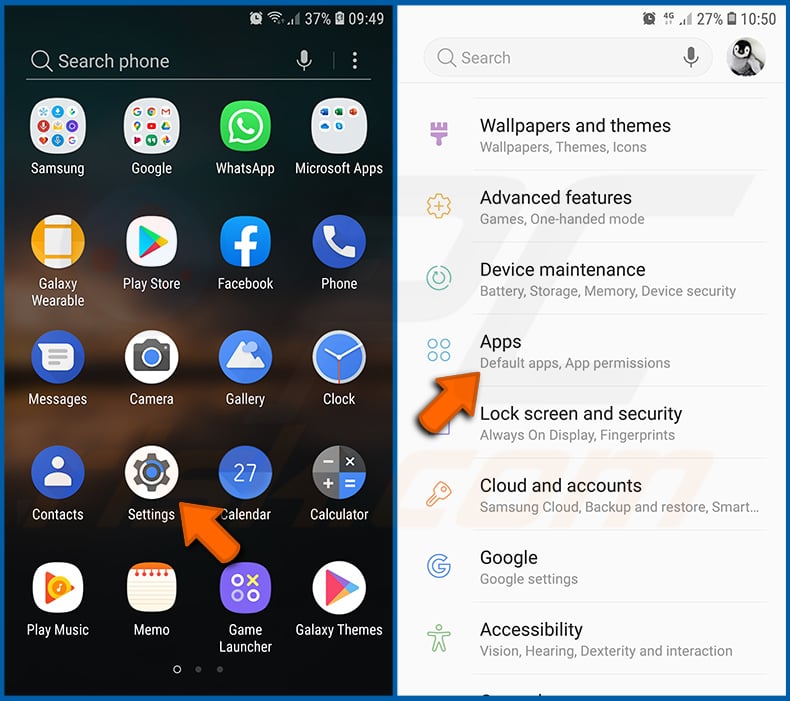
Go to "Settings", scroll down until you see "Apps" and tap it.
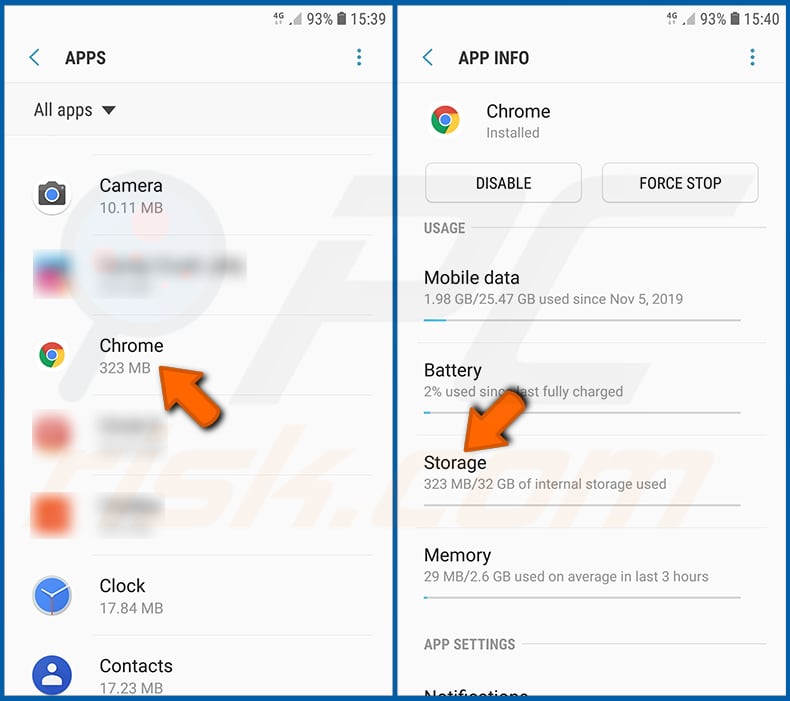
Scroll down until you find "Chrome" application, select it and tap "Storage" option.
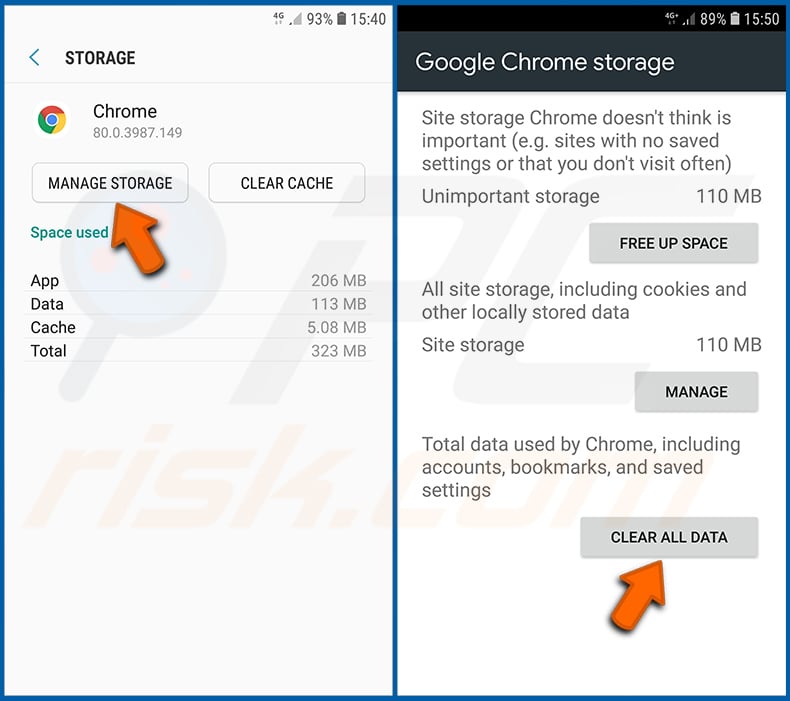
Tap "MANAGE STORAGE", then "CLEAR ALL DATA" and confirm the action by taping "OK". Note that resetting the browser will eliminate all data stored within. This means that all saved logins/passwords, browsing history, non-default settings and other data will be deleted. You will also have to re-login into all websites as well.
Delete browsing history from the Firefox web browser:
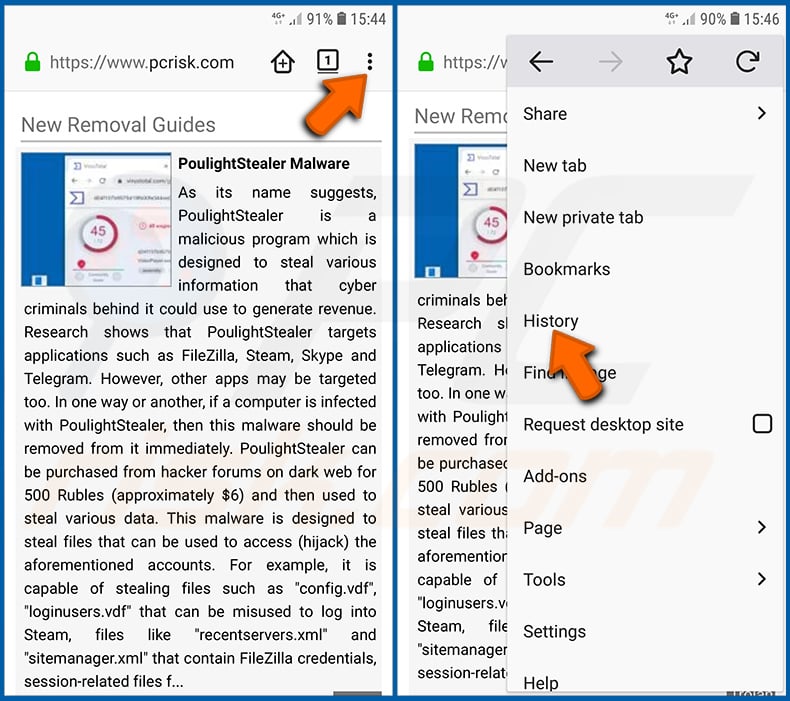
Tap the "Menu" button (three dots on the right-upper corner of the screen) and select "History" in the opened dropdown menu.
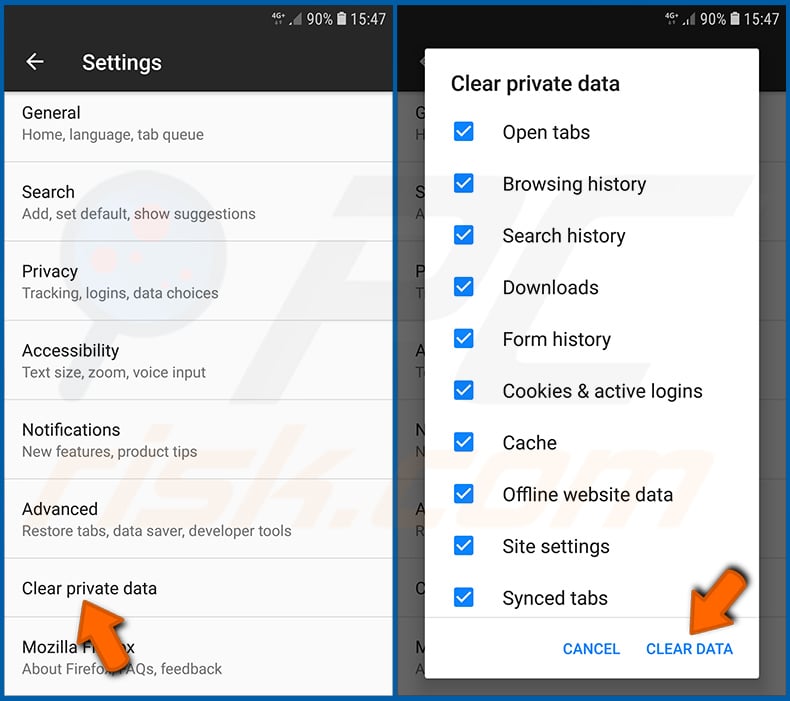
Scroll down until you see "Clear private data" and tap it. Select data types you want to remove and tap "CLEAR DATA".
Disable browser notifications in the Firefox web browser:
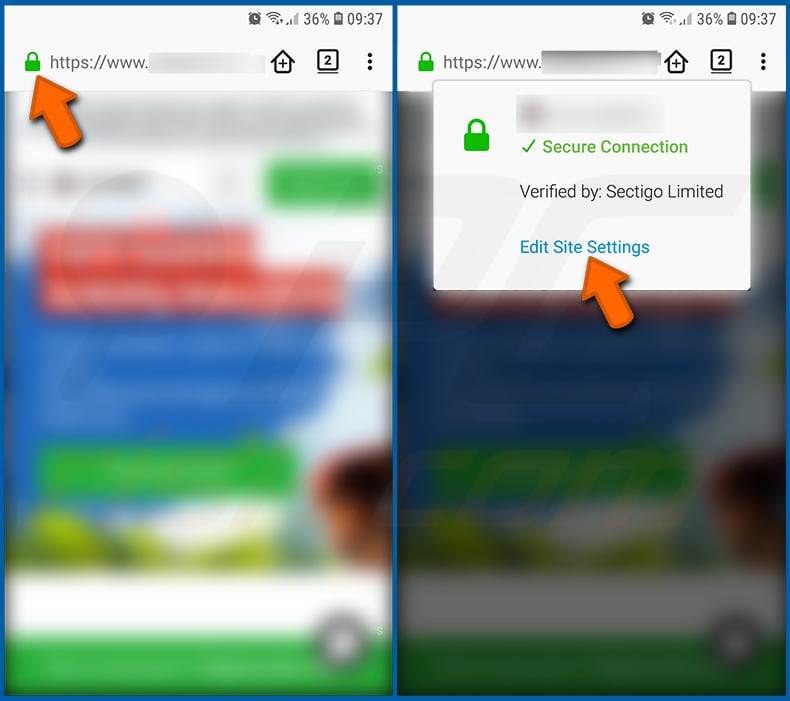
Visit the website that is delivering browser notifications, tap the icon displayed on the left of URL bar (the icon will not necessarily be a "Lock") and select "Edit Site Settings".
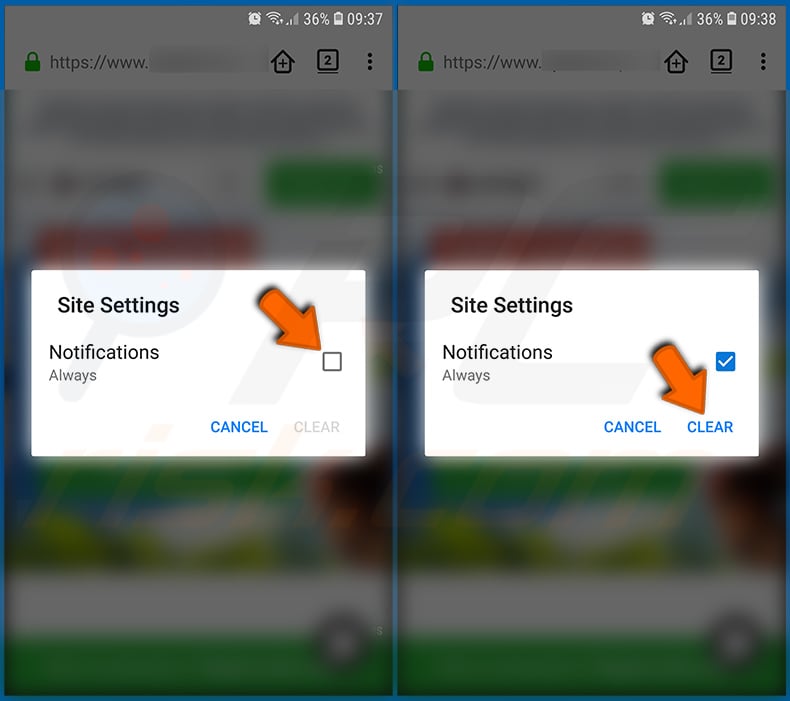
In the opened pop-up opt-in the "Notifications" option and tap "CLEAR".
Reset the Firefox web browser:
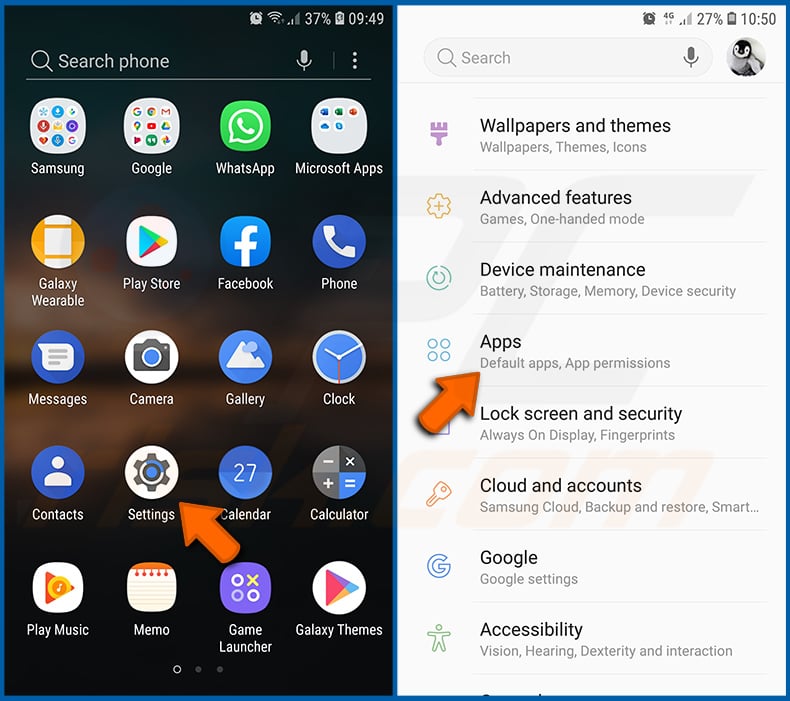
Go to "Settings", scroll down until you see "Apps" and tap it.
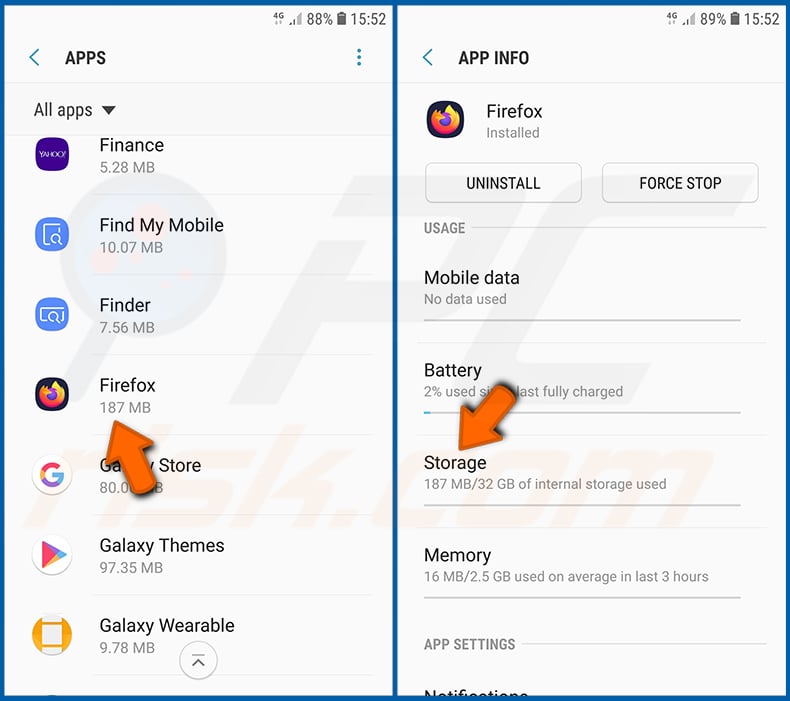
Scroll down until you find "Firefox" application, select it and tap "Storage" option.
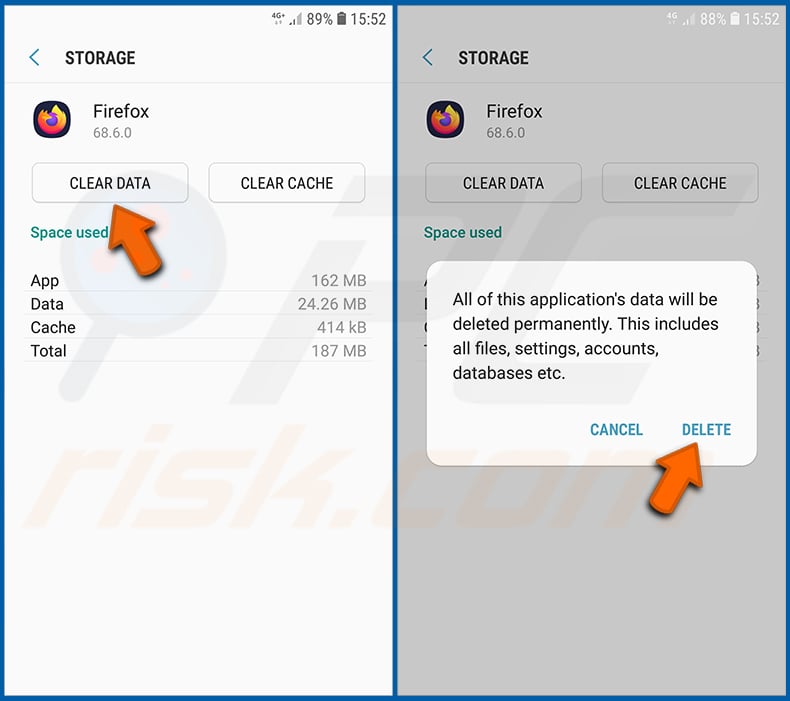
Tap "CLEAR DATA" and confirm the action by taping "DELETE". Note that resetting the browser will eliminate all data stored within. This means that all saved logins/passwords, browsing history, non-default settings and other data will be deleted. You will also have to re-login into all websites as well.
Uninstall potentially unwanted and/or malicious applications:
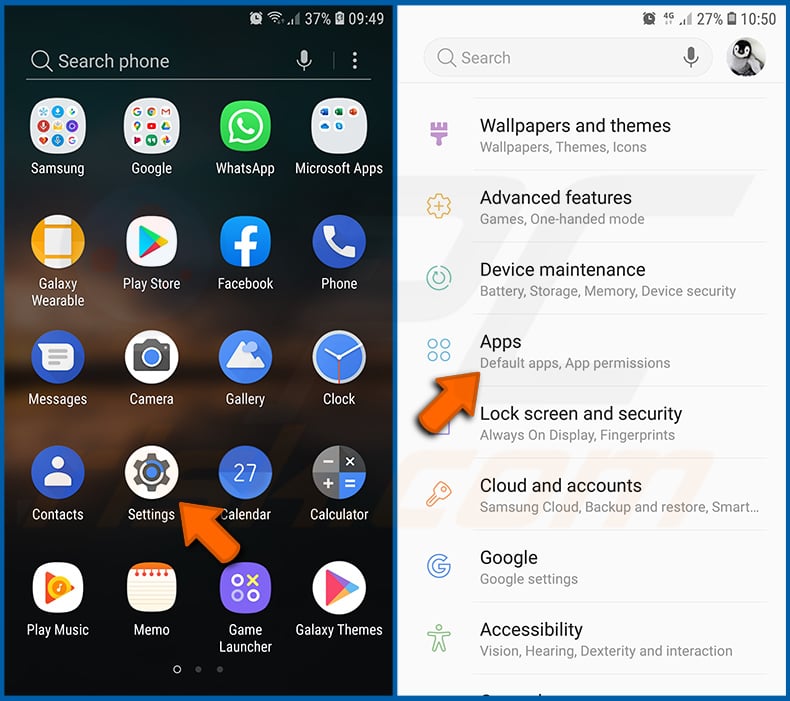
Go to "Settings", scroll down until you see "Apps" and tap it.
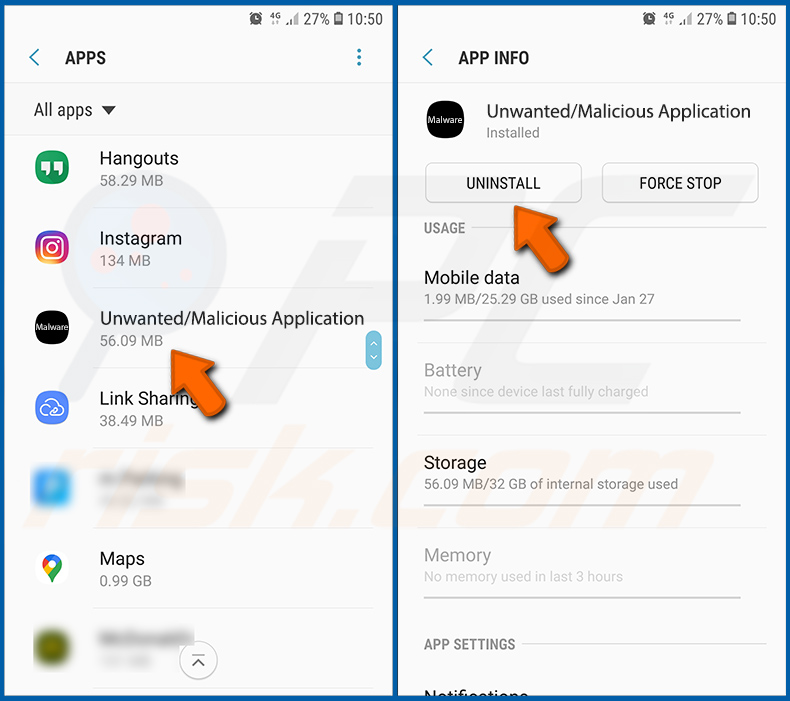
Scroll down until you see a potentially unwanted and/or malicious application, select it and tap "Uninstall". If, for some reason, you are unable to remove the selected app (e.g., you are prompted with an error message), you should try using the "Safe Mode".
Boot the Android device in "Safe Mode":
The "Safe Mode" in Android operating system temporarily disables all third-party applications from running. Using this mode is a good way to diagnose and solve various issues (e.g., remove malicious applications that prevent users you from doing so when the device is running "normally").
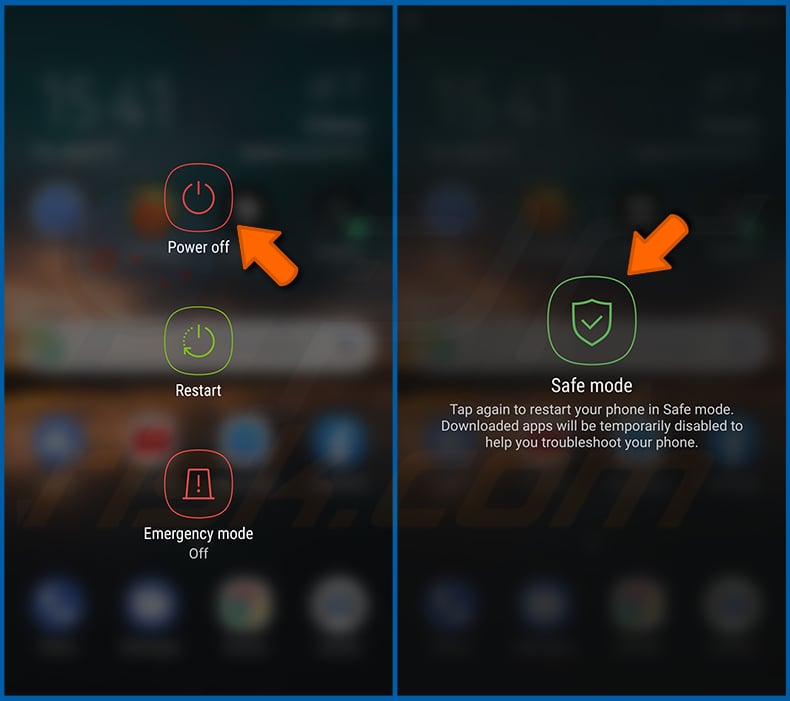
Push the "Power" button and hold it until you see the "Power off" screen. Tap the "Power off" icon and hold it. After a few seconds the "Safe Mode" option will appear and you'll be able run it by restarting the device.
Check the battery usage of various applications:
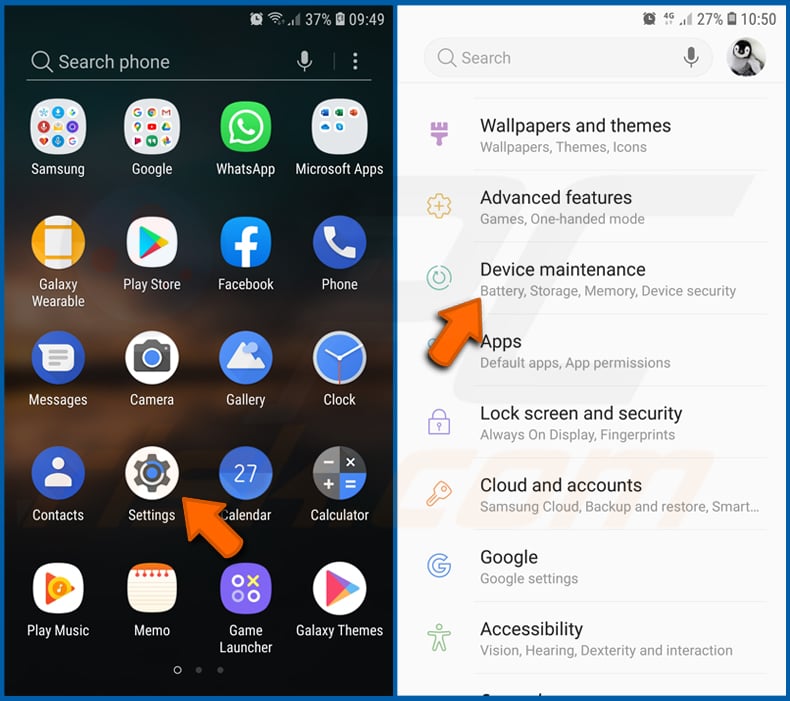
Go to "Settings", scroll down until you see "Device maintenance" and tap it.
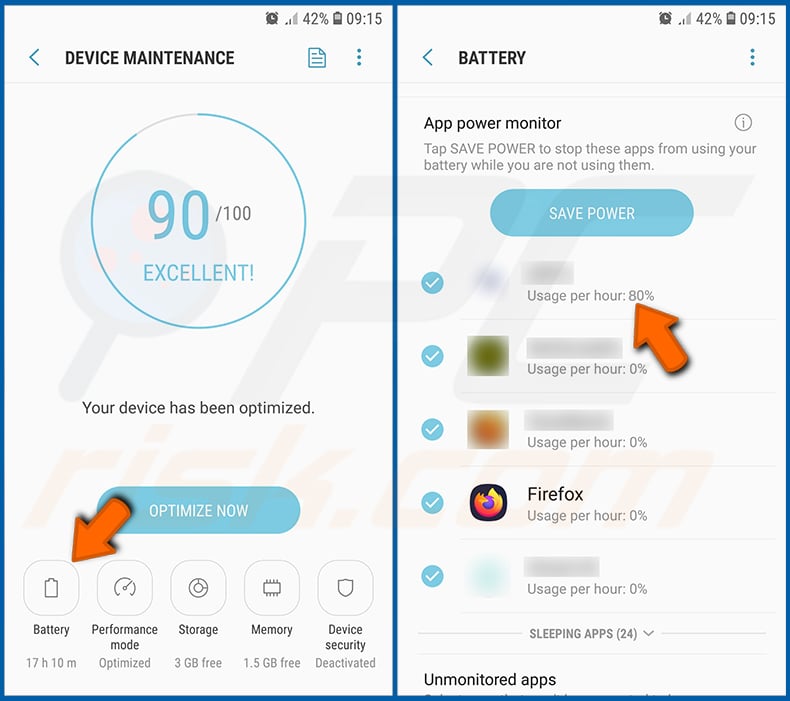
Tap "Battery" and check the usage of each application. Legitimate/genuine applications are designed to use as low energy as possible in order to provide the best user experience and to save power. Therefore, high battery usage may indicate that the application is malicious.
Check the data usage of various applications:
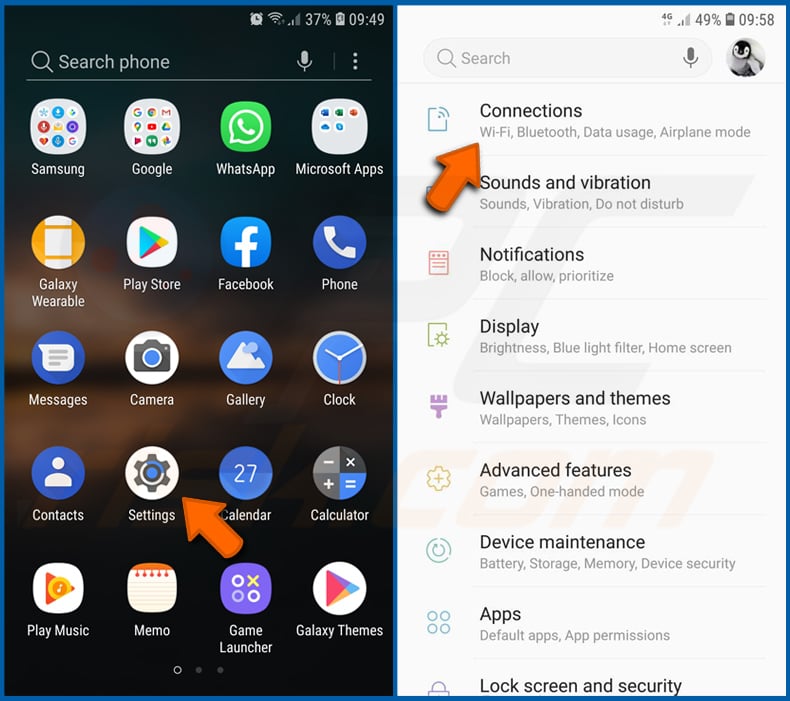
Go to "Settings", scroll down until you see "Connections" and tap it.
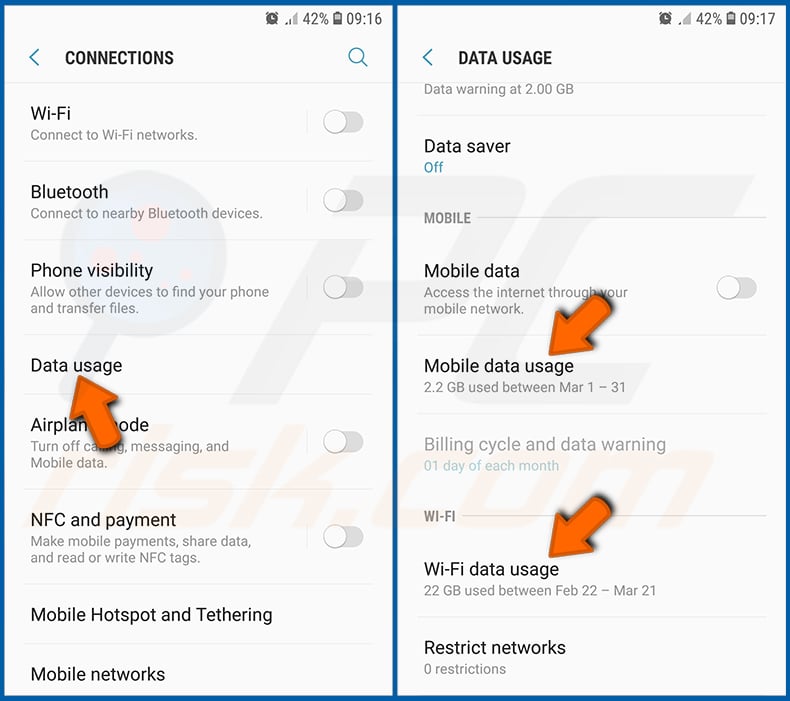
Scroll down until you see "Data usage" and select this option. As with battery, legitimate/genuine applications are designed to minimize data usage as much as possible. This means that huge data usage may indicate presence of malicious application. Note that some malicious applications might be designed to operate when the device is connected to wireless network only. For this reason, you should check both Mobile and Wi-Fi data usage.
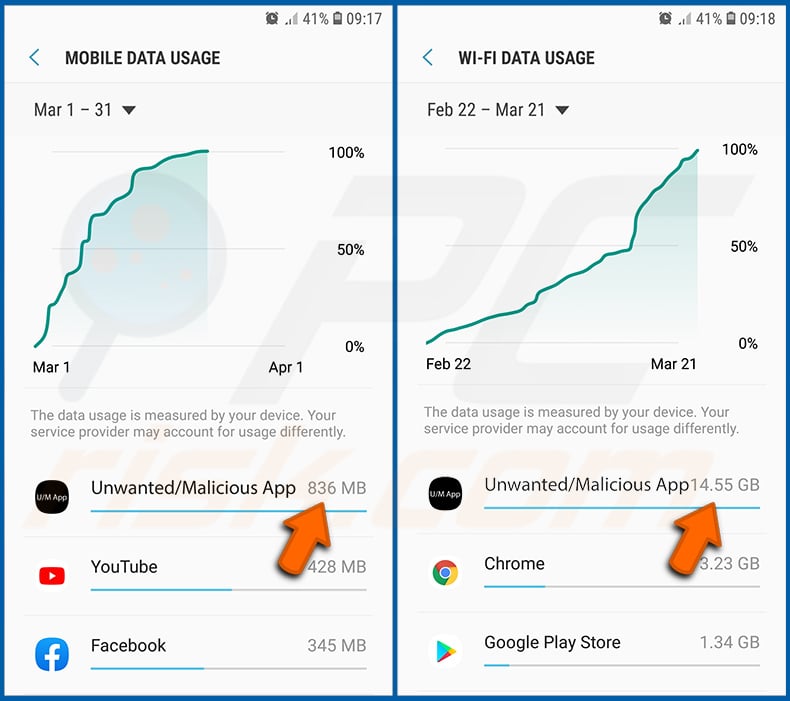
If you find an application that uses a lot of data even though you never use it, then we strongly advise you to uninstall it as soon as possible.
Install the latest software updates:
Keeping the software up-to-date is a good practice when it comes to device safety. The device manufacturers are continually releasing various security patches and Android updates in order to fix errors and bugs that can be abused by cyber criminals. An outdated system is way more vulnerable, which is why you should always be sure that your device's software is up-to-date.
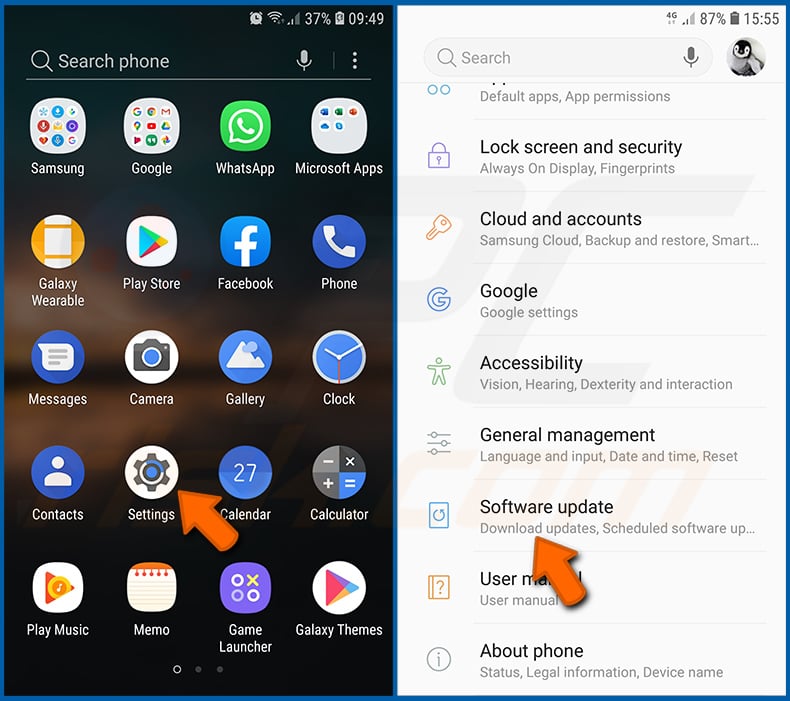
Go to "Settings", scroll down until you see "Software update" and tap it.
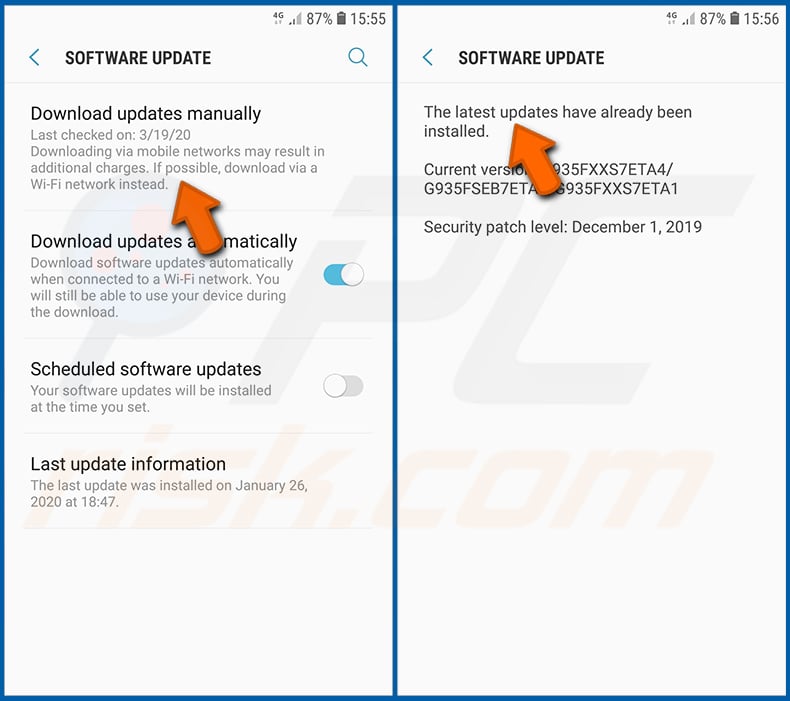
Tap "Download updates manually" and check if there are any updates available. If so, install them immediately. We also recommend to enable the "Download updates automatically" option - it will enable the system to notify you once an update is released and/or install it automatically.
Reset the system to its default state:
Performing a "Factory Reset" is a good way to remove all unwanted applications, restore system's settings to default and clean the device in general. However, you must keep in mind that all data within the device will be deleted, including photos, video/audio files, phone numbers (stored within the device, not the SIM card), SMS messages, and so forth. In other words, the device will be restored to its primal state.
You can also restore the basic system settings and/or simply network settings as well.
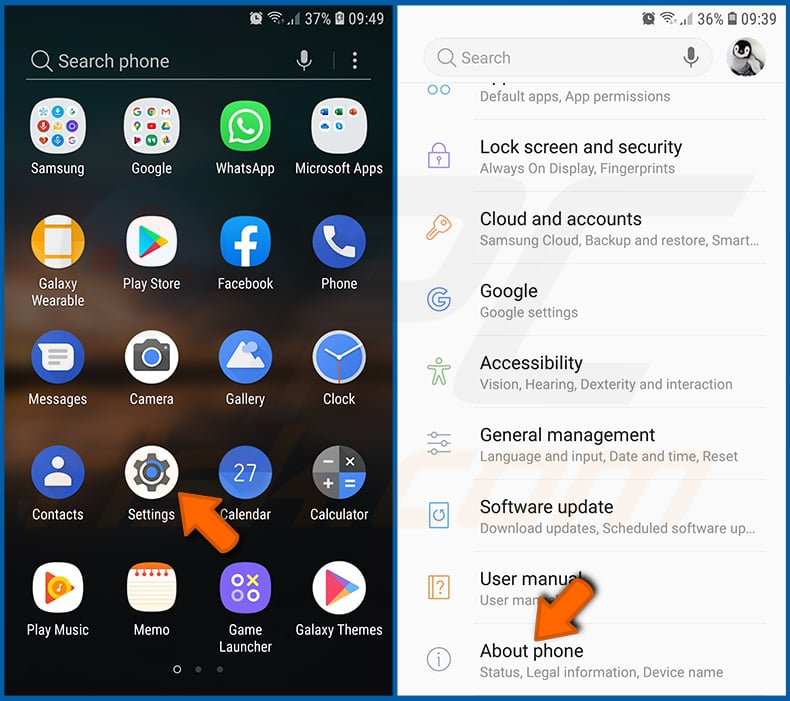
Go to "Settings", scroll down until you see "About phone" and tap it.
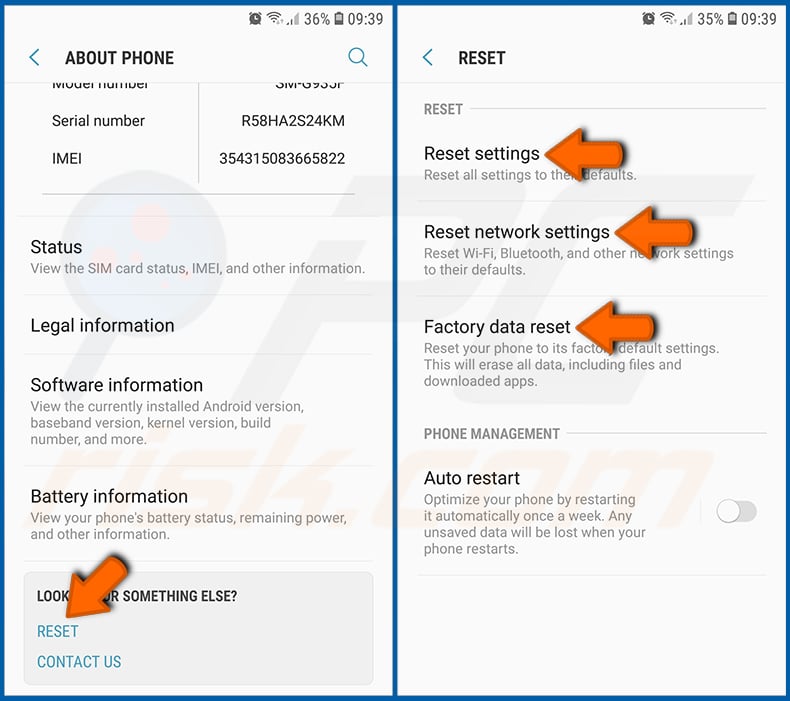
Scroll down until you see "Reset" and tap it. Now choose the action you want to perform:
"Reset settings" - restore all system settings to default;
"Reset network settings" - restore all network-related settings to default;
"Factory data reset" - reset the entire system and completely delete all stored data;
Disable applications that have administrator privileges:
If a malicious application gets administrator-level privileges it can seriously damage the system. To keep the device as safe as possible you should always check what apps have such privileges and disable the ones that shouldn't.
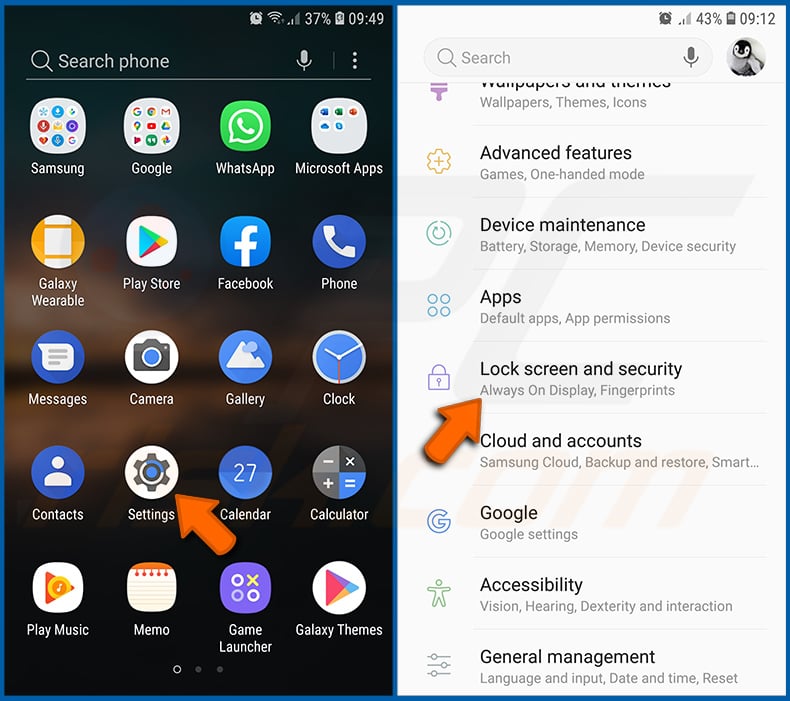
Go to "Settings", scroll down until you see "Lock screen and security" and tap it.

Scroll down until you see "Other security settings", tap it and then tap "Device admin apps".
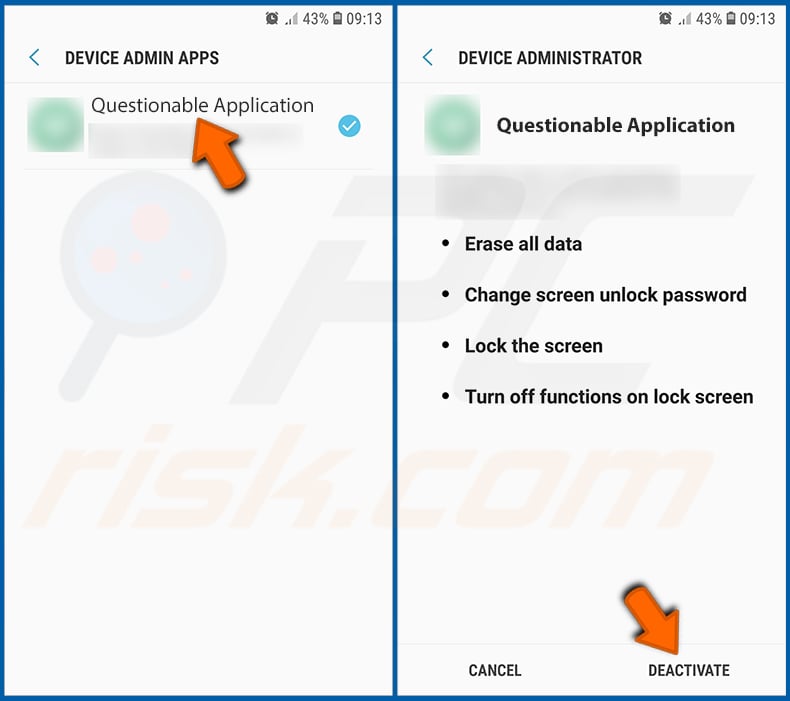
Identify applications that should not have administrator privileges, tap them and then tap "DEACTIVATE".
Frequently Asked Questions (FAQ)
My Android device is infected with Albiriox malware, should I format my storage device to get rid of it?
Most likely, no – since malware removal rarely necessitates such drastic measures.
What are the biggest issues that Albiriox malware can cause?
The dangers posed by an infection depend on the malware's abilities and the attackers' goals. Albiriox is a remote access trojan centered on financial-related data theft. Generally, the presence of such software can lead to severe privacy issues, financial losses, and identity theft.
What is the purpose of Albiriox malware?
Profit is by far the most common motivation behind malware attacks, and Albiriox's capabilities are geared towards this. Other prevalent reasons include the attackers' seeking amusement or personal grudges, process disruption (e.g., sites, services, companies, etc.), hacktivism, and political/geopolitical motivations.
How did Albiriox malware infiltrate my Android device?
Albiriox has been spread via fake Google Play pages as a discount app for a legitimate supermarket chain. Other distribution methods are likely.
Malware is mainly proliferated through drive-by downloads, suspect download sources (e.g., freeware and free file-hosting sites, P2P sharing networks, third-party app stores, etc.), online scams, spam mail, malvertising, pirated content, illegal software activation ("cracking") tools, and fake updates. Some malicious programs can self-spread via local networks and removable storage devices.
Will Combo Cleaner protect me from malware?
Combo Cleaner can detect and eliminate most of the known malware infections. Keep in mind that running a full system scan is essential since high-end malicious programs typically hide deep within systems.
Share:
 Facebook
 X.com
X.com
 LinkedIn
 Copy Link

Tomas Meskauskas
Expert security researcher, professional malware analyst
I am passionate about computer security and technology. I have an experience of over 10 years working in various companies related to computer technical issue solving and Internet security. I have been working as an author and editor for pcrisk.com since 2010. Follow me on Twitter and LinkedIn to stay informed about the latest online security threats.
PCrisk security portal is brought by a company RCS LT.
Joined forces of security researchers help educate computer users about the latest online security threats. More information about the company RCS LT.
Our malware removal guides are free. However, if you want to support us you can send us a donation.
DonatePCrisk security portal is brought by a company RCS LT.
Joined forces of security researchers help educate computer users about the latest online security threats. More information about the company RCS LT.
Our malware removal guides are free. However, if you want to support us you can send us a donation.
Donate
▼ Show Discussion