

Get free scan and check if your device is infected.
Remove it nowTo use full-featured product, you have to purchase a license for Combo Cleaner. Seven days free trial available. Combo Cleaner is owned and operated by RCS LT, the parent company of PCRisk.com.
What is "CrashFix"?
"CrashFix" refers to a social engineering technique intended to infect systems with malware. It is facilitated by a malicious browser extension that crashes the victim's browser and provides fake steps to fix the issue. By following these steps, the victim executes a malicious command on their device – thereby triggering the infection chain.
"CrashFix" was first observed in January 2026. This campaign targeted corporate environments and was linked to a threat actor tracked as "KongTuke".
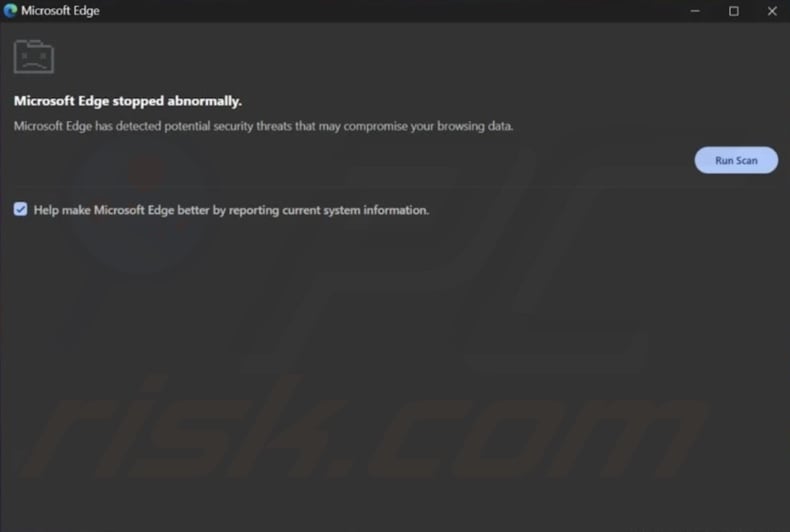
"CrashFix" overview
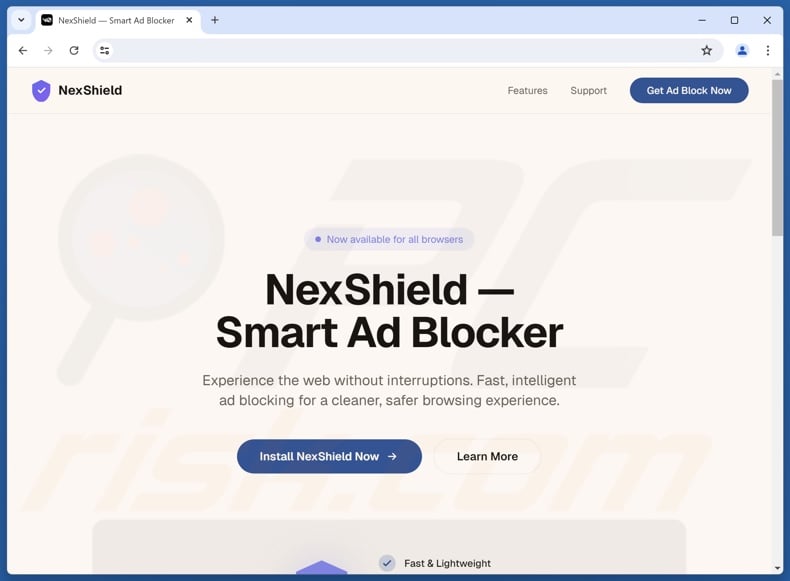
The campaign undertaken by the "KongTuke" threat actor at the beginning of 2026 originated from a browser extension named NexShield. This extension masquerades as uBlock Origin Lite – a legitimate content filtering and ad blocking tool. The majority of NexShield's codebase is ripped straight from uBlock Origin Lite, with minimal changes to naming and phrasing in certain places. However, the "background.js" file in NexShield is trojanized and is larger than its legitimate counterpart.
Upon installation, this extension remains dormant for an hour before engaging in malicious activity. It launches a DoS (Denial-of-Service) attack on the browser – essentially overloading it and straining system resources to the point of crashing the application. The extension presents the victim with a pop-up window claiming that their browser "stopped abnormally" and that "potential security threats that may compromise your browsing data" have been detected.
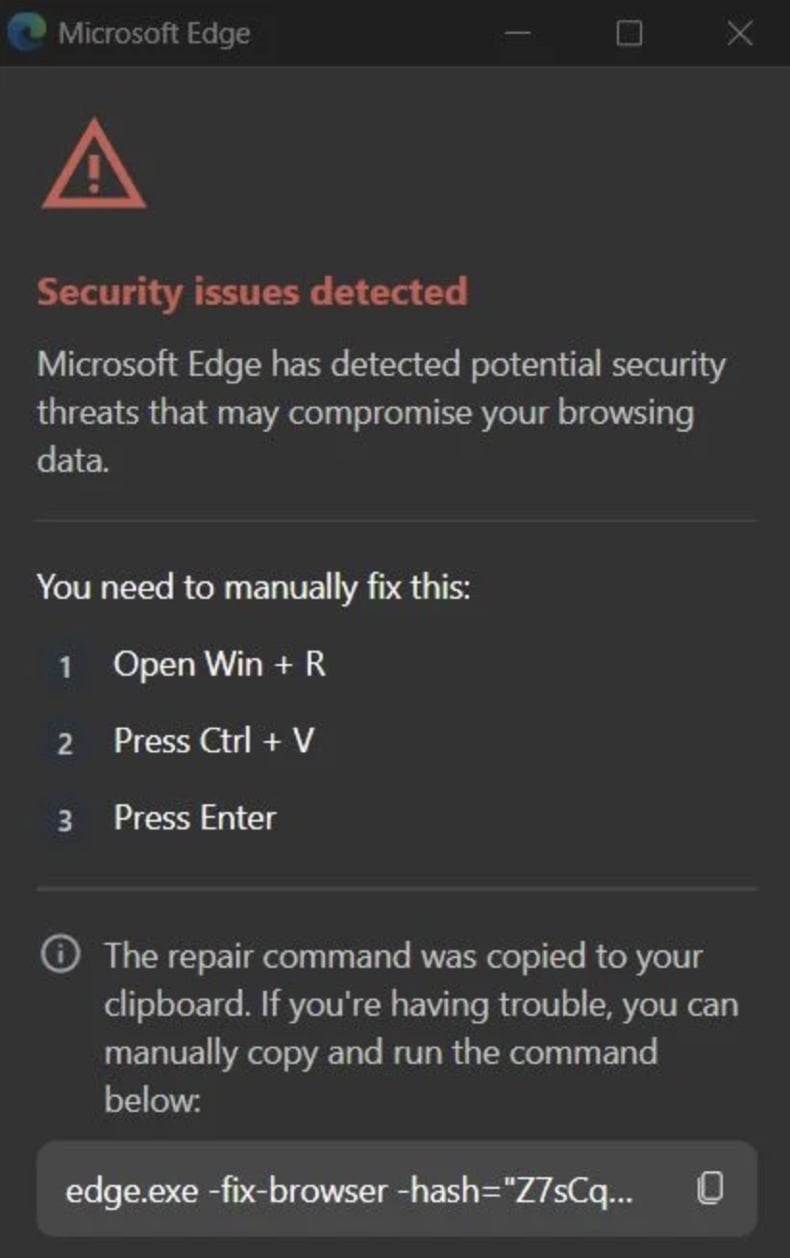
The DoS attack repeats until the pop-up is opened/closed at least once. After the browser's process is terminated and the app is reopened, a second pop-up is displayed. The DoS attack keeps looping every ten minutes, unless the victim completes the steps in the second window or the browser extension is removed.
The pop-up reiterates that security issues were detected and presents a manual fix. First, the victim must "Open Win + R" – the "Windows" and "R" key is the Run command combination. Second, they are to "Press Ctrl + V" – the "Control" and "R" key is the paste from clipboard command. Lastly, they must "Press Enter" – thus confirming and executing the command.
While the command in the window appears intended to repair the browser, the extension copies a malicious PowerShell command into the clipboard, which the victim is then tricked into executing.
Interestingly, the extension utilizes anti-analysis techniques to prevent users from inspecting the pop-up window – including disabling right-click context menus and keyboard shortcuts for the Web development tools.
The executed command renames and copies the Finger.exe Windows utility (Finger protocol) to the %temp% folder. Finger.exe is capable of retrieving data from remote servers and outputting it to the command line. Hence, the payload obtained from the attackers' server is executed by leveraging this utility.
It downloads an obfuscated blob that scans for indicators of virtual machines, sandboxes, and debuggers. It also checks whether the compromised device is domain-joined – a sign of corporate networks.
In the known campaign, standalone devices were either of no interest or the infrastructure for them was still in development. As in this case, the infection chain was different, and the C&C (Command and Control) server responded with "TEST PAYLOAD!!!!".
If the machine is domain-joined, the PowerShell script within the blob downloads/installs the second-stage payload – ModeloRAT. This is a Remote Access Trojan (RAT) written in Python. It is an extensively obfuscated malware with backdoor capabilities. It performs system reconnaissance, preps the system for further infection, and carries it out (i.e., downloads/installs additional malware or malicious components).
In addition to heavy obfuscation, ModeloRAT is filled with junk code to complicate analysis. The RAT ensures persistence by modifying the Windows Registry. It collects the following device data: hostname, MAC address, operating system version, storage device details, user privileges (standard/admin), network configuration, ARP cache, active TCP (Transmission Control Protocol) connections, running processes/services, etc.
ModeloRAT is designed to cause chain infections, and it supports multiple payloads – Python scripts, executables, and DLLs (Dynamic-Link Libraries). Theoretically, programs that can introduce additional malware into systems can cause any kind of infection (e.g., trojans, ransomware, cryptominers, etc.). However, in practice, the software tends to operate within certain specifications or limitations.
ModeloRAT can also self-update; hence, potential future iterations could have more or different capabilities. It must be mentioned that the browser extension used for "CrashFix" could have different names, disguises, and builds. Likewise, the "CrashFix" technique could be used to proliferate other malware aside from ModeloRAT.
To summarize, victims of "CrashFix" may experience multiple system infections, permanent data loss, severe privacy issues, financial losses, and identity theft.
| Name | "CrashFix" pop-up |
| Threat Type | Social Engineering, Scam, Malicious Browser Extension, Malware, Trojan. |
| Browser Extension(s) | NexShield |
| Payload | ModeloRAT |
| Symptoms | Unresponsive browser. Continuous browser 'crashes'. Fake pop-up alerts and solutions. Regarding the symptoms associated with the following infection – none are particularly visible on an infected machine. Malware is designed to stealthily infiltrate the victim's computer and remain silent. |
| Distribution methods | Deceptive pop-up ads, free software installers ('bundling'), social engineering, software 'cracks'. |
| Damage | Stolen passwords and banking information, identity theft, the victim's computer added to a botnet. |
| Malware Removal (Windows) |
To eliminate possible malware infections, scan your computer with legitimate antivirus software. Our security researchers recommend using Combo Cleaner. Download Combo CleanerTo use full-featured product, you have to purchase a license for Combo Cleaner. 7 days free trial available. Combo Cleaner is owned and operated by RCS LT, the parent company of PCRisk.com. |
Similarities with "ClickFix" scams
"CrashFix" is incredibly similar to "ClickFix" scams. Both use social engineering to push users into executing malicious commands on their machines. However, "ClickFix" primarily relies on websites to deliver its deceptive "problem solutions" rather than browser extensions. "CrashFix" crafts an actual issue that cannot be resolved unless the malicious extension is removed. Hence, victims are pressured into performing the fake solution and jumpstarting the infection chain.
If you have been deceived into executing a command on your device – immediately perform a full system scan with an antivirus and eliminate all detected threats.
How did "CrashFix" facilitating browser extension infiltrate my computer?
The NexShield browser extension used to carry out "CrashFix" has been promoted through malvertising. When users searched for ad blockers via search engines, they were presented with malicious ads for this extension. Some redirected to the legitimate Chrome Web Store, while others – to dedicated promotional webpages.
Other endorsement techniques are not unlikely. Genuine-looking download pages and scam sites (that use scare tactics to push downloads) can also be accessed via redirects by websites utilizing rogue advertising networks, spam (e.g., browser notifications, emails, PMs/DMs, social media posts, SMSes, etc.), misspelled URLs, and installed adware.
Malicious browser extensions can be bundled with ordinary programs as well. These installers can be downloaded from freeware and free file-hosting sites, P2P sharing networks, and other suspect sources. The risk of allowing bundled content into the system is furthered by negligence during installation (e.g., ignoring terms, skipping steps/sections, using "Easy/Quick" settings, etc.).
Additionally, this software may be proliferated by intrusive advertisements. Some of these adverts can be triggered (by being clicked) to execute scripts that perform downloads/installations without user consent.
How to avoid installation of malware?
We highly recommend researching software and downloading it only from official/trustworthy sources. Installations must be approached with caution by studying terms and options, using "Custom/Advanced" settings, and opting out of additional apps, extensions, etc. Programs must be activated and updated using legitimate functions/tools, as illegal activation tools ("cracks") and third-party updates can contain malware.
Another recommendation is to be careful with incoming emails and other messages. Attachments or links present in suspicious mail must not be opened, as they can be infectious. It is essential to be vigilant when browsing, as the Internet is full of well-disguised fraudulent and malicious content.
We strongly advise having a reputable antivirus installed and kept updated. Security software must be used to run regular system scans and to remove threats and issues. If you believe that your computer is already infected, we recommend running a scan with Combo Cleaner Antivirus for Windows to automatically eliminate infiltrated malware.
Second "CrashFix" pop-up window (image source – Huntress Blog):
"Official" promotional website for NexShield browser extension facilitating "CrashFix":
Instant automatic malware removal:
Manual threat removal might be a lengthy and complicated process that requires advanced IT skills. Combo Cleaner is a professional automatic malware removal tool that is recommended to get rid of malware. Download it by clicking the button below:
DOWNLOAD Combo CleanerBy downloading any software listed on this website you agree to our Privacy Policy and Terms of Use. To use full-featured product, you have to purchase a license for Combo Cleaner. 7 days free trial available. Combo Cleaner is owned and operated by RCS LT, the parent company of PCRisk.com.
Quick menu:
- What is CrashFix?
- STEP 1. Manual removal of CrashFix malware.
- STEP 2. Check if your computer is clean.
How to remove malware manually?
Manual malware removal is a complicated task - usually it is best to allow antivirus or anti-malware programs to do this automatically. To remove this malware we recommend using Combo Cleaner Antivirus for Windows.
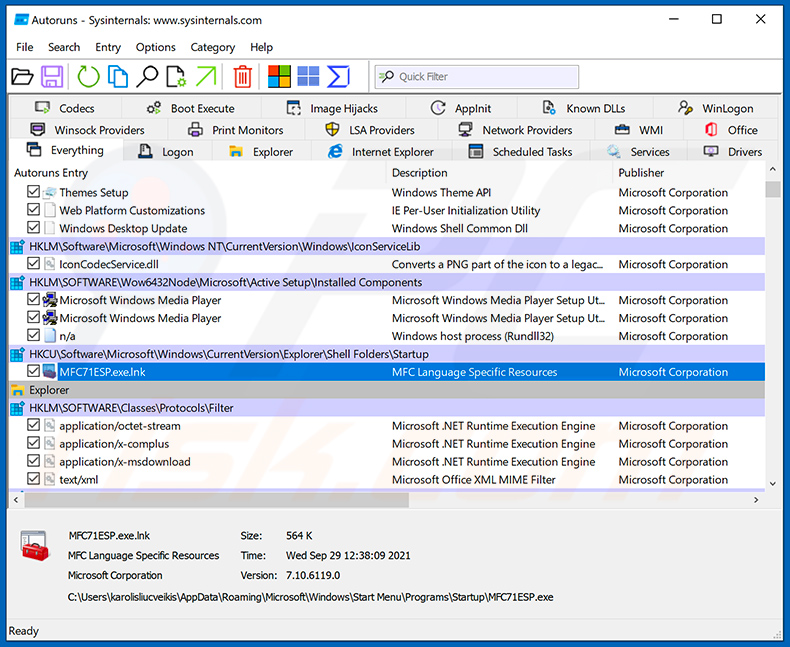
If you wish to remove malware manually, the first step is to identify the name of the malware that you are trying to remove. Here is an example of a suspicious program running on a user's computer:
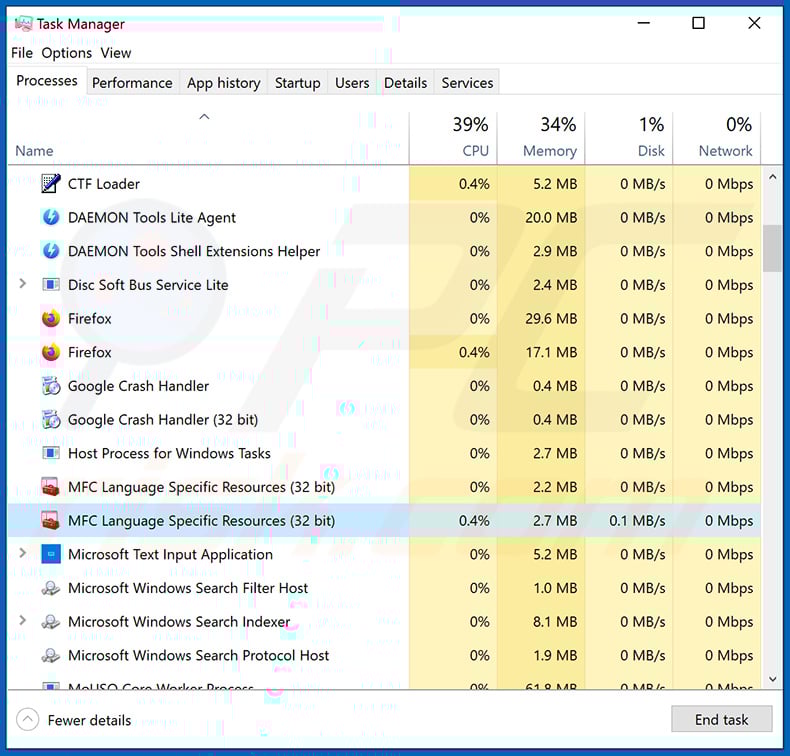
If you checked the list of programs running on your computer, for example, using task manager, and identified a program that looks suspicious, you should continue with these steps:
 Download a program called Autoruns. This program shows auto-start applications, Registry, and file system locations:
 Restart your computer into Safe Mode:
Windows XP and Windows 7 users: Start your computer in Safe Mode. Click Start, click Shut Down, click Restart, click OK. During your computer start process, press the F8 key on your keyboard multiple times until you see the Windows Advanced Option menu, and then select Safe Mode with Networking from the list.
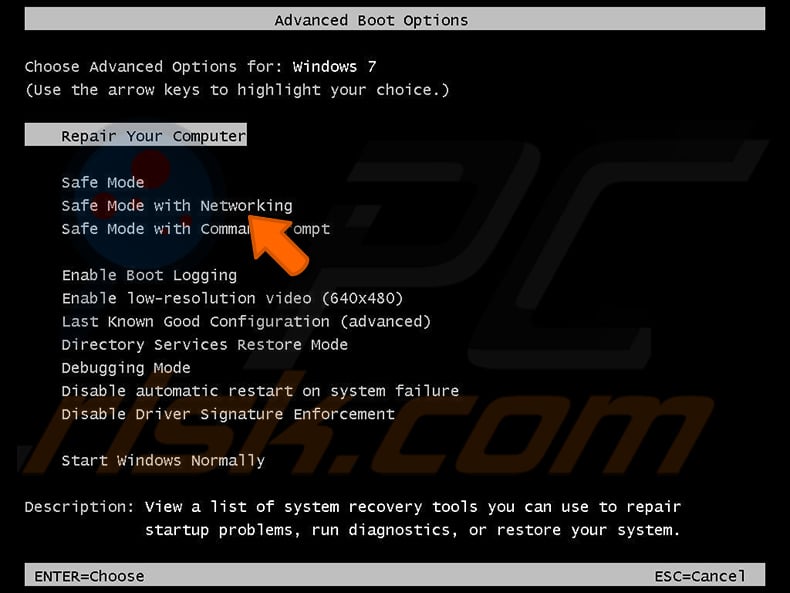
Video showing how to start Windows 7 in "Safe Mode with Networking":
Windows 8 users: Start Windows 8 is Safe Mode with Networking - Go to Windows 8 Start Screen, type Advanced, in the search results select Settings. Click Advanced startup options, in the opened "General PC Settings" window, select Advanced startup.
Click the "Restart now" button. Your computer will now restart into the "Advanced Startup options menu". Click the "Troubleshoot" button, and then click the "Advanced options" button. In the advanced option screen, click "Startup settings".
Click the "Restart" button. Your PC will restart into the Startup Settings screen. Press F5 to boot in Safe Mode with Networking.
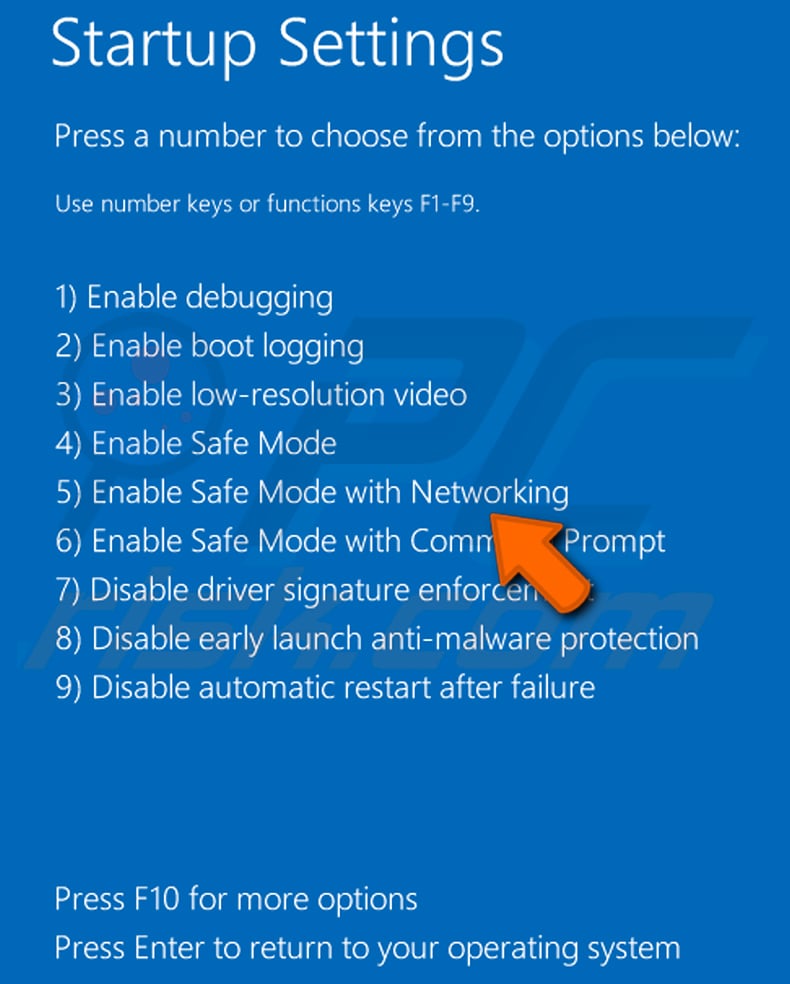
Video showing how to start Windows 8 in "Safe Mode with Networking":
Windows 10 users: Click the Windows logo and select the Power icon. In the opened menu click "Restart" while holding "Shift" button on your keyboard. In the "choose an option" window click on the "Troubleshoot", next select "Advanced options".
In the advanced options menu select "Startup Settings" and click on the "Restart" button. In the following window you should click the "F5" button on your keyboard. This will restart your operating system in safe mode with networking.
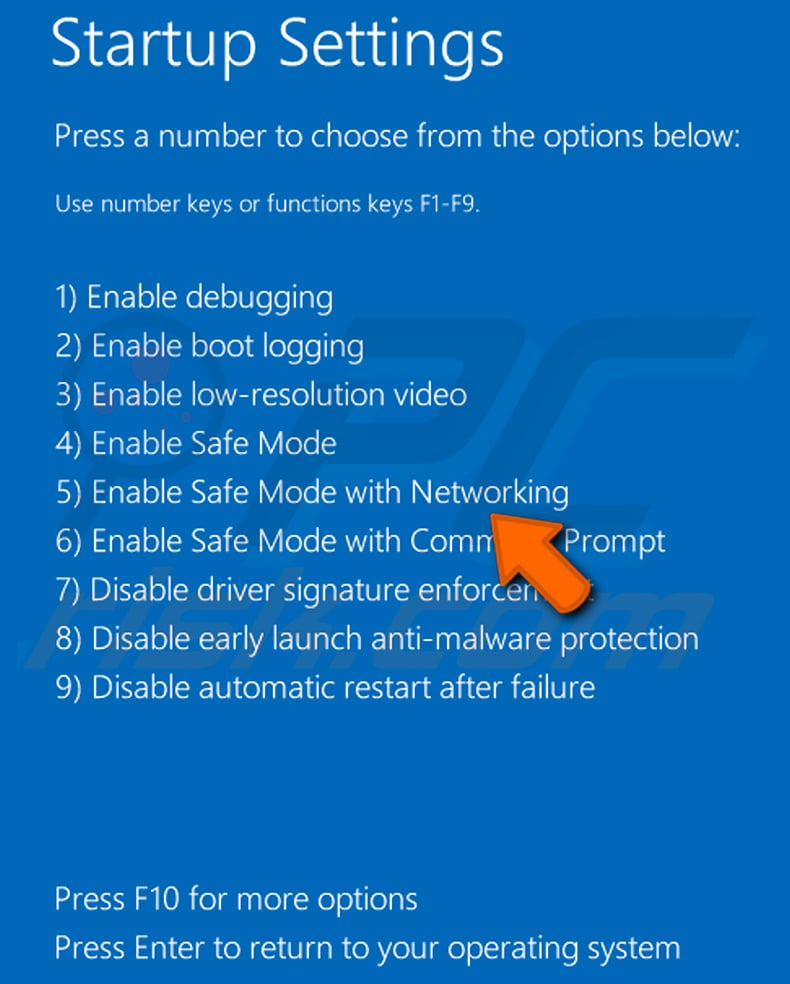
Video showing how to start Windows 10 in "Safe Mode with Networking":
 Extract the downloaded archive and run the Autoruns.exe file.
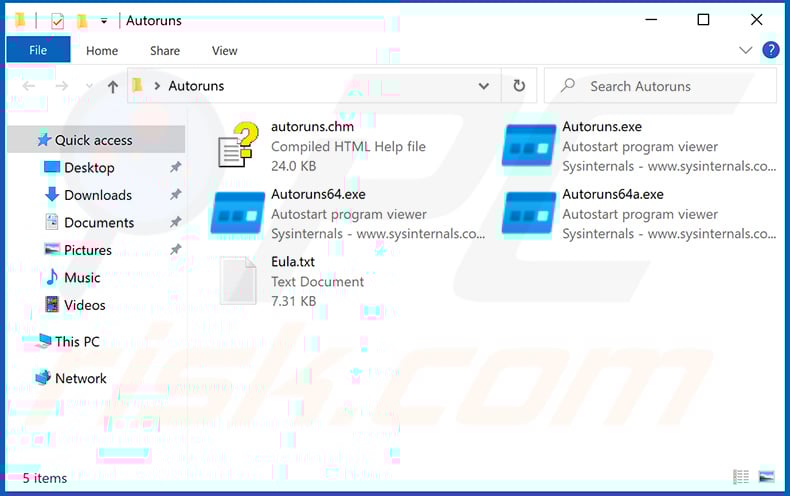
 In the Autoruns application, click "Options" at the top and uncheck "Hide Empty Locations" and "Hide Windows Entries" options. After this procedure, click the "Refresh" icon.
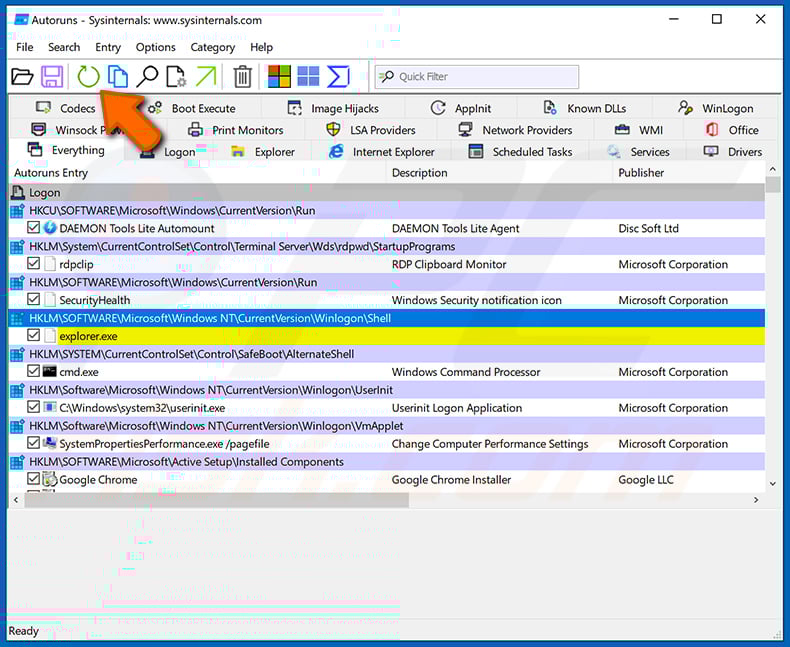
 Check the list provided by the Autoruns application and locate the malware file that you want to eliminate.
You should write down its full path and name. Note that some malware hides process names under legitimate Windows process names. At this stage, it is very important to avoid removing system files. After you locate the suspicious program you wish to remove, right click your mouse over its name and choose "Delete".
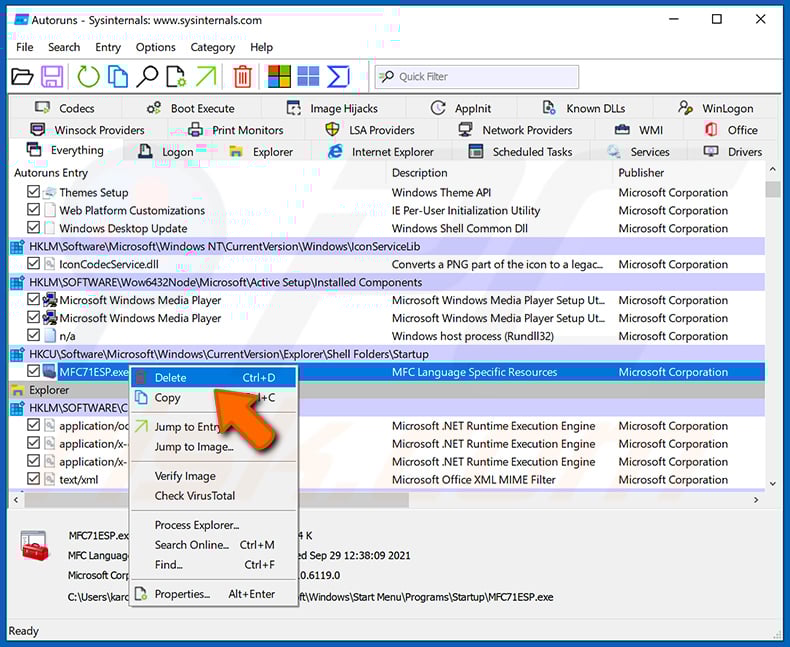
After removing the malware through the Autoruns application (this ensures that the malware will not run automatically on the next system startup), you should search for the malware name on your computer. Be sure to enable hidden files and folders before proceeding. If you find the filename of the malware, be sure to remove it.
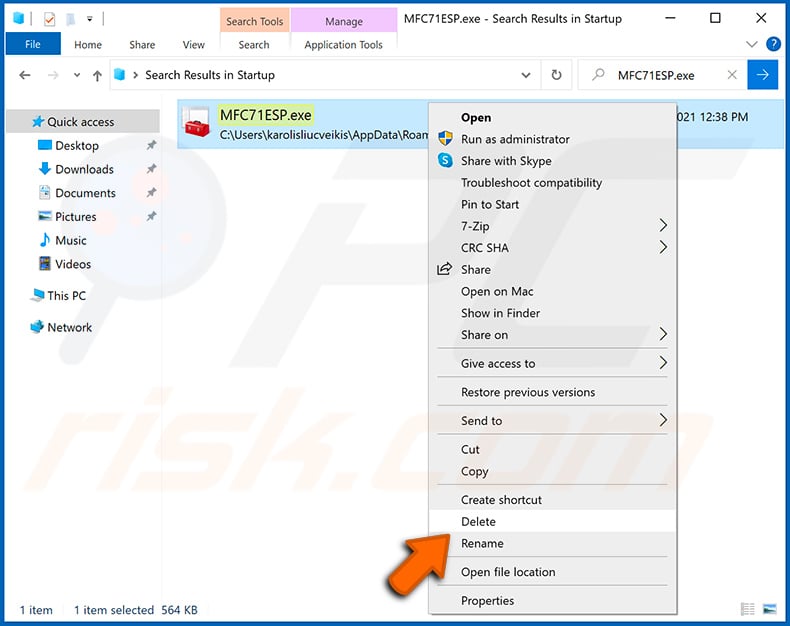
Reboot your computer in normal mode. Following these steps should remove any malware from your computer. Note that manual threat removal requires advanced computer skills. If you do not have these skills, leave malware removal to antivirus and anti-malware programs.
These steps might not work with advanced malware infections. As always it is best to prevent infection than try to remove malware later. To keep your computer safe, install the latest operating system updates and use antivirus software. To be sure your computer is free of malware infections, we recommend scanning it with Combo Cleaner Antivirus for Windows.
Frequently Asked Questions (FAQ)
What is "CrashFix"?
"CrashFix" is a social engineering technique, facilitated by malicious browser extensions, that deceives victims into executing malicious commands on their machines. The purpose of "CrashFix" is to cause malware infections.
How did I encounter "CrashFix"?
"CrashFix" utilizes malicious browser extensions to deliver fake fixes. For example, the NexShield extension was endorsed using malvertising to shepherd users to dedicated promotional pages or the Chrome Store. Generally, unwanted/malicious extensions are distributed via freeware and free file-hosting websites, P2P sharing networks, bundled installation setups, online scams, intrusive ads, and spam browser notifications.
What are the biggest issues that malware can cause?
The threats posed by a piece of malicious software depend on its functionalities and the attackers' modus operandi. "CrashFix" has been used to spread ModeloRAT, which can perform system reconnaissance and download/install additional malicious programs/components. In general, high-risk malware can cause multiple system infections, permanent data loss, severe privacy issues, financial losses, and identity theft.
What is the purpose of malware?
Profit is the primary motivation behind malware attacks. However, malicious programs are also used to amuse the attackers or realize their personal vendettas, disrupt processes (e.g., sites, services, companies, organizations, etc.), engage in hacktivism, and launch politically/geopolitically motivated attacks.
Will Combo Cleaner protect me from malware?
Combo Cleaner is designed to scan systems and eliminate all kinds of threats. It can detect and remove practically all known malware infections. Remember that running a full system scan is paramount since sophisticated malware usually hides deep within systems.
Share:
 Facebook
 X.com
X.com
 LinkedIn
 Copy Link

Tomas Meskauskas
Expert security researcher, professional malware analyst
I am passionate about computer security and technology. I have an experience of over 10 years working in various companies related to computer technical issue solving and Internet security. I have been working as an author and editor for pcrisk.com since 2010. Follow me on Twitter and LinkedIn to stay informed about the latest online security threats.
PCrisk security portal is brought by a company RCS LT.
Joined forces of security researchers help educate computer users about the latest online security threats. More information about the company RCS LT.
Our malware removal guides are free. However, if you want to support us you can send us a donation.
DonatePCrisk security portal is brought by a company RCS LT.
Joined forces of security researchers help educate computer users about the latest online security threats. More information about the company RCS LT.
Our malware removal guides are free. However, if you want to support us you can send us a donation.
Donate
▼ Show Discussion