
How to remove CastleStealer stealer from the operating system
TrojanAlso Known As: CastleStealer virus

Get free scan and check if your device is infected.
Remove it nowTo use full-featured product, you have to purchase a license for Combo Cleaner. Seven days free trial available. Combo Cleaner is owned and operated by RCS LT, the parent company of PCRisk.com.
What kind of malware is CastleStealer?
CastleStealer is an information stealer that targets Windows computers. It is delivered by a custom Windows loader called OXLOADER, which handles the initial infection and drops the stealer payload onto the compromised system.
Elastic Security Labs researchers documented the campaign and identified OXLOADER as the loader component. The infostealer payload, tracked as CastleStealer, was identified through research from Huntress.
The campaign targeted users in the United States. Geographic and language-based exclusions built into the loader suggest the threat actor is financially motivated and Russian-speaking.
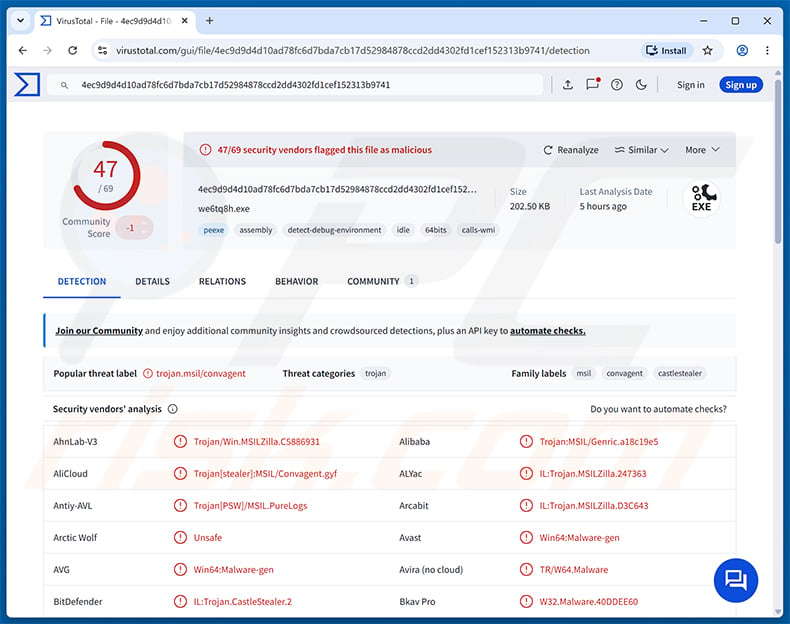
CastleStealer overview
CastleStealer is the final stage in a two-step infection chain. The first stage, OXLOADER, is a heavily obfuscated Windows loader that prepares and executes the stealer payload after verifying the victim's environment.
Once active, CastleStealer communicates with its command-and-control (C2) servers using AES encryption. Two C2 server addresses were identified during the Elastic Security Labs investigation.
As an information stealer, CastleStealer is built to collect sensitive data from the infected machine and send it to the attacker. Stealers of this type typically target passwords and cookies stored in browsers, session tokens, and files associated with cryptocurrency wallets.
OXLOADER: anti-analysis and evasion
OXLOADER is designed to avoid detection and resist security analysis. Before dropping CastleStealer, it runs a series of checks to verify that it is running on a real victim machine rather than inside a malware analysis sandbox.
The checks require the system to have at least 3 logical processors and at least 3 GB of physical RAM. The loader also verifies that a connected monitor's refresh rate meets a minimum threshold. These conditions are typically absent in the lightweight virtual machines used for malware analysis.
Additionally, OXLOADER detects emulation by making a deliberately malformed network connection request and observing the result. If it believes it is being analyzed, execution stops without delivering the payload.
Machines in CIS countries and systems using Russian as the primary language are also excluded from infection. Avoiding the home region is a common pattern in financially motivated, Russian-speaking cybercrime groups.
Obfuscation and shellcode staging
OXLOADER applies multiple layers of code obfuscation, including control-flow flattening, mixed Boolean-arithmetic obfuscation, and opaque predicates. These techniques scramble the program's logic and make the code very difficult to read or analyze.
To deliver its payload, OXLOADER copies a legitimate Windows system DLL to a temporary location, modifies it by injecting malicious shellcode into a new code section, and then loads the modified file. Abusing a trusted system component helps the loader avoid tools that rely on file reputation to block threats.
The CastleStealer payload is wrapped using DonutLoader, an open-source shellcode generator, then encrypted and compressed before delivery. This combination resulted in low detection rates across static antivirus engines and automated sandbox environments during analysis, according to Elastic Security Labs.
| Name | CastleStealer virus |
| Threat Type | Information Stealer, Trojan, Password-stealing virus |
| Detection Names | Avast (Win64:Malware-gen), Combo Cleaner (IL:Trojan.CastleStealer.2), ESET-NOD32 (MSIL/Agent.FVB Trojan), Kaspersky (UDS:Trojan.Win32.GenericML.xnet), Microsoft (Trojan:Win32/Qwexlafiba!rfn), Full List (VirusTotal) |
| Symptoms | Stealers are designed to stealthily infiltrate the victim's computer and remain silent, and thus no particular symptoms are clearly visible on an infected machine. |
| Distribution methods | Malicious online advertisements, fake software installers, fake websites. |
| Damage | Stolen passwords and banking information, identity theft, the victim's computer added to a botnet, additional infections, monetary loss, account hijacking. |
| Malware Removal (Windows) |
To eliminate possible malware infections, scan your computer with legitimate antivirus software. Our security researchers recommend using Combo Cleaner. Download Combo CleanerTo use full-featured product, you have to purchase a license for Combo Cleaner. 7 days free trial available. Combo Cleaner is owned and operated by RCS LT, the parent company of PCRisk.com. |
Conclusion
CastleStealer is a stealthy infostealer that works alongside the OXLOADER loader to infect systems while evading detection. Once active, it collects sensitive data, including passwords, session tokens, and cryptocurrency wallet files, and sends them to the attacker over an encrypted channel.
The loader's anti-analysis techniques mean the malware is unlikely to trigger standard antivirus alerts during initial infection. Any device exposed through a fake Node.js or API Monitor download should be scanned and cleaned immediately.
More examples of stealers are DebugElevator, Evolution, and LofyStealer.
How did CastleStealer infiltrate my computer?
According to Elastic Security Labs, CastleStealer was spread using malicious Google Ads that impersonated the Node.js JavaScript runtime. Users who clicked a sponsored search result were directed to a fake download page at a lookalike domain.
From that fake page, victims downloaded a file that appeared to be a legitimate installer. A redirector domain was used in the delivery chain, and the actual malware payload was hosted on Storj, a legitimate cloud file-sharing service. Using a trusted platform helped the payload avoid being blocked by reputation-based security filters.
Two installer variants were observed during the campaign. One was disguised as a Node.js installer and the other as a tool called API Monitor. The advertising account used to serve the fake ads was eventually removed from Google by mid-May 2026.
More broadly, malware also reaches victims through phishing emails, pirated software, software cracks, and untrustworthy download websites.
How to avoid installation of malware?
Always download software directly from the official developer's website. Avoid clicking sponsored ads in search results to reach download pages - attackers regularly buy ads to push users toward fake sites. If a sponsored result appears for software you are searching for, navigate to the official site directly instead.
Keep your operating system and all installed software updated, use a reputable security program, and run scans regularly. Be especially cautious with tools promoted through ads or shared links from unknown sources. If you believe that your computer is already infected, we recommend running a scan with Combo Cleaner Antivirus for Windows to automatically eliminate infiltrated malware.
Instant automatic malware removal:
Manual threat removal might be a lengthy and complicated process that requires advanced IT skills. Combo Cleaner is a professional automatic malware removal tool that is recommended to get rid of malware. Download it by clicking the button below:
DOWNLOAD Combo CleanerBy downloading any software listed on this website you agree to our Privacy Policy and Terms of Use. To use full-featured product, you have to purchase a license for Combo Cleaner. 7 days free trial available. Combo Cleaner is owned and operated by RCS LT, the parent company of PCRisk.com.
Quick menu:
- What is CastleStealer?
- STEP 1. Manual removal of CastleStealer malware.
- STEP 2. Check if your computer is clean.
How to remove malware manually?
Manual malware removal is a complicated task - usually it is best to allow antivirus or anti-malware programs to do this automatically. To remove this malware we recommend using Combo Cleaner Antivirus for Windows.
If you wish to remove malware manually, the first step is to identify the name of the malware that you are trying to remove. Here is an example of a suspicious program running on a user's computer:
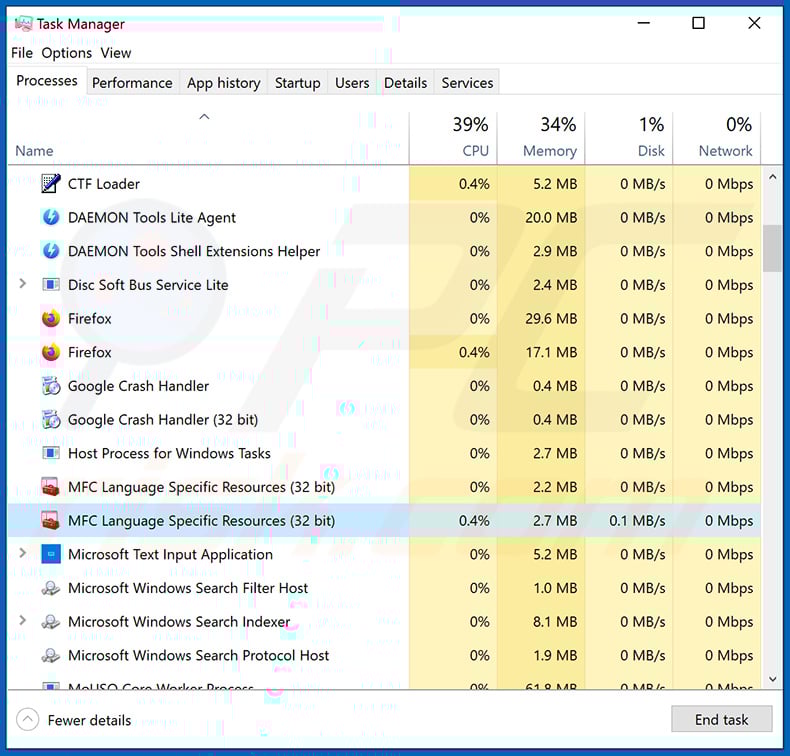
If you checked the list of programs running on your computer, for example, using task manager, and identified a program that looks suspicious, you should continue with these steps:
 Download a program called Autoruns. This program shows auto-start applications, Registry, and file system locations:
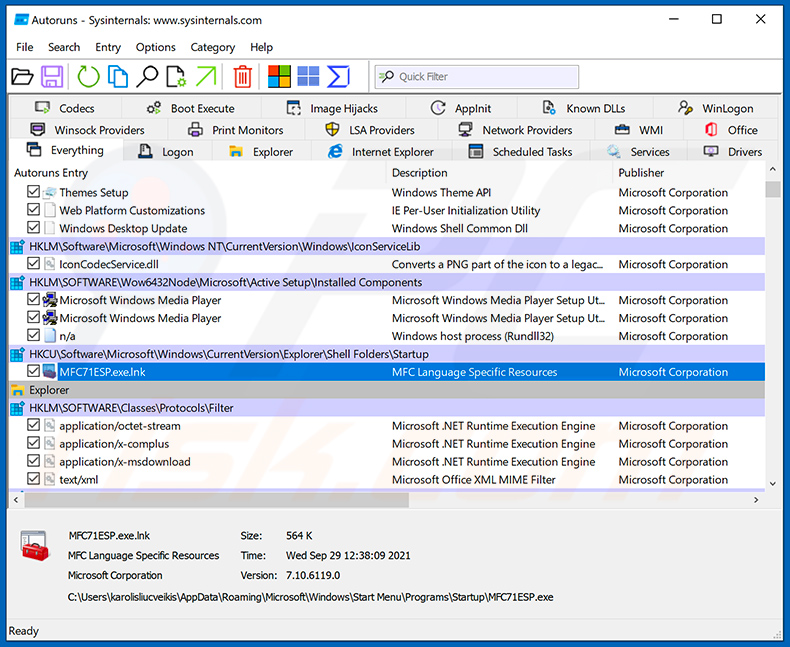
 Restart your computer into Safe Mode:
Windows XP and Windows 7 users: Start your computer in Safe Mode. Click Start, click Shut Down, click Restart, click OK. During your computer start process, press the F8 key on your keyboard multiple times until you see the Windows Advanced Option menu, and then select Safe Mode with Networking from the list.
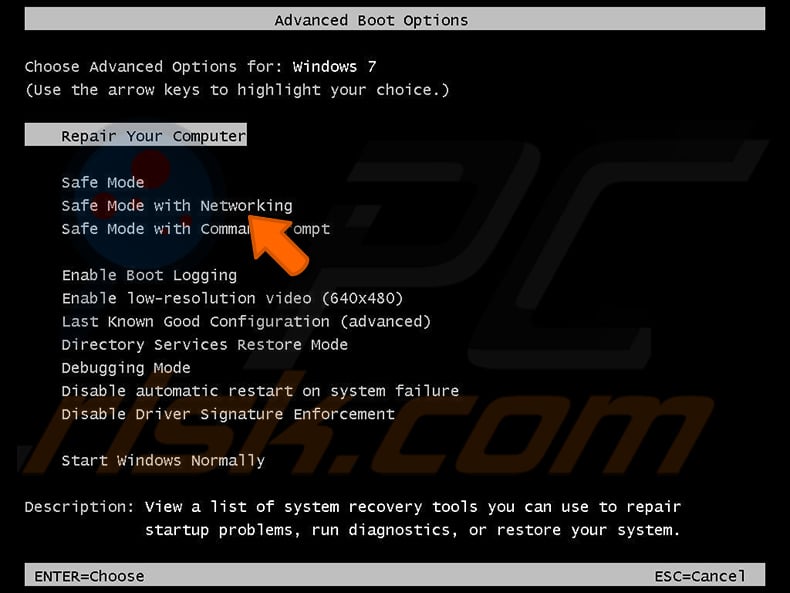
Video showing how to start Windows 7 in "Safe Mode with Networking":
Windows 8 users: Start Windows 8 is Safe Mode with Networking - Go to Windows 8 Start Screen, type Advanced, in the search results select Settings. Click Advanced startup options, in the opened "General PC Settings" window, select Advanced startup.
Click the "Restart now" button. Your computer will now restart into the "Advanced Startup options menu". Click the "Troubleshoot" button, and then click the "Advanced options" button. In the advanced option screen, click "Startup settings".
Click the "Restart" button. Your PC will restart into the Startup Settings screen. Press F5 to boot in Safe Mode with Networking.
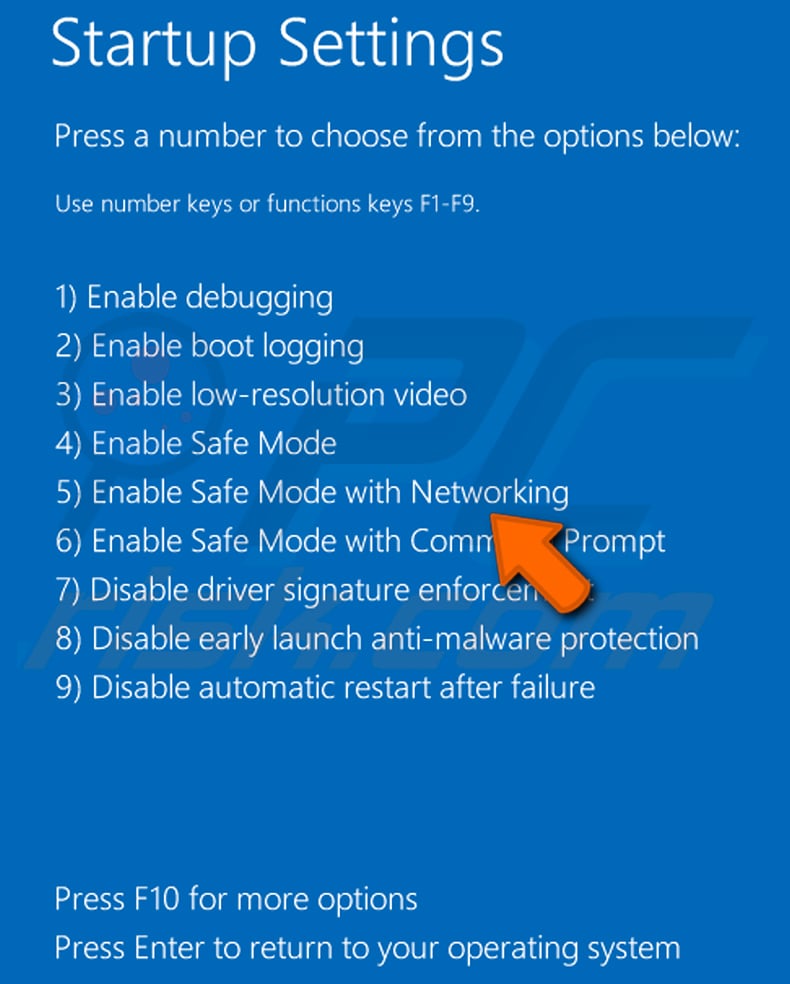
Video showing how to start Windows 8 in "Safe Mode with Networking":
Windows 10 users: Click the Windows logo and select the Power icon. In the opened menu click "Restart" while holding "Shift" button on your keyboard. In the "choose an option" window click on the "Troubleshoot", next select "Advanced options".
In the advanced options menu select "Startup Settings" and click on the "Restart" button. In the following window you should click the "F5" button on your keyboard. This will restart your operating system in safe mode with networking.
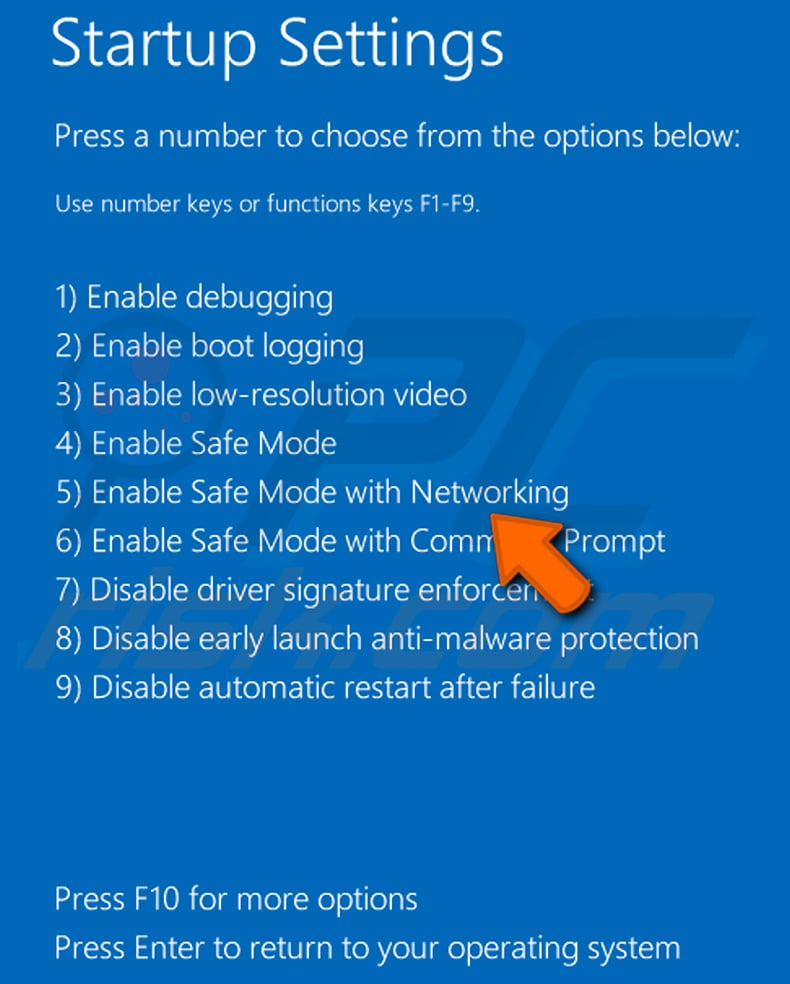
Video showing how to start Windows 10 in "Safe Mode with Networking":
 Extract the downloaded archive and run the Autoruns.exe file.
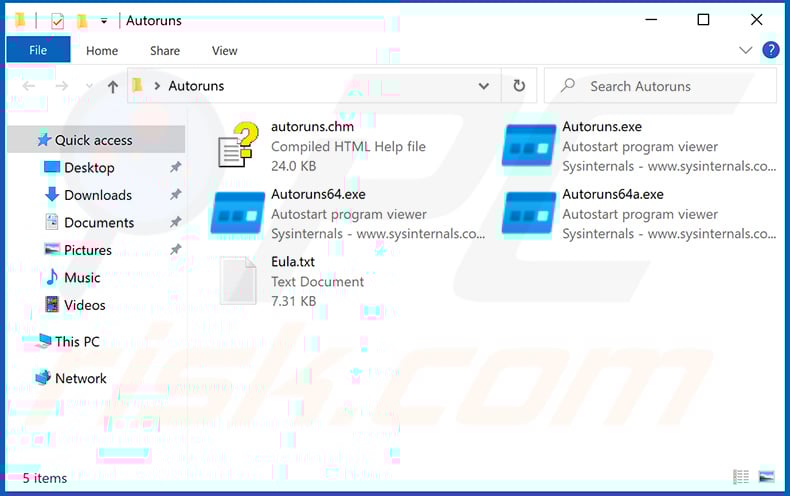
 In the Autoruns application, click "Options" at the top and uncheck "Hide Empty Locations" and "Hide Windows Entries" options. After this procedure, click the "Refresh" icon.
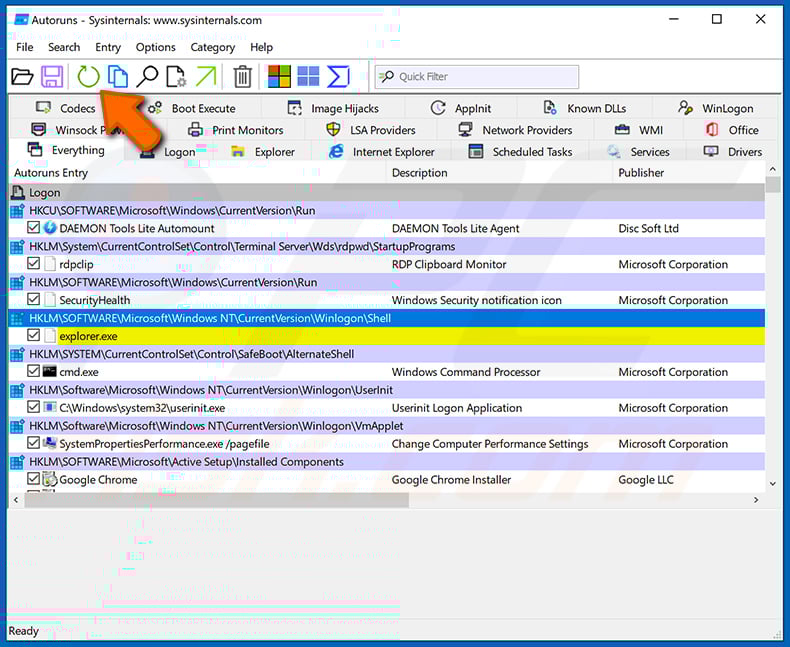
 Check the list provided by the Autoruns application and locate the malware file that you want to eliminate.
You should write down its full path and name. Note that some malware hides process names under legitimate Windows process names. At this stage, it is very important to avoid removing system files. After you locate the suspicious program you wish to remove, right click your mouse over its name and choose "Delete".
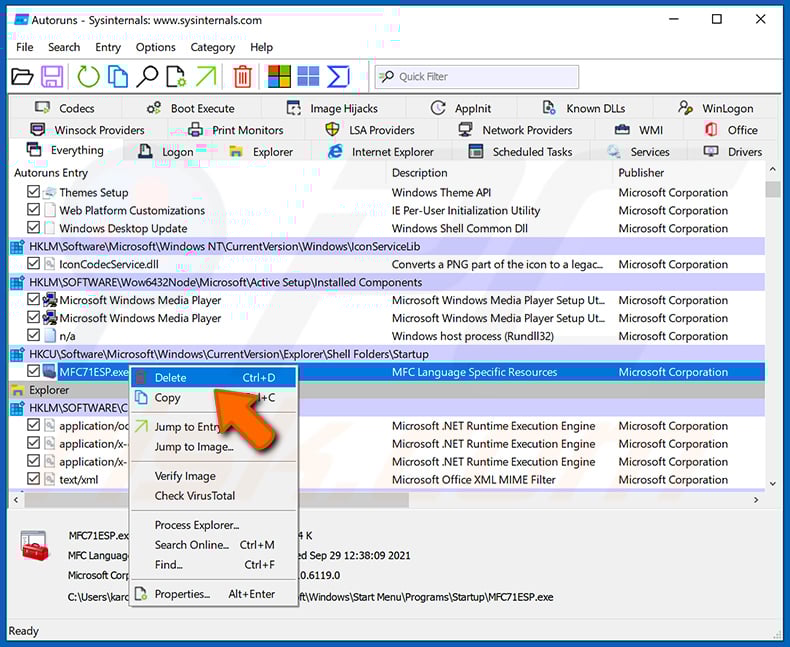
After removing the malware through the Autoruns application (this ensures that the malware will not run automatically on the next system startup), you should search for the malware name on your computer. Be sure to enable hidden files and folders before proceeding. If you find the filename of the malware, be sure to remove it.
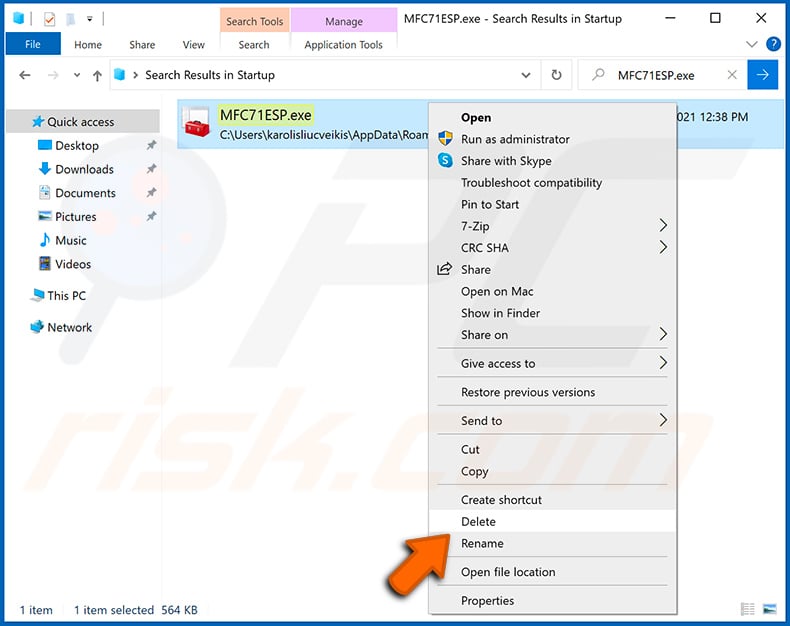
Reboot your computer in normal mode. Following these steps should remove any malware from your computer. Note that manual threat removal requires advanced computer skills. If you do not have these skills, leave malware removal to antivirus and anti-malware programs.
These steps might not work with advanced malware infections. As always it is best to prevent infection than try to remove malware later. To keep your computer safe, install the latest operating system updates and use antivirus software. To be sure your computer is free of malware infections, we recommend scanning it with Combo Cleaner Antivirus for Windows.
Frequently Asked Questions (FAQ)
My computer is infected with CastleStealer malware, should I format my storage device to get rid of it?
Formatting removes the infection but also erases every file on the drive. It is normally better to try a reputable security tool like Combo Cleaner first, which can eliminate the malware without wiping your data.
What are the biggest issues that CastleStealer malware can cause?
CastleStealer can steal passwords, browser cookies, session tokens, and cryptocurrency wallet data and transmit them to a remote attacker. The downstream consequences include account takeover, identity theft, financial fraud, and unauthorized access to personal accounts.
What is the purpose of CastleStealer malware?
CastleStealer is designed to harvest sensitive data from infected computers. It collects credentials, session data, and other personal information and sends them to the attacker's remote servers for exploitation.
How did CastleStealer malware infiltrate my computer?
CastleStealer was spread through malicious Google Ads impersonating Node.js. Clicking a sponsored search result led to a fake download page where a disguised installer delivered the malware. Two variants were used: one posing as a Node.js installer and another as a tool called API Monitor.
Will Combo Cleaner protect me from malware?
Yes. Combo Cleaner can detect and remove most known malware. Because OXLOADER is specifically designed to evade static detection, running a full system scan is important to make sure no component of the infection remains on your device.
Share:
 Facebook
 X.com
X.com
 LinkedIn
 Copy Link

Tomas Meskauskas
Expert security researcher, professional malware analyst
I am passionate about computer security and technology. I have an experience of over 10 years working in various companies related to computer technical issue solving and Internet security. I have been working as an author and editor for pcrisk.com since 2010. Follow me on Twitter and LinkedIn to stay informed about the latest online security threats.
PCrisk security portal is brought by a company RCS LT.
Joined forces of security researchers help educate computer users about the latest online security threats. More information about the company RCS LT.
Our malware removal guides are free. However, if you want to support us you can send us a donation.
DonatePCrisk security portal is brought by a company RCS LT.
Joined forces of security researchers help educate computer users about the latest online security threats. More information about the company RCS LT.
Our malware removal guides are free. However, if you want to support us you can send us a donation.
Donate
▼ Show Discussion