
How to stop risecoregrowth.com notification spam
Notification SpamAlso Known As: Ads by risecoregrowth.com

Get free scan and check if your device is infected.
Remove it nowTo use full-featured product, you have to purchase a license for Combo Cleaner. Seven days free trial available. Combo Cleaner is owned and operated by RCS LT, the parent company of PCRisk.com.
What kind of page is risecoregrowth[.]com?
Our research team found the risecoregrowth[.]com rogue page while investigating suspicious websites. After inspecting this webpage, we determined that it uses a fake CAPTCHA check to trick visitors into allowing browser notifications. If granted permission, risecoregrowth[.]com delivers misleading security alerts that can expose users to scams and other online threats.
![risecoregrowth[.]com ads](/images/stories/screenshots202607/risecoregrowth-com-ads-main.jpg)
Risecoregrowth[.]com in detail
Risecoregrowth[.]com shows visitors a dark page with a fake reCAPTCHA widget. A checkbox labeled "I'm not a robot" is displayed alongside the message "Click 'Allow' to confirm that you are not a robot." This is a social engineering trick designed to fool users into clicking the browser's notification permission prompt, which grants the site access to send alerts to the device.
It is worth noting that sites like risecoregrowth[.]com frequently serve different content depending on which subdomain or URL path a visitor lands on. The version captured in our screenshots may not be the only lure in use - other pages or tactics could appear for different visitors.
Notifications delivered by risecoregrowth[.]com impersonate security alerts from well-known companies. One variant mimics a Windows Update dialog, claiming Google detected an infected item on the network and urging the user to install a scanner. Another appears as a Google Chrome alert stating that a Google login has been compromised and instructing users to scan their PC.
Clicking on these notifications is risky. Users can be redirected to phishing pages that harvest login credentials, tech support scams that convince victims to pay for non-existent fixes, or sites promoting potentially unwanted programs that slow down the device and track browsing activity.
In other cases, users may land on pages that push malware downloads or fake antivirus products. It is also worth noting that even when genuine brands appear in these notifications, the ads are typically run by scammers exploiting affiliate programs to earn commissions through dishonest means.
If risecoregrowth[.]com has been allowed to deliver notifications, revoking that permission is important. Continued exposure to these alerts raises the risk of financial losses, malware infections, compromised accounts, or identity theft.
| Name | Ads by risecoregrowth.com |
| Threat Type | Push notifications ads, Unwanted ads, Pop-up ads |
| Threat Status (risecoregrowth[.]com) | PCrisk Website Scanner Results |
| Serving IP Address | 104.21.53.166 |
| Symptoms | Seeing advertisements not originating from the sites you are browsing. Intrusive pop-up ads. Decreased Internet browsing speed. |
| Distribution Methods | Deceptive pop-up ads, false claims within visited websites, unwanted applications (adware) |
| Damage | Decreased computer performance, browser tracking - privacy issues, possible additional malware infections. |
| Malware Removal (Windows) |
To eliminate possible malware infections, scan your computer with legitimate antivirus software. Our security researchers recommend using Combo Cleaner. Download Combo CleanerTo use full-featured product, you have to purchase a license for Combo Cleaner. 7 days free trial available. Combo Cleaner is owned and operated by RCS LT, the parent company of PCRisk.com. |
More on similar pages
Pages like risecoregrowth[.]com are rarely visited by choice. Most visitors end up there after interacting with intrusive pop-ups, fake download buttons, or misleading links on low-quality websites, particularly those offering pirated software, illegal streams, or adult content.
Rogue advertising networks on these platforms routinely funnel users to notification-spam sites. Adware installed on the device can also generate these redirects automatically, as can spam notifications from other rogue sites - often causing users to unknowingly grant permissions to multiple domains in a chain.
Additional examples of websites similar to risecoregrowth[.]com are flashpushalerts[.]top, swiftpushupdates[.]top, and oppush[.]space.
How did risecoregrowth[.]com gain permission to deliver spam notifications?
Web browsers cannot show notifications from a site unless the user has explicitly clicked 'Allow' on the browser's own permission prompt. If notifications from risecoregrowth[.]com are appearing, that prompt was encountered at some point and approved - likely after being misled by the fake CAPTCHA displayed on the page.
How to prevent deceptive sites from delivering spam notifications?
Any site that asks users to click 'Allow' to prove they are human, access a video, or download something is using a deceptive tactic. The right response is to close the tab or click 'Block' on the browser's notification request - never 'Allow'.
If unwanted notifications from risecoregrowth[.]com are already showing up on the desktop, run a scan with Combo Cleaner Antivirus for Windows to automatically revoke the site's permissions and block further access.
Appearance of risecoregrowth[.]com website (GIF):
![risecoregrowth[.]com website appearance (GIF)](/images/stories/screenshots202607/risecoregrowth-com-ads-appearance.gif)
Notifications delivered by risecoregrowth[.]com:
![risecoregrowth[.]com notification](/images/stories/screenshots202607/risecoregrowth-com-ads-notification.jpg)
Instant automatic malware removal:
Manual threat removal might be a lengthy and complicated process that requires advanced IT skills. Combo Cleaner is a professional automatic malware removal tool that is recommended to get rid of malware. Download it by clicking the button below:
DOWNLOAD Combo CleanerBy downloading any software listed on this website you agree to our Privacy Policy and Terms of Use. To use full-featured product, you have to purchase a license for Combo Cleaner. 7 days free trial available. Combo Cleaner is owned and operated by RCS LT, the parent company of PCRisk.com.
Quick menu:
- What is Ads by risecoregrowth.com?
- STEP 1. Remove spam notifications from Google Chrome
- STEP 2. Remove spam notifications from Google Chrome (Android)
- STEP 3. Remove spam notifications from Mozilla Firefox
- STEP 4. Remove spam notifications from Microsoft Edge
- STEP 5. Remove spam notifications from Safari (macOS)
Disable unwanted browser notifications:
Video showing how to disable web browser notifications:
 Remove spam notifications from Google Chrome:
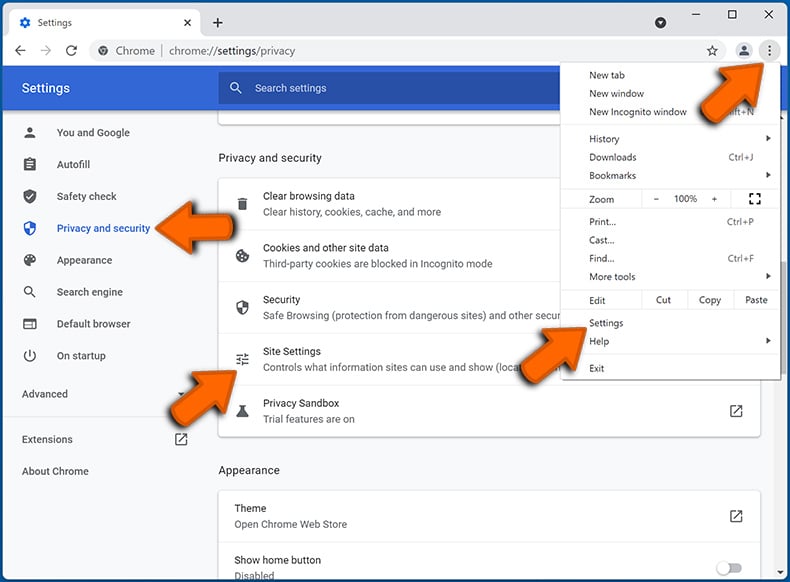
Click the Menu button (three dots) on the right upper corner of the screen and select "Settings". In the opened window select "Privacy and security", then click on "Site Settings" and choose "Notifications".
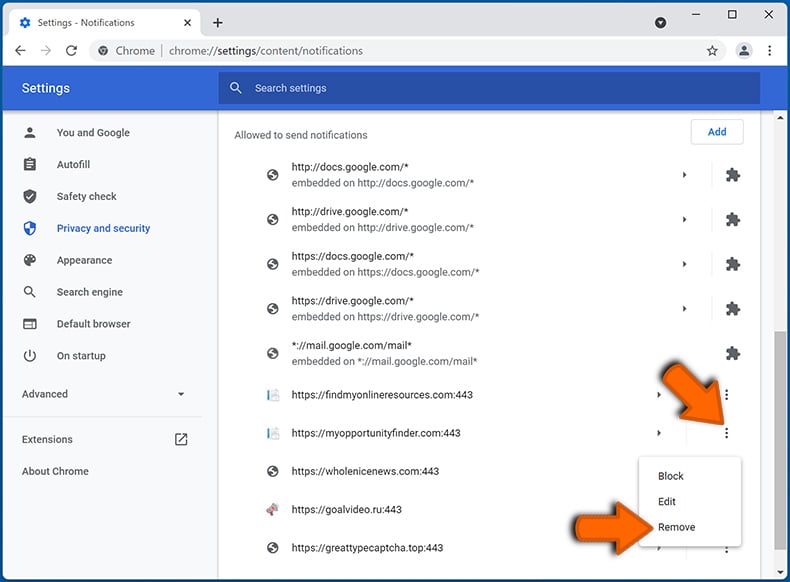
In the "Allowed to send notifications" list search for websites that you want to stop receiving notifications from. Click on the three dots icon near the website URL and click "Block" or "Remove" (if you click "Remove" and visit the malicious site once more, it will ask to enable notifications again).
 Remove spam notifications from Google Chrome (Android):
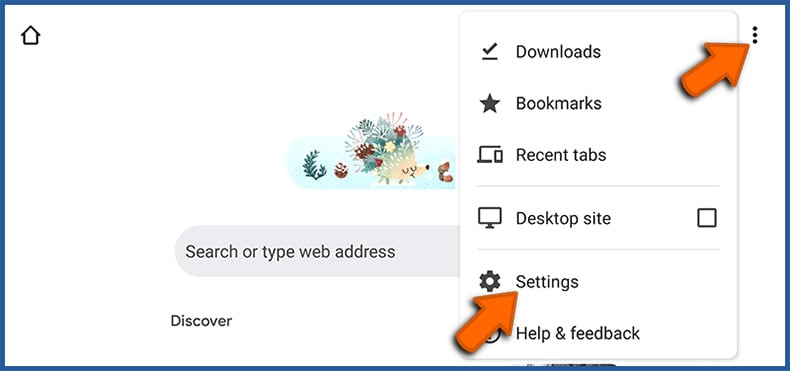
Tap the Menu button (three dots) on the right upper corner of the screen and select "Settings". Scroll down, tap on "Site settings" and then "Notifications".
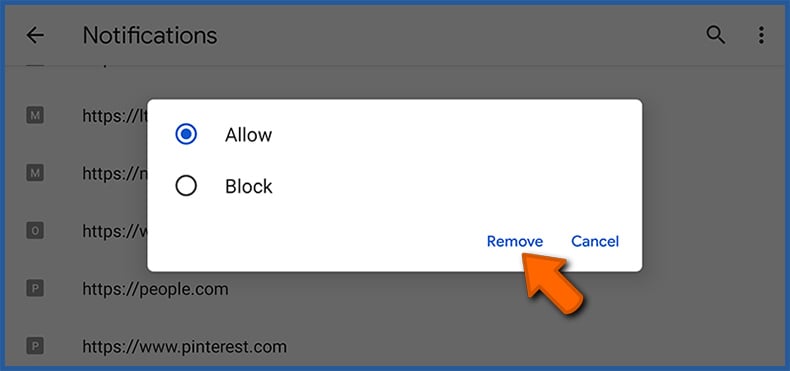
In the opened window, locate all suspicious URLs and tap on them one-by-one. Once the pop-up shows up, select either "Block" or "Remove" (if you tap "Remove" and visit the malicious site once more, it will ask to enable notifications again).
 Remove spam notifications from Mozilla Firefox:
Click the Menu button (three bars) on the right upper corner of the screen. Select "Settings" and click on "Privacy & Security" in the toolbar on the left hand side of the screen. Scroll down to the "Permissions" section and click the "Settings" button next to "Notifications".
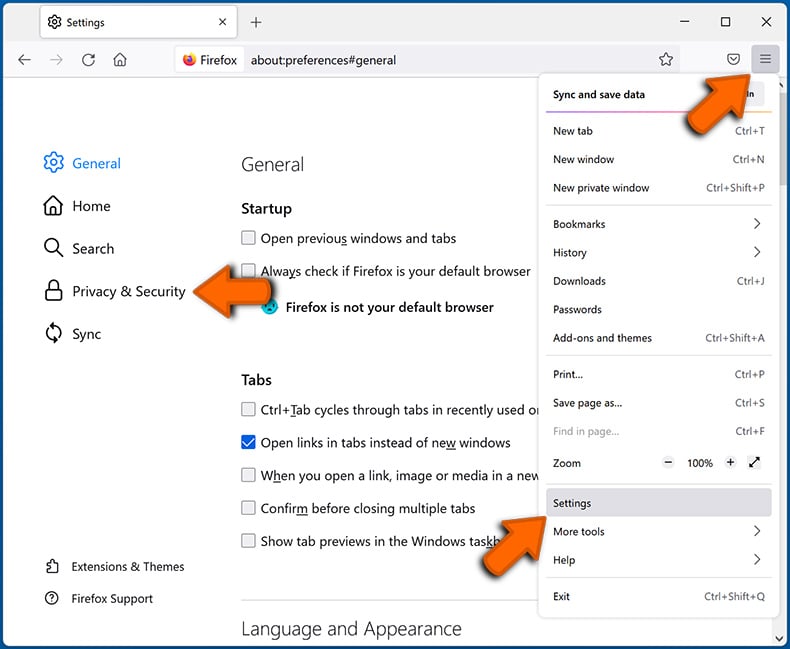
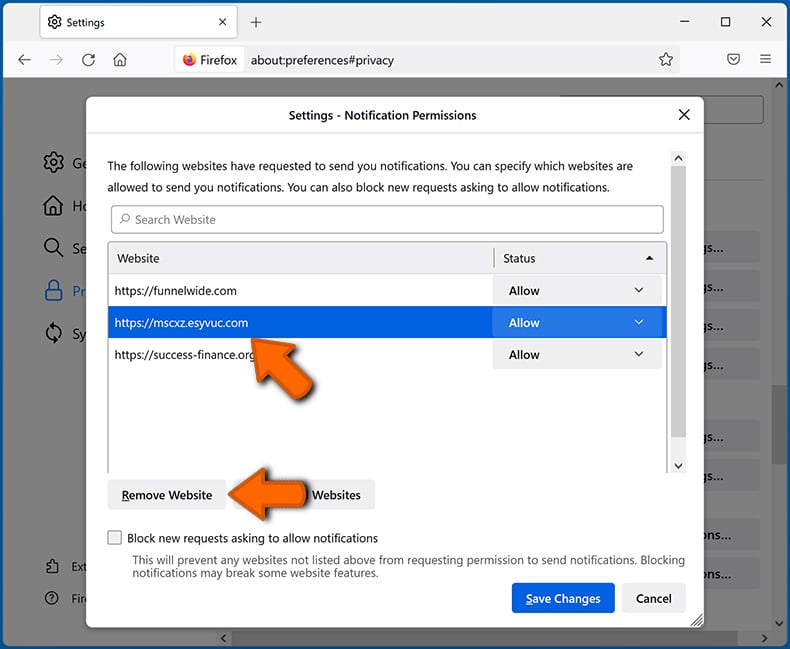
In the opened window, locate all suspicious URLs and block them using the drop-down menu or either remove them by clicking "Remove Website" at the bottom of the window (if you click "Remove Website" and visit the malicious site once more, it will ask to enable notifications again).
 Remove spam notifications from Microsoft Edge:
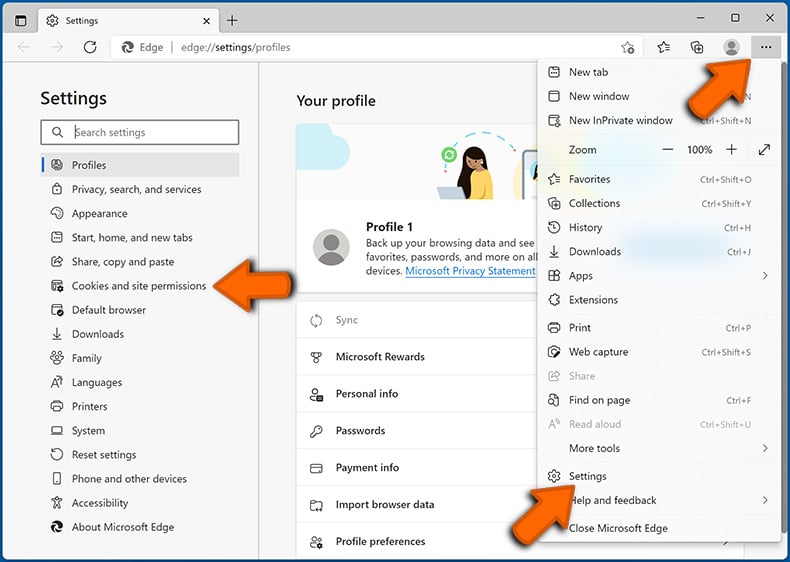
Click the menu button (three dots) on the right upper corner of the Edge window and select "Settings". Click on "Cookies and site permissions" in the toolbar on the left hand side of the screen and select "Notifications".
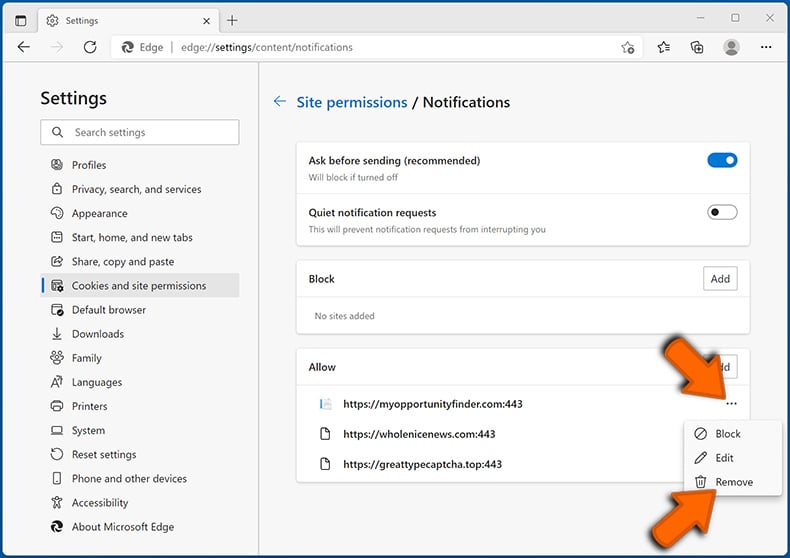
Click three dots on the right hand side of each suspicious URL under "Allow" section and click "Block" or "Remove" (if you click "Remove" and visit the malicious site once more, it will ask to enable notifications again).
 Remove spam notifications from Safari (macOS):
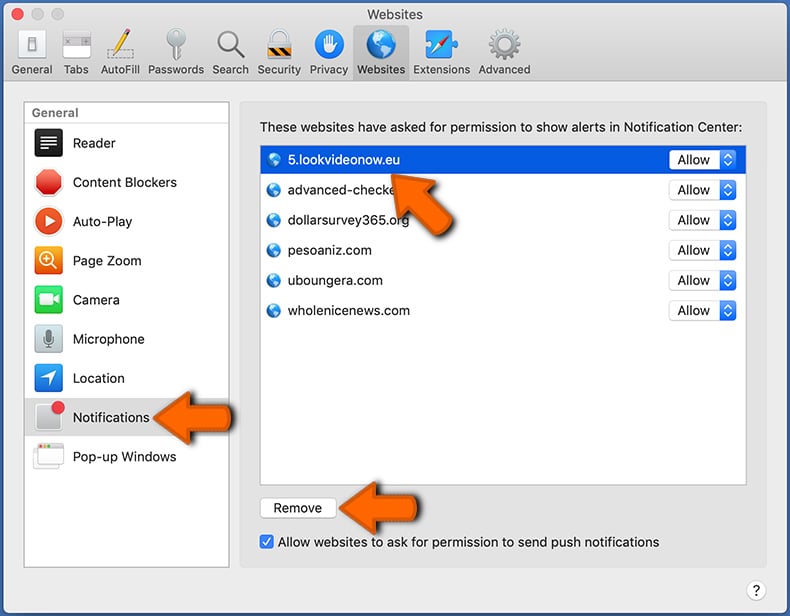
Click "Safari" button on the left upper corner of the screen and select "Preferences...". Select the "Websites" tab and then select "Notifications" section on the left pane.
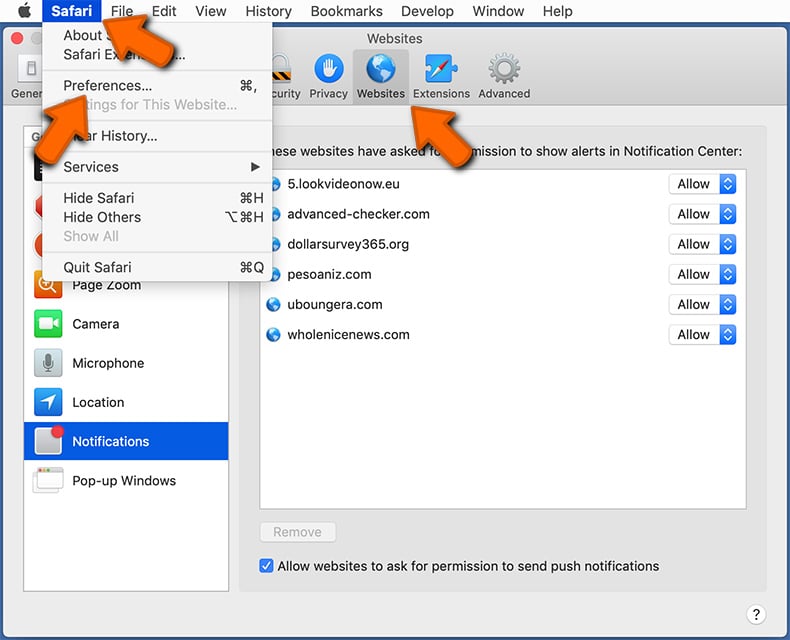
Check for suspicious URLs and apply the "Deny" option using the drop-down menu or either remove them by clicking "Remove" at the bottom of the window (if you click "Remove" and visit the malicious site once more, it will ask to enable notifications again)
How to avoid browser notification spam?
Internet users should be very skeptical when being asked to allow notifications. While this is a useful feature that allows you to receive timely news from websites you like, deceptive marketers frequently abuse it.
Only allow notifications from websites that you fully trust. For added security - use an anti-malware application with a real-time web browsing monitor to block shady websites that tries to trick you into allowing spam notifications. We recommend using Combo Cleaner Antivirus for Windows.
Frequently Asked Questions (FAQ)
Why am I seeing ads (browser notifications) delivered by risecoregrowth[.]com in the right lower corner of my desktop?
Browser notifications can only be sent by websites that have been explicitly granted permission through a browser prompt. If risecoregrowth[.]com notifications are appearing, this site was most likely visited and the 'Allow' button was clicked - possibly after being misled by the fake CAPTCHA on the page.
I have clicked on notification ads, is my computer infected?
Clicking a browser notification itself will not directly infect the computer. However, the pages these notifications link to can be harmful - they may try to steal personal information, push unwanted software, or expose users to scams.
Is risecoregrowth[.]com a virus?
Risecoregrowth[.]com is not classified as a virus, but it is still considered a threat. It actively promotes browser notification spam, and the content these notifications lead to often includes scams, fake security alerts, and links to potentially dangerous websites.
Will Combo Cleaner remove risecoregrowth[.]com ads automatically or manual steps are still required?
Yes, Combo Cleaner will scan the system and automatically revoke any permissions granted to risecoregrowth[.]com. It will also prevent future visits to this and similar rogue pages, so no additional manual steps are needed.
Share:
 Facebook
 X.com
X.com
 LinkedIn
 Copy Link

Tomas Meskauskas
Expert security researcher, professional malware analyst
I am passionate about computer security and technology. I have an experience of over 10 years working in various companies related to computer technical issue solving and Internet security. I have been working as an author and editor for pcrisk.com since 2010. Follow me on Twitter and LinkedIn to stay informed about the latest online security threats.
PCrisk security portal is brought by a company RCS LT.
Joined forces of security researchers help educate computer users about the latest online security threats. More information about the company RCS LT.
Our malware removal guides are free. However, if you want to support us you can send us a donation.
DonatePCrisk security portal is brought by a company RCS LT.
Joined forces of security researchers help educate computer users about the latest online security threats. More information about the company RCS LT.
Our malware removal guides are free. However, if you want to support us you can send us a donation.
Donate
▼ Show Discussion