
How to remove the Night Dragon RAT from Android
TrojanAlso Known As: Night Dragon remote access trojan

Get free scan and check if your device is infected.
Remove it nowTo use full-featured product, you have to purchase a license for Combo Cleaner. Seven days free trial available. Combo Cleaner is owned and operated by RCS LT, the parent company of PCRisk.com.
What kind of malware is Night Dragon RAT?
Night Dragon RAT is a Remote Access Trojan targeting Android users. It was unveiled through a criminal Telegram channel on June 23, 2026, as a successor to an earlier Android malware framework known as Flying Eagle. According to research published by hunt.io, Night Dragon can steal financial credentials, record screens and audio, and give attackers live remote control over infected devices.
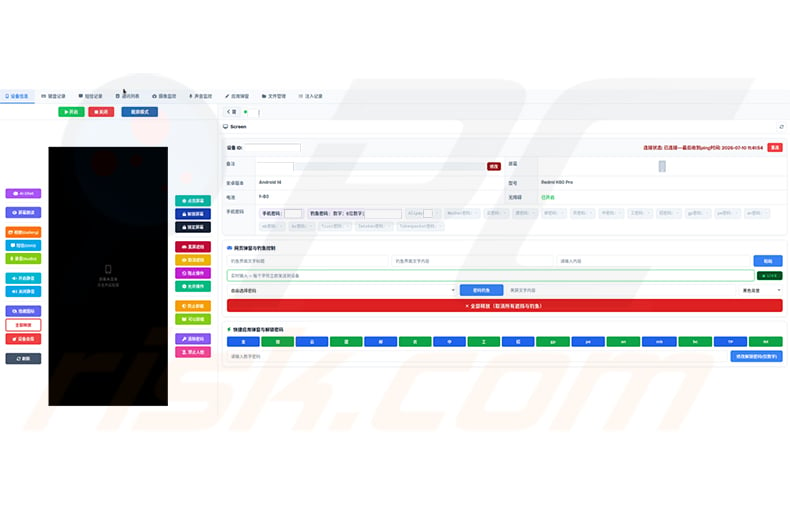
Night Dragon RAT malware overview
Night Dragon was introduced on June 23, 2026, by the @SQLRCE0 Telegram channel, which marketed it as an upgrade to the Flying Eagle Android RAT framework. Hunt.io and researcher NetAskari identified and documented both platforms. A second version of Night Dragon was reportedly in development as of July 12, 2026, indicating the project is being actively refined.
The malware provides attackers with live screen viewing and full remote device control. It can read SMS messages, access the victim's photo gallery, record audio through the microphone, and capture footage from the camera. File management features allow operators to browse and retrieve files stored on the infected device.
Night Dragon also performs keystroke logging and captures payment passwords, equipping attackers with the tools to steal banking credentials and other sensitive login details. A single-click credential capture feature is built specifically to harvest logins from major financial applications quickly. To stay hidden, the malware removes its icon from the app drawer after installation and can activate a black-screen mode that shows a fake system update notice, concealing the operator's actions from anyone who might see the screen.
Like its predecessor, Night Dragon abuses Android Accessibility Services to gain elevated privileges on the device. This allows the malware to inject simulated taps and swipes and to place phishing overlays on top of legitimate apps. These overlays target Chinese financial platforms including Alipay, WeChat, major banks such as ICBC and Agricultural Bank, and cryptocurrency wallets like TokenPocket and imToken.
Night Dragon builds on Flying Eagle, an earlier framework distributed as a 388 MB archive nicknamed "Chinese Dragon." The package includes a web server, database, WebSocket server, and Android build tools, giving operators a complete deployable attack infrastructure. Analyzed Flying Eagle samples were detected as SpyNote, suggesting the codebase shares roots with the established SpyNote RAT family.
The integrated APK builder lets operators configure a custom app name, icon, lure text, and command-and-control address, then produces a signed APK file. To avoid detection, the builder randomizes package and class names, encrypts the embedded command-and-control address using AES-128-CBC, and pads the APK with structured JSON data to prevent heuristic scans from triggering on entropy or file-size patterns.
Hunt.io identified 170 servers running the Flying Eagle framework across multiple hosting providers, concentrated mainly in Hong Kong but also present in the United States, mainland China, Finland, Malaysia, Canada, and Japan. Night Dragon itself had only two active servers at analysis time, both hosted in Hong Kong.
One of those Night Dragon servers had an exposed management panel listing 46 devices online and 29 actively connected, all reported as located in China. Researchers noted they could not confirm whether these entries represented real victims or test data.
The malware is sold and supported through two Telegram channels. The @SQLRCE0 channel offers a "fully repaired" version for 2,000 USDT. A second channel provides operational support and cash-out assistance, charging operators 20-50% of stolen funds. BTMOB RAT, another Android RAT, was observed on the same channels and shared infrastructure, pointing to cooperation within the broader criminal ecosystem.
In summary, Night Dragon RAT can give attackers complete control over a victim's Android device, exposing banking credentials, private communications, and personal files to theft. Potential consequences include financial account takeover, identity theft, and severe monetary losses. Malware developers routinely update their tools, so future versions of Night Dragon RAT may carry additional or different capabilities.
| Name | Night Dragon remote access trojan |
| Threat Type | Android malware, malicious application, Remote Access Trojan, Remote Administration Tool, RAT. |
| Symptoms | The device is running slow, system settings are modified without user's permission, questionable applications appear, data and battery usage is increased significantly, browsers redirect to questionable websites, intrusive advertisements are delivered. |
| Distribution methods | Fake government service applications, criminal Telegram channels, malicious websites. |
| Damage | Stolen personal information (private messages, logins/passwords, etc.), decreased device performance, battery is drained quickly, decreased Internet speed, huge data losses, monetary losses, stolen identity (malicious apps might abuse communication apps). |
| Malware Removal (Windows) |
To eliminate possible malware infections, scan your computer with legitimate antivirus software. Our security researchers recommend using Combo Cleaner. Download Combo CleanerTo use full-featured product, you have to purchase a license for Combo Cleaner. 7 days free trial available. Combo Cleaner is owned and operated by RCS LT, the parent company of PCRisk.com. |
Remote access trojan examples
Examples of similar Android-targeted Remote Access Trojans include Glitch SPY, Mirax, and Oblivion. These programs typically share the same objectives as Night Dragon RAT: stealing sensitive data, monitoring victim activity, and maintaining persistent access to the infected device for financial gain.
Malware as a whole can take many forms, but the core goals tend to be consistent: financial gain, data theft, or surveillance. Any suspected infection should be taken seriously and addressed immediately to minimize further damage.
How did Night Dragon RAT infiltrate my device?
Night Dragon RAT has been distributed primarily through fake government service applications targeting Android users in China. These fraudulent apps impersonate official services such as Chinese Public Security bureau portals and are spread via criminal Telegram channels and malicious websites.
Users are typically tricked into manually sideloading the malicious APK file outside of the official Google Play Store, often after being directed to a convincing fake download page. The social engineering relies on urgency or apparent authority, such as a notice warning the user to install an official government application to remain compliant with local regulations.
Android malware can also spread more broadly through third-party app stores, phishing messages, malicious online advertisements, and links shared on social media or messaging applications. Downloading apps from unofficial sources always carries significant risk of infection.
How to avoid installation of malware?
The safest approach is to download applications only from the official Google Play Store. Before installing anything, verify the developer's credentials, read user reviews, and check what permissions the application requests. Any app asking for Accessibility Services, SMS access, camera, or microphone permissions without a clear legitimate reason should be treated with suspicion.
Avoid clicking links in unsolicited messages, even those that appear to come from government agencies or financial institutions. Keep your Android system and all installed apps updated to benefit from the latest security patches. Installing and maintaining reputable mobile security software adds an extra layer of protection against threats like Night Dragon RAT.
Quick menu:
- Introduction
- How to delete browsing history from the Chrome web browser?
- How to disable browser notifications in the Chrome web browser?
- How to reset the Chrome web browser?
- How to delete browsing history from the Firefox web browser?
- How to disable browser notifications in the Firefox web browser?
- How to reset the Firefox web browser?
- How to uninstall potentially unwanted and/or malicious applications?
- How to boot the Android device in "Safe Mode"?
- How to check the battery usage of various applications?
- How to check the data usage of various applications?
- How to install the latest software updates?
- How to reset the system to its default state?
- How to disable applications that have administrator privileges?
Delete browsing history from the Chrome web browser:
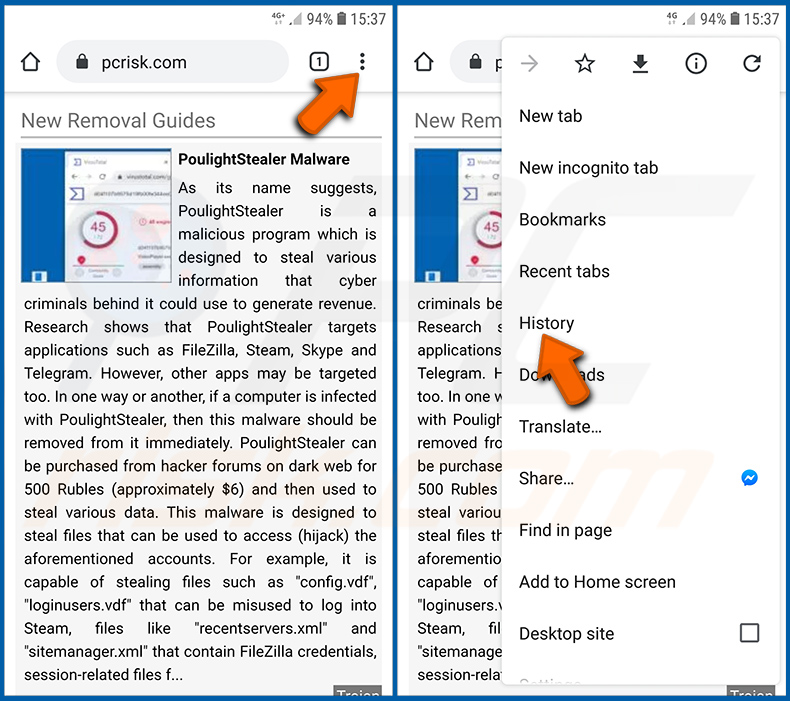
Tap the "Menu" button (three dots on the right-upper corner of the screen) and select "History" in the opened dropdown menu.
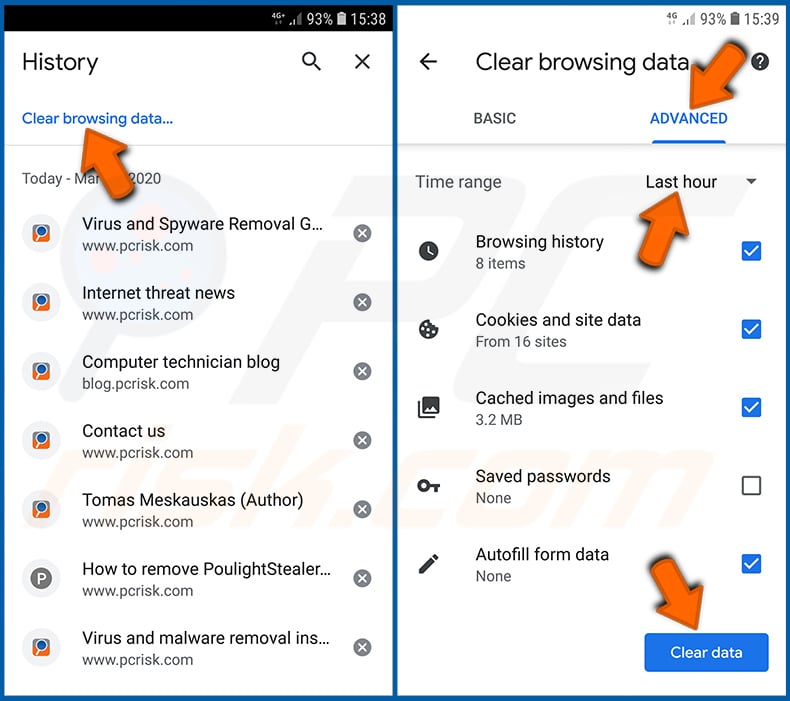
Tap "Clear browsing data", select "ADVANCED" tab, choose the time range and data types you want to delete and tap "Clear data".
Disable browser notifications in the Chrome web browser:
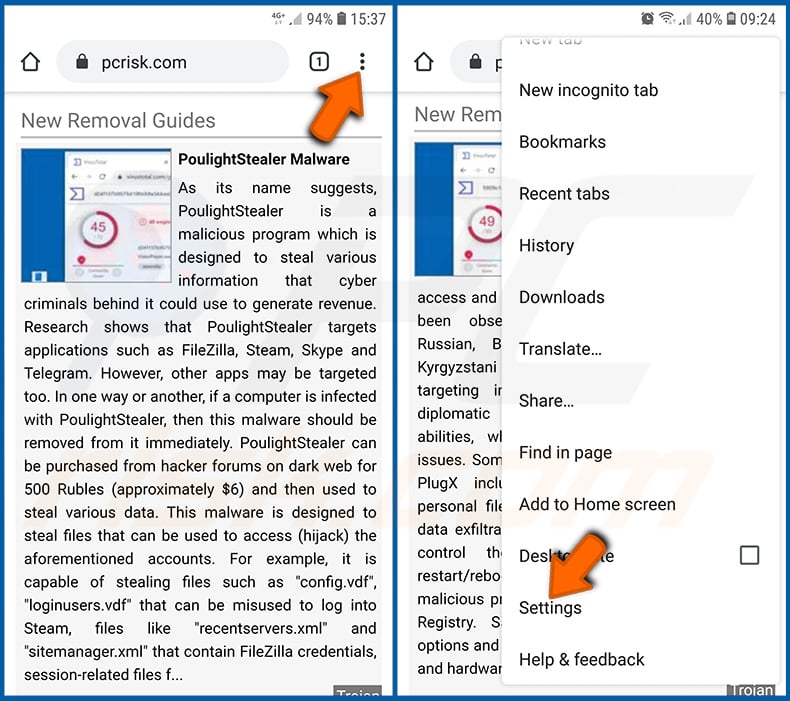
Tap the "Menu" button (three dots on the right-upper corner of the screen) and select "Settings" in the opened dropdown menu.
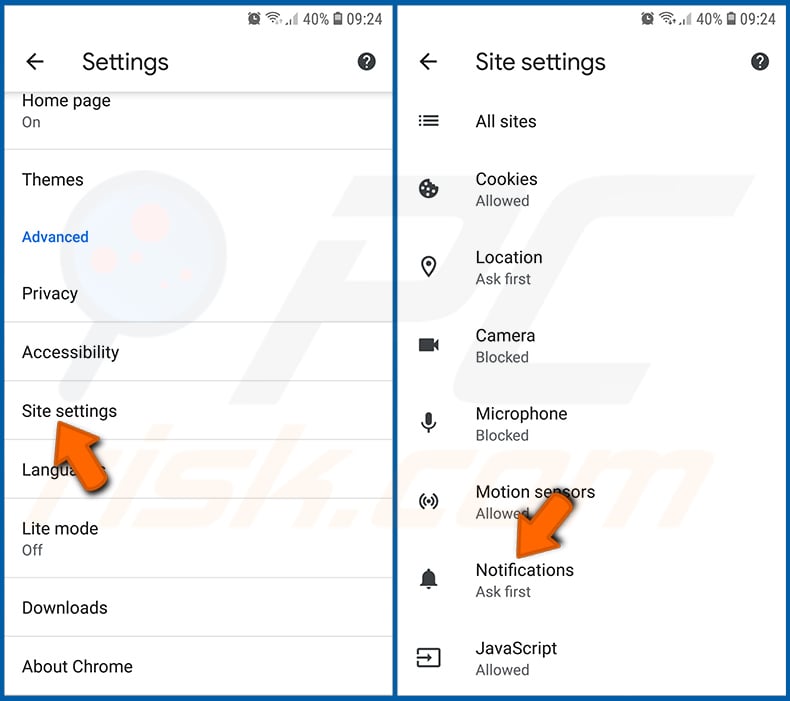
Scroll down until you see "Site settings" option and tap it. Scroll down until you see "Notifications" option and tap it.
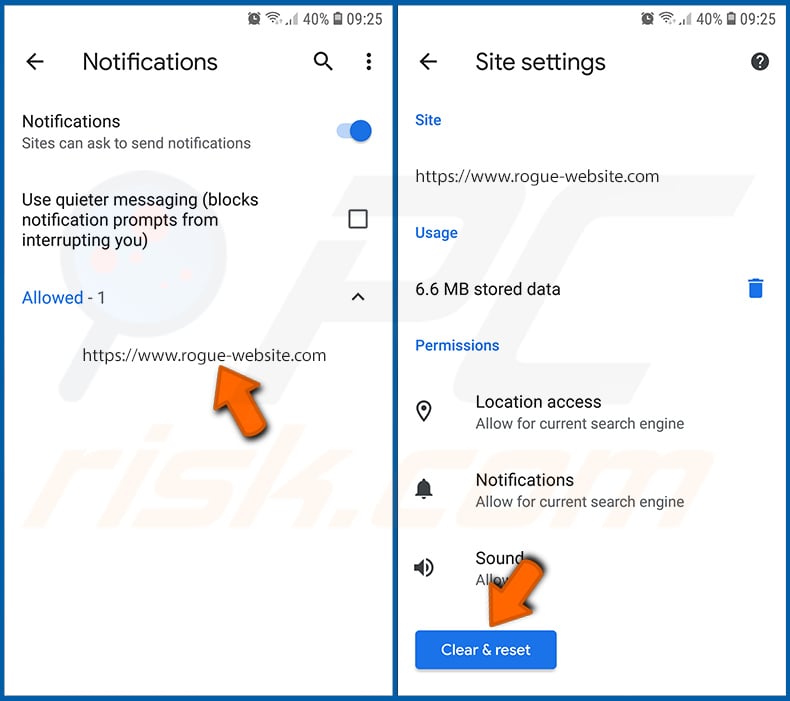
Find the websites that deliver browser notifications, tap on them and click "Clear & reset". This will remove permissions granted for these websites to deliver notifications. However, once you visit the same site again, it may ask for a permission again. You can choose whether to give these permissions or not (if you choose to decline the website will go to "Blocked" section and will no longer ask you for the permission).
Reset the Chrome web browser:
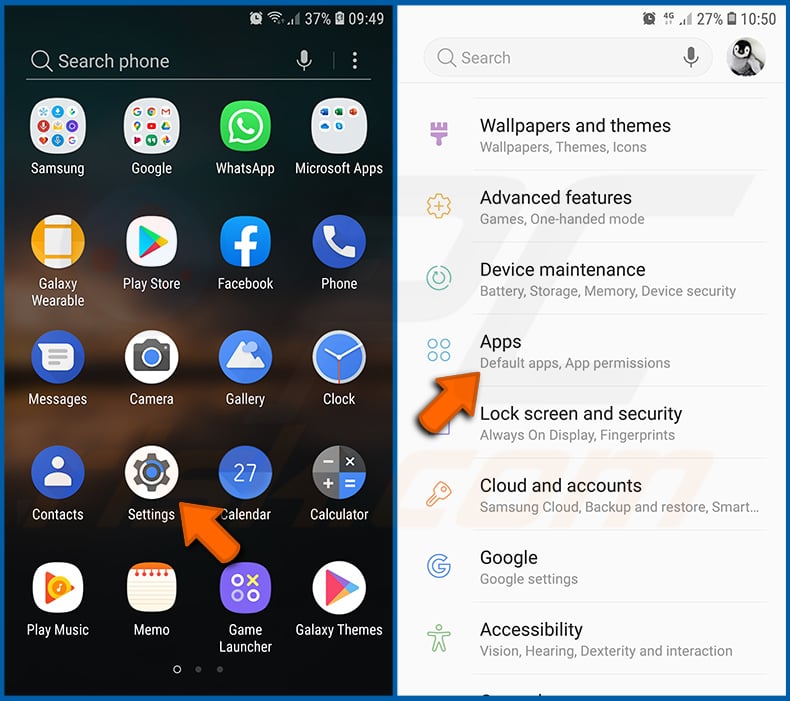
Go to "Settings", scroll down until you see "Apps" and tap it.
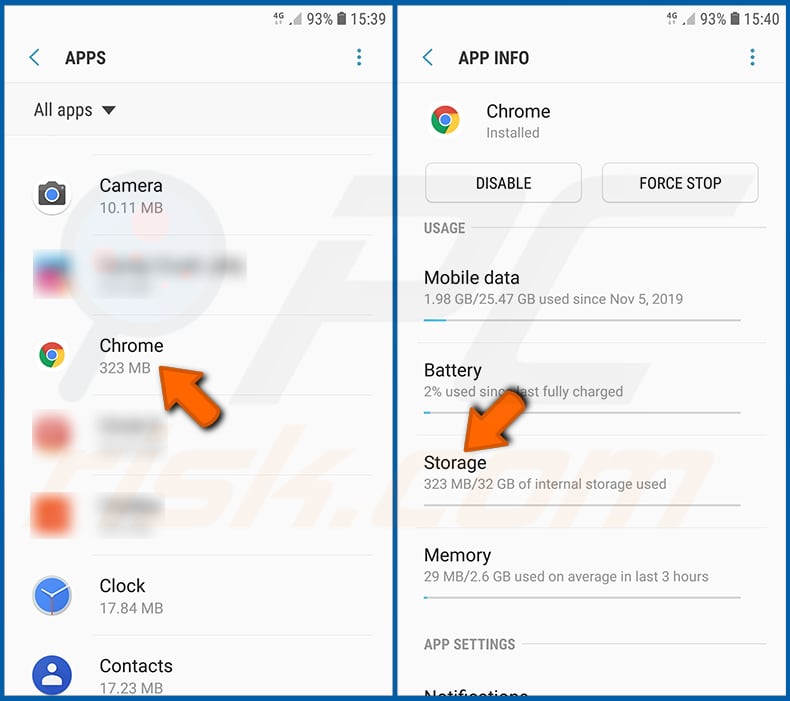
Scroll down until you find "Chrome" application, select it and tap "Storage" option.
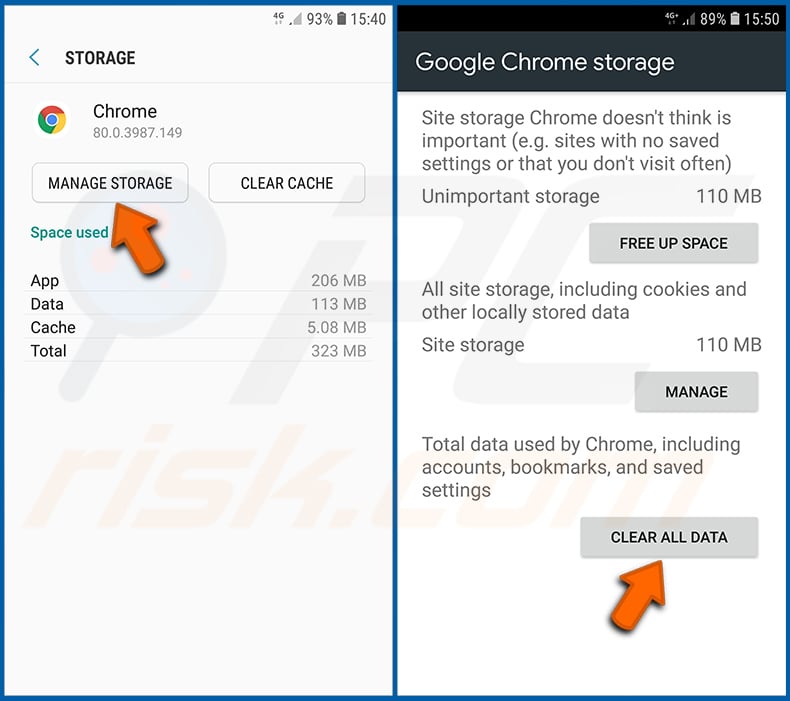
Tap "MANAGE STORAGE", then "CLEAR ALL DATA" and confirm the action by taping "OK". Note that resetting the browser will eliminate all data stored within. This means that all saved logins/passwords, browsing history, non-default settings and other data will be deleted. You will also have to re-login into all websites as well.
Delete browsing history from the Firefox web browser:
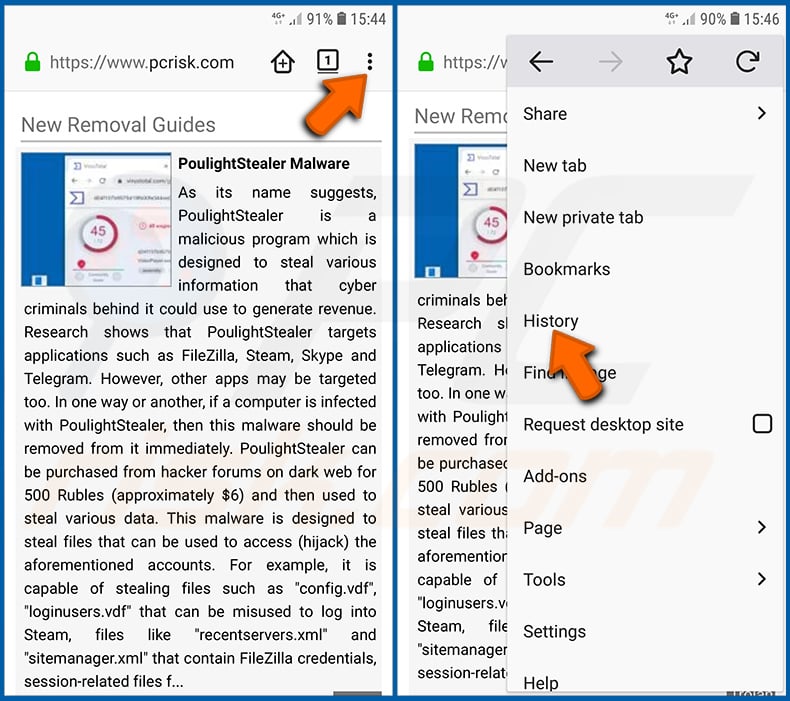
Tap the "Menu" button (three dots on the right-upper corner of the screen) and select "History" in the opened dropdown menu.
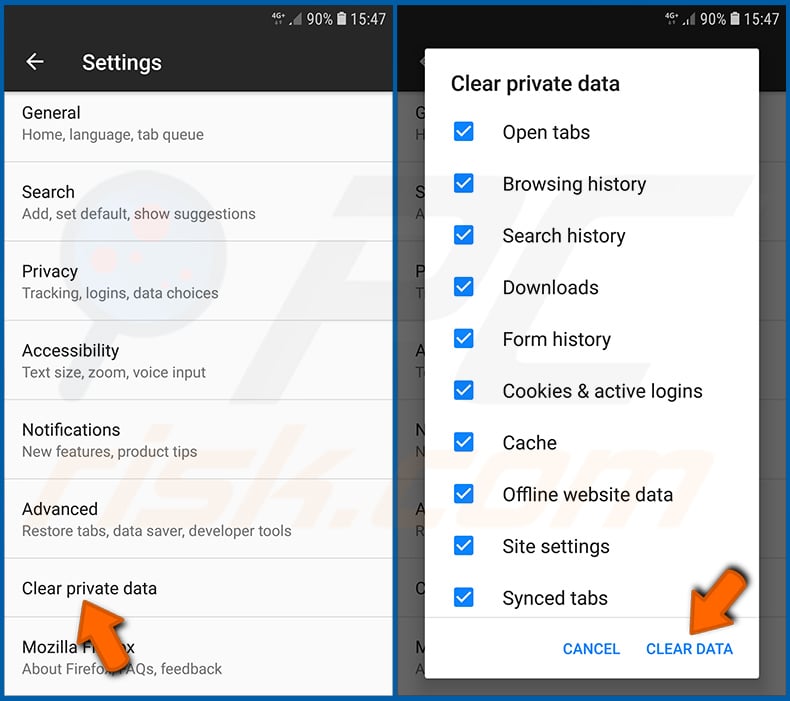
Scroll down until you see "Clear private data" and tap it. Select data types you want to remove and tap "CLEAR DATA".
Disable browser notifications in the Firefox web browser:
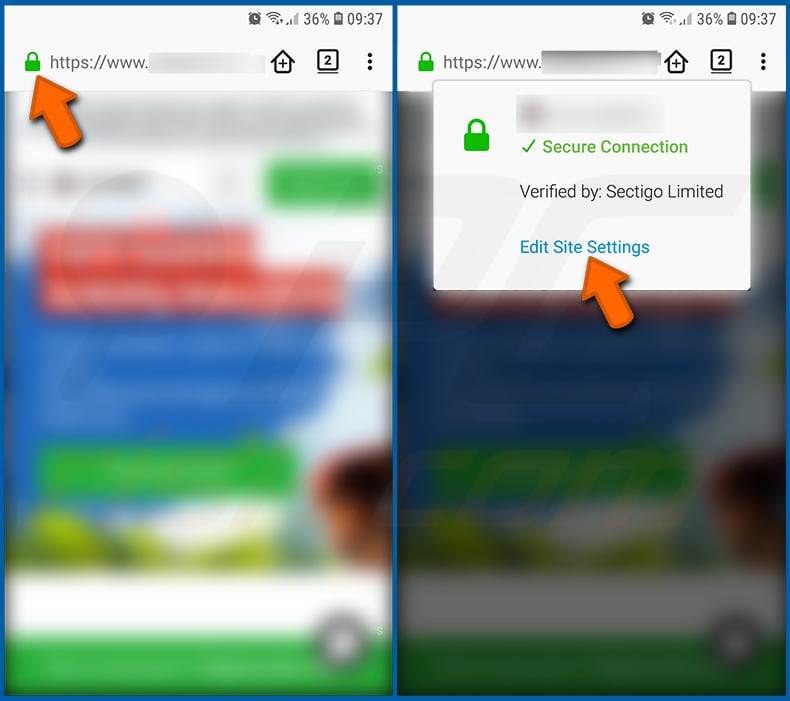
Visit the website that is delivering browser notifications, tap the icon displayed on the left of URL bar (the icon will not necessarily be a "Lock") and select "Edit Site Settings".
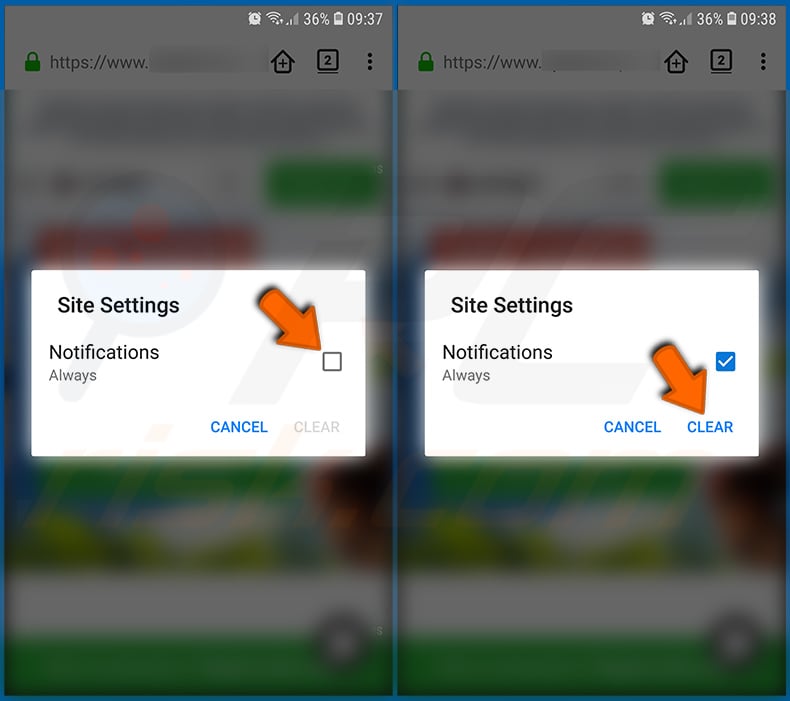
In the opened pop-up opt-in the "Notifications" option and tap "CLEAR".
Reset the Firefox web browser:
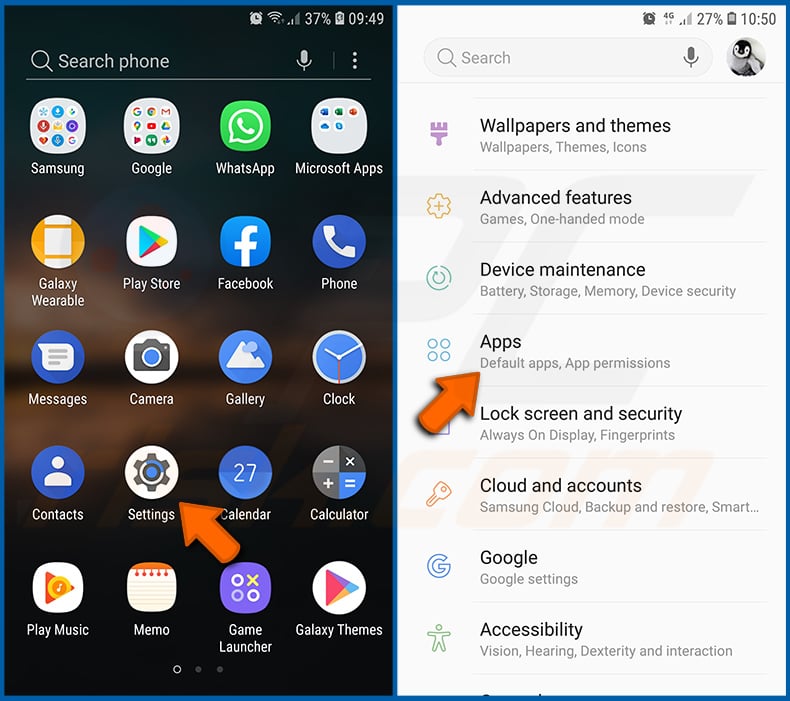
Go to "Settings", scroll down until you see "Apps" and tap it.
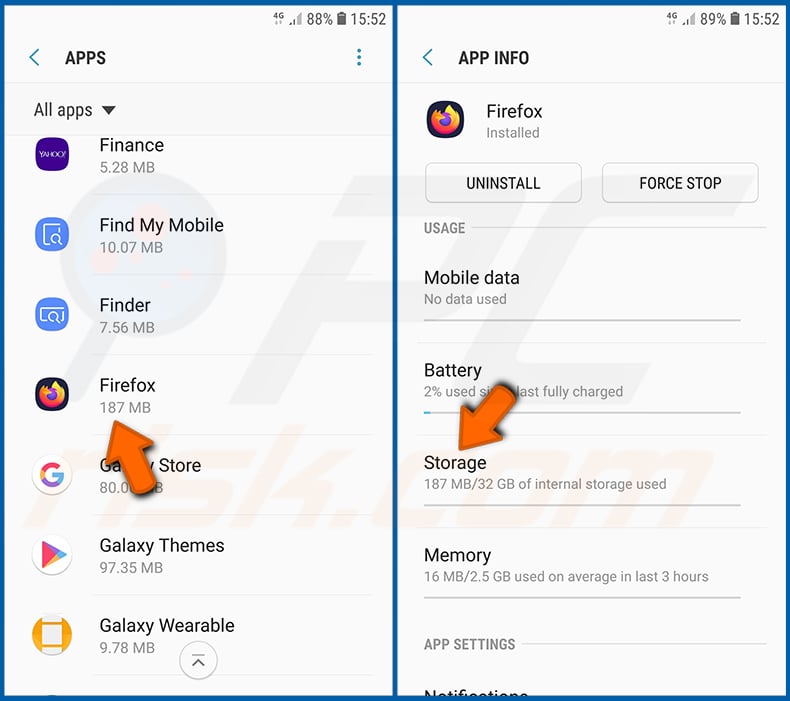
Scroll down until you find "Firefox" application, select it and tap "Storage" option.
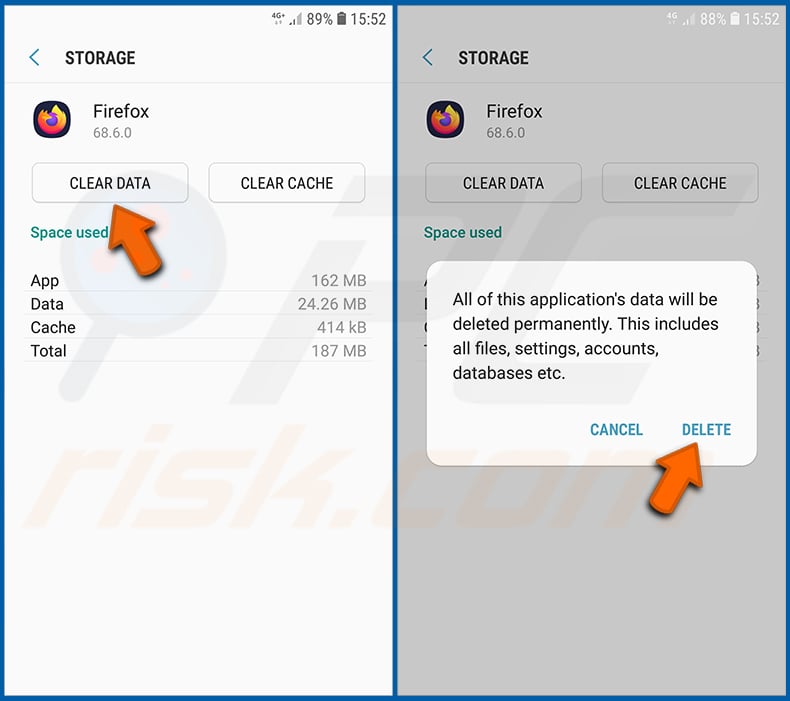
Tap "CLEAR DATA" and confirm the action by taping "DELETE". Note that resetting the browser will eliminate all data stored within. This means that all saved logins/passwords, browsing history, non-default settings and other data will be deleted. You will also have to re-login into all websites as well.
Uninstall potentially unwanted and/or malicious applications:
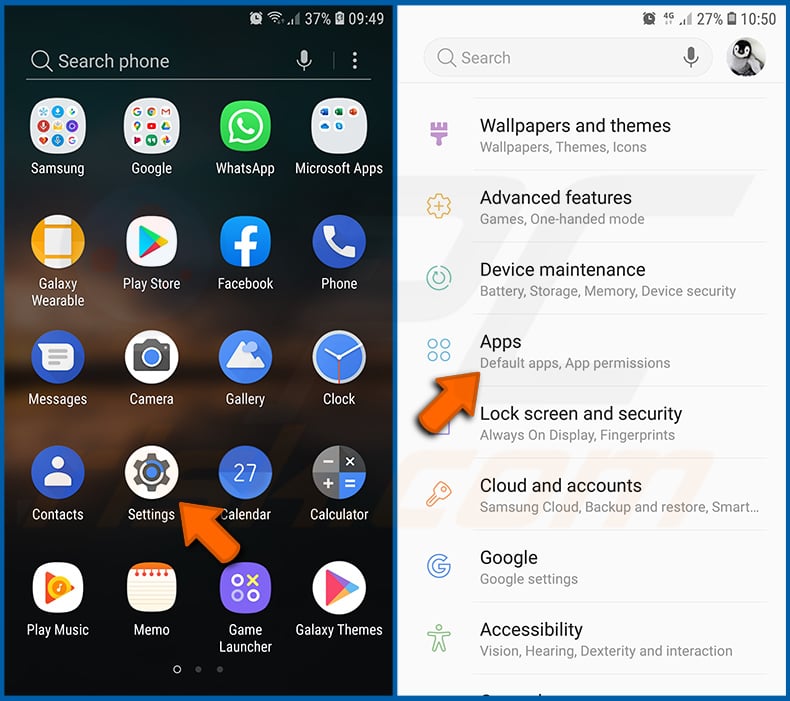
Go to "Settings", scroll down until you see "Apps" and tap it.
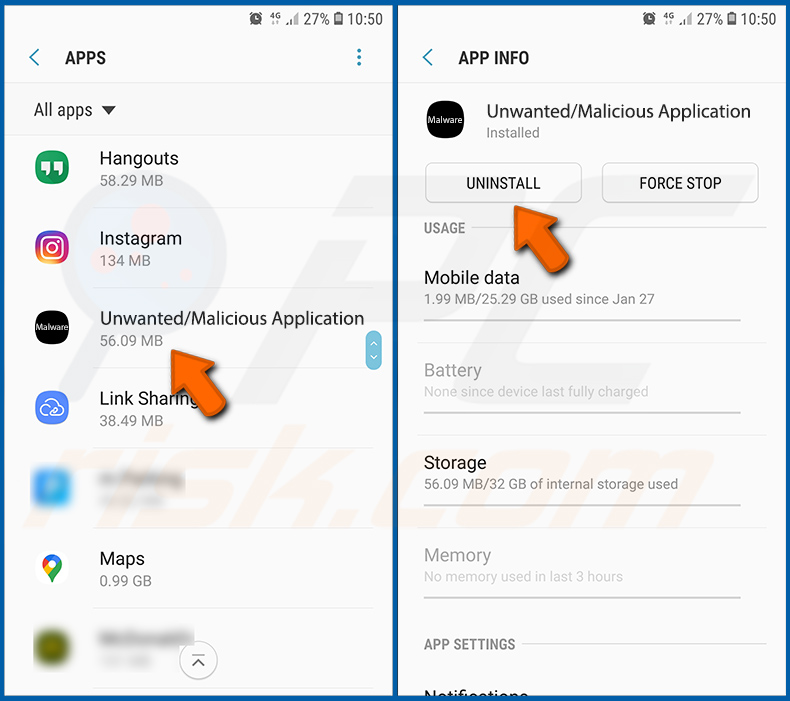
Scroll down until you see a potentially unwanted and/or malicious application, select it and tap "Uninstall". If, for some reason, you are unable to remove the selected app (e.g., you are prompted with an error message), you should try using the "Safe Mode".
Boot the Android device in "Safe Mode":
The "Safe Mode" in Android operating system temporarily disables all third-party applications from running. Using this mode is a good way to diagnose and solve various issues (e.g., remove malicious applications that prevent users you from doing so when the device is running "normally").
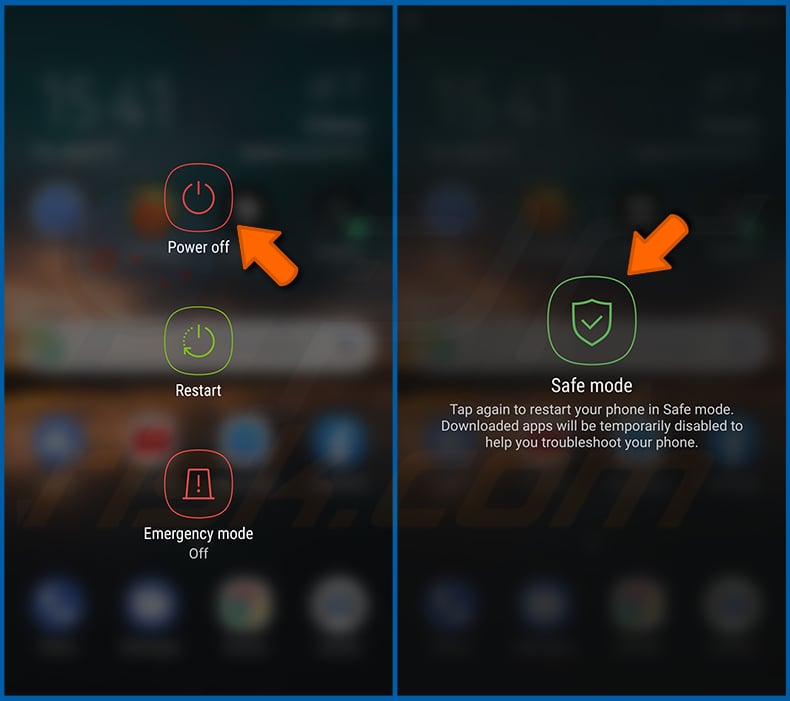
Push the "Power" button and hold it until you see the "Power off" screen. Tap the "Power off" icon and hold it. After a few seconds the "Safe Mode" option will appear and you'll be able run it by restarting the device.
Check the battery usage of various applications:
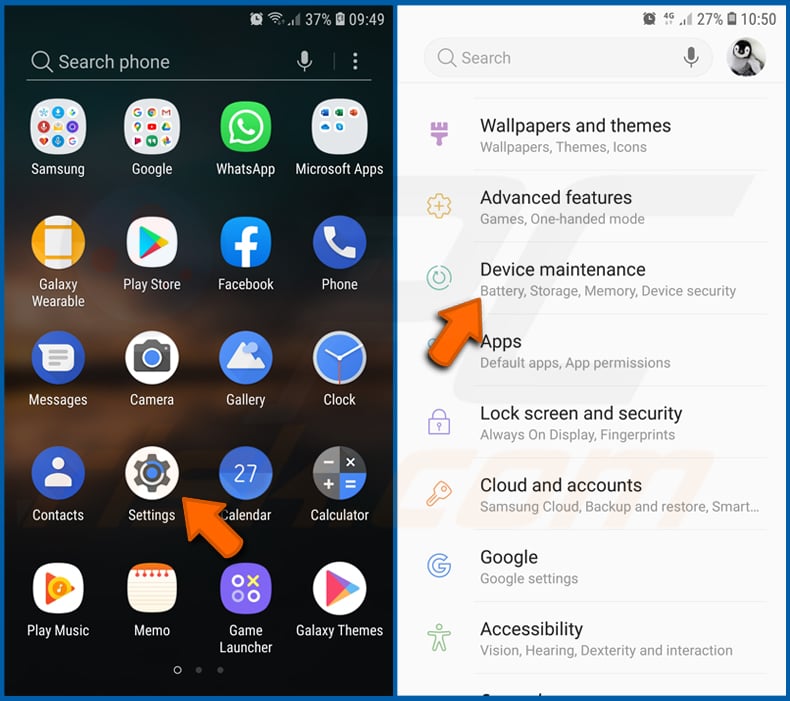
Go to "Settings", scroll down until you see "Device maintenance" and tap it.
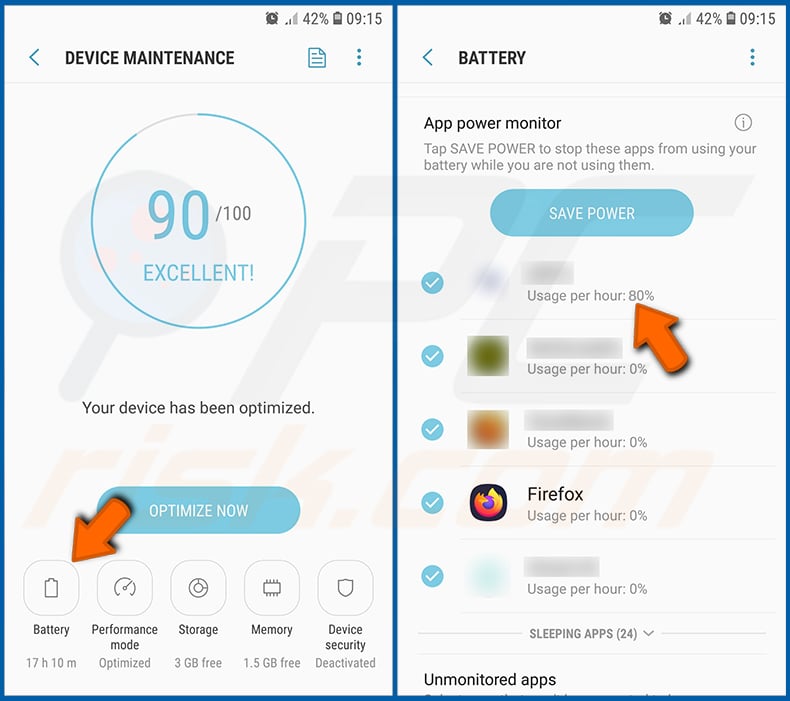
Tap "Battery" and check the usage of each application. Legitimate/genuine applications are designed to use as low energy as possible in order to provide the best user experience and to save power. Therefore, high battery usage may indicate that the application is malicious.
Check the data usage of various applications:
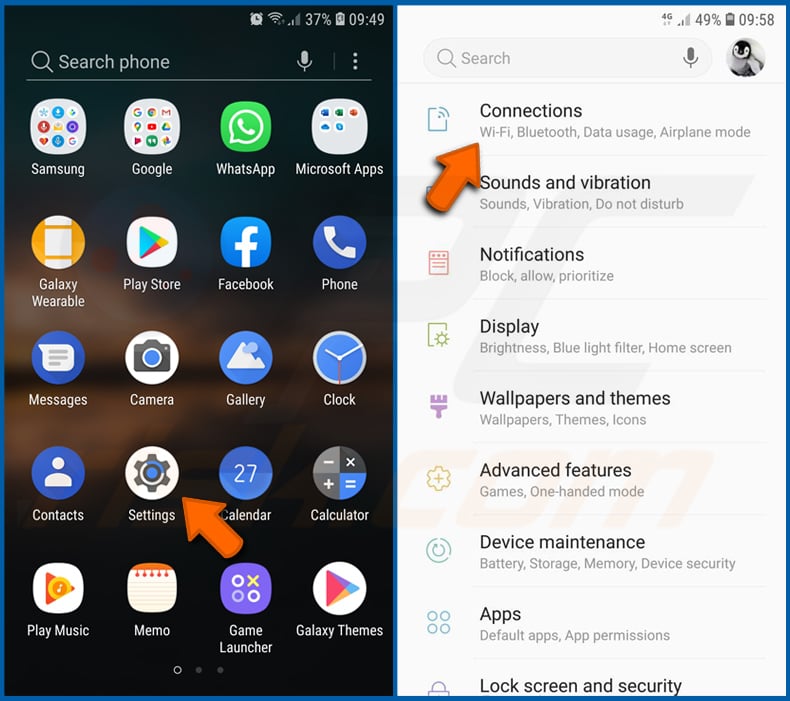
Go to "Settings", scroll down until you see "Connections" and tap it.
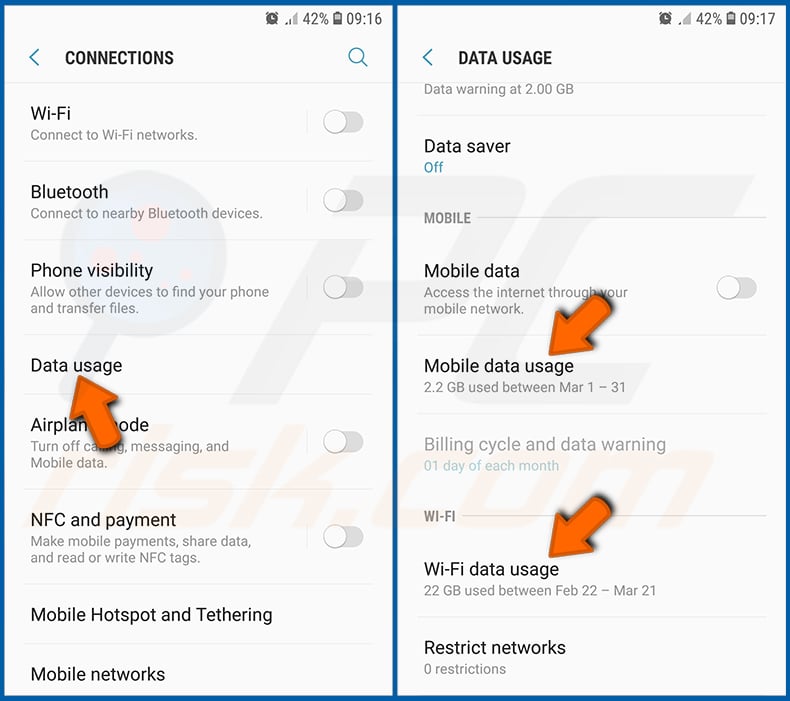
Scroll down until you see "Data usage" and select this option. As with battery, legitimate/genuine applications are designed to minimize data usage as much as possible. This means that huge data usage may indicate presence of malicious application. Note that some malicious applications might be designed to operate when the device is connected to wireless network only. For this reason, you should check both Mobile and Wi-Fi data usage.
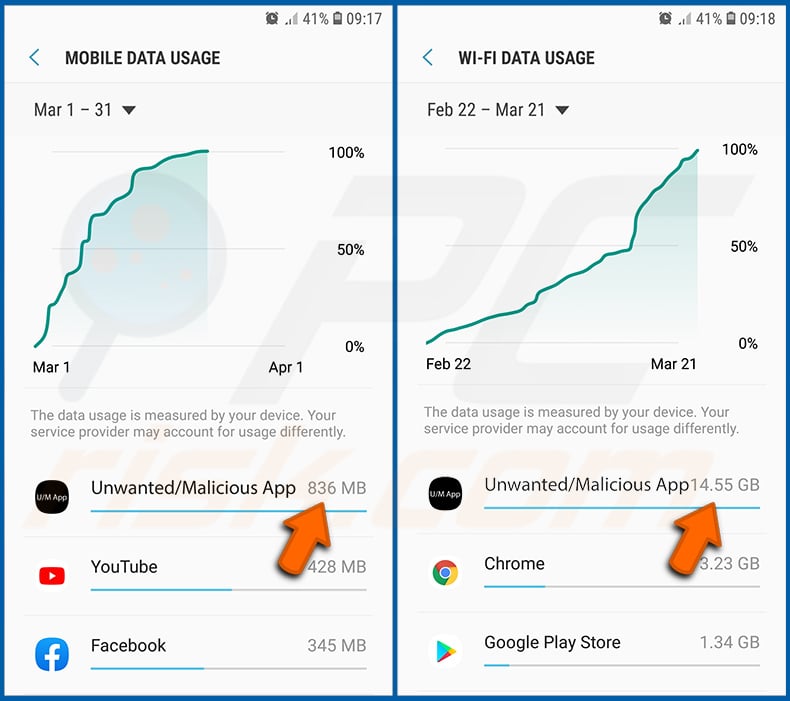
If you find an application that uses a lot of data even though you never use it, then we strongly advise you to uninstall it as soon as possible.
Install the latest software updates:
Keeping the software up-to-date is a good practice when it comes to device safety. The device manufacturers are continually releasing various security patches and Android updates in order to fix errors and bugs that can be abused by cybercriminals. An outdated system is way more vulnerable, which is why you should always be sure that your device's software is up-to-date.
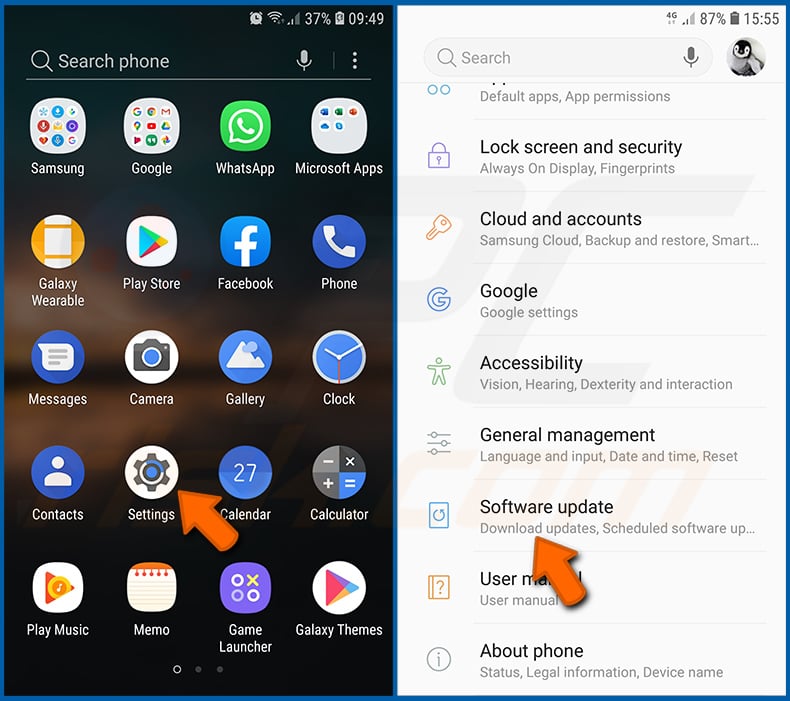
Go to "Settings", scroll down until you see "Software update" and tap it.
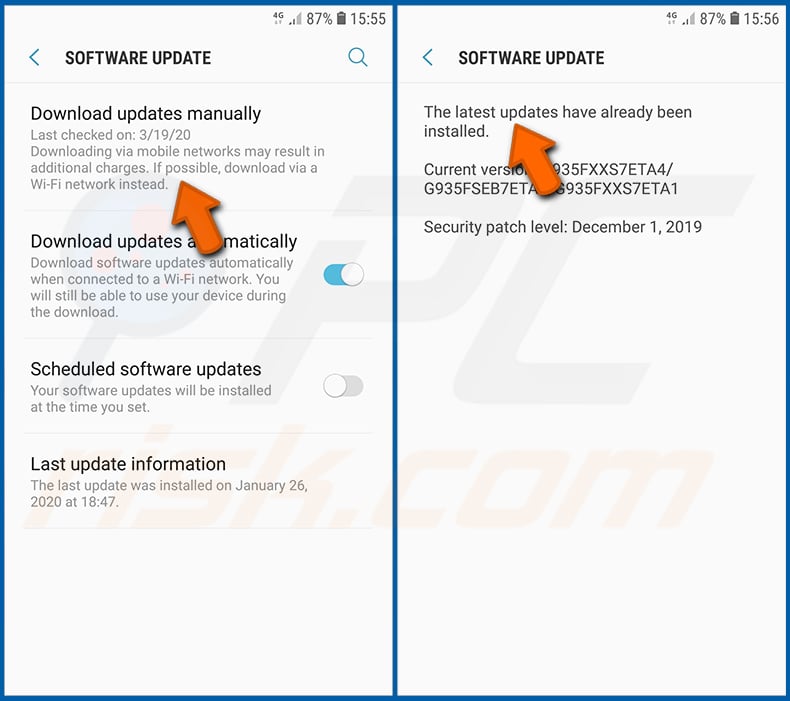
Tap "Download updates manually" and check if there are any updates available. If so, install them immediately. We also recommend to enable the "Download updates automatically" option - it will enable the system to notify you once an update is released and/or install it automatically.
Reset the system to its default state:
Performing a "Factory Reset" is a good way to remove all unwanted applications, restore system's settings to default and clean the device in general. However, you must keep in mind that all data within the device will be deleted, including photos, video/audio files, phone numbers (stored within the device, not the SIM card), SMS messages, and so forth. In other words, the device will be restored to its primal state.
You can also restore the basic system settings and/or simply network settings as well.
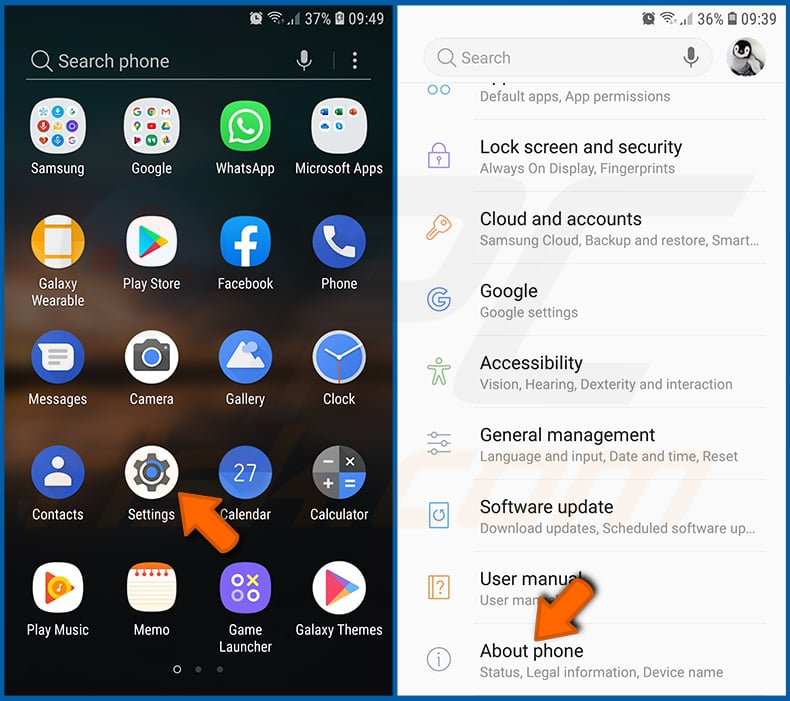
Go to "Settings", scroll down until you see "About phone" and tap it.
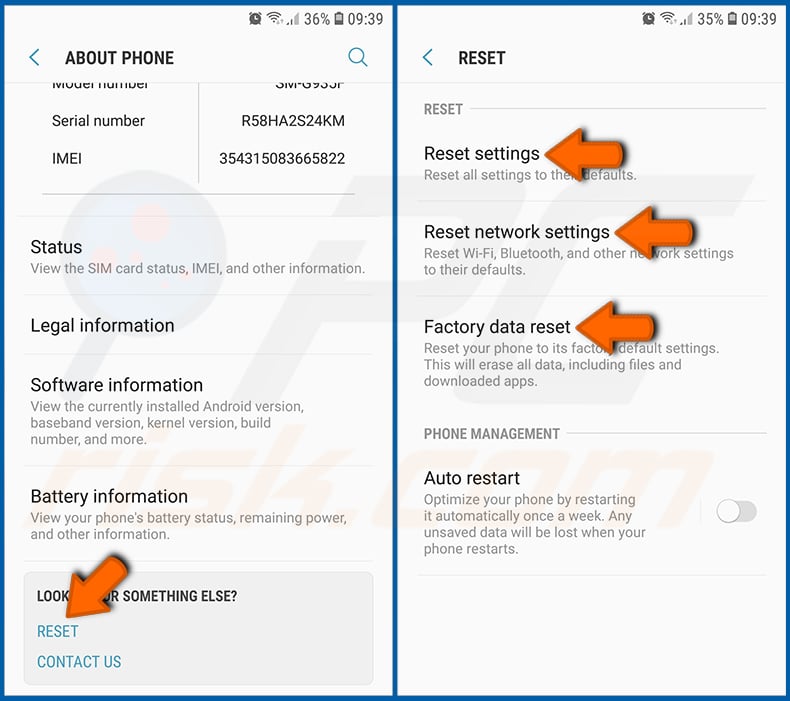
Scroll down until you see "Reset" and tap it. Now choose the action you want to perform:
"Reset settings" - restore all system settings to default;
"Reset network settings" - restore all network-related settings to default;
"Factory data reset" - reset the entire system and completely delete all stored data;
Disable applications that have administrator privileges:
If a malicious application gets administrator-level privileges it can seriously damage the system. To keep the device as safe as possible you should always check what apps have such privileges and disable the ones that shouldn't.
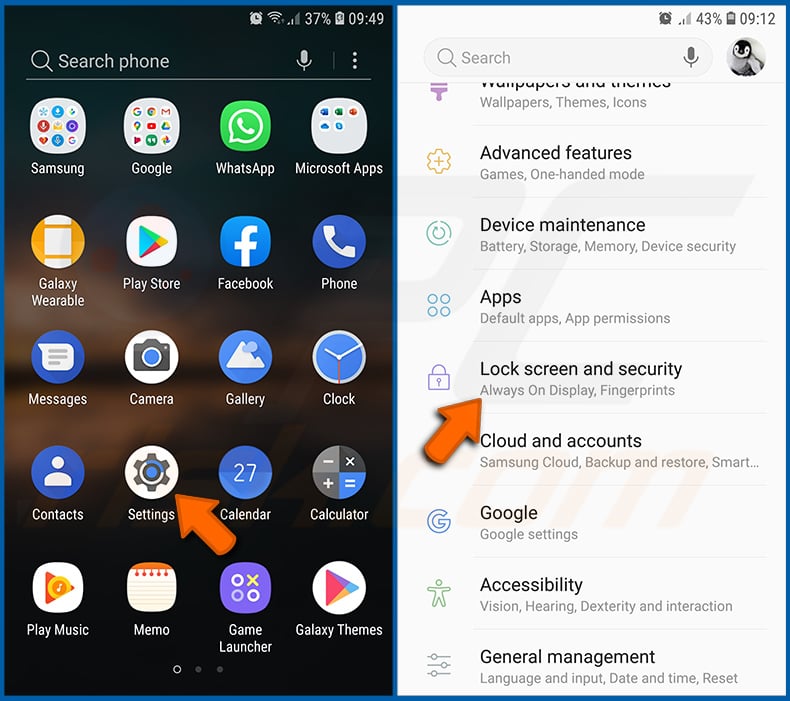
Go to "Settings", scroll down until you see "Lock screen and security" and tap it.
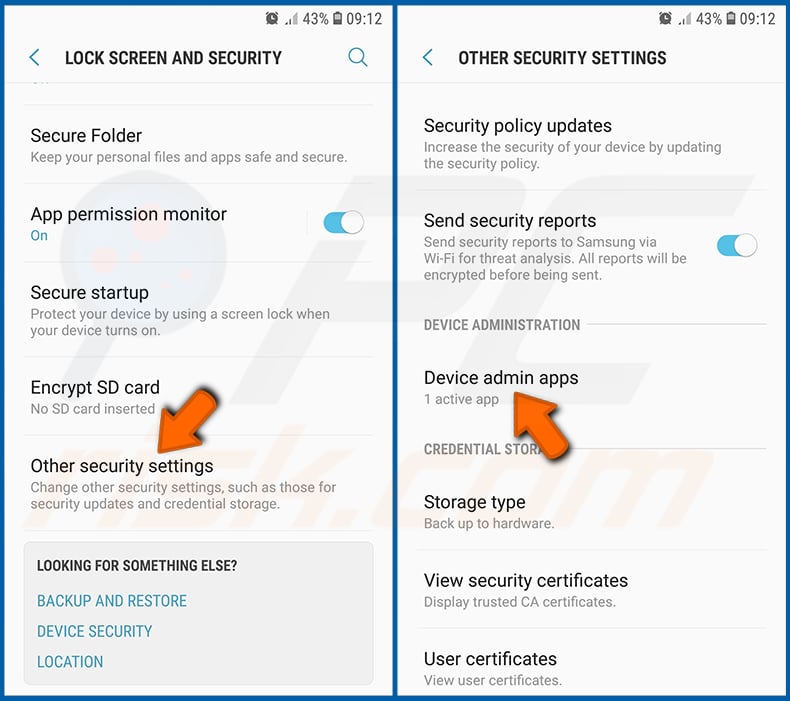
Scroll down until you see "Other security settings", tap it and then tap "Device admin apps".
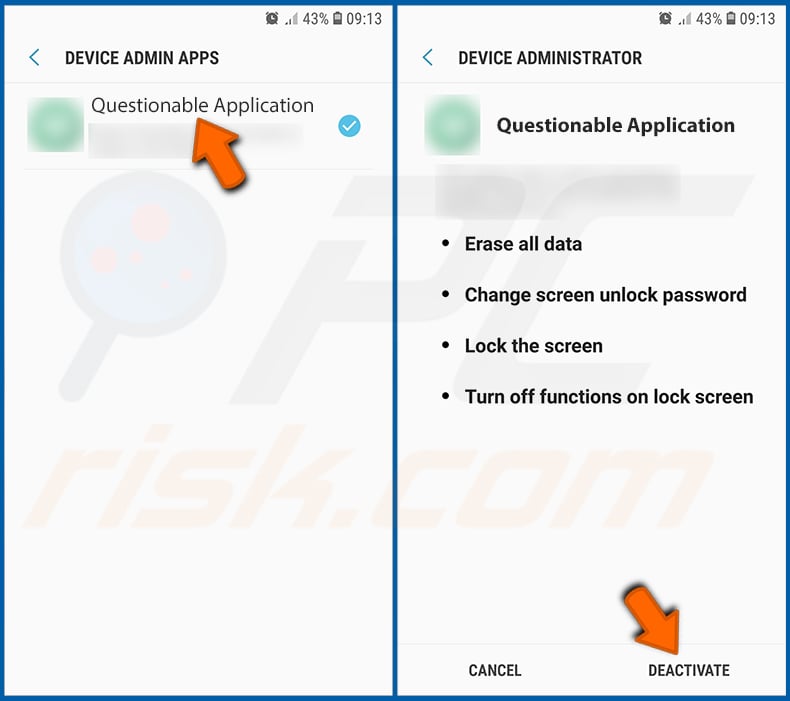
Identify applications that should not have administrator privileges, tap them and then tap "DEACTIVATE".
Frequently Asked Questions (FAQ)
My Android device is infected with Night Dragon RAT malware, should I format my storage device to get rid of it?
Formatting is rarely necessary to remove Night Dragon RAT. Running reputable mobile antivirus software like Combo Cleaner should be sufficient to detect and eliminate the threat from your device.
What are the biggest issues that Night Dragon RAT malware can cause?
Night Dragon RAT gives attackers live remote control of the infected device, including the ability to view the screen in real time, read messages, and record audio and video. This allows operators to monitor virtually everything the victim does.
The malware also targets banking and cryptocurrency applications directly, capturing payment passwords and login credentials. Victims face serious risks including financial account takeover, identity theft, and significant monetary losses.
What is the purpose of Night Dragon RAT malware?
Night Dragon RAT is primarily designed to generate profit for its operators through financial credential theft and account takeover. That said, the motivations behind malware campaigns can also include espionage, personal grudges, service disruption, hacktivism, or geopolitical goals.
How did Night Dragon RAT malware infiltrate my Android device?
Night Dragon RAT has been distributed through fake government service applications targeting Android users in China, spread via criminal Telegram channels and malicious websites. Users are typically tricked into sideloading the malicious APK file outside of the official app store.
Will Combo Cleaner protect me from malware?
Combo Cleaner can detect and remove the vast majority of known Android malware threats. Running a complete device scan is strongly recommended, since sophisticated malware like Night Dragon RAT tends to embed itself deep within the system.
Share:
 Facebook
 X.com
X.com
 LinkedIn
 Copy Link

Tomas Meskauskas
Expert security researcher, professional malware analyst
I am passionate about computer security and technology. I have an experience of over 10 years working in various companies related to computer technical issue solving and Internet security. I have been working as an author and editor for pcrisk.com since 2010. Follow me on Twitter and LinkedIn to stay informed about the latest online security threats.
PCrisk security portal is brought by a company RCS LT.
Joined forces of security researchers help educate computer users about the latest online security threats. More information about the company RCS LT.
Our malware removal guides are free. However, if you want to support us you can send us a donation.
DonatePCrisk security portal is brought by a company RCS LT.
Joined forces of security researchers help educate computer users about the latest online security threats. More information about the company RCS LT.
Our malware removal guides are free. However, if you want to support us you can send us a donation.
Donate
▼ Show Discussion