
What is the "Pending Messages Awaiting Transfer" email scam
Phishing/ScamAlso Known As: Pending Messages Awaiting Transfer phishing scam

Get free scan and check if your device is infected.
Remove it nowTo use full-featured product, you have to purchase a license for Combo Cleaner. Seven days free trial available. Combo Cleaner is owned and operated by RCS LT, the parent company of PCRisk.com.
What kind of email is "Pending Messages Awaiting Transfer"?
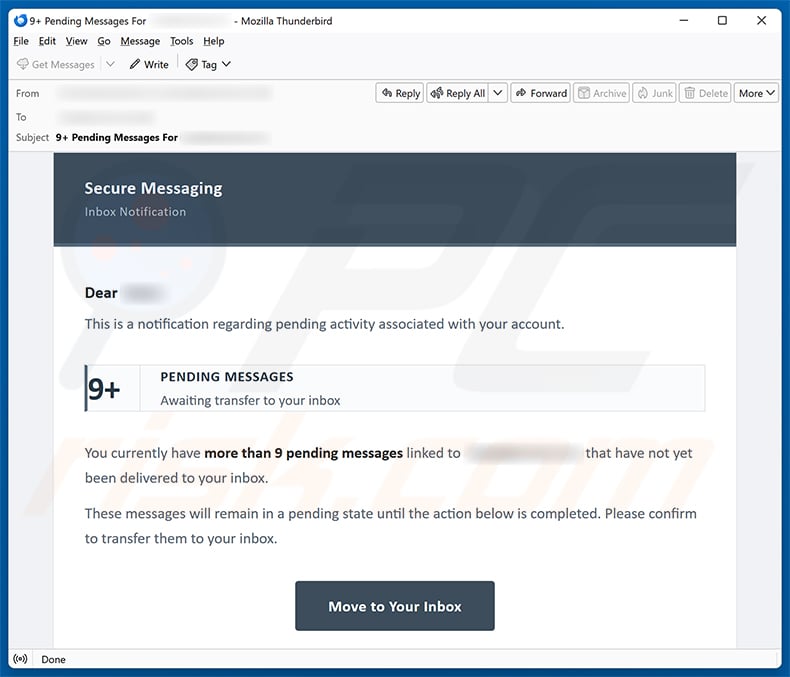
We have inspected this email and determined it is a phishing scam. The message impersonates a generic email service notification, falsely claiming the recipient has pending messages that cannot be delivered until they take action. Its purpose is to trick recipients into clicking a link that leads to a fake login page designed to steal email account credentials. This email should be ignored and deleted.
More about the "Pending Messages Awaiting Transfer" scam email
The email informs recipients that more than nine messages are queued and will not reach their inbox unless a specific action is completed. A "Move to Your Inbox" button is provided as the central call to action. The closing warning - that "further messages may be withheld" - is a pressure tactic designed to provoke a quick response before the recipient thinks to question whether the email is legitimate.
Clicking that button leads to a phishing website. The site linked in this particular email is no longer active, but pages used in this type of scam typically mimic the login interface of a real email provider. In many cases, the fake site identifies the recipient's email domain and adjusts its appearance to match that specific provider.
For example, a recipient with a Gmail address might encounter a page styled like Google's sign-in screen, while a Yahoo user might see a Yahoo-themed form. Whatever appearance the page takes on, any credentials entered there go directly to the scammers.
With access to a stolen email account, cybercriminals can lock the real owner out, take over connected services that share the same password, and search the inbox for sensitive personal or financial information. This data can be exploited for identity theft. Compromised accounts are often also used to push further phishing messages to the victim's contacts.
The "Secure Messaging" and "Mail Center" labels used in this email do not belong to any legitimate service. No real email provider has any connection to this campaign.
| Name | Pending Messages Awaiting Transfer phishing scam |
| Threat Type | Phishing, Scam, Social Engineering, Fraud |
| Fake Claim | The recipient has nine or more pending messages awaiting transfer to their inbox |
| Disguise | Notification from an email service / mail center |
| Symptoms | Unauthorized online purchases, changed online account passwords, identity theft, illegal access of the computer. |
| Distribution methods | Deceptive emails, rogue online pop-up ads, search engine poisoning techniques, misspelled domains. |
| Damage | Loss of sensitive private information, monetary loss, identity theft. |
| Malware Removal (Windows) |
To eliminate possible malware infections, scan your computer with legitimate antivirus software. Our security researchers recommend using Combo Cleaner. Download Combo CleanerTo use full-featured product, you have to purchase a license for Combo Cleaner. 7 days free trial available. Combo Cleaner is owned and operated by RCS LT, the parent company of PCRisk.com. |
Email scams in general
In summary, the "Pending Messages Awaiting Transfer" email is a phishing scam disguised as a notification from an email service. Its goal is to trick recipients into surrendering their login credentials on a fake website. Emails of this kind are sometimes also used to distribute malware rather than - or in addition to - harvesting credentials.
More examples of similar phishing and scam emails are Clearing Inactive Email Accounts, Email Verification Deadline, and Attached Order List. These campaigns typically impersonate familiar services to steal login credentials, personal details, or payment information.
How do spam campaigns infect computers?
Cybercriminals frequently deliver malware through email by attaching malicious files directly to the message. Common file types include executables, Microsoft Office documents, PDFs, archives such as ZIP or RAR files, and script files. Opening these files - or enabling malicious macro commands inside a document - can trigger malware installation on the device.
Emails may also contain links pointing to malicious websites. Visiting such a page can trigger an automatic download, or the site may present a fake interface that persuades the user to manually download and run a harmful program. In either case, some form of user interaction is typically required before the system is compromised.
How to avoid installation of malware?
Approach unexpected or unsolicited emails with caution, especially those urging immediate action. Avoid clicking links or opening attachments from unknown senders. If an email directs you to a login page, verify the site's address carefully before entering any credentials.
Download software only from official websites and trusted stores. Avoid pirated programs, cracks, and key generators, as these are a common vehicle for malware. Keep your operating system and all installed applications updated to reduce exposure to known security vulnerabilities.
Use reputable antivirus software and allow it to scan your system regularly. Do not permit suspicious websites to deliver browser notifications. If you have already opened a malicious attachment, we recommend running a scan with Combo Cleaner Antivirus for Windows to automatically eliminate any infiltrated malware.
Text presented in the "Pending Messages Awaiting Transfer" email letter:
Subject: 9+ Pending Messages For ********
Secure Messaging
Inbox NotificationDear ********,
This is a notification regarding pending activity associated with your account.
9+ Pending Messages
Awaiting transfer to your inboxYou currently have more than 9 pending messages linked to ******** that have not yet been delivered to your inbox.
These messages will remain in a pending state until the action below is completed. Please confirm to transfer them to your inbox.
[Move to Your Inbox]
Further messages may be withheld if the above action is not completed.
This email was sent from the Mail Center.
Copyright © 2026 Inc. All rights reserved.
Instant automatic malware removal:
Manual threat removal might be a lengthy and complicated process that requires advanced IT skills. Combo Cleaner is a professional automatic malware removal tool that is recommended to get rid of malware. Download it by clicking the button below:
DOWNLOAD Combo CleanerBy downloading any software listed on this website you agree to our Privacy Policy and Terms of Use. To use full-featured product, you have to purchase a license for Combo Cleaner. 7 days free trial available. Combo Cleaner is owned and operated by RCS LT, the parent company of PCRisk.com.
Types of malicious emails:
If you opened an attachment or downloaded a file from a suspicious email, run a full system scan with Combo Cleaner. If you only received the email and didn't engage with it, you don't need to scan anything - just identify the scam and delete it. The full procedure below covers both situations and what to do if you already clicked, replied, or sent money.
Credential theft Phishing emails
Fake login pages disguised as PayPal, Microsoft, Apple, banks, or social networks. The email pushes a link to a near-perfect copy of the real login screen. The moment you type your username and password, the attacker has them.
Common subject lines
- "Action required: confirm your account"
- "Your password expires today"
- "Unusual sign-in attempt detected"
- "Verify your billing information"
Malware delivery Emails with malicious attachments
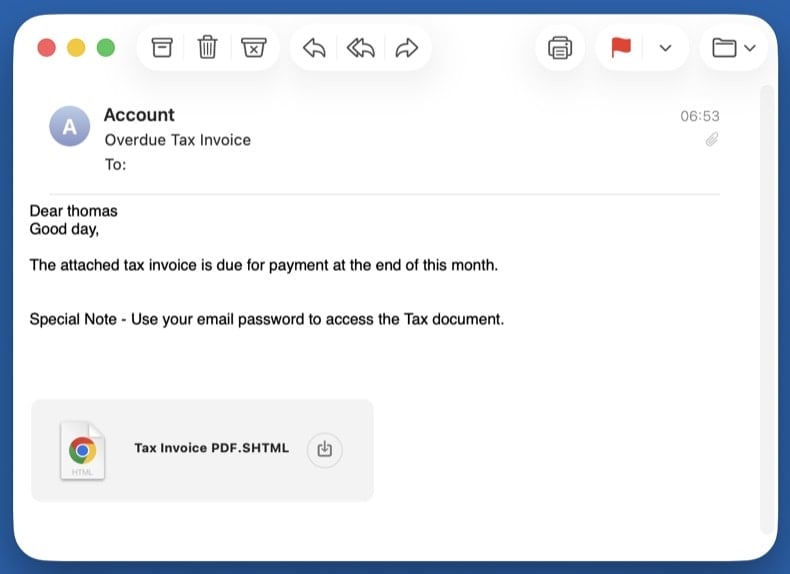
Trojans hidden inside fake invoices, faxes, shipping confirmations, or Office documents. Opening the attachment runs the payload and infects the system - often with an info-stealer or remote-access trojan.
Common subject lines
- "Invoice INV-2026-XXXX attached"
- "Fax received - 3 pages"
- "Your shipping document is ready"
- "Voicemail from +1-XXX-XXX-XXXX"
Extortion Sextortion emails
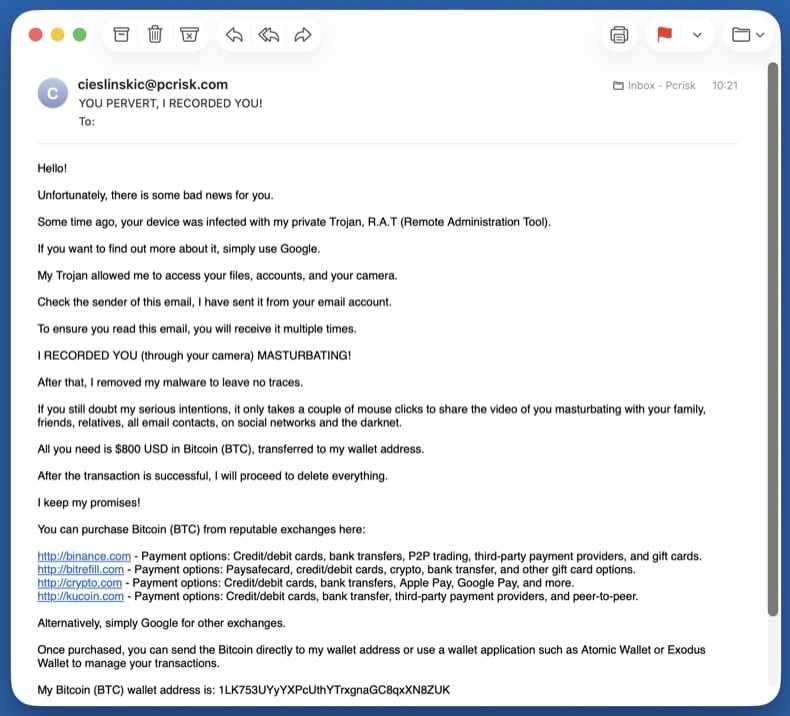
Fake claims of webcam recordings demanding cryptocurrency. Almost always a bluff: the attacker pulls a real password from an old data breach to make the threat look credible, then claims to have video of you. They have no recording and no access.
Common subject lines
- "I know your password is XXXX"
- "Your account has been hacked"
- "I have recorded you - 48 hours to pay"
- "You have been compromised"
Callback fraud Refund & callback scams
"Your subscription was renewed for $499 - call to cancel." Norton, McAfee, Geek Squad, PayPal, and Wells Fargo variants are all common. There's no real subscription. The phone number in the email connects directly to the scammer, who walks you through "refunding" yourself - which is actually them stealing money from your bank.
Common subject lines
- "Norton subscription auto-renewed - $499.99"
- "McAfee Total Protection invoice"
- "Geek Squad order confirmation"
- "Your PayPal payment is being processed"
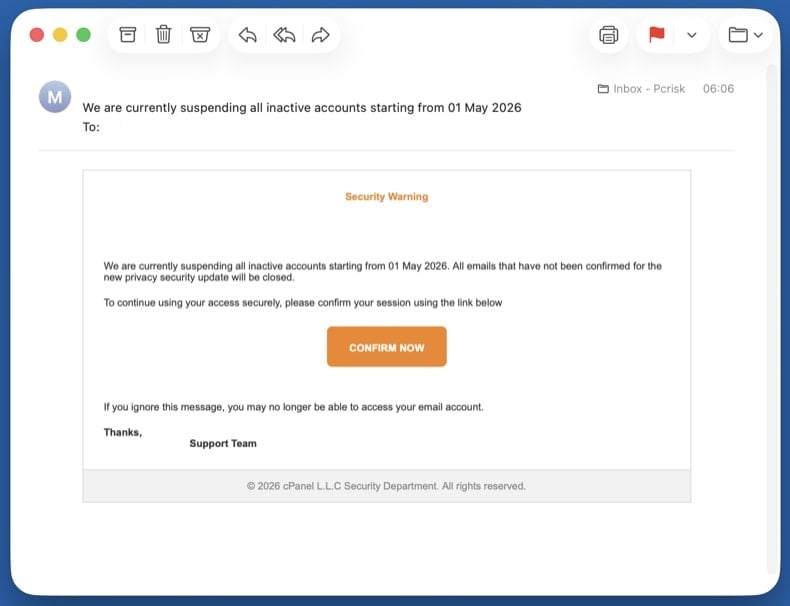
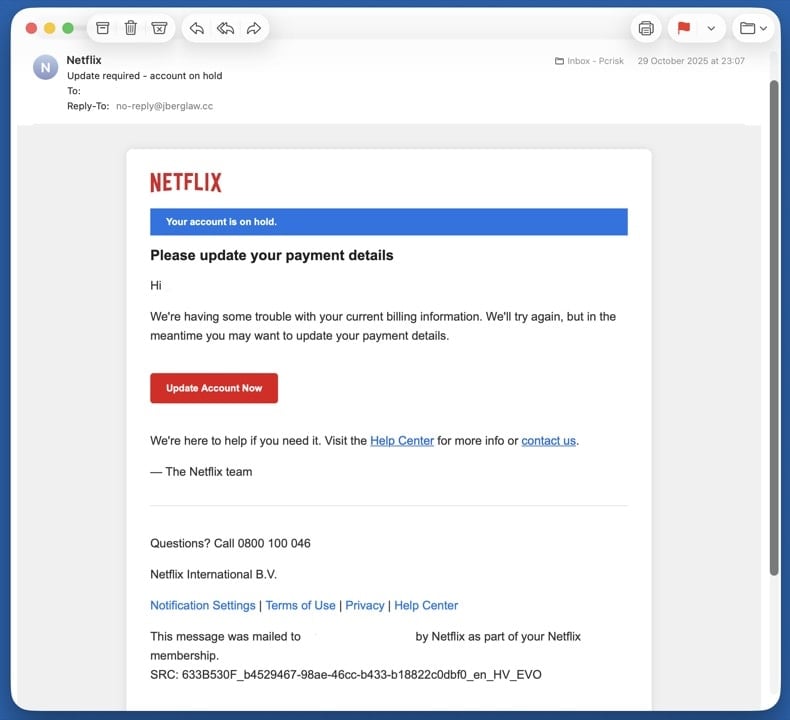
Credential theft Account suspension & verification scams
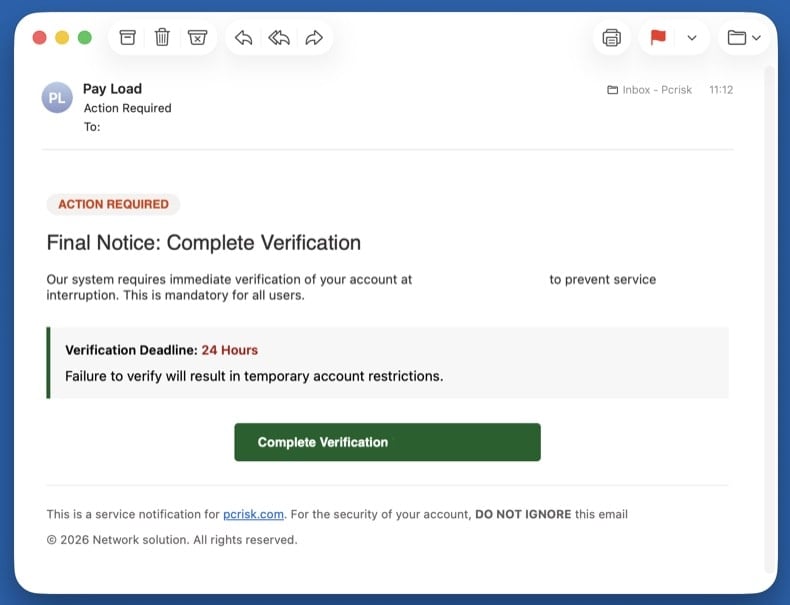
"Your account will be deleted in 24 hours - verify now." The artificial deadline is the whole point: it pressures you to click before checking details. The "verify" link goes to a phishing page styled to look like the real provider.
Common subject lines
- "Your account will be deleted in 24 hours"
- "Suspicious activity detected - verify now"
- "Final warning: account closure"
- "Action required to keep your account active"
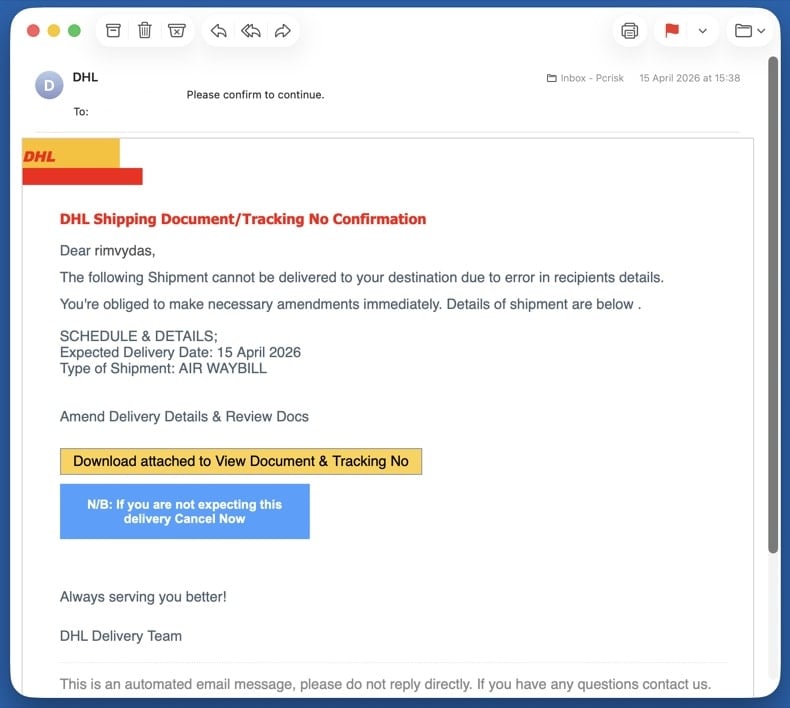
Mixed payload Delivery & package scams
Fake DHL, USPS, UPS, or FedEx tracking, customs fees, or "package undeliverable" notices. Targets anyone expecting a parcel - the timing alone catches many people. The link hides either phishing (asking for card details to "release" the package) or a malware download.
Common subject lines
- "Your DHL package is held at customs"
- "USPS - delivery attempt failed"
- "FedEx tracking update - action required"
- "Pay $2.99 redelivery fee to release your parcel"
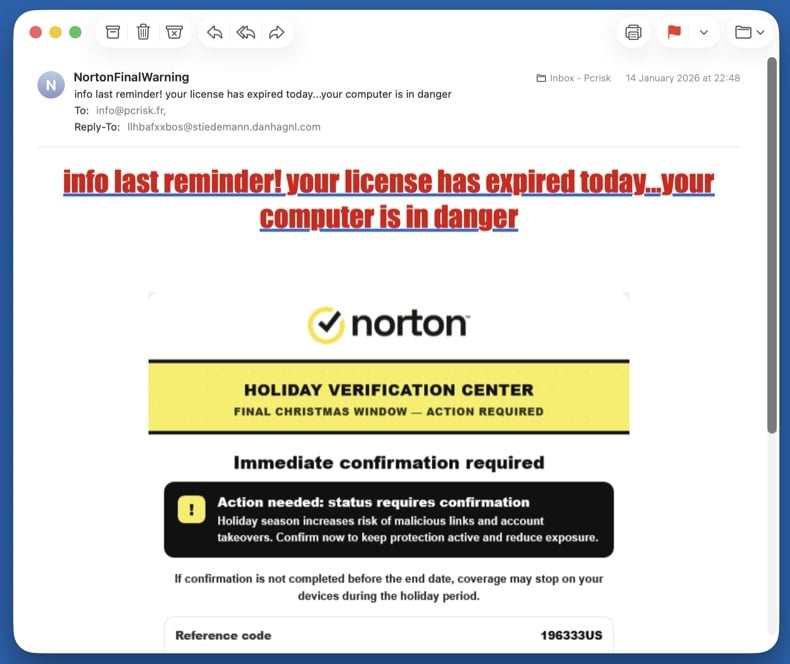
Remote access Tech support scams
Fake Microsoft, Apple, or "Windows Defender" security alerts pushing a phone number. Real Microsoft and Apple never email a phone number to call. The number connects you to a scammer who asks for remote access to "fix" the imaginary problem and then demands payment.
Common subject lines
- "Microsoft Defender expired - renew now"
- "Apple ID security alert"
- "Critical: virus detected on your PC"
- "Windows license expired - call now"
Wire fraud Advance-fee scams
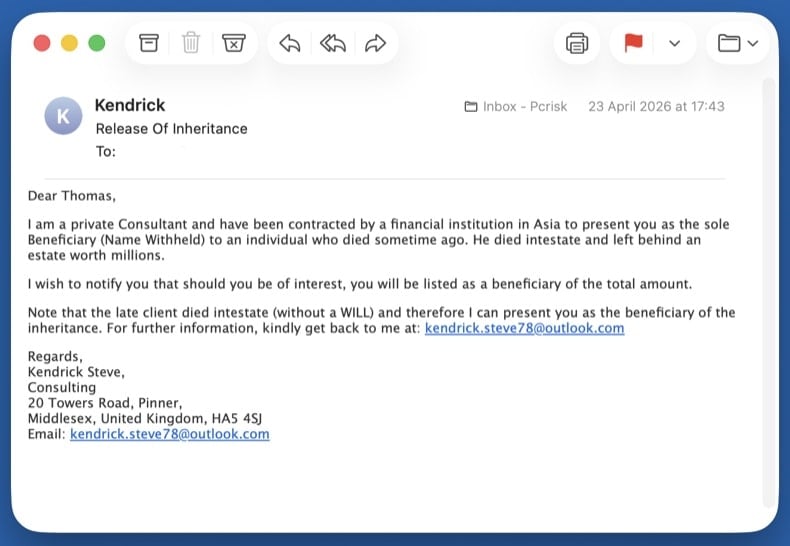
Inheritance, lottery wins, romance, or business deals that ask for a small fee to release a much larger sum. The classic "Nigerian prince" 419 family of frauds. Once you pay the first fee, more fees appear (taxes, lawyer, transfer charges) until you stop paying. The promised money never exists.
Common subject lines
- "Inheritance from a relative you didn't know about"
- "You won the international lottery"
- "URGENT - business proposal worth $XX million"
- "Compensation fund release for fraud victims"
Wire fraud Business email compromise (BEC)
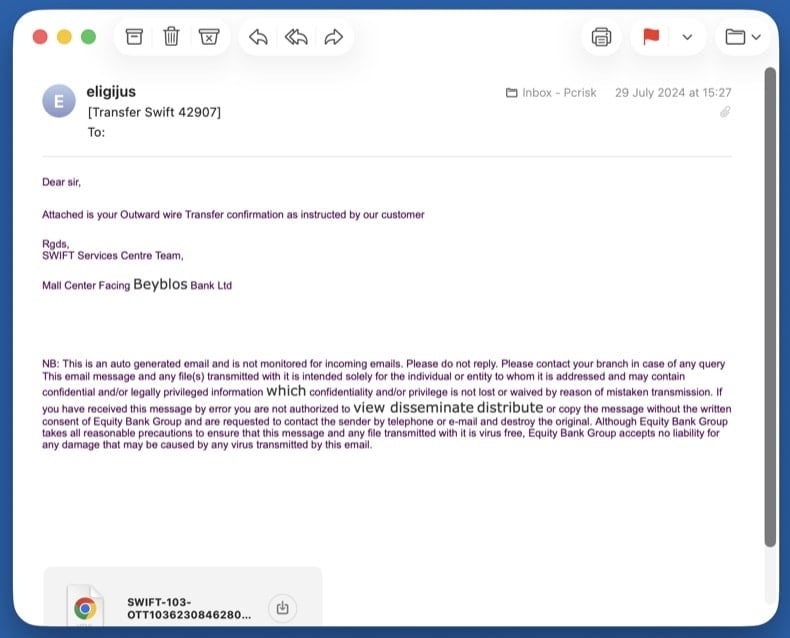
CEO impersonation asking employees to wire money or buy gift cards, or fake supplier invoices with newly "updated" bank details for payment redirection. The email often spoofs a real internal executive's display name and uses an external lookalike domain.
Common subject lines
- "Quick task - need you to buy gift cards"
- "Updated banking details for invoice payment"
- "Wire transfer request - urgent"
- "Are you available?" (CEO impersonation opener)
How to spot a malicious email?
Check the sender's actual address, not the display name
The display name (the human-readable part) is trivial to fake. Always check the full address that comes after it. Common red flags:
- Domain mismatch -
service@paypa1.com,support@micros0ft-help.com, look-alike domains using digits or extra hyphens - Free-email impersonation - any "official" message from a bank, courier, or platform sent from a
@gmail.com,@outlook.com, or@yahoo.comaddress - Reply-To mismatch - the From address looks legitimate but Reply-To points somewhere completely different
Real companies own their domains and send mail from them. A "DHL" message from a Gmail address is never legitimate, regardless of how convincing the body looks.
Watch for urgency, threats, and generic greetings
Scams almost always rush you. The point is to make you act before you think. Treat any of the following as a strong signal:
- "Your account will be deleted in 24 hours"
- "Final notice" / "Immediate action required"
- "Dear Customer" or "Dear User" instead of your real name
- Threats of fines, account closure, legal action, or arrest
- Promises of refunds, prizes, or money you didn't earn
- Spelling and grammar mistakes in messages claiming to come from a major brand
Hover over every link before clicking
On a desktop, hover the mouse over the link without clicking. The real destination shows in the bottom-left status bar of your browser or email client. On a phone, long-press the link to preview the URL.
- Real Microsoft, PayPal, or bank links go to those exact domains, not redirects through unrelated sites
- Shortened URLs (
bit.ly,tinyurl,t.co) hide the real destination - never click them in unsolicited mail - The visible link text and the actual URL must match - mismatches are the single biggest phishing red flag
When in doubt, don't click the link. Open a new browser tab and type the company's address yourself, then log in normally. If there really is an issue with your account, you'll see it there.
Treat unexpected attachments as hostile
If you didn't ask for the file, don't open it - even if it appears to come from someone you know. Categories that should never be opened from email without verification through another channel:
.exe,.scr,.iso,.img,.vbs,.bat- executables, never legitimate attachments.docx,.xlsx,.pptxwith "Enable macros" prompts - the macros run the malware.pdfwith "Click here to view" buttons - usually a phishing redirect, not a real document.zip,.rar,.7zarchives, especially password-protected ones - the password defeats the email scanner
If you only received the email and didn't reply, click, or open anything, the steps below are all you need. Your computer is not infected.
Don't reply, don't click "unsubscribe"
Replying confirms your address is real and monitored, which gets you added to higher-value scam lists. The "unsubscribe" link in a scam message is rarely a real opt-out - it usually leads to a phishing page or downloads a tracking pixel.
Instead, mark the message as junk or phishing inside your email client (this trains the spam filter), then block the sender.
Report the scam to your email provider and authorities
Inside your email client:
- Gmail: open the message → ⋮ menu → Report phishing
- Outlook / Outlook.com: ⋯ menu → Report → Report phishing
- Apple Mail / iCloud: Move to Junk, then forward to
reportphishing@apple.com
Forward or report to authorities:
After reporting, delete the email and empty the Trash folder so you don't accidentally open it later.
Pick the step below that matches what you did. If multiple apply, work through them in the order they appear - the steps are arranged from lowest to highest risk.
You only clicked a link (didn't enter anything or download anything)
Close the page right away. Don't enter any information, even if the page looks legitimate.
- Clear your browser cache and cookies for the last hour - → Last hour → check Cookies and Cached files
- Run a quick scan with Combo Cleaner in case the page tried to drop a file silently (drive-by download)
- Update your browser to the latest version - most drive-by exploits target outdated browsers
- Watch for new browser pop-ups, redirects, or unfamiliar notifications over the next few days
Modern browsers block most drive-by attacks, but a single click on a phishing page can still be enough on an outdated browser or unpatched plugin. A quick scan catches anything that landed silently.
You opened an attachment or downloaded a file - run a full malware scan
Opening an attachment is the most common path to actual infection. Treat the system as compromised until the scans below come back clean. Work through these sub-steps in order:
Unplug Ethernet and turn off Wi-Fi. If the attachment was an info-stealer or remote-access trojan, this stops it from sending data out or receiving commands. Keep the network off until you've booted into Safe Mode (next step) - you'll reconnect there briefly to download the scanners.
Windows 11: → Troubleshoot → Advanced options → Startup Settings → Restart → press 5 or F5.
Windows 10: hold Shift, click Power → Restart → Troubleshoot → Advanced options → Startup Settings → Restart → press F5.
Once Safe Mode has loaded, turn Wi-Fi back on and download Combo Cleaner (used in 8.4) and Microsoft Safety Scanner (used in 8.5). Safe Mode loads only minimal drivers, so most malware can't auto-run while you're getting the tools. Save both installers to your Desktop.
Reboot to normal Windows. Open . Select Microsoft Defender Antivirus (offline scan) and click Scan now. The PC restarts into a stripped-down environment and scans the disk before Windows fully loads - this is what catches rootkits and bootkits.
VB100 certified. Includes anti-trojan, registry/persistence scanning, and anti-spyware in one pass. The 7-day free trial is available.
Download Combo CleanerInstall Combo Cleaner and run a full system scan (not the quick scan). Let it complete fully, review what it found, and apply the recommended actions. Combo Cleaner will quarantine known trojans and remove their persistence in the registry.
Download Microsoft Safety Scanner (MSERT.exe). The binary expires every 10 days, which means every download has the latest signatures. Run a full scan after Combo Cleaner to catch anything one engine alone might miss.
Many email-borne trojans drop adware that hijacks browsers. Reset each browser you use:
Chrome: chrome://settings/reset → Restore settings to their original defaults. Then chrome://settings/content/notifications - remove unfamiliar sites.
Edge: edge://settings/reset. Then edge://settings/content/notifications.
Firefox: about:support → Refresh Firefox.
Open and confirm Real-time protection, Cloud-delivered protection, and Tamper Protection are all on. Then run and update browsers and applications.
If the scans keep finding new threats on each run, or files reappear after deletion, you may have a deeper compromise that needs a clean Windows reinstall. See pcrisk's full manual malware removal guide for the extended procedure (Process Explorer, Autoruns, hosts file inspection).
You entered credentials on a fake login page
Assume the attacker has your password and is using it right now. Speed matters.
- Change the password from a different, known-clean device (your phone is fine if it's not infected). Don't reuse the old password anywhere else.
- Enable two-factor authentication if you haven't already. Prefer an authenticator app or hardware key over SMS.
- Sign out of all sessions - most platforms have a "sign out everywhere" option in security settings, which kicks the attacker out.
- Review recent activity - look for unfamiliar logins, new devices, forwarding rules, or app permissions. Remove anything you don't recognize.
- Check your other accounts - if you reused that password anywhere else, change it there too. Check your exposure at haveibeenpwned.com.
- Update security questions - the attacker may have seen the answers in your account profile.
If you only have time to change one password, change your primary email password - it's the recovery hub for every other account. An attacker who controls your email can reset everything else.
You sent money or shared bank, card, or ID details
Time is the single biggest factor in recovering money. Banks can sometimes recall a wire or reverse a card transaction within the first few hours.
- Call your bank or card issuer immediately. Use the number on the back of the card, not any number from the scam email. Ask them to freeze the card, reverse the transaction if possible, and flag the account for fraud monitoring.
- If you sent a wire transfer or used a money-transfer service (Western Union, MoneyGram, Zelle, Wise), call them directly and request a recall. Some can be reversed within minutes if reported fast.
- If you sent cryptocurrency or gift cards, recovery is unlikely - but report it anyway, since law enforcement tracks these patterns.
- File a police report. You'll need the report number for any insurance, bank, or credit-bureau claim. Save the report number.
- File with the right authority for your country:
- US: ic3.gov + reportfraud.ftc.gov
- UK: reportfraud.police.uk (Report Fraud, the successor to Action Fraud; 0300 123 2040)
- Canada: antifraudcentre.ca
- Australia: scamwatch.gov.au
- EU: your national CERT or police cybercrime unit
- Set fraud alerts on all major credit bureaus if you shared any ID details. US: Equifax, Experian, TransUnion. UK: Experian, Equifax, TransUnion (Cifas Protective Registration is a stronger option).
- Save all evidence - the original email (with full headers), screenshots of the fake site, transaction records, any phone numbers or chat logs.
Final scan and startup-app check
Reconnect to the network and run one final full scan with Combo Cleaner, followed by a Windows Defender quick scan. Then open Task Manager (Ctrl + Shift + Esc) and switch to Startup apps - disable anything unfamiliar.
Make sure Windows, browsers, and any applications you use are fully up to date. The infection vector that worked on you once usually involves outdated software.
Monitor accounts and credit for 30 days
Most fraud follow-ups land in the first month. Until that window closes, keep watching:
- Bank and card statements - daily for the first week, then weekly
- Email - watch for password-reset confirmations or login alerts you didn't trigger
- Credit report - US: free at annualcreditreport.com; UK: Experian, Equifax, TransUnion all have free tiers
- Breach alerts - sign up at haveibeenpwned.com to be notified when your email appears in new leaks
If anything new appears in any of those, treat it as a continuing compromise: change passwords again, contact the bank again, and update the police report.
Important: If you didn't click anything, didn't reply, and didn't open any attachment, your computer is not infected - just delete the email and move on. If you opened an attachment or downloaded a file, run an automated scan with Combo Cleaner and Windows Defender and stop there. That path catches the vast majority of email-borne malware without the risk of breaking Windows by deleting the wrong file.
Frequently Asked Questions (FAQ)
Why did I receive this email?
These emails are distributed to large numbers of recipients at once and are not personally targeted. Cybercriminals collect email addresses through data breaches, fake websites, and similar methods, then send the same deceptive message to everyone on the list.
I have provided my personal information when tricked by this email, what should I do?
Change the password for any account whose credentials may have been exposed. If the affected account is an email service, contact that provider's support team right away. For other sensitive information - such as banking or identification details - reach out to the relevant institution or authority as soon as possible.
I have downloaded and opened a malicious file attached to an email, is my computer infected?
Executable files are capable of infecting a device almost immediately after being opened. Document types like PDFs or Office files usually require additional interaction - such as enabling macros - before any malware activates. The actual risk depends on the file format and how you interacted with it.
I have read the email but did not open the attachment, is my computer infected?
Simply reading or viewing an email does not pose a risk. Infections occur only when the user interacts with a malicious link or attachment. If you did not click anything or open any files, your computer is not infected.
Will Combo Cleaner remove malware infections that were present in email attachment?
Yes, Combo Cleaner is able to detect and remove most known malware. That said, running a complete system scan is important - sophisticated threats may hide deep within the system, and a full scan gives the best chance of finding and eliminating them.
Share:
 Facebook
 X.com
X.com
 LinkedIn
 Copy Link

Tomas Meskauskas
Expert security researcher, professional malware analyst
I am passionate about computer security and technology. I have an experience of over 10 years working in various companies related to computer technical issue solving and Internet security. I have been working as an author and editor for pcrisk.com since 2010. Follow me on Twitter and LinkedIn to stay informed about the latest online security threats.
PCrisk security portal is brought by a company RCS LT.
Joined forces of security researchers help educate computer users about the latest online security threats. More information about the company RCS LT.
Our malware removal guides are free. However, if you want to support us you can send us a donation.
DonatePCrisk security portal is brought by a company RCS LT.
Joined forces of security researchers help educate computer users about the latest online security threats. More information about the company RCS LT.
Our malware removal guides are free. However, if you want to support us you can send us a donation.
Donate
▼ Show Discussion