
We may earn commissions from products we recommend. Learn more.
How to add trust badges to WooCommerce in 2026: 3 ways

How to add trust badges to WooCommerce in 2026: 3 ways
WooCommerce does not come with trust badges. A new store shows no payment logos, no security seal, and nothing that tells a first-time visitor the shop is safe to pay. You can add WooCommerce trust badges in three ways: with the blocks WordPress already has, with a trust badge plugin, or with a security badge that is checked from outside and that shoppers can click to verify.
Table of Contents:
- Introduction
- What trust badges do on a WooCommerce store
- Do trust badges work in a small store?
- First, check which checkout your store uses
- Way 1: add payment icons and badges with blocks
- Way 2: use a trust badge plugin
- Way 3: add a security badge shoppers can verify
- What happens when your store fails a check
- Where to place trust badges on a WooCommerce store
- Page builders, caching and page speed
- Trust badge mistakes to avoid
- In closing
- Frequently asked questions (FAQs)
Which way works depends on something most guides skip: whether your store runs WooCommerce's block checkout or the older classic checkout. New stores have used the block checkout since WooCommerce 8.3, and many older tutorials no longer work there. This guide shows how to tell which one you have, walks through all three ways with screenshots, and explains what a badge should do if your store is ever hacked.
Get the PCrisk Trust Badge plugin
What trust badges do on a WooCommerce store
A trust badge is a small graphic that answers a shopper's doubt before paying: is my card data safe here, can I send this back, is this a real shop? On a WooCommerce store, that doubt is often stronger than on a marketplace. The shopper has usually never heard of you, and the checkout runs on your own domain rather than on Amazon or eBay.
Badges come in two kinds, and the difference matters more than the design:
- Badges you add yourself. Card logos, a "30-day money-back guarantee" stamp, a padlock icon, and a "secure checkout" label. They describe a payment option or a policy. Nobody outside your business checks them.
- Badges a third party issues. An outside company checks something, such as whether your site is free of known malware and blacklist entries, and takes the badge down if the check fails. A shopper can click the badge to see the result on the issuer's own site.
Both kinds have a place. Payment and policy badges answer practical questions. A security badge only means something if it is the second kind.
Do trust badges work in a small store?
Doubt about payment safety is a real reason people leave. Baymard Institute puts the average cart abandonment rate at 70%, based on 50 studies, and 19% of US shoppers who abandoned a checkout said they did not trust the site with their credit card information.
The stronger evidence that badges help comes from field experiments rather than marketing surveys. A randomized experiment published in Information Systems Research (2013), based on 9,098 shopping sessions, found that a third-party assurance seal increased the likelihood of purchase. A follow-up study in Decision Support Systems (2015), covering 493 online retailers and more than 250,000 transactions, found that seals helped small retailers and new shoppers the most, and that showing more than two seals could reduce the likelihood of a completed purchase.
That describes most WooCommerce stores: small, independent, and new to many of their visitors. It also sets a limit. One or two badges in the right places help. A wall of them does not.
First, check which checkout your store uses
WooCommerce has two checkouts. The block checkout is built from WordPress blocks, and according to WooCommerce, it has been the default for stores started since version 8.3 in November 2023. The classic checkout is the older one, rendered by the [woocommerce_checkout] shortcode, and many stores created before that release still use it.
It matters because the two work differently. WooCommerce's Development Docs confirm that many older ways of adding content to the checkout do not work on the block checkout, including the one most tutorials use to put a badge under the Place order button. To check which one you have:
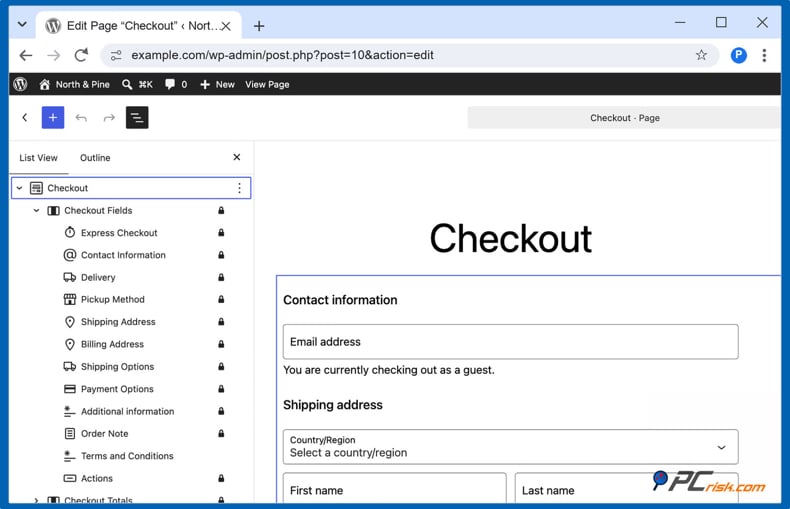
1. Open the Checkout page in the editor. In your WordPress dashboard, go to Pages, find the page called Checkout and click Edit.
2. Open the List View. Click the Document Overview icon (three horizontal lines) in the top toolbar.
3. Look at the blocks on the page. If you see a block called Checkout with inner blocks such as Contact Information, Payment Options and Actions, your store uses the block checkout. If you see a Classic Shortcode block or the [woocommerce_checkout] shortcode, it uses the classic checkout.
Check the Cart page the same way, as it can differ from the checkout. If you ever need to go back to the classic checkout, select the Checkout block, open the transform menu in the block toolbar, and choose Classic Shortcode. Most stores do not need to.
Way 1: add payment icons and badges with blocks
The simplest badges cost nothing and need no extra plugin. Two blocks do most of the work:
- Payment Method Icons. Since WooCommerce 10.1, this block shows the card brands and payment methods your store accepts, based on the payment gateways you have enabled. It only shows gateways that provide an icon, such as WooPayments, so a store that only takes cash on delivery sees nothing. Put it in your footer template part so it appears on every page, or under the Add to cart button in the single product template if you use a block theme.
- Image. Upload your own badge, for example, a "30-day money-back guarantee" or "Free UK delivery" graphic, and place it where that question comes up: returns on the product page, delivery costs in the cart.
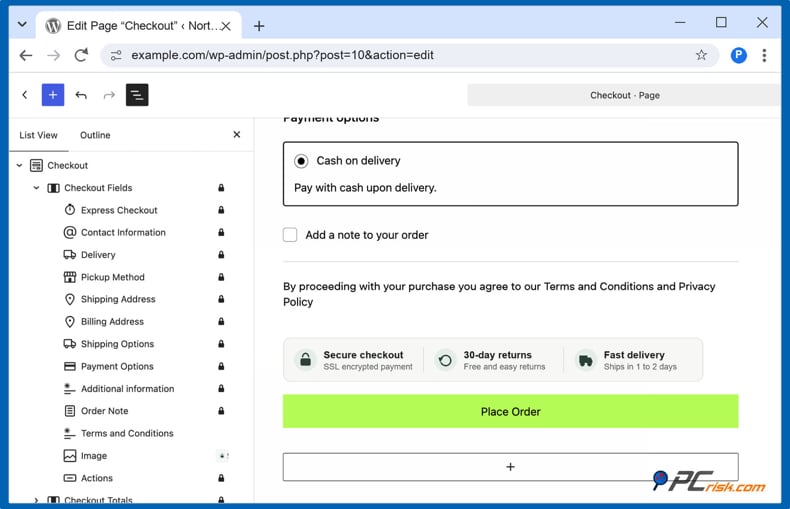
With a block checkout, you can place a badge right next to the Place order button without any plugins or code. Recent WooCommerce versions (we tested 11.1) let you add Image, Paragraph, and Separator blocks inside the checkout form and in the order summary:
1. Open the Checkout page in the editor.
2. Add an Image block at the end of the checkout form. Click the + button under the Place order button, choose Image, and upload your badge.
3. Move it above the button. Click the up arrow in the block toolbar once. In the List View, the Image now sits between Terms and Conditions and Actions, the block that holds the Place order button. Click Save.
Other blocks, including Payment Method Icons, can only go above or below the whole Checkout block. On the cart page, place your badges above or below the Cart block.
Two rules keep these badges honest. Use the official logo files for each payment brand, and show logos only for methods you actually accept. And do not make a "100% Secure" or "Virus Free" graphic yourself: it claims something nobody has checked.
Way 2: use a trust badge plugin
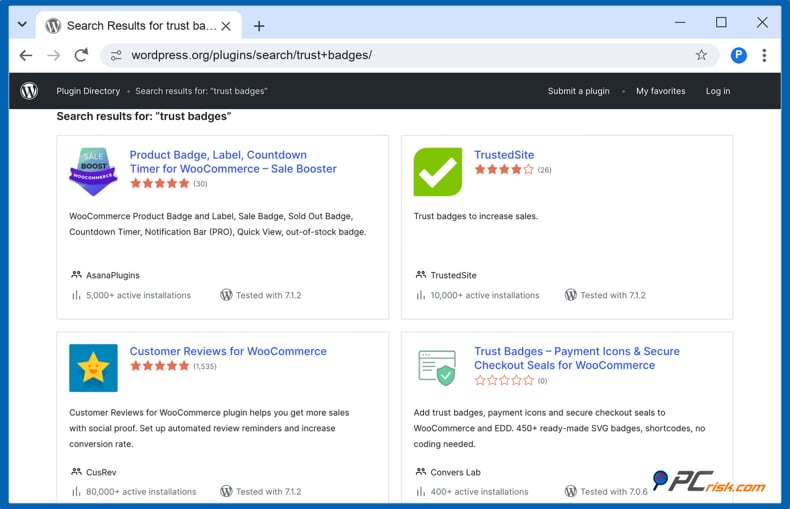
Search the WordPress plugin directory for "trust badges," and you will find plugins that place badge sets for you: under the Add to cart button, near the cart totals, at checkout, and in the footer. They save time if you want badges in many places without editing templates. Most of them have one thing in common: the badges are images from an icon library, and nobody checks what they claim.
The table compares the common options by what they check, not by how many icons they include.
| Option | Cost | Who checks your store | Hides if a check fails | Shoppers can click to verify |
| Payment Method Icons block (WooCommerce) | Included with WooCommerce | Nobody | No | No |
| Badge icon plugins (Trust Badges, Merchant, and similar) | Free, some with paid add-ons | Nobody | No | No |
| Your own Image or Custom HTML block | Free | Nobody | No | Only if you link it to something |
| TrustedSite | Free up to 500 visits a month, paid plans from $39 a month | TrustedSite, with a daily security scan | Yes | Yes |
| SiteLock Trust Seal | SiteLock plans from $19.99 a month | SiteLock, with automated daily scans | Yes | Yes |
| PCrisk Trust Badge | Free plan for monitoring without a badge; badge from $16.95 a month after a 14-day free trial | PCrisk, with a daily outside scan | Yes | Yes, it opens a public report |
Choose an icon plugin if you want design variety and nothing more. Choose a verified badge if you want the badge to mean something to a shopper who clicks it. The two can sit side by side: payment icons in the footer, plus one verified security badge near the Place order button.
Whichever plugin you choose, place a test order after installing it. The changelog for a popular badge plugin notes that an earlier version disabled WooCommerce's Cart and Checkout blocks across the entire site. It has since been fixed, but it shows why your checkout deserves a quick test after any change.
Way 3: add a security badge shoppers can verify
The first two ways add badges that describe your store. This one adds a checked badge. The example below uses our own plugin, PCrisk Trust Badge, which supports the block checkout that new stores get by default. TrustedSite's plugin follows a similar pattern, and the table above shows how the two differ.
The badge is backed by an outside scan. About 90 antivirus engines and 10 threat databases, including Google Safe Browsing, Spamhaus, and PhishTank, check your store from the outside, the way shoppers' browsers and security tools see it. A shopper who clicks the badge opens your public scan report on scanner.pcrisk.com, a page hosted by PCrisk.
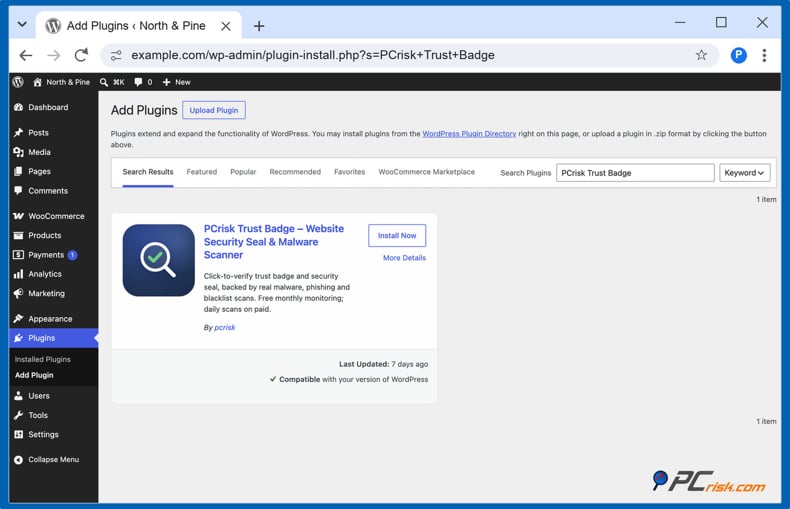
1. Install the plugin. In your dashboard, go to Plugins, then Add Plugin, search for PCrisk Trust Badge, click Install Now, and then Activate. You can also download it from WordPress.org.
2. Approve the connection and run the first scan. The setup screen lists exactly what is shared before anything is sent: your domain name, and no login details, site content, or visitor data. Click Agree and check my site. Your trust score and verdict appear in the dashboard when the first outside scan finishes.
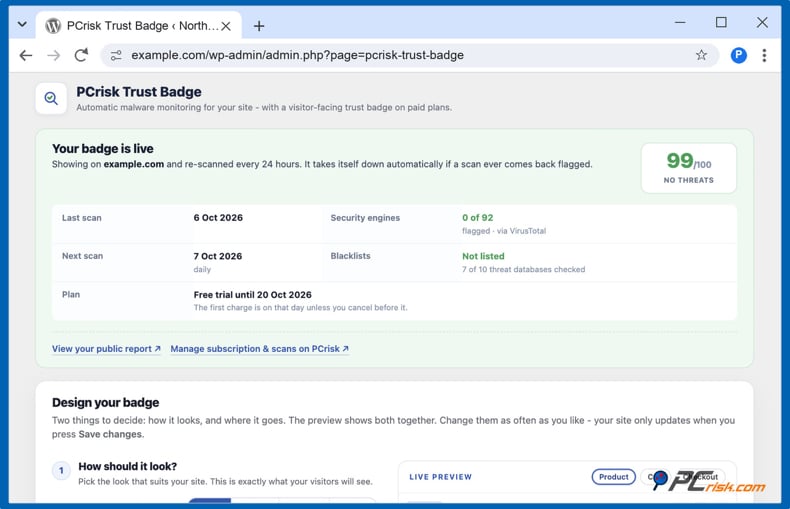
3. Fix anything the scan flags. The badge appears only when your latest scan is clean, and your trust score is 70 or higher. If something is flagged, the report shows how many engines flagged your store and whether any threat database lists it, so you know where to start.
4. Choose a plan. The free plan needs only an email address. It scans your store once a month, shows the result in your dashboard, and emails it to you, clean or flagged, but it does not show a public badge. The badge comes with the paid plan, starting at $16.95 a month (shown in your local currency at checkout), which scans your store every day. Each paid plan starts with a 14-day free trial that requires a payment method and costs nothing if you cancel before it ends.
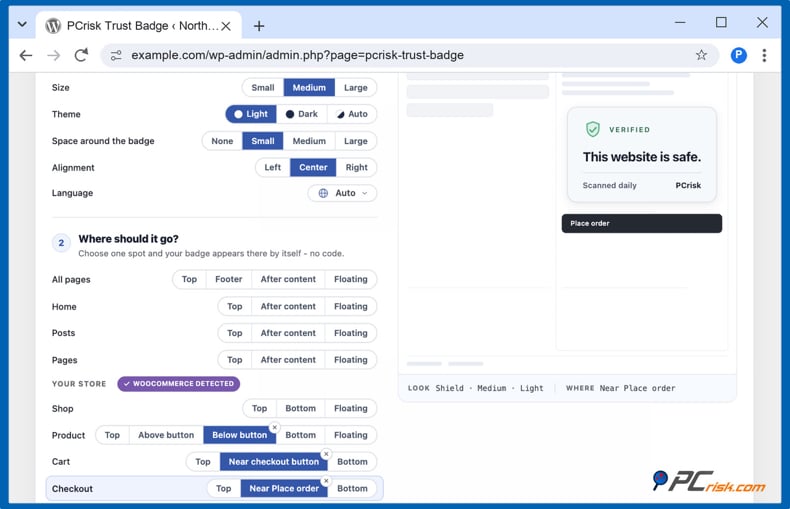
5. Choose the badge and select the placement on your WooCommerce store. Open Trust Badge in the dashboard menu. Choose one of four styles (Shield, Ribbon, Minimal, or Bubble), a size, and a light or dark theme. Under Your store, which appears when WooCommerce is active, turn on the spots you want: the product page above or below the Add to cart button, the cart near the checkout button, and the checkout near the Place order button. The live preview shows the result before you click Save changes.
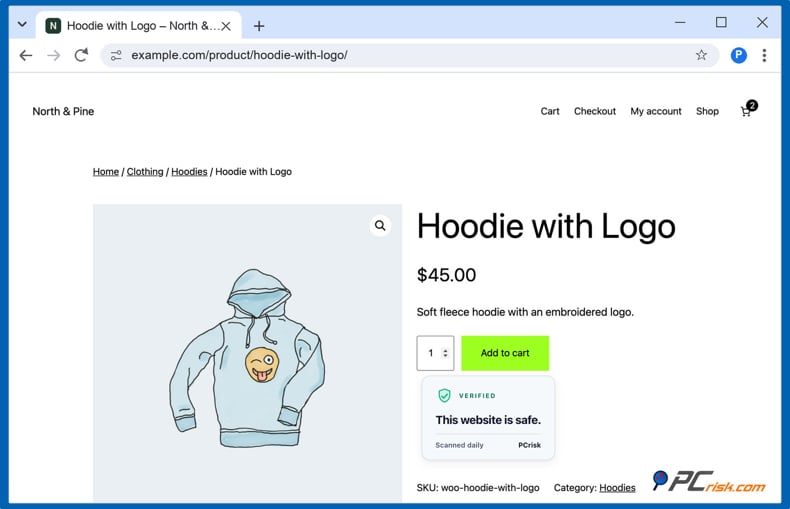
6. Check your store as a shopper. Open a product page in a private browser window. The badge sits right under the Add to cart button.
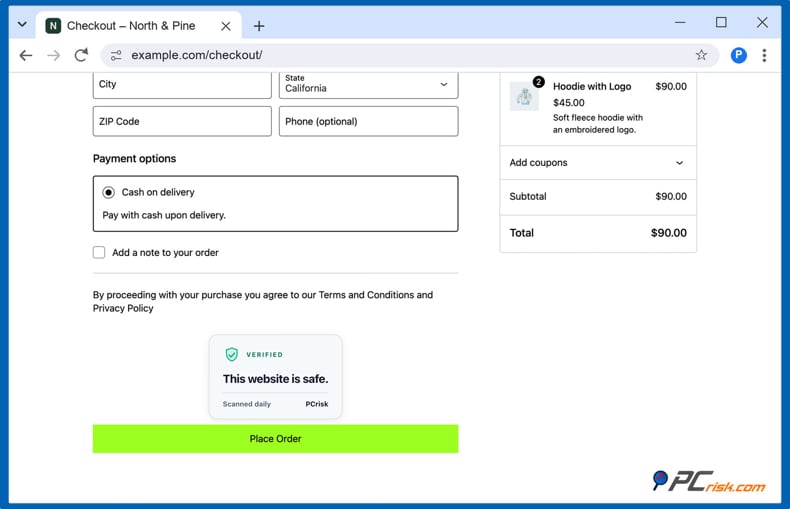
Then add a product to the cart and go to checkout. On the block checkout, the badge appears right above the Place order button. If your store still uses the classic checkout, open the checkout as a shopper after saving and make sure the badge shows where you expect it.
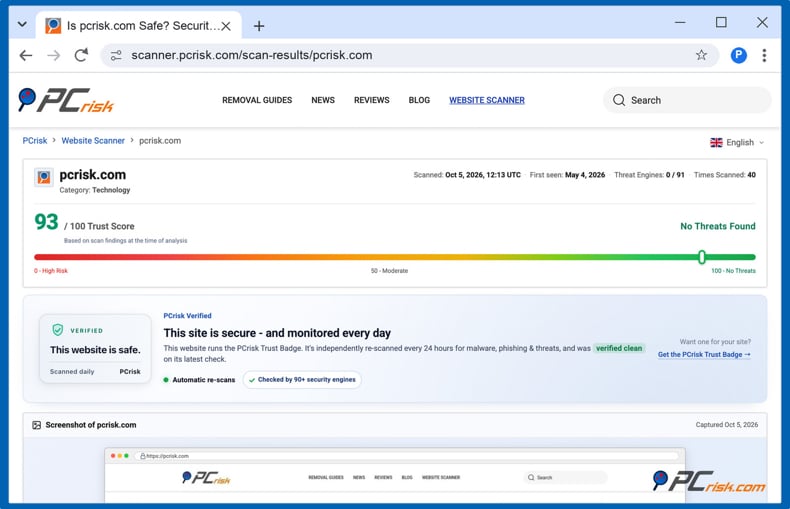
7. Click the badge. It opens the public report a shopper sees: the date of the latest scan, the trust score, and the results from the engines, threat databases, and SSL check. You can see a live example in the report for pcrisk.com.
If you want the badge in an area the automatic spots do not cover, add the PCrisk Trust Badge block to any page, post, or template part, such as your footer.
See how the PCrisk Trust Badge works
What happens when your store fails a check
This is where a security badge earns its place. WordPress sites are mostly attacked through plugins rather than through WordPress itself. Patchstack counted 11,334 new vulnerabilities in the WordPress ecosystem in 2025, 91% of them in plugins, and found that the most heavily targeted vulnerabilities were exploited within a weighted median of 5 hours.
If your store is compromised overnight, the "100% Secure Checkout" image keeps showing in the morning. A verified badge should do the opposite:
- hide itself as soon as a scan finds a problem, so it never vouches for a store that failed;
- tell you by email, so you can act;
- come back on its own after a clean scan.
That is how the PCrisk badge works: it shows only when the latest scan is clean, and the linked report shows the date of that scan.
Be clear about what a scan cannot do. It checks your store from the outside at a point in time. It does not see the files on your server, block attacks, or remove malware. Keep a security plugin and regular backups as well, and treat the badge as a public, checkable statement about what the outside world sees. If you want to know where your store stands today, check it with the PCrisk Website Scanner. It takes about a minute and needs no account.
Where to place trust badges on a WooCommerce store
A badge works best next to the decision it supports. These four spots cover most stores:
- Product page, under the Add to cart button. Returns, delivery, and payment badges. This is where shoppers decide whether to buy.
- Cart, near the checkout button. Payment icons and your security badge, as the shopper moves towards paying.
- Checkout, right above the Place order button. Your security badge. This is the moment when the doubt about the payment is strongest.
- Footer, on every page. Small payment icons. Shoppers expect them to be there, so they need little space.
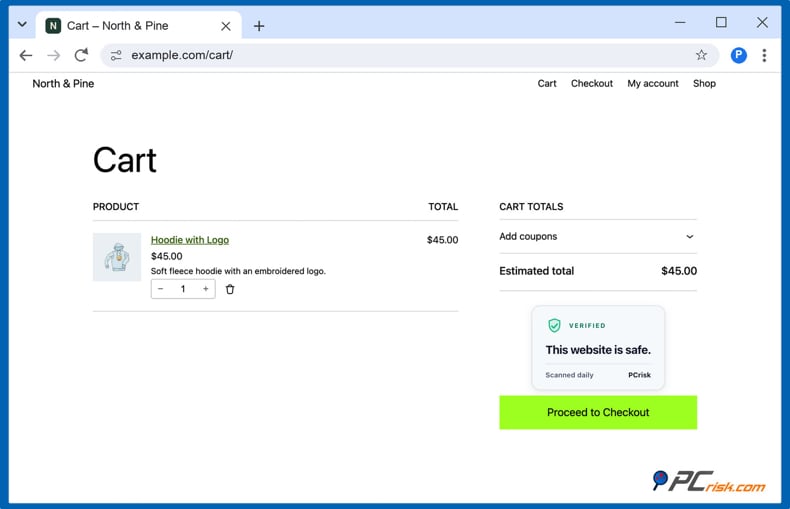
Keep it to one or two seals per page. The 2015 study mentioned above found that more than two can lower the chance of a completed purchase. And check every badge on a phone: on narrow screens, the block checkout stacks the order summary and the payment step, so make sure your security badge still sits next to the Place order button, not somewhere above the order summary.
Page builders, caching and page speed
Page builders. Elementor Pro, Divi, and similar builders can replace WooCommerce's product and checkout templates with their own. When that happens, automatic placements may not appear. In that case, add the badge to the builder's template yourself, with the PCrisk Trust Badge block, then open the page and check that the badge is there.
Caching. A static image caches without problems, because it never changes. A verified badge is different: it has to be able to disappear as soon as a check fails, so its state cannot be stored in cached HTML. The PCrisk badge script requests the current result from the visitor's browser on every page view, so page caching (WP Rocket, LiteSpeed Cache, or your host's cache) does not freeze an old "clean" state. If you use a plugin that delays or combines JavaScript, exclude the badge script so it loads normally. The plugin's FAQ lists the settings for the common optimizers.
Page speed. Badge plugins have a reputation for slowing stores down. The PCrisk badge loads one small script (under 10 KB compressed) after your page content, reserves its space in advance so the layout does not shift, and sets no cookies. Image badges are cheaper still, as long as you keep their file size small and set their width and height.
Trust badge mistakes to avoid
- Retired seals. Many tutorials and icon packs still offer the McAfee SECURE and Norton seals. TrustedSite retired the McAfee SECURE seal in June 2021, and in October 2023, DigiCert replaced the Norton seal with its own.
- Security logos you have not earned. Showing a security company's seal without its service is a false claim. Regulators take seals seriously: in 2014, TRUSTe paid $200,000 to settle FTC charges that it had failed to recheck sites more than 1,000 times while its seals remained up.
- Badges that open nothing. A security badge that cannot be clicked proves nothing. If a badge claims a check, a click should show the result.
- A badge wall. Six seals in a row look like overcompensation. Pick the one or two that answer real questions.
- Not testing after updates. Badges can stop showing silently after a WooCommerce update or a switch to the block checkout. Look at your checkout after every big update.
- Badges instead of basics. A clear returns policy, real contact details, and honest reviews build more trust than any graphic. Badges support them; they do not replace them.
In closing
Adding trust badges to WooCommerce starts with one check: open your Checkout page and see whether it is built from blocks or from the classic shortcode. Then add payment icons with blocks, which cost nothing, and resist the urge to fill the page with seals. For security, use one badge that is checked from outside and taken down if the check fails, so it never says something that is no longer true.
If you are not sure whether your store would pass, start with the PCrisk Trust Badge plugin's free plan. It runs an external scan of your store every month and shows the results on your dashboard before you decide on a public badge.
Get the PCrisk Trust Badge plugin
Frequently asked questions (FAQs)
How do I add a trust badge to WooCommerce?
There are three ways: add payment icons or your own badge images with blocks, install a trust badge plugin, or install a plugin whose badge is backed by a security check, such as PCrisk Trust Badge. First, check whether your store uses the block or the classic checkout, as some methods only work with one.
How do I add trust badges in WordPress without WooCommerce?
Use an Image block or a Custom HTML block in your footer template part, or a widget in a classic theme's footer. Plugins such as PCrisk Trust Badge also work without WooCommerce: they can place a badge in the footer, after your content, or in a corner of every page, or wherever you add their block.
How do I put a trust badge next to the Place order button?
On the block checkout, add an Image block with the + button at the end of the checkout form and move it up once so it sits above Place order, or use a plugin that supports the block checkout, such as PCrisk Trust Badge with its Near Place order spot. On the classic checkout, use a trust badge plugin that places badges at checkout, and check the page after saving.
How do I add trust badges to my product page?
In a block theme, edit the single product template and add an Image or Payment Method Icons block under the Add to cart button. In a classic theme, use a trust badge plugin with a product page placement, such as PCrisk Trust Badge's Below button spot.
Are trust badges free on WooCommerce?
Payment icons and policy badges are free, and so are most icon plugins. Verified badges usually cost money because the scans do. TrustedSite's free plan shows its trustmark for up to 500 visits a month. The PCrisk Trust Badge plugin's free plan scans your store once a month and shows the result in your dashboard, without a public badge; the badge comes with the paid plan, which starts with a 14-day free trial.
Can I still use the Norton or McAfee SECURE seal?
No. The McAfee SECURE seal was retired in June 2021 and became TrustedSite, and DigiCert replaced the Norton seal with its own in October 2023. Showing either image without the service behind it is a false claim.
Will a trust badge slow down my store?
A small image badge has almost no effect. Script-based badges vary. The PCrisk badge loads one script of under 10 KB compressed after your page content, reserves its space so the layout does not shift, and sets no cookies.
What happens to the badge if my site is hacked?
An image badge stays up and keeps making its claim. A verified badge should hide itself when a scan finds a problem. The PCrisk badge does this, emails you the result, and comes back by itself after the next clean scan.
Share:
 Facebook
 X.com
X.com
 LinkedIn
 Copy Link