
We may earn commissions from products we recommend. Learn more.
Website trust badges in 2026: what works and how to add one

Website trust badges in 2026: what works and how to add one
Almost all online shops display some form of trust badge - this might be a padlock icon, a 'secure checkout' label, a row of card logos, or a seal from a security firm. Most badges are images. Since anyone can copy them, including scam website operators, a customer who clicks on one usually gains no useful information. Because of this, trust badges are regarded with mixed feelings by shop owners. Although studies show they increase sales, merchant forums are full of people claiming the badges are easy to forge.
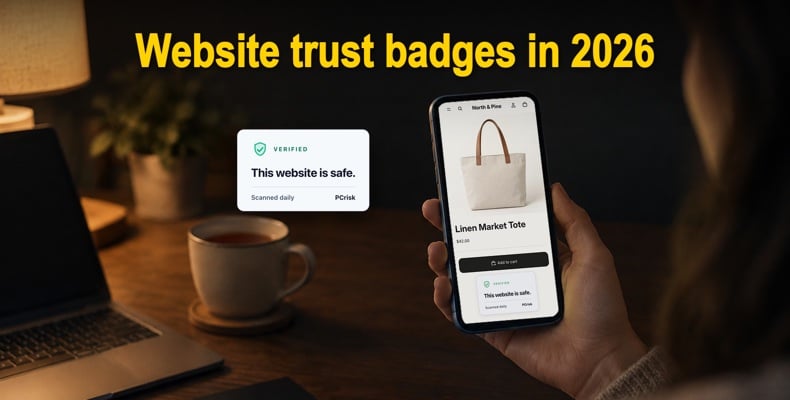
That is correct. A badge gains trust only to the extent that it represents something that a visitor can verify. This article outlines what trust badges are, which kinds, in fact, influence buyer behavior, how to tell the difference between a verified badge and one that is merely decorative, and how to include a badge that checks your site every day and disappears if a problem is detected.
To find out whether your website would pass such a check, simply scan it; this takes only a minute and requires no account.
Table of Contents:
- Introduction
- What is a website trust badge?
- Do trust badges actually work?
- The five types of trust badges
- Decorative badges vs verified badges: why an image proves nothing
- What a verified security badge should check, and what it should do when the check fails
- Verified trust badge providers compared
- How to get a verified trust badge for your website
- How to add a trust badge on Shopify, WordPress, Wix, and Squarespace
- Where to place trust badges, and how many to use
- Trust badge mistakes to avoid
- In closing
- Frequently asked questions (FAQs)
What is a website trust badge?
A trust badge is a small graphic displayed on a website which gives visitors reassurance regarding one particular point - namely, that their payment details are encrypted, that the business operating the site is genuine, that returns are accepted, or that the site has been checked for security problems by a third party. The older term for it is trust seal or site seal. Certificate authorities such as VeriSign, GeoTrust and Comodo used the term 'seal' for the graphic that was included with an SSL certificate, and you will still come across 'site seal' on DigiCert's and Sectigo's pages. Nowadays, in the field of e-commerce, 'trust badge' is the general term covering all such graphics.
Trust badges can be divided into two categories, and the distinction between them is more important than the design.
Displayed badges are graphics you add yourself: card logos, a "money-back guarantee" stamp, a "free shipping" label, a padlock icon from an icon library. They describe a policy or a payment option. Nobody outside your company checks them.
Earned badges are issued by a third party that has verified something and can withdraw the badge if the verification fails. A Better Business Bureau accreditation seal, a Trustpilot rating widget, or a security badge that is only shown while the site passes a daily scan are earned badges. They carry weight because the visitor can click through to the issuer and confirm the claim.
A trust badge is not the padlock displayed in the browser's address bar. The padlock indicates that the connection uses HTTPS and that the data being transmitted is encrypted, but it provides no information about whether the site is genuine, whether it has been compromised, or whether the pages contain malware. Phishing sites also use HTTPS, and almost all of them do, since certificates are free. HTTPS should be regarded as a minimum requirement, not as a sign of trust.
Do trust badges actually work?
The problem trust badges aim to solve is well-measured. Since 2010, the Baymard Institute has monitored checkout behavior and found the average cart abandonment rate is 70% across 50 studies. When US shoppers were asked why they abandoned a purchase at checkout, 19% said 'I didn't trust the site with my credit card information'. For an unfamiliar store, this means one in five lost checkouts are due to lack of trust rather than price or shipping cost.
It depends on what kind of badge it is and where it is. In their 2013 survey of site seals (with the results repeated in 2016), Baymard showed shoppers the usual security seals and asked which one made them feel most secure. 35% of the people surveyed chose the Norton seal, 21% selected the Google Trusted Store seal, 21% picked the BBB seal, and 13% went for the McAfee SECURE seal. The key point in Baymard's conclusion is that people trusted brands they recognized rather than seals indicating the strongest technical safeguards. It was the perceived security that won.
Controlled tests show similar results. The agency Inflow ran A/B tests on trust badges for several stores between 2018 and 2022. Replacing the McAfee SECURE seal with a TrustedSite badge increased conversion by 8.7% for one retailer. Placing a Norton seal directly under the checkout button added 2.9% at another. Even a generic "You are safe" graphic with no verification produced a 1.2% lift in one test. The effects are real but modest, and largest for stores unfamiliar to shoppers.
A contrary trend is growing stronger. People have realized badges can be forged. One recent Shopify Community thread, "Can any app prove that a Shopify store is not a scam?", ends with experienced merchants stating badges from apps can easily be faked, and no app can prove a store is legitimate. They are correct regarding the apps they meant. Hence, this guide divides badges into those that can be verified and those that cannot.
The five types of trust badges
1. Security badges. These indicate that the site has been checked for malware, phishing, blacklisting, or other security issues, or that it simply uses an SSL certificate. Examples are TrustedSite (formerly McAfee SECURE), Trust Guard, the Sucuri monitoring seal, the PCrisk Trust Badge, and the SSL seals offered by DigiCert and Sectigo. This is the only type that can answer the "is this site safe?" question directly, and it is the type most often faked.
2. Payment badges. Visa, Mastercard, American Express, PayPal, Apple Pay, Shop Pay. They tell the shopper how they can pay and that a payment processor they know is involved. Use the official brand assets from each company, as the card networks have rules on how their marks may be shown.
3. Guarantee and policy badges. "30-day money-back guarantee", "free returns", "free shipping over $50". You make these yourself, and they carry no third-party weight, but they answer the questions a shopper has at the moment of adding to the cart. Shopify recommends placing policy badges next to the Add to cart button for that reason.
4. Endorsement and review badges. BBB accreditation, Trustpilot, and Google Customer Reviews widgets, industry memberships, and B Corp certification. They are earned, and a visitor can usually click through to the issuer to confirm them.
5. Platform badges. Shopify offers a "Shopify Secure" badge that signals the store runs on Shopify's PCI-compliant checkout, plus Shop Promise for delivery. These are free and legitimate, but they tell shoppers about the platform, not your store's own pages.
A good product page would select one badge from each of types 1, 2, and 3; on the other hand, using six badges of the same type amounts to clutter rather than to assurance.
Decorative badges vs verified badges: why an image proves nothing
If you search the Shopify App Store for "trust badges," the top results offer hundreds of badge designs and thousands of payment icons. These are icon libraries. You just select a graphic and place it; then you're done. Your site is not checked before or after. A shop selling fake goods could install the same app and display the same 'Secure checkout, 100% safe' banner. Most free trust badge collections on Google are just PNG versions of the same.
Static seals from real security brands are not much better if pasted rather than issued. A seal is an image. Anyone can save it from a legitimate site and upload it to their own. There have been instances of fraudulent trust seals: seals that kept showing on sites later found to have serious vulnerabilities (the HackerSafe seal in 2008 on sites with cross-site scripting holes) and companies fined for selling seals that verified nothing. A static seal with no date tells visitors nothing about the site's current state.
Three questions separate a verified badge from a decorative one:
- Can a visitor click it and be taken to a page you do not control? A verified badge links to the issuer's report, showing when the last check was conducted and what it covered. If clicking the badge does nothing or opens a page on your own domain, it proves nothing.
- Would the badge vanish if your site failed the check? An earned badge is automatically revoked when the site no longer meets the condition. If the badge were still displayed after your site had been hacked, then it would just be a decoration.
- Does the company state exactly what it checks? "Certified secure" is just a slogan; the statement "scanned daily against about 90 antivirus engines and the Google Safe Browsing, Spamhaus, and PhishTank blocklists" is something that the visitor can assess for themselves. It is better to choose certificate providers who publish the list.
What a verified security badge should check, and what it should do when the check fails
The value of a security badge depends entirely on the scan that accompanies it; it is these checks that matter, since they are what cause a site to be blocked by browsers, picked up by email filters, or excluded from search results.
- Malware on the pages. Injected scripts, drive-by download code, hidden iframes, crypto-mining scripts. The most reliable approach is to test the pages against multiple antivirus engines rather than a single one, because detection rates vary widely across vendors.
- Phishing reputation. Whether the domain or its pages appear in phishing feeds such as PhishTank and Google Safe Browsing. A hacked store often hosts a phishing page in a subfolder the owner never looks at.
- Blocklist status. Spamhaus, SURBL, URLhaus, Barracuda, and similar lists. Being on one of these is what makes Chrome show a red warning page, or Gmail route your order confirmations to spam.
- SSL validity. Expired or misconfigured certificates produce browser warnings that end more purchases than any missing badge.
- Reputation of outbound links. Links to domains that are themselves blacklisted, which is a common sign of an injected redirect.
Two behaviors are as important as the checks: the scan must be done daily. A site can be compromised the day after a monthly scan yet display a clean badge for 29 days. If a check fails, the badge must hide itself and notify the owner, returning only after a clean rescan. A badge visible while the site is on a blocklist is worse than none, as it makes a false statement on your behalf.
Make clear what a badge cannot do. It is an automated opinion based on what an external scanner detects at the time of scanning. It does not guarantee that a site has no vulnerabilities, does not clean anything, and does not replace the need to keep your platform and plugins updated. Those who claim otherwise should be viewed with the same suspicion as those linked to icon-library apps.
Verified trust badge providers compared
The services listed here have a badge linked to a real check as of October 2026; the prices listed are from the providers' own websites and are subject to change, so please check them again before making a purchase.
| Provider | What the badge verifies | Price | Notes |
| TrustedSite (formerly McAfee SECURE) | Daily security monitoring plus business identity checks; several optional certifications | Free up to 500 visits a month; paid plans from $39 a month, rising with traffic | The most recognized name. Scan methodology is not published. Priced by visitors, so the cost rises with success |
| Trust Guard | Daily external PCI scan, daily malware scan, weekly SSL check, seals | Free scan available; $97 a month | Closest to a full compliance package; expensive for a single small store |
| Sucuri | Monitoring every 12 hours to every 30 minutes, malware cleanup, firewall; the seal is a side feature | $229 to $549 a year | A security platform first. Buy it for the cleanup and firewall, not for the badge |
| Norton Shopping Guarantee | Merchant identity and financial stability; purchase, price, and identity-theft guarantees for the shopper | No charge to the merchant (shoppers pay for optional package protection) | No security scanning of the site itself |
| PCrisk Trust Badge | Daily outside scan against about 90 antivirus engines and 10 threat databases; score from 0 to 100; badge shown only while the latest score is 70 or higher; public report page | Free plan without a badge. Badge from $16.95 a month for one site (local currency at checkout) after a 14-day free trial; Pro plan covers 5 domains, Business plan covers 25 domains. Shopify app: Premium $19 a month | Priced per site, not per visitor. Publishes the engine and feed list. Detects and reports only; no cleanup |
For shops using Shopify or WordPress that want visitors to verify a badge at a price that does not increase with traffic, PCrisk Trust Badge is the right choice. If you need a company to clean a hacked site, contact Sucuri; the badge is an extra benefit. If your only aim is brand recognition at checkout and your traffic is low, the free TrustedSite level is worth trying.
How to get a verified trust badge for your website
The following steps use the PCrisk Trust Badge since we operate it and can provide detailed information. For any scanning-based badge, the procedure is the same: first check the site, then fix any issues, and finally install the badge.
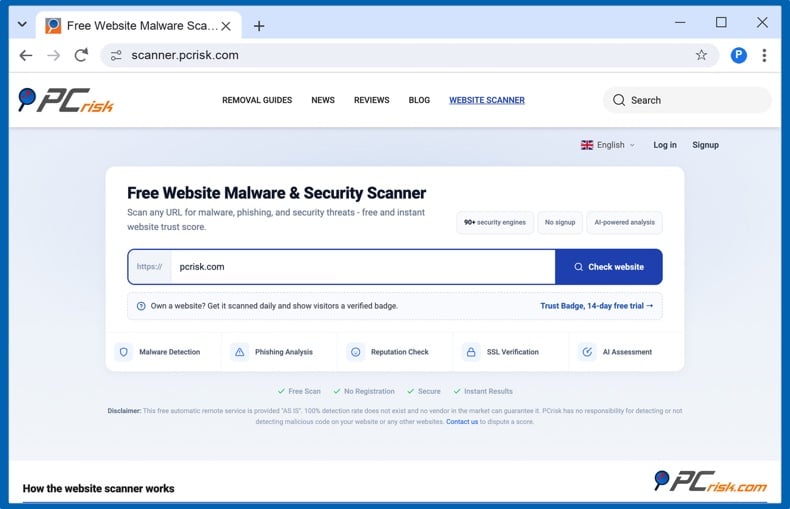
1. Scan your website for free. Open the PCrisk Website Scanner, enter your domain, and click "Check website". No account is needed. The scan checks the pages against about 90 antivirus engines and 10 threat databases, including Google Safe Browsing, Spamhaus, and PhishTank, verifies the SSL certificate, and produces a trust score from 0 to 100 with a plain-English summary.
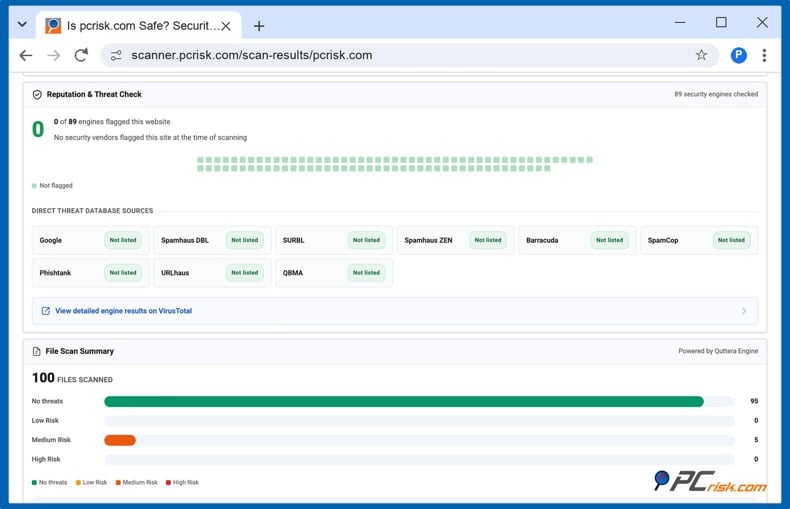
2. Read the report and fix anything flagged. The report lists each engine's verdict, blocklist status, certificate details, and any flagged outbound links. A badge will not display while the score is below 70, so this is the moment to renew an expired certificate, clean an injected script, or request delisting from a blocklist. You can re-run the scan after each fix.
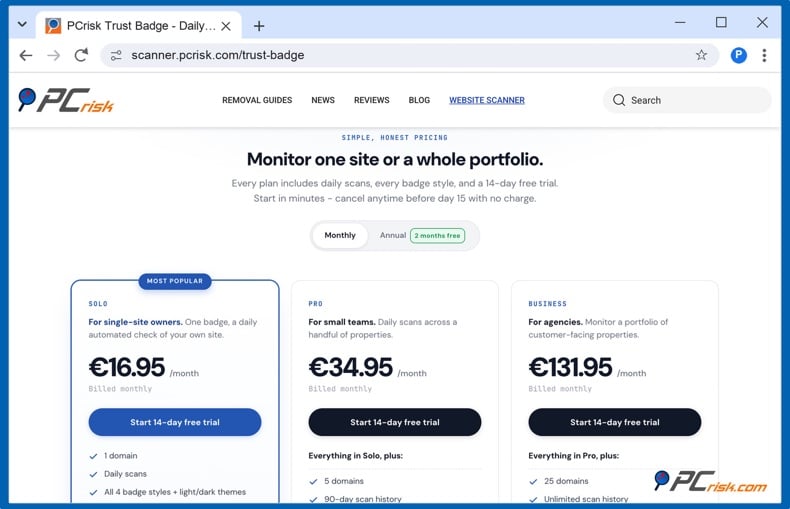
3. Start the 14-day free trial. On the Trust Badge page, pick a plan: Solo, from $16.95 a month (shown in your local currency at checkout), covers 1 domain; Pro covers 5 domains; and Business covers 25 domains. The trial requires a payment method and costs nothing if you cancel before it ends. After the first charge, there is a 30-day money-back guarantee. Paying annually gives two months free.
4. Choose a badge style. Four designs are available (Shield, Ribbon, Minimal, and Bubble) in light, dark, or automatic theme, and in three sizes. The badge can sit inline, for example, in your footer or product template, or float in a corner of the page. The floating version fades out if it would cover a button or a pop-up on a small screen. You can try every combination in the Help Center before signing up.
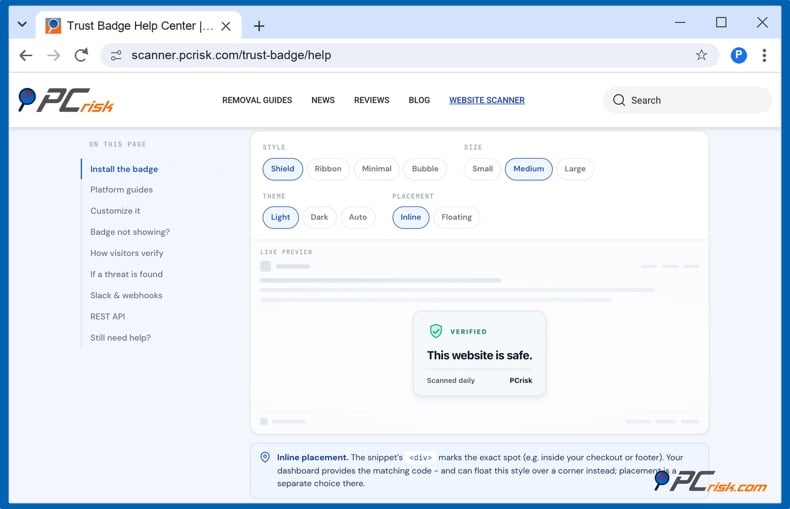
5. Install the badge. On WordPress, install the PCrisk Trust Badge plugin. On Shopify, install the PCrisk Trust Badge app from the Shopify App Store; it has its own plans, billed through Shopify. Both are covered in the next section. On any other site, copy the install code from your dashboard and paste it where the badge should appear. The Help Center has guides for common platforms. The badge loads one small script, under 10 KB compressed, after your page content and sets no cookies.
6. Check that the badge appears, then click it. Every PCrisk badge is clickable. It opens your domain's public report on scanner.pcrisk.com, hosted by PCrisk rather than by you, showing the time of the latest scan, the score, and a "PCrisk Verified" note. This is the page a cautious shopper will look at, so look at it through their eyes.
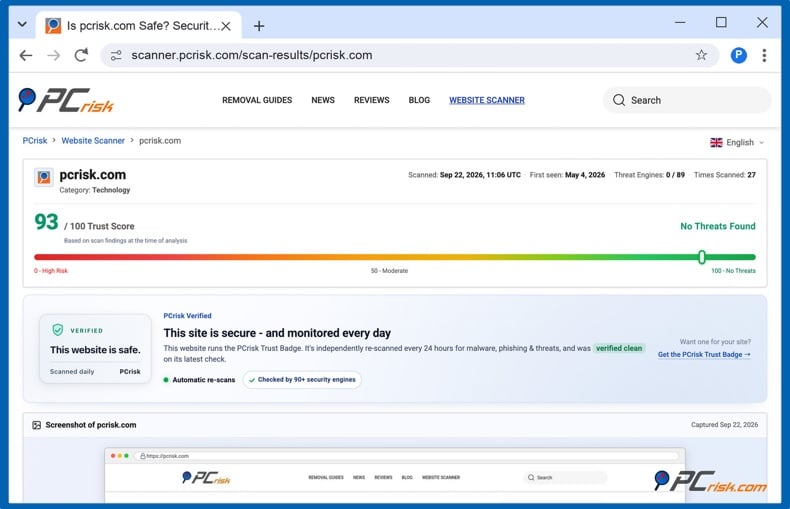
7. Watch for alerts. If a daily scan finds a problem, PCrisk emails you, and the badge is paused until a follow-up scan comes back clean. Pro and Business plans add Slack and webhook alerts, which is useful if an agency or developer looks after the site.
If you'd rather look at that first, PCrisk also offers a free plan, which requires an email address only; it scans one website once a month, displays the result in your dashboard, and sends you an email with it, telling you whether it's clean or flagged, but it doesn't include a public badge.
How to add a trust badge on Shopify, WordPress, Wix, and Squarespace
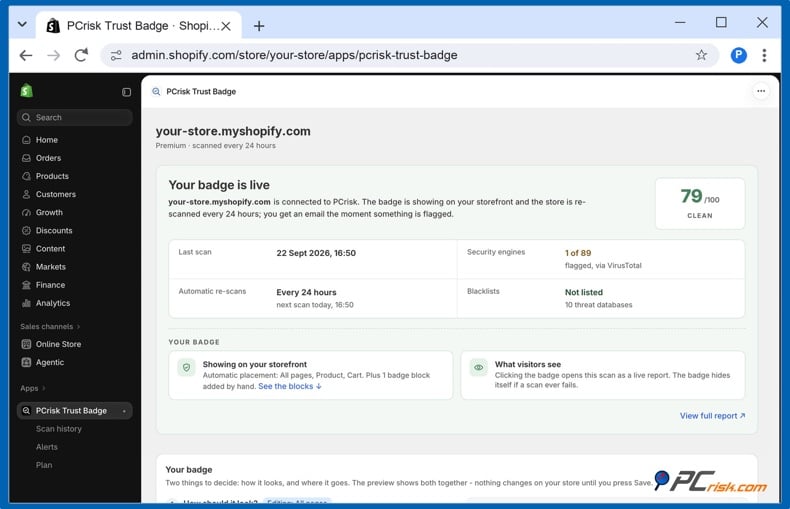
Shopify. The quickest route is the PCrisk Trust Badge app, which needs no code. Install it from the Shopify App Store and open it; your store's first scan finishes within a few minutes. Choose a plan: the free plan scans the store once a month and emails you if it is flagged, while Premium ($19 a month, 14-day free trial, billed by Shopify) adds daily scans and the badge. Then, in the app, press "Open the theme editor and press Save," and press Save once in the theme editor. That switches the badge on in your theme. Finally, pick the look and the pages in the app.
For Shopify's own free security badge, Shopify's developer documentation provides an image that links to Shopify's PCI page and recommends placing it in the footer or the Add to cart area. The checkout page itself cannot take badges unless the store is on Shopify Plus.
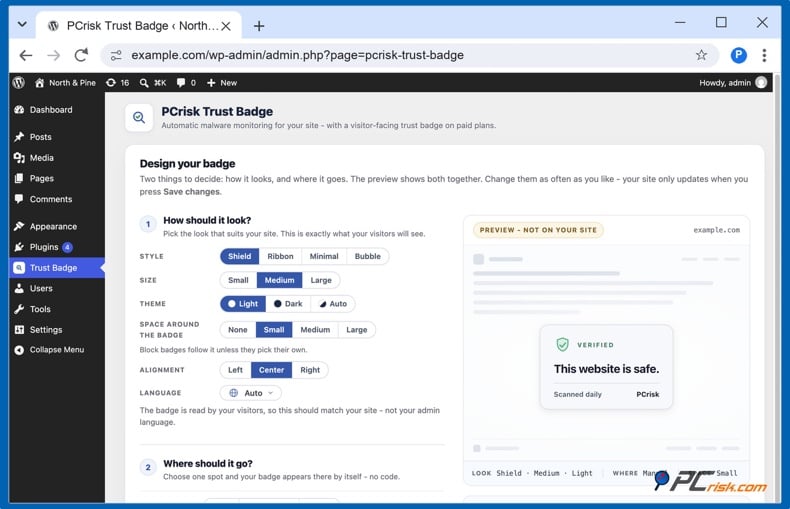
WordPress and WooCommerce. In your WordPress dashboard, go to Plugins, then Add Plugin, search for "PCrisk Trust Badge", and click Install Now and Activate. Open the Trust Badge in the admin menu, click Agree, and check my site to run the first scan. Then pick a style and where the badge appears; the live preview shows what visitors will see. On WooCommerce stores, the plugin adds store spots: the product page above or below the Add to cart button, the cart near the checkout button, and the checkout near the Place order button. There is also a block for placing the badge on any single page.
Wix. Open Settings, then Custom Code, and add the install code to all pages, placed at the end of the body. To place the badge in a specific spot, use an Embed HTML element instead.
Squarespace. Open Code Injection (under Website, then Website Tools, in the current editor) and paste the install code into the Footer box. On plans without code injection, use a Code block on the page instead.
Webflow, Framer, and custom HTML. Paste the install code into the site-wide footer code setting, or into your page template where the badge should appear.
Where to place trust badges, and how many to use
Placement should follow the shopper's question. Near the price and 'Add to cart' button, the question is 'will this arrive and can I return it', so a policy badge should be there. At the cart and payment stage, the question is 'is it safe to type my card number', so a security badge with payment logos should be included. Inflow's tests showed the greatest improvement when a security seal was placed directly below the checkout button, where the shopper is about to commit.
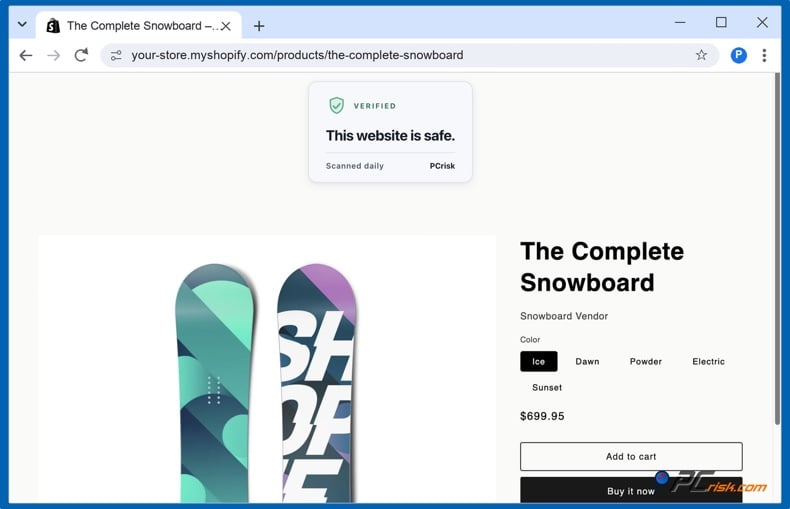
The footer is the right place for a site-wide security badge, because it appears on every page without competing with the content. A floating badge in the bottom corner does the same thing on sites without a shared footer, provided it does not cover the checkout button on a phone.
Fewer is better. Display only badges you can back up. One verified security badge, the payment methods you accept, and one policy badge cover the three questions. A wall of twelve icons signals anxiety, not confidence.
Trust badge mistakes to avoid
- Using a security brand's seal without its service is a false claim. A Norton or McAfee graphic downloaded from an image site misleads shoppers who click it and find nothing. This can lead to a trademark complaint.
- Leaving an expired seal in place is misleading. Seals from discontinued services, like Symantec, VeriSign, or Google Trusted Stores, still appear on older sites. They now link to nothing and date the store.
- Badges that cannot be clicked are decorations. If a visitor cannot verify a badge, it serves no purpose. Make sure the badge links to the issuer's report page and test it after every theme change.
- Contradicting the badge damages trust. A "secure" badge next to a browser warning about an expired certificate or on a page with mixed content harms trust more than having no badge.
- Heavy badge scripts. Some badge widgets load several hundred kilobytes and third-party trackers. Check the script's size and whether it sets cookies, as this also matters for your privacy notice.
- Relying on badges instead of basics is a mistake. Badges support trust; they do not create it. A visible address and phone number, a clear returns policy, real product photos, and genuine reviews do most of the work. The badge confirms what the rest of the site already says.
In closing
Trust badges have an effect only for stores the shopper is not yet familiar with, and this effect depends on whether the badge has any significance. Payment logos and policy badges address practical questions and incur no cost. A security badge addresses the question behind one in every five abandoned checkouts, but only if a visitor can click it, sees a report dated by someone other than themselves, and is certain that the report would have disappeared if the site had failed.
Begin by using the free PCrisk Website Scanner to see what a visitor's security tools would detect. If the site passes the scan, the PCrisk Trust Badge will display that result to all visitors, and it will be rechecked each day with the possibility of being taken down as soon as any change is detected. That is what distinguishes a badge from a promise.
Frequently asked questions (FAQs)
Are trust badges free?
Logos related to payment, policy, and platform services, such as Shopify Secure, are available free of charge. Verification badges generally have to be paid for, since someone has to perform the scanning. The free plan offered by TrustedSite displays its trustmark for up to 500 visits per month. With the free plan of the PCrisk Trust Badge, one website is scanned once a month, and the result is shown in your dashboard. There is no public badge; the badge is included in the paid plans, which begin with a 14-day free trial.
Do I need a trust badge if my site already has HTTPS?
It is expected, rather than reassuring, that HTTPS is in use, since almost all phishing sites have it as well. The padlock indicates that the connection is encrypted; a verified security badge indicates that the pages have been checked for malware and are free of blocklists, something that HTTPS does not do.
What is the difference between a trust badge and a trust seal?
There is no practical difference; "Seal" is the term older certificate authorities have used for the graphic that accompanied an SSL certificate, while "Badge" is the general term in the field of e-commerce for any of the five types mentioned in this article.
Can I add a trust badge to the Shopify checkout page?
Not on standard plans. Shopify allows a security badge on the checkout page only for Shopify Plus stores. You can place badges on product pages, the cart page, and the footer, which is where Shopify recommends them.
What happens if my site is hacked while it shows a security badge?
With a decorative badge - nothing; it keeps saying "secure". With a verified badge from a daily-scanning service, the next scan flags the problem, the badge is hidden, and you are alerted. With the PCrisk Trust Badge, you get an email, and the badge returns once a follow-up scan is clean.
Is a security badge a guarantee that a site is safe?
No, and any issuer who says so should be avoided. A scan is an automated, external check at a point in time. It can confirm that known malware, phishing pages, and blocklist entries were not found; it cannot prove the absence of every vulnerability. Treat the badge as evidence, not as a warranty.
Does a badge script slow down my website?
It depends on the widget. Check the script size and whether it loads deferred. The PCrisk badge loads one script of under 10 KB compressed after your page content and sets no cookies. Some older seal widgets load far more and include trackers.
Share:
 Facebook
 X.com
X.com
 LinkedIn
 Copy Link