
We may earn commissions from products we recommend. Learn more.
How to add trust badges to Shopify in 2026: 4 ways

How to add trust badges to Shopify in 2026: 4 ways
You can add trust badges to a Shopify store in four different ways: enable the payment icons that your theme includes, insert your own badge images using the theme editor, install a trust badge app, or install an app whose badge is based on a real security check. The first three of these options are free and only take a few minutes; the fourth is the only one that gives customers something they can verify.
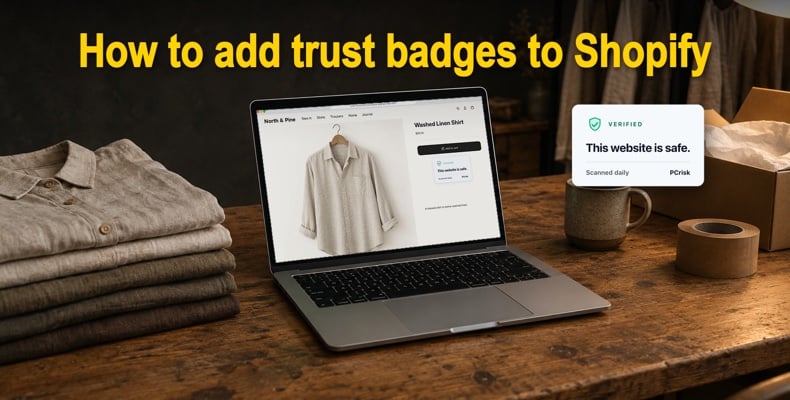
This guide examines all four trust badge applications available in the current Shopify admin, compares them against the criteria they check, and illustrates the best places to put badges in a Dawn-style theme. It also explains that badges cannot be displayed on the checkout page unless your store uses Shopify Plus, and what to do in that case.
Get the PCrisk Trust Badge for Shopify
What trust badges do on a Shopify store
A trust badge responds to a question that the shopper has not stated out loud; on a product page, this question is generally concerned with the order - that is, will the item arrive, and can I return it? On the cart page, the question is financial in nature: Is it safe to pay here? A trust badge that correctly addresses the right question in the right place eliminates one reason someone might decide to leave.
It is most important in the case of stores that the shopper is unfamiliar with. The Baymard Institute discovered that 19% of US shoppers who abandoned the checkout process did so because they did not trust the site to handle their card details. Generally speaking, a well-known brand does not encounter this issue, whereas a new Shopify store with no reviews almost always does.
One advantage of Shopify stores is that all use Shopify's PCI-compliant checkout system, meaning card details are processed to the same standard regardless of store size. The difference lies in what happens before the checkout stage: it is there that the badges are placed, and it is there that they have meaning or do not have meaning.
Shopify's own free badges
Shopify provides a Shopify Secure badge for any store. It states that the store uses Shopify's secure checkout and links to Shopify's PCI compliance page. Shopify's developer documentation provides code in light and dark versions and suggests using the footer or the area near the Add to cart button.
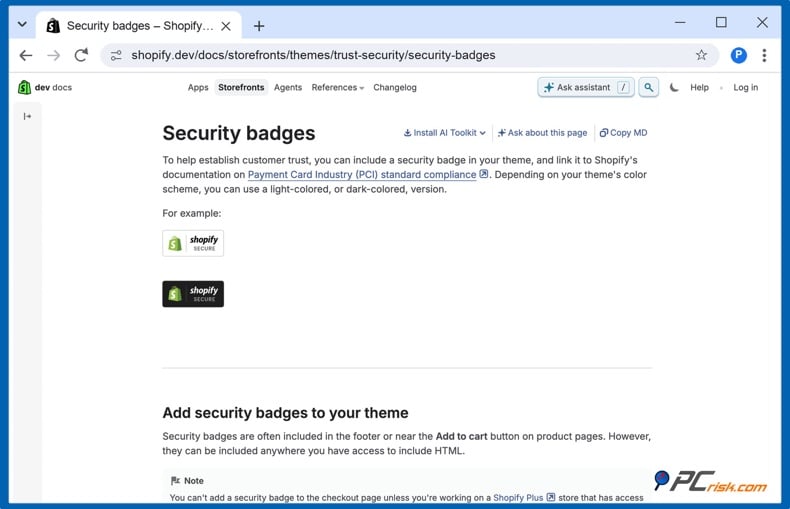
To include it, copy the HTML from that page, insert a Custom Liquid section or block where you want the badge (as mentioned in option 2 below), and paste the code. Since the badge is in SVG format, it remains clear at any size.
When a store meets the required criteria, two further Shopify indicators appear automatically. The Shop Pay button appears at checkout after it is enabled in your payment settings, and most shoppers are familiar with it. For eligible US merchants who satisfy Shopify's shipping requirements, Shop Promise displays a delivery-date badge. Neither of these features is added manually, but both should be turned on if your store is eligible.
Bear in mind what the badges indicate. The Shopify Secure badge refers to Shopify's checkout process, not to your store's pages. It does not inform the shopper whether your theme has been injected with a malicious script or whether your domain appears on a blocklist.
Option 1: turn on payment icons in the theme editor
Shopify's simplest trust badge consists of a row of payment icons, and most themes, such as Dawn and the other free Online Store 2.0 themes, include them by default.
1. Open the theme editor. In your Shopify admin, go to Online Store, then Themes, and click "Customize" next to your current theme.
2. Select the footer. In the left sidebar, scroll down to the Footer group and click the Footer section.
3. Turn on "Show payment icons". Scroll the footer settings to Payment methods and switch the toggle on. The icons appear in the preview straight away.
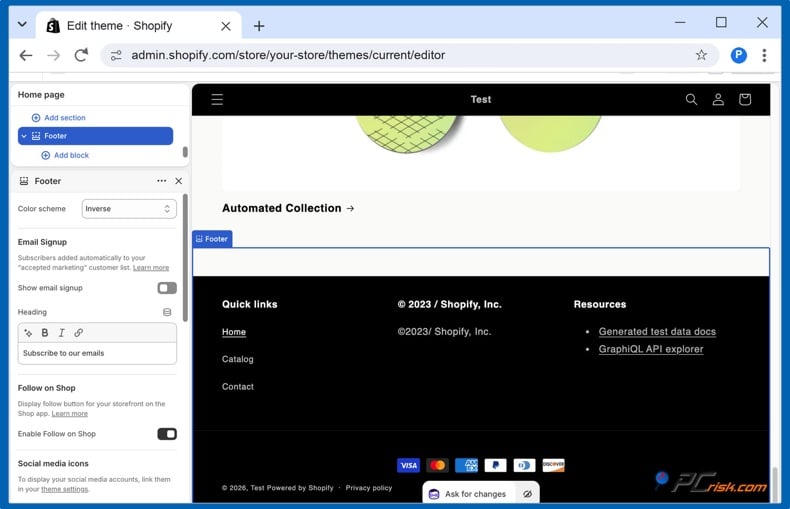
4. Save. Press Save at the top right of the theme editor.
The payment methods shown are those that have been enabled in Settings, then Payments. If a particular card brand is not included, it indicates the method is not active on your store, which is the correct approach, since you should never display a payment logo you do not accept.
Option 2: add your own badge images
Badges such as 'Free returns within 30 days' or 'Ships in 24 hours' are something you have to create yourself, and with Online Store 2.0 themes, you can display them without editing the code.
1. Prepare the image. A PNG or SVG with a transparent background works best. Keep the text short and make sure it matches your real policy.
2. Open the product template. In the theme editor, use the page selector at the top to switch from "Home page" to "Products", then "Default product".
3. Add a block to the product information section. Click "Add block" inside the Product information section. Dawn offers an "Icon with text" block for short policy lines with a small icon, and a "Custom Liquid" block for other content, such as the Shopify Secure code from the previous section. Some other themes also have an "Image" block.
4. Drag the block into place. Move it just below the Buy buttons block, so it sits where the shopper decides.
5. Save. Press Save and check the result on both a phone and a desktop.
These badges are honest as long as the policy behind them is real. They carry no third-party weight, because nobody outside your store checks them, and shoppers know that.
Option 3: trust badge apps compared
When you search for "trust badges" on the Shopify App Store, you get back over a thousand applications. The ones that have received the most reviews are icon collections: they provide hundreds of pre-made badges and banners and let you use them without altering the theme. It is useful if you need more design options than the theme editor offers, but it is important to be clear about what these applications do and what they do not.
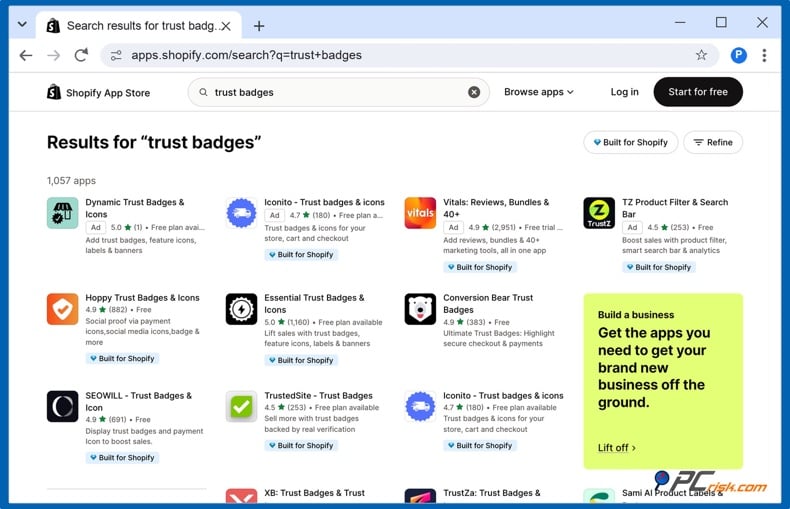
The table lists the trust badge apps most reviewed as of October 2026, along with the price shown in each entry. The final column is the one that most comparisons omit.
| App | Rating (reviews) | Price | What is verified about your store |
| Essential Trust Badges & Icons | 5.0 (1,175) | Free plan; starter plan $6.99 per month with 7-day free trial | Nothing; you choose the icons |
| Hoppy Trust Badges & Icons | 4.9 (872) | Free | Nothing; you choose the icons |
| SEOWILL Trust Badges & Icon | 4.9 (694) | Free | Nothing; you choose the icons |
| Conversion Bear Trust Badges | 4.9 (384) | Free | Nothing; you choose the icons |
| TrustedSite Trust Badges | 4.6 (269) | Free plan; Pro plan $39 per month | Security monitoring and business checks by TrustedSite |
| PCrisk Trust Badge | New | Free plan; Premium $19 a month with a 14-day free trial | Daily outside scan against about 90 antivirus engines and 10 threat databases |
If you merely want a variety of designs, select an icon app; but if you want the badge to have significance for a shopper who clicks it, go for a verification app. The two types of apps can be included together - there can be payment icons and a policy badge from the theme, along with one verified security badge.
Option 4: add a badge customers can verify
A verified badge is provided by a third-party service and is a report that the store owner has no control over, which disappears when the check fails. The steps below use the PCrisk Trust Badge app we built: it scans your store every day and shows its badge only when the latest scan is clean.
Get the PCrisk Trust Badge for Shopify
1. Install the app. Open the PCrisk Trust Badge listing in the Shopify App Store and click Install. The app reads your theme to check that the badge is switched on and your store's basic details, such as the owner's email address. It does not access your customers, orders, or products.
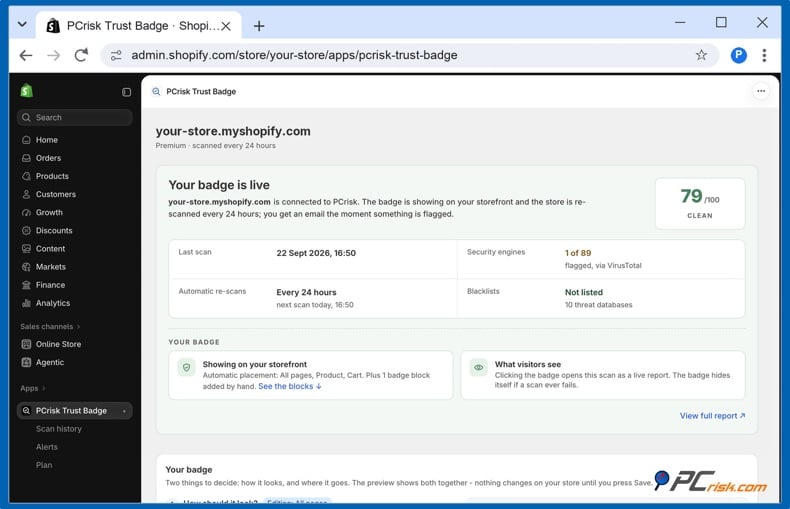
2. Open the app and let the first scan run. Your store's first scan finishes within a few minutes. The app then shows a trust score from 0 to 100, the date of the last scan, and whether the store appears on any blocklist.
3. Choose a plan. The free plan scans your store once a month and emails you if it is flagged. Premium, starting at $16.95 a month with a 14-day free trial, adds daily scans and the badge. Billing goes through Shopify, so the charge appears on your Shopify invoice, and you can change or cancel the plan from the app.
4. Turn the badge on in your theme. Shopify requires one Save in the theme editor before any app can show content on your storefront. In the app, press "Open the theme editor and press Save".
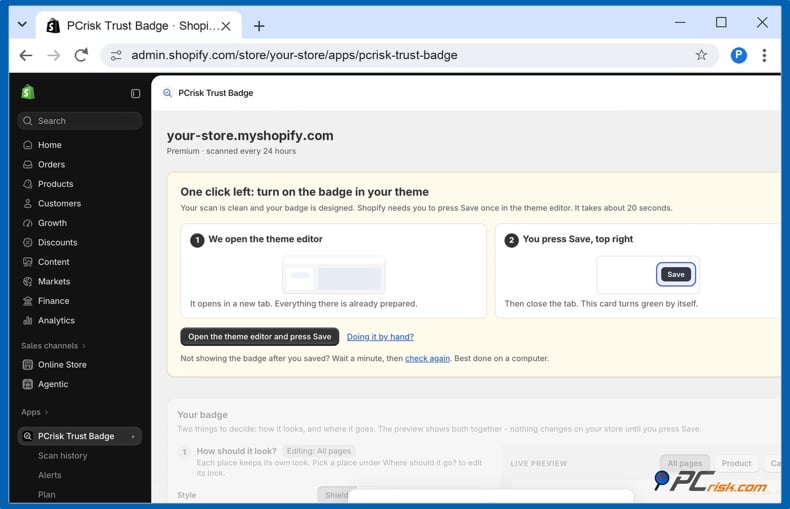
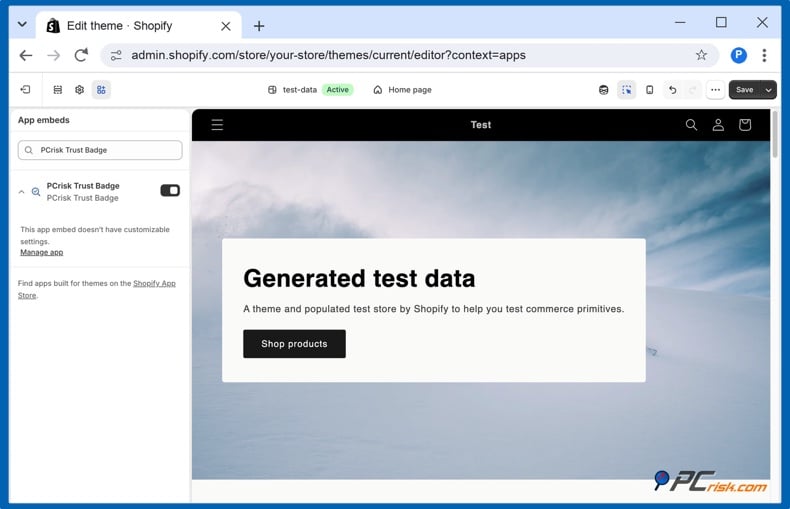
The theme editor opens in a new tab with the PCrisk Trust Badge already enabled under App embeds; you then need to click Save in the top-right corner before closing the tab. When you return to the app, the card will automatically turn green.
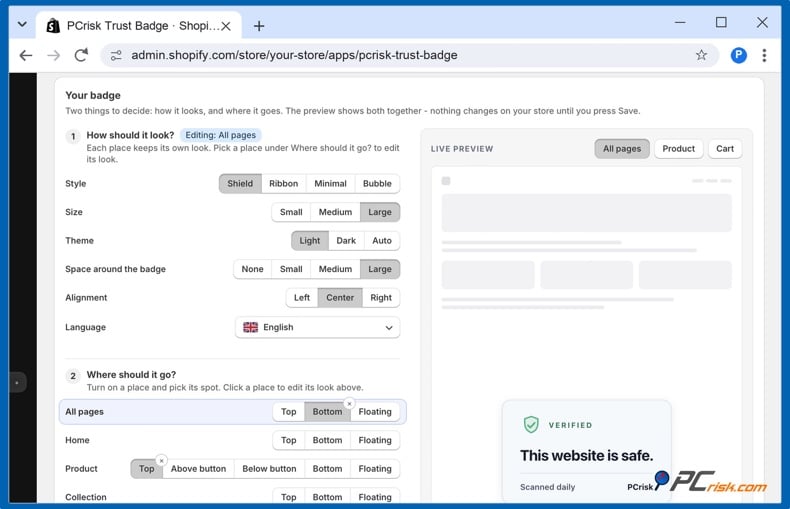
5. Pick the look and the places. In "Your badge", choose a style (Shield, Ribbon, Minimal, or Bubble), a size, a light, dark, or automatic theme, the space around the badge, its alignment, and the language. Under "Where should it go?", turn on the places you want and pick a spot for each: all pages, the home page, product pages, collection pages, or the cart. On product pages, the badge can sit at the top, above or below the Add to cart button, or at the bottom; it can also float in a corner anywhere. Each place can have its own look, and the live preview shows the result. Press Save.
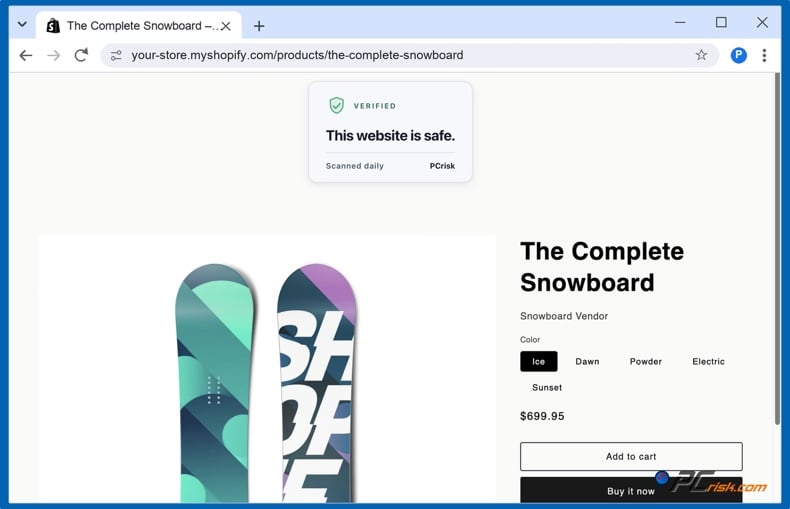
6. Check the storefront. Open your store in a new tab. The badge appears in the places you chose.
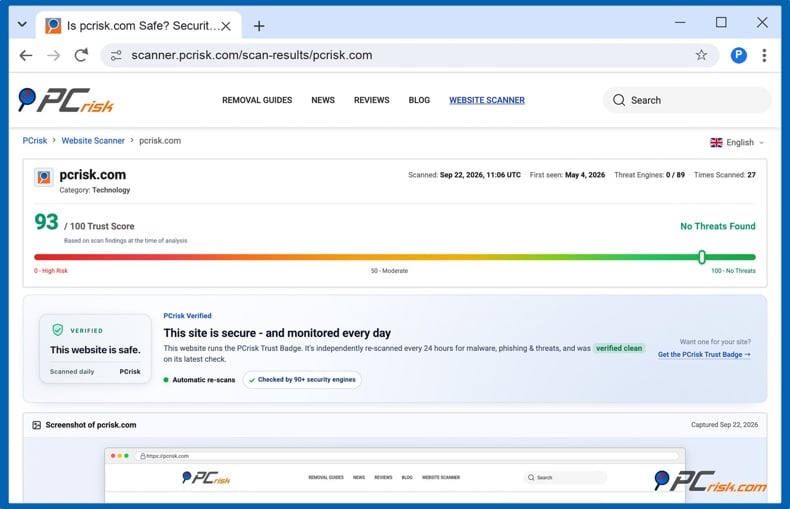
7. Click the badge. It opens your store's public report on scanner.pcrisk.com, with the time of the latest scan, the score, and a "PCrisk Verified" note. This is what a cautious shopper sees, and it is hosted by PCrisk, not by your store. The example below is the report for pcrisk.com.
From that point onward, the app checks the store once every 24 hours. Whenever a scan detects something, you receive an email, and the badge disappears until a subsequent scan shows it is clean. The home page of the app displays the badge's status at a glance.
If you uninstall the app, the badge is removed with it. Nothing stays in your theme code.
Can you add trust badges to the Shopify checkout?
It is not available on the standard plans. According to Shopify's documentation, a security badge can only be added to the checkout page if you have Shopify Plus. On all other plans, the checkout is controlled by Shopify, so apps and themes cannot add images to it.
That matters less than it sounds. When a customer gets to the checkout stage they are actually on Shopify's page, where Shop Pay and the familiar Shopify design give them a sense of security. The decision to begin the checkout process is made earlier, on the product page and in the cart, and that's where your badges should be.
Instead of the checkout, use these three places:
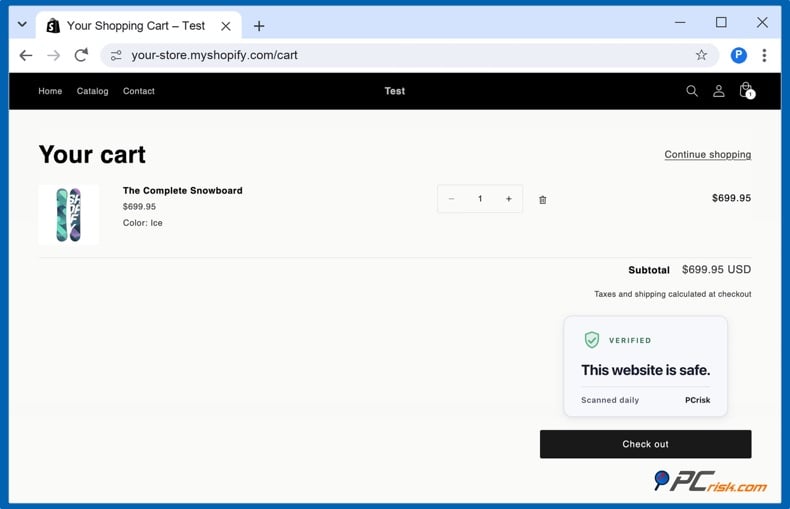
- The cart page or cart drawer, just above the Check out button. This is the closest spot to the payment step you can control.
- The product page, near the Add to cart and Buy buttons.
- The footer, for a site-wide badge and the payment icons.
Where to place trust badges on a Shopify store
In A/B tests run by the agency Inflow, the largest lift came from a security seal placed directly under the checkout button. On Shopify, the closest equivalent is the cart, right above "Check out".
A simple layout that works in Dawn and most Online Store 2.0 themes:
- Product page: one policy line (returns or delivery) below the Buy buttons, and optionally the security badge above or below them.
- Cart: the security badge above the Check out button.
- Footer: payment icons, and the security badge, if you want it on every page.
Check each placement on a phone. On small screens, a badge that pushes the Add to cart button below the fold costs more than it earns. A floating badge must never cover the checkout button. The PCrisk floating badge fades out automatically when it covers a button or a pop-up.
Mistakes to avoid
- Fake security seals. A Norton or McAfee image downloaded from a badge pack is a false claim about a service you do not use. Shoppers who click it find nothing, and the trademark owner may object.
- Badge walls. Ten icons under the Buy button look like an attempt to convince rather than a reason to trust. Three kinds (payment, policy, security) are enough.
- Payment logos you do not accept. Showing American Express when Amex is not enabled leads to a failed payment at the worst moment. Use the theme's payment icons, which follow your real settings.
- Badges that do not click through. A security badge that opens nothing, or opens a page on your own store, proves nothing.
- Heavy apps. Some badge apps add large scripts or tracking to every page. Check the app's listing and your store speed report after installing and remove apps you no longer use.
In closing
It takes only a few minutes to add trust badges to Shopify, no matter which method you choose. Payment icons, together with a clear policy statement, are free and deal with real issues. While icon apps offer more designs, they don't perform any verification. The only badge type a shopper can check is the verified one: they can click it, view a report from someone other than the store with a date on it, and know that the badge would have disappeared if the store failed the check.
Begin by including the payment icons associated with the theme, place a genuine policy badge near the Buy button, and, if you wish to have a security badge that carries weight, install one that verifies your store each day.
Get the PCrisk Trust Badge for Shopify
Frequently asked questions (FAQs)
Are trust badges free on Shopify?
Yes, a number of them are. Payment icons are included in most themes, the Shopify Secure badge is available at no cost, and several icon apps offer free plans. Badges that are based on a security check generally involve a charge, since the scans do. The PCrisk Trust Badge app offers a free plan that lets your store be scanned once a month; the badge is included in the Premium plan, which also offers a 14-day free trial.
Which trust badge app is best for Shopify?
It all comes down to what you want the badge to achieve. If you're looking for variety in design, then the icon apps with the most reviews all function well. If you need a badge that can prove something, go for one that checks your store and has a link to a report hosted by the issuer, for example TrustedSite or PCrisk Trust Badge.
Can I add trust badges to the Shopify checkout?
Only on Shopify Plus. On other plans, you can place badges on the product page, in the cart above the Check out button, and in the footer.
Does the PCrisk Trust Badge app slow down my store?
The app adds two small scripts, about 15 KB compressed in total, that load after your page content and set no cookies, so the effect on load time is minimal.
What happens to the badge if my store fails a scan?
The PCrisk Trust Badge hides itself and you get an email. Once you have fixed the problem and a follow-up scan is clean, the badge comes back on its own.
Share:
 Facebook
 X.com
X.com
 LinkedIn
 Copy Link