
We may earn commissions from products we recommend. Learn more.
Shopify checkout hijack: how to check your store in 10 minutes

Shopify checkout hijack: how to check your store in 10 minutes
In October 2026, attackers hijacked several popular Shopify apps and used them to send shoppers who clicked Checkout to fake payment pages. The fake page collected card details, then forwarded the shopper to the store's real checkout, so the order went through and nobody noticed.
This guide explains what happened in the Shopify checkout hijack and walks you through a check any store owner can run in about 10 minutes. It also explains what to do if you find a redirect and which Shopify apps can help.
Scan your store with PCrisk Website Scanner
Table of Contents:
- Introduction
- What happened in the Shopify checkout hijack
- How the fake checkout worked
- Step 1: Test your checkout in a private window (3 minutes)
- Step 2: Review your installed apps (2 minutes)
- Step 3: Check which app embeds are on (1 minute)
- Step 4: Look inside custom code fields (1 minute)
- Step 5: Search your theme code (1 minute)
- Step 6: Lock down passwords and access (1 minute)
- Step 7: Scan your store from the outside (1 minute)
- Shopify security apps that can help
- Monitoring your store with PCrisk Trust Badge
- In closing
- Frequently asked questions (FAQs)
What happened in the Shopify checkout hijack
On 10 October 2026, developer Roman Zipp clicked Checkout in a Shopify store and was redirected to a payment page on an unfamiliar domain. He traced it to the Hulk Product Options app and documented the attack. Within days, two more app developers confirmed similar incidents.
| App | Developer | Confirmed incident |
| Hulk Product Options | HulkApps | From 10 October |
| Selleasy (Upsell & Cross Sell) | Logbase | 13 October, 07:47 to 15:00 UTC (notice) |
| Swym Wishlist Plus | Swym | 14 October, then again later that week; the app is paused (FAQ) |
Merchants have named other apps in public comments, but their developers have not confirmed any link, so we do not list them here.
Was Shopify itself hacked? There is no public evidence that it was. The attack ran on store pages and redirected shoppers before Shopify's checkout loaded. Shopify removed the code from all affected stores and, as a spokesperson told iTnews, Shopify acts when an app falls short of its standards.
What Shopify is changing. On 20 October, Shopify asked every app developer to complete a list of security steps that week, such as enabling two-step authentication for all their accounts and switching to short-lived access tokens. It also said it will tighten what the app can do on storefronts, require app keys to work only from the developer's own servers, and raise App Store security requirements.
How the fake checkout worked
Each app adds a script to the storefront through an app embed. The script itself was clean, but it loaded the app's settings from the developer's server, and attackers had put extra JavaScript into those settings. That code waited for a click on Checkout, opened a lookalike payment page on a domain ending in .top, and, after the shopper entered their card details, sent them to the real checkout.
Three things made it hard to spot:
- It fired only once per browser session so that a second test could look clean.
- Theme files usually did not change, because the code came from the app developer's server.
- Orders looked normal, because the shopper still paid on the real checkout.
Reported domains include biliing[.]top, checkout-confirm[.]top, order-confirm[.]top, account-confirm[.]top, billing-confirm[.]top, checkout-guard[.]top and checkout-secure[.]top. Do not visit them.
Step 1: Test your checkout in a private window (3 minutes)
This is the most important check, because it is the only one that sees what a shopper sees. You do not need to pay for anything.
1. Open a fresh private window. Close any private windows you may have open, then open a new one (Incognito in Chrome, Private Window in Safari, or Private Browsing in Firefox).
2. Add a product and press the normal Checkout button. Use the regular Checkout button, not Shop Pay, PayPal, or any other express checkout button.
3. Read the address bar before you type anything. A real Shopify checkout opens on your own domain, or on your-store.myshopify.com, and shows your store name.
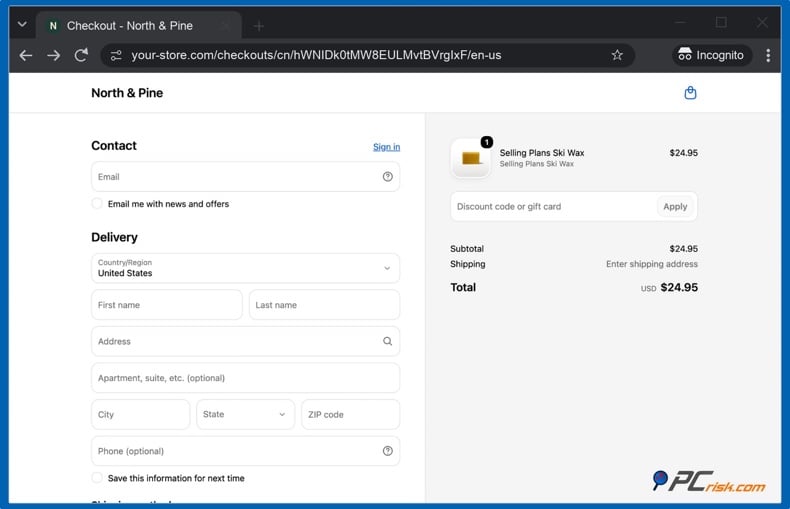
4. Repeat from every Checkout button. Test again in a new private window from the cart drawer, the cart page, and any "Buy it now "button, then once on your phone.
Shop Pay may open on shop.app, and PayPal or a bank's security check can open their own pages, which is normal. The red flag is an unfamiliar domain, especially one ending in .top, that asks for card details straight after you click Checkout.
Step 2: Review your installed apps (2 minutes)
1. Open your app list. In your Shopify admin, go to "Settings", then "Apps."
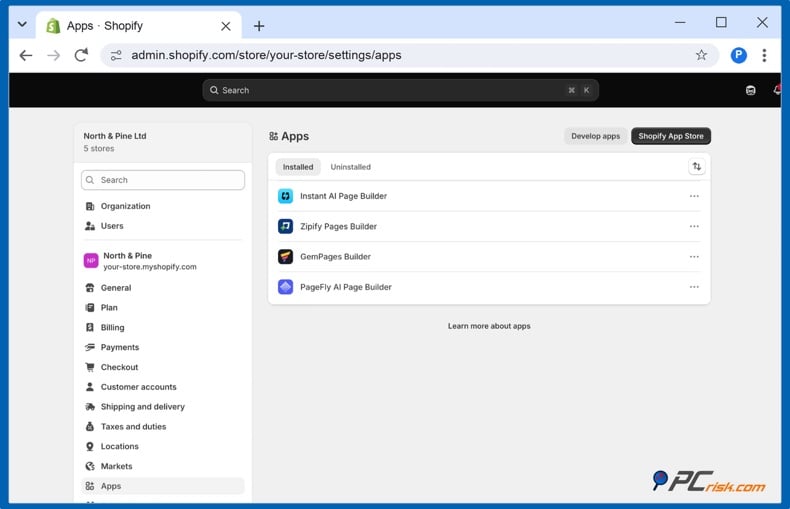
2. Look for the apps named above and anything you do not recognize. If you use one of the affected apps (Hulk Product Options, Selleasy (Upsell & Cross Sell), Swym Wishlist Plus), follow the developer's latest notice.
3. Check what each app can access. Click the three dots next to an app and choose "View details". The Activity and permissions section shows what the app can view or edit. An app with "Edit access to your Online Store" can change your theme.
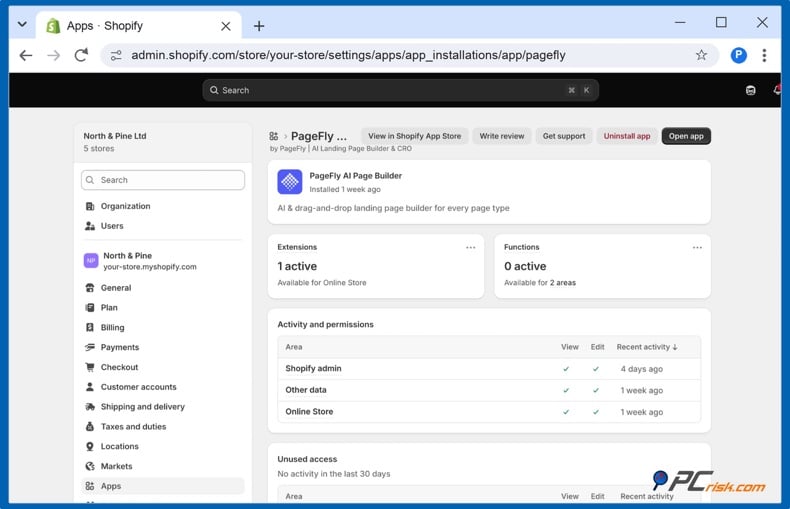
4. Uninstall what you no longer use. Every app you remove is code nobody can turn against you.
5. Ask your storefront apps' developers what they have done. Write a short email asking whether they have completed Shopify's security steps from 20 October. Shopify makes developers responsible for notifying merchants affected by a security issue, so read their emails too.
You can also check your store from the outside with Koala Inspector, a Chrome extension that shows which theme and apps a Shopify store is running. Open your storefront with it switched on and compare its list with your installed apps: an app you don’t recognise, or one you thought you had removed, is worth a closer look.
Step 3: Check which app embeds are on (1 minute)
App embeds are how apps add scripts to every page of your store, and they are the route this attack used.
1. Open the theme editor. Go to "Online Store", then "Themes", and click "Edit theme" next to your live theme.
2. Open the App embeds panel. Click the "App embeds" icon in the left sidebar to see every app that can run code on your storefront.
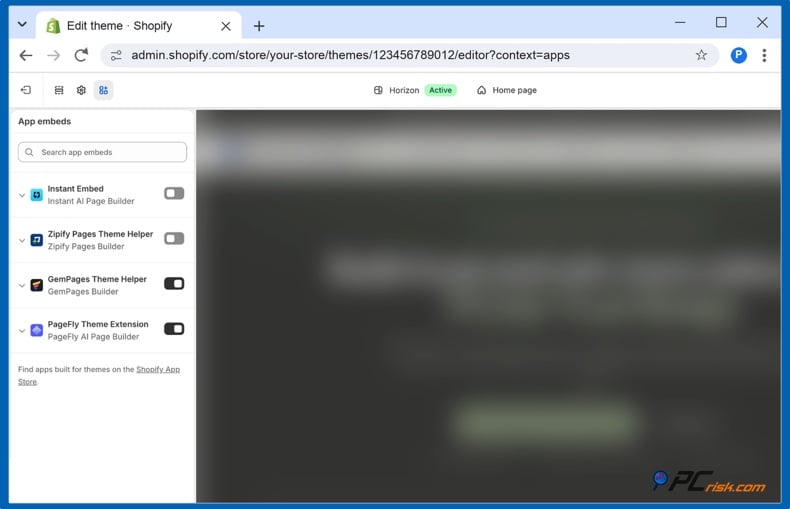
3. Switch off what you do not need. Turn off embeds from apps you no longer use, do not recognize, or that are named in a security notice, then press Save.
Step 4: Look inside custom code fields (1 minute)
The malicious code sat in app settings that accept custom JavaScript or HTML. Open each app that shows something on your storefront, such as product options, upsells, wishlists, or pop-ups, and look for fields called custom code, custom JavaScript, or custom HTML. If a field holds code nobody on your team added, take a screenshot and contact the app developer.
Step 5: Search your theme code (1 minute)
In Swym's second incident, scripts were added to theme files, and Swym asks merchants to search their themes for a specific marker.
1. Open the code editor. Go to "Online Store", then "Themes", click the three dots next to your live theme and choose "Edit code".
2. Search all files. Click the search icon in the left sidebar, search for checkout-guard, and for each domain listed above, type it without the square brackets.
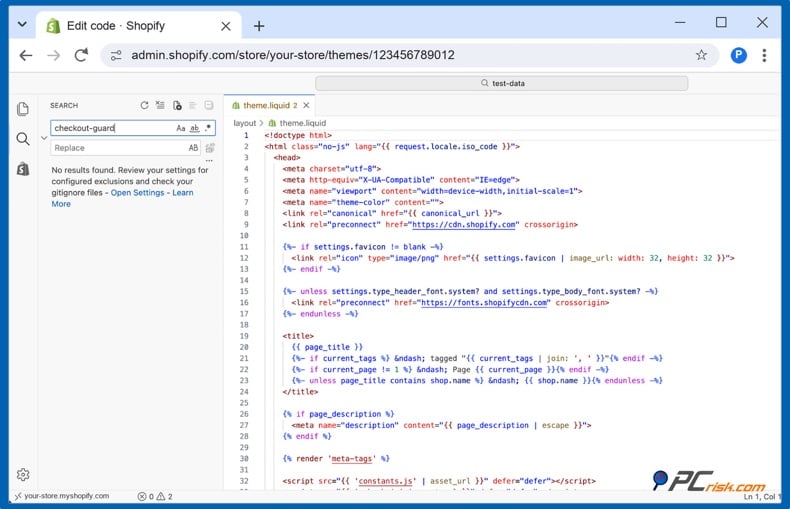
No results are good news, but it only covers your theme. Code that an app loads from its own server never appears here, which is why steps 1-4 matter.
Step 6: Lock down passwords and access (1 minute)
1. Turn on two-step authentication. Open your profile in the Shopify admin, go to "Security" and turn it on, then require it for every staff account (Shopify's guide).
2. Review staff and collaborators. Go to "Settings", then "Users". Remove anyone who no longer needs access, and check the user activity log on the Security page.
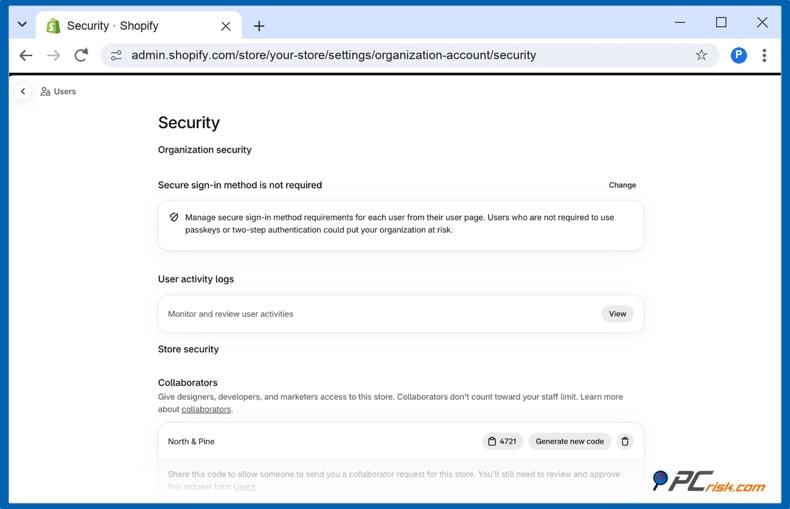
3. Change passwords for your app dashboards. Many apps have their own website login. Change those passwords as well as your Shopify password.
Step 7: Scan your store from the outside (1 minute)
Finally, check how your store looks to the security services that browsers and email providers rely on. If your domain has been flagged for malware or phishing, you want to know before your customers do.
1. Open the PCrisk Website Scanner. Go to scanner.pcrisk.com. The scan is free and doesn't require you to create an account.
2. Enter your store's address and click "Check website".
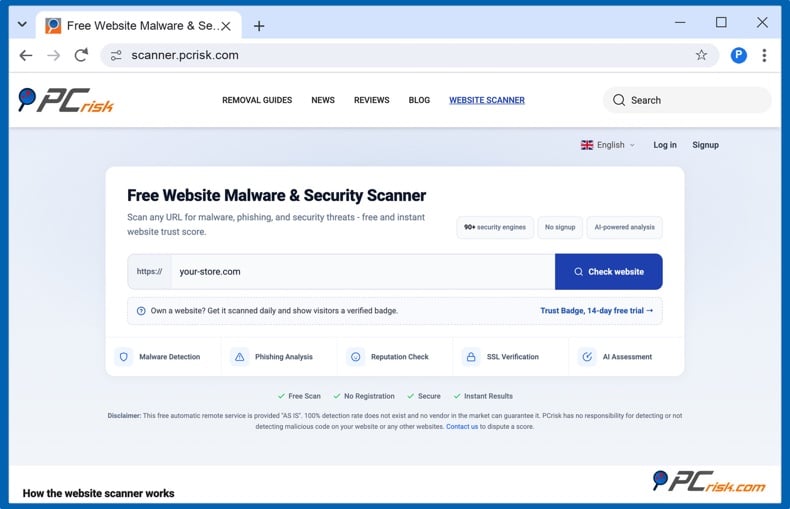
3. Read the report. It shows whether more than 90 security engines and 10 threat databases flag your domain, what a scan of your homepage files found, and a trust score from 0 to 100.
An outside scan does not click your Checkout button, so it complements the private-window test in step 1 rather than replacing it.
If your checkout redirects
1. Capture evidence. Take a screenshot that shows the address bar, and note the time and the button you clicked.
2. Stop new shoppers reaching the fake page. Go to "Online Store", then "Preferences," and turn on "Private mode" under Store access (Shopify's guide).
3. Switch off the app you suspect. Turn off its app embed or uninstall it, then test again in a new private window.
4. Contact the app developer, Shopify, and your payment provider. Reach out to Shopify through the Shopify Help Center and ask the developer for the exact times the code ran on your store.
5. Report the fake domain to Google Safe Browsing, change your passwords as in step 6, and ask a legal adviser whether you must notify affected customers.
Shopify security apps that can help
No app on the Shopify App Store reliably catches an attack like this one, so the private-window test stays your most important check. Apps can still help you notice tampering, see who changed what and roll your theme back. We checked these listings on 21 October 2026.
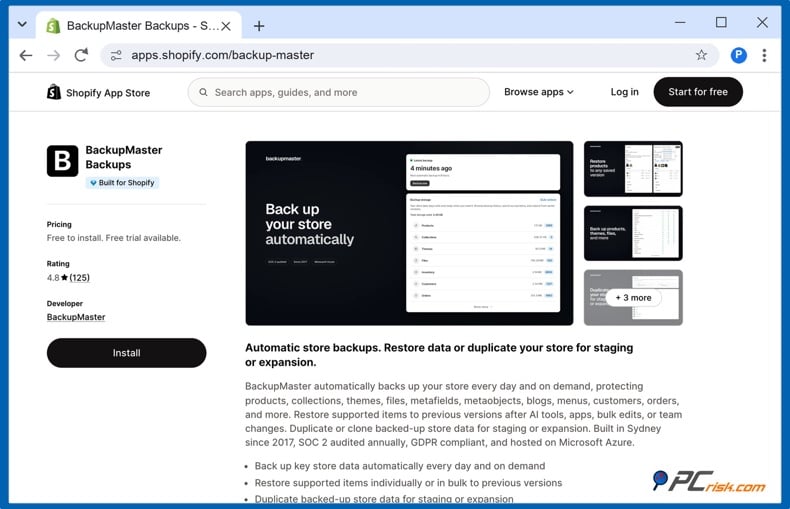
| App | Rating (reviews) | Price | How it helps |
| BackupMaster Backups | 4.8 (125) | From $19/month | Daily backups with a 365-day history so that you can restore a clean theme |
| Rewind Backups | 4.3 (631) | From $19/month | Long-running backup app; higher plans add automated shopper-journey tests |
| Whodunit: Audit Log & Activity | 5.0 (2) | From $29/month | Shows which staff member or app changed your theme |
| CartShark Security | No reviews yet | From $14/month | Watches which scripts run in real shoppers' browsers |
| SketchAudit Theme Scan | No reviews yet | From $7.99/month | Nightly scan of your theme files for injected scripts |
| PCrisk Trust Badge | No reviews yet | Free plan; Premium $19/month | Outside scans for malware, phishing and blocklists, plus a badge shoppers can verify |
Backups do not detect anything, but they let you restore a clean theme in minutes. Theme scanners and change logs only see theme files so they would have missed most of this attack. CartShark is the only App Store app we found that watches scripts in real shoppers' browsers, but it is new to Shopify, so test it during the trial. Ratings and prices change, so check each listing before you install.
Monitoring your store with PCrisk Trust Badge
PCrisk Trust Badge keeps checking your store from the outside every 24 hours, the way security services and shoppers see it.
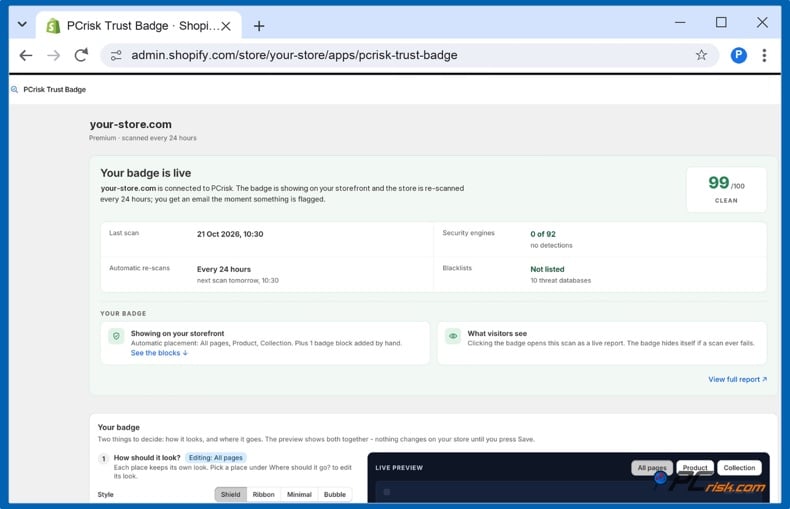
- What it checks: the service scans your store against more than 90 security engines and 10 threat databases, and scans the files your pages load, all summed up as a trust score in your Shopify admin.
- How often: the free plan scans once a month and emails you if your store is flagged. Premium, at $19/month with a 14-day trial, scans every day.
- What shoppers see: Premium adds a badge that opens the live, dated scan report when clicked, and hides itself if a scan ever fails.
After a scare like this, shoppers are more careful about where they enter their card details. A badge backed by an independent, dated report gives them something they can check for themselves.
In closing
The October 2026 Shopify checkout hijack did not break Shopify's checkout. It turned trusted apps against the stores that installed them. Our recommendation for online store owners is to keep fewer apps, leave custom code fields empty, use two-step authentication, and test your checkout in a private window today, after every new app or update, and once a month after that.
Get the PCrisk Trust Badge for Shopify
Frequently asked questions (FAQs)
Was Shopify hacked in October 2026?
There is no public evidence that Shopify itself was hacked. Attackers changed the settings of third-party apps available on the Shopify platform, and that app code redirected shoppers before Shopify's checkout loaded.
Which Shopify apps were affected by the checkout hijack?
As of 21 October 2026, the developers of Hulk Product Options, Selleasy and Swym Wishlist Plus have confirmed incidents. Other apps have been named by merchants but not confirmed.
My checkout test looked normal. Is my store safe?
It means nothing was found during that test. Repeat it in new private windows, from the cart drawer, and on a phone, and ask your app developers whether your store was affected earlier.
Do I need to uninstall Hulk Product Options, Selleasy or Swym Wishlist Plus?
Follow each developer's latest notice. If you do not need the app, uninstalling it is the simplest way to remove the risk.
What should customers do if they entered card details on a fake checkout?
They should call their card issuer immediately, have the card blocked and replaced, and check their statements for any unfamiliar payments.
What is Shopify doing to stop this from happening again?
Shopify asked every app developer to take security steps during the week of 20 October 2026, and said it will tighten what app code can do on storefronts, restrict where app keys work, and raise App Store security requirements, with timelines to follow.
How do I know if my Shopify account has been hacked?
Warning signs include login alerts you do not recognize, staff or collaborators you did not add, a changed payout account, and theme edits nobody on your team made. Turn on two-step authentication, change your password, and contact Shopify Support if you see any of these.
Share:
 Facebook
 X.com
X.com
 LinkedIn
 Copy Link