
Your site is blocked by an antivirus? How to get it unblocked

Is your site blocked by an antivirus? How to get it unblocked
If a customer reports that their antivirus or browser is blocking your website, we recommend investigating promptly. A security warning can interrupt a visit before someone browses your products, submits an inquiry, or completes a purchase. Even when the warning is a false positive, visitors may hesitate to share personal or payment details and choose another business instead.
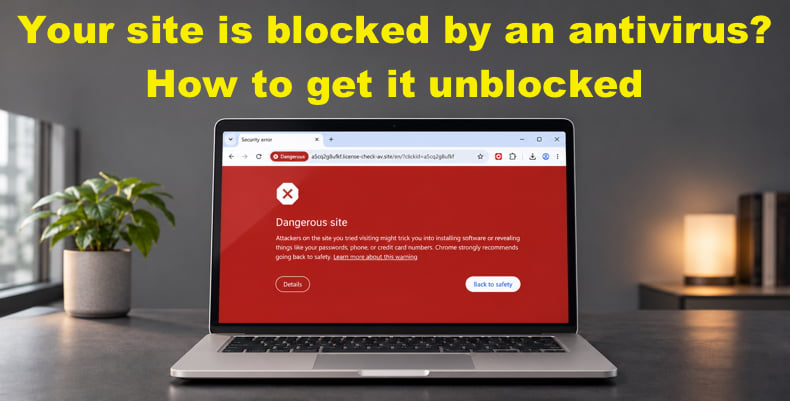
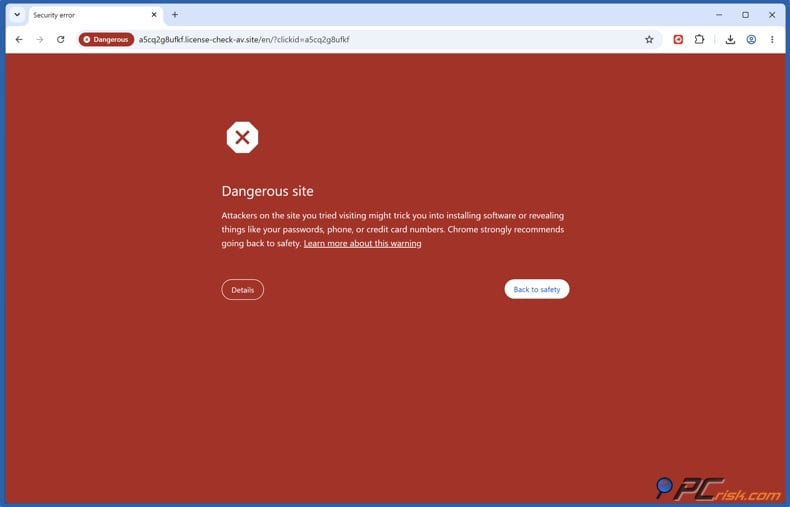
The warning may reflect a genuine security problem, an incorrect detection, or an issue that has already been repaired. Understanding which situation applies will help you choose the right response.
Customers who encountered the warning may still be uncertain about returning after the block is removed. For website owners, resolving the issue and rebuilding customer confidence are both important.
In this guide, we explain how to check your website for reported safety issues, investigate the warning, and contact the responsible security vendor to request a reassessment. We also explain how ongoing monitoring with PCrisk Trust Badge can help you keep track of your website's status after the immediate problem is resolved.
Table of Contents:
- Introduction
- Why is an antivirus blocking your website?
- Check your website with PCrisk Website Scanner
- How to get your website unblocked
- Report a website false positive: security vendor contacts
- Why buy a security trust badge for your website?
- How to add PCrisk Trust Badge to your website
- In closing
- Frequently asked questions (FAQs)
Why is an antivirus blocking your website?
An antivirus may block your website when its web protection feature identifies a potential risk in the domain, a page, or something the page loads. The warning may concern malicious content, a suspicious download, or a connection to an address the security company considers unsafe.
A false positive is a false alarm: an antivirus incorrectly identifies a harmless website, page, or resource as a security threat. We recommend investigating the warning before assuming the detection is mistaken.
There are three situations to distinguish:
- A genuine security issue. Your website, or something it loads, contains harmful content. The underlying problem needs to be resolved before you request reassessment.
- A false positive. A harmless website or resource has been incorrectly classified. You can ask the security company to review the detection and provide evidence explaining why you believe it is wrong.
- A warning that remains after cleanup. Your website previously contained harmful content, but the problem has been resolved. The original detection was accurate, and a review or update may still be needed before the warning disappears. Google's Help Center tells website owners to fix confirmed problems before requesting reassessment.
Common issues to investigate
A legitimate business can still have a compromised website. Attackers may make changes that are difficult to notice during an ordinary visit, including adding unauthorized pages or inserting code that loads harmful content. Google's Help Center identifies these as security concerns for website owners.
Malicious scripts and embedded content. Attackers can insert harmful code into your website's files or cause pages to load malicious scripts from another domain. This means the problem may involve an external resource as well as content hosted on your own server.
Hidden redirects. A compromised page could be set up to redirect the visitor to a phishing site, a scam, or a malicious download. Some redirects only occur under certain circumstances (for example, if you arrive from a search engine), so the owner may never see them during a normal browse.
Unauthorized phishing pages. Attackers may create pages that impersonate banks, email services, or payment providers to steal login credentials and other sensitive information. These pages can exist on your domain without your knowledge.
Harmful downloads. Files offered through your website may contain malware or unwanted software. Investigate the specific download named in the warning, including files hosted elsewhere that your pages link to.
Domain or IP address reputation. Security products may block an address associated with harmful activity. When several websites share an IP address, a block targeting that address can also affect legitimate sites using it. Your hosting provider may need to help with the investigation.
Certificate and connection issues. Invalid certificates or an insecure connection can trigger browser warnings. Those need to be addressed but in themselves do not prove that your site contains malware. You need to look at the precise warning to determine whether it's a connection issue or a content issue.
Outdated website software. Vulnerabilities in your CMS, plugins, themes, or server software can give attackers a way into your website. Check for security updates as part of the investigation. Our article explains how to check and update your website's PHP version.
A current website scan can help you compare the reported findings with the visitor's warning and identify concerns that need further investigation.
Check your website with PCrisk Website Scanner
Our PCrisk Website Scanner checks websites against our database to identify safety issues. Its report helps you understand the concerns that need attention and organize your investigation before asking a security company to reassess its warning.
We recommend following these four steps:
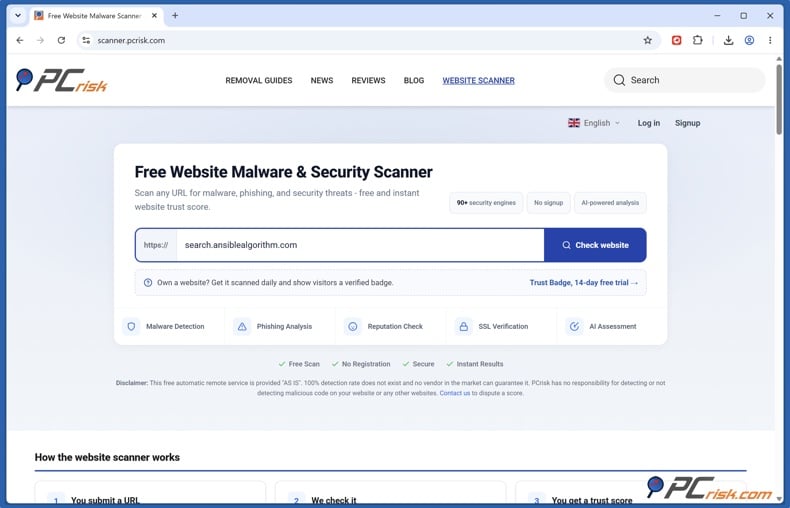
1. Enter your website's public address. Open the scanner, enter the URL, and click "Check website." Scan reports are public, so use an address without private access tokens or customer information.
2. Look at the findings and the scan date. Read through the detailed findings and the overall trust score. Look out for any reported detections or issues relating to page resources, redirects, or the site certificate. Check the date of the last completed scan, and if that's out of date, then go ahead and request a fresh scan.
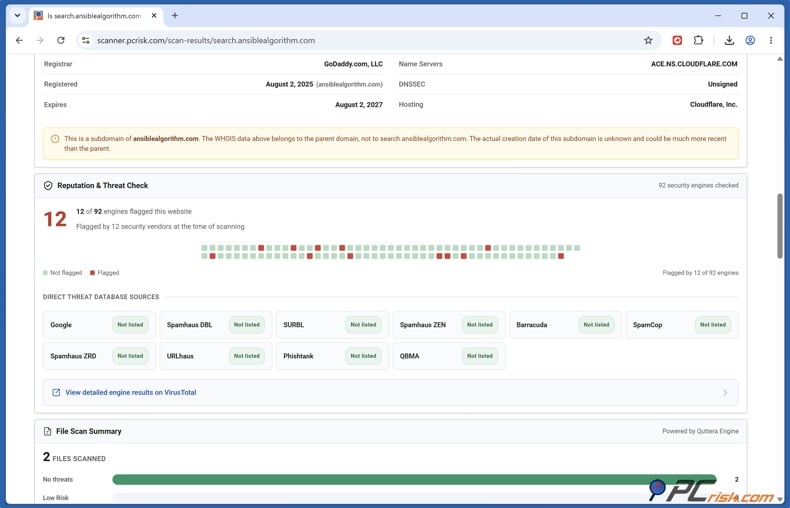
3. Compare the report with the visitor's warning. Check whether the findings pertain to the same page, redirect, download, or resource as in the original alert.
4. Investigate the concerns before requesting a review. Use the findings to identify what your developer or hosting provider needs to examine. Resolve confirmed problems and record what you checked or changed. This provides useful supporting information to help explain your case to the security company.
The results describe what was found at the time of the check. A clean report does not guarantee that your website is completely safe.
Your site's status can change after this initial investigation. With a paid PCrisk Trust Badge plan, we check your website every 24 hours and send alerts when a scan identifies a problem. Recurring checks help you follow reported changes, while the clickable badge gives visitors access to your latest scan report.
How to get your website unblocked
Getting your website unblocked starts with identifying the cause of the warning and contacting the company responsible. We recommend these four steps to investigate the issue, prepare a review request, and confirm the result.
1. Record the warning and affected URL
Identify the security vendor from the original warning or product log. Take a screenshot and record the product name, detection name, full blocked URL and the date and time the warning appeared. If a visitor has reported the issue then ask them for these details.
Check whether the warning concerns your domain, a specific page, a redirect, or a resource loaded from another website. Record the exact affected address, even when it differs from your homepage.
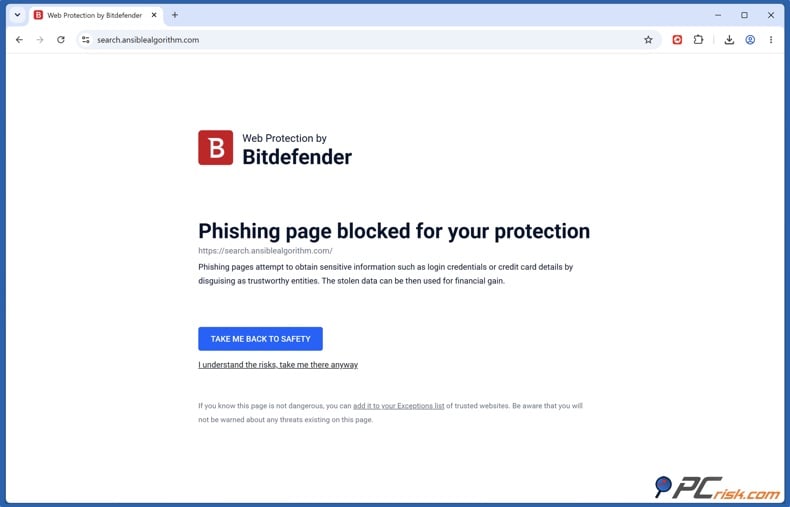
If the warning concerns an SSL/TLS certificate or says "Your connection is not private," ask your developer or hosting provider to check the certificate and HTTPS configuration. The problem may also involve the visitor's device or network. A false-positive review request does not repair a certificate or connection problem.
2. Investigate and resolve any genuine problems
Check the antivirus warning in conjunction with your PCrisk Website Scanner results. Ask your developer or your host to look into any suspicious scripts, any unauthorized pages, any bad downloads and any unexpected redirects.
Fix confirmed security issues before requesting reassessment. If your site has been compromised then you need to deal with both the malicious content and the vulnerability that enabled the attack. You must keep a full record of your investigation, the changes you've made and when the cleanup was completed.
3. Submit a review request to the responsible company
Use VirusTotal's false-positive contact directory to find the appropriate reporting channel. Choose the website or URL review route when the warning concerns a web address, and follow the vendor's submission requirements.
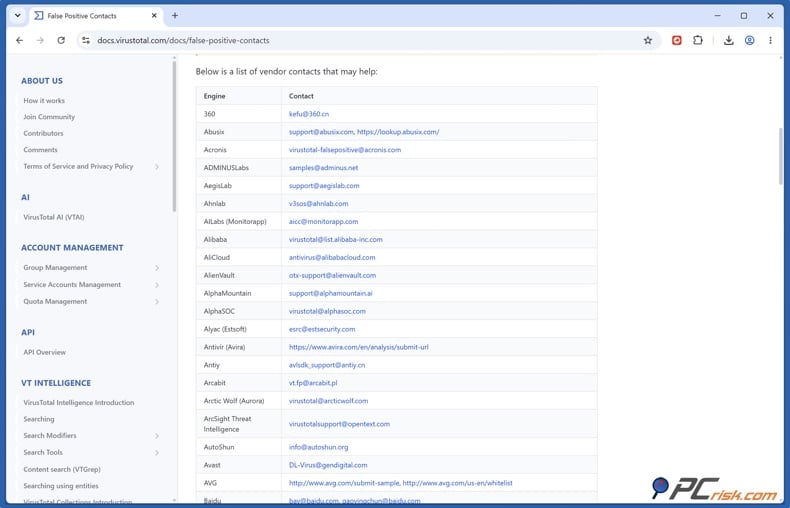
Explain that you own or administer the website, provide a contact email, and include the evidence collected above. Describe the situation clearly. If the website was infected, explain what was repaired. If you suspect a false positive, explain what you checked and why you believe the detection is incorrect.
If several companies flag your website, you may need separate review requests. VirusTotal aggregates results from participating vendors and cannot remove detections for them.
4. Follow up and confirm the result
Keep the submission reference, check for any replies and provide any further info as required. Follow the vendor's guidance on review times and updates.
Once the vendor has confirmed the correction, update the original security product and then retest the affected URL with protection enabled and any local exception removed (an exception can, of course, allow access on your machine while the vendor's classification remains as it was).
If the warning continues then follow up with the existing case reference, a new screenshot and the time of the last detection. Check the other products that originally blocked the site separately.
Report a website false positive: security vendor contacts
Find the company named in the original warning and use their website or URL review channel below. The reporting requirements will vary so please follow the vendor's instructions and include the evidence you collected in the previous section.
ESET false positive: request a website review
For a blocked site the ESET reporting instructions are to email samples@eset.com with the full affected URL and a description. The subject line should be "Domain whitelist [blocked domain]" and a screenshot of the warning should be attached to help the research team with the identification of the detection.
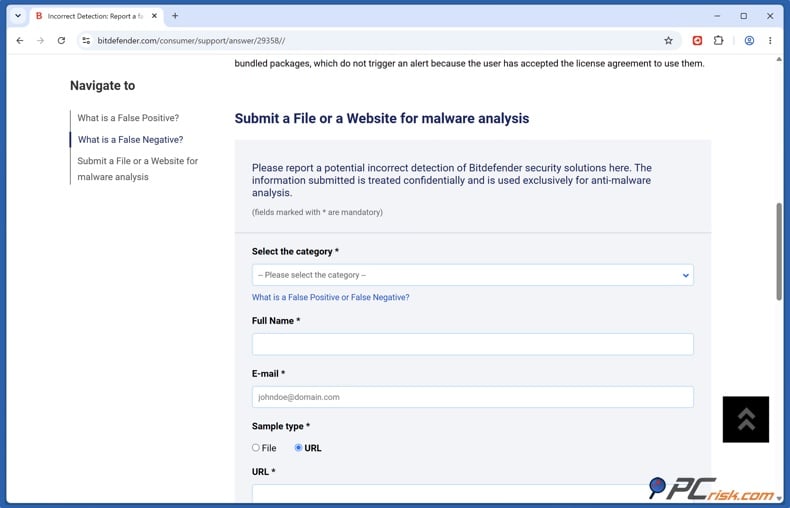
Bitdefender false positive: report a blocked URL
Use the Bitdefender submission form to report a suspected website false positive. Choose the URL reporting option and enter the full blocked URL. Provide your contact details, the name of the Bitdefender product, the detection details and include a screenshot of the warning. Also provide a short explanation of your investigation and/or any cleanup you've done prior to requesting a reassessment.
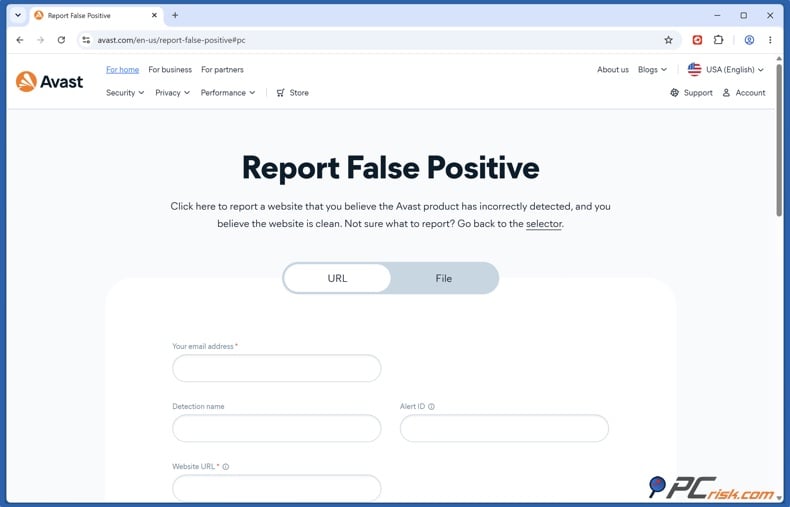
Avast false positive: submit your website for review
Open up the Avast false positive report form and select URL. Enter your email address, the full blocked URL, the Detection name and Alert ID from the original warning. In the Description field, state that you own or administer the site and give a summary of why you believe the detection is incorrect or what you've actually fixed. Complete any requested verification and submit the form.
For additional reporting options, visit VirusTotal's false-positive contact directory and find the security company named in your warning. Submit your review request directly to that company, using its website or URL reporting channel and including the evidence from your investigation. If several vendors are flagging your website, contact each one and confirm the outcome of every review before considering the issue resolved.
Why buy a security trust badge for your website?
Removing an antivirus warning resolves the immediate access problem, but website owners also need a way to follow changes in their site's reported security status. Customers who encountered the warning may want reassurance before returning.
PCrisk Trust Badge combines regular security checks with a report that visitors can go and check for themselves. With the paid plan you get a site checked every 24 hours and are alerted when a scan finds an issue. Visitors can click on the badge to go and view the details of the most recent scan and the time it was carried out. That makes your security checks visible and gives the customer some information they can use in their decision as to whether to keep on browsing or to make a purchase.
The badge complements website maintenance and security measures. It does not guarantee that a website is free of threats or control another security company's blocking decisions.
Baymard's checkout research found that visual security cues, including trust badges, can influence how secure shoppers perceive a payment form to be.
Reasons you should consider buying a security trust badge
1. Reduce the amount of manual checking you do. With the paid PCrisk Trust Badge plan we check your site every 24 hours which in turn reduces the amount of routine checking you need to do yourself. The scheduled scans will help you keep up with any changes to your site's reported security status while you're busy with your content, your customers and your business.
2. Get alerts when a scan finds a problem. We send you an email alert when a scan finds an issue so you're aware when something needs looking at. You can then go and look at the findings and share the relevant details to your developer or hosting provider. That way you can deal with the issues that are picked up during your scheduled scans without having to open the report every day to see if anything's changed.
3. Give visitors access to the dated security findings. They can click on your badge to open up a public report hosted by PCrisk. The report will show the timestamp of the most recent scan, the trust score and the findings. This allows the visitor to go and look at the actual information that underpins the badge. They can see when the site was scanned and what the scan found.
4. Support customer conversations after a warning. If a customer asks about an earlier antivirus warning, you can share your public scan report alongside an explanation of your investigation and any corrective work. This gives the customer specific, dated information to review. It can help you explain the steps you have taken and address questions about returning to your website.
Make your ongoing security checks visible. A badge in a clear, unobtrusive location means that your security checks are easily found during a normal visit to your site. Visitors can spot the report as they're browsing your site, even if they don't actually get in touch with you. It's a simple way of showing that you're concerned about the security of your site and may help address visitors' concerns.
How to add PCrisk Trust Badge to your website
Adding PCrisk Trust Badge gives visitors a simple way to check your latest scan results. We offer a WordPress plugin, a Shopify app, and an installation snippet for other websites.
1. Connect your site and activate your plan. Install our plugin or app and follow the onscreen setup. Shopify subscriptions are activated via Shopify. For the snippet installation you'll need to create a PCrisk account, add your domain and select a plan that includes the badge.
2. Choose the look and placement of the badge. Select from the various styles, sizes and themes available in your chosen integration. We'd recommend a fairly visible position such as in your footer or a floating corner so that your navigation and purchase buttons aren't obscured.
3. Install and publish. Enable the badge through your plugin or app, or paste the generated snippet into your website. Save your changes and publish them. On Shopify, make sure you also save the changes in the theme editor.
4. Check the badge and its report. Once your subscription is active and your website passes the required scan, check the badge on desktop and mobile. Click it to confirm that it opens the report for the correct domain and displays the latest completed scan information.
In closing
An antivirus warning absolutely warrants a prompt investigation even if you think your site is safe. Check the URL in question, resolve any confirmed security issues and get in touch with the company in question to request a review. Once the warning has gone you can then carry on with your regular checks to keep up to date with any changes to the site's reported status.
PCrisk Trust Badge combines ongoing monitoring with security results your visitors can verify. With a paid plan, we check your website every 24 hours and send alerts when a scan identifies a problem. The clickable badge opens a dated public report showing your latest completed scan results.
For website owners working to rebuild customer confidence, this makes security checks visible and easy to review. It also reduces the effort of checking your site's status manually.
Frequently asked questions (FAQs)
How long does it take to get a website unblocked?
There is no universal timeframe. The security company needs to review your request, and a correction may then need to reach users through an update. Google's security reviews, for example, can take several days to a few weeks. Follow the responsible company's guidance, retain your submission reference, and confirm the result with the original security product.
If only one antivirus flags my website, is it a false positive?
Not necessarily. A single detection can identify a genuine issue, and clean results from other scanners do not prove that the warning is wrong. Different tools may assess different content, such as a URL or a downloadable file. We recommend checking exactly what was flagged and investigating the finding before asking the vendor to remove its detection.
Why is my website still blocked after the vendor has confirmed a correction?
The correction may not yet have reached the security product, or another service may still be flagging the site. Update the original product, check the precise URL in question and if the warning continues then use your existing case reference to follow up. VirusTotal can also hold on to its cached URL results even after a vendor has removed a detection so the VirusTotal report may need to be reanalyzed or a cache update may be required.
How can PCrisk Trust Badge help after my website is unblocked?
It combines recurring security checks with results your visitors can verify. With a paid PCrisk Trust Badge plan, we check your website every 24 hours and send email alerts when a scan identifies a problem. Visitors can click the badge to view your latest completed scan report and its timestamp. This reduces routine manual checking and gives customers a clear way to review your website's reported security status.
Share:
 Facebook
 X.com
 LinkedIn
 Copy Link