
We may earn commissions from products we recommend. Learn more.
PHP2Shell: how to check and update your website's PHP version

PHP2Shell: how to check and update your website's PHP version
On 21 October 2026, the PHP project released fixes for two critical flaws, nicknamed PHP2Shell, that could allow an attacker to run their own code on a web server without logging in. PHP runs about 70% of websites, according to W3Techs, including every WordPress site, so this affects a very large part of the web.
The fix is a newer PHP version, not a WordPress or plugin update. This guide explains in plain terms how to check which PHP version your website runs and the simplest ways to update it.
Check your website's PHP version
Table of Contents:
- Introduction
- What is PHP2Shell?
- Which PHP versions are fixed
- Way 1: Check your PHP version with PCrisk Website Scanner
- Way 2: Check your PHP version in WordPress
- Way 3: Check your hosting control panel
- Way 4: Ask your hosting provider
- How to update PHP
- If you cannot update right away
- In closing
- Frequently asked questions (FAQs)
What is PHP2Shell?
PHP is the programming language used to build the pages of most websites, from WordPress blogs to online shops. PHP2Shell is the name researchers gave to an attack that combines two newly found PHP flaws, CVE-2026-109618 and CVE-2026-109619. They were found by researchers at Calif, Wiz, and OpenAI and reported to the PHP project in August.
In its security advisory, the PHP project says the flaws "can allow unauthenticated remote code execution". In plain words, a stranger can send a specially crafted request to your website and, in the worst case, take control of the server behind it. The problem sits in PHP itself, before any WordPress, plugin, or theme code runs.
A few things to know:
- Almost every website that runs PHP is affected, whatever the hosting setup. PHP considers the risk highest on servers that run PHP inside Apache (mod_php).
- Attacks started straight away. Amazon logged its first attempt on 17 October, before the announcement, and Cloudflare's CEO spoke of millions of attempts within hours of the announcement. As of 22 October, no successful break-in had been publicly confirmed.
- Updating WordPress, plugins, or themes does not fix it. Only an updated PHP version does.
Which PHP versions are fixed
PHP versions come in families, called branches, such as 8.3. Each branch gets small updates with a third number, such as 8.3.35 and 8.3.36. The fix arrived in the newest release of every supported branch:
| Your PHP branch | Fixed version | Security updates until |
| PHP 8.5 | 8.5.12 or newer | 31 December 2029 |
| PHP 8.4 | 8.4.27 or newer | 31 December 2028 |
| PHP 8.3 | 8.3.36 or newer | 31 December 2027 |
| PHP 8.2 | 8.2.35 or newer | 31 December 2026 (ends soon) |
| PHP 8.1, 8.0, 7.4 and older | No official release | Ended (end of life) |
The dates come from the PHP supported versions page. WordPress recommends PHP 8.3 or newer, yet about a third of WordPress sites still run PHP 8.1 or older, according to WordPress.org statistics.
Two exceptions are worth knowing before you check your own site:
- Some hosts fix PHP without changing the number. Ubuntu, Plesk, cPanel, CloudLinux, and several hosting companies shipped patched builds that keep the old version number, including fixes for PHP 7.4, 8.0, and 8.1. If your number has not changed, your host's announcement is the deciding factor.
- An old branch stays risky even when patched. PHP 8.1 and older no longer get official security fixes, so the next flaw may not be fixed at all. Plan a move to PHP 8.3 or 8.4.
Way 1: Check your PHP version with PCrisk Website Scanner
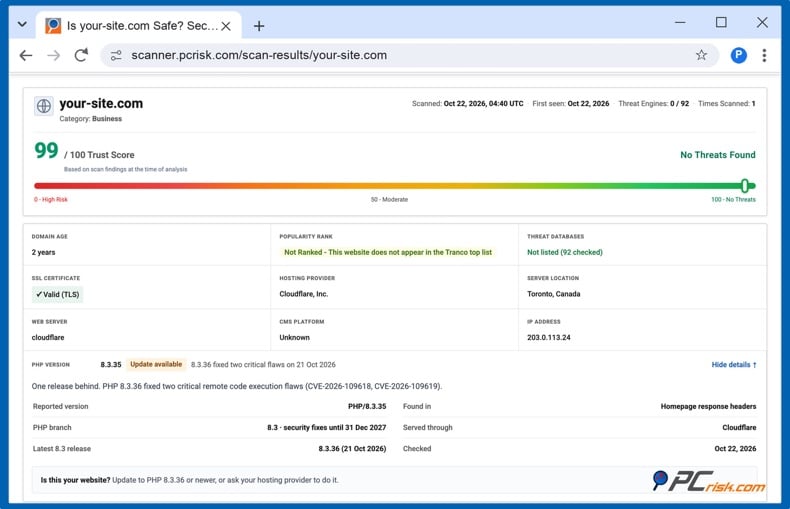
This is the quickest way and needs no login. The free PCrisk Website Scanner reads the PHP version your website reports to every visitor and compares it with the latest releases.
1. Open scanner.pcrisk.com and type your website address, for example, your-site.com.
2. Start the scan and wait for the report. It usually takes a minute or two.
3. Find the PHP Version row under the information tiles. Click "Details" to see the reported version, the branch, its support date, and the latest release.
The row shows one of these results:
- Up to date: the site reports the latest release of its branch.
- Update available: a newer release exists. In the example above, the site reports 8.3.35, one release behind the fixed 8.3.36.
- Support ends soon or End of life: the branch stops, or has stopped, getting security fixes.
- Version hidden: the site runs PHP but does not show which version. Most websites hide it, which is good practice, so use Way 2, 3, or 4.
The scanner reads the version your server reports. It does not attack your site or test whether it can be exploited. The same scan also checks your website against more than 90 security engines and 10 threat databases.
Other free online checkers. Two security companies also launched free PHP2Shell checks:
Brandefense PHP2Shell check: reads the PHP version your site reports, as with the PCrisk scanner, and tells you whether it falls within the affected range. It also warns you when a service such as Cloudflare may be hiding the version.
Aikido PHP2Shell checker: instead of reading the version, it sends test requests to your site and measures how PHP responds. Use it only on your own website, and leave its optional "definitive check" off on a live site, because it can crash a PHP process.
Every outside check has limits. A tool that reads the version cannot see a fix your host added without changing the number, and Aikido says its timing test alone cannot tell patched PHP from vulnerable PHP. Treat any result as a starting point and confirm with Way 2, 3, or 4.
Way 2: Check your PHP version in WordPress
WordPress shows the exact PHP version that runs your website, even when it is hidden from visitors.
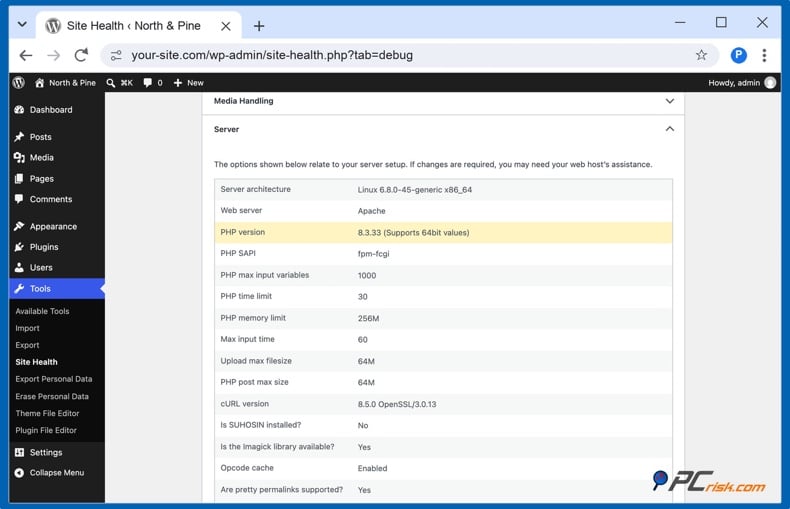
1. Log in to your WordPress dashboard and go to Tools, then Site Health.
2. Open the Info tab and expand the Server section.
3. Read the PHP version row. In the example below, the site runs 8.3.33, so it needs the 8.3.36 update.
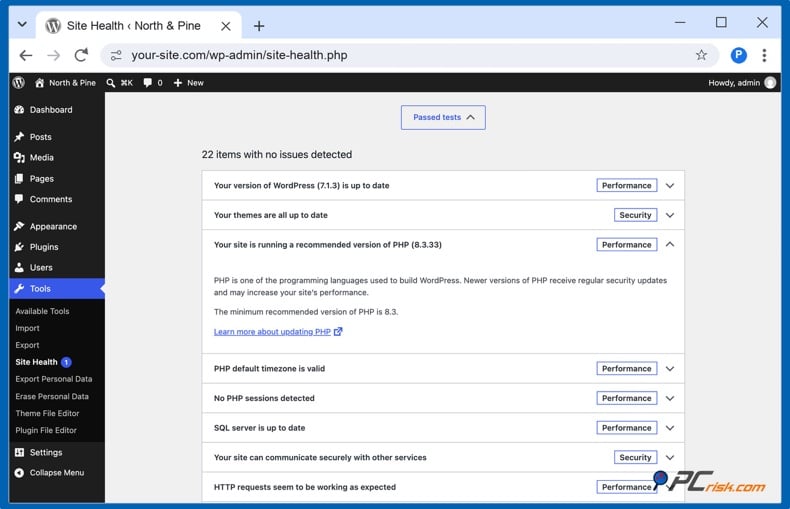
Do not rely on the green checks on the Status tab. Site Health calls any PHP 8.3 or newer "a recommended version of PHP", even when it is missing the PHP2Shell fix, as in the same example:
The same goes for the dashboard. WordPress shows a "PHP Update Required" box only for PHP 8.0 and older, such as 7.4 below. No box does not mean you are up to date.
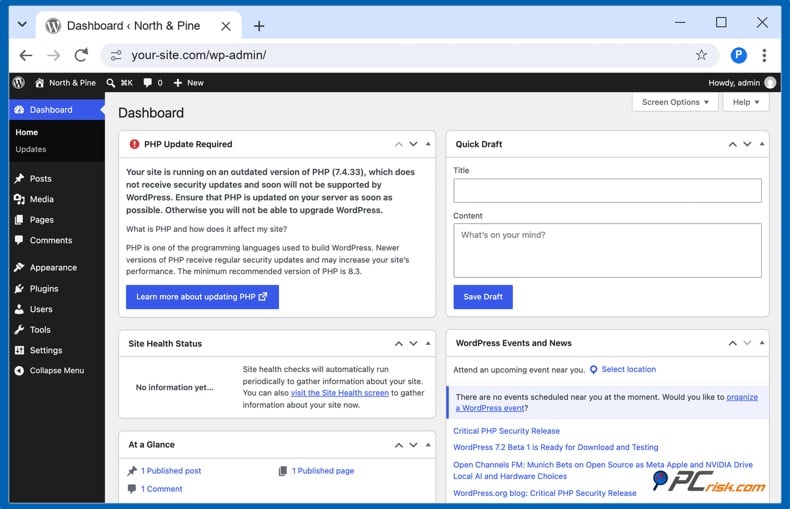
Other website builders have a similar page: in Joomla, open "System", then "System Information". In Drupal, open "Reports", then "Status report". WooCommerce shops also see the PHP version under "WooCommerce," "Status".
Way 3: Check your hosting control panel
Your hosting panel shows which PHP branch your site uses, and it is also where you change it. In cPanel, open "MultiPHP Manager" (or Select PHP Version on many budget hosts). In Plesk, open "Websites & Domains", then "PHP'. Hosts with their own panels, such as Hostinger, SiteGround, GoDaddy and Kinsta, have a PHP page in the site settings (see the table in the update section below).
Most panels show only the branch, such as "PHP 8.3 ", not the full number. Plesk and SiteGround's PHP Manager show the full number, and Hostinger and Bluehost have a separate PHP Info page that does. The small security updates inside a branch are installed by the host, so check the full number or ask the host before you assume the PHP2Shell fix is in place.
If you run your own server (a VPS or dedicated server), you or your developer can check the version on the server itself. Keep in mind that the command-line PHP can differ from the PHP that serves your website, and never leave a temporary page that prints PHP settings online.
Way 4: Ask your hosting provider
This is the most reliable answer, because only your host knows which build it installed. Most large hosts posted a PHP2Shell update on their blog or status page on 21 or 22 October, so check there first. If you find nothing, send support a short message like this:
"Is the PHP on my hosting account updated for CVE-2026-109618 and CVE-2026-109619 (PHP2Shell)? Which PHP version and build do I run, and was PHP restarted after the update? If it is not updated yet, when will it be?"
How to update PHP
There are two different kinds of PHP update, and who does them depends on your hosting.
A security update inside your branch (for example 8.3.35 to 8.3.36) is installed by the host on shared and managed hosting. There is no button for it, and it almost never breaks a site. Here is what the larger hosts said as of 22 October 2026:
| Host | What it said (as of 22 October 2026) | Do you need to act? |
| Hostinger | Updates complete on all managed hosting servers (blog) | No; VPS owners update themselves |
| GoDaddy | Managed WordPress and Windows hosting patched; cPanel Web Hosting rolling out (update) | No; VPS owners update themselves |
| Bluehost and HostGator | Most servers patched, protections in place meanwhile. (HostGator update) | No |
| SiteGround | Protections added before the release (blog) | No, per SiteGround |
| Kinsta | Patches rolling out for PHP 7.4 to 8.5 | No |
| WP Engine | Patches applied, incident closed | No |
| Cloudways | Patching all supported versions, nearly complete | No |
| WordPress.com | Sites protected at the infrastructure level | No |
A move to a newer branch (for example, 7.4 or 8.1 to 8.3) is something you do yourself in the hosting panel. Do it now if your site runs PHP 8.2 or older; 8.1 and older are out of support, and 8.2 ends support on 31 December 2026. Choose PHP 8.3 or 8.4.
1. Make a full backup of your files and database, with your host's backup tool or a backup plugin.
2. Update WordPress, your plugins, and your theme first. Outdated plugins are the most common reason a site breaks after a PHP change.
3. Try it on a staging copy if your host offers one (Kinsta, WP Engine, Cloudways, SiteGround, WordPress.com and others do).
4. Change the PHP version in your hosting panel:
| Panel or host | Where to change PHP |
| cPanel | Software>MultiPHP Manager: tick your domain, pick a PHP version, click Apply |
| cPanel with CloudLinux (Namecheap and many budget hosts) | Software>Select PHP Version: pick the version, then Apply or Set as current |
| Plesk | Websites & Domains>PHP: pick the PHP version, click OK |
| Hostinger | Websites>Dashboard>PHP Configuration: pick a version, click Update |
| SiteGround | Site Tools>Devs>PHP Manager: click the pencil icon, choose Managed PHP or a version, click Confirm |
| Bluehost | Websites>Manage Site>Advanced tab>PHP Version: Change Version, then Apply |
| GoDaddy Web Hosting | Web Hosting>Manage>Settings tab>Server Settings: Change next to PHP Version, then Save Changes |
| Kinsta | Sites>your site>Tools: Change under PHP settings |
| WP Engine | Sites>your environment>Updates section: click the PHP version number, pick a version, Confirm |
| Cloudways | Your application>Application Settings>PHP Settings: edit the PHP Version |
| WordPress.com | Hosting Dashboard>your site>Settings>Server: PHP, pick a version, Save |
5. Check your site straight away. Open the home page and a few inner pages, log in to the dashboard, send a test message through your contact form, and if you run a shop, add a product to the cart and go as far into checkout as you can.
6. If something breaks, switch back in the same place and ask the plugin or theme developer for an update. WordPress also emails the site administrator a recovery link if a plugin crashes after the change. On Hostinger, switching back to an older version only works in the same login session, so test right away.
If you run your own server, install your operating system's security updates for PHP, then restart PHP and the web server. Until they restart, the old, vulnerable PHP keeps running. Ubuntu, Debian, Red Hat, cPanel, Plesk and CloudLinux all released patched packages on 21 or 22 October.
If you cannot update right away
An update is the only complete fix, but these steps lower the risk while you wait:
- Use a web application firewall. Cloudflare turned on PHP2Shell rules automatically for all plans with its firewall, the free plan included (Cloudflare's post). On paid plans, check that the Cloudflare Managed Ruleset is deployed; if the dashboard shows a php2shell warning, click Deploy Cloudflare Managed Ruleset. Many hosts added similar rules on their own servers.
- Ask your host for the temporary settings listed in PHP's advisory, such as turning off session upload progress and lowering the maximum upload size. They have to be set on the server, so your host is the one to do it.
- Take the site offline if it runs PHP 8.1 or older and your host can neither patch nor upgrade it.
Avoid plugins or code snippets that promise to "fix PHP2Shell". The flaw is in PHP itself, so a WordPress plugin cannot fix it.
In closing
PHP2Shell is serious because it affects so many websites at once, but for most site owners the fix is simple: confirm that your host installed the updated PHP, and move to PHP 8.3 or 8.4 if you are still on an old branch. It takes a few minutes to check, and you can start with a free PCrisk scan.
Scan your website with PCrisk Website Scanner
Frequently asked questions (FAQs)
Is my WordPress site affected by PHP2Shell?
If your site runs a PHP version older than 8.2.35, 8.3.36, 8.4.27 or 8.5.12, and your host has not installed a patched build, yes. The vulnrability is in PHP, so it affects WordPress, Joomla, Drupal, WooCommerce and any other PHP software in the same way.
Does updating WordPress or my plugins fix PHP2Shell?
No. PHP2Shell must be fixed by patching PHP on the server. Updating WordPress, plugins, or themes does not update the underlying PHP software that runs your website. Your hosting provider or server administrator needs to install a fixed PHP release or a vendor-patched build and confirm your site is using it.
My PHP version number did not change. Am I still at risk?
Not necessarily. Ubuntu, Plesk, cPanel, CloudLinux and some hosts patched PHP without changing the version number. Check your host's announcement or ask support whether your build includes the fix.
The PCrisk report says "Version hidden". What does that mean?
Your site uses PHP but does not reveal the version to visitors, which is good practice. It does not tell you whether the site is patched, so to get this information, check the version in WordPress Site Health or your hosting panel, or ask your host.
Which PHP version should I choose?
PHP 8.3 or 8.4. Both are supported for years and recommended by WordPress and WooCommerce. Avoid 8.2, which stops getting security updates on 31 December 2026.
Will changing the PHP version break my website?
A security update inside your branch almost never does. Moving to a newer branch can break outdated plugins or themes, so back up first, update everything, test on staging if you can and switch back if something goes wrong.
Share:
 Facebook
 X.com
X.com
 LinkedIn
 Copy Link