

Get free scan and check if your device is infected.
Remove it nowTo use full-featured product, you have to purchase a license for Combo Cleaner. Seven days free trial available. Combo Cleaner is owned and operated by RCS LT, the parent company of PCRisk.com.
What kind of malware is TCLBanker?
TCLBanker is a banking trojan that targets users in Brazil by silently monitoring their browsers and activating when they visit any of 59 monitored banking, fintech, or cryptocurrency websites. Once triggered, it overlays a convincing fake interface on top of the victim's real banking session to harvest login credentials while allowing operators to remotely observe and manipulate the infected machine.
According to research by Elastic Security Labs, TCLBanker is assessed to be a significant update to earlier Brazilian banking trojan families known as Maverick and SORVEPOTEL. The campaign is tracked internally as REF3076. At the time of analysis, several components were still under development, suggesting the malware was in an early operational stage.
The malware arrives disguised as a legitimate Logitech software installer and, once active, spreads further by hijacking the infected user's own WhatsApp and Outlook accounts to send phishing messages to their contacts.
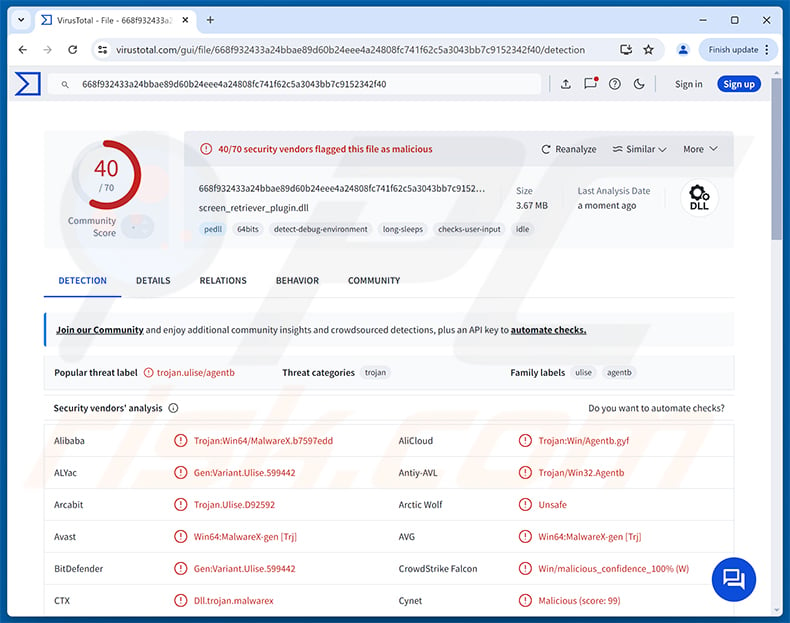
TCLBanker overview
TCLBanker's core banking component, internally labelled Tcl.Agent, uses UI Automation to continuously watch the address bar of popular web browsers. The moment a victim navigates to one of 59 targeted Brazilian banking, fintech, or cryptocurrency domains, the malware establishes a WebSocket connection to its command-and-control server and notifies the operator that a victim is active on a banking site.
With a session open, the attacker can deploy a WPF-based full-screen overlay that completely covers the victim's browser window. These overlays can show convincing fake banking login pages, fake Windows Update progress screens, and voice-phishing (vishing) prompts - all designed to trick the victim into handing over credentials or authorizing a fraudulent transaction without realizing the interface is fake.
Remote access and control capabilities
Beyond the overlay framework, TCLBanker gives operators a range of remote tools during an active session. They can take screenshots, stream the victim's screen live, record keystrokes via a built-in keylogger, intercept clipboard contents, and execute shell commands directly on the infected machine.
To stop victims from closing the overlay or switching windows, TCLBanker actively blocks several keyboard shortcuts - including Tab, Escape, Alt+F4, PrintScreen, and the Windows key - and kills Task Manager every 500 milliseconds if the victim tries to open it. Overlays are also hidden from screen-capture tools using the WDA_EXCLUDEFROMCAPTURE flag, so they cannot be easily documented or noticed through recording software.
Worm modules: self-spreading via WhatsApp and Outlook
TCLBanker includes two worm components tracked as Tcl.WppBot. The first hijacks the victim's authenticated WhatsApp Web browser session to silently send phishing messages to all of their contacts. The second uses COM automation to send phishing emails directly through the victim's own Outlook account.
Because these messages arrive from a real, trusted account rather than an unknown sender, recipients are far more likely to open the link or attachment and run the installer themselves. Each newly infected machine then becomes another distribution point, allowing the malware to spread outward through social networks without the attacker needing to operate additional infrastructure.
Targeted applications
TCLBanker monitors browser navigation in Chrome, Firefox, Microsoft Edge, Brave, Opera, and Vivaldi. It watches for visits to 59 Brazilian banking, fintech, and cryptocurrency domains - a list that includes major retail banks, digital payment platforms, and cryptocurrency exchanges operating in Brazil.
The worm modules specifically target WhatsApp Web (accessed through any of the monitored browsers) and Microsoft Outlook for self-spreading. The malware's geofencing confirms Brazilian Portuguese locale, regional identifiers, and keyboard layout before activating, so it exits silently on machines outside its intended target profile.
Persistence and defense evasion
To survive reboots, TCLBanker copies its application directory to %LocalAppData%\LogiAI and registers a hidden scheduled task named RuntimeOptimizeService with a logon trigger, so it restarts automatically each time the user signs in.
The initial infection relies on DLL sideloading: a legitimate Logitech executable loads a malicious screen_retriever_plugin.dll placed alongside it, which decrypts and executes the main payload in memory without writing obvious files to disk. The payload decryption itself is environment-gated - it fails silently if the malware detects it is running in a sandbox, automated analysis environment, or virtualization platform.
Before activating, TCLBanker runs at least six anti-debugging checks, looks for virtualization software (VMware, VirtualBox, KVM, Xen, Parallels, QEMU), scans for sandbox-associated usernames, verifies the machine has at least 64 GB of disk space, 2 GB of RAM, and two CPU cores, and patches ETW (Event Tracing for Windows) logging to reduce detection by security monitoring tools. A watchdog subsystem also continuously checks for debuggers and instrumentation tools while the malware is running.
| Name | TCLBanker virus |
| Threat Type | Banking Trojan, Trojan, Remote Access Trojan (RAT) |
| Detection Names | Avast (Win64:MalwareX-gen [Trj]), Combo Cleaner (Gen:Variant.Ulise.599442), ESET-NOD32 (Win64/Agent.IXI Trojan), Kaspersky (HEUR:Trojan.Win32.Agentb.gen), Microsoft (Trojan:Win32/Malgent), Full List (VirusTotal) |
| Symptoms | Banking trojans are designed to stealthily infiltrate the victim's computer and remain silent, and thus no particular symptoms are clearly visible on an infected machine. |
| Distribution methods | Trojanized software installer (Logitech Logi AI Prompt Builder), DLL sideloading, WhatsApp messages sent from infected accounts, phishing emails sent from infected Outlook accounts. |
| Damage | Stolen banking credentials and personal information, identity theft, financial loss, unauthorized banking transactions, the victim's computer added to a botnet. |
| Malware Removal (Windows) |
To eliminate possible malware infections, scan your computer with legitimate antivirus software. Our security researchers recommend using Combo Cleaner. Download Combo CleanerTo use full-featured product, you have to purchase a license for Combo Cleaner. 7 days free trial available. Combo Cleaner is owned and operated by RCS LT, the parent company of PCRisk.com. |
Conclusion
TCLBanker is a sophisticated banking trojan that combines credential harvesting, live remote session control, and self-propagation to specifically target Brazilian internet banking users. Its deep anti-analysis protections, DLL-sideloading delivery, and ability to spread through victims' own trusted accounts make it harder than average to catch and contain.
Victims can face unauthorized financial transactions, stolen banking login credentials, identity theft, and broader account compromise from the shell access operators gain during an active session. The malware should be removed from the system immediately.
More examples of banking trojans are CHAVECLOAK, Ares, and Javali.
How did TCLBanker infiltrate my computer?
According to Elastic Security Labs, TCLBanker is distributed as a trojanized version of the Logitech Logi AI Prompt Builder installer, packaged inside a ZIP archive. When the victim runs the MSI, a legitimate Logitech executable is tricked into loading a malicious DLL (screen_retriever_plugin.dll) placed next to it - a technique called DLL sideloading. That DLL then decrypts and executes the banking trojan payload in memory.
Once one machine is infected, TCLBanker spreads itself automatically. It takes over the victim's authenticated WhatsApp Web browser session to send phishing messages to all of their contacts, and uses the victim's own Outlook account via COM automation to send phishing emails to recipients in their address book. Because the messages come from a real, recognized account, recipients are more likely to trust them and run the installer link inside.
More broadly, threats of this kind also reach victims through unsolicited phishing emails from unknown senders, malicious advertisements, fake software download sites, and software cracks and key generators shared through torrent and file-sharing networks.
How to avoid installation of malware?
Be cautious about unexpected messages - even from people you know. If a WhatsApp contact or a colleague's email contains an unusual link or attachment you were not expecting, verify with them through a separate channel before clicking or downloading anything. Download software only from official developer websites or verified app stores, and be wary of installers delivered as ZIP files from unfamiliar sources. Keep your operating system and all applications updated so that known vulnerabilities cannot be exploited before you patch them.
Avoid pirated software, key generators, and unofficial activation tools, as these are among the most common delivery vehicles for banking trojans and similar malware. Use a reputable security program and run scans regularly to catch threats that slip past initial defenses. If you believe that your computer is already infected, we recommend running a scan with Combo Cleaner Antivirus for Windows to automatically eliminate infiltrated malware.
Instant automatic malware removal:
Manual threat removal might be a lengthy and complicated process that requires advanced IT skills. Combo Cleaner is a professional automatic malware removal tool that is recommended to get rid of malware. Download it by clicking the button below:
DOWNLOAD Combo CleanerBy downloading any software listed on this website you agree to our Privacy Policy and Terms of Use. To use full-featured product, you have to purchase a license for Combo Cleaner. 7 days free trial available. Combo Cleaner is owned and operated by RCS LT, the parent company of PCRisk.com.
Quick menu:
- What is TCLBanker?
- STEP 1. Manual removal of TCLBanker malware.
- STEP 2. Check if your computer is clean.
How to remove malware manually?
Manual malware removal is a complicated task - usually it is best to allow antivirus or anti-malware programs to do this automatically. To remove this malware we recommend using Combo Cleaner Antivirus for Windows.
If you wish to remove malware manually, the first step is to identify the name of the malware that you are trying to remove. Here is an example of a suspicious program running on a user's computer:
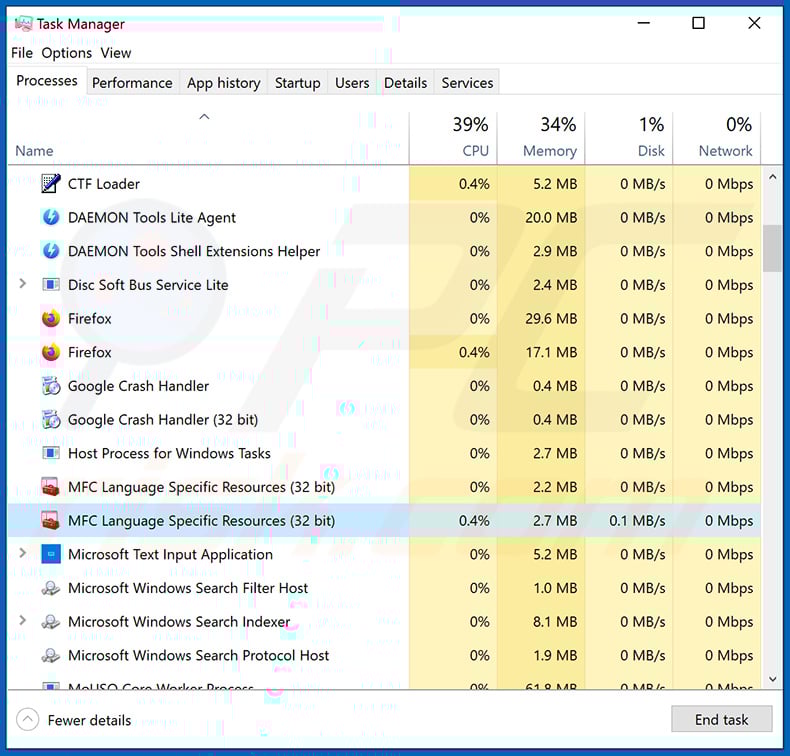
If you checked the list of programs running on your computer, for example, using task manager, and identified a program that looks suspicious, you should continue with these steps:
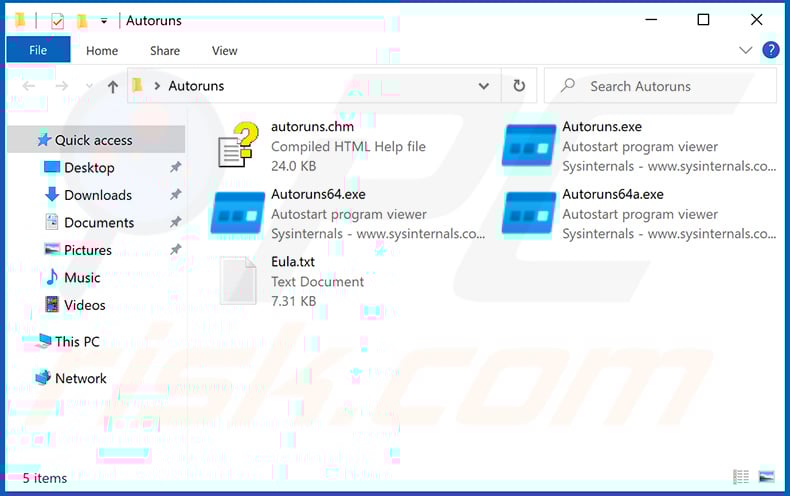
 Download a program called Autoruns. This program shows auto-start applications, Registry, and file system locations:
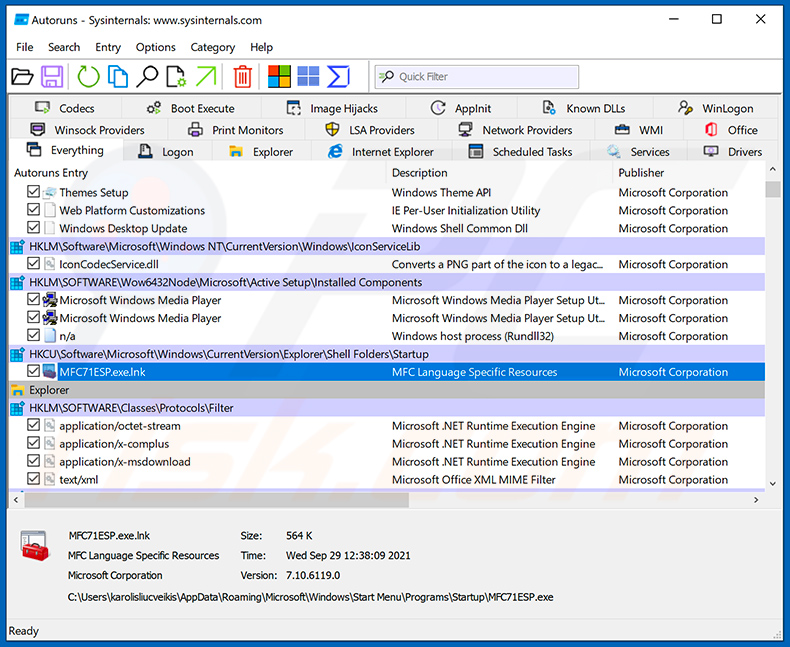
 Restart your computer into Safe Mode:
Windows XP and Windows 7 users: Start your computer in Safe Mode. Click Start, click Shut Down, click Restart, click OK. During your computer start process, press the F8 key on your keyboard multiple times until you see the Windows Advanced Option menu, and then select Safe Mode with Networking from the list.
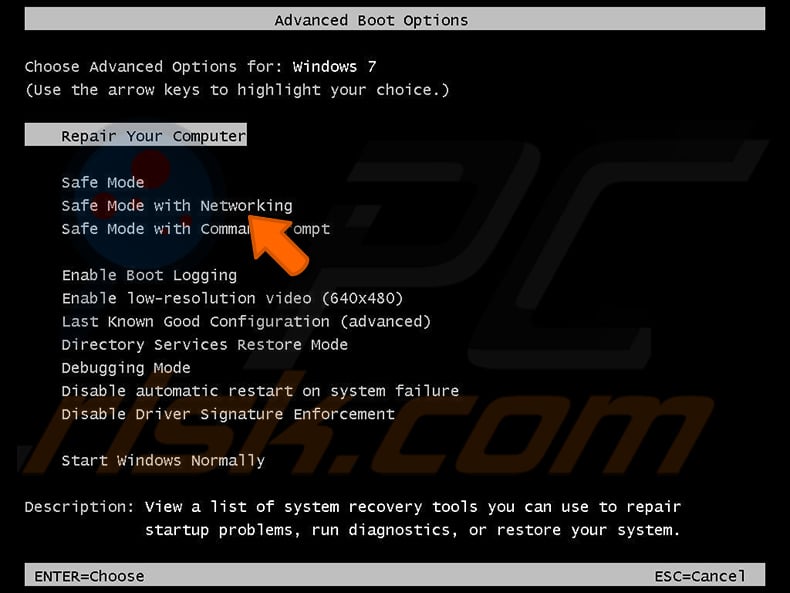
Video showing how to start Windows 7 in "Safe Mode with Networking":
Windows 8 users: Start Windows 8 is Safe Mode with Networking - Go to Windows 8 Start Screen, type Advanced, in the search results select Settings. Click Advanced startup options, in the opened "General PC Settings" window, select Advanced startup.
Click the "Restart now" button. Your computer will now restart into the "Advanced Startup options menu". Click the "Troubleshoot" button, and then click the "Advanced options" button. In the advanced option screen, click "Startup settings".
Click the "Restart" button. Your PC will restart into the Startup Settings screen. Press F5 to boot in Safe Mode with Networking.
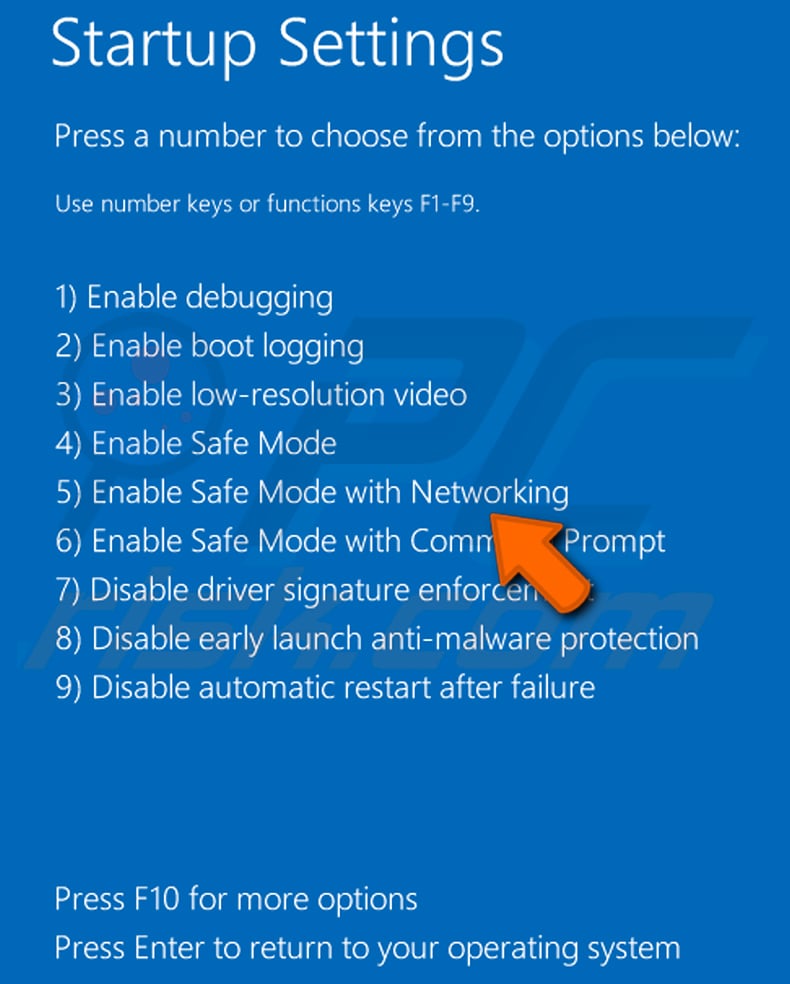
Video showing how to start Windows 8 in "Safe Mode with Networking":
Windows 10 users: Click the Windows logo and select the Power icon. In the opened menu click "Restart" while holding "Shift" button on your keyboard. In the "choose an option" window click on the "Troubleshoot", next select "Advanced options".
In the advanced options menu select "Startup Settings" and click on the "Restart" button. In the following window you should click the "F5" button on your keyboard. This will restart your operating system in safe mode with networking.
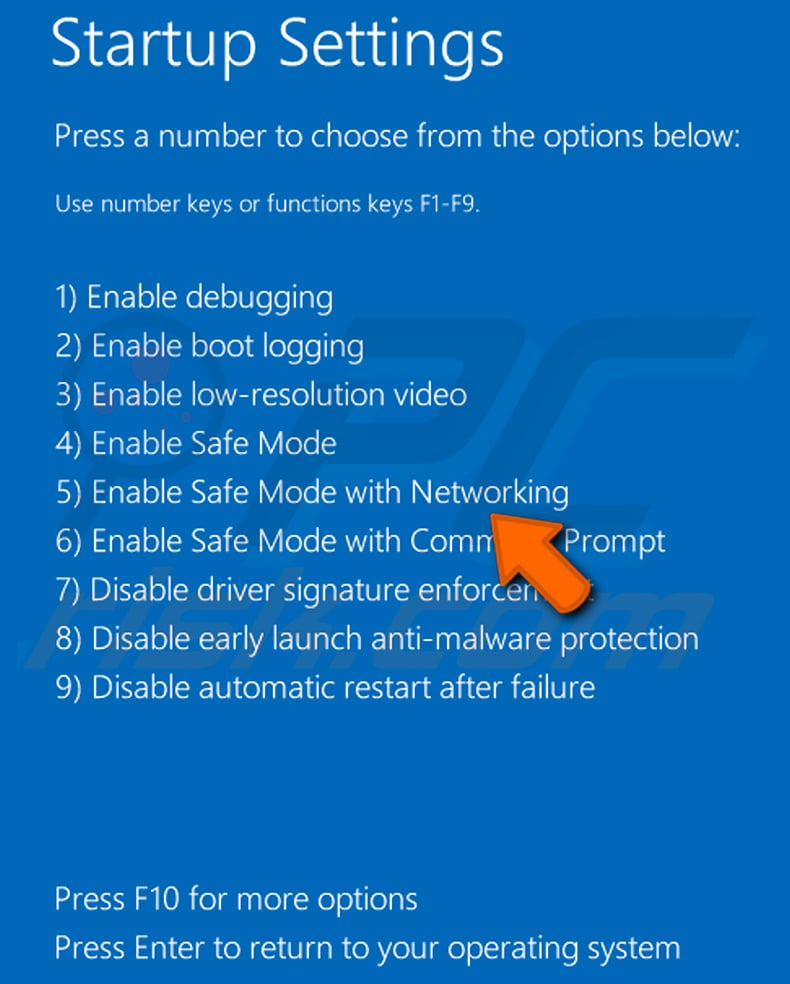
Video showing how to start Windows 10 in "Safe Mode with Networking":
 Extract the downloaded archive and run the Autoruns.exe file.
 In the Autoruns application, click "Options" at the top and uncheck "Hide Empty Locations" and "Hide Windows Entries" options. After this procedure, click the "Refresh" icon.
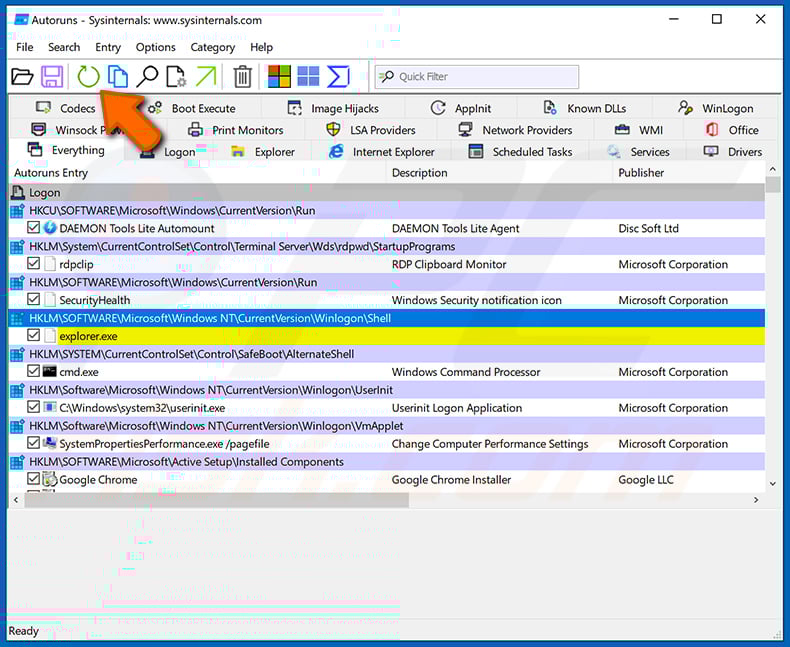
 Check the list provided by the Autoruns application and locate the malware file that you want to eliminate.
You should write down its full path and name. Note that some malware hides process names under legitimate Windows process names. At this stage, it is very important to avoid removing system files. After you locate the suspicious program you wish to remove, right click your mouse over its name and choose "Delete".
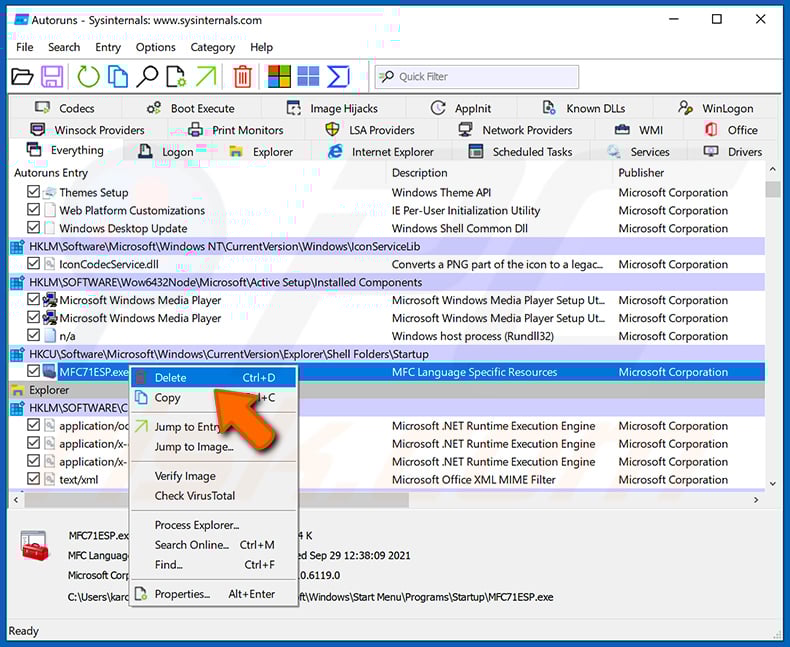
After removing the malware through the Autoruns application (this ensures that the malware will not run automatically on the next system startup), you should search for the malware name on your computer. Be sure to enable hidden files and folders before proceeding. If you find the filename of the malware, be sure to remove it.
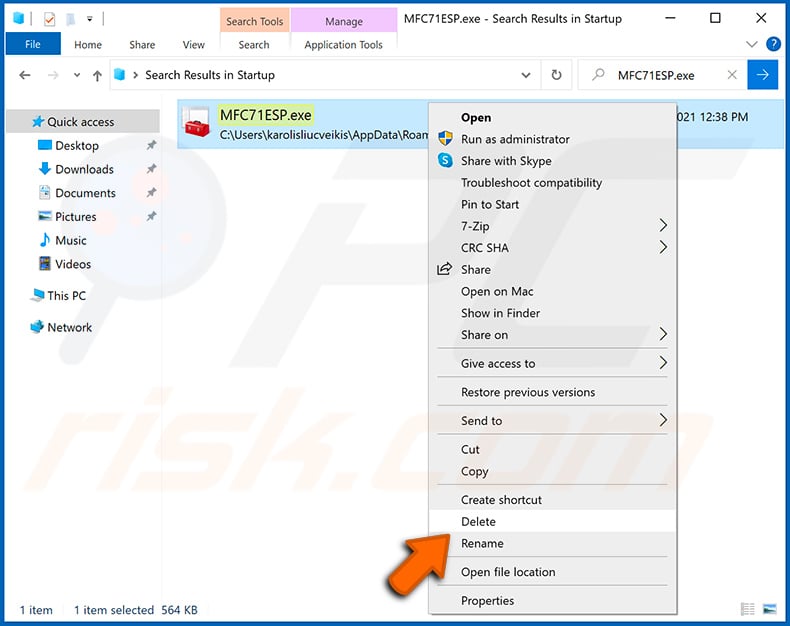
Reboot your computer in normal mode. Following these steps should remove any malware from your computer. Note that manual threat removal requires advanced computer skills. If you do not have these skills, leave malware removal to antivirus and anti-malware programs.
These steps might not work with advanced malware infections. As always it is best to prevent infection than try to remove malware later. To keep your computer safe, install the latest operating system updates and use antivirus software. To be sure your computer is free of malware infections, we recommend scanning it with Combo Cleaner Antivirus for Windows.
Frequently Asked Questions (FAQ)
My computer is infected with TCLBanker malware, should I format my storage device to get rid of it?
Formatting will remove TCLBanker, but it also erases every file on the drive. Running a trusted security tool such as Combo Cleaner is a safer first step and should be sufficient in most cases to remove the infection without any data loss.
What are the biggest issues that TCLBanker malware can cause?
TCLBanker can intercept live banking sessions, display fake login overlays to steal credentials, and allow operators to remotely observe and control the infected machine. This can lead to unauthorized bank transfers, loss of access to financial accounts, identity theft, and the spread of the malware to the victim's own contacts through WhatsApp and email.
What is the purpose of TCLBanker malware?
TCLBanker is designed to steal banking credentials and facilitate fraudulent transactions against Brazilian banking users. It monitors browsers for visits to targeted financial sites, activates a fake overlay session to deceive victims into surrendering their login details, and gives the operator real-time access to the compromised machine during that session.
How did TCLBanker malware infiltrate my computer?
TCLBanker has been documented spreading through a trojanized Logitech Logi AI Prompt Builder installer delivered in a ZIP archive, as well as through phishing messages sent automatically from infected users' own WhatsApp and Outlook accounts. More broadly, threats of this kind also reach victims via phishing emails from unknown senders, fake software download pages, malicious advertisements, and pirated content.
Will Combo Cleaner protect me from malware?
Yes. Combo Cleaner can detect and remove most known malware, including banking trojans like TCLBanker. Because sophisticated threats can embed themselves deeply in the system, running a full scan is the best way to confirm the infection has been fully cleared.
Share:
 Facebook
 X.com
X.com
 LinkedIn
 Copy Link

Tomas Meskauskas
Expert security researcher, professional malware analyst
I am passionate about computer security and technology. I have an experience of over 10 years working in various companies related to computer technical issue solving and Internet security. I have been working as an author and editor for pcrisk.com since 2010. Follow me on Twitter and LinkedIn to stay informed about the latest online security threats.
PCrisk security portal is brought by a company RCS LT.
Joined forces of security researchers help educate computer users about the latest online security threats. More information about the company RCS LT.
Our malware removal guides are free. However, if you want to support us you can send us a donation.
DonatePCrisk security portal is brought by a company RCS LT.
Joined forces of security researchers help educate computer users about the latest online security threats. More information about the company RCS LT.
Our malware removal guides are free. However, if you want to support us you can send us a donation.
Donate
▼ Show Discussion