

Get free scan and check if your device is infected.
Remove it nowTo use full-featured product, you have to purchase a license for Combo Cleaner. Seven days free trial available. Combo Cleaner is owned and operated by RCS LT, the parent company of PCRisk.com.
What kind of malware is EtherRAT?
EtherRAT is a remote access Trojan (RAT) that gives attackers remote control over infected devices. It was first discovered in late 2025 and has been used in advanced attacks targeting both Linux and Windows systems. It is known that EtherRAT is now delivered through a fake installer that looks like a legitimate system tool.
More about EtherRAT
Once a device is infected, EtherRAT connects to attacker-controlled systems using unusual methods instead of standard command-and-control. The RAT uses blockchain-based communication (a technique called EtherHiding) to receive instructions. Additionally, it executes a code for persistence. These actions make it harder for security tools to detect or block its activity.
Also, EtherRAT gathers details about the victim's device, including the operating system, system configuration, and security tools such as antivirus software. Once these details are collected, cybercriminals use them to carry out further malicious activities.
It is known that in certain cases, after gaining initial access, cybercriminals downloaded additional tools from cloud storage and deployed malware known as TukTuk (disguised as legitimate software like Greenshot). They used techniques such as DLL sideloading to make the malicious activity look normal.
In these campaigns, TukTuk used various online services, including ClickHouse, Supabase, Slack, GitHub, and Dropbox. It could also retrieve hidden configuration data via blockchain-based services such as Arweave.
Once inside the network, threat actors stole credentials, attempted to access other connected systems using common administrative tools, and deployed remote access software. They also exfiltrated various data to cloud storage, disabled security protections and recovery options, and ultimately launched the Gentlemen ransomware.
| Name | EtherRAT remote access trojan |
| Threat Type | Remote Access Trojan |
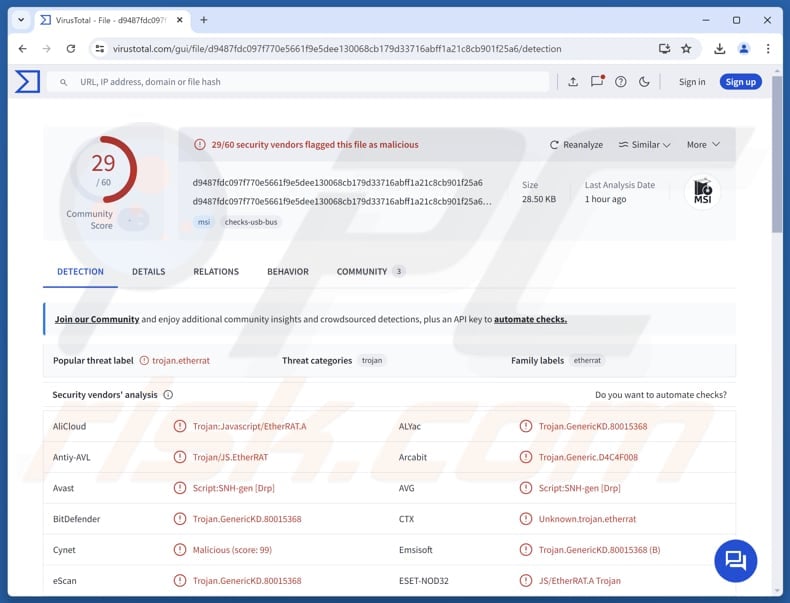
| Detection Names | Avast (Script:SNH-gen [Drp]), Combo Cleaner (Trojan.GenericKD.80015368), ESET-NOD32 (JS/EtherRAT.A Trojan), Kaspersky (Trojan.Script.Agent.mleb), Microsoft (Trojan:Win32/Yomal!rfn), Full List (VirusTotal) |
| Symptoms | Remote Access Trojans are designed to stealthily infiltrate the victim's computer and remain silent, and thus no particular symptoms are clearly visible on an infected machine. |
| Possible distribution methods | Fake installers, deceptive websites. |
| Possible Damage | Stolen passwords and banking information, identity theft, the victim's computer added to a botnet, additional infections, data loss, financial damage. |
| Malware Removal (Windows) |
To eliminate possible malware infections, scan your computer with legitimate antivirus software. Our security researchers recommend using Combo Cleaner. Download Combo CleanerTo use full-featured product, you have to purchase a license for Combo Cleaner. 7 days free trial available. Combo Cleaner is owned and operated by RCS LT, the parent company of PCRisk.com. |
Conclusion
EtherRAT is mainly used to receive instructions from attackers. After infiltrating a device, it collects system information and helps attackers establish persistence and prepare for further malicious activity. It is part of a bigger attack chain that can lead to data theft and eventually ransomware attacks. More examples of RATs are MIMICRAT, PhantomPulse, and STX.
How did EtherRAT infiltrate my computer?
Devices get infected with EtherRAT mainly when users are tricked into running a fake installer that looks like a legitimate tool (e.g., Sysinternals RAMMap installer). Once the user executes it, the installer injects malware instead of installing the real program.
It is likely that the installer containing EtherRAT is distributed using deceptive emails with malicious attachments or links, malicious advertisements, or fake (or compromised) websites, third-party downloaders, sites offering torrents, or similar platforms.
How to avoid installation of malware?
Download programs from official websites or trusted app stores, and avoid using pirated software or key generators. Keep your operating system and all installed applications up to date. Be cautious with emails you did not expect, and do not open attachments or links unless their legitimacy is certain.
Avoid interacting with pop-ups, advertisements, buttons, and links when visiting suspicious websites, and do not accept push notification requests from untrusted pages. If you believe that your computer is already infected, we recommend running a scan with Combo Cleaner Antivirus for Windows to automatically eliminate infiltrated malware.
Update June 18, 2026 - Malwarebytes researchers have revealed that EtherRAT is also being distributed through phishing emails carrying malicious PDF and Excel file attachments. Opening these files redirects victims to fake login pages impersonating Microsoft Teams and SharePoint, where their account credentials are harvested.
The investigation also identified a shared malicious infrastructure - six IP addresses and 13 domains - used simultaneously by multiple threat actor groups to distribute EtherRAT and run phishing campaigns. Multiple versions of the malware (v1 through v10) were found hosted on compromised websites, and EtherRAT re-obfuscates itself with each execution to evade security software. (source: malwarebytes.com).
Update July 7, 2026 - Researchers have documented a new EtherRAT campaign that uses fake IT support calls on Microsoft Teams to trick corporate employees into installing malware. Attackers contact victims from external Teams accounts while impersonating a "System Administrator," then use screen-sharing to guide them into installing legitimate remote access tools (HopToDesk or AnyDesk).
Once remote access is granted, a malicious installer is silently delivered to deploy EtherRAT. The campaign has been observed targeting employees at financial and healthcare organizations. Multiple active versions of the malware have been found, suggesting it is under ongoing development. (source: bleepingcomputer.com).
Update August 5, 2026 - Hunt.io researchers have formally linked EtherRAT to The Gentlemen ransomware group, after the group's public disclosure of a U.S.-based victim in late July 2026 matched infrastructure uncovered during the investigation. The malware is delivered via MSI installer packages distributed through remote scheduled tasks, using legitimate Windows tools to silently download and install the backdoor onto targeted machines.
Operators rotate command-and-control servers by publishing updates to an Ethereum smart contract - five different domains were identified as active between April and July 2026, including publisherresolution[.]com and resumeacceptable[.]com. Alongside EtherRAT, the group deploys additional tools for credential theft, lateral movement across networks, and domain-wide ransomware deployment. (source: hunt.io).
Instant automatic malware removal:
Manual threat removal might be a lengthy and complicated process that requires advanced IT skills. Combo Cleaner is a professional automatic malware removal tool that is recommended to get rid of malware. Download it by clicking the button below:
DOWNLOAD Combo CleanerBy downloading any software listed on this website you agree to our Privacy Policy and Terms of Use. To use full-featured product, you have to purchase a license for Combo Cleaner. 7 days free trial available. Combo Cleaner is owned and operated by RCS LT, the parent company of PCRisk.com.
Quick menu:
- What is EtherRAT?
- STEP 1. Manual removal of EtherRAT malware.
- STEP 2. Check if your computer is clean.
How to remove malware manually?
Manual malware removal is a complicated task - usually it is best to allow antivirus or anti-malware programs to do this automatically. To remove this malware we recommend using Combo Cleaner Antivirus for Windows.
If you wish to remove malware manually, the first step is to identify the name of the malware that you are trying to remove. Here is an example of a suspicious program running on a user's computer:
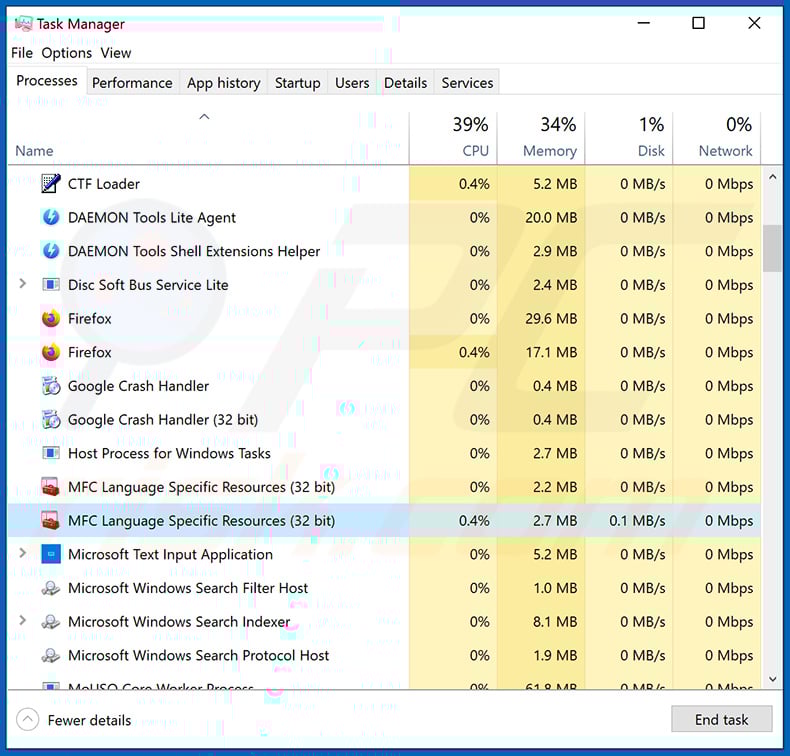
If you checked the list of programs running on your computer, for example, using task manager, and identified a program that looks suspicious, you should continue with these steps:
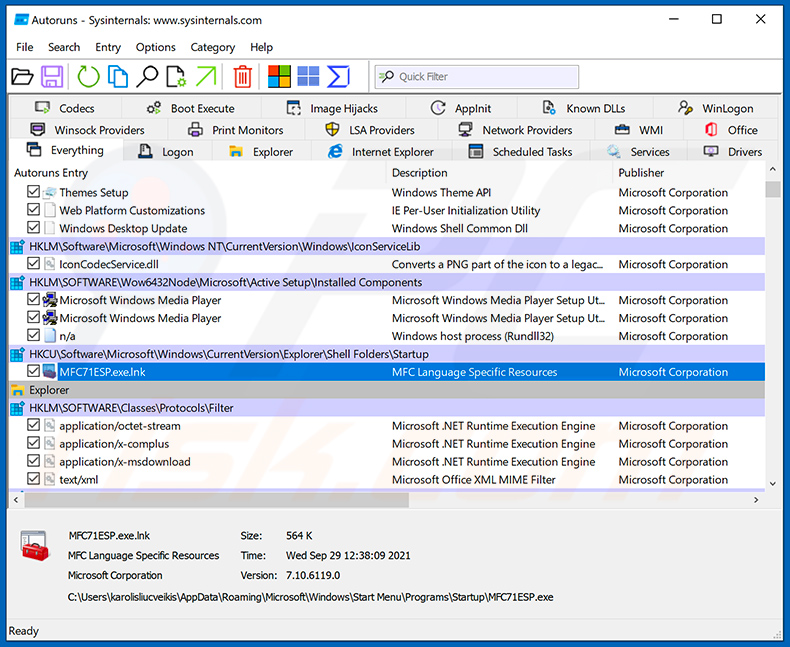
 Download a program called Autoruns. This program shows auto-start applications, Registry, and file system locations:
 Restart your computer into Safe Mode:
Windows XP and Windows 7 users: Start your computer in Safe Mode. Click Start, click Shut Down, click Restart, click OK. During your computer start process, press the F8 key on your keyboard multiple times until you see the Windows Advanced Option menu, and then select Safe Mode with Networking from the list.
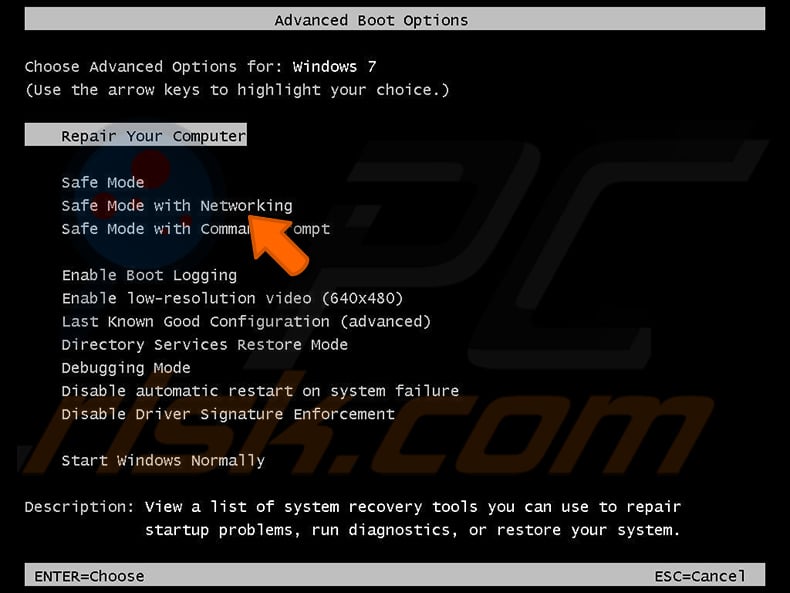
Video showing how to start Windows 7 in "Safe Mode with Networking":
Windows 8 users: Start Windows 8 is Safe Mode with Networking - Go to Windows 8 Start Screen, type Advanced, in the search results select Settings. Click Advanced startup options, in the opened "General PC Settings" window, select Advanced startup.
Click the "Restart now" button. Your computer will now restart into the "Advanced Startup options menu". Click the "Troubleshoot" button, and then click the "Advanced options" button. In the advanced option screen, click "Startup settings".
Click the "Restart" button. Your PC will restart into the Startup Settings screen. Press F5 to boot in Safe Mode with Networking.
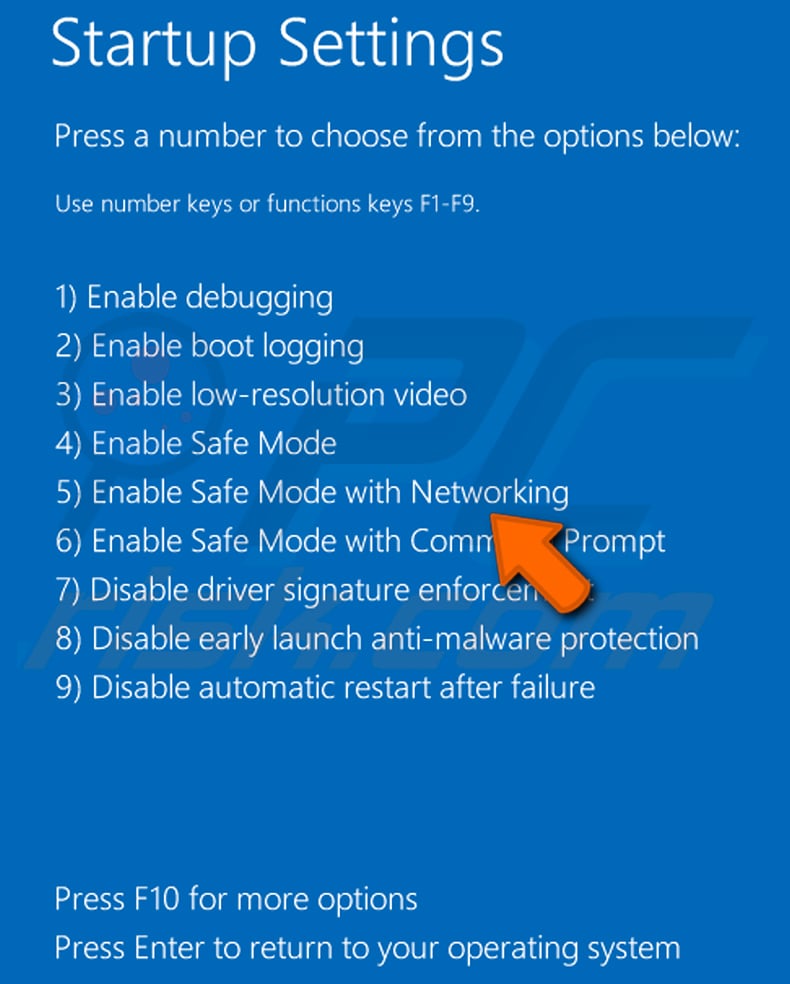
Video showing how to start Windows 8 in "Safe Mode with Networking":
Windows 10 users: Click the Windows logo and select the Power icon. In the opened menu click "Restart" while holding "Shift" button on your keyboard. In the "choose an option" window click on the "Troubleshoot", next select "Advanced options".
In the advanced options menu select "Startup Settings" and click on the "Restart" button. In the following window you should click the "F5" button on your keyboard. This will restart your operating system in safe mode with networking.
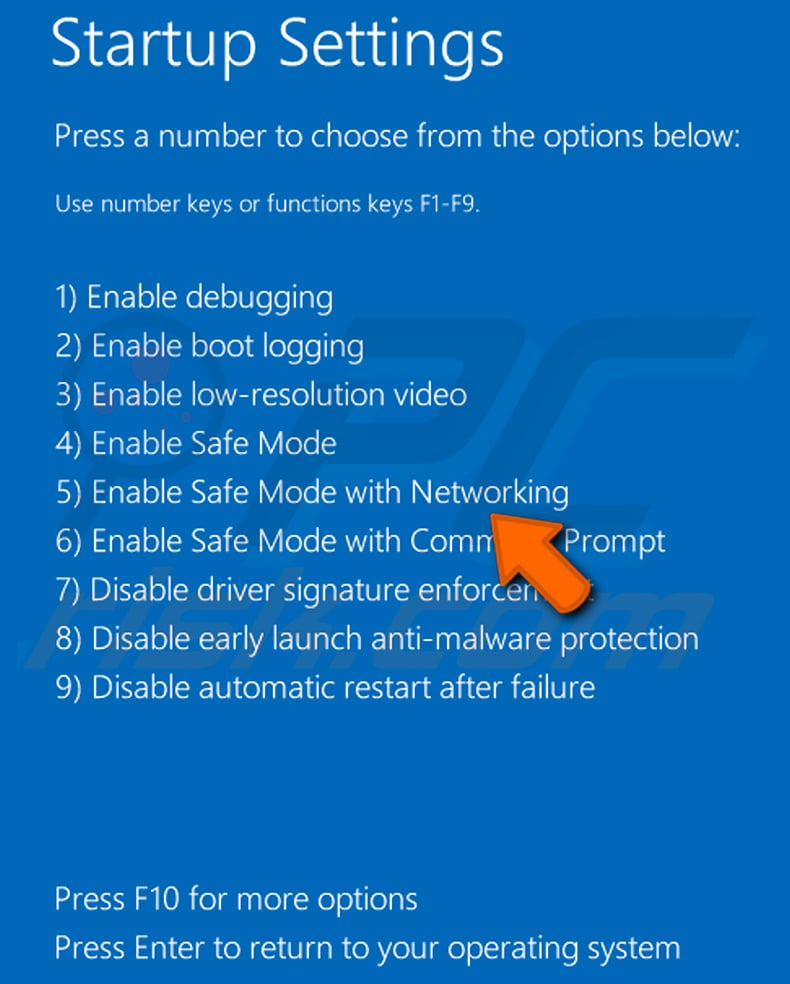
Video showing how to start Windows 10 in "Safe Mode with Networking":
 Extract the downloaded archive and run the Autoruns.exe file.
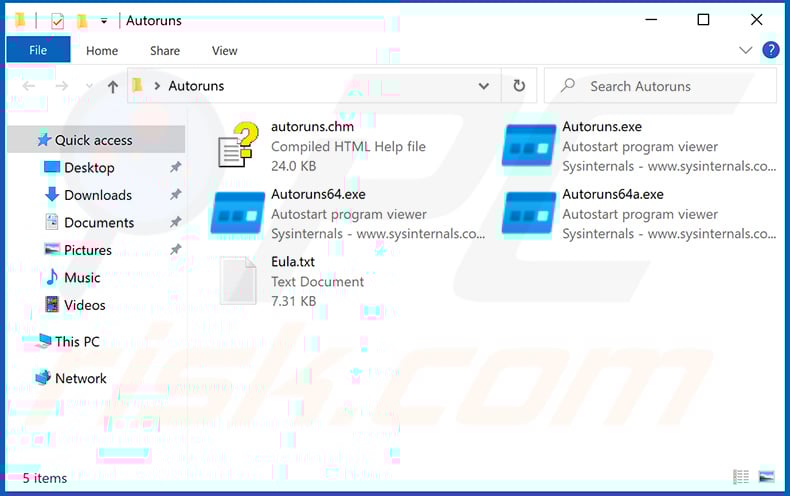
 In the Autoruns application, click "Options" at the top and uncheck "Hide Empty Locations" and "Hide Windows Entries" options. After this procedure, click the "Refresh" icon.
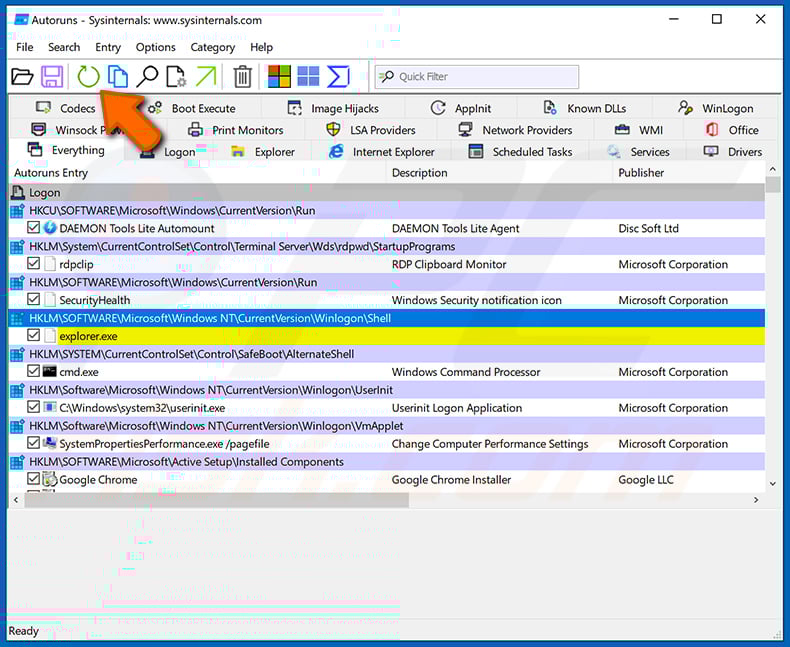
 Check the list provided by the Autoruns application and locate the malware file that you want to eliminate.
You should write down its full path and name. Note that some malware hides process names under legitimate Windows process names. At this stage, it is very important to avoid removing system files. After you locate the suspicious program you wish to remove, right click your mouse over its name and choose "Delete".
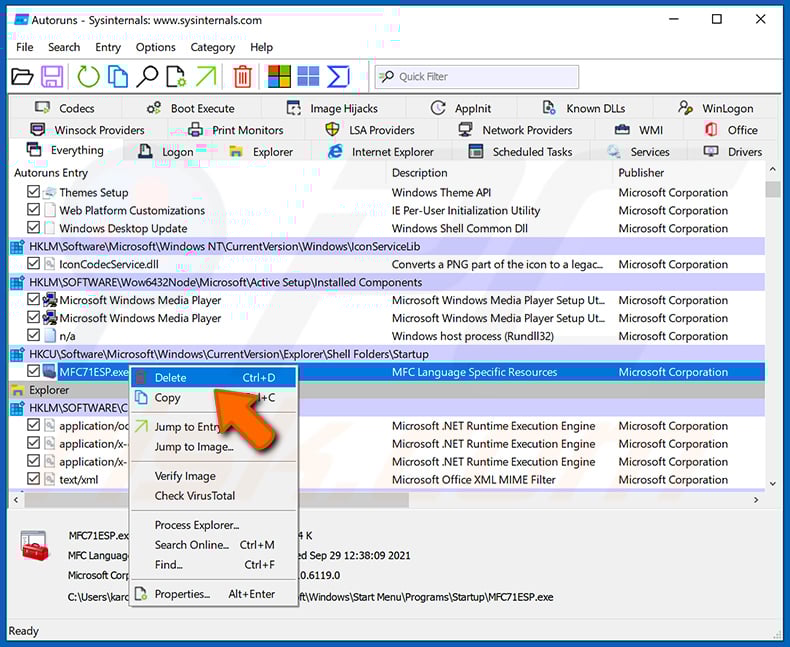
After removing the malware through the Autoruns application (this ensures that the malware will not run automatically on the next system startup), you should search for the malware name on your computer. Be sure to enable hidden files and folders before proceeding. If you find the filename of the malware, be sure to remove it.
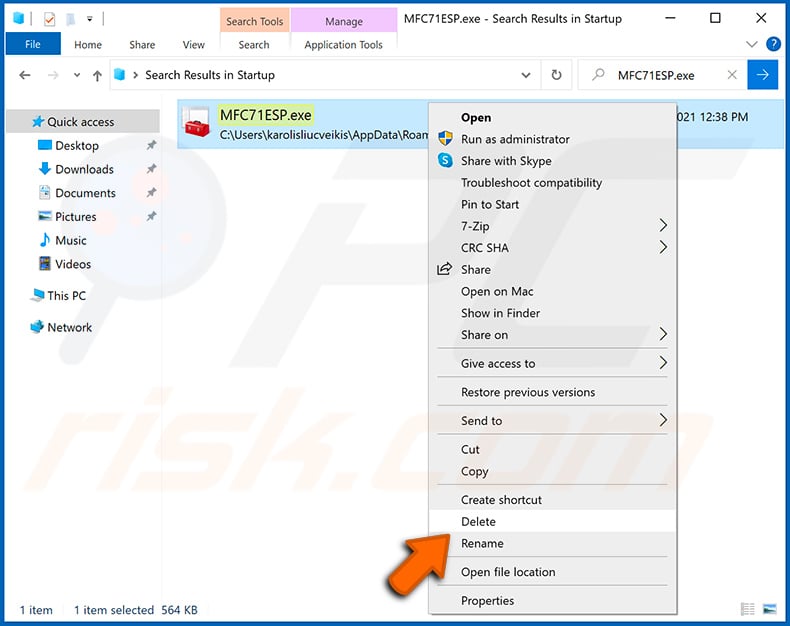
Reboot your computer in normal mode. Following these steps should remove any malware from your computer. Note that manual threat removal requires advanced computer skills. If you do not have these skills, leave malware removal to antivirus and anti-malware programs.
These steps might not work with advanced malware infections. As always it is best to prevent infection than try to remove malware later. To keep your computer safe, install the latest operating system updates and use antivirus software. To be sure your computer is free of malware infections, we recommend scanning it with Combo Cleaner Antivirus for Windows.
Frequently Asked Questions (FAQ)
My computer is infected with EtherRAT malware, should I format my storage device to get rid of it?
No, such steps are not required. Malware like EtherRAT can typically be eliminated without reinstalling or formatting the system - it can be achieved using tools like Combo Cleaner.
What are the biggest issues that malware can cause?
Malware can lead to various negative outcomes, such as financial theft, compromised accounts, and the exposure of personal data. It may also result in additional infections on the device and, in some cases, permanent loss of files.
What is the purpose of EtherRAT?
EtherRAT is used as a tool to prepare infected devices for further malicious activities. It allows cybercriminals to deploy more malicious tools, spread to other devices in the network, and collect sensitive information.
How did EtherRAT infiltrate my computer?
Devices become infected with EtherRAT when users are deceived into launching a malicious installer disguised as a legitimate application, such as a Sysinternals RAMMap setup file. After it is run, the installer deploys the malware instead of the expected software.
Will Combo Cleaner protect me from malware?
Combo Cleaner can detect and remove a wide range of infections. However, advanced malware can sometimes hide deep within a system, making detection more difficult. Because of this, performing a full system scan is essential.
Share:
 Facebook
 X.com
X.com
 LinkedIn
 Copy Link

Tomas Meskauskas
Expert security researcher, professional malware analyst
I am passionate about computer security and technology. I have an experience of over 10 years working in various companies related to computer technical issue solving and Internet security. I have been working as an author and editor for pcrisk.com since 2010. Follow me on Twitter and LinkedIn to stay informed about the latest online security threats.
PCrisk security portal is brought by a company RCS LT.
Joined forces of security researchers help educate computer users about the latest online security threats. More information about the company RCS LT.
Our malware removal guides are free. However, if you want to support us you can send us a donation.
DonatePCrisk security portal is brought by a company RCS LT.
Joined forces of security researchers help educate computer users about the latest online security threats. More information about the company RCS LT.
Our malware removal guides are free. However, if you want to support us you can send us a donation.
Donate
▼ Show Discussion