
How to remove searchscr.com from web browsers
Browser HijackerAlso Known As: searchscr.com browser hijacker

Get free scan and check if your device is infected.
Remove it nowTo use full-featured product, you have to purchase a license for Combo Cleaner. Seven days free trial available. Combo Cleaner is owned and operated by RCS LT, the parent company of PCRisk.com.
What is searchscr.com?
We have examined searchscr.com and determined that it is a fake search engine. It can lead users to questionable pages and may be associated with unwanted extensions classified as browser hijackers. Users should use only legitimate search engines to avoid the risks associated with sites like searchscr.com.
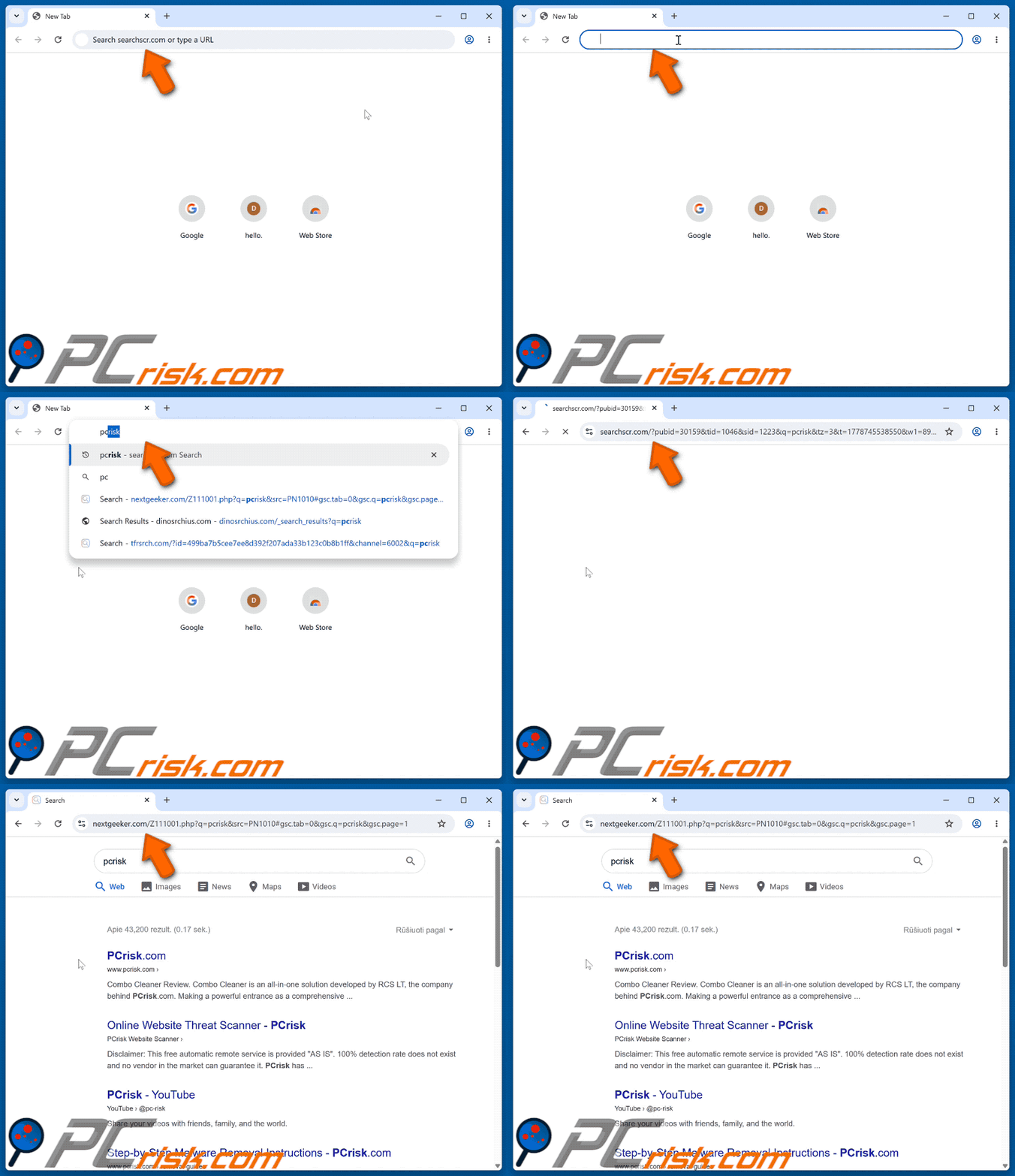
Searchscr.com overview
Searchscr.com can redirect users to both reliable search engines (such as bing.com or search.yahoo.com) and questionable addresses (such as nextgeeker.com and dinosrchius.com). Either way, it does not generate any results. Using searchscr.com can lead users to unreliable pages.
Those websites can be used to steal money or personal information, such as passwords and credit card details. Some of those pages can also be used to trick users into installing unwanted apps, adding dubious extensions, or even executing malware on their devices. Thus, users should not trust searchscr.com.
Also, searchscr.com may be promoted through browser hijackers, unwanted extensions designed to modify a user's web browsing experience. They commonly alter settings by assigning different websites, such as searchscr.com, as the default homepage, search engine, or new tab destination.
These hijackers can also gather various types of information. The collected details may include browsing history, entered search terms, IP addresses, geolocation data, and information about the device and operating system. The gathered information may later be shared with parties or exploited for questionable activities.
Another issue is that browser hijackers may reduce browser performance and prevent users from undoing the changes they made. Because of these risks, users are advised to remove searchscr.com and any related unwanted browser components.
| Name | searchscr.com browser hijacker |
| Threat Type | Browser Hijacker, Redirect, Search Hijacker, Toolbar, Unwanted New Tab |
| Supposed Functionality | Legitimate search engine |
| Affected Browser Settings | Homepage, new tab URL, default search engine |
| Threat Status (searchscr.com) | PCrisk Website Scanner Results |
| Symptoms | Manipulated Internet browser settings (homepage, default Internet search engine, new tab settings). Users are forced to visit the hijacker's website and search the Internet using their search engines. |
| Distribution methods | Deceptive pop-up ads, free software installers (bundling), dubious websites, and similar channels. |
| Damage | Internet browser tracking (potential privacy issues), display of unwanted ads, redirects to dubious websites. |
| Malware Removal (Windows) |
To eliminate possible malware infections, scan your computer with legitimate antivirus software. Our security researchers recommend using Combo Cleaner. Download Combo CleanerTo use full-featured product, you have to purchase a license for Combo Cleaner. 7 days free trial available. Combo Cleaner is owned and operated by RCS LT, the parent company of PCRisk.com. |
Conclusion
Overall, searchscr.com is an unreliable search engine that can redirect users to questionable and potentially unsafe websites. It may expose users to scams, data theft, unwanted software, and other security risks while also collecting browsing-related information through associated browser hijackers.
Searchscr.com and all related hijackers, if added, should be removed immediately. Here are more examples of fake dubious engines are aztcsearch.com, myworkfaze.com, and isafe-net.com.
How did searchscr.com promoting software install on my computer?
Browser hijackers tend to be distributed together with free or untrustworthy software. When users rush through the installation process and leave the default options selected, additional unwanted programs or extensions may be added or installed.
They may also spread through deceptive advertisements and other misleading content found on suspicious websites. Other common distribution channels include unofficial download platforms, third-party downloaders, and peer-to-peer sharing networks.
How to avoid installation of browser hijackers?
Regularly update the operating system and installed applications, and use a trusted security program to scan the device for threats. Avoid interacting with pop-ups, advertisements, or suspicious links on unreliable websites, and never allow notifications from such pages. Software and files should only be downloaded from official or trustworthy sources.
During installation, review all settings carefully and decline any additional offers that are not necessary. If your computer is already infected with browser hijackers, we recommend running a scan with Combo Cleaner Antivirus for Windows to automatically eliminate them.
Instant automatic malware removal:
Manual threat removal might be a lengthy and complicated process that requires advanced IT skills. Combo Cleaner is a professional automatic malware removal tool that is recommended to get rid of malware. Download it by clicking the button below:
DOWNLOAD Combo CleanerBy downloading any software listed on this website you agree to our Privacy Policy and Terms of Use. To use full-featured product, you have to purchase a license for Combo Cleaner. 7 days free trial available. Combo Cleaner is owned and operated by RCS LT, the parent company of PCRisk.com.
Quick menu:
- What is searchscr.com?
- STEP 1. Uninstall unwanted applications using Control Panel.
- STEP 2. Remove searchscr.com browser hijacker from Google Chrome.
- STEP 3. Remove searchscr.com homepage and default search engine from Mozilla Firefox.
- STEP 4. Remove searchscr.com redirect from Safari.
- STEP 5. Remove rogue plug-ins from Microsoft Edge.
searchscr.com redirect removal:
Windows 11 users:
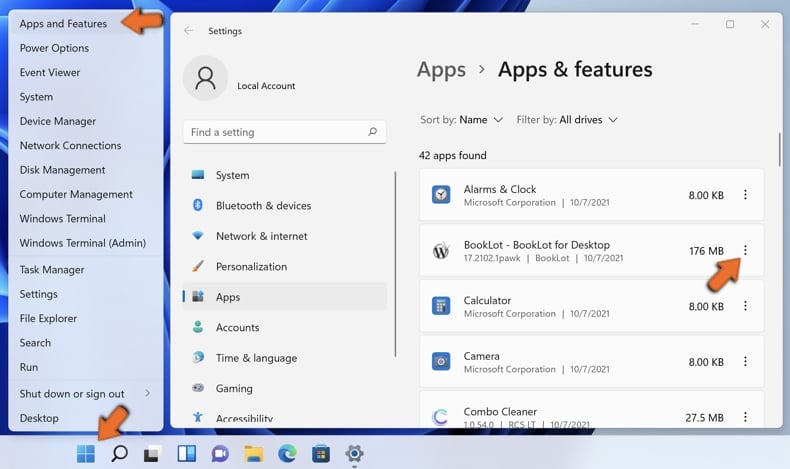
Right-click on the Start icon, select Apps and Features. In the opened window search for the application you want to uninstall, after locating it, click on the three vertical dots and select Uninstall.
Windows 10 users:
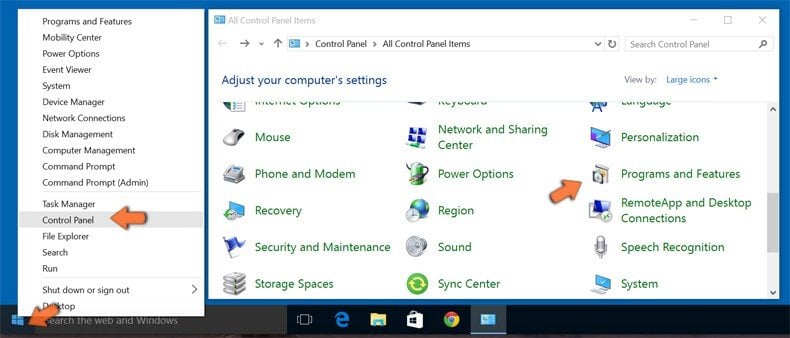
Right-click in the lower left corner of the screen, in the Quick Access Menu select Control Panel. In the opened window choose Programs and Features.
Windows 7 users:
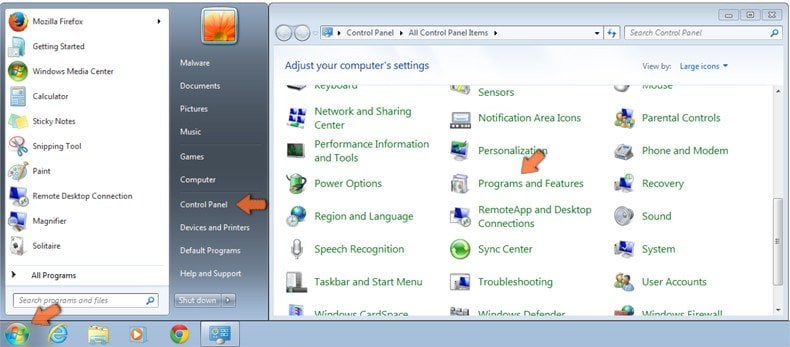
Click Start (Windows Logo at the bottom left corner of your desktop), choose Control Panel. Locate Programs and click Uninstall a program.
macOS (OSX) users:
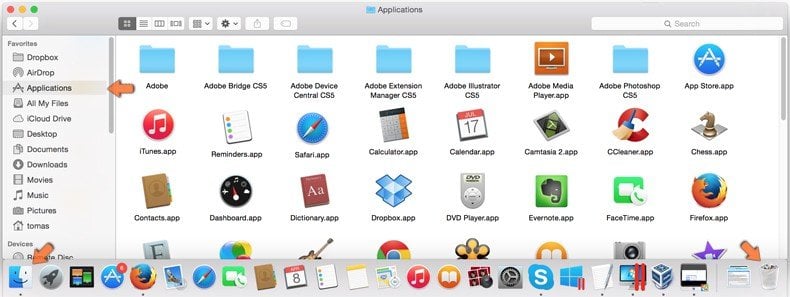
Click Finder, in the opened screen select Applications. Drag the app from the Applications folder to the Trash (located in your Dock), then right click the Trash icon and select Empty Trash.
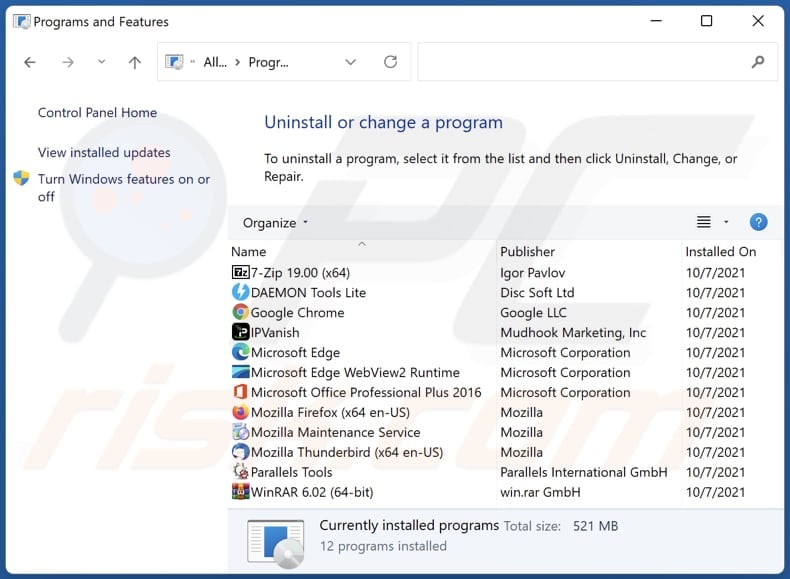
In the uninstall programs window: look for any recently installed suspicious applications, select these entries and click "Uninstall" or "Remove".
After uninstalling the potentially unwanted applications (which cause browser redirects to the searchscr.com website), scan your computer for any remaining unwanted components. To scan your computer, use recommended malware removal software.
DOWNLOAD remover for malware infections
Combo Cleaner checks if your computer is infected with malware. To use full-featured product, you have to purchase a license for Combo Cleaner. 7 days free trial available. Combo Cleaner is owned and operated by RCS LT, the parent company of PCRisk.com.
searchscr.com redirect removal from Internet browsers:
Video showing how to remove browser redirects:
 Remove malicious extensions from Google Chrome:
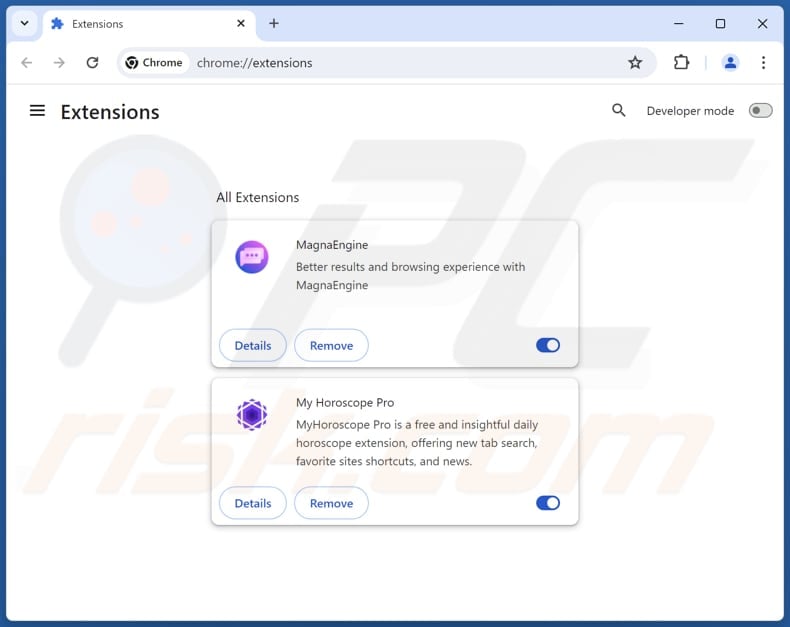
Click the Chrome menu icon  (at the top right corner of Google Chrome), select "Extensions" and click "Manage Extensions". Locate all recently-installed suspicious extensions, select these entries and click "Remove".
Change your homepage:
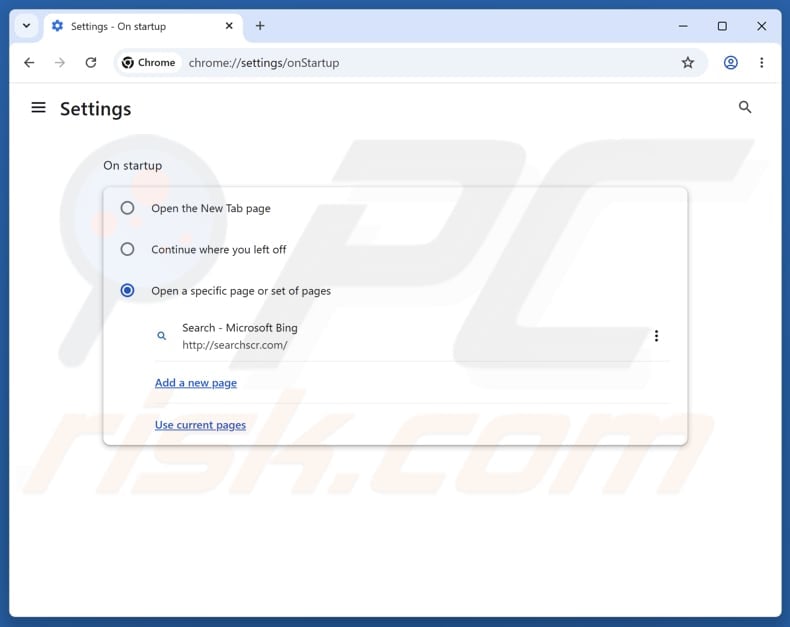
Click the Chrome menu icon (at the top right corner of Google Chrome), select "Settings". In the "On startup" section, disable the malicious extension (if present), look for a browser hijacker URL (hxxp://www.searchscr.com) below the "Open a specific or set of pages" option. If present click on the three vertical dots icon and select "Remove".
Change your default search engine:
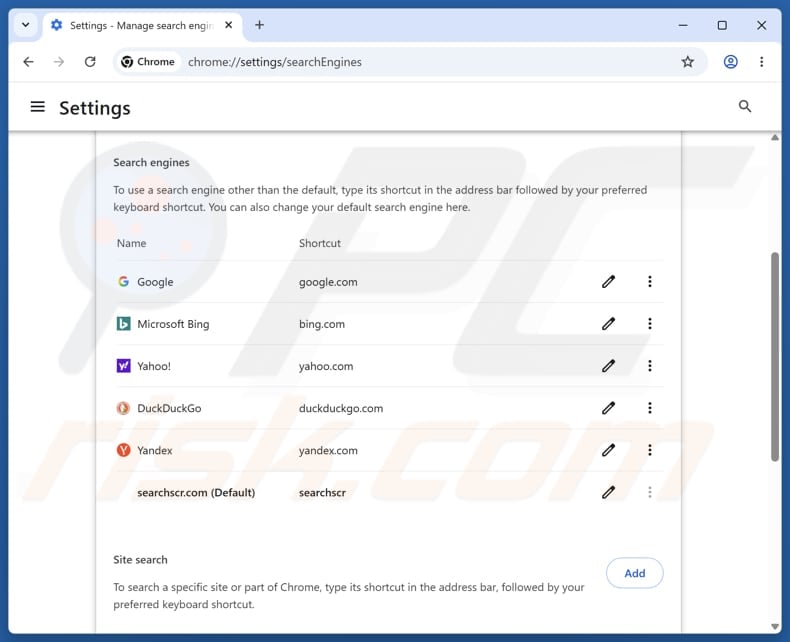
To change your default search engine in Google Chrome: Click the Chrome menu icon (at the top right corner of Google Chrome), select "Settings", in the "Search engine" section, click "Manage search engines...", in the opened list look for "searchscr.com", when located click the three vertical dots near this URL and select "Delete".
- If you continue to have problems with browser redirects and unwanted advertisements - Reset Google Chrome.
Optional method:
If you continue to have problems with removal of the searchscr.com browser hijacker, reset your Google Chrome browser settings. Click the Chrome menu icon (at the top right corner of Google Chrome) and select Settings. Scroll down to the bottom of the screen. Click the Advanced… link.
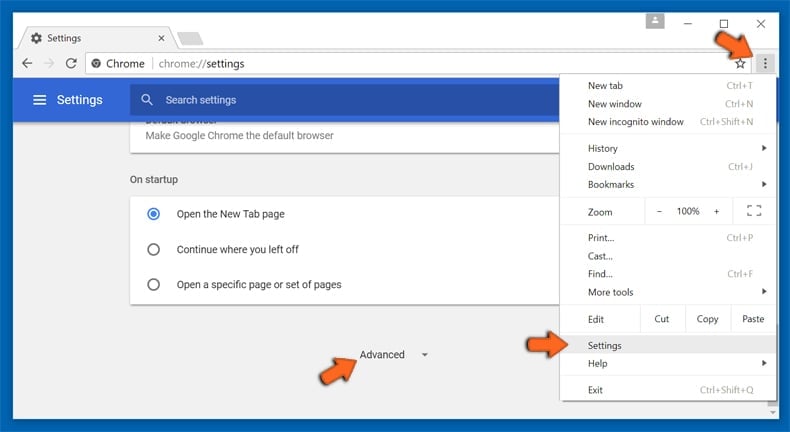
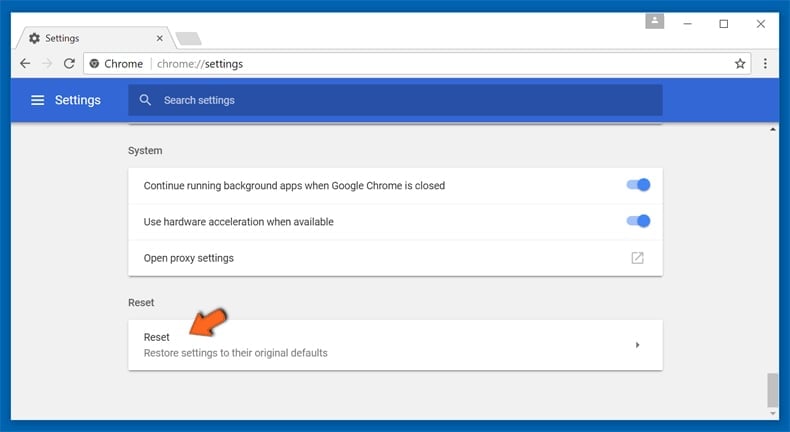
After scrolling to the bottom of the screen, click the Reset (Restore settings to their original defaults) button.
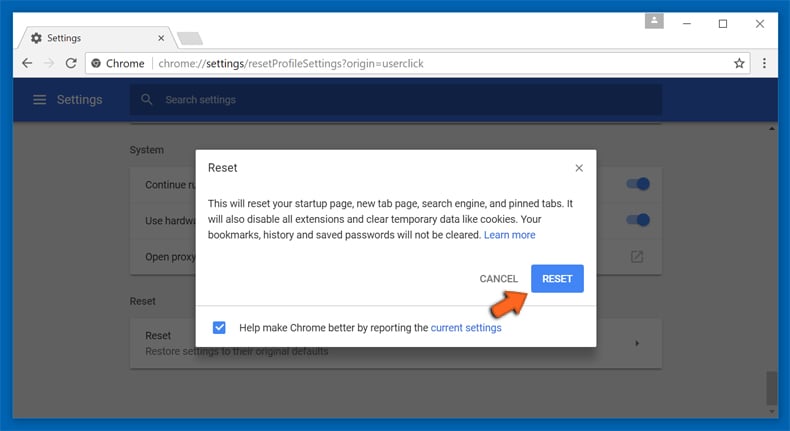
In the opened window, confirm that you wish to reset Google Chrome settings to default by clicking the Reset button.
 Remove malicious plugins from Mozilla Firefox:
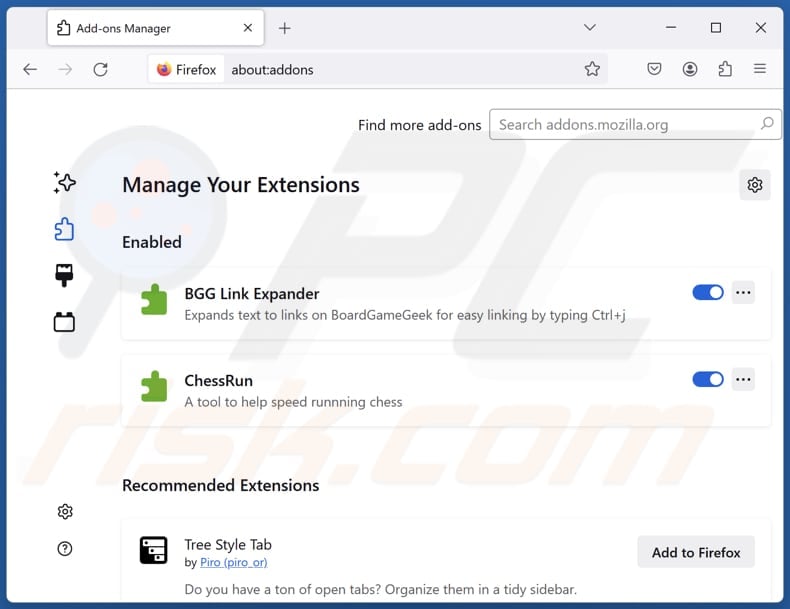
Click the Firefox menu  (at the top right corner of the main window), select "Add-ons and themes". Click "Extensions", in the opened window locate all recently-installed suspicious extensions, click on the three dots and then click "Remove".
Change your homepage:
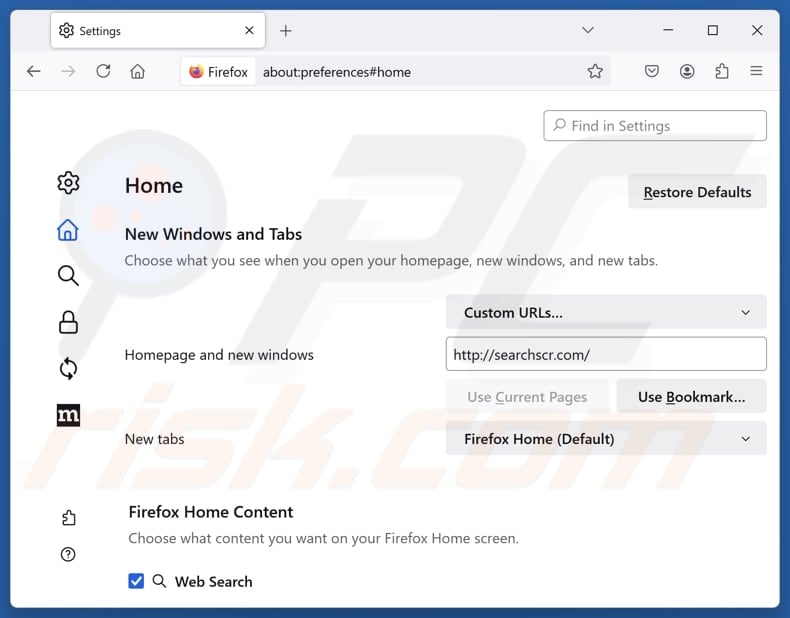
To reset your homepage, click the Firefox menu (at the top right corner of the main window), then select "Settings", in the opened window disable malicious extension (if present), remove hxxp://searchscr.com and enter your preferred domain, which will open each time you start Mozilla Firefox.
Change your default search engine:
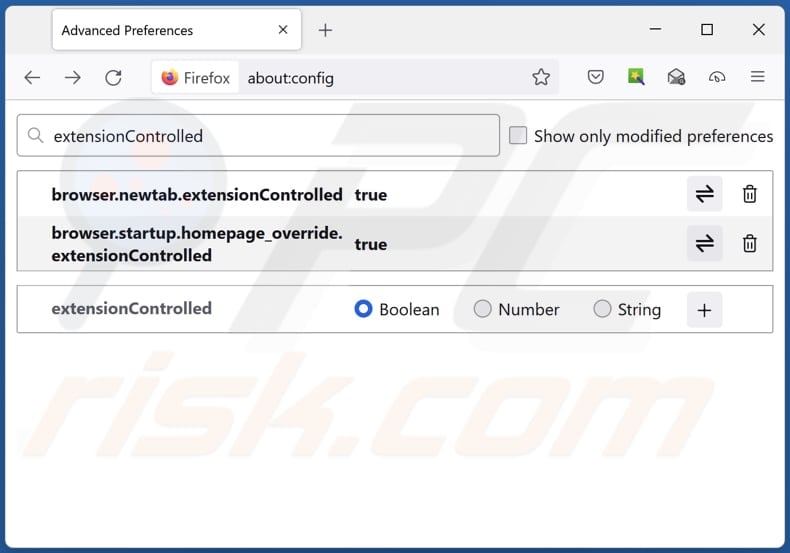
In the URL address bar, type "about:config" and press Enter. Click "Accept the Risk and Continue".
In the search filter at the top, type: "extensionControlled". Set both results to "false" by either double-clicking each entry or clicking the  button.
Optional method:
Computer users who have problems with searchscr.com browser hijacker removal can reset their Mozilla Firefox settings.
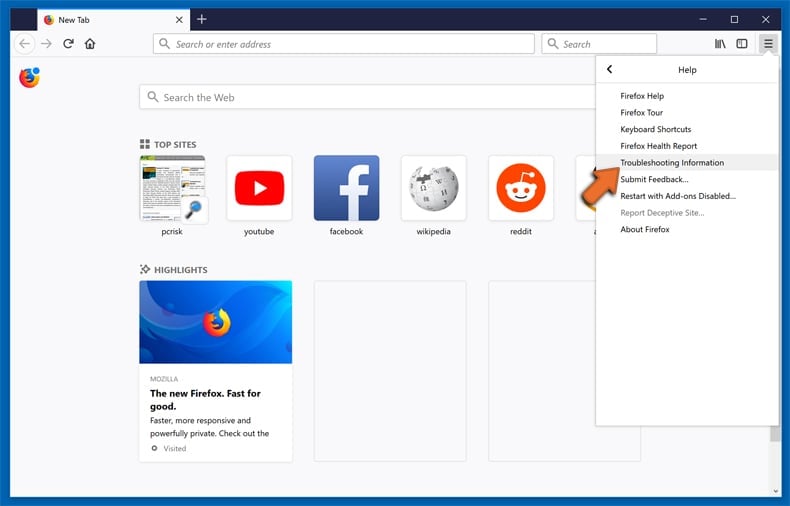
Open Mozilla Firefox, at the top right corner of the main window, click the Firefox menu, in the opened menu, click Help.
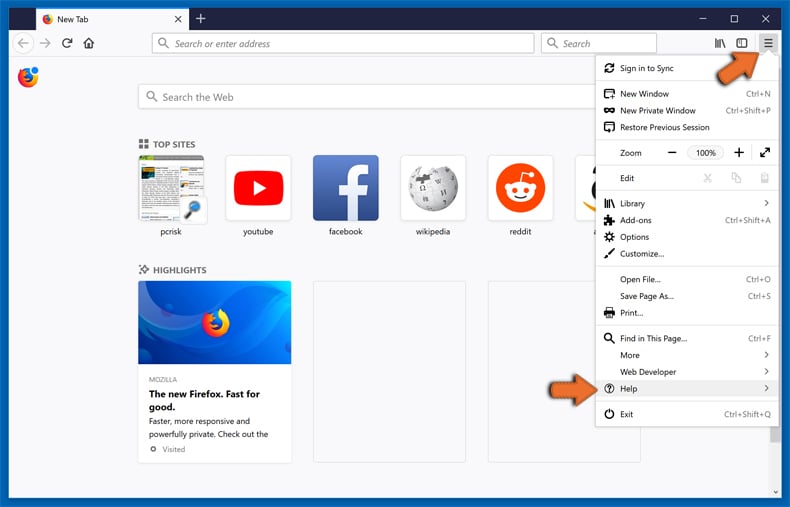
Select Troubleshooting Information.
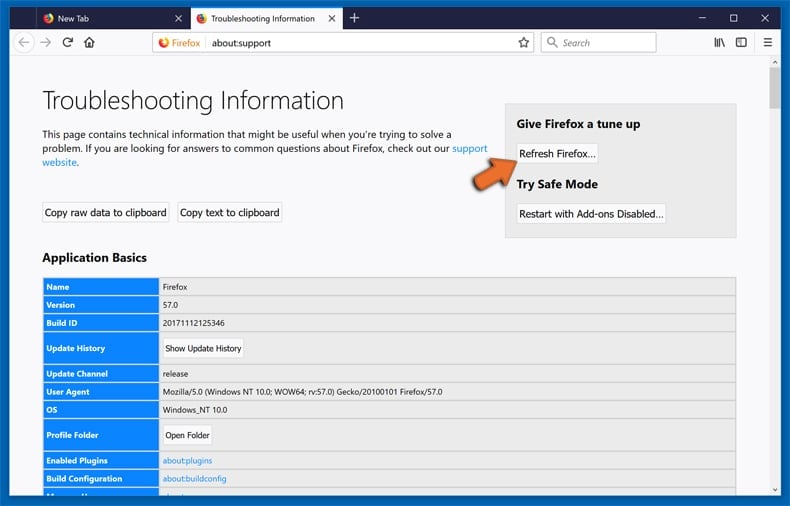
In the opened window, click the Refresh Firefox button.
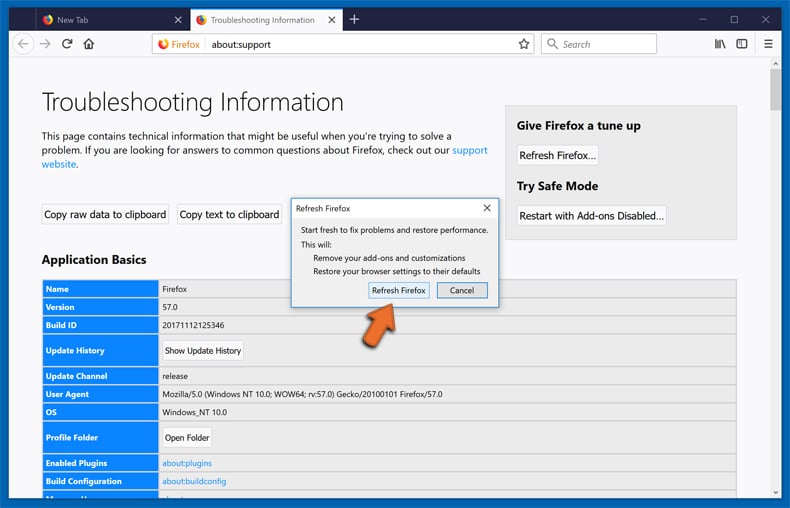
In the opened window, confirm that you wish to reset Mozilla Firefox settings to default by clicking the Refresh Firefox button.
 Remove malicious extensions from Safari:
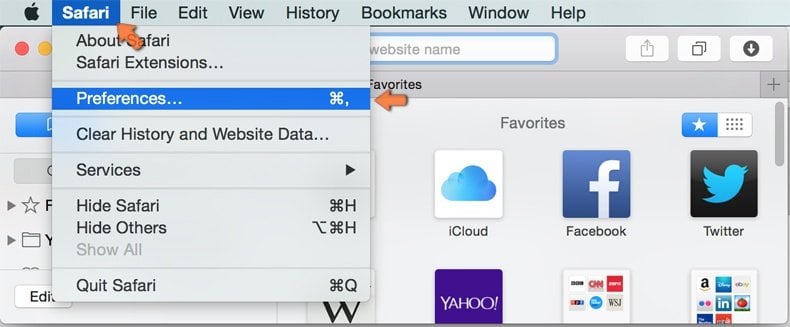
Make sure your Safari browser is active and click Safari menu, then select Preferences...
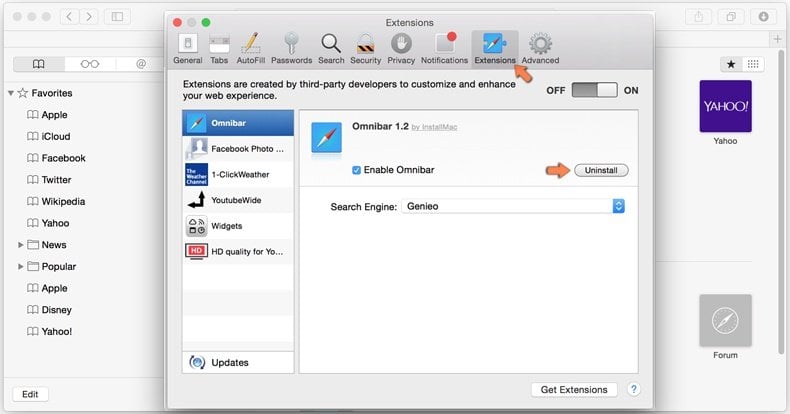
In the preferences window select the Extensions tab. Look for any recently installed suspicious extensions and uninstall them.
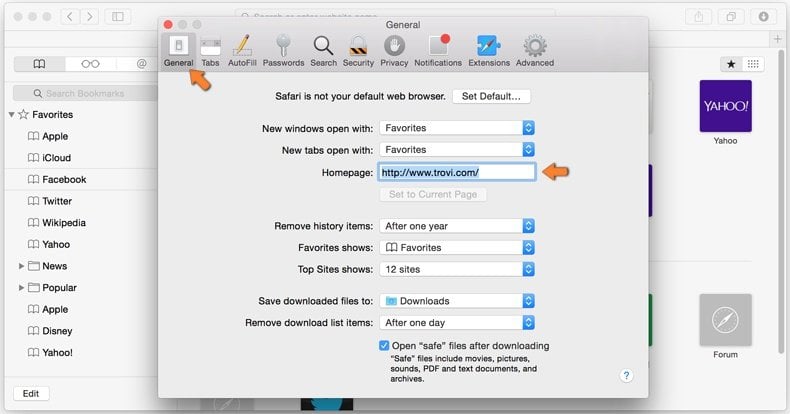
In the preferences window select General tab and make sure that your homepage is set to a preferred URL, if its altered by a browser hijacker - change it.
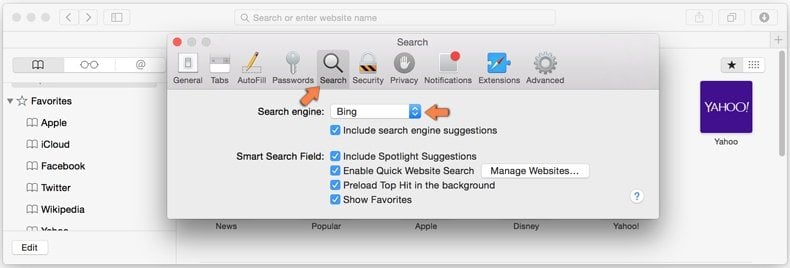
In the preferences window select Search tab and make sure that your preferred Internet search engine is selected.
Optional method:
Make sure your Safari browser is active and click on Safari menu. From the drop down menu select Clear History and Website Data...
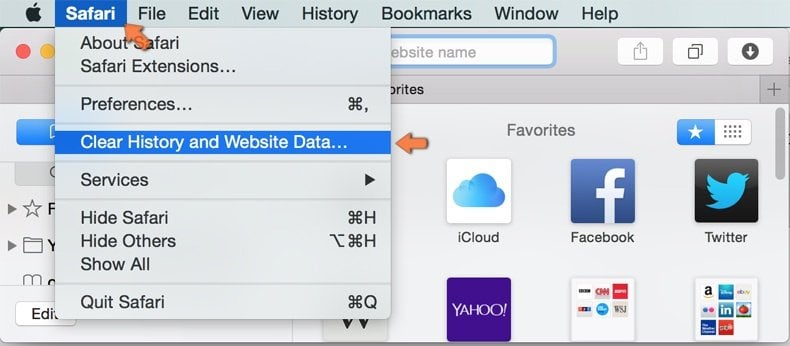
In the opened window select all history and click the Clear History button.
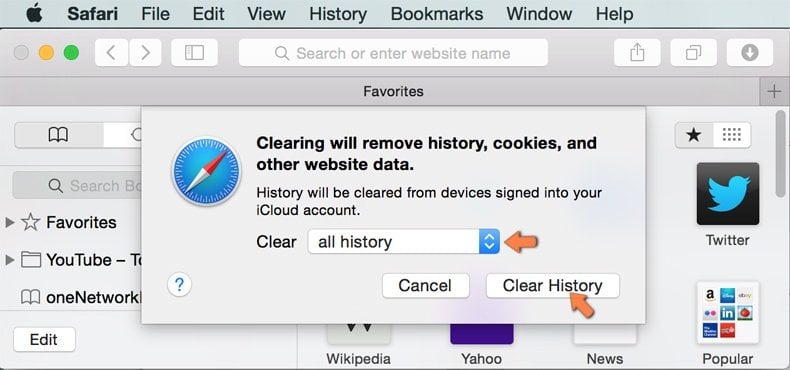
If you continue having problems with browser redirects and unwanted advertisements - Reset Safari.
 Remove malicious extensions from Microsoft Edge:
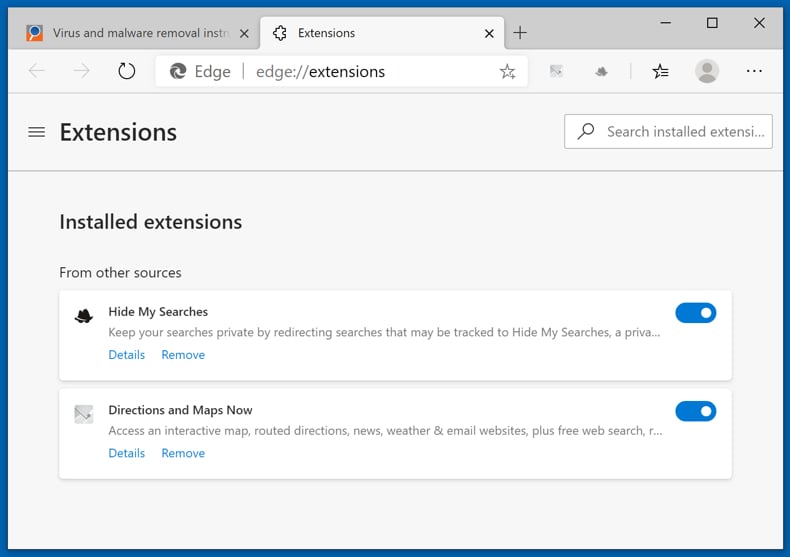
Click the Edge menu icon  (at the top right corner of Microsoft Edge), select "Extensions". Locate any recently-installed suspicious browser add-ons, and remove them.
Change your homepage and new tab settings:
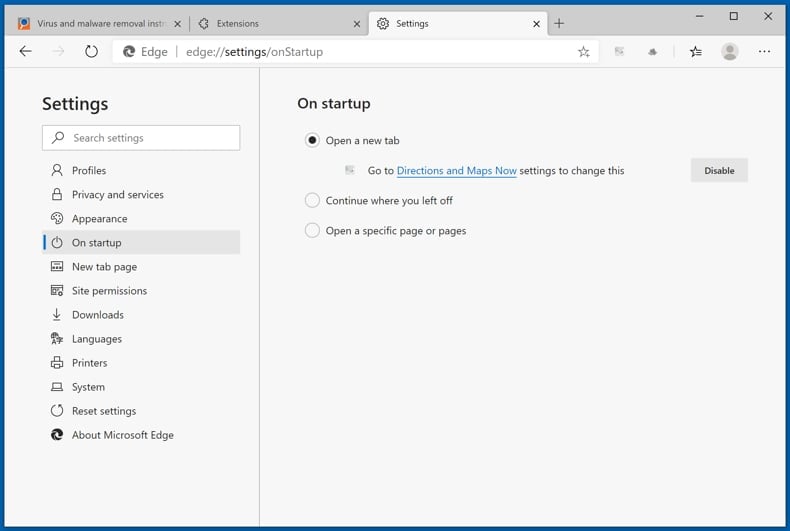
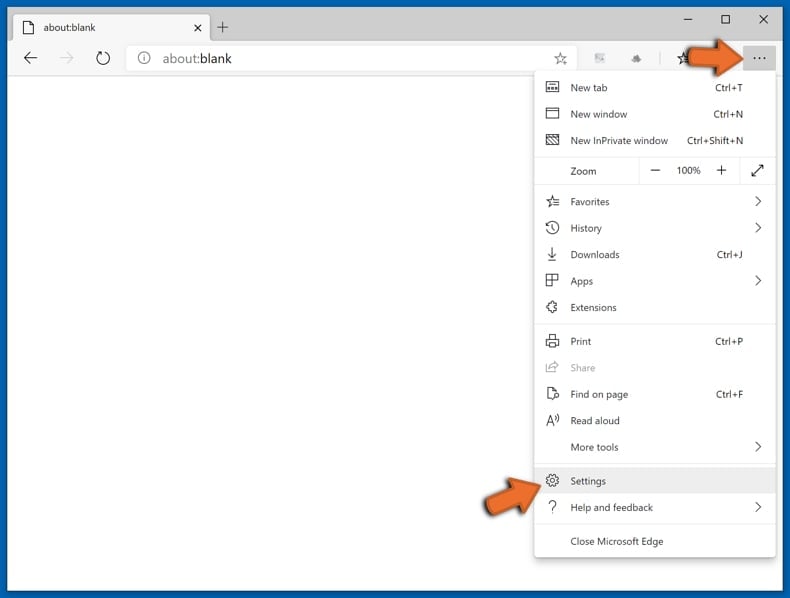
Click the Edge menu icon (at the top right corner of Microsoft Edge), select "Settings". In the "On startup" section look for the name of the browser hijacker and click "Disable".
Change your default Internet search engine:
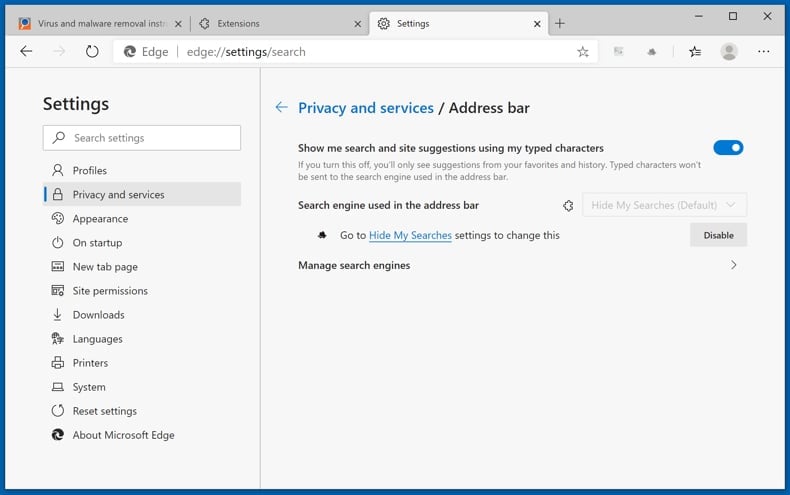
To change your default search engine in Microsoft Edge: Click the Edge menu icon (at the top right corner of Microsoft Edge), select "Privacy and services", scroll to bottom of the page and select "Address bar". In the "Search engines used in address bar" section look for the name of the unwanted Internet search engine, when located click the "Disable" button near it. Alternatively you can click on "Manage search engines", in the opened menu look for unwanted Internet search engine. Click on the puzzle icon  near it and select "Disable".
Optional method:
If you continue to have problems with removal of the searchscr.com browser hijacker, reset your Microsoft Edge browser settings. Click the Edge menu icon (at the top right corner of Microsoft Edge) and select Settings.
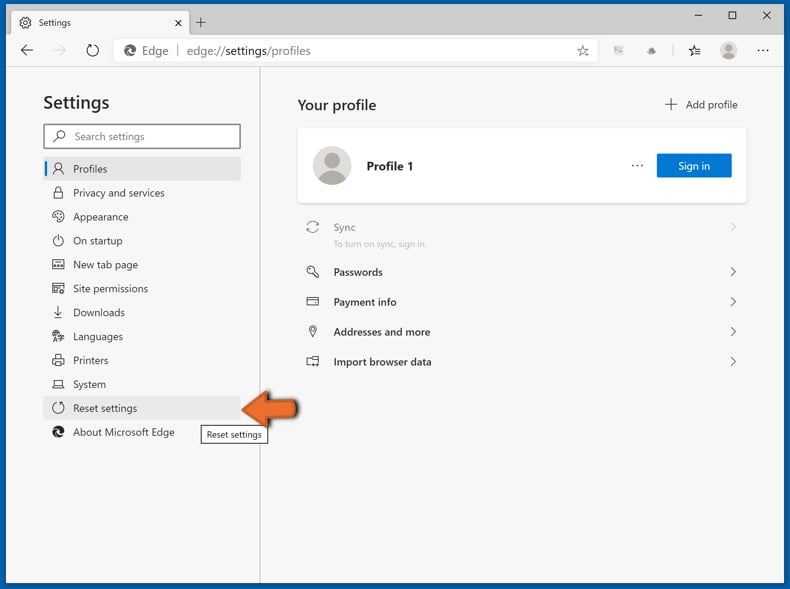
In the opened settings menu select Reset settings.
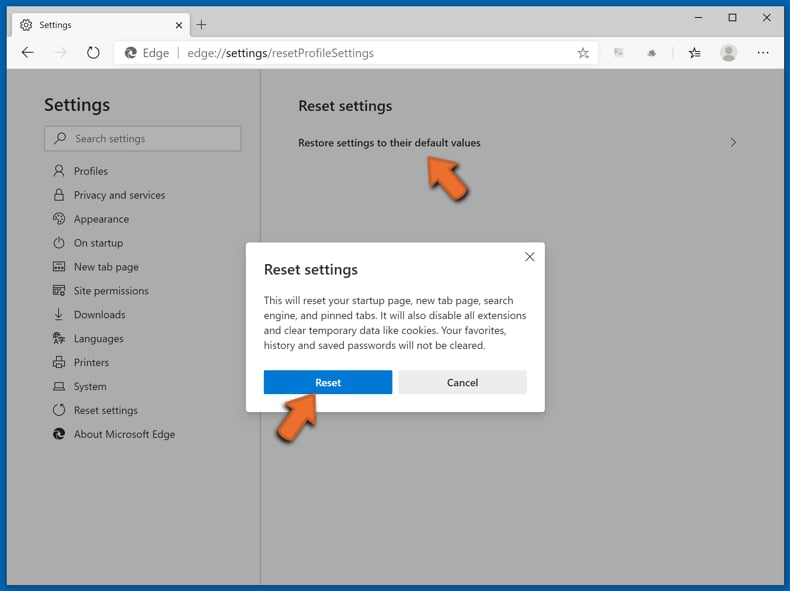
Select Restore settings to their default values. In the opened window, confirm that you wish to reset Microsoft Edge settings to default by clicking the Reset button.
- If this did not help, follow these alternative instructions explaining how to reset the Microsoft Edge browser.
Summary:
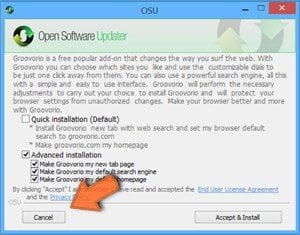 A browser hijacker is a type of adware infection that modifies Internet browser settings by assigning the homepage and default Internet search engine settings to some other (unwanted) website URL. Commonly, this type of adware infiltrates operating systems through free software downloads. If your download is managed by a download client, ensure that you decline offers to install advertised toolbars or applications that seek to change your homepage and default Internet search engine settings.
Post a comment:
If you have additional information on searchscr.com browser hijacker or it's removal please share your knowledge in the comments section below.
Frequently Asked Questions (FAQ)
What is the purpose of forcing users visit dinosrchius.com website?
The purpose of promoting searchscr.com is mainly to earn money by attracting more users to visit the site. Higher traffic can be monetized through ads or similar methods.
Is visiting searchscr.com a threat to my privacy?
Searchscr.com may gather information such as the pages a user visits, their search queries, IP address, and similar browsing details. This kind of data tracking can raise privacy issues, especially if it is shared with third parties or used in malicious ways.
How did a browser hijacker infiltrate my computer?
Browser hijackers can end up on a device via free or dubious apps installed without rejecting unwanted offers. They may also be spread through deceptive advertisements or misleading content found on unsafe websites. Another common source is untrusted distribution channels such as unofficial app stores, third-party download sites, and peer-to-peer (P2P) networks.
Will Combo Cleaner help me remove browser hijackers?
Combo Cleaner can detect and remove browser hijackers from a device. Manual removal is not always completely successful, especially when multiple unwanted hijackers are added. In such situations, all associated threats must be removed together to fully clean the system.
Share:
 Facebook
 X.com
X.com
 LinkedIn
 Copy Link

Tomas Meskauskas
Expert security researcher, professional malware analyst
I am passionate about computer security and technology. I have an experience of over 10 years working in various companies related to computer technical issue solving and Internet security. I have been working as an author and editor for pcrisk.com since 2010. Follow me on Twitter and LinkedIn to stay informed about the latest online security threats.
PCrisk security portal is brought by a company RCS LT.
Joined forces of security researchers help educate computer users about the latest online security threats. More information about the company RCS LT.
Our malware removal guides are free. However, if you want to support us you can send us a donation.
DonatePCrisk security portal is brought by a company RCS LT.
Joined forces of security researchers help educate computer users about the latest online security threats. More information about the company RCS LT.
Our malware removal guides are free. However, if you want to support us you can send us a donation.
Donate
▼ Show Discussion