

Get free scan and check if your device is infected.
Remove it nowTo use full-featured product, you have to purchase a license for Combo Cleaner. Seven days free trial available. Combo Cleaner is owned and operated by RCS LT, the parent company of PCRisk.com.
What kind of malware is PINHOLE RAT?
PINHOLE RAT is a Remote Access Trojan (RAT) uncovered by the SOCRadar Threat Research Unit (STRU) in August 2026. Once installed, it gives attackers remote control over an infected Windows computer, allowing them to steal files, capture screenshots, run shell commands, and load additional malicious modules.
PINHOLE RAT uses FTP server banners as Dead Drop Resolvers, a novel technique where the malware reads attacker instructions from FTP server welcome messages rather than contacting its operator directly.
The RAT hides its real server address inside legitimate platforms such as Pinterest and SurveyMonkey, and routes its network traffic through Cloudflare Workers. Active since at least July 2026, the campaign appeared to be in its early stages at the time of analysis.
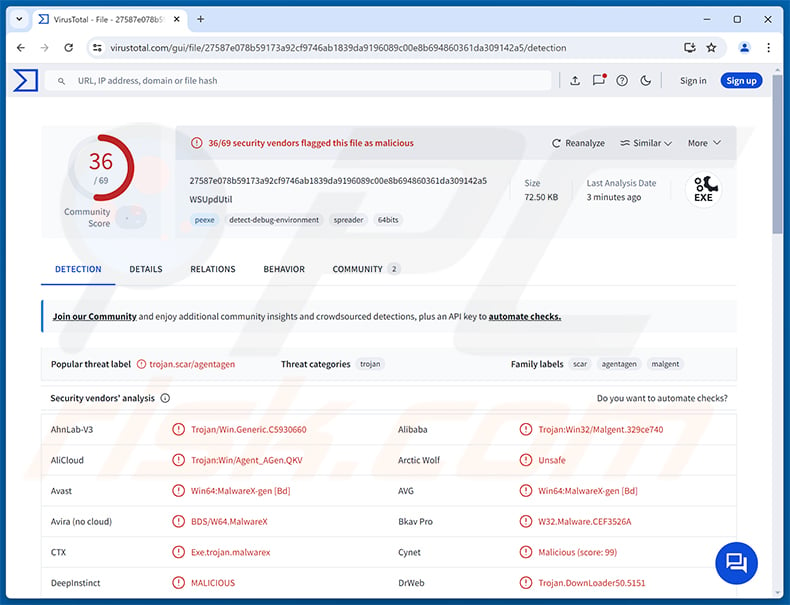
PINHOLE RAT overview
As documented by SOCRadar, PINHOLE RAT arrives through a multi-stage delivery chain that begins when a victim opens a malicious shortcut (.lnk) file, most likely received by email. The shortcut silently connects to a rogue FTP server and reads commands from its banner.
Those commands download a script that drops an encrypted payload into the Windows temporary folder, disguised as a certificate file. After six layers of decoding and decryption, the final RAT code is injected into a legitimate Windows process, hiding the infection from most security tools.
PINHOLE RAT locates its Command and Control (C2) server by reading hidden data embedded inside real Pinterest pins and SurveyMonkey survey pages. The actual server address is concealed behind a Cloudflare Workers proxy, making network-level blocking significantly harder.
What can PINHOLE RAT do?
PINHOLE RAT supports fourteen distinct command types. Operators can list, search, upload, download, or delete files anywhere on the victim's machine. They can also execute programs, take screenshots, and view or force-terminate any running process.
The RAT can open a persistent PowerShell session, letting the attacker type and run any Windows command interactively. A browser stealer module can be downloaded and loaded on demand, targeting saved passwords, cookies, and other credentials stored in popular web browsers.
Stolen files are sent back to the attacker over HTTP disguised as ordinary web traffic. Screenshots are captured and uploaded as JPEG images. Because capabilities are delivered as separate modules, the attacker can expand what the RAT does at any time after infection.
Persistence and defense evasion
For persistence, PINHOLE RAT copies itself to a randomly named folder inside the user's local application data directory. It registers that copy in the Windows Registry to run automatically at each login, using a legacy system key that is rarely monitored by ordinary users.
Before doing anything else, the RAT checks whether it is running inside a sandbox or analysis environment. If it detects artificial system libraries used by emulators, it exits immediately. It also uses a technique called Halo's Gate to make direct kernel calls, bypassing hooks that security software places inside Windows system files.
The final RAT payload is injected into a legitimate Windows process using Asynchronous Procedure Call (APC) injection before the target process has fully started. This makes the injection much harder for security tools to catch.
Configuration data - including the encrypted locations of the Dead Drop Resolvers - is stored in hidden NTFS Alternate Data Streams attached to ordinary desktop.ini files. The payload itself arrives wrapped in six layers of encryption and encoding, with fake JPEG and certificate headers added to disguise the data in transit.
| Name | PINHOLE remote access trojan |
| Threat Type | Remote Access Trojan (RAT) |
| Detection Names | Avast (Win64:MalwareX-gen [Bd]), Combo Cleaner (Trojan.GenericKD.81158338), ESET-NOD32 (Win64/Agent_AGen.QBQ Trojan), Kaspersky (Trojan.Win32.Scar.uvua), Microsoft (Trojan:Win32/Malgent), Full List Of Detections (VirusTotal) |
| Symptoms | Remote Access Trojans are designed to stealthily infiltrate the victim's computer and remain silent, and thus no particular symptoms are clearly visible on an infected machine. |
| Distribution methods | Phishing emails, malicious LNK shortcut files. |
| Damage | Stolen passwords and banking information, identity theft, the victim's computer added to a botnet, additional infections, monetary loss, account hijacking. |
| Malware Removal (Windows) |
To eliminate possible malware infections, scan your computer with legitimate antivirus software. Our security researchers recommend using Combo Cleaner. Download Combo CleanerTo use full-featured product, you have to purchase a license for Combo Cleaner. 7 days free trial available. Combo Cleaner is owned and operated by RCS LT, the parent company of PCRisk.com. |
Conclusion
PINHOLE RAT gives attackers full remote control of an infected computer. Depending on the modules the operator deploys, it can be used to steal browser credentials, search and exfiltrate files, take screenshots, or run arbitrary commands at any time.
Its sophisticated evasion techniques, including sandbox detection, kernel-level bypasses, process injection, and hidden configuration storage, make it a persistent and difficult-to-detect threat. Any system suspected of being infected should be scanned and cleaned immediately.
More examples of RATs are Golden Gh0st, Heisenberg, and TONResolver.
How did PINHOLE RAT infiltrate my computer?
According to research published by SOCRadar, PINHOLE RAT is delivered through phishing emails that carry malicious LNK shortcut files. When a victim opens the shortcut, it silently connects to a rogue FTP server and reads commands from the server's welcome banner.
Those commands download a script that writes an encoded payload to the Windows temporary folder, disguised as a certificate file. The script decodes and runs the payload, then deletes all temporary files within seconds to minimize traces of the infection.
Spanish-language lures, such as fake voucher claims, have been observed in the wild. SOCRadar researchers note that the FTP banner technique could also be adapted for ClickFix-style social engineering pages, where victims are tricked into running a malicious command themselves. More broadly, threats like PINHOLE RAT also reach victims through drive-by downloads and compromised websites.
How to avoid installation of malware?
Exercise caution with unexpected emails and the files they contain. Do not open shortcut or archive files received from unknown senders, and never click links in unsolicited messages. Keep Windows and all installed applications up to date, as security patches close vulnerabilities that malware commonly exploits.
Download software only from official developer websites or verified app stores. Avoid pirated software, key generators, and unofficial download sources. Use a reputable antivirus solution and run regular scans. If you believe that your computer is already infected, we recommend running a scan with Combo Cleaner Antivirus for Windows to automatically eliminate infiltrated malware.
Instant automatic malware removal:
Manual threat removal might be a lengthy and complicated process that requires advanced IT skills. Combo Cleaner is a professional automatic malware removal tool that is recommended to get rid of malware. Download it by clicking the button below:
DOWNLOAD Combo CleanerBy downloading any software listed on this website you agree to our Privacy Policy and Terms of Use. To use full-featured product, you have to purchase a license for Combo Cleaner. 7 days free trial available. Combo Cleaner is owned and operated by RCS LT, the parent company of PCRisk.com.
Quick menu:
- What is PINHOLE RAT?
- STEP 1. Manual removal of PINHOLE RAT malware.
- STEP 2. Check if your computer is clean.
How to remove malware manually?
Manual malware removal is a complicated task - usually it is best to allow antivirus or anti-malware programs to do this automatically. To remove this malware we recommend using Combo Cleaner Antivirus for Windows.
If you wish to remove malware manually, the first step is to identify the name of the malware that you are trying to remove. Here is an example of a suspicious program running on a user's computer:
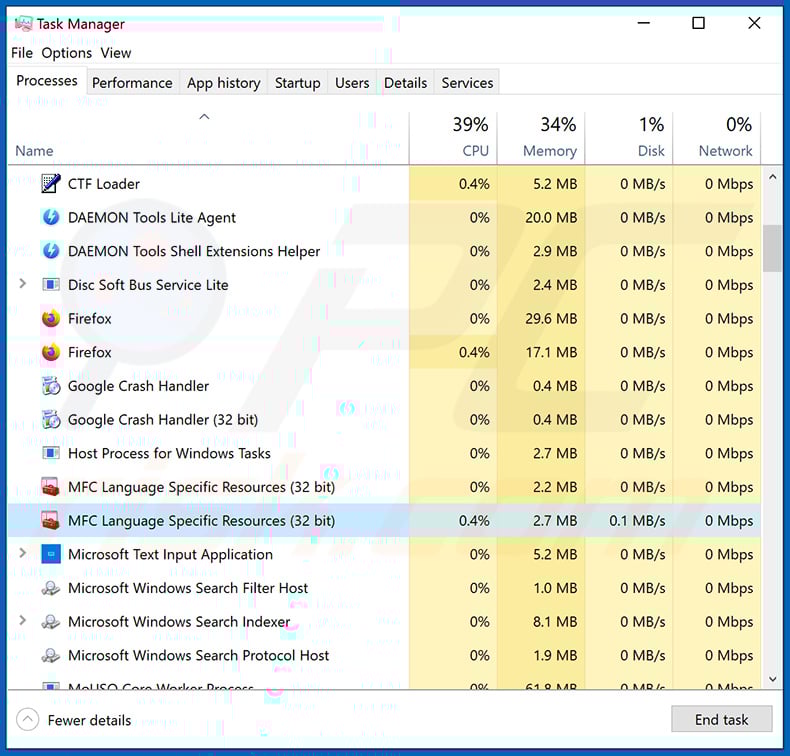
If you checked the list of programs running on your computer, for example, using task manager, and identified a program that looks suspicious, you should continue with these steps:
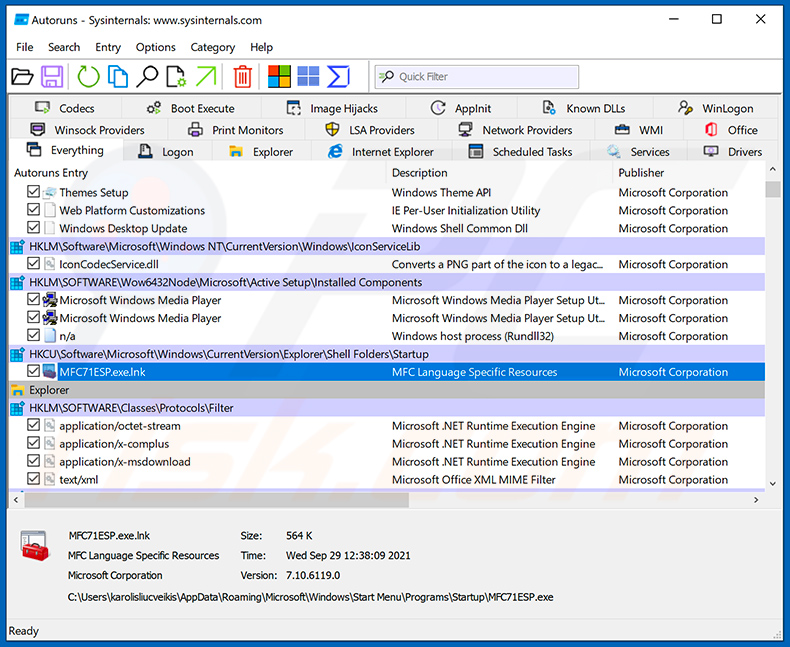
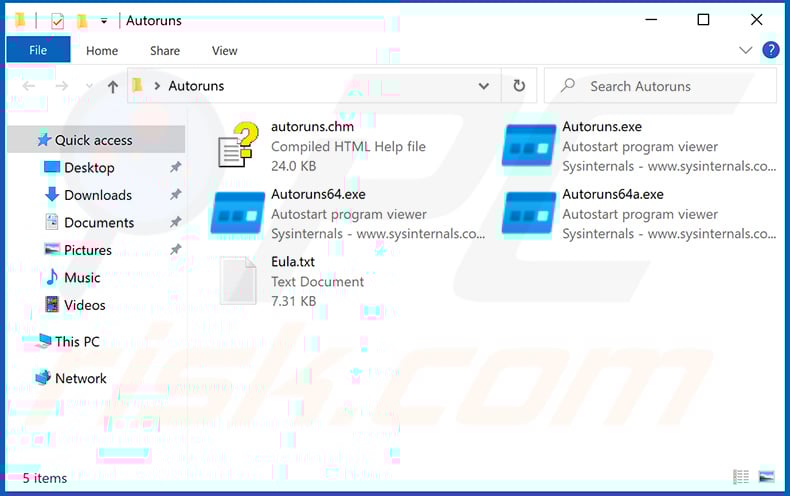
 Download a program called Autoruns. This program shows auto-start applications, Registry, and file system locations:
 Restart your computer into Safe Mode:
Windows XP and Windows 7 users: Start your computer in Safe Mode. Click Start, click Shut Down, click Restart, click OK. During your computer start process, press the F8 key on your keyboard multiple times until you see the Windows Advanced Option menu, and then select Safe Mode with Networking from the list.
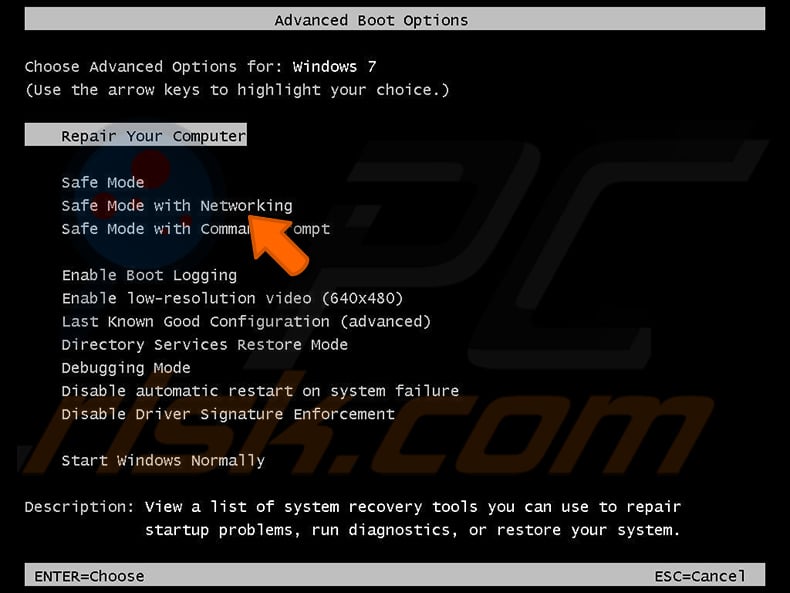
Video showing how to start Windows 7 in "Safe Mode with Networking":
Windows 8 users: Start Windows 8 is Safe Mode with Networking - Go to Windows 8 Start Screen, type Advanced, in the search results select Settings. Click Advanced startup options, in the opened "General PC Settings" window, select Advanced startup.
Click the "Restart now" button. Your computer will now restart into the "Advanced Startup options menu". Click the "Troubleshoot" button, and then click the "Advanced options" button. In the advanced option screen, click "Startup settings".
Click the "Restart" button. Your PC will restart into the Startup Settings screen. Press F5 to boot in Safe Mode with Networking.
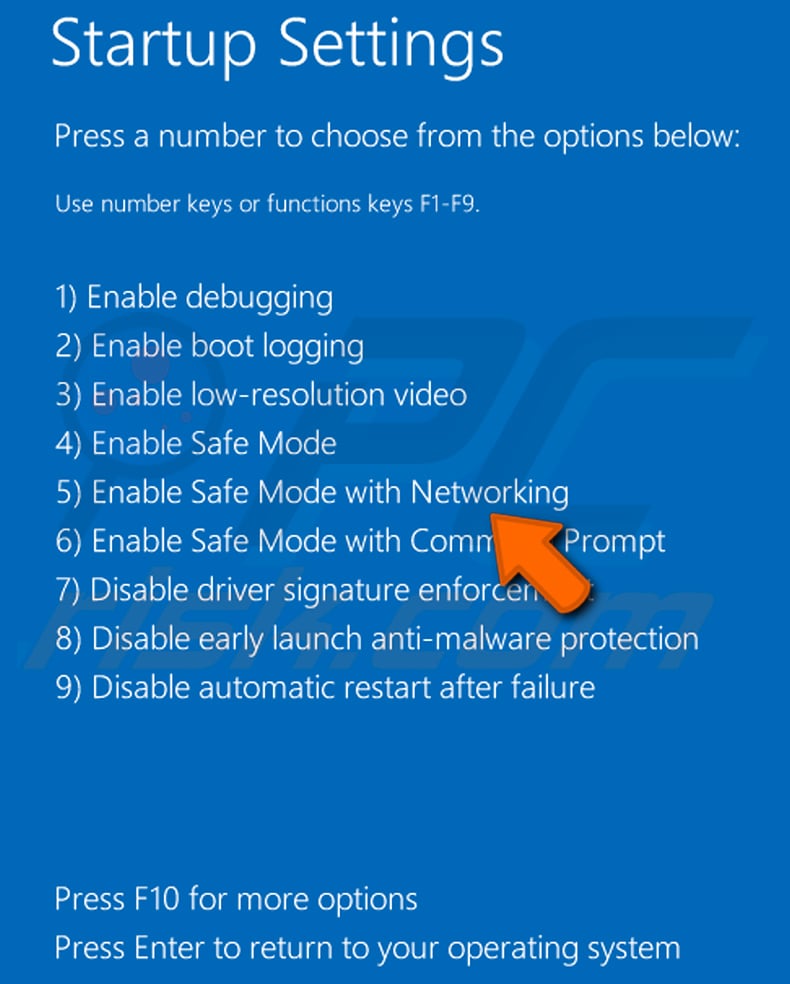
Video showing how to start Windows 8 in "Safe Mode with Networking":
Windows 10 users: Click the Windows logo and select the Power icon. In the opened menu click "Restart" while holding "Shift" button on your keyboard. In the "choose an option" window click on the "Troubleshoot", next select "Advanced options".
In the advanced options menu select "Startup Settings" and click on the "Restart" button. In the following window you should click the "F5" button on your keyboard. This will restart your operating system in safe mode with networking.
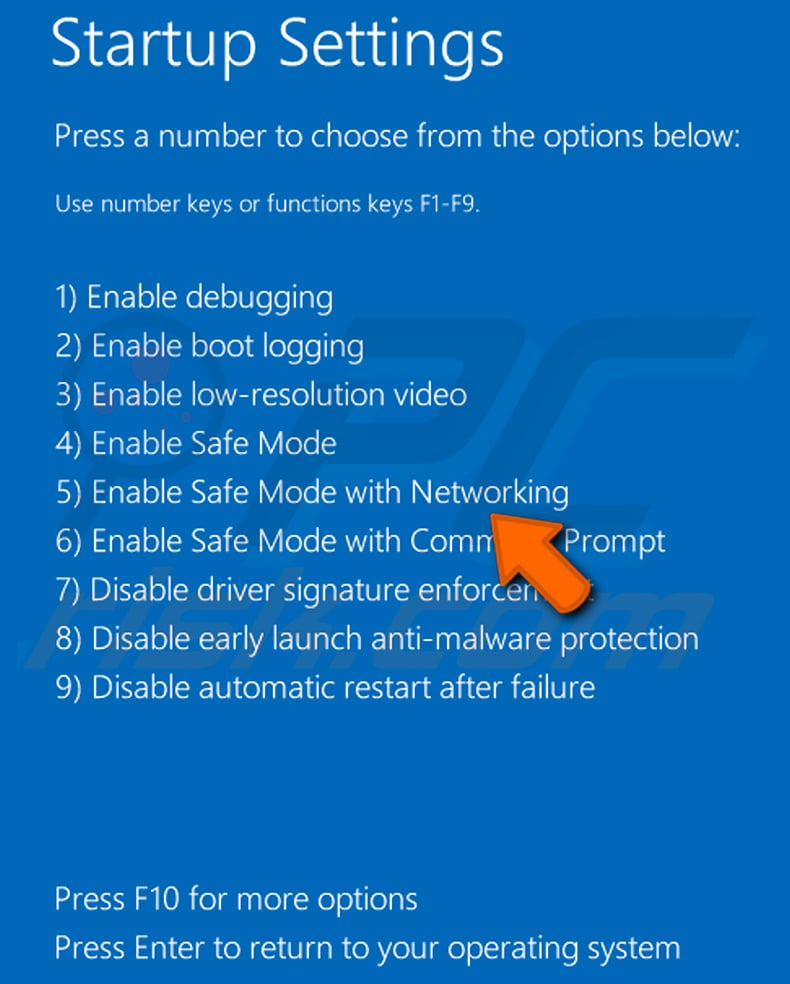
Video showing how to start Windows 10 in "Safe Mode with Networking":
 Extract the downloaded archive and run the Autoruns.exe file.
 In the Autoruns application, click "Options" at the top and uncheck "Hide Empty Locations" and "Hide Windows Entries" options. After this procedure, click the "Refresh" icon.
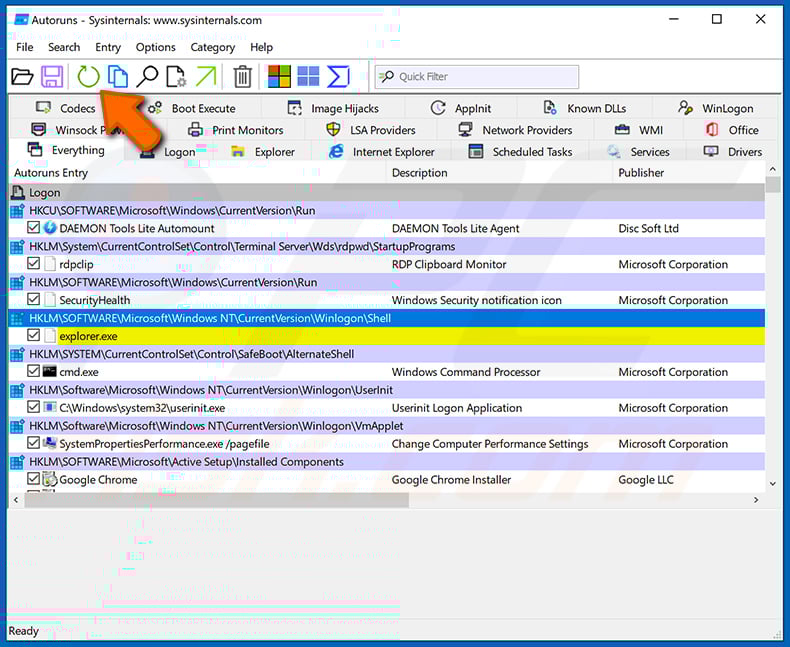
 Check the list provided by the Autoruns application and locate the malware file that you want to eliminate.
You should write down its full path and name. Note that some malware hides process names under legitimate Windows process names. At this stage, it is very important to avoid removing system files. After you locate the suspicious program you wish to remove, right click your mouse over its name and choose "Delete".
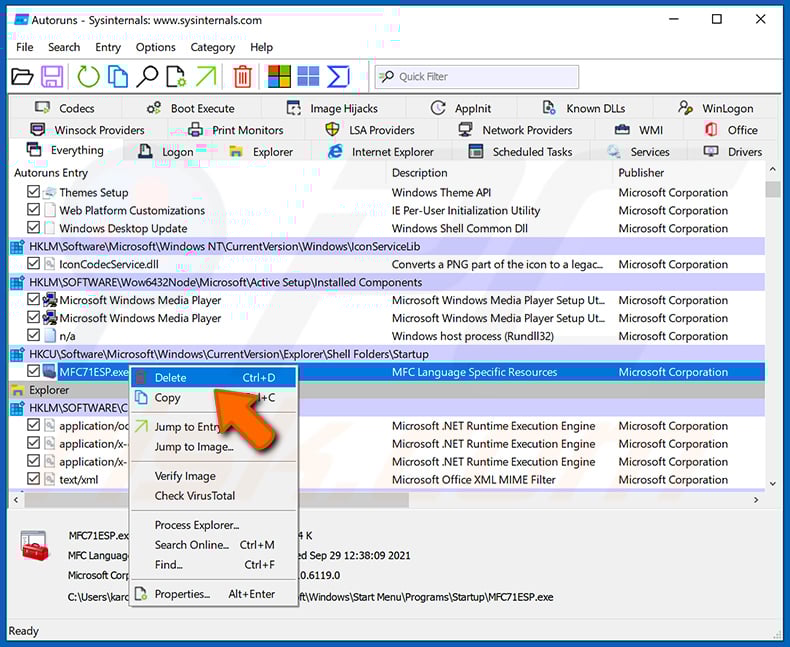
After removing the malware through the Autoruns application (this ensures that the malware will not run automatically on the next system startup), you should search for the malware name on your computer. Be sure to enable hidden files and folders before proceeding. If you find the filename of the malware, be sure to remove it.
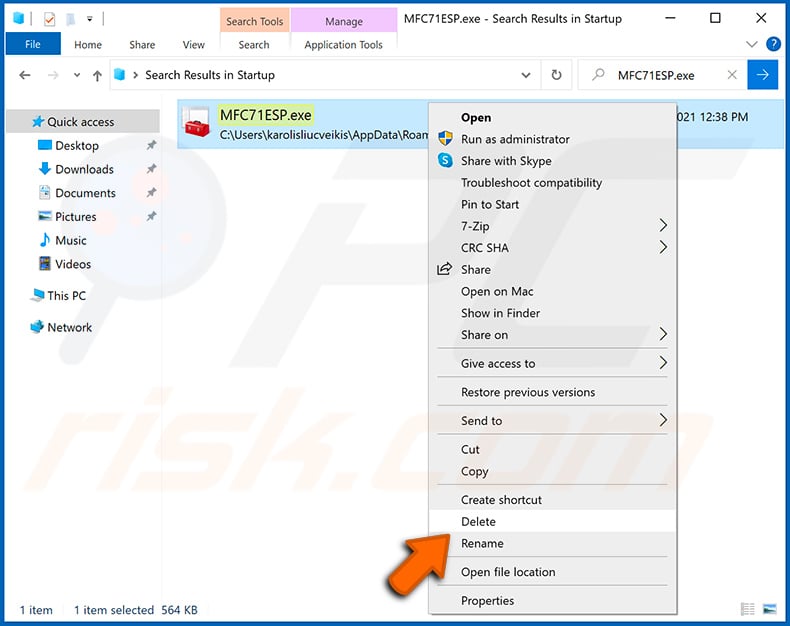
Reboot your computer in normal mode. Following these steps should remove any malware from your computer. Note that manual threat removal requires advanced computer skills. If you do not have these skills, leave malware removal to antivirus and anti-malware programs.
These steps might not work with advanced malware infections. As always it is best to prevent infection than try to remove malware later. To keep your computer safe, install the latest operating system updates and use antivirus software. To be sure your computer is free of malware infections, we recommend scanning it with Combo Cleaner Antivirus for Windows.
Frequently Asked Questions (FAQ)
My computer is infected with PINHOLE RAT malware, should I format my storage device to get rid of it?
Formatting will remove PINHOLE RAT, but it will also erase all your data. A reputable security solution such as Combo Cleaner should be tried first, as it can remove the threat without wiping your files.
What are the biggest issues that PINHOLE RAT malware can cause?
PINHOLE RAT can give attackers full remote control over an infected computer, enabling file theft, browser credential harvesting, screenshot capture, and the deployment of additional malware.
The downstream consequences include identity theft, financial fraud, account takeover, and loss of sensitive personal and business data.
What is the purpose of PINHOLE RAT malware?
The purpose of PINHOLE RAT is to give attackers remote control over infected Windows computers. Operators can run commands, steal files and browser credentials, take screenshots, and load additional malicious modules on demand.
How did PINHOLE RAT malware infiltrate my computer?
PINHOLE RAT is spread through phishing emails containing malicious LNK shortcut files. Opening the shortcut triggers a hidden chain that connects to a rogue FTP server, downloads an encrypted payload, and installs the RAT silently.
Will Combo Cleaner protect me from malware?
Yes. Combo Cleaner can detect and remove most known malware, including RATs. Because threats like PINHOLE RAT use advanced evasion and inject themselves into legitimate processes, running a full system scan is important to ensure the system is completely clean.
Share:
 Facebook
 X.com
X.com
 LinkedIn
 Copy Link

Tomas Meskauskas
Expert security researcher, professional malware analyst
I am passionate about computer security and technology. I have an experience of over 10 years working in various companies related to computer technical issue solving and Internet security. I have been working as an author and editor for pcrisk.com since 2010. Follow me on Twitter and LinkedIn to stay informed about the latest online security threats.
PCrisk security portal is brought by a company RCS LT.
Joined forces of security researchers help educate computer users about the latest online security threats. More information about the company RCS LT.
Our malware removal guides are free. However, if you want to support us you can send us a donation.
DonatePCrisk security portal is brought by a company RCS LT.
Joined forces of security researchers help educate computer users about the latest online security threats. More information about the company RCS LT.
Our malware removal guides are free. However, if you want to support us you can send us a donation.
Donate
▼ Show Discussion