

Get free scan and check if your device is infected.
Remove it nowTo use full-featured product, you have to purchase a license for Combo Cleaner. Seven days free trial available. Combo Cleaner is owned and operated by RCS LT, the parent company of PCRisk.com.
What kind of malware is RatHat?
RatHat is an Android Remote Access Trojan (RAT) linked to threat actors believed to be operating in China. According to research published by Zimperium's zLabs team, it combines AI-driven automation, hardware-level keylogging, and sophisticated anti-analysis protections to steal banking credentials and maintain persistent remote control over infected devices.
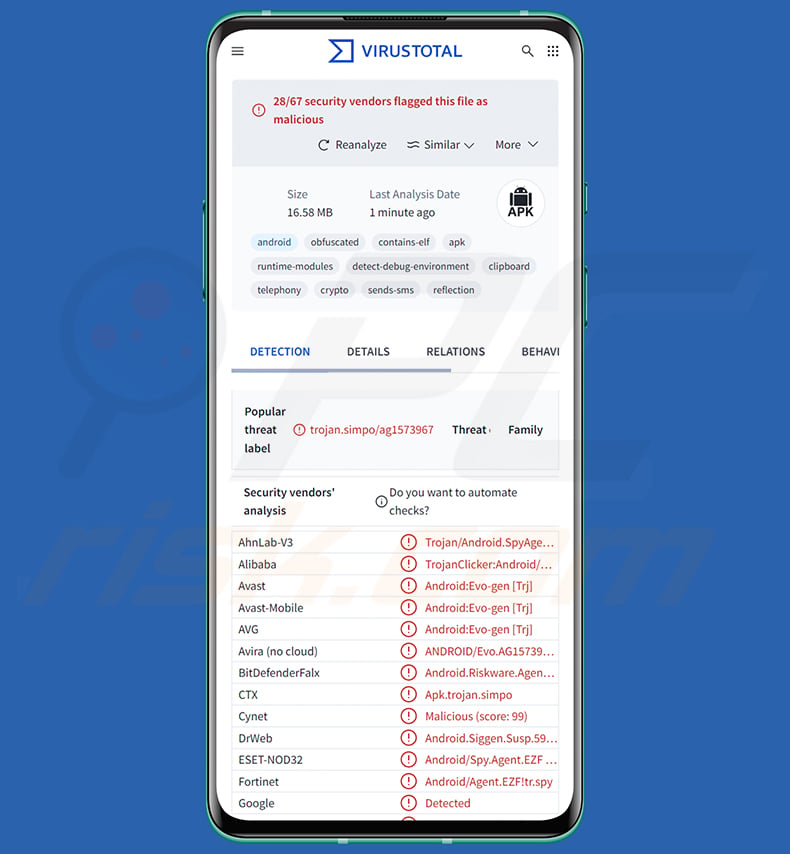
RatHat malware overview
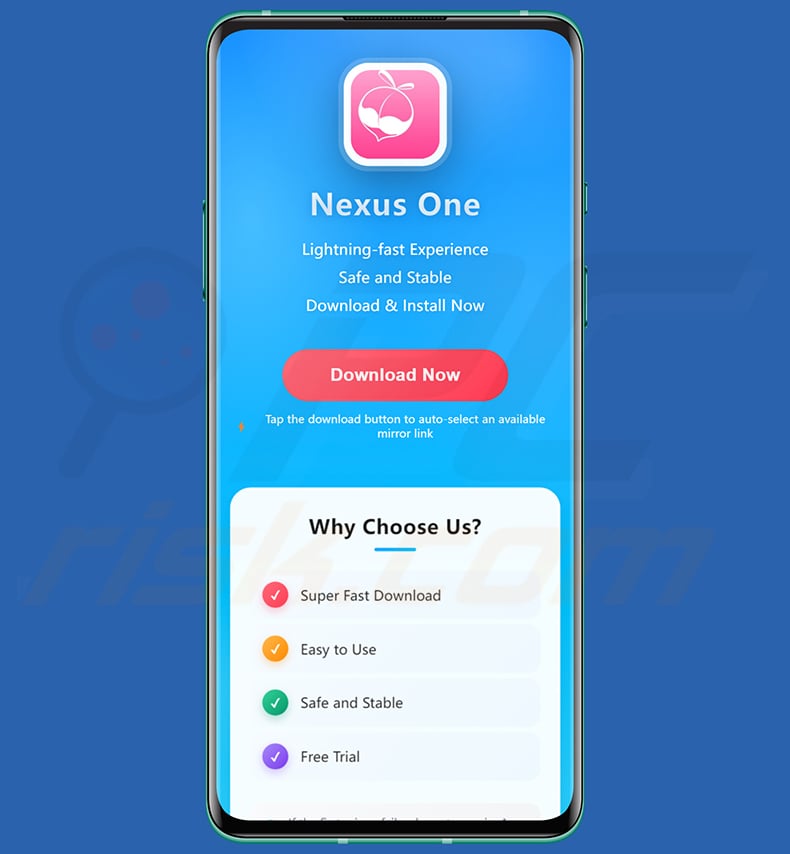
RatHat was uncovered by the zLabs team at Zimperium, who identified it as a sophisticated Android RAT with links to China-based operators. It is distributed primarily through smishing campaigns and malvertising that push victims toward third-party download portals hosting malicious APK files disguised as legitimate applications. One such site, kingbss[.]com, promotes the malware as a fast and "safe" app called Nexus One.
In some builds, the app hides behind the icon and name of a well-known streaming service (the research diagram shows Disney+ and ZEE5 lures), and the operator can later change the icon to one labeled "Chrome". Once installed, RatHat requests access to Android's Accessibility Service.
The app uses localized HTML lure pages, including claims that the permission is required due to network restrictions, to persuade the user into granting access. In some countries, the lure also dangles financial bait. This single permission becomes the enabler for nearly every malicious capability that follows.
With Accessibility access in place, the malware silently navigates device settings to unlock Developer Options and enable Wireless Debugging. It then reads the generated pairing code and port directly from the on-screen UI, and uses an embedded ADB library to pair itself with the device's own Android Debug Bridge daemon. The result is shell-level access to the device, obtained entirely without an external computer.
From that privileged shell, RatHat stages two additional components. The first is a Go-language agent, disguised as a native library named liblocal-service.so, which acts as a command-and-control executor capable of running privileged system commands. The second is a reverse proxy client, disguised as libmedia_codec.so, that establishes a persistent encrypted tunnel back to the attacker's server.
One of RatHat's most distinctive features is its use of generative AI for on-device navigation. The malware converts the device's live Accessibility tree into XML and sends it to Google Gemini, which replies with precise screen coordinates for synthetic taps and scroll commands. This adaptive approach is harder for security tools to recognize than traditional, scripted automation.
The AI prompts embedded in the malware are written in Chinese, which is one of the indicators pointing to China-based operators. One of these prompts, for example, asks the AI to locate the "Pair device with pairing code" button in the Wireless Debugging menu, so the malware can tap it without human input.
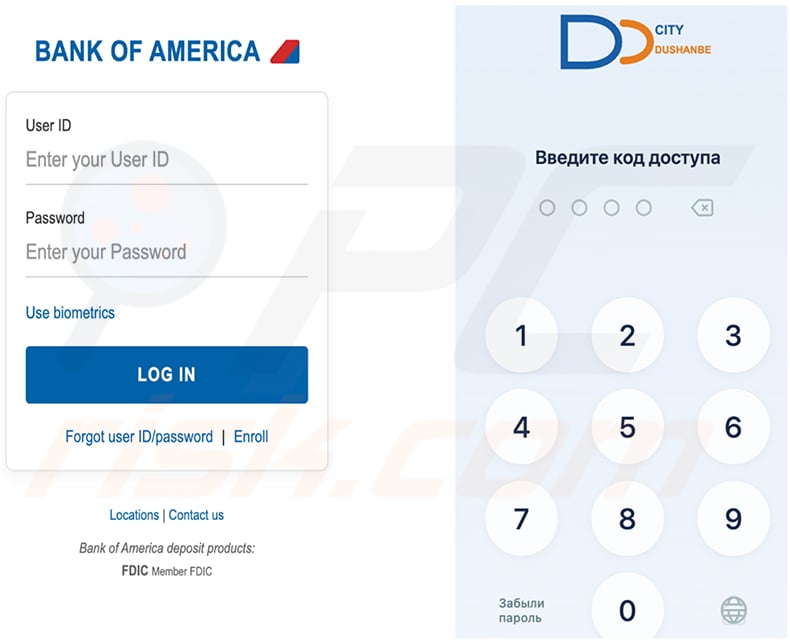
Credential theft operates through three parallel methods. The overlay engine injects fake HTML login screens over targeted banking and payment applications, capturing everything typed into them. Examples shown by the researchers include a fake Bank of America login page and a Russian-language banking PIN screen.
WeChat and Alipay users are targeted with separate, Chinese-language "identity verification" screens that ask for the six-digit payment PIN. These overlays are built directly into the malware's code rather than downloaded from the attacker's server.
A second method uses the Accessibility Service to reconstruct typed text from on-screen events, including masked password fields. The third method reads raw touch coordinates from the device's input driver via the getevent tool, an approach normally restricted to shell-level processes.
The malware cross-references those touch coordinates against stored keyboard layout maps for major phone brands, reconstructing PINs, unlock patterns, and passwords. This technique bypasses FLAG_SECURE restrictions, custom keyboards, and lock screen protections that would block the other two methods entirely.
RatHat also intercepts SMS messages and push notifications to capture two-factor authentication codes. It streams the device screen through two independent channels: one using the standard MediaProjection API and another via the shell-level Go agent that requires no user consent dialog. A full inventory of installed apps is uploaded to the attacker, and files can be transferred in either direction.
The Go agent can silently disable or fully uninstall other packages, including security software, using standard Android package manager commands. It also exempts the malware from battery optimization and puts it in the highest-priority standby bucket, ensuring it runs without interruption in the background.
Persistence survives uninstallation. The Go agent runs outside the main app's lifecycle, so removing the app does not remove the agent. The agent detects the missing app and automatically reinstalls the APK, re-grants all runtime permissions, and re-enables Accessibility without any on-screen interaction.
The main app separately intercepts the uninstall confirmation dialog and overlays a fake Google Play error to cancel the removal before it completes. Additional keep-alive tricks, such as scheduled alarms, account sync, and a native watchdog, restart its components if they are stopped.
Anti-analysis protections span four structural layers. The dropper encrypts its payload using XOR transforms and GZIP compression. The APK's AndroidManifest is inflated to 61MB with undocumented data chunks that crash most decompilers. DEX bytecode poisoning causes disassemblers to fail, and a dual string encryption scheme obscures all readable strings at rest.
Six runtime anti-debugging checks detect JDWP debuggers, ptrace attachment, the Frida instrumentation framework, Xposed modules, root indicators, and emulator artifacts. Most automated analysis environments either crash on the malformed manifest or are actively detected and avoided at runtime.
In summary, the presence of software like RatHat on a device can lead to multiple system infections, serious privacy violations, financial losses, and identity theft. It is worth noting that malware developers often improve upon their software and methodologies. Hence, potential future iterations of RatHat could have additional or different functionalities and features.
| Name | RatHat trojan |
| Threat Type | Android malware, malicious application, Remote Access Trojan, Remote Administration Tool, RAT. |
| Detection Names | Avast-Mobile (Android:Evo-gen [Trj]), Combo Cleaner (Android.Riskware.Agent.aDKHB), ESET-NOD32 (Android/Spy.Agent.EZF Trojan), Kaspersky (HEUR:Trojan-Clicker.AndroidOS.Simpo.c), Full List (VirusTotal) |
| Symptoms | The device is running slow, system settings are modified without user's permission, questionable applications appear, data and battery usage is increased significantly, browsers redirect to questionable websites, intrusive advertisements are delivered. |
| Distribution methods | Malicious SMS messages (smishing), malvertising campaigns, deceptive download websites, fake applications (e.g., disguised as streaming apps). |
| Damage | Stolen personal information (private messages, logins/passwords, etc.), decreased device performance, battery is drained quickly, decreased Internet speed, huge data losses, monetary losses, stolen identity (malicious apps might abuse communication apps). |
| Malware Removal (Windows) |
To eliminate possible malware infections, scan your computer with legitimate antivirus software. Our security researchers recommend using Combo Cleaner. Download Combo CleanerTo use full-featured product, you have to purchase a license for Combo Cleaner. 7 days free trial available. Combo Cleaner is owned and operated by RCS LT, the parent company of PCRisk.com. |
Remote Access Trojan examples
RatHat stands out among Android RATs due to its AI-assisted navigation, hardware-level PIN capture, and multi-stage persistence that actively reinstalls itself after removal. These capabilities make it a serious and resilient threat to users of banking and payment applications, with potential for severe and lasting financial damage.
Other examples of Android-targeting Remote Access Trojans include Night Dragon, Flying Eagle, and Glitch SPY. Malware of this kind is typically designed to give attackers long-term, covert access to victims' devices and the sensitive data stored on them.
How did RatHat infiltrate my device?
RatHat spreads primarily through deceptive SMS messages containing links to phishing sites, and through malvertising campaigns that redirect users to third-party download portals. These portals host malicious APK files disguised as popular streaming apps or other legitimate software. For example, a page hosted on kingbss[.]com offers a supposedly fast and stable app named Nexus One, with a large "Download Now" button that delivers the malware.
Victims who sideload the APK outside the official Google Play Store bypass Android's built-in app review process. The dropper then requests Accessibility permissions using persuasive, localized on-screen prompts, and the full infection chain proceeds silently in the background once that permission is granted.
How to avoid installation of malware?
Download applications only from the official Google Play Store and verify publisher details and user reviews before installing anything. Be cautious with links arriving via SMS, especially those that direct you to download an APK file from an unfamiliar website.
Keep your Android operating system and all installed applications updated regularly. Run reputable mobile security software on your device, and pay close attention to permission requests. An app asking for Accessibility Service access without a clear, legitimate reason is a strong warning sign.
Deceptive website (kingbss[.]com) promoting RatHat as the "Nexus One" app (source: Zimperium):
RatHat fake overlays targeting Bank of America and a Russian-language banking app (source: Zimperium):
Quick menu:
- Introduction
- How to delete browsing history from the Chrome web browser?
- How to disable browser notifications in the Chrome web browser?
- How to reset the Chrome web browser?
- How to delete browsing history from the Firefox web browser?
- How to disable browser notifications in the Firefox web browser?
- How to reset the Firefox web browser?
- How to uninstall potentially unwanted and/or malicious applications?
- How to boot the Android device in "Safe Mode"?
- How to check the battery usage of various applications?
- How to check the data usage of various applications?
- How to install the latest software updates?
- How to reset the system to its default state?
- How to disable applications that have administrator privileges?
Delete browsing history from the Chrome web browser:
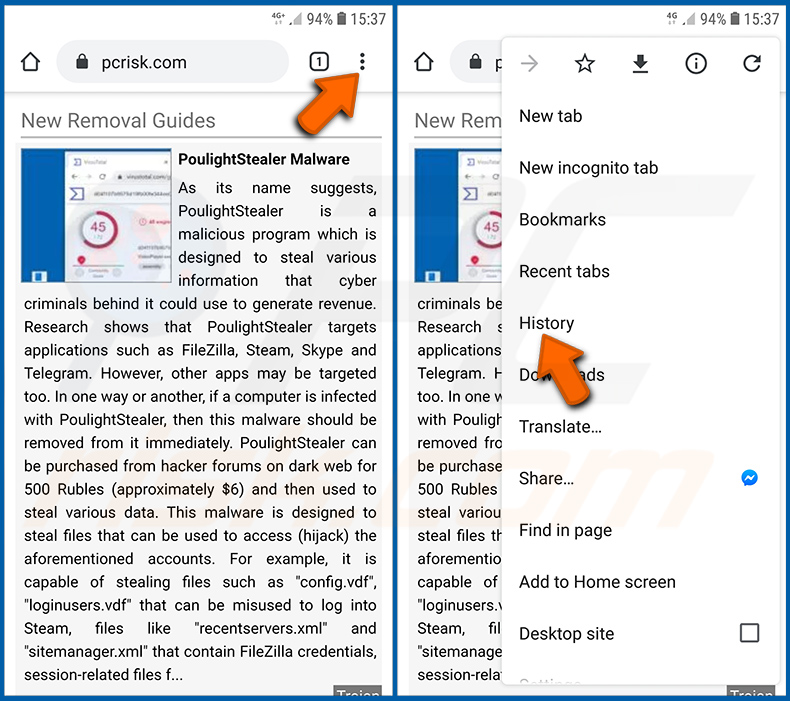
Tap the "Menu" button (three dots on the right-upper corner of the screen) and select "History" in the opened dropdown menu.
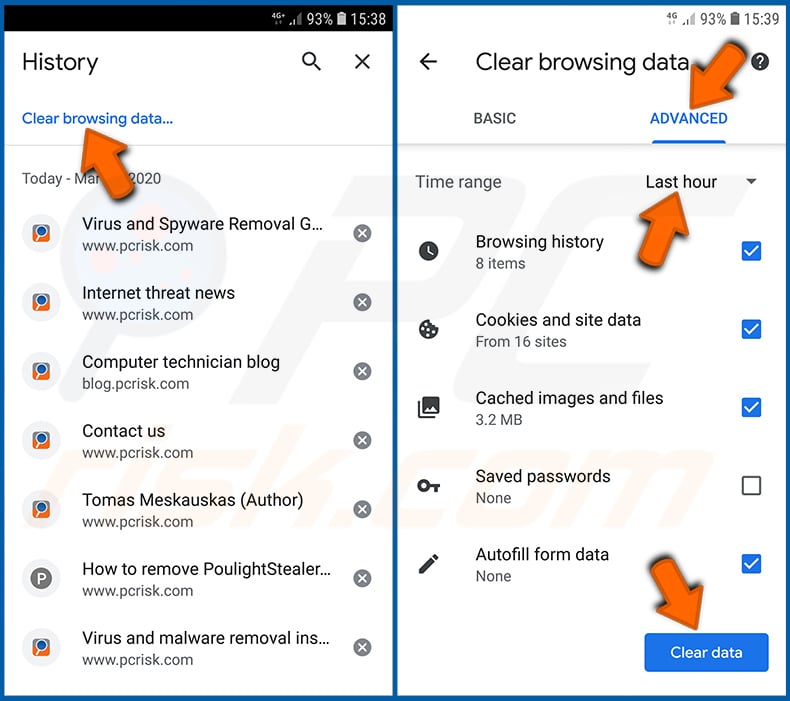
Tap "Clear browsing data", select "ADVANCED" tab, choose the time range and data types you want to delete and tap "Clear data".
Disable browser notifications in the Chrome web browser:
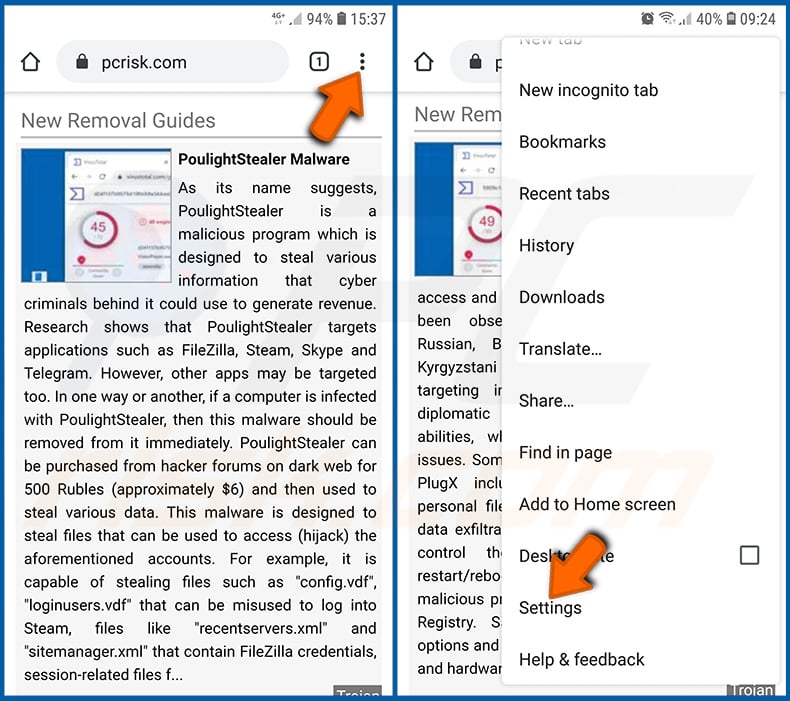
Tap the "Menu" button (three dots on the right-upper corner of the screen) and select "Settings" in the opened dropdown menu.
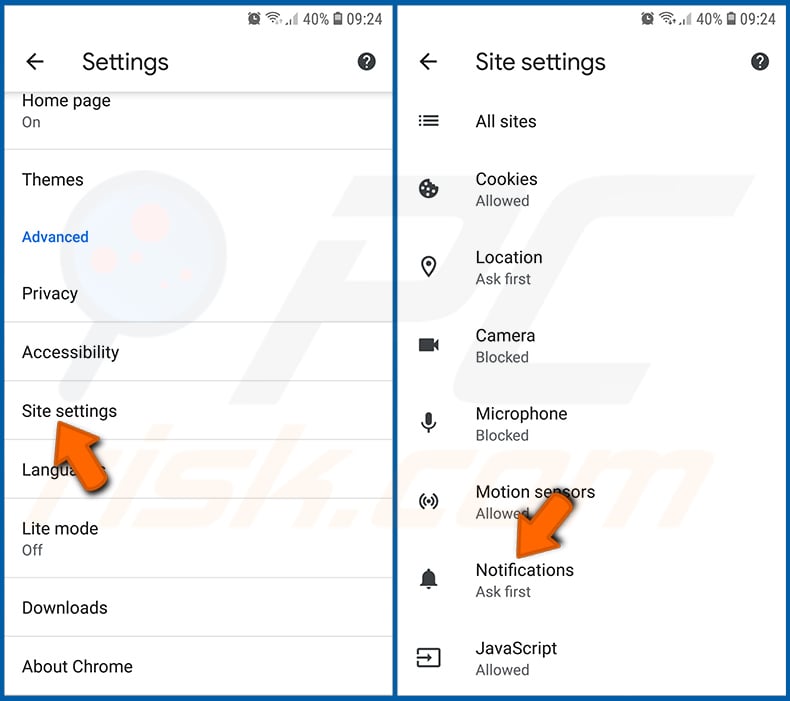
Scroll down until you see "Site settings" option and tap it. Scroll down until you see "Notifications" option and tap it.
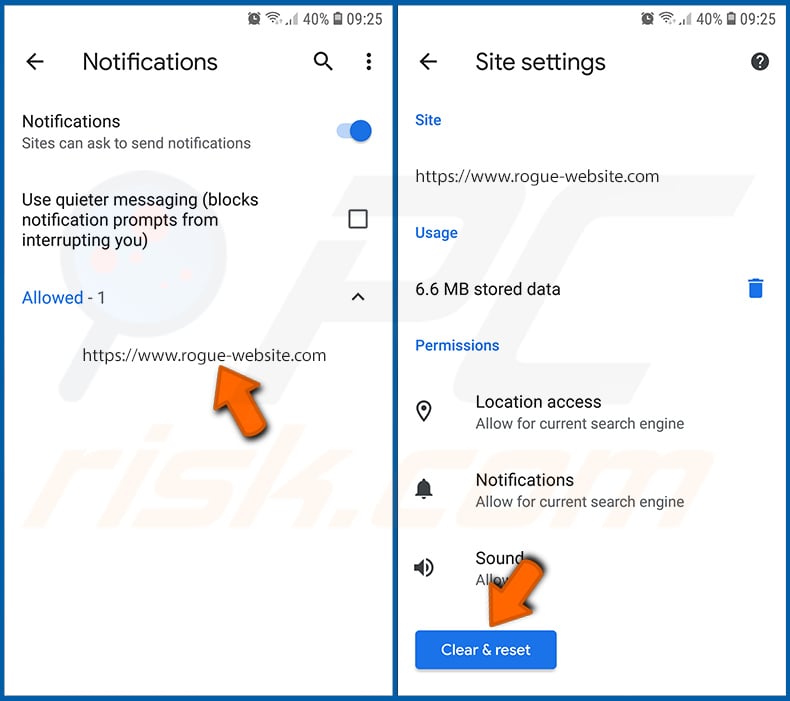
Find the websites that deliver browser notifications, tap on them and click "Clear & reset". This will remove permissions granted for these websites to deliver notifications. However, once you visit the same site again, it may ask for a permission again. You can choose whether to give these permissions or not (if you choose to decline the website will go to "Blocked" section and will no longer ask you for the permission).
Reset the Chrome web browser:
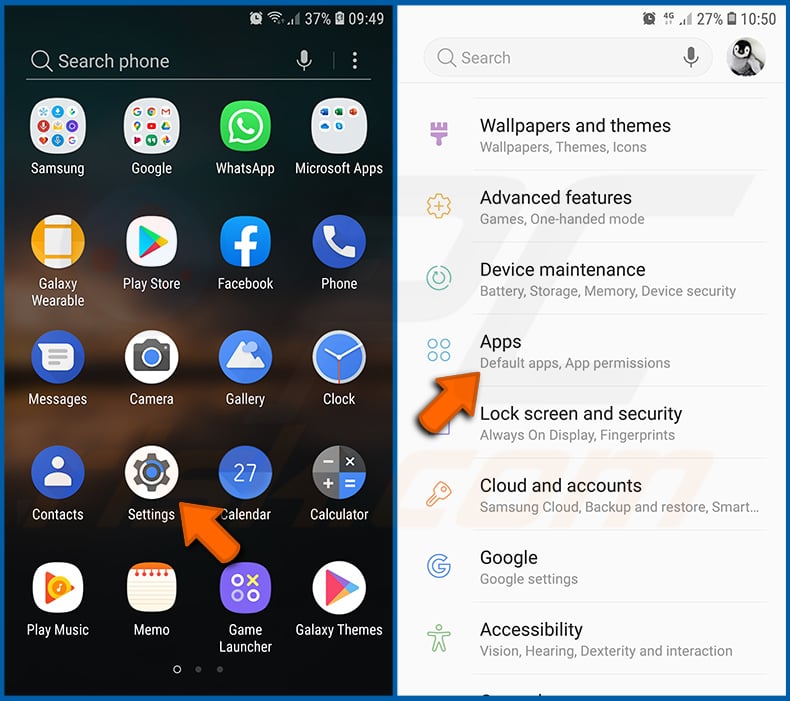
Go to "Settings", scroll down until you see "Apps" and tap it.
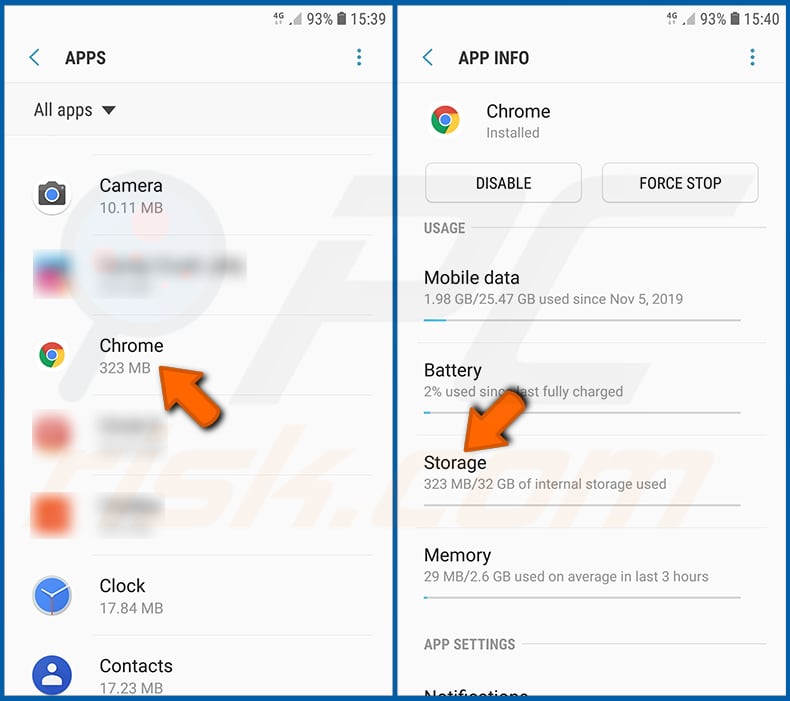
Scroll down until you find "Chrome" application, select it and tap "Storage" option.
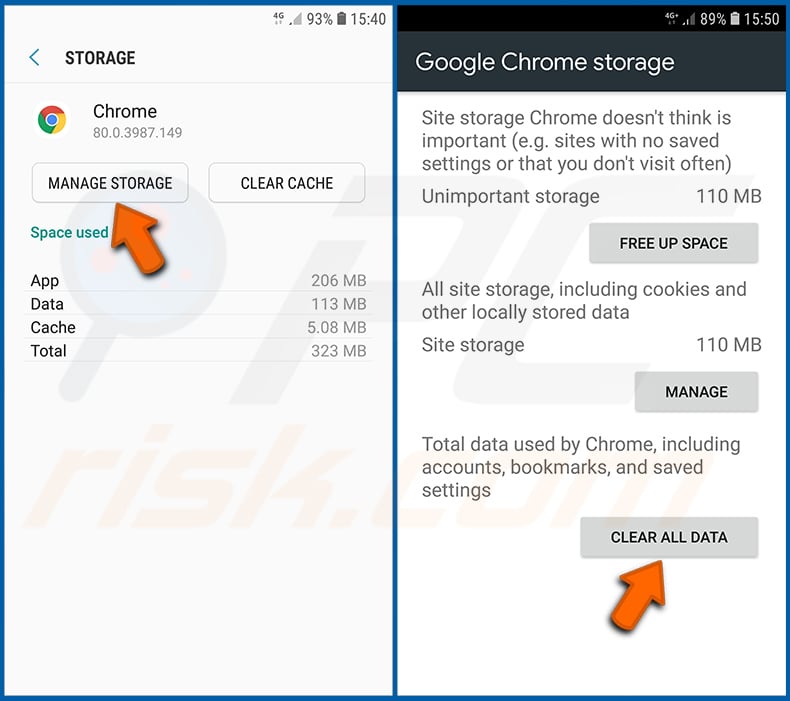
Tap "MANAGE STORAGE", then "CLEAR ALL DATA" and confirm the action by taping "OK". Note that resetting the browser will eliminate all data stored within. This means that all saved logins/passwords, browsing history, non-default settings and other data will be deleted. You will also have to re-login into all websites as well.
Delete browsing history from the Firefox web browser:
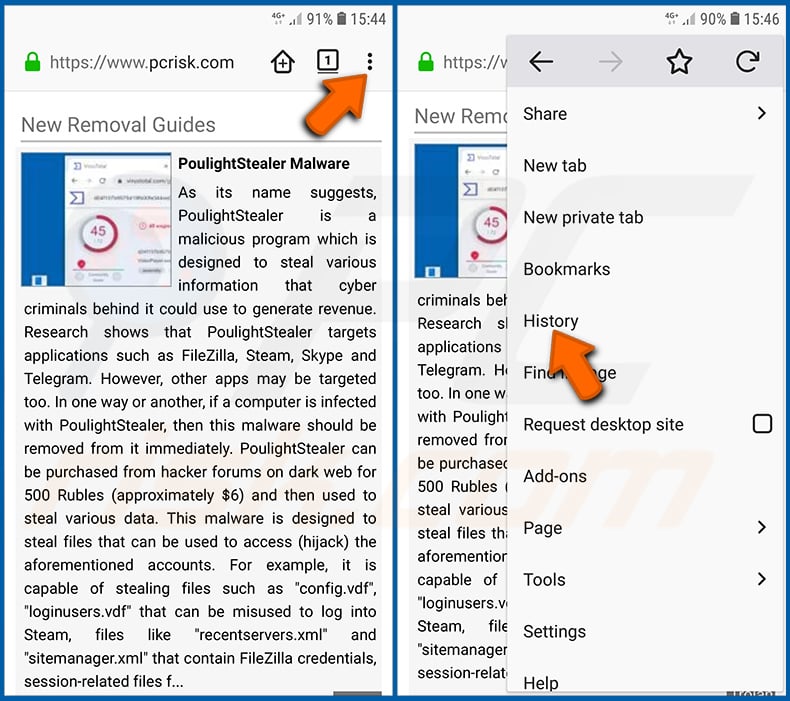
Tap the "Menu" button (three dots on the right-upper corner of the screen) and select "History" in the opened dropdown menu.
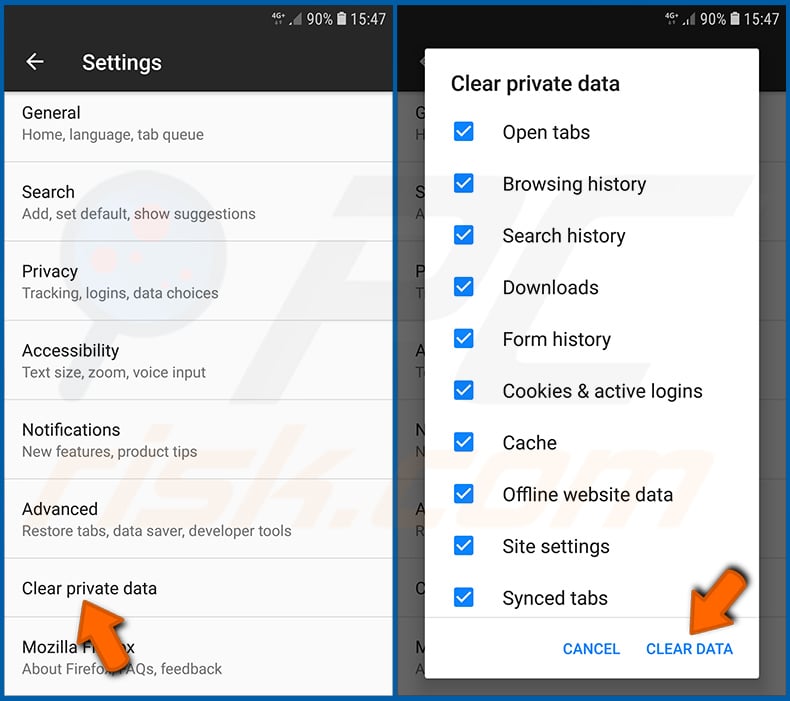
Scroll down until you see "Clear private data" and tap it. Select data types you want to remove and tap "CLEAR DATA".
Disable browser notifications in the Firefox web browser:
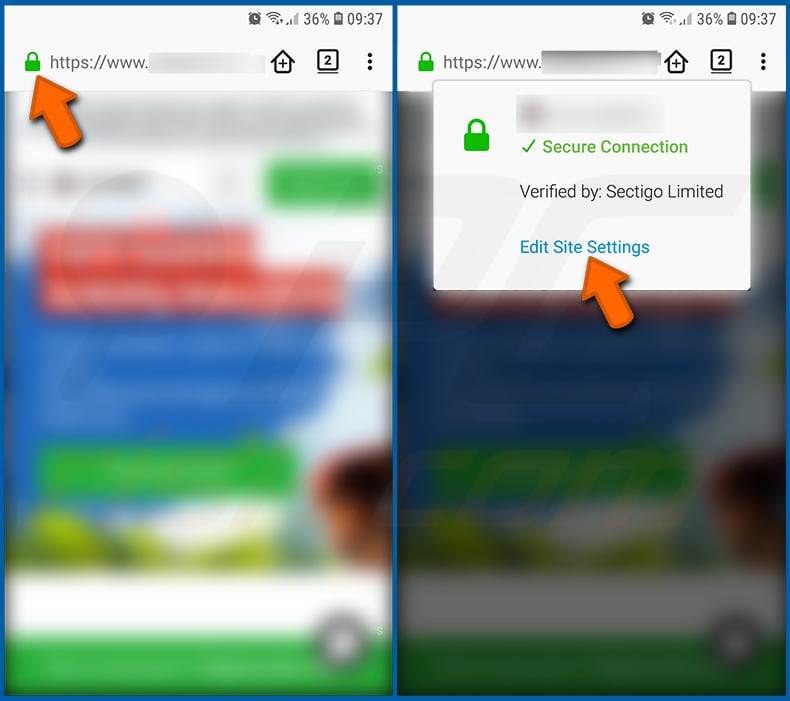
Visit the website that is delivering browser notifications, tap the icon displayed on the left of URL bar (the icon will not necessarily be a "Lock") and select "Edit Site Settings".
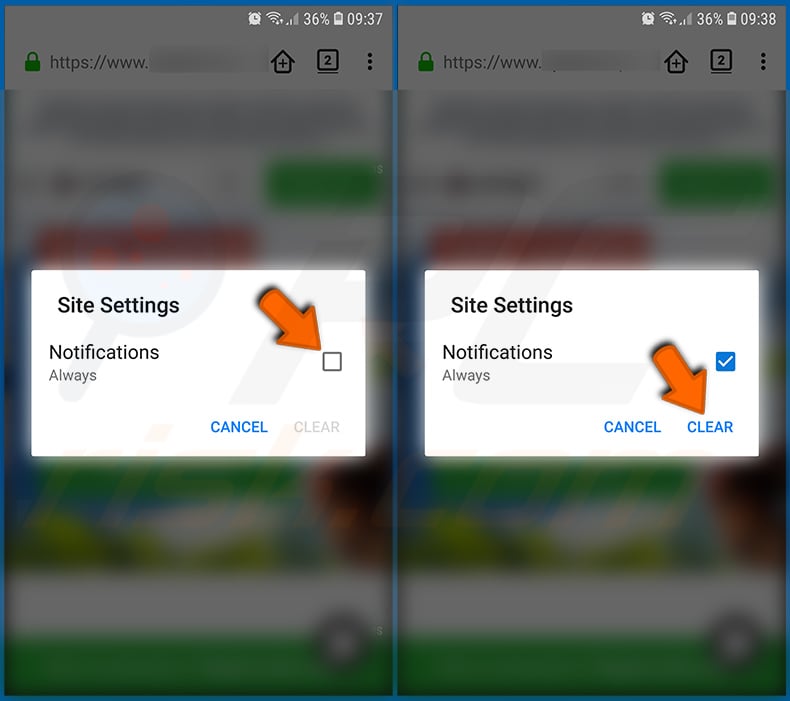
In the opened pop-up opt-in the "Notifications" option and tap "CLEAR".
Reset the Firefox web browser:
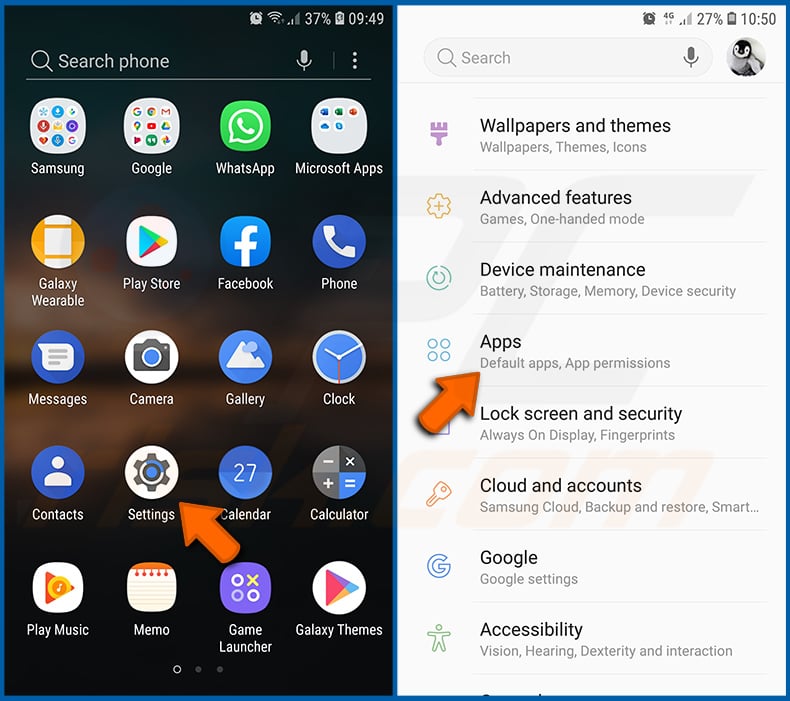
Go to "Settings", scroll down until you see "Apps" and tap it.
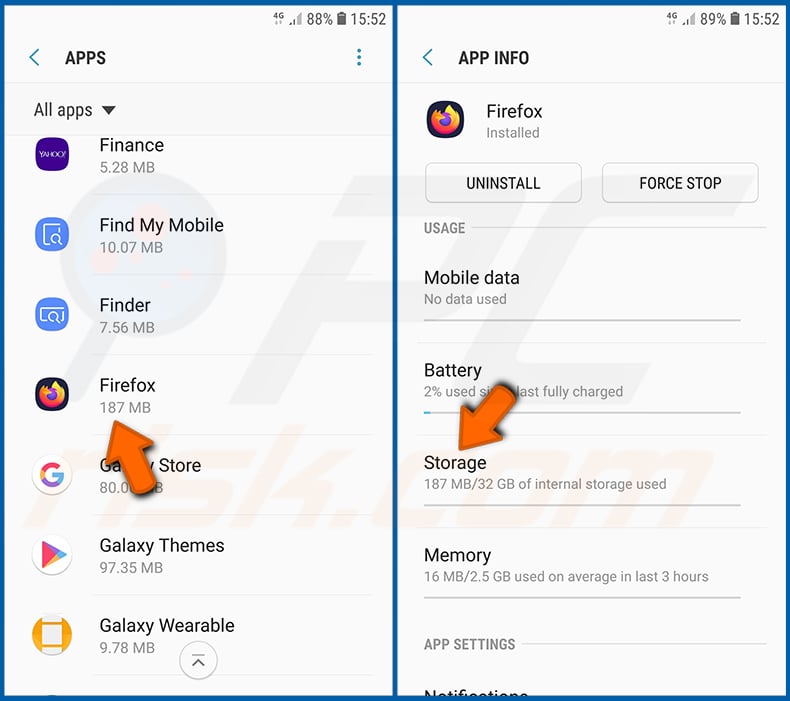
Scroll down until you find "Firefox" application, select it and tap "Storage" option.
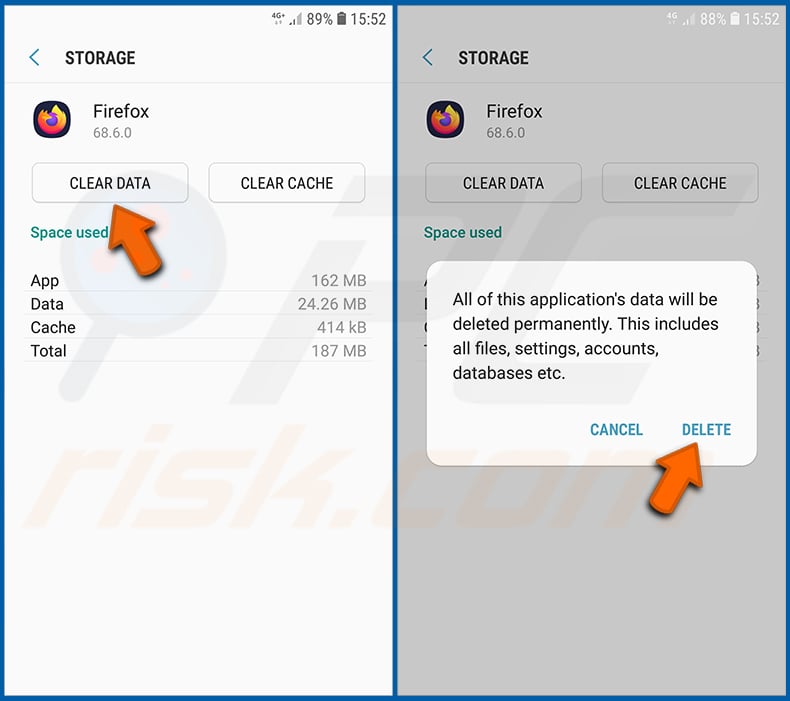
Tap "CLEAR DATA" and confirm the action by taping "DELETE". Note that resetting the browser will eliminate all data stored within. This means that all saved logins/passwords, browsing history, non-default settings and other data will be deleted. You will also have to re-login into all websites as well.
Uninstall potentially unwanted and/or malicious applications:
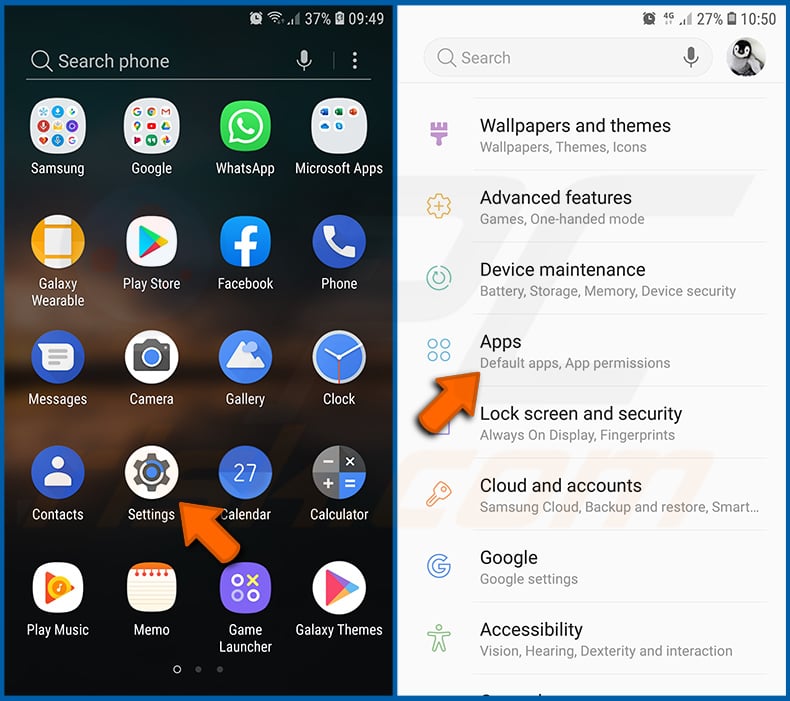
Go to "Settings", scroll down until you see "Apps" and tap it.
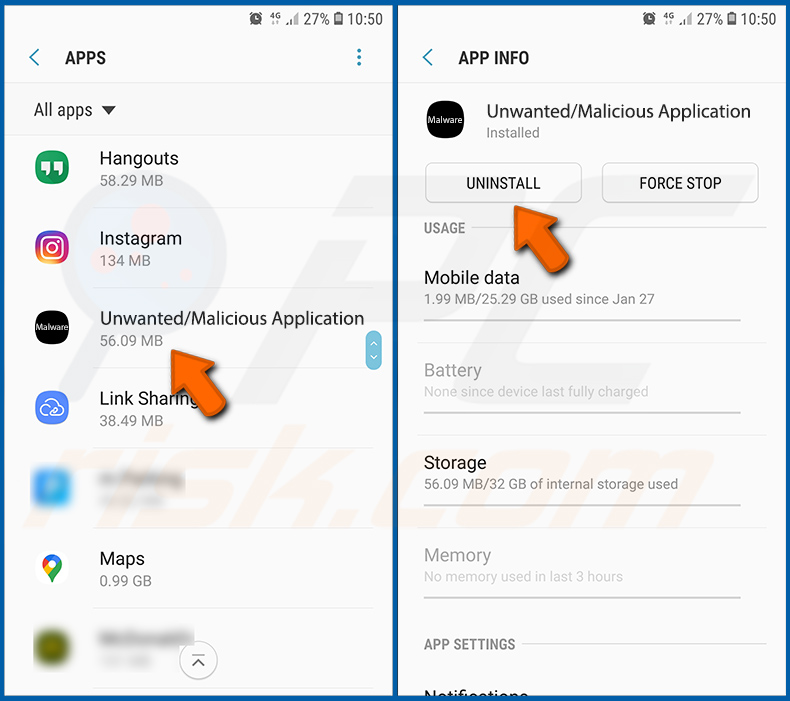
Scroll down until you see a potentially unwanted and/or malicious application, select it and tap "Uninstall". If, for some reason, you are unable to remove the selected app (e.g., you are prompted with an error message), you should try using the "Safe Mode".
Boot the Android device in "Safe Mode":
The "Safe Mode" in Android operating system temporarily disables all third-party applications from running. Using this mode is a good way to diagnose and solve various issues (e.g., remove malicious applications that prevent users you from doing so when the device is running "normally").
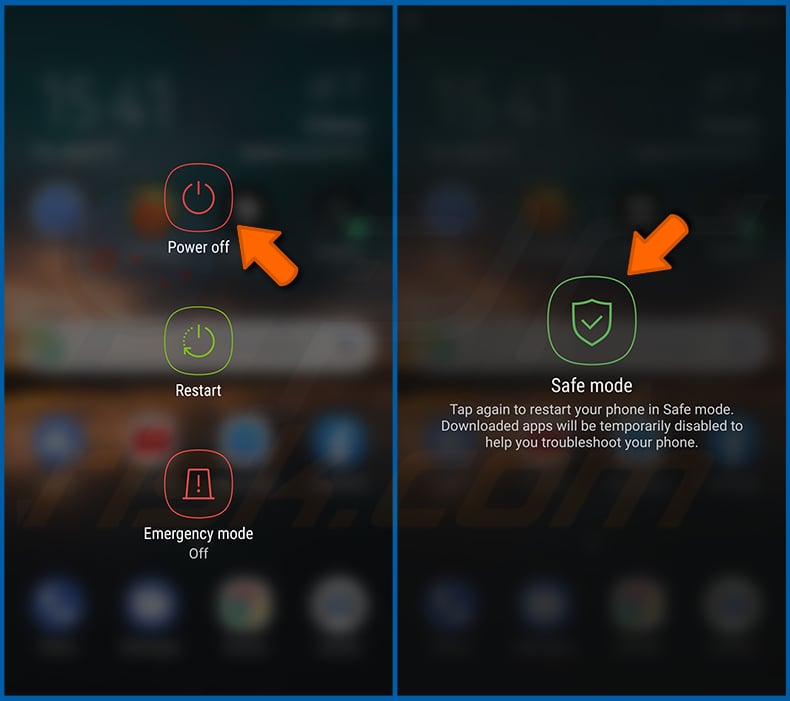
Push the "Power" button and hold it until you see the "Power off" screen. Tap the "Power off" icon and hold it. After a few seconds the "Safe Mode" option will appear and you'll be able run it by restarting the device.
Check the battery usage of various applications:
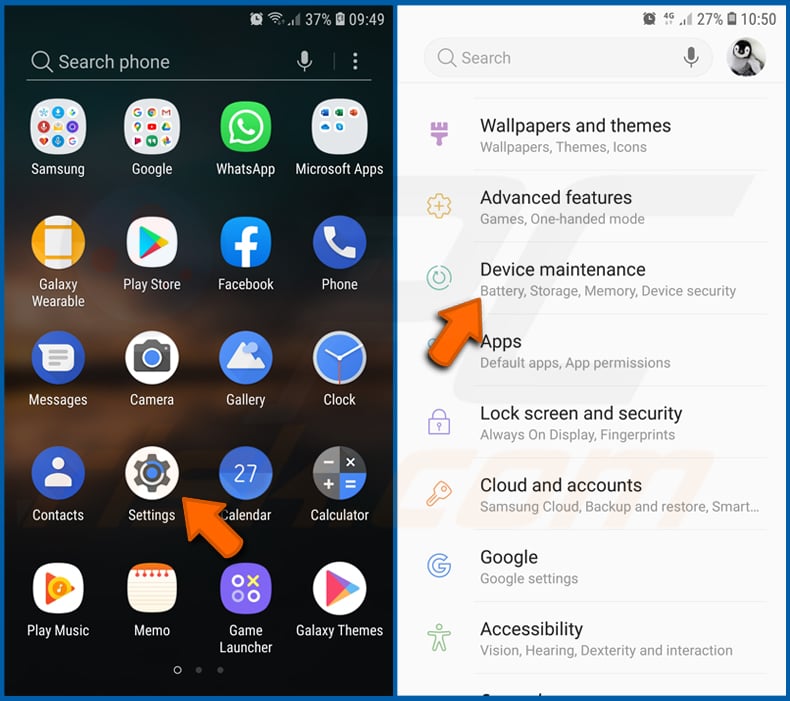
Go to "Settings", scroll down until you see "Device maintenance" and tap it.
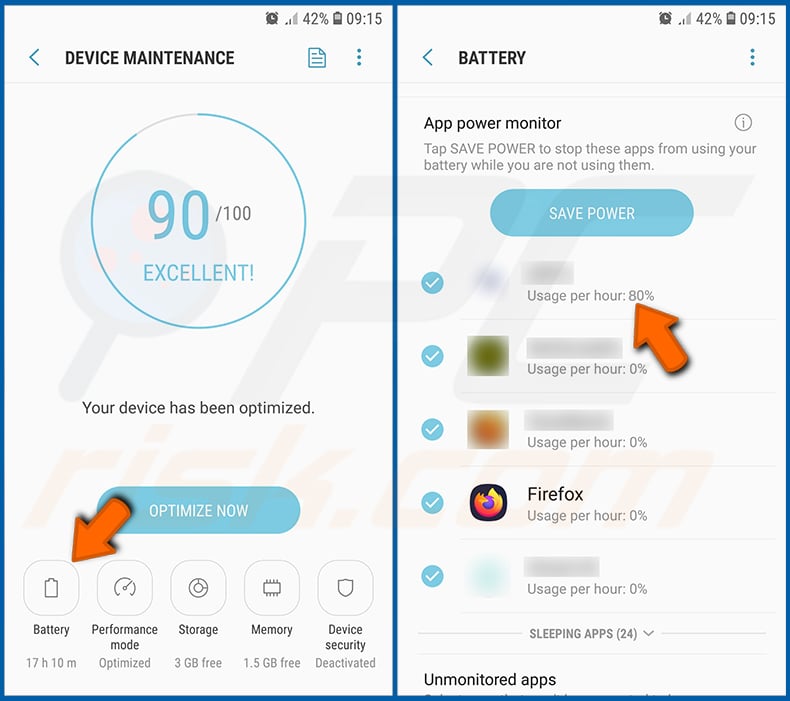
Tap "Battery" and check the usage of each application. Legitimate/genuine applications are designed to use as low energy as possible in order to provide the best user experience and to save power. Therefore, high battery usage may indicate that the application is malicious.
Check the data usage of various applications:
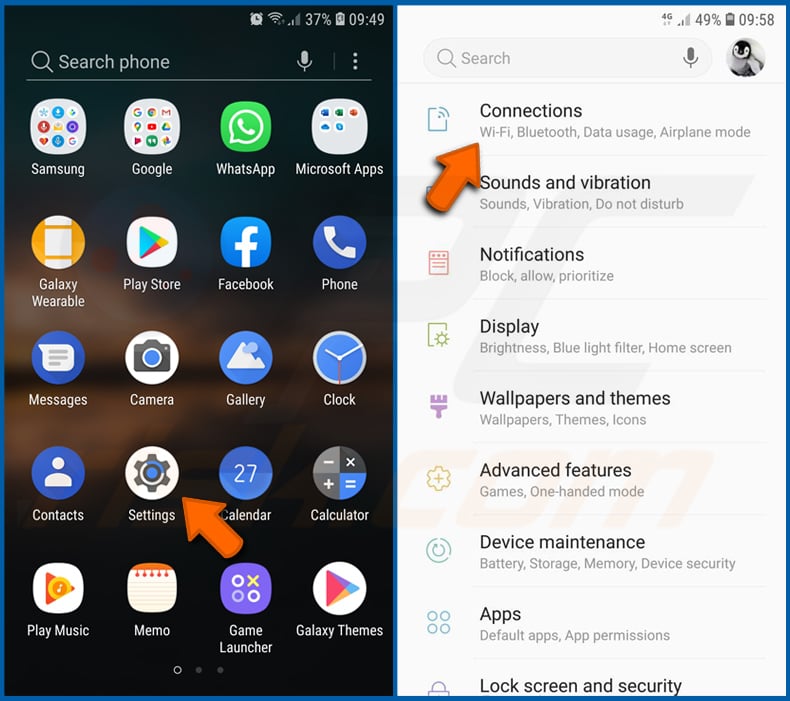
Go to "Settings", scroll down until you see "Connections" and tap it.
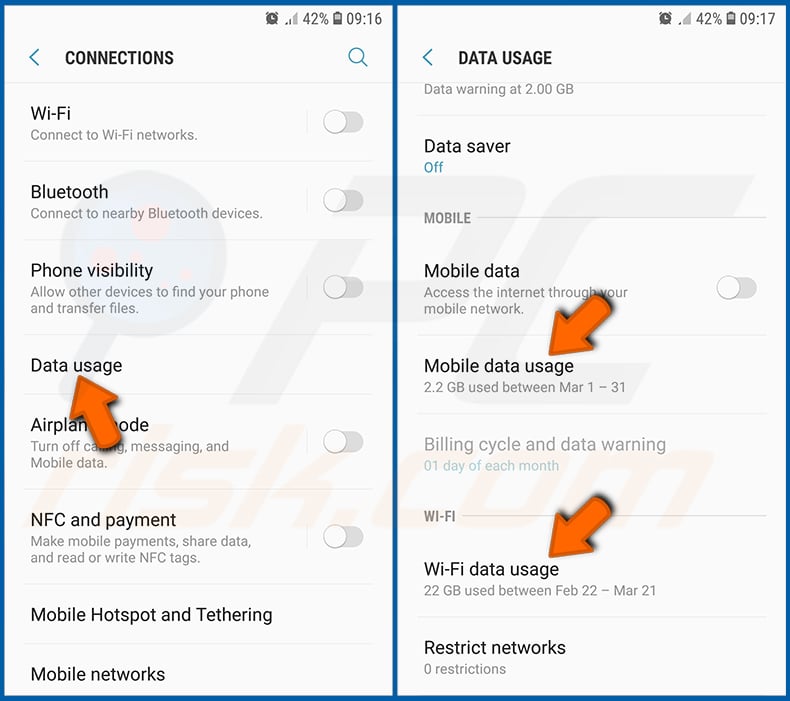
Scroll down until you see "Data usage" and select this option. As with battery, legitimate/genuine applications are designed to minimize data usage as much as possible. This means that huge data usage may indicate presence of malicious application. Note that some malicious applications might be designed to operate when the device is connected to wireless network only. For this reason, you should check both Mobile and Wi-Fi data usage.
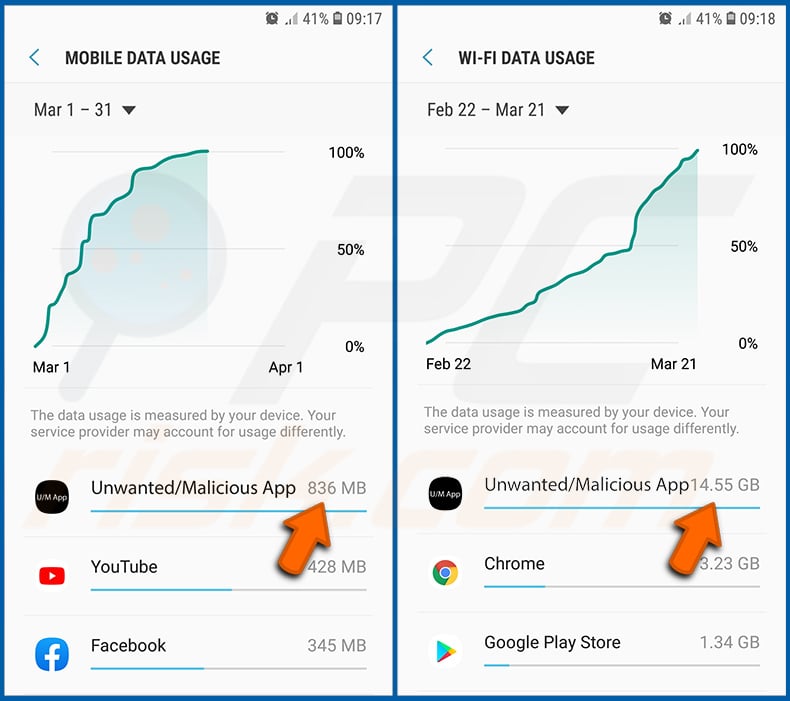
If you find an application that uses a lot of data even though you never use it, then we strongly advise you to uninstall it as soon as possible.
Install the latest software updates:
Keeping the software up-to-date is a good practice when it comes to device safety. The device manufacturers are continually releasing various security patches and Android updates in order to fix errors and bugs that can be abused by cybercriminals. An outdated system is way more vulnerable, which is why you should always be sure that your device's software is up-to-date.
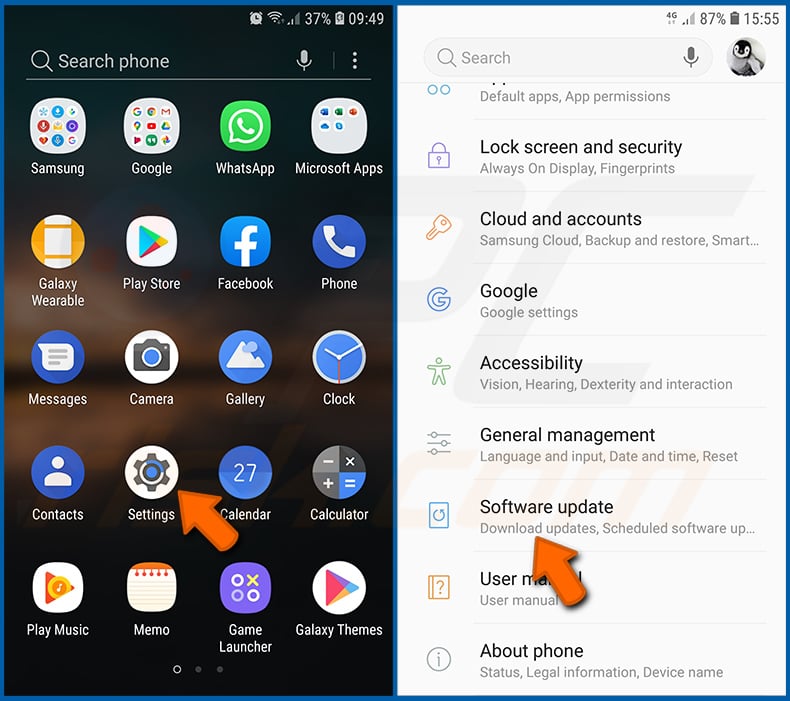
Go to "Settings", scroll down until you see "Software update" and tap it.
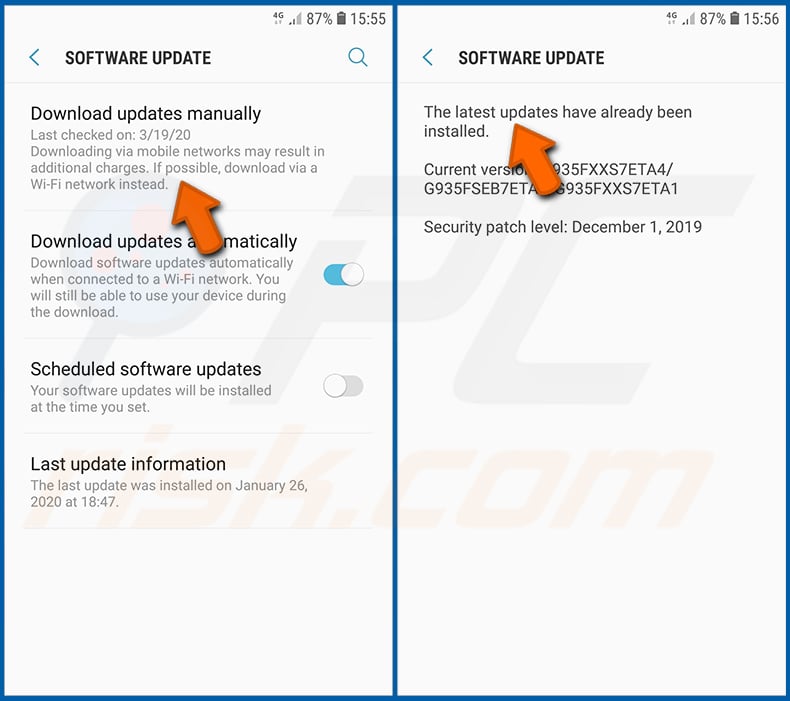
Tap "Download updates manually" and check if there are any updates available. If so, install them immediately. We also recommend to enable the "Download updates automatically" option - it will enable the system to notify you once an update is released and/or install it automatically.
Reset the system to its default state:
Performing a "Factory Reset" is a good way to remove all unwanted applications, restore system's settings to default and clean the device in general. However, you must keep in mind that all data within the device will be deleted, including photos, video/audio files, phone numbers (stored within the device, not the SIM card), SMS messages, and so forth. In other words, the device will be restored to its primal state.
You can also restore the basic system settings and/or simply network settings as well.
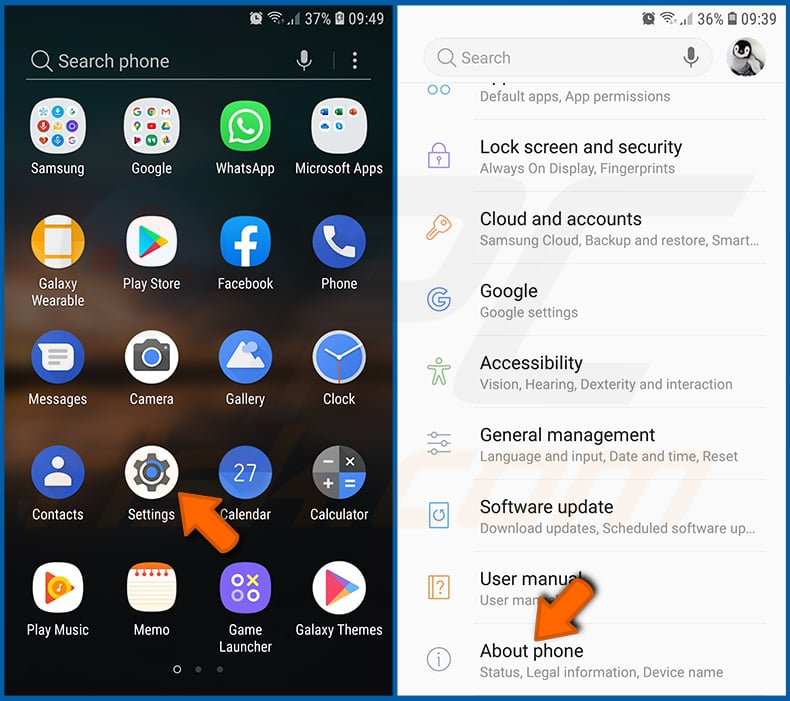
Go to "Settings", scroll down until you see "About phone" and tap it.
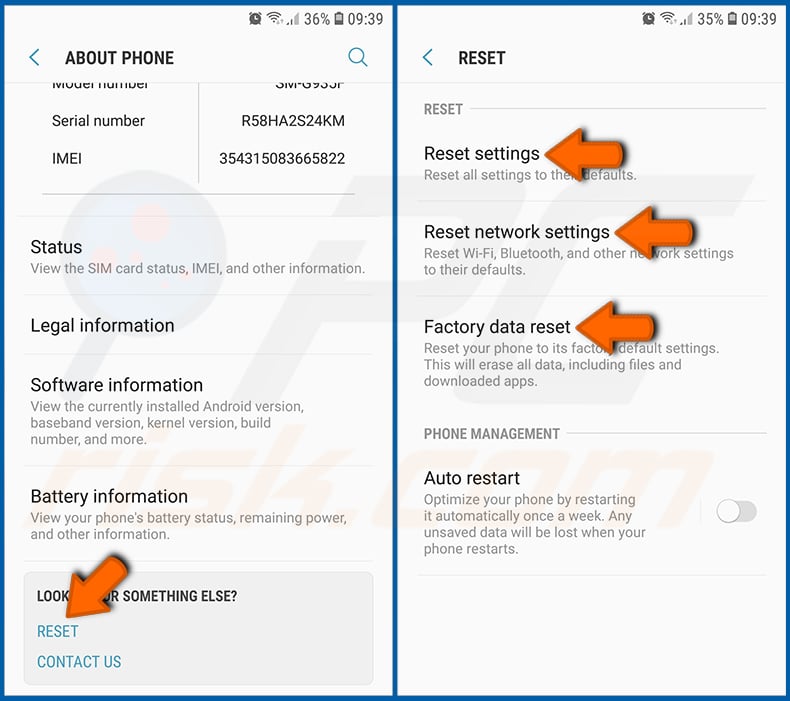
Scroll down until you see "Reset" and tap it. Now choose the action you want to perform:
"Reset settings" - restore all system settings to default;
"Reset network settings" - restore all network-related settings to default;
"Factory data reset" - reset the entire system and completely delete all stored data;
Disable applications that have administrator privileges:
If a malicious application gets administrator-level privileges it can seriously damage the system. To keep the device as safe as possible you should always check what apps have such privileges and disable the ones that shouldn't.
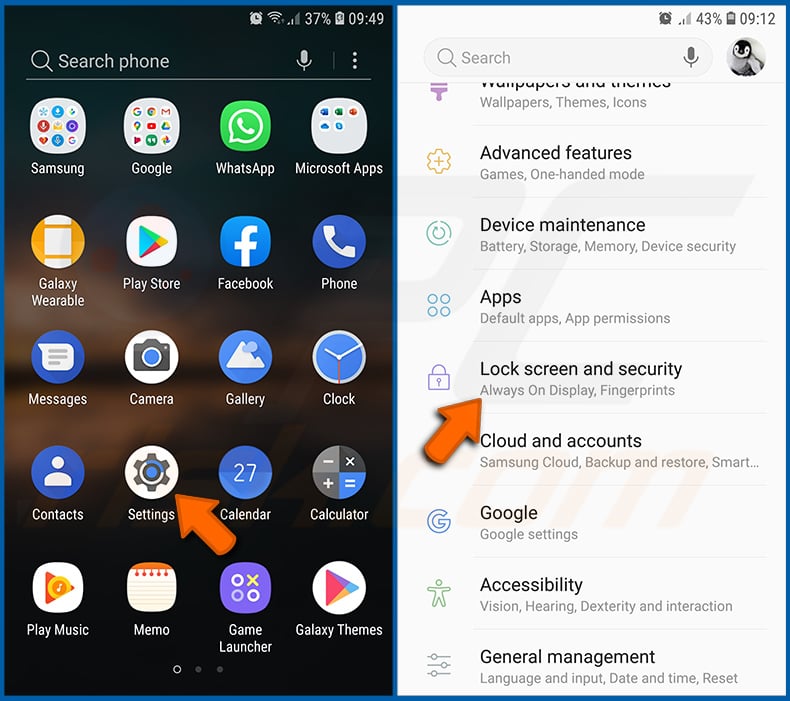
Go to "Settings", scroll down until you see "Lock screen and security" and tap it.
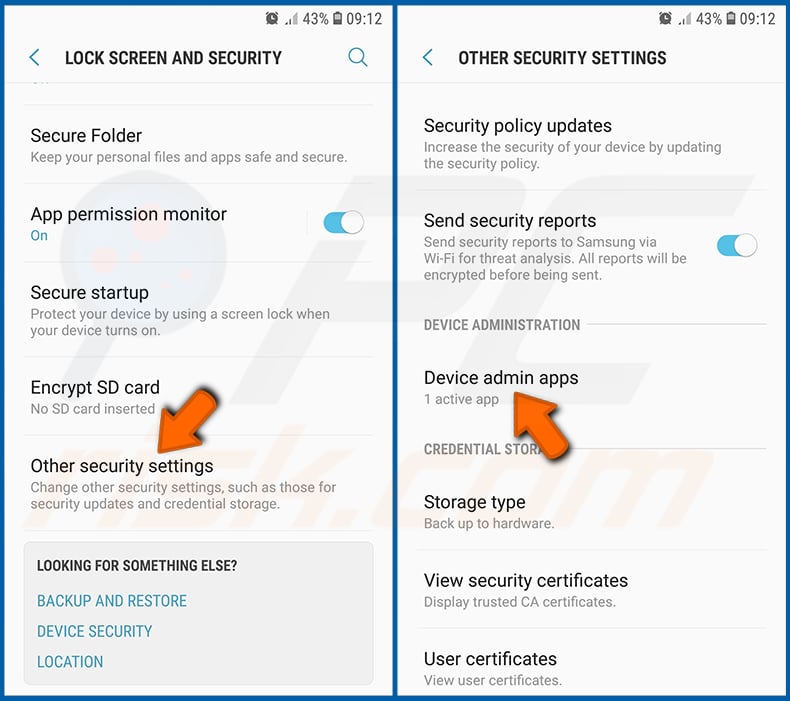
Scroll down until you see "Other security settings", tap it and then tap "Device admin apps".
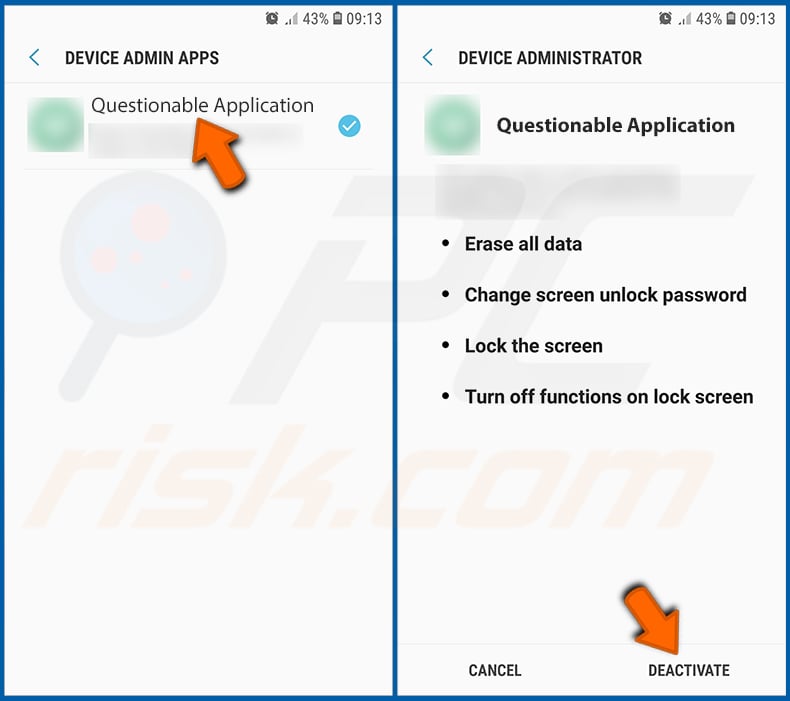
Identify applications that should not have administrator privileges, tap them and then tap "DEACTIVATE".
Frequently Asked Questions (FAQ)
My Android device is infected with RatHat malware, should I format my storage device to get rid of it?
Formatting is rarely necessary. Running a reputable mobile security tool like Combo Cleaner should detect and eliminate RatHat in most cases. That said, RatHat's Go agent is designed to survive standard app removal, so a factory reset may be the safest option if automated removal is unsuccessful.
What are the biggest issues that RatHat malware can cause?
RatHat can steal banking and payment credentials through fake login overlays, Accessibility-based keylogging, and hardware-level PIN capture from raw touch coordinates. It also intercepts two-factor authentication codes and gives attackers persistent shell-level remote control over the device.
Victims can face unauthorized financial transactions, drained bank accounts, identity theft, and ongoing surveillance of all device activity, even after the main app appears to have been removed.
What is the purpose of RatHat malware?
Most malware attacks are driven by profit. RatHat is specifically built to harvest banking and payment credentials for financial fraud. However, its remote control capabilities could also be used for espionage, surveillance, or disruption beyond direct theft.
How did RatHat malware infiltrate my Android device?
RatHat is typically delivered through deceptive SMS messages linking to phishing sites, or through malvertising that redirects users to third-party download portals. These portals offer APK files disguised as legitimate apps that users install manually outside the official app store.
Will Combo Cleaner protect me from malware?
Combo Cleaner can detect and eliminate nearly all known malware infections. Performing a full system scan is essential, as sophisticated threats like RatHat use multiple anti-analysis layers and run components outside the standard app lifecycle to hide as deep within the device as possible.
Share:
 Facebook
 X.com
X.com
 LinkedIn
 Copy Link

Tomas Meskauskas
Expert security researcher, professional malware analyst
I am passionate about computer security and technology. I have an experience of over 10 years working in various companies related to computer technical issue solving and Internet security. I have been working as an author and editor for pcrisk.com since 2010. Follow me on Twitter and LinkedIn to stay informed about the latest online security threats.
PCrisk security portal is brought by a company RCS LT.
Joined forces of security researchers help educate computer users about the latest online security threats. More information about the company RCS LT.
Our malware removal guides are free. However, if you want to support us you can send us a donation.
DonatePCrisk security portal is brought by a company RCS LT.
Joined forces of security researchers help educate computer users about the latest online security threats. More information about the company RCS LT.
Our malware removal guides are free. However, if you want to support us you can send us a donation.
Donate
▼ Show Discussion