
"Deceptive site ahead" on your own website: what to do

"Deceptive site ahead" on your own website: what to do
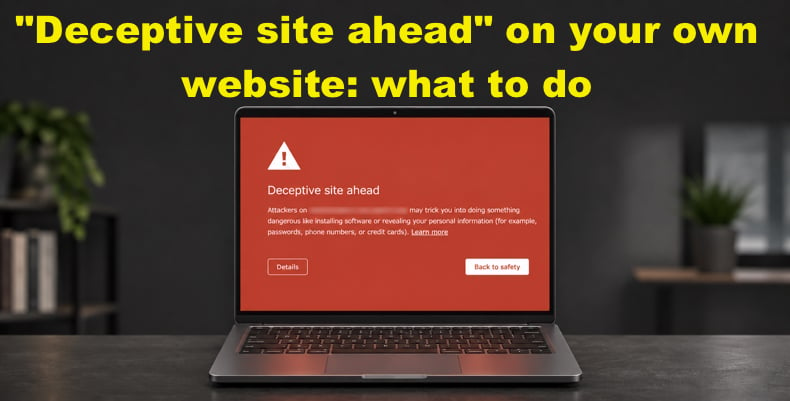
A red “Deceptive site ahead” warning can stop people cold before they even get to your homepage, interrupt sales and erode customer trust. If you come across it yourself or hear about it from a customer then the first step in resolving it is to find out why your site has been flagged.
In this guide, we walk you through how to run your site via our PCrisk Website Scanner, how to look at Google's findings, how to deal with the issues that are confirmed, and how to request a Google Security Review. We also look at the ongoing monitoring that you can do via the PCrisk Trust Badge, which will allow you to track the issues that have been reported and enable visitors to check your most recent scan results.
Table of Contents:
- Introduction
- What does "deceptive site ahead" mean?
- Related browser warnings and Google Search labels
- Start with the PCrisk Website Scanner
- Why can a legitimate website trigger the warning?
- Check Google's findings in Search Console
- Remove deceptive content and fix the underlying cause
- Request a Google security review
- What if the warning remains or appears to be incorrect?
- Monitor your website with the PCrisk Trust Badge
- In closing
- Frequently asked questions (FAQs)
What does "deceptive site ahead" mean?
"Deceptive site ahead" is a Google Safe Browsing warning which indicates the presence of suspected phishing or other social engineering on a page or website. Social engineering content is designed to trick visitors into revealing sensitive information or taking unsafe actions. Examples would be fake login pages, bogus technical support messages and messages which prompt the user to install a "browser update".
The warning appears before visitors reach the flagged page.
A legitimate website can trigger the warning if attackers add unauthorized pages or modify existing content. Deceptive advertisements and other embedded resources can also cause problems, even when another provider supplies them.
Chrome may show the more general “Dangerous site” warning for phishing, malware or unwanted software. The table below also includes some of the more specific messages that you'll find in the older Google documentation. The final one is the label that appears in Google Search results.
| Warning or label | Security concern | Examples to investigate |
| Deceptive site ahead | Phishing and other social engineering | Fake login pages, false update prompts, deceptive ads, or redirects to scam pages. |
| Dangerous site | Broad warning about an unsafe website | Phishing, malware, unwanted software, or other content that could trick or harm visitors. |
| The site ahead contains malware | Malware | Malicious scripts, malware downloads, or redirects to websites that distribute malware. |
| The site ahead contains harmful programs | Unwanted software | Downloads that change browser settings or install additional software without adequate disclosure and consent. |
| This site may be hacked (Google Search label) | Suspected unauthorized changes | Injected spam, altered pages, or new pages added by an attacker. |
Check the Security Issues report in Google Search Console for Google's findings and any available examples of affected URLs.
Start with the PCrisk Website Scanner
When your own website displays a "deceptive site ahead" warning, start by gathering information about its reported safety status. Our PCrisk Website Scanner checks websites against our database to identify safety issues. The results provide a starting point for your investigation and information you can share with your developer or hosting provider.
To check your website:
1. Open the PCrisk Website Scanner and enter your website address.
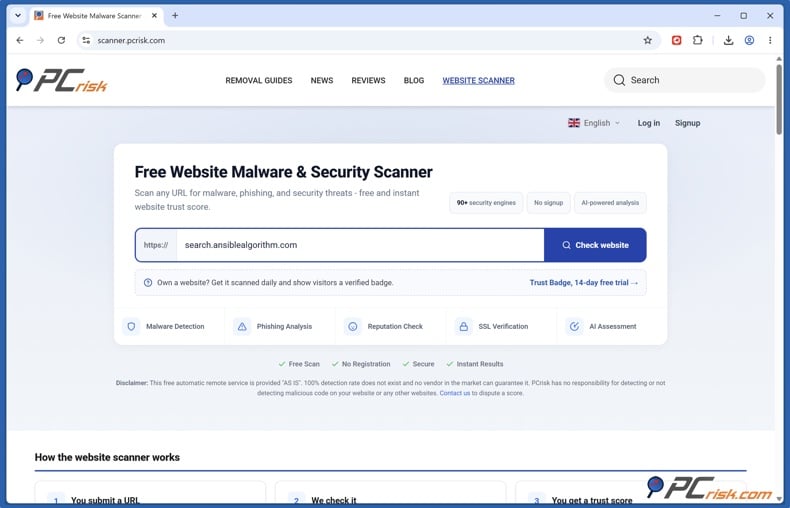
2. Click "Check website". Keep the scanner tab open while the check completes.
3. Read the report. Review the overall assessment and the individual findings. Pay attention to reported issues that need further investigation.
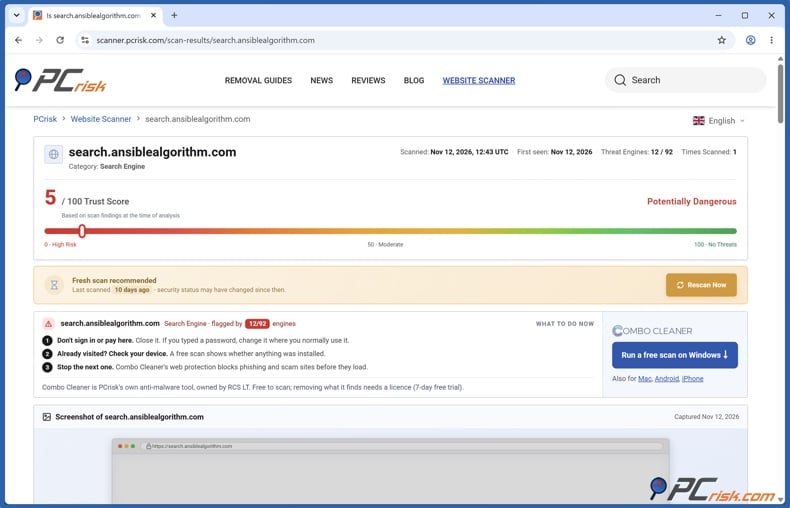
4. Check the scan date and note the results. If the report is old, get a new scan. Record the scanned address, the date/time of the scan, and the results so that you can compare them with future scans.
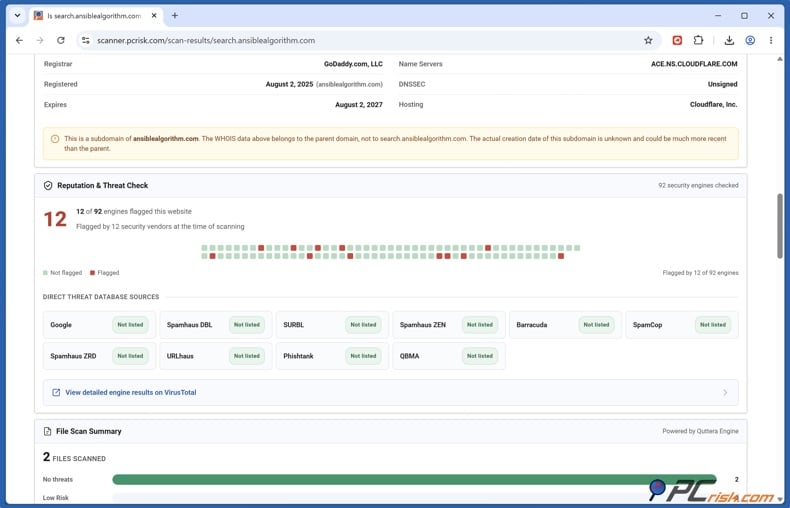
The scanner is free to use, and no registration is required. Each report will reflect the findings at the time of the scan.
If the report flags an issue, share the details with whoever maintains your website. Use the findings to guide an investigation into affected content, external resources, and recent changes. A detection needs to be assessed before deciding on the appropriate corrective action.
A result showing no detected threats does not guarantee that every part of your website is safe. Continue by checking Google's reported security issues in Search Console, as explained later in this article.
Once any confirmed issues have been addressed, run another scan and compare the results. Keep the dated results with your incident notes as part of the record of the checks you've carried out during the recovery.
Why can a legitimate website trigger the warning?
A legitimate business can still have a compromised website or display deceptive content supplied by another provider. The warning may concern pages or resources you do not encounter during an ordinary visit, even when your homepage looks normal.
Possible causes include:
- Unauthorized phishing pages. Attackers may add fake login forms or other pages designed to steal passwords and payment information while leaving your legitimate content largely unchanged.
- Deceptive ads or embedded content. External content can display fake updates, false download prompts, and bogus security alerts. Rotating ads can make the issue appear to come and go.
- Malicious redirects. The altered code could redirect visitors to harmful websites. Some redirects will only kick in under certain circumstances (e.g. if you're coming in from a search result).
- Unclear service relationships. A website operating on another organization's behalf may appear deceptive if it does not clearly identify its operator and explain the relationship.
Check Google's findings in Search Console
Google Search Console's Security Issues report is where you can view Google's findings about your site. It will list any reported issues (e.g., deceptive pages, malware, harmful downloads) and may include examples of the URLs in question.
To check the report:
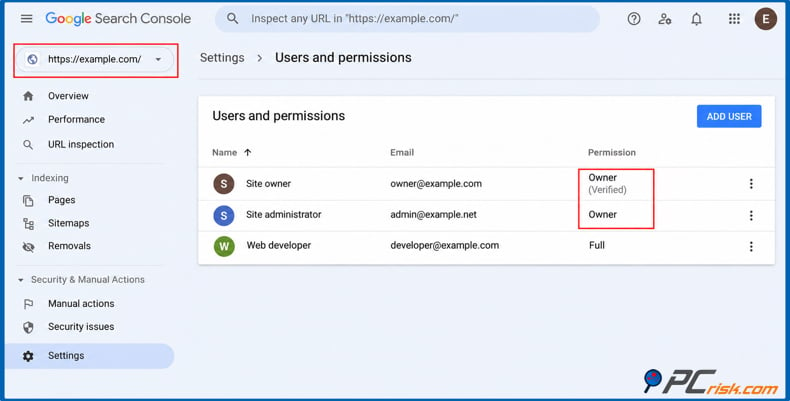
1. Add and verify your site if necessary. Ensure you own the relevant Search Console property and that there aren't any other owners listed who may have been added without your knowledge.
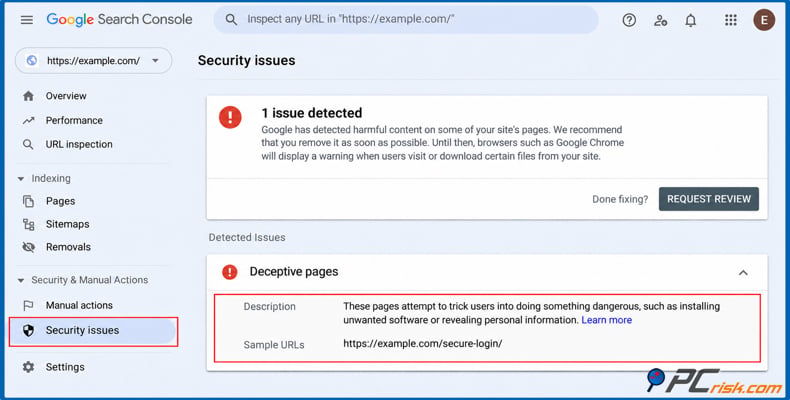
2. Open Security Issues. Select your website, open the report, and expand each issue to read its description and any available sample URLs.
3. Record the findings. Save the issue descriptions and affected addresses alongside your PCrisk scan results. Share this information with the developer or hosting provider handling the investigation.
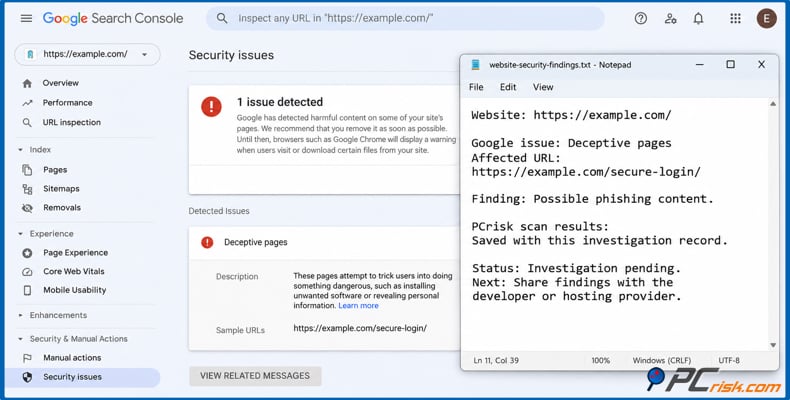
Sample URLs are just that: starting points, not a complete list of affected pages. There may be problems elsewhere on the site. Google will at times report an issue without providing any sample URLs, so the lack of sample URLs doesn't prove the site is clean.
For a public status check, enter your domain in Google's Safe Browsing site status tool. This lets you check Google's reported safety status without access to Search Console.
We recommend having potentially infected pages inspected safely by your developer or hosting provider. Opening them directly can expose your device to harmful content, and an ordinary visit may miss behavior that appears only under particular conditions.
Remove deceptive content and fix the underlying cause
Fix all the issues you've identified across the site prior to asking Google for a review. Cleaning only the sample URLs can leave other affected pages or backdoors in place. If the site still has harmful content that's accessible to users then ask the hosting provider to block those pages or to take the site offline temporarily.
Work through these steps:
1. Preserve the evidence before making any changes. Take logs and a copy of your website files and database. Clearly label any potentially infected backups and keep them outside of the publicly accessible website. Those records will be vital in establishing what's happened and will help prevent any accidental loss during the cleanup.
2. Remove the unwanted content and backdoors. Check the website files, the database, the redirect rules, and any odd directories. Remove the confirmed phishing pages, injected scripts, malicious redirects, and any code that could allow an attacker to get back in. Where appropriate, restore files that have been altered from known good copies. Have your developer look into any behavior that only seems to occur on certain devices or among visitors from certain sources.
3. Check out the third-party resources. Strip out or replace any misleading ads, scripts, widgets, and the like. Be mindful of ad rotation, and that content may differ between mobile and desktop visitors. If your website provides a service on another organization's behalf, clearly identify who operates the service and explain the relationship between the operator and that organization.
4. Close the entry point. Patch the software, remove any unused components and any unauthorized accounts, and reset the credentials. If you're restoring from a backup, ensure the backup predates the incident, and apply the relevant security fixes before bringing the site back online.
5. Verify the repairs. Have your developer or hosting provider check the server files and database, then request a fresh scan with our PCrisk Website Scanner to compare the new findings with your earlier results. Treat the scan as further corroborating evidence in conjunction with the internal checks.
Keep a record of what was found, corrected, and tested.
Request a Google security review
Investigate every issue listed in the Security Issues report and complete the necessary repairs before requesting a review. Test your fixes and ensure the repaired website is accessible so Google can reassess it.
To submit your request:
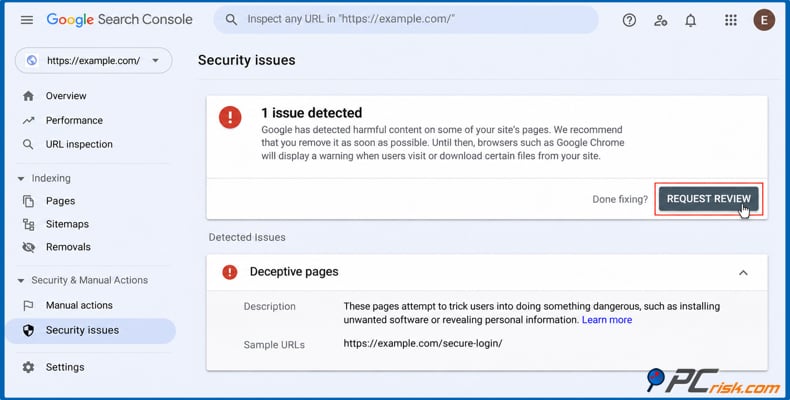
1. Open your verified website property in Google Search Console and head to Security Issues.
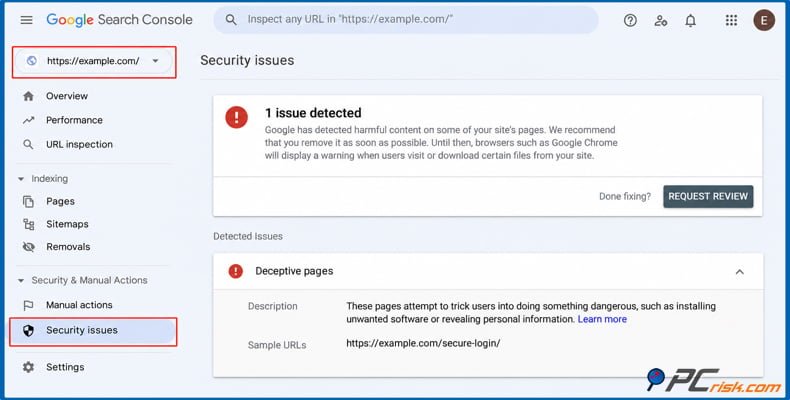
2. Select "Request Review".
3. Explain what occurred, what you corrected, and how you verified the results. Identify the relevant pages or files, describe the vulnerability or compromised access you addressed, and summarize your verification.
4. Just submit the request and wait for Google's decision. Google will send you a confirmation and review update via email.
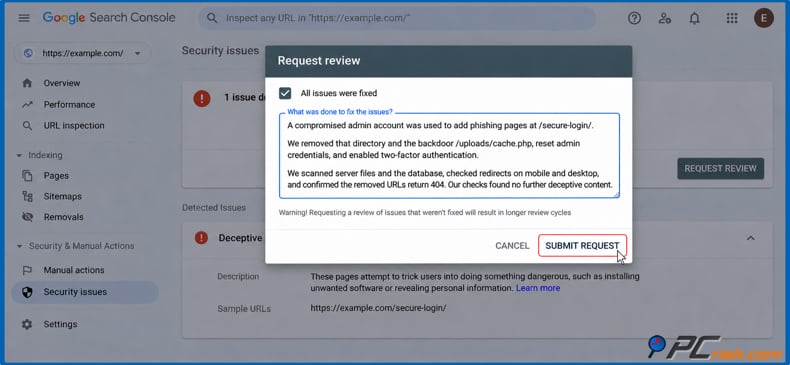
Keep it brief and factual. Where relevant, detail the phishing pages that have been removed, the malicious files that have been deleted, the software that has been patched and how the affected URLs have been tested. Only include the work that you actually did.
A review can take from a few days to a few weeks. Google asks owners not to submit another request before receiving a decision on the outstanding one. Submitting before the problems are resolved can prolong the process.
If the warning remains, your review is rejected, or you believe the classification is incorrect, follow the troubleshooting guidance below.
What if the warning remains or appears to be incorrect?
If the warning persists, check the status of Google's review before deciding what to do next. Distinguish between these situations:
- The site has been cleaned up, but the warning remains. The initial detection may have been correct, and Google may still need to revisit the site once the fixes have been applied. If you haven't already, you should request a review following the application of the fixes. Even after approval, it can take some time for the updates to get through to Google's warning systems. You should re-check the Security Issues report, the Safe Browsing site status tool, and the affected URLs to confirm the current status.
- The review failed, or the site was flagged again. Go back to the reported issues and any new sample URLs. Have your dev look at any pages/subdomains that may have been missed, conditional redirects, compromised external resources, and backdoors that could potentially reintroduce the bad content after the cleanup.
- The warning appears to be incorrect. A standard-looking homepage in itself doesn't constitute a false positive. Look at the actual issues reported by Google and the content that the user actually sees. If your investigation leads you to conclude that the warning is, in fact, incorrect, then use the Google Safe Browsing error report form. Just explain what you've looked at and why you think the warning is wrong.
Wait until you've got a decision on your existing request before you go and submit another review. You need to address any outstanding findings and explain any additional corrective work that's been carried out. Google warns that requesting a review before the problems are fixed can delay subsequent assessments.
Google can also designate websites that repeatedly switch between compliant and noncompliant behavior within a short period as repeat offenders. That designation prevents new Search Console review requests for 30 days, and Google notifies the owner by email. Its policy does not specify an automatic restriction simply because a website receives two warnings.
To reduce the risk of recurrence you should keep your website software up to date, remove any components that aren't in use and secure admin access. We'd recommend that you continue with regular security checks post-recovery so that any new findings are incorporated into your maintenance regime.
Monitor your website with the PCrisk Trust Badge
Once the "deceptive site ahead" warning has been dealt with, the subsequent checks should become part of your normal website maintenance. New content, new software and new external resources will all change what the user sees. You need to be checking on the reported issues as your site develops.
Our PCrisk Trust Badge combines recurring security checks with a report your visitors can verify. Paid plans scan your website every 24 hours and send email alerts when issues are detected. This automates routine daily checks and gives you findings to investigate with your developer or hosting provider.
The badge also makes those checks visible. If you click on it, it takes you to a public report on PCrisk which shows the latest scan timestamp, the trust score and the findings. Anyone can go and see when your site was last scanned and what the scan found. Following a security incident this could be a useful thing to do in terms of rebuilding customer confidence.
Our free monitoring plan comes with monthly scans and you'll receive the results via email. If you upgrade, you get daily scans and a public badge which links to your report.
To get started you simply add your domain, pick a badge design and then either install the code snippet provided or use our WordPress plugin or Shopify app. You then place the badge in a location where visitors can readily see it (without of course covering any of your navigation or your checkout controls). Once installed you just need to check that clicking on it will take them to the report for your site.
These are scheduled checks so keep on with your software updates, admin account protection and fixing the issues that have been confirmed. The badge indicates the most recent assessment that's been completed. Buying it in no way removes Google's warning or replaces the security review outlined above.
Make regular security checks part of your website maintenance. Explore the PCrisk Trust Badge which provides daily scans, email alerts and a badge you can display on your site which shows your latest scan report.
In closing
A "deceptive site ahead" warning warrants a thorough investigation. Check Google's findings, deal with the issues that have been confirmed across your site and correct any weakness that allowed harmful content to appear in the first place. Ask for a security review after you've tested the fixes and then verify that the warning has gone.
Our PCrisk Website Scanner provides a baseline for checking the reported safety issues and comparing the findings as you go through the recovery process. We'd definitely recommend you continue these checks post-recovery, along with the software updates and the review of administrative access.
For ongoing monitoring, the PCrisk Trust Badge provides daily scans and a public report visitors can check. It helps you track new findings and gives customers a simple way to see when your website was last scanned and what the scan reported. Making these results accessible can support customer confidence.
Frequently asked questions (FAQs)
How long does the warning take to clear after a review request?
Google says a security review can take a few days to a few weeks. After approval, additional time may be needed for the warning to disappear as Google's systems update. Submitting a request does not immediately remove the warning. Wait for Google's decision before submitting another request.
Does the warning have a permanent effect on my ranking?
Not necessarily. Google notes that being flagged may affect search rankings for a while. Once the security issue is resolved, Google will be able to re-evaluate the site, but that doesn't mean it will necessarily come back to where it was in terms of rankings or traffic. We'd recommend you keep an eye on Search Console for any further security issues, indexing issues, and other manual actions.
Can I ask customers to click past the warning?
We don't recommend it. A flagged site could expose people to phishing, malware, and the like, even if the business is legitimate. Just explain you're looking into the matter and provide a verified alternative contact/purchase point. Customers should keep their browser's security protections enabled.
Can the warning appear by mistake?
Yes, false positives are possible. A normal-looking homepage or a single clean scan doesn't in itself prove that the warning is wrong. You need to look at the Google findings, the affected pages, and the external resources first. If the evidence does support a false positive, then you can explain that via the Google Safe Browsing error report form.
What's the warning cost while it's up?
There is no fixed daily cost. The impact will depend on your normal level of traffic, sales, inquiries, etc., and how long the problem lasts. We'd recommend comparing performance during the incident to a comparable unaffected period, and then separately recording the costs of the investigation, cleanup, and customer support. Lost revenue figures should be treated as estimates, as a number of other factors can also impact demand.
Can I bypass the warning to look at my own site?
Your browser may have a “proceed” option, but having the site in your ownership doesn't make the compromised content safe to open. We'd advise keeping Safe Browsing on and using the URL Inspection tool in Search Console or having your developer have a look at the site files and responses in a safe way. URL Inspection will allow you to inspect the fetched page content but a successful live test does not mean the page is safe. A private browsing window will not protect you from malicious content.
What if my review gets rejected?
Read Google's response and go back to the Security Issues report (including any new sample URLs). Look at the other pages that may have been missed, the various external resources that could be deceptive and the backdoors that would allow the bad content to be re-introduced. Once you've fixed and tested the remainder, do another review and explain the extra work you've done. If you think the classification is wrong, document the evidence that supports that.
Share:
 Facebook
 X.com
 LinkedIn
 Copy Link