

Get free scan and check if your device is infected.
Remove it nowTo use full-featured product, you have to purchase a license for Combo Cleaner. Seven days free trial available. Combo Cleaner is owned and operated by RCS LT, the parent company of PCRisk.com.
What kind of malware is Bazuka?
Bazuka is a modular Android malware framework first analyzed by ThreatFabric in late October 2026. It is built around 23 specialized modules covering NFC card relay, keylogging, remote device control, and two-factor authentication interception. The framework also integrates a large language model into its operator panel to assist cybercriminals in victim management.
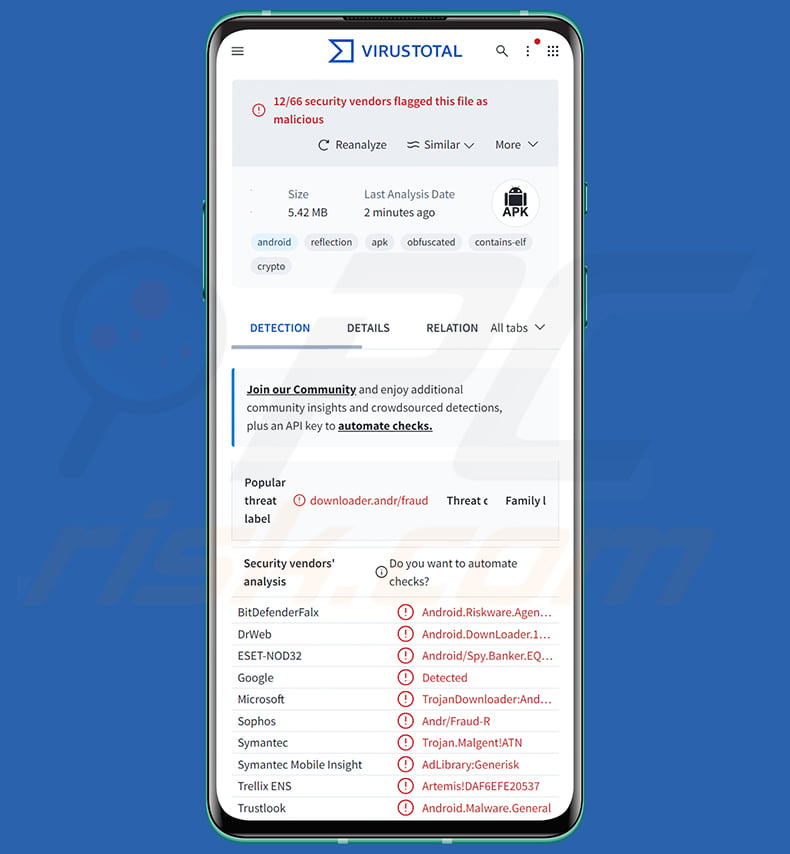
Bazuka malware overview
Bazuka's core manages communication with a remote command-and-control (C2) server, dispatches commands, and handles in-memory module loading. Traffic between the infected device and the C2 is encrypted with ChaCha20-Poly1305, with keys rotated periodically. Because modules load directly into memory, no extra files are written to disk for antivirus tools to detect.
On installation, Bazuka requests Accessibility Services permissions. With these in place, it silently disables Google Play Protect, automatically taps through permission dialogs to grant itself additional rights, and blocks any attempt to uninstall it.
Among its more notable capabilities is ADB bridging. The malware embeds its own ADB client, enables wireless debugging on the device, and captures the pairing PIN automatically. This gives operators a shell-level channel into the device that is entirely separate from the main C2 connection.
The clip_monitor module watches the device clipboard continuously. Any Bitcoin, Ethereum, TRC20, or Solana wallet address that is copied gets replaced with one controlled by the attacker, silently redirecting cryptocurrency transfers without alerting the user.
The input_recorder module functions as a keylogger. Text typed in targeted applications is captured and filtered using regular expressions to extract card numbers, wallet seed phrases, and account passwords, which are then sent to the C2.
Particularly dangerous is the tapread-nfc_module. It relays contactless payment card data from the infected device to the attacker in real time. The attacker can then emulate the card at a point-of-sale terminal to make unauthorized transactions without ever physically handling the victim's card.
The smsmessage module reads, sends, and monitors SMS messages on the device. When a one-time code for two-factor authentication arrives, the module extracts it and silently deletes the message, preventing the victim from seeing it and disabling account protections.
The optics module enables remote screen viewing and control, and can deliver phishing overlay screens on command. Working alongside it, the session_ui module serves HTML overlays that imitate bank or service login pages, tricking victims into entering credentials that are forwarded to the C2.
The screen_control module can lock the device or change its PIN, password, or screen pattern via Accessibility Services, effectively locking the victim out of their own phone. The call_forwarding module uses USSD commands to redirect calls. The proxy module creates a reverse TCP proxy channel, and device_control provides direct ADB shell access for arbitrary command execution.
Several other modules extend Bazuka's surveillance reach. The media module accesses the camera and microphone for silent recording. The location module tracks the device via GPS, cell towers, and Wi-Fi. The contacts module harvests the address book, while file_manager gives operators access to files stored on the device.
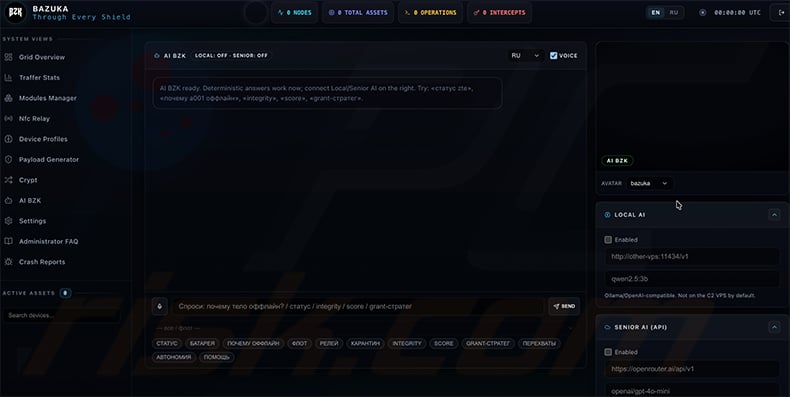
The control panel integrates a large language model to help operators manage victims. They can query the panel about a device's status, integrity score, and installed security software, and receive AI-generated guidance on the most effective approach for interacting with that specific victim.
Part of the panel interface is in Russian, and one C2 server was traced to a Moscow-based hosting provider. Despite some backend authentication, the panel's frontend was accessible without credentials at the time of research, unintentionally exposing victim device data to outside observers.
It has to be mentioned that malware developers often improve upon their software and methodologies. Hence, potential future iterations of Bazuka could have additional or different functionalities and features.
In summary, the presence of software like Bazuka on a device can lead to multiple system infections, serious privacy issues, significant financial losses, and identity theft.
| Name | Bazuka malware framework |
| Threat Type | Android malware, malicious application, unwanted application. |
| Detection Names | Combo Cleaner (Android.Riskware.Agent.gLMDF), ESET-NOD32 (Android/Spy.Banker.EQG Trojan), Symantec Mobile Insight (AdLibrary:Generisk), Full List (VirusTotal) |
| Symptoms | The device is running slow, system settings are modified without user's permission, questionable applications appear, data and battery usage is increased significantly, browsers redirect to questionable websites, intrusive advertisements are delivered. |
| Distribution methods | Traffer-operated landing pages, third-party APK installs, fake adult-content applications, fake IPTV streaming applications. |
| Damage | Stolen personal information (private messages, logins/passwords, etc.), decreased device performance, battery is drained quickly, decreased Internet speed, huge data losses, monetary losses, stolen identity (malicious apps might abuse communication apps). |
| Malware Removal (Windows) |
To eliminate possible malware infections, scan your computer with legitimate antivirus software. Our security researchers recommend using Combo Cleaner. Download Combo CleanerTo use full-featured product, you have to purchase a license for Combo Cleaner. 7 days free trial available. Combo Cleaner is owned and operated by RCS LT, the parent company of PCRisk.com. |
Android malware examples
Bazuka is a highly capable fraud framework that combines financial theft, remote device control, credential harvesting, and anti-removal techniques in a single modular package. Its LLM-assisted control panel and ADB bridging make it notably more sophisticated than most Android threats seen to date.
Examples of similar malicious Android applications include uCreator, Hirudo, and Corp MDM. Each program differs in its specific methods, but the core goals - financial fraud, data theft, and unauthorized device access - remain the same.
Regardless of behavior, all malicious programs are designed to generate revenue for their operators. Removal should be treated as urgent - the longer Bazuka remains active, the more data it can collect and the greater the financial damage it can cause.
How did Bazuka infiltrate my device?
ThreatFabric found Bazuka being distributed through traffer-operated landing pages promoting fake TikTok 18+ adult-content and IPTV streaming applications. Victims are drawn to these pages via online advertisements and links shared across social media and messaging platforms.
The dropper poses as a legitimate application. Once installed, it silently deploys a second-stage component in the background, which downloads and activates the core malware along with whichever modules the operator requires. Operators appear to be planning future distribution through the Google Play Store, though no confirmed cases were observed at the time of research.
More broadly, Android malware is spread through unofficial app stores, phishing links in SMS messages and emails, fake software update prompts, and malicious in-app advertisements. Avoid granting Accessibility Services permissions to unfamiliar applications, and only install software from sources you trust.
How to avoid installation of malware?
Download applications only from the Google Play Store or official developer websites. Before installing anything, review the requested permissions carefully. Be especially cautious about any app that asks for Accessibility Services access - legitimate applications almost never need these permissions.
Avoid clicking links in unsolicited SMS messages, emails, or social media posts that lead to app downloads. Keep your Android version and all installed apps up to date, since security patches close vulnerabilities that malware exploits. Using a reputable mobile security application adds an important extra layer of protection against threats like Bazuka.
Bazuka malware - control panel view:
Quick menu:
- Introduction
- How to delete browsing history from the Chrome web browser?
- How to disable browser notifications in the Chrome web browser?
- How to reset the Chrome web browser?
- How to delete browsing history from the Firefox web browser?
- How to disable browser notifications in the Firefox web browser?
- How to reset the Firefox web browser?
- How to uninstall potentially unwanted and/or malicious applications?
- How to boot the Android device in "Safe Mode"?
- How to check the battery usage of various applications?
- How to check the data usage of various applications?
- How to install the latest software updates?
- How to reset the system to its default state?
- How to disable applications that have administrator privileges?
Delete browsing history from the Chrome web browser:
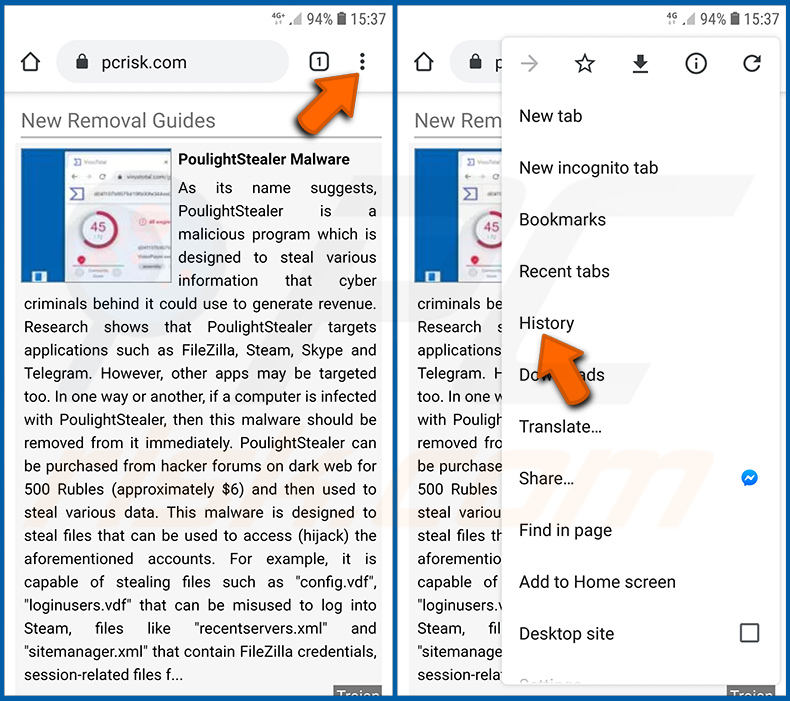
Tap the "Menu" button (three dots on the right-upper corner of the screen) and select "History" in the opened dropdown menu.
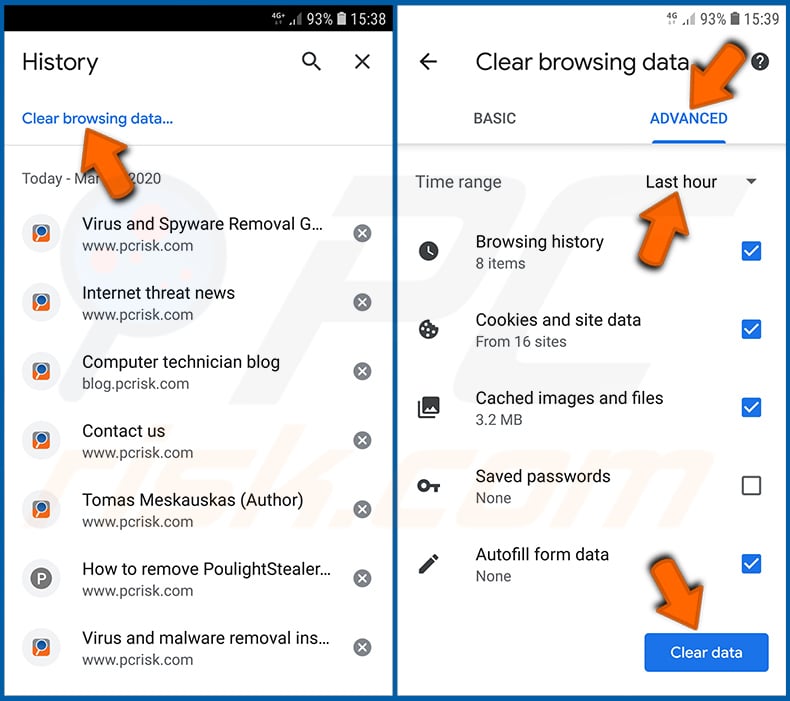
Tap "Clear browsing data", select "ADVANCED" tab, choose the time range and data types you want to delete and tap "Clear data".
Disable browser notifications in the Chrome web browser:
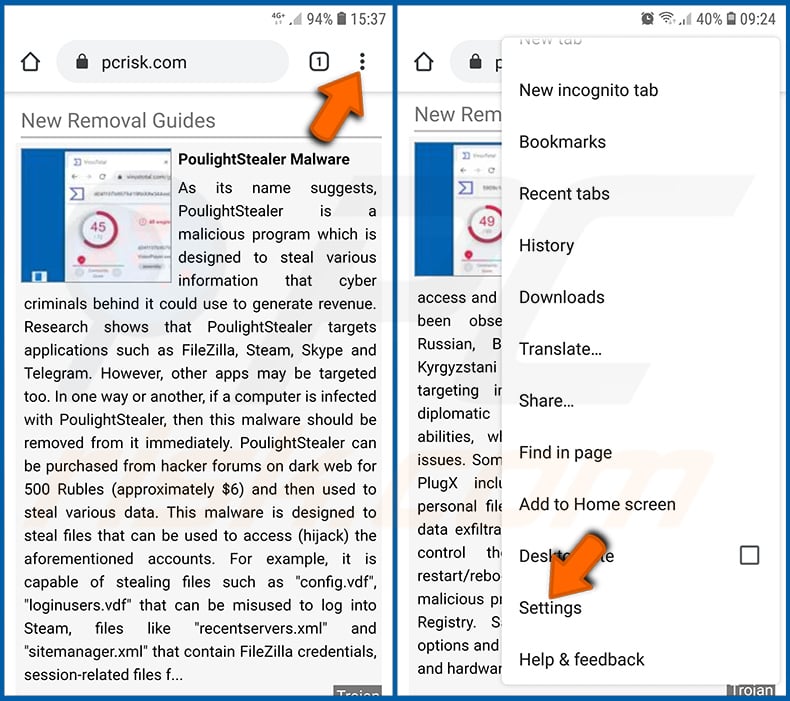
Tap the "Menu" button (three dots on the right-upper corner of the screen) and select "Settings" in the opened dropdown menu.
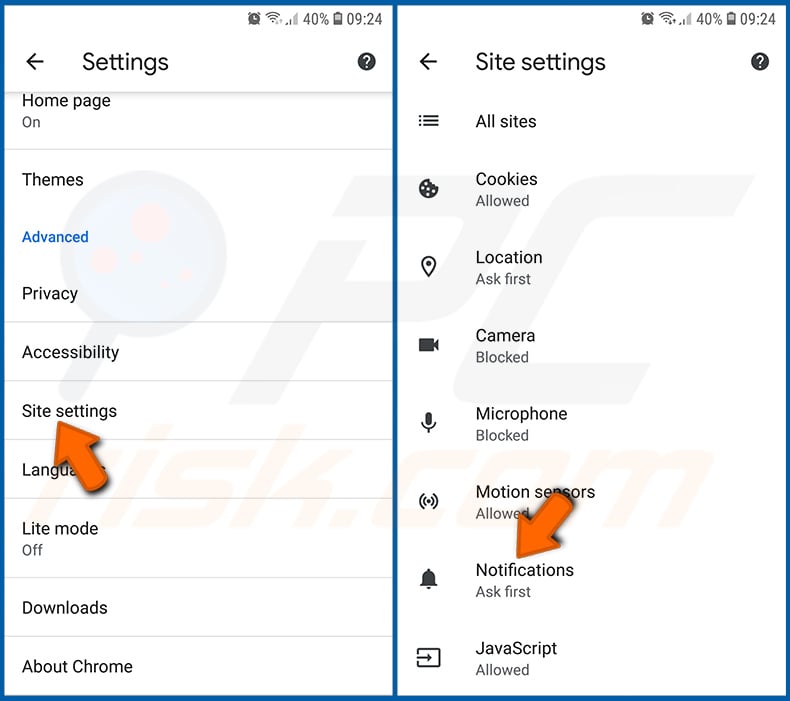
Scroll down until you see "Site settings" option and tap it. Scroll down until you see "Notifications" option and tap it.
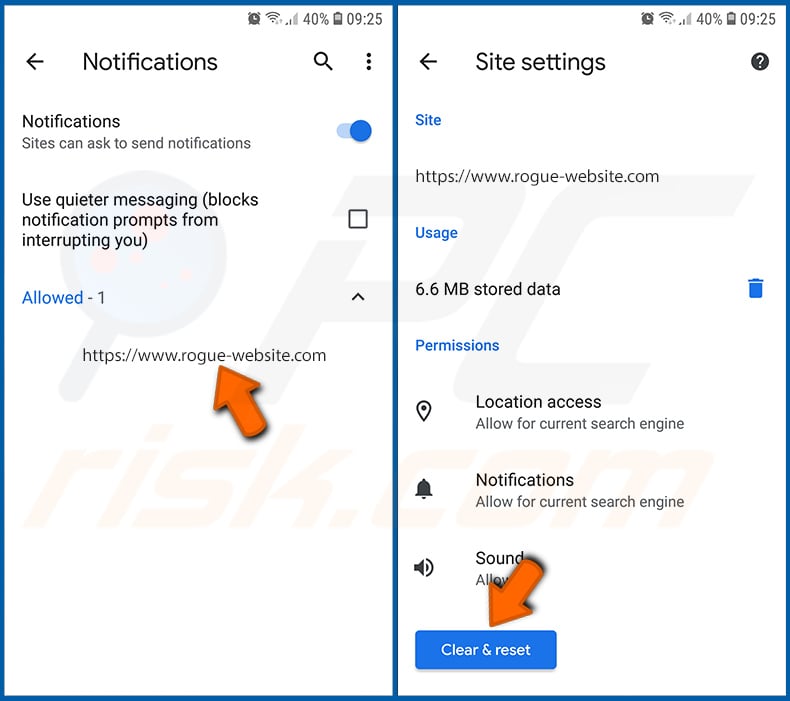
Find the websites that deliver browser notifications, tap on them and click "Clear & reset". This will remove permissions granted for these websites to deliver notifications. However, once you visit the same site again, it may ask for a permission again. You can choose whether to give these permissions or not (if you choose to decline the website will go to "Blocked" section and will no longer ask you for the permission).
Reset the Chrome web browser:
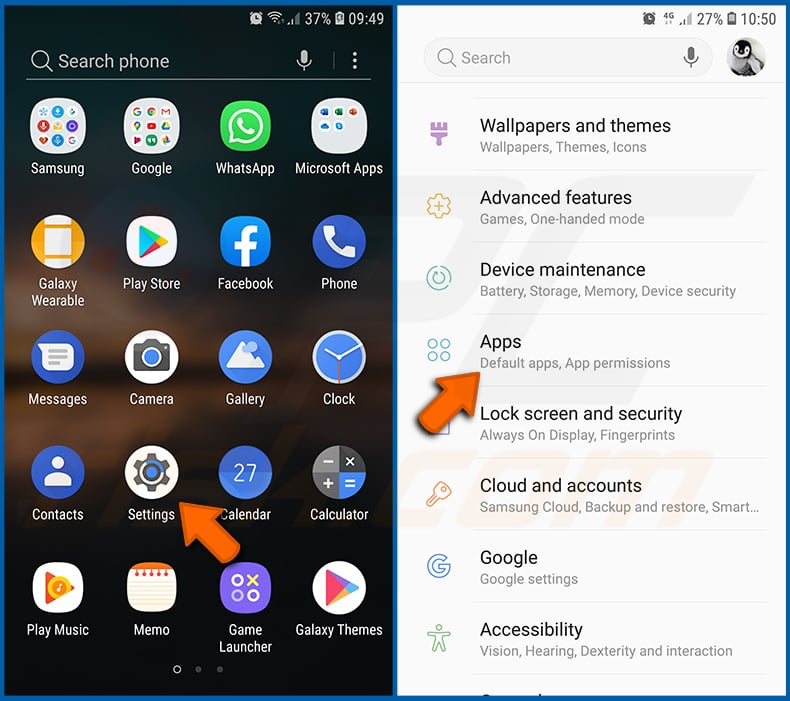
Go to "Settings", scroll down until you see "Apps" and tap it.
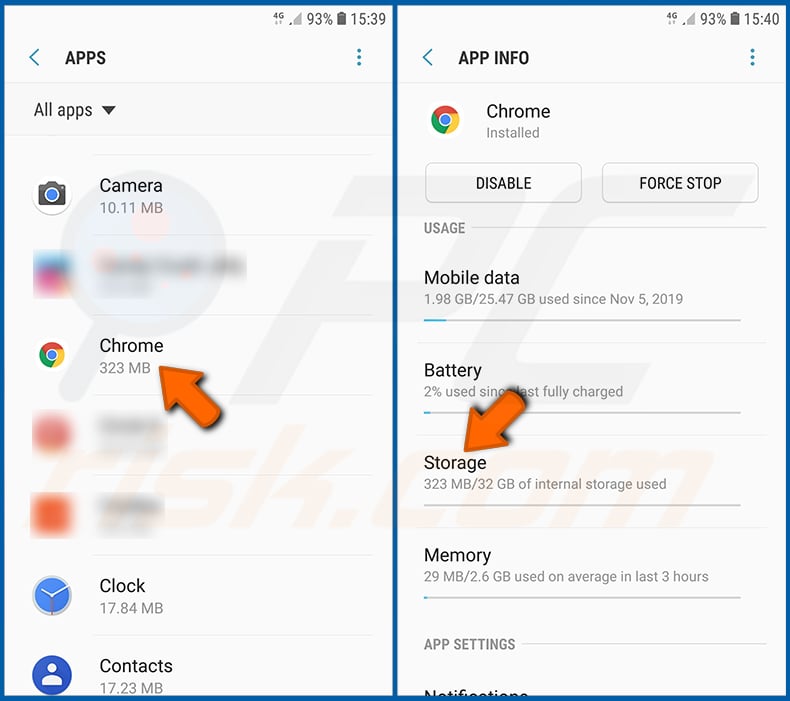
Scroll down until you find "Chrome" application, select it and tap "Storage" option.
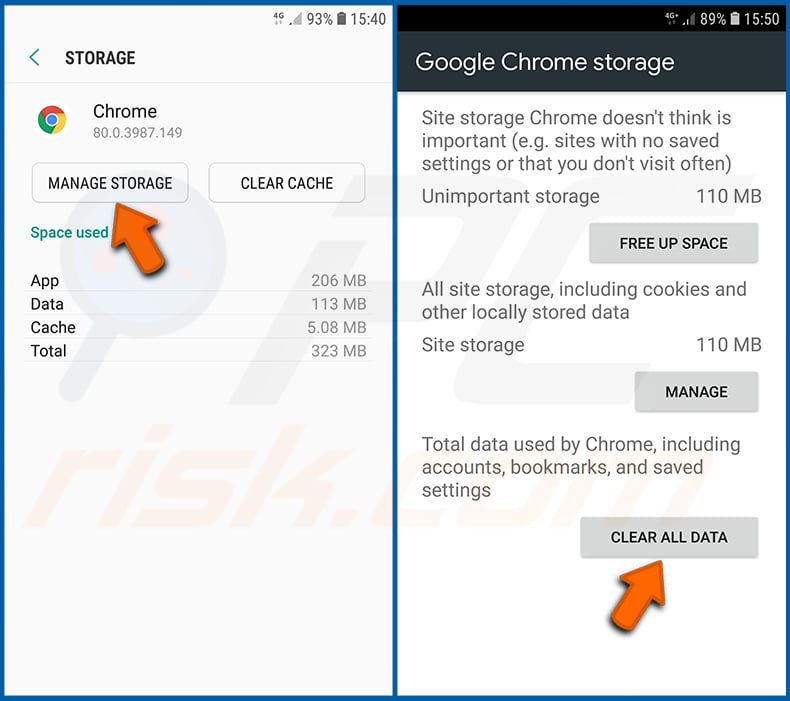
Tap "MANAGE STORAGE", then "CLEAR ALL DATA" and confirm the action by taping "OK". Note that resetting the browser will eliminate all data stored within. This means that all saved logins/passwords, browsing history, non-default settings and other data will be deleted. You will also have to re-login into all websites as well.
Delete browsing history from the Firefox web browser:
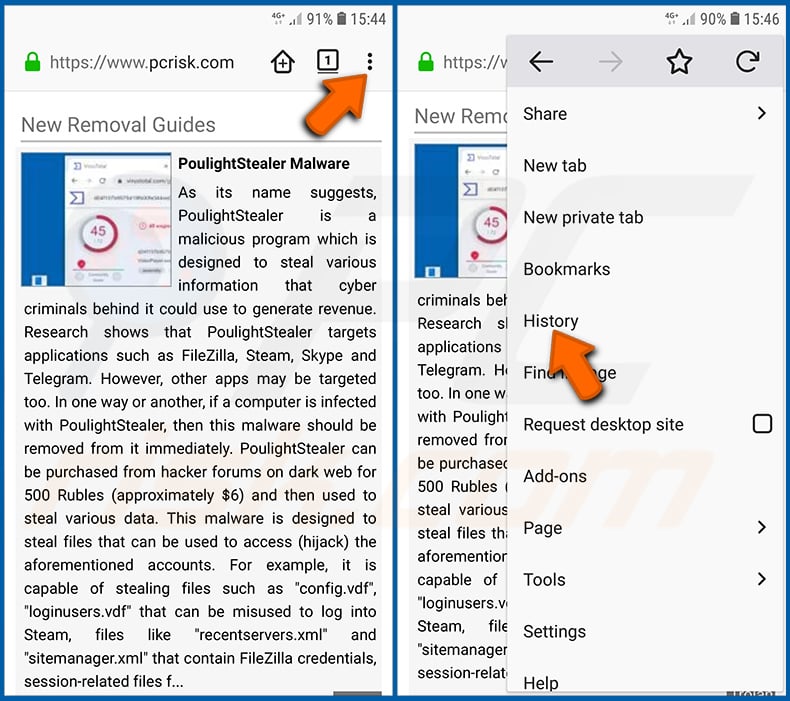
Tap the "Menu" button (three dots on the right-upper corner of the screen) and select "History" in the opened dropdown menu.
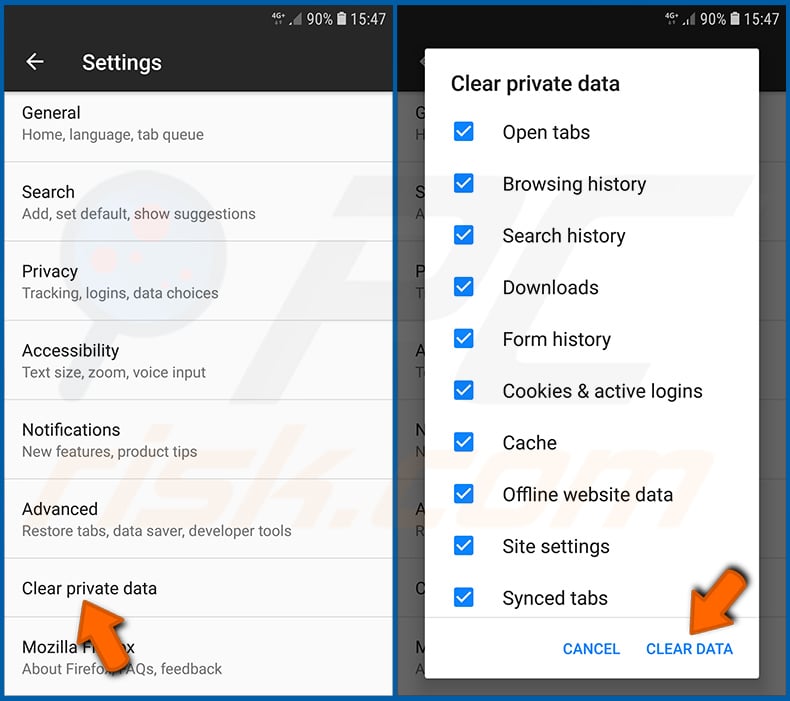
Scroll down until you see "Clear private data" and tap it. Select data types you want to remove and tap "CLEAR DATA".
Disable browser notifications in the Firefox web browser:
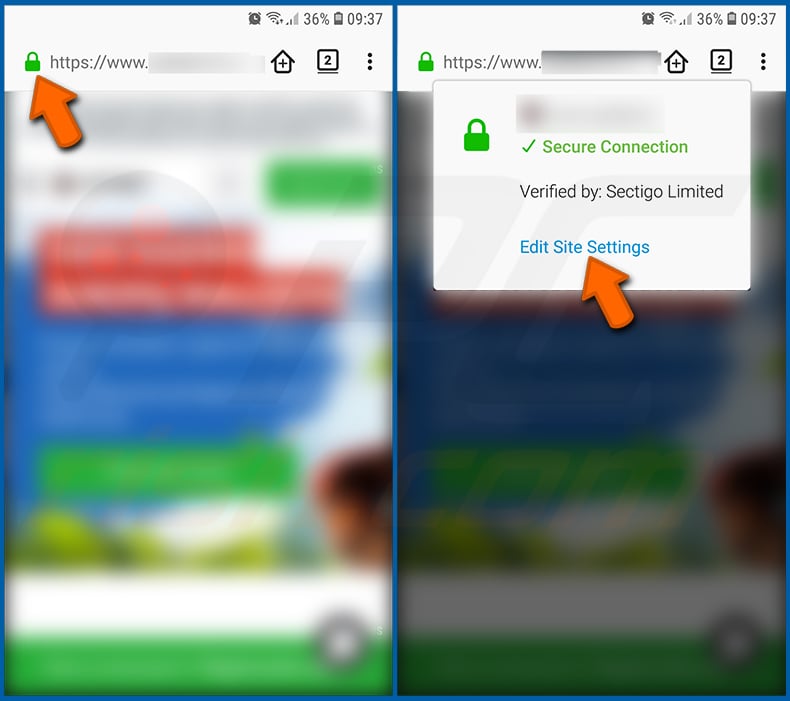
Visit the website that is delivering browser notifications, tap the icon displayed on the left of URL bar (the icon will not necessarily be a "Lock") and select "Edit Site Settings".
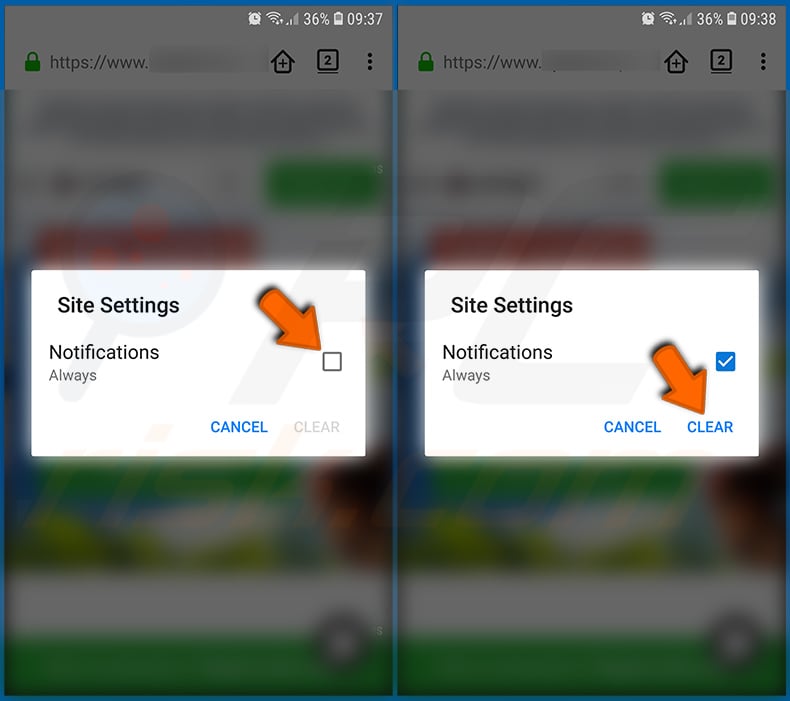
In the opened pop-up opt-in the "Notifications" option and tap "CLEAR".
Reset the Firefox web browser:
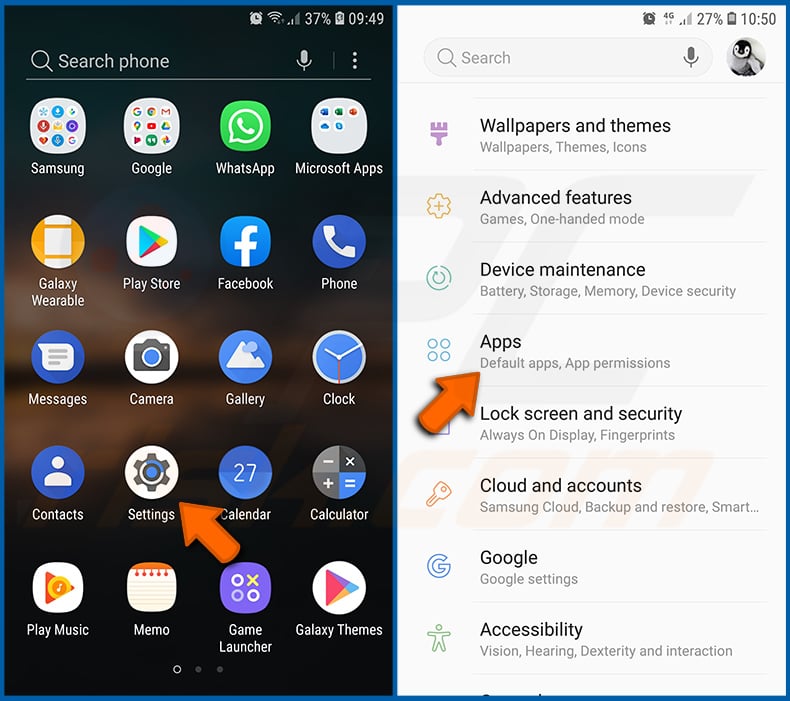
Go to "Settings", scroll down until you see "Apps" and tap it.
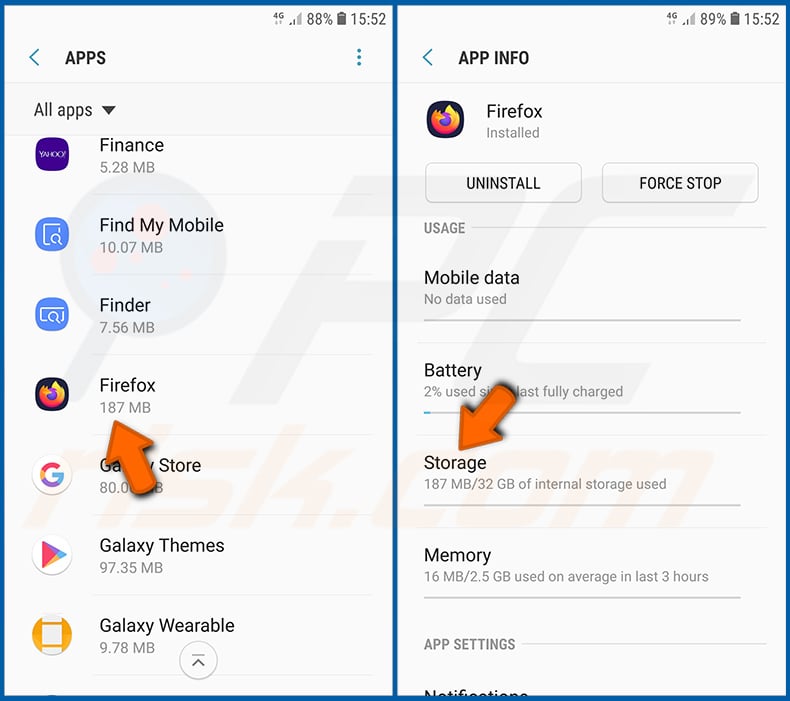
Scroll down until you find "Firefox" application, select it and tap "Storage" option.
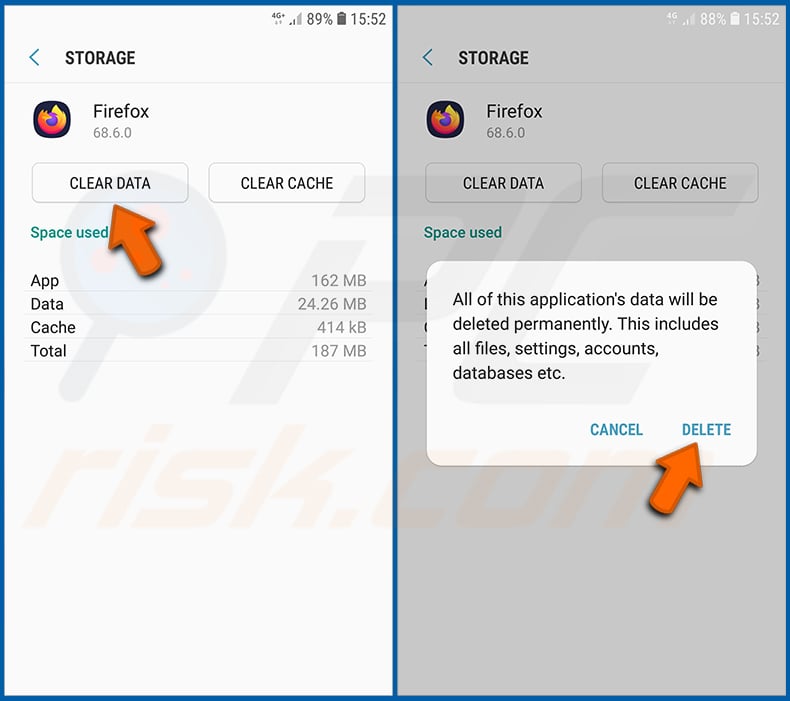
Tap "CLEAR DATA" and confirm the action by taping "DELETE". Note that resetting the browser will eliminate all data stored within. This means that all saved logins/passwords, browsing history, non-default settings and other data will be deleted. You will also have to re-login into all websites as well.
Uninstall potentially unwanted and/or malicious applications:
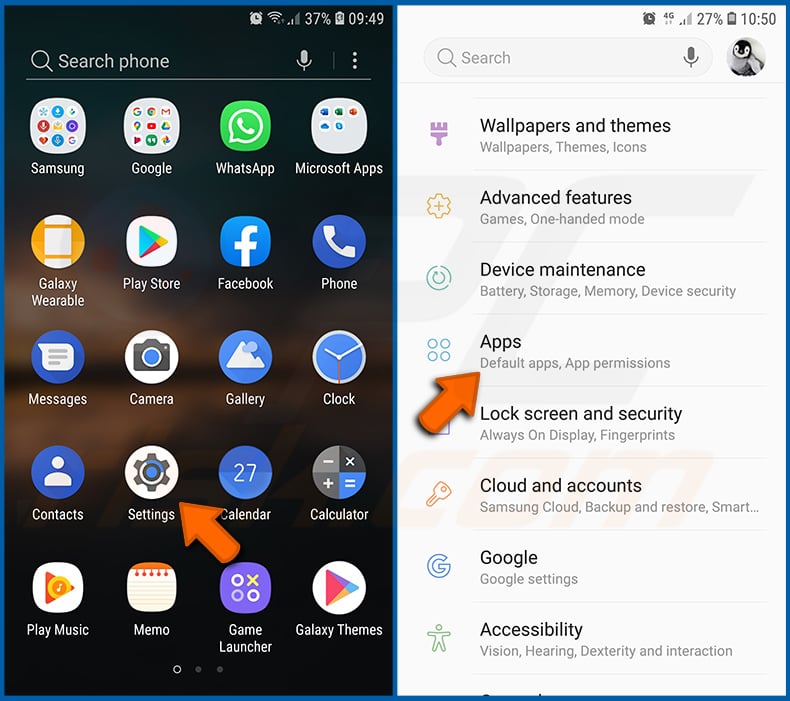
Go to "Settings", scroll down until you see "Apps" and tap it.
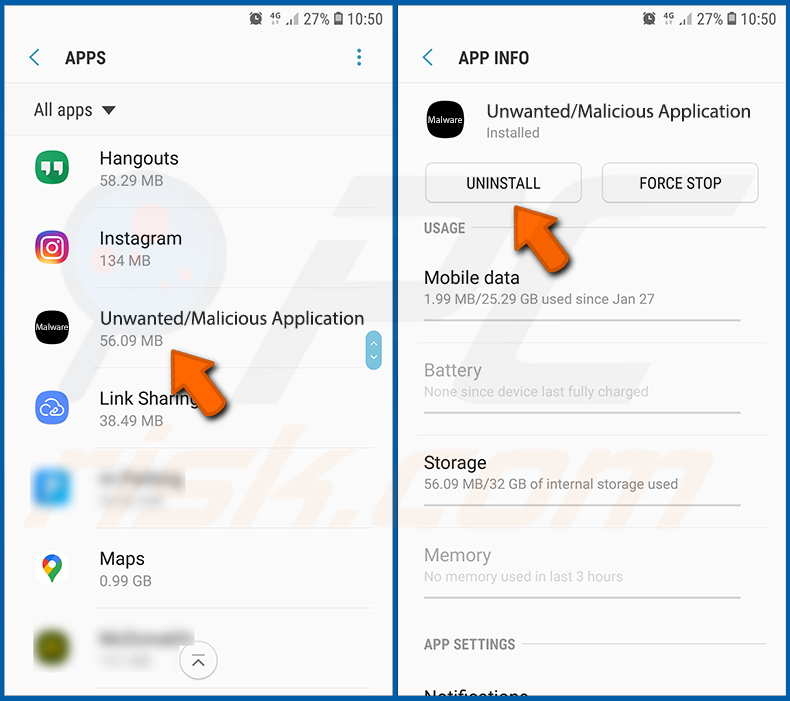
Scroll down until you see a potentially unwanted and/or malicious application, select it and tap "Uninstall". If, for some reason, you are unable to remove the selected app (e.g., you are prompted with an error message), you should try using the "Safe Mode".
Boot the Android device in "Safe Mode":
The "Safe Mode" in Android operating system temporarily disables all third-party applications from running. Using this mode is a good way to diagnose and solve various issues (e.g., remove malicious applications that prevent users you from doing so when the device is running "normally").
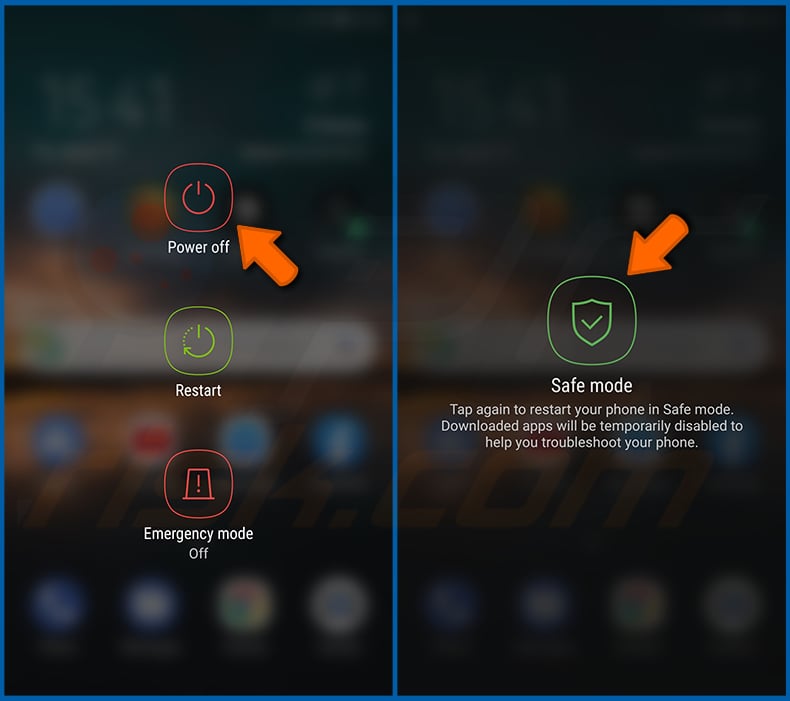
Push the "Power" button and hold it until you see the "Power off" screen. Tap the "Power off" icon and hold it. After a few seconds the "Safe Mode" option will appear and you'll be able run it by restarting the device.
Check the battery usage of various applications:
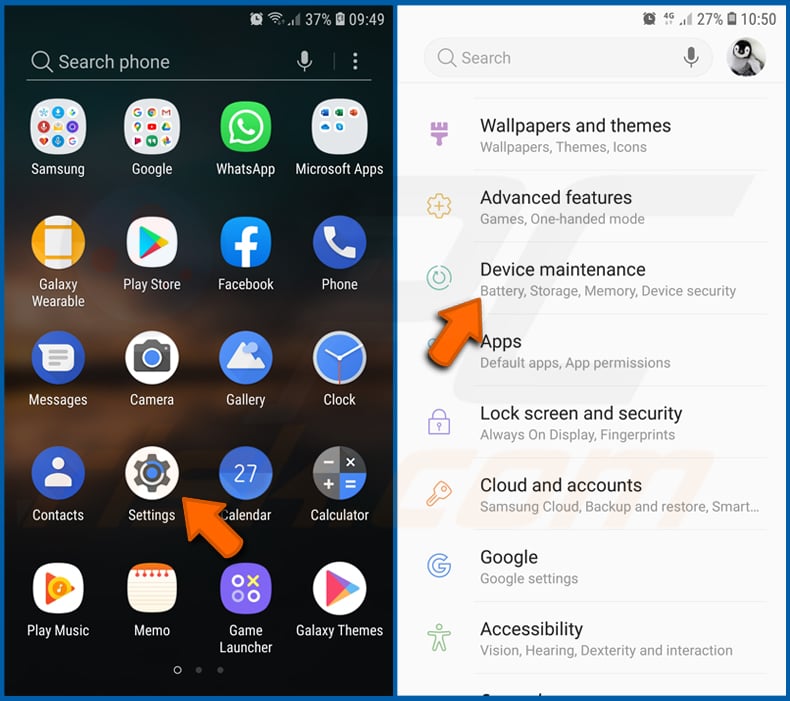
Go to "Settings", scroll down until you see "Device maintenance" and tap it.
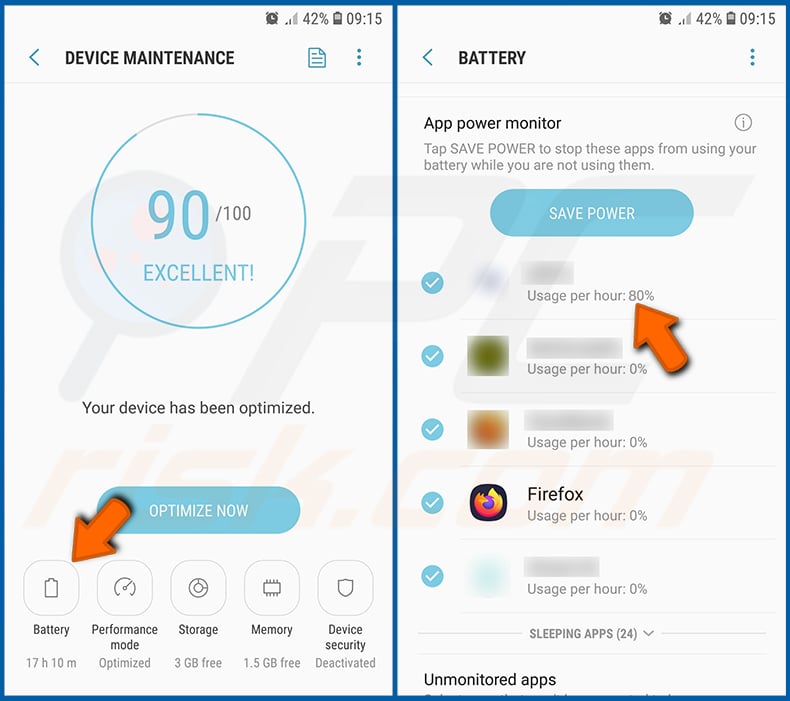
Tap "Battery" and check the usage of each application. Legitimate/genuine applications are designed to use as low energy as possible in order to provide the best user experience and to save power. Therefore, high battery usage may indicate that the application is malicious.
Check the data usage of various applications:
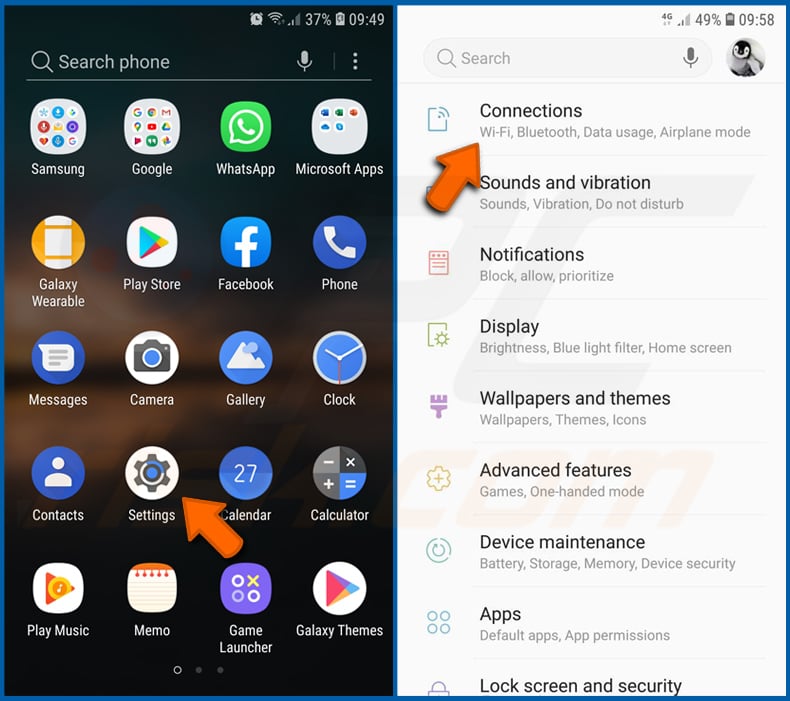
Go to "Settings", scroll down until you see "Connections" and tap it.
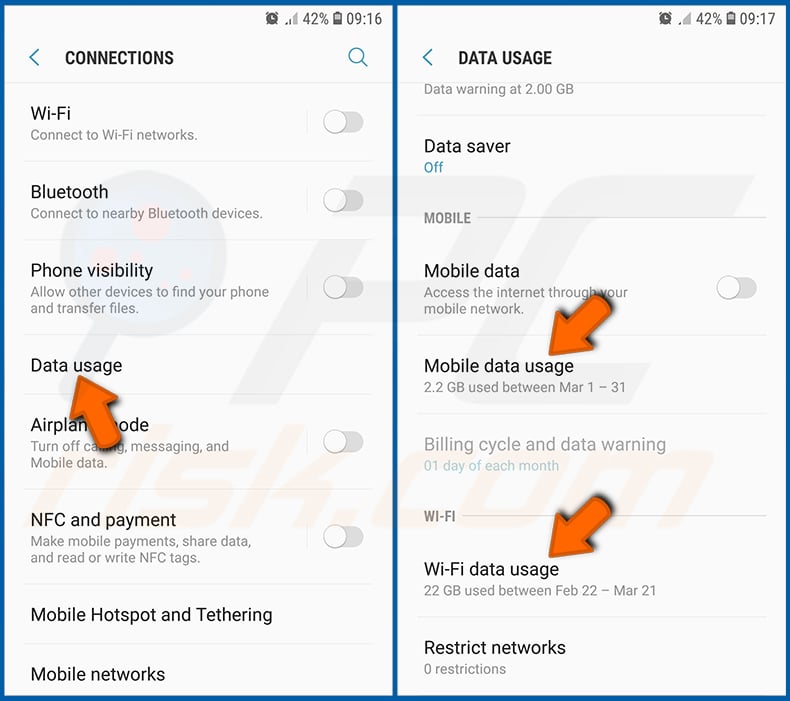
Scroll down until you see "Data usage" and select this option. As with battery, legitimate/genuine applications are designed to minimize data usage as much as possible. This means that huge data usage may indicate presence of malicious application. Note that some malicious applications might be designed to operate when the device is connected to wireless network only. For this reason, you should check both Mobile and Wi-Fi data usage.
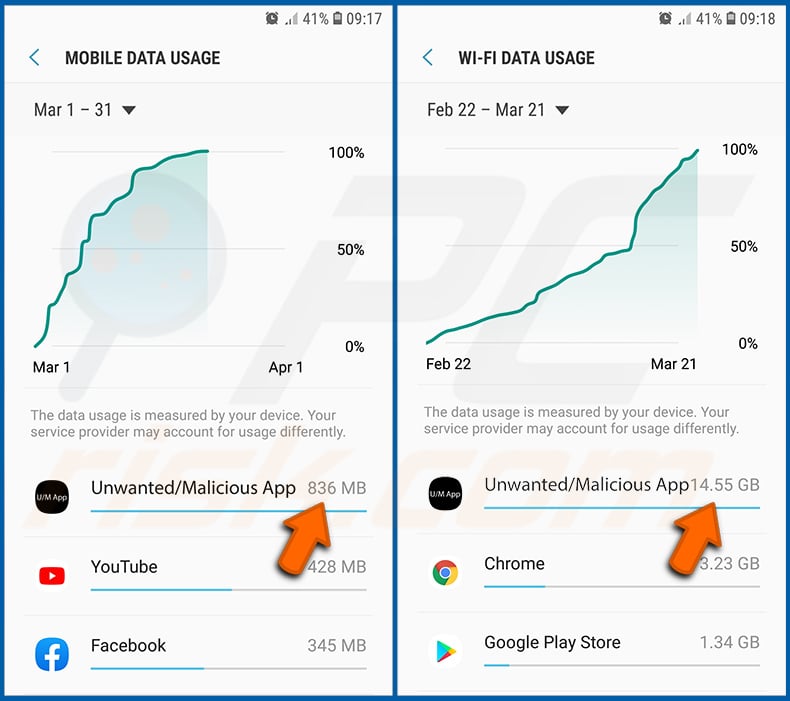
If you find an application that uses a lot of data even though you never use it, then we strongly advise you to uninstall it as soon as possible.
Install the latest software updates:
Keeping the software up-to-date is a good practice when it comes to device safety. The device manufacturers are continually releasing various security patches and Android updates in order to fix errors and bugs that can be abused by cybercriminals. An outdated system is way more vulnerable, which is why you should always be sure that your device's software is up-to-date.
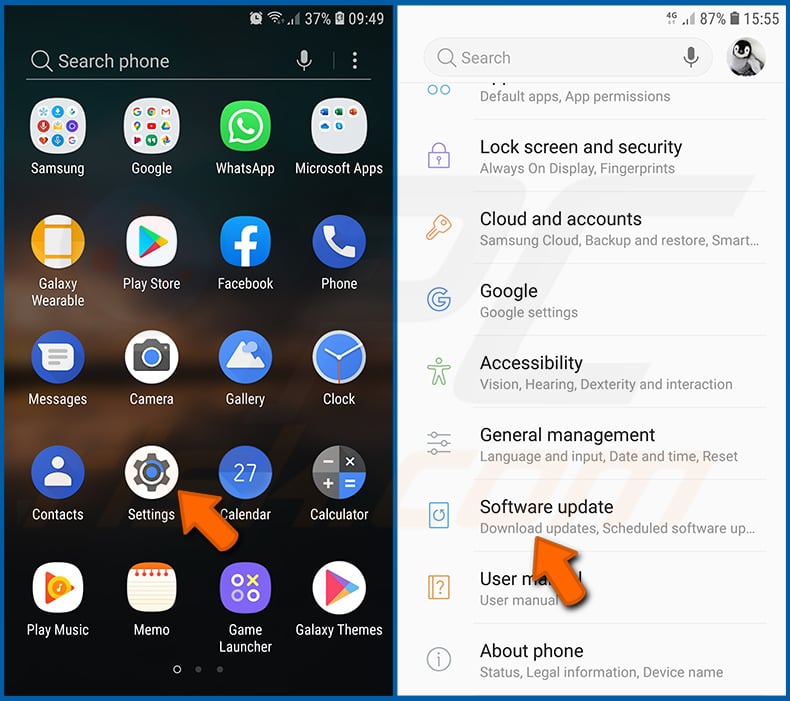
Go to "Settings", scroll down until you see "Software update" and tap it.
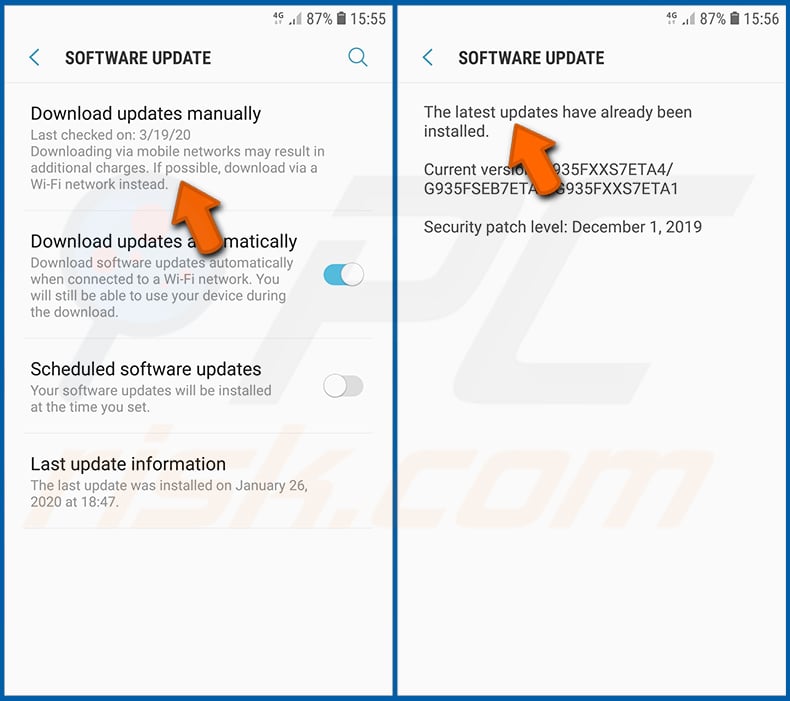
Tap "Download updates manually" and check if there are any updates available. If so, install them immediately. We also recommend to enable the "Download updates automatically" option - it will enable the system to notify you once an update is released and/or install it automatically.
Reset the system to its default state:
Performing a "Factory Reset" is a good way to remove all unwanted applications, restore system's settings to default and clean the device in general. However, you must keep in mind that all data within the device will be deleted, including photos, video/audio files, phone numbers (stored within the device, not the SIM card), SMS messages, and so forth. In other words, the device will be restored to its primal state.
You can also restore the basic system settings and/or simply network settings as well.
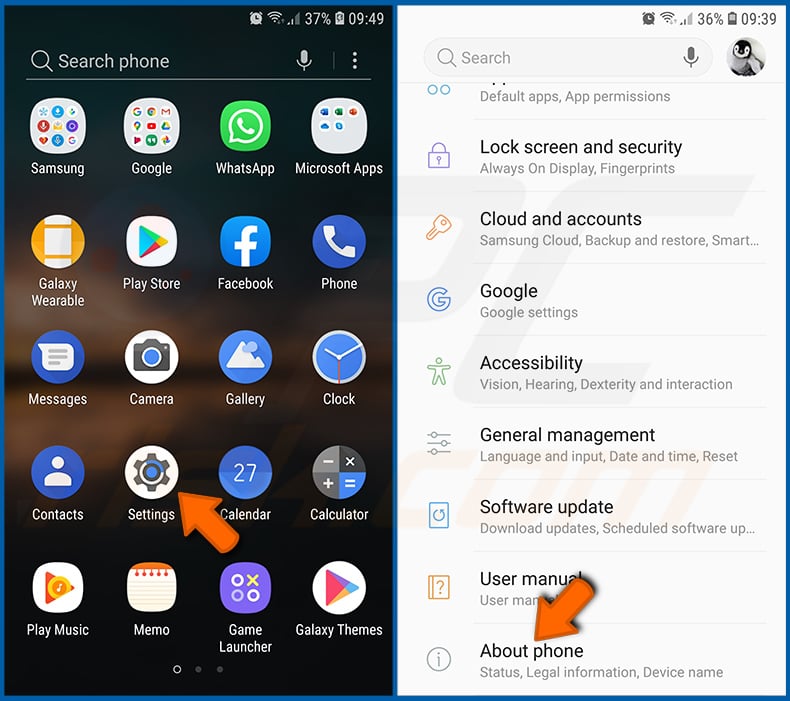
Go to "Settings", scroll down until you see "About phone" and tap it.
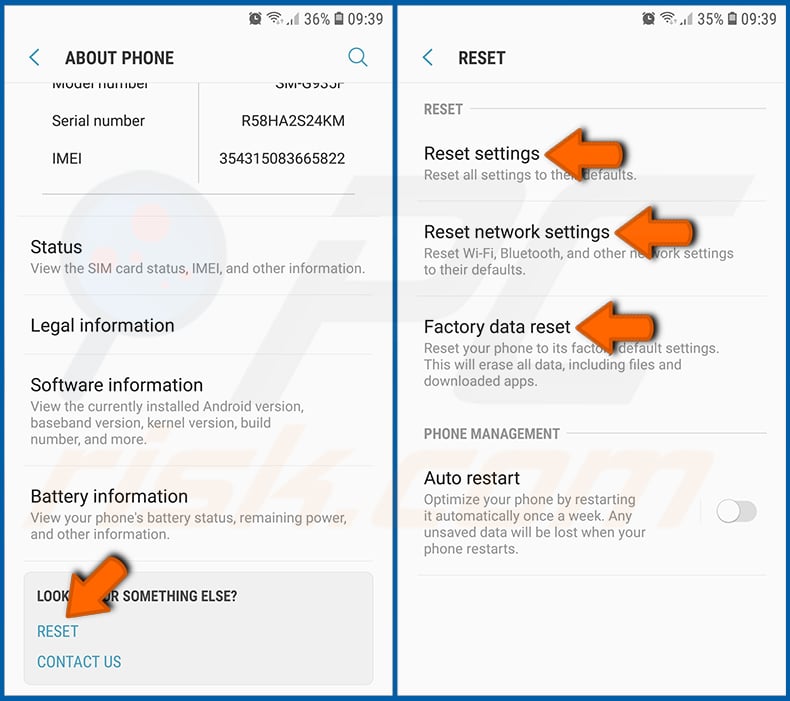
Scroll down until you see "Reset" and tap it. Now choose the action you want to perform:
"Reset settings" - restore all system settings to default;
"Reset network settings" - restore all network-related settings to default;
"Factory data reset" - reset the entire system and completely delete all stored data;
Disable applications that have administrator privileges:
If a malicious application gets administrator-level privileges it can seriously damage the system. To keep the device as safe as possible you should always check what apps have such privileges and disable the ones that shouldn't.
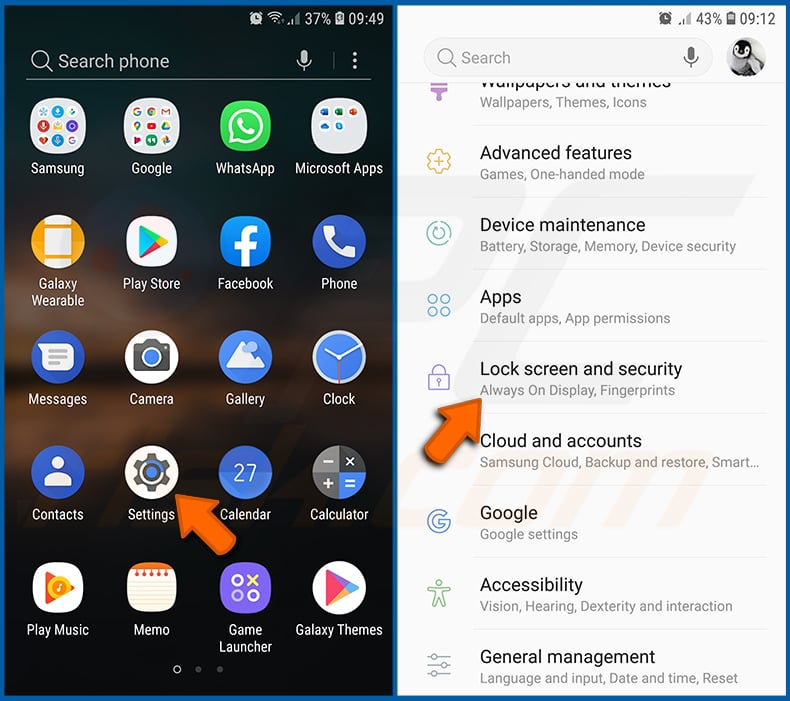
Go to "Settings", scroll down until you see "Lock screen and security" and tap it.
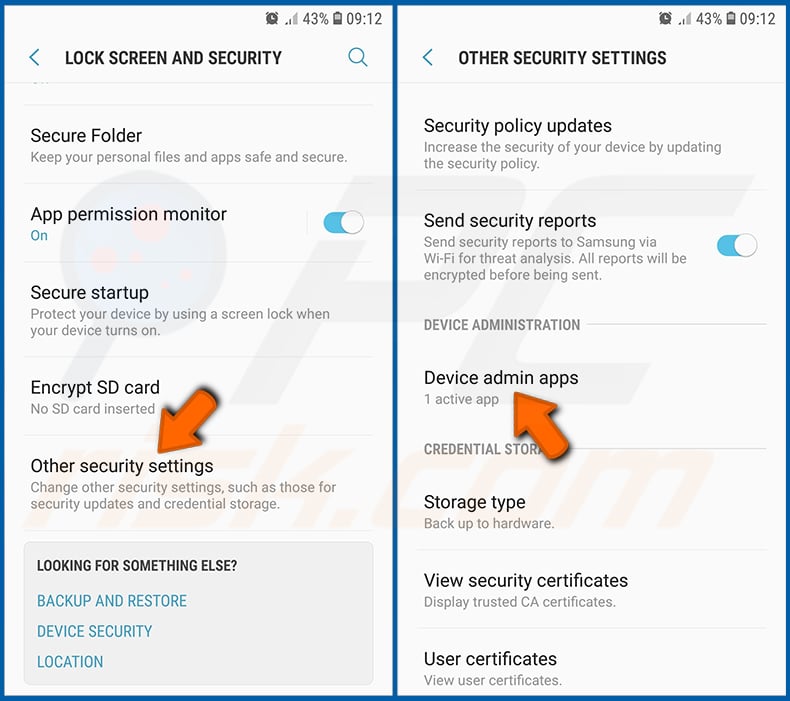
Scroll down until you see "Other security settings", tap it and then tap "Device admin apps".
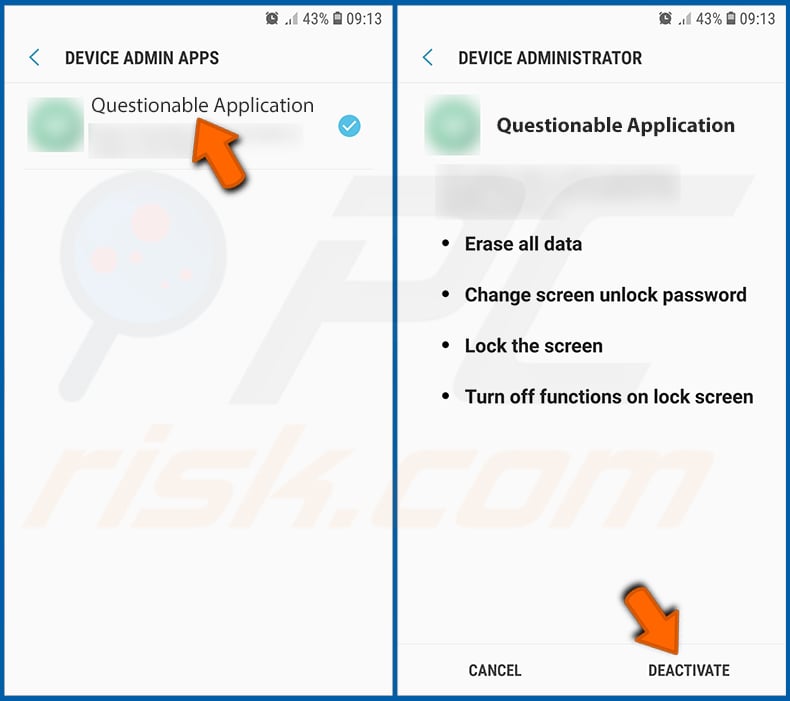
Identify applications that should not have administrator privileges, tap them and then tap "DEACTIVATE".
Frequently Asked Questions (FAQ)
My Android device is infected with Bazuka malware, should I format my storage device to get rid of it?
Formatting is generally not required. Running reputable mobile security software like Combo Cleaner should be sufficient to detect and remove Bazuka from your device. A factory reset is worth considering only if automated removal fails.
What are the biggest issues that Bazuka malware can cause?
Bazuka can steal banking credentials, intercept two-factor authentication codes, hijack cryptocurrency transfers, capture card numbers, and relay your contactless payment card data to attackers for unauthorized transactions.
It also grants attackers full remote control of your device, records your screen and audio, accesses your camera, and can lock you out by changing your PIN. This combination can result in severe financial losses and complete loss of device control.
What is the purpose of Bazuka malware?
Most malware attacks are profit-driven. Bazuka was built primarily for financial fraud through NFC card relay, credential theft, clipboard hijacking, and phishing overlays. Its remote-access capabilities also make it suitable for espionage, with cybercriminals potentially using it for targeted surveillance.
How did Bazuka malware infiltrate my Android device?
Bazuka spreads through traffer-operated landing pages disguised as TikTok 18+ or IPTV apps, promoted via advertisements and social media links. Once the dropper is installed, it silently deploys the core malware in the background. It can also spread through unofficial app stores and phishing links in messages.
Will Combo Cleaner protect me from malware?
Combo Cleaner is capable of detecting and eliminating nearly all known malware infections. Performing a complete system scan is essential, since sophisticated threats like Bazuka embed themselves deep within the system to avoid easy detection.
Share:
 Facebook
 X.com
 LinkedIn
 Copy Link

Tomas Meskauskas
Expert security researcher, professional malware analyst
I am passionate about computer security and technology. I have an experience of over 10 years working in various companies related to computer technical issue solving and Internet security. I have been working as an author and editor for pcrisk.com since 2010. Follow me on Twitter and LinkedIn to stay informed about the latest online security threats.
PCrisk security portal is brought by a company RCS LT.
Joined forces of security researchers help educate computer users about the latest online security threats. More information about the company RCS LT.
Our malware removal guides are free. However, if you want to support us you can send us a donation.
DonatePCrisk security portal is brought by a company RCS LT.
Joined forces of security researchers help educate computer users about the latest online security threats. More information about the company RCS LT.
Our malware removal guides are free. However, if you want to support us you can send us a donation.
Donate
▼ Show Discussion