

Get free scan and check if your device is infected.
Remove it nowTo use full-featured product, you have to purchase a license for Combo Cleaner. Seven days free trial available. Combo Cleaner is owned and operated by RCS LT, the parent company of PCRisk.com.
What kind of malware is QUIC RAT?
QUIC RAT is a Remote Access Trojan (RAT) that lets attackers secretly control infected Windows computers. Kaspersky researchers documented its use during a supply chain attack on Daemon Tools, a widely used Windows disc-imaging utility, in which trojanized installers signed with valid certificates were used to deliver malicious payloads to victims.
The implant is named after the QUIC protocol, one of several communication channels it can use to talk to its operators. QUIC RAT is a second-stage payload - it was pushed only to a small set of high-value machines, after the attackers had already gained an initial foothold through a separate, simpler first-stage implant delivered to a wider pool of Daemon Tools users.
According to Securelist, the campaign primarily affected organizations in government, scientific, manufacturing, and retail sectors in Russia, Belarus, and Thailand, with artifacts in the code suggesting a Chinese-speaking threat actor.
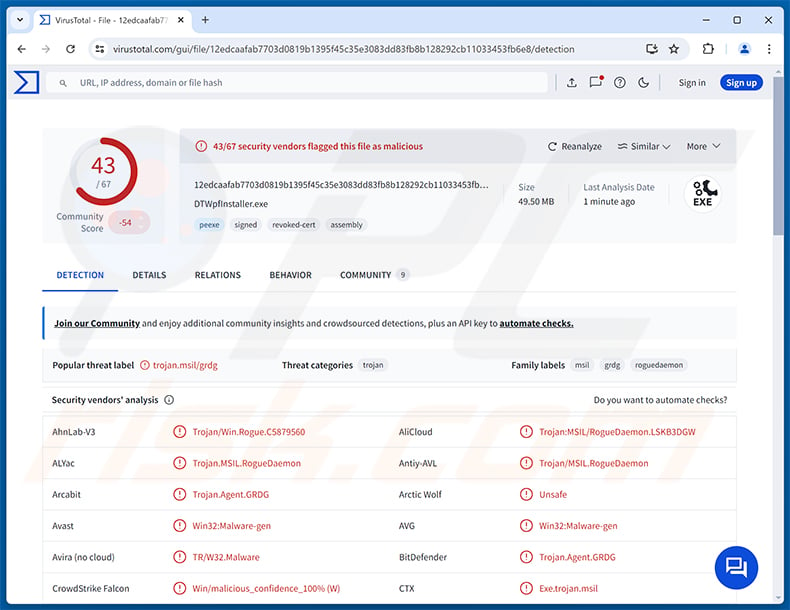
QUIC RAT overview
QUIC RAT is written in C++ and uses control-flow flattening to make its code harder to read for analysts. It statically links the WolfSSL cryptographic library and even carries a copy of the legitimate msquic.dll inside its own binary, so that the QUIC protocol features it relies on are available without bringing along a separate file that defenders could spot.
Once running, the RAT can reach its Command and Control (C2) server through several different protocols, including HTTP, HTTP/3, QUIC, WSS (encrypted WebSocket), UDP, TCP, and DNS. This flexibility lets the malware blend in with normal network traffic and continue operating even when one channel is filtered or blocked at the network level.
QUIC RAT injects payloads into trusted Windows processes such as notepad.exe and conhost.exe. By running its code inside those processes, the malware hides from casual inspection of the Task Manager and from simple security tools that only flag unknown binaries.
QUIC RAT's features
Like most Remote Access Trojans, an implant of this kind gives an operator broad live control over the infected machine. Typical capabilities include viewing the desktop in real time, moving the mouse and typing remotely, browsing files and uploading or downloading them, executing commands through the Windows shell or PowerShell, and launching additional executables on demand.
RATs of this class are also commonly used to access the webcam and microphone, record keystrokes (acting as a keylogger), and watch what gets copied to the clipboard. The clipboard is particularly valuable because users often paste passwords, recovery phrases, and cryptocurrency wallet addresses through it.
Many RATs can also harvest saved browser passwords and cookies, drop further malware (such as information stealers, ransomware, or coinminers), and turn the infected device into a proxy that lets the attacker route their own traffic through it to disguise its origin. Securelist notes that the full feature set of QUIC RAT is still being analyzed at the time of writing.
How QUIC RAT hides itself
QUIC RAT was delivered through a supply chain attack that abused legitimate, validly signed Daemon Tools installers. Because the malicious code rode in alongside trusted software during a routine installation, traditional warnings such as "unknown publisher" or "untrusted certificate" did not trigger, and the malware could load without raising suspicion.
To stay quiet on the network, the RAT mixes its traffic into protocols that are commonly used by legitimate applications and modern web services. Encrypted channels through WolfSSL make the content of its communication unreadable from the outside, and the control-flow obfuscation slows down attempts to reverse engineer captured samples.
| Name | QUIC remote access trojan |
| Threat Type | Remote Access Trojan (RAT) |
| Detection Names | Avast (Win32:Malware-gen), Combo Cleaner (Trojan.Agent.GRDG), ESET-NOD32 (MSIL/Agent.YGT Trojan), Kaspersky (HEUR:Trojan.Win64.Agent.gen), Microsoft (Trojan:MSIL/RogueDaemon.LTSN!MTB), Full List (VirusTotal) |
| Symptoms | Remote Access Trojans are designed to stealthily infiltrate the victim's computer and remain silent, and thus no particular symptoms are clearly visible on an infected machine. |
| Distribution methods | Trojanized software installers, supply chain attacks, fake websites, phishing emails, pirated software. |
| Damage | Stolen passwords and banking information, identity theft, the victim's computer added to a botnet, additional infections, monetary loss, account hijacking. |
| Malware Removal (Windows) |
To eliminate possible malware infections, scan your computer with legitimate antivirus software. Our security researchers recommend using Combo Cleaner. Download Combo CleanerTo use full-featured product, you have to purchase a license for Combo Cleaner. 7 days free trial available. Combo Cleaner is owned and operated by RCS LT, the parent company of PCRisk.com. |
Conclusion
QUIC RAT gives attackers stealthy remote control over infected Windows computers. Because it was delivered by a trusted, signed installer, victims had no obvious reason to suspect anything. The combination of live remote control, data theft, and the ability to fetch further payloads means that an infection can quickly snowball into account takeover, identity theft, and full network compromise. It should be removed from the system immediately.
More examples of RATs are NexusRAT, EtherRAT, and NodeCordRAT.
How did QUIC RAT infiltrate my computer?
According to Securelist, QUIC RAT was distributed through a supply chain attack on Daemon Tools, a popular disc-imaging program for Windows. In Daemon Tools versions 12.5.0.2421 through 12.5.0.2434, three components of the installer (DTHelper.exe, DiscSoftBusServiceLite.exe, and DTShellHlp.exe) were modified to run malicious code at startup while still appearing properly signed.
Users who installed one of the trojanized versions received an initial implant that reported back to an attacker-controlled server and could pull down follow-up payloads. QUIC RAT itself was not pushed to every infected machine - it was reserved for a smaller group of selected, high-value targets and arrived as a second-stage payload chosen by the operators after they reviewed the victim profile.
More broadly, threats of this kind reach victims through compromised or trojanized software installers, fake download sites, phishing emails carrying booby-trapped attachments (PDFs, Office documents, or archives), pirated programs and software cracks, malicious advertising, fake software updates, infected USB drives, and exploits targeting unpatched software.
How to avoid installation of malware?
Be cautious with unexpected emails, especially those carrying attachments or links, even when they appear to come from a known sender. Download software only from the official vendor's website rather than from third-party portals, advertised banners, or torrent sites, and avoid pirated programs, key generators, and "cracks" - all of which are common malware carriers.
Keep your operating system and installed applications updated, since many infections exploit old vulnerabilities. Stay away from suspicious pop-ups, browser notifications, and shady ads, and use a reputable security product to scan files regularly. If you believe that your computer is already infected, we recommend running a scan with Combo Cleaner Antivirus for Windows to automatically eliminate infiltrated malware.
Instant automatic malware removal:
Manual threat removal might be a lengthy and complicated process that requires advanced IT skills. Combo Cleaner is a professional automatic malware removal tool that is recommended to get rid of malware. Download it by clicking the button below:
DOWNLOAD Combo CleanerBy downloading any software listed on this website you agree to our Privacy Policy and Terms of Use. To use full-featured product, you have to purchase a license for Combo Cleaner. 7 days free trial available. Combo Cleaner is owned and operated by RCS LT, the parent company of PCRisk.com.
Quick menu:
- What is QUIC RAT?
- STEP 1. Manual removal of QUIC RAT malware.
- STEP 2. Check if your computer is clean.
How to remove malware manually?
Manual malware removal is a complicated task - usually it is best to allow antivirus or anti-malware programs to do this automatically. To remove this malware we recommend using Combo Cleaner Antivirus for Windows.
If you wish to remove malware manually, the first step is to identify the name of the malware that you are trying to remove. Here is an example of a suspicious program running on a user's computer:
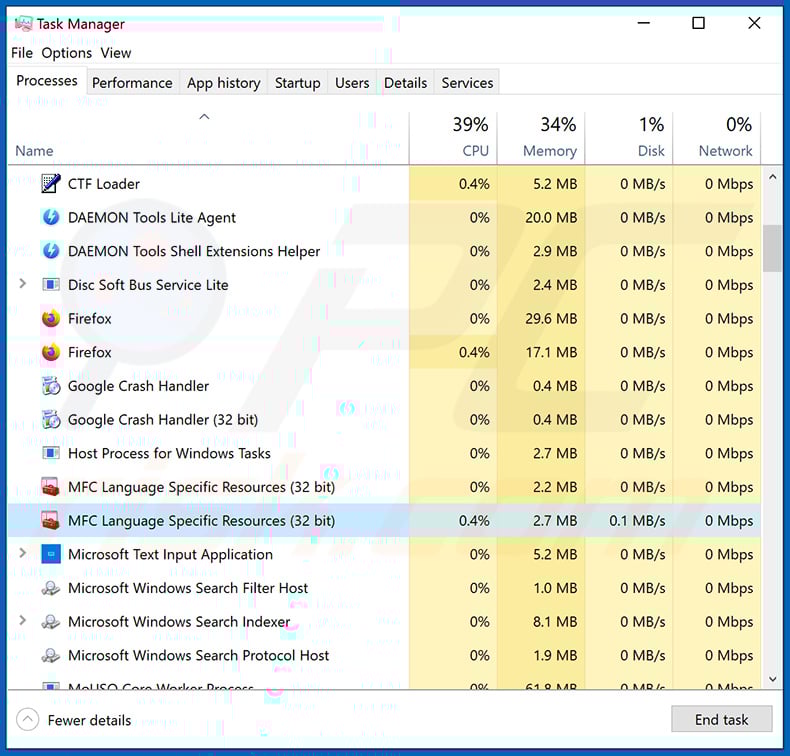
If you checked the list of programs running on your computer, for example, using task manager, and identified a program that looks suspicious, you should continue with these steps:
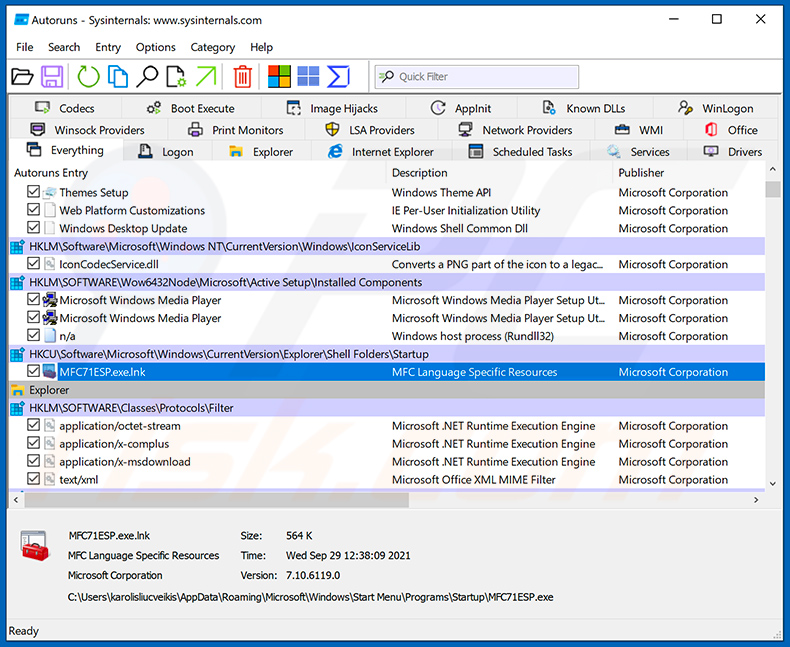
 Download a program called Autoruns. This program shows auto-start applications, Registry, and file system locations:
 Restart your computer into Safe Mode:
Windows XP and Windows 7 users: Start your computer in Safe Mode. Click Start, click Shut Down, click Restart, click OK. During your computer start process, press the F8 key on your keyboard multiple times until you see the Windows Advanced Option menu, and then select Safe Mode with Networking from the list.
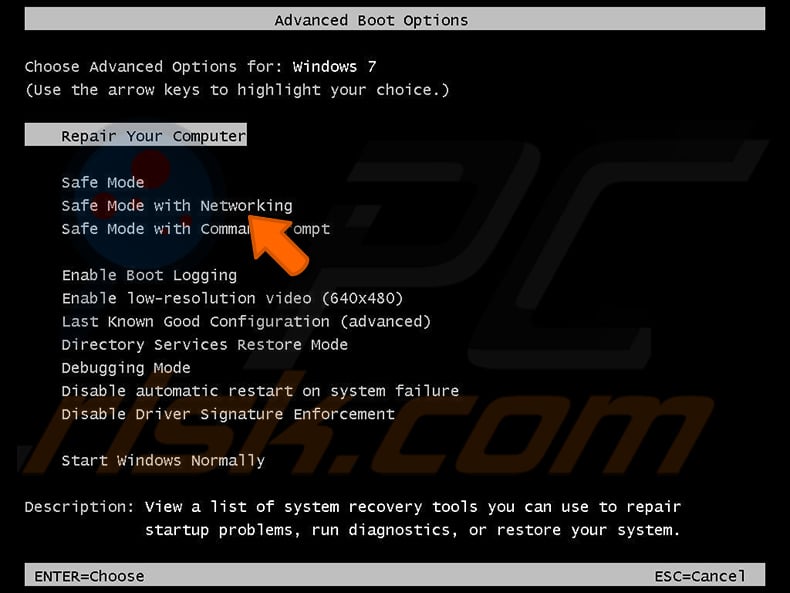
Video showing how to start Windows 7 in "Safe Mode with Networking":
Windows 8 users: Start Windows 8 is Safe Mode with Networking - Go to Windows 8 Start Screen, type Advanced, in the search results select Settings. Click Advanced startup options, in the opened "General PC Settings" window, select Advanced startup.
Click the "Restart now" button. Your computer will now restart into the "Advanced Startup options menu". Click the "Troubleshoot" button, and then click the "Advanced options" button. In the advanced option screen, click "Startup settings".
Click the "Restart" button. Your PC will restart into the Startup Settings screen. Press F5 to boot in Safe Mode with Networking.
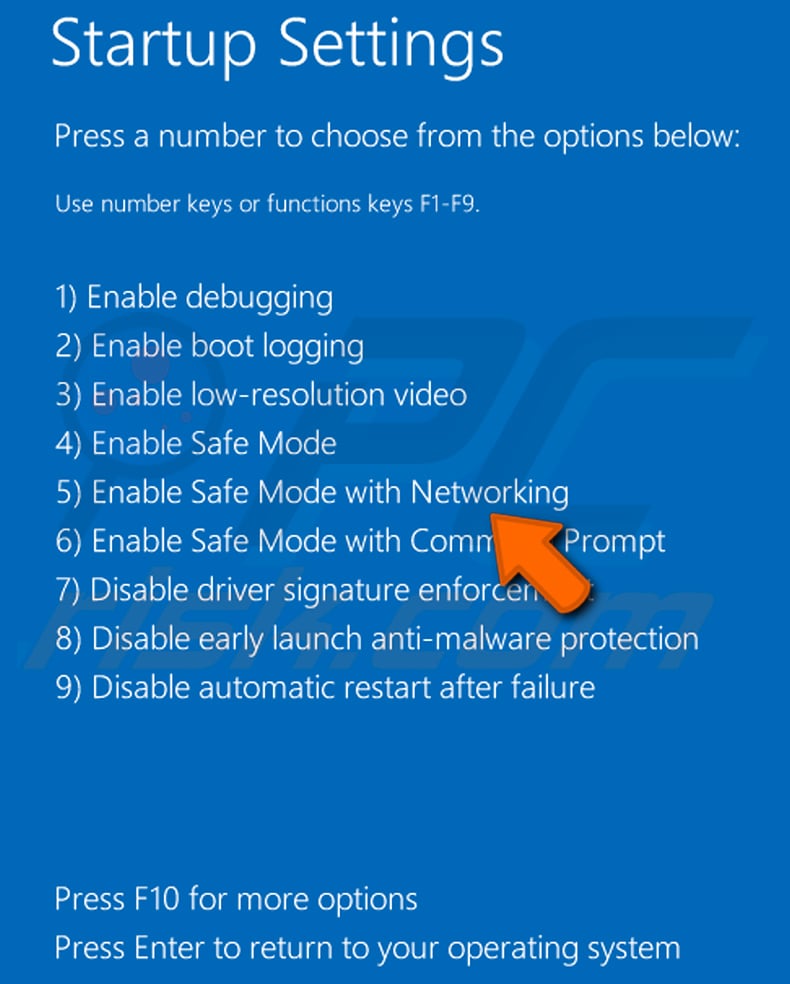
Video showing how to start Windows 8 in "Safe Mode with Networking":
Windows 10 users: Click the Windows logo and select the Power icon. In the opened menu click "Restart" while holding "Shift" button on your keyboard. In the "choose an option" window click on the "Troubleshoot", next select "Advanced options".
In the advanced options menu select "Startup Settings" and click on the "Restart" button. In the following window you should click the "F5" button on your keyboard. This will restart your operating system in safe mode with networking.
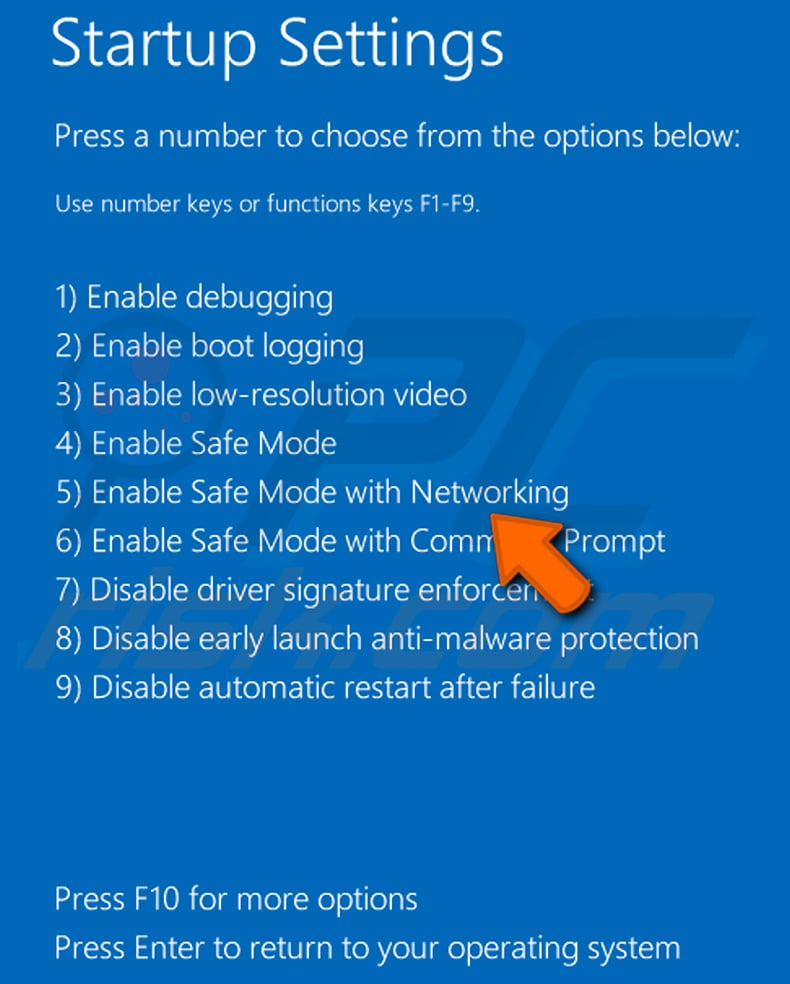
Video showing how to start Windows 10 in "Safe Mode with Networking":
 Extract the downloaded archive and run the Autoruns.exe file.
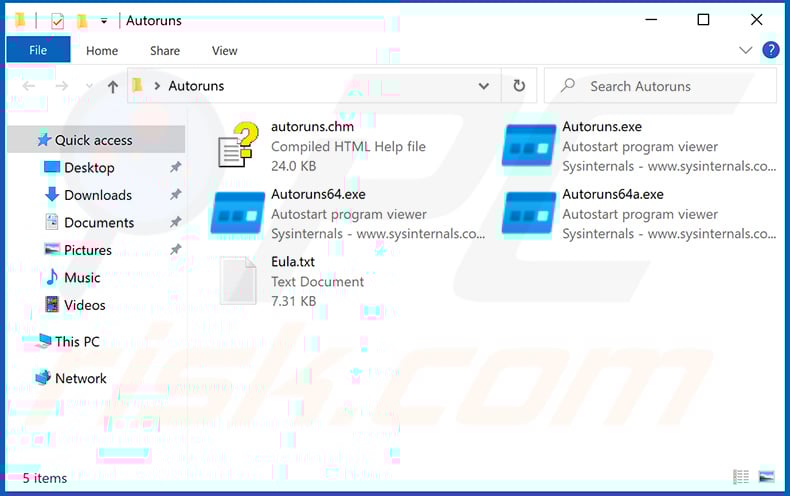
 In the Autoruns application, click "Options" at the top and uncheck "Hide Empty Locations" and "Hide Windows Entries" options. After this procedure, click the "Refresh" icon.
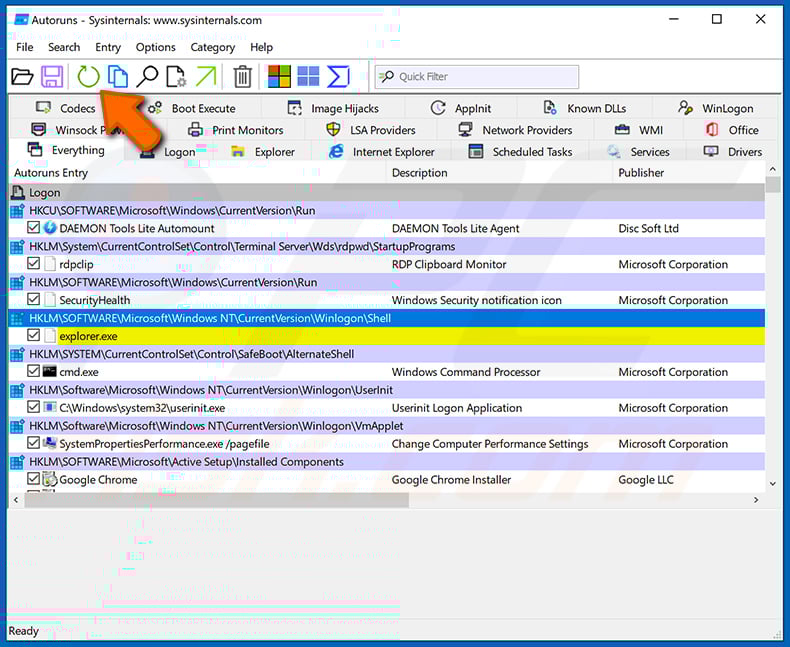
 Check the list provided by the Autoruns application and locate the malware file that you want to eliminate.
You should write down its full path and name. Note that some malware hides process names under legitimate Windows process names. At this stage, it is very important to avoid removing system files. After you locate the suspicious program you wish to remove, right click your mouse over its name and choose "Delete".
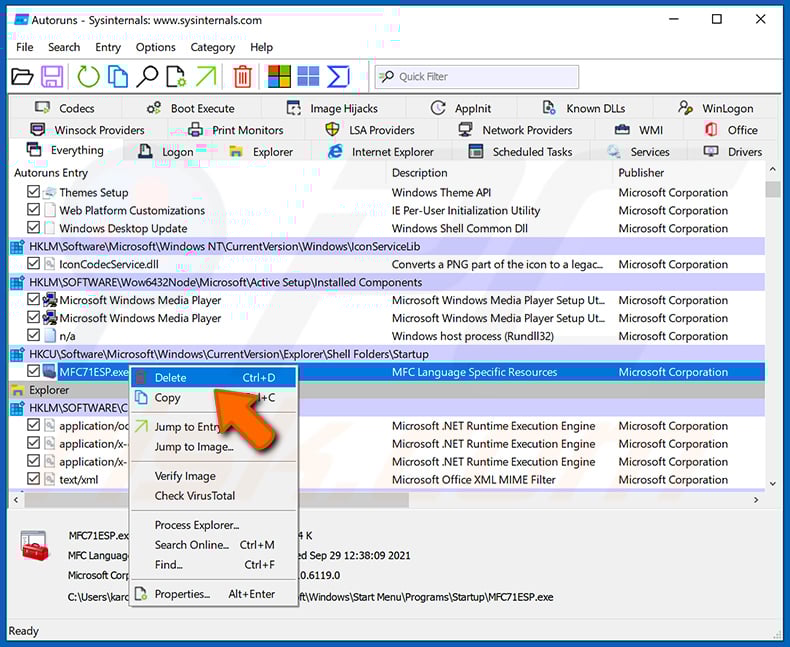
After removing the malware through the Autoruns application (this ensures that the malware will not run automatically on the next system startup), you should search for the malware name on your computer. Be sure to enable hidden files and folders before proceeding. If you find the filename of the malware, be sure to remove it.
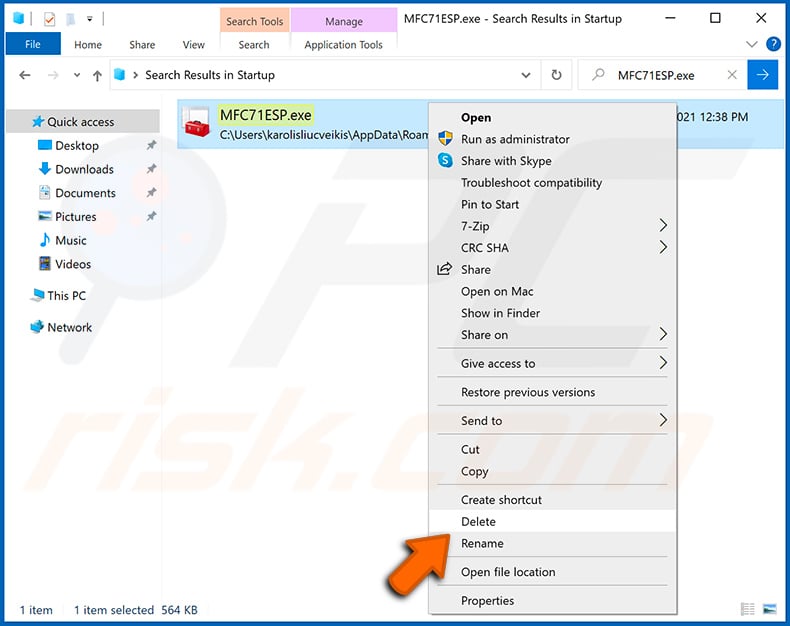
Reboot your computer in normal mode. Following these steps should remove any malware from your computer. Note that manual threat removal requires advanced computer skills. If you do not have these skills, leave malware removal to antivirus and anti-malware programs.
These steps might not work with advanced malware infections. As always it is best to prevent infection than try to remove malware later. To keep your computer safe, install the latest operating system updates and use antivirus software. To be sure your computer is free of malware infections, we recommend scanning it with Combo Cleaner Antivirus for Windows.
Frequently Asked Questions (FAQ)
My computer is infected with QUIC RAT malware, should I format my storage device to get rid of it?
Reformatting the storage device would remove QUIC RAT, but it would also erase every other file on the drive. Running a reputable security solution such as Combo Cleaner is usually the safer first step.
What are the biggest issues that QUIC RAT malware can cause?
An infection of this kind can lead to stolen passwords, hijacked accounts, theft of sensitive files, and the deployment of additional malware. Because attackers can fully control the device, the fallout can extend to identity theft, financial fraud, and the compromise of other systems the computer connects to.
What is the purpose of QUIC RAT malware?
The purpose of QUIC RAT is to give attackers remote control over infected Windows computers so they can spy on users, steal data, run commands, and deploy further payloads while remaining hidden in legitimate-looking network traffic.
How did QUIC RAT malware infiltrate my computer?
QUIC RAT was distributed through a supply chain attack on Daemon Tools, where trojanized installers signed with valid certificates were used to deliver malicious payloads. Threats of this kind also commonly arrive via phishing emails, fake download sites, pirated software, malicious ads, and exploits in outdated programs.
Will Combo Cleaner protect me from malware?
Yes. Combo Cleaner can detect and remove most known malware. Because advanced threats sometimes hide deep within the system, running a full system scan is recommended to make sure nothing is left behind.
Share:
 Facebook
 X.com
X.com
 LinkedIn
 Copy Link

Tomas Meskauskas
Expert security researcher, professional malware analyst
I am passionate about computer security and technology. I have an experience of over 10 years working in various companies related to computer technical issue solving and Internet security. I have been working as an author and editor for pcrisk.com since 2010. Follow me on Twitter and LinkedIn to stay informed about the latest online security threats.
PCrisk security portal is brought by a company RCS LT.
Joined forces of security researchers help educate computer users about the latest online security threats. More information about the company RCS LT.
Our malware removal guides are free. However, if you want to support us you can send us a donation.
DonatePCrisk security portal is brought by a company RCS LT.
Joined forces of security researchers help educate computer users about the latest online security threats. More information about the company RCS LT.
Our malware removal guides are free. However, if you want to support us you can send us a donation.
Donate
▼ Show Discussion