
How to remove Fusebase Search (s.fusebase-search.com) from the browser
Browser HijackerAlso Known As: Fusebase Search browser hijacker

Get free scan and check if your device is infected.
Remove it nowTo use full-featured product, you have to purchase a license for Combo Cleaner. Seven days free trial available. Combo Cleaner is owned and operated by RCS LT, the parent company of PCRisk.com.
What kind of extension is Fusebase Search?
Our researchers discovered the Fusebase Search browser hijacker while inspecting extensions distributed through dedicated download pages. Fusebase Search modifies browser settings so that searches and new tabs are handled by s.fusebase-search.com.
This extension is also considered a privacy threat, since software within this classification typically monitors users' browsing activity. We advise against using Fusebase Search and s.fusebase-search.com, and recommend removing this extension as soon as it is found installed.
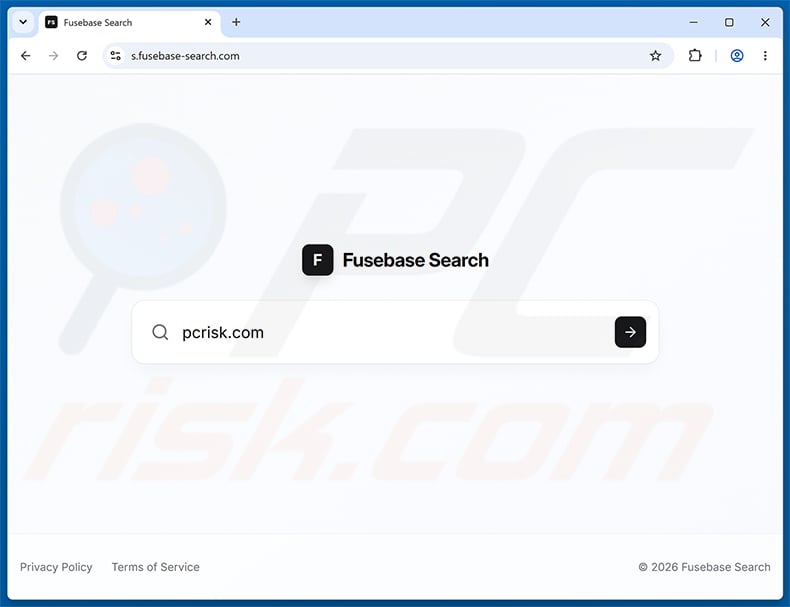
Fusebase Search browser hijacker overview
Once added to a browser, Fusebase Search changes the default search engine and the new tab page to S.fusebase-search.com. This process is known as browser hijacking, and it forces users to rely on a search engine they did not choose for themselves.
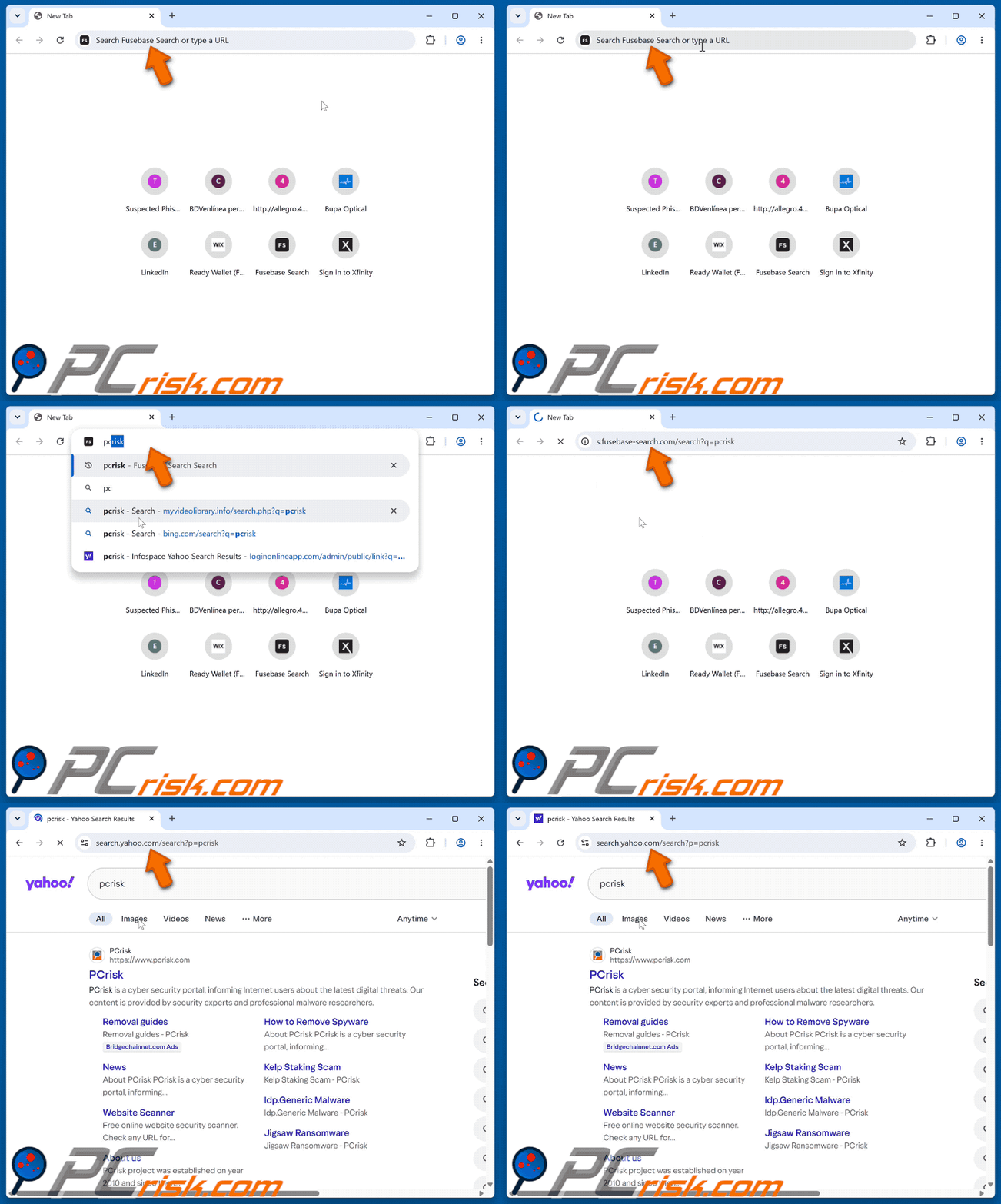
S.fusebase-search.com does not generate its own search results. Instead, it redirects users to search.yahoo.com (a legitimate search engine), although other destinations are possible too.
Where exactly a search ends up landing can depend on factors such as the visitor's geolocation. This means that users in different countries or regions may be redirected to different pages when using S.fusebase-search.com.
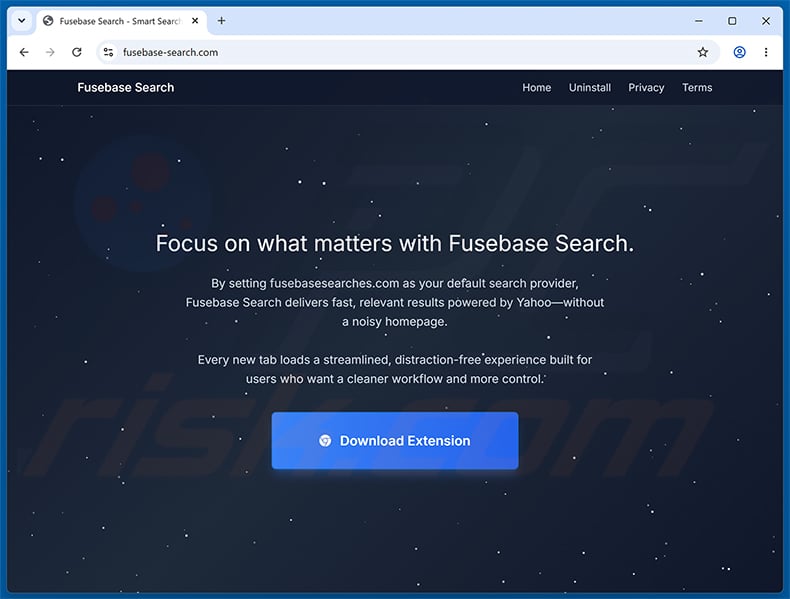
Fusebase Search is promoted through its own dedicated website, fusebase-search.com, which offers the extension for direct download and describes it as a tool for a "distraction-free" browsing experience with a "streamlined" new tab page.
Browser hijackers often rely on persistence-ensuring mechanisms, such as restricting access to removal-related settings or undoing user-made changes, to make it harder for users to restore their original browser configuration.
Software within this classification usually has data-tracking abilities, and this might be true of Fusebase Search. Information of interest can include visited URLs, viewed pages, search queries, cookies, and even personally identifiable or finance-related details.
This collected data can be sold to third parties or otherwise misused. To summarize, browser-hijacking software like Fusebase Search is associated with privacy issues, intrusive advertising, and exposure to dubious or harmful websites.
| Name | Fusebase Search |
| Threat Type | Browser Hijacker, Redirect, Search Hijacker, Toolbar, Unwanted New Tab |
| Browser Extension(s) | Fusebase Search |
| Supposed Functionality | Distraction-free search and new tab experience |
| Promoted URL | s.fusebase-search.com |
| Threat Status (s.fusebase-search.com) | PCrisk Website Scanner Results |
| Affected Browser Settings | New tab URL, default search engine |
| Symptoms | Manipulated Internet browser settings (homepage, default Internet search engine, new tab settings). Users are forced to visit the hijacker's website and search the Internet using their search engines. |
| Distribution methods | Deceptive pop-up ads, free software installers (bundling), and dedicated promotional webpages. |
| Damage | Internet browser tracking (potential privacy issues), display of unwanted ads, redirects to dubious websites. |
| Malware Removal (Windows) |
To eliminate possible malware infections, scan your computer with legitimate antivirus software. Our security researchers recommend using Combo Cleaner. Download Combo CleanerTo use full-featured product, you have to purchase a license for Combo Cleaner. 7 days free trial available. Combo Cleaner is owned and operated by RCS LT, the parent company of PCRisk.com. |
Browser hijacker examples
We have examined numerous browser hijackers; Easy Login, Search Toggler, View Menu with Prices, and Great Start - Homepage are merely a few of our newest articles.
Browser-hijacking software typically appears legitimate and offers various features. However, these functions seldom work as advertised, and in most cases they are completely nonoperational.
How did Fusebase Search install on my computer?
The bundling marketing method, which involves packing regular program installers with unwanted additions, is often used to distribute browser hijackers. Pre-packed installation setups can be downloaded from freeware and free file-hosting sites, Peer-to-Peer (P2P) sharing networks, and other dubious channels.
The risk of letting bundled content into the system is increased by rushing through installations, for example by ignoring the terms or using "Easy" or "Express" installation settings instead of "Custom" or "Advanced" ones.
Additionally, Fusebase Search can be downloaded directly from its own promotional webpage, fusebase-search.com. Browser hijackers are also commonly accessed through redirects caused by websites using rogue advertising networks, intrusive ads, spam browser notifications, and installed adware.
How to avoid installation of browser hijackers?
We strongly advise researching software and downloading it only from official or verified sources. When installing, we recommend reading the terms, exploring possible options, using "Custom" or "Advanced" settings, and opting out of all supplementary apps, extensions, and features.
It also pays to stay alert while browsing, since fraudulent and malicious online content typically appears legitimate and harmless. Intrusive ads, for example, may look ordinary but redirect users to highly questionable websites.
In case of continuous encounters with such adverts or redirects, inspect the device and immediately remove all suspicious applications and browser extensions or plug-ins. If your computer is already infected with Fusebase Search, we recommend running a scan with Combo Cleaner Antivirus for Windows to automatically eliminate this browser hijacker.
Appearance of s.fusebase-search.com redirecting to the Yahoo search engine (GIF):
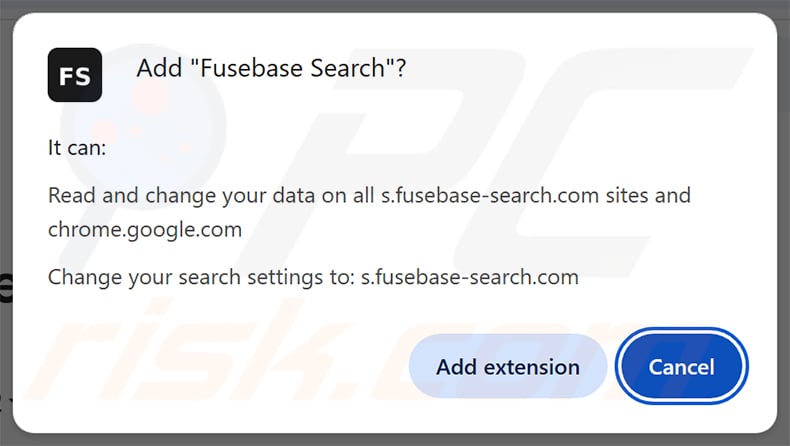
Permissions asked by Fusebase Search browser hijacker:
Fusebase Search browser hijacker's "official" promotional website:
Instant automatic malware removal:
Manual threat removal might be a lengthy and complicated process that requires advanced IT skills. Combo Cleaner is a professional automatic malware removal tool that is recommended to get rid of malware. Download it by clicking the button below:
DOWNLOAD Combo CleanerBy downloading any software listed on this website you agree to our Privacy Policy and Terms of Use. To use full-featured product, you have to purchase a license for Combo Cleaner. 7 days free trial available. Combo Cleaner is owned and operated by RCS LT, the parent company of PCRisk.com.
Quick menu:
- What is Fusebase Search?
- STEP 1. Uninstall unwanted applications using Control Panel.
- STEP 2. Remove Fusebase Search browser hijacker from Google Chrome.
- STEP 3. Remove s.fusebase-search.com homepage and default search engine from Mozilla Firefox.
- STEP 4. Remove s.fusebase-search.com redirect from Safari.
- STEP 5. Remove rogue plug-ins from Microsoft Edge.
Fusebase Search browser hijacker removal:
Windows 11 users:
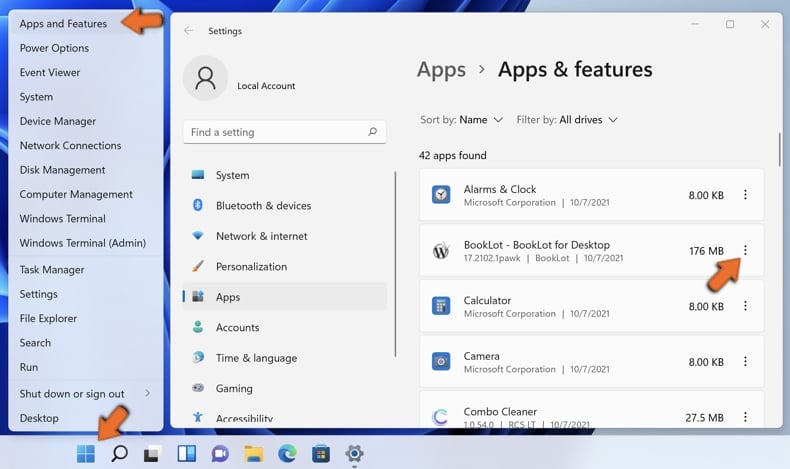
Right-click on the Start icon, select Apps and Features. In the opened window search for the application you want to uninstall, after locating it, click on the three vertical dots and select Uninstall.
Windows 10 users:
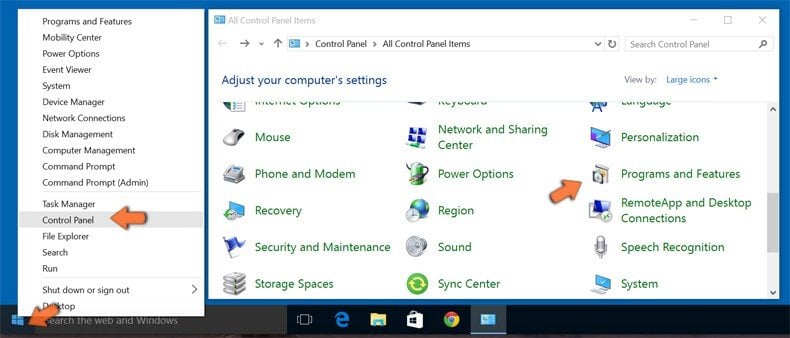
Right-click in the lower left corner of the screen, in the Quick Access Menu select Control Panel. In the opened window choose Programs and Features.
Windows 7 users:
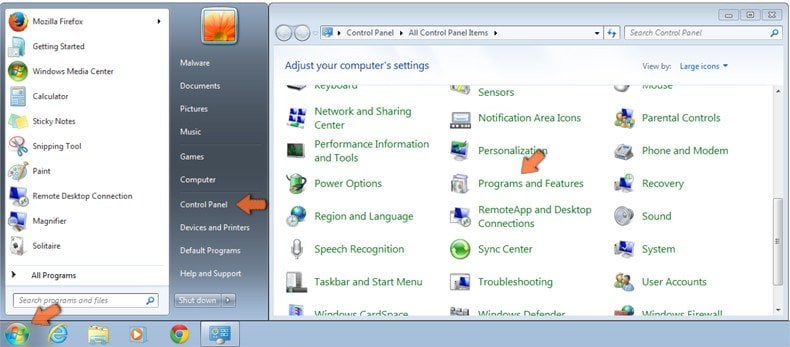
Click Start (Windows Logo at the bottom left corner of your desktop), choose Control Panel. Locate Programs and click Uninstall a program.
macOS (OSX) users:
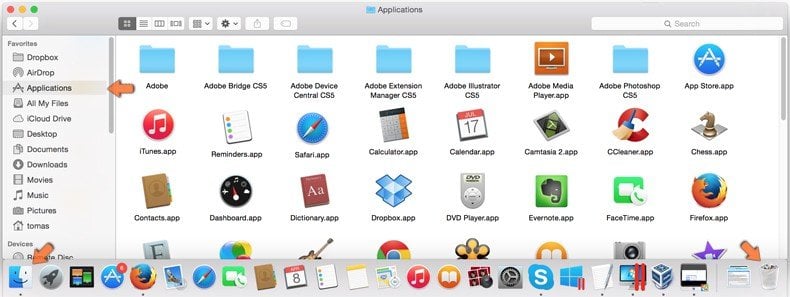
Click Finder, in the opened screen select Applications. Drag the app from the Applications folder to the Trash (located in your Dock), then right click the Trash icon and select Empty Trash.
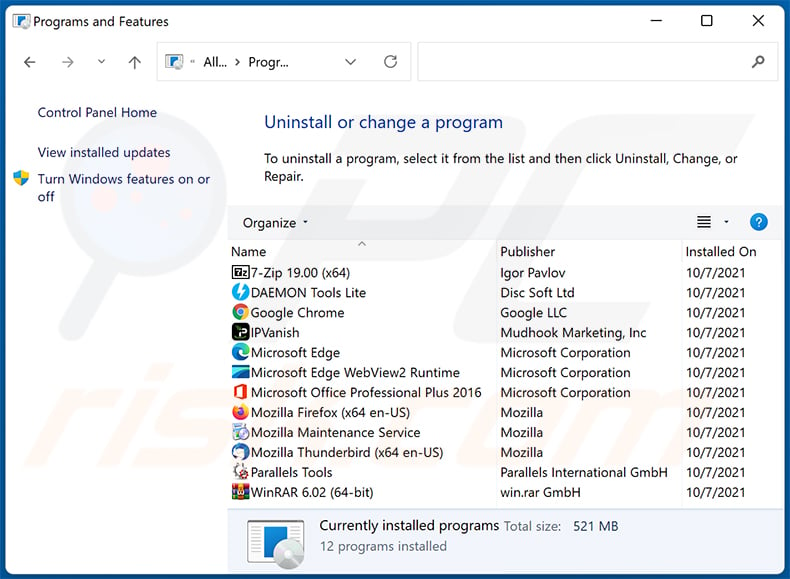
In the uninstall programs window: look for any recently installed suspicious applications, select these entries and click "Uninstall" or "Remove".
After uninstalling the potentially unwanted applications, scan your computer for any remaining unwanted components. To scan your computer, use recommended malware removal software.
DOWNLOAD remover for malware infections
Combo Cleaner checks if your computer is infected with malware. To use full-featured product, you have to purchase a license for Combo Cleaner. 7 days free trial available. Combo Cleaner is owned and operated by RCS LT, the parent company of PCRisk.com.
Fusebase Search browser hijacker removal from Internet browsers:
Video showing how to remove browser redirects:
 Remove malicious extensions from Google Chrome:
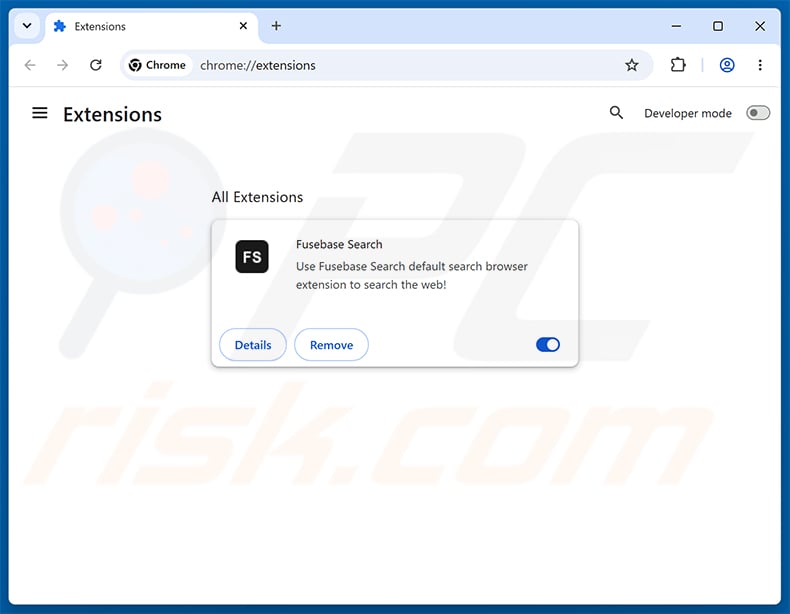
Click the Chrome menu icon  (at the top right corner of Google Chrome), select "Extensions" and click "Manage Extensions". Locate "Fusebase Search" and other recently-installed suspicious extensions, select these entries and click "Remove".
Change your homepage:
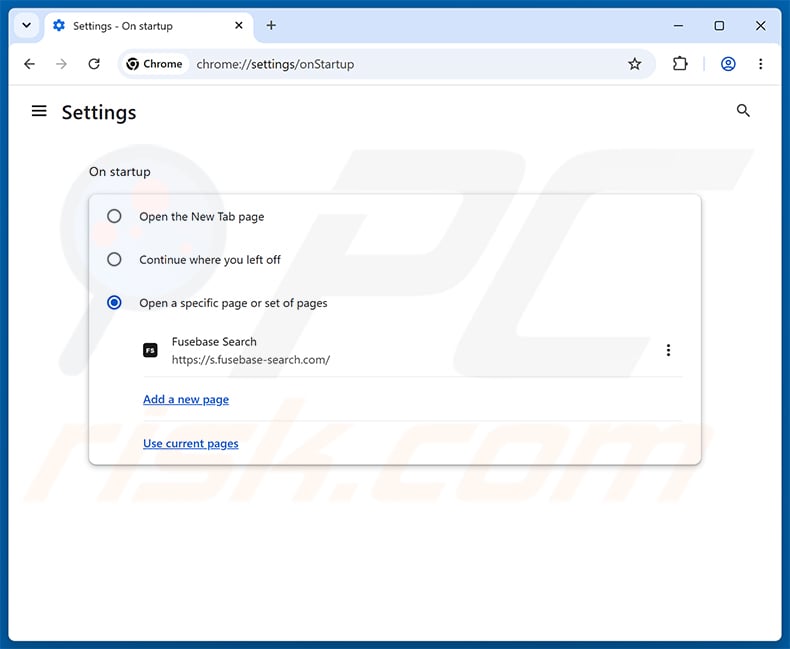
Click the Chrome menu icon (at the top right corner of Google Chrome), select "Settings". In the "On startup" section, disable "Fusebase Search", look for a browser hijacker URL (hxxp://www.s.fusebase-search.com) below the "Open a specific or set of pages" option. If present click on the three vertical dots icon and select "Remove".
Change your default search engine:
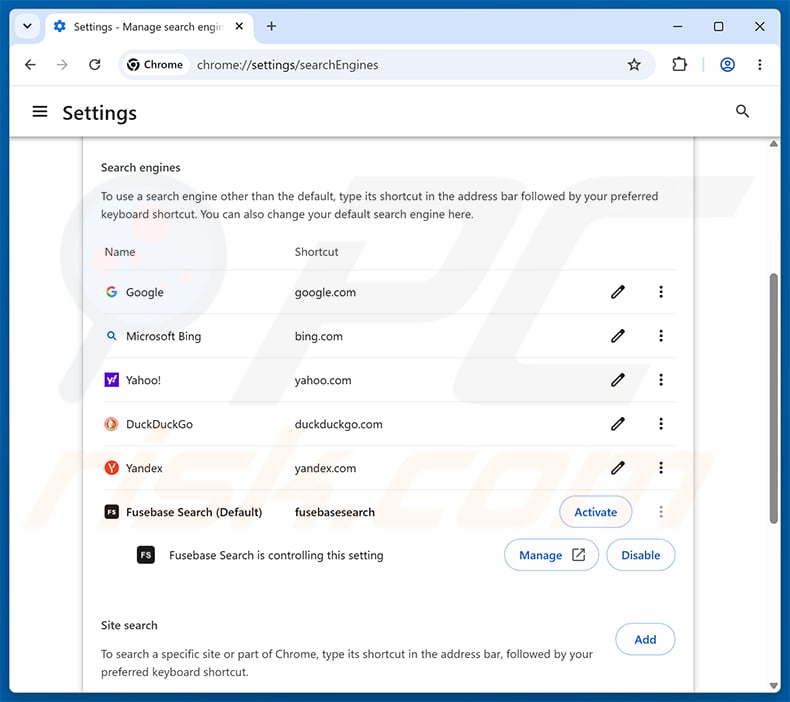
To change your default search engine in Google Chrome: Click the Chrome menu icon (at the top right corner of Google Chrome), select "Settings", in the "Search engine" section, click "Manage search engines...", in the opened list look for "s.fusebase-search.com", when located click the three vertical dots near this URL and select "Delete".
- If you continue to have problems with browser redirects and unwanted advertisements - Reset Google Chrome.
Optional method:
If you continue to have problems with removal of the fusebase search browser hijacker, reset your Google Chrome browser settings. Click the Chrome menu icon (at the top right corner of Google Chrome) and select Settings. Scroll down to the bottom of the screen. Click the Advanced… link.
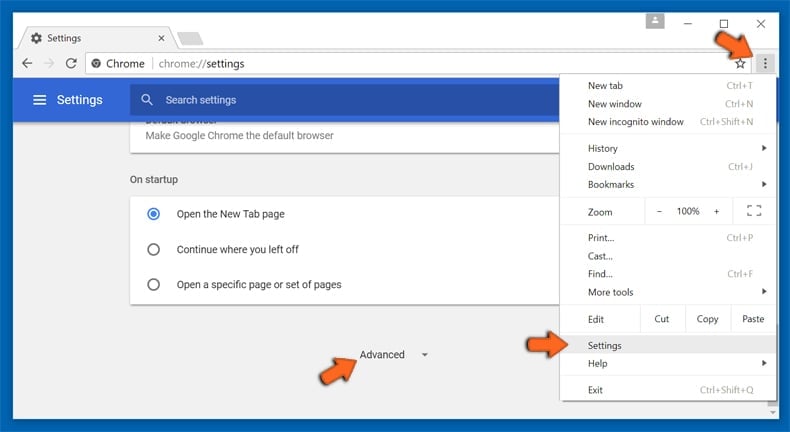
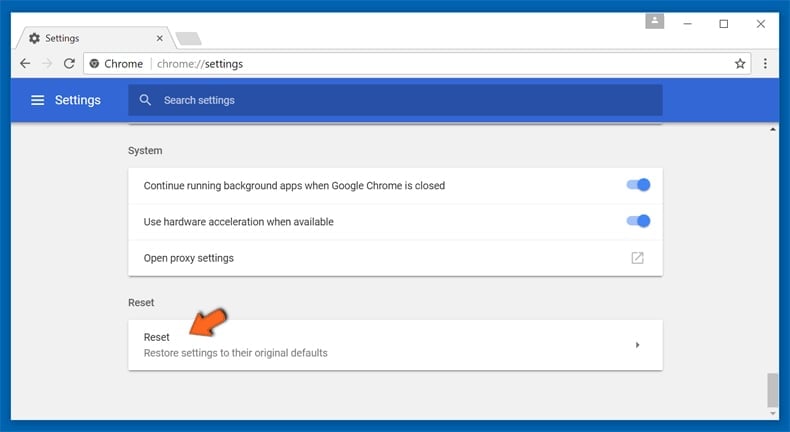
After scrolling to the bottom of the screen, click the Reset (Restore settings to their original defaults) button.
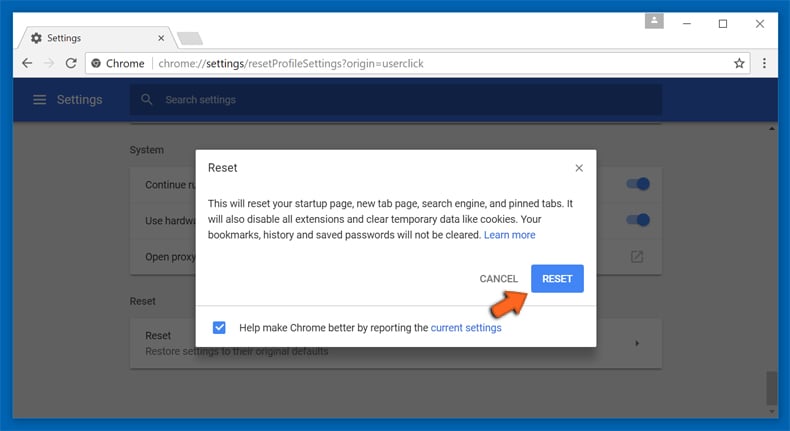
In the opened window, confirm that you wish to reset Google Chrome settings to default by clicking the Reset button.
 Remove malicious extensions from Mozilla Firefox:
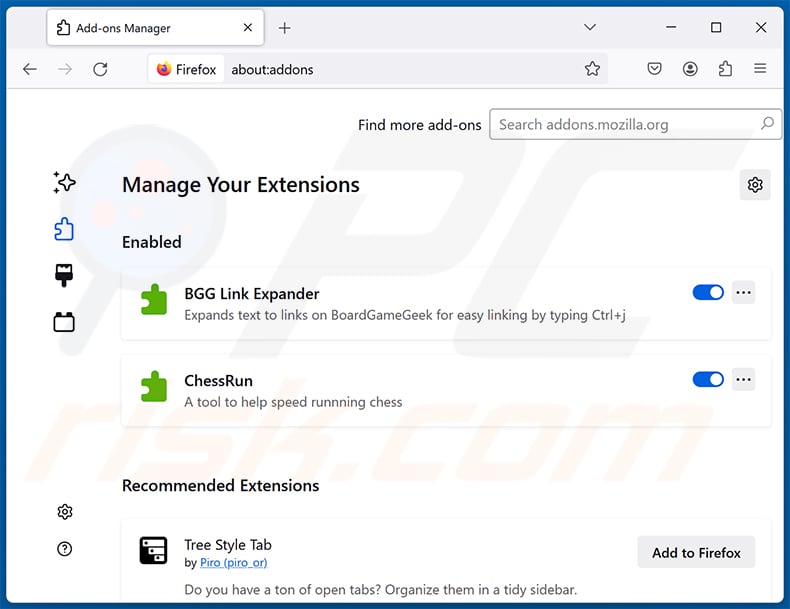
Click the Firefox menu  (at the top right corner of the main window), select "Add-ons and themes". Click "Extensions", in the opened window locate "Fusebase Search", as well as all recently-installed suspicious extensions, click on the three dots and then click "Remove".
Change your homepage:
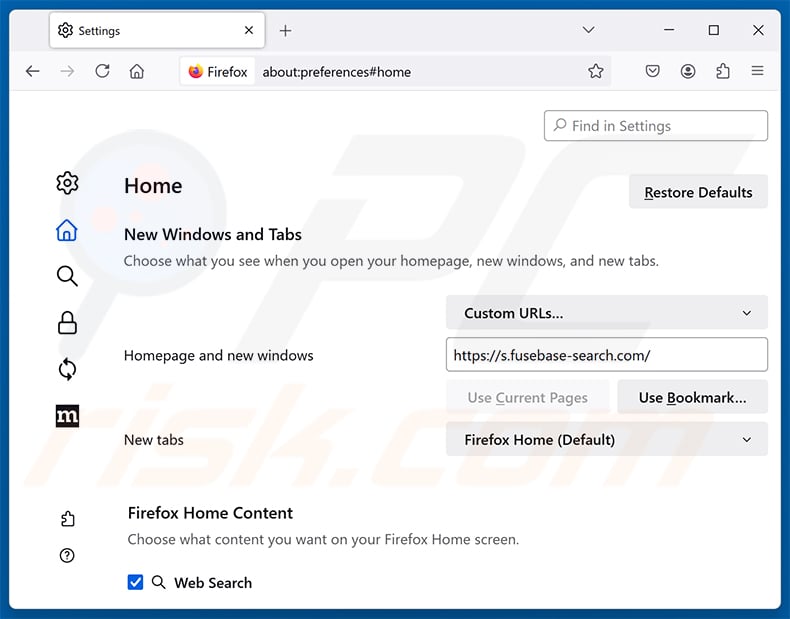
To reset your homepage, click the Firefox menu (at the top right corner of the main window), then select "Settings", in the opened window disable "Fusebase Search", remove hxxp://s.fusebase-search.com and enter your preferred domain, which will open each time you start Mozilla Firefox.
Change your default search engine:
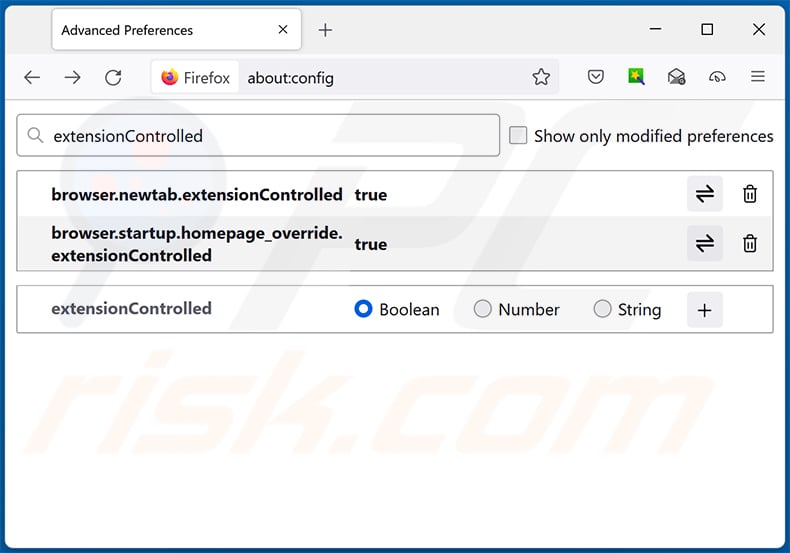
In the URL address bar, type "about:config" and press Enter. Click "Accept the Risk and Continue".
In the search filter at the top, type: "extensionControlled". Set both results to "false" by either double-clicking each entry or clicking the  button.
Optional method:
Computer users who have problems with fusebase search browser hijacker removal can reset their Mozilla Firefox settings.
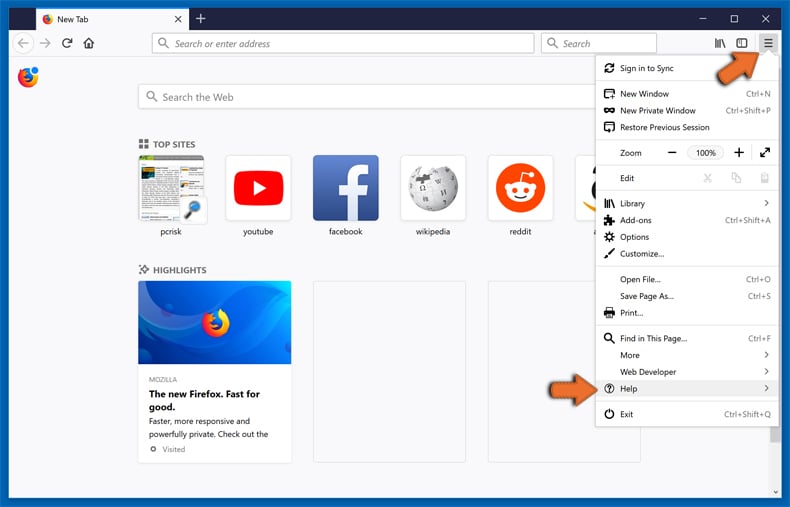
Open Mozilla Firefox, at the top right corner of the main window, click the Firefox menu, in the opened menu, click Help.
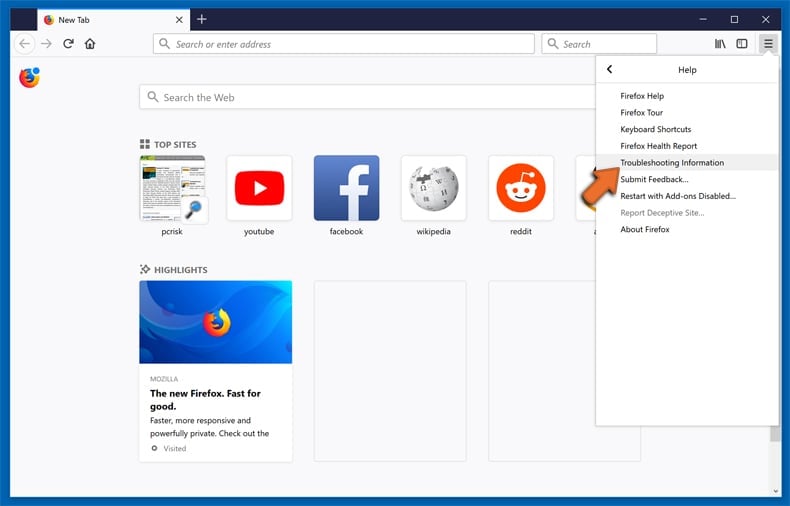
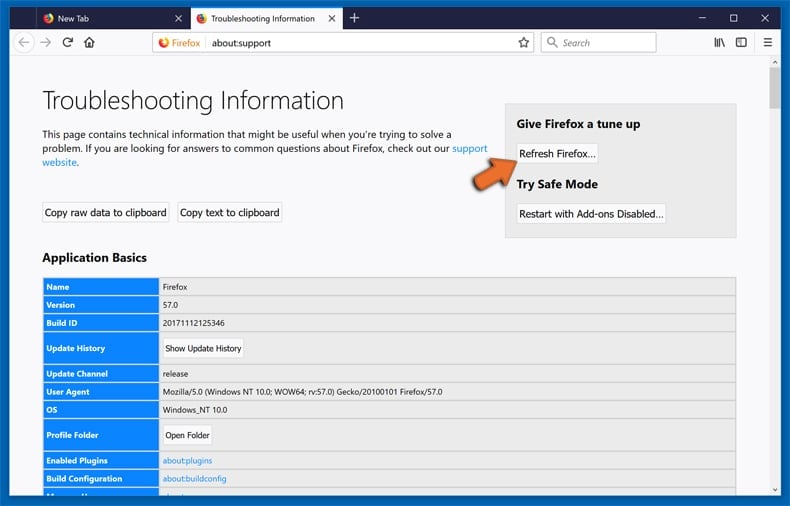
Select Troubleshooting Information.
In the opened window, click the Refresh Firefox button.
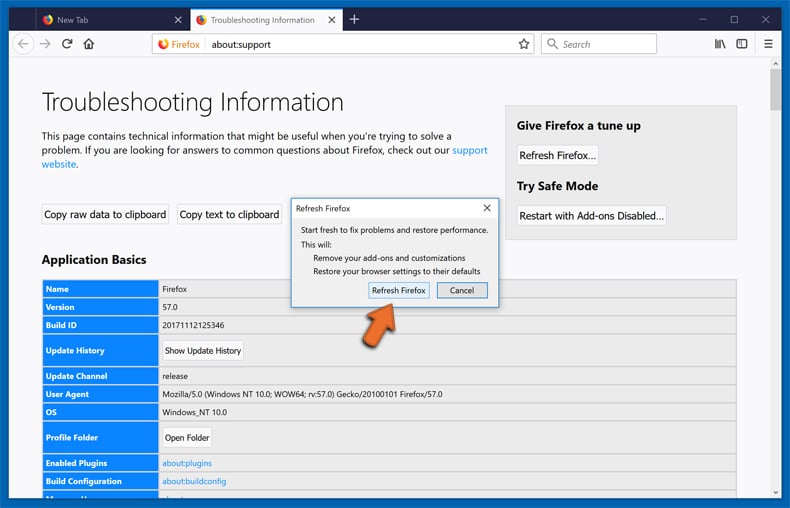
In the opened window, confirm that you wish to reset Mozilla Firefox settings to default by clicking the Refresh Firefox button.
 Remove malicious extensions from Safari:
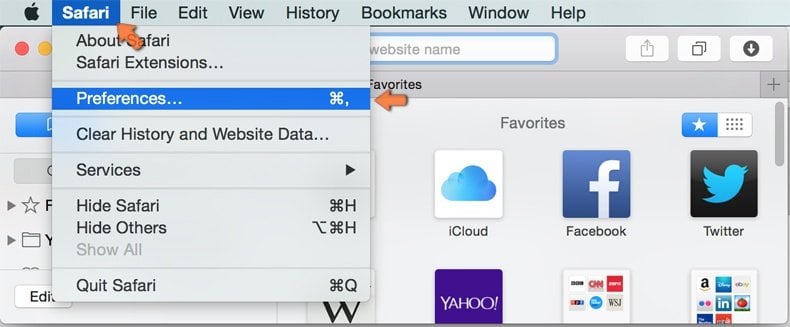
Make sure your Safari browser is active and click Safari menu, then select Preferences...
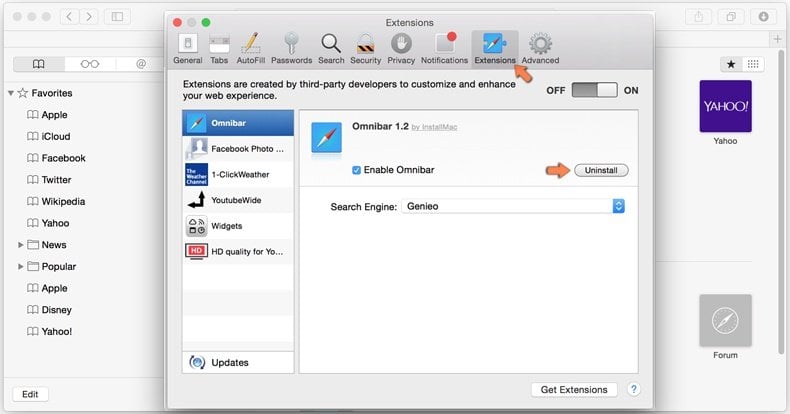
In the preferences window select the Extensions tab. Look for any recently installed suspicious extensions and uninstall them.
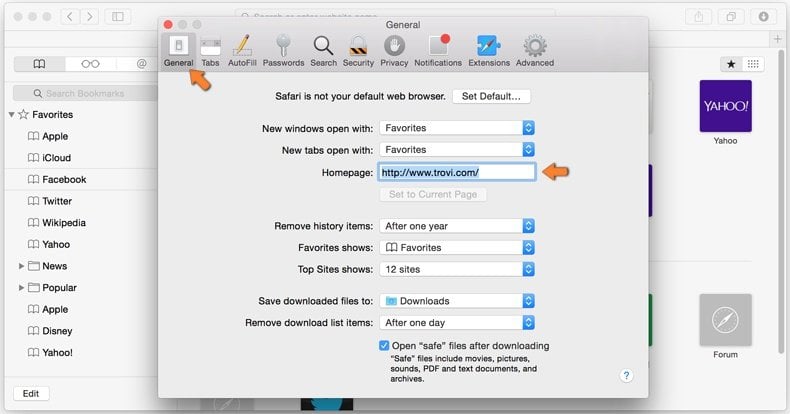
In the preferences window select General tab and make sure that your homepage is set to a preferred URL, if its altered by a browser hijacker - change it.
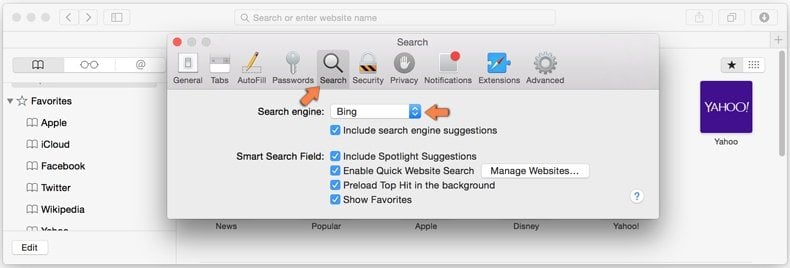
In the preferences window select Search tab and make sure that your preferred Internet search engine is selected.
Optional method:
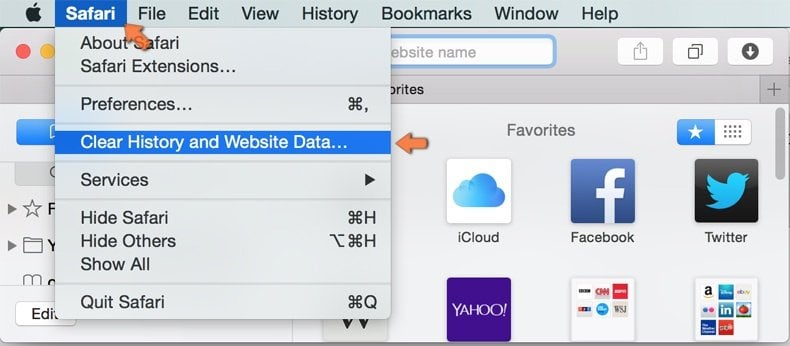
Make sure your Safari browser is active and click on Safari menu. From the drop down menu select Clear History and Website Data...
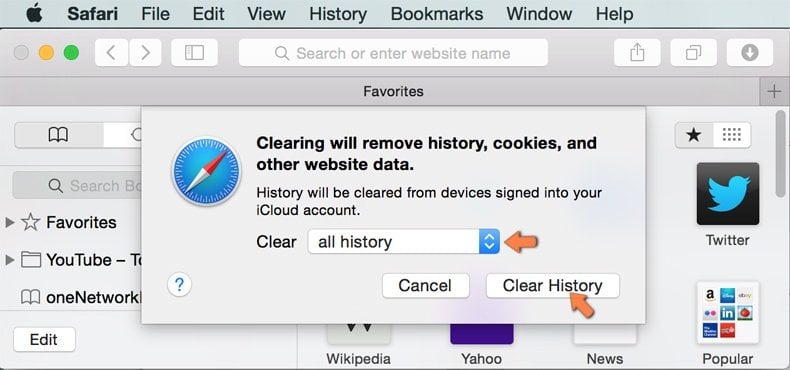
In the opened window select all history and click the Clear History button.
If you continue having problems with browser redirects and unwanted advertisements - Reset Safari.
 Remove malicious extensions from Microsoft Edge:
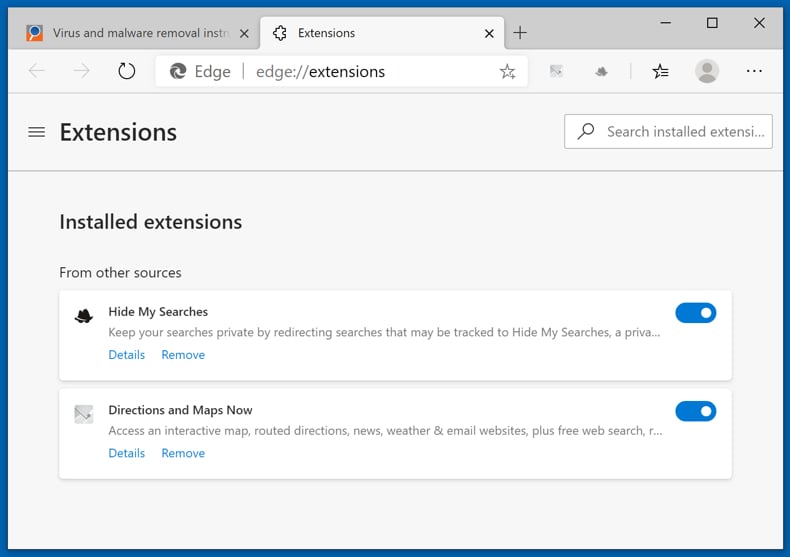
Click the Edge menu icon  (at the top right corner of Microsoft Edge), select "Extensions". Locate any recently-installed suspicious browser add-ons, and remove them.
Change your homepage and new tab settings:
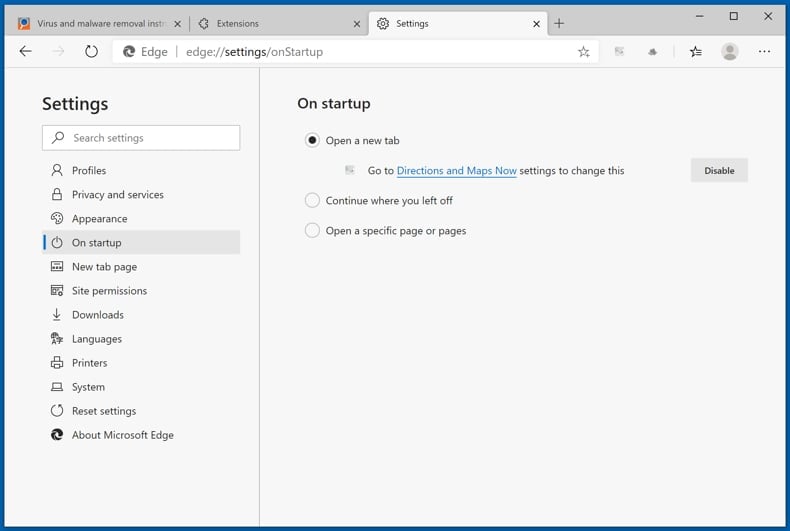
Click the Edge menu icon (at the top right corner of Microsoft Edge), select "Settings". In the "On startup" section look for the name of the browser hijacker and click "Disable".
Change your default Internet search engine:
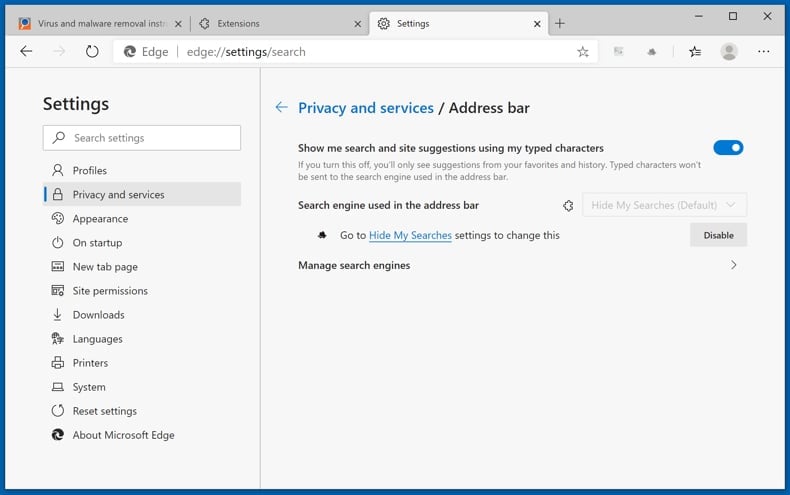
To change your default search engine in Microsoft Edge: Click the Edge menu icon (at the top right corner of Microsoft Edge), select "Privacy and services", scroll to bottom of the page and select "Address bar". In the "Search engines used in address bar" section look for the name of the unwanted Internet search engine, when located click the "Disable" button near it. Alternatively you can click on "Manage search engines", in the opened menu look for unwanted Internet search engine. Click on the puzzle icon  near it and select "Disable".
Optional method:
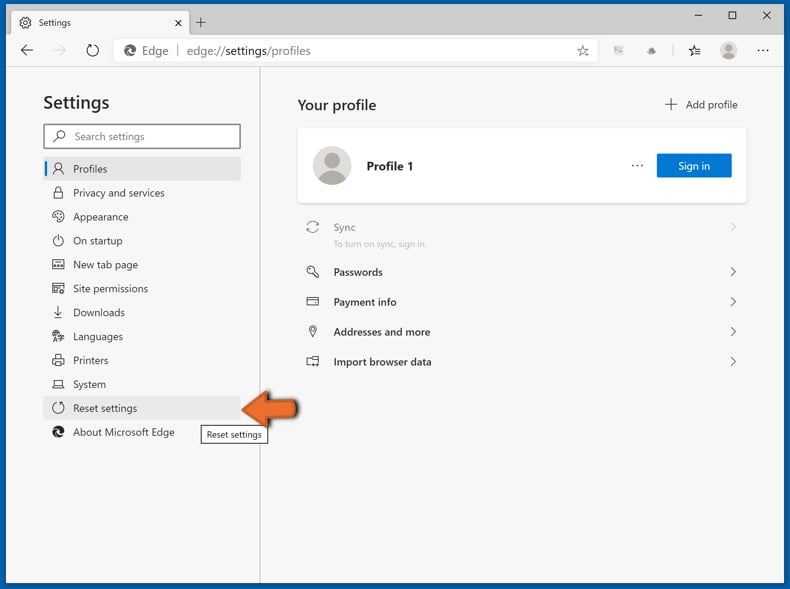
If you continue to have problems with removal of the fusebase search browser hijacker, reset your Microsoft Edge browser settings. Click the Edge menu icon (at the top right corner of Microsoft Edge) and select Settings.
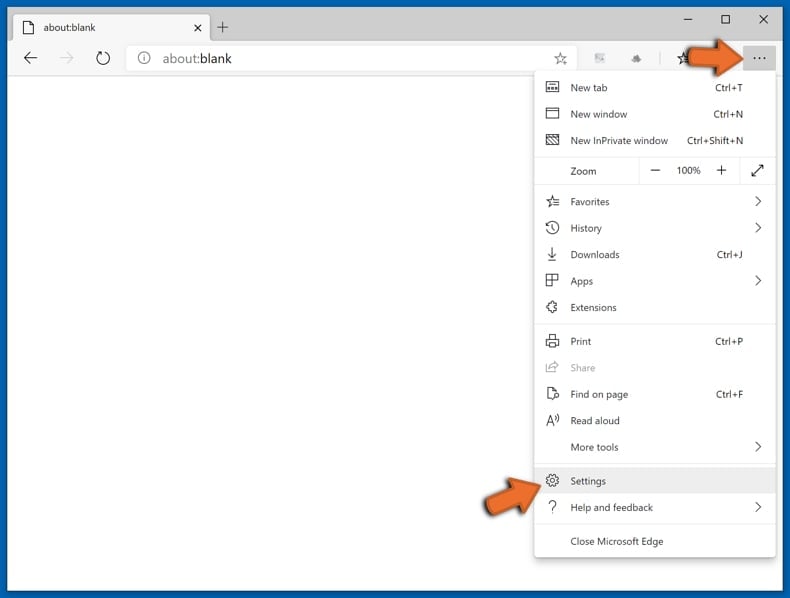
In the opened settings menu select Reset settings.
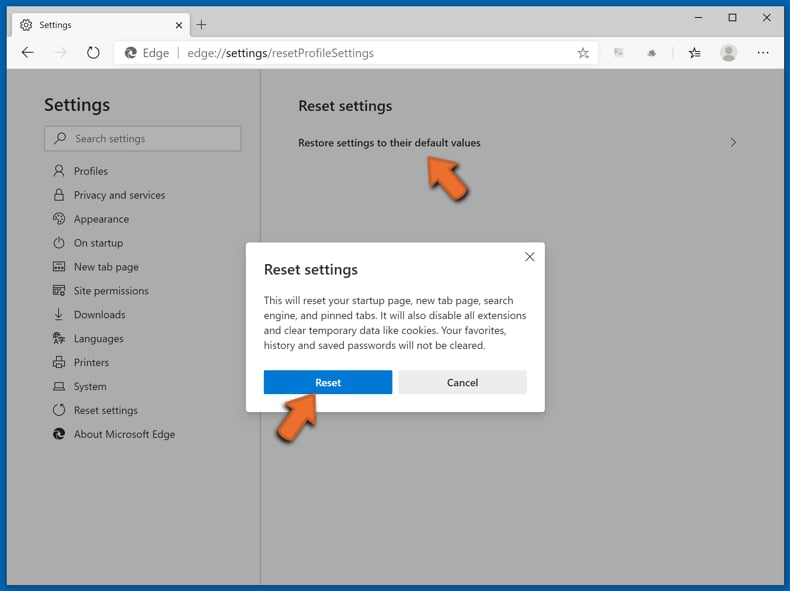
Select Restore settings to their default values. In the opened window, confirm that you wish to reset Microsoft Edge settings to default by clicking the Reset button.
- If this did not help, follow these alternative instructions explaining how to reset the Microsoft Edge browser.
Summary:
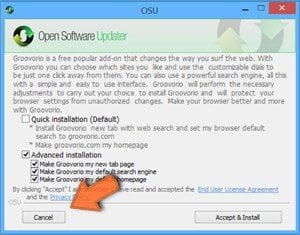 A browser hijacker is a type of adware infection that modifies Internet browser settings by assigning the homepage and default Internet search engine settings to some other (unwanted) website URL. Commonly, this type of adware infiltrates operating systems through free software downloads. If your download is managed by a download client, ensure that you decline offers to install advertised toolbars or applications that seek to change your homepage and default Internet search engine settings.
Post a comment:
If you have additional information on fusebase search browser hijacker or it's removal please share your knowledge in the comments section below.
Frequently Asked Questions (FAQ)
What is the purpose of forcing users to visit websites like s.fusebase-search.com?
Software that generates rogue redirects is usually developed for profit. The people behind Fusebase Search likely generate revenue through traffic sent to s.fusebase-search.com and the search engines it redirects to, such as Yahoo.
Is visiting s.fusebase-search.com a threat to my privacy?
Fake search engines like s.fusebase-search.com are often capable of collecting data about their visitors, such as search queries and browsing habits. This information may later be sold to third parties, making a visit a minor privacy risk.
How did a browser hijacker infiltrate my computer?
Browser-hijacking software is commonly distributed through bundled installers, dedicated promotional webpages, deceptive ads, freeware download sites, and other questionable channels. Fusebase Search, for instance, can be downloaded directly from its own promotional website.
Will Combo Cleaner help me remove Fusebase Search browser hijacker?
Yes, Combo Cleaner can scan computers and eliminate installed browser-hijacking applications. It is noteworthy that manual removal (performed without security programs) might not be ideal, especially when multiple browser hijackers are present. In these cases, after one is removed, the others may reinstall it.
What is more, removal-related settings might be inaccessible when this software is installed. Therefore, it is essential to eliminate browser hijackers thoroughly and all at once.
Share:
 Facebook
 X.com
X.com
 LinkedIn
 Copy Link

Tomas Meskauskas
Expert security researcher, professional malware analyst
I am passionate about computer security and technology. I have an experience of over 10 years working in various companies related to computer technical issue solving and Internet security. I have been working as an author and editor for pcrisk.com since 2010. Follow me on Twitter and LinkedIn to stay informed about the latest online security threats.
PCrisk security portal is brought by a company RCS LT.
Joined forces of security researchers help educate computer users about the latest online security threats. More information about the company RCS LT.
Our malware removal guides are free. However, if you want to support us you can send us a donation.
DonatePCrisk security portal is brought by a company RCS LT.
Joined forces of security researchers help educate computer users about the latest online security threats. More information about the company RCS LT.
Our malware removal guides are free. However, if you want to support us you can send us a donation.
Donate
▼ Show Discussion