
What kind of malspam is "Adobe Acrobat - Secure Document Email Virus"
Phishing/ScamAlso Known As: Adobe Acrobat - Secure Document malspam campaign

Get free scan and check if your device is infected.
Remove it nowTo use full-featured product, you have to purchase a license for Combo Cleaner. Seven days free trial available. Combo Cleaner is owned and operated by RCS LT, the parent company of PCRisk.com.
What kind of email is "Adobe Acrobat - Secure Document Email Virus"?
Our team inspected this email and determined it is malspam designed to deliver malware. The message is disguised as an Adobe Acrobat Sign notification to trick recipients into clicking a button that leads to a fake website. That site delivers a trojanized installer giving attackers remote access to the victim's computer. This email should be ignored and deleted.
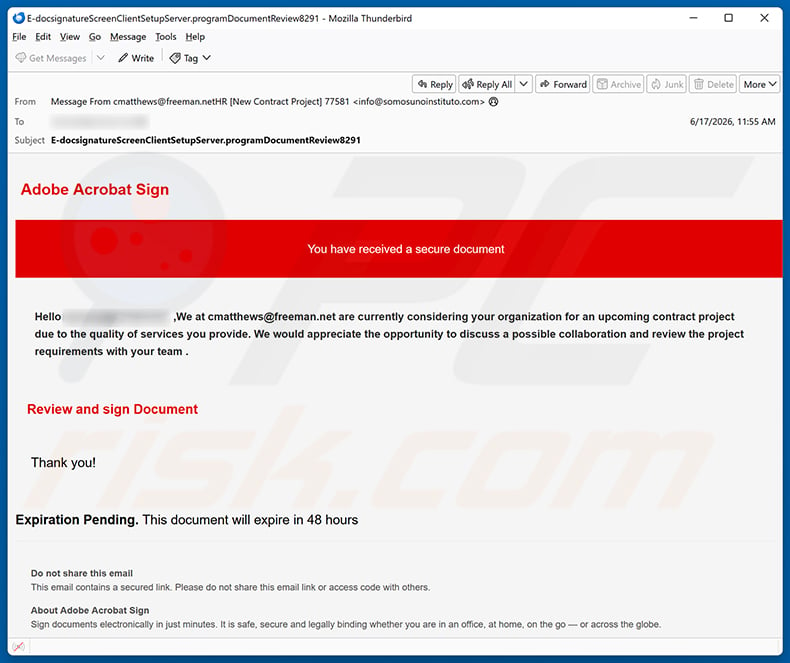
"Adobe Acrobat - Secure Document Email Virus" overview
The email poses as an Adobe Acrobat Sign notification, claiming that a secure document has been sent to the recipient for review. The message states that the sender is considering the recipient's organization for an upcoming contract project and wants to discuss a possible collaboration. Adobe has no connection to this email whatsoever.
The email adds urgency by warning that the document will expire in 48 hours. It prompts the recipient to click a button labeled "Review and sign Document" to proceed.
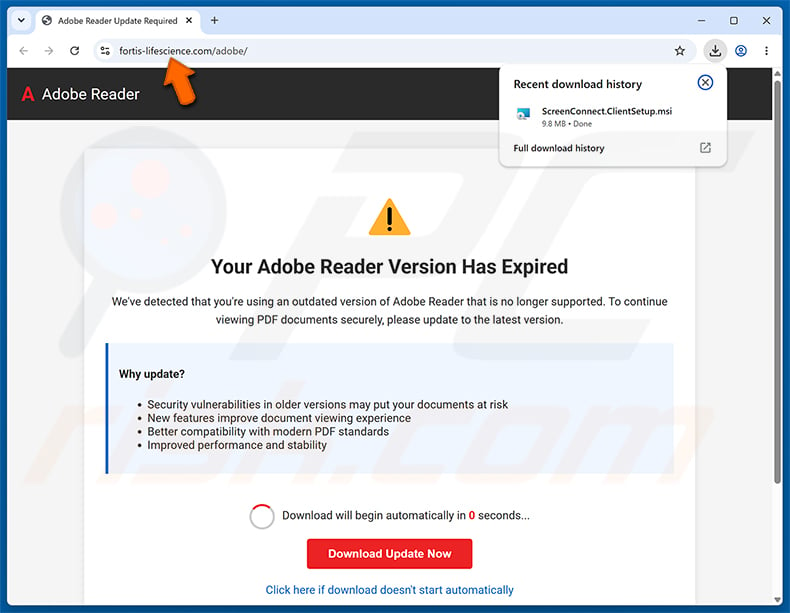
Clicking that button redirects the user to a fraudulent website impersonating Adobe Reader. The page claims the visitor's Adobe Reader version has expired and needs an update. It automatically begins downloading a file named ScreenConnect.ClientSetup.msi, presented as the required update installer.
That file is not a legitimate Adobe update. It is a trojanized installer for ScreenConnect, a legitimate remote desktop and IT management tool made by ConnectWise. Attackers embed their own server configuration into the installer so that once it runs, it silently connects back to infrastructure they control.
With that connection established, the attackers gain a full remote access trojan-style foothold on the victim's machine. They can view and copy files, steal stored passwords and banking credentials, deploy additional malware, or monitor the user without any visible indication. If the file has already been run, scanning the system with a trusted antivirus tool immediately is strongly advised.
| Name | Adobe Acrobat - Secure Document malspam campaign |
| Threat Type | Malspam, malicious spam, trojan, remote access trojan. |
| Fake Claim | The sender claims to be considering the recipient's organization for a contract project and has shared a document for review and signing via Adobe Acrobat Sign. |
| Disguise | Notification from Adobe Acrobat Sign |
| Distributed Malicious File | ScreenConnect.ClientSetup.msi (detections in VirusTotal) |
| Payload | Trojanized ScreenConnect (remote access tool) |
| Related Domain | fortis-lifescience[.]com (Website Scanner Results) |
| Symptoms | Trojans are designed to stealthily infiltrate the victim's computer and remain silent, and thus no particular symptoms are clearly visible on an infected machine. |
| Distribution methods | Deceptive emails, malicious websites. |
| Damage | Stolen passwords and banking information, identity theft, the victim's computer added to a botnet, installation of additional malware. |
| Malware Removal (Windows) |
To eliminate possible malware infections, scan your computer with legitimate antivirus software. Our security researchers recommend using Combo Cleaner. Download Combo CleanerTo use full-featured product, you have to purchase a license for Combo Cleaner. 7 days free trial available. Combo Cleaner is owned and operated by RCS LT, the parent company of PCRisk.com. |
Malspam campaign examples
This email is a scam designed to look like a legitimate Adobe Acrobat Sign notification. The button inside leads to a fake Adobe website that delivers a trojanized remote access tool. Anyone who ran the downloaded installer should treat their computer as compromised and scan it right away.
More examples of malware-spreading emails are DocuSign - Legal Department Document, FedEx e-Order Notification, and Wire Transfer To Your Diocesan Account. Spam mail is used to deliver all kinds of malware, from information stealers and banking trojans to ransomware and remote access tools.
How do spam campaigns infect computers?
Cybercriminals use spam emails to deliver malware in one of two ways: through file attachments or through links. Attachments may look like ordinary documents, PDFs, archives, or scripts, but opening them can trigger a malware installation. In some cases additional steps are needed first, such as enabling macro commands in an Office file.
Links in spam emails lead to malicious or compromised pages that either download a file automatically or present a fake prompt to do so. In this campaign, recipients who click the button land on a fake Adobe update page that immediately starts downloading a trojanized MSI installer. The page is designed to look convincing enough that the victim runs the file without suspecting anything.
How to avoid installation of malware?
Be cautious with unexpected emails, even ones that appear to come from well-known companies. Do not click links or open attachments in messages from unknown or untrusted senders. Cybercriminals are skilled at copying the appearance of legitimate services.
Download software only from official developer websites or verified app stores. Avoid pirated software, cracks, and key generators, as these are frequently used to distribute malware. Keep your operating system and all applications updated to reduce exposure to known security flaws.
Use a reputable antivirus program and run regular scans. If you have already run the file promoted through this spam campaign, we recommend scanning your system with Combo Cleaner Antivirus for Windows to automatically detect and remove any installed threats.
Text presented in the "Adobe Acrobat - Secure Document Email Virus" email letter:
Subject: E-docsignatureScreenClientSetupServer.programDocumentReview8291
Adobe Acrobat Sign
You have received a secure document
Hello ******** ,We are currently considering your organization for an upcoming contract project due to the quality of services you provide. We would appreciate the opportunity to discuss a possible collaboration and review the project requirements with your team .
[Review and sign Document]Thank you!
Expiration Pending. This document will expire in 48 hours
Do not share this email
This email contains a secured link. Please do not share this email link or access code with others.About Adobe Acrobat Sign
Sign documents electronically in just minutes. It is safe, secure and legally binding whether you are in an office, at home, on the go — or across the globe.Questions about the Document?
If you need to modify the document or have questions about the details, please reach out to the sender directly.
Screenshot of the malicious website promoted by this spam campaign:
Instant automatic malware removal:
Manual threat removal might be a lengthy and complicated process that requires advanced IT skills. Combo Cleaner is a professional automatic malware removal tool that is recommended to get rid of malware. Download it by clicking the button below:
DOWNLOAD Combo CleanerBy downloading any software listed on this website you agree to our Privacy Policy and Terms of Use. To use full-featured product, you have to purchase a license for Combo Cleaner. 7 days free trial available. Combo Cleaner is owned and operated by RCS LT, the parent company of PCRisk.com.
Types of malicious emails:
If you opened an attachment or downloaded a file from a suspicious email, run a full system scan with Combo Cleaner. If you only received the email and didn't engage with it, you don't need to scan anything - just identify the scam and delete it. The full procedure below covers both situations and what to do if you already clicked, replied, or sent money.
Credential theft Phishing emails
Fake login pages disguised as PayPal, Microsoft, Apple, banks, or social networks. The email pushes a link to a near-perfect copy of the real login screen. The moment you type your username and password, the attacker has them.
Common subject lines
- "Action required: confirm your account"
- "Your password expires today"
- "Unusual sign-in attempt detected"
- "Verify your billing information"
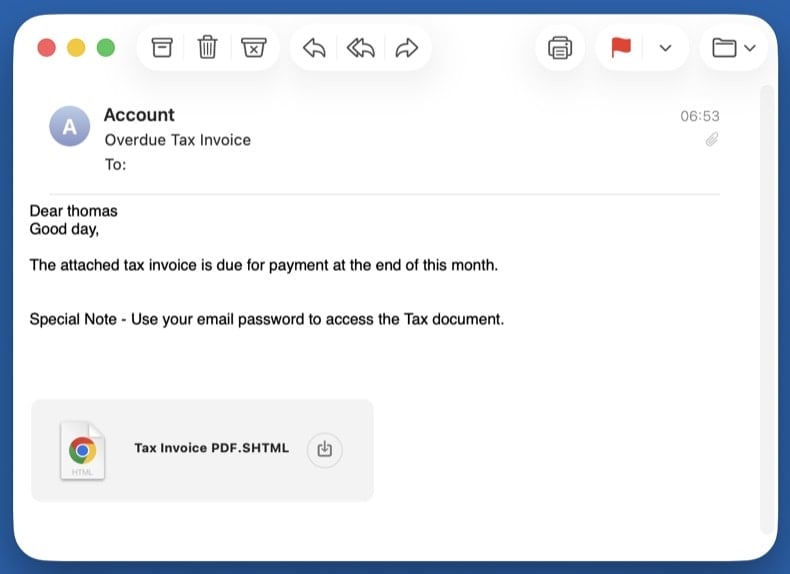
Malware delivery Emails with malicious attachments
Trojans hidden inside fake invoices, faxes, shipping confirmations, or Office documents. Opening the attachment runs the payload and infects the system - often with an info-stealer or remote-access trojan.
Common subject lines
- "Invoice INV-2026-XXXX attached"
- "Fax received - 3 pages"
- "Your shipping document is ready"
- "Voicemail from +1-XXX-XXX-XXXX"
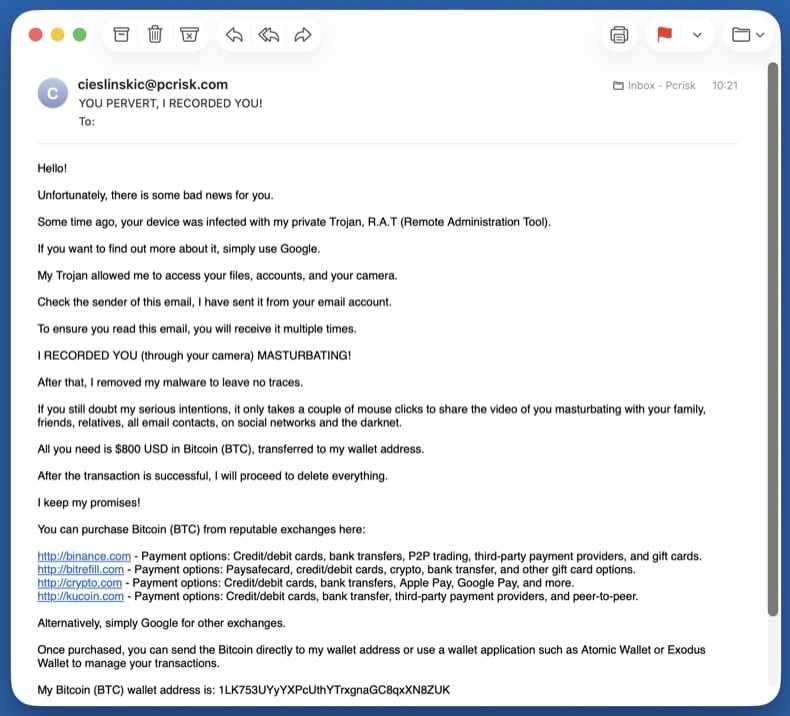
Extortion Sextortion emails
Fake claims of webcam recordings demanding cryptocurrency. Almost always a bluff: the attacker pulls a real password from an old data breach to make the threat look credible, then claims to have video of you. They have no recording and no access.
Common subject lines
- "I know your password is XXXX"
- "Your account has been hacked"
- "I have recorded you - 48 hours to pay"
- "You have been compromised"
Callback fraud Refund & callback scams
"Your subscription was renewed for $499 - call to cancel." Norton, McAfee, Geek Squad, PayPal, and Wells Fargo variants are all common. There's no real subscription. The phone number in the email connects directly to the scammer, who walks you through "refunding" yourself - which is actually them stealing money from your bank.
Common subject lines
- "Norton subscription auto-renewed - $499.99"
- "McAfee Total Protection invoice"
- "Geek Squad order confirmation"
- "Your PayPal payment is being processed"
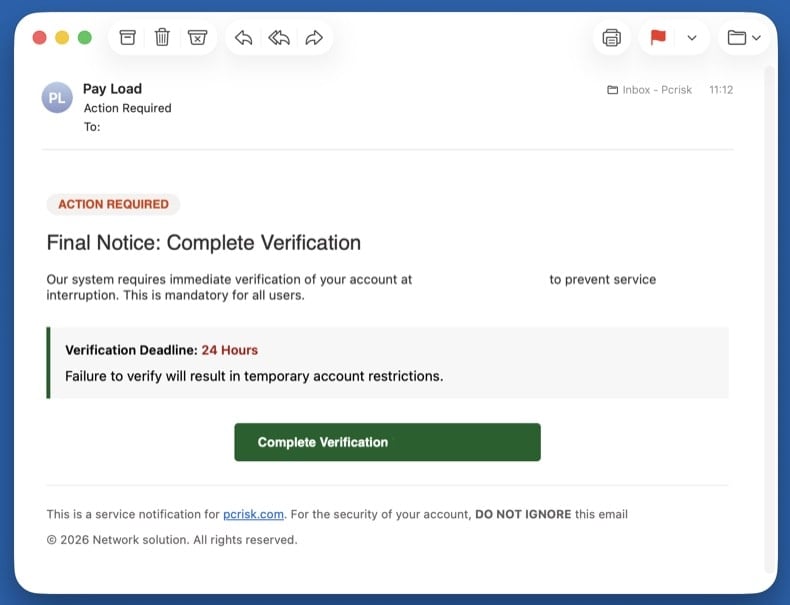
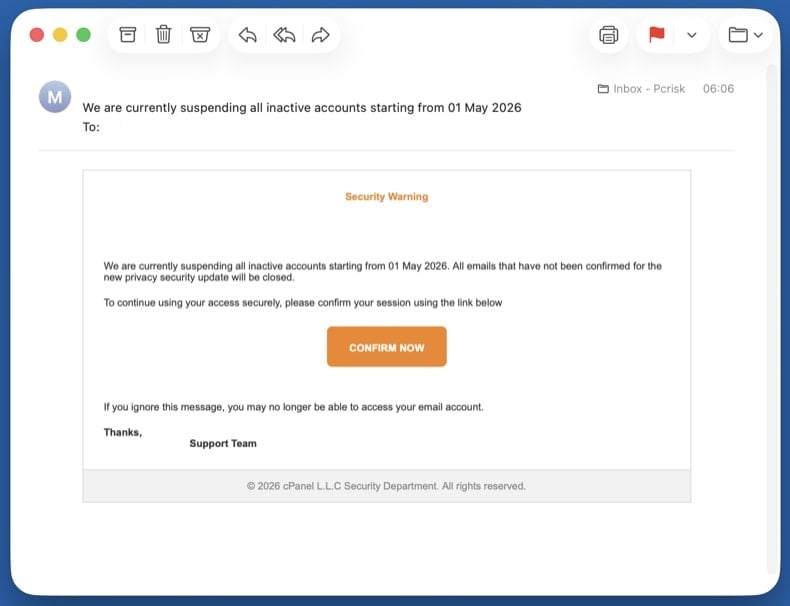
Credential theft Account suspension & verification scams
"Your account will be deleted in 24 hours - verify now." The artificial deadline is the whole point: it pressures you to click before checking details. The "verify" link goes to a phishing page styled to look like the real provider.
Common subject lines
- "Your account will be deleted in 24 hours"
- "Suspicious activity detected - verify now"
- "Final warning: account closure"
- "Action required to keep your account active"
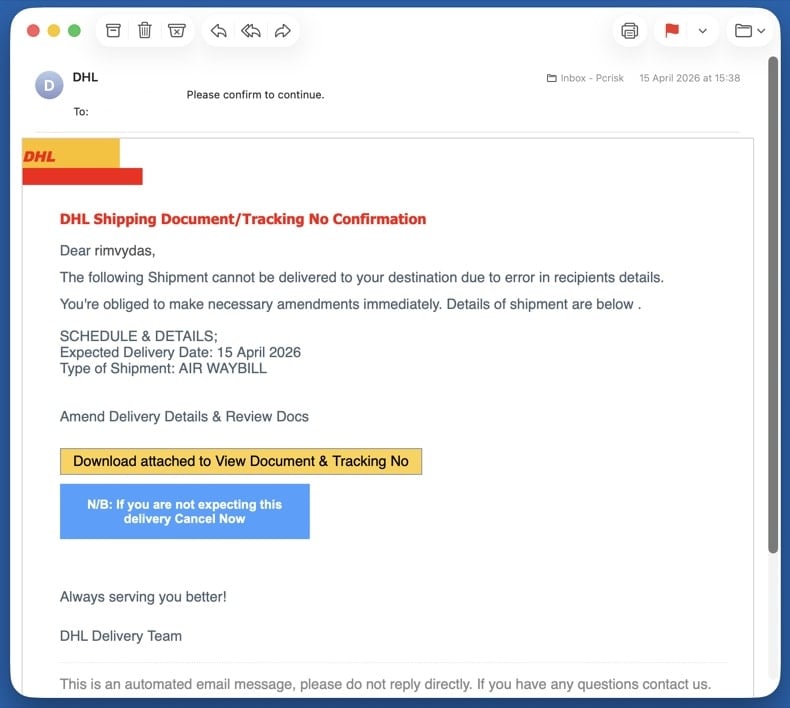
Mixed payload Delivery & package scams
Fake DHL, USPS, UPS, or FedEx tracking, customs fees, or "package undeliverable" notices. Targets anyone expecting a parcel - the timing alone catches many people. The link hides either phishing (asking for card details to "release" the package) or a malware download.
Common subject lines
- "Your DHL package is held at customs"
- "USPS - delivery attempt failed"
- "FedEx tracking update - action required"
- "Pay $2.99 redelivery fee to release your parcel"
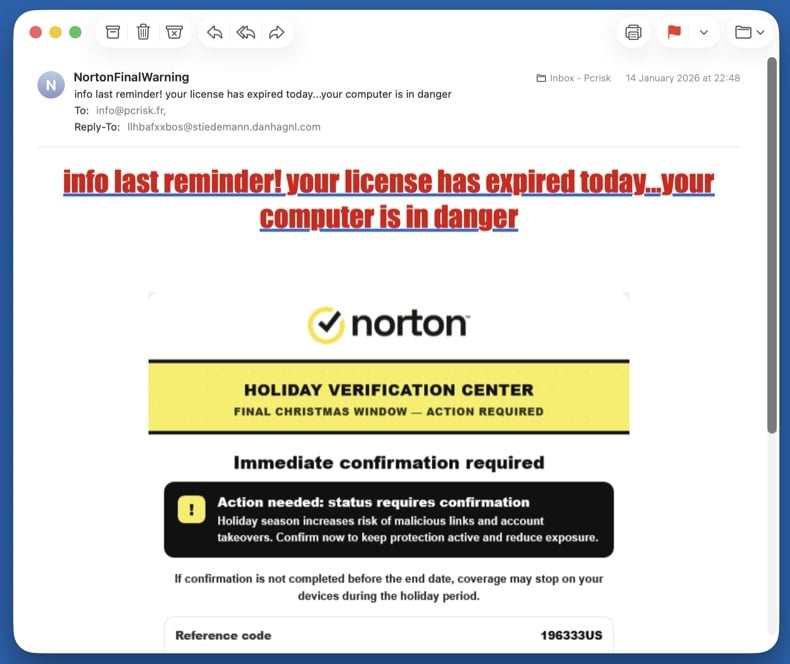
Remote access Tech support scams
Fake Microsoft, Apple, or "Windows Defender" security alerts pushing a phone number. Real Microsoft and Apple never email a phone number to call. The number connects you to a scammer who asks for remote access to "fix" the imaginary problem and then demands payment.
Common subject lines
- "Microsoft Defender expired - renew now"
- "Apple ID security alert"
- "Critical: virus detected on your PC"
- "Windows license expired - call now"
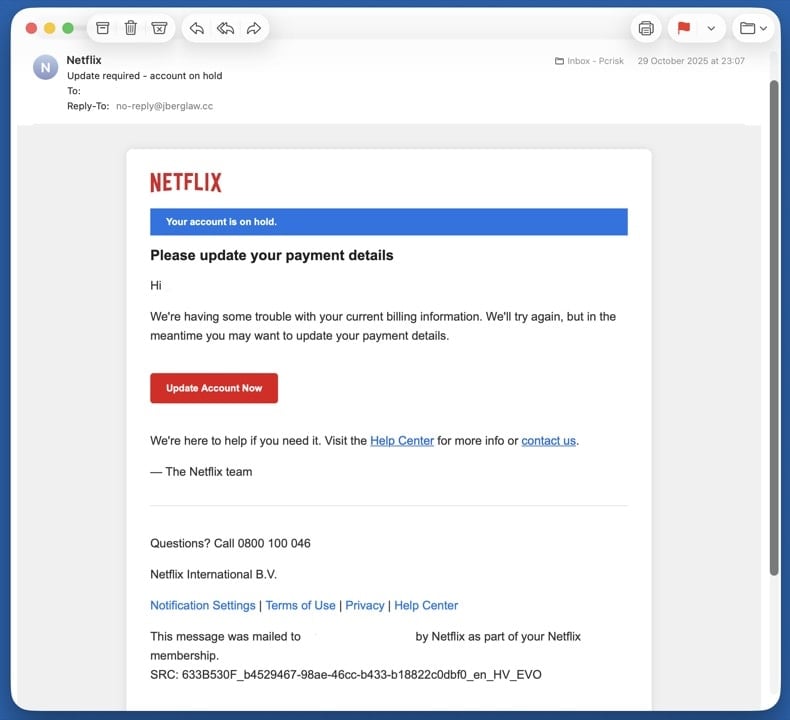
Wire fraud Advance-fee scams
Inheritance, lottery wins, romance, or business deals that ask for a small fee to release a much larger sum. The classic "Nigerian prince" 419 family of frauds. Once you pay the first fee, more fees appear (taxes, lawyer, transfer charges) until you stop paying. The promised money never exists.
Common subject lines
- "Inheritance from a relative you didn't know about"
- "You won the international lottery"
- "URGENT - business proposal worth $XX million"
- "Compensation fund release for fraud victims"
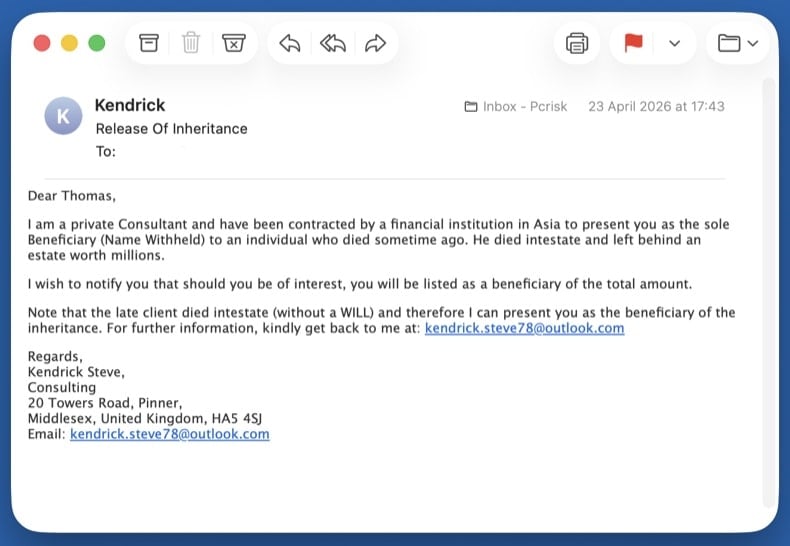
Wire fraud Business email compromise (BEC)
CEO impersonation asking employees to wire money or buy gift cards, or fake supplier invoices with newly "updated" bank details for payment redirection. The email often spoofs a real internal executive's display name and uses an external lookalike domain.
Common subject lines
- "Quick task - need you to buy gift cards"
- "Updated banking details for invoice payment"
- "Wire transfer request - urgent"
- "Are you available?" (CEO impersonation opener)
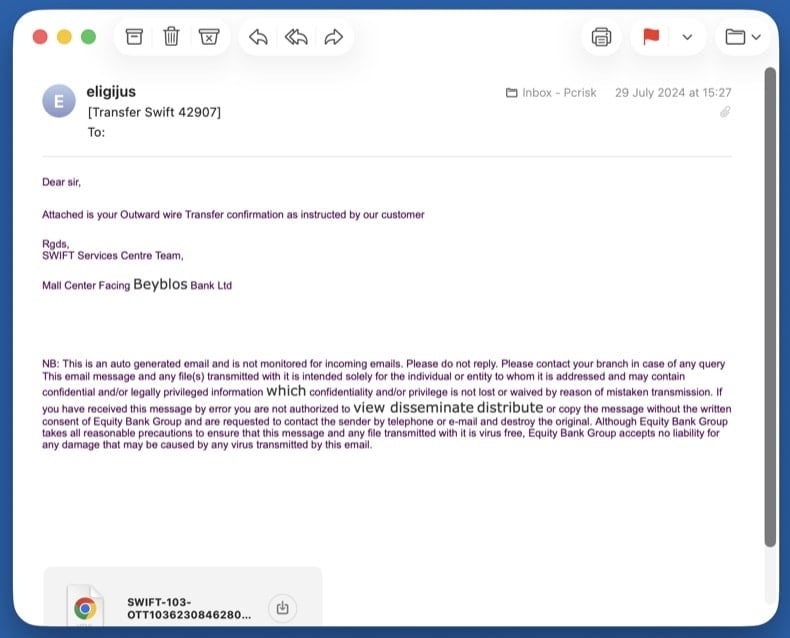
How to spot a malicious email?
Check the sender's actual address, not the display name
The display name (the human-readable part) is trivial to fake. Always check the full address that comes after it. Common red flags:
- Domain mismatch -
service@paypa1.com,support@micros0ft-help.com, look-alike domains using digits or extra hyphens - Free-email impersonation - any "official" message from a bank, courier, or platform sent from a
@gmail.com,@outlook.com, or@yahoo.comaddress - Reply-To mismatch - the From address looks legitimate but Reply-To points somewhere completely different
Real companies own their domains and send mail from them. A "DHL" message from a Gmail address is never legitimate, regardless of how convincing the body looks.
Watch for urgency, threats, and generic greetings
Scams almost always rush you. The point is to make you act before you think. Treat any of the following as a strong signal:
- "Your account will be deleted in 24 hours"
- "Final notice" / "Immediate action required"
- "Dear Customer" or "Dear User" instead of your real name
- Threats of fines, account closure, legal action, or arrest
- Promises of refunds, prizes, or money you didn't earn
- Spelling and grammar mistakes in messages claiming to come from a major brand
Hover over every link before clicking
On a desktop, hover the mouse over the link without clicking. The real destination shows in the bottom-left status bar of your browser or email client. On a phone, long-press the link to preview the URL.
- Real Microsoft, PayPal, or bank links go to those exact domains, not redirects through unrelated sites
- Shortened URLs (
bit.ly,tinyurl,t.co) hide the real destination - never click them in unsolicited mail - The visible link text and the actual URL must match - mismatches are the single biggest phishing red flag
When in doubt, don't click the link. Open a new browser tab and type the company's address yourself, then log in normally. If there really is an issue with your account, you'll see it there.
Treat unexpected attachments as hostile
If you didn't ask for the file, don't open it - even if it appears to come from someone you know. Categories that should never be opened from email without verification through another channel:
.exe,.scr,.iso,.img,.vbs,.bat- executables, never legitimate attachments.docx,.xlsx,.pptxwith "Enable macros" prompts - the macros run the malware.pdfwith "Click here to view" buttons - usually a phishing redirect, not a real document.zip,.rar,.7zarchives, especially password-protected ones - the password defeats the email scanner
If you only received the email and didn't reply, click, or open anything, the steps below are all you need. Your computer is not infected.
Don't reply, don't click "unsubscribe"
Replying confirms your address is real and monitored, which gets you added to higher-value scam lists. The "unsubscribe" link in a scam message is rarely a real opt-out - it usually leads to a phishing page or downloads a tracking pixel.
Instead, mark the message as junk or phishing inside your email client (this trains the spam filter), then block the sender.
Report the scam to your email provider and authorities
Inside your email client:
- Gmail: open the message → ⋮ menu → Report phishing
- Outlook / Outlook.com: ⋯ menu → Report → Report phishing
- Apple Mail / iCloud: Move to Junk, then forward to
reportphishing@apple.com
Forward or report to authorities:
After reporting, delete the email and empty the Trash folder so you don't accidentally open it later.
Pick the step below that matches what you did. If multiple apply, work through them in the order they appear - the steps are arranged from lowest to highest risk.
You only clicked a link (didn't enter anything or download anything)
Close the page right away. Don't enter any information, even if the page looks legitimate.
- Clear your browser cache and cookies for the last hour - → Last hour → check Cookies and Cached files
- Run a quick scan with Combo Cleaner in case the page tried to drop a file silently (drive-by download)
- Update your browser to the latest version - most drive-by exploits target outdated browsers
- Watch for new browser pop-ups, redirects, or unfamiliar notifications over the next few days
Modern browsers block most drive-by attacks, but a single click on a phishing page can still be enough on an outdated browser or unpatched plugin. A quick scan catches anything that landed silently.
You opened an attachment or downloaded a file - run a full malware scan
Opening an attachment is the most common path to actual infection. Treat the system as compromised until the scans below come back clean. Work through these sub-steps in order:
Unplug Ethernet and turn off Wi-Fi. If the attachment was an info-stealer or remote-access trojan, this stops it from sending data out or receiving commands. Keep the network off until you've booted into Safe Mode (next step) - you'll reconnect there briefly to download the scanners.
Windows 11: → Troubleshoot → Advanced options → Startup Settings → Restart → press 5 or F5.
Windows 10: hold Shift, click Power → Restart → Troubleshoot → Advanced options → Startup Settings → Restart → press F5.
Once Safe Mode has loaded, turn Wi-Fi back on and download Combo Cleaner (used in 8.4) and Microsoft Safety Scanner (used in 8.5). Safe Mode loads only minimal drivers, so most malware can't auto-run while you're getting the tools. Save both installers to your Desktop.
Reboot to normal Windows. Open . Select Microsoft Defender Antivirus (offline scan) and click Scan now. The PC restarts into a stripped-down environment and scans the disk before Windows fully loads - this is what catches rootkits and bootkits.
VB100 certified. Includes anti-trojan, registry/persistence scanning, and anti-spyware in one pass. The 7-day free trial is available.
Download Combo CleanerInstall Combo Cleaner and run a full system scan (not the quick scan). Let it complete fully, review what it found, and apply the recommended actions. Combo Cleaner will quarantine known trojans and remove their persistence in the registry.
Download Microsoft Safety Scanner (MSERT.exe). The binary expires every 10 days, which means every download has the latest signatures. Run a full scan after Combo Cleaner to catch anything one engine alone might miss.
Many email-borne trojans drop adware that hijacks browsers. Reset each browser you use:
Chrome: chrome://settings/reset → Restore settings to their original defaults. Then chrome://settings/content/notifications - remove unfamiliar sites.
Edge: edge://settings/reset. Then edge://settings/content/notifications.
Firefox: about:support → Refresh Firefox.
Open and confirm Real-time protection, Cloud-delivered protection, and Tamper Protection are all on. Then run and update browsers and applications.
If the scans keep finding new threats on each run, or files reappear after deletion, you may have a deeper compromise that needs a clean Windows reinstall. See pcrisk's full manual malware removal guide for the extended procedure (Process Explorer, Autoruns, hosts file inspection).
You entered credentials on a fake login page
Assume the attacker has your password and is using it right now. Speed matters.
- Change the password from a different, known-clean device (your phone is fine if it's not infected). Don't reuse the old password anywhere else.
- Enable two-factor authentication if you haven't already. Prefer an authenticator app or hardware key over SMS.
- Sign out of all sessions - most platforms have a "sign out everywhere" option in security settings, which kicks the attacker out.
- Review recent activity - look for unfamiliar logins, new devices, forwarding rules, or app permissions. Remove anything you don't recognize.
- Check your other accounts - if you reused that password anywhere else, change it there too. Check your exposure at haveibeenpwned.com.
- Update security questions - the attacker may have seen the answers in your account profile.
If you only have time to change one password, change your primary email password - it's the recovery hub for every other account. An attacker who controls your email can reset everything else.
You sent money or shared bank, card, or ID details
Time is the single biggest factor in recovering money. Banks can sometimes recall a wire or reverse a card transaction within the first few hours.
- Call your bank or card issuer immediately. Use the number on the back of the card, not any number from the scam email. Ask them to freeze the card, reverse the transaction if possible, and flag the account for fraud monitoring.
- If you sent a wire transfer or used a money-transfer service (Western Union, MoneyGram, Zelle, Wise), call them directly and request a recall. Some can be reversed within minutes if reported fast.
- If you sent cryptocurrency or gift cards, recovery is unlikely - but report it anyway, since law enforcement tracks these patterns.
- File a police report. You'll need the report number for any insurance, bank, or credit-bureau claim. Save the report number.
- File with the right authority for your country:
- US: ic3.gov + reportfraud.ftc.gov
- UK: reportfraud.police.uk (Report Fraud, the successor to Action Fraud; 0300 123 2040)
- Canada: antifraudcentre.ca
- Australia: scamwatch.gov.au
- EU: your national CERT or police cybercrime unit
- Set fraud alerts on all major credit bureaus if you shared any ID details. US: Equifax, Experian, TransUnion. UK: Experian, Equifax, TransUnion (Cifas Protective Registration is a stronger option).
- Save all evidence - the original email (with full headers), screenshots of the fake site, transaction records, any phone numbers or chat logs.
Final scan and startup-app check
Reconnect to the network and run one final full scan with Combo Cleaner, followed by a Windows Defender quick scan. Then open Task Manager (Ctrl + Shift + Esc) and switch to Startup apps - disable anything unfamiliar.
Make sure Windows, browsers, and any applications you use are fully up to date. The infection vector that worked on you once usually involves outdated software.
Monitor accounts and credit for 30 days
Most fraud follow-ups land in the first month. Until that window closes, keep watching:
- Bank and card statements - daily for the first week, then weekly
- Email - watch for password-reset confirmations or login alerts you didn't trigger
- Credit report - US: free at annualcreditreport.com; UK: Experian, Equifax, TransUnion all have free tiers
- Breach alerts - sign up at haveibeenpwned.com to be notified when your email appears in new leaks
If anything new appears in any of those, treat it as a continuing compromise: change passwords again, contact the bank again, and update the police report.
Important: If you didn't click anything, didn't reply, and didn't open any attachment, your computer is not infected - just delete the email and move on. If you opened an attachment or downloaded a file, run an automated scan with Combo Cleaner and Windows Defender and stop there. That path catches the vast majority of email-borne malware without the risk of breaking Windows by deleting the wrong file.
Frequently Asked Questions (FAQ)
Why did I receive this email?
Spam campaigns are sent to large numbers of people at once and are not personally targeted. Email addresses used in these campaigns are typically gathered from data breaches, leaked databases, or similar sources. The same message reaches thousands of recipients in the hope that at least a few will interact with it.
I have provided my personal information when tricked by this email, what should I do?
If you entered any login credentials, change those passwords immediately. If you provided financial or other sensitive personal information, contact your bank or the relevant authority as soon as possible to limit potential damage.
I have downloaded and opened a file promoted by a spam email, is my computer infected?
Whether your computer is infected depends on your actions after the download. Visiting the site and downloading the MSI file alone does not trigger the infection. However, running the installer would execute the malicious configuration and very likely result in the attacker gaining remote access to your machine.
I have read the email but did not open the attachment, is my computer infected?
No. Simply reading the email does not trigger any infection. The malware is only installed if the user clicks the link, visits the fake website, downloads the file, and then runs it. None of those steps happen automatically from opening the email.
Will Combo Cleaner remove malware infections that were present in email attachment?
Yes, Combo Cleaner can detect and remove most known malware, including trojanized remote access tools. Running a full system scan is recommended, as remote access software can download and install additional threats that may conceal themselves elsewhere in the system.
Share:
 Facebook
 X.com
X.com
 LinkedIn
 Copy Link

Tomas Meskauskas
Expert security researcher, professional malware analyst
I am passionate about computer security and technology. I have an experience of over 10 years working in various companies related to computer technical issue solving and Internet security. I have been working as an author and editor for pcrisk.com since 2010. Follow me on Twitter and LinkedIn to stay informed about the latest online security threats.
PCrisk security portal is brought by a company RCS LT.
Joined forces of security researchers help educate computer users about the latest online security threats. More information about the company RCS LT.
Our malware removal guides are free. However, if you want to support us you can send us a donation.
DonatePCrisk security portal is brought by a company RCS LT.
Joined forces of security researchers help educate computer users about the latest online security threats. More information about the company RCS LT.
Our malware removal guides are free. However, if you want to support us you can send us a donation.
Donate
▼ Show Discussion