
How to remove Secure PasswordVault unwanted application
Potentially unwanted applicationAlso Known As: Secure PasswordVault deceptive application

Get free scan and check if your device is infected.
Remove it nowTo use full-featured product, you have to purchase a license for Combo Cleaner. Seven days free trial available. Combo Cleaner is owned and operated by RCS LT, the parent company of PCRisk.com.
What kind of application is Secure PasswordVault?
Secure PasswordVault is presented as a password manager that stores login credentials and checks their security. Our research team found this application being promoted through deceptive advertising networks. Due to the way it is spread, we classified Secure PasswordVault as a Potentially Unwanted Application (PUA).
It is worth noting that Secure PasswordVault is available on the Microsoft Store. However, that alone does not make it trustworthy. Users who did not knowingly install this app are advised to remove it.
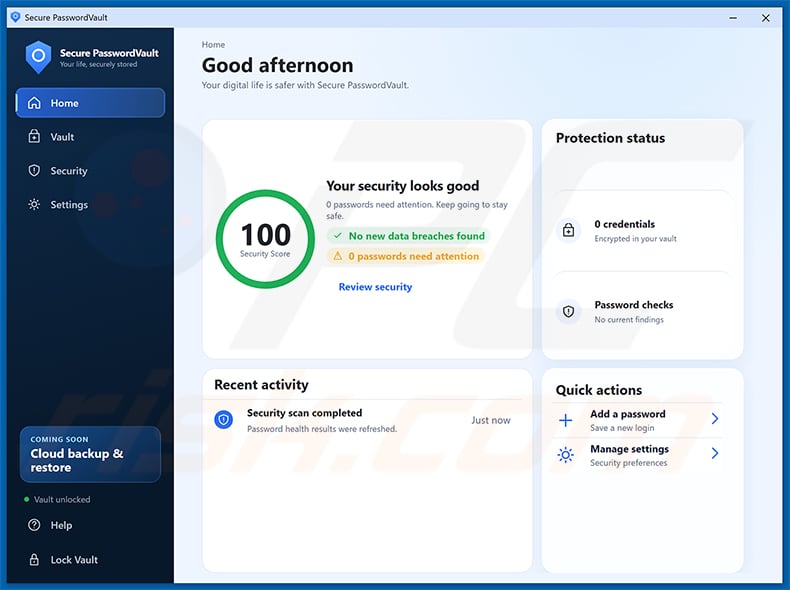
Secure PasswordVault overview
Secure PasswordVault has a simple interface with a "Security Score", a vault for saved passwords, and a "Protection status" panel. Some of its features, such as cloud backup and restore, are marked as "coming soon". At the time of research, we could not confirm that the app provides any real value compared to well-known, reputable password managers.
The main concern is how Secure PasswordVault reaches users. Apps promoted via deceptive ads are often installed without users fully understanding what they are getting. Such ads can be shown on dubious websites or pushed through redirects, and they may use misleading claims to convince visitors to download the promoted software.
Password managers handle very sensitive information. Entrusting login credentials to an app of unclear origin and quality is risky - if the app is poorly built or its developers misuse the stored data, users could lose access to their accounts or have them compromised.
Unwanted applications can also show ads, collect browsing-related or other data, and promote paid upgrades or other dubious products. While we did not observe such behavior during our brief inspection, it is not unusual for apps distributed through shady channels to change their behavior with later updates.
To summarize, the presence of unwanted software like Secure PasswordVault on devices can lead to privacy issues, and in the worst cases, account theft or identity theft. Therefore, we recommend uninstalling it.
| Name | Secure PasswordVault deceptive application |
| Threat Type | Potentially Unwanted Application (PUA) |
| Supposed Functionality | Password manager |
| Symptoms | An unfamiliar password manager app is installed on the computer, you see unwanted ads, you are redirected to dubious websites. |
| Distribution methods | Deceptive pop-up ads, Microsoft Store, free software installers (bundling). |
| Damage | Possible privacy issues, loss of private information, monetary loss, possible additional unwanted software installations. |
| Malware Removal (Windows) |
To eliminate possible malware infections, scan your computer with legitimate antivirus software. Our security researchers recommend using Combo Cleaner. Download Combo CleanerTo use full-featured product, you have to purchase a license for Combo Cleaner. 7 days free trial available. Combo Cleaner is owned and operated by RCS LT, the parent company of PCRisk.com. |
Conclusion
Secure PasswordVault is an app of questionable value that is promoted through deceptive advertising. Even though it can be found on an official store, the way it is distributed is a red flag. Users should rely on well-known password managers from reputable developers instead. More examples of unwanted applications are Zap PDF, Pulse Browser, and RaceCarTwo.
How did Secure PasswordVault install on my computer?
In most cases, users install apps like Secure PasswordVault after clicking misleading advertisements. These ads can appear on questionable websites, such as illegal streaming or file-sharing pages, or be served through rogue advertising networks. Some of them redirect to store pages or download pages where the app is presented as a must-have tool.
Unwanted apps are also spread by bundling them with other free programs. They get installed when users rush through setups and leave the "Quick" or "Default" settings unchanged. Other sources include unofficial app stores, third-party downloaders, and peer-to-peer (P2P) networks.
How to avoid installation of unwanted applications?
Before installing any app, research it and its developer, even if it is available on an official store. Download software only from trusted sources and check user reviews. During installation, choose "Custom" or "Advanced" settings and decline any offers for additional software.
Do not click ads or pop-ups on questionable websites and do not allow such sites to send notifications. If your computer is already infected with Secure PasswordVault, we recommend running a scan with Combo Cleaner Antivirus for Windows to automatically eliminate this unwanted application.
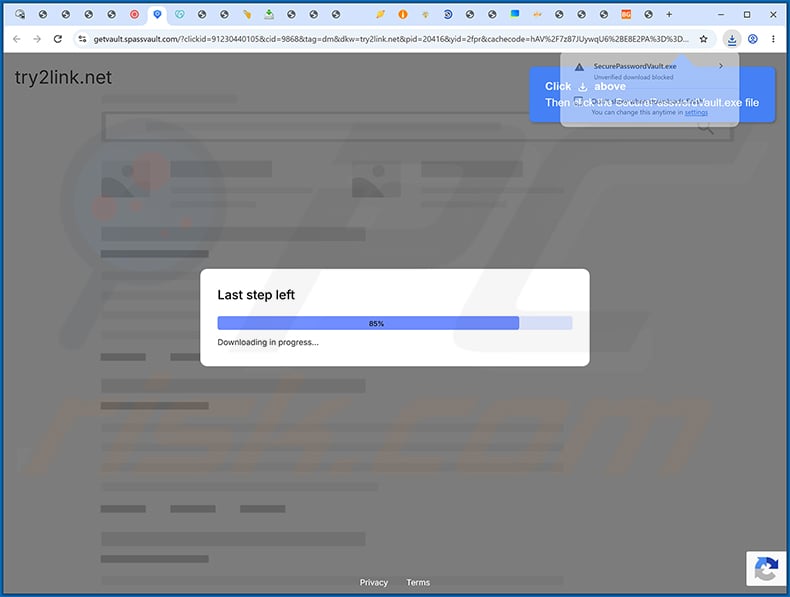
Deceptive website promoting Secure PasswordVault unwanted application:
Instant automatic malware removal:
Manual threat removal might be a lengthy and complicated process that requires advanced IT skills. Combo Cleaner is a professional automatic malware removal tool that is recommended to get rid of malware. Download it by clicking the button below:
DOWNLOAD Combo CleanerBy downloading any software listed on this website you agree to our Privacy Policy and Terms of Use. To use full-featured product, you have to purchase a license for Combo Cleaner. 7 days free trial available. Combo Cleaner is owned and operated by RCS LT, the parent company of PCRisk.com.
Quick menu:
- What is Secure PasswordVault?
- STEP 1. Uninstall adware applications using Control Panel.
- STEP 2. Remove rogue plug-ins from Google Chrome.
- STEP 3. Remove adware-type extensions from Mozilla Firefox.
- STEP 4. Remove malicious extensions from Safari.
- STEP 5. Remove rogue plug-ins from Microsoft Edge.
Adware removal:
Windows 11 users:
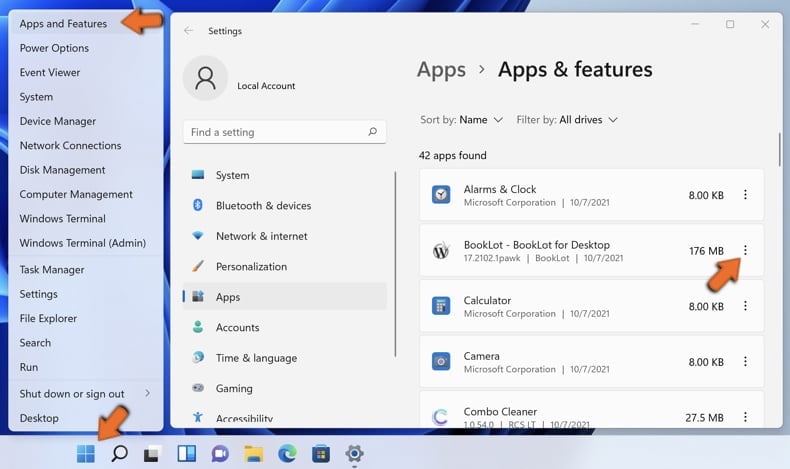
Right-click on the Start icon, select Apps and Features. In the opened window search for the application you want to uninstall, after locating it, click on the three vertical dots and select Uninstall.
Windows 10 users:
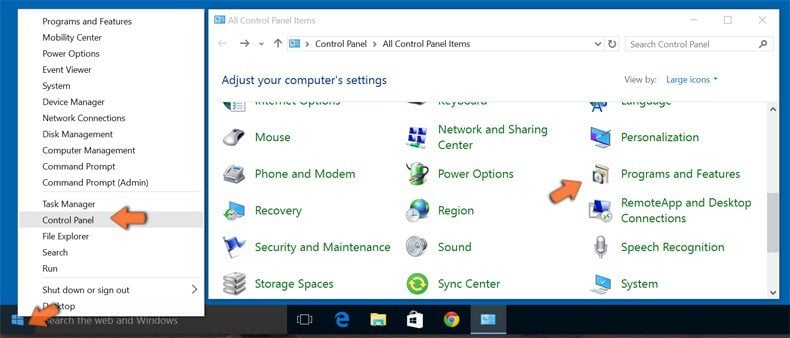
Right-click in the lower left corner of the screen, in the Quick Access Menu select Control Panel. In the opened window choose Programs and Features.
Windows 7 users:
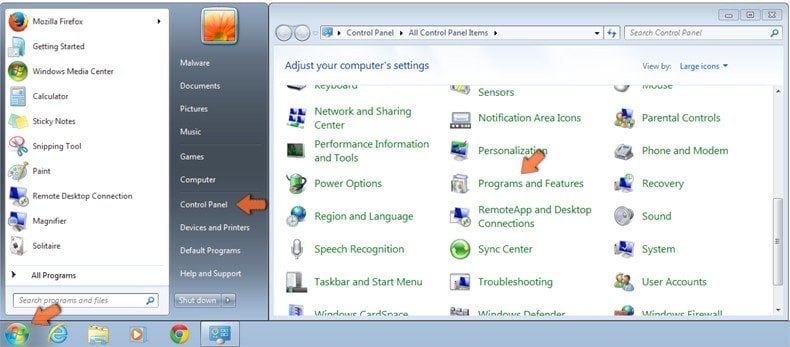
Click Start (Windows Logo at the bottom left corner of your desktop), choose Control Panel. Locate Programs and click Uninstall a program.
macOS (OSX) users:
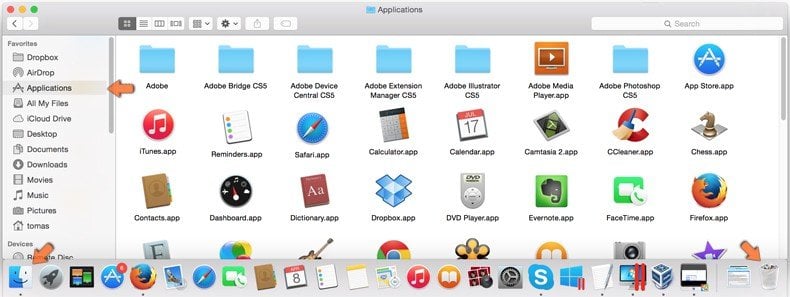
Click Finder, in the opened screen select Applications. Drag the app from the Applications folder to the Trash (located in your Dock), then right click the Trash icon and select Empty Trash.
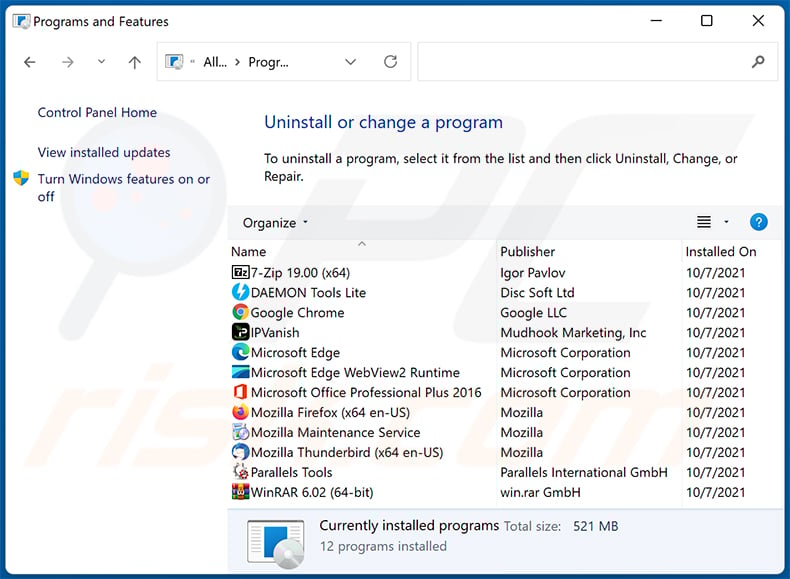
In the uninstall programs window, look for any unwanted applications, select these entries and click "Uninstall" or "Remove".
After uninstalling the unwanted application, scan your computer for any remaining unwanted components or possible malware infections. To scan your computer, use recommended malware removal software.
DOWNLOAD remover for malware infections
Combo Cleaner checks if your computer is infected with malware. To use full-featured product, you have to purchase a license for Combo Cleaner. 7 days free trial available. Combo Cleaner is owned and operated by RCS LT, the parent company of PCRisk.com.
At time of research, Secure PasswordVault did not install browser extensions on Microsoft Edge, Google Chrome, or Mozilla Firefox, however, it may be bundled with other adware. Therefore, you are advised to remove all potentially unwanted browser add-ons from your Internet browsers.
Remove adware from Internet browsers:
Video showing how to remove unwanted browser add-ons:
 Remove malicious extensions from Google Chrome:
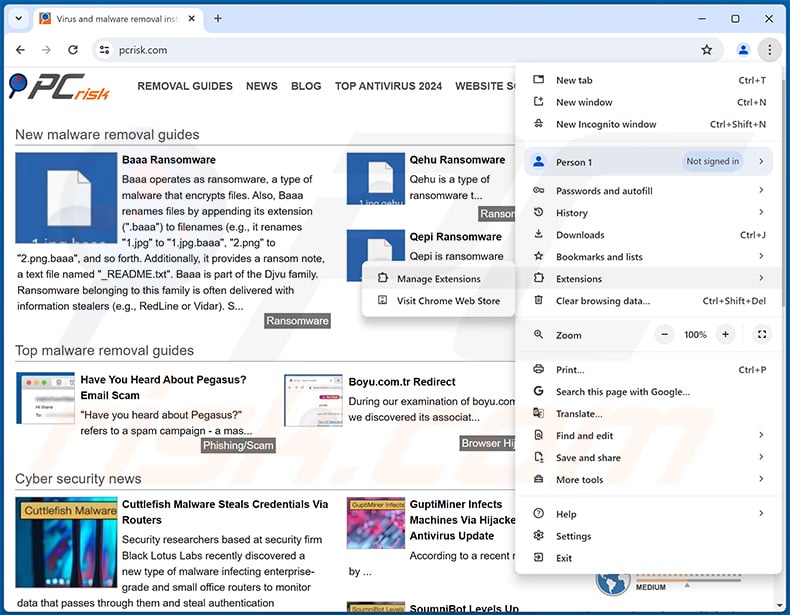
Click the Chrome menu icon  (at the top right corner of Google Chrome), select "Extensions" and click "Manage Extensions". Locate all recently-installed suspicious extensions, select these entries and click "Remove".
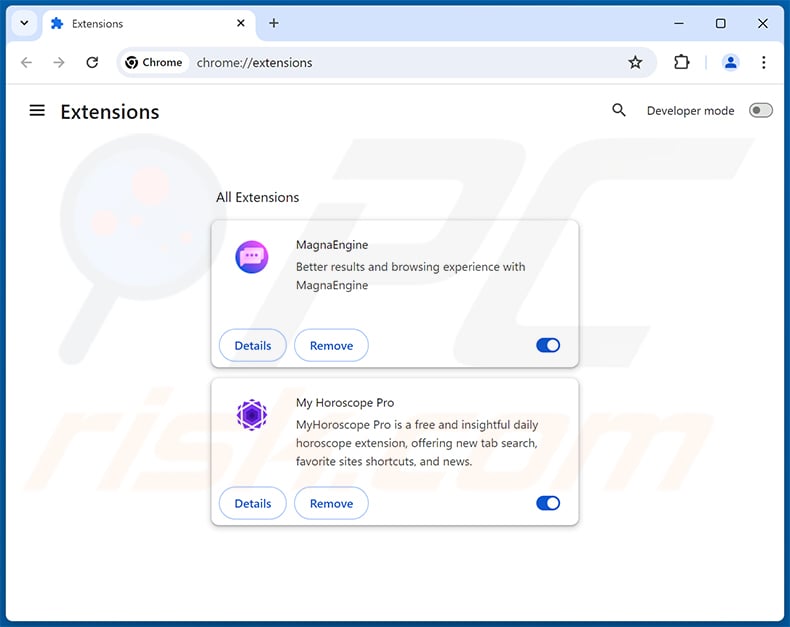
Optional method:
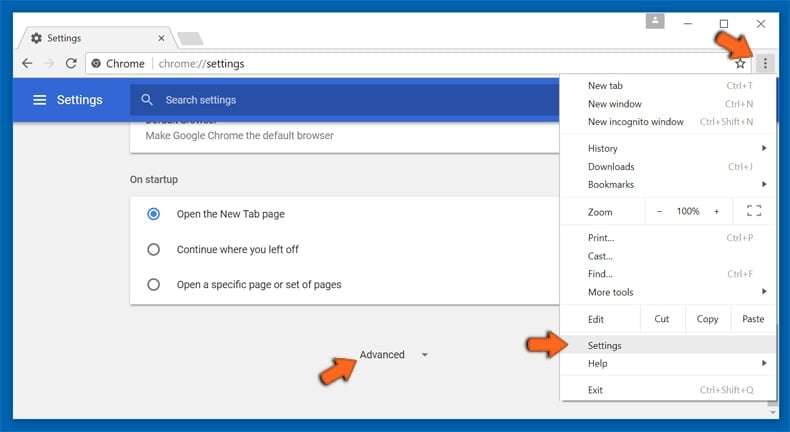
If you continue to have problems with removal of the secure passwordvault deceptive application, reset your Google Chrome browser settings. Click the Chrome menu icon (at the top right corner of Google Chrome) and select Settings. Scroll down to the bottom of the screen. Click the Advanced… link.
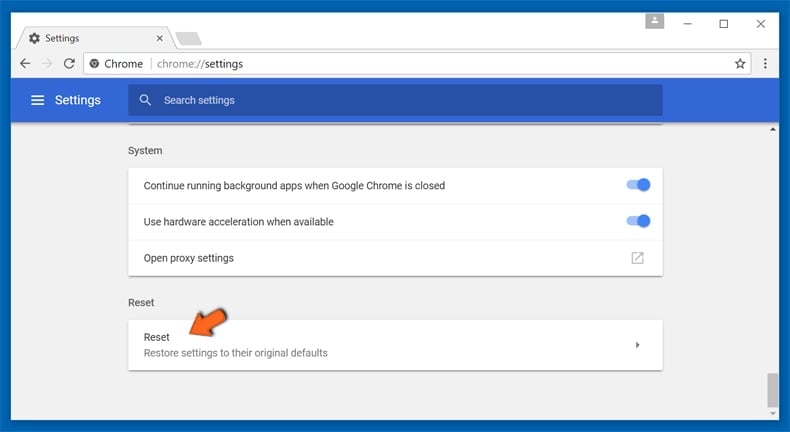
After scrolling to the bottom of the screen, click the Reset (Restore settings to their original defaults) button.
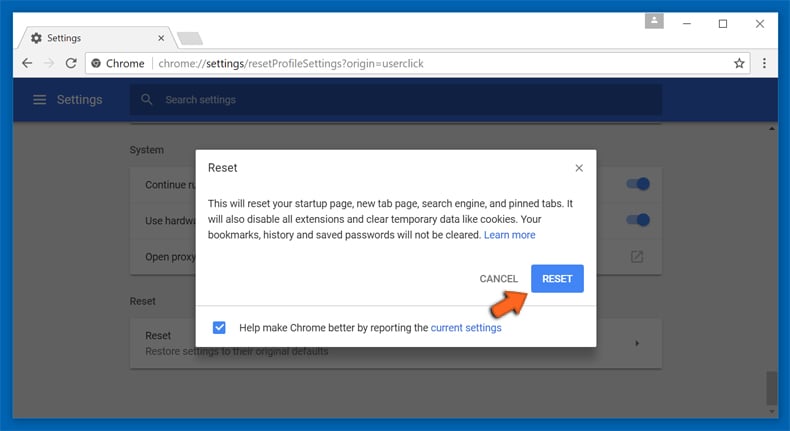
In the opened window, confirm that you wish to reset Google Chrome settings to default by clicking the Reset button.
 Remove malicious plug-ins from Mozilla Firefox:
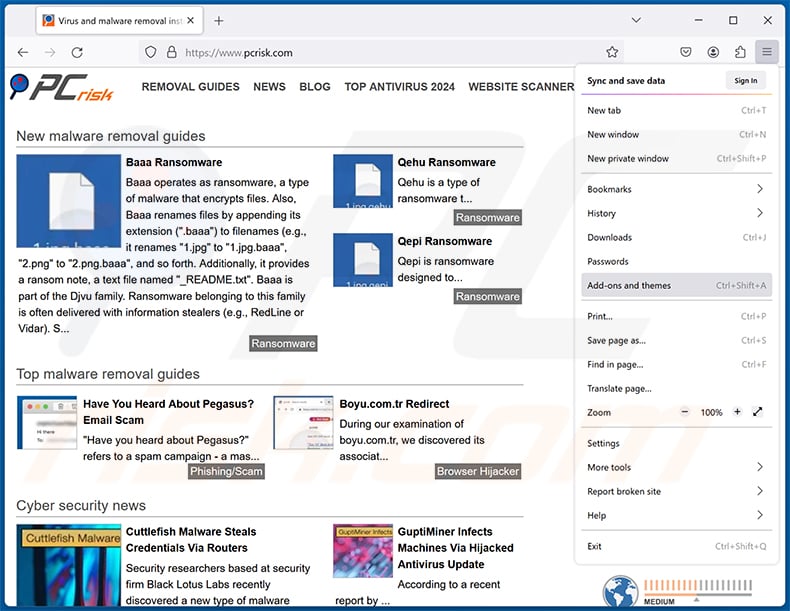
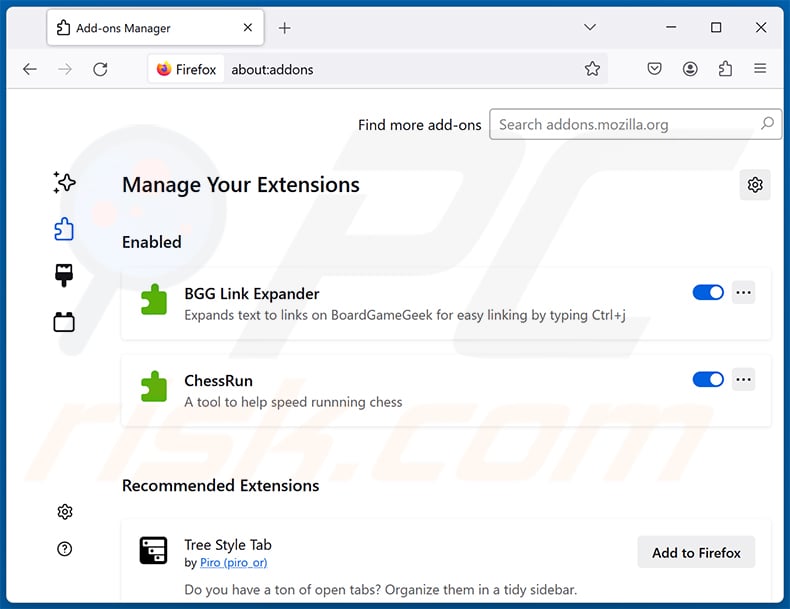
Click the Firefox menu  (at the top right corner of the main window), select "Add-ons and themes". Click "Extensions", in the opened window locate all recently-installed suspicious extensions, click on the three dots and then click "Remove".
Optional method:
Computer users who have problems with secure passwordvault deceptive application removal can reset their Mozilla Firefox settings.
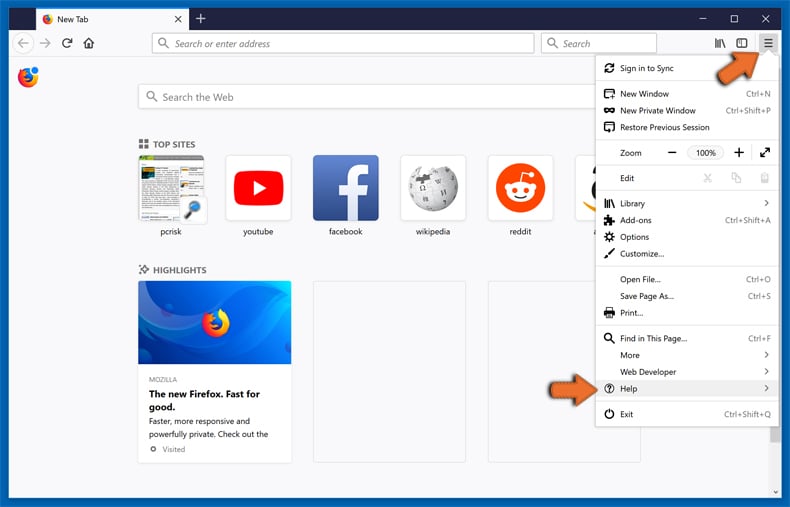
Open Mozilla Firefox, at the top right corner of the main window, click the Firefox menu, in the opened menu, click Help.
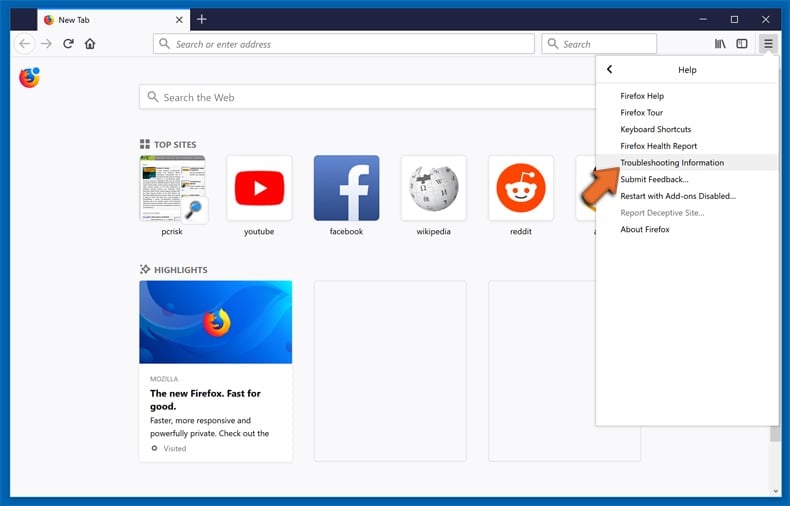
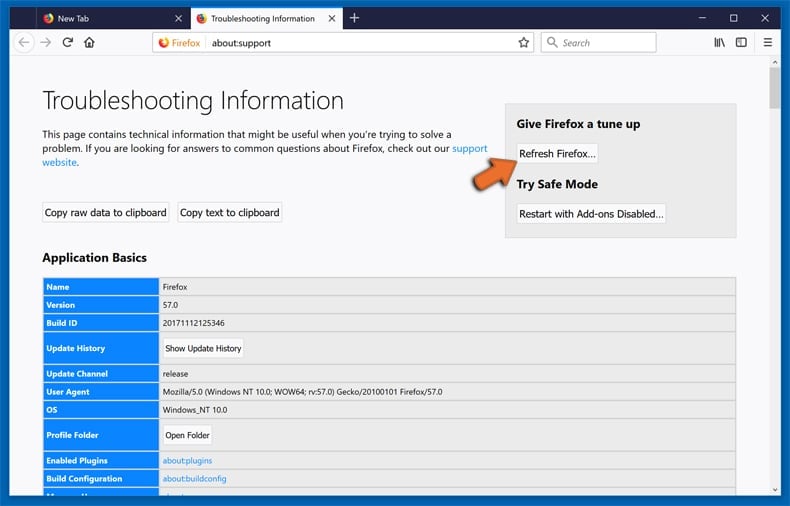
Select Troubleshooting Information.
In the opened window, click the Refresh Firefox button.
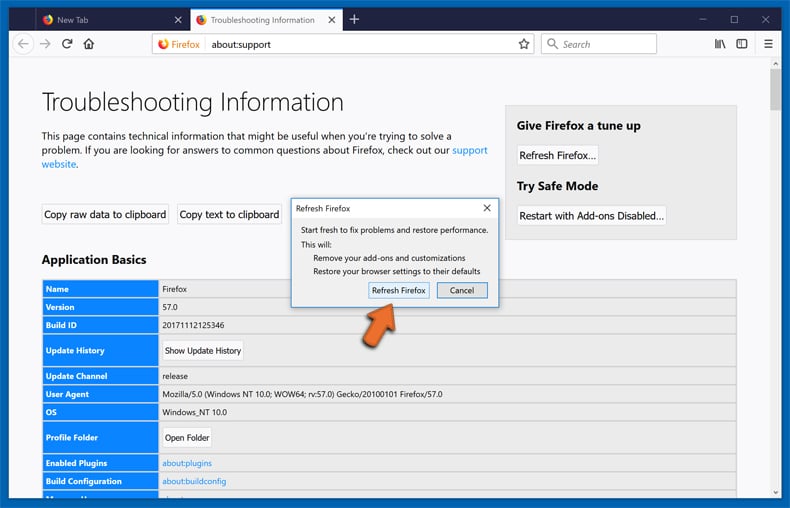
In the opened window, confirm that you wish to reset Mozilla Firefox settings to default by clicking the Refresh Firefox button.
 Remove malicious extensions from Safari:
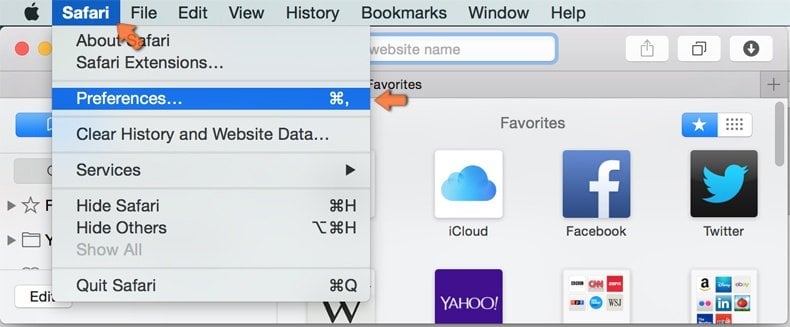
Make sure your Safari browser is active, click Safari menu, and select Preferences....
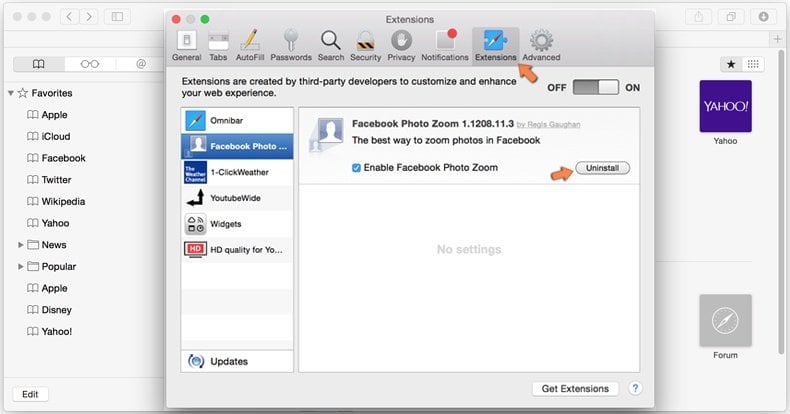
In the opened window click Extensions, locate any recently installed suspicious extension, select it and click Uninstall.
Optional method:
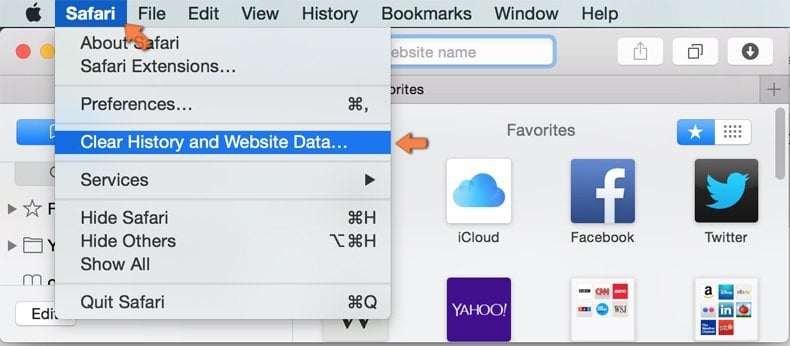
Make sure your Safari browser is active and click on Safari menu. From the drop down menu select Clear History and Website Data...
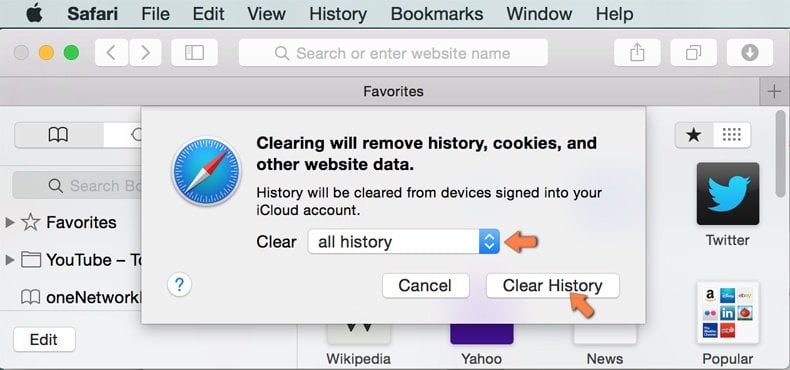
In the opened window select all history and click the Clear History button.
 Remove malicious extensions from Microsoft Edge:
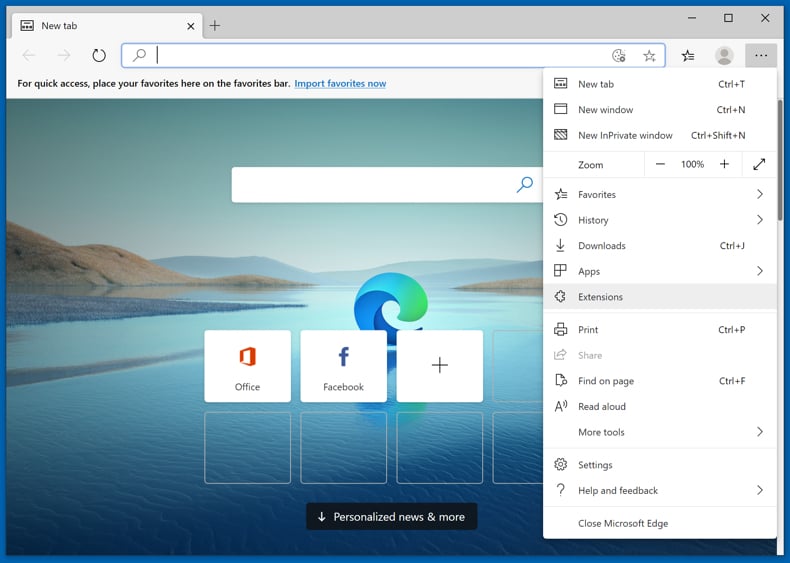
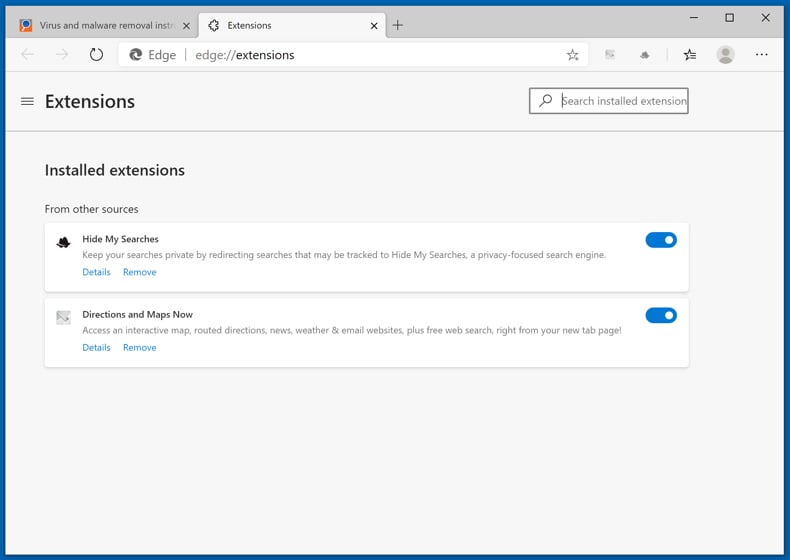
Click the Edge menu icon  (at the upper-right corner of Microsoft Edge), select "Extensions". Locate all recently-installed suspicious browser add-ons and click "Remove" below their names.
Optional method:
If you continue to have problems with removal of the secure passwordvault deceptive application, reset your Microsoft Edge browser settings. Click the Edge menu icon (at the top right corner of Microsoft Edge) and select Settings.
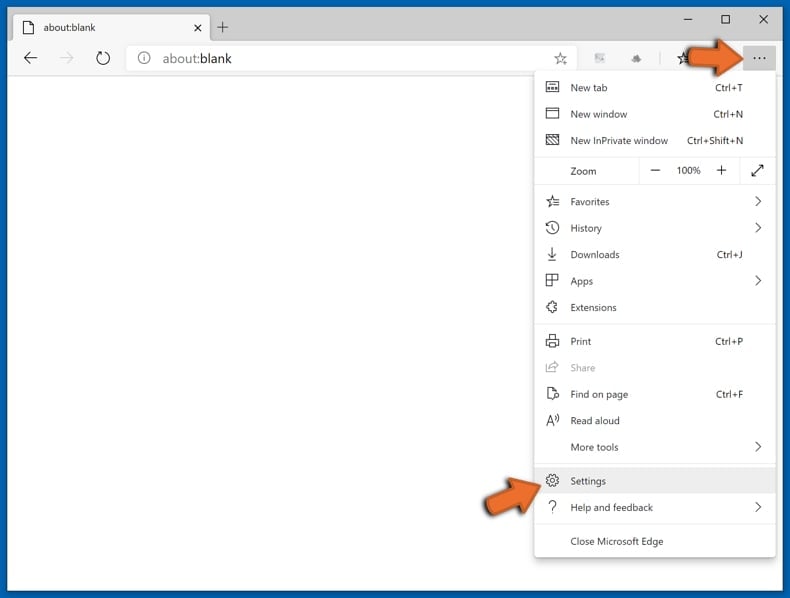
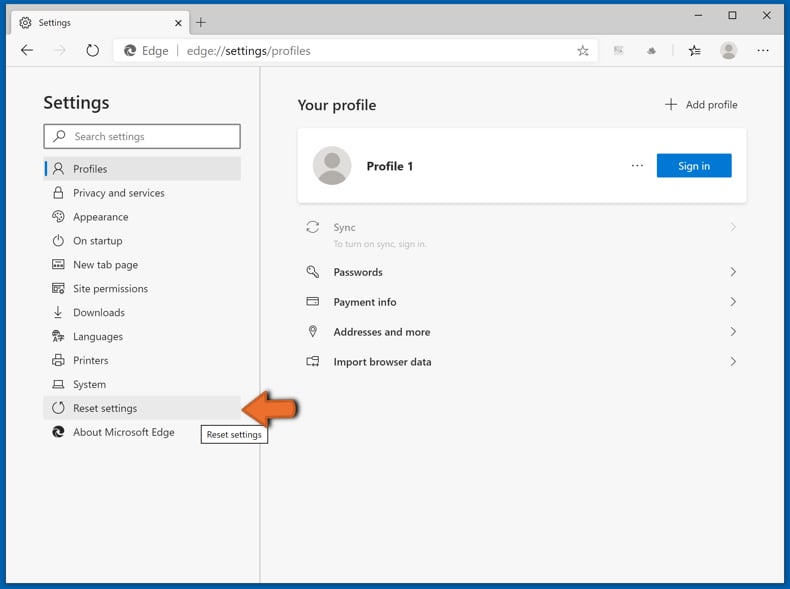
In the opened settings menu select Reset settings.
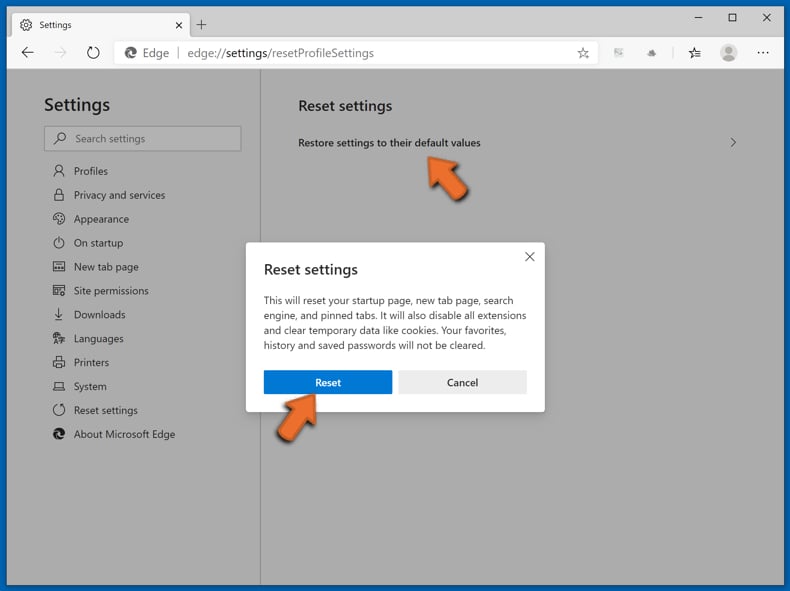
Select Restore settings to their default values. In the opened window, confirm that you wish to reset Microsoft Edge settings to default by clicking the Reset button.
- If this did not help, follow these alternative instructions explaining how to reset the Microsoft Edge browser.
Summary:
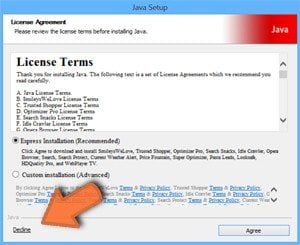 Commonly, adware or potentially unwanted applications infiltrate Internet browsers through free software downloads. Note that the safest source for downloading free software is via developers' websites only. To avoid installation of adware, be very attentive when downloading and installing free software. When installing previously-downloaded free programs, choose the custom or advanced installation options – this step will reveal any potentially unwanted applications listed for installation together with your chosen free program.
Post a comment:
If you have additional information on secure passwordvault deceptive application or it's removal please share your knowledge in the comments section below.
Frequently Asked Questions (FAQ)
What harm can unwanted applications cause?
Unwanted apps can show intrusive ads, slow down the system, and put users' privacy at risk. Apps that handle passwords are especially concerning, since any misuse of the stored data could lead to account theft.
What do unwanted applications do?
They usually promise useful features but deliver little real value. Some also display ads, promote paid upgrades, or collect information about users.
How do developers of unwanted applications generate revenue?
Most of the revenue comes from affiliate programs, paid subscriptions or "premium" versions, ads, and the sale of collected data.
Will Combo Cleaner remove Secure PasswordVault?
Yes, Combo Cleaner will scan your computer and remove unwanted applications. Manual removal may leave leftover files behind, so a full scan helps ensure nothing remains.
Share:
 Facebook
 X.com
 LinkedIn
 Copy Link

Tomas Meskauskas
Expert security researcher, professional malware analyst
I am passionate about computer security and technology. I have an experience of over 10 years working in various companies related to computer technical issue solving and Internet security. I have been working as an author and editor for pcrisk.com since 2010. Follow me on Twitter and LinkedIn to stay informed about the latest online security threats.
PCrisk security portal is brought by a company RCS LT.
Joined forces of security researchers help educate computer users about the latest online security threats. More information about the company RCS LT.
Our malware removal guides are free. However, if you want to support us you can send us a donation.
DonatePCrisk security portal is brought by a company RCS LT.
Joined forces of security researchers help educate computer users about the latest online security threats. More information about the company RCS LT.
Our malware removal guides are free. However, if you want to support us you can send us a donation.
Donate
▼ Show Discussion