
How to get rid of astridresearch.com browser hijacker
Browser HijackerAlso Known As: astridresearch.com browser hijacker

Get free scan and check if your device is infected.
Remove it nowTo use full-featured product, you have to purchase a license for Combo Cleaner. Seven days free trial available. Combo Cleaner is owned and operated by RCS LT, the parent company of PCRisk.com.
What is astridresearch.com?
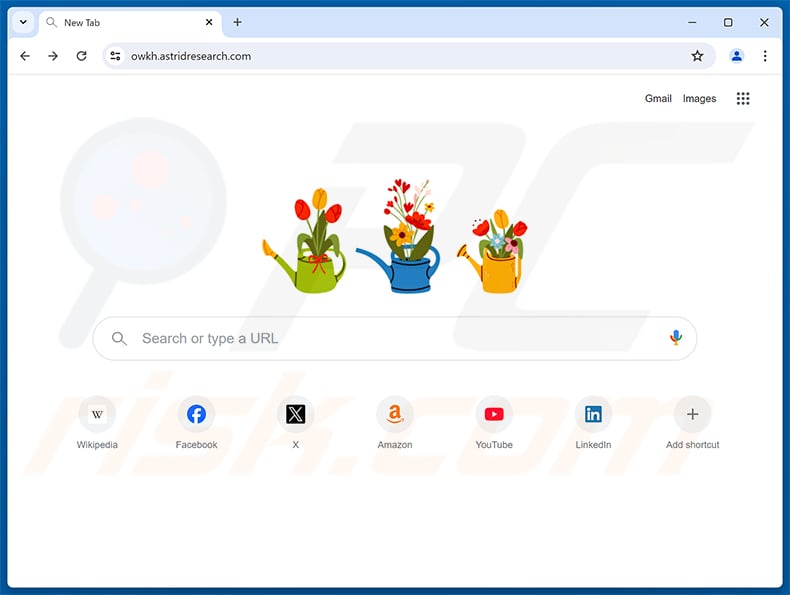
Astridresearch.com is a fake search engine that is pushed through browser hijackers and other unwanted browser extensions. We inspected this address after it turned up as the new tab page in a Google Chrome browser.
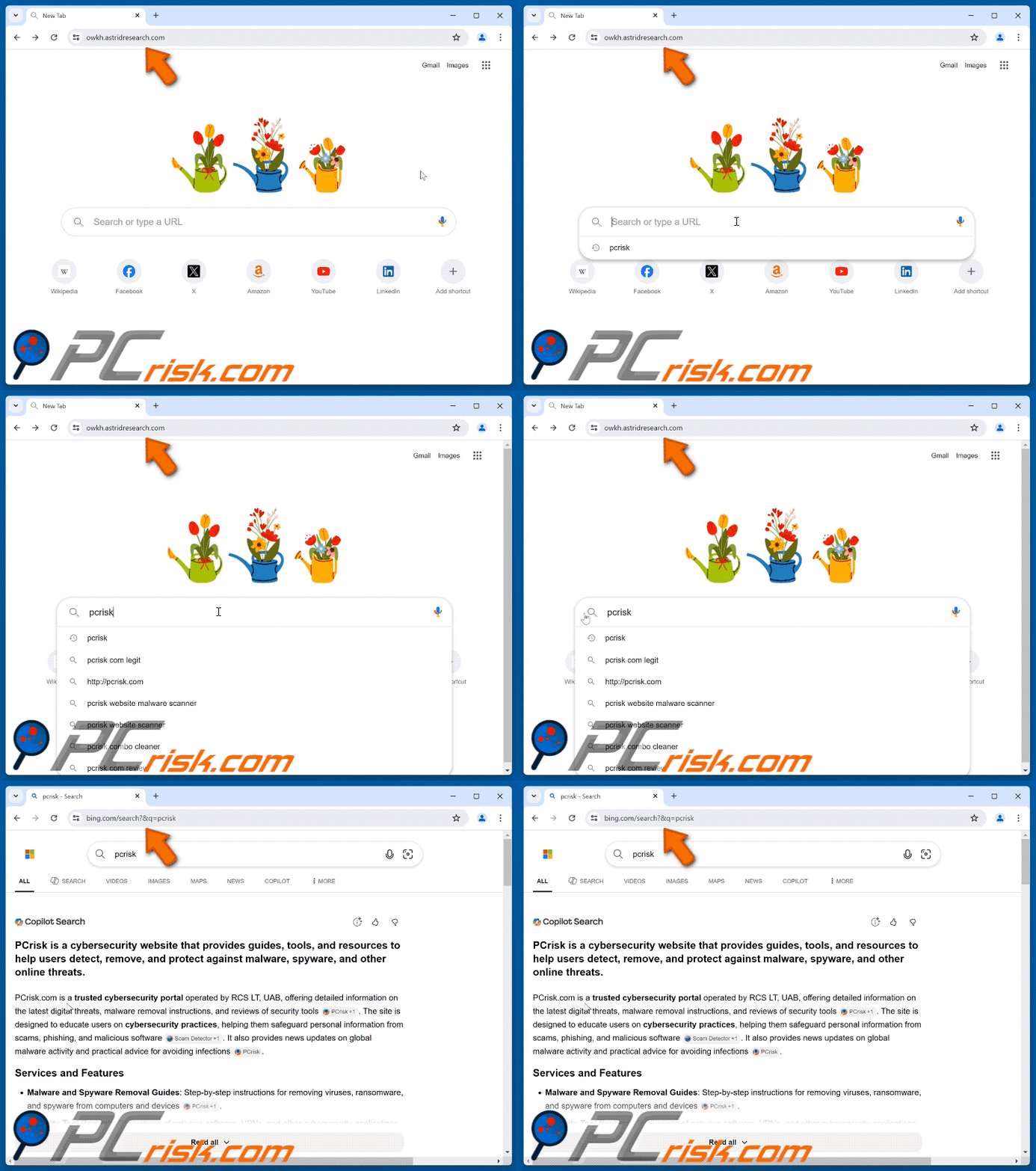
Our inspection showed that searches submitted through this page end up on Bing. Users who see astridresearch.com in their browsers should find the extension responsible and remove it, since such extensions also tend to monitor browsing activity.
How do browser hijackers promote astridresearch.com?
Browser hijackers work by reassigning a browser's homepage, new tab URL, and default search engine to an address their operators want to promote. From that point on, every new tab and every query typed into the URL bar passes through the promoted site first. Here, that site is astridresearch.com.
The page is served from randomly generated subdomains, for example owkh.astridresearch.com. That makes it harder to block outright, and it means two affected users may not even see the same address in their address bars.
What the visitor gets is a plain imitation of an ordinary new tab screen - a search bar in the middle and shortcut tiles for Wikipedia, Facebook, X, Amazon, YouTube, and LinkedIn. It looks unremarkable enough that many people simply start using it without asking where it came from.
Astridresearch.com does not generate any results of its own. When a search is submitted, it hands the user off to Bing, which is a legitimate engine. That said, where a redirect lands can depend on factors such as the visitor's geolocation, so other users may be routed elsewhere, including to far less trustworthy pages.
Software of this kind commonly includes persistence mechanisms. Some hijackers block access to the very settings needed to remove them, while others quietly restore the changed values every time the user resets them.
Data collection is the other concern. Extensions in this category usually track visited URLs, viewed pages, search queries, browser cookies, IP addresses, and in some cases login credentials or other personal details. Collected information can be sold to third parties or passed on to cybercriminals.
In short, leaving a browser hijacker in place leads to unreliable search results, serious privacy issues, and exposure to content that can cost users money.
| Name | astridresearch.com browser hijacker |
| Threat Type | Browser Hijacker, Redirect, Search Hijacker, Toolbar, Unwanted New Tab |
| Promoted URL | astridresearch.com |
| Threat Status (astridresearch.com) | PCrisk Website Scanner Results |
| Affected Browser Settings | Homepage, new tab URL, default search engine |
| Symptoms | Manipulated Internet browser settings (homepage, default Internet search engine, new tab settings). Users are forced to visit the hijacker's website and search the Internet using their search engines. |
| Distribution methods | Deceptive pop-up ads, free software installers (bundling), dubious websites, and similar channels. |
| Damage | Internet browser tracking (potential privacy issues), display of unwanted ads, redirects to dubious websites. |
| Malware Removal (Windows) |
To eliminate possible malware infections, scan your computer with legitimate antivirus software. Our security researchers recommend using Combo Cleaner. Download Combo CleanerTo use full-featured product, you have to purchase a license for Combo Cleaner. 7 days free trial available. Combo Cleaner is owned and operated by RCS LT, the parent company of PCRisk.com. |
Fake search engine and browser hijacker examples
More examples of questionable search engines are searchccom.com, newspulsenow.net, and signalqueryhub.com.
Typically, these webpages and the extensions promoting them appear ordinary and harmless. Users may be drawn in by promises of "handy" features, which are rarely operational. Remember that even when an extension works exactly as advertised, that alone does not prove it is safe.
How did astridresearch.com promoting software install on my computer?
Bundling is the main channel. Regular program installers are packed with unwanted additions, and those setups are downloaded from freeware sites, free file-hosting pages, Peer-to-Peer networks, and other dubious sources.
Rushing through an installation makes the outcome worse. Skipping the terms, leaving every box ticked, or clicking through "Easy" and "Express" setups is usually all it takes for an extra extension to slip in alongside the program the user actually wanted.
Extensions of this type also have their own promotional pages and are endorsed on scam sites. Users mostly reach them through redirects caused by rogue advertising networks, intrusive ads, spam browser notifications, mistyped URLs, and installed adware. Some adverts run scripts that start a download the moment they are clicked.
How to avoid installation of browser hijackers?
Research software before downloading it, and use official or otherwise verified sources only. During installation, read the terms, look through the available options, choose the "Custom" or "Advanced" settings, and decline any supplementary apps, extensions, or toolbars that are offered.
It also pays to be careful while browsing. Fraudulent content usually looks perfectly ordinary, and an innocent-seeming banner can lead to a gambling, adult, or scam-promoting page. Never allow notifications from sites that ask for them without a good reason.
If such adverts and redirects keep appearing, inspect the device and remove every suspicious application and browser extension you find. If your computer is already affected by astridresearch.com, we recommend running a scan with Combo Cleaner Antivirus for Windows to automatically eliminate this browser hijacker.
Appearance of astridresearch.com redirecting to the Bing search engine (GIF):
Instant automatic malware removal:
Manual threat removal might be a lengthy and complicated process that requires advanced IT skills. Combo Cleaner is a professional automatic malware removal tool that is recommended to get rid of malware. Download it by clicking the button below:
DOWNLOAD Combo CleanerBy downloading any software listed on this website you agree to our Privacy Policy and Terms of Use. To use full-featured product, you have to purchase a license for Combo Cleaner. 7 days free trial available. Combo Cleaner is owned and operated by RCS LT, the parent company of PCRisk.com.
Quick menu:
- What is astridresearch.com?
- STEP 1. Uninstall unwanted applications using Control Panel.
- STEP 2. Remove astridresearch.com browser hijacker from Google Chrome.
- STEP 3. Remove astridresearch.com homepage and default search engine from Mozilla Firefox.
- STEP 4. Remove astridresearch.com redirect from Safari.
- STEP 5. Remove rogue plug-ins from Microsoft Edge.
Astridresearch.com redirect removal:
Windows 11 users:
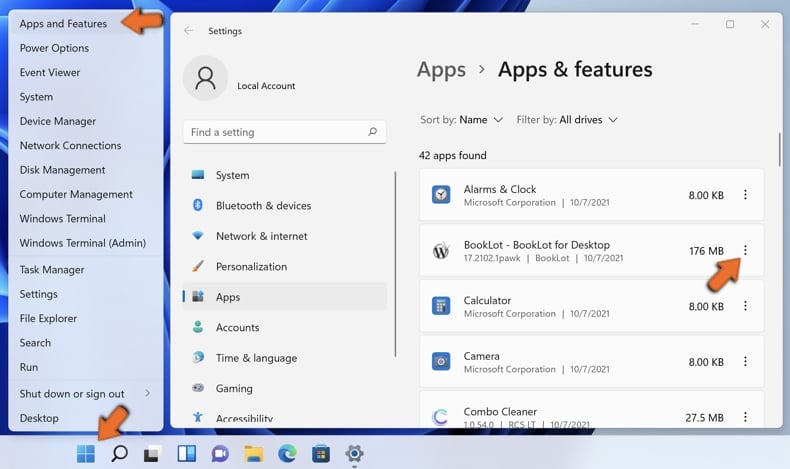
Right-click on the Start icon, select Apps and Features. In the opened window search for the application you want to uninstall, after locating it, click on the three vertical dots and select Uninstall.
Windows 10 users:
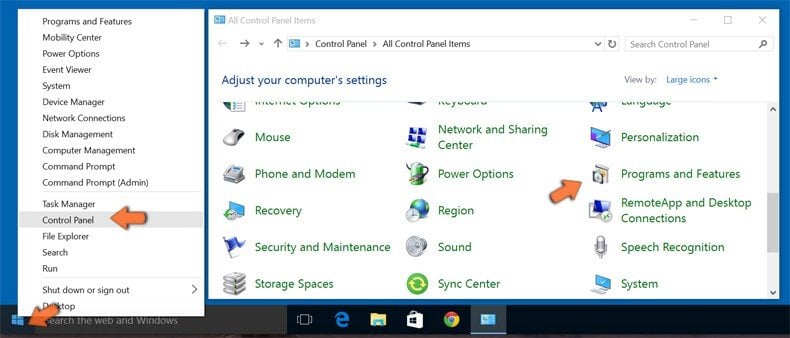
Right-click in the lower left corner of the screen, in the Quick Access Menu select Control Panel. In the opened window choose Programs and Features.
Windows 7 users:
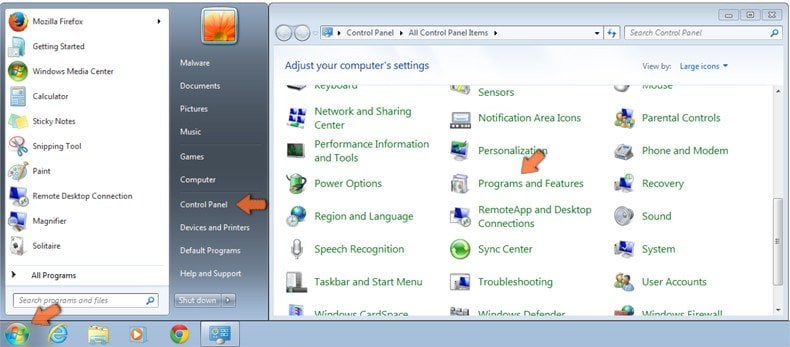
Click Start (Windows Logo at the bottom left corner of your desktop), choose Control Panel. Locate Programs and click Uninstall a program.
macOS (OSX) users:
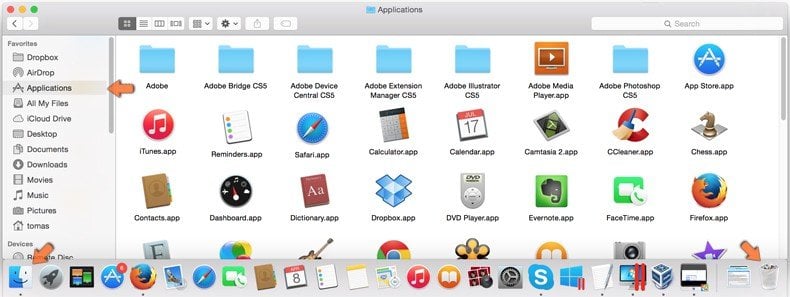
Click Finder, in the opened screen select Applications. Drag the app from the Applications folder to the Trash (located in your Dock), then right click the Trash icon and select Empty Trash.
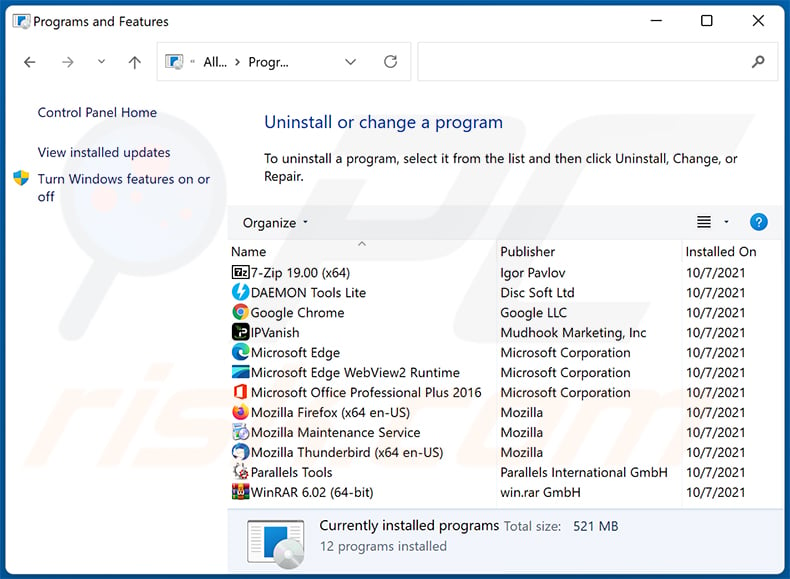
In the uninstall programs window: look for any recently installed suspicious applications, select these entries and click "Uninstall" or "Remove".
After uninstalling the potentially unwanted applications, scan your computer for any remaining unwanted components. To scan your computer, use recommended malware removal software.
DOWNLOAD remover for malware infections
Combo Cleaner checks if your computer is infected with malware. To use full-featured product, you have to purchase a license for Combo Cleaner. 7 days free trial available. Combo Cleaner is owned and operated by RCS LT, the parent company of PCRisk.com.
Astridresearch.com redirect removal from Internet browsers:
Video showing how to remove browser redirects:
 Remove malicious extensions from Google Chrome:
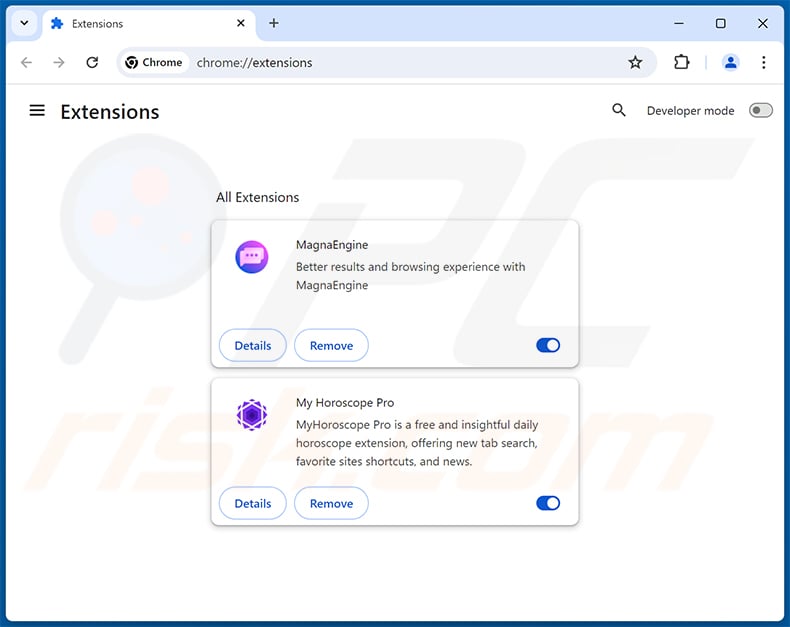
Click the Chrome menu icon  (at the top right corner of Google Chrome), select "Extensions" and click "Manage Extensions". Locate all recently-installed suspicious extensions, select these entries and click "Remove".
Change your homepage:
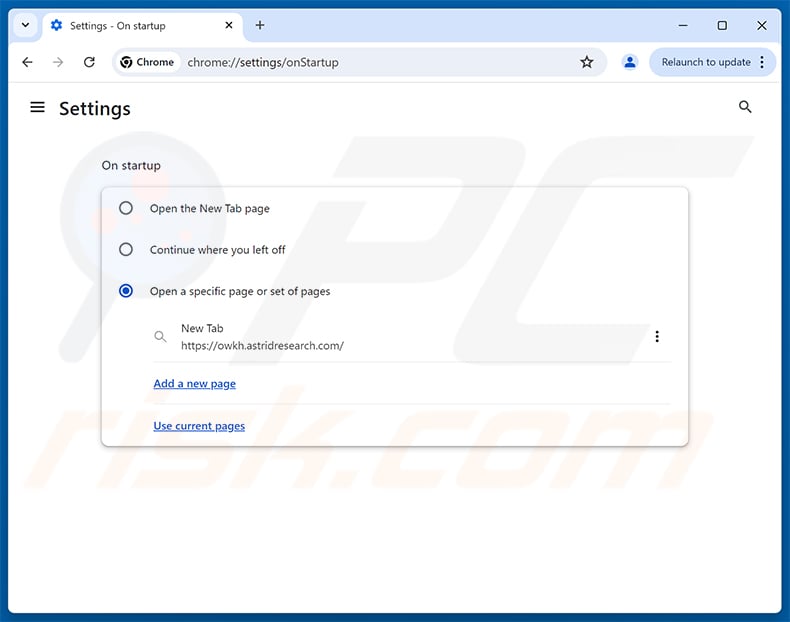
Click the Chrome menu icon (at the top right corner of Google Chrome), select "Settings". In the "On startup" section, disable the malicious extension (if present), look for a browser hijacker URL (hxxp://www.astridresearch.com) below the "Open a specific or set of pages" option. If present click on the three vertical dots icon and select "Remove".
Change your default search engine:
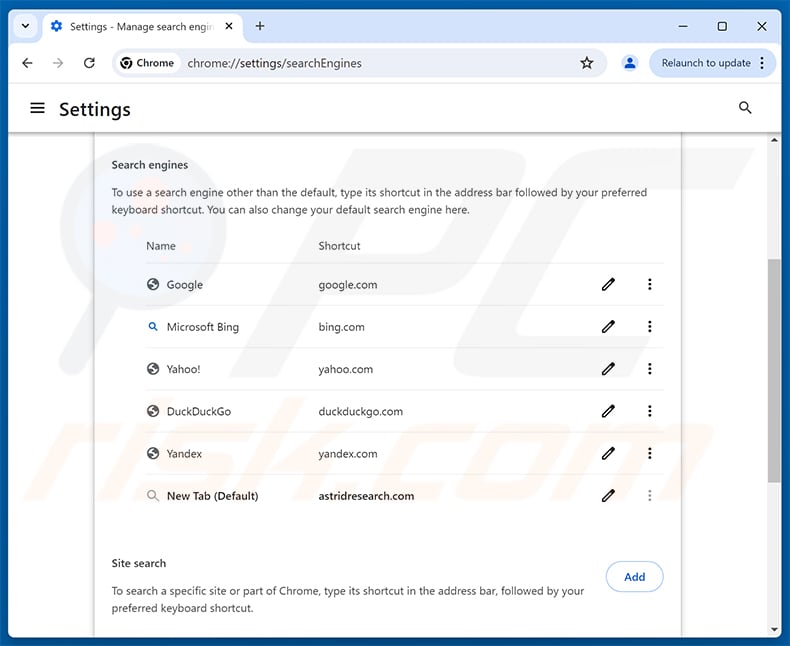
To change your default search engine in Google Chrome: Click the Chrome menu icon (at the top right corner of Google Chrome), select "Settings", in the "Search engine" section, click "Manage search engines...", in the opened list look for "astridresearch.com", when located click the three vertical dots near this URL and select "Delete".
- If you continue to have problems with browser redirects and unwanted advertisements - Reset Google Chrome.
Optional method:
If you continue to have problems with removal of the astridresearch.com browser hijacker, reset your Google Chrome browser settings. Click the Chrome menu icon (at the top right corner of Google Chrome) and select Settings. Scroll down to the bottom of the screen. Click the Advanced… link.
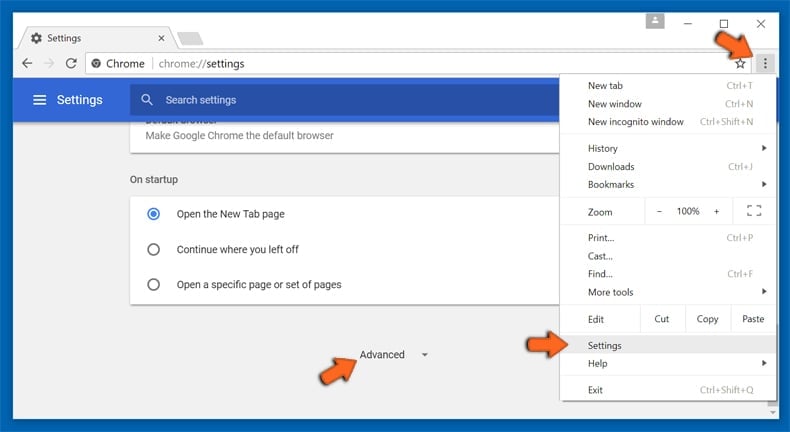
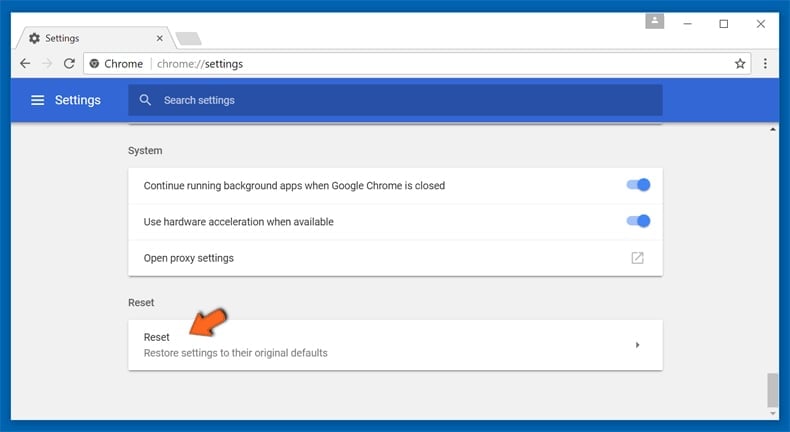
After scrolling to the bottom of the screen, click the Reset (Restore settings to their original defaults) button.
In the opened window, confirm that you wish to reset Google Chrome settings to default by clicking the Reset button.
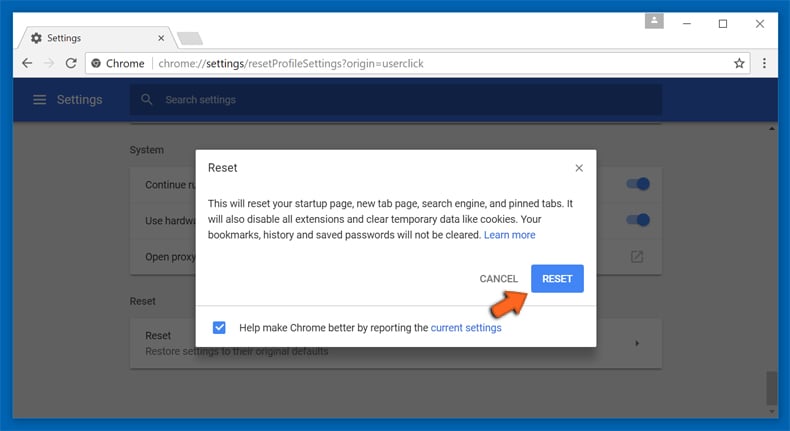
 Remove malicious extensions from Mozilla Firefox:
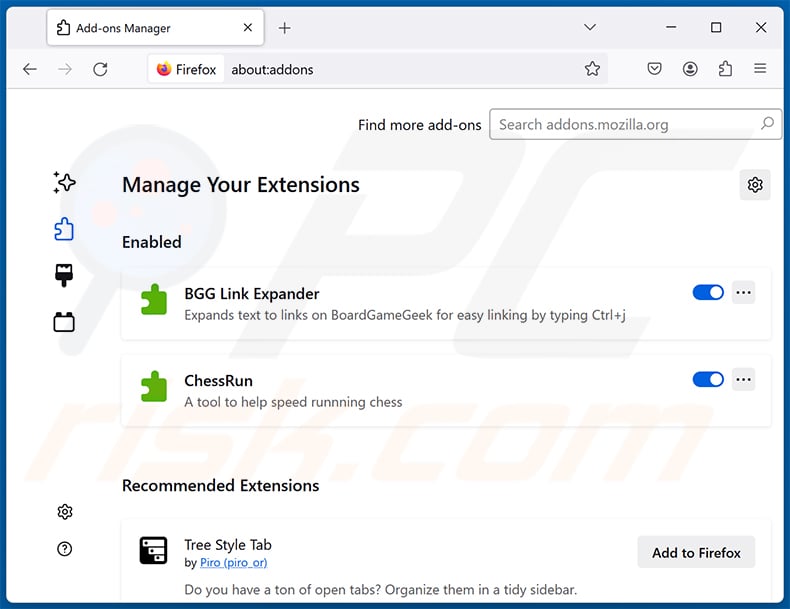
Click the Firefox menu  (at the top right corner of the main window), select "Add-ons and themes". Click "Extensions", in the opened window locate all recently-installed suspicious extensions, click on the three dots and then click "Remove".
Change your homepage:
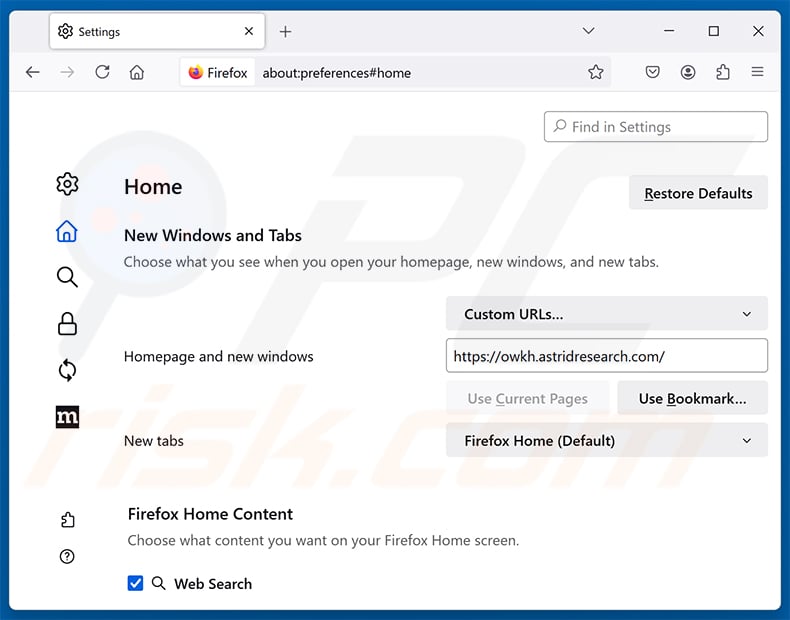
To reset your homepage, click the Firefox menu (at the top right corner of the main window), then select "Settings", in the opened window disable malicious extension (if present), remove hxxp://astridresearch.com and enter your preferred domain, which will open each time you start Mozilla Firefox.
Change your default search engine:
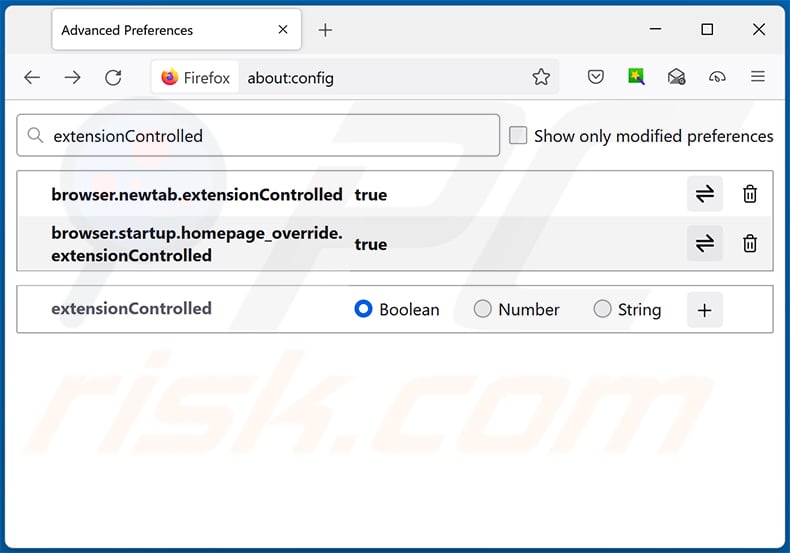
In the URL address bar, type "about:config" and press Enter. Click "Accept the Risk and Continue".
In the search filter at the top, type: "extensionControlled". Set both results to "false" by either double-clicking each entry or clicking the  button.
Optional method:
Computer users who have problems with astridresearch.com browser hijacker removal can reset their Mozilla Firefox settings.
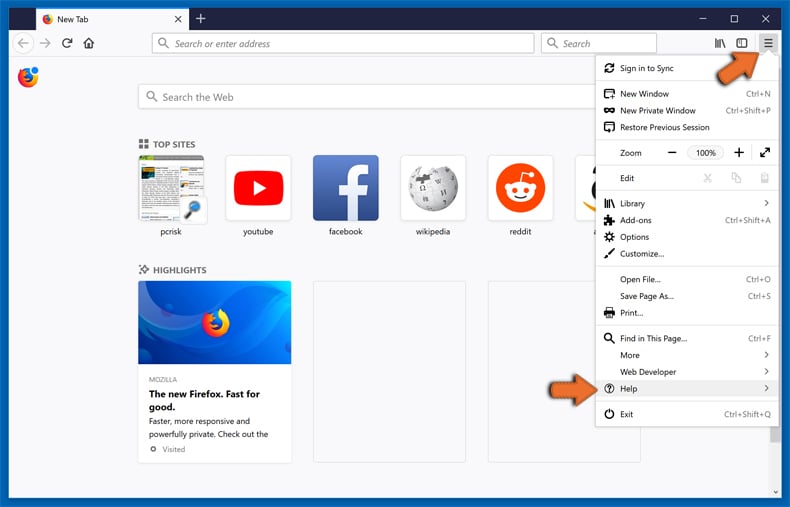
Open Mozilla Firefox, at the top right corner of the main window, click the Firefox menu, in the opened menu, click Help.
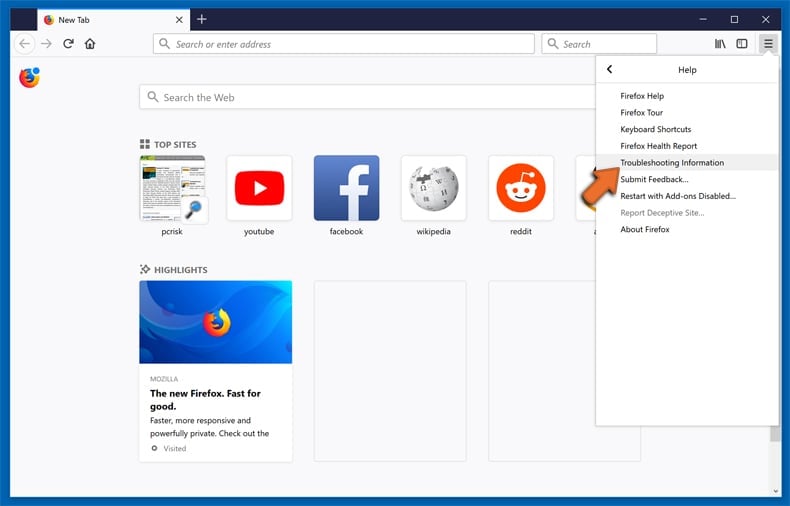
Select Troubleshooting Information.
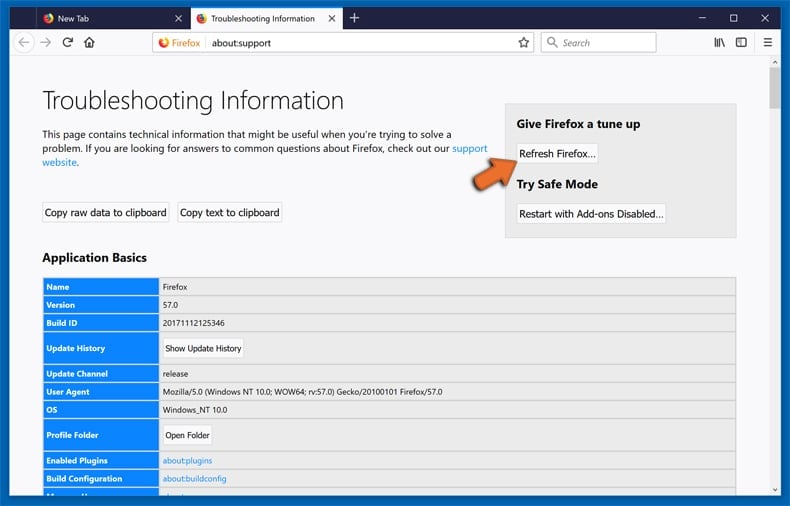
In the opened window, click the Refresh Firefox button.
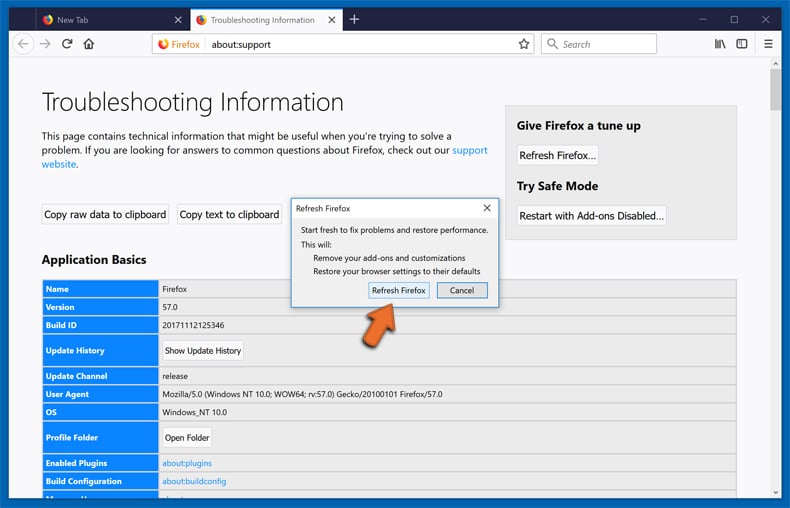
In the opened window, confirm that you wish to reset Mozilla Firefox settings to default by clicking the Refresh Firefox button.
 Remove malicious extensions from Safari:
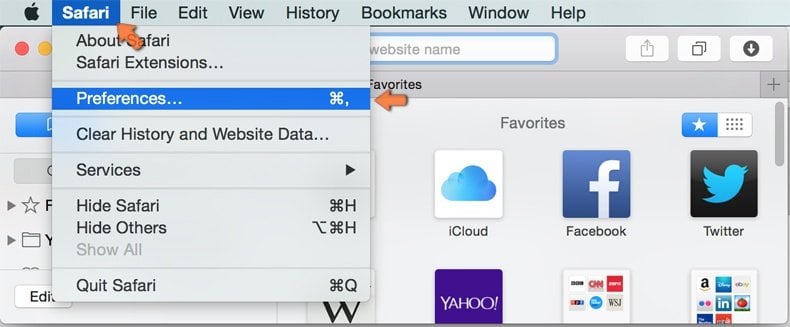
Make sure your Safari browser is active and click Safari menu, then select Preferences...
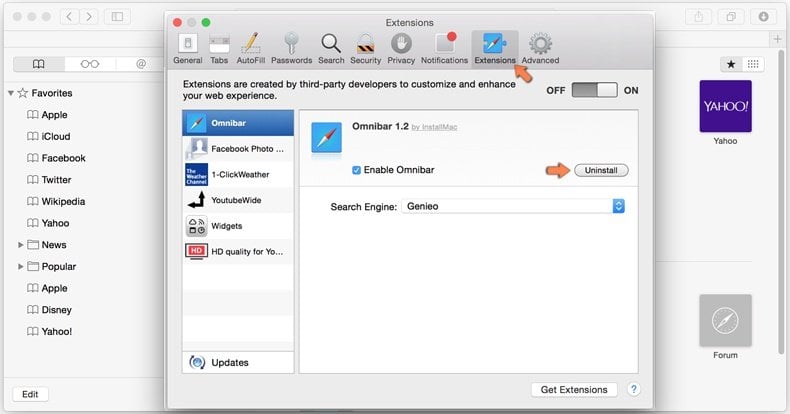
In the preferences window select the Extensions tab. Look for any recently installed suspicious extensions and uninstall them.
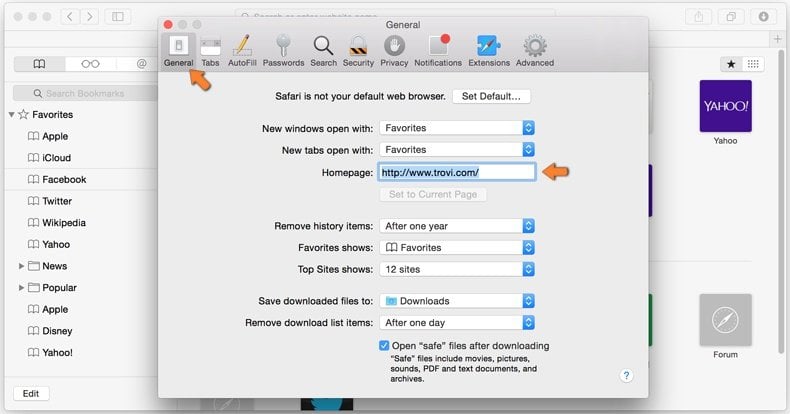
In the preferences window select General tab and make sure that your homepage is set to a preferred URL, if its altered by a browser hijacker - change it.
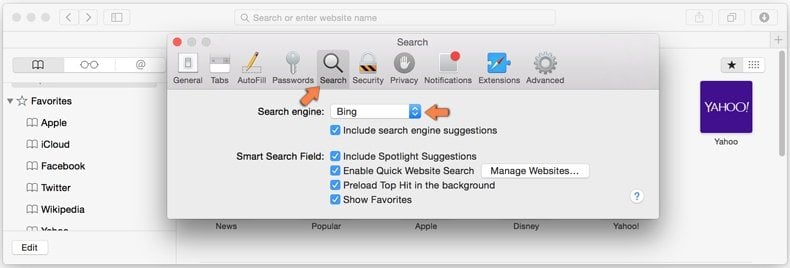
In the preferences window select Search tab and make sure that your preferred Internet search engine is selected.
Optional method:
Make sure your Safari browser is active and click on Safari menu. From the drop down menu select Clear History and Website Data...
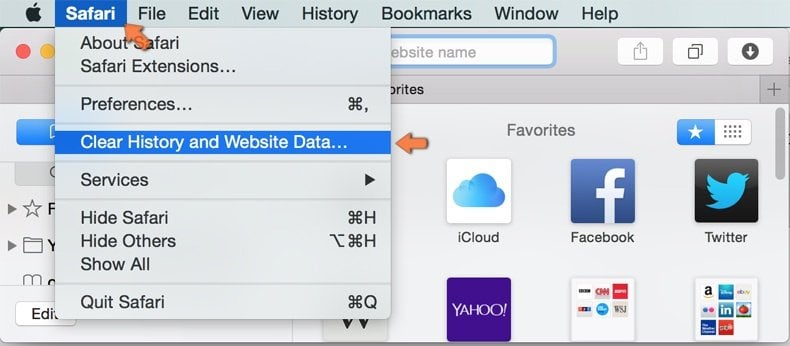
In the opened window select all history and click the Clear History button.
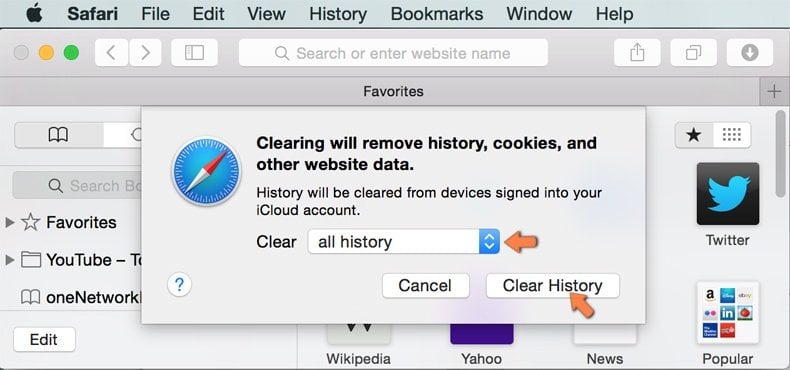
If you continue having problems with browser redirects and unwanted advertisements - Reset Safari.
 Remove malicious extensions from Microsoft Edge:
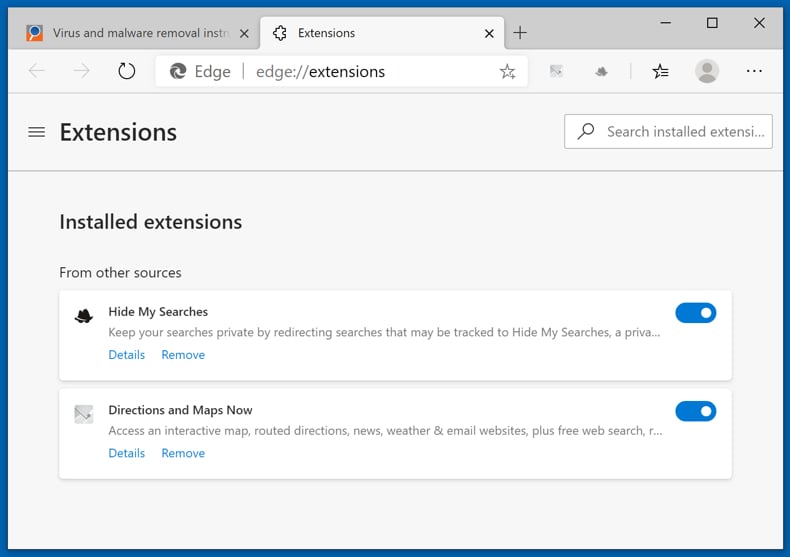
Click the Edge menu icon  (at the top right corner of Microsoft Edge), select "Extensions". Locate any recently-installed suspicious browser add-ons, and remove them.
Change your homepage and new tab settings:
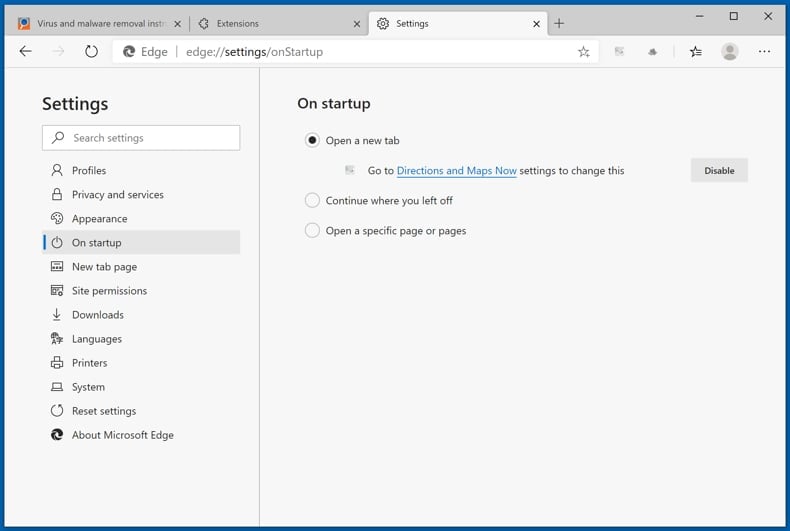
Click the Edge menu icon (at the top right corner of Microsoft Edge), select "Settings". In the "On startup" section look for the name of the browser hijacker and click "Disable".
Change your default Internet search engine:
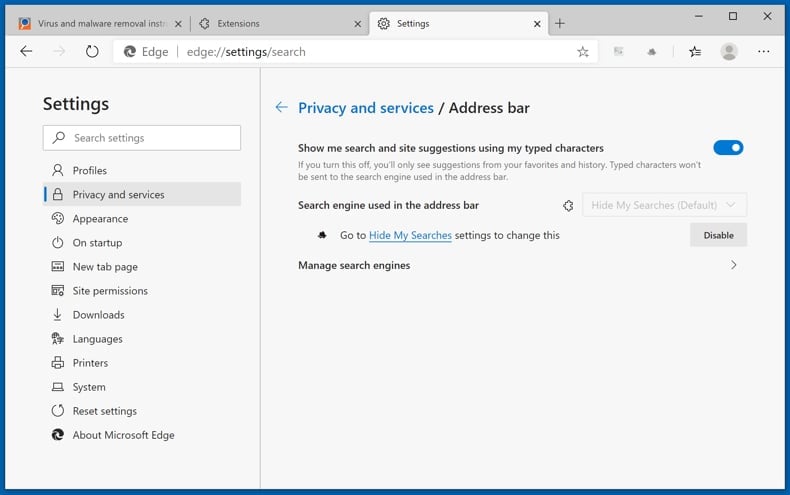
To change your default search engine in Microsoft Edge: Click the Edge menu icon (at the top right corner of Microsoft Edge), select "Privacy and services", scroll to bottom of the page and select "Address bar". In the "Search engines used in address bar" section look for the name of the unwanted Internet search engine, when located click the "Disable" button near it. Alternatively you can click on "Manage search engines", in the opened menu look for unwanted Internet search engine. Click on the puzzle icon  near it and select "Disable".
Optional method:
If you continue to have problems with removal of the astridresearch.com browser hijacker, reset your Microsoft Edge browser settings. Click the Edge menu icon (at the top right corner of Microsoft Edge) and select Settings.
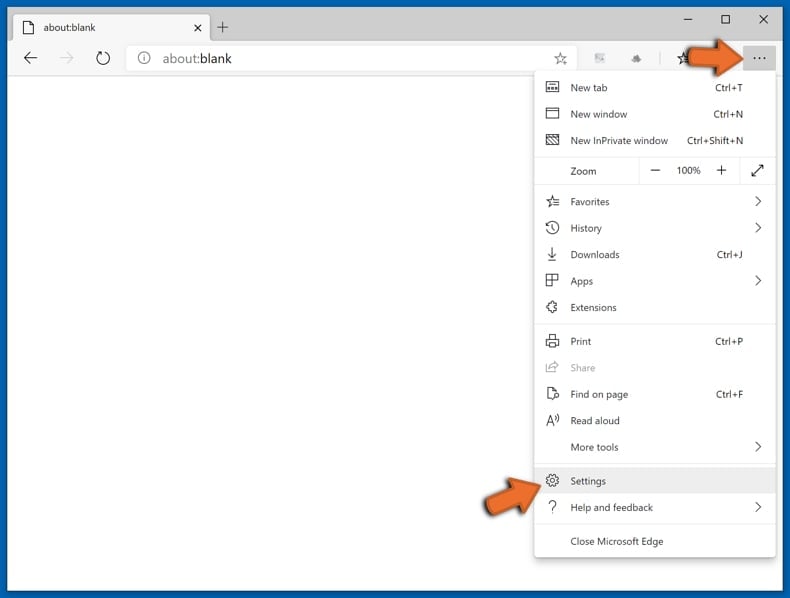
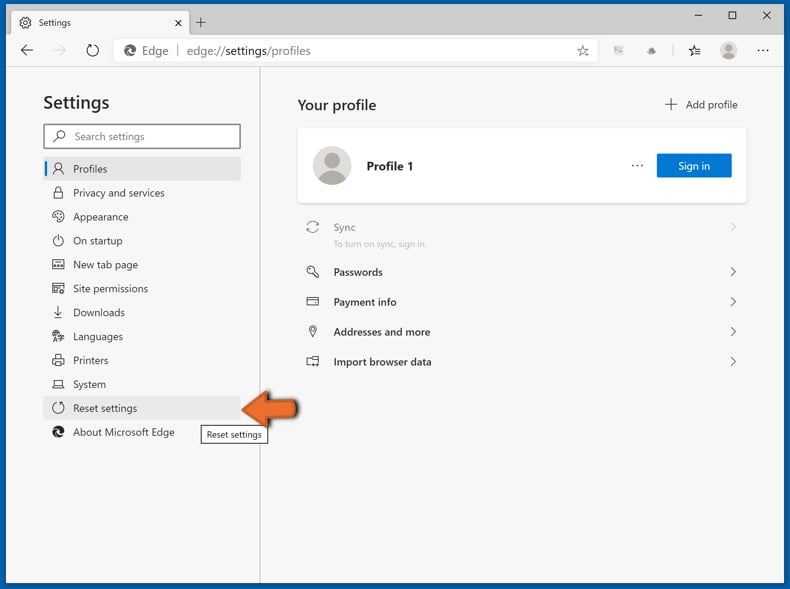
In the opened settings menu select Reset settings.
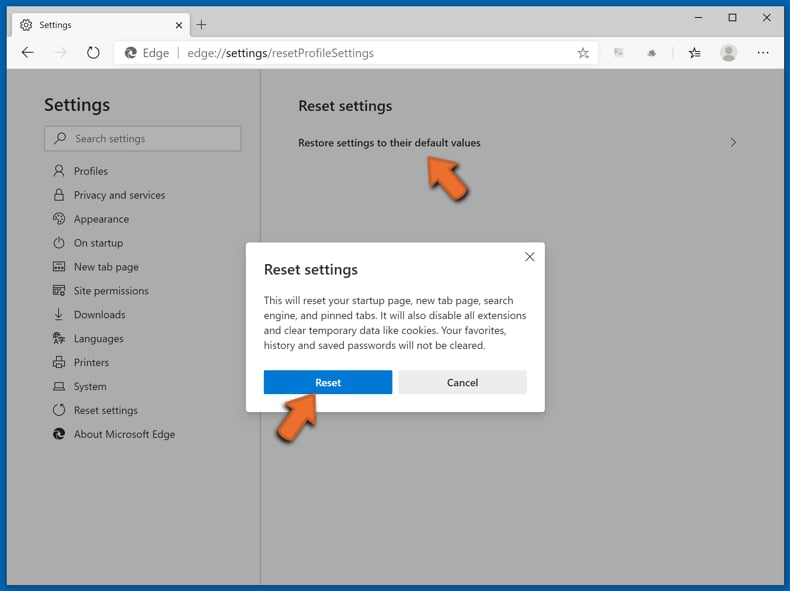
Select Restore settings to their default values. In the opened window, confirm that you wish to reset Microsoft Edge settings to default by clicking the Reset button.
- If this did not help, follow these alternative instructions explaining how to reset the Microsoft Edge browser.
Summary:
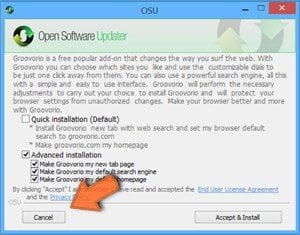 A browser hijacker is a type of adware infection that modifies Internet browser settings by assigning the homepage and default Internet search engine settings to some other (unwanted) website URL. Commonly, this type of adware infiltrates operating systems through free software downloads. If your download is managed by a download client, ensure that you decline offers to install advertised toolbars or applications that seek to change your homepage and default Internet search engine settings.
Post a comment:
If you have additional information on astridresearch.com browser hijacker or it's removal please share your knowledge in the comments section below.
Frequently Asked Questions (FAQ)
What is the purpose of forcing users to visit websites like astridresearch.com?
Forced visits exist to make money. Every user pushed onto astridresearch.com adds to its traffic, and that traffic is monetized through advertising, affiliate arrangements, and paid redirects to partner websites.
Is visiting astridresearch.com a threat to my privacy?
To an extent, yes. Fake search engines of this type are usually able to record what visitors search for and where they go afterwards, and the gathered data can be sold on.
The extension that placed the page in the browser is the bigger problem, since it can watch browsing activity across every site the user opens.
How did a browser hijacker infiltrate my computer?
Browser-hijacking software mostly arrives through bundled installation setups, deceptive promotional webpages, online scams, freeware and free file-hosting sites, Peer-to-Peer networks, spam browser notifications, and intrusive advertisements.
Will Combo Cleaner help me remove a browser hijacker?
Yes, Combo Cleaner can scan the computer and eliminate installed browser-hijacking applications. Manual removal is not always ideal, particularly when several hijackers are present at once, because removing one can allow another to reinstall it.
Removal-related settings may also be inaccessible while this software is installed, so it is best to get rid of every hijacker thoroughly and in one go.
Share:
 Facebook
 X.com
X.com
 LinkedIn
 Copy Link

Tomas Meskauskas
Expert security researcher, professional malware analyst
I am passionate about computer security and technology. I have an experience of over 10 years working in various companies related to computer technical issue solving and Internet security. I have been working as an author and editor for pcrisk.com since 2010. Follow me on Twitter and LinkedIn to stay informed about the latest online security threats.
PCrisk security portal is brought by a company RCS LT.
Joined forces of security researchers help educate computer users about the latest online security threats. More information about the company RCS LT.
Our malware removal guides are free. However, if you want to support us you can send us a donation.
DonatePCrisk security portal is brought by a company RCS LT.
Joined forces of security researchers help educate computer users about the latest online security threats. More information about the company RCS LT.
Our malware removal guides are free. However, if you want to support us you can send us a donation.
Donate
▼ Show Discussion