

Get free scan and check if your device is infected.
Remove it nowTo use full-featured product, you have to purchase a license for Combo Cleaner. Seven days free trial available. Combo Cleaner is owned and operated by RCS LT, the parent company of PCRisk.com.
What kind of malware is DenoRAT?
DenoRAT is a Remote Access Trojan (RAT) that also steals information from infected computers. It is written in Deno JavaScript and consists of over 10,000 lines of code, much of it obfuscated to resist analysis.
According to research published by eSentire, DenoRAT is part of the toolkit used by a threat actor known as TAG-150, active since at least March 2025. The malware is delivered through a ClickFix social-engineering lure that tricks victims into running a malicious command on their own machines.
Once running, DenoRAT gives attackers live remote control over the infected system. It also steals saved browser passwords, cookies, credit card data, cryptocurrency wallet contents, and account tokens for applications like Telegram and Discord.
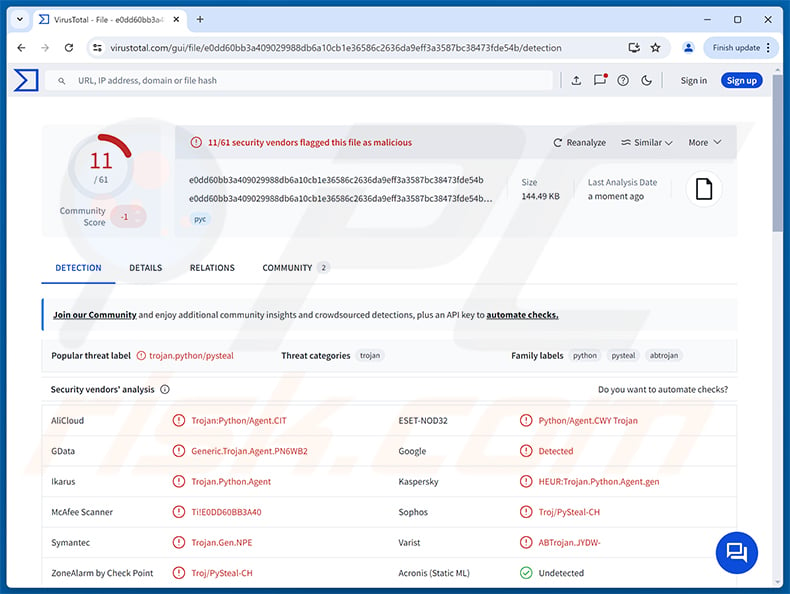
DenoRAT malware overview
DenoRAT runs on the Deno JavaScript runtime, a platform not typically found on everyday computers. Its code is heavily obfuscated using Obfuscator.io, making it harder to analyze with standard security tools. The malware communicates with the attacker's server over HTTP polling and WebSocket connections.
When connecting, DenoRAT registers the infected device using a hard-coded JWT token embedded in the malware code. The token contains campaign-specific identifiers, such as a build ID and build note, which allow TAG-150 to track individual deployments and victims separately.
DenoRAT's capabilities
DenoRAT gives attackers an extensive set of remote control tools. Operators can run shell commands through cmd.exe and PowerShell, stream a live view of the victim's desktop, and control the mouse, keyboard, and clipboard remotely. The malware can also capture screenshots on demand and manage files on the infected system.
On the information-stealing side, DenoRAT harvests credentials from Chromium and Firefox-based browsers, including saved passwords, cookies, and credit card numbers. It supports App-Bound Encryption bypass, which lets it access Chrome's locally stored credential database even when that protection is active.
The malware targets over 78 browser extensions across several categories. These include password managers such as Bitwarden, 1Password, LastPass, and Dashlane; two-factor authenticator apps such as Google Authenticator and Authy; and cryptocurrency wallet extensions including MetaMask, Phantom, Trust Wallet, and Exodus.
Session tokens for Telegram and Discord are also collected. The malware additionally gathers basic system information from the victim's machine, including the username, hostname, OS version, hardware specs, and administrator status.
Persistence and defense evasion
DenoRAT maintains access to infected systems through the Windows Registry. It creates a Run key entry under HKCU that uses conhost.exe to silently launch the Deno runtime on every login, keeping the malware active after reboots.
To avoid detection, DenoRAT checks for the presence of ESET security software before acting. If ESET is detected, it skips its DLL injection routine entirely. Without ESET present, it injects a DLL into a suspended Chromium browser process to bypass App-Bound Encryption and access stored credentials.
The malware also manipulates the Process Environment Block (PEB) to mislead security products analyzing the running process. JavaScript obfuscation via Obfuscator.io adds another layer of protection against automated analysis.
DinDoor loader and NightshadeC2
DenoRAT does not arrive alone. It is one stage in a multi-part attack chain attributed to TAG-150. The first component is DinDoor, a small Deno-based loader whose job is to fetch and execute the DenoRAT stager from the attacker's server.
In some campaigns, DenoRAT then delivers a further payload called NightshadeC2. This is a full-featured RAT and infostealer that is executed entirely in memory using a Python-based reflective PE loader. The payload is decrypted using AES-256-CBC before execution, leaving fewer artifacts on disk.
| Name | DenoRAT remote access trojan |
| Threat Type | Remote Access Trojan (RAT), Information Stealer, Trojan |
| Detection Names | Combo Cleaner (Trojan.Generic.40336965), ESET-NOD32 (Python/Agent.CWY Trojan), Kaspersky (HEUR:Trojan.Python.Agent.gen), Sophos (Troj/PySteal-CH), Symantec (Trojan.Gen.NPE), Full List (VirusTotal) |
| Symptoms | Remote Access Trojans are designed to stealthily infiltrate the victim's computer and remain silent, and thus no particular symptoms are clearly visible on an infected machine. |
| Distribution methods | ClickFix, deceptive websites, social engineering. |
| Damage | Stolen passwords and banking information, identity theft, the victim's computer added to a botnet, additional infections, monetary loss, account hijacking. |
| Malware Removal (Windows) |
To eliminate possible malware infections, scan your computer with legitimate antivirus software. Our security researchers recommend using Combo Cleaner. Download Combo CleanerTo use full-featured product, you have to purchase a license for Combo Cleaner. 7 days free trial available. Combo Cleaner is owned and operated by RCS LT, the parent company of PCRisk.com. |
Conclusion
DenoRAT gives attackers both remote control over infected systems and a broad range of data-theft capabilities. Its multi-stage delivery chain, active evasion of security software, and registry persistence make it a particularly dangerous threat.
Victims risk losing saved browser passwords, cryptocurrency holdings, account tokens, and credit card details. Combined with the ability to deploy additional payloads such as NightshadeC2, DenoRAT should be removed from any infected system immediately.
More examples of RATs are RemotePE, LabubaRAT, and MODBEACON.
How did DenoRAT infiltrate my computer?
According to eSentire, TAG-150 delivers DenoRAT using ClickFix social engineering. A victim encounters a page that claims they must verify themselves or fix an error, and is instructed to open the Windows Run dialog and paste a command. Executing that command silently downloads and runs an MSI installer.
The MSI installs the Deno runtime and deploys DinDoor. A PowerShell script acts as an intermediate stage in this chain. TAG-150 tracks victims across campaigns by embedding build-specific identifiers into each deployment.
More broadly, threats of this type also reach victims through phishing emails carrying malicious attachments, fake software download sites, pirated content, and malvertising. Common file formats in such attacks include archives (ZIP, RAR), executable files, and documents such as PDFs and Office files.
How to avoid installation of malware?
Be cautious with unexpected emails and messages, especially those urging you to open an attachment, click a link, or paste a command. Avoid running commands from websites into the Windows Run dialog, PowerShell, or any terminal - this is the exact delivery method used by DenoRAT. Only download software from official sources and avoid pirated content, key generators, and cracks.
Keep your operating system and all installed applications up to date, as updates often patch vulnerabilities attackers rely on. Use reputable security software and run regular scans. If you believe that your computer is already infected, we recommend running a scan with Combo Cleaner Antivirus for Windows to automatically eliminate infiltrated malware.
Update May 27, 2026 - Threat actors distributing DenoRAT have been compromising YouTube channels and posting AI-generated videos that direct viewers to fake software repositories on GitHub and SourceForge. These repositories impersonate popular applications such as ChatGPT, Claude, AutoTune, and Kontakt, targeting content creators, gamers, and technically inclined users more likely to seek out unofficial software.
Researchers also noted that the malware's remote screen-viewing capability employs a peer-to-peer technique - it secretly launches a Microsoft Edge browser session on the victim's machine and uses the browser to stream live screen footage directly to attackers, making the malicious traffic considerably harder to detect. (source: malwarebytes.com).
How to remove malware manually?
Most trojan infections can be removed by running a full system scan with Combo Cleaner. The full manual procedure below is for cases where automatic removal failed, where you want to verify a scan caught everything, or where the threat has multiple persistence points.
Disconnect from the network
Unplug your Ethernet cable and turn off Wi-Fi. If you're on a laptop, the airplane-mode key works fastest.
Many trojans exfiltrate data - saved browser passwords, banking sessions, screenshots - and accept remote commands. Cutting the network stops both immediately. Keep it disconnected until Phase 4.
Boot into Safe Mode with Networking
Safe Mode loads a minimal set of drivers and stops most malware from auto-running. "With Networking" lets you download tools - re-enable Wi-Fi only after you've booted in.
Open . Click Restart now next to Advanced startup.
Your computer will restart into the "Choose an option" menu. Click . After the second reboot, press 5 or F5.
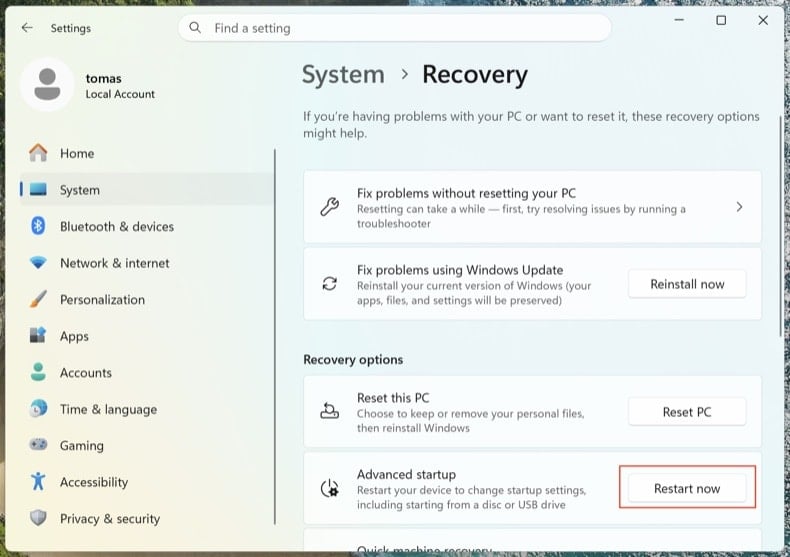
Click the Windows logo, hold Shift, click the Power icon and choose Restart. In the Choose an option screen, click . Press F5.
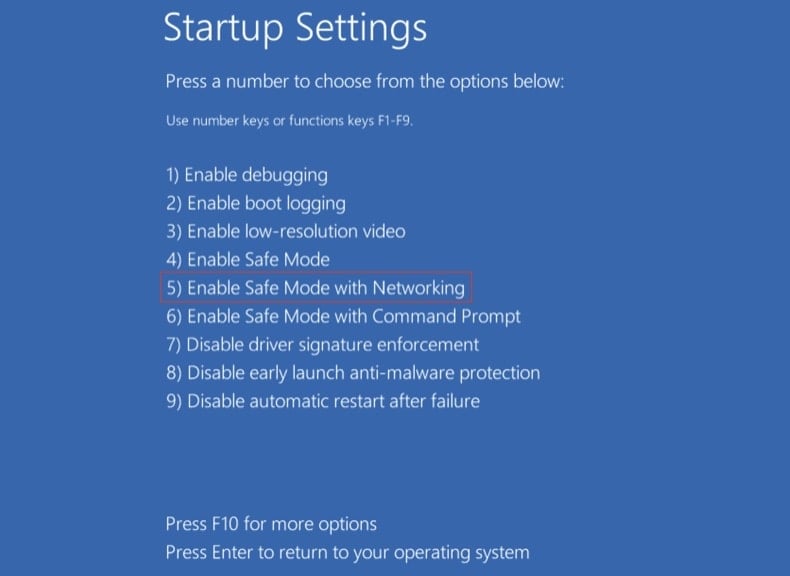
Windows 8
Go to the Start Screen, type Advanced, select Settings → Advanced startup options → Restart now → Troubleshoot → Advanced options → Startup settings → Restart → F5.
Note: Windows 8 reached end-of-life in January 2023 - running on it puts you at much higher risk of reinfection.
Windows 7
Click Start → Shut Down → Restart → OK. As the system boots, press F8 repeatedly until the Windows Advanced Options menu appears, then choose Safe Mode with Networking.
Note: Windows 7 reached end-of-life in January 2020 - running on it puts you at much higher risk of reinfection.
Inspect running processes with Process Explorer
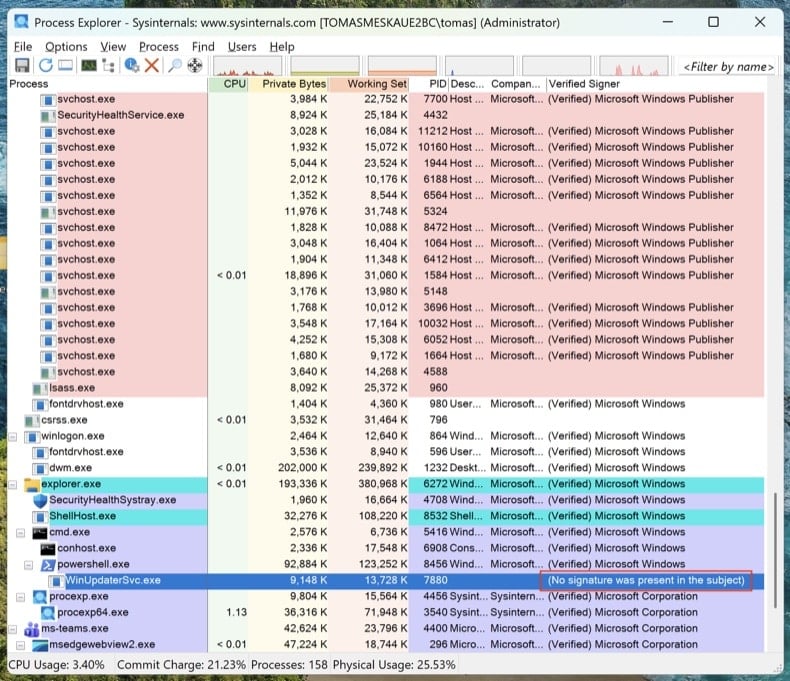
Download Process Explorer from Microsoft Sysinternals. Run it as Administrator. Click and .
Sort by "Verified Signer." Anything unsigned running from %AppData%, %LocalAppData%, %Temp%, or %ProgramData% is suspicious. Right-click → Properties to see the full image path. Right-click → "Search Online" to look up unfamiliar process names.
Task Manager hides full file paths, doesn't show digital signatures, and groups processes in ways that make malware easy to miss. Process Explorer is the same tool Microsoft engineers use.
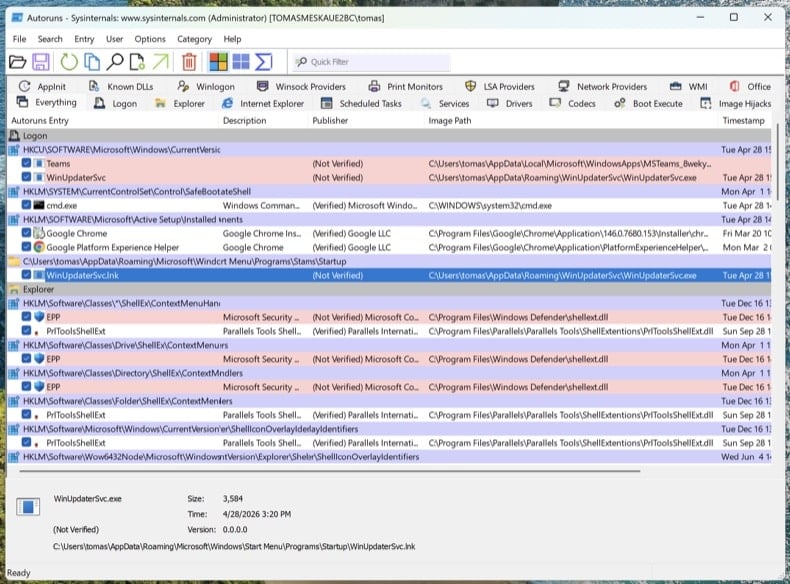
Map every persistence point with Autoruns
Download Autoruns. Right-click Autoruns.exe and choose Run as administrator - without elevation, Autoruns can't inspect protected registry hives.
In the menu, open and , then click Refresh.
Modern trojans don't just live in startup. Walk through these tabs and look for unsigned or unfamiliar entries:
- Logon - classic Run/RunOnce keys
- Scheduled Tasks - frequent hiding spot, especially tasks with PowerShell, MSHTA, or rundll32 actions
- Services - unsigned services in non-Microsoft folders
- WMI - Event Subscriptions are a stealthy persistence mechanism (MITRE T1546.003)
- Image Hijacks - Image File Execution Options "Debugger" abuse
- AppInit - DLLs loaded into every GUI process
- Browser plug-ins - unsigned add-ons across all installed browsers
Right-click any suspicious entry → "Jump to Image" to see the actual file. Right-click → "Search Online" opens VirusTotal for the file hash. Don't delete yet - just write down the file paths and entry names. We'll remove them after the scans.
Check the hosts file and DNS settings
Trojans often redirect bank, antivirus, and update domains to attacker-controlled servers by editing the hosts file or DNS settings.
Hosts file: Open Notepad as Administrator and open C:\Windows\System32\drivers\etc\hosts. Legitimate entries are commented with #. Any uncommented IP-to-domain mapping is suspicious - especially redirects for microsoft.com, windowsupdate, or your bank.
DNS settings: Open Command Prompt as Administrator and run ipconfig /all. Confirm your DNS servers point to your ISP, your router, or a known public resolver (Cloudflare 1.1.1.1, Google 8.8.8.8). Then open and verify both DNS and DNS over HTTPS (DoH) settings haven't been hijacked.
A clean PC with hijacked DNS is still a compromised PC. You'll think you're at chase.com and you'll be at the attacker's clone.
No single antivirus catches everything. The order below is intentional: offline scan first (catches rootkits before Windows fully loads), then on-demand scanners on the running system, then manual cleanup of anything they missed.
Run Microsoft Defender Offline
Reboot to normal Windows. Open . Select Microsoft Defender Antivirus (offline scan) and click Scan now. Your computer will restart into a stripped-down environment and scan before the full operating system loads.
Rootkits and bootkits hide from any scanner running on the same Windows session that's already infected. A pre-boot offline scan sees the disk before the malware can hide itself.
VB100 certified. Includes anti-trojan, registry/persistence scanning, anti-spyware in one pass. The 7-day free trial is available.
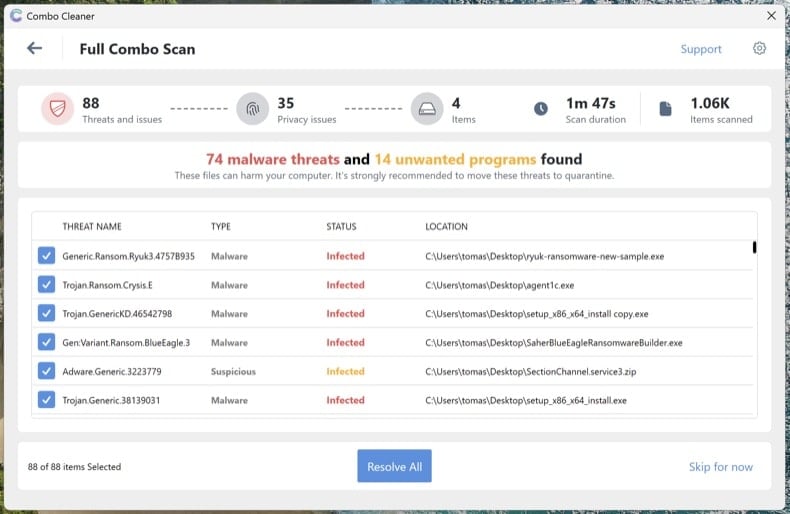
Download Combo CleanerRun Combo Cleaner full system scan
Install Combo Cleaner and run a full system scan (not the quick scan). Let it complete fully, review the detected threats, and apply the recommended actions. Combo Cleaner will quarantine known trojans and registry persistence.
Run Microsoft Safety Scanner as a second-opinion scan
Download Microsoft Safety Scanner (MSERT.exe), Microsoft's free on-demand tool. The binary expires every 10 days, which means every download has the latest signatures. Run a full scan after Combo Cleaner to catch anything one engine alone might miss.
Different scanning engines catch different threats. Running an additional Microsoft scan after Combo Cleaner is the single most underused verification step in malware removal.
Manually remove anything still listed in Autoruns
Reopen Autoruns. Anything you flagged in Step 4 that's still present hasn't been caught by the automated scans. For each remaining suspicious entry: right-click → Delete in Autoruns (this removes the persistence registration), then navigate to the file path and delete the actual file. Empty the Recycle Bin.
Some malware files reappear after deletion because something else on the system recreates them. If you delete a file and it returns within minutes, you have a remaining persistence point that Autoruns didn't show - usually a service or scheduled task running under SYSTEM. Re-run the scans from Steps 6-8 or proceed to a clean install (see end of guide).
Reset browsers and clear notification permissions
Trojans and adware frequently hijack browsers - change the default search engine, install rogue extensions, or grant themselves notification permissions to keep displaying scam pop-ups even after the malware is gone.
- Chrome: visit
chrome://settings/resetand click "Restore settings to their original defaults." Then visitchrome://settings/content/notificationsand remove any unfamiliar sites. - Edge: visit
edge://settings/reset. Then checkedge://settings/content/notifications. - Firefox: open
about:supportand click Refresh Firefox (Firefox uses "Refresh," not "Reset"). Then check Settings → Privacy & Security → Permissions → Notifications.
Review installed extensions in each browser and remove anything you don't recognize, especially extensions you didn't install yourself.
Re-enable Defender, Tamper Protection, and update everything
Many trojans disable security software. Open and confirm Real-time protection, Cloud-delivered protection, and Tamper Protection are all turned on. Tamper Protection prevents malware from disabling Defender silently.
Then run Windows Update () and update your browsers and applications. The infection vector that let the trojan in originally usually involves outdated software.
Change passwords from a clean device
If the trojan was an info-stealer (Lumma, RedLine, Vidar, and similar are extremely common), assume every password saved in your browser is compromised. Change them from a different, known-clean device - your phone is fine if it's not infected.
Recommended order:
- Primary email first - it's the recovery hub for everything else
- Banking and financial accounts
- Password manager master password (if you use one)
- Social media, shopping, and remaining accounts
Where available, enable phishing-resistant multi-factor authentication (passkeys / FIDO2 hardware keys / authenticator apps) - SMS-based MFA is bypassable by sophisticated attackers.
Verify the clean and monitor for 7 days
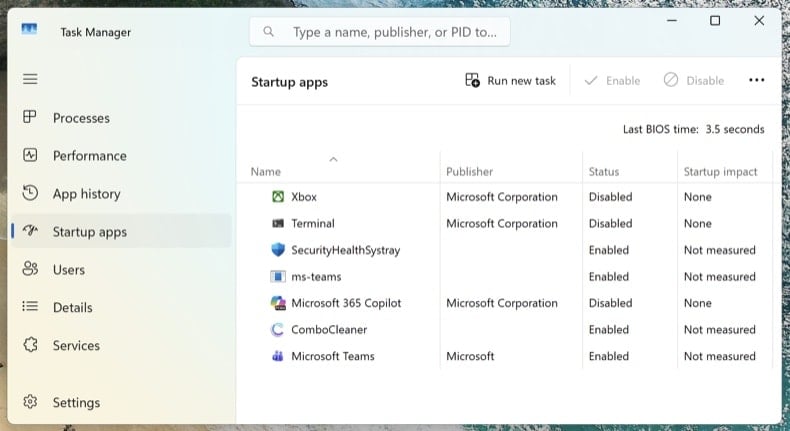
Reconnect to the network and run one final full scan with Combo Cleaner. Open Task Manager (Ctrl + Shift + Esc) and switch to the Startup apps tab - confirm nothing suspicious has reappeared.
Over the next 7 days, watch for symptom recurrence: unexpected high CPU usage, unknown processes returning, browser redirects, or pop-ups. If anything returns, you missed a persistence point and the procedure needs to be repeated - or you may have a deeper compromise that requires a clean install.
When to clean install Windows instead
Manual removal isn't always the right answer. Reinstalling Windows from scratch is the only way to be 100% certain when:
- The malware reappears after every removal attempt
- A bootkit or UEFI rootkit was detected (this class of threat sits below the operating system and survives a normal Windows reinstall)
- A confirmed credential-theft trojan ran with administrator privileges (Lumma, RedLine, Vidar) - the system likely has multiple unknown payloads
- The PC is used for online banking, business email, or anything where partial doubt isn't acceptable
A clean install is a 30-60 minute process: Windows 11 reinstall via . Back up documents to external storage first, scan the backup with Combo Cleaner before restoring it, and reinstall applications fresh - never restore them from a backup of the infected system.
Important: Manual removal requires advanced computer skills. If you're not confident identifying system files from malicious files, run an automated scan with Combo Cleaner and Windows Defender and stop there - that path catches the vast majority of consumer trojans without the risk of breaking Windows by deleting the wrong file.
Frequently Asked Questions (FAQ)
My computer is infected with DenoRAT malware, should I format my storage device to get rid of it?
Formatting will remove DenoRAT but will also erase all files on the drive. Running a reputable security tool such as Combo Cleaner is a safer first step that does not put your data at risk.
What are the biggest issues that DenoRAT malware can cause?
DenoRAT can steal saved browser passwords, cookies, credit card data, cryptocurrency wallet contents, and session tokens for Telegram and Discord. Its remote control features can lead to identity theft, account takeover, and financial loss. Additional payloads such as NightshadeC2 can also be deployed to the infected system.
What is the purpose of DenoRAT malware?
The purpose of DenoRAT is to give the TAG-150 threat actor remote control over infected machines and to steal a wide range of sensitive data. It also acts as a staging platform for additional payloads, including the NightshadeC2 infostealer and RAT.
How did DenoRAT malware infiltrate my computer?
DenoRAT is distributed using ClickFix social engineering, where victims are tricked into pasting a command into the Windows Run dialog. This silently downloads and runs an MSI installer that sets up the Deno runtime and deploys the DinDoor loader, which then installs DenoRAT.
Will Combo Cleaner protect me from malware?
Yes. Combo Cleaner can detect and remove most known malware, including threats like DenoRAT. Because this malware uses a multi-stage delivery chain, a full system scan is recommended to make sure all components are removed.
Share:
 Facebook
 X.com
X.com
 LinkedIn
 Copy Link

Tomas Meskauskas
Expert security researcher, professional malware analyst
I am passionate about computer security and technology. I have an experience of over 10 years working in various companies related to computer technical issue solving and Internet security. I have been working as an author and editor for pcrisk.com since 2010. Follow me on Twitter and LinkedIn to stay informed about the latest online security threats.
PCrisk security portal is brought by a company RCS LT.
Joined forces of security researchers help educate computer users about the latest online security threats. More information about the company RCS LT.
Our malware removal guides are free. However, if you want to support us you can send us a donation.
DonatePCrisk security portal is brought by a company RCS LT.
Joined forces of security researchers help educate computer users about the latest online security threats. More information about the company RCS LT.
Our malware removal guides are free. However, if you want to support us you can send us a donation.
Donate
▼ Show Discussion