

Get free scan and check if your device is infected.
Remove it nowTo use full-featured product, you have to purchase a license for Combo Cleaner. Seven days free trial available. Combo Cleaner is owned and operated by RCS LT, the parent company of PCRisk.com.
What kind of malware is LLHN Stealer?
LLHN Stealer is an information stealer - a type of malicious program designed to silently harvest sensitive data from infected Windows computers. It targets saved browser credentials, session cookies, platform tokens, cryptocurrency wallet data, and more, before sending everything to the attacker.
Like most stealers, LLHN Stealer runs quietly in the background without displaying any visible signs. Victims typically have no idea their accounts have been compromised until they lose access or notice unauthorized activity.
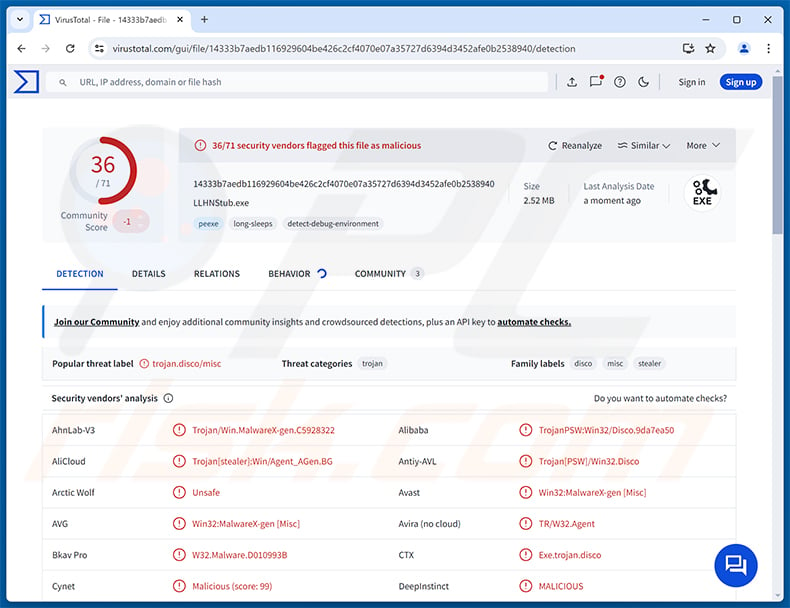
LLHN Stealer overview
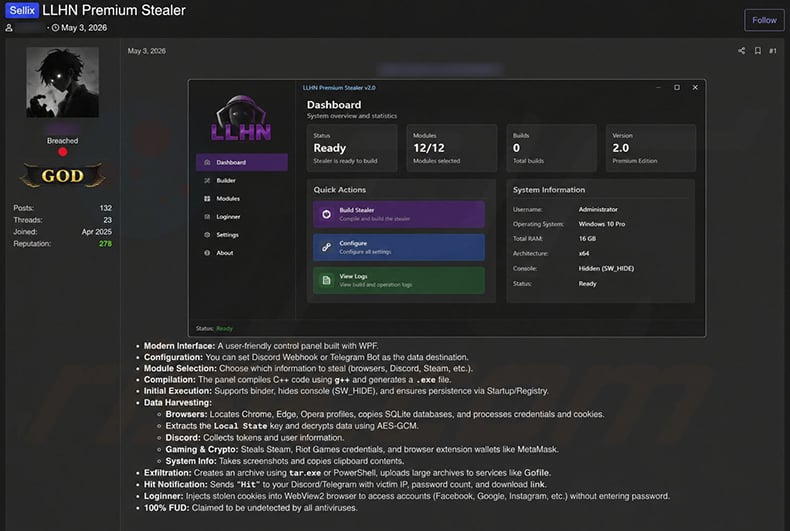
LLHN Stealer collects saved passwords and cookies from popular web browsers. These cookies let attackers access online accounts without needing to know the victim's password, bypassing standard login forms entirely.
Beyond browsers, the stealer targets session tokens associated with Discord, Steam, and Riot Games. Tokens of this kind allow an attacker to take over accounts immediately - without a password or two-factor authentication code.
LLHN Stealer also collects data from the MetaMask cryptocurrency wallet extension. Any stored wallet information can be used to drain funds or gain access to connected decentralized applications.
Additional capabilities
The stealer takes screenshots of the victim's screen during or shortly after infection. These captures can expose open documents, private conversations, browser sessions, or any other content visible at the time. Attackers receive a snapshot of what the victim was doing.
LLHN Stealer also monitors the clipboard. Anything copied - passwords, wallet addresses, private notes - is collected and forwarded. For cryptocurrency users, this poses a particular risk if a wallet address was recently copied.
Persistence and exfiltration
The malware installs a persistence mechanism that allows it to remain active after the computer is restarted. This ensures it keeps running and collecting data over time, rather than only during the initial infection window.
Collected data is sent to the attacker through multiple channels. LLHN Stealer can use Telegram bots, Discord webhooks, or external file-sharing services to exfiltrate stolen information. Relying on several channels makes it harder to cut off the flow of stolen data.
| Name | LLHN infostealer |
| Threat Type | Information Stealer, Trojan, Password-stealing virus |
| Detection Names | Avast (Win32:MalwareX-gen [Misc]), Combo Cleaner (Gen:Variant.Draftor.8755), ESET-NOD32 (Win32/PSW.Agent_AGen.BJ Trojan), Kaspersky (UDS:Trojan-PSW.Win32.Disco.gen), Microsoft (Trojan:Win32/DiscordTokenGrabber.DA!MTB), Full List Of Detections (VirusTotal) |
| Symptoms | Stealers are designed to stealthily infiltrate the victim's computer and remain silent, and thus no particular symptoms are clearly visible on an infected machine. |
| Distribution methods | Infected email attachments, malicious online advertisements, social engineering, software 'cracks'. |
| Damage | Stolen passwords and banking information, identity theft, the victim's computer added to a botnet, additional infections, monetary loss, account hijacking. |
| Malware Removal (Windows) |
To eliminate possible malware infections, scan your computer with legitimate antivirus software. Our security researchers recommend using Combo Cleaner. Download Combo CleanerTo use full-featured product, you have to purchase a license for Combo Cleaner. 7 days free trial available. Combo Cleaner is owned and operated by RCS LT, the parent company of PCRisk.com. |
Conclusion
LLHN Stealer is a capable threat that can compromise accounts across browsers, gaming platforms, and communication apps while also targeting cryptocurrency holdings. The combination of credential theft, token harvesting, and clipboard monitoring means a single infection can result in the loss of multiple accounts and funds.
Victims may not realize they have been compromised until accounts are hijacked or cryptocurrency is transferred out. LLHN Stealer should be removed from any infected system without delay. More examples of stealers are Vanta, WARDEN, and KuinaExtractor.
How did LLHN Stealer infiltrate my computer?
The specific distribution methods used to spread LLHN Stealer have not been fully documented. Threats of this type are commonly delivered through phishing emails carrying malicious file attachments or links to infected pages.
Other typical delivery methods include fake software download sites, malicious advertisements, pirated content, and software cracks or key generators shared through file-sharing networks. In some cases, attackers promote malicious tools via social media or video-sharing platforms with disguised download links.
Whatever the delivery method, the malware installs silently. Common file types used in distribution include archives (ZIP, RAR), executables (.exe, .msi), and document files. Once run, LLHN Stealer begins collecting and exfiltrating data right away.
How to avoid installation of malware?
The safest approach is to download software only from official websites or trusted developer sources. Avoid pirated content, game cracks, and key generators - these are among the most common vehicles for malware delivery. Be cautious of any unsolicited email with an attachment or link, even if it appears to come from a familiar sender.
Keep your operating system and installed applications up to date, and use a reputable security tool with real-time protection. Avoid clicking suspicious advertisements, pop-ups, or browser notifications from unfamiliar sites. If you believe that your computer is already infected, we recommend running a scan with Combo Cleaner Antivirus for Windows to automatically eliminate infiltrated malware.
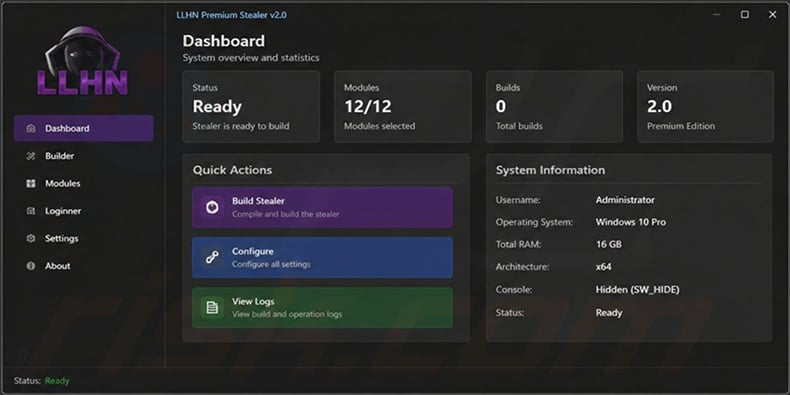
Screenshot of LLHN stealer's admin panel:
Screenshot of a post promoting LLHN stealer on hacker forum:
Instant automatic malware removal:
Manual threat removal might be a lengthy and complicated process that requires advanced IT skills. Combo Cleaner is a professional automatic malware removal tool that is recommended to get rid of malware. Download it by clicking the button below:
DOWNLOAD Combo CleanerBy downloading any software listed on this website you agree to our Privacy Policy and Terms of Use. To use full-featured product, you have to purchase a license for Combo Cleaner. 7 days free trial available. Combo Cleaner is owned and operated by RCS LT, the parent company of PCRisk.com.
Quick menu:
- What is LLHN Stealer?
- STEP 1. Manual removal of LLHN Stealer malware.
- STEP 2. Check if your computer is clean.
How to remove malware manually?
Manual malware removal is a complicated task - usually it is best to allow antivirus or anti-malware programs to do this automatically. To remove this malware we recommend using Combo Cleaner Antivirus for Windows.
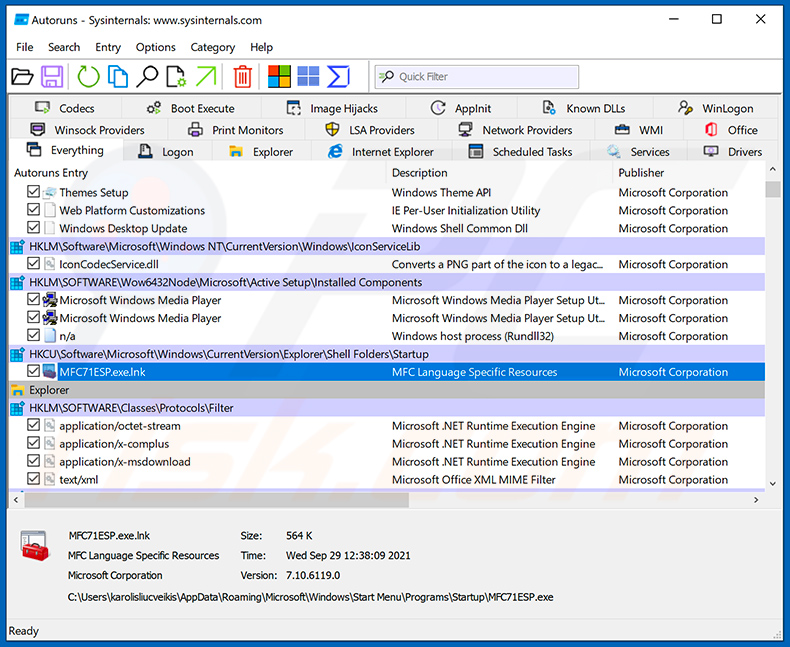
If you wish to remove malware manually, the first step is to identify the name of the malware that you are trying to remove. Here is an example of a suspicious program running on a user's computer:
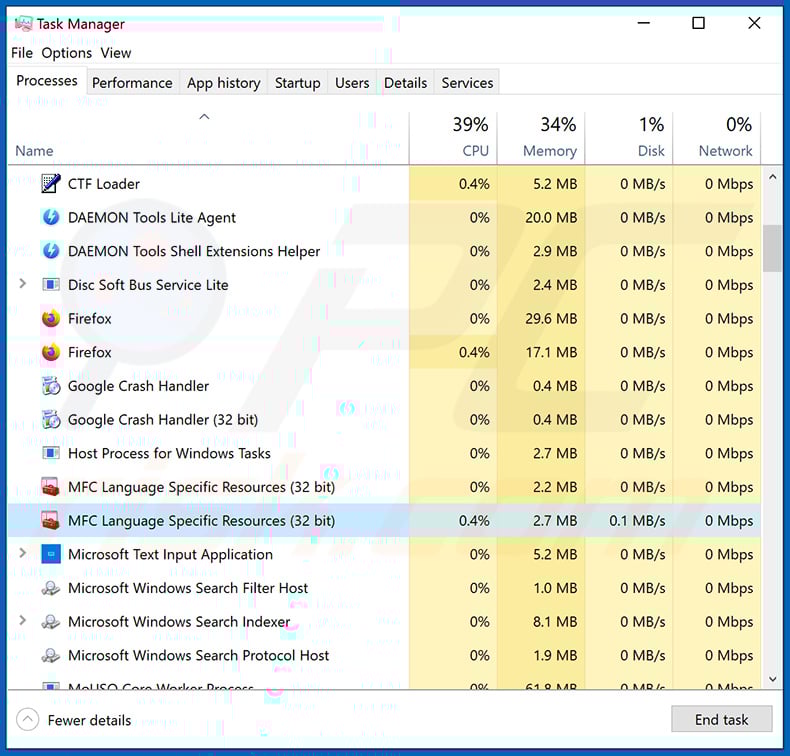
If you checked the list of programs running on your computer, for example, using task manager, and identified a program that looks suspicious, you should continue with these steps:
 Download a program called Autoruns. This program shows auto-start applications, Registry, and file system locations:
 Restart your computer into Safe Mode:
Windows XP and Windows 7 users: Start your computer in Safe Mode. Click Start, click Shut Down, click Restart, click OK. During your computer start process, press the F8 key on your keyboard multiple times until you see the Windows Advanced Option menu, and then select Safe Mode with Networking from the list.
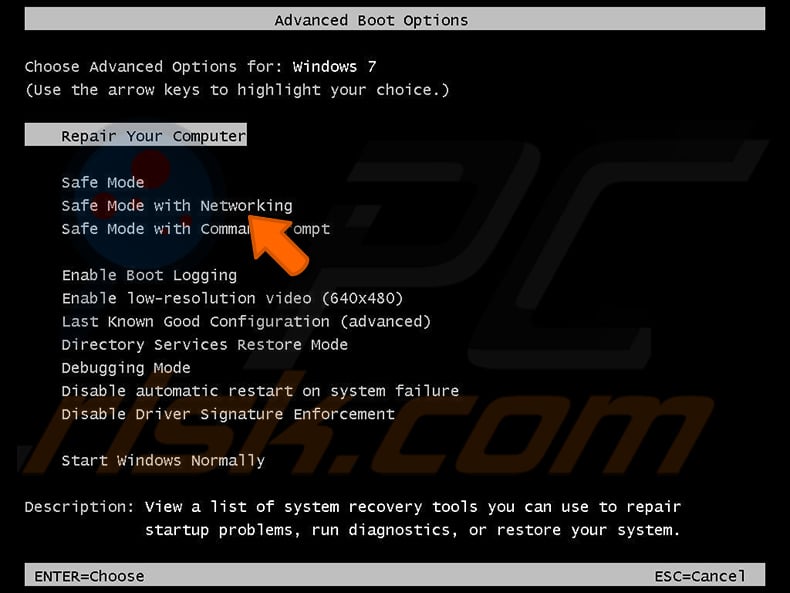
Video showing how to start Windows 7 in "Safe Mode with Networking":
Windows 8 users: Start Windows 8 is Safe Mode with Networking - Go to Windows 8 Start Screen, type Advanced, in the search results select Settings. Click Advanced startup options, in the opened "General PC Settings" window, select Advanced startup.
Click the "Restart now" button. Your computer will now restart into the "Advanced Startup options menu". Click the "Troubleshoot" button, and then click the "Advanced options" button. In the advanced option screen, click "Startup settings".
Click the "Restart" button. Your PC will restart into the Startup Settings screen. Press F5 to boot in Safe Mode with Networking.
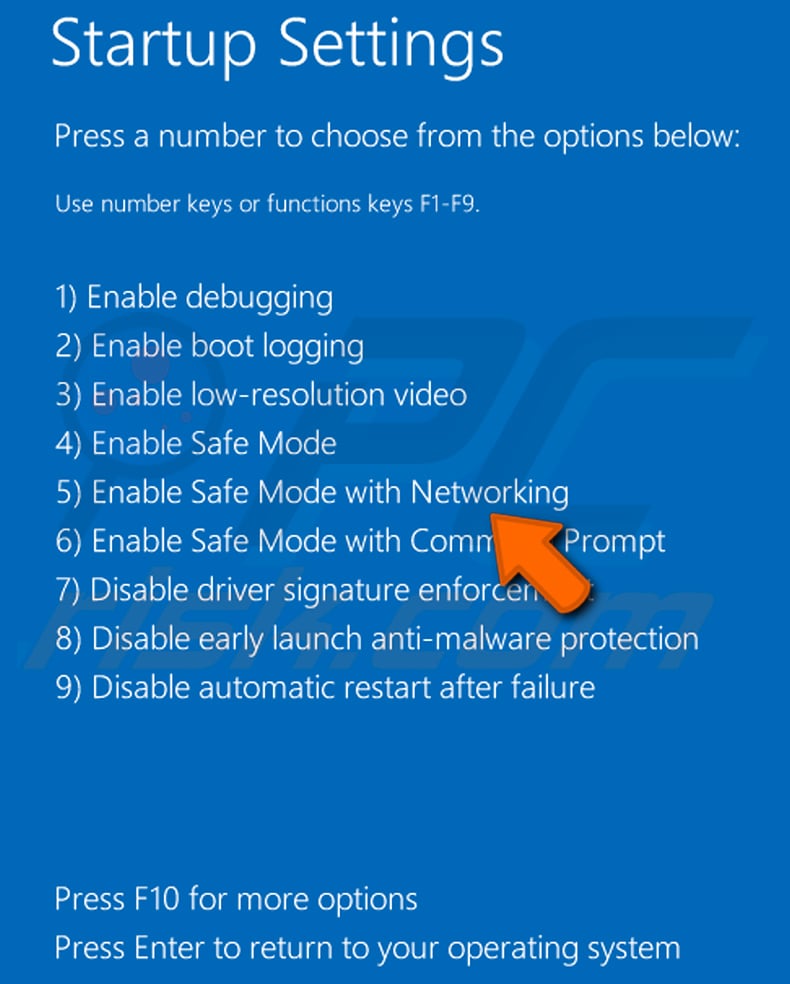
Video showing how to start Windows 8 in "Safe Mode with Networking":
Windows 10 users: Click the Windows logo and select the Power icon. In the opened menu click "Restart" while holding "Shift" button on your keyboard. In the "choose an option" window click on the "Troubleshoot", next select "Advanced options".
In the advanced options menu select "Startup Settings" and click on the "Restart" button. In the following window you should click the "F5" button on your keyboard. This will restart your operating system in safe mode with networking.
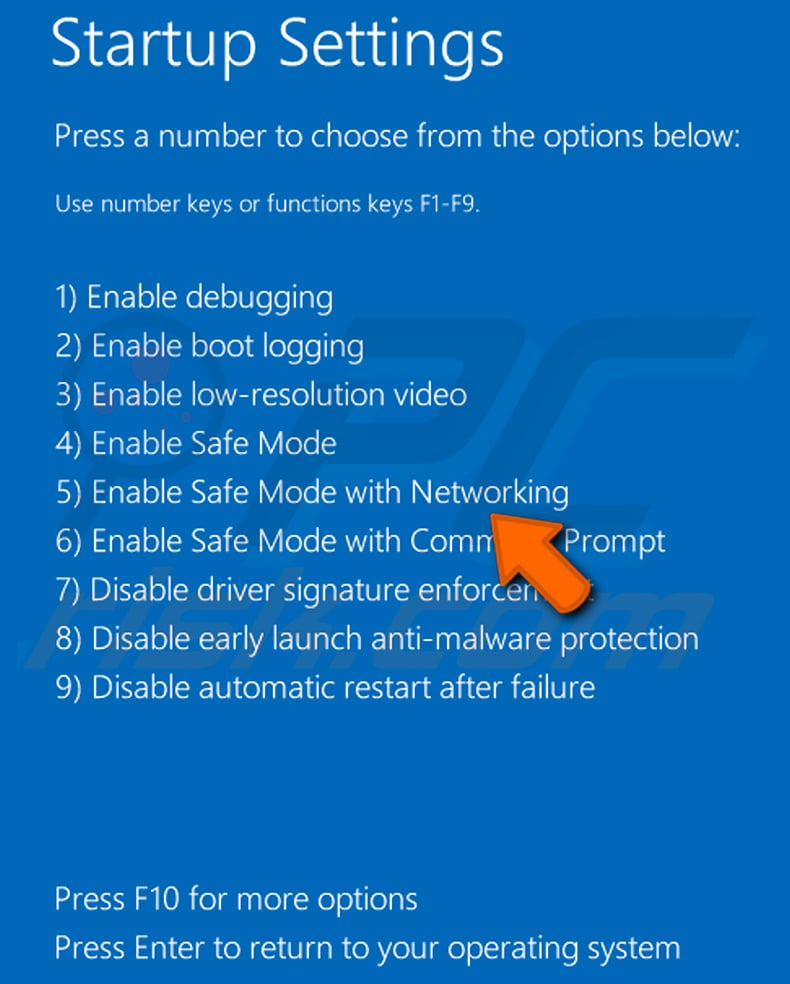
Video showing how to start Windows 10 in "Safe Mode with Networking":
 Extract the downloaded archive and run the Autoruns.exe file.
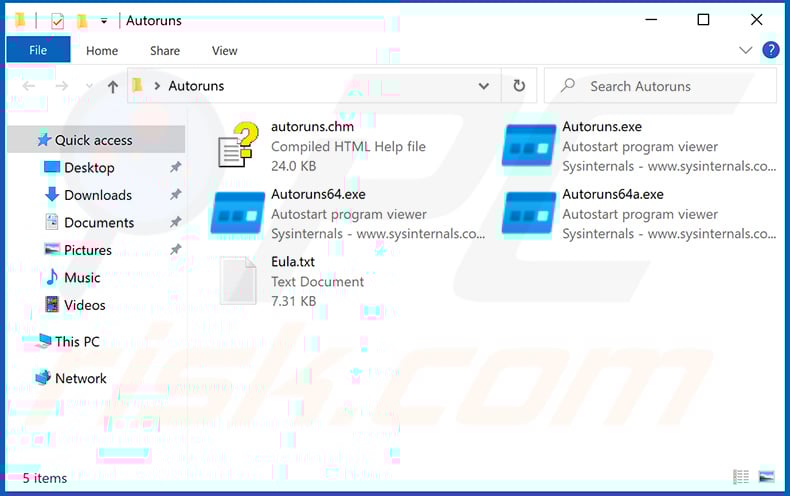
 In the Autoruns application, click "Options" at the top and uncheck "Hide Empty Locations" and "Hide Windows Entries" options. After this procedure, click the "Refresh" icon.
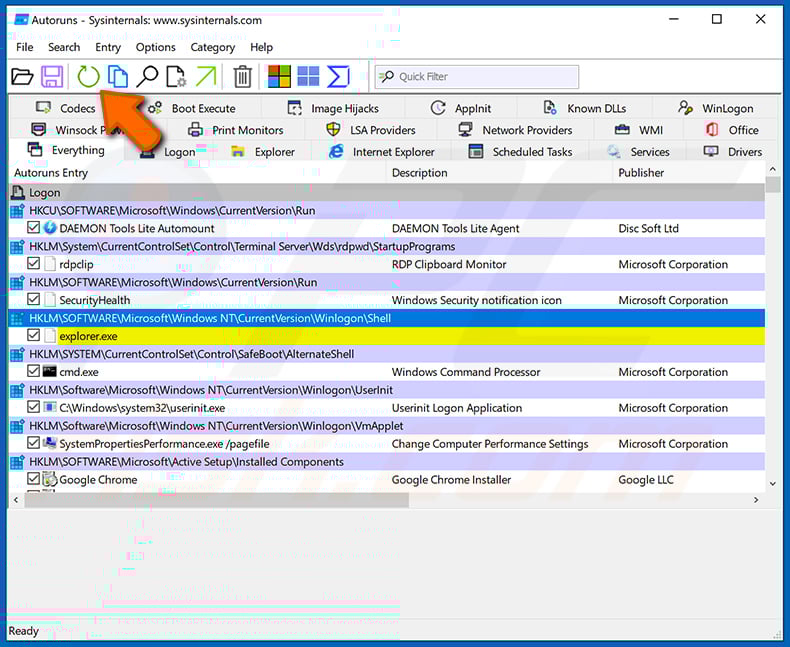
 Check the list provided by the Autoruns application and locate the malware file that you want to eliminate.
You should write down its full path and name. Note that some malware hides process names under legitimate Windows process names. At this stage, it is very important to avoid removing system files. After you locate the suspicious program you wish to remove, right click your mouse over its name and choose "Delete".
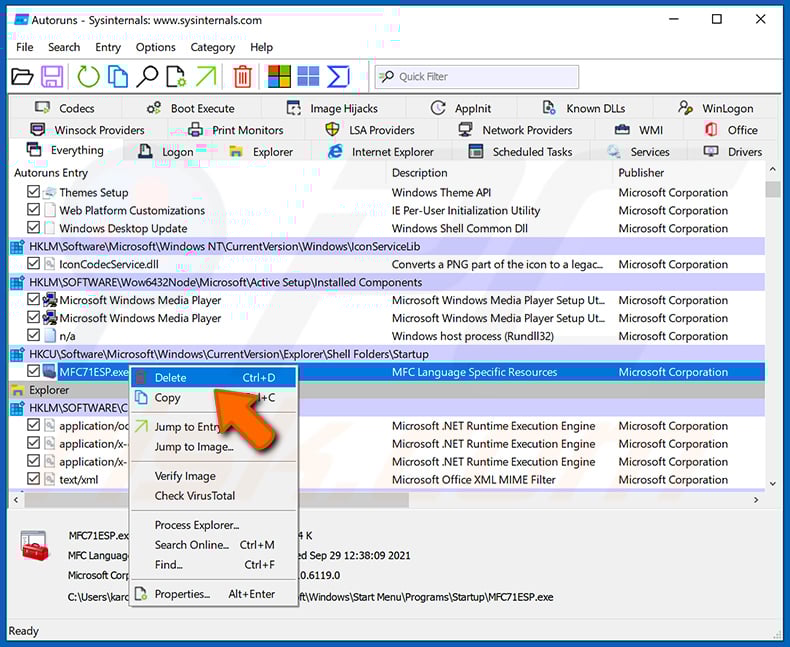
After removing the malware through the Autoruns application (this ensures that the malware will not run automatically on the next system startup), you should search for the malware name on your computer. Be sure to enable hidden files and folders before proceeding. If you find the filename of the malware, be sure to remove it.
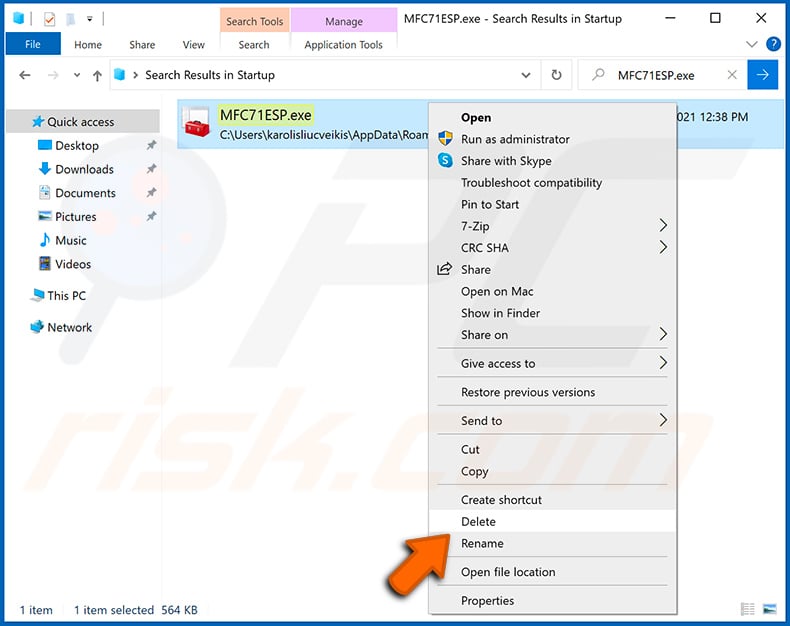
Reboot your computer in normal mode. Following these steps should remove any malware from your computer. Note that manual threat removal requires advanced computer skills. If you do not have these skills, leave malware removal to antivirus and anti-malware programs.
These steps might not work with advanced malware infections. As always it is best to prevent infection than try to remove malware later. To keep your computer safe, install the latest operating system updates and use antivirus software. To be sure your computer is free of malware infections, we recommend scanning it with Combo Cleaner Antivirus for Windows.
Frequently Asked Questions (FAQ)
My computer is infected with LLHN Stealer malware, should I format my storage device to get rid of it?
Formatting the storage device will remove LLHN Stealer, but it will also delete every file on the drive. Running a reputable security solution such as Combo Cleaner is normally the safer first step. Formatting is best reserved as a last resort if the infection persists after a thorough scan.
What are the biggest issues that LLHN Stealer malware can cause?
LLHN Stealer can lead to account hijacking across browsers, gaming platforms, and communication apps, as well as cryptocurrency theft. Victims may also face identity theft and unauthorized access to financial or personal accounts, with losses that can be difficult to reverse.
What is the purpose of LLHN Stealer malware?
LLHN Stealer is designed to harvest sensitive data from infected devices. This includes browser passwords and cookies, Discord, Steam, and Riot session tokens, MetaMask wallet data, clipboard contents, and screenshots. Together, these give attackers what they need to hijack accounts or drain cryptocurrency.
How did LLHN Stealer malware infiltrate my computer?
LLHN Stealer likely arrived through a common distribution method such as a phishing email, a fake software installer, pirated content, or a malicious advertisement. Stealers of this type are also spread via social media posts and video platforms promoting fake tools with malicious download links.
Will Combo Cleaner protect me from malware?
Yes. Combo Cleaner can detect and remove most known malware, including stealers like LLHN Stealer. Running a full system scan is recommended, as advanced threats can sometimes hide in locations that a quick scan might miss.
Share:
 Facebook
 X.com
X.com
 LinkedIn
 Copy Link

Tomas Meskauskas
Expert security researcher, professional malware analyst
I am passionate about computer security and technology. I have an experience of over 10 years working in various companies related to computer technical issue solving and Internet security. I have been working as an author and editor for pcrisk.com since 2010. Follow me on Twitter and LinkedIn to stay informed about the latest online security threats.
PCrisk security portal is brought by a company RCS LT.
Joined forces of security researchers help educate computer users about the latest online security threats. More information about the company RCS LT.
Our malware removal guides are free. However, if you want to support us you can send us a donation.
DonatePCrisk security portal is brought by a company RCS LT.
Joined forces of security researchers help educate computer users about the latest online security threats. More information about the company RCS LT.
Our malware removal guides are free. However, if you want to support us you can send us a donation.
Donate
▼ Show Discussion