

Get free scan and check if your device is infected.
Remove it nowTo use full-featured product, you have to purchase a license for Combo Cleaner. Seven days free trial available. Combo Cleaner is owned and operated by RCS LT, the parent company of PCRisk.com.
What kind of extension is PEEP RAT?
PEEP RAT is a malicious browser extension disguised as a bookmark manager called "Smart Bookmarks." According to research published by SOCRadar, it is a remote access trojan (RAT) designed to turn compromised browsers into host-level backdoors. We analyzed this extension and confirmed it steals sensitive data and gives attackers remote control over infected systems.
Any user who finds PEEP RAT installed in their browser should treat it as a serious security incident and remove it immediately.
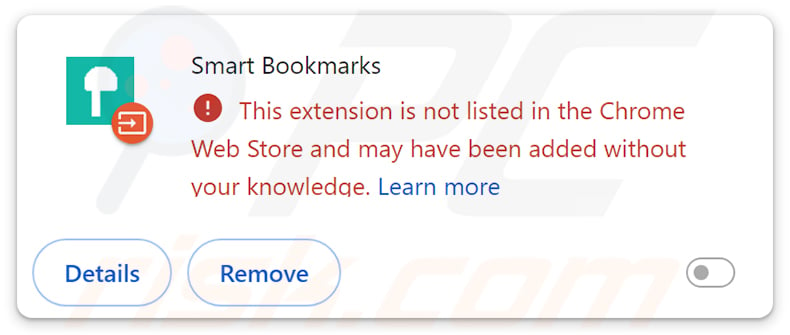
PEEP RAT in detail
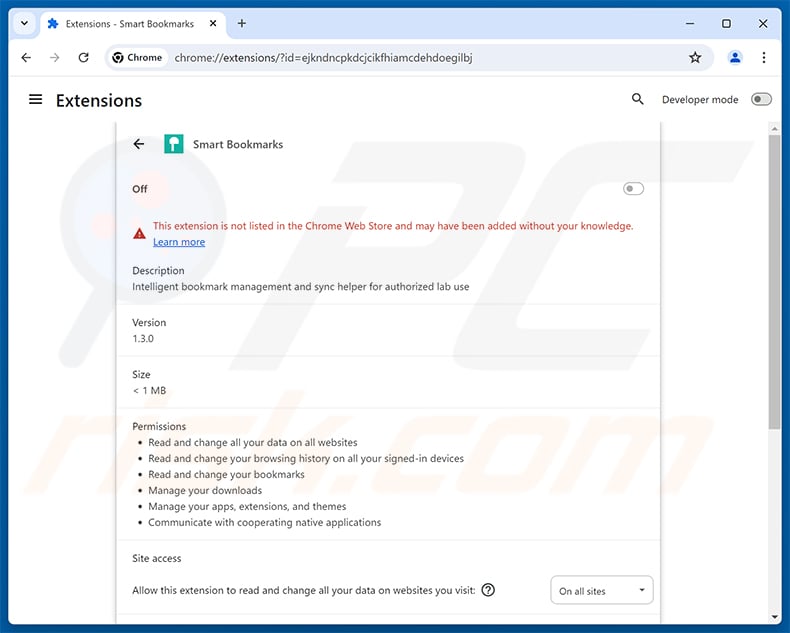
PEEP RAT operates under the cover name "Smart Bookmarks" (extension ID: ejkndncpkdcjcikfhiamcdehdoegilbj, version 1.3.0). Its listed description - "Intelligent bookmark management and sync helper for authorized lab use" - is wholly deceptive and bears no relation to the extension's actual purpose.
Once active, the extension contacts an attacker-controlled server every 30 seconds via unencrypted HTTP. It registers the victim's device on that server and continuously checks for new instructions. All collected data is automatically transmitted to the attackers without the user's knowledge or consent.
PEEP RAT harvests a broad range of sensitive browser data: session cookies (which can be used to hijack active logins), browsing history, open-tab details, clipboard contents, and browser screenshots. It can also read data entered into web page forms and inject its own JavaScript into the websites a user visits.
Beyond the browser, PEEP RAT uses a native messaging bridge - a companion executable, nm_host.exe, registered under the namespace com.peep.lab - that runs on the host system outside the browser. Through this component, attackers can execute shell commands, read and modify files, and enumerate running processes on the victim's computer.
Artifacts left by PEEP RAT on the system include files stored in the %LOCALAPPDATA%\PEEP folder and registry entries under NativeMessagingHosts\com.peep.lab. The extension also ships with a private signing key (extension.pem), which allows attackers to push silent updates to the malicious extension.
The extension's command infrastructure is hosted in Hong Kong: the IP address 206.237.30.232 (Cloudie Limited, AS55933) and the domain xfjcc.fun along with its subdomains. At the time SOCRadar disclosed their findings, active sessions were already recorded on the attackers' control panel.
Session cookie theft is a particularly serious risk. Valid session cookies let attackers access accounts as if they were the legitimate owner - bypassing both passwords and multi-factor authentication - until the session expires or the user signs out.
In summary, PEEP RAT is a high-risk threat that can expose active login sessions, steal personal and financial credentials, and give attackers full remote control over the infected system. Its presence indicates a serious compromise that warrants immediate action.
| Name | PEEP remote access trojan |
| Threat Type | Malware, Trojan, Remote Access Trojan (RAT), Malicious Browser Extension |
| Supposed Functionality | Bookmark management tool ("Smart Bookmarks") |
| Extension ID | ejkndncpkdcjcikfhiamcdehdoegilbj |
| Serving IP Address | 206.237.30.232 |
| Symptoms | Unauthorized browser extension present, session cookies and browsing data stolen, operating system commands executed remotely. |
| Distribution methods | Requires prior system compromise; deployed via PowerShell scripts, Chrome enterprise policies, or extension sideloading. |
| Damage | Session hijacking, data theft (cookies, credentials, personal information), remote command execution, loss of private information, identity theft. |
| Malware Removal (Windows) |
To eliminate possible malware infections, scan your computer with legitimate antivirus software. Our security researchers recommend using Combo Cleaner. Download Combo CleanerTo use full-featured product, you have to purchase a license for Combo Cleaner. 7 days free trial available. Combo Cleaner is owned and operated by RCS LT, the parent company of PCRisk.com. |
Conclusion
PEEP RAT is a sophisticated malicious extension that goes well beyond typical browser threats. Unlike ordinary adware or browser hijackers, it provides attackers with persistent remote access and wide-ranging data theft capabilities that extend from the browser to the host operating system.
If PEEP RAT is present on a device, it should be removed without delay and the system should be scanned for any additional malware that may have been installed as part of the same attack.
More examples of malicious browser extensions are Fake Google Docs Offline, ShadyPanda, and Fake DeepSeek AI Chat.
How did PEEP RAT install on my computer?
PEEP RAT cannot install itself without an attacker already having administrative or code-execution access to the target device. Its presence is evidence of a prior or ongoing compromise - not the result of simply visiting a website or clicking an ad.
Attackers deploy PEEP RAT using several methods. PowerShell scripts - including install_silent.ps1, patch_secure_prefs.ps1, and force_enable.ps1 - enable Chrome's Developer Mode and sideload the extension. The scripts also manipulate Chrome's internal Secure Preferences file to make the extension appear trusted.
Chrome enterprise policies such as ExtensionInstallForcelist can also be used to force-install the extension on compromised or managed devices, making it appear as an officially sanctioned tool. In addition, ScriptCache fallback mechanisms can cause the extension's compiled code to reload even after removal attempts.
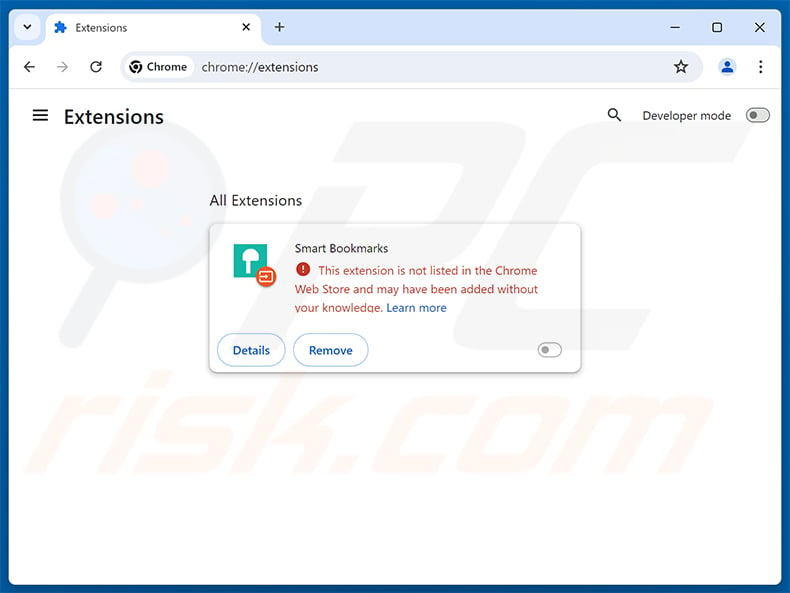
Because PEEP RAT is not available through the Chrome Web Store, Chrome flags it with a warning that the extension may have been added without the user's knowledge - exactly as seen in the extension's detail page.
How to avoid installation of unwanted applications?
Keep your operating system and all installed software up to date. Download software only from official sources and avoid unofficial app stores, third-party downloaders, and software shared through peer-to-peer networks.
Regularly inspect the extensions installed in your browser and remove any that you do not recognize or did not install yourself. Heed browser warnings about extensions that are not listed in the official Web Store.
Use a reputable security tool and keep it updated. For organizations, consider enforcing extension allow-lists via browser policy to prevent unauthorized extensions from being loaded.
If your computer is already infected with rogue applications, we recommend running a scan with Combo Cleaner Antivirus for Windows to automatically eliminate them.
PEEP RAT extension ("Smart Bookmarks") as seen on the Chrome Extensions page:
Instant automatic malware removal:
Manual threat removal might be a lengthy and complicated process that requires advanced IT skills. Combo Cleaner is a professional automatic malware removal tool that is recommended to get rid of malware. Download it by clicking the button below:
DOWNLOAD Combo CleanerBy downloading any software listed on this website you agree to our Privacy Policy and Terms of Use. To use full-featured product, you have to purchase a license for Combo Cleaner. 7 days free trial available. Combo Cleaner is owned and operated by RCS LT, the parent company of PCRisk.com.
Quick menu:
- What is PEEP RAT?
- STEP 1. Uninstall adware applications using Control Panel.
- STEP 2. Remove rogue plug-ins from Google Chrome.
- STEP 3. Remove adware-type extensions from Mozilla Firefox.
- STEP 4. Remove malicious extensions from Safari.
- STEP 5. Remove rogue plug-ins from Microsoft Edge.
Adware removal:
Windows 11 users:
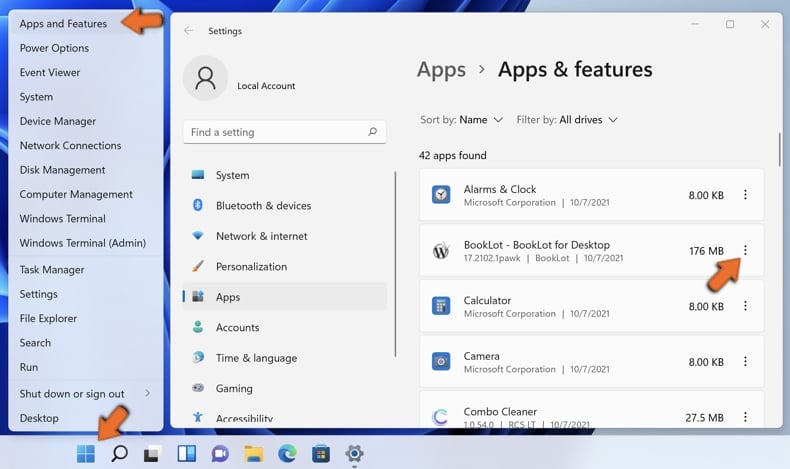
Right-click on the Start icon, select Apps and Features. In the opened window search for the application you want to uninstall, after locating it, click on the three vertical dots and select Uninstall.
Windows 10 users:
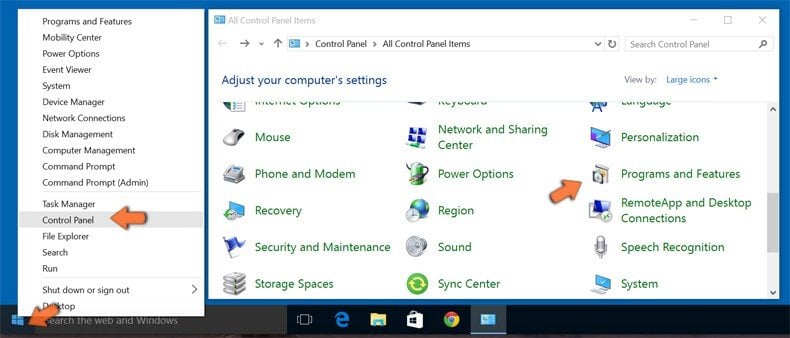
Right-click in the lower left corner of the screen, in the Quick Access Menu select Control Panel. In the opened window choose Programs and Features.
Windows 7 users:
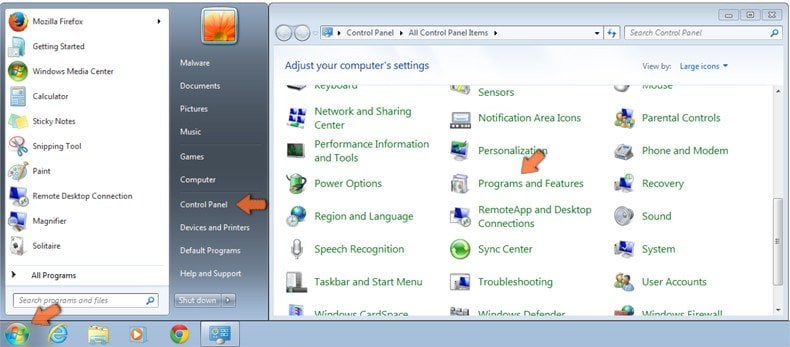
Click Start (Windows Logo at the bottom left corner of your desktop), choose Control Panel. Locate Programs and click Uninstall a program.
macOS (OSX) users:
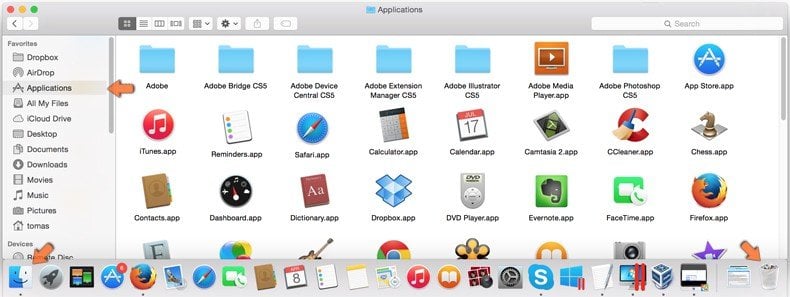
Click Finder, in the opened screen select Applications. Drag the app from the Applications folder to the Trash (located in your Dock), then right click the Trash icon and select Empty Trash.
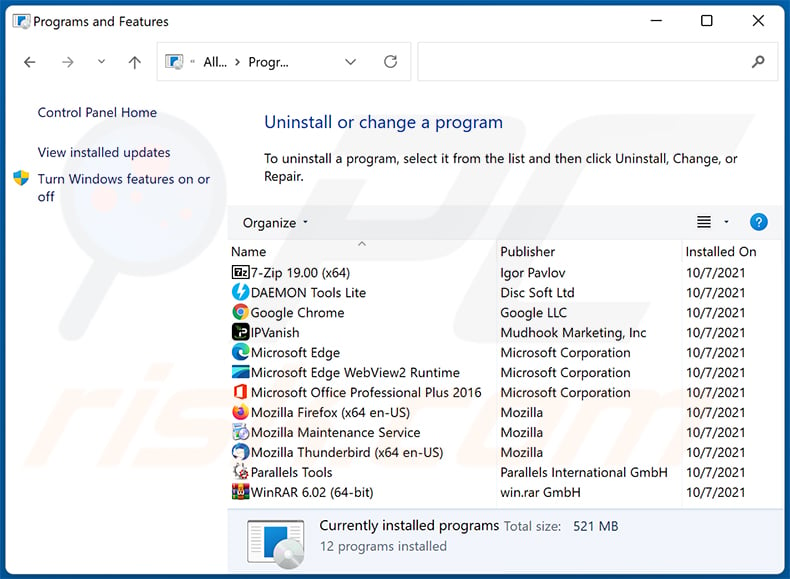
In the uninstall programs window, look for any unwanted applications, select these entries and click "Uninstall" or "Remove".
After uninstalling the unwanted application, scan your computer for any remaining unwanted components or possible malware infections. To scan your computer, use recommended malware removal software.
DOWNLOAD remover for malware infections
Combo Cleaner checks if your computer is infected with malware. To use full-featured product, you have to purchase a license for Combo Cleaner. 7 days free trial available. Combo Cleaner is owned and operated by RCS LT, the parent company of PCRisk.com.
Remove adware from Internet browsers:
Video showing how to remove unwanted browser add-ons:
 Remove malicious extensions from Google Chrome:
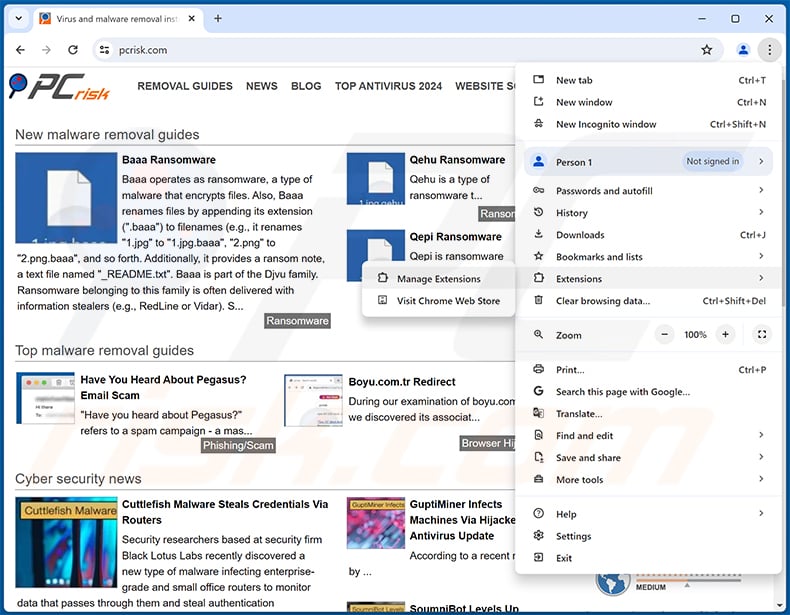
Click the Chrome menu icon  (at the top right corner of Google Chrome), select "Extensions" and click "Manage Extensions". Locate "Smart Bookmarks" (PEEP RAT) or other suspicious extensions, select these entries and click "Remove".
Optional method:
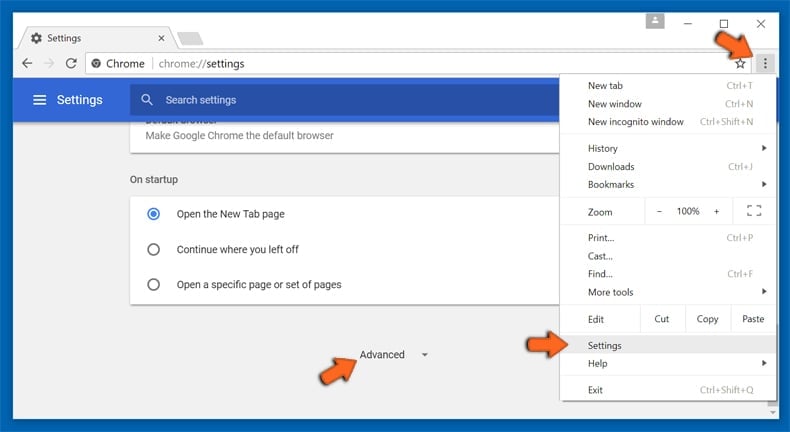
If you continue to have problems with removal of the peep remote access trojan, reset your Google Chrome browser settings. Click the Chrome menu icon (at the top right corner of Google Chrome) and select Settings. Scroll down to the bottom of the screen. Click the Advanced… link.
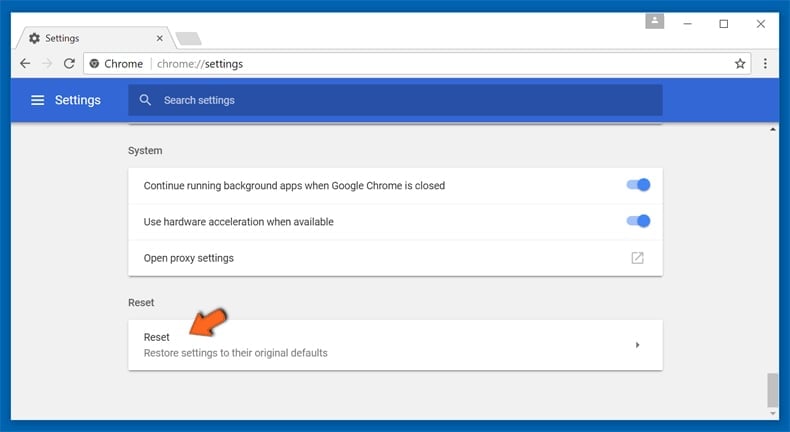
After scrolling to the bottom of the screen, click the Reset (Restore settings to their original defaults) button.
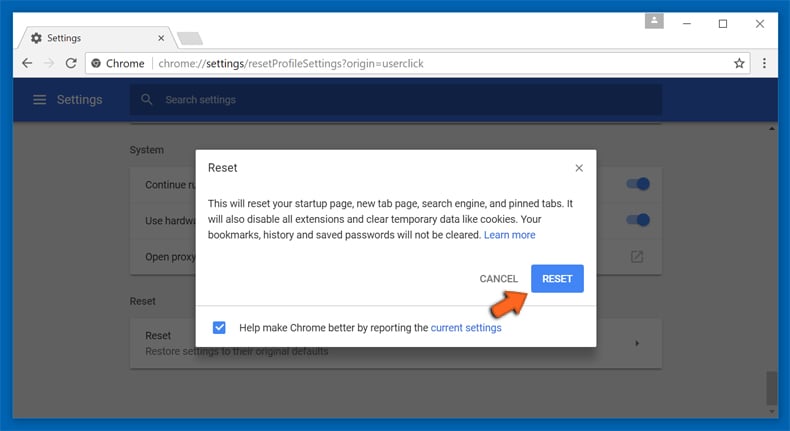
In the opened window, confirm that you wish to reset Google Chrome settings to default by clicking the Reset button.
 Remove malicious plug-ins from Mozilla Firefox:
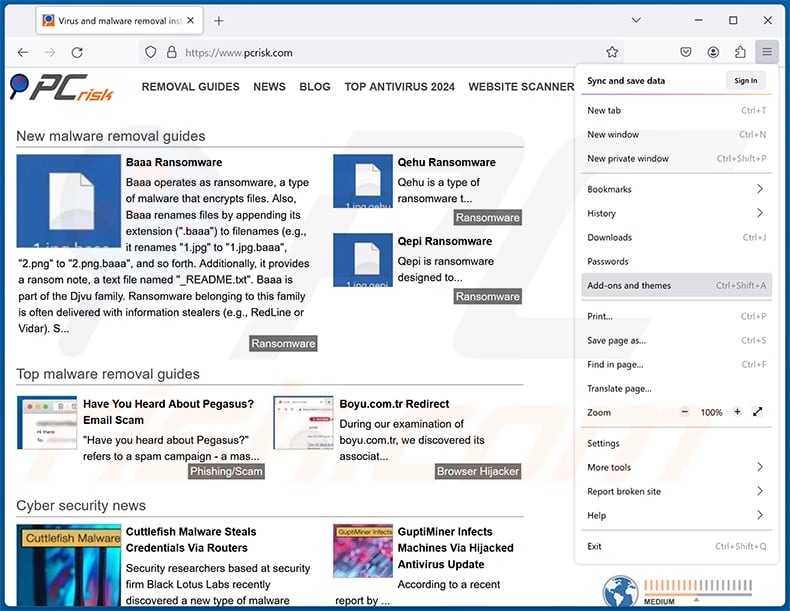
Click the Firefox menu  (at the top right corner of the main window), select "Add-ons and themes". Click "Extensions", in the opened window locate all recently-installed suspicious extensions, click on the three dots and then click "Remove".
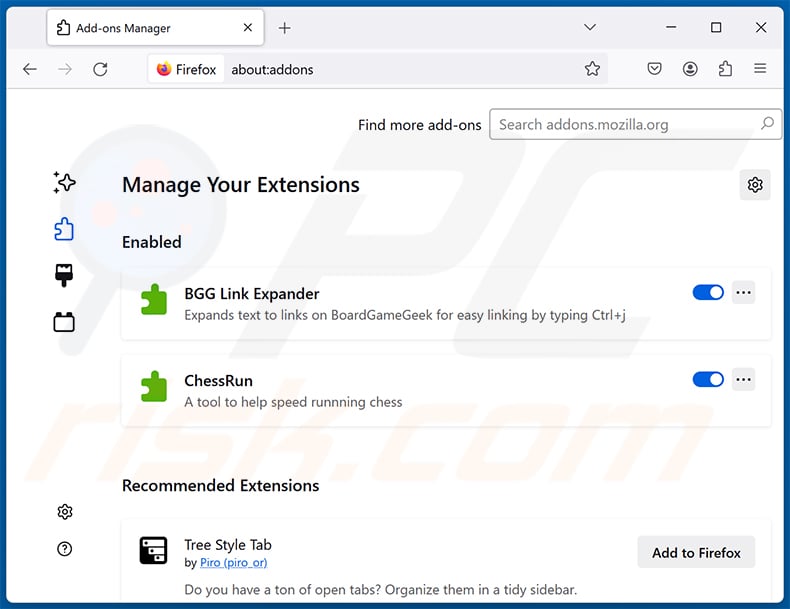
Optional method:
Computer users who have problems with peep remote access trojan removal can reset their Mozilla Firefox settings.
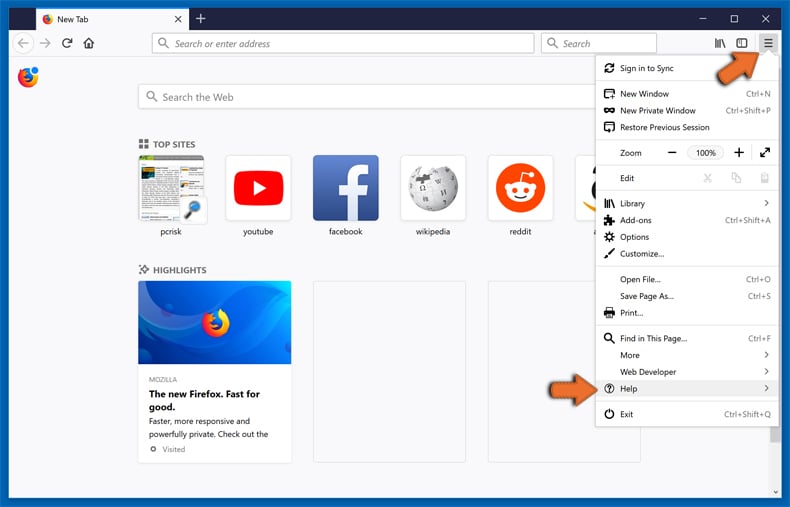
Open Mozilla Firefox, at the top right corner of the main window, click the Firefox menu, in the opened menu, click Help.
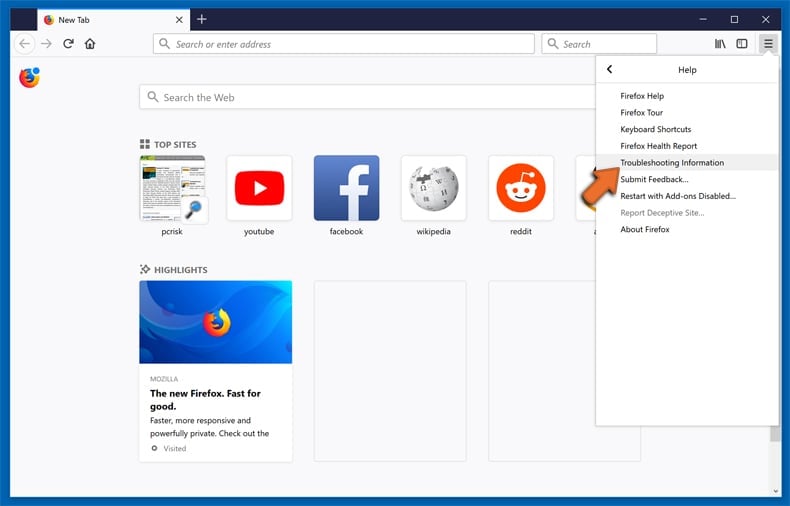
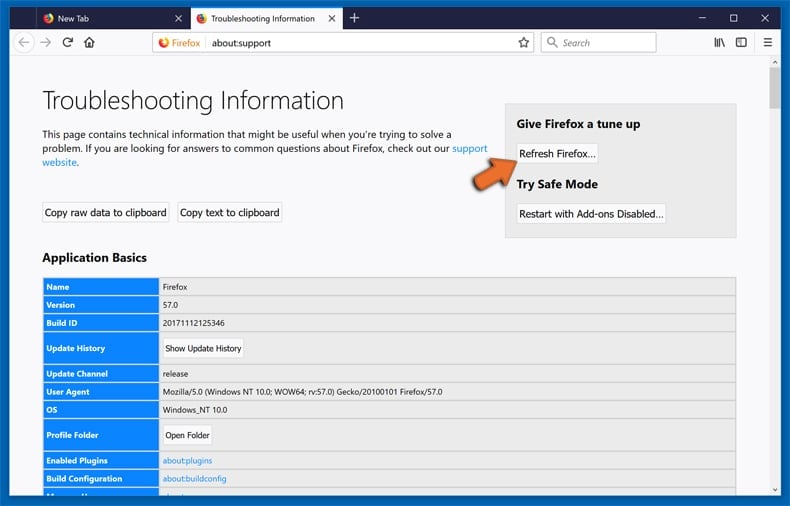
Select Troubleshooting Information.
In the opened window, click the Refresh Firefox button.
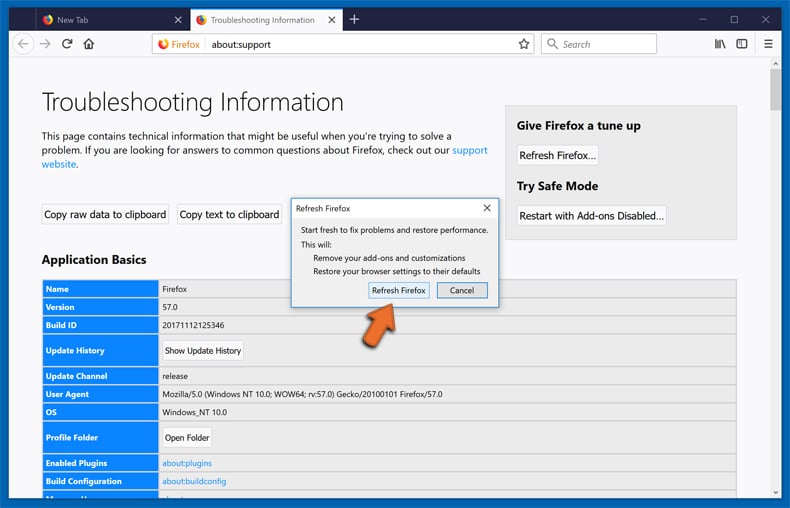
In the opened window, confirm that you wish to reset Mozilla Firefox settings to default by clicking the Refresh Firefox button.
 Remove malicious extensions from Safari:
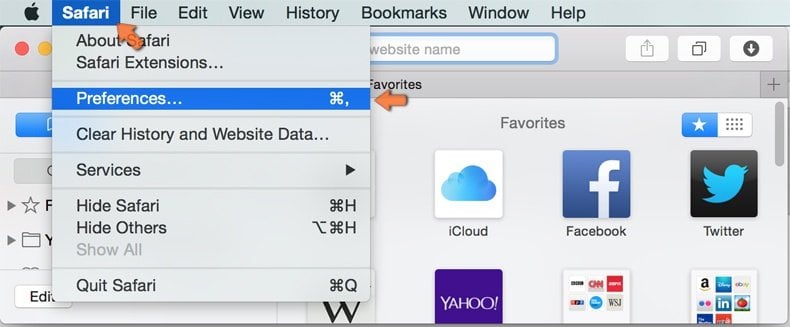
Make sure your Safari browser is active, click Safari menu, and select Preferences....
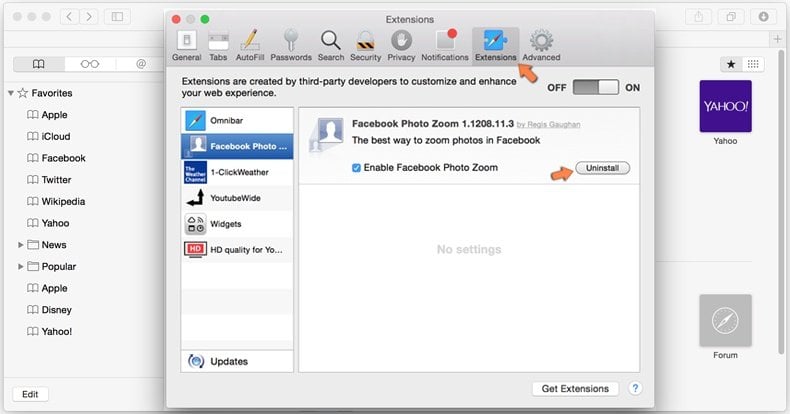
In the opened window click Extensions, locate any recently installed suspicious extension, select it and click Uninstall.
Optional method:
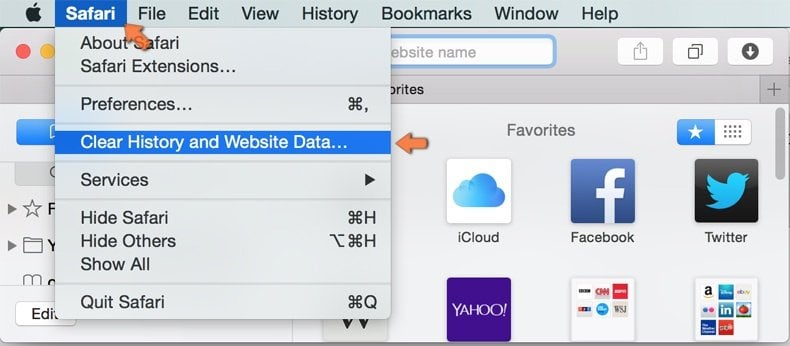
Make sure your Safari browser is active and click on Safari menu. From the drop down menu select Clear History and Website Data...
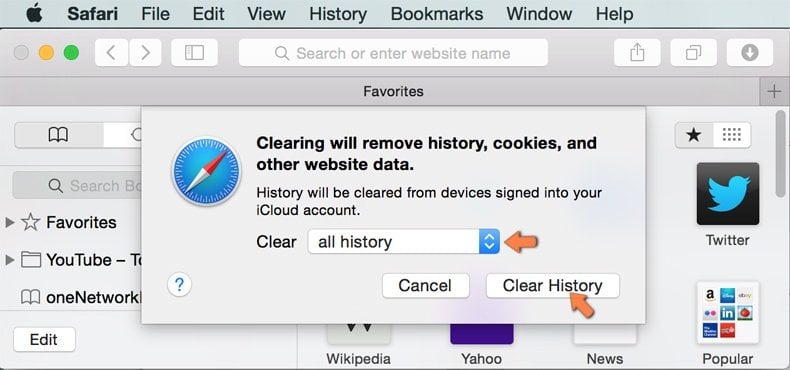
In the opened window select all history and click the Clear History button.
 Remove malicious extensions from Microsoft Edge:
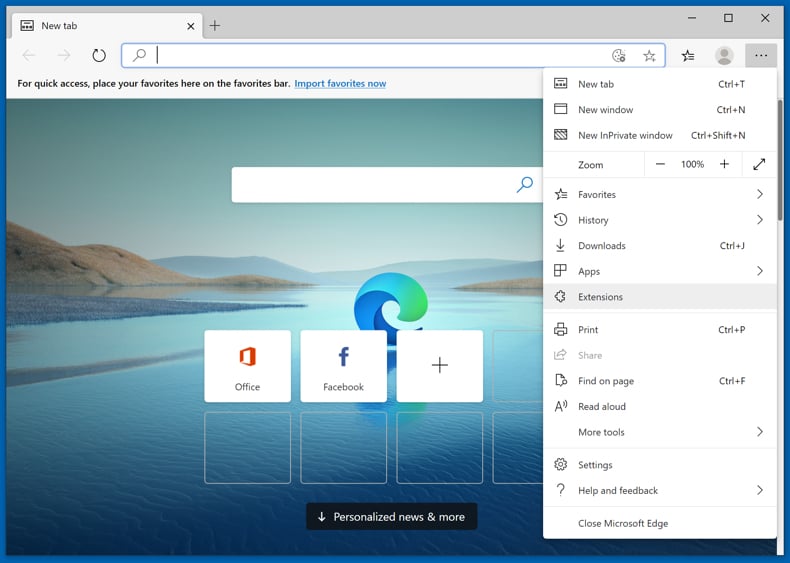
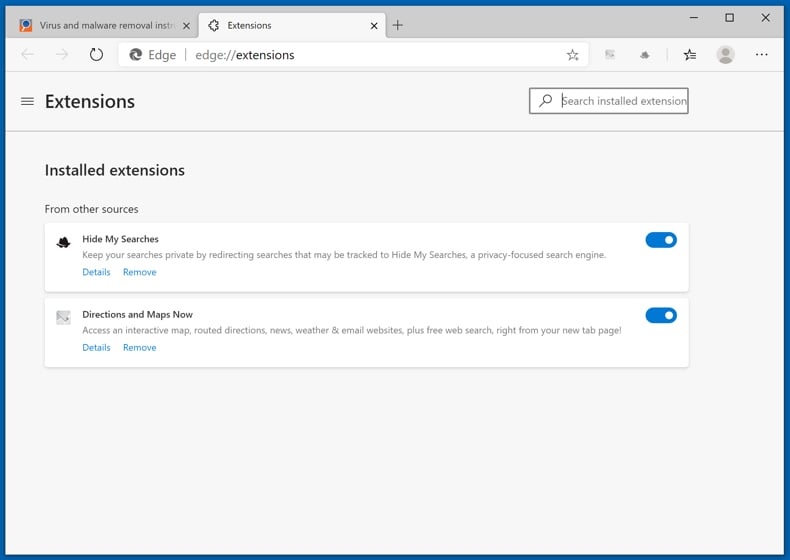
Click the Edge menu icon  (at the upper-right corner of Microsoft Edge), select "Extensions". Locate all recently-installed suspicious browser add-ons and click "Remove" below their names.
Optional method:
If you continue to have problems with removal of the peep remote access trojan, reset your Microsoft Edge browser settings. Click the Edge menu icon (at the top right corner of Microsoft Edge) and select Settings.
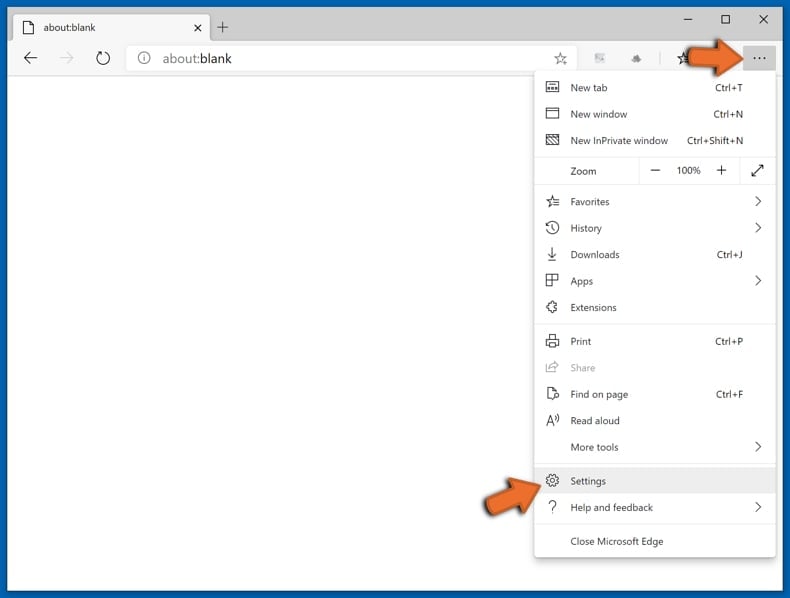
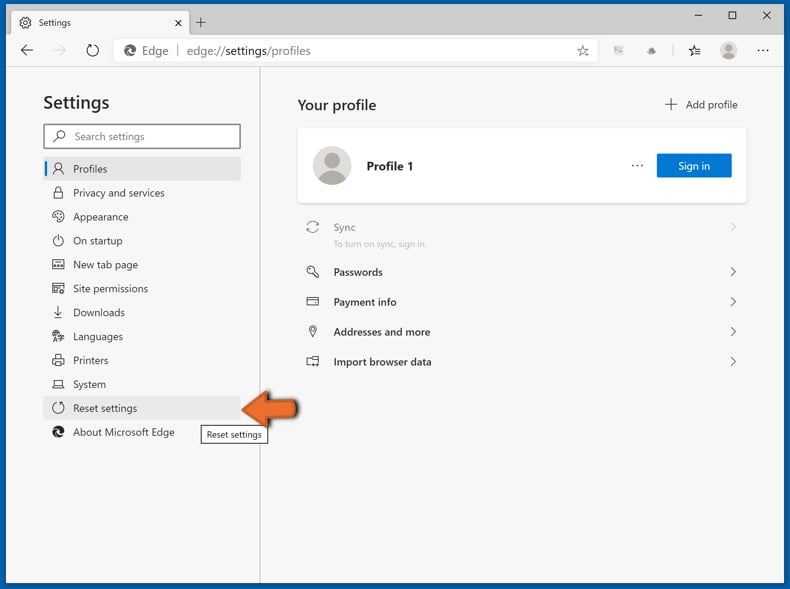
In the opened settings menu select Reset settings.
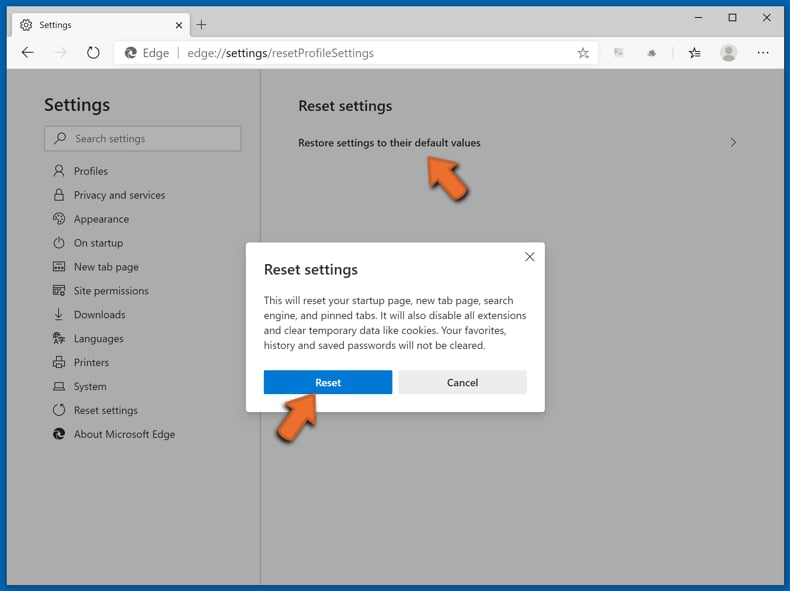
Select Restore settings to their default values. In the opened window, confirm that you wish to reset Microsoft Edge settings to default by clicking the Reset button.
- If this did not help, follow these alternative instructions explaining how to reset the Microsoft Edge browser.
Frequently Asked Questions (FAQ)
What harm can PEEP RAT cause?
PEEP RAT can cause severe harm. By stealing session cookies, it can hijack active logins to email, banking, and social media accounts without needing the user's password. Its remote command execution capability also allows attackers to install additional malware, exfiltrate files, or use the device to attack other systems.
What does PEEP RAT do?
PEEP RAT functions as a remote access trojan delivered as a browser extension. It collects session cookies, browsing history, open tabs, clipboard data, and screenshots, then transmits everything to an attacker-controlled server. A native messaging component lets attackers execute shell commands on the host system as well.
How do cybercriminals benefit from PEEP RAT?
Cybercriminals use PEEP RAT to gain persistent remote access to compromised devices and harvest valuable data. Stolen session cookies allow account takeovers without needing a password. Collected credentials and personal data can be sold or exploited for financial fraud and identity theft.
Will Combo Cleaner remove PEEP RAT?
Yes, Combo Cleaner can detect and remove PEEP RAT. Because this threat includes both a browser extension and a native messaging component that runs outside the browser, a full system scan is strongly recommended to ensure all components and leftover files are eliminated.
Share:
 Facebook
 X.com
X.com
 LinkedIn
 Copy Link

Tomas Meskauskas
Expert security researcher, professional malware analyst
I am passionate about computer security and technology. I have an experience of over 10 years working in various companies related to computer technical issue solving and Internet security. I have been working as an author and editor for pcrisk.com since 2010. Follow me on Twitter and LinkedIn to stay informed about the latest online security threats.
PCrisk security portal is brought by a company RCS LT.
Joined forces of security researchers help educate computer users about the latest online security threats. More information about the company RCS LT.
Our malware removal guides are free. However, if you want to support us you can send us a donation.
DonatePCrisk security portal is brought by a company RCS LT.
Joined forces of security researchers help educate computer users about the latest online security threats. More information about the company RCS LT.
Our malware removal guides are free. However, if you want to support us you can send us a donation.
Donate
▼ Show Discussion