
GANDCRAB 5.2 ransomware virus - removal and decryption options
RansomwareAlso Known As: GANDCRAB 5.2 virus

Get free scan and check if your device is infected.
Remove it nowTo use full-featured product, you have to purchase a license for Combo Cleaner. Seven days free trial available. Combo Cleaner is owned and operated by RCS LT, the parent company of PCRisk.com.
What is GANDCRAB 5.2?
GANDCRAB 5.2 is ransomware-type program used by developers (cyber criminals) to encrypt data stored on victims' computers and to keep it in that state until a ransom is paid. This program creates a ransom message and generates a random name for it. For example, "DSEWRBG-DECRYPT.txt".
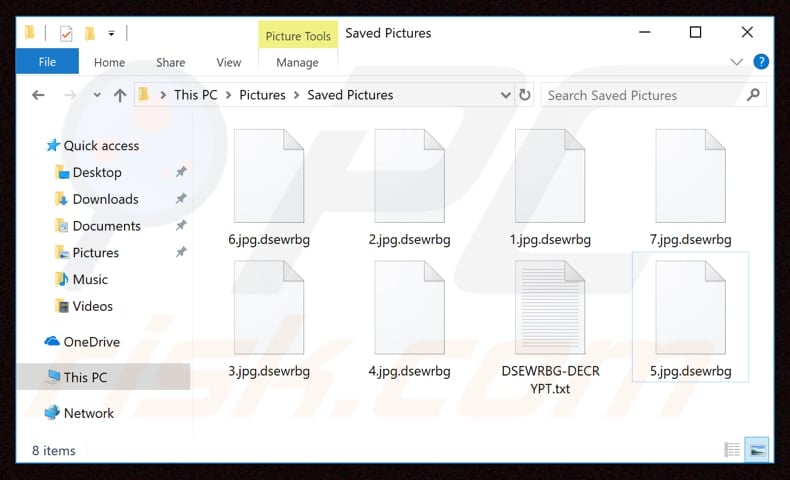
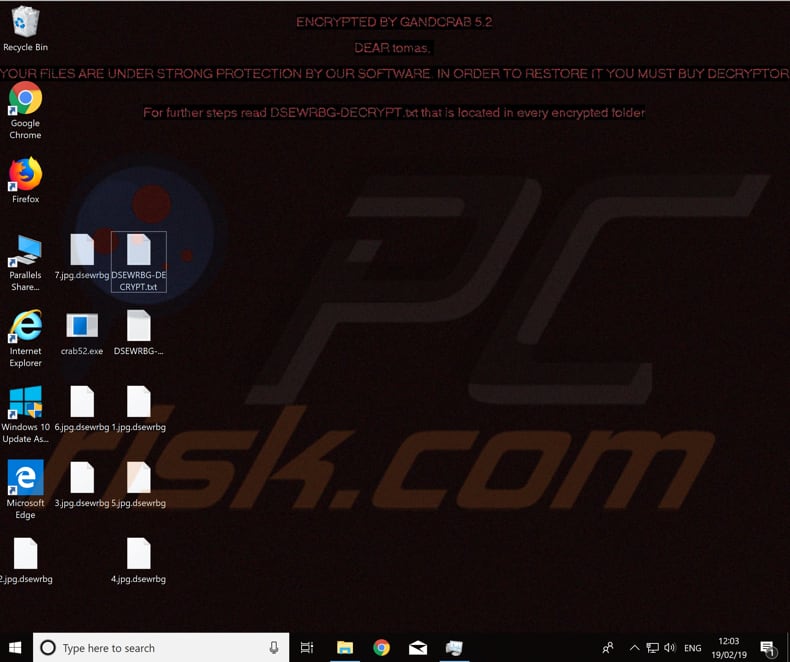
GANDCRAB 5.2 does the same with the extension, which it adds to each encrypted file. For example, "1.jpg" becomes "1.jpg.dsewrbg". It also changes the victim's desktop wallpaper. GANDCRAB 5.2 is one of many variants of GANDCRAB ransomware.
Screenshot of files encrypted by GANDCRAB 5.2 (in this case, the ".dsewrbg" extension):
Ransom note overview
In the "DSEWRBG-DECRYPT.txt" ransom message (its name can vary), cyber criminals urge victims not to delete this text file until the data is recovered (decrypted). They state that deleting it might cause decryption errors. They claim that the only way to decrypt data is to purchase a decryption key from them.
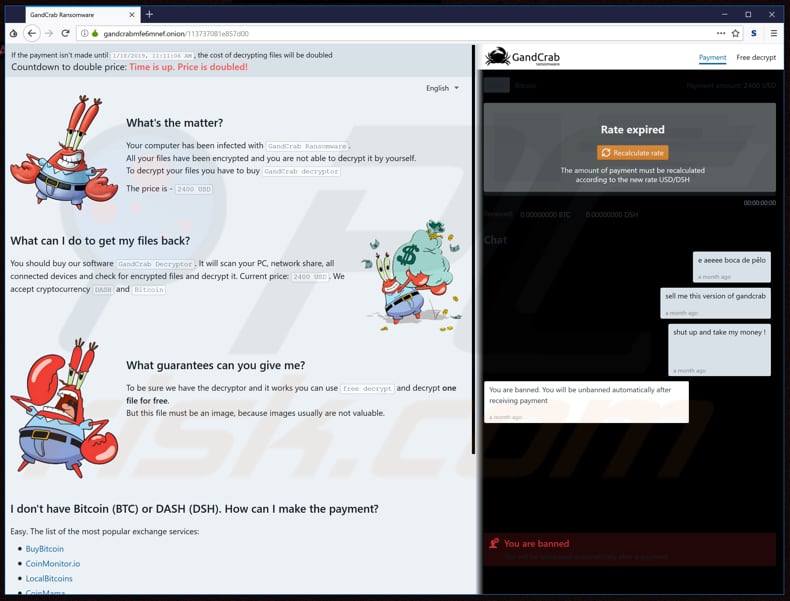
To proceed with data decryption, GANDCRAB 5.2 victims are encouraged to download and install the TOR browser and then to open the link provided in the ransom message. The website contains a deadline that, unless met, will double the cost of decryption.
Therefore, if the initial cost of a decryption key is $1200, after a certain period of time has elapsed, it will increase to $2400. To make payment, victims must use the DASH or Bitcoin cryptocurrencies and transfer it by clicking a link that leads to a cryptocurrency wallet address. Before making payment, these cyber criminals offer free decryption of one file.
This is common to ransomware developers who offer this 'proof' that they are capable of providing tools or keys required for successful data decryption. Recently, a malware security company called Bitdefender released a decryption tool that is capable of restoring files that were encrypted by various versions of GANDCRAB ransomware.
Therefore, we highly recommend to try restoring data using Bitdefender's tool. Most cyber criminals use cryptography algorithms (symmetric or asymmetric) that make decryptions without using a specific tool impossible. Unfortunately, only ransomware developers have these tools.
If a computer is infected with a ransomware that is undecryptable (there are no tools like the one developed by Bitdefender), the only free way to recover data is to use a backup and restore everything from there.
Ransomware in general
Many cyber criminals develop ransomware-type programs, however, most are very similar. GANDCRAB 5.2 shares similarities with many other malicious programs of this type such as Shadi, Cammora, and Heets. Most of these infections encrypt data and keep it in this state until the ransom is paid or decryption tool is purchased.
Main differences are usually cost of tool and cryptography algorithm used to encrypt data. Encrypted files can be decrypted only if the ransomware is not fully developed, contains bugs/flaws, and so on.
Therefore, we recommend that you maintain regular backups and keep them on remote servers or unplugged storage devices. These backups are then protected from being encrypted with other data.
How did ransomware infect my computer?
The exact method that cyber criminals use to proliferate GANDCRAB 5.2 ransomware is unknown, however, most programs of this type are proliferated using spam (email) campaigns, Trojans, fake software updaters, untrustworthy software download channels/tools or software cracking tools. Spam campaigns are used to proliferate infections via attached malicious files.
Typically, these attachments are Microsoft Office documents, archive files (ZIP, RAR and other), PDFs, executable (.exe), JavaScript, and other files. Once opened/executed, these attachments download and install computer infections such as ransomware or other high-risk malware. Trojans are malicious programs that must already be installed.
They then cause chain infections by downloading and installing other malicious programs. Fake software updaters usually infect computers/operating systems by downloading and installing malware rather than the expected updates or by exploiting bugs/flaws of outdated software.
Freeware download, free file hosting websites, Peer-to-Peer networks (torrent clients, eMule, and so on) and other dubious/dubious software download sources are also used by cyber criminals to distribute computer infections. They present malicious files (or various rogue apps) as legitimate.
By downloading and installing them, people cause computer infections. Software cracking tools also cause problems. They are used to activate paid software/operating systems free of charge, however, cyber criminals proliferate activation tools that install malicious programs.
| Name | GANDCRAB 5.2 virus |
| Threat Type | Ransomware, Crypto Virus, Files locker |
| Encrypted Files Extension | .[random_string] (e.g., ".dsewrbg") |
| Decryption Tool (Excluding 5.2 Ransomware Version) |
A decryption tool for GandCrab V1, V4, and all V5 versions (up to 5.2) can be downloaded here. |
| Ransom Demanding Message | [RANDOM_STRING]-DECRYPT.txt (e.g., "DSEWRBG-DECRYPT.txt") text file, desktop wallpaper, Tor website |
| Ransom Amount | $1200/$2400 |
| Cyber Criminal Contact | Tor website (gandcrabmfe6mnef[.]onion/113737081e857d00) |
| Detection Names (H.exe) |
Avast (Win32:Malware-gen), BitDefender (Trojan.GenericKD.31823469), ESET-NOD32 (a variant of Win32/Kryptik.GRGO), Kaspersky (Trojan-Ransom.Win32.Crypmod.abvs), Full List Of Detections (VirusTotal) |
| Symptoms | Can't open files stored on your computer, previously functional files now have a different extension, for example my.docx.locked. A ransom demanding message is displayed on your desktop. Cyber criminals are asking to pay a ransom (usually in bitcoins) to unlock your files. |
| Distribution methods | Infected email attachments (macros), torrent websites, malicious ads. |
| Damage | All files are encrypted and cannot be opened without paying a ransom. Additional password stealing trojans and malware infections can be installed together with a ransomware infection. |
| Malware Removal (Windows) |
To eliminate possible malware infections, scan your computer with legitimate antivirus software. Our security researchers recommend using Combo Cleaner. Download Combo CleanerTo use full-featured product, you have to purchase a license for Combo Cleaner. 7 days free trial available. Combo Cleaner is owned and operated by RCS LT, the parent company of PCRisk.com. |
How to protect yourself from ransomware infections?
Think twice before opening attachments or web links that are presented in emails received from unknown/suspicious addresses. If the email is irrelevant or contains an attachment, do not open it, at least not without making sure it is safe. Download all software using direct links, trustworthy and official sources/websites. Do not use third party downloaders or installers.
It is possible that these sources could be used to distribute rogue applications that might infect computers or cause other problems. Update the installed software using tools or implemented functions that are provided by official software developers and not third party updaters.
Have a reputable anti-virus/anti-spyware software installed and enabled at all times. If your computer is already infected with GANDCRAB 5.2, we recommend running a scan with Combo Cleaner Antivirus for Windows to automatically eliminate this ransomware.
Screenshot of a message encouraging users to pay a ransom to decrypt their compromised data:
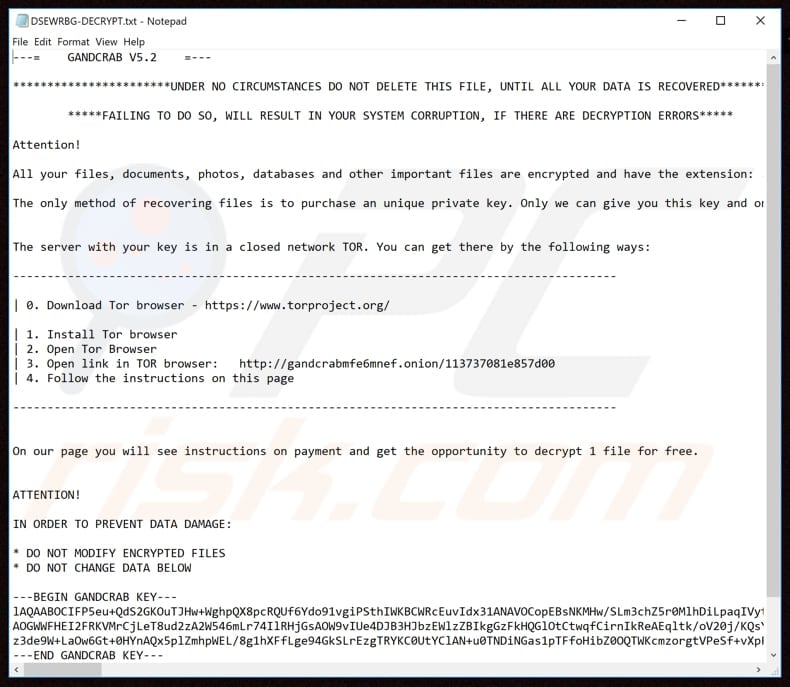
Text presented in GANDCRAB 5.2 ransomware text file (in this case, the "DSEWRBG-DECRYPT.txt"):
---= GANDCRAB V5.2 =---
******************UNDER NO CIRCUMSTANCES DO NOT DELETE THIS FILE, UNTIL ALL YOUR DATA IS RECOVERED*******************
*****FAILING TO DO SO, WILL RESULT IN YOUR SYSTEM CORRUPTION, IF THERE ARE DECRYPTION ERRORS*****
Attention!
All your files, documents, photos, databases and other important files are encrypted and have the extension: .DSEWRBG
The only method of recovering files is to purchase an unique private key. Only we can give you this key and only we can recover your files.
The server with your key is in a closed network TOR. You can get there by the following ways:
----------------------------------------------------------------------------------------| 0. Download Tor browser - hxxps://www.torproject.org/
| 1. Install Tor browser
| 2. Open Tor Browser
| 3. Open link in TOR browser: hxxp://gandcrabmfe6mnef.onion/113737081e857d00
| 4. Follow the instructions on this page----------------------------------------------------------------------------------------
On our page you will see instructions on payment and get the opportunity to decrypt 1 file for free.
ATTENTION!
IN ORDER TO PREVENT DATA DAMAGE:
* DO NOT MODIFY ENCRYPTED FILES
* DO NOT CHANGE DATA BELOW
---BEGIN GANDCRAB KEY---
-
---END GANDCRAB KEY------BEGIN PC DATA---
-
---END PC DATA---
Screenshot of GANDCRAB 5.2 desktop wallpaper:
Screenshot of GANDCRAB 5.2 website:
Text presented on this website:
If the payment isn't made until 1/18/2019, 11:11:06 AM, the cost of decrypting files will be doubled
Countdown to double price: Time is up. Price is doubled!
What's the matter?
Your computer has been infected with GandCrab Ransomware.
All your files have been encrypted and you are not able to decrypt it by yourself.To decrypt your files you have to buy GandCrab decryptor
The price is - 2400 USD
What can I do to get my files back?
You should buy our software GandCrab Decryptor. It will scan your PC, network share, all connected devices and check for encrypted files and decrypt it. Current price: 2400 USD. We accept cryptocurrency DASH and Bitcoin
What guarantees can you give me?
To be sure we have the decryptor and it works you can use free decrypt and decrypt one file for free.
But this file must be an image, because images usually are not valuable.
I don't have Bitcoin (BTC) or DASH (DSH). How can I make the payment?
Easy. The list of the most popular exchange services:
BuyBitcoin
CoinMonitor.io
LocalBitcoins
CoinMama
Changelly.com
PAYEER
CEX.IOThe full list of exchange services for Bitcoin here and for DASH here.
Create an account
Charge the balance with a credit card or paypal
Buy requested amount of coins (Bitcoin or DASH)
Make withdrawal to our addressAttention
Don't delete file *-DECRYPT.txt before full restore of your PC.
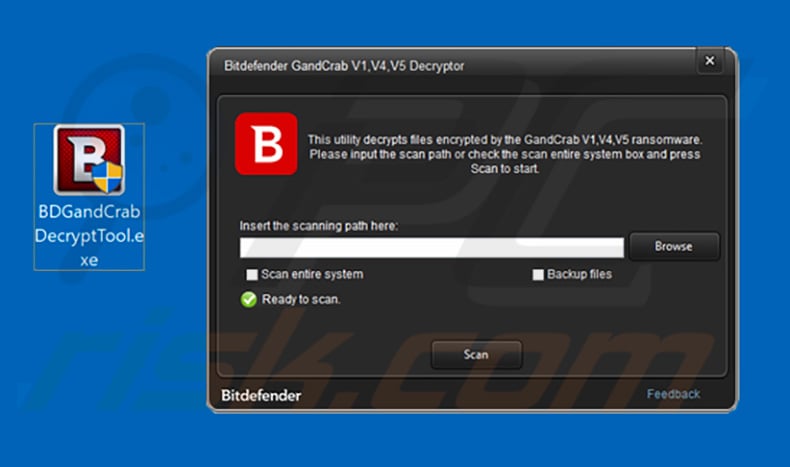
As mentioned above, Bitdefender has recently released a decryption tool capable of restoring data encrypted by GandCrab V1, V4, and all V5 versions (up to 5.2). Therefore, victims can decrypt their data easily without paying cyber criminals. You can find more information in this article and you can download the decryptor by clicking this link.
Screenshot of Bitdefender GandCrab decryptor:
GANDCRAB 5.2 ransomware removal:
Instant automatic malware removal:
Manual threat removal might be a lengthy and complicated process that requires advanced IT skills. Combo Cleaner is a professional automatic malware removal tool that is recommended to get rid of malware. Download it by clicking the button below:
DOWNLOAD Combo CleanerBy downloading any software listed on this website you agree to our Privacy Policy and Terms of Use. To use full-featured product, you have to purchase a license for Combo Cleaner. 7 days free trial available. Combo Cleaner is owned and operated by RCS LT, the parent company of PCRisk.com.
Removal and file recovery procedure
If your files are encrypted with a new extension and a ransom note has appeared, you've been hit by ransomware. Don't pay. The procedure below works in order: contain the infection, identify the variant, remove the ransomware itself (so anything you restore doesn't get re-encrypted), and try to recover files using free decryption tools, Windows Volume Shadow Copies, or backups. Run a full system scan with Combo Cleaner to remove the infection - then move on to file recovery.
Common ransomware behaviors
VisibleEncrypts your files and renames them
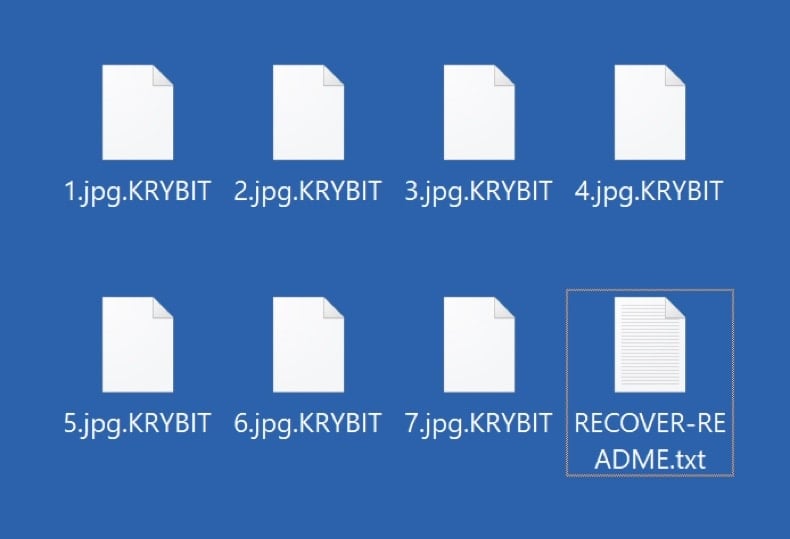
The ransomware reads each file, encrypts the contents with the attacker's public key, and writes the encrypted bytes back to disk. Most variants also rename the file by appending a new extension - .net, .locked, .crypt, .lockbit, .djvu, etc. Without the matching private key, the encrypted files cannot be opened normally. Recovery depends on a free decryption tool, a recoverable Volume Shadow Copy, or a clean backup.
VisibleDrops a ransom note in every encrypted folder
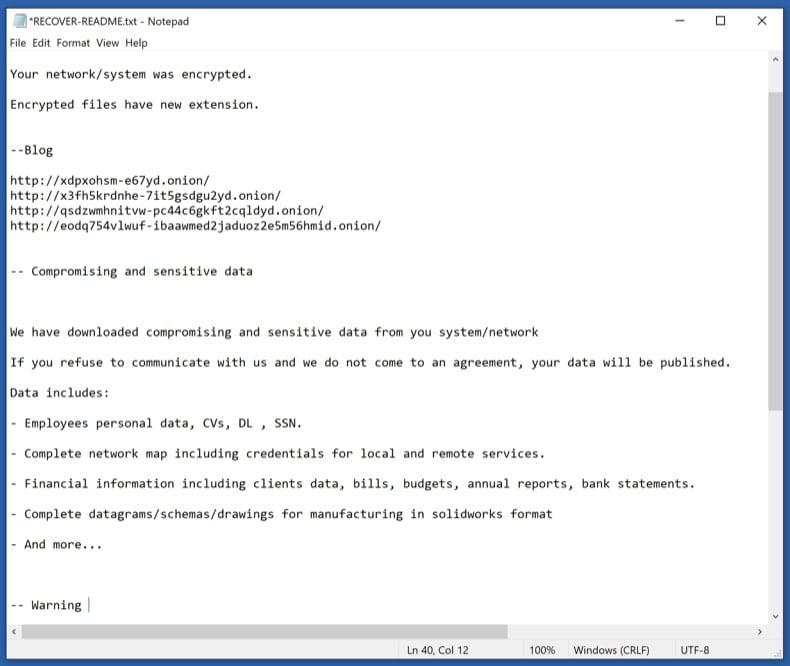
A text or HTML file (usually named HOW_TO_DECRYPT.txt, README.txt, _readme.txt, or similar) is placed in every folder that contains encrypted files. The note explains the situation, lists a payment amount in cryptocurrency, gives a deadline, and provides a contact email or .onion site. Save the note - don't delete it. Its exact wording, the email address, and the bitcoin wallet are how you identify the variant in the next phase.
VisibleReplaces the desktop wallpaper
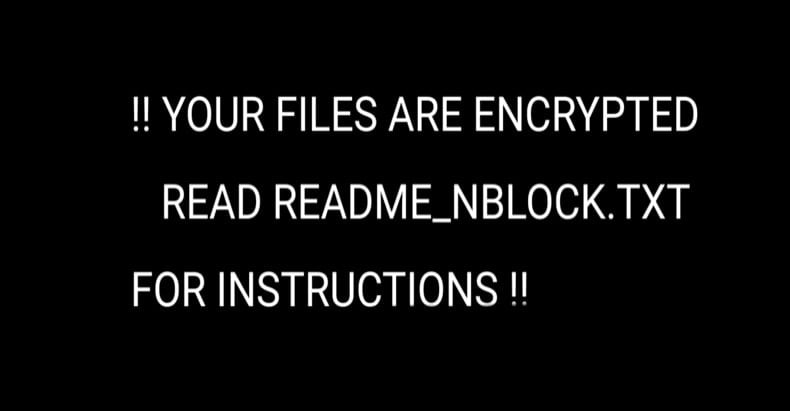
Many ransomware variants change the Windows wallpaper to a black or red image with the ransom message and instructions. The wallpaper is just a visual scare tactic - it doesn't add any actual capability and reverts to normal once the ransomware is removed. Photograph it before removal in case the contact details are useful for variant identification or for reporting to authorities.
HiddenDeletes Volume Shadow Copies
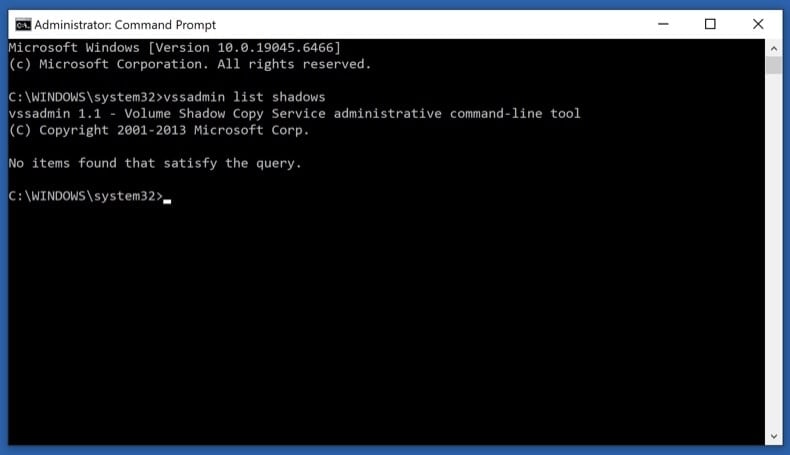
One of the first things modern ransomware does after launching is run vssadmin delete shadows /all /quiet to wipe Windows' built-in Volume Shadow Copies - the snapshots that Previous Versions and System Restore rely on. Some ransomware doesn't fully succeed (especially on systems where the user lacks full admin rights), leaving partial shadow copies recoverable. Phase 4 step 11 covers how to check what survived.
HiddenDisables Windows Defender and other security tools
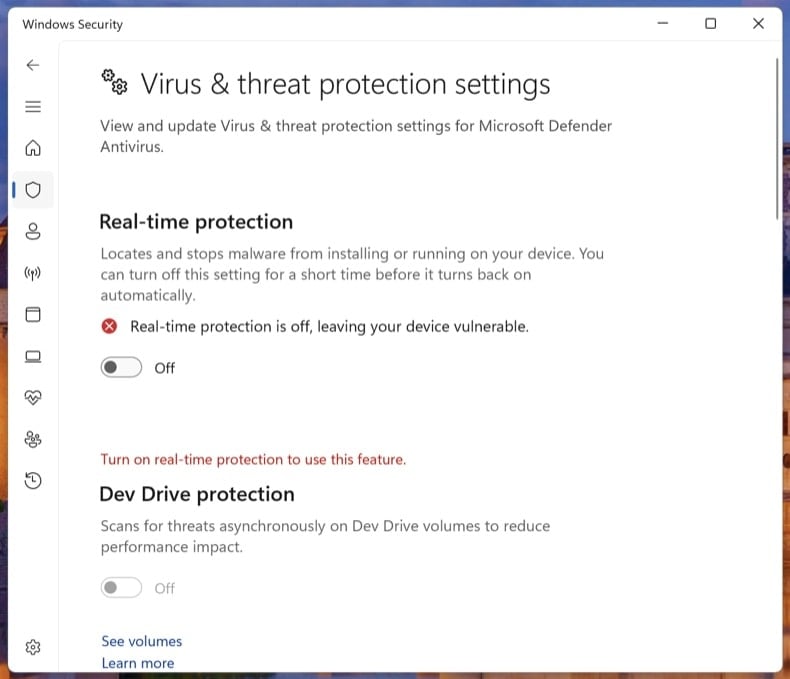
Before encrypting, the ransomware tries to silence anything that could alert you or block it - Windows Defender real-time protection, third-party antivirus services, backup agents (Veeam, Acronis), and sometimes the Windows Event Log service. It often modifies Group Policy or registry keys to keep these off after reboot. Phase 3 step 9 explicitly turns Tamper Protection back on so the next ransomware attempt can't repeat the trick.
HiddenSpreads laterally to other PCs on the network
Network-aware ransomware (LockBit, Conti, BlackCat, Akira families) doesn't stop at the first machine. It scans for SMB shares, mapped drives, and other PCs on the same network, then encrypts whatever it can reach. On Windows domains, a single compromised user with admin rights can lead to all-domain encryption. This is why Phase 1 step 2 disconnects the network as the very first action - it stops the spread immediately.
HiddenSteals data before encrypting (double extortion)
Modern ransomware (LockBit, BlackCat / ALPHV, Akira, Cl0p, Royal) almost always exfiltrates data before encrypting. The attacker then runs a "double extortion" play: pay the ransom for decryption, plus pay again to prevent the stolen data from being leaked on the group's leak site. Paying the first ransom does not get the leaked data back - assume that anything the ransomware could read was uploaded. This is one more reason not to pay: the data is already out.
Don't pay the ransom
Paying the ransom does not guarantee you'll get your files back. Major ransomware response studies consistently show that a meaningful percentage of paying victims either receive a non-working decryptor, only partial decryption, or no decryptor at all. Beyond that:
- Paying confirms you as a willing target - re-attack rates within 12 months are high
- Several ransomware groups have been sanctioned (US OFAC, UK OFSI). Paying these groups may be illegal under sanctions law in your country
- The ransom funds the next attack - on you or someone else
- Modern ransomware almost always exfiltrates data first, so paying doesn't get the leaked data back. Assume anything the malware could read was uploaded
- Decryptors, even when they work, often leave files corrupted because the encryption itself was buggy or rushed
The path below tries every legal, free recovery option first. Pay only as an absolute last resort, after consulting a lawyer and your country's cyber crime authority.
Disconnect from the network and log out of cloud storage
Pull the Ethernet cable and turn off Wi-Fi on the affected PC. If multiple computers share the network, do the same on every machine you suspect could be affected, including any servers and NAS units.
Then sign out of cloud storage clients (OneDrive, Dropbox, Google Drive, iCloud) from their app settings. If you can, pause the sync. Some ransomware uses the running sync client to push encrypted versions over your clean cloud copies.
Modern ransomware spreads laterally across SMB shares, mapped drives, RDP, and reachable network neighbors. Disconnecting stops the spread the moment you do it. Logging out of cloud sync clients prevents the ransomware from encrypting the cloud copies of your files via the sync API.
Unplug external drives and USB storage
Safely eject any external drives, USB sticks, SD cards, and network-attached storage shares - then unplug them. If a drive was connected when the ransomware ran, the files on it may already be encrypted, but unplugging stops further damage.
Critically: don't reconnect any drive (including your most recent backup) to this PC until the ransomware is removed in Phase 3. Reconnecting an external backup to an actively-infected PC is the most common way that backup gets encrypted too.
Save the ransom note and a sample encrypted file
Copy the ransom note and one small encrypted file (under 1 MB) to a USB stick, or photograph the note with your phone. You'll need both for the variant identification step.
The ransom note is usually one of:
- A
.txtfile in every encrypted folder (typicallyHOW_TO_DECRYPT.txt,README.txt, or_readme.txt) - An
.htmlfile with the same purpose - A changed desktop wallpaper - photograph it
- A lock-screen interrupt that runs at startup - rarer
Don't delete the note. Variant identification depends on its exact wording, the contact email, and the bitcoin wallet address. The note is also evidence if you report to authorities.
Identify the variant with ID Ransomware
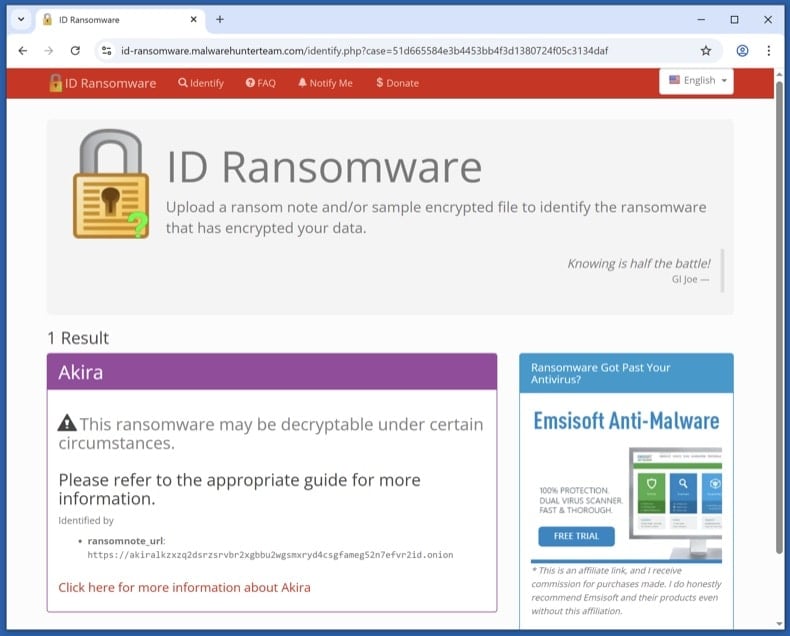
From a clean device (your phone is fine, or another PC that wasn't on the affected network), visit id-ransomware.malwarehunterteam.com. Upload the ransom note and the sample encrypted file. The site identifies the variant family and tells you whether a free decryptor exists.
ID Ransomware is run by the Malware Hunter Team. Files you upload are kept private - they're used for analysis, not published. If you're concerned about uploading data anyway, you can paste the contact email and bitcoin wallet from the note - those are often enough for identification.
The ransomware itself must be removed before any file recovery. If it's still active, anything you restore in Phase 4 gets re-encrypted within minutes.
Boot to Safe Mode with Networking and download the scanners
Safe Mode loads only the minimal Windows drivers, which prevents most ransomware from auto-running while you set up the scanners.
Windows 11: open , click Restart now next to Advanced startup. After the restart, click , then press 5 or F5.
Windows 10: click the Windows logo, hold Shift, click the Power icon and choose Restart. From the Choose-an-option screen, click , then press F5.
Once Safe Mode has loaded, turn Wi-Fi back on and download Combo Cleaner (used in step 8) and Microsoft Safety Scanner (used in step 9). Save both installers to your Desktop, then disconnect Wi-Fi again before scanning.
Run Microsoft Defender Offline
Reboot to normal Windows. Open . Select Microsoft Defender Antivirus (offline scan) and click Scan now. The PC restarts into a stripped-down environment and scans the disk before Windows fully loads.
Some ransomware variants drop bootkit components or kernel hooks that hide from any scanner running on the same Windows session that's already infected. A pre-boot offline scan sees the disk before the malware can load itself.
VB100 certified. Includes anti-trojan, registry/persistence scanning, and anti-spyware in one pass. The 7-day free trial is available.
Download Combo CleanerRun a full Combo Cleaner scan
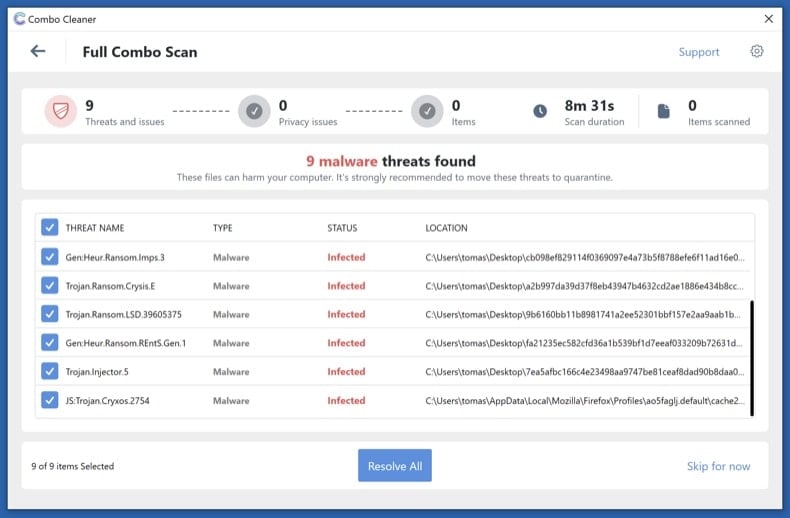
Run the installer you downloaded in step 6 and start a full system scan (not the quick scan). Let it complete, review what it detected, and apply the recommended actions. Combo Cleaner quarantines the ransomware executable and the registry / scheduled-task entries that re-launch it on reboot.
Run Microsoft Safety Scanner and re-enable Defender
Run Microsoft Safety Scanner (MSERT.exe) as a second-opinion full scan. The binary expires every 10 days so the copy you downloaded has the latest signatures.
Once it finishes, open and confirm Real-time protection, Cloud-delivered protection, and Tamper Protection are all on. Many ransomware variants disable Defender during the attack - this is where you switch it back on so the next attempt can't repeat the trick.
Different scanning engines catch different threats. Running an additional Microsoft scan after Combo Cleaner is the most underused verification step in malware removal - and free.
Try the steps in order. The first decryptor that works ends the recovery process - no need to do all four.
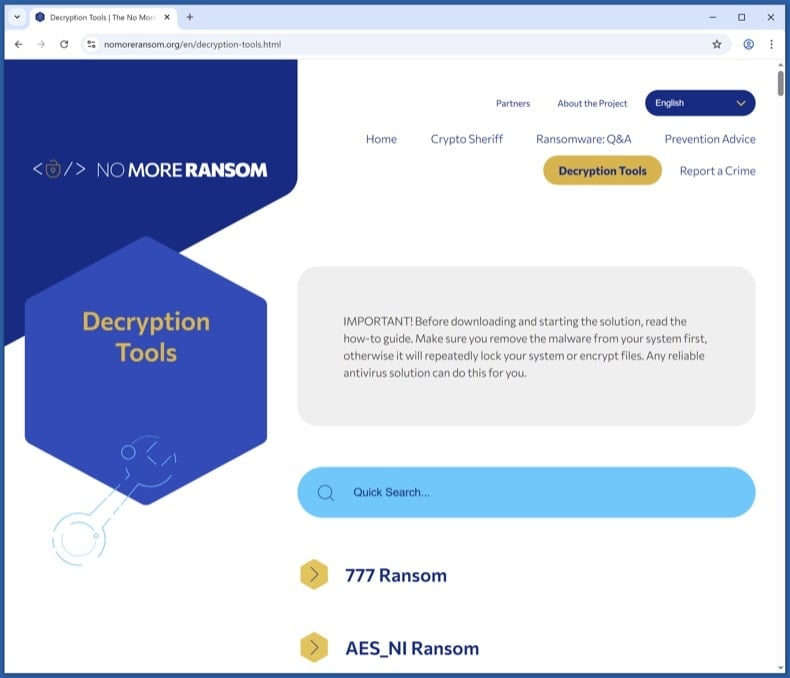
Check the No More Ransom Project for a free decryptor
Visit nomoreransom.org and search the Decryption Tools list for the variant name returned by ID Ransomware. The project is run by Europol, the Dutch Police, and security vendors - everything listed is legitimate and free.
If a decryptor exists, download it onto a clean PC, copy it across, and follow its instructions exactly. Decryptors usually want you to point them at a sample encrypted file plus its known unencrypted version (sometimes any image you previously had a backup of works).
Free decryptors exist for parts of the STOP/Djvu, GandCrab, REvil, Avaddon, Conti and Hive families, among others. Most modern variants don't have public decryptors - if yours isn't listed, that's expected; move to the next step.
Try Windows Volume Shadow Copies
Windows automatically creates Volume Shadow Copies of files when System Restore points are made or scheduled backups run. Most ransomware tries to wipe these (vssadmin delete shadows /all /quiet), but the deletion sometimes fails partially - especially if the running user doesn't have full admin rights. When it does fail, snapshots survive that contain pre-encryption versions of your files.
First, check what's there. Open Command Prompt as Administrator and run:
vssadmin list shadows
If you see entries listed, shadow copies survived. To restore from them:
- Built-in: right-click any folder → Properties → Previous Versions tab. Pick a snapshot dated before the infection and restore.
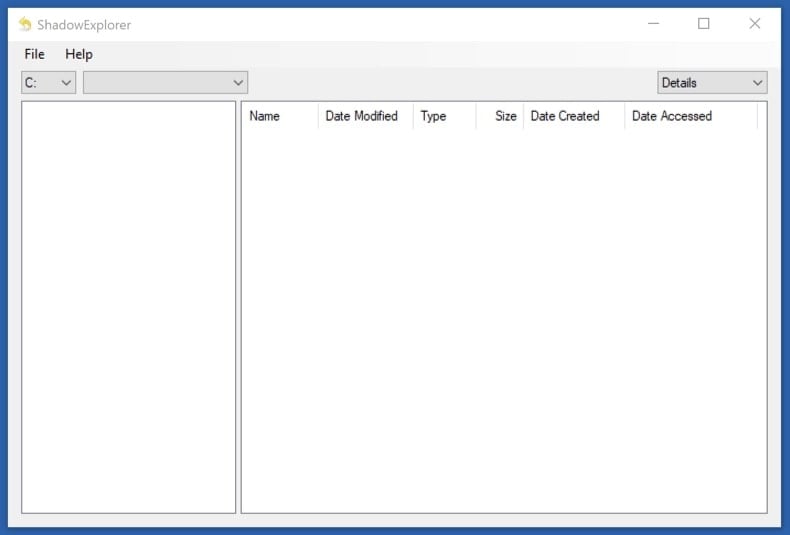
- Better tool for browsing: install Shadow Explorer (free). It shows all snapshots as a normal file tree and lets you copy out only the files you want.
Shadow Copies recover the original files exactly, with no risk of decryption errors. If they survived, this is faster and cleaner than running a decryptor on the encrypted set.
Restore from cloud or external backup
If you have a backup that pre-dates the infection, this is the cleanest recovery available. Important precautions:
- Don't reconnect a backup drive until Phase 3 is complete. If the ransomware is still active, plugging in the backup encrypts it too.
- For cloud backups (OneDrive, Dropbox, Google Drive, iCloud), use the Version History feature to roll individual files back to pre-encryption versions.
- OneDrive specifically has a "Restore your OneDrive" feature: if it detected mass file changes, you can roll back the entire account up to 30 days. Sign in at OneDrive on the web, click the Settings gear, and choose Restore your OneDrive. Microsoft 365 subscribers also get ransomware detection alerts; non-subscribers get one free recovery.
- Verify the restored files open correctly before you delete the encrypted set. Test a few documents, photos, and any database / project files.
Try Recuva as a last-resort recovery
Recuva is a long shot, not a primary recovery tool. Most modern ransomware encrypts files in place - it reads the original, encrypts the data, and writes the encrypted bytes back to the same disk location. In that case, the original isn't deleted, just rewritten - and Recuva has nothing to find.
But for older or simpler variants that deleted originals before creating encrypted copies (rather than encrypting in place), Recuva can sometimes pull the originals from unallocated disk space. Worth trying as a last resort, especially before you use the disk much further.
If you try it:
- Stop using the disk as much as possible - every disk write reduces recovery odds
- Run Recuva from a USB stick, not from the affected disk
- Use Deep Scan mode (slower but the only mode worth running for this scenario)
Don't skip the steps above expecting Recuva to bail you out. It works in maybe 5-20% of cases, depending on the variant and how soon you try.
Report the attack to authorities
Even if your files aren't recovered, your report helps authorities track variants, attribute groups, and warn future victims. In some jurisdictions (especially the US and UK) early reporting can sometimes help recall a wired ransom payment via banking partners.
Save the report number - banks, insurers, and credit bureaus will ask for it. If you operate a business, you may also have legal disclosure obligations (GDPR in the EU, state breach laws in the US) that run on a 72-hour clock.
Plan 3-2-1 backups going forward
The single best defense against ransomware is a tested backup. Use the 3-2-1 rule:
- 3 copies of your data
- 2 different storage media (e.g., internal drive + external drive)
- 1 offline / air-gapped copy (an external drive that isn't always connected)
Recommended cadence:
- Daily: cloud sync (OneDrive, Dropbox, Google Drive) - convenient, but vulnerable if the ransomware reaches the sync folder. The Version History feature is what saves you
- Weekly: external drive that you connect briefly, then disconnect - the air-gap is what protects against ransomware
- Monthly: a second external drive stored off-site (different physical location) - protects against fire, theft, flood
Test the backup at least once. Open a few files from it, check sizes match, restore one to a different folder. An untested backup isn't a backup - it's a hope.
Patch the entry point and monitor for 30 days
Most reinfections happen via the same vector that worked the first time. Until you've patched the entry point, watch for:
- Unusual disk activity, unexpected file modifications, or unfamiliar processes in Task Manager
- Unexpected reboots or new accounts you didn't create
- Defender or your antivirus turning itself off again
Common entry vectors and what to do about each:
- Phishing email with a malicious attachment - review email filters and train yourself / staff to recognise the patterns - see pcrisk's Phishing/Scam reference
- Exposed RDP with weak passwords - disable Remote Desktop from if you don't need it. If you do, put it behind a VPN and require a long password plus MFA
- Unpatched VPN appliances or public-facing apps - check the vendor's advisories page and apply the latest firmware
- Cracked / pirated software - was the most common vector for STOP/Djvu in particular. Don't run software from torrent sites
Run a Combo Cleaner scan weekly for the first month. Update Windows, browsers, and applications aggressively.
Important: Removing a ransomware infection requires a full system scan, not a manual file delete. If you're not confident with the manual procedure, run an automated scan with Combo Cleaner and Windows Defender and stop there - that combination removes the vast majority of consumer ransomware variants. Then move to Phase 4 for file recovery, or to Phase 5 if your files are unrecoverable and you need to start fresh from a clean Windows install.
Frequently Asked Questions (FAQ)
How was my computer hacked and how did hackers encrypt my files?
Ransomware spreads primarily through trojans, drive-by downloads, questionable download sources (such as unofficial free file-hosting websites, P2P sharing networks, etc.), technical support or similar scams, malicious links or files sent via email, illegal software activation tools ("cracks"), software vulnerabilities, and fake updates.
How to open encrypted files?
Your files have been encrypted due to a ransomware infection. You will need to decrypt them in order to access and use them.
Where should I look for free decryption tools for GANDCRAB 5.2 ransomware?
In case of a ransomware attack you should check the No More Ransom project website (more information above). Files encrypted by certain GANDCRAN variants can be decrypted using a tool available here.
I can pay you a lot of money, can you decrypt files for me?
We do not offer such services. In most cases, decrypting ransomware-encrypted files is only possible with the involvement of the attackers, unless there are flaws in the ransomware. Third parties claiming to decrypt data for money often are scams or act intermediaries between victims and cybercriminals.
Will Combo Cleaner help me remove GANDCRAB 5.2 ransomware?
Combo Cleaner will scan your device and remove any detected ransomware. It is important to note that while antivirus software is crucial as the initial step in recovering from ransomware, security programs are unable to decrypt data.
Share:
 Facebook
 X.com
X.com
 LinkedIn
 Copy Link

Tomas Meskauskas
Expert security researcher, professional malware analyst
I am passionate about computer security and technology. I have an experience of over 10 years working in various companies related to computer technical issue solving and Internet security. I have been working as an author and editor for pcrisk.com since 2010. Follow me on Twitter and LinkedIn to stay informed about the latest online security threats.
PCrisk security portal is brought by a company RCS LT.
Joined forces of security researchers help educate computer users about the latest online security threats. More information about the company RCS LT.
Our malware removal guides are free. However, if you want to support us you can send us a donation.
DonatePCrisk security portal is brought by a company RCS LT.
Joined forces of security researchers help educate computer users about the latest online security threats. More information about the company RCS LT.
Our malware removal guides are free. However, if you want to support us you can send us a donation.
Donate
▼ Show Discussion