
How to get rid of Quick Search (find.flashysearches.com) browser hijacker
Browser HijackerAlso Known As: Quick Search browser hijacker

Get free scan and check if your device is infected.
Remove it nowTo use full-featured product, you have to purchase a license for Combo Cleaner. Seven days free trial available. Combo Cleaner is owned and operated by RCS LT, the parent company of PCRisk.com.
What kind of extension is Quick Search?
While inspecting a rogue installation setup, our researchers found the Quick Search browser hijacker. This extension modifies browser settings to promote find.flashysearches.com, a fake search engine.
Quick Search is also a privacy concern. Software in this category typically monitors users' browsing activity. It is strongly advisable to avoid this extension and remove it from any affected browser without delay.
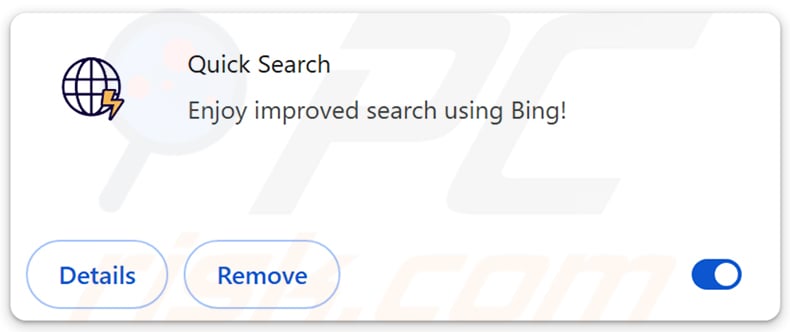
Quick Search browser hijacker overview
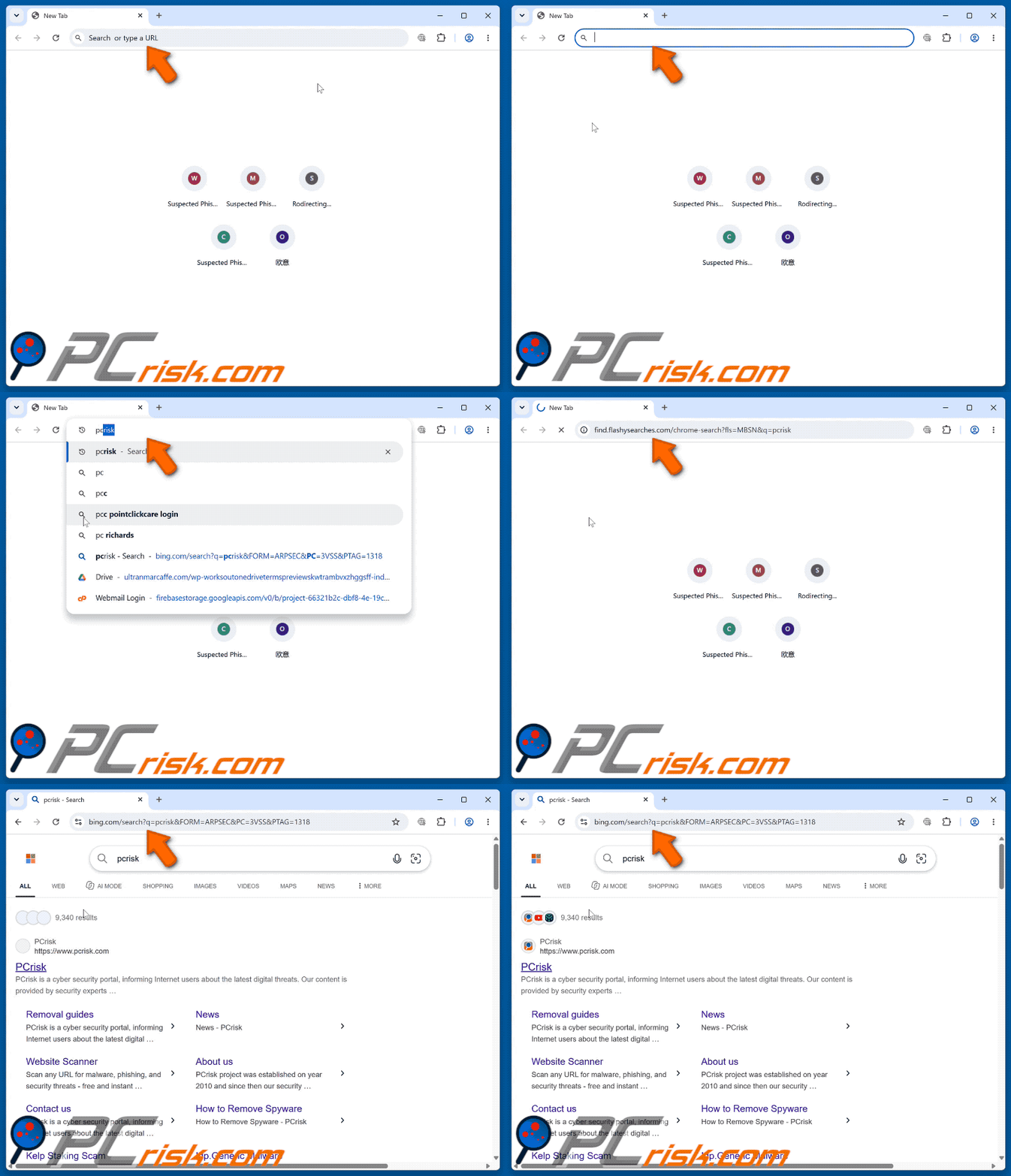
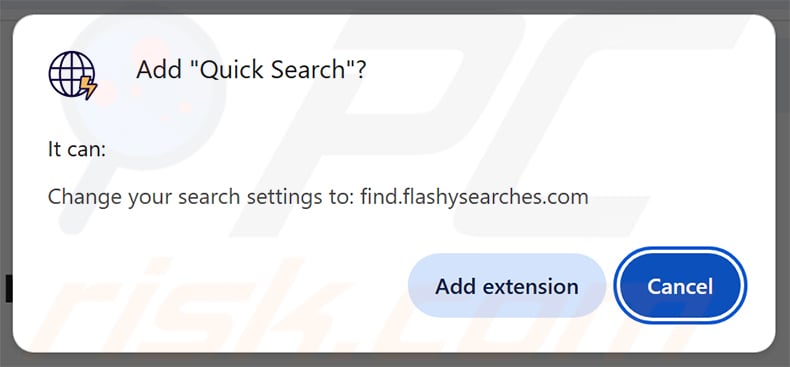
Once added to a browser, Quick Search changes the default search engine and new tab URL to find.flashysearches.com. From that point, every search query and newly opened tab routes through this address rather than the user's original search engine.
Find.flashysearches.com is a fake search engine - it cannot generate results on its own. Instead, it redirects users to bing.com. The redirect destination may vary depending on the user's geolocation and other factors.
Find.flashysearches.com has no standalone homepage. Visiting the address directly triggers an immediate redirect - no search interface or content is displayed at all.
Browser hijackers typically rely on persistence-ensuring mechanisms, such as restricting removal-related settings or undoing user changes, to make themselves harder to eliminate.
Like most software in this category, Quick Search likely has data-tracking capabilities. Information it may target includes: visited URLs, viewed pages, search queries, browser cookies, usernames/passwords, personally identifiable details, and finance-related data. Collected data can be sold to third parties or cybercriminals.
To summarize, browser-hijacking software is linked to serious privacy violations, financial losses, and identity theft. Quick Search should be removed immediately.
| Name | Quick Search |
| Threat Type | Browser Hijacker, Redirect, Search Hijacker, Toolbar, Unwanted New Tab |
| Browser Extension(s) | Quick Search |
| Supposed Functionality | Improved browsing experience and search results using Bing |
| Promoted URL | find.flashysearches.com |
| Threat Status (find.flashysearches.com) | PCrisk Website Scanner Results |
| Affected Browser Settings | New tab URL, default search engine |
| Symptoms | Manipulated Internet browser settings (default Internet search engine, new tab settings). Users are forced to search the Internet using the hijacker's search engine. |
| Distribution methods | Deceptive pop-up ads, free software installers (bundling), dubious websites. |
| Damage | Internet browser tracking (potential privacy issues), display of unwanted ads, redirects to dubious websites. |
| Malware Removal (Windows) |
To eliminate possible malware infections, scan your computer with legitimate antivirus software. Our security researchers recommend using Combo Cleaner. Download Combo CleanerTo use full-featured product, you have to purchase a license for Combo Cleaner. 7 days free trial available. Combo Cleaner is owned and operated by RCS LT, the parent company of PCRisk.com. |
Browser hijackers in general
We have examined numerous browser hijackers; Smart Search, Search Webo, and Pure Safety are a few of our most recently covered examples.
Extensions of this kind typically appear legitimate and promise useful features such as faster browsing or improved search. In most cases, those features are either minimal or entirely nonfunctional.
How did Quick Search install on my computer?
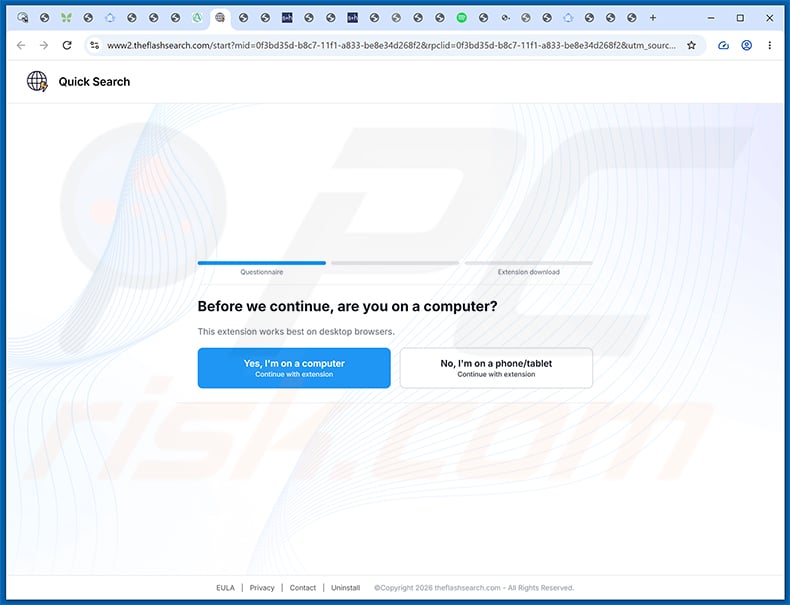
Quick Search is promoted through dedicated websites, including flashquicksearch.com and theflashsearch.com. These pages present the extension as a tool for faster browsing with Bing-powered search results, making it appear legitimate and useful.
The extension may also spread through software bundling. Installers for free programs downloaded from freeware sites, peer-to-peer networks, or third-party download platforms sometimes include extensions like this as hidden extras that install alongside the intended software.
Browser hijackers also reach users through redirects triggered by sites using rogue advertising networks, intrusive ads, spam browser notifications, and mistyped URLs. Some intrusive ads execute downloads or installations when clicked.
How to avoid installation of browser hijackers?
We strongly recommend researching any software before downloading and using only official or verified sources. During installation, read through all available options carefully and use the "Custom" or "Advanced" settings to opt out of any bundled additions such as extensions or toolbars.
Stay alert while browsing. Deceptive advertisements often appear harmless but lead users to questionable websites. Do not click "Allow" on browser notification prompts from unfamiliar or suspicious sites. Keeping the browser and operating system updated also helps reduce the risk of unwanted installs.
If your computer is already infected with Quick Search, we recommend running a scan with Combo Cleaner Antivirus for Windows to automatically eliminate this browser hijacker.
Appearance of find.flashysearches.com redirecting to the Bing search engine (GIF):
Permissions asked by the Quick Search browser hijacker:
Screenshots of websites promoting Quick Search (find.flashysearches.com) browser hijacker:
Sample 1:
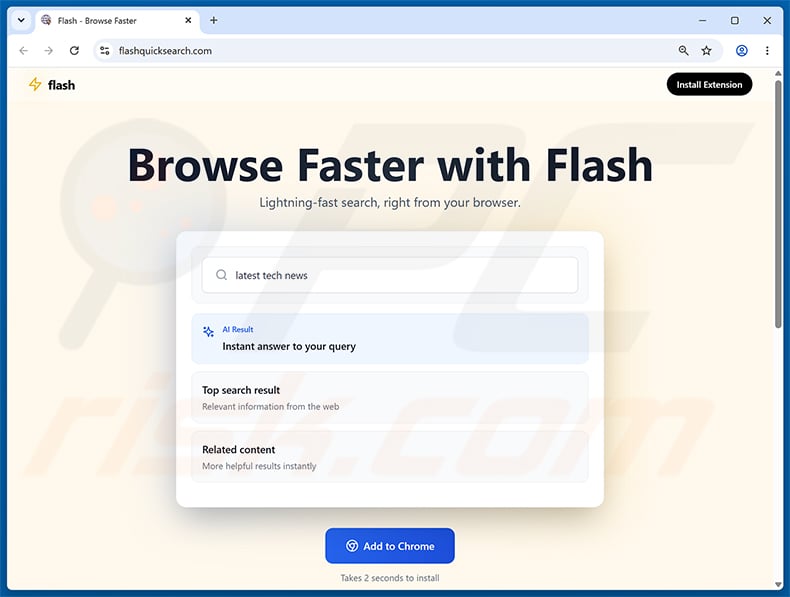
Sample 2:
Instant automatic malware removal:
Manual threat removal might be a lengthy and complicated process that requires advanced IT skills. Combo Cleaner is a professional automatic malware removal tool that is recommended to get rid of malware. Download it by clicking the button below:
DOWNLOAD Combo CleanerBy downloading any software listed on this website you agree to our Privacy Policy and Terms of Use. To use full-featured product, you have to purchase a license for Combo Cleaner. 7 days free trial available. Combo Cleaner is owned and operated by RCS LT, the parent company of PCRisk.com.
Quick menu:
- What is Quick Search?
- STEP 1. Uninstall unwanted applications using Control Panel.
- STEP 2. Remove Quick Search browser hijacker from Google Chrome.
- STEP 3. Remove find.flashysearches.com default search engine from Mozilla Firefox.
- STEP 4. Remove find.flashysearches.com redirect from Safari.
- STEP 5. Remove rogue plug-ins from Microsoft Edge.
Quick Search browser hijacker removal:
Windows 11 users:
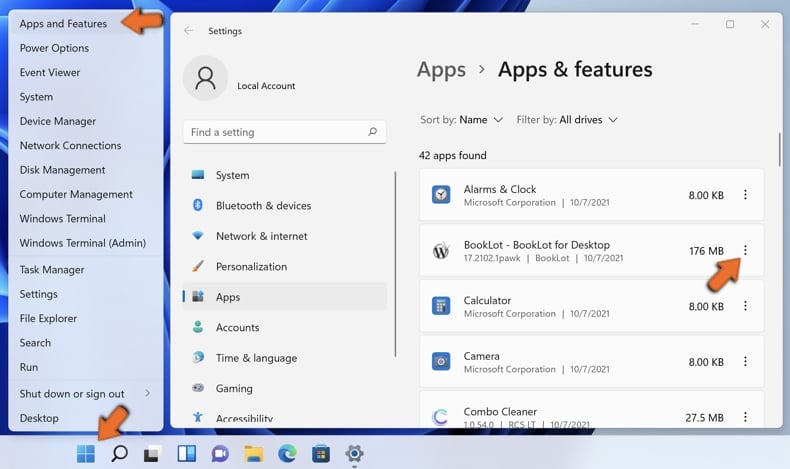
Right-click on the Start icon, select Apps and Features. In the opened window search for the application you want to uninstall, after locating it, click on the three vertical dots and select Uninstall.
Windows 10 users:
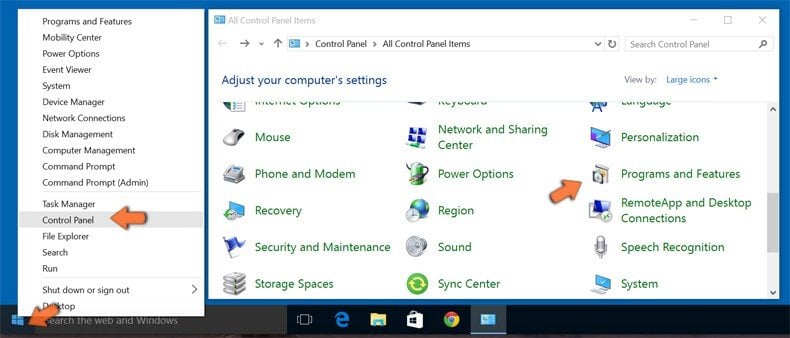
Right-click in the lower left corner of the screen, in the Quick Access Menu select Control Panel. In the opened window choose Programs and Features.
Windows 7 users:
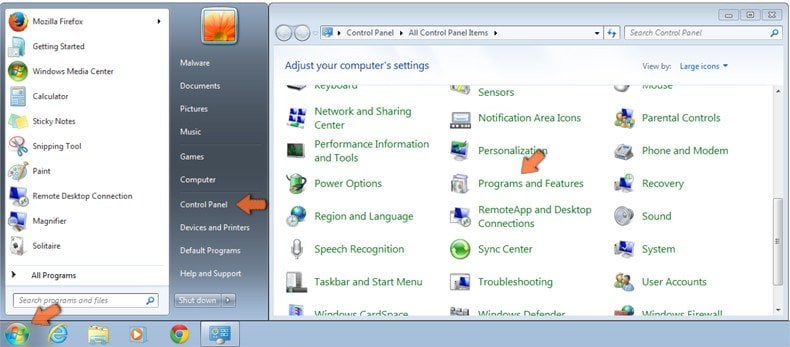
Click Start (Windows Logo at the bottom left corner of your desktop), choose Control Panel. Locate Programs and click Uninstall a program.
macOS (OSX) users:
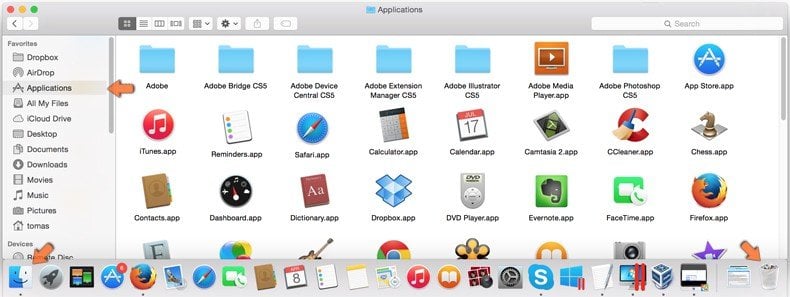
Click Finder, in the opened screen select Applications. Drag the app from the Applications folder to the Trash (located in your Dock), then right click the Trash icon and select Empty Trash.
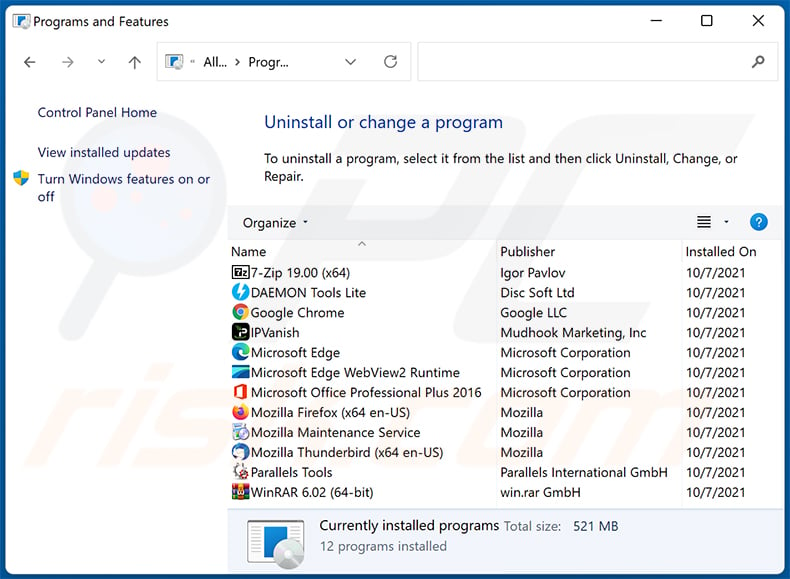
In the uninstall programs window: look for any recently installed suspicious applications, select these entries and click "Uninstall" or "Remove".
After uninstalling the potentially unwanted applications, scan your computer for any remaining unwanted components. To scan your computer, use recommended malware removal software.
DOWNLOAD remover for malware infections
Combo Cleaner checks if your computer is infected with malware. To use full-featured product, you have to purchase a license for Combo Cleaner. 7 days free trial available. Combo Cleaner is owned and operated by RCS LT, the parent company of PCRisk.com.
Quick Search browser hijacker removal from Internet browsers:
Video showing how to remove browser redirects:
 Remove malicious extensions from Google Chrome:
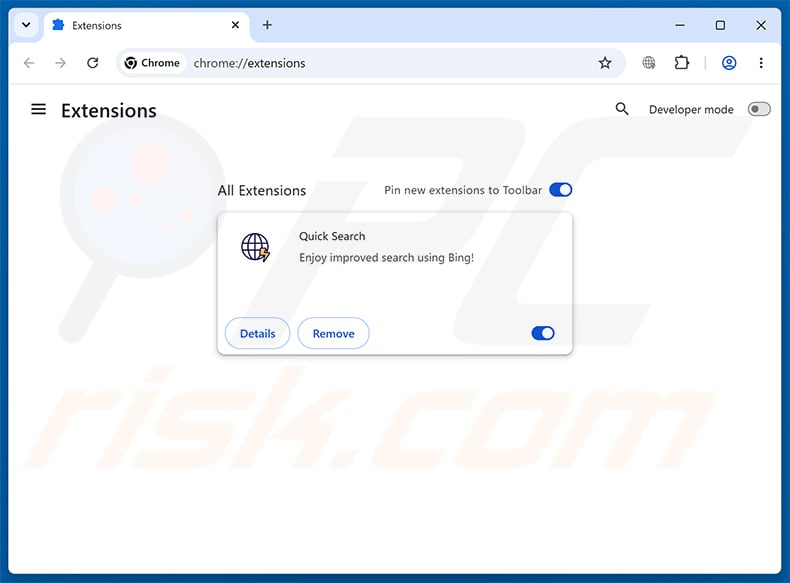
Click the Chrome menu icon  (at the top right corner of Google Chrome), select "Extensions" and click "Manage Extensions". Locate "Quick Search" and other recently-installed suspicious extensions, select these entries and click "Remove".
Change your homepage:
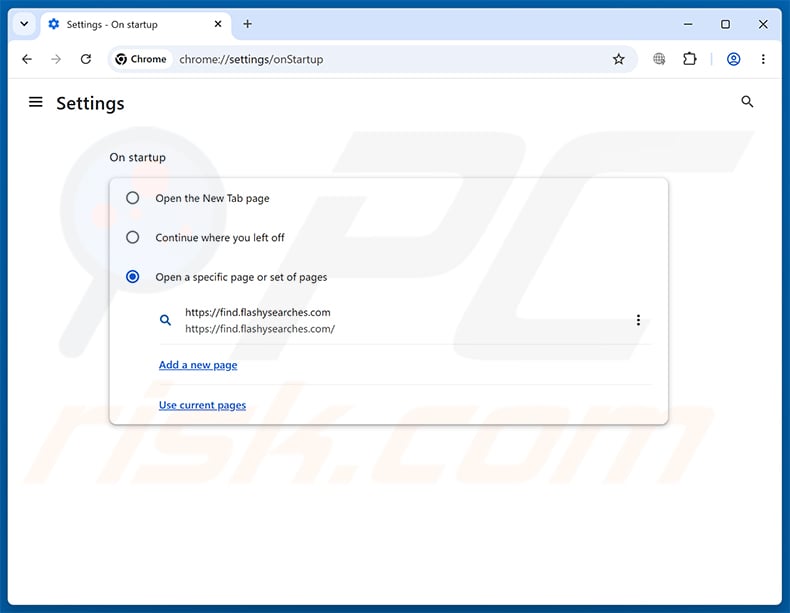
Click the Chrome menu icon (at the top right corner of Google Chrome), select "Settings". In the "On startup" section, disable "Quick Search", look for a browser hijacker URL (hxxp://www.find.flashysearches.com) below the "Open a specific or set of pages" option. If present click on the three vertical dots icon and select "Remove".
Change your default search engine:
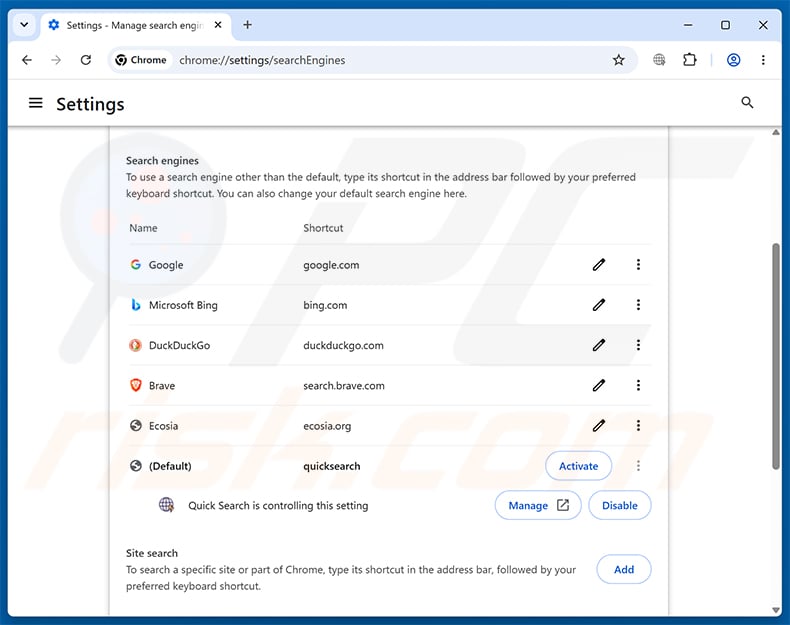
To change your default search engine in Google Chrome: Click the Chrome menu icon (at the top right corner of Google Chrome), select "Settings", in the "Search engine" section, click "Manage search engines...", in the opened list look for "find.flashysearches.com", when located click the three vertical dots near this URL and select "Delete".
- If you continue to have problems with browser redirects and unwanted advertisements - Reset Google Chrome.
Optional method:
If you continue to have problems with removal of the quick search browser hijacker, reset your Google Chrome browser settings. Click the Chrome menu icon (at the top right corner of Google Chrome) and select Settings. Scroll down to the bottom of the screen. Click the Advanced… link.
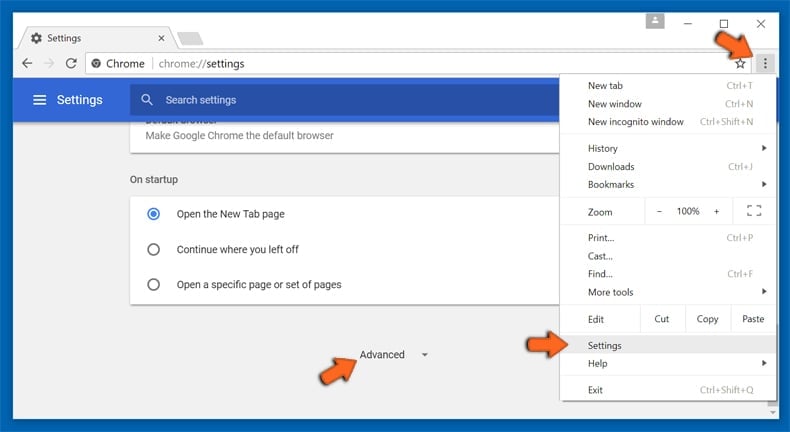
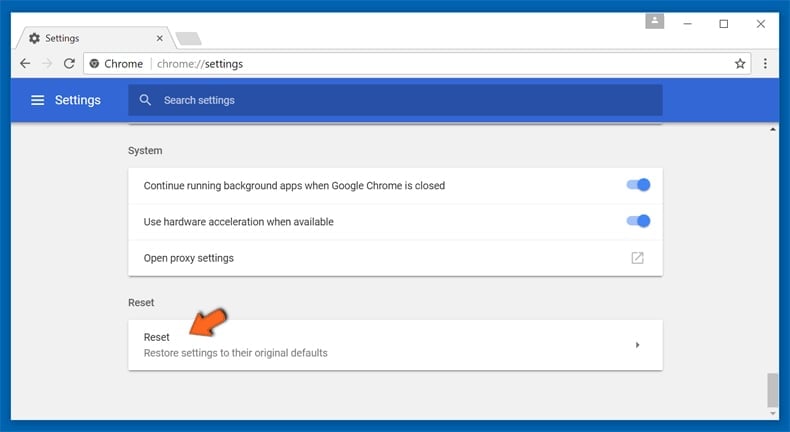
After scrolling to the bottom of the screen, click the Reset (Restore settings to their original defaults) button.
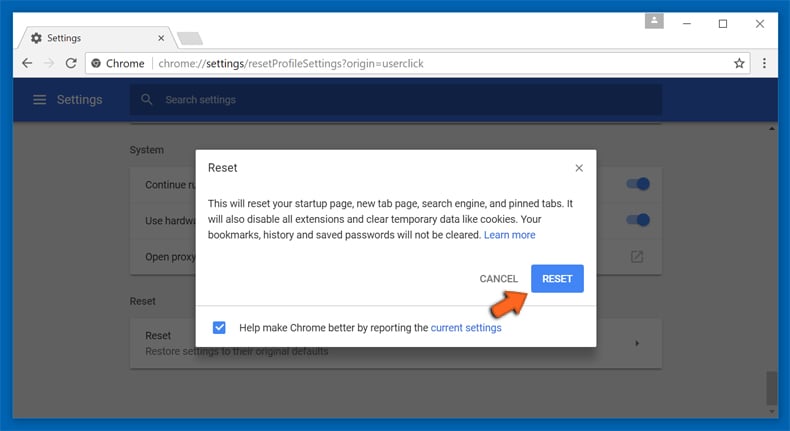
In the opened window, confirm that you wish to reset Google Chrome settings to default by clicking the Reset button.
 Remove malicious extensions from Mozilla Firefox:
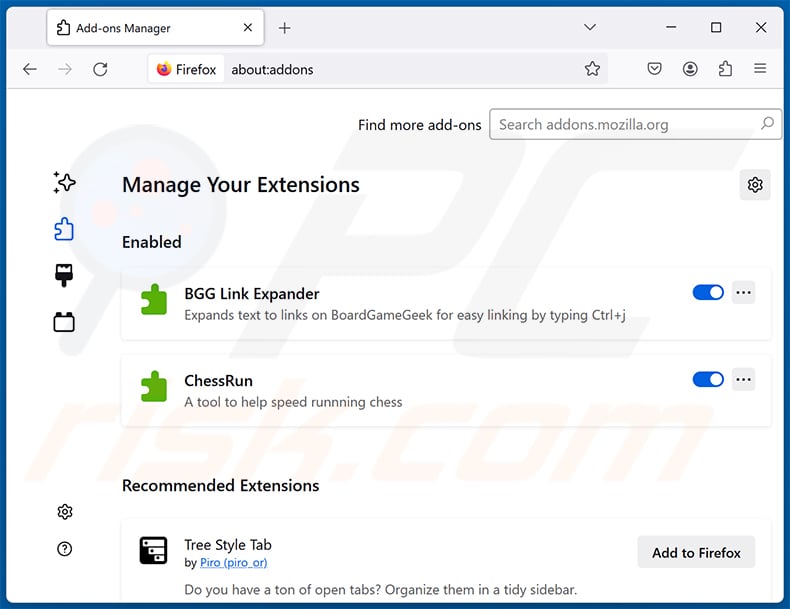
Click the Firefox menu  (at the top right corner of the main window), select "Add-ons and themes". Click "Extensions", in the opened window locate "Quick Search", as well as all recently-installed suspicious extensions, click on the three dots and then click "Remove".
Change your homepage:
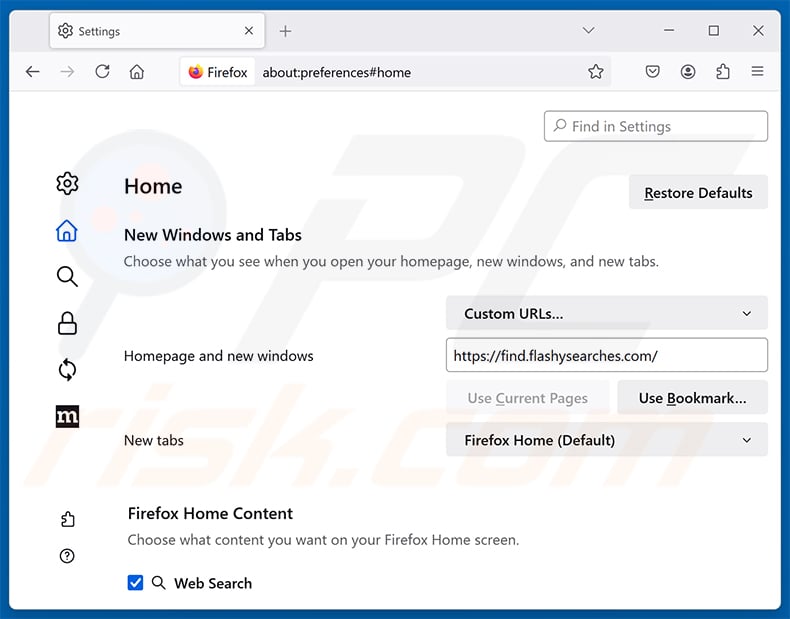
To reset your homepage, click the Firefox menu (at the top right corner of the main window), then select "Settings", in the opened window disable "Quick Search", remove hxxp://find.flashysearches.com and enter your preferred domain, which will open each time you start Mozilla Firefox.
Change your default search engine:
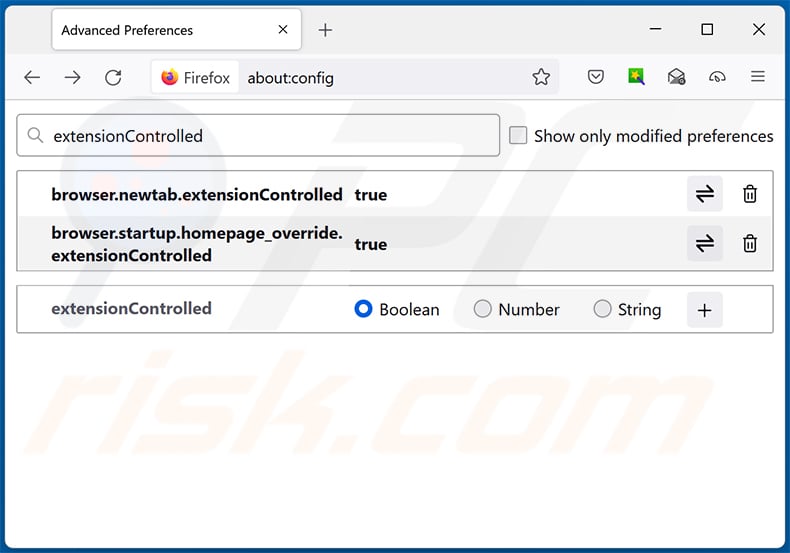
In the URL address bar, type "about:config" and press Enter. Click "Accept the Risk and Continue".
In the search filter at the top, type: "extensionControlled". Set both results to "false" by either double-clicking each entry or clicking the  button.
Optional method:
Computer users who have problems with quick search browser hijacker removal can reset their Mozilla Firefox settings.
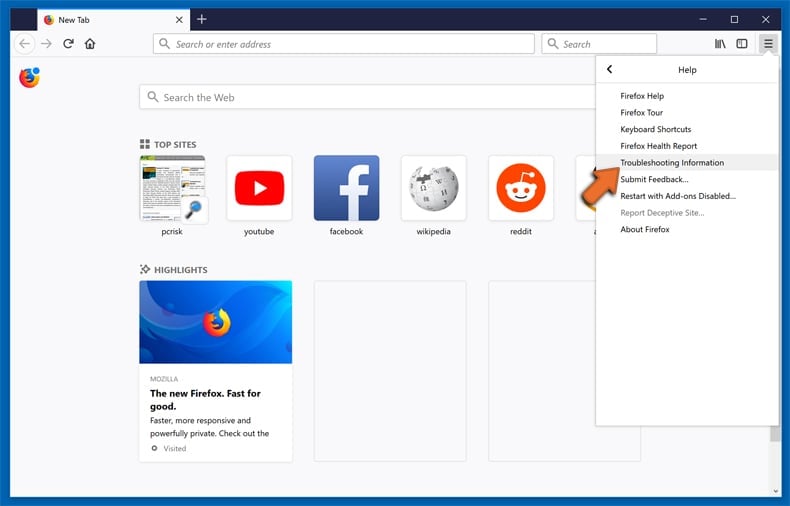
Open Mozilla Firefox, at the top right corner of the main window, click the Firefox menu, in the opened menu, click Help.
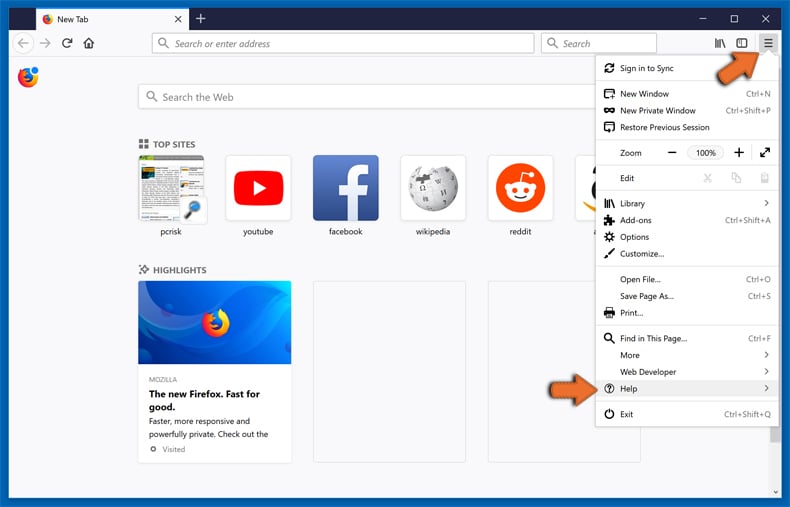
Select Troubleshooting Information.
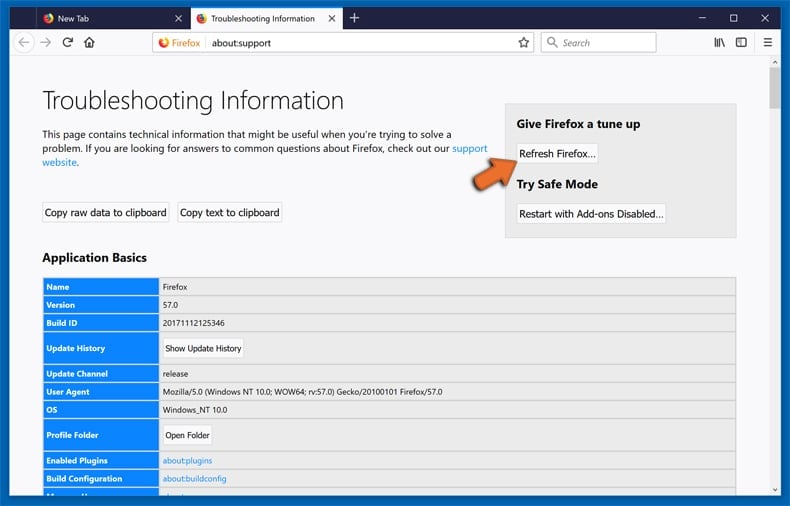
In the opened window, click the Refresh Firefox button.
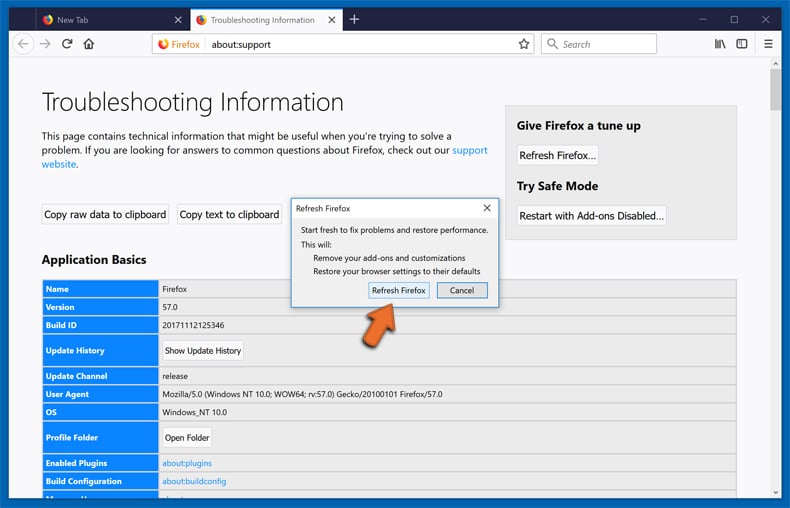
In the opened window, confirm that you wish to reset Mozilla Firefox settings to default by clicking the Refresh Firefox button.
 Remove malicious extensions from Safari:
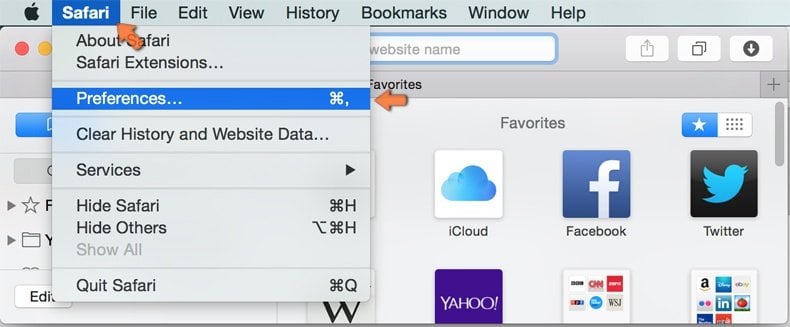
Make sure your Safari browser is active and click Safari menu, then select Preferences...
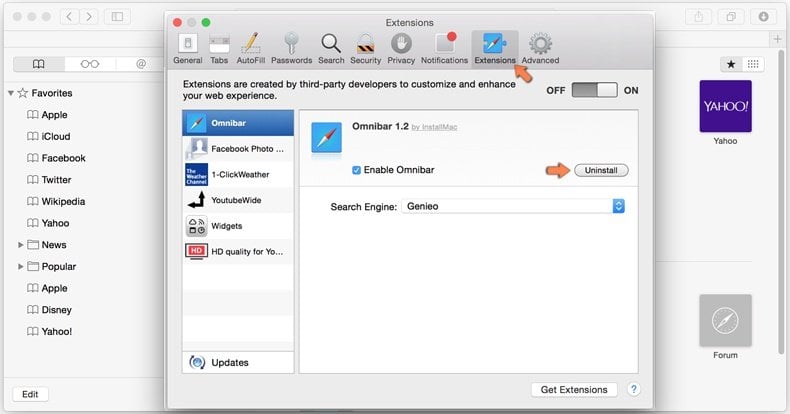
In the preferences window select the Extensions tab. Look for any recently installed suspicious extensions and uninstall them.
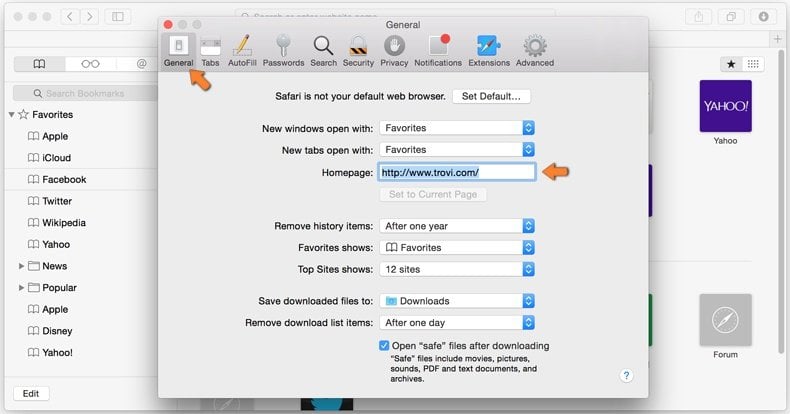
In the preferences window select General tab and make sure that your homepage is set to a preferred URL, if its altered by a browser hijacker - change it.
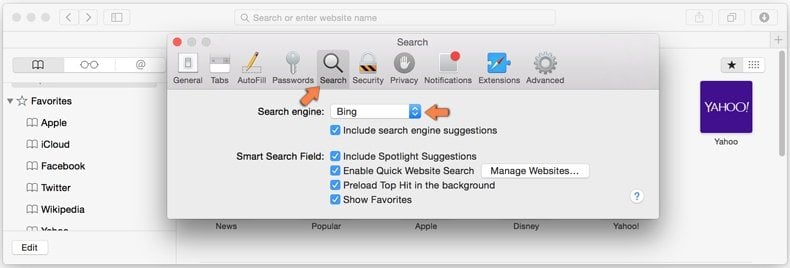
In the preferences window select Search tab and make sure that your preferred Internet search engine is selected.
Optional method:
Make sure your Safari browser is active and click on Safari menu. From the drop down menu select Clear History and Website Data...
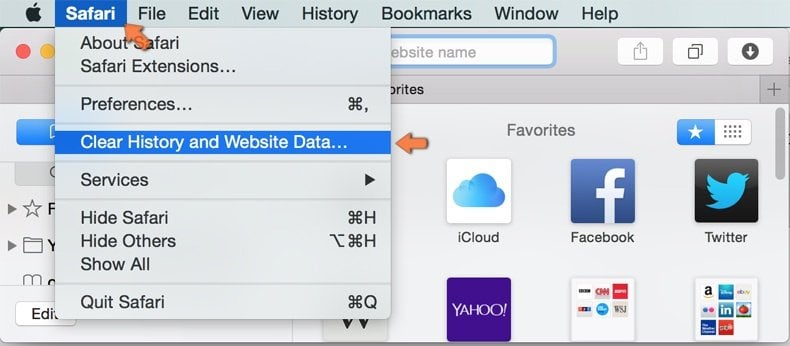
In the opened window select all history and click the Clear History button.
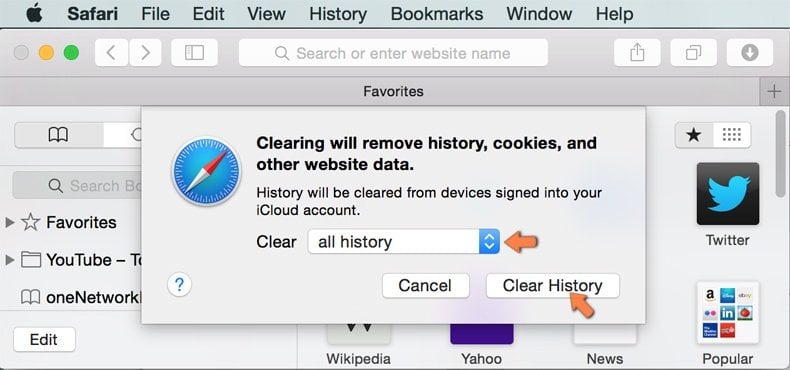
If you continue having problems with browser redirects and unwanted advertisements - Reset Safari.
 Remove malicious extensions from Microsoft Edge:
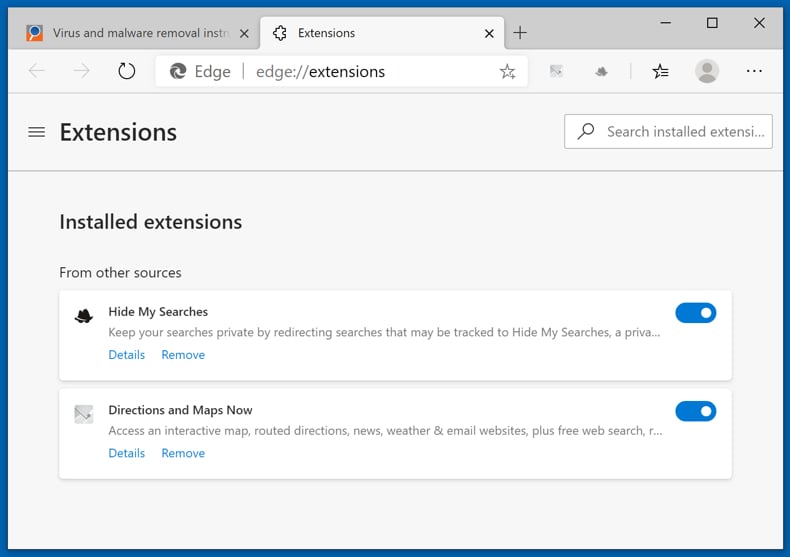
Click the Edge menu icon  (at the top right corner of Microsoft Edge), select "Extensions". Locate any recently-installed suspicious browser add-ons, and remove them.
Change your homepage and new tab settings:
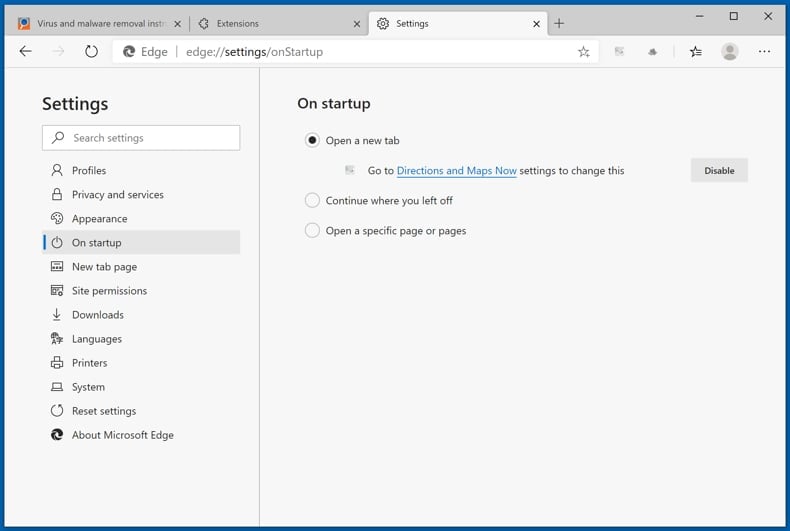
Click the Edge menu icon (at the top right corner of Microsoft Edge), select "Settings". In the "On startup" section look for the name of the browser hijacker and click "Disable".
Change your default Internet search engine:
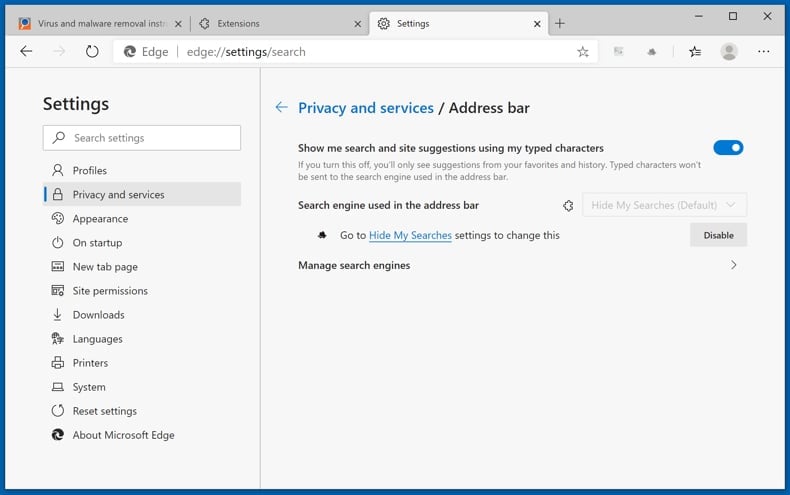
To change your default search engine in Microsoft Edge: Click the Edge menu icon (at the top right corner of Microsoft Edge), select "Privacy and services", scroll to bottom of the page and select "Address bar". In the "Search engines used in address bar" section look for the name of the unwanted Internet search engine, when located click the "Disable" button near it. Alternatively you can click on "Manage search engines", in the opened menu look for unwanted Internet search engine. Click on the puzzle icon  near it and select "Disable".
Optional method:
If you continue to have problems with removal of the quick search browser hijacker, reset your Microsoft Edge browser settings. Click the Edge menu icon (at the top right corner of Microsoft Edge) and select Settings.
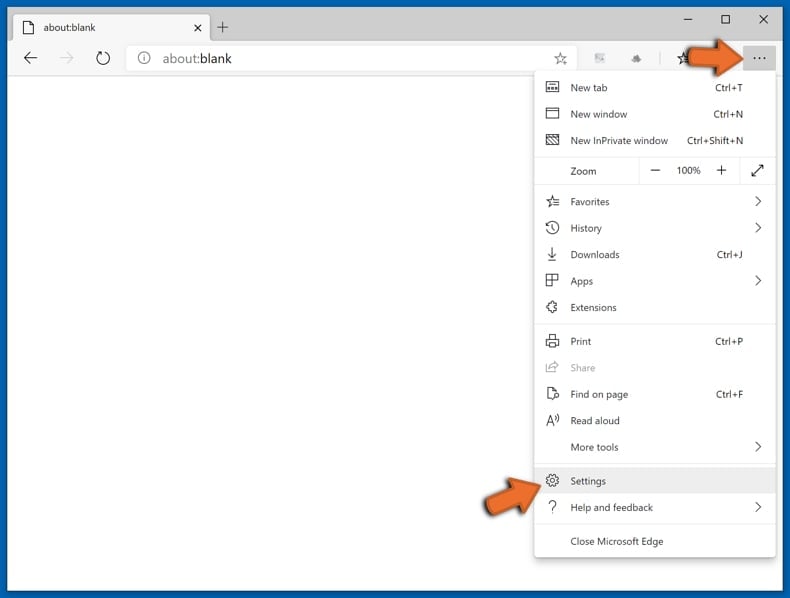
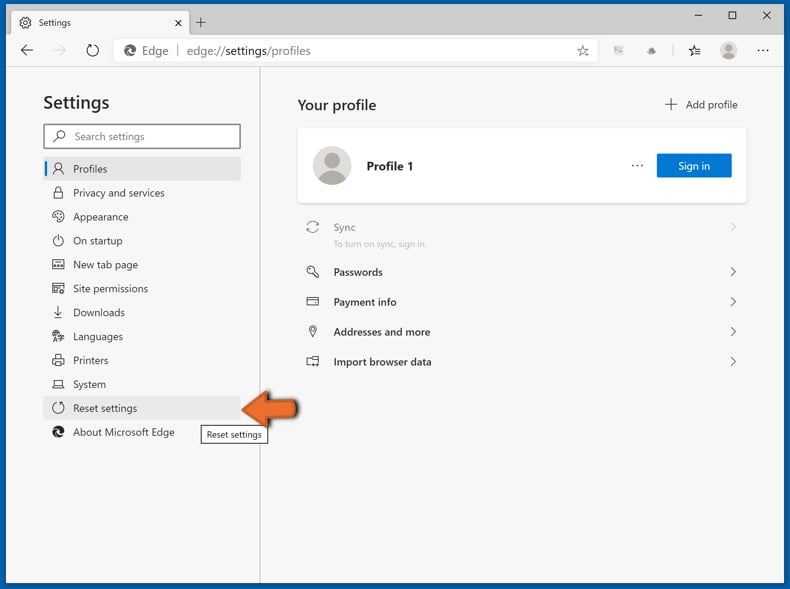
In the opened settings menu select Reset settings.
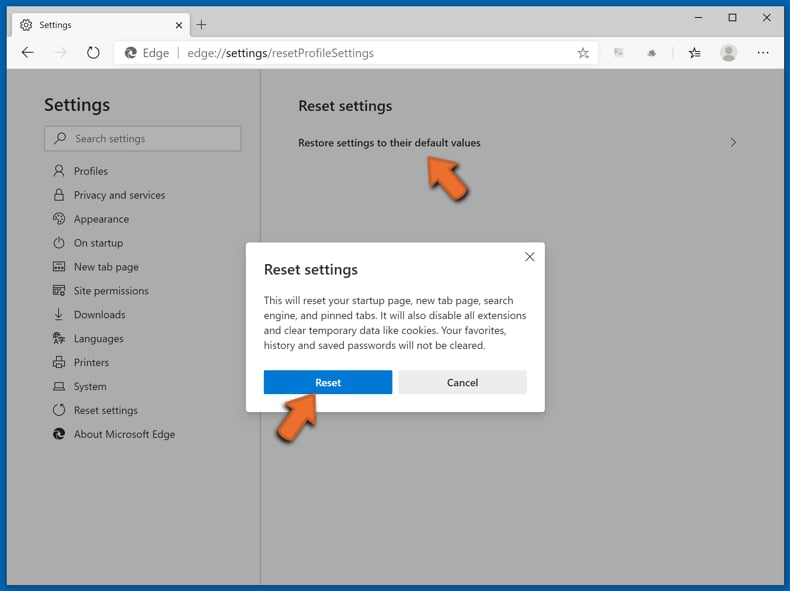
Select Restore settings to their default values. In the opened window, confirm that you wish to reset Microsoft Edge settings to default by clicking the Reset button.
- If this did not help, follow these alternative instructions explaining how to reset the Microsoft Edge browser.
Summary:
 A browser hijacker is a type of adware infection that modifies Internet browser settings by assigning the homepage and default Internet search engine settings to some other (unwanted) website URL. Commonly, this type of adware infiltrates operating systems through free software downloads. If your download is managed by a download client, ensure that you decline offers to install advertised toolbars or applications that seek to change your homepage and default Internet search engine settings.
Post a comment:
If you have additional information on quick search browser hijacker or it's removal please share your knowledge in the comments section below.
Frequently Asked Questions (FAQ)
What is the purpose of forcing users to visit websites like find.flashysearches.com?
Developers of browser-hijacking software generate revenue through the traffic they force. Sending users to find.flashysearches.com and other destinations helps operators monetize those visits through advertising and similar methods.
Is visiting find.flashysearches.com a threat to my privacy?
Find.flashysearches.com is a fake search engine that may collect browsing data and redirect users to questionable sites. The data gathered can be sold to third parties. Visiting this site is therefore considered a privacy risk.
How did a browser hijacker infiltrate my computer?
Browser hijackers spread through several channels, including bundled software installers, deceptive promotional pages, online scams, freeware and file-hosting websites, peer-to-peer sharing networks, spam browser notifications, and intrusive advertisements.
Will Combo Cleaner help me remove Quick Search browser hijacker?
Yes, Combo Cleaner can detect and eliminate the Quick Search browser hijacker. Keep in mind that manual removal can be unreliable when multiple hijackers are present, since they may reinstall each other after one is removed.
Removal-related settings may also be restricted while such software is active. It is best to eliminate all browser hijackers thoroughly and at the same time.
Share:
 Facebook
 X.com
X.com
 LinkedIn
 Copy Link

Tomas Meskauskas
Expert security researcher, professional malware analyst
I am passionate about computer security and technology. I have an experience of over 10 years working in various companies related to computer technical issue solving and Internet security. I have been working as an author and editor for pcrisk.com since 2010. Follow me on Twitter and LinkedIn to stay informed about the latest online security threats.
PCrisk security portal is brought by a company RCS LT.
Joined forces of security researchers help educate computer users about the latest online security threats. More information about the company RCS LT.
Our malware removal guides are free. However, if you want to support us you can send us a donation.
DonatePCrisk security portal is brought by a company RCS LT.
Joined forces of security researchers help educate computer users about the latest online security threats. More information about the company RCS LT.
Our malware removal guides are free. However, if you want to support us you can send us a donation.
Donate
▼ Show Discussion