
We may earn commissions from products we recommend. Learn more.
How to Unblock Websites on a School Computer

How to Unblock Websites on a School Computer
Website blocks are common on school computers for a few reasons. In the U.S., schools and libraries that receive E-rate discounts must block obscene images, child pornography, and content harmful to minors. Besides these legal rules, school IT teams can manage ChromeOS devices, control Wi-Fi and proxy settings, limit which apps and extensions students can install, and choose which sites or categories are allowed on the network. So, a blocked site could be restricted by law, school policy, device management, DNS filtering, or a full web-filtering system.
At PCrisk, we recommend starting with a paid VPN because it is the most reliable way to change your IP address, encrypt your traffic, and bypass most school website blocks. Our VPN reviews and rankings are based on hands-on testing for security, speed, streaming access, and ease of use - not just marketing claims. Still, no method works everywhere on a tightly managed school computer, so the best solution depends on whether the block is at the browser, DNS, proxy, or device-policy level.
Unblock webistes with NordVPNSpecial deal30-day money-back guarantee→
Table of Contents:
- Introduction
- Why Do Websites Get Blocked?
- How to Unblock Websites on School Computers With a VPN
- Best VPNs for Unblocking Websites on School Computers
- How We Test VPNs
- Key Features to Consider When Choosing a VPN
- 10 Ways to Unblock Websites on School Computers Without a VPN
- Wrapping Up
- Frequently Asked Questions (FAQs)
Why Do Websites Get Blocked?
Schools do not usually block websites just to be difficult. The first reason is compliance. Under CIPA, schools and libraries that receive certain federal support must use internet safety policies and filtering tools. That is why explicit content, adult material, and some categories of unsafe content are usually blocked by default on school-owned systems and school Wi-Fi.
The second reason is administration. School districts often have acceptable-use policies that apply to all activity on their internet systems, both on campus and off campus, when using a school-issued device. These policies help reduce distractions, protect students, lower the risk of phishing and malware, and keep bandwidth available for classwork, testing, and video calls. Device management tools also let administrators control proxies, install or block apps and extensions, and decide what different users or groups can do on a managed device.
Our top recommendation for streaming and privacy. NordVPN consistently leads our tests with fast speeds, reliable geo-unblocking, and a strict no-logs policy.
- ✔ Unblocks geo-restricted streaming services reliably
- ✔ 202+ locations across 111 countries
- ✔ 30-day money-back guarantee · Special deal available
The third reason is technical convenience. Many schools block not just individual websites, but also categories, domains, extensions, protocols, or apps. URL filtering is common in schools to enforce safe-search rules and block content such as adult content, gambling, malware, and anonymizers. Proxy settings can also intercept requests between the computer and the Internet. This is why a workaround that works on your home laptop might not work on a school-managed Chromebook.
Finally, filters are not perfect and sometimes block too much. An investigation into school internet censorship found that educational, health, and human rights resources were sometimes blocked alongside truly inappropriate content, often because a domain or keyword fell into a broad category. This matters because students sometimes need real access to a blocked resource for research, news, health, or language study. When this happens, the best solution is to ask a teacher or IT administrator to review the block and, if appropriate, whitelist the site.
How to Unblock Websites on School Computers With a VPN
For most users, a VPN is the fastest and most reliable option because it combines two things that other workarounds often do not: privacy and reliability. In PCrisk's 2026 testing, NordVPN stood out for its speed, audited privacy practices, strong security features, and consistently good streaming and geo-unblocking results. It also supports the broad platform mix students actually use, including Windows, macOS, Chromebook, Linux, iOS, and Android.
Top VPN ReviewsExclusive dealsExpert-tested · hands-on reviews→
Before you start, keep one practical point in mind. If the school computer is tightly managed, the administrator may have blocked app or extension installation, proxy changes, or both. Google says that managed ChromeOS devices can have apps, extensions, Wi-Fi, and proxy settings controlled from the admin console, and Education domains can block access to the Chrome Web Store. So, these steps work best on a personal laptop, a lightly managed student device, or a school computer where you can install apps locally.
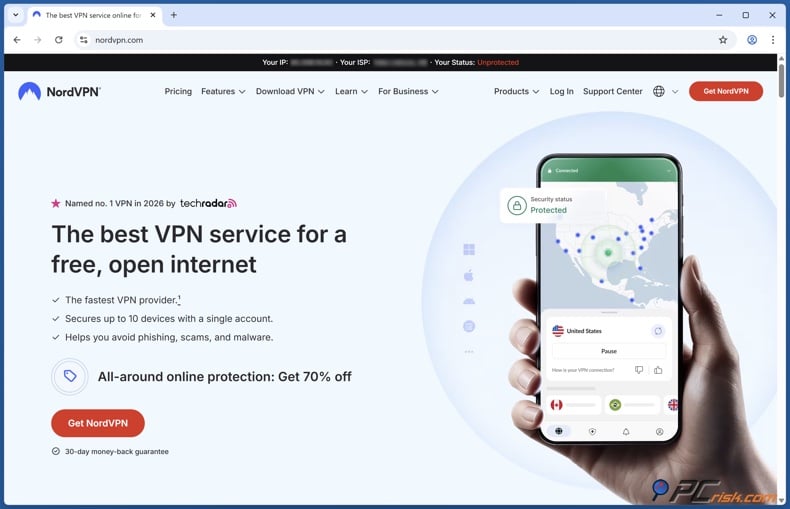
1. Create your NordVPN account and get the correct app for your device. NordVPN supports major desktop and mobile platforms, and PCrisk's review lists it as available on Windows, macOS, Chrome OS, Linux, iOS, and Android. If you are using a Chromebook or Chrome browser, remember that organization policy can still restrict installation.
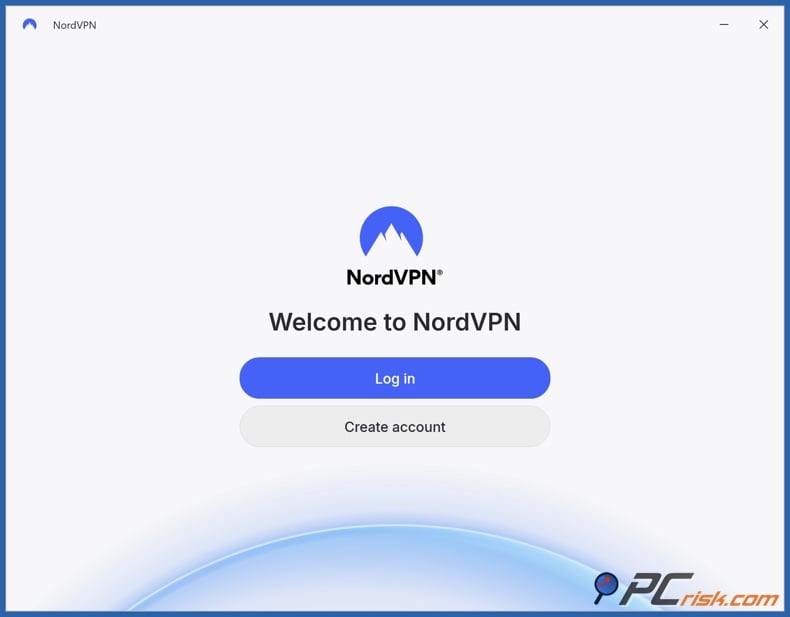
2. Install the app and sign in. Once installed, log in and let the client complete its first-run setup. NordVPN's app makes Quick Connect simple, but you can also manually select a country or specialty server when you need more control.
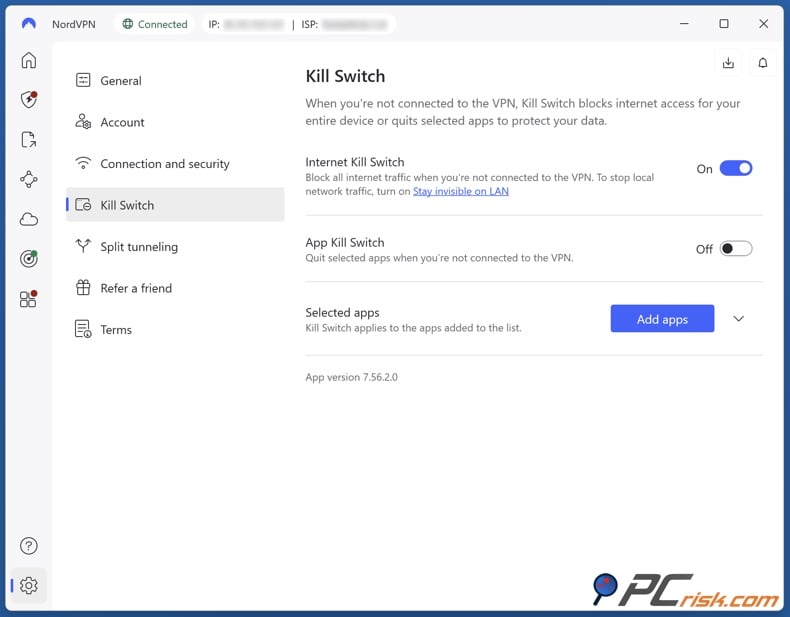
3. Turn on the privacy basics before connecting. In our review, NordVPN's kill switch, DNS leak protection, and audited no-logs policy were among its biggest strengths. For school use, that matters because you want your traffic routed through the VPN tunnel rather than falling back to the local network if the connection drops.
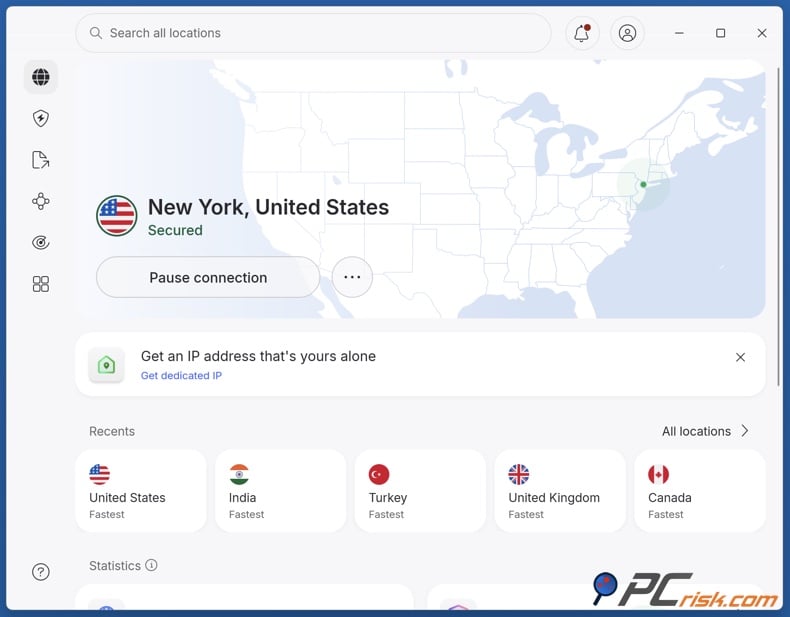
4. Start with a nearby standard server. If you just want to open a blocked site on the school network, start with the nearest country or the fastest Quick Connect option. A nearby connection usually gives you better performance for research, reading, uploads, and classroom video. PCrisk's testing found NordVPN especially strong on nearby servers thanks to NordLynx.
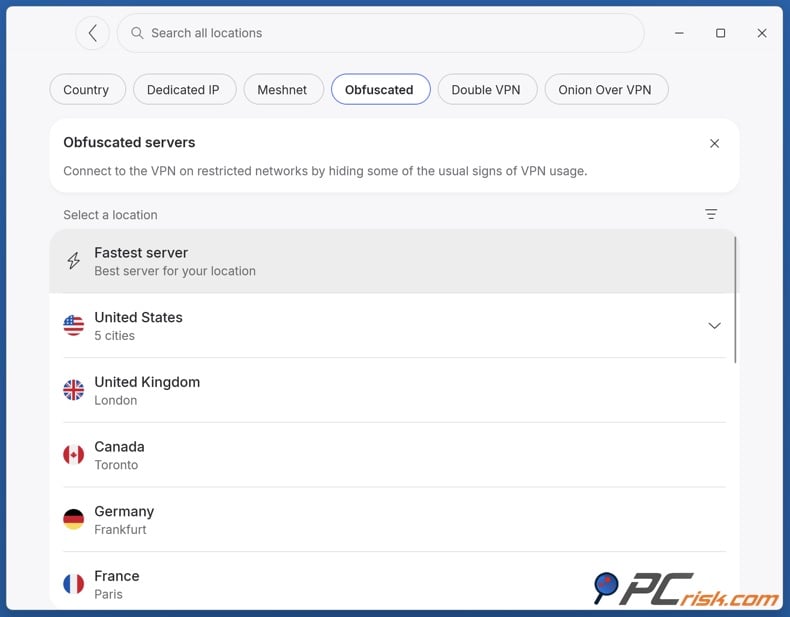
5. If the school network blocks ordinary VPN traffic, switch to OpenVPN and use obfuscated servers. NordVPN's own support documentation says its obfuscated servers work with OpenVPN UDP or OpenVPN TCP and are specifically designed for restrictive networks. Nord explains that obfuscated servers hide that you are using a VPN by making your traffic look more like ordinary web traffic, which can help evade VPN-blocking firewalls.
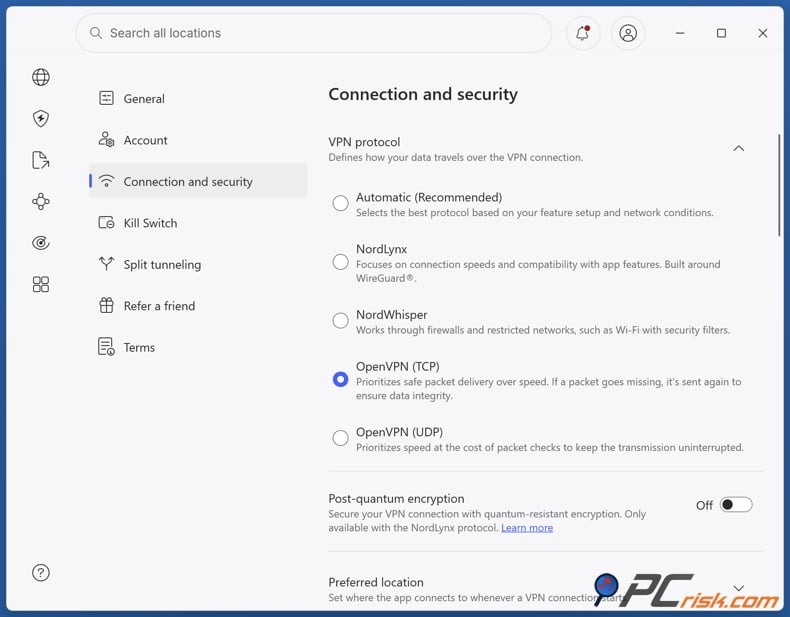
6. For especially stubborn networks, try OpenVPN over TCP. Nord's support page tells users to switch to OpenVPN when using obfuscated servers, and broader VPN guidance has long favored TCP port 443 because that port is widely used for HTTPS traffic and is often left open by restrictive firewalls. This will not defeat every school filter, but it is one of the first adjustments worth trying when a VPN connects in one place and fails in another.
7. Open the blocked website and test what kind of block you are dealing with. If the site loads normally after you turn on the VPN, the block was probably tied to your school's network or IP filtering. If the site still does not work, the block might be at the browser, account, device policy, or app installation level. In that case, you may need to try a different method or ask school IT for help.
In general, use the nearest server unless you need a different country. A local server is usually the fastest. Pick another country only if the page is region-restricted or you need a different location to get around broad content filters. NordVPN also lets you choose specific countries from its specialty-server list if you need obfuscation.
Best VPNs for Unblocking Websites on School Computers
PCrisk's current VPN shortlist includes NordVPN, Surfshark VPN, Mullvad VPN, Proton VPN, and ExpressVPN. For this article's narrower use case, which is opening blocked websites on school computers and handling video-heavy content smoothly, we keep NordVPN in first place and move ExpressVPN ahead of Proton VPN and Mullvad VPN because PCrisk's own testing describes ExpressVPN and Surfshark as stronger streaming and geo-unblocking options, while Mullvad's review is clear that streaming is one of its weak points.
NordVPN - NordVPN is our top recommendation because it balances speed, privacy, server coverage, and day-to-day ease of use better than anything else on PCrisk's reviewed list. PCrisk rates it 4.5 out of 5, notes support for 10 simultaneous devices, and highlights a network of more than 9,100 servers across 167 countries. In practice, that broad country selection gives students plenty of room to find a nearby server for ordinary browsing or another location for region-blocked content. PCrisk's testing also found that NordVPN reliably opened major streaming services and performed especially well with NordLynx, while still offering stronger-than-average security extras such as Double VPN, Onion over VPN, Threat Protection, and obfuscated servers.
- Pros: excellent speed, strong privacy posture, great platform support, and dependable unblocking.
- Cons: Short plans are expensive, there is no permanent free tier, and split tunneling remains limited on iOS and macOS.
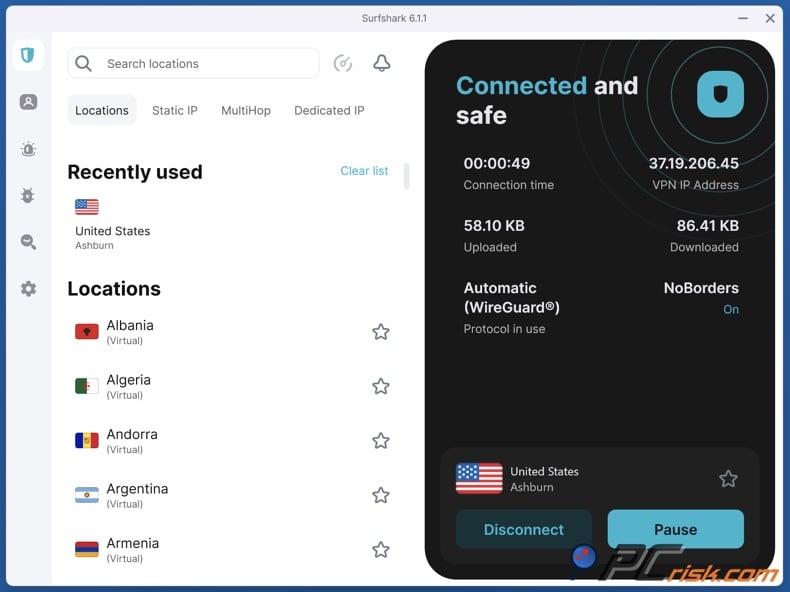
Surfshark - Surfshark is the value pick for students who want speed and unblocking power without paying top-tier prices. PCrisk scores it 4.4 out of 5 and points to a network of more than 4,500 servers in 100 countries, combined with unlimited simultaneous device connections. That last part matters if you want one subscription to cover a laptop, phone, tablet, and home TV without juggling device limits. In PCrisk's testing, Surfshark handled major streaming platforms smoothly and delivered strong WireGuard performance, while adding features such as MultiHop, CleanWeb, split tunneling, and Everlink connection recovery.
- Pros: excellent value, very good streaming performance, broad country coverage, and unlimited devices.
- Cons: renewal pricing jumps sharply after the first term, there is no permanent free plan, and some features are still missing or reduced on iOS and Linux.
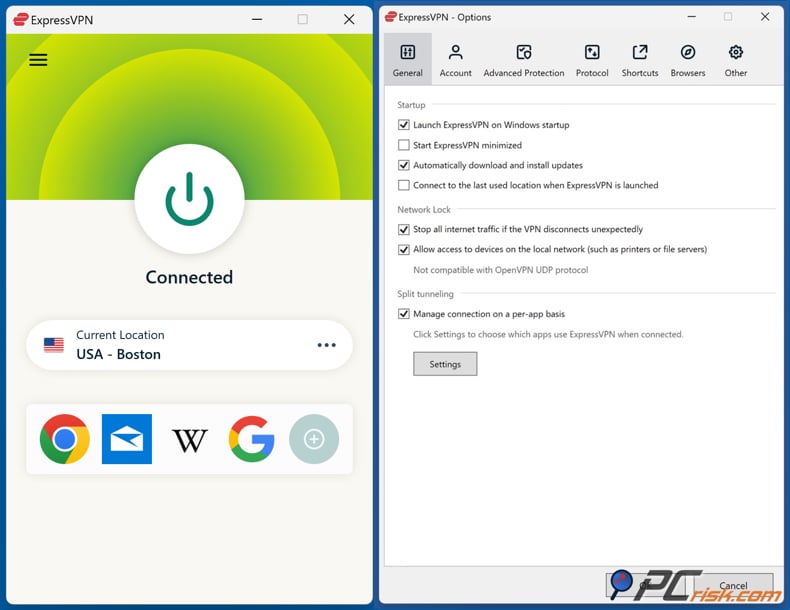
ExpressVPN - ExpressVPN is our third choice for this use case because it is one of the easiest premium VPNs to use and remains especially good for unblocking content quickly. PCrisk gives it a 4.1 score, lists support for 10 to 14 devices depending on plan, and cites a global network of more than 3,000 servers in 105 countries. PCrisk's testing found it reliable with major streaming services, stable under load, and unusually beginner-friendly across desktop, mobile, and router setups. That simplicity can be a real advantage when you are trying to get online fast and do not want to fight with menus or advanced options.
- Pros: very clean apps, strong privacy basics, excellent streaming reliability, and very wide country coverage.
- Cons: it is expensive, lacks some of the advanced extras found in NordVPN and Surfshark, and offers weaker long-term value than the best budget rivals.
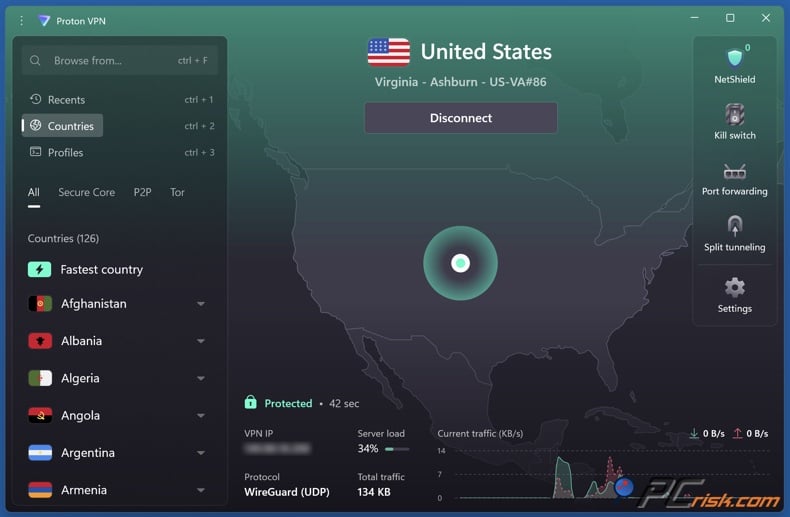
Proton VPN - Proton VPN is a very good choice for users who care as much about privacy philosophy as they do about unblocking. PCrisk scores it 4.2 out of 5 and describes a server network of more than 18,700 servers in over 134 countries in the feature overview, while also highlighting Secure Core, NetShield, and VPN Accelerator. In testing, PCrisk found Proton VPN Plus effective for streaming and leak protection, and it remains one of the few major services with a genuinely usable free tier. That said, the paid plans are not the cheapest, and PCrisk notes that support can be slower and that performance, while good, is not always market-leading.
- Pros: excellent privacy reputation, strong paid features, broad server footprint, and the best free plan among the five reviewed.
- Cons: paid tiers cost more than many rivals, speeds are strong but not always class-leading, and the free plan is not suitable for streaming.
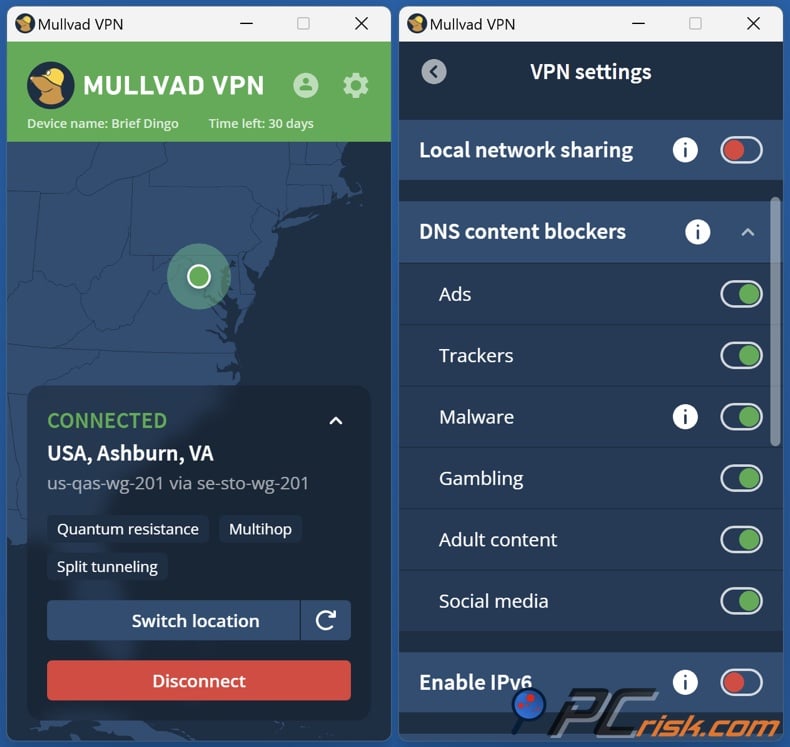
Mullvad VPN - Mullvad VPN is the most privacy-focused option on this list, but it is the least suitable if your goal is to unblock blocked sites on a school computer and stream video smoothly. PCrisk scores it 4.3 out of 5 and praises anonymous sign-up, open-source audited apps, and stable day-to-day performance. The tradeoff is a smaller network, roughly 580 servers in 50-plus countries, plus weaker geo-unblocking. PCrisk's review is blunt that Mullvad struggles with major streaming services and lacks some convenience features that ordinary users expect.
- Pros: outstanding privacy credentials, simple flat pricing, and strong nearby performance.
- Cons: limited country selection, weaker streaming and unblocking, no live chat, and fewer convenience features for average users. If your priority is anonymity above all else, Mullvad is excellent. If your priority is hassle-free access on a restrictive school network, it falls behind the other four.
If you want the short version: use NordVPN for the best all-around result, Surfshark if budget and unlimited devices matter most, ExpressVPN if you want premium simplicity, Proton VPN if you value privacy and want a credible free option for light use, and Mullvad only if privacy is your top priority over streaming or convenience.
How We Test VPNs
PCrisk's VPN methodology is deliberately hands-on. We do not just compare specs sheets. In the dedicated "How we test VPNs" page, PCrisk explains that it evaluates VPNs in real-world conditions and checks whether a service truly meets high standards for privacy, security, and ease of use. That starts with security fundamentals such as modern encryption, strong tunneling protocols, leak prevention, and kill-switch behavior under simulated dropouts. PCrisk also reviews provider infrastructure, favoring features such as in-house DNS, RAM-only servers, and other measures that reduce the chance of data leakage or persistent storage.
Performance testing is just as structured. We measure a baseline connection first, then compare VPN performance across local, mid-distance, and far-distance servers at different times of day. It usually averages nine data points, derived from testing three servers at three different times, and records download speed, upload speed, and latency. Beyond lab numbers, the methodology also includes everyday tasks such as HD and 4K streaming, large downloads, torrenting where appropriate, and even online gaming, to check how stable and consistent the connection remains over time.
Streaming and geo-unblocking get their own dedicated evaluation because they are a major reason people buy VPNs in the first place. We test access to popular streaming services, check whether playback begins smoothly, look for proxy or VPN error messages, and try multiple servers when necessary. Just as importantly, we look beyond a browser tab and test how VPNs behave with apps on different devices, since blocking behavior can differ between websites and native apps.
Usability also matters. Our methodology explicitly covers sign-up, installation, interface design, feature clarity, server switching, auto-connect behavior, support quality, and whether advanced features such as split tunneling or multi-hop actually work as promised. This mirrors the broader logic of PCrisk's ad-blocker testing framework, which emphasizes real-world and lab testing, default effectiveness, performance impact, usability, and ease of managing exceptions or settings without confusing average users. That crossover matters because good security software should not just be technically strong. It also has to be practical for ordinary people.
Key Features to Consider When Choosing a VPN
The first thing to look for is security and privacy. That means modern encryption, secure protocols, leak protection, and a functioning kill switch. It also means a clear no-logs policy and, ideally, an independent audit rather than a provider simply asking you to trust its marketing. PCrisk's VPN tests put a lot of weight on exactly these factors, and the top-ranked services in its 2026 roundup all lean heavily on audited privacy claims and solid technical protections.
The second thing is speed and network reach. A VPN with a large server network gives you more country options and a better chance of finding a fast route close to your location. This matters for ordinary school browsing, but it matters even more for video, downloads, and anything else that feels bad when latency rises. If you expect VPN blocks, obfuscation and protocol choice also matter. Services that can shift protocols or disguise VPN traffic are more likely to work on restrictive networks.
The third thing is usability. A good VPN should install quickly, connect quickly, show server choices clearly, and work across the devices you actually own. If you are using a school computer, browser extension support and Chromebook compatibility may matter almost as much as raw speed. Finally, look at pricing realistically. PCrisk's general VPN guidance is straightforward here: free services are usually more limited, while paid VPNs tend to deliver better speed, security, support, and consistency.
10 Ways to Unblock Websites on School Computers Without a VPN
Not every student can install a full VPN app, and not every block needs one. The 10 methods below can work in some situations, but none is equally safe, private, or reliable. Some only help with weak filters. Some trade privacy for convenience. Others, like Google Cache, are much less useful now than before. Think of these as backup options, not as replacements for a strong VPN.
1. Use the Tor Browser
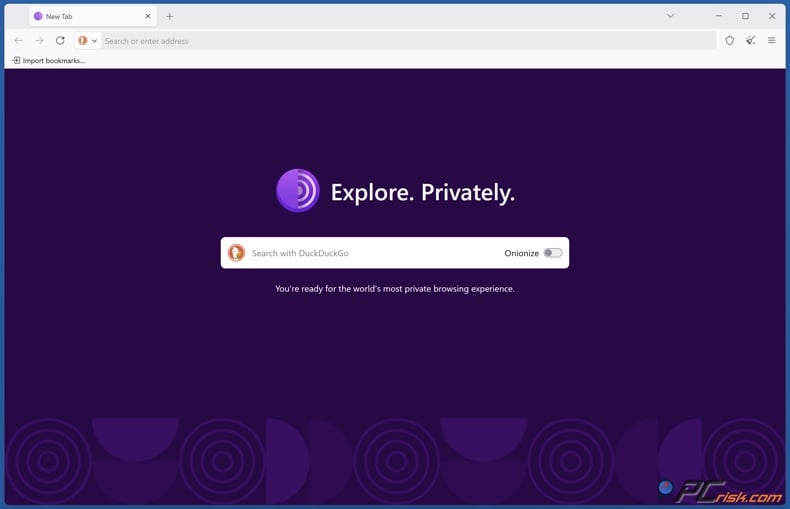
The official browser from the Tor Project is designed to route your traffic through the Tor network, defend against tracking and surveillance, and circumvent censorship. That makes it one of the most capable non-VPN tools for reaching blocked content. The downside is practicality. On a managed school device, installation may be blocked, and Tor is usually slower and less convenient than a mainstream paid VPN. Still, for text-heavy browsing and censorship resistance, it is one of the strongest alternatives available.
2. Use a Web Proxy
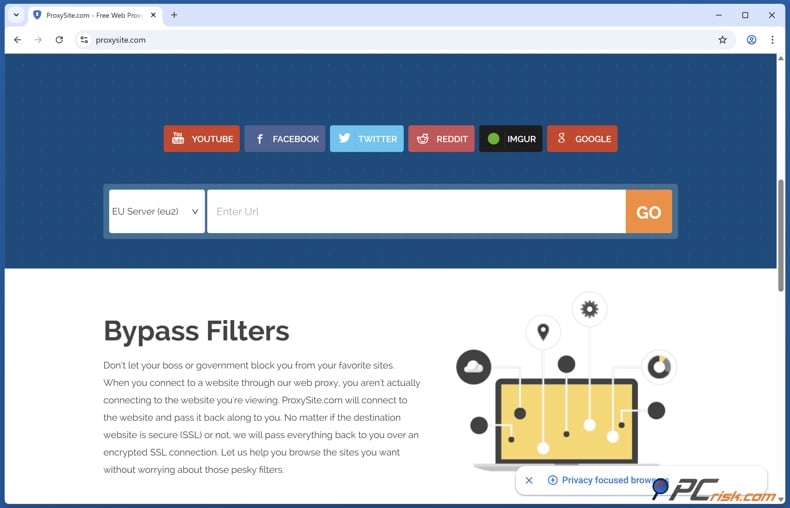
A web proxy acts as a middleman between your browser and the website you want to visit. The proxy fetches the page for you and sends it back, which can sometimes get around basic URL or domain blocks. The main issue is trust. Since the proxy is in the middle, it can see the traffic it handles. Because of this, proxies are better for low-risk reading, not for personal accounts, school portals, or sensitive information.
3. Install a Proxy or VPN Browser Extension
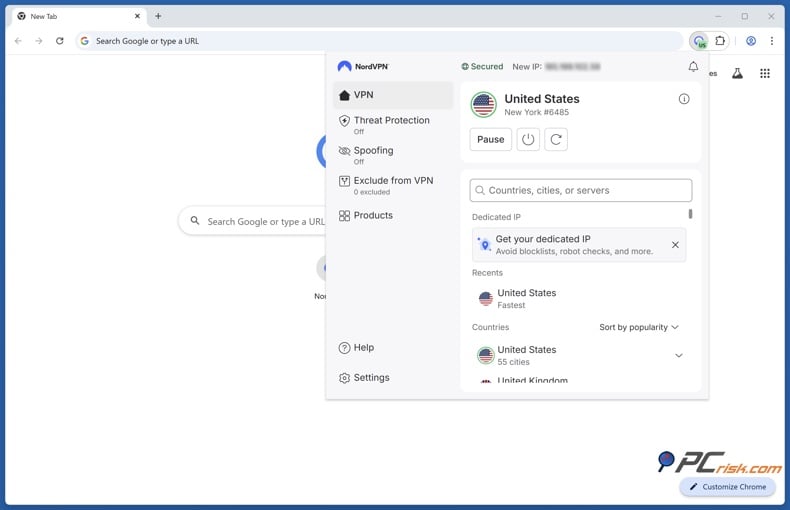
If you cannot install full desktop software, a browser extension can be the next best option because it can reroute browser traffic without changing the whole operating system. This can be enough to open blocked web pages and is often easier to use on a personal laptop. But there are two main problems. First, schools can allow or block extensions, and some Education domains block access to the Chrome Web Store. Second, extension permissions can be very broad. Google warns that some extensions may read or change data on every page you visit, and recent reports show how risky bad extensions can be. Only use reputable, well-reviewed tools.
A VPN encrypts your traffic — but your device still needs protection against malware and ransomware. Combo Cleaner adds the missing layer of defense.
Download Combo CleanerAntivirusDetect & remove malware threats→4. Use a URL Shortener
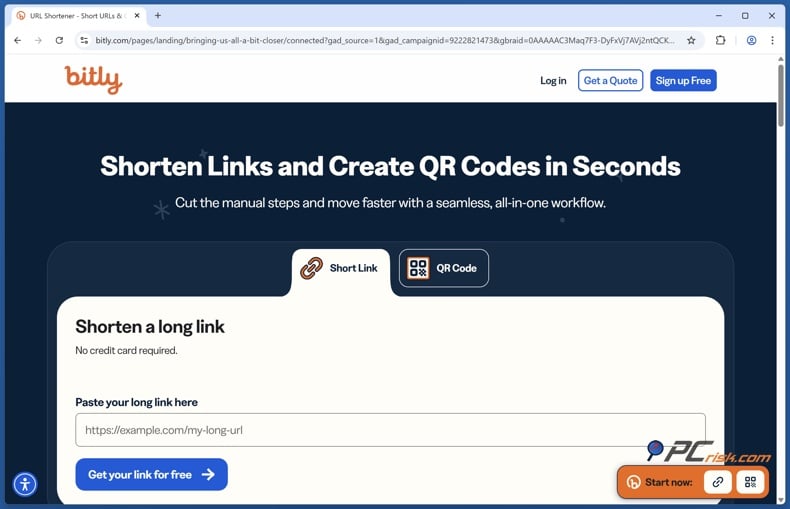
A short URL can sometimes bypass a basic keyword or domain filter because the shortened address masks the real destination. Services like Bitly redirect the short link to the full target URL. This is also why the method is unreliable. If the school filter follows redirects, blocks common shortener domains, or blocks the final site anyway, the shortcut does not help. So, this might work against the weakest filters, but it is one of the least reliable methods here.
5. Switch Protocols
This method usually works best with a proxy or browser-based tunneling tool, not on its own. Some restrictive networks allow HTTPS traffic over TCP port 443 but block more obvious VPN or proxy traffic on other ports. NordVPN's obfuscated-server documentation and OpenVPN guidance both show that switching to OpenVPN and using TCP 443 can help a connection work on a restrictive network. If a site works at home but not at school, changing protocols is one of the first things to try.
6. Use a Dynamic IP Address
A dynamic IP address changes over time, so leaving a restricted network and joining another one can be very effective. If the school's blocks are tied to its public IP range or filtering system, switching to a phone hotspot or another network gives you a new path and usually a new public IP. This method does not really fix the school computer, but instead bypasses the school network. It is usually much more effective on a personal device than on a managed school laptop.
7. Modify DNS Server Settings
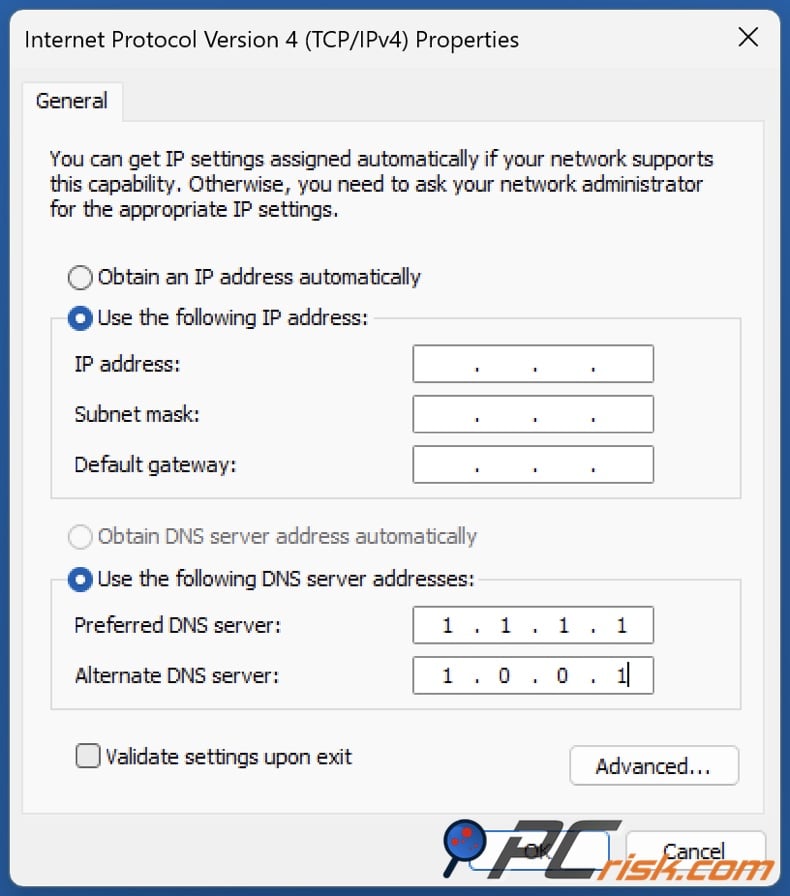
Changing DNS can help if a website is blocked mainly at the DNS level. Both Google Public DNS and Cloudflare have clear instructions for changing a device's default DNS settings, and Cloudflare's 1.1.1.1 for Families shows how DNS can block malware or adult content by domain. But the limitation is important: if the school uses proxy settings, browser policies, firewall rules, or full URL filtering, changing DNS often does not help. This works best on unmanaged devices and simple DNS-only blocks.
8. Enter an IP Address Instead of a URL
This only works in a few cases. If the block is DNS-based and the server responds to its IP, typing the IP might load the page. But most modern websites do not work this way. The HTTP Host header tells the server which site you want, and HTTPS uses SNI to show the right certificate for the hostname. Since many domains share a single IP address, entering the raw IP address often gives you the wrong site, a certificate warning, or nothing useful.
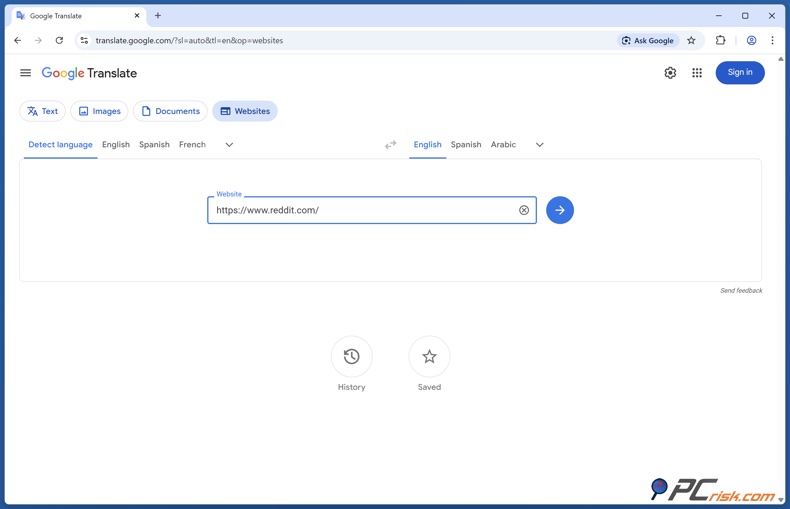
9. Use Google Translate
Google's Chrome help pages say you can send a page to translate.google.com, choose "Websites," and have the service fetch and show the page in another language. Since the page is loaded via Google's translation service rather than your normal browser path, this can sometimes open text-heavy blocked pages. It is not a magic fix. It works best on simple pages and is not very useful for logins, interactive tools, or streaming. But for plain articles, school readings, and reference material, it is still a practical no-install option.
10. Convert HTML to PDF
HTML-to-PDF tools fetch a page and turn it into a portable document you can download or view offline. Adobe says the main benefit is that converting HTML to PDF makes a web page portable, shareable, and readable offline. In practice, this can help with blocked articles or static reference pages because the converter requests the page for you. The downside is that it is usually read-only and often does not work on pages that need you to sign in or interact. Some browser-based PDF tools also say they do not support logged-in pages.
Wrapping Up
If you want the most reliable, secure, and least frustrating way to open blocked websites on a school computer, use a high-quality paid VPN. This is still the best answer. Of the VPNs PCrisk has reviewed, NordVPN is the top all-around choice because it combines great speed, a large server network, strong privacy features, and helpful options for restrictive networks, such as obfuscated servers. Surfshark is the best value, ExpressVPN is the easiest premium option, Proton VPN is the privacy-focused choice with the best free tier, and Mullvad is great for anonymity but not ideal for streaming or broad unblocking.
If you cannot use a VPN, be realistic about what the other options can and cannot do. Tor Browser is the best tool for censorship resistance; a web proxy can work in low-risk situations; DNS changes can help on unmanaged devices; and Google Translate or PDF conversion can sometimes open a text page. But none of these options offer the same privacy, consistency, and ease of use as a strong VPN. Many also do not work at all on tightly managed school devices.
One last point is important. If the blocked site is educational and was likely blocked by mistake, requesting it be whitelisted is still the best long-term solution. School filters are often broad, and overblocking does happen. Unblocking should be about getting to real resources and protecting your privacy on a network you do not control, not about bypassing safety or compliance safeguards.
Frequently Asked Questions (FAQs)
Is it legal to unblock websites on a school computer?
Legality and school permission are not the same thing. In the U.S., CIPA requires many schools receiving E-rate support to filter certain harmful material, and school acceptable-use policies can separately restrict what students may do on school systems. So a workaround might not be criminal, but it can still violate school rules or device-use agreements.
What is the best overall way to unblock websites at school?
A paid VPN is still the best overall method because it changes your IP address and encrypts your traffic simultaneously. Based on PCrisk's reviewed VPNs, NordVPN is the strongest all-around recommendation for unblocking school computers thanks to its speed, large server network, and restrictive-network features.
Can schools block VPNs?
Yes. Networks can recognize or block ordinary VPN traffic, and managed devices can also restrict app installation or extension use. That is exactly why features such as obfuscated servers and protocol switching exist.
Will Incognito or Private Browsing unblock websites?
Usually, no. Private browsing mainly prevents the browser from saving local history and cookies on the device. It does not hide your activity from the network, from your school, or from the websites you visit.
Is changing DNS enough to get around school filters?
Sometimes, but only if the block is mainly happening at the DNS layer and the machine is not tightly managed. If the school is enforcing proxy policies, browser controls, or full URL filtering, changing DNS servers will often have no effect.
Are free VPNs safe for this?
Free VPNs are usually not the best option for school use because they tend to have fewer servers, more limits, weaker support, and less consistent performance. Proton VPN is the only free-tier option in PCrisk's top five that we would describe as genuinely credible for very light use, but its free plan is still not ideal for streaming or broad unblocking.
Can a browser extension work if software installation is blocked?
Sometimes. An extension can be easier to install than a full desktop VPN, but schools can centrally allowlist or blocklist extensions, and some Education domains block access to the Chrome Web Store. Extensions also require careful vetting because their permissions can be very broad.
Is Tor better than a VPN for school blocks?
Not generally. Tor is stronger for censorship resistance and anonymity, but it is slower and less convenient for everyday school browsing. For most people trying to open ordinary blocked sites quickly and safely, a premium VPN is the more practical tool.
Share:
 Facebook
 X.com
X.com
 LinkedIn
 Copy Link

Rimvydas Iliavicius
Researcher, author
Rimvydas is a researcher with over four years of experience in the cybersecurity industry. He attended Kaunas University of Technology and graduated with a Master's degree in Translation and Localization of Technical texts. His interests in computers and technology led him to become a versatile author in the IT industry. At PCrisk, he's responsible for writing in-depth how-to articles for Microsoft Windows.
▼ Show Discussion