
We may earn commissions from products we recommend. Learn more.
How to Get Rid of Ads on Instagram in 2026

How to Get Rid of Ads on Instagram in 2026
Instagram relies on ads for revenue, so removing them usually involves one of three options: using an ad blocker in your browser, adjusting Instagram’s ad settings to reduce personalization, or, in some regions, paying for an official ad-free subscription.
In 2026, there’s no universal way to turn off all ads, and blocking ads in the Instagram app is more difficult than in a browser. However, you can cut down on ads and improve privacy and security by picking the best method for how you use Instagram, whether in the app or a browser, on desktop or mobile.
Block Instagram Ads with AdGuardSpecial deal30-day money-back guarantee→
Table of Contents:
- Introduction
- Instagram Ads Explained
- Blocking Instagram Ads in 2026
- Top ad blockers for Instagram in 2026
- How to Get Rid of Ads on Instagram Using Instagram’s Ad Settings
- How We Test Adblockers for Instagram
- Can Instagram Ads Be Dangerous
- Final Thoughts
- Frequently Asked Questions (FAQs)
Instagram Ads Explained
Instagram ads are designed to look like regular posts, so they're called native ads. You’ll find them as image posts, videos, Stories, Reels, carousels, and in other places throughout the app.
You can usually spot paid ads because they have a label. Previously, Instagram used a “Sponsored” tag, but in 2026, Meta is switching to an “Ad” label. This is part of a larger update to how ads appear on the platform.
It also helps to know the difference between two types of posts that people often confuse:
Standard paid ads (served by Meta as advertising inventory). These are the ones you’re trying to eliminate or reduce in your feed, Stories, and Reels.
Branded content / partnership posts (creator-led promotions). These posts use disclosures such as “Paid partnership with …” to signal a commercial relationship between a creator/publisher and a business partner. Even if you remove standard ads, branded content can still show up as part of normal content from accounts you follow (or creators you discover), because it’s not always delivered as conventional “ad inventory.”
Ad controls and the ads you see now depend on your location. For example, in the EU, Meta offers a paid “Subscription for no ads” and a “less personalized ads” option for free users. Meta says less personalized ads use less data and may be less relevant, and you might see short ad breaks you can’t skip in this mode.
Blocking Instagram Ads in 2026
The best way to block ads depends on whether you use Instagram on a mobile app or in a web browser. Ad blockers work best in browsers, where they can hide or remove ads more reliably. Blocking ads in the app is harder and less consistent.
Why use an ad blocker for Instagram?
At PCRisk, we believe good ad blockers do more than just remove annoying ads. They also help protect you from tracking, profiling, and even some malicious ads or phishing links.
This is important because ad networks are often abused. Malicious ads, called “malvertising,” are a real cybersecurity threat and can spread malware or trick people into scams.
Meta also acknowledges that scam ads are a real problem across its platforms. In a March 2026 Meta newsroom update, Meta stated it removed over 159 million scam ads in 2025 and took down 10.9 million accounts associated with criminal scam centers.
Reality check: why Instagram app ads are harder to block
If you mainly use Instagram in the mobile app, it’s important to know that basic domain blocking doesn’t work well. Experts say Instagram often delivers ads through the same systems as regular posts, so blocking just the ads without breaking the app is very difficult.
Simply put, ads in the Instagram app look more like regular content than typical web ads. That’s why browser extensions work better for blocking ads on the web version than network-level blockers do in the app.
This doesn’t mean you shouldn’t use ad blockers. To avoid frustration, keep in mind that the best way to reduce ads is to use Instagram in a browser with a good ad blocker.
How to block ads on Instagram in a browser
If you want to see fewer ads, try using Instagram in your web browser (on desktop or mobile) and use one of the ad blockers recommended by PCRisk.
Here’s a simple step-by-step guide:
Install the ad blocker as a browser extension, desktop app, or mobile Safari content blocker, depending on the product.
Turn on the blocker and keep its filter lists updated. PCRisk notes that ad blocking is always changing, so updating your filters helps you stay protected.
Open Instagram in your browser and check how well the blocker works. If you still see sponsored posts, try using the blocker’s element hiding or cosmetic filtering tools to hide any remaining ad spots.
Remember, no ad blocker can remove every ad everywhere. Some ads are built into content or change faster than filter lists can keep up.
Top ad blockers for Instagram in 2026
We’ll focus on 5 ad blockers here because they are the ones reviewed and recommended in PCRisk’s “Best Ad Blockers for PC in 2026.”
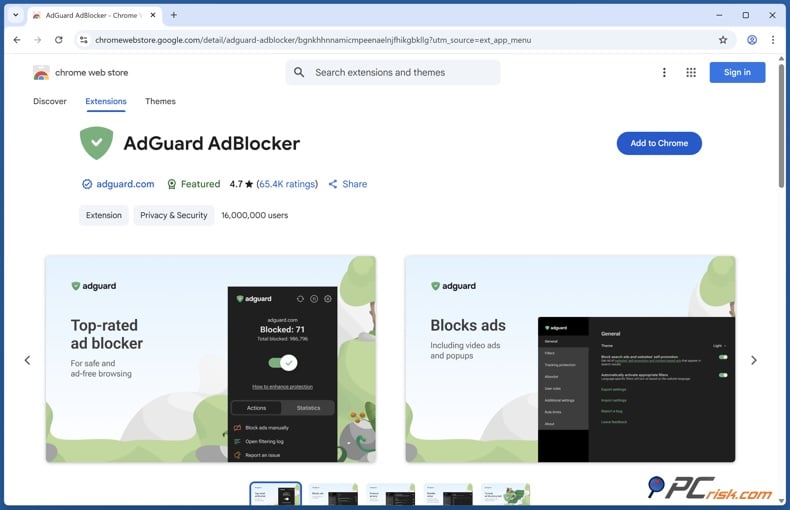
AdGuard - AdGuard is PCRisk’s top pick for 2026 because it blocks ads effectively, works on many platforms, and can filter ads across your whole system, not just in browsers. This helps Instagram users who switch between desktop, mobile, and apps.
Platform coverage and device limits
PCRisk lists availability across Windows, macOS, Linux, iOS, Android, and Android TV, with “3–9” devices depending on plan. AdGuard’s own licensing page describes personal licenses covering 3 devices and family licenses covering 9 devices, and notes that licenses are universal across supported operating systems.
Pros: PCRisk found that AdGuard works even better when you enable extra filters, such as “Social Media filters,” which help hide sponsored content in browsers. AdGuard also offers privacy features like Stealth Mode and HTTPS filtering, making it a complete privacy and ad-blocking tool, not just a basic extension.
Cons: On iOS, AdGuard may be limited largely to Safari content blocking or DNS-style filtering, and cannot universally block ads in every app the way it can on other platforms. On Android, you can set up system-wide filtering, but it may require extra steps. Overall, blocking ads in the Instagram app is difficult because ads are mixed with regular content.
Who should choose it
If you want one tool that works across several devices, like desktop and mobile browsers and some apps, AdGuard is usually the best option, especially if you use Instagram on different devices.
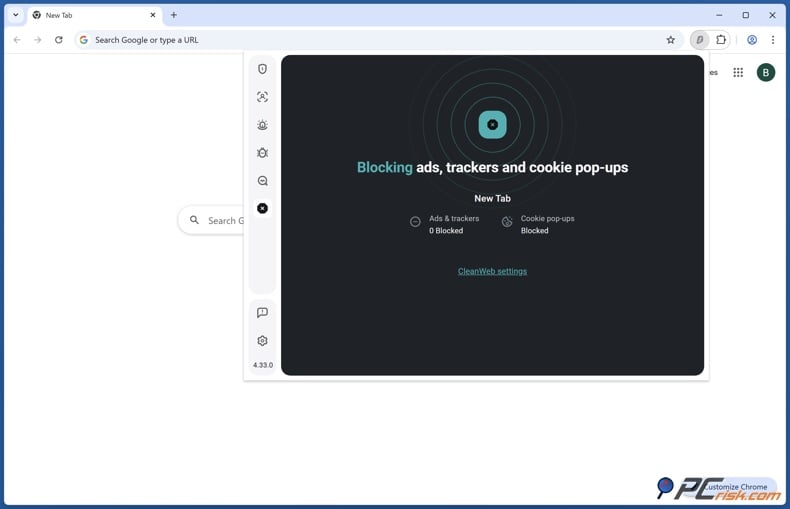
Surfshark CleanWeb - Surfshark CleanWeb is included with Surfshark’s VPN, not as a separate ad blocker. It is an all-in-one privacy tool that combines VPN protection, ad and tracker blocking, and harmful site blocking.
Platform coverage and device limits
It offers unlimited devices and availability across Windows, macOS, Linux, iOS, and Android. Surfshark’s documentation also describes broad device compatibility and emphasizes that you can use a single subscription across many device types.
Pros: CleanWeb can block ads and trackers when you use Instagram in a browser, which is helpful if you already have a VPN. People who value privacy often like having everything in one package.
Cons: PCRisk notes that you need a Surfshark subscription to use CleanWeb, and it doesn’t work well for ads inside the Instagram app. This is common for VPN and DNS-based blockers, since blocking in-app ads is a bigger technical challenge than just updating filter lists.
Who should choose it
CleanWeb is a good choice if you already plan to get Surfshark’s VPN and want ad and tracker blocking included, but keep in mind that the Instagram app will likely still show many ads.
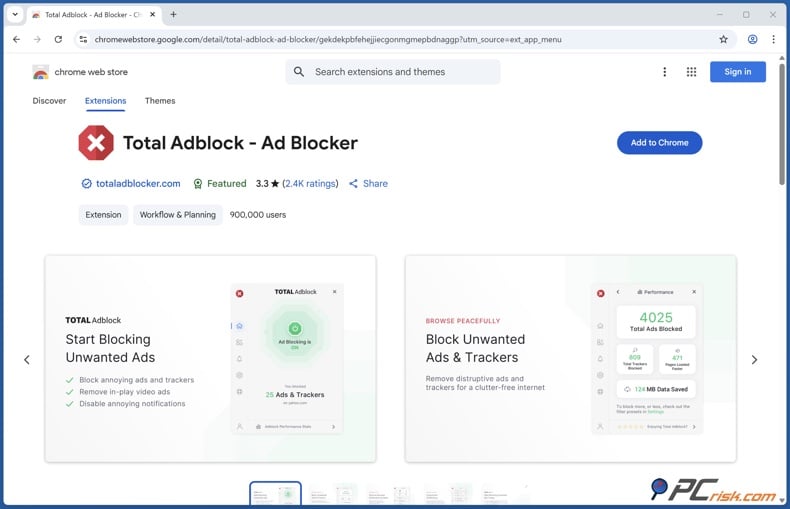
Total Adblock - Total Adblock is meant to be a simple, all-in-one solution for both desktop and mobile. PCRisk found it removes ads well in many situations and has an easy-to-use interface, even for people who aren’t tech-savvy.
Platform coverage and device limits
PCRisk lists Windows, macOS, iOS, and Android, with coverage for 6 devices.
Mobile behavior matters for Instagram
Total Adblock works differently depending on your device. On Android, it uses a local VPN to block ads system-wide, helping beyond just the browser. On iOS or iPad, it mainly blocks ads in Safari and can’t filter ads in other apps, so the Instagram app will probably still show ads.
Pros: If you use Instagram mostly in Safari on iPhone or iPad, or in a browser on desktop, Total Adblock can help reduce ads. On Android, its system-wide filtering can sometimes block in-app ads, but Instagram is still harder to block than many other apps.
Cons: Total Adblock starts cheap but gets much more expensive after the first year, and some users have trouble canceling or stopping auto-renewal. The company confirms that plans renew automatically unless you cancel. It’s a good deal at first, but it may not be the best long-term value if higher renewal prices are a concern.
Who should choose it
Total Adblock is a good choice if you want an easy solution for both desktop and mobile, can manage renewal settings, and are willing to use Instagram in a browser or Safari instead of only the app.
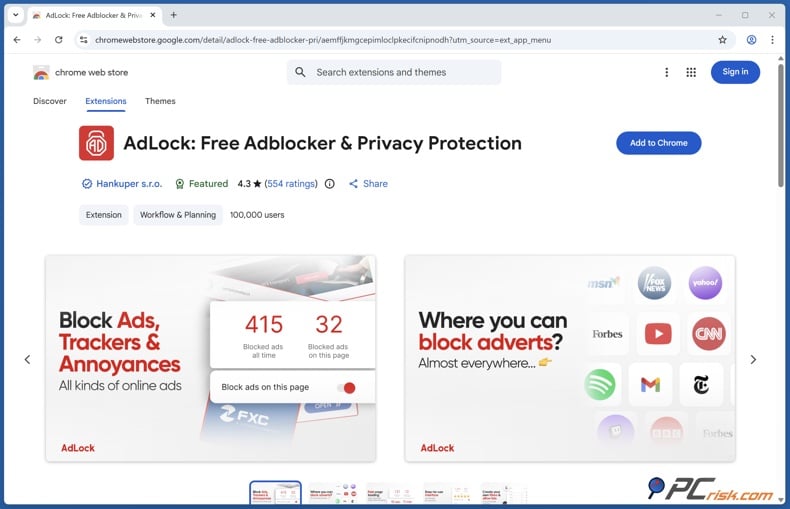
AdLock - AdLock is available as a free browser extension and a paid app for multiple platforms. PCRisk says it blocks many types of ads and also helps protect against phishing, malware, and tracking.
Platform coverage and device limits
PCRisk lists Windows, macOS, iOS, Android, and Android TV, and indicates 5 devices per license. AdLock’s own purchase page also states “5 devices per plan.”
Pros: AdLock’s system-wide blocking is helpful for people who want a single tool that covers more than just their browser. PCRisk found that its premium version can block ads in different apps, not just in browsers.
Cons: You can’t get AdLock’s Android app from Google Play, so you’ll need to install it manually. It also can’t run with other VPN-based services. Like other system-wide blockers, you might need to troubleshoot or whitelist sites if something stops working.
Who should choose it
If you want a paid app that works on several devices and blocks lots of ads, and you don’t mind fixing occasional issues, AdLock is a practical option, especially if you use Instagram in a browser and want extra protection for your devices.
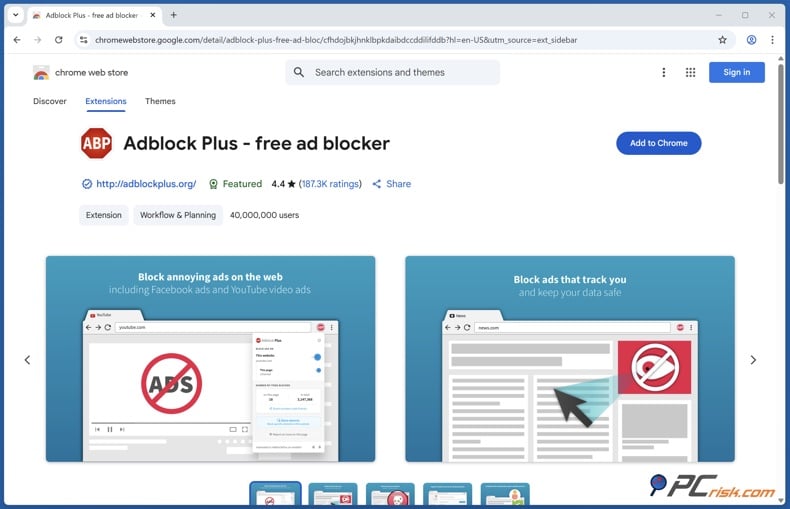
Adblock Plus - Adblock Plus is still one of the most popular ad blockers, available as browser extensions and mobile apps. PCRisk says it blocks many common ads right away and works on many platforms.
Platform coverage and device limits
PCRisk lists Windows, macOS, iOS, and Android, and notes unlimited device coverage (particularly relevant if you use it as a free extension across multiple browsers). On mobile, PCRisk explains that Android users typically use the Adblock Browser (a Chromium-based browser with Adblock Plus built in), while iOS users enable a Safari content blocker via the Adblock Plus app.
Pros: If you mostly use Instagram in a browser, Adblock Plus can remove many web ads and reduce tracking. For people who use Instagram on desktop, it can help hide or reduce sponsored posts, depending on how Instagram displays them.
Cons: PCRisk notes that Adblock Plus has “Acceptable Ads” enabled by default, so you might still see some ads unless you turn it off. Adblock Plus confirms that with default settings, you may see some non-intrusive ads, but you can opt out if you want.
Who should choose it
If you want a well-known ad blocker for your browser that’s easy to use, and you’re willing to check the settings (especially for Acceptable Ads), Adblock Plus is still a good choice for using Instagram in a browser.
How to Get Rid of Ads on Instagram Using Instagram’s Ad Settings
Instagram’s own settings won’t remove all ads, but they can help you see fewer repeat ads, avoid certain sensitive topics, and limit how much outside data is used to target you. This can make the ads you see less annoying and less personalized.
Hide, down-rank, or report individual ads
For one-off ads you don’t want to see, Instagram provides feedback tools directly in the ad. Instagram’s help documentation explains that you can open an ad’s options menu and choose “Not interested,” then select why you don’t like it.
This won’t remove all ads immediately, but it’s still helpful for ads you keep seeing. It tells Instagram directly that you don’t want to see that type of ad or advertiser.
Reduce specific ad topics
Instagram’s ad topic controls are one of the most user-friendly ways to tune ad exposure. Instagram help pages describe accessing Accounts Center → Ad preferences → Customize ads → Ad topics, then selecting topics to see fewer ads about.
A related help page specifically references the option to see fewer ads about social issues, elections, or politics via the same Ad preferences → Ad topics path.
There are two important things to remember:
“See less” doesn’t mean you’ll never see those ads. It just means you’ll see them less often, not that they’ll go away completely.
Ad controls don’t always work perfectly. Studies have found that even if you set your preferences, you might still see similar ads because the system isn’t always exact.
Limit ad personalization from “ad partners” (off-platform activity)
If you want to reduce targeting based on data that comes from other apps/sites that share information with Meta for advertising, Instagram provides a control for “Activity information from ad partners.”
Instagram help documentation describes the path as Accounts Center → Ad preferences → Manage info → Activity information from ad partners → Review.
You can choose “No” to stop Instagram from using partner activity data to make ads more relevant. This changes how you’re targeted, but it doesn’t mean you’ll see fewer ads overall.
Use “Why am I seeing this ad?” to understand targeting (and act smarter)
Instagram provides explanations for why you’re seeing ads from a specific advertiser. Instagram help pages describe that ad delivery may be influenced by profile information such as age, location, and gender, among other factors.
Meta has also described expanding “Why am I seeing this ad?” to provide more context about factors contributing to ad delivery and to connect users to controls.
These explanations won’t remove ads, but they can help you figure out which settings to change. For example, if you’re seeing ads based on a certain topic, you can choose to see less of that topic or turn off partner activity.
Consider the official ad-free subscription if you’re eligible
In some regions, Meta offers an official “Subscription for no ads.” Meta’s newsroom posts describe this as a paid option to use Facebook and Instagram without seeing ads, with pricing and availability varying by region (EU vs. UK) and by purchase method (web vs. mobile app store).
Here are two things to keep in mind:
Even if you pay for a “no ads” subscription, Meta says you might still see posts and branded content from businesses or creators you follow.
If you use Instagram for free in some regions, you can choose “less personalized ads,” but Meta warns these ads may be less relevant and you might see short ad breaks.
If you have a professional account, brand controls, and placement controls
Some ad controls are designed for creators/businesses rather than for regular viewers.
All About Cookies explains that “brand controls” and “opt-out” options affect ads shown on your content as a creator, rather than the ads you see while browsing as a user.
Instagram help content also references creator/business tools such as Ad placements and controls like “Ads in profile feed” and “Ads on Reels,” which are tied to professional account settings.
How We Test Adblockers for Instagram
At PCRisk, we don’t just trust marketing or download numbers. We test ad blockers ourselves on real websites and special test pages that show different types of ads and scripts.
Block Instagram Ads with AdGuard
We focus on several key areas that are important for Instagram users:
Ad-blocking effectiveness: We test all major ad types, like banners, pop-ups, video ads, and overlays, and see which ones get through. Some ads change quickly or are built into content, so no blocker is perfect.
Tracker and script blocking: We check how well each tool blocks tracking scripts, like social media pixels and ad beacons, without breaking websites. We also look at how they handle cookies and fingerprinting, since ad blockers often help protect your privacy too.
Speed and performance: A good blocker should make browsing faster by stopping heavy ad scripts. If it slows down your device or makes browsing unstable, we consider that a problem.
Compatibility and ease of use: We check if the blocker works on different devices and browsers, how easy it is to install, how clear the interface is, and how simple it is to whitelist sites or turn off blocking if needed.
Security: PCRisk assesses how well an ad blocker blocks dangerous sites and phishing links, since ads can sometimes be used to spread scams or malware.
For Instagram, we pay special attention to where the blocker works, whether just in the browser or across your whole device. It’s much easier to block Instagram ads in a browser, but much harder in the app, where ads are mixed with regular content.
Can Instagram Ads Be Dangerous
Most Instagram ads are real marketing, but that doesn’t always mean they’re safe. Ads attract scammers because they can reach many people and seem trustworthy.
Malvertising is a well-documented tactic in cybersecurity: attackers hide or distribute malicious content via online ads, redirecting users to unsafe pages or attempting drive-by infection chains.
Looking for more protection when you browse Instagram or other sites? Combo Cleaner blocks annoying ads and also spots dangerous websites, phishing scams, and unwanted apps as you surf. It’s an easy way to cut down on ads and stay safer online.
A VPN encrypts your traffic — but your device still needs protection against malware and ransomware. Combo Cleaner adds the missing layer of defense.
Download Combo CleanerAntivirusDetect & remove malware threats→Meta itself has publicly discussed large-scale anti-scam enforcement. In March 2026, Meta stated that in 2025, it removed over 159 million scam ads and took down 10.9 million accounts associated with scam centers, emphasizing how industrialized scam operations have become.
This matters for regular users because scam ads often don’t look suspicious. Many are just convincing offers or messages, such as:
- A fake product offer that leads to a payment page.
- An “investment opportunity” that moves you into messaging apps and uses social engineering. News reports from early April 2026 warn about investment scams on Meta platforms and highlight tactics like impersonation and pressure to act quickly.
- A phishing page designed to steal credentials (“log in to claim your reward,” “verify your account,” etc.). Meta’s own anti-phishing guidance repeatedly advises not clicking suspicious links or attachments and to be cautious about messages claiming to be from Meta/Instagram.
While an ad blocker isn’t a complete security solution, it can help by blocking some dangerous ads and known bad sites, especially on the web. It adds an extra layer of protection against scams and malware.
Good safety habits are still important, even if you use an ad blocker:
- Treat “too good to be true” offers as a red flag (deep discounts, giveaways, guaranteed returns).
- Avoid logging in via links embedded in ads; navigate to official apps/sites directly.
- If an ad tries to move you off-platform (WhatsApp/Telegram/DMs) quickly, slow down and verify independently.
Final Thoughts
In 2026, you can still reduce ads on Instagram, but there’s no one-size-fits-all solution. The best approach is to choose the right tool for how you use Instagram:
If you use Instagram in a web browser, ad blockers are still the best way to hide or remove ads. They can block ad requests and hide ad elements on the page.
If you mostly use the Instagram app, blocking ads is harder because they look like regular content. In-app ad blocking doesn’t always work, so the most reliable way to remove ads may be to pay for a “no ads” subscription if it’s available in your region.
For most people who just want fewer ads and less risk, here’s a balanced recommendation for 2026:
Pick one of PCRisk’s top ad blockers as your main web protection. Choose the one that fits your devices and the amount of setup or renewal effort you’re comfortable with.
Use Instagram’s ad settings to hide ads you don’t like, reduce ads about sensitive topics, and limit how much outside data is used for targeting.
Don’t forget about security: seeing fewer ads also means fewer chances for scams or malicious links, even if you never click on them.
Frequently Asked Questions (FAQs)
Can I turn off all Instagram ads for free?
Instagram’s built-in settings can help you hide specific ads, tune ad topics, and reduce certain targeting signals, but they are not positioned as a global “turn off all ads” switch. Multiple guides note that settings typically change the type of ads rather than eliminating them entirely.
Do ad blockers work inside the Instagram mobile app?
Sometimes they may reduce certain web-view or third-party ad calls, but the Instagram app is one of the hardest environments for ad blockers. Technical explanations note that ads can be delivered using the same infrastructure as normal content, and browser extensions can’t operate inside a native app the same way they do on web pages.
If I subscribe to “no ads,” will I see zero promotional content?
Meta help content indicates that, even with a subscription for no ads, you may still see posts and other branded content from businesses and creators, including content from brands/creators you follow.
Why do ads on Instagram look like normal posts?
Instagram uses native ad formats designed to blend into the feed experience, which is why they often resemble regular posts. Guides describing Instagram ad behavior explicitly call out that sponsored/native ads are meant to look similar to standard content while still being labeled.
How do I tell Instagram I’m not interested in an ad?
Instagram help documentation describes selecting the options menu on the ad and choosing “Not interested,” then optionally selecting a reason. This feedback can be used to tune what you see.
How do I reduce ads related to sensitive topics?
Instagram’s Ad topics settings allow you to choose to see fewer ads related to specific categories, including social issues, elections, or politics (where supported). The path runs through Accounts Center → Ad preferences → Ad topics.
How do I reduce targeting based on “activity from ad partners”?
Instagram help documentation describes a control under Accounts Center → Ad preferences → Manage info → Activity information from ad partners, where you can review and adjust whether this information is used to make ads more relevant.
Which PCRisk-reviewed ad blocker is best for multiple devices?
For multi-device households, the most important factors are cross-platform availability and device limits. PCRisk’s 2026 list highlights varying device coverage across products (for example, AdGuard’s 3–9 devices, depending on plan; Total Adblock’s 6 devices; AdLock’s 5 devices; and Surfshark’s “unlimited devices” model included with the VPN subscription).
Are Instagram ads actually a security risk, or just annoying?
Both. Many ads are harmless marketing, but malvertising is a recognized technique for distributing malware and scams through advertising ecosystems. Meta has also publicly discussed removing large volumes of scam ads and scam-linked accounts in 2025, underscoring that ad abuse is not hypothetical.
Share:
 Facebook
 X.com
X.com
 LinkedIn
 Copy Link

Rimvydas Iliavicius
Researcher, author
Rimvydas is a researcher with over four years of experience in the cybersecurity industry. He attended Kaunas University of Technology and graduated with a Master's degree in Translation and Localization of Technical texts. His interests in computers and technology led him to become a versatile author in the IT industry. At PCrisk, he's responsible for writing in-depth how-to articles for Microsoft Windows.
▼ Show Discussion